Tag: slide design

25 Apr 2026
Executive Slide Design: What Board-Level Presentations Actually Look Like — featured image

Executive Slide Design: What Board-Level Presentations Actually Look Like

Quick Answer

Executive slide design follows three principles that most corporate presentations ignore: recommendation-first structure, visual hierarchy that guides the eye to the decision, and restraint that treats empty space as a signal of confidence rather than missing content. Board-level slides look different from working-level slides because they serve a different purpose — they exist to support a decision, not to document research.

Henrik had spent two weeks building a fifty-two-slide deck for his division’s strategy presentation to the CEO. Every slide was dense with analysis. Charts, tables, footnotes, appendices — the kind of thorough documentation that had earned him promotions throughout his career as an analyst.

The CEO stopped him on slide four.

“What are you recommending?” she asked. Henrik explained that the recommendation was on slide thirty-eight, after the market analysis, competitive landscape, financial modelling, and risk assessment. The CEO looked at the COO. “Can someone send me a one-pager?” The meeting ended twelve minutes early.

Henrik’s analysis was excellent. His slide design was wrong for the audience. He had built a research document and presented it as a decision tool. At the executive level, these are fundamentally different artefacts — and the design principles that make one effective actively undermine the other.

Designing slides for a board or C-suite presentation?

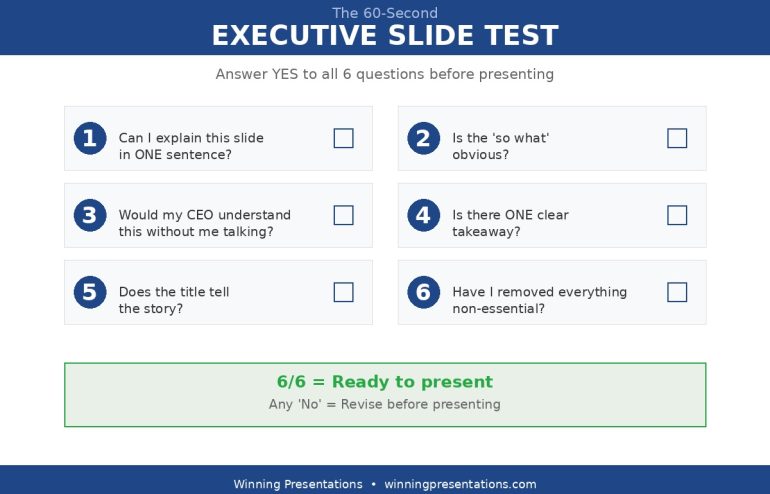
Before you add another chart or bullet list, check whether your slides are designed for the audience in the room. Quick pressure test:

  • Can a decision-maker grasp each slide’s point in under eight seconds?
  • Does your recommendation appear in the first three slides, not the last three?
  • Is there enough white space that each slide looks intentional, not overcrowded?

Explore the Executive Slide System →

Why Most Executive Slides Look Wrong for the Room They Are In

The default approach to executive slide design is to compress a working-level presentation into fewer slides. Take the forty-slide analyst deck, consolidate the content into fifteen slides, increase the font size slightly, and call it “board-ready.” This approach produces slides that are neither thorough enough for analysts nor clean enough for executives. They sit in an awkward middle ground that satisfies nobody.

The problem is conceptual, not aesthetic. Working-level slides are designed to document analysis — they show the work, justify the methodology, and present data in granular detail. Executive slides are designed to support decisions — they present recommendations, evidence, and trade-offs in a format that enables a room of senior people to say yes, no, or ask one clarifying question.

These are different design jobs. A working-level slide might contain a detailed waterfall chart showing quarterly revenue by product line, region, and customer segment. An executive slide covering the same topic would show total revenue against target with a single sentence explaining the variance. The analyst’s slide answers “what happened in detail?” The executive’s slide answers “are we on track, and if not, what should we do about it?”

When you design executive slides using working-level principles — more data, more detail, more backup — you force decision-makers to do analytical work they neither have time for nor expect to do. The slide becomes a reading exercise rather than a decision-support tool. And in a boardroom, reading exercises lose the room within minutes.

For a comprehensive look at how to structure an executive-level deck from start to finish, see our guide to executive presentation templates.

Recommendation-First Design: Putting the Answer Before the Evidence

The most important design principle for executive presentations is structural: the recommendation comes first, not last. This contradicts the logical progression most presenters learned in school and reinforced throughout their careers — build the case, present the evidence, arrive at the conclusion. At the executive level, that sequence is inverted.

Decision-makers want to know your recommendation within the first two minutes of the presentation. Not because they do not value the analysis, but because knowing the recommendation changes how they process everything that follows. If they know you are recommending Option B, they listen to your analysis through the lens of “does this evidence support that recommendation?” If they do not know the recommendation, they listen to your analysis through the lens of “where is this going?” — which is cognitively exhausting and emotionally frustrating.

In practical slide design terms, recommendation-first means your second or third slide states your recommendation in plain language. “We recommend expanding into the APAC market in Q3, with an initial investment of £2.4 million, targeting breakeven within eighteen months.” One slide. One sentence. One clear ask.

Everything after that slide is evidence, context, and risk analysis that supports the recommendation. The audience is no longer guessing where you are heading — they are evaluating whether your evidence is strong enough to justify your conclusion. That is a much more productive use of everyone’s time.

This structure also changes the Q&A dynamic. When the recommendation is visible early, questions during the presentation become more focused and more useful. Instead of “what’s your recommendation?” at slide thirty-eight, you get “how confident are you in the eighteen-month breakeven timeline?” at slide five. The second question is more valuable for everyone in the room.

Need Board-Ready Slides, Not Another Template Gallery?

Most slide templates give you layouts. The Executive Slide System — £39, instant access — gives you the decision-support frameworks that make executive presentations work:

  • Slide templates structured for recommendation-first executive communication
  • AI prompt cards to convert analyst-level data into board-level visual hierarchy
  • Scenario playbooks for board meetings, steering committees, and C-suite briefings
  • Executive summary frameworks designed for eight-second comprehension

Get the Executive Slide System → £39

Designed for executives and their teams who present to boards, steering committees, and C-suite leaders.

Visual Hierarchy for Decision-Makers Who Read Slides in 8 Seconds

Research on executive attention suggests that senior decision-makers spend approximately eight seconds on a slide before deciding whether it warrants further attention. In that eight seconds, they scan for three things: the point of the slide, the evidence that supports it, and whether they need to ask a question. Your visual hierarchy must deliver all three in that window.

The practical framework for executive visual hierarchy uses three tiers:

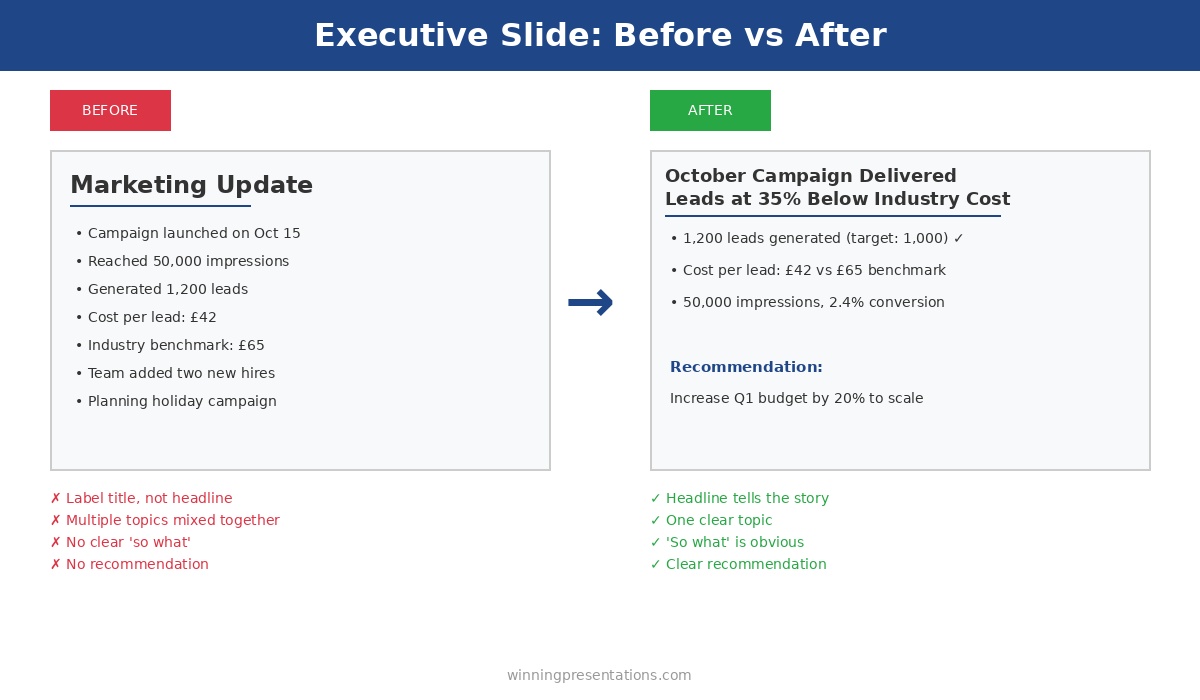
Tier 1: The headline (read in 1-2 seconds). Every slide should have a single-sentence headline that states the point of the slide — not a label, but a conclusion. “European Revenue Exceeded Target by 12%” is a conclusion. “European Revenue Q1 2026” is a label. Conclusions tell the decision-maker what to think about. Labels ask them to figure it out themselves. Use a large, bold font (minimum 24-point in a standard 16:9 slide) in a colour that contrasts clearly with the background.

Tier 2: The evidence (absorbed in 3-4 seconds). One chart, one data visualisation, or one three-to-four-bullet summary that supports the headline. Not two charts. Not a chart and a table. One piece of evidence, designed to be absorbed in a glance. If your evidence requires reading, it belongs in a pre-read document, not on a projected slide. Choose the visualisation type that communicates the point most quickly: bar charts for comparison, line charts for trends, tables only when exact numbers matter more than patterns.

Tier 3: The annotation (noticed in 1-2 seconds). A single line of context that answers the most likely question the audience will have after reading the headline and evidence. “Driven primarily by the Deutsche Bank contract signed in February” or “Represents a 3% improvement on the same period last year.” This annotation pre-empts the obvious question and saves time in discussion.

If you are designing slides for executives who make decisions quickly, the Executive Slide System (£39) provides the visual hierarchy frameworks and templates designed for exactly this three-tier approach.

The Restraint Principle: Why Less Content Signals More Authority

The instinct to fill every slide with content comes from a reasonable fear: that empty space looks like missing information. At the working level, this fear is sometimes justified — a sparse slide might genuinely indicate incomplete analysis. At the executive level, the opposite is true. A sparse slide signals that you have done the analytical work, made the judgement calls, and distilled the complexity down to what matters.

White space on an executive slide communicates three things: confidence in the recommendation, respect for the audience’s time, and mastery of the subject matter. When you leave space around a single chart and a clear headline, you are implicitly saying, “I know this topic well enough to tell you only what you need.” When you fill the slide with caveats, footnotes, and secondary data, you are saying, “I’m not sure what matters here, so I’m showing you everything.”

Practical restraint in board-level slide design means following a set of constraints:

One point per slide. If you cannot state the slide’s contribution to the argument in a single sentence, the slide is doing too many things. Split it or cut it. A twelve-slide deck where each slide makes one clear point is more effective than a six-slide deck where each slide makes three muddled ones.

Maximum three bullet points. If you have more than three supporting points, you have not prioritised ruthlessly enough. Rank them and present the top three. Move the rest to an appendix for anyone who wants the detail.

No decorative elements. Clip art, stock photography, gradient backgrounds, and animated transitions do not help executives make decisions. They add visual noise that competes with the content for attention. A clean, flat design with consistent typography and a restrained colour palette looks more authoritative than a “professionally designed” template with graphic embellishments.

Consistent typography. Use two fonts maximum — one for headlines, one for body text. Keep sizes consistent across slides. Inconsistent typography creates a subconscious sense of disorder that undermines the audience’s confidence in the presenter. If your slides look disorganised, the assumption is that your thinking is disorganised.

For detailed slide structure guidance tailored to board-level presentations, see our comprehensive framework for board presentation structure.

Five Slide Design Mistakes That Damage Executive Credibility

These five errors appear repeatedly in presentations delivered to boards, steering committees, and C-suite leaders. Each one is avoidable, and each one carries a credibility cost that exceeds the effort required to fix it.

1. Conclusion on the last slide. Saving the recommendation for the end works in academic presentations and courtroom dramas. In executive settings, it frustrates the audience and often means the recommendation never gets discussed — the meeting runs out of time because forty minutes were spent on background that should have been a pre-read. Move the recommendation to slide two or three.

2. Reading the slide aloud. If your speaking notes are identical to the text on the slide, the slide is a script, not a visual aid. Executives can read faster than you can speak. The moment they finish reading your slide — which takes about five seconds — they are waiting for you to add something the slide does not say. If you add nothing, the slide is redundant and so are you. Design slides that complement your narration, not duplicate it.

3. Charts without interpretation. A chart without a headline is an assignment, not a communication. It says to the audience: “Here is some data. Please analyse it and draw your own conclusions.” Executives do not want assignments. They want your interpretation. Every chart should have a headline that states what the chart means, not what the chart shows.

4. Inconsistent formatting across slides. Mixed fonts, varying alignment, different colour usage across slides, and inconsistent spacing signal a deck assembled from multiple sources without editorial oversight. Even if the content is strong, formatting inconsistency creates a perception of carelessness. Use a single master template and enforce it across every slide.

5. Appendix as a safety net. Including twenty appendix slides “just in case” is a sign that you have not decided what matters. A good appendix contains three to five slides that address the most likely technical questions. A bad appendix contains everything you cut from the main deck because you were not confident enough to leave it out entirely. If you would not present a slide under any circumstances, do not include it.

Stop Designing Slides That Get Interrupted on Page Four

The Executive Slide System — £39, instant access — gives you the board-ready templates and visual hierarchy frameworks that make designing executive presentations straightforward. Build recommendation-first decks that decision-makers can act on in one meeting.

Get the Executive Slide System → £39

Designed for professionals who present to boards, steering committees, and C-suite executives.

Frequently Asked Questions

How many slides should an executive presentation have?

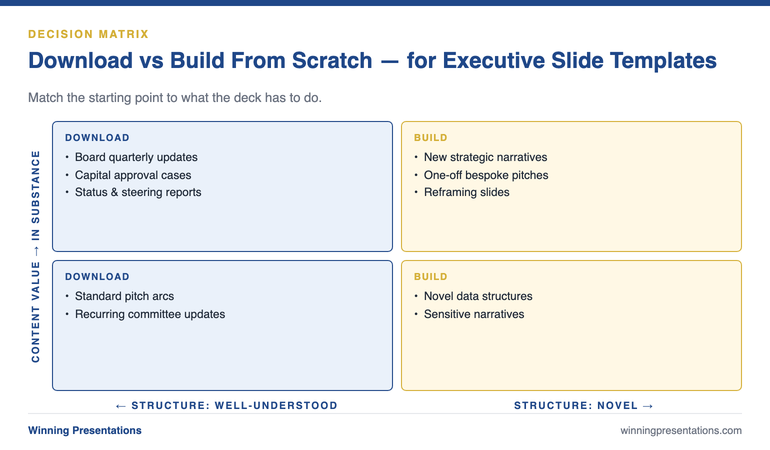
Most effective executive presentations use ten to fifteen slides for a thirty-minute meeting, including one or two appendix slides for anticipated questions. The number matters less than the discipline: one point per slide, recommendation in the first three slides, and no slide that exists solely to demonstrate how much work went into the analysis. If your deck exceeds fifteen slides, ask whether every slide supports the decision the audience needs to make. Remove anything that serves your need to show thoroughness rather than their need to make a judgement.

What font and colour scheme works best for executive slides?

Use two fonts — one sans-serif for headlines (such as Calibri, Helvetica, or Inter) and one for body text (the same font at a smaller size works well). Avoid decorative or script fonts entirely. For colours, limit yourself to three: a dark primary colour for text and backgrounds, a contrasting accent colour for key data points and highlights, and white for negative space. Navy and gold is a classic executive palette. The goal is consistency and readability, not visual interest — the content provides the interest.

Should I use animations and transitions in executive presentations?

No. Animations and slide transitions add presentation time without adding decision value. They also create technical risk — transitions that work on your laptop may render differently on a boardroom projector, and animation timing often breaks when someone interrupts to ask a question mid-build. Use simple appear/disappear builds only when you need to reveal information sequentially to control the narrative. Otherwise, static slides are faster, more reliable, and look more professional to a senior audience.

How do I convert an analyst deck into an executive presentation?

Do not try to compress the analyst deck — build the executive deck separately, from scratch. Start with the recommendation, then identify the three to four pieces of evidence that most strongly support it. Each piece of evidence becomes one slide with a conclusion headline, one data visualisation, and one annotation line. Move the remaining analytical detail into a pre-read document or a short appendix. The executive deck and the analyst deck serve different purposes and should be designed independently, not derived from each other.

The Winning Edge — Weekly Presentation Intelligence

Every Thursday, I share one framework, one real-world example, and one practical technique drawn from 24 years of presenting in boardrooms across three continents. Join The Winning Edge newsletter →

Not ready for the full system? Start here instead: download the free Executive Presentation Checklist — a one-page reference covering the structure, visual hierarchy, and critical design elements every board-level presentation needs.

Great slides only work if you can deliver them with composure. See our guide to the presentation warm-up routine that calms your nervous system before you walk into the boardroom.

About the Author

Mary Beth Hazeldine is the Owner & Managing Director of Winning Presentations. With 24 years of corporate banking experience at JPMorgan Chase, PwC, Royal Bank of Scotland, and Commerzbank, she advises executives across financial services, healthcare, technology, and government on structuring presentations for high-stakes funding rounds and approvals.

Book a discovery call | View services

28 Mar 2026
Professional investor update presentation setting with financial charts displayed on a presentation screen

Investor Update Presentation: How to Structure for Confidence and Clarity

An investor update presentation that feels like an afterthought — slides thrown together the night before, metrics scattered across pages without clear narrative — creates doubt. Not about your numbers, but about your leadership. If you can’t present your own progress clearly, why should investors believe you’ll execute the next milestone?

Luisa had been CEO of a Series B fintech company for eighteen months. Her first three investor updates went well — the metrics were strong, the story was straightforward, and investors responded with enthusiasm. Then Q3 arrived. Growth slowed. Churn ticked up in the enterprise segment. Two key hires fell through.

Luisa’s instinct was to front-load the presentation with context. She built a 22-slide deck explaining market headwinds, competitive pressure, hiring delays, and product timeline shifts. She spent four days building it. When she presented to her lead investor, he interrupted on slide six: “Luisa, what’s the one number I should care about this quarter?”

She didn’t have an answer. She had 22 slides of explanation but no clarity on the single metric that defined Q3’s story. The investor said something she never forgot: “I don’t need you to explain the weather. I need to know if you can still steer the ship.”

The following quarter, Luisa restructured her entire update around five slides. She led with one number — net revenue retention — and built the narrative around it. The meeting lasted twelve minutes. Her investors asked better questions. She left feeling like a leader, not a defendant.

If you want a structured approach to investor updates that keeps your leadership position strong without requiring hours of design work, there’s a framework built specifically for this scenario.

Explore the System →

Why Investor Updates Demand Structure

Investors expect investor updates to do three things simultaneously: show progress against targets, demonstrate competent leadership, and build confidence in future execution. Most founder presentations try to do all three by showing every metric, every initiative, every team expansion.

That approach backfires. When investors see a wall of metrics without a clear narrative thread, they don’t think “thorough.” They think “scattered.” They wonder whether you’re managing the business or whether the business is managing you.

The difference between an investor update that builds confidence and one that creates anxiety isn’t the quality of your progress. It’s the clarity of your storytelling. You’re not presenting data. You’re presenting your leadership through the lens of how you explain progress.

The Core Framework: Five Slides That Matter

Strip away the noise. Every investor update needs exactly five core slides before you move into scenario-specific content (product roadmap, hiring progress, financial detail). These five form the foundation.

Slide 1: The One Number That Defines This Quarter. Not your headline metric surrounded by seventeen other metrics. One number. Revenue growth. User acquisition. Runway months. Pipeline expansion. Choose the single metric that best answers “Are we on track?” Everything else is supporting detail. Investors remember three things: the one number you led with, one question they asked, and their gut feeling about your leadership. Don’t waste the first slot on clutter.

Slide 2: The Gap Between Plan and Reality. If you’re tracking against a plan, show it. Not in a chart buried on page 8. Show plan vs. actual for your top three business drivers. If you’re ahead, own it (briefly). If you’re behind, show what changed and what you’re doing about it. Investors don’t penalise you for missing targets. They penalise you for missing targets and pretending everything’s fine.

Slide 3: One Major Win. One Major Problem. Investors want to understand your leadership judgment. What did you get right? What surprised you? This isn’t about balance or positive framing. It’s about demonstrating that you’re seeing clearly, even when things don’t go as planned. A founder who can articulate both the win and the problem comes across as realistic.

Slide 4: What You’re Building Next. This is the forward-looking commitment. What’s the next milestone? What’s the risk if you don’t hit it? Investors are funding your future execution, not your past performance. Show that you’ve thought through what’s next.

Slide 5: What You Need From Investors (Beyond Money). Are you asking for an introduction? A specific skill in the room? This shows intentionality. It shows you’re thinking of investors as partners, not ATMs.

Investor update presentation dashboard showing five core slides, forward focus ratio, clear ask, and target length

Need the Templates for These Five Slides?

The Executive Slide System includes investor update templates built for exactly this structure: a cover slide that anchors your narrative, the five core slides above, Q&A preparation frameworks, and recovery patterns for when a question throws you off balance. Templates are structured so you can fill in your own metrics and narrative, rather than starting from scratch.

Designed for founders and investor relations leaders facing recurring investor presentations.

Get the System (£39)

The Progress-to-Vision Ratio

A common mistake: spending 90% of your update on last quarter’s metrics and 10% on what comes next. Investors already know your historical performance — they invested, they track you, they see your dashboards. They’re listening to understand your vision and how you’re steering toward it.

Rebalance. Aim for roughly 70% forward focus — most of your time on pipeline, next milestones, and strategic direction — and 30% on what happened last quarter. This is the ratio that signals executive confidence. You’re saying: “We understand last quarter. Now let’s talk about where we’re going.”

This ratio shifts investor psychology in a measurable way. When you talk about pipeline and next milestones for the majority of your time, investors stop evaluating your past and start engaging with your future. They ask forward-looking questions instead of forensic ones. The conversation moves from “What went wrong?” to “How do we accelerate what’s working?” — which is exactly the conversation you want.

There’s a practical reason this works: investors who spend most of the meeting looking backwards leave feeling uncertain. Investors who spend most of the meeting looking forward leave feeling aligned. Alignment is what generates follow-on funding decisions, introductions, and patience when a quarter doesn’t land perfectly.

The Confidence Signal Every Investor Watches

Investors claim they care about your metrics. They’re lying to themselves. What they’re actually assessing is this: Does this founder understand what’s really happening in their business?

You signal this through specificity, not scale. A founder who says “Churn upticked in the SMB segment from 4.2% to 5.8% because of product feature delays, and we’ve scheduled engineering for this by end of Q2” sounds like they know their business. A founder who says “We had some churn this quarter due to market conditions” sounds like they’re guessing.

Your investor update is a leadership test. Answer with specifics. Own the gaps between plan and reality. Show that you see what’s happening, not just what you hoped would happen. That moves the needle on investor confidence more than hitting a number by luck.

Contrast panel comparing trust-eroding versus trust-building investor update approaches

The contrast between investor updates that erode trust and those that build it comes down to three dimensions. The first is metrics. Trust-eroding updates lead with vanity numbers — total users, gross revenue, page views — presented without context or trend. Trust-building updates lead with driver metrics linked directly to the growth thesis: net revenue retention, qualified pipeline growth, unit economics improvement. Driver metrics tell the investor whether the engine is working. Vanity metrics tell them you’re trying to impress rather than inform.

The second dimension is narrative. Trust-eroding updates are reactive — a report on what happened, structured as a backward-looking summary. Trust-building updates are proactive — a story that connects progress to vision. “We grew ARR by 18% this quarter because our enterprise onboarding improvements shortened time-to-value, which validates our thesis that faster adoption drives expansion revenue.” That’s not a data point. That’s a narrative connecting execution to strategy. Investors fund narratives, not data points.

The third dimension is confidence. Trust-eroding updates avoid bad news until asked directly — burying problems in appendices or hoping investors don’t notice. Trust-building updates lead with risks and your mitigation plan. When you surface problems before investors discover them, you demonstrate control. When they discover problems you didn’t mention, you demonstrate either blindness or dishonesty. Neither is recoverable in the next funding round.

Handling the Questions You Dread

Most founder Q&A sessions falter because the founder hasn’t anticipated what investors actually want to know. They prepare for friendly questions and get blindsided by the hard ones.

Before your investor update, ask yourself: What question would destroy investor confidence if I stumbled on the answer? What metric would they ask about that I don’t have? What assumption in my plan are they most likely to challenge?

Prepare a one-sentence answer for each. Not a deflection. An honest, brief acknowledgment followed by your plan to address it. “Churn is higher than we modelled in March. We’ve identified the cause — delayed feature releases for the SMB segment — and we’re restructuring engineering capacity to fix this by end of Q2.”

That answer demonstrates: you’re paying attention, you understand root cause, you have a timeline, you’ve thought through the fix. That’s all an investor needs to hear.

The Timing Rhythm That Builds Trust

Consistency matters more than perfection. An investor who receives a quarterly update on the same day each quarter, structured the same way, with the same lead metrics highlighted, develops trust in your leadership.

Set a cadence: first Friday of each quarter, same time, same format. Investors will begin to expect it and to trust the rhythm. That rhythm becomes part of how they assess your execution capability.

The alternative — sporadic updates, format changes, surprise metrics — signals that you’re scrambling, not steering. Investors don’t invest in scrambling.

If you’re building your investor update and want templates that maintain this consistency quarter after quarter, the Executive Slide System includes investor update slide structures with the five-slide framework already built in, plus AI prompt cards to customise them for your metrics.

Want a Presentation System That Handles the Variability?

The Executive Slide System includes quarterly update templates that adapt to your metrics but maintain consistent structure. You can spend less time on design and more time on narrative clarity.

Designed for investor relations leaders, founders, and executives managing recurring board or investor presentations.

Explore the System (£39)

Questions Founders Ask About Investor Updates

How long should an investor update presentation be?
Fifteen minutes maximum, including Q&A. Your core narrative — the five slides — should take seven to eight minutes. The remaining time is for questions and discussion. Investors lose focus after fifteen minutes. If your update takes longer, you’ve over-communicated. Respect their time and they’ll respect your leadership.

Should I include financial projections in my investor update?
Only if your plan has changed materially since the last update. If you’re tracking against the original plan, reference the variance rather than reprinting the whole forecast. New projections signal that something fundamental shifted — make that the story of the update, not a background slide.

What happens if I miss a quarterly target?
Lead with it. Don’t bury it on slide 8 and hope investors don’t notice. Show what you missed, why it missed, and what you’re doing differently. Investors can tolerate missed targets. They cannot tolerate founders who hide them.

How do I handle an investor who pushes back on my plan?
Listen first. Understand what assumption they’re challenging. Then respond with specificity. “That’s a fair question. We’ve modelled for 12% growth because [reason]. If we see [trigger], we’ll pivot to [alternative].” You don’t have to agree. You have to show you’ve thought it through.

More on Investor-Facing Presentations

See also: Steering Committee Presentations: How to Drive Decisions Instead of Status Updates for handling internal board and governance scenarios with the same clarity framework.

Join The Winning Edge Newsletter

Get structure-first presentation insights delivered to your inbox. Real frameworks, no fluff.

Subscribe to The Winning Edge →

Not ready for templates yet? Start with the free checklist.

Download the Executive Presentation Checklist →
Free. Covers 16 structural elements every executive presentation needs.

Your next investor update is an opportunity to reinforce why they funded you in the first place: your ability to see clearly and steer intentionally. Structure your presentation that way.


Mary Beth Hazeldine is Owner & Managing Director of Winning Presentations. With 24 years of corporate banking experience at JPMorgan Chase, PwC, Royal Bank of Scotland, and Commerzbank, she advises executives across financial services, healthcare, technology, and government on structuring presentations for high-stakes funding rounds and approvals.

11 Mar 2026
Executive standing at a glass boardroom table with a single clean slide projected on the wall, navy and gold tones, professional corporate environment

The Quarterly Forecast Slide Everyone Dreads Building (Simplified to 20 Minutes)

The CEO stopped the presenter on slide 4. “Start over,” she said. “But start with the decision.”

The presenter — a VP of Finance at a FTSE 250 firm — had spent two full days building a quarterly forecast deck. Fourteen slides of revenue projections, pipeline assumptions, risk scenarios, headcount impact modelling, and regional breakdowns. He thought he was being thorough. The CEO thought he was wasting her time.

Four words changed how he built every forecast slide after that: “What do you need from me?”

That’s the question your quarterly forecast presentation simplified to its core is really answering. Not “here’s what the numbers say.” But “here’s what you need to decide, and here’s the data that gets you there.”

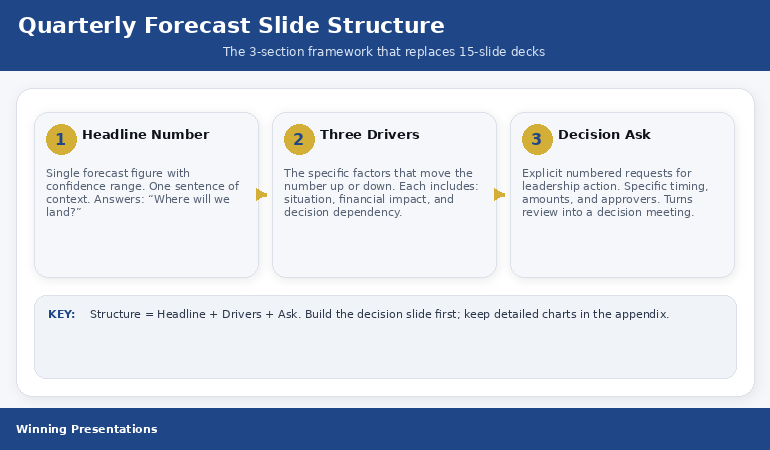
Quick answer: The quarterly forecast slide that executives actually use has three sections: the Headline Number (where you’ll land, expressed as a single figure with a confidence range), the Three Drivers (the specific factors that move the number up or down), and the Decision Ask (what you need from leadership to hit the better end of the range). Most teams bury these three things inside 15 slides of supporting data. Pull them onto one slide. It takes 20 minutes once you know the structure.

📋 Building a quarterly forecast presentation this week? The Executive Slide System (£39) includes the QBR template with the exact 3-section forecast structure — plus AI prompts to populate each section from your data in minutes.

I’ve reviewed quarterly forecast presentations across banking, technology, pharmaceuticals, and professional services for more than two decades. The pattern is the same in every industry.

Someone on the finance team spends hours pulling data from three systems, building charts that show quarter-over-quarter trends, adding commentary boxes that explain every variance, and layering in scenario models that account for best case, worst case, and “realistic” case. The deck runs to 12-18 slides. The meeting runs to 45 minutes. The executive team asks two questions. Both of them could have been answered from a single, well-structured slide.

The problem isn’t the data. The problem is that most quarterly forecast slides are built to defend rather than decide. They’re designed to show how much work went into the analysis. Executives don’t care about the work. They care about where the number lands and what they need to do about it.

Here’s the structure that changes that — and yes, you can build it in 20 minutes once you’ve done it twice.


Quarterly forecast presentation simplified structure showing 3 sections: Headline Number, Three Drivers, and Decision Ask with layout guidance

Why Most Quarterly Forecast Slides Fail Executives

The failure sits in a single misalignment. Finance teams build forecast slides to be complete. Executives need forecast slides to be clear.

Complete means every line item, every assumption, every variance explained. Clear means one number, three reasons, one decision. Complete is a spreadsheet printed on a slide. Clear is a decision tool. When you show up with complete, the executive has to do the work of extracting what matters. That’s your job — not theirs.

I watched a VP of Engineering present a quarterly review with 47 data points on screen. The CEO asked one question: “So are we on track or not?” He couldn’t answer in one sentence. Not because he didn’t know — because his slide didn’t force him to distil it down. The QBR presentation structure is designed to prevent exactly this failure.

The fix isn’t less data. It’s better architecture. Three sections, one slide, and the data lives in the appendix where it belongs — ready for the CFO who wants to drill into regional breakdowns, but not blocking the CEO who wants to make a decision.

📈 The Quarterly Forecast Structure That Gets Executive Decisions in One Meeting

The Executive Slide System includes the QBR and Project Status templates — built around the Headline Number / Three Drivers / Decision Ask structure that turns forecast meetings into decision meetings:

  • The single-slide quarterly forecast layout that replaces 15-slide decks (the exact structure described in this article)
  • AI prompts that pull your data into the 3-section framework in under 20 minutes
  • Executive Summary and Team Dashboard templates for the supporting slides your CFO will want
  • The appendix slide structure that satisfies detail-oriented stakeholders without cluttering the main deck

Get the Executive Slide System → £39

Built from 24 years of quarterly reviews in banking — where the forecast slide decides whether projects get funded or killed.

Section 1: The Headline Number

The top third of your forecast slide has one job: tell the executive where you expect to land. One number. One confidence range. One sentence of context.

Here’s what this looks like in practice: Q2 Revenue Forecast: £4.2M (range: £3.8M–£4.6M). Below that, a single line: “Tracking 6% above plan, contingent on Enterprise pipeline closing at historical rates.”

That’s it. No chart. No trend line. No quarter-over-quarter comparison. Those belong in the appendix. The headline number answers the CEO’s first question — “Where are we?” — before she has to ask it.

Most teams resist this because it feels reductive. It is reductive. That’s the point. Your job in a quarterly forecast isn’t to display comprehensiveness. Your job is to give a busy executive a decision anchor. The headline number is that anchor. Everything else hangs off it.

The confidence range is non-negotiable. A single number without a range is either optimistic or sandbagged — and the executive knows it. The range signals honesty. It also sets up Section 2, because the natural follow-up question is: “What moves us from the low end to the high end?”

Section 2: The Three Drivers

The middle section answers the question the headline number creates: what moves the forecast up or down?

Not ten factors. Not “market conditions.” Three specific, named drivers. Each one should be a lever the executive team can actually pull — or at least understand why they can’t.

For example: Driver 1: Enterprise pipeline conversion — three deals worth £1.1M total are in late-stage negotiation. If all three close, you hit the top of the range. If two close, you’re at midpoint. If one, you’re near the floor. Driver 2: Professional services margin — two projects running 15% over budget on labour. Resolution depends on a staffing decision this quarter. Driver 3: New product adoption — the Q1 launch is tracking at 40% of target. Acceleration depends on the marketing spend decision that hasn’t been approved yet.

Notice what each driver includes: the specific situation, the financial impact, and the decision or dependency that determines the outcome. That’s the structure. Situation, impact, dependency. Three drivers, each with three components. It fits on one-third of a slide.

This is where the operational review presentation framework becomes useful — it applies the same driver-based logic to progress updates, not just financial forecasts.

Need the quarterly slide template for this structure? The Executive Slide System includes the QBR and Project Status templates with this exact Headline / Drivers / Decision framework — plus AI prompts to draft your forecast slide from raw data in minutes.

Get the Executive Slide System → £39

Section 3: The Decision Ask

The bottom third of the slide is where most forecast presentations fall apart — because most forecast presentations don’t have a decision ask at all.

They end with the data. The implicit message is: “Here’s what the numbers say. Any questions?” The executive team nods, asks a few clarifying questions, and moves to the next agenda item. Nothing gets decided. Nothing changes.

The Decision Ask changes that. It’s a direct, specific request for action: “To hit the high end of the range, I need three things: (1) approval to extend the Enterprise sales cycle by offering Q3 payment terms, (2) a staffing decision on the two over-budget projects by March 28, and (3) reallocation of £40K in marketing budget to the new product launch.”

That’s a slide that drives action. The executive doesn’t have to translate data into decisions — you’ve done it for them. The meeting shifts from “let’s review the numbers” to “let’s approve or reject these three requests.” That’s the difference between a forecast presentation and a decision meeting.

When I worked in banking, the quarterly reviews that got things done all had this structure. The ones that didn’t ended with “let’s take this offline” — which is corporate for “nothing happened.”


Before and after quarterly forecast slide comparison showing cluttered 15-slide deck versus simplified 3-section single slide

⏱️ Stop Spending Days on Forecast Decks That Get Skimmed in Seconds

The Executive Slide System gives you the pre-built forecast structure — so you fill in your numbers instead of designing slides from scratch:

  • QBR and Project Status templates with the 3-section layout — ready to populate

Get the Executive Slide System → £39

Used by finance leaders, VPs, and programme directors who are tired of rebuilding the same forecast deck every quarter.

The 20-Minute Build Process

Here’s the step-by-step for building your quarterly forecast slide in 20 minutes — once you have your data to hand.

Minutes 1–5: Write the Headline Number. Pull your topline forecast figure. Add the confidence range. Write one sentence of context. If you can’t write the context in one sentence, you haven’t distilled the forecast enough. Force yourself. “Tracking 6% above plan” or “At risk due to pipeline slippage” or “On track if Q3 staffing is approved.” One sentence.

Minutes 6–12: Identify the Three Drivers. Open your forecast model. Ask yourself: what are the three things that most move this number? Not the ten things. The three. For each, write the situation (one line), the financial impact (one number), and the dependency (who or what needs to act). If a driver doesn’t have a clear dependency, it’s a background factor — move it to the appendix.

Minutes 13–18: Write the Decision Ask. For each driver, extract the decision or approval needed. Combine them into a numbered list. Be specific about timing, amounts, and who approves. “Approval to extend payment terms” is actionable. “We need more flexibility” is not.

Minutes 19–20: Check the appendix signal. Add a footer line to the slide: “Supporting data: slides 6–12.” This tells the CFO that the detail exists without putting it on the main slide. It’s a trust signal — you’ve done the work, you’re just not inflicting all of it on the room.

The CFO-approved budget presentation template uses the same principle — leading with the decision, supporting with data on request.

Running a quarterly review meeting soon? The full QBR presentation guide covers the complete meeting structure — forecast, progress, and decision slides — so your quarterly review drives outcomes, not just updates.

PAA: Quick Answers on Quarterly Forecast Presentations

How many slides should a quarterly forecast presentation have?
The main deck should be 3–5 slides: one forecast summary (the 3-section structure), one progress update, one decisions/actions slide, and 1–2 optional context slides. Supporting data lives in an appendix of 5–10 slides that you reference but don’t present unless asked. The goal is a 15-minute meeting, not a 45-minute data review.

What’s the difference between a quarterly forecast and a QBR?
A quarterly forecast is one element of a QBR (Quarterly Business Review). The forecast covers where the numbers will land. A full QBR also includes progress against goals, operational highlights, risks, and resource requests. The 3-section forecast slide described here is the financial anchor of the broader QBR deck.

Should you present best case, worst case, and expected case separately?
No. Presenting three separate scenarios turns a decision meeting into a discussion about assumptions. Instead, present one expected number with a confidence range. Use the Three Drivers section to show what pushes the outcome toward the high or low end. This keeps the conversation focused on actions, not probabilities.

Is This Right For You?

✓ This is for you if:

  • You present quarterly forecasts to senior leadership and the meeting always runs over
  • Your forecast slides get questions like “so what’s the bottom line?” — meaning the structure isn’t doing its job
  • You want a repeatable template so you’re not rebuilding the forecast deck from scratch every quarter

✗ This is NOT for you if:

  • Your audience is a finance team that needs granular model-level detail (that’s a working session, not a presentation)
  • You’re building an annual strategic plan (different structure, different purpose)

🎯 The Quarterly Presentation System Used by Finance Leaders Across Three Continents

The Executive Slide System was built from real quarterly reviews in banking, technology, and professional services — where the forecast slide decides what gets funded:

  • 22 templates including QBR, Executive Summary, and Budget Request — each built for the decision-first format
  • 51 AI prompt cards that turn your raw data into structured executive slides (3 prompts per template: Draft, Refine, Executive Polish)
  • The 15 Scenario Playbook pages that cover quarterly reviews, budget requests, board meetings, and investor updates
  • CFO Questions Checklist — the questions financial executives will ask, and how to pre-answer them on the slide

Get the Executive Slide System → £39

Built from 24 years of quarterly reviews at JPMorgan Chase, PwC, RBS, and Commerzbank — where forecast slides determine project survival.

Frequently Asked Questions

How do I handle it when my forecast data keeps changing right up to the meeting?

Lock the headline number 48 hours before the meeting. Any changes after that go into a verbal caveat at the start: “Since the deck was circulated, Driver 2 has shifted — I’ll update you live.” This prevents the endless cycle of re-building slides the night before. The 3-section structure helps because you only need to update three data points, not fifteen slides.

What if my leadership team wants to see all the detail on one slide?

This usually means they don’t trust the summary — which means previous forecast slides have surprised them. Build trust by including the appendix reference on the main slide and proactively saying: “The supporting model is on slides 6 through 12 — happy to go through any line item.” Once they see that the detail is there and the summary is accurate, they’ll stop asking for it on the main slide.

Can I use this structure for a board-level forecast presentation?

Yes — in fact, it’s even more important at board level. Board members have less context than your executive team. They need the headline, the drivers, and the ask even more urgently. The only difference: your confidence range may need a brief methodology note in the appendix for governance purposes.

📬 The Winning Edge

One email per week. Executive presentation strategies, slide structures that actually work, and the mistakes I see in boardrooms across three continents. No fluff. No filler. Just the edge.

Subscribe to The Winning Edge

📥 Free resource: Download the CFO Questions Cheatsheet — the questions financial executives ask in quarterly reviews, and how to pre-answer them on your slides.

Read next: If quarterly presentations trigger anxiety, here’s what I learned about recovery from my worst presentation moment. And if the Q&A after your forecast presentation is what worries you most, read why the best Q&A performers wait three seconds before answering.

Your next quarterly forecast presentation is coming. Before you open PowerPoint and start building 15 slides of data, try this: write the headline number, name the three drivers, and draft the decision ask. Then build one slide around those three sections. You’ll spend 20 minutes instead of two days — and your leadership team will actually make decisions in the meeting.

About the Author

Mary Beth Hazeldine is the Owner & Managing Director of Winning Presentations. With 24 years of corporate banking experience at JPMorgan Chase, PwC, Royal Bank of Scotland, and Commerzbank, she has delivered high-stakes presentations in boardrooms across three continents.

A qualified clinical hypnotherapist and NLP practitioner, Mary Beth combines executive communication expertise with evidence-based techniques for managing presentation anxiety. She has trained thousands of executives and supported high-stakes funding rounds and approvals.

Book a discovery call | View services

08 Feb 2026
Senior executive woman reviewing presentation slides on laptop with focused analytical expression in modern office

What Executives Actually Read on Your Slides (In the First 5 Seconds)

I watched a CFO flip through 47 slides in under two minutes. She stopped on three of them.

This was during my banking career, sitting in on a budget approval meeting. The presenter had spent weeks building what he thought was a comprehensive deck. Beautiful charts. Detailed analysis. Supporting data for every claim.

The CFO’s eyes landed on the slide titles. Then the recommendation boxes. Then the numbers in bold. Everything else — the carefully crafted explanations, the background context, the methodology sections — might as well have been invisible.

After 24 years in corporate banking and consulting, I can tell you: most slides are built for the wrong reader.

They’re built for someone who will read every word. Senior leaders don’t.

Here’s what they actually look at — and what they skip entirely.

Quick answer: Senior leaders read in a predictable pattern: slide title first (to decide if the slide is relevant), then any boxed recommendation or conclusion, then bolded numbers or outcomes, then the first bullet only. They skip methodology, background context, detailed explanations, and anything that looks like “supporting information.” Structure every slide so the most important content appears in those four high-attention zones.

⚡ Presenting to executives this week?

Quick fixes that take 15 minutes:

  1. Rewrite your slide titles as conclusions. Not “Q3 Sales Analysis” but “Q3 Sales Exceeded Target by 12%”
  2. Add a recommendation box to every decision slide. Bold border, 2 sentences maximum, top-right position.
  3. Bold the numbers that matter. Revenue, headcount, timeline, cost — the figures they’ll be asked about later.

These three changes put your key content where executive eyes actually land.

If your slide title doesn’t contain the decision or outcome, senior leaders assume you don’t have one.
Fix your titles first — then drop your content into templates built for executive scanning.

Get the Executive Slide System → £39

The Executive Reading Pattern

Senior leaders don’t read slides. They scan them.

This isn’t because they’re lazy or don’t care. It’s because they’re making decisions all day, and reading every word of every presentation would be impossible. They’ve developed a filtering system — a rapid triage that separates “need to know” from “nice to know.”

Understanding this pattern changes how you build slides.

The scan takes about 3-5 seconds per slide. In that window, a decision-maker determines: Is this slide relevant to me? Is there a decision required? What’s the key number or outcome? Do I need to dig deeper or can I move on?

If your most important content isn’t visible in those 3-5 seconds, it doesn’t exist.

The Executive Reading Pattern showing what executives look at first second and skip on slides

Here’s the scanning sequence I’ve observed across hundreds of boardroom presentations:

First: Slide title (0.5 seconds)
This is the gatekeeper. The title tells them whether to invest attention or flip to the next slide. Titles that describe content (“Market Analysis”) get skipped. Titles that state conclusions (“Market Share Dropped 8% — Action Required”) get attention.

Second: Boxes and call-outs (1 second)
Anything visually separated — recommendation boxes, key takeaway sections, highlighted conclusions — draws the eye next. Decision-makers have learned that presenters put important things in boxes.

Third: Bold numbers (1 second)
Revenue figures. Headcount. Timelines. Percentages. Costs. Leaders are trained to find numbers because numbers are what they’ll be asked about in the next meeting.

Fourth: First bullet point (1-2 seconds)
If they’re still on the slide, they’ll read the first bullet. Maybe the second. Rarely the third. Almost never the fourth or fifth.

Then: Decision to engage or move on
Based on those 3-5 seconds, they either ask a question, request you to slow down, or mentally move to the next topic.

For more on structuring presentations for senior audiences, see my guide on executive presentation structure.

Build Slides That Get Read in the First 5 Seconds

The Executive Slide System includes templates pre-structured for how senior leaders actually scan — with recommendation boxes, conclusion-first titles, and visual hierarchy that puts key content where eyes land first.

Get the Executive Slide System → £39

Built from 24 years of presenting in boardroom-style decision meetings.

What They Actually Read (In Order)

Let’s break down each high-attention zone and how to use it.

1. Slide Titles: Your 8-Word Headline

Most presenters write titles that describe what’s on the slide. “Revenue Overview.” “Project Timeline.” “Risk Assessment.”

These titles are useless to someone scanning quickly. They don’t answer the only question that matters: “What do I need to know?”

Better approach: Write titles that state the conclusion.

Descriptive Title (Skip) Conclusion Title (Read)
Q3 Sales Performance Q3 Sales Beat Target by £2.4M
Project Status Update Project On Track for March Launch
Budget Analysis Budget Request: £450K for Q2
Risk Factors Three Risks Require Board Decision

Notice the pattern: conclusion titles tell the reader what to think about the slide before they’ve read anything else. They can decide instantly whether to engage deeply or move on.

For more examples of this transformation, see my guide on slide titles before and after.

2. Recommendation Boxes: The Decision Zone

Decision-makers are trained to look for recommendations. Put your “ask” in a visually distinct box — border, background colour, positioned top-right or bottom of slide.

A good recommendation box contains:

  • What you’re recommending (one sentence)
  • What it costs or requires (one sentence)
  • Nothing else

Example: “Recommendation: Approve £200K for pilot programme. Decision required by March 15.”

That’s it. The supporting argument is in the rest of the slide — but the recommendation stands alone in its box, scannable in under two seconds.

3. Bold Numbers: The Facts They’ll Quote Later

When leaders leave your presentation, they’ll be asked: “What was the number?” Make sure the important numbers are visually unmissable.

Bold these categories consistently:

  • Revenue/cost figures
  • Headcount impacts
  • Timeline milestones
  • Percentage changes
  • Decision thresholds

Don’t bold for emphasis. Bold for memorability. If the audience can’t recall the key figure 30 minutes later, it wasn’t bold enough.

4. First Bullets: Your One Chance at Detail

If you have supporting points, the first bullet is prime real estate. The second bullet is acceptable. The third is rarely read. The fourth and fifth are essentially invisible.

This means: front-load your bullet lists. Put the most important point first, not last. Don’t build to a conclusion — start with it.

For more on what senior leaders look for, see my guide on the executive summary slide.

What They Skip Entirely

Equally important: knowing what decision-makers don’t read. This is where most presenters waste time and slide space.

Background and context sections

You know that “Background” slide at the beginning? The one that sets up why this topic matters? It gets skipped. The audience already knows why they’re in the meeting. Context that seems essential to you is old news to them.

Methodology explanations

“How we arrived at this recommendation” is rarely read unless someone challenges the conclusion. Lead with the answer; keep methodology in the appendix for questions.

Detailed timelines

Gantt charts with 47 task lines? Skipped. They want three things: when does it start, when does it end, what are the major milestones in between. Everything else is operational detail they’ll delegate.

Supporting data tables

Raw data is for analysts. Senior audiences want the interpretation. “Sales grew 12%” is readable. A table with 24 monthly figures that demonstrates 12% growth is not.

Paragraphs of any kind

If your slide has a paragraph on it, that paragraph is invisible. They don’t read paragraphs in presentations. They read headlines, bullets, and numbers. Paragraphs signal “this isn’t important enough to summarize” — so they skip them.

Anything below the fold

Content that requires scrolling or appears at the very bottom of a dense slide is effectively hidden. If it matters, it should be visible without effort.

How to Structure Slides for Executive Eyes

Here’s the slide structure that works for senior-level scanning:

Top of slide: Conclusion title
State what the slide proves in 8 words or fewer.

Top-right: Recommendation box (if decision slide)
What you want them to approve, and what it requires.

Middle: Visual or key data
One chart, one table, or 3-4 bullets maximum. Bold the numbers that matter.

Bottom: Source line (tiny) or next steps
If there’s a “so what” action, put it here. Otherwise, just the data source in small font.

What’s missing from this structure? Background. Methodology. Explanation. Context. All of that lives in your speaker notes or the appendix — not on the slide itself.

The 10-Second Test

Before finalising any slide, show it to someone for exactly 10 seconds, then hide it. Ask them: “What was that slide about? What’s the key number? What’s the recommendation?”

If they can answer all three questions, your slide is structured correctly. If they can’t, the important content isn’t in the high-attention zones.

For more on board-level presentations, see my guide on board presentation best practices.

Stop Building Slides That Get Skipped

The Executive Slide System gives you templates that put your content where senior eyes actually land — conclusion titles, recommendation boxes, and visual hierarchy built for 3-second scanning. Stop guessing. Start structuring for how decisions actually get made.

Get the Executive Slide System → £39

Instant download. Built from 24 years of boardroom experience.

Frequently Asked Questions

What if my executive audience wants detail?

Some do — but they want detail on demand, not upfront. Structure your slides for scanning, then have detailed appendix slides ready for questions. When someone asks “How did you calculate that?”, you can flip to the methodology. But don’t put methodology on the main slide where it will be skipped by the three people who don’t ask.

How many bullets are too many?

Three is ideal. Four is acceptable. Five is pushing it. Beyond five, you’re writing a document, not a slide. If you have more than five points, you either need multiple slides or you need to group points into categories.

Should I read my slides aloud during the presentation?

Never read content they can scan faster than you can speak. Instead, use your speaking time to add context, tell stories, and address the “so what” — the things that don’t fit in a scannable format. Your slides and your speaking should complement each other, not duplicate.

What about technical presentations with complex data?

The same principles apply, but with one addition: a “headline chart” that summarises the complex data before you show the detail. The audience wants to understand what the data means before they see the data itself. Give them the interpretation first, then offer to go deeper if they want.

Your Next Step

The next time you build a presentation, imagine your most senior audience member scanning each slide for 3-5 seconds. Ask yourself: In that window, can they see the conclusion? The recommendation? The key number?

If not, move that content to where their eyes actually land.

Your deck might look different — fewer words, more conclusion titles, bolder numbers. But it will work better. Because it’s built for how decision-makers actually read.

Ready to build slides that get read in the first 5 seconds?

Get the Executive Slide System → £39

📧 Get the Winning Edge Newsletter

Weekly insights on executive communication, presentation structure, and high-stakes delivery — from someone who’s spent 24 years in boardroom-style decision meetings.

Subscribe free →

Related reading: If the thought of Monday’s presentation is already keeping you up tonight, read The Night Before the Biggest Presentation of Your Career for the protocol that actually helps you rest before high-stakes moments.

About the Author

Mary Beth Hazeldine is the Owner & Managing Director of Winning Presentations. With 24 years of corporate banking experience at JPMorgan Chase, PwC, Royal Bank of Scotland, and Commerzbank, she has sat through thousands of executive presentations — and learned exactly where senior leaders look and what they skip.

She now helps professionals build slides that work for how decisions actually get made, not how presenters wish they were made.

24 Jan 2026
Professional woman evaluating her presentation slides and realizing what they signal about her competence to executives

What Your Slides Say About You (And It’s Not What You Think)

A CFO once told me why she rejected a £2 million budget request before the presenter finished slide three: “His slides told me everything I needed to know about his thinking. It was scattered.”

Quick answer: Executive slide design perception is how decision-makers read your competence, preparation, and thinking quality through your slides—before you speak a single word. Executives form judgments within 5 seconds of seeing your first slide. Cluttered slides signal cluttered thinking. Buried conclusions signal uncertainty. Wall-of-text slides signal you haven’t done the synthesis work.

In practice, the visual signals your slides send often matter more than the words on them. Executives aren’t reading your slides—they’re reading YOU through your slides.

When your slides send the right signals:

  • Executives lean in instead of checking email
  • Your recommendations get faster approvals
  • You’re seen as someone who “gets it”

Written by Mary Beth Hazeldine — executive presentation coach, 24 years corporate banking at JPMorgan Chase, PwC, RBS, and Commerzbank. I’ve sat in the room when slides killed careers and when they made them. Last updated: January 2026.

🚨 Presenting THIS WEEK? Check your slides for these 3 signals:

  1. Slide 1: Does your conclusion appear in the first 10 words? (If not, you’re burying the lead)
  2. Any slide: Can someone grasp the point in 3 seconds? (If not, it’s too cluttered)
  3. Titles: Do they make claims or just label topics? (“Revenue grew 23%” beats “Revenue Overview”)

Fix these three and you’ll send different signals immediately.

→ If your slide 1 doesn’t contain your decision ask, executives assume you don’t have one. Get the templates that fix this in 60 seconds →

📅 Have 7 days to transform your deck?

The slide signal system in this article takes one focused session to implement. Most professionals see the difference in how executives respond within their very next presentation.

I learned this lesson the hard way. Early in my banking career, I spent 40 hours building what I thought was a comprehensive deck. Fifty-seven slides. Every data point. Complete background on every issue.

The Managing Director stopped me on slide four.

“I can see you worked hard on this,” she said. “But I still don’t know what you want me to do.”

Forty hours of work. Four slides in. And my slides had already told her I didn’t understand what mattered. Not because of the content—but because of the signals the design sent about my thinking.

That moment changed how I approach every deck. And after 24 years of watching executives react to presentations, I now know exactly what signals matter—and which ones kill your credibility before you’ve finished your opening sentence.

What Executives Actually See (In the First 5 Seconds)

When an executive sees your slide, they’re not reading it. They’re scanning it for signals about YOU.

Research on cognitive load shows people form impressions within milliseconds of seeing a visual. Your audience has judged your slide—and by extension, your thinking—before you’ve finished your opening sentence.

Here’s what they’re actually processing:

Signal 1: Hierarchy (Do you know what matters?)

The first thing executives notice is whether there’s a clear visual hierarchy. Is there one dominant element? Or is everything competing for attention?

A slide with five equally-weighted bullet points tells the executive: “I couldn’t decide what was important, so I’m making you do it.”

A slide with one clear headline supported by three subordinate points tells them: “I’ve done the thinking. Here’s what matters.”

Signal 2: Density (Do you respect my time?)

Wall-of-text slides send an unmistakable message: “I haven’t distilled this enough to present it clearly, so I’m going to read to you.”

One senior partner at a consulting firm told me: “When I see a dense slide, I immediately wonder if the presenter understands the material well enough to simplify it. Usually they don’t.”

Signal 3: Structure (Can you think clearly?)

Executives are pattern-matchers. They’ve seen thousands of presentations. They immediately notice whether your deck follows a logical structure or feels random.

A deck that jumps from problem to solution to background to data to recommendation signals scattered thinking. A deck that flows—situation, complication, resolution—signals someone who can construct a coherent argument.

For more on title mistakes, see why “Overview” is the worst slide title.

Diagram showing what executives see in the first 5 seconds of viewing a slide: hierarchy, density, and structure signals

The Hidden Messages Your Slides Are Sending

Beyond the conscious signals, your slides send subconscious messages that executives process without even realising it.

“I’m not confident in my recommendation”

When you bury your conclusion on slide 15 instead of leading with it, executives interpret this as hedging. You’re building up to something because you’re not sure they’ll accept it.

A VP of product once told me: “When someone buries the ask, I assume they know it’s weak. If they believed in their recommendation, they’d lead with it.”

“I don’t understand my audience”

Technical details that belong in an appendix. Jargon that assumes expertise they don’t have. Context they already know being explained at length.

All of these signal the same thing: you haven’t thought about who’s in the room and what they need.

“I’m trying to impress rather than inform”

Over-designed slides with animations, complex charts, and visual flourishes often backfire. Executives see through them immediately.

A managing director at an investment bank put it bluntly: “Fancy slides usually mean the content is weak. The best presenters I know use the simplest slides.”

“I haven’t done the hard work”

It takes more effort to create a simple, clear slide than a complex one. As the saying goes: “If you can’t explain it simply, you don’t understand it well enough.”

Executives know this. When they see complex slides, they question whether you’ve done the synthesis work—or whether you’re just dumping information and hoping they’ll sort it out.

⭐ Slides That Signal “This Person Gets It”

The Executive Slide System gives you the exact structures that send the right signals—hierarchy, clarity, and confidence—from slide one.

What’s inside:

  • 12 executive-tested slide templates (board updates, budget requests, project proposals)
  • The “Headline Test” that ensures every title makes a claim
  • Before/after examples showing signal transformation

Get the Executive Slide System → £39

Built from 24 years in corporate banking + executive training work with senior stakeholders.

5 Slide Signals That Kill Your Credibility

These are the specific executive slide design perception mistakes that damage how you’re seen:

1. The “Agenda” Opening Slide

Starting with “Agenda” or “Overview” tells executives nothing. It’s a missed opportunity to signal that you understand what matters.

What it signals: “I’m going to walk you through this linearly because I haven’t identified what you actually need to know.”

The fix: Open with your conclusion or recommendation. “We should approve the £2M investment because it will generate £8M in returns within 18 months.”

2. The Wall of Bullets

Five or more bullet points of equal weight, each a complete sentence, filling the slide.

What it signals: “I couldn’t synthesise this information, so I’m presenting my notes instead of my thinking.”

The fix: One headline that makes a claim. Three supporting points maximum. If you need more, you need more slides.

3. The Chart Without a Story

A complex chart with no annotation, no highlight, no indication of what the viewer should notice.

What it signals: “I’m showing you data but I haven’t interpreted it. You figure out what it means.”

The fix: Every chart needs a headline that states the insight. “Revenue grew 23% despite market contraction” not “Revenue Chart Q3.”

4. The “Let Me Give You Context” Deck

Slides 1-10 are background. The recommendation doesn’t appear until slide 15.

What it signals: “I’m afraid you’ll reject my recommendation, so I’m delaying it as long as possible.”

The fix: Recommendation on slide 1. Context only when asked for or as appendix.

5. The Design-Over-Substance Slide

Beautiful gradients, custom icons, animations—but the content is thin or unclear.

What it signals: “I spent time on how this looks because I didn’t have confidence in what it says.”

The fix: Simple, clean, content-focused. Let the message carry the weight.

For more on executive summary best practices, see how to write the only slide that matters.

Want slide templates that send the right signals? The Executive Slide System (£39) includes 12 proven structures used by executives at top firms.

5 Slide Signals That Build Authority

These are the signals that make executives think “this person knows what they’re doing”:

1. Conclusion-First Structure

Your recommendation or key message appears in the first 10 seconds. No buildup. No suspense.

What it signals: “I’m confident in my position. I’ve done the analysis. Here’s what we should do.”

2. Headline-Driven Slides

Every slide title makes a claim, not a label. “Market share increased 15%” not “Market Share Update.”

What it signals: “I’ve interpreted the data. I’m not making you do my job.”

3. Strategic White Space

Slides that breathe. One idea per slide. Room for the eye to rest.

What it signals: “I’ve distilled this to what matters. I respect your cognitive load.”

4. Annotated Visuals

Charts with callouts. Diagrams with explanatory text. Visual elements that guide rather than overwhelm.

What it signals: “I’ve thought about what you need to see and made it easy to find.”

5. The “So What?” Test

Every slide answers “so what?” explicitly. No slide exists just to show information—each one drives toward the conclusion.

What it signals: “Everything here has a purpose. I’m not wasting your time.”

Comparison of credibility-killing slide signals versus authority-building slide signals that executives notice

⭐ If Your Slides Aren’t Getting the Response You Want

It’s probably not your content—it’s the signals your slides are sending. The Executive Slide System rewires how your deck communicates before you even speak.

You’ll get:

  • The “Signal Audit” checklist (run before every important presentation)
  • 12 slide templates that pass the executive perception test
  • Real before/after transformations from actual client decks

Get the Executive Slide System → £39

The same structures I used for 24 years in banking—now available as templates.

Before and After: Real Slide Transformations

Here’s what changing your slide signals looks like in practice:

Transformation 1: The Opening Slide

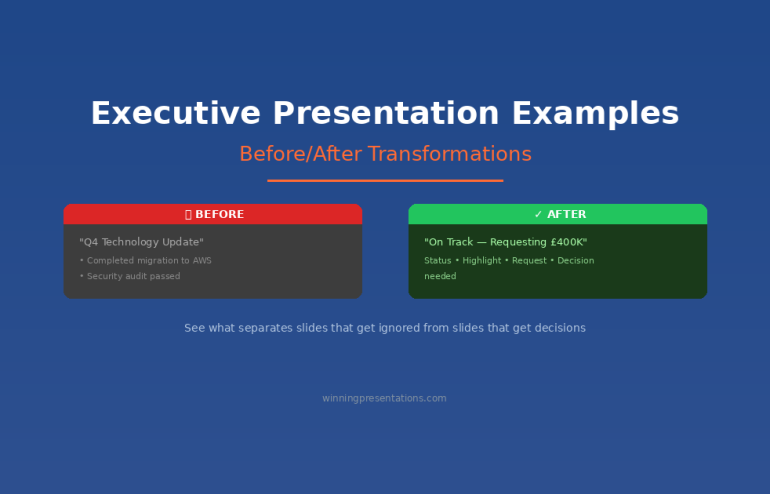
Before: “Q3 Performance Review — Agenda: 1. Background, 2. Market Overview, 3. Results, 4. Challenges, 5. Next Steps”

What it signalled: “Buckle up for a linear data dump. I’ll get to the point eventually.”

After: “Recommendation: Approve £500K additional investment in Product X. Q3 results exceeded targets by 23%, validating our strategy.”

What it signals now: “I know what you need to decide. Here it is.”

Transformation 2: The Data Slide

Before: Title: “Revenue Data” — Complex chart with 8 data series, no annotations, legend in small text.

What it signalled: “Here’s all the data. Good luck finding the insight.”

After: Title: “Revenue grew 23% while competitors declined” — Same data, but one trend highlighted, callout pointing to key inflection, competitors greyed out.

What it signals now: “I’ve analysed this. Here’s what matters.”

Transformation 3: The Recommendation Slide

Before: Bullet list of 7 recommendations, all equal weight, no prioritisation.

What it signalled: “I generated a list but couldn’t prioritise it for you.”

After: One primary recommendation in large text. Three supporting actions in smaller text. Clear next step with owner and deadline.

What it signals now: “I know what matters most. I’ve made the decision easy for you.”

For proven executive presentation structures, see the 12-slide template that commands the room.

Ready to transform your slides? The Executive Slide System (£39) includes the exact before/after templates you can apply immediately.

Frequently Asked Questions

How quickly do executives form impressions from slides?

Research suggests visual impressions form within milliseconds—faster than conscious thought. By the time you’ve said your first sentence, they’ve already judged your slide. This is why executive slide design perception matters so much: the signals happen before your content has a chance to land.

Does slide design really matter more than content?

No—but poor slide design can prevent good content from being heard. If your slides signal scattered thinking, executives will be skeptical of your content regardless of its quality. The design IS the first impression of your content.

What’s the biggest slide mistake executives notice?

Burying the lead. When your conclusion or recommendation doesn’t appear until deep in the deck, executives interpret this as either lack of confidence or lack of synthesis. Lead with your point. Support it with evidence.

Should I use professional design templates?

Clean, simple templates are fine. Over-designed templates can actually hurt you—they signal that you’re compensating for weak content. The goal is invisible design: formatting that helps the content communicate, not formatting that draws attention to itself.

How do I know if my slides are sending the wrong signals?

Apply the “3-second test”: show someone your slide for 3 seconds, then hide it. Ask them what the main point was. If they can’t tell you, your hierarchy is wrong. If they mention something other than your main point, your emphasis is wrong. If they say “it was really busy,” your density is wrong.

Can I fix bad slide signals quickly before a presentation?

Yes. Focus on three things: (1) Move your conclusion to slide 1, (2) Make every title a claim instead of a label, (3) Remove any slide that doesn’t directly support your conclusion. This won’t make your deck perfect, but it will send dramatically better signals.

Why do executives care about slides if they’re listening to me?

Executives are overwhelmed with information. Slides act as a filter—a quick way to assess whether this presentation is worth their full attention. Clean, well-structured slides signal that you’ve done the hard work of synthesis. That earns their attention. Cluttered slides signal the opposite.

Is This Right For You?

✓ This is for you if:

  • You present to executives, boards, or senior stakeholders
  • You’ve noticed your slides aren’t getting the response you want
  • You want templates that signal competence immediately
  • You’re willing to restructure how you build decks

✗ This is NOT for you if:

  • You only present to internal teams (lower stakes)
  • You want design software training, not structure help
  • Your main issue is delivery, not deck construction
  • You’re not willing to change how you organise information

⭐ The MD Who Stopped Me on Slide Four Taught Me Everything

That 57-slide deck that died on slide four? I rebuilt it using the structures now in the Executive Slide System. Same content. Different signals. The same MD approved it two weeks later—and asked for the template.

What you’ll get:

  • 12 executive-tested slide templates
  • The Signal Audit checklist
  • Before/after transformation examples

Get the Executive Slide System → £39

Built from structures that work in global banking and consulting-style environments.

📧 Optional: Get weekly slide strategies in The Winning Edge newsletter (free).

Your Next Step

Your slides are sending signals whether you intend them to or not. The question is whether those signals build your credibility or undermine it.

Run the 3-second test on your next deck. Check whether your conclusion appears in the first 10 seconds. Make sure every title makes a claim instead of labelling a topic.

Those three changes alone will transform your executive slide design perception—how executives read you through your slides.

For the complete system with templates and checklists, get the Executive Slide System (£39).

P.S. If presentation anxiety is affecting your delivery regardless of how strong your slides are, see what to do if you have a panic attack before presenting.

About the Author

Mary Beth Hazeldine is the Owner & Managing Director of Winning Presentations. The MD story that opened this article is real—and that rejected deck became the foundation for how she now teaches slide structure.

With 24 years at JPMorgan Chase, PwC, Royal Bank of Scotland, and Commerzbank—where one presentation could change funding, strategy, or careers—she’s seen thousands of executive presentations. The patterns of what works became the Executive Slide System.

Book a discovery call | View services

02 Jan 2026
How to make a presentation - 5-step process from purpose to delivery

How to Make a Presentation: The Complete Guide to Creating Slides That Work [2026]

Learning how to make a presentation doesn’t have to take hours. Whether you’re creating your first PowerPoint for school, preparing a business pitch, or building slides for a conference talk — the fundamentals are the same.I’ve spent 24 years making presentations at JPMorgan Chase, PwC, Royal Bank of Scotland, and Commerzbank. I’ve created hundreds of decks — from quick team updates to £50 million investment pitches. And I’ve watched talented people fail because they didn’t understand one thing:

A presentation isn’t about slides. It’s about moving people from where they are to where you need them to be.

The slides are just the vehicle.

In this guide, I’ll show you exactly how to make a presentation that works — step by step. You’ll learn the process I use for every presentation, whether it takes 30 minutes or 3 hours to create.

By the end, you’ll know how to make a presentation for any situation: work, school, conferences, or pitches.

How to make a presentation - 5-step process from purpose to delivery

The 5-step process for making presentations that work — regardless of which software you use

🎁 Free Download: Grab my 7 Presentation Frameworks Cheat Sheet — the structures I use for every presentation I create. Works with any software.

How to Make a Presentation: The 5-Step Process

Every great presentation follows the same basic process — regardless of whether you’re using PowerPoint, Google Slides, Canva, Keynote, or AI tools.

Here’s the framework for how to make a presentation that actually lands:

  1. Define your purpose — What do you want your audience to do?
  2. Know your audience — Who are they and what do they care about?
  3. Build your structure — What’s the logical flow?
  4. Create your slides — What visuals support your message?
  5. Refine and practise — What needs polishing?

Most people jump straight to step 4 — opening PowerPoint and staring at a blank slide. That’s why they struggle.

Let me walk you through each step.

Step 1: Define Your Purpose (Before You Touch Any Software)

Before you learn how to make a presentation in any tool, you need to answer one question:

“What do I want my audience to think, feel, or do after this presentation?”

This isn’t your topic. It’s your destination.

Weak purpose: “I’m presenting our Q3 results.”

Strong purpose: “I need the board to approve increased marketing spend for Q4.”

The weak version describes what you’ll talk about. The strong version describes what you need to achieve.

Write your purpose in one sentence. Everything else flows from this.

Examples of strong presentation purposes:

  • “Convince my professor I understand the key themes of this novel”
  • “Get my team excited about the new project direction”
  • “Persuade investors to schedule a follow-up meeting”
  • “Help new hires understand our company culture”
  • “Get my manager to approve this budget request”

If you can’t state your purpose clearly, you’re not ready to make a presentation yet.

Step 2: Know Your Audience

The second step in how to make a presentation is understanding who you’re presenting to.

A presentation to your CEO looks different from a presentation to new graduates. Not just in content — in structure, depth, and tone.

Ask yourself these five questions before you start building slides:

Answer these 5 questions BEFORE you open PowerPoint or Google Slides

A common mistake when learning how to make a presentation: creating the same slides for every audience. Don’t do this. A technical audience wants data. Executives want recommendations. Students want relatable examples.

Adapt your presentation to your audience — every single time.

Step 3: Build Your Structure

Now you’re ready to plan your presentation’s structure — still without opening any software.

This step separates people who know how to make a presentation from people who just make slides.

Your structure is the logical flow that takes your audience from where they are now to your desired outcome (your purpose from Step 1).

Three Structures That Work for 90% of Presentations

Choose ONE of these structures before you start building slides

Structure 1: Problem → Solution → Action

Best for: Pitches, proposals, requesting approval

  1. Here’s the problem we’re facing
  2. Here’s the solution I recommend
  3. Here’s what I need you to do/approve

Structure 2: What → So What → Now What

Best for: Updates, reports, presenting data

  1. Here’s what happened / what the data shows
  2. Here’s why it matters / what it means
  3. Here’s what we should do next

Structure 3: Context → Options → Recommendation

Best for: Complex decisions, strategy presentations

  1. Here’s the situation and constraints
  2. Here are the options we considered
  3. Here’s what I recommend (and why)

Choose a structure. Write out your main points as bullet points — one per slide. This is your presentation skeleton.

For a typical 15-minute presentation, you need 5-8 main points. For 30 minutes, 10-15.

Don’t write full sentences yet. Just capture the flow:

  • Opening: The problem with our current process
  • Point 1: What’s causing the delays
  • Point 2: The cost of doing nothing
  • Point 3: My proposed solution
  • Point 4: How it works in practice
  • Point 5: Investment required
  • Point 6: Expected results
  • Closing: What I need from you today

That’s a complete presentation structure — before you’ve created a single slide.

📋 Need Help With Structure?

The Presentation Openers & Closers Swipe File (£9.99) includes 50+ tested scripts for starting strong and ending memorably — plus templates for each structure above.

Step 4: How to Make a Presentation — Creating Your Slides

Now you’re ready to open your presentation software and start making slides.

Here’s how to make a presentation that looks professional — regardless of which tool you use.

Choosing Your Presentation Software

The best tool depends on your situation:

Choose your presentation software based on your situation — not trends

If you’re making a business presentation, PowerPoint or Google Slides are usually your best options. Most organisations expect these formats.

If you’re learning how to make a presentation for the first time, start with Google Slides — it’s free and simpler than PowerPoint.

The One-Slide-One-Point Rule

The most important principle when making slides: each slide should make exactly one point.

If you have two points, make two slides. Slides are free.

This rule alone will make your presentations clearer than 80% of what your audience usually sees.

How to Design Slides That Don’t Overwhelm

When you’re learning how to make a presentation, less is always more.

Apply these 4 rules to every slide you create

Text:

  • Maximum 6 bullet points per slide
  • Maximum 6 words per bullet point
  • Never write full sentences (that’s what you say, not what they read)

Fonts:

  • Stick to one or two fonts
  • Minimum 24pt for body text, 32pt+ for titles
  • Sans-serif fonts (Arial, Calibri, Helvetica) are easier to read on screen

Colours:

  • Use 2-3 colours maximum
  • Ensure high contrast between text and background
  • If in doubt, dark text on light background works best

Images:

  • Use high-quality images (no pixelated photos)
  • One image per slide maximum
  • Images should support your point, not decorate

The Squint Test

After making each slide, squint at it from arm’s length.

Can you tell what the slide is about?

If not, simplify. Remove elements until the main point is unmistakable.

Step 5: Refine and Practise

The final step in how to make a presentation: polish your work and prepare to deliver it.

The Refinement Checklist

Go through your presentation and check each section:

Complete this checklist before you present — catches 90% of common issues

Opening (Slide 1-2):

  • Does it grab attention?
  • Is your purpose clear within the first 30 seconds?

Flow (All slides):

  • Does each slide lead naturally to the next?
  • Are there any jumps that might confuse people?

Closing (Final slide):

  • Is there a clear call to action?
  • Will your audience know exactly what to do next?

Technical:

  • Have you spell-checked everything?
  • Do all images display correctly?
  • Is the file saved in the right format?

Practise Out Loud

Knowing how to make a presentation is only half the battle. You also need to deliver it well.

Practise your presentation out loud at least twice before you deliver it for real. This helps you:

  • Find awkward transitions
  • Check your timing
  • Build confidence
  • Discover slides that don’t work

If possible, practise in front of someone else and ask for honest feedback.

How to Make a Presentation Quickly (When You’re Short on Time)

Sometimes you don’t have hours to prepare. Here’s how to make a presentation when time is tight:

60 minutes available:

  • 10 minutes on purpose and structure
  • 40 minutes creating slides
  • 10 minutes refining

30 minutes available:

  • 5 minutes on purpose and structure
  • 20 minutes creating slides
  • 5 minutes quick review

15 minutes available:

  • Write 5 headlines on paper
  • Create 5 simple slides with just headlines
  • Let your speaking do the work

The key insight: never skip the purpose and structure steps, even when rushed. A clear 5-slide presentation beats a confusing 20-slide one.

For a detailed breakdown of making presentations quickly using AI, see my guide: How to Make a Presentation With AI: The 90-Minute Method.

How to Make a Presentation Using AI Tools

AI tools like Microsoft Copilot, ChatGPT, and Canva AI can dramatically speed up how you make a presentation.

Here’s when they’re useful:

  • Generating first drafts — AI can create a starting structure
  • Writing content — AI can help with bullet points and speaker notes
  • Design suggestions — AI can recommend layouts and formats
  • Editing — AI can help simplify and clarify your text

But AI tools have limitations. They don’t know your specific audience, your company context, or the politics in your boardroom. You still need to apply Steps 1-3 yourself.

Think of AI as a fast assistant, not a replacement for thinking.

For a complete guide to using AI effectively, see: How to Make a Presentation With AI: The Complete Guide.

Common Mistakes When Learning How to Make a Presentation

After reviewing thousands of presentations, these are the most common mistakes I see:

Mistake 1: Starting with slides instead of structure. Plan first, design second. Always.

Mistake 2: Too much text on slides. Your slides are prompts, not scripts. Say more, show less.

Mistake 3: No clear purpose. If you don’t know what you want from your audience, neither will they.

Mistake 4: No call to action. Every presentation should end with “Here’s what I need from you.”

Mistake 5: Reading slides aloud. If you’re just reading what’s on screen, why does your audience need you?

Mistake 6: Too many slides. A 30-minute presentation needs 10-15 slides, not 40. Quality over quantity.

How to Make a Presentation: Frequently Asked Questions

How many slides should a presentation have?

A useful rule: one slide per 2-3 minutes of speaking. For a 15-minute presentation, aim for 5-8 slides. For 30 minutes, 10-15 slides. For an hour, 20-30 slides maximum. But quality matters more than quantity — 5 clear slides beat 20 cluttered ones.

What’s the best presentation software for beginners?

Google Slides is free, simple, and works in any browser. It’s the easiest way to learn how to make a presentation. Once you’re comfortable, you can move to PowerPoint for more advanced features.

How long does it take to make a presentation?

A simple 10-slide presentation takes most people 2-4 hours. With practice and templates, you can reduce this to 1-2 hours. Experienced presenters using AI tools can create solid presentations in under an hour.

Should I use animations in my presentation?

Use animations sparingly. Simple fade-ins can help reveal information gradually. But flying text and bouncing graphics distract from your message. When in doubt, skip the animations.

How do I make a presentation for school vs work?

The process is the same. The difference is audience expectations. School presentations often require more explanation of methodology. Work presentations focus more on outcomes and recommendations. Always adapt your depth and language to your audience.

What if I don’t have design skills?

Use templates. Every presentation tool includes professional templates that handle the design for you. Canva has particularly good free options. You don’t need design skills to make a presentation that looks professional.

Your Complete Presentation Toolkit

Now you know how to make a presentation from scratch. But having the right resources makes it faster and easier.

Here’s what I recommend based on where you are:

🎁 FREE: 7 Presentation Frameworks Download
The same structures I use for every presentation — works with any software.


📋 QUICK WINS:


🎯 BEST VALUE — The Presentation Confidence Bundle (£29.99)

Get all three resources together and save 33%:

  • Public Speaking Cheat Sheets (£14.99 value)
  • Presentation Openers & Closers (£9.99 value)
  • Calm Under Pressure Guide (£19.99 value)

Total value: £44.97 → Bundle price: £29.99


🏆 COMPLETE SYSTEM: The Executive Slide System (£39)
17 templates + 51 AI prompts + video training. The framework clients have used to secure approvals totalling over £250 million.

🎓 Want to Master High-Stakes Presentations?

If you present to executives, boards, or investors, knowing how to make a presentation is just the start. The Executive Buy-In Presentation System teaches you how to structure for approval, handle tough questions, and deliver with confidence.

  • 7 modules of video training
  • The Decision Definition Canvas
  • Executive-ready templates
  • AI prompt sequences that work
  • Live Q&A sessions

Learn More About the Course →


Related Articles:

📧 Get The Winning Edge

Weekly presentation tips, templates, and insights from 24 years in corporate boardrooms. No fluff. No spam.

Subscribe Free →


Mary Beth Hazeldine spent 24 years in corporate banking at JPMorgan Chase, PwC, Royal Bank of Scotland, and Commerzbank. She now trains professionals on high-stakes presentations through Winning Presentations. Her clients have raised over £250 million using her frameworks.

13 Dec 2025
Executive presentation examples - before and after transformations that get decisions

Executive Presentation Examples: Before/After Transformations

📅 Updated: December 2025 | Real examples from client work

Executive presentation examples - before and after transformations that get decisions

Need a Faster Way to Build Executive Slides?

Most executives spend hours on slides that still miss the mark. The Executive Slide System gives you a structured framework for building slides that land with senior audiences — without starting from scratch every time.

Explore the System →

Quick Answer

The best executive presentation examples share three traits: they lead with the recommendation, quantify everything, and make the decision obvious. Below are five real before/after transformations showing how small changes to structure, titles, and content turn forgettable slides into decision-driving presentations.

🎁 FREE DOWNLOAD

Executive Presentation Checklist

12-point checklist to transform your slides before your next executive meeting.

Download Free Checklist →

No spam. Unsubscribe anytime.


I’ve reviewed thousands of executive presentations over more than 16 years of coaching. The difference between slides that get ignored and slides that get decisions usually comes down to a handful of fixable mistakes.

A Head of Product at a fintech company came to me last month with a “failed” board presentation. She’d requested £2M for a platform rebuild. The board said “not now.”

I looked at her deck. The content was solid. The analysis was thorough. But the structure was backwards — she’d buried her ask on slide 14 of 18.

We restructured it in an afternoon. Same content. Different order. She re-presented two weeks later and got full approval.

Here are five transformations that show what actually changes.

Building an executive presentation this week?

The Executive Slide System gives you 10 slide templates with these transformations already applied — decision-first titles, executive summaries that fit on one slide, and AI prompts to populate them in minutes.

Example 1: The Executive Summary Slide

❌ Before: Information Dump

Title: “Q4 Technology Update”

Content:

  • Completed migration to AWS (3 months ahead of schedule)
  • Security audit passed with zero critical findings
  • New CRM integration live across 4 regions
  • Mobile app downloads up 34% QoQ
  • Technical debt reduced by 40%
  • Team expanded to 47 FTEs
  • Budget tracking 3% under forecast

Problem: No recommendation. No ask. No clear “so what?” The executive has to work to figure out what matters.

✅ After: Decision-Ready

Title: “Q4 Technology: On Track — Requesting £400K for Q1 Security Enhancement”

Content:

  • Status: All major initiatives on track, 3% under budget
  • Highlight: AWS migration complete 3 months early, saving £180K annually
  • Request: £400K Q1 investment in security automation (ROI: 200% over 2 years)
  • Decision needed: Approve budget allocation by January 15

Why it works: The title tells you everything. Status, headline win, and the ask — all visible in 10 seconds.

Related: The Executive Summary Slide: How to Write the Only Slide That Matters

Built for High-Stakes Presentations

Move Beyond Examples — Build Your Own Executive Deck

The Executive Slide System (£39, instant access): 17 field-tested structures for executive presentations — board updates, budget requests, strategic recommendations. Each template comes with the exact narrative flow that keeps senior audiences engaged.

Designed for executives who need slides that work in high-stakes boardrooms, not just look good.

Get the Executive Slide System →

Before and after executive slide title transformation - from Q4 Technology Update to decision-ready title with specific ask

Example 2: The Budget Request

❌ Before: Buried Ask

Slide 1: “Marketing Technology Assessment”

Slides 2-8: Current state analysis, market research, competitor benchmarking

Slide 9: Vendor evaluation matrix

Slide 10: Implementation considerations

Slide 11: “Recommendation: Invest £350K in marketing automation platform”

Problem: The CFO stopped listening at slide 4. By the time you reached your ask, the room had mentally moved on.

✅ After: Ask First

Slide 1: “Requesting £350K for Marketing Automation — 280% ROI in 18 Months”

  • The ask: £350K one-time + £40K annual
  • The return: £980K revenue impact by Q4 2026
  • The risk: Vendor lock-in mitigated by 90-day exit clause
  • Decision needed today: Approve for Q1 implementation

Slides 2-4: Supporting evidence (for those who want it)

Appendix: Full analysis, vendor comparison, implementation plan

Why it works: Executives can say yes at slide 1. Everything else is backup.

Related: Budget Presentation Template: How to Get Your Budget Approved First Time

📄
Transform Your Next Presentation

Get the 12-point checklist to audit your slides before any executive meeting.

Download Free →

Example 3: The Slide Title

This is the single highest-impact change you can make. Most presenters use slide titles as labels. Executives want slide titles as headlines.

❌ Before: Label Titles

  • “Q3 Sales Results”
  • “Customer Satisfaction Data”
  • “Competitive Analysis”
  • “Risk Assessment”
  • “Next Steps”

✅ After: Headline Titles

  • “Q3 Sales Beat Target by 12% — Driven by Enterprise Segment”
  • “NPS Up 18 Points: Product Changes Working”
  • “We’re Losing on Price but Winning on Support”
  • “Three Risks to Monitor — All Have Mitigation Plans”
  • “Approve £200K Today to Capture Q4 Opportunity”

The test: Could an executive skip your presentation, read only the titles, and understand your message? If yes, you’ve done it right.

Related: Stop Writing Slide Titles Like This (Before and After Examples)

Example 4: The Risk Slide

❌ Before: Risk Register Dump

A 30-row table with columns for risk ID, category, description, likelihood, impact, owner, status, mitigation, and last updated. Unreadable. Ignored.

✅ After: Top 3 That Matter

Title: “Three Risks to Watch — All Have Mitigation Plans”

Risk Impact Mitigation
Vendor delivery slips 6-week delay Backup vendor on standby; penalty clause in contract
Key hire doesn’t close 3-month delay Two backup candidates in final stage
Regulatory change Scope increase Monitoring weekly; 15% contingency in budget

Why it works: Executives don’t want to see every risk. They want to know you’ve thought about what matters and have a plan.

Related: How to Present to a CFO: The Finance-First Framework

Example 5: The Recommendation Slide

❌ Before: Vague Direction

Title: “Recommendation”

Content: “We recommend investing in customer experience improvements to drive retention and growth.”

Problem: What investment? How much? What improvements? When? This isn’t a recommendation — it’s a direction.

✅ After: Specific and Actionable

Title: “Recommendation: Approve £180K for CX Platform by December 15”

Content:

  • Investment: £180K (£120K platform + £60K implementation)
  • Timeline: Go-live March 2026
  • Expected return: 8% improvement in retention = £420K annual revenue
  • Alternative: Do nothing — continue losing 2.3% customers monthly to competitors
  • Your decision: Approve budget allocation today

Why it works: Specific. Quantified. Clear consequence of inaction. Easy to say yes.

Related: Executive Presentation Template: 12 Slides That Command the Room

The Pattern Across All Examples

Every transformation follows the same principles:

  1. Lead with the conclusion — Put your recommendation in the title, not the body
  2. Quantify everything — “Significant improvement” means nothing; “12% increase” means something
  3. Make the decision obvious — Tell them exactly what you need and when
  4. Respect their time — If it can be in the appendix, put it in the appendix

Want Ready-to-Use Templates?

These examples show the principles. But building slides from scratch takes time.

The Executive Slide System gives you pre-built templates with these transformations already applied — so you can focus on your content, not your structure.

⭐ RECOMMENDED

If you present to senior leadership regularly, the Executive Slide System gives you a structured framework for building slides that land — without starting from scratch each time.

The Executive Slide System (£39)

Executive Slide System — £39, instant access.
10 ready-to-use templates with the structure that gets decisions — plus before/after examples for every slide type.

  • 10 executive templates — Board, budget, strategy, project update, and more
  • Before/after examples — See exactly how to transform each slide
  • 30 AI prompts — Customise templates in minutes with Copilot
  • Headline title formulas — Never write a weak title again

Get the Executive Slide System →

Instant download. Use for unlimited presentations.

Start With the Free Checklist

12 questions to audit any executive presentation. Print it before your next meeting.

Download Free Checklist →

The before examples in this article aren’t unusual — they’re the default for most executive decks.

The Executive Slide System gives you the “after” versions as ready-made templates — so your next presentation starts from the right structure, not a blank slide.

Executive Slide System — £39, instant access.

Designed for executives who present where decisions are made.

Structure That Commands Attention

From Example to Action in 30 Minutes

The Executive Slide System (£39) gives you the structure behind the best executive presentations — not just examples to admire, but frameworks you can apply to your next deck immediately.

Get the Executive Slide System →

Frequently Asked Questions

How long should an executive presentation be?

12 slides maximum for a major decision. 6 slides for an update. Put everything else in the appendix — most executives won’t look at it, but it shows you’ve done the work.

Should every slide have a headline title?

Yes. If you can’t summarise the slide’s message in the title, the slide probably doesn’t have a clear message. Fix the thinking, then fix the title.

What if my executive prefers detailed slides?

Ask them. Some executives genuinely want more detail. But most who say this actually want confidence that detail exists — which the appendix provides. Test with your specific audience.

📧
The Winning Edge Newsletter

Weekly before/after examples and executive presentation tips. No fluff.

Subscribe Free →

Related Resources

About the Author

Mary Beth Hazeldine has trained executives on high-stakes presentations for more than 16 years. These examples come from real client transformations across banking, biotech, SaaS, and consulting. She teaches at Winning Presentations.

01 Dec 2025
The 60-second executive slide test - 6 questions every presentation slide must pass before presenting to leadership

The 60-Second Test Every Executive Slide Should Pass

Every executive slide you create gets judged in three seconds.

That’s how long leadership spends deciding whether your slide is worth reading — or skipping. After reviewing thousands of executive slides across 25 years in corporate banking at JPMorgan Chase, PwC, and Royal Bank of Scotland, I’ve found that the same six problems kill presentations over and over.

The good news: you can catch all of them in 60 seconds.

Here’s the executive slide test I run before anything leaves my desk. My clients have used these same standards to present slides that helped raise

The 60-second executive slide test - 6 questions every presentation slide must pass before presenting to leadership
The 60-second executive slide test — print this and use it before every presentation

The 60-Second Executive Slide Test

Six questions. Answer “yes” to all six, or revise before presenting.

1. Can I explain this executive slide in ONE sentence?

This is the clarity test.

If you need two sentences to explain what a slide is about, the slide is trying to do too much. Split it or simplify it.

I once watched a director present a “Project Update” slide that covered timeline, budget, risks, team changes, and next steps. Five topics, one slide. The executive’s response: “What’s the headline here?”

There wasn’t one. That’s the problem.

The fix: Before you add anything to an executive slide, write one sentence describing what it communicates. If you can’t write that sentence, you don’t have a clear slide yet.

Examples:

  • Weak: “This slide shows our Q3 performance across several dimensions including revenue, costs, and headcount, with some notes on challenges.”
  • Strong: “This slide shows Q3 revenue beat target by 12%.”

The strong version might need supporting slides for costs and headcount. That’s fine. One clear message beats three muddy ones.

2. Is the “so what” obvious on this executive slide?

This is the relevance test.

Every executive slide should answer an unspoken question: why am I looking at this?

Data without interpretation is just noise. “Revenue was £4.2M” tells me a number. “Revenue was £4.2M — 15% above target, driven by Enterprise expansion” tells me what it means.

Executives don’t have time to figure out why something matters. That’s your job. If the “so what” isn’t obvious within three seconds, you’ve failed.

The fix: Add the implication to every data point. Don’t just show the number — show what it means for the business, the project, or the decision at hand.

Examples:

  • Weak: “Customer churn: 8.3%”
  • Strong: “Customer churn: 8.3% — above 5% threshold, requires immediate action”

3. Would my CEO understand this executive slide without me talking?

This is the standalone test.

Here’s something most people don’t think about: your slides will get forwarded. The executive you present to will send them to their boss, their peers, their team. Those people won’t have you there to explain.

Your executive slide needs to communicate without a voiceover.

This doesn’t mean cramming in more text. It means the text you include must be self-explanatory. No jargon that requires context. No acronyms without definitions. No charts that need narration to interpret.

The fix: Imagine emailing this slide to someone who wasn’t in the room. Would they understand it? If not, what’s missing?

Test it: Show the slide to a colleague for 10 seconds. Ask them what it’s about. If they can’t tell you, it doesn’t stand alone.

4. Is there ONE clear takeaway from this executive slide?

This is the focus test.

Multiple messages = no message.

When you put three key points on an executive slide, the audience remembers zero. When you put one point on a slide, they remember one. The maths is simple.

I know it feels efficient to pack information together. It’s not. It’s confusing. Executives are scanning while half-listening to you and thinking about their next meeting. Give them one thing to take away, and they might actually take it.

The fix: Identify the single most important thing you want the audience to remember. Make that the headline. Everything else is supporting evidence.

The discipline: If you have three key points, you have three slides. Accept it.

5. Does the title tell the story?

This is the headline test — and it’s where most executive slides fail.

“Q3 Financial Results” is a label, not a title. It tells me what category of information I’m about to see. It tells me nothing about what I should think or do.

“Q3 Revenue Up 12% Despite Market Headwinds” is a headline. It delivers the message before I read anything else. If I’m scanning a 30-slide deck, I can get the story just from the titles.

This is how executives actually read presentations. They scan titles, look for red flags, and only dig into detail when something catches attention. If your titles are labels, you’re invisible.

The fix: Rewrite every title as a complete sentence that communicates the key message. The title should make sense even if the audience reads nothing else on the executive slide.

Examples:

  • Label: “Project Status” → Headline: “Project On Track for March Launch”
  • Label: “Q3 Hiring Update” → Headline: “Q3 Hiring Complete — Team at Full Capacity”
  • Label: “Budget Analysis” → Headline: “Budget Request: £250K for Q1 Platform Upgrade”

6. Have I removed everything non-essential?

This is the discipline test.

Every element on your executive slide should earn its place. Every bullet point, every data label, every logo in the corner. If it doesn’t contribute to your one message, it’s noise.

This is hard because it feels like deleting things is losing value. It’s not. It’s adding clarity. The stuff you remove wasn’t helping — it was competing for attention with the stuff that matters.

The fix: Go through every element and ask: “Does this help communicate my one key message?” If the answer is no, delete it.

Common offenders:

  • Decorative images that don’t convey information
  • Logos on every slide (once at the start is enough)
  • Data points that don’t support the main message
  • Bullet points that repeat what the title already said
  • “Agenda” or “Overview” slides that waste time

Want this checklist as a printable PDF?

The “Before You Present” cheat sheet is included in The Executive Slide System — the same templates and prompts my clients use to present at board level. One client used these frameworks to secure significant funding.

How to Test Every Executive Slide in 60 Seconds

Don’t try to run all six questions in your head. Print this list or keep it on a sticky note by your monitor.

For every executive slide:

  1. Finish the slide
  2. Step away for 2 minutes (get coffee, check email)
  3. Come back with fresh eyes
  4. Run through all six questions
  5. Fix any “no” answers before moving on

This takes 60 seconds per slide. For a 10-slide deck, that’s 10 minutes of quality control. It will save you from the “what’s the point of this slide?” question that derails presentations.

The Executive Slide System includes slide templates that are pre-built to pass this test — so you start from a position of strength every time.

What Executives Are Really Thinking

These six tests map directly to what leadership thinks when reviewing your executive slides: For the full framework on how executives actually evaluate presentations, see our guide on executive presentation skills CEOs use.

Your Test What the Executive Is Thinking
Can I explain this in one sentence? “What is this about?”
Is the “so what” obvious? “Why should I care?”
Would my CEO understand this? “Can I forward this to my boss?”
Is there ONE clear takeaway? “What do I need to remember?”
Does the title tell the story? “Can I skim this deck?”
Have I removed everything non-essential? “Is this going to waste my time?”

When you pass all six tests, you’ve built an executive slide that answers every question before they ask it.

Real Example: Executive Slide Before and After

Here’s how the test works in practice.

BEFORE — The typical executive slide:

Title: “Marketing Update”

  • Campaign launched on Oct 15
  • Reached 50,000 impressions
  • Generated 1,200 leads
  • Cost per lead: £42
  • Industry benchmark: £65
  • Team added two new hires
  • Planning holiday campaign

Running the test:

  1. One sentence? No — covers campaign performance, team changes, and future plans.
  2. “So what” obvious? Partially — benchmark comparison hints at success, but it’s buried.
  3. Standalone? No — “Campaign” and “holiday campaign” need context.
  4. One takeaway? No — at least three different topics.
  5. Title tells story? No — “Marketing Update” is a label.
  6. Non-essential removed? No — team hires and future plans don’t belong with campaign metrics.

Score: 0/6. This executive slide needs work.

Executive slide before and after example - transforming a weak marketing update into a clear headline with recommendation
The same information, restructured: label title → headline title, data dump → clear recommendation

AFTER — The revised executive slide:

Title: “October Campaign Delivered Leads at 35% Below Industry Cost”

  • 1,200 leads generated (target: 1,000) ✓
  • Cost per lead: £42 vs. £65 industry benchmark
  • 50,000 impressions, 2.4% conversion rate
  • Recommendation: Increase Q1 budget by 20% to scale results

Running the test again:

  1. One sentence? Yes — “Our campaign outperformed on cost efficiency.”
  2. “So what” obvious? Yes — we beat the benchmark, so we should do more.
  3. Standalone? Yes — all terms are clear.
  4. One takeaway? Yes — the campaign worked, scale it up.
  5. Title tells story? Yes — headline delivers the key message.
  6. Non-essential removed? Yes — team hires and holiday planning are separate slides now.

Score: 6/6. This executive slide is ready.

Print This Executive Slide Checklist

Here’s the test in a format you can print or screenshot:

The 60-Second Executive Slide Test

Answer “yes” to all six before presenting

  1. ☐ Can I explain this slide in ONE sentence?
  2. ☐ Is the “so what” obvious?
  3. ☐ Would my CEO understand this without me talking?
  4. ☐ Is there ONE clear takeaway?
  5. ☐ Does the title tell the story?
  6. ☐ Have I removed everything non-essential?

What Happens When You Skip the Executive Slide Test

I’ll tell you exactly what happens, because I’ve seen it hundreds of times. In many cases, the decision was already leaning one way — and a weak slide just confirmed it.

You present a slide. An executive asks a clarifying question. You answer. They ask another question. You realise you’re explaining things that should have been on the slide in the first place. The meeting runs long. The decision gets deferred. You leave thinking “that could have gone better.”

For executives who refuse to leave slide quality to chance, the Executive Slide System (£39) provides the frameworks and templates to get it right the first time.

It could have. Sixty seconds of review would have caught the problem.

The executives I’ve worked with at JPMorgan, PwC, and Royal Bank of Scotland didn’t get to those positions by tolerating unclear communication. They have no patience for slides that waste their time. And they shouldn’t.

Your job is to make their job easier. The 60-second test is how you do it.

Every Slide You Present Is a 60-Second Decision About Your Credibility

The Executive Slide System gives you 12 structured slide templates that pass the 60-second test every time — plus AI prompt cards and frameworks to build executive-ready decks in under an hour. No more second-guessing whether your slides will land.

Get the Executive Slide System

Used by VPs and directors at FTSE 250 companies before board reviews and investor meetings.

FAQs About Executive Slides

How many bullet points should an executive slide have?

Three to five maximum. If you have more than five bullets, you’re trying to say too much. Split the content across multiple slides or cut what’s non-essential.

Should I use complete sentences in bullet points?

Fragments are fine for bullets, but your title should always be a complete sentence that communicates the key message. Bullets support the title — they don’t replace it.

How do I know if my executive slide is too busy?

Apply the squint test: squint at your slide from arm’s length. If you can’t identify the main message and structure, it’s too busy. Simplify until the hierarchy is obvious.

What’s the ideal number of slides for an executive presentation?

Fewer than you think. For a 30-minute meeting, aim for 8-12 slides maximum. That’s about 2-3 minutes per slide, which leaves time for discussion. Executives prefer fewer, clearer slides over comprehensive data dumps.

The Winning Edge — Free Weekly Newsletter

Every Thursday, one executive communication tactic you can use immediately. No fluff. No theory. Just what works in real boardrooms.

Subscribe Free

Your Next Executive Slide

Open your last presentation. Pick one slide — any slide. Run the test.

I’d bet money at least one question comes back “no.”

Fix it. Then do the next slide. By the time you’ve done 10 slides, the test will be automatic. You’ll start catching problems while you’re still building, not after you’re done.

That’s when your executive slides start getting approved instead of questioned.

The Executive Slide System complete package - 10 PowerPoint templates, 30 AI prompts, and quick start guide for executive presentations


Related: How to Create Executive Presentations That Get Approved in 2025 — the complete guide covering all 10 executive presentation types with structures and AI prompts.