Category: Presentations

07 Dec 2025
30 AI prompt cards for executive presentations - Copilot and ChatGPT prompts for budget requests, board decks, QBRs and more

AI Prompt Templates for Every Executive Presentation Type

AI prompt templates are the difference between generic AI output and slides worth presenting to executives.

Most people type vague requests like “create a presentation about Q3 results” and wonder why they get useless output. The AI isn’t broken — the prompt is. Without specific instructions, AI produces the average of everything it’s seen, which is mediocre.

After testing hundreds of prompts on real executive presentations, I’ve developed AI prompt templates for every major presentation type. These work with ChatGPT, Claude, Copilot, and any other AI assistant. Copy them, fill in your specifics, and get output you can actually use.

Here are the AI prompt templates that transform how you build executive presentations.

30 AI prompt cards for executive presentations - Copilot and ChatGPT prompts for budget requests, board decks, QBRs and more
AI prompt templates designed for specific executive presentation types

Why AI Prompt Templates Matter for Executive Presentations

Generic prompts produce generic output. AI prompt templates work because they provide the structure and specificity that AI needs to generate useful content.

Every effective AI prompt template includes:

  • Audience: Who will see this and what they care about
  • Purpose: What decision or action you need
  • Structure: The specific format you want
  • Tone: How it should sound
  • Content: Your raw material to work with

The AI prompt templates below follow this pattern for each executive presentation type. Copy the template, replace the bracketed sections with your specifics, and watch AI finally produce something worth editing.

AI Prompt Template #1: Executive Summary

Use this AI prompt template when you need to condense complex information into a single executive summary slide:

Create an executive summary slide for [TOPIC].

Audience: [ROLE/TITLE] who needs to [DECISION OR ACTION]
Time constraint: They will spend 30 seconds scanning this

Content to summarise:
[PASTE YOUR RAW CONTENT, BULLETS, OR KEY POINTS]

Structure the summary as:
– Headline: One sentence capturing the key message
– Bottom line: 2-3 sentences with the essential takeaway
– Key points: Maximum 4 bullets with the most important facts
– Recommendation: What you suggest they do

Tone: Confident, direct, no filler words
Format: Ready to paste into PowerPoint

This AI prompt template works because it tells the AI exactly what an executive summary needs — not just “summarise this” but the specific structure executives expect.

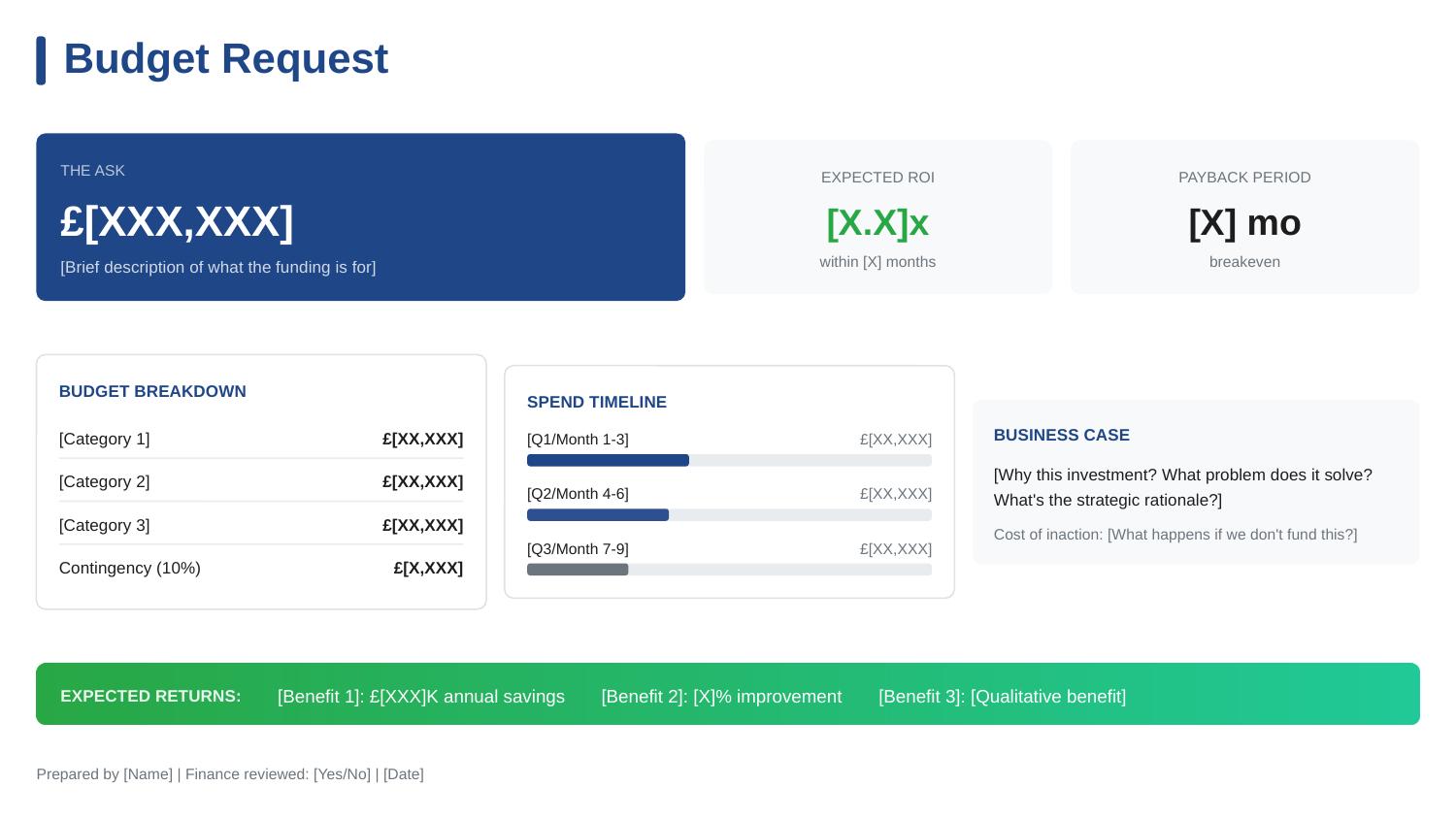
AI Prompt Template #2: Budget Request

Use this AI prompt template when building a budget presentation:

Create a budget request presentation for [PROJECT/INITIATIVE].

Audience: [CFO/FINANCE COMMITTEE/LEADERSHIP] who will approve or deny
Amount requested: [£X]
Payback period: [X months/years]

Here’s my raw information:
[PASTE YOUR BUSINESS CASE, COSTS, BENEFITS]

Structure as:
1. The Ask: Total amount and payback period (first slide headline)
2. The Problem: What happens if we don’t fund this (cost of inaction)
3. The ROI: Investment vs. return with specific numbers
4. The Breakdown: Where the money goes (include 10-15% contingency)
5. The Timeline: Key milestones and when returns materialise
6. The Decision: Exactly what approval you need and by when

Make the cost of NOT approving as clear as the cost of approving.
Tone: Confident, financially rigorous, specific

This AI prompt template produces budget slides that speak the language CFOs understand — ROI, payback, risk of inaction.

Want all 30 AI prompt templates as printable cards?

The Executive Slide System includes 30 AI prompt templates — 3 for each of the 10 executive presentation types. Same prompts I use on client work that’s helped raise over £250 million.

AI Prompt Template #3: QBR (Quarterly Business Review)

Use this AI prompt template for quarterly business reviews:

Create a QBR presentation for [Q1/Q2/Q3/Q4] [YEAR].

Audience: [LEADERSHIP TEAM/BOARD] reviewing [DEPARTMENT/BUSINESS UNIT] performance
Presenting: [YOUR ROLE]

Here are my quarterly metrics and notes:
[PASTE YOUR DATA, WINS, CHALLENGES, PLANS]

Structure as:
1. Headline Metrics: 3-5 key numbers with vs. target comparison (30 seconds)
2. Performance Narrative: The story behind the numbers (not just data)
3. Wins: Top 3 achievements this quarter (be specific)
4. Challenges: What didn’t go well and why (be honest)
5. Next Quarter Focus: Top 3 priorities and how they connect to strategy

For challenges, include what you learned and what you’re doing differently.
Make headlines tell the story — not “Q3 Revenue” but “Q3 Revenue Up 12% Despite Market Headwinds”
Tone: Balanced, accountable, forward-looking

This AI prompt template creates QBRs that tell a story instead of dumping data.

AI Prompt Template #4: Board Presentation

Use this AI prompt template for board-level presentations:

Create a board presentation for [TOPIC/REQUEST].

Audience: Board of Directors with governance and fiduciary responsibility
Board action needed: [APPROVAL/INFORMATION/DISCUSSION]

Here’s my content:
[PASTE YOUR MATERIALS]

Structure as:
1. Board Action Requested: Exactly what you need the board to decide (first slide)
2. Executive Summary: One slide they could use to make the decision
3. Strategic Alignment: How this connects to company strategy
4. Business Case: Investment required and expected return (max 2 slides)
5. Risk Assessment: Key risks with likelihood, impact, and mitigation
6. Recommendation: Clear statement of management’s position

Remember: Board members think about governance, risk, and shareholder value.
Keep to 10 slides maximum excluding appendix.
Tone: Formal, thorough, governance-aware

This AI prompt template produces board presentations that respect the board’s role and responsibilities.

10 executive presentation templates - QBR, budget request, board meeting, investor pitch, strategic recommendation slides
Each presentation type needs specific AI prompt templates — generic prompts produce generic output

AI Prompt Template #5: Strategic Recommendation

Use this AI prompt template when presenting options and recommendations:

Create a strategic recommendation presentation on [DECISION TOPIC].

Audience: [LEADERSHIP TEAM] who need to choose between options
Decision deadline: [DATE]

Here’s my analysis:
[PASTE YOUR OPTIONS, ANALYSIS, DATA]

Structure using the SCR framework:
1. Situation: Current state and decision required
2. Complication: Why this is difficult (the tensions and trade-offs)
3. Options Analysis: Present 3 options with comparison matrix
4. Recommendation: Your clear recommendation with reasoning
5. Trade-offs Acknowledged: What you’re giving up with this choice
6. Implementation Path: What happens if they approve

Include a comparison table with criteria and how each option scores.
Lead with the recommendation — don’t make them wait.
Tone: Analytical, decisive, balanced

This AI prompt template creates recommendation slides that show your thinking, not just your conclusion.

AI Prompt Template #6: Project Status Update

Use this AI prompt template for status updates:

Create a project status update for [PROJECT NAME].

Audience: [STEERING COMMITTEE/EXECUTIVE SPONSOR]
Update period: [DATES]

Here’s my project data:
[PASTE YOUR METRICS, ACCOMPLISHMENTS, ISSUES]

Structure as:
1. Headline Status: GREEN/AMBER/RED with one-line explanation
2. Key Metrics Table: Timeline, Budget, Scope, Quality with targets vs. actual
3. What Changed: Completed, Started, Changed since last update
4. Risks and Issues: Active risks with mitigation status
5. Executive Action: What you need from leadership (or “no action required”)
6. Next Period: What’s coming up

Use traffic light indicators (🟢🟡🔴) for visual scanning.
Keep to one slide if possible.
Tone: Concise, factual, action-oriented

This AI prompt template produces status updates executives can scan in 30 seconds.

Building a presentation this week?

The Executive Slide System includes all 30 AI prompt templates plus 10 PowerPoint templates with structures already built in. Clients have cut presentation prep time by 60% using these tools together.

AI Prompt Template #7: Investor Pitch

Use this AI prompt template for investor presentations:

Create an investor pitch deck for [COMPANY NAME].

Audience: [VC/ANGEL/STRATEGIC INVESTORS]
Raise amount: [£X]
Stage: [SEED/SERIES A/B/ETC]

Here’s my company information:
[PASTE YOUR BUSINESS DETAILS, METRICS, TEAM INFO]

Structure as 10-12 slides:
1. Title: Company name + one-line description
2. Problem: The pain point (quantified)
3. Solution: Your product and how it solves the problem
4. Traction: Evidence it’s working (revenue, users, growth)
5. Market: Size of opportunity (bottom-up calculation)
6. Business Model: How you make money
7. Competition: Landscape and your differentiation
8. Go-to-Market: How you acquire customers
9. Team: Why you’ll win (relevant credentials only)
10. Financials: Projections with clear assumptions
11. Ask: Amount, use of funds, milestones

Lead with traction if you have it.
Use bottom-up market sizing, not top-down.
Tone: Confident, specific, founder-credible

This AI prompt template creates investor decks that follow the logic VCs use to evaluate opportunities.

AI Prompt Template #8: Present Bad News

Use this AI prompt template when delivering difficult messages:

Create a presentation delivering difficult news about [SITUATION].

Audience: [LEADERSHIP] who need to know about [MISS/FAILURE/PROBLEM]
Severity: [DESCRIBE THE IMPACT]

Here’s what happened:
[PASTE YOUR FACTS AND CONTEXT]

Structure as:
1. The News: State it directly in the first slide headline (don’t bury it)
2. Context: What factors contributed (factual, not defensive)
3. Lessons Learned: What you now understand that you didn’t before
4. Recovery Plan: Specific actions with realistic outcomes
5. Ask: What you need from leadership to execute recovery

Don’t make excuses. Don’t blame others.
Acknowledge trade-offs honestly.
Show you’re already working on solutions.
Tone: Direct, accountable, solution-focused

This AI prompt template helps you deliver tough messages while maintaining credibility.

How to Get the Most From AI Prompt Templates

Tip 1: Include your raw content. AI prompt templates work best when you give the AI something to work with. Paste your bullet points, data, or rough notes into the template.

Tip 2: Iterate after first output. The first response from any AI prompt template is rarely perfect. Follow up with “make it shorter,” “add more specific numbers,” or “make the recommendation clearer.”

Tip 3: Specify your audience. “CFO” produces different output than “board member” or “CEO.” The audience specification in these AI prompt templates is crucial — don’t skip it.

Tip 4: Use consistent AI prompt templates. Once you find AI prompt templates that work, save them. Consistency in your prompts produces consistency in your outputs.

FAQs About AI Prompt Templates

Do these AI prompt templates work with ChatGPT, Claude, and Copilot?

Yes. These AI prompt templates work with any AI assistant. The structure and specificity is what makes them effective, not the platform.

Should I use AI prompt templates for every presentation?

For first drafts, yes. AI prompt templates save significant time on initial content creation. You’ll still need to edit and refine, but you’re starting from a much better place.

How long should AI prompt templates be?

As long as needed to be specific. The AI prompt templates above are 100-200 words. That’s not too long — that’s precise. Short prompts produce vague output.

Can I modify these AI prompt templates?

Absolutely. These AI prompt templates are starting points. Adjust audience, structure, and tone specifications to match your specific needs.

Your Next Presentation

You have a presentation due soon. Before you start from scratch — or type a vague prompt and get useless output — try one of these AI prompt templates.

Copy the template for your presentation type. Fill in your specifics. Run it. Edit the output. You’ll have a first draft in 5 minutes that would have taken an hour to create manually.

That’s the power of good AI prompt templates: not replacing your thinking, but accelerating it.

The Executive Slide System complete package - 10 PowerPoint templates, 30 AI prompts, and quick start guide for executive presentations

Get All 30 AI Prompt Templates

The Executive Slide System includes 30 AI prompt templates — 3 for each of the 10 executive presentation types — plus PowerPoint templates with structures already built in.

Same AI prompt templates I use on client work that’s helped raise over £250 million in funding.

GET INSTANT ACCESS → £39

30 AI prompt templates • 10 PowerPoint templates • Instant download • 30-day guarantee


Related: How to Create Executive Presentations That Get Approved in 2025 — the complete guide covering all 10 executive presentation types with AI prompt templates and frameworks.

07 Dec 2025
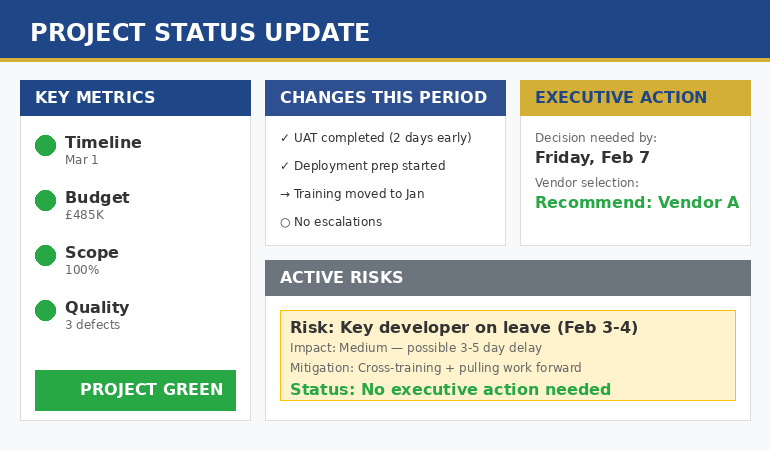
Project status update framework showing traffic light dashboard with green status indicator, key metrics, changes section, and executive action needed panel

Project Status Updates That Don’t Waste Everyone’s Time

The CFO stopped listening at slide 3. By slide 7, she was answering emails. The project manager kept presenting anyway.

I watched this happen at Commerzbank during a £12 million programme update. Forty-five minutes of task-level detail. Zero decisions made. The steering committee scheduled another meeting “to actually discuss the issues.”

After 24 years in corporate banking managing complex programmes at JPMorgan Chase, PwC, Royal Bank of Scotland, and Commerzbank, I’ve developed a project status update framework that communicates everything leadership needs in 2 minutes — and actually keeps them engaged.

Here’s how to deliver project status updates that respect everyone’s time and establish you as someone who can be trusted with bigger projects.

Quick Answer: Effective project status updates answer three questions in under 2 minutes: Is this on track? Do you need to do anything? What should you be worried about? Lead with a traffic light headline (green/amber/red), show 3-5 key metrics, highlight only what changed since the last update, and state explicitly whether executive action is required.

Why Most Project Status Updates Fail

The fundamental problem with most project status updates: they’re written for the project team, not for executives.

Project managers track dozens of tasks, dependencies, and risks. So their project status update includes all of it. But executives don’t need task-level visibility — they need to know three things:

  • Is this project on track?
  • Do I need to do anything?
  • What should I be worried about?

A project status update that answers these three questions in 2 minutes is infinitely more valuable than a 30-minute walkthrough of your Gantt chart.

I learned this the hard way at RBS. I’d spent six hours preparing a comprehensive programme update — 18 slides covering every workstream, every milestone, every risk. The Programme Director interrupted me on slide 4: “Just tell me if we’re going to hit the deadline and what you need from me.”

That moment changed how I structure every project status update since.

The Project Status Update Framework: Traffic Light Plus Context

Every effective project status update follows this structure:

Element 1: The Headline Status

Open your project status update with a single line that tells leadership exactly where things stand:

🟢 GREEN: Project on track — 2 weeks ahead of schedule, within budget

🟡 AMBER: Project at risk — vendor delay may impact launch date; mitigation in progress

🔴 RED: Project off track — need executive decision on scope reduction by Friday

This headline tells executives immediately whether they need to pay close attention or can relax. Most project status updates bury this on slide 8 — put it first.

Element 2: The Key Metrics

After the headline, your project status update should show 3-5 metrics that matter:

Metric Target Actual Status
Timeline March 15 March 1 🟢
Budget £500K £485K 🟢
Scope 100% 100% 🟢
Quality <5 defects 3 defects 🟢

This dashboard gives executives the complete picture in seconds. They can see whether you’re ahead, on track, or behind — and where specifically.

⭐ Get This Exact Project Status Framework — Ready to Use

Stop spending hours on slides that executives skim in seconds. Get the Project Status template with the traffic light framework built in.

Includes:

  • Project Status template with traffic light dashboard
  • 10 executive presentation templates total
  • 30 AI prompts to generate your content in minutes

Get the Executive Slide System → £39

Used by project managers running steering committees for programmes worth over £50 million

Element 3: What Changed Since Last Update

Executives don’t want to re-read everything — they want to know what’s new. Your project status update should highlight changes:

Changes Since Last Project Status Update:

  • Completed: User acceptance testing (2 days early)
  • Started: Production deployment preparation
  • Changed: Moved training from Feb to Jan based on stakeholder availability
  • Escalated: None this period

This format lets executives skip what they already know and focus on what’s new. It’s the difference between a helpful update and a time-wasting repeat.

Element 4: Risks and Issues

Every project status update must address risks — even if there aren’t any significant ones:

Active Risk: Key developer on leave weeks 3-4 of February

Impact: Medium — could delay final testing by 3-5 days

Mitigation: Cross-training second developer; pulling critical work forward

Status: Mitigation in progress — no executive action needed

Notice the last line: “no executive action needed.” Always tell leadership whether you need them to do something. Most risks you’re managing yourself — make that explicit in your project status update.

The traffic light framework I’ve described is exactly what’s built into The Executive Slide System (£39) — clients have used these templates to run steering committees for programmes worth over £50 million.

Element 5: Decisions or Support Needed

If your project status update requires executive action, state it clearly:

Executive Action Required:

Decision needed by: Friday, February 7

Question: Should we proceed with vendor A (£50K higher cost, 2 weeks faster) or vendor B (lower cost, standard timeline)?

Recommendation: Vendor A — the timeline benefit outweighs the cost given our Q1 deadline

If no action is needed, say that explicitly: “No executive decisions required this period.” This tells leadership they can simply note the update without adding it to their action list.

#image_title

⭐ Transform Your Next Status Update in Minutes

Your steering committee is next week. Use the same framework that’s kept executives engaged through £50M+ programme reviews.

What you get:

  • Traffic light dashboard template (fill in your metrics)
  • Risk register format executives actually read
  • Decision slide structure that gets clear approvals

Get Instant Access → £39

Instant download • 30-day money-back guarantee

The 2-Minute Project Status Update Script

Here’s exactly how to deliver your project status update verbally:

First 15 seconds — Headline:
“Project Phoenix is green — we’re two weeks ahead of schedule and within budget. No executive action needed this week.”

Next 30 seconds — Key changes:
“Since our last update, we completed UAT two days early and started deployment prep. We moved training up to January based on stakeholder availability.”

Next 45 seconds — Risks:
“One risk I’m monitoring: our lead developer is on leave for two weeks in February. We’re cross-training a backup and pulling critical work forward. I don’t expect this to impact the timeline, but I’ll flag it if that changes.”

Final 30 seconds — Look ahead:
“For next period, we’re focused on completing deployment prep and beginning production migration. Next update will confirm go-live readiness.”

Total: under 2 minutes. Executives have everything they need. You’ve demonstrated control of your project without wasting anyone’s time.

This script structure works because it follows the same principles built into The Executive Slide System — lead with the conclusion, support with evidence, close with the ask.

Project Status Update Mistakes to Avoid

Mistake 1: Reading every line of your slides.
Executives can read. Summarise the headline, highlight what changed, flag what needs attention. Don’t read word-for-word.

Mistake 2: Task-level detail.
“John completed the database migration scripts” doesn’t belong in an executive project status update. Executives need milestone-level visibility, not task-level.

Mistake 3: Hiding problems.
If the project is amber or red, say so. Finding out later that you knew about problems destroys trust faster than the problems themselves.

Mistake 4: No clear action.
Every project status update should end with either “no action needed” or a specific ask. Don’t leave executives wondering what you need from them.

Mistake 5: Inconsistent format.
Use the same structure every time. Executives shouldn’t have to learn a new format each week — consistency lets them find information quickly.

Related: If presenting status updates makes you anxious, see Presentation Anxiety Before Meetings: The Executive Reset That Actually Works — the techniques I teach clients who need to stay calm under pressure in steering committees.

⭐ Your Next Status Update — Structured for Approval

The project managers who get promoted are the ones who can run complex programmes while keeping leadership informed without overwhelming them. This framework demonstrates exactly that capability.

The Executive Slide System includes:

  • Project Status template with this exact framework
  • 9 more executive presentation templates (QBR, board, budget, strategy)
  • 30 AI prompts to customise templates in minutes

Get Instant Access → £39

Clients have used these frameworks to run steering committees for programmes worth over £50 million

FAQ

How often should I send a project status update?

Weekly for active projects, bi-weekly for steady-state. Match your frequency to how fast things change and how closely leadership wants to track. If nothing changes between updates, that’s useful information too — it shows stability.

How long should a project status update be?

One slide for verbal updates, maximum two pages for written. If your update is longer, you’re including too much detail. Everything else belongs in an appendix or separate detailed report for the project team.

What if nothing changed since the last update?

Say that explicitly: “No significant changes since last update. All metrics remain green, on track for March delivery.” A brief update confirming stability is valuable — it takes 30 seconds and builds confidence that you’re in control.

Should I include good news in my project status update?

Yes — briefly. Wins deserve acknowledgment. “Team delivered UAT two days early — strong execution” takes 5 seconds and builds confidence. Don’t bury it, but don’t spend five minutes on celebration either.

📧 Get Weekly Executive Presentation Insights

Join 2,000+ professionals getting frameworks, templates, and real examples every week.

Subscribe Free →

🎁 Free Resource: Executive Presentation Checklist

12 things to check before any executive presentation — including your next project status update.

Download Free →

Your Next Project Status Update

You probably have a project status update due soon. Before you build another 15-slide deck, try this:

  1. Write your headline status in one sentence
  2. List 3-5 metrics with traffic light indicators
  3. Note what changed since your last update
  4. List active risks with mitigations
  5. State clearly whether you need executive action

That’s your project status update. One slide. Two minutes. Everything leadership needs to know.

The project managers who advance are the ones who can run complex projects while keeping leadership informed without overwhelming them. This framework demonstrates exactly that capability.


Related: How to Create Executive Presentations That Get Approved — the complete guide covering all 10 executive presentation types, including the project status update framework.

See also: QBR Presentation Template: How to Run Quarterly Business Reviews That Drive Action

06 Dec 2025
Challenge summary slide template - framework for presenting bad news with context and recovery plan

How to Present Bad News Without Killing Your Career

Present bad news the wrong way, and you’ll be remembered as the messenger who deserved to be shot.

Every executive has to present bad news eventually. A missed target. A failed project. A lost client. A budget overrun. The question isn’t whether you’ll face this moment — it’s whether you’ll handle it in a way that maintains trust or destroys your credibility.

After 24 years in corporate banking at JPMorgan Chase, PwC, Royal Bank of Scotland, and Commerzbank, I’ve seen executives present bad news brilliantly and disastrously. The difference isn’t the news itself — it’s the framework. Here’s how to present bad news while protecting your career and keeping leadership’s confidence.

Challenge summary slide template - framework for presenting bad news with context and recovery plan
The framework for presenting bad news while maintaining credibility

Why the Way You Present Bad News Matters More Than the News Itself

Here’s what I’ve learned: executives expect bad news. Markets shift, projects fail, targets get missed. What they don’t expect — and won’t forgive — is being surprised, misled, or left without a path forward.

When you present bad news well, you actually build trust. You demonstrate that you face reality, take ownership, and think proactively about solutions. These are exactly the qualities that get people promoted.

When you present bad news poorly — hiding it, sugar-coating it, or delivering it without a plan — you signal that you can’t be trusted with difficult situations. That reputation follows you.

The framework below ensures you present bad news in a way that builds rather than destroys your credibility.

The Framework to Present Bad News Effectively

When you need to present bad news, follow this five-part structure:

Step 1: Present Bad News Early and Directly

Don’t bury it. Don’t build up to it. Don’t hope they figure it out from your data. Present bad news in the first 30 seconds.

Example — Present Bad News Directly:

“I need to share a significant miss on our Q3 targets. We achieved £2.1M against a £3M target — a 30% shortfall. I want to explain what happened, what we’ve learned, and our plan to recover.”

This approach to present bad news accomplishes three things: leadership knows the severity immediately, they know you’re not hiding from it, and they know a plan is coming.

The executives who get destroyed are the ones who make leadership discover the bad news on slide 12. By then, trust is already broken.

Step 2: Present Bad News With Context, Not Excuses

After the headline, provide context. What factors contributed? Be factual, not defensive.

Example — Present Bad News With Context:

Contributing factors:

  • Enterprise deal with [Client A] slipped to Q4 (£400K) — their procurement process took 6 weeks longer than expected
  • Two mid-market deals lost to competitor pricing (£300K combined)
  • New product launch delayed by engineering, impacting £200K pipeline

Notice this doesn’t say “it’s not my fault.” When you present bad news, you explain what happened without shifting blame. Leadership can see the factors — they’ll form their own judgment about accountability.

The moment you start making excuses when you present bad news, you lose credibility. Even if the factors were genuinely outside your control.

Need to present bad news to leadership soon?

The Challenge Summary template in The Executive Slide System has this exact framework built in — structure your difficult message for maximum credibility. Clients have used these to navigate tough conversations while maintaining trust.

Step 3: Present Bad News With What You’ve Learned

This is where you turn bad news into evidence of growth. What did this situation teach you? What would you do differently?

Example — Present Bad News With Lessons:

What we’ve learned:

  • Enterprise procurement cycles are 8-12 weeks, not 4-6 — we need to adjust forecasting
  • Our pricing is vulnerable in competitive situations — need value-based selling training
  • Product dependencies must be flagged earlier — implementing monthly cross-functional reviews

When you present bad news with lessons learned, you demonstrate self-awareness and continuous improvement. Executives know that leaders who learn from failure are more valuable than those who’ve never failed.

Step 4: Present Bad News With a Recovery Plan

Never present bad news without a plan. Leadership needs to know you’re already working on solutions.

Example — Present Bad News With Recovery Plan:

Q4 recovery plan:

  • Enterprise deal with [Client A] verbal commitment secured — contracts in legal review, expect close by Nov 15
  • Added 3 new mid-market opportunities to pipeline (£450K total) — all in negotiation stage
  • Accelerating product launch to Nov 1 — engineering confirmed revised timeline

Revised Q4 forecast: £3.2M (vs. original £2.8M) — we’re aiming to recover the full-year target

When you present bad news this way, you’re not just reporting a problem — you’re demonstrating leadership. The situation is difficult, but you have a credible plan to address it.

10 executive presentation templates - QBR, budget request, board meeting, investor pitch, strategic recommendation slides
Different situations require different structures — presenting bad news has its own framework

Step 5: Present Bad News With a Clear Ask

What do you need from leadership? Support? Resources? Just awareness? Be explicit.

Example — Present Bad News With Clear Ask:

What I need from you:

  • Executive sponsor call with [Client A] CEO to reinforce strategic partnership — would you be available next week?
  • Approval to offer competitive pricing flexibility up to 15% on qualified opportunities
  • Alignment on messaging for the board — I recommend framing as Q3 shortfall with full-year recovery plan

When you present bad news with specific asks, you help leadership help you. Vague asks get vague responses. Specific asks get action.

Need to structure a difficult conversation?

The Executive Slide System includes the Challenge Summary template specifically designed for when you need to present bad news, plus AI prompts to help you frame the message. Clients have used these frameworks to navigate career-defining moments successfully.

Common Mistakes When You Present Bad News

Mistake 1: Burying the bad news.

Hoping leadership won’t notice or will be softened by good news first. They always notice. Present bad news upfront — every time.

Mistake 2: Over-explaining when you present bad news.

A 10-minute explanation of why targets were missed sounds like excuse-making. Present bad news concisely, provide key context, move to solutions.

Mistake 3: Blaming others when you present bad news.

“Engineering’s delay caused this” or “Sales didn’t execute” destroys your credibility even if true. When you present bad news, own what you can control and stay factual about what you can’t.

Mistake 4: Presenting bad news without a plan.

Coming with problems but no solutions signals you’re not ready for leadership. Always present bad news with at least a draft recovery plan.

Mistake 5: Being overly optimistic when you present bad news.

“I’m confident we’ll make it up” without credible evidence damages trust. Be honest about probability when you present bad news. “We have a realistic path to recover 80%” is more credible than false confidence.

The Timing Question: When to Present Bad News

Present bad news as soon as you know it’s real. Not when it’s confirmed beyond all doubt. Not when you have the complete story. Not after you’ve “tried everything.”

The rule: if leadership would want to know, tell them now.

Early bad news can be addressed. Late bad news feels like a cover-up. When you present bad news early, you give leadership time to help. When you wait, you’ve made a unilateral decision that they didn’t deserve to be informed.

I’ve seen careers survive presenting bad news early. I’ve rarely seen careers survive presenting bad news late.

FAQs About How to Present Bad News

What if the bad news is my fault?

Own it directly when you present bad news. “I made a judgment call on X that didn’t work out. Here’s what I learned and how I’ll approach similar situations differently.” Taking ownership when you present bad news builds more credibility than defensiveness ever could.

How do I present bad news in a written format vs. in-person?

Same structure, but present bad news in person whenever possible for significant issues. Written bad news can be misread or forwarded out of context. If you must write, keep it concise and offer to discuss in person.

What if leadership reacts badly when I present bad news?

Stay calm and professional. Don’t get defensive when you present bad news, even if the reaction is unfair. Ask: “What additional information would be helpful?” or “What would you like me to prioritise in the recovery plan?” Redirect to solutions.

How do I present bad news that affects my bonus or review?

The same way. Trying to hide or minimise bad news to protect yourself always backfires. Present bad news honestly, demonstrate accountability, show you’re focused on the business, not self-interest. This actually protects your long-term career better than short-term self-preservation.

The Career Impact of How You Present Bad News

Here’s the counterintuitive truth: executives who present bad news well often advance faster than those who’ve never had bad news to deliver.

Why? Because handling adversity is a leadership test. Anyone can present good news. The ability to present bad news with clarity, ownership, and a path forward demonstrates executive readiness.

I’ve seen leaders promoted specifically because of how they handled a crisis. Their ability to present bad news honestly while maintaining team morale and driving recovery showed exactly the qualities the organisation needed at higher levels.

Your next difficult moment isn’t just a problem to survive. It’s an opportunity to demonstrate who you are under pressure.

Your Framework to Present Bad News

When you need to present bad news, use this structure:

  1. Lead with the news — State it directly in the first 30 seconds
  2. Provide context — What happened, factually, without excuses
  3. Share lessons learned — What you now know that you didn’t before
  4. Present your recovery plan — Specific actions and realistic outcomes
  5. Make your ask — What you need from leadership to execute

This framework won’t make the bad news good. But it will ensure you present bad news in a way that maintains trust, demonstrates leadership, and positions you to recover — both the situation and your standing.

The Executive Slide System complete package - 10 PowerPoint templates, 30 AI prompts, and quick start guide for executive presentations

Get the Template to Present Bad News Effectively

The Challenge Summary template in The Executive Slide System is built for exactly these moments — when you need to present bad news while protecting your credibility. Plus 9 more executive presentation templates and 30 AI prompts.

Clients have used these frameworks to navigate difficult conversations and emerge with leadership’s trust intact.

GET INSTANT ACCESS → £39

10 templates • 30 AI prompts • Instant download • 30-day guarantee


Related: How to Create Executive Presentations That Get Approved in 2025 — the complete guide covering all 10 executive presentation types, including how to present bad news effectively.

06 Dec 2025
Strategic recommendation slide template - McKinsey-style options analysis with comparison matrix

Strategic Recommendation Slides: The McKinsey-Style Framework

Strategic recommendation slides separate the executives who get promoted from those who stay stuck.

When leadership asks “what should we do?”, they’re testing more than your analysis. They’re testing whether you can synthesise complex information into a clear strategic recommendation — the skill that defines senior executives.

After 24 years in corporate banking at JPMorgan Chase, PwC, Royal Bank of Scotland, and Commerzbank — and working alongside McKinsey, BCG, and Bain consultants — I’ve learned exactly how top-tier strategic recommendation slides are structured. It’s not magic. It’s a framework.

Here’s how to build strategic recommendation slides that get leadership buy-in and establish you as someone ready for bigger responsibilities.

Strategic recommendation slide template - McKinsey-style options analysis with comparison matrix
The strategic recommendation structure used by top consultancies

Why Most Strategic Recommendation Slides Fail

Most people present options without a clear strategic recommendation. They show three paths and say “it depends” or “leadership should decide.” This feels safe but actually signals weakness.

Executives don’t want you to present options. They want you to present a strategic recommendation backed by evidence. They can always choose differently — but they need to see that you’ve done the thinking and have a point of view.

The other failure mode: strategic recommendation slides that present a recommendation without acknowledging alternatives. This looks naive. Leadership knows there are other options. If you don’t address them, they’ll wonder what you missed.

Great strategic recommendation slides do both: present alternatives fairly, then make a clear recommendation with reasoning.

The Strategic Recommendation Framework (SCR)

Top consultancies use variations of this framework for strategic recommendation slides. I call it SCR: Situation, Complication, Resolution.

Strategic Recommendation Element 1: Situation

Start your strategic recommendation by establishing shared context. What’s the current state? What decision needs to be made? What are the key constraints?

Example Situation for Strategic Recommendation:

“We need to decide our cloud infrastructure strategy for 2025-2027. Current contracts expire in Q2. Budget envelope is £5M annually. Key constraint: must maintain 99.9% uptime during migration.”

This grounds your strategic recommendation in reality and ensures everyone is working from the same facts.

Strategic Recommendation Element 2: Complication

What makes this decision difficult? What tensions exist? Why can’t we just do the obvious thing?

Example Complication for Strategic Recommendation:

“Three viable options exist, each with trade-offs. AWS offers best performance but highest cost. Azure offers best integration with our Microsoft stack but less flexibility. Multi-cloud offers risk mitigation but operational complexity.”

The complication in your strategic recommendation shows you understand the genuine difficulty. It prevents the “why didn’t you just…” questions because you’ve already acknowledged the tensions.

Strategic Recommendation Element 3: Resolution (Your Strategic Recommendation)

Now deliver your strategic recommendation clearly and confidently:

Example Strategic Recommendation:

“We recommend Azure as primary cloud with AWS for specific high-performance workloads. This delivers 85% of multi-cloud benefits at 60% of the complexity, while leveraging our existing Microsoft investments.”

Notice the strategic recommendation doesn’t just state the choice — it explains the reasoning in one sentence. Executives can immediately understand why you recommend this option.

Want strategic recommendation templates used by Fortune 500 executives?

The Strategic Recommendation template in The Executive Slide System has this framework built in. Clients have used these to secure over £250 million in approved strategic initiatives.

The Strategic Recommendation Slide Structure

Once you have your SCR narrative, structure your strategic recommendation slides like this:

Strategic Recommendation Slide 1: The Decision Context

One slide that covers situation and complication:

  • Decision required: What specifically needs to be decided
  • Timeline: When this decision is needed
  • Constraints: Budget, resources, dependencies
  • Why it’s complex: The key tensions making this difficult

Strategic Recommendation Slide 2: Options Analysis

Present your options fairly in your strategic recommendation. Use a comparison matrix:

Criteria Option A Option B Option C
Cost (3-year) £15M £12M ✓ £18M
Implementation Risk Low ✓ Medium High
Strategic Fit Medium High ✓ Medium

This shows your strategic recommendation is based on systematic analysis, not gut feeling. The visual makes trade-offs clear at a glance.

Strategic Recommendation Slide 3: The Recommendation

Your strategic recommendation slide should include:

  • Clear recommendation: “We recommend Option B” — no hedging
  • Key reasons: 2-3 bullet points explaining why
  • Acknowledged trade-offs: What you’re giving up with this strategic recommendation
  • Mitigation: How you’ll address the trade-offs

Acknowledging trade-offs in your strategic recommendation builds credibility. Every option has downsides. Pretending yours doesn’t makes leadership distrust your analysis.

10 executive presentation templates - QBR, budget request, board meeting, investor pitch, strategic recommendation slides
Strategic recommendation slides require different structure than other executive presentations

Strategic Recommendation Slide 4: Implementation Path

Show you’ve thought beyond the strategic recommendation to execution:

  • Key milestones: What happens in months 1, 3, 6, 12
  • Resource requirements: What’s needed to execute
  • Decision points: When leadership will be asked for subsequent decisions
  • Success metrics: How we’ll know this strategic recommendation worked

This transforms your strategic recommendation from an idea into a plan. Executives can say yes knowing what comes next.

Building a strategic recommendation for leadership this quarter?

The Executive Slide System includes the Strategic Recommendation template with this exact framework, plus AI prompts to help you structure your analysis. One client used these to get board approval on a £10M strategic initiative.

Strategic Recommendation Mistakes to Avoid

Mistake 1: Presenting without recommending.

Saying “here are three options, you decide” abdicates your responsibility. You were asked for a strategic recommendation because leadership trusts your judgment. Use it.

Mistake 2: Recommending without alternatives.

If you only show one option, leadership will ask “what else did you consider?” Have alternatives ready in your strategic recommendation, even if briefly dismissed.

Mistake 3: Overcomplicating the strategic recommendation.

If your recommendation requires a paragraph to explain, it’s too complex. A good strategic recommendation can be stated in one sentence.

Mistake 4: Hiding your confidence level.

Be explicit about certainty in your strategic recommendation. “We strongly recommend” vs. “On balance, we lean toward” — both are valid, but leadership should know which applies.

Mistake 5: Ignoring politics in your strategic recommendation.

Every strategic recommendation has stakeholders who benefit and stakeholders who don’t. Acknowledge this reality and have a plan for managing it.

FAQs About Strategic Recommendation Slides

How many options should I present in a strategic recommendation?

Three is ideal for strategic recommendation slides. Two feels like a false binary. Four or more creates decision paralysis. Three options let you show range while remaining manageable.

What if leadership disagrees with my strategic recommendation?

That’s fine — your job was to make a strategic recommendation and support it with evidence. If they choose differently, ask what factors led to their decision. You’ll learn what they prioritise for future recommendations.

Should I present my strategic recommendation first or last?

Present your strategic recommendation in the title of your recommendation slide — leadership should never have to wait to learn your position. Then support it with evidence. Context first, recommendation clearly stated, evidence follows.

How do I make a strategic recommendation when data is incomplete?

State your assumptions explicitly in your strategic recommendation. “Based on current data, which shows X, we recommend Y. If assumption Z proves incorrect, we would revisit.” This shows rigour while acknowledging uncertainty.

The Strategic Recommendation Presentation Flow

When you present strategic recommendation slides, follow this flow:

  1. State your recommendation upfront (15 seconds) — Don’t make them wait
  2. Establish context (1 minute) — Situation and constraints
  3. Acknowledge complexity (1 minute) — Why this is a genuine decision
  4. Walk through options (2-3 minutes) — Show fair analysis
  5. Reinforce recommendation (1 minute) — Why this option wins
  6. Show implementation path (1 minute) — What happens next
  7. Open for questions — Be ready to defend your strategic recommendation

Total: 7-8 minutes for the strategic recommendation, leaving ample time for discussion.

Your Next Strategic Recommendation

You’ll be asked for a strategic recommendation soon. Maybe it’s a technology choice, a market entry decision, a resource allocation question, or an organisational structure debate.

When that moment comes:

  • Structure your thinking as Situation → Complication → Resolution
  • Present options fairly, then recommend clearly
  • Acknowledge trade-offs and show how you’ll mitigate them
  • Include the implementation path

The executives who advance are the ones who can take complexity and turn it into clear strategic recommendation slides. This framework helps you do exactly that.

The Executive Slide System complete package - 10 PowerPoint templates, 30 AI prompts, and quick start guide for executive presentations

Get the Strategic Recommendation Template

The exact strategic recommendation framework from this article is built into The Executive Slide System — ready for your content. Plus 9 more executive presentation templates and 30 AI prompts.

Clients have used these strategic recommendation frameworks to secure over £250 million in approved initiatives.

GET INSTANT ACCESS → £39

10 templates • 30 AI prompts • Instant download • 30-day guarantee


Related: How to Create Executive Presentations That Get Approved in 2025 — the complete guide covering all 10 executive presentation types, including the strategic recommendation framework.

05 Dec 2025
Executive summary slide template - one-page overview structure for leadership presentations

The 3-Slide Framework That Gets Executive Decisions Fast

Executive decisions happen fast when you structure your presentation right — and get deferred indefinitely when you don’t.

That 30-slide deck you spent a week building? It’s killing your chances of getting executive decisions. Executives don’t have time for 30 slides. They don’t want to “walk through” your analysis. They want to know what you’re recommending, why they should approve it, and what happens if they don’t.

After 24 years in corporate banking and 16 years training executives on presentations, I’ve developed a 3-slide framework that gets executive decisions in 15 minutes or less. It works because it respects how executives actually process information and make decisions.

Here’s the framework that turns endless deferrals into fast executive decisions.

Executive summary slide template - one-page overview structure for leadership presentations

The executive summary structure — designed for fast executive decisions

Why Long Presentations Kill Executive Decisions

Long presentations don’t fail because executives are impatient. They fail because they bury the decision in noise.

When you present 30 slides, you’re asking executives to hold everything in working memory while waiting for your point. By slide 15, they’ve forgotten slide 3. By slide 25, they’re thinking about their next meeting. When you finally ask for a decision, they defer — not because they disagree, but because they’ve lost the thread.

The 3-slide framework works because it puts executive decisions first. Everything the executive needs to decide is visible immediately. Questions and discussion focus on the decision, not on understanding your presentation.

This is how you get executive decisions fast.

The 3-Slide Framework for Executive Decisions

Every request that needs executive decisions can be reduced to three slides. Not three slides of summary with 27 slides of backup — three slides total, with supporting detail available if requested.

Slide 1: The Executive Decision Required

Your first slide answers one question: what executive decision do you need?

This slide should include:

  • The recommendation: What you’re proposing (specific and concrete)
  • The investment: What it costs (money, time, resources)
  • The return: What the organisation gains
  • The timeline: When this needs to happen

Example Slide 1 — Executive Decision Required:

Recommendation: Approve £200K for customer platform upgrade

Investment: £200K over 6 months

Return: £450K annual savings (18-month payback)

Timeline: Decision needed by December 15 for Q1 implementation

An executive can read this slide in 10 seconds and understand exactly what executive decision you need. That’s the foundation for fast executive decisions.

Slide 2: The Evidence That Supports the Executive Decision

Your second slide answers: why should the executive approve this?

This slide should include:

  • Key data points: The 3-4 most compelling facts supporting your recommendation
  • Risk mitigation: How you’ve addressed the obvious concerns
  • Alternatives considered: Why this option is best

Example Slide 2 — Evidence for Executive Decision:

Why now: Current platform failures cost £150K/quarter; compliance deadline in Q2

Confidence: 3 similar implementations delivered on time/budget in past 18 months

Risk mitigation: Phased rollout; 15% contingency included; fixed-price vendor contract

Alternatives: Evaluated patch approach (higher long-term cost) and rebuild (2x investment, 3x timeline)

This slide provides the evidence without overwhelming. An executive can evaluate the strength of your case in 30 seconds — enough to move toward an executive decision.

Want templates built for fast executive decisions?

Every template in The Executive Slide System follows decision-first structure. Clients have used these to secure over £250 million in approvals — many in single meetings.

Slide 3: The Cost of No Executive Decision

Your third slide answers: what happens if the executive doesn’t decide or decides no?

This slide is the most underutilised lever for executive decisions. Most presenters skip it, leaving executives to assume that “no” or “defer” has no consequences. When you make the cost of inaction explicit, you create urgency for an executive decision.

Example Slide 3 — Cost of No Executive Decision:

If we delay past Q1:

  • Compliance remediation cost increases 3x (reactive vs. proactive)
  • £150K/quarter in ongoing platform failure costs continues
  • Two key engineers have cited system frustration — retention risk
  • Competitor launches similar capability in Q2 (market positioning impact)

Now the executive decision isn’t just “should we do this?” It’s “can we afford not to?” That reframe accelerates executive decisions dramatically.

10 executive presentation templates - QBR, budget request, board meeting, investor pitch, strategic recommendation slides
Every executive presentation type can be reduced to the 3-slide framework for faster executive decisions

How the 3-Slide Framework Gets Executive Decisions in 15 Minutes

Here’s what happens when you use this framework for executive decisions:

Minutes 1-3: You present the three slides. The executive now understands what you’re asking, why you’re asking, and what happens if they say no.

Minutes 3-12: Questions and discussion. But unlike a 30-slide presentation, questions focus on the executive decision, not on understanding your content. The executive already understands — now they’re evaluating.

Minutes 12-15: Executive decision. You’ve given them everything they need. They can say yes, no, or ask for specific additional information. No more “let me think about it” deferrals.

This framework gets executive decisions fast because it eliminates the processing time that kills momentum. The executive isn’t trying to understand your presentation while simultaneously evaluating your request. They understand immediately, so all mental energy goes to the executive decision itself.

When to Use the 3-Slide Framework for Executive Decisions

This framework works for any request that needs executive decisions:

  • Budget requests: What you need, why, what happens without it → executive decision
  • Project approvals: What you’re proposing, evidence it will work, cost of delay → executive decision
  • Headcount requests: Who you need, business impact, consequence of understaffing → executive decision
  • Strategic initiatives: What you recommend, why it’s the best option, risk of inaction → executive decision
  • Vendor selections: Your recommendation, comparison data, urgency factors → executive decision

If you need executive decisions, you can use this framework.

Need an executive decision this week?

The Executive Slide System includes 10 templates built for fast executive decisions, plus 30 AI prompts to draft your content in minutes. One client used these to get a £500K approval in a single 20-minute meeting.

The 3-Slide Framework vs. the Appendix for Executive Decisions

“But what about all my analysis? My stakeholder input? My detailed projections?”

Put it in the appendix. The appendix exists for executive decisions that need deeper discussion. But the decision conversation should happen on your three slides — the appendix supports if questions arise.

Structure your appendix by anticipated question:

  • “How did you calculate ROI?” → Detailed financial model
  • “What’s the implementation plan?” → Project timeline and milestones
  • “Who else supports this?” → Stakeholder alignment summary
  • “What are the detailed risks?” → Full risk register

If the executive asks a question during your presentation, you can flip to the relevant appendix slide. But don’t present the appendix — let the three-slide framework drive the executive decision, with appendix as backup.

Common Mistakes That Slow Executive Decisions

Mistake 1: Building up to the ask.

Don’t save your recommendation for the end. Executives want to know what you’re asking from the first slide. Building suspense delays executive decisions.

Mistake 2: Including “nice to know” information.

If it doesn’t directly support the executive decision, cut it. Background context, stakeholder quotes, historical analysis — unless directly relevant to the decision, it slows everything down.

Mistake 3: Multiple asks in one presentation.

One presentation, one executive decision. If you need approval on budget AND headcount AND timeline, pick the most important. Get that executive decision, then address the others in follow-up.

Mistake 4: Vague recommendations.

“We should consider expanding our platform capabilities” is not a decision. “Approve £200K for platform upgrade” is a decision. Make your ask specific enough that the executive can say yes or no to enable fast executive decisions.

FAQs About Getting Fast Executive Decisions

What if the executive wants more detail before making an executive decision?

That’s what the appendix is for. Ask “What specific information would help you decide?” Address that specific question from your appendix, then return to the executive decision.

What if the executive decision is genuinely complex?

Break it into smaller executive decisions. A £10M multi-year program might need separate decisions for Phase 1 funding, vendor selection, and team structure. Get the first executive decision, build momentum, then address the next.

What if I’m not senior enough to present directly to executives?

The framework still works for executive decisions at any level. Build the three slides for your manager. They can use the same structure when they present upward. Decision-first structure works at every level.

How do I handle executives who love detail before making executive decisions?

Have comprehensive appendix slides ready. Some executives will want to dig in before making a decision. The three-slide framework doesn’t prevent detail — it structures the conversation so detail serves the executive decision rather than delaying it.

Your Next Executive Decision

You probably have an executive decision you need. Budget approval, project green light, headcount request, strategic direction.

Before building another 30-slide deck, try this:

  1. Write one sentence: what executive decision do you need?
  2. List 3-4 facts that most strongly support that executive decision
  3. Describe what happens if the executive says no or delays the executive decision

That’s your three-slide framework. Build those three slides. Put everything else in the appendix. Present in 15 minutes.

The executive who’s been deferring your requests isn’t doing so because they disagree. They’re deferring because your presentations make executive decisions hard. Make it easy, and executive decisions happen fast.

The Executive Slide System complete package - 10 PowerPoint templates, 30 AI prompts, and quick start guide for executive presentations

Get Templates Built for Executive Decisions

The Executive Slide System includes 10 templates with decision-first structure built in — designed to get executive decisions fast. Plus 30 AI prompts to draft your content in minutes.

Clients have used these frameworks to secure over £250 million in approved funding — many executive decisions made in single meetings.

GET INSTANT ACCESS → £39

10 templates • 30 AI prompts • Instant download • 30-day guarantee


Related: How to Create Executive Presentations That Get Approved in 2025 — the complete guide covering all 10 executive presentation types with frameworks for fast executive decisions.

05 Dec 2025
Investor pitch deck template - fundraising slide structure with problem, solution, traction, and ask

Why Your Investor Pitch Deck Isn’t Getting Meetings

Your investor pitch deck gets 30 seconds before an investor decides to keep reading or move on.

That’s not a metaphor. VCs review hundreds of investor pitch decks monthly. They’ve developed pattern recognition that instantly identifies decks worth their time — and decks that aren’t.

After helping clients raise over £250 million in funding, I’ve seen exactly what separates investor pitch decks that get meetings from those that get ignored. The mistakes are surprisingly consistent — and surprisingly fixable.

Here’s why your investor pitch deck isn’t getting meetings, and how to fix it.

Investor pitch deck template - fundraising slide structure with problem, solution, traction, and ask

The investor pitch deck structure that consistently gets meetings

Investor Pitch Deck Mistake #1: Leading With Your Product, Not the Problem

Most founders love their product. So their investor pitch deck opens with features, technology, or “our revolutionary platform.”

Investors don’t care about your product yet. They care about the problem you’re solving and whether that problem represents a big enough market.

Your investor pitch deck should open with pain — the specific, urgent problem your target customers face. Make investors feel that pain before you introduce the solution. If they don’t believe the problem is real and significant, they won’t care how clever your product is.

Fix for your investor pitch deck: Your first content slide (after the title) should be the problem. Quantify it: “£X billion lost annually to [problem]” or “[X million] people struggle with [specific pain point].” Make the problem undeniable before mentioning your solution.

Investor Pitch Deck Mistake #2: No Clear Market Size

Investors are looking for returns. A great product in a small market doesn’t excite them. Your investor pitch deck must demonstrate that the opportunity is large enough to justify their investment.

Many investor pitch decks either skip market sizing entirely or show obviously inflated numbers (“The global wellness market is $4 trillion”). Neither works.

Fix for your investor pitch deck: Use bottom-up market sizing in your investor pitch deck. Show your calculation: “[X] potential customers × [£Y] annual value = [£Z] addressable market.” This demonstrates you understand your actual opportunity, not just the broadest possible category.

Investor Pitch Deck Mistake #3: Burying Traction

Traction is the most important slide in any investor pitch deck for companies that have it. Revenue, users, growth rate, key customers — this is the evidence that your business works.

Yet many investor pitch decks bury traction on slide 12, after extensive product explanation. By then, investors may have already decided to pass.

Fix for your investor pitch deck: If you have meaningful traction, put it early — slide 3 or 4 of your investor pitch deck. Lead with your strongest evidence. “£500K ARR, growing 20% monthly” or “10,000 active users, 40% month-over-month growth” — these numbers should be impossible to miss in your investor pitch deck.

Want an investor pitch deck template that’s raised real funding?

The Investor Pitch template in The Executive Slide System uses the exact structure I’ve used to help clients raise over £250 million. One biotech client used it to secure £8M in Series B.

Investor Pitch Deck Mistake #4: The “Hockey Stick” Financial Projection

Every investor pitch deck shows hockey-stick growth projections. Investors know these are fiction. Showing unrealistic projections in your investor pitch deck doesn’t excite them — it makes them question your judgment.

Fix for your investor pitch deck: Show conservative, moderate, and optimistic scenarios in your investor pitch deck. Explain your assumptions clearly. “If we achieve [X] conversion rate and [Y] customer acquisition cost, we project [Z] revenue.” This shows investors you understand the variables and have thought critically about your investor pitch deck projections.

Investor Pitch Deck Mistake #5: Team Slide That Says Nothing

“10 years of experience” appears on every investor pitch deck. It tells investors nothing useful.

Investors want to know: why is this team uniquely positioned to win? What’s the unfair advantage? Why will you succeed where others have failed?

Fix for your investor pitch deck: Focus on relevant credentials in your investor pitch deck. “Built and sold [similar company] for £20M” matters. “Previously at Google” matters only if relevant to your market. “Founded 3 companies” matters less than “founded a company in this space.” Show investor pitch deck readers why your specific experience makes you the right team for this specific opportunity.

Investor Pitch Deck Mistake #6: No Clear Ask

Some investor pitch decks never state how much funding they’re seeking or what they’ll do with it. This seems coy but actually signals lack of clarity.

Investors want to know: How much? What for? What milestones will this achieve? Your investor pitch deck should answer all three explicitly.

Fix for your investor pitch deck: Be specific in your investor pitch deck: “Raising £2M to achieve [specific milestones] over [timeframe]. Funds allocated: 50% product development, 30% sales, 20% operations.” This shows investors you have a plan, not just a hope.

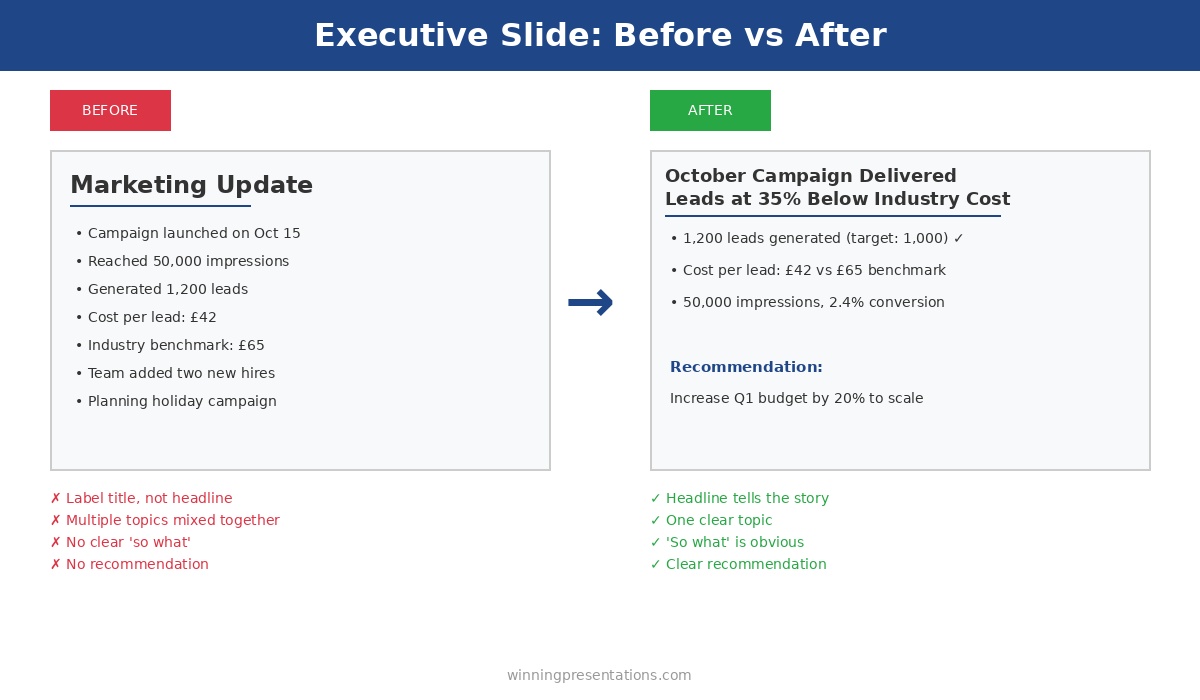
Executive slide before and after example - transforming a weak marketing update into a clear headline with recommendation
The same information, restructured: vague claims become specific evidence in your investor pitch deck

Investor Pitch Deck Mistake #7: Too Many Slides

I’ve reviewed 40-slide investor pitch decks. No investor reads 40 slides in an initial review. Your investor pitch deck will be skimmed, and if the key information isn’t immediately visible, you won’t get a meeting.

Fix for your investor pitch deck: 10-12 slides maximum for your investor pitch deck. If you can’t tell your story in 12 slides, you don’t understand your story well enough. Additional detail belongs in an appendix or data room, not your core investor pitch deck.

The Investor Pitch Deck Structure That Gets Meetings

Based on investor pitch decks that have successfully raised funding, here’s the structure that works:

Investor Pitch Deck Structure (10-12 Slides)

  1. Title: Company name, one-line description, contact
  2. Problem: The pain point you’re solving (quantified)
  3. Solution: Your product/service — how it solves the problem
  4. Traction: Evidence it’s working (revenue, users, growth)
  5. Market: Size of opportunity (bottom-up calculation)
  6. Business Model: How you make money
  7. Competition: Landscape and your differentiation
  8. Go-to-Market: How you acquire customers
  9. Team: Why you’ll win (relevant credentials)
  10. Financials: Projections with clear assumptions
  11. Ask: Amount, use of funds, milestones

This investor pitch deck structure follows the logic investors use to evaluate opportunities. Problem → Solution → Evidence → Opportunity → Execution → Team → Numbers → Ask.

Building an investor pitch deck for your raise?

The Executive Slide System includes the Investor Pitch template with this exact structure, plus AI prompts to help you craft each section. Clients have used these investor pitch deck frameworks to raise over £250 million in funding.

The 30-Second Investor Pitch Deck Test

Before sending your investor pitch deck, apply this test:

Give your investor pitch deck to someone unfamiliar with your business. Let them look at it for 30 seconds. Then ask:

  • What problem does this company solve?
  • How big is the opportunity?
  • What evidence is there that it’s working?
  • How much are they raising?

If they can’t answer all four questions from a 30-second scan of your investor pitch deck, revise until they can. Those are the questions investors need answered immediately — and 30 seconds is all you get.

FAQs About Investor Pitch Decks

How long should an investor pitch deck be?

10-12 slides for the core investor pitch deck. You can have an appendix with additional detail, but the main deck must tell a complete story in under 12 slides. Investors won’t read more than that in an initial review.

Should I include a demo in my investor pitch deck?

Not in the deck itself. Your investor pitch deck should work as a standalone document. If investors want a demo, that’s a meeting — which is exactly what your investor pitch deck should earn you.

What if I don’t have traction yet?

Focus your investor pitch deck on the problem, market, and team. If you’re pre-traction, your investor pitch deck must convince investors that the opportunity is real and your team can execute. Early-stage investor pitch decks are about potential; growth-stage decks are about proof.

Should I customise my investor pitch deck for each investor?

Minimally. Your core investor pitch deck should work universally. You might adjust the “why now” slide or add a slide on strategic fit for specific investors, but don’t create entirely different investor pitch decks for each meeting.

Your Investor Pitch Deck Action Plan

If your investor pitch deck isn’t getting meetings, it’s not your idea — it’s your deck. Here’s how to fix it:

  1. Restructure — Follow the 10-12 slide structure above for your investor pitch deck
  2. Quantify — Add numbers to every claim in your investor pitch deck (problem size, traction, market, ask)
  3. Simplify — Cut everything that doesn’t directly answer an investor’s core questions
  4. Test — Run the 30-second test and revise your investor pitch deck until it passes

The investor pitch deck that raised £8M for my biotech client wasn’t revolutionary in its design. It was disciplined in its structure. It answered the right questions in the right order and made it easy for investors to say “yes, I want to meet this team.”

That’s what a great investor pitch deck does. Not dazzle — clarify.

The Executive Slide System complete package - 10 PowerPoint templates, 30 AI prompts, and quick start guide for executive presentations

Get the Investor Pitch Deck Template

The exact investor pitch deck structure that’s helped raise over £250 million — ready for your content. Plus 9 more executive presentation templates and 30 AI prompts.

One biotech client used this investor pitch deck template to secure £8M in Series B funding.

GET INSTANT ACCESS → £39

10 templates • 30 AI prompts • Instant download • 30-day guarantee


Related: How to Create Executive Presentations That Get Approved in 2025 — the complete guide covering all 10 executive presentation types, including the investor pitch deck structure.

04 Dec 2025
30 AI prompt cards for executive presentations - Copilot and ChatGPT prompts for budget requests, board decks, QBRs and more

PowerPoint Copilot: What It Actually Does Well (And What It Doesn’t)

PowerPoint Copilot is the most overhyped and underutilised tool in Microsoft 365.

Overhyped because Microsoft’s marketing suggests it will create brilliant presentations from a single prompt. It won’t. Underutilised because most people give up after the first disappointing result, missing the things PowerPoint Copilot actually does brilliantly.

I’ve tested PowerPoint Copilot on over 100 real client presentations — board decks, investor pitches, QBRs, budget requests. Not demo presentations with perfect data. Real presentations with messy content and tight deadlines.

Here’s an honest assessment of what PowerPoint Copilot does well, what it does poorly, and how to use it effectively in your workflow.

30 AI prompt cards for executive presentations - Copilot and ChatGPT prompts for budget requests, board decks, QBRs and more
The right prompts make PowerPoint Copilot useful — generic prompts produce generic output

What PowerPoint Copilot Does Brilliantly

Let’s start with the good news. There are specific tasks where PowerPoint Copilot genuinely saves hours of work.

PowerPoint Copilot Strength #1: Summarising Long Documents

Feed PowerPoint Copilot a 30-page Word document and ask it to create a presentation summary. This is where the tool shines. It will extract key points, organise them logically, and create a first draft in under a minute.

Is the draft perfect? No. But it’s a solid starting point that would have taken you an hour to create manually. PowerPoint Copilot handles the extraction; you handle the refinement.

Best prompt for this: “Create a 10-slide presentation summarising this document. Focus on [specific topic]. The audience is [role] who need to [decision/action].”

PowerPoint Copilot Strength #2: Generating First Drafts From Bullet Points

When you have rough notes or bullet points but no structure, PowerPoint Copilot can organise them into a coherent presentation draft. It’s particularly good at identifying logical groupings and suggesting a narrative flow.

I’ve used PowerPoint Copilot to turn a client’s 50-bullet brainstorm into an 8-slide deck structure in minutes. The content needed editing, but the organisation was solid.

Best prompt for this: “Organise these bullet points into a presentation for [audience]. Group related points together. Suggest a logical flow from problem to solution to recommendation.”

PowerPoint Copilot Strength #3: Rewriting and Polishing Text

Have a slide that’s too wordy? PowerPoint Copilot excels at condensing. Ask it to make bullet points more concise, and it will cut the fluff while keeping the meaning.

This is where I use PowerPoint Copilot most frequently. I draft content quickly without worrying about wordsmithing, then ask PowerPoint Copilot to tighten everything up. It’s like having an editor who works in seconds.

Best prompt for this: “Rewrite these bullet points to be more concise. Maximum 10 words per bullet. Keep the key message but remove filler words.”

PowerPoint Copilot Strength #4: Generating Speaker Notes

Need speaker notes but don’t have time to write them? PowerPoint Copilot can generate talking points for each slide based on the content. The notes aren’t perfect scripts, but they’re excellent memory joggers.

This PowerPoint Copilot feature saves significant time for presentations where you need notes but don’t want to spend hours writing them.

Best prompt for this: “Generate speaker notes for this slide. Include the key points to mention, relevant context, and a transition to the next slide. Keep it conversational, not scripted.”

Want 30 PowerPoint Copilot prompts that actually work?

The prompt cards in The Executive Slide System are tested on real presentations — not demos. Each prompt is designed to get useful PowerPoint Copilot output on the first try.

What PowerPoint Copilot Does Poorly

Now the bad news. There are tasks where PowerPoint Copilot will waste your time or produce output that needs complete replacement.

PowerPoint Copilot Weakness #1: Creating Presentations From Scratch

“Create a presentation about Q3 results” will produce generic garbage. PowerPoint Copilot doesn’t know your company, your data, your audience, or your message. It will generate placeholder content that looks professional but says nothing.

Don’t use PowerPoint Copilot to create presentations from nothing. Use it to enhance, organise, or refine content you’ve already developed.

PowerPoint Copilot Weakness #2: Design and Visual Layout

PowerPoint Copilot can apply templates and suggest layouts, but it doesn’t have design taste. It will create slides that are technically correct but visually mediocre.

For executive presentations where visual impact matters, you’ll need to handle design yourself or work with a designer. PowerPoint Copilot is a writing tool, not a design tool.

PowerPoint Copilot Weakness #3: Data Visualisation

Ask PowerPoint Copilot to create charts from data, and you’ll get basic charts with default formatting. It doesn’t understand which chart type best communicates your message or how to highlight the key insight.

Build your charts manually or in Excel, then import them. PowerPoint Copilot can help you write the chart titles and callouts, but don’t trust it with visualisation choices.

PowerPoint Copilot Weakness #4: Industry-Specific Content

PowerPoint Copilot doesn’t know your industry’s terminology, benchmarks, or conventions. Ask it to create a biotech investor pitch or an investment banking deal memo, and it will produce generic business content that misses the mark.

You need to provide the industry context in your prompts, or PowerPoint Copilot will default to generic corporate language.

10 executive presentation templates - QBR, budget request, board meeting, investor pitch, strategic recommendation slides
Purpose-built templates give you better starting points than PowerPoint Copilot’s generic output

The PowerPoint Copilot Workflow That Actually Works

Based on 100+ presentations, here’s how to integrate PowerPoint Copilot effectively:

PowerPoint Copilot Workflow Step 1: Start With Structure, Not Copilot

Before opening PowerPoint Copilot, know your message. What’s your recommendation? What does your audience need to decide? What are the 3-5 key points?

PowerPoint Copilot is an accelerator, not a strategist. If you don’t know your message, PowerPoint Copilot will give you generic filler.

PowerPoint Copilot Workflow Step 2: Use Copilot for First Drafts

Once you have structure, use PowerPoint Copilot to generate content quickly. Feed it your bullet points and ask for organised slides. Don’t expect perfection — expect a starting point.

This is where PowerPoint Copilot saves the most time: the blank-page-to-first-draft phase that usually takes hours.

PowerPoint Copilot Workflow Step 3: Refine Manually

Go through each PowerPoint Copilot output and edit. Strengthen headlines, cut unnecessary words, ensure the “so what” is clear. This is where your expertise matters.

The combination of PowerPoint Copilot speed and human judgment produces better results than either alone.

PowerPoint Copilot Workflow Step 4: Use Copilot for Polish

After manual refinement, use PowerPoint Copilot again for final polish. Ask it to make bullets more concise, generate speaker notes, or check for consistency across slides.

This second-pass use of PowerPoint Copilot catches things you might miss and adds final professional polish.

Skip the trial-and-error with PowerPoint Copilot.

The Executive Slide System includes 30 tested prompts for PowerPoint Copilot — 3 for each executive presentation type. Plus templates that give you better starting structures than Copilot’s generic output. Clients have used these to cut presentation prep time by 60%.

PowerPoint Copilot Prompts That Get Results

The difference between useful and useless PowerPoint Copilot output is the prompt. Here are patterns that work:

Bad PowerPoint Copilot prompt: “Create a presentation about our marketing results.”

Good PowerPoint Copilot prompt: “Create a 5-slide presentation for our CMO about Q3 marketing results. She needs to decide whether to increase Q4 budget. Include: headline results, channel performance comparison, ROI analysis, recommendation. Tone: confident, data-driven, concise.”

The difference? The good prompt tells PowerPoint Copilot the audience, the decision, the structure, and the tone. It can’t give generic output because you’ve specified exactly what you need.

PowerPoint Copilot Prompt Template

Use this structure for any PowerPoint Copilot prompt:

Create a [NUMBER]-slide presentation for [AUDIENCE/ROLE].

They need to [DECISION OR ACTION].

Include these sections:
[LIST YOUR REQUIRED SECTIONS]

Tone: [DESCRIBE THE TONE]

Here’s my raw content:
[PASTE YOUR BULLETS OR NOTES]

This template consistently produces better PowerPoint Copilot output than vague requests.

PowerPoint Copilot vs. ChatGPT vs. Claude for Presentations

Should you use PowerPoint Copilot, or another AI tool? Here’s my take after extensive testing:

Use PowerPoint Copilot when:

  • You’re working inside PowerPoint and want seamless integration
  • You’re summarising Word documents into presentations
  • You need quick edits to existing slides

Use ChatGPT or Claude when:

  • You need more sophisticated reasoning about structure and messaging
  • You’re developing strategy before building slides
  • You want longer, more nuanced responses

I often use ChatGPT or Claude for strategy and structure, then PowerPoint Copilot for execution. They complement each other.

FAQs About PowerPoint Copilot

Is PowerPoint Copilot worth the cost?

If you create presentations frequently (weekly or more), yes. The time savings on first drafts and polishing pays for the subscription quickly. If you present monthly or less, the value is marginal.

Does PowerPoint Copilot work offline?

No. PowerPoint Copilot requires an internet connection to process requests. This can be an issue in secure environments or when travelling.

Can PowerPoint Copilot access my company data?

PowerPoint Copilot can access documents you explicitly share with it or that are stored in your Microsoft 365 environment. It can summarise SharePoint documents, emails, and other M365 content if you have appropriate permissions.

How do I get better at using PowerPoint Copilot?

Practice with specific prompts. The more detail you provide in your prompts, the better PowerPoint Copilot output becomes. Start with the prompt template above and refine based on results.

The Honest PowerPoint Copilot Verdict

PowerPoint Copilot is a productivity tool, not a magic solution. It won’t turn bad ideas into good presentations or replace strategic thinking. But it will significantly speed up the mechanical work of building presentations.

Use PowerPoint Copilot for:

  • Summarising documents into presentations
  • Organising bullet points into slides
  • Rewriting and condensing text
  • Generating speaker notes

Don’t use PowerPoint Copilot for:

  • Creating presentations from scratch
  • Design and visual layout
  • Data visualisation choices
  • Industry-specific content without guidance

With the right prompts and realistic expectations, PowerPoint Copilot is a valuable tool. Without them, it’s an expensive disappointment.

The Executive Slide System complete package - 10 PowerPoint templates, 30 AI prompts, and quick start guide for executive presentations

Get 30 Tested PowerPoint Copilot Prompts

Stop guessing what prompts work. The Executive Slide System includes 30 PowerPoint Copilot prompts tested on real presentations — 3 for each executive presentation type.

Plus 10 templates that give you better starting structures than PowerPoint Copilot’s generic output.

GET INSTANT ACCESS → £39

30 prompts • 10 templates • Instant download • 30-day guarantee


Related: How to Create Executive Presentations That Get Approved in 2025 — the complete guide covering all 10 executive presentation types with AI prompts that work with PowerPoint Copilot, ChatGPT, and Claude.

04 Dec 2025
Board presentation opening slide template - board action requested structure for governance meetings

The Board Presentation Structure Nobody Teaches You

📅 Updated: January 2026 | The framework that gets board approvals in 15 minutes

Quick Answer

The ideal board presentation structure follows a 10-slide framework: Executive Summary, Strategic Context, The Proposal, Business Case, Implementation Approach, Resource Requirements, Risk Assessment, Governance, Timeline, and The Ask. Lead with your recommendation. Board members decide quickly — most form their view within the first 3 minutes. Give them what they need upfront.

The first time I presented to a bank’s Board of Directors, I made every mistake possible.

I’d prepared a 45-slide deck. Comprehensive market analysis. Detailed financial models. Thorough competitive assessment. I was ready to walk them through every assumption.

The Chairman interrupted at slide 6: “What’s your recommendation?”

I fumbled to slide 38. By then, two board members were checking their phones. Another had stepped out. The Chairman said: “Send us a one-pager and we’ll discuss at the next meeting.”

That was a £12M decision, delayed by three months. Because I didn’t understand how boards actually work.

After 24 years presenting to boards at JPMorgan, PwC, Royal Bank of Scotland, and Commerzbank — and coaching hundreds of executives through their own board presentations — I’ve learned what the business schools don’t teach you.

Board presentations follow different rules. This is the structure that works.

⭐ Get the Board Presentation Templates That Actually Work

Stop guessing what boards want to see. Get the exact structures used for £250M+ in approved funding.

The Executive Slide System includes:

  • Board presentation template with 10-slide structure
  • Executive summary templates — the slide boards read first
  • 30 AI prompts to customise every template in minutes

Download the Templates — £39 →

Used by CFOs, CEOs, and division heads at FTSE 100 companies. Instant download.

How Board Presentations Differ From Executive Presentations

Board presentations aren’t just executive presentations for a bigger audience. They follow fundamentally different rules.

Boards Think in Quarters and Years, Not Weeks

Executive committees focus on execution. Boards focus on strategy and governance. Your detailed implementation timeline matters less than your strategic rationale and risk assessment.

Boards Have Limited Context

Unlike your executive team, board members aren’t living your business daily. They see you 4-6 times per year. Don’t assume they remember details from last quarter — provide enough context to orient them quickly.

Boards Care About Governance

Who’s accountable? How will progress be reported? What are the escalation triggers? Executive committees often skip these questions. Boards never do.

Boards Read the Pack in Advance

Most board members will have reviewed your materials before the meeting. They’re not seeing this for the first time — they’re validating their initial impressions and getting answers to questions they’ve already formed.

Boards Value Brevity

A typical board meeting covers 8-12 agenda items in 3-4 hours. Your slot might be 15-20 minutes. Respect their time by getting to the point immediately.

10-slide board presentation structure from executive summary to the ask

The 10-Slide Board Presentation Structure

This framework works for strategic proposals, major investments, policy changes, and significant operational decisions that require board approval.

Slide 1: Executive Summary

Purpose: Everything they need to know in 60 seconds.

Board members often make their initial decision based on this slide alone. Everything after either confirms or challenges their first impression.

Include:

  • One-sentence situation statement
  • Your specific recommendation
  • Three supporting points (maximum)
  • What you need from them

Example: “Recommendation: Approve £8M acquisition of TechCo to accelerate our digital capability. ROI: 180% over 5 years. Strategic fit: Fills gap in our product roadmap. Risk: Manageable integration complexity. Ask: Approval to proceed to due diligence.”

Related: The Executive Summary Slide: How to Write the Only Slide That Matters

Slide 2: Strategic Context

Purpose: Connect this proposal to the bigger picture.

Boards approve things that advance strategy. Show how your proposal fits.

Include:

  • Relevant strategic priorities (reference the board-approved strategy)
  • Market context that makes this timely
  • Why now — what’s changed or what opportunity exists

Don’t: Repeat the entire corporate strategy. One slide. Three points maximum.

Slide 3: The Proposal

Purpose: State exactly what you’re asking them to approve.

Be specific enough that the board could vote “yes” based on this slide alone.

Include:

  • Precise description of what’s being proposed
  • Scope boundaries (what’s included, what’s not)
  • Key terms or conditions

Example: “Approve acquisition of TechCo Ltd for up to £8M, subject to satisfactory due diligence, with completion targeted for Q2 2026.”

Slide 4: Business Case

Purpose: Prove this is a good use of capital.

Boards are stewards of shareholder value. Show them the numbers.

Include:

  • Investment required
  • Expected returns (ROI, NPV, payback period)
  • Key assumptions
  • Sensitivity analysis (what if assumptions are wrong?)

Boards are sophisticated — don’t oversimplify. But don’t drown them in spreadsheets either. Summary on the slide, detail in the appendix.

Want ready-made board presentation templates with this structure built in? The Executive Slide System includes the complete 10-slide board framework with guidance on each slide.

Slide 5: Implementation Approach

Purpose: Demonstrate you can execute.

Boards approve ideas they believe will actually happen. Show you’ve thought through how.

Include:

  • High-level phases (not detailed project plans)
  • Key milestones
  • Critical dependencies
  • What needs to be true for this to succeed

Keep this strategic, not tactical. Boards don’t need your Gantt chart.

Slide 6: Resource Requirements

Purpose: Be transparent about what you need.

Include:

  • Capital expenditure
  • Operating expenditure impact
  • People (new hires, redeployment, external resources)
  • Technology or infrastructure

Boards respect honesty. Understate requirements and you’ll damage credibility when you come back for more. Overstate and you won’t get approval.

Slide 7: Risk Assessment

Purpose: Show you’ve thought about what could go wrong.

This is where board credibility is won or lost. Boards expect rigorous risk thinking.

Include:

  • Top 3-5 risks (no more — prioritise)
  • Likelihood and impact for each
  • Mitigation strategies
  • Residual risk after mitigation

At RBS, I watched a divisional CEO present a £50M initiative with “risks are manageable” as his only risk commentary. The Chairman’s response: “Unacceptable. Come back when you’ve done proper risk analysis.”

Three weeks later, same proposal, proper risk slide. Approved in 10 minutes.

Slide 8: Governance

Purpose: Show how you’ll stay accountable.

Boards care deeply about governance — it’s their primary responsibility.

Include:

  • Executive sponsor and accountable owner
  • Steering committee composition
  • Reporting cadence to the board
  • Escalation triggers (what would bring this back to the board?)
  • Decision rights at each level

Related: How to Present to a Board of Directors: 7 Mistakes to Avoid

⭐ Stop Guessing What Boards Want to See

Get the exact board presentation structure that’s secured over £250 million in approved funding.

What’s inside:

  • 10 executive templates — Board, QBR, Budget, Strategy, and more
  • Before/after examples showing exactly how to transform weak slides
  • 30 AI prompts that generate first drafts in seconds

Get Instant Access — £39 →

One CFO used these templates to get a £12M initiative approved in a single board meeting. Instant download.

Slide 9: Timeline

Purpose: Make progress measurable.

Include:

  • Key milestones with dates
  • Decision points requiring board input
  • When you’ll report back to the board
  • Expected completion

Keep this high-level. Quarterly milestones, not weekly tasks.

Slide 10: The Ask

Purpose: Make the decision easy.

End with exactly what you need them to do.

Include:

  • Specific resolution language (what they’re voting on)
  • Any conditions or caveats
  • What happens after approval
  • Next board touchpoint

Example: “Resolution: The Board approves the acquisition of TechCo Ltd for up to £8M, subject to satisfactory completion of due diligence, and delegates authority to the CEO to finalise terms within these parameters. Next update: Q2 board meeting.”

Then stop. Let them respond.

What Board Members Actually Read

After years of presenting to boards — and debriefing with board members afterward — here’s what I’ve learned about how they actually consume board papers.

Before the Meeting

Most board members spend 15-30 minutes reviewing each agenda item in advance. They read:

  • Executive summary — Almost always read in full
  • The ask — They want to know what decision is needed
  • Risk assessment — They scan for red flags
  • Financial summary — They check the numbers make sense

They skim or skip:

  • Detailed implementation plans
  • Lengthy market analysis
  • Comprehensive appendices

During the Meeting

Board members aren’t reading your slides — they’re validating their pre-formed impressions and getting answers to questions they’ve already thought of.

This means your verbal presentation should:

  • Reinforce the executive summary (don’t repeat it word-for-word)
  • Address the likely concerns head-on
  • Add insight not visible in the written materials
  • Demonstrate confidence and conviction

After the Meeting

Board members may revisit your materials when:

  • Writing up their own notes
  • Discussing with fellow board members
  • Preparing for follow-up meetings

Make sure your slides stand alone — they need to make sense without your narration.

Related: Board Presentation Template: The Executive’s Complete Guide

Board Presentation Mistakes to Avoid

Mistake #1: Too Much Detail

Boards don’t need your project plan. They need to understand the strategic rationale, the business case, and the risks. Put operational detail in the appendix.

Mistake #2: Burying the Recommendation

Your recommendation should be on slide 1, visible within 60 seconds. Don’t make board members hunt for what you want them to do.

Mistake #3: Weak Risk Analysis

“Risks are manageable” is not a risk assessment. Boards expect rigorous thinking about what could go wrong and how you’ll address it.

Mistake #4: Ignoring Governance

Boards are responsible for oversight. If you don’t explain how you’ll be accountable, they’ll either ask (wasting time) or worry (reducing confidence).

Mistake #5: Reading the Slides

Board members can read faster than you can speak. Your job is to add insight, demonstrate conviction, and handle questions — not to narrate the obvious.

Mistake #6: Defensive Body Language

Board questions aren’t attacks — they’re due diligence. If you get defensive or evasive, you destroy credibility. Address concerns directly and confidently.

The executives who consistently get board approvals follow a proven structure. The Executive Slide System gives you that structure with before/after examples for every board scenario.

How to Present to a Board: Delivery Tips

Arrive With a Point of View

Boards want recommendations, not options. Have a clear view on what should happen. Be prepared to defend it, but don’t waffle.

Manage Your Time Ruthlessly

If you have 15 minutes, plan to present for 8. Leave time for questions. Going over time is disrespectful and signals poor judgment.

Answer Questions Directly

When a board member asks a question, answer it. Don’t deflect, don’t hedge, don’t launch into a five-minute preamble. Answer first, then provide context if needed.

Know When to Take It Offline

If a board member has a detailed technical question that would derail the discussion, offer to follow up afterward. “That’s a great question — I don’t have that specific data here, but I’ll send it to you by end of day.”

Close Strong

End with your ask, clearly stated. “I’m requesting board approval for the £8M acquisition, subject to due diligence. Happy to answer any final questions before you deliberate.”

Then stop talking. Let them decide.

Board Presentation Checklist

Before you present to the board, verify:

  • ☐ Executive summary contains situation, recommendation, 3 supporting points, and ask
  • ☐ Strategic context links proposal to board-approved strategy
  • ☐ Proposal is specific enough to vote on
  • ☐ Business case includes ROI, key assumptions, and sensitivity analysis
  • ☐ Risk assessment covers top 3-5 risks with mitigation strategies
  • ☐ Governance slide shows accountability structure and reporting cadence
  • ☐ Final slide has clear resolution language
  • ☐ Total presentation is 10 slides or fewer (excluding appendix)
  • ☐ Appendix ready for detailed questions
  • ☐ Presentation rehearsed and timed (under 10 minutes of talking)

⭐ Your Next Board Presentation Deserves Better

Join the executives who’ve mastered the structure boards expect.

The Executive Slide System gives you:

  • Board presentation template with 10-slide structure
  • Executive summary templates — the slide boards read first
  • Risk assessment frameworks boards respect
  • 30 AI prompts that generate first drafts in minutes

Get Instant Access — £39 →

Clients have used these templates to secure over £250 million in board-approved funding. Instant download.

Frequently Asked Questions

How long should a board presentation be?

10 slides maximum for the core presentation. Plan to speak for 8-10 minutes, leaving ample time for questions. Board meetings are packed — respect their time by being concise.

Should I send the board pack in advance?

Yes — standard practice is 5-7 days before the meeting. This gives board members time to review and formulate questions. Never surprise a board with new information in the meeting itself.

How do I handle tough board questions?

Answer directly, without defensiveness. If you don’t know something, say so: “I don’t have that figure to hand, but I’ll follow up by end of day.” Never bluff a board member — they usually know more than you think.

What if the board disagrees with my recommendation?

Listen to their concerns. Ask clarifying questions. If they raise valid points you hadn’t considered, acknowledge it: “That’s a fair challenge — I’d like to revisit that aspect and bring a revised proposal to the next meeting.” Don’t dig in defensively.

How much financial detail should I include?

Summary on the slide, detail in the appendix. Board members are sophisticated — they want to see ROI, payback, NPV. But they don’t need your full financial model in the main deck.

What’s the biggest board presentation mistake?

Weak risk analysis. Boards are responsible for oversight — they need to know you’ve thought rigorously about what could go wrong. “Risks are manageable” is never acceptable.

📧 The Winning Edge Newsletter

Weekly insights on board presentations, executive communication, and what’s actually working in boardrooms right now.

Subscribe Free →

Related Resources

🎁 Free: Executive Presentation Checklist

The 12-point checklist I use before every board presentation. One page. Covers structure, timing, and the mistakes that get proposals rejected.

Download Free Checklist →

No email required. Instant download.

About the Author

Mary Beth Hazeldine spent 24 years in corporate banking at JPMorgan Chase, PwC, Royal Bank of Scotland, and Commerzbank — presenting to boards on deals worth billions. She’s trained over 5,000 executives on high-stakes presentations and helped clients raise over £250 million using her proprietary frameworks. She now runs Winning Presentations, training senior professionals to communicate with impact at the highest levels.

03 Dec 2025
Executive slide before and after example - transforming a weak marketing update into a clear headline with recommendation

Stop Writing Slide Titles Like This (Before and After Examples)

Your slide titles are probably costing you approvals, buy-in, and promotions.

After reviewing thousands of presentations across 24 years in corporate banking and 16 years of training executives, I can tell you the single biggest mistake I see: label slide titles instead of headline slide titles.

“Q3 Financial Results” is a label. It tells me what category of information I’m about to see.

“Q3 Revenue Up 12% Despite Market Headwinds” is a headline. It tells me what I need to know — even if I never read the rest of the slide.

This distinction in slide titles sounds small. It’s not. It’s the difference between presentations that get skimmed and ignored versus presentations that drive decisions.

Here are 10 before-and-after examples to transform your slide titles today.

Executive slide before and after example - transforming a weak marketing update into a clear headline with recommendation
The same slide, transformed: label slide titles become headlines that communicate the key message

Why Slide Titles Matter More Than You Think

Executives don’t read presentations. They scan them.

They flip through slide titles looking for red flags, key decisions, and anything that requires their attention. If your slide titles are labels, you’re invisible. They’re scanning past your slide titles without absorbing anything.

But when your slide titles are headlines — complete messages that communicate the “so what” — executives can get your story just from the slide titles. They know what you’re saying before they read a single bullet point.

This changes everything about how your presentation lands.

The Slide Titles Test That Reveals Weak Presentations

Here’s how to know if your slide titles are working:

Read only the slide titles of your presentation, in order. Do they tell a coherent story? Does someone scanning just the slide titles understand your key message and recommendation?

If yes, you have headline slide titles. If no — if the slide titles are just labels that require reading the slide content — you have work to do.

Let’s fix your slide titles.

10 Slide Titles Transformations: Before and After

Slide Titles Example 1: Financial Results

❌ Before: “Q3 Financial Results” ✅ After: “Q3 Revenue Up 12%, Margins Stable at 42%”

Why this slide title is better: The executive knows exactly how the quarter went without reading anything else. The before slide title requires them to dig into the content to understand if Q3 was good or bad.

Slide Titles Example 2: Project Status

❌ Before: “Project Status Update” ✅ After: “Project Green: 3 Weeks Ahead, 10% Under Budget”

Why this slide title is better: The slide title communicates health, timeline, and budget in one line. An executive scanning these slide titles knows immediately this project doesn’t need attention.

Slide Titles Example 3: Market Analysis

❌ Before: “Competitive Landscape” ✅ After: “We Lead in 3 of 5 Categories; Gap in Enterprise”

Why this slide title is better: The slide title tells the strategic story — mostly winning, but with one clear weakness. The executive knows exactly where to focus the discussion from the slide title alone.

Slide Titles Example 4: Budget Request

❌ Before: “Budget Proposal” ✅ After: “Requesting £500K for Platform Upgrade — 6-Month Payback”

Why this slide title is better: The slide title states the ask and the return. The executive is already doing the mental math before seeing the details.

Want slide titles already written for you?

Every template in The Executive Slide System has headline-style slide titles built in — just fill in your numbers. No more staring at blank slide titles wondering what to write.

Slide Titles Example 5: Team Update

❌ Before: “Team Performance” ✅ After: “Team at Full Capacity — All KPIs Green for Q3”

Why this slide title is better: The slide title answers the question leadership actually has: is this team performing? Instead of making them hunt for the answer, your slide title delivers it immediately.

Slide Titles Example 6: Risk Assessment

❌ Before: “Risk Register” ✅ After: “2 High Risks Require Board Attention — Mitigations in Place”

Why this slide title is better: The slide title tells leadership exactly what they need to know: how many risks, severity level, and current status. They know immediately if this slide needs discussion from the slide title.

Slide Titles Example 7: Customer Metrics

❌ Before: “Customer Satisfaction” ✅ After: “NPS Up 15 Points to 72 — Highest in Company History”

Why this slide title is better: The slide title celebrates a win with specifics. The executive knows from the slide title this is good news worth acknowledging — maybe even sharing with the board.

The 60-second executive slide test - 6 questions every presentation slide must pass before presenting to leadership
Testing your slide titles is #5 on the 60-second check: “Does the title tell the story?”

Slide Titles Example 8: Strategic Recommendation

❌ Before: “Strategic Options” ✅ After: “Recommend Option B: Fastest Time-to-Market at Moderate Risk”

Why this slide title is better: The slide title leads with the recommendation. The executive knows your position before reviewing the options — which focuses the discussion on your reasoning rather than re-evaluating everything from scratch.

Struggling to write strong slide titles?

The Executive Slide System includes 30 AI prompts — one specifically generates 5 headline slide title options for any slide. The same prompts I’ve used to help clients secure over £250 million in funding.

Slide Titles Example 9: Challenges

❌ Before: “Current Challenges” ✅ After: “Churn at 8% — Above Target; Mitigation Plan in Progress”

Why this slide title is better: The slide title is honest about the problem but also shows you’re addressing it. It demonstrates accountability in the slide title rather than hiding bad news behind a vague label.

Slide Titles Example 10: Next Steps

❌ Before: “Next Steps” ✅ After: “Decision Needed by Friday to Meet Q1 Launch Date”

Why this slide title is better: The slide title creates urgency and specifies exactly what you need. “Next Steps” could mean anything; this slide title tells leadership precisely what action you’re requesting.

The Slide Titles Formula That Always Works

Every strong slide title follows this pattern:

The Headline Slide Titles Formula

[Subject] + [Key Message] + [Number or Context]

Slide titles examples:

  • • “Revenue + Up 12% + Despite Market Headwinds”
  • • “Project + On Track + 3 Weeks Ahead of Schedule”
  • • “Churn + Above Target + Mitigation in Progress”

Numbers are particularly powerful in slide titles. “Performance Improved” is vague. “Performance Up 23%” is specific and credible. Wherever possible, include a number in your slide titles.

Common Slide Titles Mistakes to Avoid

Mistake 1: Single-word slide titles. “Overview,” “Summary,” “Appendix” — these slide titles tell the reader nothing. Every slide should have a message, and the slide title should communicate it.

Mistake 2: Questions as slide titles. “What Did We Learn in Q3?” forces the reader to dig for the answer. “Q3 Taught Us Enterprise Is Our Growth Engine” delivers the answer in the slide title.

Mistake 3: Slide titles that need the slide to make sense. If your slide title only makes sense after reading the content, it’s backwards. The slide title should make sense first, then the content provides supporting detail.

Mistake 4: Slide titles that are too long. Slide titles should be scannable — ideally under 12 words. If you can’t communicate your message in 12 words, your slide might be trying to say too much.

FAQs About Slide Titles

Should every slide have a headline slide title?

Yes, with rare exceptions. Even “Agenda” can become “Today: 3 Decisions Required.” The only slides that might keep label slide titles are section dividers in long presentations — and even those slide titles can often be improved.

What about title slides with just the presentation name?

Title slides are the one exception for slide titles. “Q3 Business Review” is fine as a presentation title. But slide 2 onwards should all have headline slide titles, not labels.

Won’t headline slide titles give away my conclusions too early?

That’s the point. Executives want to know your conclusions immediately. Leading with conclusions in your slide titles shows confidence and respects their time. Building suspense is for movies, not presentations.

How do I write headline slide titles for complex topics?

Focus on the “so what” for your slide titles. Even complex analysis has a key takeaway. “Analysis Results” tells me nothing. “Analysis Shows Market Entry Viable in Q2” tells me the conclusion. Start with the takeaway and work backwards to write your slide title.

Transform Your Slide Titles Today

Open your most recent presentation. Look at the slide titles only — don’t read the content.

Ask yourself: if an executive only read these slide titles, would they understand my message?

For any slide title where the answer is no, apply the formula: Subject + Key Message + Number or Context.

This takes 10 minutes. It will transform how your presentation lands.

I’ve seen careers change because of slide titles. A VP at one of my client companies told me she started getting invited to board meetings after she fixed her slide titles. The content hadn’t changed — just the slide titles. But suddenly, executives could actually see her strategic thinking instead of having to dig for it.

Your slide titles are the first thing leadership reads. Make them count.

The Executive Slide System complete package - 10 PowerPoint templates, 30 AI prompts, and quick start guide for executive presentations

Get Templates With Headline Slide Titles Built In

Stop staring at blank slides. The Executive Slide System includes 10 PowerPoint templates with headline-style slide titles already written — just fill in your numbers and present.

Plus 30 AI prompts including one that generates 5 headline slide title options for any slide.

GET INSTANT ACCESS → £39

10 templates • 30 AI prompts • Instant download • 30-day guarantee


Related: How to Create Executive Presentations That Get Approved in 2025 — the complete guide covering all 10 executive presentation types with headline slide titles and structures.

03 Dec 2025
Budget request slide template - executive approval structure with ROI, cost breakdown, and payback timeline

How I Helped a Client Get a £2m Budget Approved (The Slide That Did It)

A single budget presentation slide secured £2M in funding for my client — in one 20-minute meeting.

No follow-up meetings. No “let me think about it.” No death by committee. The CFO reviewed the budget presentation, asked three questions, and approved on the spot.

This wasn’t luck. After 24 years in corporate banking at JPMorgan Chase, PwC, Royal Bank of Scotland, and Commerzbank, I’ve seen hundreds of budget presentations. Most fail — not because the request is unreasonable, but because the budget presentation makes it hard to say yes.

Here’s exactly how we structured the budget presentation that worked, and why most budget requests get stuck in approval limbo.

Budget request slide template - executive approval structure with ROI, cost breakdown, and payback timeline

The budget presentation structure that secured £2M approval

Why Most Budget Presentations Fail to Get Approved

Before I show you what worked, let me explain what doesn’t — because I see these mistakes in almost every budget presentation I review.

Mistake 1: Leading with the problem instead of the ask.

Most budget presentations spend 10 slides building up to the request. By the time the actual number appears, the executive has lost patience or checked out entirely. Your budget presentation should state the ask in the first 30 seconds.

Mistake 2: Hiding the total cost.

Some presenters break costs across multiple slides in their budget presentation, hoping the piecemeal approach makes the total less scary. It doesn’t. It makes executives suspicious. Your budget presentation needs one clear number, prominently displayed.

Mistake 3: Missing the “do nothing” cost.

Executives don’t just evaluate whether your budget presentation request is worth funding — they evaluate whether it’s worth funding compared to doing nothing. If your budget presentation doesn’t show what happens if they say no, you’ve made their decision easy: defer.

Mistake 4: No clear payback timeline.

CFOs think in terms of ROI and payback periods. A budget presentation that says “this will improve efficiency” without quantifying when and how much is asking for faith, not approval.

The Budget Presentation Structure That Got Approved

My client needed £2M for a platform modernisation project. She’d been trying to get this approved for 18 months. Previous budget presentations had been deferred three times.

Here’s what we changed in her budget presentation:

Budget Presentation Element 1: The Ask — Front and Centre

The budget presentation opened with one line:

“I’m requesting £2M for platform modernisation, with full payback in 8 months.”

That’s it. No preamble, no context-setting, no “as you may recall from previous discussions.” The CFO knew exactly what he was evaluating before she said another word.

Most budget presentations bury this on slide 8. We put it in the first sentence of her budget presentation.

Budget Presentation Element 2: The Cost of Inaction

Immediately after the ask, the budget presentation showed what happens if they don’t approve:

Cost of Doing Nothing:

  • 3 system failures per quarter at £200K each = £2.4M annual risk
  • Compliance audit finding in Q3 requires remediation by Q1 — estimated 3x cost if reactive
  • Two key engineers have cited system frustration in exit interviews

This reframed the budget presentation entirely. She wasn’t asking for £2M. She was offering to prevent £2.4M+ in annual losses. Saying no suddenly had a price tag.

Budget Presentation Element 3: The ROI Summary

The budget presentation included a simple ROI calculation — not buried in an appendix, but on the main slide:

Investment Year 1 Savings Payback
£2M £3.1M 8 months

The CFO didn’t need to do mental maths. The budget presentation did it for him. Eight-month payback is exceptional — and stating it plainly made approval easy.

Budget Presentation Element 4: The Breakdown

The budget presentation showed exactly where the money goes:

  • Platform licensing: £800K (40%)
  • Implementation partner: £600K (30%)
  • Internal resources: £400K (20%)
  • Contingency: £200K (10%)

Notice the contingency line. Most budget presentations try to appear precise by excluding contingency. Experienced CFOs know this is unrealistic. Including 10% contingency in the budget presentation actually increased credibility — it showed she understood projects don’t go perfectly.

Want the exact budget presentation template from this story?

The Budget Request template is one of 10 executive presentations in The Executive Slide System, with the budget presentation structure already built in. Just fill in your numbers.

Budget Presentation Element 5: The Decision Required

The budget presentation ended with an explicit ask:

“I’m requesting approval to proceed with vendor selection this week. The implementation timeline requires a decision by Friday to meet our Q1 compliance deadline.”

This created appropriate urgency without being pushy. The budget presentation connected the ask to an external deadline (compliance), not an internal preference. The CFO couldn’t defer without accepting compliance risk.

Executive slide before and after example - transforming a weak marketing update into a clear headline with recommendation

Most budget presentations bury the ask and miss the cost of inaction — the structure makes the difference

The Three Questions the CFO Asked About the Budget Presentation

After reviewing the budget presentation, the CFO asked exactly three questions:

Question 1: “What’s the confidence level on the £3.1M savings?”

She was ready for this. “Conservative estimate based on eliminating current incident costs only. Doesn’t include productivity gains or reduced technical debt — those would add another £500K-800K annually.”

Question 2: “Why 10% contingency?”

“Industry standard for projects of this complexity. If we don’t use it, it returns to the budget. But I’d rather ask for it now than come back in Q3 asking for more.”

Question 3: “Who’s the implementation partner?”

“We’ve shortlisted three. I’ll bring the recommendation to you next week — but I need budget presentation approval to proceed with final negotiations.”

Three questions. Twenty minutes total. Budget presentation approved.

The Budget Presentation Framework That Works Every Time

Here’s the framework for any budget presentation, based on what I’ve seen work across hundreds of requests:

Budget Presentation Framework

  1. The Ask: Total amount requested — first sentence of your budget presentation
  2. The ROI: Expected return with specific payback timeline
  3. The Cost of Inaction: What happens if they say no — make this concrete
  4. The Breakdown: Where the money goes — include contingency
  5. The Timeline: Key milestones and when returns materialise
  6. The Decision: Exactly what approval you need and by when

Every element of this budget presentation framework serves the same purpose: making it easy for the approver to say yes. A budget presentation isn’t about impressing people with analysis — it’s about removing obstacles to approval.

Building a budget presentation this quarter?

The Executive Slide System includes the Budget Request template with this exact budget presentation structure, plus AI prompts that help you calculate and present ROI clearly. Clients have used these frameworks to secure over £250 million in approved funding.

Common Budget Presentation Mistakes to Avoid

Don’t split the request across meetings. “Phase 1 is £500K, we’ll discuss Phase 2 later” invites approval for Phase 1 and indefinite deferral of everything else. If you need £2M, ask for £2M in one budget presentation.

Don’t undersell contingency. Asking for the bare minimum in your budget presentation signals either inexperience or sandbagging. Include 10-15% contingency and explain why.

Don’t assume they remember previous conversations. Your budget presentation should stand alone. Include all context needed to decide — don’t rely on “as we discussed.”

Don’t hide risks. If there’s implementation risk or dependency on other projects, address it in your budget presentation. Finding out later destroys trust.

FAQs About Budget Presentations

How long should a budget presentation be?

One slide for budget presentation requests under £500K. Two to three slides for larger requests. If your budget presentation is longer than 5 slides, you’re including too much detail — move supporting analysis to an appendix.

Should I present multiple options in a budget presentation?

Only if the options represent genuinely different approaches in your budget presentation. “Option A: £2M for full scope, Option B: £1M for reduced scope” can work. “Option A: £2M, Option B: £1.8M, Option C: £2.2M” just creates confusion.

What if my budget presentation gets deferred?

Ask specifically what’s needed to approve your budget presentation. “What additional information would help you decide?” is better than accepting “we need to think about it.” Get concrete next steps before leaving the room.

How do I present a budget presentation when ROI is hard to quantify?

Focus on risk reduction and cost avoidance in your budget presentation. “This prevents £X in potential losses” is often more compelling than “this generates £X in new revenue.” Executives understand downside protection.

Your Next Budget Presentation

You probably have a budget presentation coming up — next quarter if not sooner. Before you build another slide, apply this framework:

  • State the total ask in the first sentence of your budget presentation
  • Show the cost of doing nothing
  • Include a clear ROI with payback timeline
  • Break down where the money goes (with contingency)
  • End with the specific decision you need

This budget presentation structure won’t guarantee approval — bad ideas still fail. But it will ensure that good ideas don’t fail because of poor budget presentation structure.

My client’s £2M request had been deferred three times over 18 months. Same project, same numbers, same business case. The only thing that changed was how the budget presentation was structured.

Twenty minutes later, she had approval.

The Executive Slide System complete package - 10 PowerPoint templates, 30 AI prompts, and quick start guide for executive presentations

Get the Budget Presentation Template

The exact budget presentation structure from this story is built into The Executive Slide System — ready to fill in with your numbers. Plus 9 more executive presentation templates and 30 AI prompts.

Clients have used these budget presentation frameworks to secure over £250 million in approved funding.

GET INSTANT ACCESS → £39

10 templates • 30 AI prompts • Instant download • 30-day guarantee


Related: How to Create Executive Presentations That Get Approved in 2025 — the complete guide covering all 10 executive presentation types, including the budget presentation structure.