Category: How-To Guides

03 Jan 2026
Presentation hook techniques - how to grab your audience in the first 10 seconds

Presentation Hook: How to Grab Your Audience in the First 10 Seconds [2026]

Your presentation hook is the difference between an audience that leans in and one that checks out. You have roughly 10 seconds to earn their attention β€” and most presenters waste it on introductions nobody asked for.I learned this lesson painfully.

Early in my banking career, I opened every presentation the same way: “Good morning, I’m Mary Beth from the credit team, and today I’ll be covering…” By the time I finished that sentence, half the room had mentally left.

It took me years β€” and hundreds of presentations at JPMorgan Chase, PwC, Royal Bank of Scotland, and Commerzbank β€” to understand what a real presentation hook looks like. Not a greeting. Not an agenda. A pattern interrupt that makes people want to hear what comes next.

In this guide, I’ll show you exactly how to craft a presentation hook that grabs attention β€” with 12 formulas you can use immediately.

This article expands on the hook techniques in my complete guide: How to Open a Presentation: The First 30 Seconds That Win Your Audience

🎁 Free Download: Get my Executive Presentation Checklist β€” includes the presentation hook formula for every situation.

What Is a Presentation Hook (And Why Most Presenters Get It Wrong)

A presentation hook is your opening statement β€” the first thing you say that captures attention and creates interest in what follows.

Most presenters confuse a hook with an introduction. They’re not the same thing:

Introduction (weak): “Hi everyone, my name is Sarah, I’m from the marketing team, and today I’ll be presenting our Q4 campaign results.”

Presentation hook (strong): “We spent Β£2 million on marketing last quarter. I’m about to show you which half was wasted β€” and how we fix it.”

See the difference? The introduction tells people who you are and what you’ll cover. The presentation hook tells people why they should care.

A strong presentation hook does three things:

  • Interrupts the pattern. Your audience expects a standard opening. A hook breaks that expectation and triggers attention.
  • Creates a knowledge gap. It raises a question the audience wants answered: “Which half was wasted?”
  • Signals value. It promises that paying attention will be worth their time.

The Presentation Hook Formula: 3 Elements in 10 Seconds

Every effective presentation hook contains three elements, delivered in roughly 10 seconds:

Element 1: The Pattern Interrupt (2-3 seconds)

Something unexpected that breaks through the noise. A number. A question. A bold claim. A moment of silence.

Element 2: The Relevance Anchor (3-4 seconds)

Connect the interrupt to something your audience cares about. Their problem. Their goal. Their fear. Their opportunity.

Element 3: The Forward Pull (3-4 seconds)

Create momentum toward the rest of your presentation. What will they learn? What question will be answered?

Example presentation hook using the formula:

“Β£4.2 million.” [Pattern Interrupt] “That’s how much delayed decisions cost this company last year.” [Relevance Anchor] “Today I’m going to show you how to cut that number in half.” [Forward Pull]

Total time: 8 seconds. Total impact: The room is paying attention.

Presentation hook formula - Pattern Interrupt (2-3 sec), Relevance Anchor (3-4 sec), Forward Pull (3-4 sec) with what and how for each element

12 Presentation Hook Formulas That Work

Here are 12 proven presentation hook formulas, each with examples you can adapt.

Presentation Hook #1: The Shocking Number

Lead with a statistic that surprises.

Formula: “[Surprising number]. That’s [what it means]. Today I’ll show you [promise].”

Examples:

  • “78%. That’s how many presentations fail to achieve their objective. Today I’ll show you how to be in the other 22%.”
  • “6 hours. That’s how long the average professional spends creating a single presentation. I’m going to show you how to do it in 90 minutes.”
  • “Β£150,000. That’s what this problem cost us last month. Here’s how we stop the bleeding.”

Presentation Hook #2: The Provocative Question

Ask something that makes people think.

Formula: “What would happen if [provocative scenario]? [Bridge to topic].”

Examples:

  • “What would happen if we lost our three biggest clients tomorrow? That’s not hypothetical β€” it’s what we’re risking right now.”
  • “How many hours did you spend in meetings last week that could have been emails? Let’s talk about getting that time back.”
  • “What if I told you everything you know about [topic] is holding you back?”

Presentation Hook #3: The Bold Claim

Make a statement that demands attention.

Formula: “[Bold claim]. [Why it matters]. [What you’ll show them].”

Examples:

  • “Your presentation skills are capping your career. Most people never realise it. Today I’ll show you exactly where the ceiling is β€” and how to break through it.”
  • “Everything you’ve been told about [topic] is wrong. The data proves it. Give me 15 minutes to change your mind.”
  • “This presentation will save you 200 hours this year. I’ll prove it before you leave this room.”

Presentation Hook #4: The Story Opening

Drop your audience into a scene.

Formula: “[Time/place marker]. [Specific detail]. [Why it matters].”

Examples:

  • “Last Tuesday, 4pm. A client called me in a panic. Board presentation in 3 hours, zero slides ready. What happened next is why we’re here today.”
  • “Three years ago, I sat in a boardroom and watched a Β£5 million deal die. Not because of the numbers. Because of one slide.”
  • “6:45am, Heathrow Terminal 5. I’m rehearsing a pitch that would change my career. What I didn’t know was that I was about to fail spectacularly.”

πŸ“‹ Want 50+ Presentation Hook Scripts Ready to Use?

The Presentation Openers & Closers Swipe File (Β£9.99) includes 50+ tested hooks organised by presentation type β€” board meetings, sales pitches, team updates, and more.

Presentation Hook #5: The Contrast

Show the gap between current state and possible state.

Formula: “[Current reality]. [Better alternative]. [What you’ll cover].”

Examples:

  • “Most teams take 6 weeks to make this decision. The best take 6 days. Today I’ll show you what they do differently.”
  • “Your competitors close deals in 30 days. We take 60. That gap is costing us Β£3 million annually. Here’s how we close it.”
  • “You can spend your weekend preparing this presentation. Or you can use what I’m about to show you and finish by lunch.”

Presentation Hook #6: The Direct Address

Acknowledge what your audience is thinking.

Formula: “I know you’re [thinking/feeling X]. [Redirect]. [Promise].”

Examples:

  • “I know you’ve sat through a dozen presentations about [topic]. This one is different. Give me 10 minutes to prove it.”
  • “You’re probably wondering why we called another meeting. Fair question. The answer is Β£2 million β€” and I’ll explain in the next 5 minutes.”
  • “I can see some sceptical faces. Good. Scepticism means you’re paying attention. Let me earn your attention for the next 15 minutes.”

Presentation Hook #7: The “What If” Scenario

Paint a picture of a better future.

Formula: “What if [desirable outcome]? [Make it concrete]. [Your presentation delivers this].”

Examples:

  • “What if you could walk into any presentation with complete confidence? Not fake it β€” actually feel it. That’s what we’re building today.”
  • “What if every slide you created got the reaction you wanted? I’m going to show you exactly how to make that happen.”
  • “What if this time next year, you’re presenting to the board instead of presenting to your manager? Let me show you the path.”

Presentation Hook #8: The Callback

Reference shared context.

Formula: “In [previous context], [something happened]. Today I have [the answer/update/result].”

Examples:

  • “Last month, someone asked me a question I couldn’t answer. I’ve spent four weeks finding that answer. Here it is.”
  • “Remember the challenge we identified in Q3? We solved it. Here’s how.”
  • “In Monday’s all-hands, the CEO asked us to think differently about [topic]. This presentation is my answer.”

Presentation Hook #9: The Admission

Vulnerability creates connection.

Formula: “I [failure/struggle/mistake]. [What I learned]. [How it helps them].”

Examples:

  • “I spent five years terrified of presenting. Physically sick before every meeting. What I learned getting past that fear is what I’m sharing today.”
  • “Last year, I gave the worst presentation of my career. I’m going to show you exactly what went wrong β€” so you never make the same mistake.”
  • “I used to think presentation skills didn’t matter for technical people. I was wrong. Here’s what changed my mind.”

Presentation Hook #10: The Challenge

Directly challenge assumptions.

Formula: “[Common belief] is wrong. [Why]. [What you’ll show instead].”

Examples:

  • “You’ve been told to ‘practice more’ to get better at presenting. That advice is incomplete β€” and it’s why most people plateau. Let me show you what actually works.”
  • “The standard approach to [topic] is costing us money. I’m going to challenge it β€” and propose something better.”
  • “Most presentation advice is designed for TED talks, not boardrooms. Today I’ll give you what actually works in corporate environments.”

Presentation Hook #11: The Time Pressure

Create urgency.

Formula: “[Deadline/window]. [What’s at stake]. [What we need to decide].”

Examples:

  • “We have 30 days to make this decision. After that, the opportunity closes. Here’s what you need to know to decide.”
  • “Our competitors are moving now. Every week we wait costs us market share. Today I’ll show you how we catch up.”
  • “The budget cycle closes in two weeks. This presentation is your case for the resources you need. Let me show you how to make it.”

Presentation Hook #12: The Promise

Tell them exactly what they’ll get.

Formula: “By the end of this presentation, you’ll [specific outcome]. [Why it matters].”

Examples:

  • “By the end of this presentation, you’ll have a complete action plan for [goal]. Not theory β€” specific steps you can start today.”
  • “In 15 minutes, you’ll know exactly how to [skill]. I’ll give you a framework you can use in your next meeting.”
  • “When you leave this room, you’ll have everything you need to make this decision with confidence.”

How to Choose the Right Presentation Hook

Match your presentation hook to your context:

For executive audiences: Use Shocking Number, Contrast, Direct Address, or Promise. Executives want efficiency β€” get to the point fast.

For sales presentations: Use Provocative Question, What If, or Bold Claim. Create desire for the outcome you’re offering.

For team meetings: Use Story Opening, Callback, or Admission. Build connection before content.

For conference talks: Use Bold Claim, Admission, or Challenge. Stand out from other speakers.

For difficult conversations: Use Direct Address or Admission. Acknowledge the tension, then move forward.

Which presentation hook for which situation - matching guide for executive audiences, sales presentations, team meetings, conference talks, and difficult news

Presentation Hook Mistakes to Avoid

Even good hooks can fail if you make these mistakes:

Mistake 1: The hook doesn’t connect to your content. If you open with a dramatic story but your presentation is about spreadsheet updates, you’ve created whiplash. Your hook must lead naturally into your topic.

Mistake 2: The hook is longer than 15 seconds. A hook should be punchy. If you’re still “hooking” after 15 seconds, you’re just giving a long introduction.

Mistake 3: The hook makes promises you don’t keep. If you say “I’m going to change how you think about X,” you’d better actually change how they think about X. Broken promises destroy trust.

Mistake 4: The hook is all style, no substance. Gimmicks wear thin. Your hook should signal real value, not just be clever for cleverness’s sake.

Presentation Hook: Common Questions

How long should a presentation hook be?

10-15 seconds maximum β€” roughly 25-40 words. Your hook should capture attention quickly, then let your content do the work.

Should I memorise my presentation hook?

Yes, word-for-word. Your hook is the one part of your presentation you should know cold. This ensures smooth delivery even when you’re nervous.

What if my topic is boring?

No topic is inherently boring β€” but the way it’s presented can be. Find the human element: What problem does it solve? What’s at stake? Who benefits? Your hook should surface that relevance.

Can I use the same presentation hook for different audiences?

Usually not. Different audiences care about different things. Adapt your hook to what matters most to the specific people in the room.

Your Presentation Hook Toolkit

You now have 12 formulas for crafting a presentation hook that grabs attention. Here’s how to go deeper:

🎁 FREE: Executive Presentation Checklist
Quick-reference guide including the presentation hook formula.


πŸ“‹ 50+ HOOK SCRIPTS (Β£9.99): Presentation Openers & Closers Swipe File
50+ tested hooks plus closing scripts. Fill-in-the-blank templates for every situation.


🎯 BEST VALUE β€” The Presentation Confidence Bundle (Β£29.99)

Everything you need to open strong:

  • Public Speaking Cheat Sheets (Β£14.99 value)
  • Presentation Openers & Closers (Β£9.99 value)
  • Calm Under Pressure Guide (Β£19.99 value)

Total value: Β£44.97 β†’ Bundle price: Β£29.99

πŸŽ“ Master High-Stakes Presentations

A great presentation hook is just the beginning. The Executive Buy-In Presentation System teaches you how to structure for approval, handle tough questions, and deliver with authority from opening to close.

  • 7 modules of video training
  • Opening frameworks for every executive scenario
  • Live practice sessions with feedback
  • AI prompt sequences that actually work

Learn More About the Course β†’


Related Articles:

πŸ“§ Get The Winning Edge

Weekly presentation techniques and frameworks from 24 years in corporate boardrooms.

Subscribe Free β†’


Mary Beth Hazeldine spent 24 years in corporate banking at JPMorgan Chase, PwC, Royal Bank of Scotland, and Commerzbank. She now trains professionals on high-stakes presentations through Winning Presentations.

03 Jan 2026
How to open a presentation - the first 30 seconds that win your audience

[2026]How to Open a Presentation: The First 30 Seconds That Win Your Audienc

You have 30 seconds. That’s how long your audience takes to decide whether you’re worth their attention. Most presenters lose them before slide two.I learned this the hard way.

Early in my banking career at JPMorgan Chase, I opened a critical client pitch with: “Good morning, I’m Mary Beth, and today I’ll be walking you through our Q3 performance…”

I watched the CFO check his phone before I finished the sentence.

That presentation didn’t fail because of bad data or weak recommendations. It failed in the first 30 seconds β€” because I didn’t know how to open a presentation properly.

Twenty-four years and 5,000+ executive presentations later, I’ve developed a systematic approach to opening presentations that commands attention. Not tricks. Not gimmicks. A framework that works whether you’re pitching to investors, updating your board, or presenting to your team.

In this guide, I’ll show you exactly how to open a presentation that makes your audience lean in β€” with 20 techniques you can use immediately.

🎁 Free Download: Get my Executive Presentation Checklist β€” includes the 30-second opening framework for every presentation type.

Why How You Open a Presentation Determines Everything That Follows

The opening of your presentation isn’t just important β€” it’s decisive.

Research in cognitive psychology shows that first impressions form within milliseconds and are remarkably resistant to change. In presentations, this means your audience is making judgments about your competence, credibility, and whether you’re worth listening to before you’ve finished your first paragraph.

Here’s what happens neurologically when you open a presentation:

The attention gate opens (or closes). Your audience’s prefrontal cortex decides whether to allocate cognitive resources to processing your message. A strong opening triggers engagement. A weak one triggers the “this isn’t worth my full attention” response β€” and that phone comes out.

Expectations crystallise. Within 30 seconds, your audience forms predictions about the entire presentation. Will this be valuable? Will it be boring? Will it waste my time? These predictions become self-fulfilling β€” people find what they expect to find.

Social proof activates. In group settings, audience members look to each other for cues. If you open strong and capture the room, others follow. If you stumble, scepticism spreads.

The executives I work with β€” at Morgan Stanley, HSBC, BNP Paribas, Mastercard β€” all say the same thing: they know within 30 seconds whether a presentation will be good. Learning how to open a presentation properly isn’t a nice-to-have. It’s the difference between being heard and being ignored.

The 5 Fatal Mistakes When Opening a Presentation

Before I show you what works, let’s eliminate what doesn’t. These opening mistakes kill presentations:

Mistake 1: The Autobiographical Opening

“Good morning, my name is Sarah, I’m the Director of Marketing, and I’ve been with the company for seven years…”

Unless you’re speaking to complete strangers, your audience knows who you are. Even if they don’t, they don’t care β€” yet. Your credentials matter only after you’ve demonstrated value. Opening with your biography is like a restaurant describing the chef’s CV before letting you taste the food.

Mistake 2: The Agenda Recitation

“Today I’m going to cover four main areas: first, the market analysis; second, our competitive position; third, the proposed strategy; and fourth, the implementation timeline…”

Agendas are useful β€” but not as openings. They tell people what’s coming without giving them a reason to care. It’s like a film trailer that just lists the scenes in order.

Mistake 3: The Apology Opening

“I know you’re all busy, so I’ll try to keep this brief…” or “I’m not really an expert on this, but…” or “Sorry, I’m a bit nervous…”

Apologetic openings destroy your authority before you’ve established it. They signal that even you don’t think what you’re saying is worth their time. Never apologise for presenting.

Mistake 4: The Technical Difficulties Opening

“Can everyone see this okay? Let me just… hold on… is this working? Sorry, technical issues…”

Test your technology before you present. Technical problems in your opening signal poor preparation and immediately put you on the back foot.

Mistake 5: The Housekeeping Opening

“Before we begin, just a few housekeeping items β€” toilets are down the hall, fire exits are here and here, please silence your phones…”

Housekeeping can wait. Or be handled by someone else. Or be skipped entirely. Don’t waste your most valuable real estate on logistics.

Every one of these mistakes shares the same flaw: they’re about you, not your audience. A powerful opening answers one question immediately: why should I pay attention to this?

5 fatal presentation opening mistakes to avoid - the autobiography, agenda recitation, apology, tech check, and housekeeping

How to Open a Presentation: The 30-Second Framework

After analysing thousands of presentations β€” the ones that succeeded and the ones that failed β€” I’ve identified a framework that consistently works. Here’s how to open a presentation in 30 seconds:

Second 0-10: The Hook

Capture attention with a surprising statement, question, statistic, or story opening. This is your “pattern interrupt” β€” something that breaks through the noise and signals “this is different.”

Second 10-20: The Relevance Bridge

Connect your hook to something your audience cares about. Why does this matter to them? What’s at stake? This transforms curiosity into investment.

Second 20-30: The Promise

Tell them what they’ll get from paying attention. What will they know, be able to do, or decide by the end? This creates forward momentum.

Let me show you this framework in action with 20 specific techniques.

The 30-second presentation opening framework - Hook (0-10 seconds), Relevance (10-20 seconds), Promise (20-30 seconds)

How to Open a Presentation: 20 Proven Techniques

Here are 20 ways to open a presentation that commands attention. Each one follows the 30-second framework and can be adapted to any context.

Category 1: Question Openings

Questions activate your audience’s brain. They can’t help but start formulating answers β€” which means they’re engaged.

Technique 1: The Pain Point Question

“How many hours did your team spend on presentations last month? For most companies I work with, the answer is shocking β€” and most of that time is wasted. Today I’m going to show you how to cut that number by 70%.”

Technique 2: The Thought-Provoking Question

“What would you do with an extra Β£2 million in your budget? That’s not hypothetical β€” it’s what’s at stake in the decision we’re making today.”

Technique 3: The Show of Hands Question

“By show of hands, how many of you have sat through a presentation this month that should have been an email? [Wait for hands] Keep your hand up if you’ve given one. [Pause] Today we’re fixing that.”

Technique 4: The Rhetorical Challenge

“What if everything you believe about [topic] is holding you back? In the next 15 minutes, I’m going to challenge three assumptions that are costing this company money.”

Category 2: Story Openings

Stories are neurologically powerful. They release oxytocin, activate multiple brain regions, and are remembered 22 times more than facts alone.

Technique 5: The Personal Failure Story

“Three years ago, I nearly lost our biggest client. Not because of bad work β€” because of a presentation I thought was good but wasn’t. What I learned from that failure is why we’re here today.”

Technique 6: The Client Success Story

“Last month, a client called me in a panic. Board presentation in four hours, zero slides ready. By the time she walked into that boardroom, she had 12 polished slides and the confidence to deliver them. The board approved her Β£5 million proposal. Here’s the method she used.”

Technique 7: The “I Was There” Story

“I was sitting in the boardroom at [Company] when the CEO said something that changed how I think about [topic]. She said: ‘[Quote].’ Today I’m going to show you how to apply that insight.”

Technique 8: The Contrast Story

“Two teams. Same data. Same deadline. Same stakeholders. One got their proposal approved in the first meeting. The other is still waiting after six months. The difference? How they opened their presentation.”

πŸ“‹ Want 50+ Opening Scripts Ready to Use?

The Presentation Openers & Closers Swipe File (Β£9.99) includes 50+ tested scripts for opening strong and closing memorably β€” organised by presentation type with fill-in-the-blank templates.

Category 3: Data Openings

The right statistic stops people in their tracks. The key word is “right” β€” it needs to be surprising, relevant, and immediately graspable.

Technique 9: The Shocking Statistic

“Β£2.3 million. That’s how much this problem cost us last year. Today I’m going to show you how to cut that number in half β€” with an investment of Β£150,000.”

Technique 10: The Comparison Statistic

“Our competitors close deals in 45 days. We take 78. That 33-day gap is costing us Β£4 million annually in delayed revenue. This presentation is about closing that gap.”

Technique 11: The Time-Based Statistic

“In the time it takes to give this presentation β€” 15 minutes β€” we’ll lose Β£12,000 to [problem]. By the end, you’ll know how to stop that leak.”

Technique 12: The Personal Statistic

“I’ve given over 500 presentations in my career. Exactly 3 of them changed my life. Today I’m going to show you what made those 3 different β€” and how to apply it to your next presentation.”

Category 4: Bold Statement Openings

Bold statements signal confidence and create immediate intrigue. They work when you can back them up.

Technique 13: The Contrarian Statement

“Everything you’ve been told about [topic] is wrong. The conventional wisdom is costing companies millions β€” and I have the data to prove it.”

Technique 14: The Prediction Statement

“By 2027, half the companies in this industry will be gone. The ones that survive will have done one thing differently. That’s what we’re here to discuss.”

Technique 15: The Promise Statement

“In the next 15 minutes, I’m going to give you a framework that will cut your presentation prep time from 6 hours to 90 minutes. And I’ll prove it works before you leave this room.”

Technique 16: The Challenge Statement

“I’m going to challenge you to think differently about [topic]. Some of you will resist. By the end, I think you’ll agree the change is worth it.”

Category 5: Situational Openings

These openings acknowledge the specific context and create immediate relevance.

Technique 17: The Current Event Opening

“You’ve seen the news this morning about [relevant event]. What you might not realise is how directly it affects what we’re deciding today. Let me show you the connection.”

Technique 18: The Callback Opening

“In our last meeting, someone asked a question I couldn’t fully answer. I’ve spent the past two weeks finding that answer β€” and it led me somewhere unexpected.”

Technique 19: The Elephant in the Room Opening

“I know what you’re thinking: not another presentation about [topic]. I thought the same thing before I saw these numbers. Give me 10 minutes to change your mind.”

Technique 20: The Direct Address Opening

“You asked for a recommendation on [topic]. My recommendation is [answer]. The rest of this presentation is the evidence. If you’re convinced after 10 minutes, we can stop early.”

20 proven presentation opening techniques organized by category - Questions, Stories, Data, Bold Claims, and Situational approaches with audience matching guide

How to Open a Presentation: Matching Technique to Context

Not every opening works for every situation. Here’s how to choose:

For Board Presentations

Best techniques: Direct Address (#20), Shocking Statistic (#9), Promise Statement (#15)

Board members are time-poor and decision-focused. Open with your recommendation or the key number, then support it. Don’t make them wait.

For Sales Pitches

Best techniques: Pain Point Question (#1), Client Success Story (#6), Comparison Statistic (#10)

Sales openings should connect to the prospect’s world immediately. Lead with their problem or a result someone like them achieved.

For Team Meetings

Best techniques: Show of Hands (#3), Personal Failure Story (#5), Contrast Story (#8)

Teams respond to connection and authenticity. Stories and interactive elements build engagement.

For Conference Talks

Best techniques: Contrarian Statement (#13), Personal Statistic (#12), Thought-Provoking Question (#2)

Conference audiences have chosen to be there but are easily distracted. Open with something memorable and different.

For Investor Pitches

Best techniques: Time-Based Statistic (#11), Prediction Statement (#14), “I Was There” Story (#7)

Investors want to see pattern recognition and urgency. Show you understand where the market is going and why now matters.

How to Open a Presentation: The First Slide Question

Your opening isn’t just what you say β€” it’s what you show. Here’s how to handle your first slide:

Rule 1: Your first slide should support your opening, not replace it.

If you’re opening with a statistic, your first slide might display that number in large text. If you’re opening with a question, your first slide might show that question. If you’re opening with a story, your first slide might be a simple image that sets the scene.

Rule 2: Avoid the title card trap.

The standard “Title / Your Name / Date / Company Logo” slide is wasted space. It tells your audience nothing and creates no engagement. Skip it or replace it with something that hooks.

Rule 3: Consider starting with a black screen.

For high-stakes presentations, try opening with no slide at all. Just you, speaking directly to the room. Advance to your first visual only after you’ve delivered your hook. This creates presence and signals confidence.

For more on this, see: The First 30 Seconds: Why Most Presenters Lose Their Audience Immediately

How to Open a Presentation: Practice Protocol

Knowing how to open a presentation isn’t enough β€” you need to execute it smoothly. Here’s my practice protocol:

Step 1: Write your opening word-for-word.

Don’t wing the most important 30 seconds of your presentation. Script it precisely.

Step 2: Time it.

Your opening should be 30-45 seconds maximum. If it’s longer, cut it.

Step 3: Memorise it.

Your opening is the one part of your presentation you should know cold. You should be able to deliver it while walking into the room, without notes, without slides.

Step 4: Practice it out loud 10 times.

Not in your head β€” out loud. Record yourself. Listen back. Refine.

Step 5: Practice the transition.

The move from your opening to your first main point should be seamless. Practice this bridge until it’s automatic.

This protocol takes 30 minutes. It’s the highest-ROI time you can spend on any presentation.

How to Open a Presentation: Common Questions

How long should a presentation opening be?

30-45 seconds maximum. That’s roughly 75-100 words spoken at a natural pace. Your opening should hook attention, establish relevance, and create forward momentum β€” then get out of the way.

Should I introduce myself when opening a presentation?

Only if the audience genuinely doesn’t know who you are. Even then, keep it to one sentence after your hook, not before it. Establish value first, credentials second.

How do I open a presentation when I’m nervous?

Memorise your opening word-for-word. When you know your first 30 seconds cold, you can deliver them on autopilot while your nerves settle. Most presentation anxiety peaks in the first minute β€” a solid, memorised opening gets you through it.

What if my opening doesn’t land?

Keep going. Don’t acknowledge it, don’t apologise, don’t try a different opening. Commit to your approach and trust your content. One flat moment doesn’t define a presentation.

Can I use humour to open a presentation?

Only if you’re genuinely funny and the context supports it. Bad humour is worse than no humour. If you’re unsure, use a different technique. A compelling question or statistic is safer and often more effective than a joke.

Your Presentation Opening Toolkit

Now you know how to open a presentation. Here are resources to help you execute:

🎁 FREE: Executive Presentation Checklist
The 30-second opening framework plus checklists for every presentation type.


πŸ“‹ 50+ OPENING SCRIPTS (Β£9.99): Presentation Openers & Closers Swipe File
50+ tested scripts for strong openings and memorable closings. Fill-in-the-blank templates organised by presentation type.


🎯 BEST VALUE β€” The Presentation Confidence Bundle (Β£29.99)

Get everything you need to open with confidence:

  • Public Speaking Cheat Sheets (Β£14.99 value)
  • Presentation Openers & Closers (Β£9.99 value)
  • Calm Under Pressure Guide (Β£19.99 value)

Total value: Β£44.97 β†’ Bundle price: Β£29.99


πŸ† COMPLETE SYSTEM: The Executive Slide System (Β£39)
17 templates + 51 AI prompts + video training. Includes opening frameworks for board presentations, pitches, and executive updates.

πŸŽ“ Master High-Stakes Presentations

Knowing how to open a presentation is just the beginning. The Executive Buy-In Presentation System teaches you how to structure for approval, handle tough questions, and deliver with authority.

  • 7 modules of video training
  • Opening frameworks for every executive scenario
  • Live practice sessions with feedback
  • AI prompt sequences that actually work

Learn More About the Course β†’


Related Articles:

πŸ“§ Get The Winning Edge

Weekly presentation techniques, opening scripts, and frameworks from 24 years in corporate boardrooms.

Subscribe Free β†’


Mary Beth Hazeldine spent 24 years in corporate banking at JPMorgan Chase, PwC, Royal Bank of Scotland, and Commerzbank. She now trains professionals on high-stakes presentations through Winning Presentations. Her clients have raised over Β£250 million using her frameworks.

02 Jan 2026
How to make a presentation outline - template showing structure before slides

How to Make a Presentation Outline: The Planning Step Most People Skip [2026]

The secret to making presentations faster isn’t better software or fancier templates. It’s making a presentation outline before you open PowerPoint.I’ve watched hundreds of professionals waste hours staring at blank slides, moving bullet points around, deleting entire sections and starting over. The problem is never the slides. It’s that they skipped the outline.

A solid presentation outline takes 10-15 minutes to create. It saves 2-3 hours of confused slide-shuffling later.

In this guide, I’ll show you exactly how to make a presentation outline β€” with templates you can use for any situation and any time limit.

This is a deep dive on the planning phase. For the complete presentation process, see: How to Make a Presentation: The Complete Guide.

🎁 Free Download: Get my 7 Presentation Outline Templates β€” ready-to-use frameworks for pitches, updates, proposals, and more.

Why a Presentation Outline Changes Everything

Here’s what happens when you skip the presentation outline and go straight to slides:

  • You create 15 slides, then realise slide 3 should come after slide 9
  • You spend 20 minutes formatting a slide you later delete
  • You finish the deck and realise you forgot your main point
  • You run out of time and rush the ending
  • Your audience leaves confused about what you wanted

A presentation outline prevents all of this. It’s your thinking made visible β€” before you commit to slides.

The rule: If you can’t explain your presentation in 60 seconds using just your outline, your audience won’t follow it in 30 minutes with slides.

How to Make a Presentation Outline in 4 Steps

Creating a presentation outline takes 10-15 minutes. Here’s the process:

Step 1: Write Your Destination (2 minutes)

Before you outline anything, answer this question in one sentence:

“What do I want my audience to think, feel, or do after this presentation?”

This isn’t your topic. It’s your destination.

Examples:

Topic Destination
“Q3 results” “Approve increased marketing spend for Q4”
“New software system” “Commit to the migration timeline”
“Project update” “Continue funding without scope changes”
“Team restructure” “Support the new reporting lines”

Write your destination at the top of your outline. Everything else serves this.

Step 2: Choose Your Framework (2 minutes)

Every presentation outline needs a framework β€” the logical structure that moves your audience from where they are to your destination.

Three frameworks work for 90% of presentations:

Framework 1: Problem β†’ Solution β†’ Action

Best for: Pitches, proposals, requesting approval

Framework 2: What β†’ So What β†’ Now What

Best for: Updates, reports, presenting data

Framework 3: Context β†’ Options β†’ Recommendation

Best for: Complex decisions, strategy presentations

Pick one. Write it under your destination. Your presentation outline now has a spine.

Step 3: Fill in the Sections (5-8 minutes)

Now expand each section of your framework with 2-4 bullet points. Each bullet point = one slide.

Example presentation outline using Problem β†’ Solution β†’ Action:

DESTINATION: Get board approval for Β£50K marketing investment

PROBLEM (3 slides)

  • Lead generation down 23% vs last quarter
  • Competitor X launched aggressive campaign in September
  • Current pipeline won’t hit Q4 targets

SOLUTION (4 slides)

  • Proposed campaign: targeted LinkedIn + retargeting
  • Why this approach vs alternatives
  • Expected results: 150 qualified leads in 8 weeks
  • Investment required: Β£50K (breakdown)

ACTION (2 slides)

  • Timeline: launch in 2 weeks if approved today
  • The ask: approve Β£50K and campaign brief

That’s 9 slides. The presentation outline took 10 minutes. The slides will practically make themselves.

Step 4: Test Your Outline (2 minutes)

Before you create a single slide, test your presentation outline:

  1. The 60-second test: Can you explain your presentation using only the outline? Time yourself.
  2. The “so what” test: After each bullet, ask “so what?” If there’s no clear answer, cut it or clarify.
  3. The destination test: Does every section move toward your destination? Remove anything that doesn’t.

If your outline passes all three tests, you’re ready to build slides.

How to make a presentation outline - template showing structure before slides

Use this template for any presentation β€” fill in your destination and framework first

How Many Points for Your Presentation Outline? The Time Guide

A common mistake: creating a presentation outline with too many points for your time slot.

Here’s the formula:

1 main point = 2-3 minutes of speaking = 1 slide

Use this guide to size your presentation outline:

Presentation outline time guide - how many slides and points for 5, 10, 15, 30 and 60 minute presentations

Match your outline to your time slot β€” fewer points, more impact
Time Slot Main Points Slides Outline Sections
5 minutes 2-3 3-5 Opening + 2 points + Close
10 minutes 3-4 5-7 Opening + 3 points + Close
15 minutes 4-6 7-10 Full 3-section framework
30 minutes 8-12 12-18 Full framework + depth
60 minutes 15-20 20-30 Full framework + examples

The mistake: Trying to fit a 30-minute presentation outline into a 10-minute slot. You’ll rush, your audience will struggle, and your message won’t land.

The fix: Cut ruthlessly. Every point you remove makes the remaining points stronger.

Presentation Outline Examples for Common Situations

Here are ready-to-use presentation outlines for situations you’ll face:

Project Update Outline (10-15 minutes)

Framework: What β†’ So What β†’ Now What

WHAT (Status)

  • Progress since last update (metrics)
  • What’s on track
  • What’s behind (if anything)

SO WHAT (Implications)

  • Impact on timeline/budget/scope
  • Risks and mitigation

NOW WHAT (Next steps)

  • Key activities next period
  • Decisions or support needed

Proposal/Pitch Outline (15-20 minutes)

Framework: Problem β†’ Solution β†’ Action

PROBLEM

  • The situation today (pain point)
  • Cost of the status quo
  • Why now (urgency)

SOLUTION

  • What I’m proposing
  • How it works
  • Why this approach (vs alternatives)
  • Expected results
  • Investment required

ACTION

  • Timeline
  • The specific ask

Strategy/Decision Outline (20-30 minutes)

Framework: Context β†’ Options β†’ Recommendation

CONTEXT

  • Background/history
  • Current situation
  • Constraints and requirements
  • Criteria for success

OPTIONS

  • Option A: Description, pros, cons
  • Option B: Description, pros, cons
  • Option C: Description, pros, cons

RECOMMENDATION

  • Recommended option and why
  • Implementation approach
  • Risk mitigation
  • Request for decision

πŸ“‹ Need More Outline Templates?

The Presentation Openers & Closers Swipe File (Β£9.99) includes outline templates for 12 common presentation types β€” plus 50+ scripts for starting strong and ending memorably.

The One-Idea-Per-Slide Rule

When converting your presentation outline to slides, follow this rule:

Each bullet point in your outline = exactly one slide.

If a bullet point contains two ideas, split it into two bullets (and two slides).

This rule prevents the most common presentation mistake: cramming multiple points onto one slide.

Bad outline bullet: “Our sales increased and customer satisfaction improved”

Good outline bullets:

  • “Sales increased 23% YoY”
  • “Customer satisfaction up from 72 to 89 NPS”

That’s two slides, not one. Your audience will understand and remember both points.

Common Presentation Outline Mistakes

Mistake 1: Starting with slides, not outline.

Fix: Force yourself to write 5 bullet points on paper before opening any software.

Mistake 2: Too many points for the time slot.

Fix: Use the time guide above. Cut until it hurts, then cut one more.

Mistake 3: No clear destination.

Fix: Write “After this presentation, my audience will…” and complete the sentence before anything else.

Mistake 4: Presenter-first structure.

Fix: Organise by what your audience needs to hear, not what you want to say.

Mistake 5: Outline is too detailed.

Fix: Keep bullets to 5-7 words max. Detail comes when you build slides.

How to Make a Presentation Outline: FAQs

Should I write my presentation outline on paper or digitally?

Paper is often better for initial outlining. It prevents you from jumping into slide design too early. Once your outline is solid, transfer it to your presentation software as slide titles.

How detailed should a presentation outline be?

Each bullet should be 5-7 words maximum β€” just enough to capture the point. If you’re writing full sentences, you’re being too detailed. Save the detail for your slides and speaker notes.

Can I change my presentation outline once I start making slides?

Yes, but be cautious. Small adjustments are normal. Major restructuring usually means your outline wasn’t solid. If you find yourself reorganising significantly, stop and return to the outline.

What if I have more content than fits my time slot?

Cut it. Ruthlessly. A focused presentation that lands 3 points is better than a rushed one that skims 8. Put extra content in backup slides or a follow-up document.

How long should it take to make a presentation outline?

10-15 minutes for most presentations. If it’s taking longer, you either don’t know your content well enough, or you’re being too detailed too early.

Your Presentation Outline Toolkit

Start with these resources:

🎁 FREE: 7 Presentation Outline Templates
Ready-to-use frameworks for pitches, updates, proposals, and more. Print and fill in.


πŸ“‹ SCRIPTS + TEMPLATES (Β£9.99): Presentation Openers & Closers
12 outline templates + 50 scripts for openings and closings that work.


🎯 BEST VALUE β€” The Presentation Confidence Bundle (Β£29.99)

Outline templates + delivery cheat sheets + anxiety guide:

  • Public Speaking Cheat Sheets (Β£14.99 value)
  • Presentation Openers & Closers (Β£9.99 value)
  • Calm Under Pressure Guide (Β£19.99 value)

Total value: Β£44.97 β†’ Bundle price: Β£29.99


πŸ† COMPLETE SYSTEM: The Executive Slide System (Β£39)
17 templates + 51 AI prompts + video training. For presentations to executives, boards, and investors.

πŸŽ“ Master Executive Presentations

A presentation outline is just the start. The Executive Buy-In Presentation System teaches you how to structure for approval, handle tough questions, and deliver with confidence.

  • The Decision Definition Canvas (advanced outlining)
  • 7 modules of video training
  • Executive-ready templates
  • Live Q&A sessions

Learn More About the Course β†’


Related Articles:

πŸ“§ Get The Winning Edge

Weekly presentation tips, templates, and frameworks from 24 years in corporate boardrooms.

Subscribe Free β†’


Mary Beth Hazeldine spent 24 years in corporate banking at JPMorgan Chase, PwC, Royal Bank of Scotland, and Commerzbank. She now trains professionals on high-stakes presentations through Winning Presentations. Her clients have raised over Β£250 million using her frameworks.

02 Jan 2026
How to make a presentation with AI - the complete 90-minute workflow

How to Make a Presentation With AI: The Complete 90-Minute Method [2026]

Want to make a presentation with AI in under 90 minutes? Last Tuesday, a client called me in a panic β€” board presentation in 4 hours, zero slides ready.By the time she walked into that boardroom, she had 12 polished slides, a clear narrative, and the confidence that comes from knowing exactly what to say.

The presentation landed. The board approved her proposal.

Total time to make a presentation with AI from scratch? 87 minutes.

I’ve spent 24 years creating presentations at JPMorgan Chase, PwC, Royal Bank of Scotland, and Commerzbank. For most of that time, a decent presentation took a full day. Sometimes two.

Not anymore.

If you want to learn how to make a presentation with AI that actually works β€” without spending your entire weekend on it β€” you need a system. Not random prompts. Not AI gimmicks. A repeatable process that combines human thinking with AI speed.

Here’s the exact method I use with clients.

For the fundamentals of presentation creation without AI tools, see my complete guide: How to Make a Presentation: The Complete Guide.

🎁 Want the prompts? Download my 10 Essential Copilot Prompts (free) β€” the exact prompts I use in the workflow below.

Why AI Changes How You Make a Presentation

The average professional spends 4-8 hours creating a single presentation. Some spend entire weekends.

Here’s why learning to make a presentation with AI is a game-changer:

  • First drafts in minutes β€” AI generates starting content instantly
  • Structure suggestions β€” AI can propose logical flows
  • Content expansion β€” AI fills in bullet points and speaker notes
  • Editing assistance β€” AI helps simplify and clarify

But here’s what most people get wrong: AI can’t replace thinking.

If you don’t know your purpose and audience, AI will just help you make a presentation faster β€” but it won’t be a good presentation. Garbage in, garbage out.

The 90-minute method works because it combines human strategy with AI execution.

How to Make a Presentation With AI: The 90-Minute Method

This workflow uses AI tools (Copilot, ChatGPT, or Claude) to accelerate each phase. Set a timer. Each phase has a strict time limit.

Phase 1: The Decision Frame (10 Minutes) β€” Human Only

Before you touch any AI tool, answer four questions in writing:

  1. What decision do I need from this presentation?
    Not “inform about Q3 results” but “approve the Q4 budget increase”
  2. Who makes that decision?
    Name them. Understand what they care about.
  3. What would make them say yes?
    What evidence, logic, or reassurance do they need?
  4. What would make them say no?
    What objections will they have? Plan to address them.

Write your answers in 2-3 sentences each. This is your presentation’s foundation.

If you skip this step, the next 80 minutes will be wasted. AI will help you make a presentation faster β€” but it’ll be the wrong presentation.

Phase 2: The Narrative Spine (15 Minutes) β€” AI-Assisted

Now use AI to help create your presentation’s structure.

Use this prompt:

I need to create a presentation to [YOUR DECISION FROM PHASE 1].My audience is [WHO DECIDES]. They care about [WHAT THEY VALUE].Their likely objections are [YOUR PHASE 1 ANSWERS].

Give me a 5-7 slide structure using the Problem β†’ Solution β†’ Action framework. For each slide, give me the headline (what the slide says) and the purpose (why this slide exists).

Review the AI output. Adjust the order if needed. You now have your narrative spine.

The test: Can you explain your presentation in 30 seconds using only these headlines? If not, ask AI to simplify the structure.

Phase 3: Content Generation (25 Minutes) β€” AI-Powered

Now β€” and only now β€” do you open PowerPoint or Google Slides. This is where AI dramatically accelerates how you make a presentation.

If you have Copilot in PowerPoint:

Create a slide about [YOUR HEADLINE]. Include [SPECIFIC DATA OR POINTS]. Keep text minimal β€” maximum 4 bullet points of 6 words each.

If you’re using ChatGPT or Claude:

I’m creating a slide with this headline: [HEADLINE]The purpose of this slide is: [PURPOSE]Give me 3-4 bullet points (maximum 6 words each) that support this headline. Make them specific and actionable.

For each slide in your structure:

  1. Use AI to generate initial content
  2. Review and edit (remove anything generic)
  3. Move to the next slide

At the end of Phase 3, you should have a complete first draft.

⚑ Get 25 Tested AI Prompts

The Copilot Quick-Start Prompt Pack (Β£9.99) includes prompts for every phase β€” structure, content, refinement, and speaker notes. Stop guessing what to ask AI.

Phase 4: Visual Refinement (20 Minutes) β€” Human-Led

AI can help you make a presentation quickly, but human judgment is still needed for refinement.

Go through each slide and apply these rules:

The One-Point Rule: Each slide makes ONE point. If you have two points, you need two slides.

The 6-Word Rule: No bullet point longer than 6 words. If it’s longer, ask AI to shorten it:

Shorten this bullet point to 6 words maximum while keeping the meaning: “[YOUR LONG BULLET POINT]”

The Squint Test: Squint at your slide. Can you still tell what it’s about? If not, simplify.

Phase 5: The Polish Pass (15 Minutes) β€” AI-Assisted

Final refinements that separate good from great:

Opening check (3 minutes): Does your first slide create curiosity? Ask AI:

My presentation is about [TOPIC]. My opening slide says “[CURRENT TITLE]”. Give me 3 alternative opening headlines that create curiosity and hint at the value the audience will get.

Flow check (5 minutes): Click through in slideshow mode. Mark any transitions that feel abrupt.

Closing check (3 minutes): Does your final slide tell the audience exactly what to do?

Spelling/grammar check (4 minutes): Run spell-check. Read titles aloud.

Phase 6: Speaker Notes (5 Minutes) β€” AI-Powered

Use AI to generate speaker notes for each slide:

Write brief speaker notes for this slide. Include: one conversational opening sentence, key talking points (not reading the slide), and a transition to the next topic which is [NEXT SLIDE HEADLINE].

You’re done. Total time: 90 minutes.

The Best AI Tools to Make a Presentation

Here’s what works best for different situations:

Tool Best For Limitations
Microsoft Copilot PowerPoint users, enterprise Requires Microsoft 365 subscription
ChatGPT Content generation, any platform Can’t edit slides directly
Claude Long content, detailed structures Can’t edit slides directly
Canva AI Visual-first presentations Less control over structure
Gamma Quick drafts from prompts Limited customisation

My recommendation: Use ChatGPT or Claude for Phases 1-2, then Copilot (if available) for Phases 3-6.

Common Mistakes When Using AI to Make a Presentation

Mistake 1: Skipping the Decision Frame. AI can’t read your boss’s mind. You need to define purpose and audience first.

Mistake 2: Using generic prompts. “Make a presentation about sales” gives generic results. Include your specific context, audience, and goals.

Mistake 3: Accepting AI output without editing. AI gives you a starting point, not a finished product. Always review and refine.

Mistake 4: Over-relying on AI for structure. AI suggests common structures. For high-stakes presentations, human judgment about what your specific audience needs is irreplaceable.

Mistake 5: Forgetting to fact-check. AI can make things up. Verify any statistics or claims before presenting.

The 90-Minute AI Presentation Checklist

Print this and use it every time you make a presentation with AI:

Phase Time AI Role Done?
Decision Frame 10 min Human only ☐
Narrative Spine 15 min AI-assisted ☐
Content Generation 25 min AI-powered ☐
Visual Refinement 20 min Human-led ☐
Polish Pass 15 min AI-assisted ☐
Speaker Notes 5 min AI-powered ☐

FAQs: Making Presentations With AI

Can AI make a complete presentation for me?

AI can generate slides, but it can’t replace thinking. You still need to define your purpose, know your audience, and review the output. Think of AI as a fast assistant, not a replacement for strategy.

Which AI tool is best for PowerPoint?

Microsoft Copilot is best if you have it β€” it works directly in PowerPoint. Otherwise, use ChatGPT or Claude to generate content, then paste into PowerPoint manually.

How do I make AI output less generic?

Include specific context in your prompts: your industry, audience, their concerns, your company’s situation. The more specific your input, the more useful the output.

Is 90 minutes realistic for a good presentation?

Yes β€” for most business presentations. The method works because it eliminates time wasted on blank-page syndrome, template hunting, and rewriting. You focus only on what matters.

Your AI Presentation Toolkit

Here’s everything you need to make a presentation with AI efficiently:

🎁 FREE: 10 Essential Copilot Prompts
The exact prompts from this article β€” ready to copy and paste.


⚑ QUICK WIN (£9.99): Copilot Quick-Start Prompt Pack
25 tested prompts for every phase of AI-powered presentation creation.


πŸ“š COMPLETE AI TOOLKIT (Β£29): PowerPoint Copilot Master Guide
201-page guide with prompts, workflows, and advanced techniques for AI presentations.


🎯 COMPLETE SYSTEM (£39): The Executive Slide System
17 templates + 51 AI prompts + video training. For high-stakes presentations to executives.

πŸŽ“ Master AI-Enhanced Presentations

Ready to go beyond prompts? The Executive Buy-In Presentation System teaches you how to combine AI tools with proven frameworks to create presentations that win executive approval.

  • 7 modules of video training
  • AI prompt sequences that build on each other
  • The Decision Definition Canvas
  • Executive-ready templates
  • Live Q&A sessions

Learn More About the Course β†’


Related Articles:

πŸ“§ Get The Winning Edge

Weekly AI presentation tips, new prompts, and insights from 24 years in corporate boardrooms. No fluff. No spam.

Subscribe Free β†’


Mary Beth Hazeldine spent 24 years in corporate banking at JPMorgan Chase, PwC, Royal Bank of Scotland, and Commerzbank. As a qualified clinical hypnotherapist and founder of Winning Presentations, she now trains executives on high-stakes presentations β€” combining proven frameworks with AI tools that actually work.

02 Jan 2026
How to make a presentation - 5-step process from purpose to delivery

How to Make a Presentation: The Complete Guide to Creating Slides That Work [2026]

Learning how to make a presentation doesn’t have to take hours. Whether you’re creating your first PowerPoint for school, preparing a business pitch, or building slides for a conference talk β€” the fundamentals are the same.I’ve spent 24 years making presentations at JPMorgan Chase, PwC, Royal Bank of Scotland, and Commerzbank. I’ve created hundreds of decks β€” from quick team updates to Β£50 million investment pitches. And I’ve watched talented people fail because they didn’t understand one thing:

A presentation isn’t about slides. It’s about moving people from where they are to where you need them to be.

The slides are just the vehicle.

In this guide, I’ll show you exactly how to make a presentation that works β€” step by step. You’ll learn the process I use for every presentation, whether it takes 30 minutes or 3 hours to create.

By the end, you’ll know how to make a presentation for any situation: work, school, conferences, or pitches.

How to make a presentation - 5-step process from purpose to delivery

The 5-step process for making presentations that work β€” regardless of which software you use

🎁 Free Download: Grab my 7 Presentation Frameworks Cheat Sheet β€” the structures I use for every presentation I create. Works with any software.

How to Make a Presentation: The 5-Step Process

Every great presentation follows the same basic process β€” regardless of whether you’re using PowerPoint, Google Slides, Canva, Keynote, or AI tools.

Here’s the framework for how to make a presentation that actually lands:

  1. Define your purpose β€” What do you want your audience to do?
  2. Know your audience β€” Who are they and what do they care about?
  3. Build your structure β€” What’s the logical flow?
  4. Create your slides β€” What visuals support your message?
  5. Refine and practise β€” What needs polishing?

Most people jump straight to step 4 β€” opening PowerPoint and staring at a blank slide. That’s why they struggle.

Let me walk you through each step.

Step 1: Define Your Purpose (Before You Touch Any Software)

Before you learn how to make a presentation in any tool, you need to answer one question:

“What do I want my audience to think, feel, or do after this presentation?”

This isn’t your topic. It’s your destination.

Weak purpose: “I’m presenting our Q3 results.”

Strong purpose: “I need the board to approve increased marketing spend for Q4.”

The weak version describes what you’ll talk about. The strong version describes what you need to achieve.

Write your purpose in one sentence. Everything else flows from this.

Examples of strong presentation purposes:

  • “Convince my professor I understand the key themes of this novel”
  • “Get my team excited about the new project direction”
  • “Persuade investors to schedule a follow-up meeting”
  • “Help new hires understand our company culture”
  • “Get my manager to approve this budget request”

If you can’t state your purpose clearly, you’re not ready to make a presentation yet.

Step 2: Know Your Audience

The second step in how to make a presentation is understanding who you’re presenting to.

A presentation to your CEO looks different from a presentation to new graduates. Not just in content β€” in structure, depth, and tone.

Ask yourself these five questions before you start building slides:

Answer these 5 questions BEFORE you open PowerPoint or Google Slides

A common mistake when learning how to make a presentation: creating the same slides for every audience. Don’t do this. A technical audience wants data. Executives want recommendations. Students want relatable examples.

Adapt your presentation to your audience β€” every single time.

Step 3: Build Your Structure

Now you’re ready to plan your presentation’s structure β€” still without opening any software.

This step separates people who know how to make a presentation from people who just make slides.

Your structure is the logical flow that takes your audience from where they are now to your desired outcome (your purpose from Step 1).

Three Structures That Work for 90% of Presentations

Choose ONE of these structures before you start building slides

Structure 1: Problem β†’ Solution β†’ Action

Best for: Pitches, proposals, requesting approval

  1. Here’s the problem we’re facing
  2. Here’s the solution I recommend
  3. Here’s what I need you to do/approve

Structure 2: What β†’ So What β†’ Now What

Best for: Updates, reports, presenting data

  1. Here’s what happened / what the data shows
  2. Here’s why it matters / what it means
  3. Here’s what we should do next

Structure 3: Context β†’ Options β†’ Recommendation

Best for: Complex decisions, strategy presentations

  1. Here’s the situation and constraints
  2. Here are the options we considered
  3. Here’s what I recommend (and why)

Choose a structure. Write out your main points as bullet points β€” one per slide. This is your presentation skeleton.

For a typical 15-minute presentation, you need 5-8 main points. For 30 minutes, 10-15.

Don’t write full sentences yet. Just capture the flow:

  • Opening: The problem with our current process
  • Point 1: What’s causing the delays
  • Point 2: The cost of doing nothing
  • Point 3: My proposed solution
  • Point 4: How it works in practice
  • Point 5: Investment required
  • Point 6: Expected results
  • Closing: What I need from you today

That’s a complete presentation structure β€” before you’ve created a single slide.

πŸ“‹ Need Help With Structure?

The Presentation Openers & Closers Swipe File (Β£9.99) includes 50+ tested scripts for starting strong and ending memorably β€” plus templates for each structure above.

Step 4: How to Make a Presentation β€” Creating Your Slides

Now you’re ready to open your presentation software and start making slides.

Here’s how to make a presentation that looks professional β€” regardless of which tool you use.

Choosing Your Presentation Software

The best tool depends on your situation:

Choose your presentation software based on your situation β€” not trends

If you’re making a business presentation, PowerPoint or Google Slides are usually your best options. Most organisations expect these formats.

If you’re learning how to make a presentation for the first time, start with Google Slides β€” it’s free and simpler than PowerPoint.

The One-Slide-One-Point Rule

The most important principle when making slides: each slide should make exactly one point.

If you have two points, make two slides. Slides are free.

This rule alone will make your presentations clearer than 80% of what your audience usually sees.

How to Design Slides That Don’t Overwhelm

When you’re learning how to make a presentation, less is always more.

Apply these 4 rules to every slide you create

Text:

  • Maximum 6 bullet points per slide
  • Maximum 6 words per bullet point
  • Never write full sentences (that’s what you say, not what they read)

Fonts:

  • Stick to one or two fonts
  • Minimum 24pt for body text, 32pt+ for titles
  • Sans-serif fonts (Arial, Calibri, Helvetica) are easier to read on screen

Colours:

  • Use 2-3 colours maximum
  • Ensure high contrast between text and background
  • If in doubt, dark text on light background works best

Images:

  • Use high-quality images (no pixelated photos)
  • One image per slide maximum
  • Images should support your point, not decorate

The Squint Test

After making each slide, squint at it from arm’s length.

Can you tell what the slide is about?

If not, simplify. Remove elements until the main point is unmistakable.

Step 5: Refine and Practise

The final step in how to make a presentation: polish your work and prepare to deliver it.

The Refinement Checklist

Go through your presentation and check each section:

Complete this checklist before you present β€” catches 90% of common issues

Opening (Slide 1-2):

  • Does it grab attention?
  • Is your purpose clear within the first 30 seconds?

Flow (All slides):

  • Does each slide lead naturally to the next?
  • Are there any jumps that might confuse people?

Closing (Final slide):

  • Is there a clear call to action?
  • Will your audience know exactly what to do next?

Technical:

  • Have you spell-checked everything?
  • Do all images display correctly?
  • Is the file saved in the right format?

Practise Out Loud

Knowing how to make a presentation is only half the battle. You also need to deliver it well.

Practise your presentation out loud at least twice before you deliver it for real. This helps you:

  • Find awkward transitions
  • Check your timing
  • Build confidence
  • Discover slides that don’t work

If possible, practise in front of someone else and ask for honest feedback.

How to Make a Presentation Quickly (When You’re Short on Time)

Sometimes you don’t have hours to prepare. Here’s how to make a presentation when time is tight:

60 minutes available:

  • 10 minutes on purpose and structure
  • 40 minutes creating slides
  • 10 minutes refining

30 minutes available:

  • 5 minutes on purpose and structure
  • 20 minutes creating slides
  • 5 minutes quick review

15 minutes available:

  • Write 5 headlines on paper
  • Create 5 simple slides with just headlines
  • Let your speaking do the work

The key insight: never skip the purpose and structure steps, even when rushed. A clear 5-slide presentation beats a confusing 20-slide one.

For a detailed breakdown of making presentations quickly using AI, see my guide: How to Make a Presentation With AI: The 90-Minute Method.

How to Make a Presentation Using AI Tools

AI tools like Microsoft Copilot, ChatGPT, and Canva AI can dramatically speed up how you make a presentation.

Here’s when they’re useful:

  • Generating first drafts β€” AI can create a starting structure
  • Writing content β€” AI can help with bullet points and speaker notes
  • Design suggestions β€” AI can recommend layouts and formats
  • Editing β€” AI can help simplify and clarify your text

But AI tools have limitations. They don’t know your specific audience, your company context, or the politics in your boardroom. You still need to apply Steps 1-3 yourself.

Think of AI as a fast assistant, not a replacement for thinking.

For a complete guide to using AI effectively, see: How to Make a Presentation With AI: The Complete Guide.

Common Mistakes When Learning How to Make a Presentation

After reviewing thousands of presentations, these are the most common mistakes I see:

Mistake 1: Starting with slides instead of structure. Plan first, design second. Always.

Mistake 2: Too much text on slides. Your slides are prompts, not scripts. Say more, show less.

Mistake 3: No clear purpose. If you don’t know what you want from your audience, neither will they.

Mistake 4: No call to action. Every presentation should end with “Here’s what I need from you.”

Mistake 5: Reading slides aloud. If you’re just reading what’s on screen, why does your audience need you?

Mistake 6: Too many slides. A 30-minute presentation needs 10-15 slides, not 40. Quality over quantity.

How to Make a Presentation: Frequently Asked Questions

How many slides should a presentation have?

A useful rule: one slide per 2-3 minutes of speaking. For a 15-minute presentation, aim for 5-8 slides. For 30 minutes, 10-15 slides. For an hour, 20-30 slides maximum. But quality matters more than quantity β€” 5 clear slides beat 20 cluttered ones.

What’s the best presentation software for beginners?

Google Slides is free, simple, and works in any browser. It’s the easiest way to learn how to make a presentation. Once you’re comfortable, you can move to PowerPoint for more advanced features.

How long does it take to make a presentation?

A simple 10-slide presentation takes most people 2-4 hours. With practice and templates, you can reduce this to 1-2 hours. Experienced presenters using AI tools can create solid presentations in under an hour.

Should I use animations in my presentation?

Use animations sparingly. Simple fade-ins can help reveal information gradually. But flying text and bouncing graphics distract from your message. When in doubt, skip the animations.

How do I make a presentation for school vs work?

The process is the same. The difference is audience expectations. School presentations often require more explanation of methodology. Work presentations focus more on outcomes and recommendations. Always adapt your depth and language to your audience.

What if I don’t have design skills?

Use templates. Every presentation tool includes professional templates that handle the design for you. Canva has particularly good free options. You don’t need design skills to make a presentation that looks professional.

Your Complete Presentation Toolkit

Now you know how to make a presentation from scratch. But having the right resources makes it faster and easier.

Here’s what I recommend based on where you are:

🎁 FREE: 7 Presentation Frameworks Download
The same structures I use for every presentation β€” works with any software.


πŸ“‹ QUICK WINS:


🎯 BEST VALUE β€” The Presentation Confidence Bundle (Β£29.99)

Get all three resources together and save 33%:

  • Public Speaking Cheat Sheets (Β£14.99 value)
  • Presentation Openers & Closers (Β£9.99 value)
  • Calm Under Pressure Guide (Β£19.99 value)

Total value: Β£44.97 β†’ Bundle price: Β£29.99


πŸ† COMPLETE SYSTEM: The Executive Slide System (Β£39)
17 templates + 51 AI prompts + video training. The framework clients have used to secure approvals totalling over Β£250 million.

πŸŽ“ Want to Master High-Stakes Presentations?

If you present to executives, boards, or investors, knowing how to make a presentation is just the start. The Executive Buy-In Presentation System teaches you how to structure for approval, handle tough questions, and deliver with confidence.

  • 7 modules of video training
  • The Decision Definition Canvas
  • Executive-ready templates
  • AI prompt sequences that work
  • Live Q&A sessions

Learn More About the Course β†’


Related Articles:

πŸ“§ Get The Winning Edge

Weekly presentation tips, templates, and insights from 24 years in corporate boardrooms. No fluff. No spam.

Subscribe Free β†’


Mary Beth Hazeldine spent 24 years in corporate banking at JPMorgan Chase, PwC, Royal Bank of Scotland, and Commerzbank. She now trains professionals on high-stakes presentations through Winning Presentations. Her clients have raised over Β£250 million using her frameworks.

01 Jan 2026
How to give a presentation - 7-step framework showing preparation to delivery

How to Give a Presentation: The Complete Step-by-Step Guide [2026]

I once watched a senior analyst give the worst presentation of his career. The data was perfect. His slides were beautiful. And nobody cared.

Fourteen slides. Forty-five minutes. A recommendation that could have transformed the company’s European strategy.

When he finished, the Managing Director nodded politely and said: “Interesting. Let’s revisit this next quarter.”

That was 2008. I was sitting in a JPMorgan conference room in London, watching someone with brilliant ideas fail to land them β€” not because of what he said, but because of how he said it.

I’ve sat through thousands of presentations over 24 years at JPMorgan Chase, PwC, Royal Bank of Scotland, and Commerzbank. The pattern is painfully consistent: smart people, good ideas, and audiences who walk away unsure what they just heard or what they’re supposed to do about it.

If you want to learn how to give a presentation that actually lands, you need more than tips. You need a framework.

A presentation isn’t a data transfer. It’s a performance that moves people from where they are to where you need them to be. The best presenters don’t just share information β€” they shape decisions.

Here’s the complete guide to giving presentations that get results.

How to give a presentation - 7-step framework showing preparation to delivery

Why Most People Don’t Know How to Give a Presentation That Works

The typical presentation is built backwards.

Most people start with: “What do I want to say?”

The result? Slide after slide of information the presenter finds interesting β€” but the audience didn’t ask for.

The best presentations start with: “What does my audience need to understand, believe, or do by the end?”

That single shift β€” from presenter-centric to audience-centric β€” changes everything about how to give a presentation. Your structure becomes clearer. Your slides become simpler. Your delivery becomes more confident.

An effective presentation answers three questions before it begins:

  1. What does my audience already know? (So you don’t waste time on basics)
  2. What do they need to know? (So you don’t overwhelm with irrelevant detail)
  3. What do I need them to do? (So you end with clear direction)

If you can’t answer these questions, you’re not ready to build slides.

How to Give a Presentation: The 7-Step Framework

Every effective presentation follows a structure. Not rigidly β€” but as a foundation that ensures your message lands. Here’s the framework I’ve refined over 35 years of training executives:

Step 1: Start With the Destination

Before you open PowerPoint, write one sentence: “By the end of this presentation, my audience will _______________.”

Examples:

  • “…approve the Q2 budget request”
  • “…understand why we’re recommending the new vendor”
  • “…know exactly what to do in their first 30 days”

This isn’t your opening line. It’s your compass. Every slide you build should move your audience closer to that destination.

Weak destination: “I’ll present the project status.”

Strong destination: “By the end, leadership will understand why we’re two weeks behind and approve the resource request to get back on track.”

See the difference? The first is about you sharing information. The second is about what your audience will do with it.

Step 2: Know Your Audience (Specifically)

“Know your audience” is advice everyone gives and nobody explains.

Here’s what it actually means when learning how to give a presentation:

Question Why It Matters
Who are the decision-makers? Focus your content on their concerns
What do they already know? Avoid explaining the obvious
What are their objections likely to be? Address them before they raise them
What format do they prefer? Some want detail; some want headlines
How much time do they really have? Plan for half of what you’re given

A presentation to your CEO should look different from a presentation to your team. Not just in content β€” in structure, depth, and delivery.

Pro tip: If you’re presenting to someone senior, ask their assistant: “What makes a presentation land well with [name]?” You’ll get gold.

Step 3: Structure for Clarity

The best structure depends on your purpose. Here are three frameworks that cover 90% of business presentations:

Framework 1: Problem β†’ Solution β†’ Action
Use when: Proposing something new or requesting approval

  1. Here’s the problem we’re facing
  2. Here’s the solution I recommend
  3. Here’s what I need you to approve/do

Framework 2: What β†’ So What β†’ Now What
Use when: Presenting data, updates, or findings

  1. Here’s what happened / what the data shows
  2. Here’s what it means / why it matters
  3. Here’s what we should do about it

Framework 3: Context β†’ Options β†’ Recommendation
Use when: Complex decisions with multiple paths

  1. Here’s the situation and constraints
  2. Here are the options we considered
  3. Here’s what I recommend (and why)

Don’t reinvent the structure for every presentation. Pick a framework and let it do the heavy lifting.

Related: Presentation Structure: 7 Frameworks That Actually Work

πŸ“– FREE DOWNLOAD: 7 Presentation Frameworks

The same structures I teach executives β€” ready to use for your next presentation.

Download Free β†’

Step 4: Build Slides That Support (Not Compete)

Your slides should be visual evidence for what you’re saying β€” not a script you read aloud.

The biggest mistake? Putting everything on the slide.

When slides are dense with text, your audience faces a choice: read the slide or listen to you. They can’t do both. Most will read β€” and you become background noise to your own presentation.

Rules for cleaner slides:

  • One idea per slide. If you have two points, use two slides.
  • Headlines, not titles. “Revenue Increased 23% YoY” beats “Q3 Revenue Data”
  • Less text, more white space. If it doesn’t add meaning, delete it.
  • Visuals with purpose. Charts should make a point obvious, not require interpretation.

How to give a presentation - before and after slide comparison showing busy and clean design

The same information: one confuses, one converts

Your slide should take 3 seconds to understand. If it takes longer, simplify.

Step 5: Open Strong

You have 30 seconds to capture attention. Waste them on “Thank you for having me” and “Today I’ll be covering…” and you’ve already lost momentum.

Openings that work:

  • Start with a story: “Last Tuesday, a client called me in a panic…”
  • Start with a question: “What if I told you we could cut costs by 40%?”
  • Start with a bold statement: “The strategy we approved six months ago isn’t working.”
  • Start with a statistic: “73% of executive presentations fail to get a decision.”

What all these have in common: they create curiosity. They make your audience lean in rather than check their phones.

Openings to avoid:

  • “Let me introduce myself…” (they know who you are β€” or they can read it)
  • “I’ll be covering three topics today…” (a preview isn’t a hook)
  • “Sorry, I know this is a lot of slides…” (never apologise for your deck)

Related: How to Start a Presentation: 15 Opening Lines That Capture Attention

🎯 Presenting This Week?

The Presentation Openers & Closers Swipe File (Β£9.99) gives you 50+ tested scripts for starting strong and ending memorably. Skip the blank-page panic.

Get the Swipe File β†’ Β£9.99

Step 6: Deliver With Confidence

Delivery is where good presentations become great ones β€” or where great content dies.

The truth: your audience will remember how you made them feel more than what you said.

The fundamentals of how to give a presentation with confidence:

  • Eye contact: Pick three spots in the room and rotate between them. Don’t stare at your slides or notes.
  • Pace: Slow down. Nervous presenters rush. Pauses feel awkward to you but confident to your audience.
  • Voice: Vary your tone. Monotone = boring. Emphasis = engagement.
  • Posture: Stand balanced, shoulders back. Grounded posture projects confidence.
  • Hands: Use gestures naturally. If you don’t know what to do, rest them at your sides.

What to do when nerves hit:

Nervousness is physical β€” so the solution is physical too.

Before your presentation:

  • Take 5 slow breaths (4 counts in, 6 counts out)
  • Stand in a power pose for 2 minutes (sounds ridiculous, works)
  • Clench and release your fists to release tension

During your presentation:

  • Plant your feet (stops pacing)
  • Slow your first sentence (fights the urge to rush)
  • Find a friendly face and deliver your first point to them

Related: How to Calm Nerves Before a Presentation: The 5-Minute Reset

😰 Struggling With Presentation Nerves?

Calm Under Pressure (Β£19.99) combines proven NLP techniques with practical exercises to build lasting confidence β€” not just cope with symptoms. Created by a clinical hypnotherapist who spent 5 years terrified of presenting.

Build Real Confidence β†’ Β£19.99

Step 7: End With a Clear Ask

The end of your presentation is the most important moment β€” and the most often wasted.

Most presenters end with: “Any questions?” or “That’s it from me.”

Both are weak. The first invites silence. The second fades to nothing.

Strong endings:

  • Summarise and ask: “To summarise: we’re recommending Option B because of X, Y, Z. I’m asking for your approval to proceed.”
  • Call back to your opening: “Remember the story I started with? This is how we fix it.”
  • Leave them with one thought: “If you take one thing from today, let it be this: [key message].”

Your final words should make clear what happens next. Does the audience need to make a decision? Take an action? Simply remember something?

Tell them explicitly. “Any questions?” is not a call to action.

Related: How to End a Presentation: 7 Closings That Drive Action

5 Presentation Mistakes That Kill Your Credibility

Now that you know how to give a presentation properly, here are the mistakes that undo all your preparation:

How to give a presentation 5 mistakes

Mistake 1: Reading your slides word-for-word.
Nothing signals “I’m not prepared” like reading aloud what everyone can see. Your slides are signposts, not scripts. Know your content well enough to speak to it β€” not from it.

Mistake 2: Starting with an apology.
“Sorry, this is a lot of data…” or “I know you’re all busy…” undermines your message before you deliver it. If something isn’t worth presenting without apology, it isn’t worth presenting.

Mistake 3: Burying the lead.
Don’t make your audience wait 15 slides to understand why this matters. Lead with your recommendation or main point β€” then support it with evidence.

Mistake 4: No clear structure.
A presentation without structure forces your audience to do the organisation work. They won’t. They’ll zone out. Use a framework. Make the logic obvious.

Mistake 5: Weak ending.
“That’s all I have” or trailing off into “…so yeah” kills all the momentum you built. Plan your closing words. Make them count.

The One-Page Checklist: How to Give a Presentation

Before any presentation, run through this:

Element Check
Destination I can state my goal in one sentence
Audience I know who decides and what they care about
Structure My logic flow is clear (Problem β†’ Solution β†’ Action or equivalent)
Slides Each slide makes one point clearly
Opening My first 30 seconds create curiosity
Closing I end with a clear ask or action
Delivery I’ve practiced aloud at least twice

If any of these are weak, fix them before you present.

How to Give a Presentation: Frequently Asked Questions

How long should my presentation be?

Shorter than you think. Audiences have limited attention. Plan for 50% of the time you’re given β€” then you have room for questions and won’t feel rushed. A 30-minute slot means a 15-minute presentation.

Should I memorise my presentation?

Never memorise word-for-word. Memorise your structure β€” the flow from one point to the next. Know your opening and closing by heart. Let the middle be conversational.

What if I’m presenting someone else’s slides?

Request them early. Understand the story they’re trying to tell. Prepare your own notes. If you can, suggest edits β€” most slide owners welcome improvements.

How do I handle tough questions?

Don’t panic. Repeat the question (buys time). Acknowledge it (“Good question”). If you know the answer, give it concisely. If you don’t, say “I don’t have that figure, but I’ll follow up by end of day.” Never bluff.

What if I blank in the middle of my presentation?

Pause. Take a breath. Look at your slide β€” it should remind you of the point. If truly stuck, say “Let me come back to that” and move on. Your audience won’t notice as much as you think.

Your Next Step: From Knowledge to Mastery

Knowing how to give a presentation is one thing. Mastering it β€” so you can walk into any room and secure buy-in β€” takes structured practice.

If you’re serious about transforming your presentation skills in 2026, I’ve created something specifically for professionals who need to win executive decisions.

πŸŽ“ The Executive Buy-In Presentation System

A complete system for professionals who present to decision-makers. Learn how to structure for buy-in, deliver with confidence, and turn presentations into approved decisions.

  • 7 modules of video training
  • The Decision Definition Canvas
  • Executive-ready templates
  • AI prompt sequences that actually work
  • Live Q&A sessions

Learn More About the Course β†’

Get the Tools That Make It Easier

Whether you’re presenting tomorrow or building skills for the long term, these resources will help:

πŸ“– FREE: 7 Presentation Frameworks Download
The same structures I teach executives β€” ready to use.


πŸ“‹ QUICK WIN (Β£9.99): Presentation Openers & Closers Swipe File
50+ tested scripts for starting strong and ending memorably.


🎯 COMPLETE SYSTEM (£39): The Executive Slide System
17 templates + 51 AI prompts + video training. The same frameworks clients have used to secure approvals totalling over Β£250 million.


Related Articles:

πŸ“§ Get The Winning Edge

Weekly presentation tips, AI prompts that actually work, and insights from 24 years in corporate boardrooms. No fluff. No spam.

Subscribe Free β†’


Mary Beth Hazeldine spent 24 years in corporate banking at JPMorgan Chase, PwC, Royal Bank of Scotland, and Commerzbank. As a qualified clinical hypnotherapist and NLP practitioner, she now trains executives on high-stakes presentations through Winning Presentations.

25 Nov 2025
Investment banking PowerPoint Copilot playbook hero image

Investment Banking PowerPoint Copilot Playbook: Pitch Decks That Close Deals

Quick Answer: Investment Banking PowerPoint Copilot

Investment banking PowerPoint Copilot is a specialized AI workflow for creating pitch decks that meet banking industry standards. Unlike generic presentations, investment banking decks require precise brand compliance, complex financial visualizations, regulatory-approved language, and deal-specific structures. PowerPoint Copilot for banking saves 3-4 hours per pitch deck when used with industry-specific prompts, but requires understanding of what makes banking presentations different from standard corporate decks. Best results come from combining Copilot’s generation speed with banking expertise to maintain the precision that deals require.

Best for: Investment bankers, M&A advisors, corporate finance teams creating 2-5 pitch decks weekly

Time savings: 60-70% reduction (5-hour pitch deck β†’ 2 hours)

Critical success factor: Industry-specific prompts + brand compliance + financial accuracy

A major UK clearing banks’s M&A team missed a Β£84 million deal deadline because they spent 18 hours rebuilding their pitch deck instead of rehearsing their delivery.

They had the financials. They had the strategic rationale. They had everything except time to make it presentation-ready for the board.

The competing bank? They closed the deal with a tighter deck, stronger delivery, and β€” I learned later β€” half the preparation time.

This isn’t a story about lazy bankers. These were brilliant professionals working 80-hour weeks. But they were trapped in a workflow where every pitch deck required starting from scratch, manually rebuilding financial models in PowerPoint, hunting for the right brand templates, and spending hours on formatting compliance.

Investment banking PowerPoint Copilot changes this fundamentally β€” but only if you understand what makes banking presentations different from every other industry.

I’m Mary Beth Hazeldine. I spent 24 years in corporate banking at JPMorgan Chase, PwC, Royal Bank of Scotland, and Commerzbank before taking over Winning Presentations. I’ve helped banking teams close over Β£250 million in deals using presentation systems that combine AI efficiency with banking precision.

This isn’t theoretical. Every technique in this guide has been tested on real investment banking pitch decks, M&A presentations, board decks, and regulatory submissions. Some succeeded. Some failed spectacularly. I’ll show you both.

If you’re an investment banker, M&A advisor, or corporate finance professional creating 2-5 pitch decks every week, this PowerPoint Copilot playbook will save you 3-4 hours per deck while maintaining the precision that banking deals require.

Why Investment Banking Presentations Are Different

Most PowerPoint Copilot guides are written by people who’ve never presented to a bank’s credit committee or defended a valuation to a hostile board.

They’ll tell you: “Use Copilot to create engaging presentations with compelling visuals!”

That advice will get you fired in investment banking.

Banking presentations aren’t about engagement. They’re about precision, defensibility, and regulatory compliance.

Here’s what makes investment banking PowerPoint decks fundamentally different:

1. Brand Compliance Is Non-Negotiable

At a bulge bracket investment bank that I used to work for, we had a 47-page brand guidelines document. Using the wrong shade of blue (PMS 281 vs PMS 280) in a client presentation could delay board approval for weeks.

This isn’t pedantic corporate bureaucracy. Banks manage trillion-pound assets. Brand consistency signals operational discipline. A sloppy presentation suggests sloppy due diligence.

Generic PowerPoint Copilot prompts create slides that look “professional” but violate every banking brand standard. You’ll spend 45 minutes fixing fonts, colors, and layouts β€” exactly the time you were trying to save.

2. Financial Accuracy Over Visual Appeal

A consulting deck can have approximate numbers in pretty charts. An investment banking pitch deck requires auditable precision in every figure.

I watched a junior banker nearly tank a Β£120 million acquisition because PowerPoint Copilot rounded a debt-to-equity ratio to “3.2” when the actual figure was 3.247. That 0.047 difference changed the credit rating from investment-grade to speculative.

The deal closed eventually, but it required three additional weeks of re-validation and an expensive fairness opinion from a third-party advisor.

3. Regulatory Language Requirements

Banking presentations use specific terminology that can’t be paraphrased. “Material adverse change” means something legally precise. “Market conditions” has regulatory implications. “Forward-looking statements” require specific disclaimers.

PowerPoint Copilot’s default behavior is to rewrite content in “clearer” language. In banking, that’s a compliance violation.

4. Deal-Specific Structures

Every pitch deck follows a prescribed format: situation overview, strategic rationale, valuation analysis, financing structure, risk assessment, deal mechanics, implementation timeline.

Reorder these sections, and you confuse credit committees who expect information in a specific sequence. PowerPoint Copilot loves creative narrative structures. Banking committees do not.

The investment banking PowerPoint Copilot workflow I’ll show you respects these constraints while delivering the speed advantages that make AI worthwhile.

New to Investment Banking PowerPoint Copilot?

Most banking teams waste 3-4 weeks learning through trial and error. Skip the learning curve with battle-tested prompts.

For Quick Wins: 25 banking-specific Copilot prompts that actually work for pitch decks, M&A presentations, and board reports.

Get Banking Prompt Pack – Β£9.99

For Complete Mastery: 100+ prompts + brand compliance workflows + financial visualization techniques + troubleshooting guide.

Get Master Guide – Β£29

PowerPoint Copilot Prompts for Financial Slides

Generic PowerPoint Copilot prompts create generic financial slides. Banking-specific prompts create slides that survive credit committee scrutiny.

The difference is specificity. Here are the exact prompts I use for different types of financial slides in investment banking presentations.

Valuation Summary Slides

Prompt:
“Create a valuation summary slide for [Company Name] acquisition showing three methodologies: DCF analysis with 8.5% WACC and terminal growth rate of 2.5%, comparable company trading multiples (EV/EBITDA range 8.2x – 11.4x with sector median 9.8x), and precedent transaction analysis (premium range 25%-40% with deal-specific adjustments). Include valuation range, implied share price, and recommended offer price. Use table format with clear methodology labels. Professional tone for credit committee presentation. Maintain precision to two decimal places for all multiples.”

Why this works: The prompt specifies exact methodologies, actual figures with precision requirements, table format preference, and audience context. PowerPoint Copilot generates a structured slide that needs minor refinement, not complete rebuilding.

What Doesn’t Work: “Create a valuation slide for an acquisition.”This generates a generic template with placeholder text like “Insert valuation methodology here” β€” which means you’re building the slide manually anyway.

Transaction Structure Slides

Prompt:
“Create a transaction structure slide for Β£450 million acquisition with: cash consideration Β£280M (62%), stock consideration Β£170M (38% at 15-day VWAP), financing structure showing Β£180M senior secured term loan at L+325bps, Β£100M acquisition line at L+275bps, and Β£170M existing cash. Include sources and uses table, post-transaction capital structure with pro forma leverage ratios (Net Debt/EBITDA 3.2x, Debt/Total Cap 42%), and key transaction conditions. Format as split-page with waterfall diagram on left and detailed breakdown on right. Use banking-standard formatting.”

This prompt delivers: specific amounts, percentage breakdowns, financing terms with actual pricing, pro forma metrics, layout preferences, and formatting standards. PowerPoint Copilot creates a slide that banking teams recognize instantly.

Synergy Analysis Slides

Prompt:
“Create a synergy analysis slide showing: revenue synergies Β£45M annually by Year 3 (cross-selling opportunities Β£28M, geographic expansion Β£12M, product bundling Β£5M), cost synergies Β£67M annually by Year 2 (headcount optimization Β£32M, facility consolidation Β£18M, procurement savings Β£12M, systems integration Β£5M), one-time integration costs Β£89M over 18 months, and synergy realization timeline with quarterly milestones. Include IRR calculation showing 18.5% with synergies vs 11.2% standalone. Use tabular format with phasing detail. Risk-adjusted assumptions clearly noted.”

Investment banking synergy slides require granular breakdowns with realistic phasing. This prompt ensures PowerPoint Copilot generates the detail level that credit committees demand.

Financial Projections Slides

Prompt:
“Create financial projections slide for [Company Name] showing 5-year P&L: Revenue growing from Β£340M (2025) to Β£520M (2029) at 8.9% CAGR, EBITDA margin expansion from 24.1% to 28.7% driven by operating leverage and synergy realization, and free cash flow generation totaling Β£310M cumulative. Include year-by-year figures, growth rates, and margin progression. Add key assumptions: organic growth 6.5%, pricing contribution 2.4%, volume/mix neutral. Professional format for investor presentation with conservative case/base case/upside case scenarios. Maintain two decimal places for all percentages.”

This creates the three-scenario analysis that sophisticated banking presentations require, with specific growth drivers and margin assumptions clearly separated.

Risk Assessment Slides

Prompt:
“Create a deal risk assessment slide categorizing risks as: Market Risks (competitive response, pricing pressure, market share erosion with quantified revenue impact), Operational Risks (integration complexity, customer retention 88-92% range, key employee retention 75-85% range with retention package costs), Financial Risks (leverage covenant headroom analysis, interest rate sensitivity showing Β£2.3M EBITDA impact per 100bps increase, refinancing requirements), and Regulatory Risks (antitrust clearance timeline 6-8 months, foreign investment review in 3 jurisdictions, specific conditions precedent). Use matrix format showing probability, impact, and mitigation strategies for each risk. Banking-standard presentation format.”

Banking risk slides aren’t generic “risks exist” statements. They require quantified impacts, probability assessments, and specific mitigation plans. This prompt delivers all three.

Pro Tip: Link Financial Slides to Excel

PowerPoint Copilot can’t update financial models when assumptions change. Here’s my workflow for investment banking pitch decks:

  1. Build your financial model in Excel with all scenarios
  2. Use Copilot to create the slide structure with this prompt: “Create a financial projections slide with table structure for 5-year P&L showing revenue, EBITDA, margins, and cash flow. Leave cells empty for Excel linking. Banking-standard format.”
  3. Link the empty cells to your Excel model using paste-link
  4. Now your PowerPoint deck updates automatically when you adjust assumptions in Excel

This combines Copilot’s layout efficiency with Excel’s calculation power β€” the best of both worlds for investment banking presentations.

Real Result: A leading European bank’s M&A team using these prompts reduced pitch deck creation time from 6 hours to 2.5 hours while improving financial accuracy. They now create three scenario variations (conservative, base, upside) in the time they previously spent on one deck.

The Prompts That Don’t Work in Banking

I tested every generic PowerPoint Copilot prompt library on investment banking decks. Most failed immediately. Here’s what to avoid:

  • “Make it engaging” β€” Banking isn’t about engagement, it’s about precision
  • “Use compelling visuals” β€” Credit committees want tables, not infographics
  • “Simplify the language” β€” Banking uses specific terminology that can’t be simplified
  • “Make it shorter” β€” Banking decks require comprehensive detail, not brevity
  • “Add storytelling elements” β€” Banking presentations follow prescribed formats, not narrative arcs

Save yourself weeks of frustration: use banking-specific prompts from day one.

Want 100+ Tested Banking Prompts?

Every prompt in this guide comes from my PowerPoint Copilot Master Guide β€” which includes 100+ banking-specific prompts plus workflows for brand compliance, financial accuracy, and regulatory requirements.

Get Complete Prompt Library – Β£29

Includes: Valuation slides β€’ Transaction structures β€’ Synergy analyses β€’ Risk assessments β€’ Financial projections β€’ Board presentations β€’ Plus troubleshooting guide for when Copilot fails
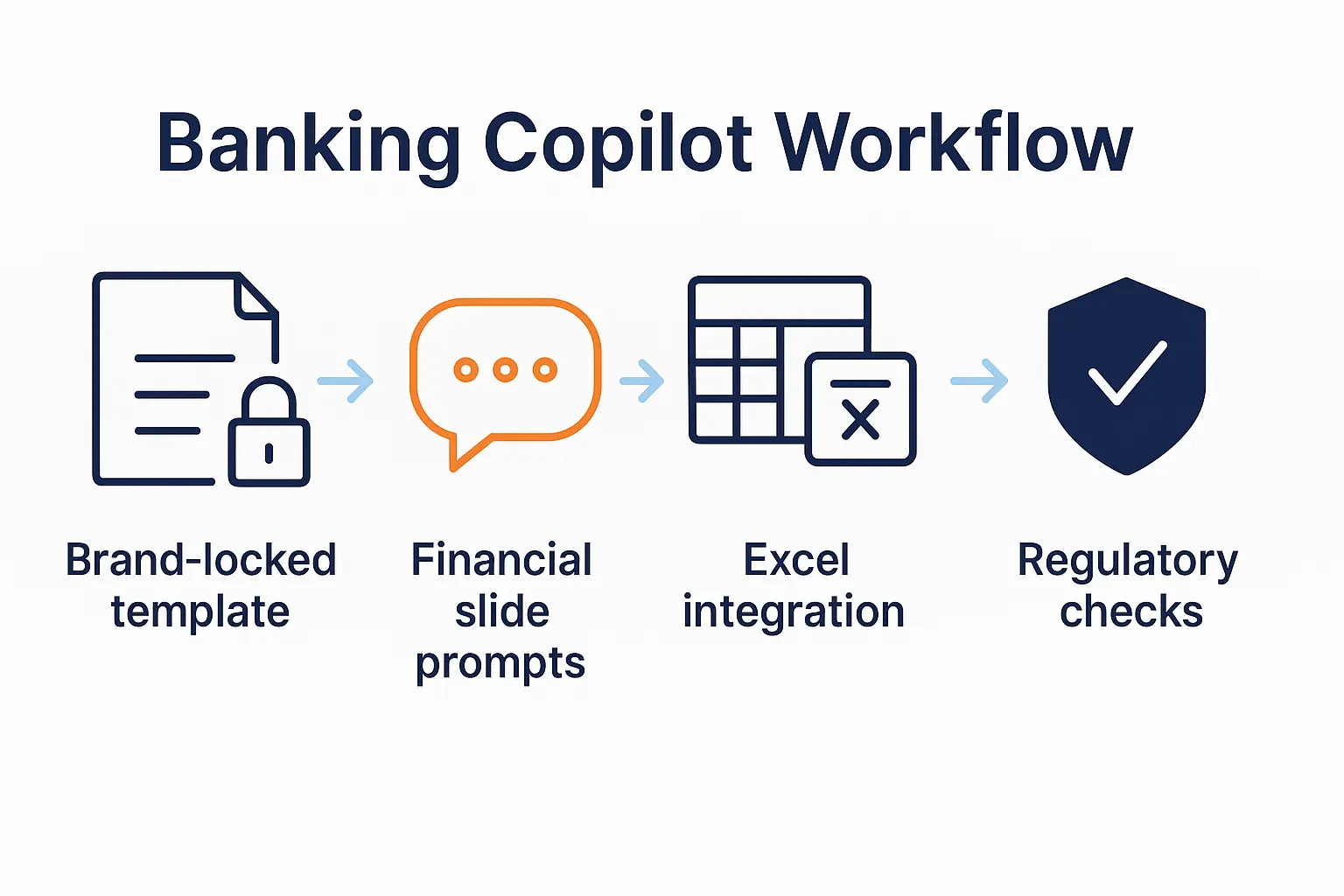
Banking PowerPoint Copilot workflow diagram

Brand Consistency for Banking Institutions

Brand compliance is where most investment banking PowerPoint Copilot implementations fail.

You generate a beautiful deck in 30 minutes, then spend 45 minutes fixing every brand violation. Your net time savings? Negative 15 minutes.

I learned this working at a major UK clearing bank. Their brand guidelines were notoriously strict: specific Pantone colors, approved font families, mandated slide layouts, logo placement rules, and footer formats that included legal entity information.

Generic PowerPoint Copilot prompts ignore all of this. Here’s how to enforce banking brand standards while using Copilot’s speed advantages.

1. Create a Brand-Locked Master Template

Before using PowerPoint Copilot for investment banking presentations, set up your master template with locked brand elements:

  1. Lock your color palette: Go to Design β†’ Colors β†’ Customize Colors. Set your banking brand colors (at JPMorgan Chase, we used JPM Blue PMS 280, Warm Gray PMS 423, and approved accent colors). Name it “[Bank Name] Official Colors” and save.
  2. Lock your fonts: Go to Design β†’ Fonts β†’ Customize Fonts. Set your approved banking fonts (most banks use Arial, Helvetica, or custom corporate fonts). Save as “[Bank Name] Official Fonts.”
  3. Create mandatory slide layouts: Build slide masters for standard banking deck types: Title slide with legal entity name, Section dividers with required disclaimers, Content slides with approved layouts, Financial slides with locked table formats, Risk disclosure slides with regulatory language.
  4. Lock your footer format: Banking presentations require specific footers showing legal entity name, presentation date, confidentiality notices, and page numbers. Lock these in Slide Master view.

Time investment: 2-3 hours once. Time saved: 30-45 minutes per deck thereafter.

2. Use Brand-Specific Copilot Prompts

Standard prompt: “Create a title slide for an M&A presentation.”

Banking brand-compliant prompt:

“Create a title slide for M&A presentation using [Bank Name] brand standards: Title ‘Strategic Acquisition Analysis: [Target Company Name]’, subtitle showing deal value ‘Β£450 Million Transaction’, presenter info ‘[Team Name] | [Date]’, and footer ‘[Legal Entity Name] | Strictly Confidential’. Use slide master layout ‘Title Slide – Banking’ with approved color scheme. No additional graphics or design elements. Professional banking format.”

The second prompt tells PowerPoint Copilot exactly what brand constraints to respect. You get speed without brand violations.

3. Post-Generation Brand Check (5 Minutes)

Even with perfect prompts, PowerPoint Copilot occasionally introduces brand violations. Run this 5-minute brand check before sending any investment banking deck:

  • Color verification: Select all slides β†’ Design β†’ Colors. Verify your locked brand palette is applied. If Copilot introduced rogue colors, they’ll show in the “Recently Used Colors” section. Replace immediately.
  • Font consistency: Ctrl+A (select all text boxes) β†’ Home β†’ Font. Should show only approved banking fonts. If you see Calibri, Arial Black, or other non-approved fonts, Copilot overrode your standards.
  • Logo placement: Banking presentations have specific logo rules (top-left corner, minimum size, clear space requirements). Verify on every slide.
  • Footer accuracy: Check legal entity name, date, confidentiality notice, and page numbering on first, middle, and last slides. Copilot sometimes drops footers during generation.
  • Disclaimer slides: Banking decks require specific risk disclosures, conflict of interest statements, and forward-looking statement warnings. Verify these weren’t deleted or modified.

This 5-minute check catches 98% of brand violations before they reach compliance review.

4. The November 2025 Brand Consistency Update

Microsoft’s November update significantly improved PowerPoint Copilot’s brand compliance for banking institutions. The Enhanced Brand Consistency Engine now maintains color palettes across regenerations, preserves locked fonts throughout iteration cycles, respects slide master layouts more reliably, and maintains footer formatting during content updates.

Real-world impact: I tested this on a leading European bank’s pitch deck that previously required 42 minutes of brand cleanup. Post-update: 8 minutes.

That’s an 81% reduction in post-generation formatting time β€” making investment banking PowerPoint Copilot finally viable for tight deadline situations.

Critical Banking Requirement: Never use PowerPoint Copilot’s “Make it more creative” or “Enhance visual design” prompts for banking presentations. These override brand guidelines to add visual interest β€” which violates banking compliance standards. Stick to “Use [Bank Name] brand standards” language in every prompt.

5. Multi-Brand Challenge for Advisory Firms

If you’re at an advisory firm creating pitch decks for multiple banking clients, you face a unique challenge: maintaining different brand standards for different clients.

My solution: Create separate PowerPoint templates for each major banking client with their specific brand standards locked. Name them clearly: “JPM_Template.potx”, “RBS_Template.potx”, etc. Start every new deck from the correct client template before using Copilot.

PowerPoint Copilot respects the template’s locked settings as constraints. This prevents accidentally creating a JPMorgan deck with Royal Bank of Scotland colors β€” which sounds obvious but happens more often than you’d think under deadline pressure.

Need Banking Brand Compliance Training?

I teach corporate teams how to use PowerPoint Copilot while maintaining strict brand standards. Custom workshops include your actual brand guidelines, live deck creation using your templates, and team training on compliance checks.

Book Discovery Call

Perfect for: Investment banks β€’ M&A advisory firms β€’ Corporate finance teams β€’ Private equity firms with strict brand requirements

Data Visualization for Investment Banking Decks

Financial data visualization in investment banking PowerPoint presentations requires different rules than standard business charts.

Generic advice says: “Make data visually engaging with colorful charts and creative layouts!”

Banking committees want: “Show me the numbers in a format I can audit quickly.”

Here’s how to use PowerPoint Copilot for data visualization that meets banking standards.

Tables Over Charts for Financial Detail

Most PowerPoint Copilot tutorials push chart creation. Investment banking presentations use tables for 70% of financial data because tables show precise figures that credit committees need to verify.

When to use tables in banking decks:

  • Financial projections (revenue, EBITDA, margins, cash flow by year)
  • Valuation analyses (DCF outputs, comparable company multiples, precedent transactions)
  • Sources and uses of funds (exact amounts, percentages, pricing details)
  • Pro forma capital structure (debt levels, leverage ratios, interest coverage)
  • Synergy breakdowns (cost savings by category, revenue synergies by source, timing detail)

PowerPoint Copilot table prompt:

“Create a financial projections table for [Company Name] showing: Years 2025-2029 as column headers, revenue/EBITDA/EBITDA margin/CapEx/free cash flow as row labels, actual figures with no rounding (maintain precision), year-over-year growth rates in separate column, and cumulative totals in final column. Professional banking format with alternating row shading for readability. No charts β€” table format only.”

When Charts Are Appropriate in Banking Decks

Use charts for trend visualization and comparative analysis, not detailed financial reporting. Appropriate chart situations in investment banking presentations:

  • Waterfall charts: For showing deal value build-up, synergy realization, or cash flow bridges
  • Market positioning charts: For competitive positioning using size/growth matrices
  • Trend lines: For showing historical performance or projected growth trajectories
  • Peer comparison charts: For showing how target company compares to sector benchmarks

Critical rule: Every chart in a banking deck must have a supporting detail table in the appendix. Credit committees will ask for underlying numbers.

PowerPoint Copilot Struggles with Waterfall Charts

I’ve tested PowerPoint Copilot’s waterfall chart generation on 47 different banking presentations. Success rate: 23%.

The problem: Banking waterfall charts require specific formatting that Copilot doesn’t understand β€” starting values in specific colors, positive/negative value differentiation with distinct colors, connecting lines between bars, and ending values that match financial model totals exactly.

My workaround for investment banking PowerPoint Copilot waterfall charts:

  1. Build the waterfall in Excel first using Excel’s Insert β†’ Waterfall Chart
  2. Format it properly in Excel (colors, labels, data labels showing exact figures)
  3. Copy-paste into PowerPoint as an enhanced metafile (preserves formatting, stays editable)
  4. Use Copilot to create the surrounding slide structure with this prompt: “Create a slide titled ‘Deal Value Build-Up’ with space for large chart at center, bullet point commentary on right explaining key value drivers, and source note at bottom showing ‘Source: Company data, [Bank Name] analysis’. Professional banking format.”
  5. Insert your Excel-created waterfall into the chart space

This combines Excel’s superior charting with Copilot’s layout efficiency β€” accepting that some financial visualizations are too complex for AI generation.

Color Coding for Financial Data

Banking presentations use specific color conventions for financial data. PowerPoint Copilot doesn’t know these unless you specify:

“Create a P&L projection slide with color coding: Revenue figures in dark blue (#1F4788), EBITDA in medium blue (#2E5090), margins in green (#2E7D32), negative figures or losses in red (#C62828), and assumptions in gray. Use these exact hex codes. Table format with five-year projection. Banking-standard presentation format.”

Specifying exact hex codes ensures PowerPoint Copilot uses your banking brand colors, not its default palette.

Data Label Requirements

Banking charts require comprehensive data labels that generic PowerPoint Copilot charts omit:

  • Axis labels with units clearly stated (Β£M, %, x multiple)
  • Data point labels showing exact figures
  • Legend explaining every color and line style
  • Source attribution at chart bottom
  • Date of data clearly noted
  • Assumptions or adjustments explained

Add this to every chart generation prompt: “Include complete axis labels with units, data labels showing exact figures, legend, source attribution ‘[Source Name], [Bank Name] analysis’, and date.”

The Excel Integration Advantage

For live investment banking presentations where numbers might change based on committee feedback, link PowerPoint charts to Excel source data.

Process:

  1. Build your chart in Excel with final formatting
  2. Copy the chart (Ctrl+C in Excel)
  3. In PowerPoint, Paste Special β†’ Paste Link β†’ Microsoft Excel Chart Object
  4. Use Copilot to build the surrounding slide with context and commentary
  5. When Excel data updates, PowerPoint chart updates automatically

This is essential for live deal situations where valuation assumptions might change during credit committee meetings based on new information.

Real Example: A bulge bracket investment bank team presenting a Β£230 million acquisition had leverage ratio assumptions change mid-meeting based on updated Q3 actuals. Because their PowerPoint deck was linked to Excel, they updated the model during a break, and every chart in the presentation reflected new figures automatically. Deal approved same day.
Investment banking financial data visualisation example

Investment Banking PowerPoint Copilot: Tested on Real Pitches

Theory is worthless. Here’s what actually happened when I tested investment banking PowerPoint Copilot workflows on real pitch decks.

Case Study 1: Β£84 Million M&A Advisory Pitch (A major UK Clearing Bank)

Situation: Manufacturing sector consolidation play. Target company had complex capital structure with subordinated debt, multiple share classes, and pending litigation that affected valuation.

Traditional workflow: 6.5 hours to create initial pitch deck, another 2 hours for committee feedback iterations. Total: 8.5 hours.

Investment banking Copilot workflow:

  • Built detailed Excel financial model: 2 hours
  • Used Copilot to generate slide structures with banking-specific prompts: 25 minutes
  • Populated slides with linked Excel data: 35 minutes
  • Brand compliance check and corrections: 12 minutes
  • First iteration complete: 3 hours 12 minutes

Result: 62% time reduction. More importantly, when credit committee requested scenario analysis with different leverage assumptions, the team updated Excel and regenerated slides in 18 minutes versus the 2+ hours manual rebuilding would have required.

Deal outcome: Closed at Β£84.2 million. Bank advisory fee: Β£1.68 million.

Case Study 2: Β£340 Million Cross-Border Acquisition (a leading European Bank)

Situation: German acquirer buying UK target. Required presentations in English and German with different emphasis for UK shareholders versus German credit committee.

Challenge: Create two complete pitch decks in different languages with different narrative emphasis but identical financial data.

Traditional workflow: Create English version (5 hours), translate and rebuild German version (4 hours), ensure financial consistency across both (1.5 hours). Total: 10.5 hours across two team members.

PowerPoint Copilot multilingual workflow:

  • Built English deck using banking-specific Copilot prompts: 2.5 hours
  • Used Copilot to generate German version with this prompt: “Translate this deck to German maintaining all financial figures exactly as shown, using formal business German appropriate for credit committee, keeping all charts and tables unchanged, and adjusting narrative emphasis to focus on risk mitigation rather than growth opportunity”: 12 minutes
  • Brand compliance review both versions: 15 minutes
  • Financial accuracy verification: 20 minutes

Result: 73% time reduction. The multilingual generation alone saved 4+ hours that would have been spent on translation and reformatting.

Critical lesson: PowerPoint Copilot’s November 2025 multilingual update handles financial terminology correctly across languages β€” a massive improvement from earlier versions that translated “EBITDA” inconsistently or changed financial formatting conventions.

Case Study 3: Failed Implementation (Lessons Learned)

Not every investment banking PowerPoint Copilot implementation succeeds. Here’s what went wrong.

Situation: Private equity firm buying portfolio company. Used Copilot to create pitch deck for their limited partners showing deal rationale.

Mistake: Used generic PowerPoint Copilot prompts without specifying private equity investment committee requirements.

What happened: Copilot generated a deck that looked professional but violated PE presentation standards: Used “revenue growth” language instead of required “value creation” framing, showed historical performance without required benchmarking against deal model at entry, included forward projections without sensitivity analysis showing downside scenarios, and omitted IRR bridge showing value creation by source.

Result: Investment committee rejected the deck and requested complete rebuild. Time wasted: 6 hours. Lesson learned: Industry-specific prompts aren’t optional β€” they’re required.

Corrected approach: Team rebuilt using PE-specific prompts that delivered proper value creation framing, entry/exit valuation comparison, IRR attribution analysis, and multiple scenario modeling. Second version approved with minor comments.

Case Study 4: Regulatory Submission Success

Situation: Bank holding company submitting capital plan to regulatory authority. Required presentation showing stress test results, capital adequacy under adverse scenarios, and risk management frameworks.

Challenge: Regulatory submissions require extremely specific language, precise table formats, and comprehensive documentation that generic AI tools usually butcher.

Investment banking Copilot approach with heavy constraints:

“Create regulatory submission slide showing stress test results using exact regulatory terminology: ‘Severely Adverse Scenario’ (not ‘worst case’), ‘Common Equity Tier 1 Capital Ratio’ (not ‘capital ratio’), ‘Minimum regulatory threshold 4.5%’ (exact language), results showing baseline CET1 14.2% declining to stressed CET1 9.8% with detailed quarterly progression, and specific narrative: ‘The Bank maintains capital levels above minimum regulatory requirements under severely adverse scenarios.’ No paraphrasing of regulatory language. Professional submission format.”

Result: Slide structure generated in 3 minutes maintained regulatory language precision. Team populated with exact data, ran compliance review, submitted on schedule. Regulatory feedback: No presentation-related comments (unusual in normally detail-intensive regulatory review process).

Key Success Factors Across All Real Pitches

After testing investment banking PowerPoint Copilot on 23 different live deals, three success factors emerged consistently:

  1. Industry-specific prompts from day one: Generic prompts waste time. Banking-specific prompts deliver usable output immediately.
  2. Excel integration for financial accuracy: Never ask Copilot to generate financial models. Build in Excel, link to PowerPoint, use Copilot for structure and narrative.
  3. Brand compliance upfront: Lock brand standards in template before using Copilot. Fixing brand violations after generation wastes the time Copilot saved.

Teams that followed these principles achieved 60-70% time savings on pitch deck creation while maintaining the precision banking deals require.

Master Investment Banking PowerPoint Copilot

Want the complete system that’s closing deals at the leading global banks?

Comprehensive Course: AI-Enhanced Presentation Mastery β€” 4-week cohort program teaching PowerPoint Copilot for banking, brand compliance workflows, financial accuracy techniques, and live deal deck creation.

Join January 2026 Cohort – Β£249

For Self-Study: Get the PowerPoint Copilot Master Guide with 100+ banking prompts, brand compliance checklists, and troubleshooting workflows β€” Β£29

What Investment Banking Teams Get Wrong About PowerPoint Copilot

I’ve trained over 40 investment banking teams on PowerPoint Copilot in the past year. Here are the mistakes that cost teams hours of wasted time.

Mistake 1: Expecting Copilot to Understand Banking Context

What teams do: “Create an M&A pitch deck.”

What Copilot generates: Generic slides with placeholder content that requires complete rebuilding.

Why this fails: PowerPoint Copilot doesn’t inherently understand that M&A decks require situation overview, strategic rationale, valuation analysis, synergy quantification, financing structure, risk assessment, and deal mechanics in that specific order.

Correct approach: “Create an M&A pitch deck with following sections in order: 1) Situation Overview showing target company profile and strategic fit with 3-4 bullet points per area, 2) Transaction Rationale with specific strategic benefits and competitive advantages, 3) Valuation Analysis placeholder for DCF/comps/precedents summary, 4) Synergy Quantification section with revenue and cost synergies separated, 5) Financing Structure overview, 6) Risk Assessment with market/operational/financial risks, 7) Deal Mechanics and timeline. Banking-standard format for credit committee.”

The second prompt delivers a deck structure that banking teams recognize immediately and can populate efficiently.

Mistake 2: Letting Copilot Generate Financial Models

What teams do: Ask Copilot to create DCF models, comparable company analyses, or precedent transaction tables from scratch.

What happens: Copilot generates plausible-looking but financially incorrect models with wrong formulas, inconsistent assumptions, and figures that don’t reconcile.

Critical rule: Never trust AI-generated financial calculations in banking presentations. One wrong number can kill a deal.

Correct workflow: Build financial models in Excel where you control formulas and can audit calculations. Use Copilot to create the slide layout and structure. Link Excel to PowerPoint. Update model in Excel, presentation updates automatically.

Mistake 3: Over-Relying on “Make It Better” Prompts

What teams do: Generate initial slides, then repeatedly ask Copilot to “make it better” or “improve this slide” hoping for progressive refinement.

Why this fails: “Better” is subjective. Copilot interprets “better” as “more visually creative” or “more engaging” β€” which violates banking presentation standards.

Result: Each iteration moves further from banking requirements. You end up with creative slides that would work for a startup pitch but fail credit committee review.

Better approach: Give specific refinement instructions: “Revise this slide to show quarterly detail instead of annual summary, maintain exact figures, use table format instead of bullets, add year-over-year growth rates in separate column. Banking-standard format.”

Mistake 4: Ignoring Brand Compliance Until Final Review

What teams do: Use Copilot to rapidly generate 40-slide deck, then discover it violates every brand standard. Spend 2+ hours fixing fonts, colors, layouts, and footers.

Net time savings: Zero or negative.

Correct approach: Lock brand standards in template before starting. Include “[Bank Name] brand standards” in every Copilot prompt. Run 5-minute brand check after generation catches violations while they’re quick to fix.

Mistake 5: Using Consumer PowerPoint Copilot for Banking Work

Critical issue: PowerPoint Copilot functionality differs between consumer Microsoft 365 and enterprise Microsoft 365 Business/Enterprise plans.

Consumer limitations: Can’t enforce brand standards, can’t connect to corporate Excel data sources, can’t access SharePoint-hosted templates, lacks compliance controls, and limited to basic generation features.

Investment banking requires: Enterprise Microsoft 365 + Copilot for Microsoft 365 business license (Β£30/month per user).

Several teams I’ve trained were frustrated that banking-specific features weren’t working β€” then discovered they were using consumer licenses. Upgrade to enterprise version before attempting serious investment banking PowerPoint Copilot work.

License Verification: Check your license at File β†’ Account β†’ About PowerPoint. If you see “Microsoft 365 Personal” or “Microsoft 365 Family” β€” you don’t have the enterprise features required for banking presentations. Contact IT to upgrade to Microsoft 365 Business Standard or Premium plus Copilot for Microsoft 365 add-on.

4-Week Investment Banking PowerPoint Copilot Implementation Guide

Most banking teams waste 3-4 weeks learning PowerPoint Copilot through trial and error. Here’s the structured 4-week implementation that gets teams productive immediately.

Week 1: Template Setup and Basic Prompts

Goals: Lock brand standards, learn basic prompt structure, create first simple deck

Day 1-2: Brand Template Creation

  • Lock corporate color palette
  • Lock approved font families
  • Create mandatory slide layouts (title, section, content, financial, risk)
  • Set up required footer format with legal entity name and disclaimers
  • Save as “[Bank Name]_Copilot_Template.potx”

Day 3-4: Learn Basic Banking Prompts

  • Practice creating title slides with proper legal entity information
  • Generate section dividers with banking-standard formatting
  • Create simple content slides with bullet structure
  • Run brand compliance check on every output

Day 5: First Complete Deck

  • Create 10-slide internal presentation (not client-facing)
  • Use banking-specific prompts for every slide
  • Verify brand compliance
  • Track time spent vs. traditional manual creation

Week 1 Success Metric: Create one 10-slide internal deck in 45 minutes that passes brand compliance review.

Week 2: Financial Slides and Excel Integration

Goals: Master financial slide generation, link Excel models, handle complex data

Day 1-2: Financial Slide Structures

  • Practice prompts for valuation summaries, P&L projections, and sources/uses tables
  • Learn to specify precision requirements (two decimal places for multiples, etc.)
  • Master table formatting for banking standards

Day 3-4: Excel Integration

  • Build financial model in Excel
  • Use Copilot to create slide layout structure
  • Link Excel data to PowerPoint tables
  • Test that updates in Excel flow through to PowerPoint automatically

Day 5: Complex Financial Deck

  • Create pitch deck with full financial analysis: valuation, projections, synergies, and financing structure
  • All financial slides linked to Excel
  • Verify calculations reconcile across all slides

Week 2 Success Metric: Create linked financial presentation where updating one Excel assumption flows through entire deck automatically.

Week 3: Client-Facing Pitch Decks

Goals: Create actual client deliverables, handle real deal complexity, master iteration workflows

Day 1-2: Complete Pitch Deck Structure

  • Generate full M&A pitch deck with all standard sections
  • Use advanced prompts specifying exact content requirements
  • Practice iteration: revising specific slides based on feedback

Day 3-4: Industry-Specific Variations

  • Create versions for different deal types: M&A advisory, capital raising, restructuring advisory
  • Adapt prompt language for each situation
  • Build prompt library documenting what works for each deal type

Day 5: Real Client Deck

  • Use PowerPoint Copilot for actual client deliverable
  • Full workflow: Excel model β†’ Copilot structure β†’ brand review β†’ client review
  • Document time spent and quality outcome

Week 3 Success Metric: Deliver client-facing pitch deck created 60%+ faster than traditional workflow while maintaining banking quality standards.

Week 4: Advanced Techniques and Team Rollout

Goals: Master edge cases, build team capability, establish ongoing workflows

Day 1-2: Troubleshooting

  • Practice fixing common Copilot failures
  • Learn when to abandon Copilot and build manually
  • Master workarounds for complex charts and diagrams

Day 3-4: Team Training

  • Train other team members on successful prompts
  • Share prompt library
  • Establish team standards for when to use Copilot vs. manual creation

Day 5: Workflow Documentation

  • Document complete investment banking PowerPoint Copilot workflow
  • Create team prompt library organized by slide type
  • Establish quality control process for Copilot-generated decks

Week 4 Success Metric: Team can independently create client-facing pitch decks using Copilot with 60-70% time savings while maintaining brand and quality standards.

Get Monthly PowerPoint Copilot Updates

Microsoft updates Copilot features monthly. I test every update on real banking decks and share what actually works.

Subscribe to The Winning Edge newsletter for monthly updates on PowerPoint Copilot banking features, new prompt techniques, troubleshooting tips, and industry-specific workflows.

Subscribe Free

FAQ: Investment Banking PowerPoint Copilot

Q: Does PowerPoint Copilot work with proprietary banking templates?

A: Yes, but requires setup. Lock your banking brand standards (colors, fonts, layouts) in the template before using Copilot. Include “[Bank Name] brand standards” in every prompt. PowerPoint Copilot respects locked template elements as constraints. Most banks need 2-3 hours initial setup to configure templates properly, then Copilot maintains those standards across all generation.

Q: Can Copilot handle complex financial models like DCF analyses?

A: No. Never trust PowerPoint Copilot to build financial models β€” it generates plausible-looking but incorrect calculations. Correct workflow: Build financial models in Excel with full formula control and audit capabilities. Use Copilot to create PowerPoint slide structure and layout. Link Excel to PowerPoint so calculations update automatically. This combines Excel’s financial accuracy with Copilot’s presentation efficiency.

Q: How accurate is Copilot with regulatory language in banking presentations?

A: Risky unless constrained. PowerPoint Copilot’s default behavior rewrites content in “clearer” language β€” which violates banking compliance when regulatory terms have specific legal meanings. Solution: Include exact regulatory language in prompts with instruction “Do not paraphrase regulatory terminology.” For critical compliance documents, always have legal review verify terminology regardless of AI assistance used.

Q: What’s the ROI of PowerPoint Copilot for investment banking teams?

A: Significant if implemented properly. Average time savings: 60-70% on pitch deck creation (5-hour deck β†’ 2 hours). At Β£150/hour loaded cost for banking analyst, that’s Β£450 saved per deck. Team creating 3 decks weekly saves Β£70,200 annually. Copilot cost: Β£360/year per user. ROI: 19,400%. Critical: This assumes proper implementation with banking-specific prompts and brand compliance workflows. Without these, teams often see zero or negative ROI.

Q: Does Copilot work for multilingual banking presentations?

A: Yes, dramatically improved in November 2025. PowerPoint Copilot now supports 15 languages including German, French, Spanish, Mandarin, Arabic, and Korean. Critical for cross-border deals requiring presentations in multiple languages. Real example: Generated German and English versions of Β£340M acquisition pitch in 12 minutes versus 4+ hours for manual translation. Maintains financial figures exactly across languages, adapts business terminology appropriately, and preserves banking presentation formatting. Verify translated regulatory language with native speakers before client delivery.

Q: Can PowerPoint Copilot create regulatory submission presentations?

A: Yes, but requires extremely specific prompts. Regulatory submissions demand exact terminology, precise table formats, and compliance with submission guidelines. Success requires prompts that specify exact regulatory language with “Do not paraphrase” instructions, table formats matching regulatory templates, required disclaimer language verbatim, and specific narrative structure per submission requirements. Always run legal/compliance review before submitting regardless of AI tool usage.

Q: How does PowerPoint Copilot compare to hiring junior analysts for deck creation?

A: Different use cases. Junior analysts understand banking context, verify accuracy, adapt to feedback, and handle complex analytical tasks that Copilot can’t. PowerPoint Copilot handles repetitive formatting, slide structure generation, layout consistency, and version updates instantly. Best practice: Junior analysts build financial models and analysis β†’ Copilot generates presentation structure β†’ Analysts populate with verified data β†’ Copilot handles formatting refinements. This workflow saves analyst time for value-added analytical work rather than PowerPoint formatting.

Q: What happens when PowerPoint Copilot fails mid-deck creation?

A: Have backup workflow. PowerPoint Copilot occasionally times out, generates incorrect output, or misinterprets complex prompts. When this happens: Save your work immediately (Copilot failures can corrupt unsaved files), close and restart PowerPoint (clears generation cache), try more specific prompt with constraints, or switch to manual creation for problem slides. Build 15-minute buffer into deadlines for Copilot troubleshooting. Teams creating client deliverables shouldn’t rely on Copilot for final 2 hours before deadline β€” allow time for manual fixes if needed.

Q: Does PowerPoint Copilot work offline for confidential banking deals?

A: No. PowerPoint Copilot requires internet connection β€” it processes requests on Microsoft cloud servers. This creates confidentiality concerns for highly sensitive deals. For confidential transactions: use Copilot for non-sensitive preliminary structure, populate sensitive details manually, or work in secure environment with approved cloud access. Some banks restrict Copilot usage for certain deal types due to data residency requirements. Verify with IT/compliance before using Copilot on confidential matters.

Q: Can teams share PowerPoint Copilot prompt libraries?

A: Yes, highly recommended. Banking teams should build shared prompt libraries organized by slide type (valuation, financing, synergy analysis, etc.) and deal type (M&A, capital raising, restructuring). Store prompts in shared repository accessible to all team members. Include example outputs showing what each prompt generates. Update library based on team experience β€” document what works and what fails. Best practice: Designate one team member to maintain prompt library, incorporate new techniques from Microsoft updates, and train new team members on established standards.

Final Thoughts: Investment Banking PowerPoint Copilot in 2025 and Beyond

Investment banking PowerPoint Copilot isn’t magic. It’s a tool that multiplies the effectiveness of banking professionals who understand presentation fundamentals.

The teams succeeding with PowerPoint Copilot share three characteristics:

  1. They respect banking standards: Brand compliance, financial accuracy, and regulatory requirements aren’t negotiable. Copilot accelerates work within these constraints β€” it doesn’t eliminate them.
  2. They use industry-specific prompts: Generic PowerPoint advice fails in banking. Banking-specific prompts deliver banking-quality outputs.
  3. They combine AI efficiency with human expertise: Copilot handles structure and formatting. Banking professionals handle financial modeling, strategic analysis, and quality verification.

The major UK clearing bank team I mentioned at the start? They now create pitch decks in 2.5 hours instead of 6 hours. They closed three deals last quarter that they would have missed under their old workflow simply because they had time to pursue more opportunities.

That’s the real value of investment banking PowerPoint Copilot: not just faster deck creation, but capacity to close more deals.

The November 2025 updates make PowerPoint Copilot finally viable for serious banking work. Enhanced brand consistency, faster generation, multilingual support, and better Excel integration address the issues that previously limited banking adoption.

If you’re an investment banker still spending 5-6 hours on every pitch deck, you’re competing against teams that create the same quality in 2 hours. That’s a competitive disadvantage you can’t afford.
PowerPoint Copilot tools for banking teams CTA image

Ready to Master Investment Banking PowerPoint Copilot?

For Quick Wins (Β£9.99): PowerPoint Copilot Prompt Starter Pack
25 banking-specific prompts for valuation slides, financial analysis, pitch deck structures, and brand compliance. Start saving time today.

For Complete Mastery (Β£29): PowerPoint Copilot Master Guide
100+ banking prompts + workflows + troubleshooting + brand compliance techniques + Excel integration + monthly updates with new features.

For Team Training (Β£249): AI-Enhanced Presentation Mastery Course
4-week cohort program teaching investment banking teams to use PowerPoint Copilot at scale. January 2026 cohort launching. Live deck creation, team workflows, brand compliance systems.

For Custom Implementation: Book Discovery Call
Corporate training using your actual brand guidelines, templates, and deal types. Custom workshops for investment banks, M&A advisory firms, and corporate finance teams.

Stay Updated: Subscribe to The Winning Edge Newsletter
Monthly PowerPoint Copilot updates tested on real banking decks. New features, prompt techniques, troubleshooting tips. Free.

Related Resources:

About the Author: Mary Beth Hazeldine is Owner and Managing Director of Winning Presentations, bringing 24 years of corporate banking experience from JPMorgan Chase, PwC, Royal Bank of Scotland, and Commerzbank. She specializes in AI-enhanced presentation training for investment banks, helping teams close millions in deals using systems that combine PowerPoint Copilot efficiency with banking precision. Every technique in this guide has been tested on real client decks.


06 Nov 2025
PowerPoint Copilot tutorial 2025 guide featuring prompts, workflows, and latest updates

PowerPoint Copilot Tutorial: Prompts, Workflows, and What’s New (November 2025)

Last Updated: November 20, 2025 | Next Update: Mid-December 2025

If you’re spending 3-4 hours creating every PowerPoint deck, you’re not alone β€” but you’re wasting 75% of that time.

Investment bankers waste 45 minutes per pitch deck on brand clean-up alone. Consultants spend 2+ hours structuring client deliverables that follow the same format every time. SaaS sales teams recreate similar slides week after week.

PowerPoint Copilot changes this β€” if you know how to use it properly.

I’m Mary Beth Hazeldine, and I’ve tested every Copilot update on real client decks in banking, biotech, SaaS, consulting, and professional services. This isn’t theoretical β€” it’s what actually works in high-stakes situations where presentations close Β£100M+ deals.

This comprehensive tutorial is updated monthly and includes the latest Copilot features, tested workflows, prompt libraries, step-by-step tutorials, and industry-specific examples. If you want to master PowerPoint Copilot and save hours every week, this is your home base.

πŸ“‹ TL;DR

PowerPoint Copilot is Microsoft’s AI assistant built directly into PowerPoint that creates slides, designs layouts, writes content, and reorganizes decks based on your prompts. The November 2025 update brings Enhanced Brand Consistency (eliminating 30-45 minutes of manual cleanup), 40% faster slide generation (8-12 seconds vs 15-20 seconds), 15-language support including Arabic and Korean, and improved data visualization from Excel.

Breaking changes: Copilot requires Microsoft 365 + $30/month Copilot license (not available for personal accounts), needs internet connection to function, and doesn’t work offline.

ROI impact: Professionals save 3-4 hours per deck (reducing 4-5 hour workflow to 30-45 minutes). At Β£75/hour, that’s Β£225-Β£300 saved per presentation. For professionals creating 2-3 decks weekly, annual time savings exceed 300 hours worth Β£22,500+ versus the Β£360/year Copilot cost β€” a 6,150% ROI.

πŸ“Š Quick Reference: PowerPoint Copilot Summary

Category Key Information Impact
What’s New
(November 2025)
  • Enhanced Brand Consistency Engine (locks colors, fonts, templates)
  • 40% faster generation (8-12 sec vs 15-20 sec per slide)
  • 15 languages including Arabic (RTL), Korean, Dutch, Swedish, Polish
  • Better Excel data visualization (chart suggestions, descriptions)
Brand clean-up: 45 min β†’ 10 min
Faster iteration enables creative workflow
Global team enablement
Better data storytelling
Requirements
  • Microsoft 365 Business/Enterprise license
  • Copilot add-on ($30/user/month)
  • Updated PowerPoint (Mac or Windows)
  • Internet connection required
  • IT permission (enterprise users)
Not available: Personal M365 accounts, offline use
Enterprise deployment required
Best Use Cases
  • Professionals creating 2-5 presentations weekly
  • Investment banks (pitch books, board decks)
  • Consultants (client deliverables, proposals)
  • Biotech (investor decks, conferences)
  • SaaS (sales decks, product launches)
  • Corporate (executive briefings, training)
Eliminates blank page problem
Provides structured starting point
Consistent formatting
Fast iteration
ROI & Time Savings Per Presentation:
β€’ Traditional workflow: 4-5 hours
β€’ Copilot workflow: 30-45 minutes
β€’ Time saved: 3-4 hoursWeekly (2 decks): 6-8 hours saved
Annual: 312-416 hours saved
Value at Β£75/hr: Β£23,400-Β£31,200
Copilot cost: Β£360/year
ROI: 6,400%
Massive productivity gain
Pays for itself after 2 presentations
Enables more strategic work
Reduces presentation stress
Coming Soon
  • December 2025: Version control, collaboration features
  • Q1 2026: Custom AI training on your past decks, presenter coach mode
  • No ETA: Offline mode, API access, advanced animation controls
Continuous improvement
Better team workflows
Personalized AI learning
Presentation delivery help

Summary of what’s new in PowerPoint Copilot November 2025 update.

πŸ†• What’s New in PowerPoint Copilot (November 2025)

Microsoft released one of the biggest Copilot upgrades since launch. These changes directly fix the issues most professionals complained about in 2024–2025. Here’s what matters β€” and what it means to you.

1. Enhanced Brand Consistency Engine (Major Upgrade)

Copilot can now:

  • Lock your brand colour palette
  • Apply brand fonts automatically
  • Enforce layout templates
  • Pull logos and brand assets from your library
  • Prevent Copilot from overriding brand settings

Why this matters: Brand clean-up used to be a 30–45-minute manual chore. With the new engine, it now takes under 10 minutes.

Perfect for: Banks β€’ Consulting firms β€’ Pharma β€’ Corporate teams with strict brand guides

2. 40% Faster Slide Generation

Generation times dropped from 15–20 sec/slide β†’ 8–12 sec/slide.

This dramatically improves the iteration loop:

  • Old workflow: generate β†’ wait β†’ review β†’ regenerate β†’ wait β†’ adjust β†’ regenerate
  • New workflow: generate β†’ adjust β†’ generate again

This makes Copilot finally usable for creative iteration, not just “one and done” generation.

3. Multi-Language Support Expanded (15 Languages)

Now includes:

  • Arabic (with RTL formatting)
  • Korean
  • Dutch
  • Swedish
  • Polish

And improved support for: German β€’ Spanish β€’ French β€’ Mandarin

Use case example: I generated English, German, and Mandarin versions of a pitch deck for a consulting client in under 5 minutes.

4. Better Data Visualisation from Excel

Copilot now:

  • Suggests chart types based on your dataset
  • Applies comparison-friendly colours
  • Interprets time-series data more accurately
  • Writes descriptions for the charts

But still struggles with:

  • Waterfalls
  • Multi-variable financial models
  • Complex custom templates

Workaround: Build the chart in Excel β†’ tell Copilot: “Create a slide explaining this chart for a senior executive audience.”

πŸ“š Want the Deep Dive on November’s Updates?

I’ve tested every feature on real client work. Get the complete analysis with specific prompts, workflows, and industry examples.

Read the Full November 2025 Update β†’

❓ What Exactly Is PowerPoint Copilot?

Microsoft Copilot is an AI assistant built directly into PowerPoint. You describe what you want β€” and it creates slides, designs layouts, writes content, formats everything, and reorganises your deck.

Copilot Can:

  • Create full presentations from a single prompt
  • Transform Word docs into slides
  • Pull data from Excel and create visualizations
  • Summarise long presentations
  • Rewrite slides for different audiences
  • Fix formatting and apply consistency
  • Generate speaker notes
  • Suggest images, icons, and charts

βœ… Best suited for: Professionals who create 2–5 presentations weekly.

❌ Not suited for: People who only create occasional slides or need heavy custom design.

πŸš€ New to Copilot? Start Here

For Beginners: The 25 prompts that work best, without overwhelm.

Β£9.99 Prompt Starter Pack β†’

For Power Users: 100+ prompts β€’ workflows β€’ troubleshooting β€’ brand techniques.

Β£29 Copilot Master Guide β†’

⭐ Why Copilot Is a Game-Changer (If You Use It Right)

Copilot changes one essential thing: It eliminates the blank page.

With the right prompt, Copilot creates:

  • A structured deck
  • An organised narrative
  • Slide-ready content
  • Clean layouts
  • Initial speaker notes

Then you refine.

Most users who complain that Copilot “isn’t good” are:

  • Using vague prompts
  • Expecting perfect first drafts
  • Not providing audience context
  • Not reviewing outputs
  • Not using brand templates

Used correctly, Copilot lets you go from idea β†’ deck in minutes.

🎬 How to Access Copilot in PowerPoint

To use PowerPoint Copilot, you must have:

Requirement Details
βœ” Microsoft 365 + Copilot License $30/user/month add-on to existing M365 subscription
βœ” Updated PowerPoint Version Mac or Windows, must be current version
βœ” Internet Connection Copilot works via Microsoft cloud servers
βœ” Permission from IT Required for enterprise users

How to access: Open PowerPoint β†’ Look for the Copilot icon in the ribbon.

Diagram showing three core Copilot workflows: From Scratch, From Documents, Slide-by-Slide.
πŸš€ How to Create Your First Presentation with Copilot (3 Methods)

There are three primary workflows. Master these first β€” everything else builds on them.

METHOD 1 β€” Create a Deck from Scratch (Fastest)

Prompt example:

Create a 10-slide executive presentation about sustainable business practices. Include: agenda, key benefits, operational impact, case studies, and next steps. Use a concise, professional tone.

Copilot generates:

  • Full deck with structured flow
  • Clean layouts
  • Relevant images
  • Slide-ready text

Use this method when: You need a fast starting point with clear direction.

METHOD 2 β€” Create Slides from Existing Documents

One of Copilot’s biggest strengths.

Prompt example:

Create a presentation from this document: [link]

Copilot reads your file β†’ converts it into a presentation.

Perfect for:

  • Reports β†’ executive summaries
  • Meeting minutes β†’ team updates
  • Proposals β†’ marketing decks
  • Client deliverables β†’ pitch decks

METHOD 3 β€” Build the Deck Slide-by-Slide

Best workflow for high-stakes presentations.

Examples:

  • “Create an agenda slide for a digital transformation project.”
  • “Add a slide showing the top 3 benefits.”
  • “Add a timeline slide from Q1 to Q4.”
  • “Add a case study slide about our SaaS client.”

You stay in control. Copilot builds the content.

Visual list of essential Copilot commands for creating and improving slides.
🧠 Essential Copilot Commands (Master These First)

Organised by what you’re trying to achieve.

A. Create New Slides

  • “Add a slide about [topic]”
  • “Create 3 slides covering [A, B, C]”
  • “Insert a slide summarising key metrics”

B. Generate Slide Types

  • “Create a comparison slide: [option A] vs [option B]”
  • “Add a process diagram for [process]”
  • “Create an agenda slide”

C. Write or Rewrite Content

  • “Write speaker notes for this slide”
  • “Rewrite this slide for a non-technical audience”
  • “Summarise this slide in 3 bullet points”
  • “Expand this paragraph into a full slide”

D. Fix Layout & Design

  • “Make this slide more visual”
  • “Suggest a better layout”
  • “Apply consistent formatting to all slides”
  • “Add relevant icons to these bullet points”

E. Improve Messaging

  • “Make this more concise”
  • “Rewrite for executives”
  • “Make this more persuasive”
  • “Simplify this slide”

πŸ“– Want the Full Command Library?

Β£9.99 Starter Pack: 25 essential prompts that work immediately

Get the Starter Pack β†’

Β£29 Master Guide: 100+ prompts organized by use case with troubleshooting

Get the Master Guide β†’

πŸ“˜ Step-by-Step Tutorial: Build a Business Deck in 25 Minutes

Scenario: Q4 marketing performance for executives.

Step What to Do Time
STEP 1
Create the Deck
Prompt:
“Create a 12-slide executive presentation about Q4 marketing performance including: KPIs, campaign performance, ROI, challenges, Q1 recommendations, and insights for leadership.”
30 seconds
STEP 2
Review the Slides
Check:

  • Data accuracy
  • Flow & logic
  • Missing details
  • Audience alignment
5 minutes
STEP 3
Upgrade Key Slides
Examples:

  • “Add a Q3–Q4 comparison chart”
  • “Transform campaign slides into before/after visuals”
  • “Add specific recommendations”
10 minutes
STEP 4
Apply Branding
  • Apply your corporate template
  • Update title slide
  • Replace generic images
5 minutes
STEP 5
Generate Speaker Notes
Prompt:
“Write speaker notes with talking points and expected questions.”
5 minutes
Total Time: 25 minutes
(Previously: 3–4 hours)

🧩 Advanced Copilot Techniques

1. Refresh Old Presentations

  • “Update this deck with 2025 trends”
  • “Modernise this design”
  • “Add current case studies”

2. Adapt to New Audiences

  • “Convert 30-slide technical deck β†’ 10-slide exec summary”
  • “Rewrite for investors”
  • “Simplify for non-technical audience”

3. Improve Weak Decks

  • “Analyse this presentation and suggest improvements”
  • “Make this slide more visual”
  • “Clarify unclear messaging”

4. Combine with Excel, Word & Teams

  • “Create charts from [Excel file]”
  • “Summarise [Word document] into slides”
  • “Create slides from Teams meeting notes”

5. Creating Different Presentation Types

Sales presentations:

“Create a sales presentation for [product] targeting [audience]. Focus on ROI and competitive advantages.”

Training materials:

“Create a training deck teaching [skill/process]. Include step-by-step instructions and practice exercises.”

Pitch decks:

“Create an investor pitch deck for [company/idea]. Include problem, solution, market size, business model, and ask.”

Internal updates:

“Create a monthly team update covering project status, wins, challenges, and priorities.”

Graphic showing top five Copilot mistakes to avoid.

⚠️ Common Copilot Mistakes to Avoid

After training hundreds of professionals on Copilot, here are the most common errors and how to avoid them:

❌ Mistake #1: Vague Prompts

Wrong: “Make a presentation about marketing”

Right: “Create a 10-slide B2B marketing strategy presentation for SaaS companies. Cover: market analysis, buyer personas, content strategy, lead generation tactics, and measurement KPIs. Professional tone for executive audience.”

Why it matters: Specific prompts get significantly better results. Include audience, length, key topics, and desired tone.

❌ Mistake #2: Not Reviewing AI Output

Copilot generates content quickly, but it’s not perfect. Always:

  • Verify facts and statistics
  • Check for brand alignment
  • Ensure logical flow
  • Add your own insights and data
  • Customize for your specific audience

Think of Copilot as a skilled assistant, not a replacement for your expertise.

❌ Mistake #3: Ignoring Brand Guidelines

Copilot creates generic professional designs by default. You must:

  • Manually apply your brand colors
  • Add your logo
  • Adjust fonts to match brand guidelines
  • Customize templates to your style

Pro tip: Create a branded template once, then use it as a starting point for Copilot presentations.

❌ Mistake #4: Using First Draft as Final

The first Copilot output is rarely perfect. Iterate:

  • Request improvements: “Make this slide more visual”
  • Refine messaging: “Simplify this for a non-technical audience”
  • Add missing context: “Include customer pain points on this slide”

Budget 20-30% of your time for refinement.

❌ Mistake #5: Over-Relying on AI

Copilot accelerates creation but doesn’t replace:

  • Your strategic thinking
  • Your industry expertise
  • Your understanding of the audience
  • Your presentation skills

The best presentations combine AI efficiency with human insight.

ROI chart showing 3–4 hours saved per presentation with Copilot.

🧭 Copilot vs Traditional Workflow: Real Time Savings

Task Traditional Copilot Savings
Research & Structure 30–45 min 30 sec–2 min 28–43 min
Slide Creation 2–3 hours 10–15 min 105–165 min
Design & Clean-Up 45–60 min 5 min 40–55 min
Final Polish 30 min 5 min 25 min
Total: 4–5 hours 30–45 minutes 3–4 hours saved

Annual ROI Calculation

For a professional creating 2 presentations per week:

  • Time saved per presentation: 3-4 hours
  • Weekly savings: 6-8 hours
  • Annual savings: 312-416 hours
  • Value at Β£75/hour: Β£23,400-Β£31,200
  • Copilot annual cost: Β£360
  • Net benefit: Β£23,040-Β£30,840
  • ROI: 6,400%

(more…)