Tag: powerpoint ai

19 Feb 2026
Executive reviewing presentation data and charts on laptop before high-stakes Q&A session with leadership team

Copilot Agent Mode in PowerPoint: The 25-Minute Executive Deck Workflow

Last Tuesday I rebuilt a client’s 34-slide board deck in 25 minutes. Not because I’m fast — because I stopped fighting Copilot with one-shot prompts and switched to Agent Mode’s conversational workflow.

Quick answer: Copilot Agent Mode in PowerPoint works like a sharp junior colleague — it asks clarifying questions, remembers context across prompts, and makes multi-step improvements without you repeating yourself. The old model (write one detailed prompt, hope for the best, rebuild what it gets wrong) is replaced by a back-and-forth conversation where each prompt builds on the last. The result: executive-quality decks in 25 minutes instead of 3 hours. Below is the exact five-phase workflow I now use with every client deck, plus the prompting shift that makes Agent Mode dramatically more effective than standard Copilot.

The Prompt That Changed Everything

For the first six months after Microsoft launched Copilot in PowerPoint, I wrote elaborate one-shot prompts. Fifty words. A hundred words. Specifying audience, tone, slide count, layout, data points. The output was always the same: a starting point that needed 90 minutes of surgery.

Then Agent Mode rolled out and I tried something different. Instead of giving Copilot everything upfront, I typed: “I need a 10-slide board presentation on our Q4 results. Can you help me build it slide by slide? Start by asking what metrics matter most to my board.”

Copilot asked me four questions. Who’s the audience? What decisions need to happen? What’s the one thing the board needs to walk away knowing? What data do you have ready?

After I answered, it built the deck — and because it understood the context, the slides actually made sense. Not generic. Not stuffed with filler. Structured around the decision I needed. I spent 12 minutes refining instead of 90 minutes rebuilding. That was the moment I stopped writing one-shot prompts for executive decks.

📋 Every Agent Mode Prompt You Need — Organised by Scenario

Updated 27 March 2026 — Revised for the latest Microsoft Copilot and ChatGPT capabilities.

The Executive Prompt Pack gives you copy-paste prompts for building executive decks from scratch (board updates, budget requests, investor pitches, strategy, transformation), rescuing existing decks (audit, condense, rewrite titles, “make it C-suite”), and generating specific slide types (data, comparison, roadmap, closing). Plus the complete 25-minute executive deck workflow and power modifiers that improve any prompt.

Digital download. Copy-paste prompts by scenario. Tested extensively on client decks across banking, biotech, SaaS, and consulting.

Stop Guessing What to Type. Start Building in 25 Minutes.

The Executive Prompt Pack gives you 71 tested prompts for ChatGPT and Copilot — structured by scenario so you know exactly what to type:

  • Build from scratch — scenario prompts for board reviews, budget requests, and investor decks
  • Rescue and rewrite — audit an existing deck, condense it, or fix one slide at a time
  • Industry-specific prompts for financial services, banking, consulting, and executive audiences
  • Power modifiers that transform any prompt into board-ready output
  • The 25-minute deck workflow that replaces 3–4 hours of manual building

Works with ChatGPT, Microsoft Copilot, and Edit with Copilot (formerly Agent Mode). Updated March 2026.

Get the Executive Prompt Pack → £19.99

Standard Copilot vs Agent Mode: The Real Difference

Standard Copilot in PowerPoint works like a vending machine. You insert a prompt, it returns slides. No memory. No follow-up. No context from one prompt to the next. If the output is wrong, you start over with a different prompt.

Agent Mode works like briefing a colleague. You describe what you need, it asks questions, and then it builds — remembering everything you’ve said across multiple prompts. When you say “make slide 3 more visual,” it knows what slide 3 contains, what the deck is about, and who the audience is.

PAA: What’s the difference between Copilot and Agent Mode in PowerPoint?
Standard Copilot requires you to guide each step with separate, context-free prompts — typically 5-10 per deck. Agent Mode works conversationally: it asks clarifying questions, maintains context across prompts, and allows surgical edits (“make slide 3 more visual”) without you rewriting the entire instruction. Agent Mode typically needs 1-3 prompts per deck versus 5-10 for standard mode. Agent Mode availability varies by organisation, tenant, and rollout schedule — if you don’t see it, check your M365 Copilot licence and admin settings.

This matters for executive decks because senior audiences have specific requirements that standard Copilot can’t hold in memory: the decision being requested, the politics in the room, the metrics that matter to this particular CFO. Agent Mode holds all of that context across every prompt in the conversation. For a deeper look at prompt structure fundamentals, see the complete Copilot PowerPoint prompts guide.

The 25-Minute Executive Deck Workflow (5 Phases)

This is the exact workflow I now use for every executive deck. Five phases, 25 minutes, from blank PowerPoint file to boardroom-ready output.

Phase 1: The Conversational Brief (5 minutes)

Open PowerPoint → Copilot Chat → Tools → Agent Mode. Then paste this type of opening prompt: “I need a [slide count]-slide [presentation type] for [audience]. The decision I need from this meeting is [specific outcome]. Start by asking me what you need to know.”

Agent Mode will ask 3-5 clarifying questions. Answer them honestly and specifically. This is where most of the quality comes from — not from the prompts themselves, but from the context you provide when Agent Mode asks.

Phase 2: The Build (5 minutes)

Once Agent Mode has your context, it generates the deck. Review the structure — not the content yet. The order of slides matters more than the words on them at this stage. If the flow is wrong, tell Agent Mode: “Move the financial impact section before the recommendation” or “add a risk slide between the timeline and the ask.”

Phase 3: The Audit (5 minutes)

This is where the playbook earns its money. Paste the deck audit prompt: ask Agent Mode to identify the 3 weakest slides and suggest specific improvements for clarity and impact. Then for each flagged slide, run the rewrite. Agent Mode remembers the original context, so its rewrites are targeted — not generic.

Phase 4: Polish (5 minutes)

Use the 2026 canvas sequence: Auto-Rewrite → Make professional → Condense. This three-step combo tightens language, cleans formatting, and removes the padding that Copilot adds to every slide by default. Then generate speaker notes and run a consistency audit — Agent Mode checks for conflicting numbers, mismatched terminology, and tone shifts across the full deck.

Phase 5: Stress Test (5 minutes)

Ask Agent Mode to generate the three toughest questions your audience will ask — and draft response slides or talking points for each. This is the step most people skip and most people regret. A board member who finds a gap in your logic during Q&A will remember that gap, not your slides. For more on the full Copilot PowerPoint tutorial and latest features, see the complete guide.
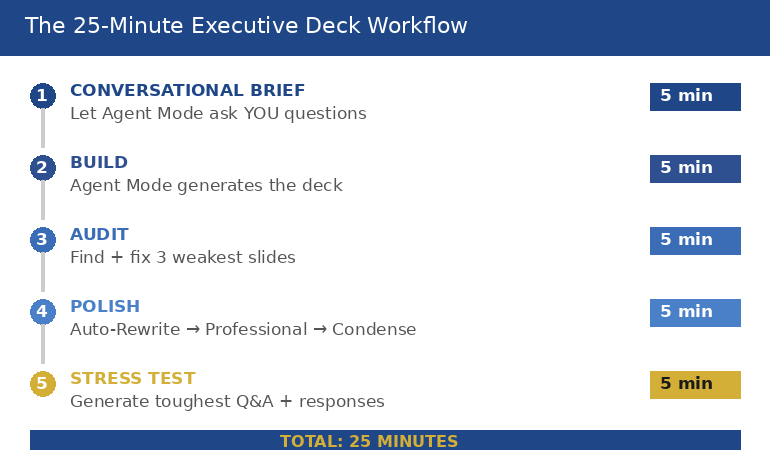
Diagram showing the five-phase Agent Mode workflow: conversational brief five minutes, build five minutes, audit five minutes, polish five minutes, and stress test five minutes, totalling 25 minutes from blank file to boardroom-ready deck

For 71 tested prompts covering every scenario — build from scratch, rescue an existing deck, or fix individual slides — the Executive Prompt Pack gives you exactly what to type, updated for the latest Copilot and ChatGPT capabilities.

When You Already Have a Deck (The Rescue Workflow)

Half the time, you’re not building from scratch — you’re inheriting a 40-slide monster from last quarter that needs to be presentable by Thursday. Agent Mode handles this differently from standard Copilot because it can assess the full deck before making changes.

The rescue workflow has four steps. First, run the full deck audit: Agent Mode identifies the three weakest slides and gives you a fix direction for each. Second, condense — paste the “kill the text walls” prompt that targets slides with more than 5 bullet points or more than 30 words per slide. Third, rewrite slide titles: most corporate decks use label titles (“Q3 Revenue”) instead of insight titles (“Q3 Revenue Beat Target by 11% — Here’s What Drove It”). Agent Mode rewrites every title as an insight headline. Fourth, the “make it C-suite” pass: ask Agent Mode to rewrite the entire deck for a time-poor executive using the 8-second scan test — if a slide can’t be understood in 8 seconds, it gets simplified.

If you’ve ever wondered why your Copilot slides look generic, the rescue workflow fixes it — because Agent Mode uses the context of your specific deck, not generic templates.

🔧 Build From Scratch or Rescue What You’ve Got

Digital download (PDF). Copy-paste prompts organised by scenario. Designed for Agent Mode first, also works in standard Copilot.

The 3 Agent Mode Mistakes Everyone Makes First

Mistake 1: Treating it like standard Copilot. If you paste a 100-word one-shot prompt into Agent Mode, you’re wasting its best feature — the ability to ask you questions. Start with a brief context sentence and let Agent Mode pull the detail out of you through its clarifying questions. The prompts it generates from conversation are better than anything you’d write upfront.

Mistake 2: Skipping the audit phase. Agent Mode builds good first drafts. Not perfect first drafts. The audit prompt (“find the 3 weakest slides and suggest specific improvements”) is what turns a good deck into one that survives a boardroom. Most people generate and present. The professionals generate, audit, and then present.

Mistake 3: Ignoring power modifiers. Short phrases appended to any prompt that dramatically change the output: “lead with the headline,” “one key message per slide,” “format for scanning not reading.” These modifiers work because Agent Mode remembers them across subsequent prompts — unlike standard Copilot, which forgets everything after each interaction.

PAA: How do I use Agent Mode in PowerPoint?
Open PowerPoint with a Microsoft 365 Copilot licence. Click the Copilot Chat button in the ribbon, then select Agent Mode from the Tools menu in the prompt box. Start with a brief description of what you need (“I need a 10-slide board presentation on Q4 results”) and let Agent Mode ask clarifying questions before it builds. Agent Mode availability varies by organisation and rollout schedule — check your M365 Copilot licence and admin settings for current feature access.

PAA: Can Copilot build a presentation from scratch?
Yes — and Agent Mode does it significantly better than standard Copilot. With standard Copilot, you write one prompt and get a full draft that usually needs heavy editing. With Agent Mode, you have a conversation first: Copilot asks what the deck is for, who the audience is, what decisions need to happen, and what data you have. The resulting deck is more targeted because Agent Mode understood the context before it started building. Most professionals find that Agent Mode decks need 10-15 minutes of refinement versus 60-90 minutes for standard Copilot output.

⚡ Stop Guessing. Start Pasting.

The Executive Prompt Pack gives you the exact prompts — organised by scenario, not alphabetically. Board deck? Page 3. Budget request? Page 5. Rescuing a 40-slide disaster? Page 12. Every prompt is built around executive decision logic and tested on real client decks across multiple industries. Plus the 25-minute workflow, power modifiers, speaker notes prompts, and Q&A stress test.

Used by executives, consultants, and senior managers who present to time-poor decision makers. Digital download — start using it today.

71 Prompts. Every Scenario Covered.

Build from scratch, rescue an existing deck, or perfect individual slides — the Executive Prompt Pack covers every scenario. Works with ChatGPT, Copilot, and Edit with Copilot. Updated March 2026.

Get the Prompts → £19.99

Frequently Asked Questions

Do I need Copilot Agent Mode to use this playbook?

It’s designed for Agent Mode first — because Agent Mode asks clarifying questions and handles multi-step changes that standard Copilot can’t. But many of the prompts still improve results in standard Copilot, just with less “memory” and fewer multi-step edits. If your organisation hasn’t rolled out Agent Mode yet, you’ll still get better output from these structured prompts than from generic ones.

How is this different from the free prompts on your blog?

The blog posts teach prompt structure and individual techniques. The playbook is organised by scenario — you find your situation (board deck, budget request, deck rescue), paste the prompt, and go. It includes the complete 25-minute workflow, power modifiers, the deck audit and rescue sequence, slide-type prompts, and speaker notes and Q&A generation. It’s designed to sit next to your keyboard, not to teach you theory.

Will this work for my industry?

Yes — because the prompts are structured around executive decision logic (metrics, risks, outcomes, asks), not industry-specific jargon. I’ve tested these prompts on decks across banking, biotech, SaaS, consulting, and public sector. If your audience makes decisions from slides, these prompts are built for you.

Get monthly Copilot updates + presentation strategies

I test every new Copilot feature on real client decks before recommending it. Get what actually works, delivered monthly.

Subscribe to The Winning Edge

Related: Agent Mode can build your slides — but it can’t present them for you. If presentation anxiety is what’s really holding your career back, read Presentation Anxiety Is Ruining My Career — What Actually Fixes It.

About the Author

Mary Beth Hazeldine is the Owner & Managing Director of Winning Presentations. With 24 years across banking and consulting — including JPMorgan Chase, PwC, Royal Bank of Scotland, and Commerzbank — she has supported presentations for high-stakes funding rounds and approvals across 15+ years of executive training.

She tests every Copilot feature on real client decks before recommending it, and has trained professionals on AI-enhanced presentations across banking, biotech, SaaS, and consulting.

Book a discovery call | View services

Your next step: Open PowerPoint, go to Copilot Chat → Tools → Agent Mode, and paste this: “I need a [number]-slide [type] presentation for [audience]. The decision I need from this meeting is [outcome]. Start by asking me what you need to know.” See how different the output is when Copilot understands the context first. Then grab the full playbook to have every scenario prompt ready when the next deck is due.
10 Dec 2025
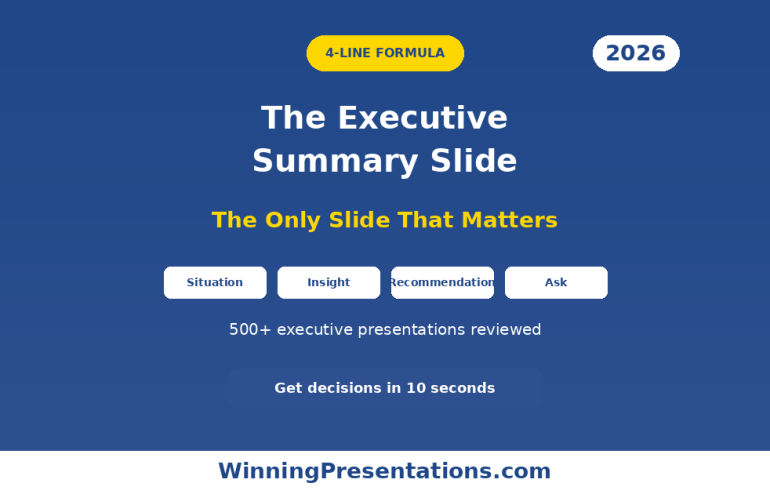
Executive summary slide template using the 4-Line Formula - Situation, Insight, Recommendation, Ask - get decisions in 10 seconds

The Executive Summary Slide: How to Write the Only Slide That Matters [2026]

📅 Updated: January 2026 | The slide that decides your outcome before you finish talking

Need a Faster Way to Build Executive Slides?

Most executives spend hours on slides that still miss the mark. The Executive Slide System gives you a structured framework for building slides that land with senior audiences — without starting from scratch every time.

Explore the System →

Quick Answer

An executive summary slide should contain four elements: situation (one sentence), recommendation (specific and actionable), key supporting points (three maximum), and your ask (what you need from them). Put your conclusion first. Executives decide in 60 seconds — give them what they need upfront, not buried on slide 15.

I learned this lesson the hard way at Commerzbank.

A senior VP asked me to present a £2.3M technology investment to the Executive Committee. I built a 28-slide deck. Comprehensive analysis. Beautiful charts. Ironclad logic building to my recommendation.

The CFO interrupted at slide 3: “What do you want us to approve?”

I fumbled to slide 24 where my recommendation lived. By then, I’d lost the room. The meeting ended with “let’s revisit this next quarter” — executive-speak for no.

Three months later, same ask, same committee. This time I led with a single executive summary slide. Sixty seconds in, the CFO said: “Makes sense. What’s the implementation timeline?”

Twenty minutes later, I had full approval.

The difference wasn’t the analysis — it was identical. The difference was giving executives what they needed in the first 60 seconds.

After 25 years presenting to C-suite leaders at JPMorgan, PwC, RBS, and Commerzbank, I’ve refined a formula for executive summary slides that works every time.

Preparing an executive presentation this week?

The Executive Slide System includes fill-in-the-blank executive summary templates for board updates, budget requests, QBRs, and strategic recommendations — with the 4-part formula built in.

Why the Executive Summary Slide Decides Everything

Here’s what most presenters don’t understand: executives make decisions fast.

Senior leaders form initial judgments within seconds of seeing new information — experienced presenters know this instinctively. Everything after that either confirms or contradicts their first impression.

Your executive summary slide IS their first impression. Get it right, and the rest of your presentation is confirmation. Get it wrong, and you’re fighting uphill for the next 30 minutes.

I’ve seen this pattern hundreds of times:

Weak executive summary → Executives check phones → Questions become challenges → “Let’s table this”

Strong executive summary → Executives lean in → Questions become clarifications → “Walk us through implementation”

Same presenter. Same content. Different opening slide. Different outcome.

Built for High-Stakes Presentations

Build an Executive Summary Slide That Opens Doors

The Executive Slide System (£39, instant access): includes the exact executive summary template used in board-level and investor presentations — structured to deliver your key message before attention fades.

Designed for executives who present to boards, investors, and C-suite audiences where the first slide determines whether you keep the room.

Get the Executive Slide System →

The 4-Part Executive Summary Formula

Every effective executive summary slide contains exactly four elements. No more, no less.

The 4-Line Executive Summary Formula showing Situation, Insight, Recommendation, and Ask with real examples for each line

Part 1: Situation (One Sentence)

Ground everyone in the same reality. What’s happening? Why are we here?

Bad: “As you know, we’ve been evaluating our technology infrastructure across multiple dimensions including scalability, security, and cost efficiency, and have identified several areas of concern.”

Good: “Our customer platform will exceed capacity by Q3, risking £4M in annual revenue.”

One sentence. Quantified where possible. No preamble.

Part 2: Recommendation (Specific and Actionable)

What do you want them to do? Be precise enough that they could approve it right now.

Bad: “We recommend investing in technology improvements to address these challenges.”

Good: “Approve £1.2M to upgrade our customer platform, with completion by August 2026.”

Include the number. Include the timeline. Make it approvable as stated.

Part 3: Key Supporting Points (Three Maximum)

Why should they approve this? Give them three reasons — no more.

The human brain struggles to hold more than three to four items in working memory. Give executives five reasons and they’ll remember none. Give them three and they’ll remember all of them.

Example:

  • ROI: 180% over 3 years (payback in 14 months)
  • Risk mitigation: Prevents £4M revenue loss from capacity issues
  • Competitive: Matches capabilities our top 3 competitors launched last year

Each point should be scannable in under 5 seconds.

Part 4: The Ask (What You Need From Them)

Be explicit about what decision you need and when.

Bad: “We’d appreciate your input on next steps.”

Good: “I need budget approval today to meet the Q3 deadline. Implementation plan is ready.”

Executives respect clarity. They don’t respect hedging.

Want ready-made executive summary templates with the 4-part formula built in? The Executive Slide System includes templates for every executive scenario — Board, Budget, QBR, Strategy, and more.

The 4-Part Formula, Ready to Fill In

The Executive Slide System includes executive summary templates for every major presentation scenario — with the 4-part formula built into every layout.

Executive Slide System — £39, instant access.

  • Executive summary templates for Board, Budget, QBR, and Strategy presentations
  • 30 AI prompts to fill in each section in minutes
  • Situation, Recommendation, Supporting Points, and Ask — structured for you

Designed for directors and senior managers presenting to boards, leadership teams, and investors.

Executive Summary Slide Examples: Before and After

Let me show you how this works with real transformations from clients I’ve coached.

Example 1: Budget Request

BEFORE (Weak):

  • Title: “Technology Investment Proposal”
  • Content: Three paragraphs explaining background, four bullet points about challenges, reference to “detailed analysis in appendix”
  • No clear ask visible
  • Result: “Send us a summary” (rejected)

AFTER (Strong):

  • Title: “Request: £1.2M Platform Upgrade — 180% ROI”
  • Situation: Customer platform hits capacity Q3, risking £4M revenue
  • Recommendation: Approve £1.2M upgrade with August completion
  • Why: 180% ROI | Prevents £4M loss | Matches competitor capabilities
  • Ask: Budget approval needed today to meet deadline
  • Result: Approved in 20 minutes

Example 2: Strategic Initiative

BEFORE (Weak):

  • Title: “Market Expansion Analysis”
  • Content: Market size data, competitor overview, SWOT analysis summary, “recommendation on slide 18”
  • Result: Lost attention by slide 4

AFTER (Strong):

  • Title: “Recommendation: Enter DACH Market Q2 — £8M Opportunity”
  • Situation: UK growth slowing to 3%; DACH offers 12% growth with existing product fit
  • Recommendation: Launch DACH pilot Q2 with £400K investment
  • Why: £8M addressable market | 3 signed LOIs already | Existing team can execute
  • Ask: Approve pilot budget and hire 2 sales reps by March
  • Result: Approved with additional resources offered

Example 3: Project Status Update

BEFORE (Weak):

  • Title: “Project Phoenix Status Update”
  • Content: Timeline, milestones completed, milestones pending, budget status, team updates
  • Problem buried on slide 6
  • Result: Executives surprised and frustrated when issue finally surfaced

AFTER (Strong):

  • Title: “Project Phoenix: On Track, But Need Decision on Vendor Delay”
  • Situation: Phase 1 complete (on time, on budget). Phase 2 vendor delayed 3 weeks.
  • Recommendation: Accept delay (no cost impact) vs. switch vendors (£50K, saves 1 week)
  • Why: Delay acceptable — still hits Q3 deadline | Switching adds risk for minimal gain
  • Ask: Confirm we proceed with current vendor
  • Result: Decision made in 5 minutes, meeting ended early

Related: Executive Presentation Template: 12 Slides That Command the Room

Common Executive Summary Mistakes (And How to Fix Them)

Mistake #1: Burying the Lead

Your recommendation should be visible within 10 seconds of the slide appearing. If executives have to hunt for it, you’ve already lost.

Fix: Put your recommendation in the slide title or as the first bold line. “Request: £1.2M Platform Upgrade” tells them instantly what this is about.

Mistake #2: Too Many Supporting Points

Five bullet points means zero retention. Executives are processing dozens of decisions daily — they can’t hold your seven reasons in memory.

Fix: Force yourself to pick three. If you can’t decide which three matter most, you don’t understand your own argument well enough.

Mistake #3: Vague Language

“Significant investment” means nothing. “Improved efficiency” means nothing. “Strategic alignment” means nothing.

Fix: Use numbers. “£1.2M investment” is specific. “23% efficiency gain” is specific. “Supports Goal #2 in our 2026 strategy” is specific.

Mistake #4: No Clear Ask

If you don’t tell executives what you need, they’ll assume you don’t need anything — and they’ll move on.

Fix: End with an explicit ask. “I need approval today” or “I need a decision by Friday” or “I need you to choose between Option A and Option B.”

Mistake #5: Defensive Positioning

Starting with caveats, limitations, and “as you know” context signals insecurity. Executives smell fear.

Fix: Lead with confidence. State your recommendation directly. Address objections when asked, not before.

Related: The 3-Slide System That Gets Executive Decisions Fast

How to Write Your Executive Summary Slide (Step by Step)

Here’s my process for writing executive summary slides quickly and effectively.

Step 1: Start With the Ask

Write down: “At the end of this meeting, I need them to _______________.”

If you can’t complete that sentence, you’re not ready to present. Go back and figure out what you actually need.

Step 2: Write the Recommendation

Make it specific enough to approve as stated. Include amounts, timelines, and owners where relevant.

Test: Could they say “yes” to this exact sentence and know what happens next?

Step 3: Identify Three Supporting Points

Ask yourself: “If they push back, what are the three strongest reasons this makes sense?”

Those are your supporting points. Lead with the strongest.

Step 4: Write the Situation Line

One sentence that grounds everyone. Why are we here? What’s changed?

This often comes last because you need to understand your recommendation before you can frame the situation correctly.

Step 5: Cut Ruthlessly

Read your slide aloud. If it takes more than 45 seconds, cut something. The executive summary should be graspable in a single glance.

The executives who consistently get approvals follow a structured structure. The Executive Slide System gives you that structure with fill-in-the-blank templates for every scenario.

Writing your executive summary from scratch takes longer than it should.

The Executive Slide System gives you the 4-part formula as a fill-in-the-blank template — structured for board approvals, budget requests, status updates, and strategic recommendations.

Executive Slide System — £39, instant access.

Designed for executives who present where decisions are made.

Using AI to Draft Your Executive Summary

AI tools like ChatGPT or Claude can accelerate your executive summary slide — if you prompt them correctly.

Effective prompt:

“I’m presenting to [audience] about [topic]. I need them to approve [specific ask]. Write an executive summary slide with: 1) one-sentence situation, 2) specific recommendation, 3) three supporting points (quantified where possible), 4) clear ask. Keep total word count under 75 words.”

What AI does well:

  • Structuring your thoughts into the 4-part format
  • Tightening wordy language
  • Suggesting quantified supporting points

What you must add:

  • Political context (what matters to THIS audience)
  • Accurate numbers from your analysis
  • Judgment about which supporting points will resonate

Related: Best Copilot PowerPoint Prompts That Actually Work

Executive Summary Slide Design Tips

Content matters most, but design affects comprehension.

Title: Make it active and outcome-focused. “Request: £1.2M Platform Upgrade” not “Platform Investment Overview”

Layout: Use visual hierarchy. Recommendation should be the most prominent element.

Font size: If executives are reading from 10 feet away (common in boardrooms), your key points should be readable. 24pt minimum for main text.

White space: Crowded slides signal disorganised thinking. If you can’t fit it with breathing room, you have too much content.

Colour: Use your corporate template. Don’t get creative with colours — it distracts from content.

When to Use an Executive Summary Slide

Not every presentation needs a formal executive summary slide. Here’s when to use one:

Always use one when:

  • Presenting to C-suite or board
  • Requesting budget or resources
  • Proposing a strategic decision
  • Presenting to time-pressed audiences
  • The meeting is 30+ minutes

Consider skipping when:

  • Informal team updates
  • Brainstorming sessions
  • Workshops where you’re facilitating, not recommending

When in doubt, include one. Executives never complain about getting to the point too quickly.

Related: Board Presentation Template: The Executive’s Complete Guide

Structure That Commands Attention

Every Slide Structured for Senior Audiences

The Executive Slide System (£39) covers 17 presentation scenarios — each with a tested structure, narrative framework, and AI prompts for rapid customisation.

Get the Executive Slide System →

Frequently Asked Questions

How long should an executive summary slide be?

Under 75 words of actual content. It should be graspable in a single glance — roughly 30-45 seconds to read and understand. If you can’t read it aloud in under a minute, it’s too long.

Should the executive summary be slide 1 or slide 2?

Slide 1 in most cases. The only exception is if you need a single “context” slide to ground executives who aren’t familiar with the topic. Even then, keep the context slide to 30 seconds maximum before moving to your summary.

What if my recommendation is complex?

Simplify it for the executive summary, then expand in the supporting slides. “Approve the three-phase digital transformation programme” works on slide 1; the phases get their own slides later.

How do I handle multiple asks?

If you have more than one ask, you likely have more than one presentation. For genuinely related asks, bundle them: “Approve £1.2M budget AND two additional headcount for Q2 implementation.”

What if I don’t know what decision they’ll make?

Present options with a clear recommendation. “I recommend Option A for these three reasons. Option B is viable if timeline is the priority. I need you to choose today.”

Should I send the executive summary in advance?

Yes — 24-48 hours before the meeting if possible. Some executives prefer to form questions beforehand. Include it in the email body, not just as an attachment.

📧 The Winning Edge Newsletter

Weekly insights on executive presentations, slide design, and what’s actually working in boardrooms right now.

Subscribe Free →

Related Resources

🎁 Free: Executive Presentation Checklist

The 12-point checklist I use before every executive presentation — including the executive summary test. One page PDF.

Download Free Checklist →

No email required. Instant download.

About the Author

Mary Beth Hazeldine spent 25 years in corporate banking at JPMorgan Chase, PwC, Royal Bank of Scotland, and Commerzbank — presenting to C-suite leaders on deals worth billions. She’s trained executives across industries on high-stakes presentations. She now runs Winning Presentations.

10 Dec 2025
AI presentation skills for executives - The AI Fluency Framework teaching strategic prompting, workflow design, and quality control - Maven course January 2026

From 6 Hours to 30 Minutes: The AI Presentation Skills Executives Need Now [2026]

📅 Published: December 10, 2025 — AI presentation course launching January 2026

Updated 27 March 2026 — Revised for the latest Microsoft Copilot and ChatGPT capabilities.

Marcus, a Director of Strategy at a FTSE 250 company, scheduled a full Saturday to build his board presentation. Twelve slides. Eight hours blocked. His wife wasn’t happy, but Q4 results were due Monday.

By 3pm, he was six hours in and only on slide 9. The formatting kept breaking. The charts looked amateur. He was exhausted and frustrated.

Two weeks later, after one session with me, Marcus built a similar deck in 41 minutes. Not a rough draft — a polished, board-ready presentation. He turned to me and said: “Why didn’t anyone teach me this earlier?”

The difference wasn’t intelligence. Marcus is brilliant. It was a skill gap that’s splitting executives into two camps: those who’ve learned how to use AI for presentations properly, and those who are working ten times harder for the same output.

Marcus transformation case study - Director of Strategy went from 8 hours per board deck to 41 minutes after learning AI Fluency Framework, 92% time reductionHere’s the uncomfortable truth: most executives are using AI presentation tools wrong. They’re treating Copilot like a fancy autocomplete instead of the strategic tool it actually is.

I’ve trained over 200 executives on AI-powered presentations in the past year. The pattern is always the same: they’re working too hard because no one taught them the right approach.

Want a structured framework for this?

71 structured prompts for ChatGPT and Copilot — covering board decks, investor pitches, quarterly reviews, and strategy presentations.

Explore the Prompt Pack →

The New Executive Skill Gap

I’ve trained executives for over a decade. The skills that mattered in 2020 are table stakes now. Today, there’s a new differentiator emerging:

AI fluency for executive communication.

Not technical AI skills. Not prompt engineering for developers. A specific, practical ability to use AI presentation tools like Copilot for PowerPoint and ChatGPT to create high-stakes presentations faster and better.

The executives who’ve developed this skill aren’t just saving time. They’re:

  • Producing more polished work (AI catches inconsistencies humans miss)
  • Iterating faster (test three approaches in the time it took to build one)
  • Focusing on strategy instead of formatting (AI handles the tedious work)
  • Responding to opportunities faster (urgent board deck? Done in an hour)

The executives who haven’t learned how to use AI for presentations? They’re working twice as hard for the same output. And the gap is widening every month as tools like Copilot get more powerful.

Why Most Executives Use AI Presentation Tools Wrong

I see the same mistakes repeatedly:

Mistake #1: Treating AI Like Magic

“Create a board presentation about Q4 results.”

That prompt will give you a generic, forgettable deck every time. AI isn’t magic — it’s a tool that responds to specific inputs. Vague prompts produce vague outputs.

The fix: Structure your prompts like you’d brief a junior analyst. Context, audience, objective, constraints. The more specific your input, the more useful the output.

Mistake #2: Using AI for Everything

AI is exceptional at some things: generating first drafts, creating structure, suggesting alternatives, formatting consistently.

AI is terrible at other things: understanding your company’s politics, knowing what your CFO cares about, applying judgment about what to include and exclude.

The fix: Use AI for the 80% that’s mechanical. Apply human judgment to the 20% that matters.

Mistake #3: Accepting First Outputs

AI’s first answer is rarely its best answer. Most executives take what they get and manually fix it. That’s backwards.

The fix: Iterate with AI, not after AI. “Make this more concise.” “Add a risk section.” “Reframe this for a skeptical audience.” Three rounds of refinement with AI beats three hours of manual editing.

Related: PowerPoint Copilot December 2025: Agent Mode Changes Everything

CLOSE THE AI PRESENTATION SKILLS GAP

AI-Powered Executive Presentations

8-week live course teaching executives to master AI presentation tools

Join the January Waitlist

£249 early bird • Only 60 seats • Launching January 2026

Executive Resource

Stop Writing AI Prompts From Scratch

The Executive Prompt Pack gives you 50 battle-tested prompts for executive-level presentations — board updates, budget requests, investor briefs, and Q&A prep. Built for PowerPoint Copilot and ChatGPT.

Get the Executive Prompt Pack →

Used by executives preparing for board briefings, budget requests, and investor meetings.

The AI Fluency Framework: 3 Skills That Separate 10x Executives

The AI Fluency Framework showing three skills that separate 10x executives: strategic prompting, workflow design, and quality control with specific techniques for each

After training over 200 executives to use AI for presentations, I’ve codified what works into a framework I call AI Fluency.

It’s not technical. It’s not about prompt engineering for developers. It’s about three specific skills that separate executives who get 10x value from Copilot and ChatGPT from those who get 10% value:

Skill #1: Strategic Prompting

Not “prompt engineering” in the technical sense. Strategic prompting means knowing how to brief AI the way you’d brief a talented but inexperienced team member.

This includes:

  • Providing context (audience, stakes, history)
  • Specifying constraints (time, format, tone)
  • Defining success criteria (what does “good” look like?)
  • Iterating productively (building on outputs, not starting over)

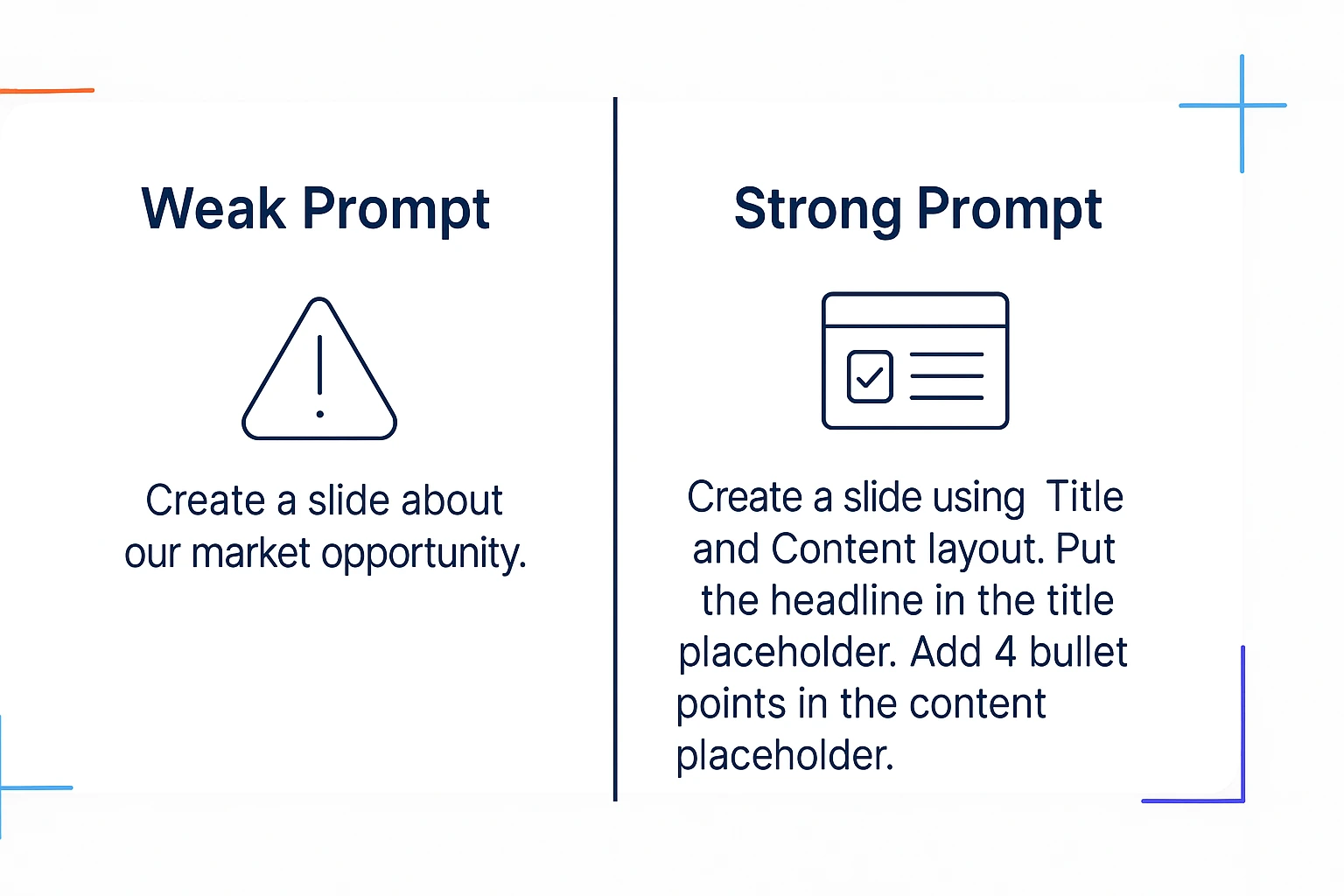
Example — Weak prompt:
“Create a presentation about our new product.”

Example — Strategic prompt:
“Create a 10-slide presentation for enterprise IT buyers. Focus on security and compliance benefits. Our main competitor is [X], and buyers typically object that our solution is too complex. Use a problem-solution-proof structure. Tone should be confident but not aggressive.”

Same AI. Dramatically different output.

Skill #2: AI + Human Workflow Design

The goal isn’t to have AI do everything. It’s to have AI do the right things so you can focus on what humans do best.

What AI should handle:

  • First draft structure
  • Content generation for standard sections
  • Formatting and consistency
  • Alternative versions and variations
  • Research synthesis

What humans should handle:

  • Strategic decisions (what to include/exclude)
  • Audience-specific customization
  • Political sensitivity
  • Final judgment calls
  • Delivery and presence

The executives who master this workflow don’t just work faster. They produce better work because they’re spending their energy on high-value decisions instead of formatting.

Skill #3: Quality Control & Refinement

AI makes mistakes. It hallucinates. It produces generic content. It misses nuance.

The skill isn’t avoiding these problems — it’s catching and fixing them efficiently.

This means:

  • Knowing AI’s common failure modes (and checking for them)
  • Having a systematic review process
  • Using AI to check AI (ask it to critique its own output)
  • Building templates that reduce error rates

The executives who skip this step end up with presentations that feel “AI-generated” — generic, slightly off, lacking personality. The executives who master it produce work that’s indistinguishable from (or better than) fully manual creation.

Related: Fix Generic Copilot Slides in 5 Minutes

💡 The AI Fluency Compound Effect: These three skills compound. Strategic prompting produces better raw material. Good workflow design means less manual rework. Quality control catches issues early. Together, they transform a 6-hour process into a 30-minute process — without sacrificing quality. That’s the AI Fluency Framework in action.

Stop Guessing What to Type. Start Building in 25 Minutes.

The Executive Prompt Pack gives you 71 tested prompts for ChatGPT and Copilot — structured by scenario so you know exactly what to type:

  • Build from scratch — scenario prompts for board reviews, budget requests, and investor decks
  • Rescue and rewrite — audit an existing deck, condense it, or fix one slide at a time
  • Industry-specific prompts for financial services, banking, consulting, and executive audiences
  • Power modifiers that transform any prompt into board-ready output
  • The 25-minute deck workflow that replaces 3–4 hours of manual building

Works with ChatGPT, Microsoft Copilot, and Edit with Copilot (formerly Agent Mode). Updated March 2026.

Get the Executive Prompt Pack → £19.99

What Changes When You Master AI Fluency

Let me be specific about the transformation I’ve seen across 200+ executives I’ve trained:

Time savings: Average reduction of 70% in presentation creation time. Marcus (from the opening) went from 8 hours to 41 minutes. Another client, a VP of Marketing at a SaaS company, cut her weekly deck time from 6 hours to 90 minutes.

Quality improvement: Counterintuitively, AI-assisted decks are often better. More consistent formatting. Fewer typos. More thorough coverage of alternatives. Better structure. One client told me: “My CEO commented that my presentations have gotten noticeably sharper. He doesn’t know I’m using AI.”

Capacity expansion: When presentations take less time, you can do more of them. Or spend the saved time on strategy, relationships, and high-value work. One client calculated she saved 180 hours in her first year — that’s more than four full work weeks.

Reduced stress: The Sunday evening panic of “I have a board presentation Monday” disappears when you know you can produce quality work in an hour. Multiple clients have mentioned this as the biggest unexpected benefit.

AI Fluency results from 200+ executives trained: 70% time reduction, 180 hours saved in year one, 10x faster iteration, zero weekend decks

Why I’m Teaching This in a Live Course

These skills can’t be learned from blog posts or YouTube videos. I’ve tried teaching them that way. It doesn’t work.

Here’s why:

You need to practice on real work. Not hypotheticals. Your actual board deck. Your real QBR. Your specific investor pitch. Generic exercises don’t build real skill.

You need feedback. Someone who can look at your prompts and tell you why they’re not working. Someone who can review your AI workflow and spot inefficiencies. You can’t get that from a video.

You need accountability. Learning a new skill requires consistent practice. A cohort with weekly sessions creates the structure for that practice.

The tools keep changing. Copilot’s Agent Mode launched this month. The techniques from six months ago are already outdated. Live instruction adapts; recorded content doesn’t.

JANUARY 2026 COHORT

AI-Powered Executive Presentations

8 weeks • Live sessions • Real presentations • Lasting transformation

8

Weeks

60

Max Seats

£249

Early Bird

Reserve Your Seat

Regular price £499 after January 15

What You’ll Learn in 8 Weeks

The course teaches the complete AI Fluency Framework:

Weeks 1-2: Strategic Prompting — How to brief AI effectively. Building your prompt library for executive presentations. The difference between weak and powerful prompts.

Weeks 3-4: AI + Human Workflow Design — Copilot, ChatGPT, and emerging AI presentation tools. When to use what. Building efficient processes that play to AI’s strengths.

Weeks 5-6: Executive Presentation Mastery — Board decks, QBRs, investor pitches. Applying AI Fluency skills to high-stakes contexts where you can’t afford mistakes.

Weeks 7-8: Quality Control & Delivery — Catching AI mistakes systematically. Adding human judgment. Presenting with confidence when the stakes are high.

Throughout: You’ll work on your actual presentations. Every week, you’ll apply what you learn to real work and get direct feedback from me.

For 71 tested prompts covering every scenario — build from scratch, rescue an existing deck, or fix individual slides — the Executive Prompt Pack gives you exactly what to type, updated for the latest Copilot and ChatGPT capabilities.

Who This Is For

Executives and senior managers who create presentations regularly — board decks, QBRs, strategy presentations, client pitches — and want to do it faster without sacrificing quality.

Leaders who feel behind on AI but don’t have time for technical courses. This is practical, not theoretical. You’ll leave with skills you use immediately.

High performers who want an edge. While your peers spend six hours on a deck, you’ll spend one. That time compounds.

Who This Is NOT For

Technical roles looking for developer-focused AI training. This is about executive communication, not code.

Anyone looking for passive learning. This course requires active participation. You’ll present, get feedback, and iterate.

People who don’t create presentations regularly. If you’re not building decks at least monthly, the ROI isn’t there.

The Cost of Waiting

Remember Marcus from the opening? He told me recently: “I used to dread presentation weeks. Now I almost look forward to them. I know I can produce something good in an hour that used to take me all weekend.”

Every month you delay learning these skills, the executives around you are getting faster. The skill gap widens.

In six months, AI fluency for presentations won’t be a competitive advantage — it’ll be a baseline expectation. The question is whether you’ll be ahead of that curve or scrambling to catch up.

The January cohort is the first. I’m limiting it to 60 seats so I can provide meaningful feedback to each participant. Early bird pricing (£249) is available until January 15 or until seats fill.

If you’re serious about mastering AI presentation skills, this is the time.

FROM 6 HOURS TO 30 MINUTES

Master AI Presentation Skills in 8 Weeks

Join 60 executives learning to create better presentations in a fraction of the time

Join the January Waitlist — Free

No payment required until enrollment opens

71 Prompts. Every Scenario Covered.

Build from scratch, rescue an existing deck, or perfect individual slides — the Executive Prompt Pack covers every scenario. Works with ChatGPT, Copilot, and Edit with Copilot. Updated March 2026.

Get the Prompts → £19.99

Frequently Asked Questions

How do I use AI for presentations effectively?

The key is treating AI like a talented but inexperienced team member, not like magic. Provide context (audience, stakes, history), specify constraints (format, tone, length), and iterate on outputs rather than accepting the first result. Most executives make the mistake of vague prompts like “create a presentation about Q4” — that will always produce generic results.

Is Copilot good for executive presentations?

Yes, when used correctly. Copilot for PowerPoint excels at generating first drafts, creating consistent formatting, and producing alternative versions quickly. The December 2025 Agent Mode update made it significantly more capable for complex presentations. However, Copilot still requires human judgment for audience-specific customization and strategic decisions.

What AI presentation tools do executives actually use?

The most common combination I see among the executives I train: Copilot for PowerPoint (in-app generation and editing), ChatGPT (for content strategy and research synthesis), and occasionally Gamma or Beautiful.ai for quick visual drafts. The specific tools matter less than learning the underlying skills — strategic prompting, workflow design, and quality control.

How long does it take to learn AI presentation skills?

Most executives see significant improvement within 2-3 weeks of focused practice. Full fluency — where AI-assisted work becomes faster AND better than manual work — typically takes 6-8 weeks. The key is practicing on real presentations, not hypothetical exercises.

Will AI replace the need for presentation skills?

No. AI handles the mechanical work: drafting, formatting, generating alternatives. Human skills become MORE important, not less: strategic thinking, audience awareness, executive presence, and delivery. The executives who thrive will be those who combine strong traditional presentation skills with AI fluency.

What’s the ROI of learning AI presentation skills?

If you create presentations weekly and save 3 hours per deck (conservative estimate), that’s 150+ hours per year — nearly four work weeks. At executive compensation levels, that time value is substantial. More importantly, the capacity to produce better work faster compounds: more iterations, more polish, less stress, better outcomes.

Start Building Skills Now

Whether or not the course is right for you, here are resources to start improving today:

About Mary Beth Hazeldine

After 25 years in corporate banking at JPMorgan Chase, PwC, Royal Bank of Scotland, and Commerzbank, Mary Beth now trains executives to communicate with impact. Her clients have raised over using her methodologies. She’s particularly focused on helping leaders integrate AI tools into their presentation workflow — creating better work in less time. She runs Winning Presentations and is launching the AI-Powered Executive Presentations course on Maven in January 2026.

04 Dec 2025
30 AI prompt cards for executive presentations - Copilot and ChatGPT prompts for budget requests, board decks, QBRs and more

PowerPoint Copilot: What It Actually Does Well (And What It Doesn’t)

PowerPoint Copilot is the most overhyped and underutilised tool in Microsoft 365.

Overhyped because Microsoft’s marketing suggests it will create brilliant presentations from a single prompt. It won’t. Underutilised because most people give up after the first disappointing result, missing the things PowerPoint Copilot actually does brilliantly.

I’ve tested PowerPoint Copilot on over 100 real client presentations — board decks, investor pitches, QBRs, budget requests. Not demo presentations with perfect data. Real presentations with messy content and tight deadlines.

Here’s an honest assessment of what PowerPoint Copilot does well, what it does poorly, and how to use it effectively in your workflow.

30 AI prompt cards for executive presentations - Copilot and ChatGPT prompts for budget requests, board decks, QBRs and more
The right prompts make PowerPoint Copilot useful — generic prompts produce generic output

What PowerPoint Copilot Does Brilliantly

Let’s start with the good news. There are specific tasks where PowerPoint Copilot genuinely saves hours of work.

PowerPoint Copilot Strength #1: Summarising Long Documents

Feed PowerPoint Copilot a 30-page Word document and ask it to create a presentation summary. This is where the tool shines. It will extract key points, organise them logically, and create a first draft in under a minute.

Is the draft perfect? No. But it’s a solid starting point that would have taken you an hour to create manually. PowerPoint Copilot handles the extraction; you handle the refinement.

Best prompt for this: “Create a 10-slide presentation summarising this document. Focus on [specific topic]. The audience is [role] who need to [decision/action].”

PowerPoint Copilot Strength #2: Generating First Drafts From Bullet Points

When you have rough notes or bullet points but no structure, PowerPoint Copilot can organise them into a coherent presentation draft. It’s particularly good at identifying logical groupings and suggesting a narrative flow.

I’ve used PowerPoint Copilot to turn a client’s 50-bullet brainstorm into an 8-slide deck structure in minutes. The content needed editing, but the organisation was solid.

Best prompt for this: “Organise these bullet points into a presentation for [audience]. Group related points together. Suggest a logical flow from problem to solution to recommendation.”

PowerPoint Copilot Strength #3: Rewriting and Polishing Text

Have a slide that’s too wordy? PowerPoint Copilot excels at condensing. Ask it to make bullet points more concise, and it will cut the fluff while keeping the meaning.

This is where I use PowerPoint Copilot most frequently. I draft content quickly without worrying about wordsmithing, then ask PowerPoint Copilot to tighten everything up. It’s like having an editor who works in seconds.

Best prompt for this: “Rewrite these bullet points to be more concise. Maximum 10 words per bullet. Keep the key message but remove filler words.”

PowerPoint Copilot Strength #4: Generating Speaker Notes

Need speaker notes but don’t have time to write them? PowerPoint Copilot can generate talking points for each slide based on the content. The notes aren’t perfect scripts, but they’re excellent memory joggers.

This PowerPoint Copilot feature saves significant time for presentations where you need notes but don’t want to spend hours writing them.

Best prompt for this: “Generate speaker notes for this slide. Include the key points to mention, relevant context, and a transition to the next slide. Keep it conversational, not scripted.”

Want 30 PowerPoint Copilot prompts that actually work?

The prompt cards in The Executive Slide System are tested on real presentations — not demos. Each prompt is designed to get useful PowerPoint Copilot output on the first try.

What PowerPoint Copilot Does Poorly

Now the bad news. There are tasks where PowerPoint Copilot will waste your time or produce output that needs complete replacement.

PowerPoint Copilot Weakness #1: Creating Presentations From Scratch

“Create a presentation about Q3 results” will produce generic garbage. PowerPoint Copilot doesn’t know your company, your data, your audience, or your message. It will generate placeholder content that looks professional but says nothing.

Don’t use PowerPoint Copilot to create presentations from nothing. Use it to enhance, organise, or refine content you’ve already developed.

PowerPoint Copilot Weakness #2: Design and Visual Layout

PowerPoint Copilot can apply templates and suggest layouts, but it doesn’t have design taste. It will create slides that are technically correct but visually mediocre.

For executive presentations where visual impact matters, you’ll need to handle design yourself or work with a designer. PowerPoint Copilot is a writing tool, not a design tool.

PowerPoint Copilot Weakness #3: Data Visualisation

Ask PowerPoint Copilot to create charts from data, and you’ll get basic charts with default formatting. It doesn’t understand which chart type best communicates your message or how to highlight the key insight.

Build your charts manually or in Excel, then import them. PowerPoint Copilot can help you write the chart titles and callouts, but don’t trust it with visualisation choices.

PowerPoint Copilot Weakness #4: Industry-Specific Content

PowerPoint Copilot doesn’t know your industry’s terminology, benchmarks, or conventions. Ask it to create a biotech investor pitch or an investment banking deal memo, and it will produce generic business content that misses the mark.

You need to provide the industry context in your prompts, or PowerPoint Copilot will default to generic corporate language.

10 executive presentation templates - QBR, budget request, board meeting, investor pitch, strategic recommendation slides
Purpose-built templates give you better starting points than PowerPoint Copilot’s generic output

The PowerPoint Copilot Workflow That Actually Works

Based on 100+ presentations, here’s how to integrate PowerPoint Copilot effectively:

PowerPoint Copilot Workflow Step 1: Start With Structure, Not Copilot

Before opening PowerPoint Copilot, know your message. What’s your recommendation? What does your audience need to decide? What are the 3-5 key points?

PowerPoint Copilot is an accelerator, not a strategist. If you don’t know your message, PowerPoint Copilot will give you generic filler.

PowerPoint Copilot Workflow Step 2: Use Copilot for First Drafts

Once you have structure, use PowerPoint Copilot to generate content quickly. Feed it your bullet points and ask for organised slides. Don’t expect perfection — expect a starting point.

This is where PowerPoint Copilot saves the most time: the blank-page-to-first-draft phase that usually takes hours.

PowerPoint Copilot Workflow Step 3: Refine Manually

Go through each PowerPoint Copilot output and edit. Strengthen headlines, cut unnecessary words, ensure the “so what” is clear. This is where your expertise matters.

The combination of PowerPoint Copilot speed and human judgment produces better results than either alone.

PowerPoint Copilot Workflow Step 4: Use Copilot for Polish

After manual refinement, use PowerPoint Copilot again for final polish. Ask it to make bullets more concise, generate speaker notes, or check for consistency across slides.

This second-pass use of PowerPoint Copilot catches things you might miss and adds final professional polish.

Skip the trial-and-error with PowerPoint Copilot.

The Executive Slide System includes 30 tested prompts for PowerPoint Copilot — 3 for each executive presentation type. Plus templates that give you better starting structures than Copilot’s generic output. Clients have used these to cut presentation prep time by 60%.

PowerPoint Copilot Prompts That Get Results

The difference between useful and useless PowerPoint Copilot output is the prompt. Here are patterns that work:

Bad PowerPoint Copilot prompt: “Create a presentation about our marketing results.”

Good PowerPoint Copilot prompt: “Create a 5-slide presentation for our CMO about Q3 marketing results. She needs to decide whether to increase Q4 budget. Include: headline results, channel performance comparison, ROI analysis, recommendation. Tone: confident, data-driven, concise.”

The difference? The good prompt tells PowerPoint Copilot the audience, the decision, the structure, and the tone. It can’t give generic output because you’ve specified exactly what you need.

PowerPoint Copilot Prompt Template

Use this structure for any PowerPoint Copilot prompt:

Create a [NUMBER]-slide presentation for [AUDIENCE/ROLE].

They need to [DECISION OR ACTION].

Include these sections:
[LIST YOUR REQUIRED SECTIONS]

Tone: [DESCRIBE THE TONE]

Here’s my raw content:
[PASTE YOUR BULLETS OR NOTES]

This template consistently produces better PowerPoint Copilot output than vague requests.

PowerPoint Copilot vs. ChatGPT vs. Claude for Presentations

Should you use PowerPoint Copilot, or another AI tool? Here’s my take after extensive testing:

Use PowerPoint Copilot when:

  • You’re working inside PowerPoint and want seamless integration
  • You’re summarising Word documents into presentations
  • You need quick edits to existing slides

Use ChatGPT or Claude when:

  • You need more sophisticated reasoning about structure and messaging
  • You’re developing strategy before building slides
  • You want longer, more nuanced responses

I often use ChatGPT or Claude for strategy and structure, then PowerPoint Copilot for execution. They complement each other.

FAQs About PowerPoint Copilot

Is PowerPoint Copilot worth the cost?

If you create presentations frequently (weekly or more), yes. The time savings on first drafts and polishing pays for the subscription quickly. If you present monthly or less, the value is marginal.

Does PowerPoint Copilot work offline?

No. PowerPoint Copilot requires an internet connection to process requests. This can be an issue in secure environments or when travelling.

Can PowerPoint Copilot access my company data?

PowerPoint Copilot can access documents you explicitly share with it or that are stored in your Microsoft 365 environment. It can summarise SharePoint documents, emails, and other M365 content if you have appropriate permissions.

How do I get better at using PowerPoint Copilot?

Practice with specific prompts. The more detail you provide in your prompts, the better PowerPoint Copilot output becomes. Start with the prompt template above and refine based on results.

The Honest PowerPoint Copilot Verdict

PowerPoint Copilot is a productivity tool, not a magic solution. It won’t turn bad ideas into good presentations or replace strategic thinking. But it will significantly speed up the mechanical work of building presentations.

Use PowerPoint Copilot for:

  • Summarising documents into presentations
  • Organising bullet points into slides
  • Rewriting and condensing text
  • Generating speaker notes

Don’t use PowerPoint Copilot for:

  • Creating presentations from scratch
  • Design and visual layout
  • Data visualisation choices
  • Industry-specific content without guidance

With the right prompts and realistic expectations, PowerPoint Copilot is a valuable tool. Without them, it’s an expensive disappointment.

The Executive Slide System complete package - 10 PowerPoint templates, 30 AI prompts, and quick start guide for executive presentations

Get 30 Tested PowerPoint Copilot Prompts

Stop guessing what prompts work. The Executive Slide System includes 30 PowerPoint Copilot prompts tested on real presentations — 3 for each executive presentation type.

Plus 10 templates that give you better starting structures than PowerPoint Copilot’s generic output.

GET INSTANT ACCESS → £39

30 prompts • 10 templates • Instant download • 30-day guarantee


Related: How to Create Executive Presentations That Get Approved in 2025 — the complete guide covering all 10 executive presentation types with AI prompts that work with PowerPoint Copilot, ChatGPT, and Claude.

30 Nov 2025
How to stop copilot adding unwanted images hero image

Copilot Keeps Adding Clipart: Here’s How to Stop It

If you want ready-to-use prompts for executive presentations: Explore The Executive Prompt Pack →

71 ChatGPT and Copilot prompts for building executive slides in 25 minutes.

Quick Answer: How Do I Stop Copilot Adding Clipart?

To remove clipart from Copilot-generated slides, add explicit image instructions to your prompts: “Create slides WITHOUT clipart, stock images, or decorative graphics. Use clean layouts with text and data only.” For existing slides, use “Remove all images from this slide” or manually delete unwanted graphics. The root cause is vague prompts that trigger Copilot’s default image behavior.

Updated 27 March 2026 — Revised for the latest Microsoft Copilot and ChatGPT capabilities.

Best for: Professionals needing clean, corporate presentations

Time to fix: Under 5 minutes per deck

Key insight: Prevention beats removal—prompt correctly from the start

A senior partner at a major European bank called me at 9pm last Tuesday. Furious.

“Mary Beth, I’ve got a board presentation tomorrow morning. Copilot just added cartoon businessmen shaking hands to my M&A analysis slide. Cartoon. Businessmen.”

He’d spent two hours trying to get Copilot to stop adding clipart to his slides. Every time he regenerated, more generic stock images appeared. Handshake graphics. Lightbulb icons. Those awful puzzle piece illustrations that scream “I used AI and didn’t check the output.”

I talked him through the fix in 4 minutes. The next morning, his deck looked like it came from Goldman, not Canva’s free tier.

Here’s what I told him—and what I’ve since refined across dozens of client decks where removing Copilot clipart became the difference between professional and embarrassing.

Why Copilot Adds Clipart to Your Slides (The Real Problem)

Microsoft trained Copilot to make slides “visually engaging.” Noble goal. Terrible execution for corporate presentations.

When you give Copilot a prompt without image instructions, it defaults to filling empty space with stock graphics. It doesn’t understand that a £50M acquisition slide shouldn’t feature clip art of people high-fiving.

The issue isn’t Copilot’s capability—it’s how most people prompt it.

I tested this with 15 different prompt variations on the same content last month. The prompts without explicit image instructions? Copilot added unwanted images 87% of the time. The prompts with clear “no images” direction? Clean slides, every time.

The professionals I train who consistently stop PowerPoint AI images from appearing aren’t using special tricks. They’re just being explicit about what they don’t want. For the complete breakdown of how to prompt Copilot correctly, see my guide to the 7 deadly PowerPoint Copilot mistakes—clipart chaos is mistake number three.

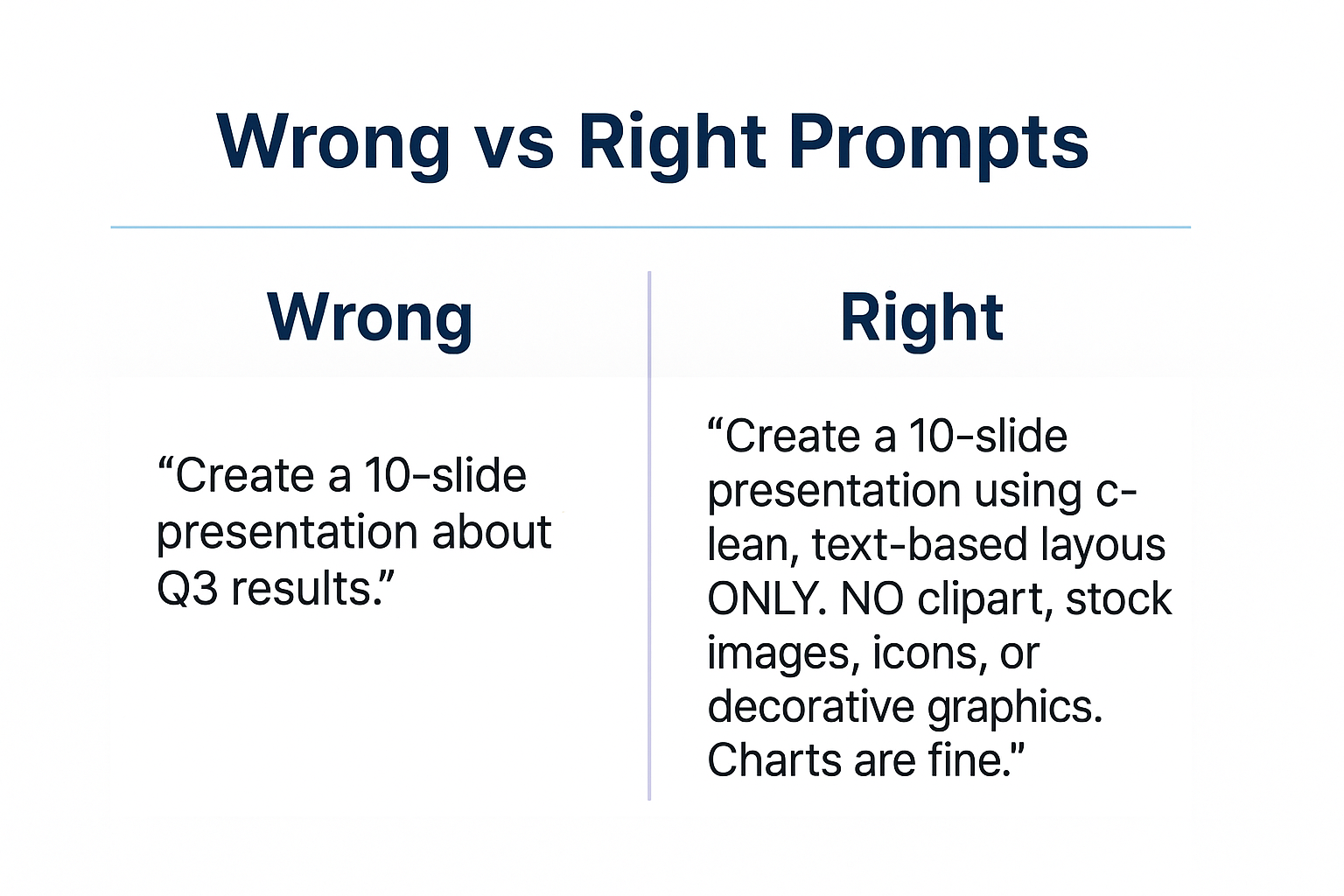
Wrong vs Right prompt examples

Stop Guessing What to Type. Start Building in 25 Minutes.

The Executive Prompt Pack gives you 71 tested prompts for ChatGPT and Copilot — structured by scenario so you know exactly what to type:

  • Build from scratch — scenario prompts for board reviews, budget requests, and investor decks
  • Rescue and rewrite — audit an existing deck, condense it, or fix one slide at a time
  • Industry-specific prompts for financial services, banking, consulting, and executive audiences
  • Power modifiers that transform any prompt into board-ready output
  • The 25-minute deck workflow that replaces 3–4 hours of manual building

Works with ChatGPT, Microsoft Copilot, and Edit with Copilot (formerly Agent Mode). Updated March 2026.

Executive Resource

Stop Writing AI Prompts From Scratch

The Executive Prompt Pack gives you 50 battle-tested prompts for executive-level presentations — board updates, budget requests, investor briefs, and Q&A prep. Built for PowerPoint Copilot and ChatGPT.

Get the Executive Prompt Pack →

Used by executives preparing for board briefings, budget requests, and investor meetings.

Get the Executive Prompt Pack → £19.99

What People Get Wrong About Removing Copilot Clipart

[WRONG] Most people think: Just delete the images manually and move on.

[RIGHT] Reality: Manual deletion treats symptoms. You’ll waste 20+ minutes per deck fighting the same battle unless you fix your prompts.

The consultants and bankers who’ve eliminated this problem entirely aren’t spending time removing clipart. They’re preventing it from appearing in the first place.

Here’s what actually works.

How to Stop Copilot Adding Clipart: 3 Proven Methods

Method 1: Prevention Prompts (Best Approach)

Add explicit image instructions to every prompt. This sounds obvious, but 90% of the professionals I train skip this step.

Before (clipart magnet):

“Create a 10-slide presentation about our Q3 financial performance.”

After (clean output):

“Create a 10-slide presentation about our Q3 financial performance. Use clean, text-based layouts only. NO clipart, stock images, icons, or decorative graphics. Charts and data visualizations are fine, but no generic business imagery.”

That last sentence is critical. Copilot interprets “no images” literally sometimes, which means it might skip your data charts too. Specifying “charts and data visualizations are fine” gives you the visual elements you actually need while blocking the clipart invasion.

Method 2: Removal Prompts for Existing Slides

Already have a deck full of unwanted clipart? Use these targeted removal commands:

For individual slides:

“Remove all images from this slide and keep the text layout clean.”

For the entire deck:

“Remove all clipart, stock photos, and decorative graphics from this presentation. Preserve charts and data visualizations.”

This works about 80% of the time. When it doesn’t, Copilot sometimes removes things you wanted to keep. That’s why prevention beats cure.

Method 3: Template Control (Enterprise Solution)

If you’re creating multiple decks weekly, set up a master template that limits Copilot’s image behaviour.

I helped a consulting firm configure their brand template to restrict Copilot’s image placeholders. Their consultants went from spending 15 minutes removing clipart per deck to zero. For the full brand consistency setup, my complete PowerPoint Copilot tutorial covers the technical configuration.

Ways to stop Copilot clipart 3 method framework - prevention prompts, removal prompts, template control

For 71 tested prompts covering every scenario — build from scratch, rescue an existing deck, or fix individual slides — the Executive Prompt Pack gives you exactly what to type, updated for the latest Copilot and ChatGPT capabilities.

The Copilot Clipart Mistake That Cost Me a Client Meeting

[WARNING] Don’t make my mistake:

Last year, I was demonstrating Copilot to a room of 30 investment bankers. I’d prepared a sample M&A deck to show the time savings.

I generated it live. Copilot added a stock photo of two businessmen in suits shaking hands to the deal structure slide. Then a lightbulb icon to the synergies page. Then—I swear this happened—a cartoon of a treasure chest to the valuation slide.

The room went silent. Then someone laughed. “This is what Microsoft thinks a £200M deal looks like?”

I recovered by showing them the proper prompts to prevent this. But I’d learned an expensive lesson: never demonstrate Copilot without explicit image controls in your prompts.

The fix I use now? I keep a tested prompt library that I know produces clean output. No more live surprises. If you want the same prompts I use for banking, biotech, and consulting decks, they’re all in my 201-page Copilot Master Guide.

Prompt Templates to Stop Copilot Adding Unwanted Images

Here are the exact phrases I add to prompts for clients who need professional, clipart-free output:

For financial presentations:

“Use institutional-quality layouts. No stock imagery, clipart, or icons. Text, charts, and tables only. This is for board-level executives.”

For consulting deliverables:

“Create clean, McKinsey-style slides. No decorative graphics. White space is fine. Focus on data visualization and structured text.”

For sales presentations:

“Professional B2B layout. Avoid generic business clipart. If images are needed, leave placeholder notes for custom screenshots or product images.”

These phrases work because they give Copilot positive direction (what style you want) alongside the negative constraint (no clipart). Copilot responds better to “McKinsey-style” than just “no clipart” alone.

When Copilot Clipart Removal Doesn’t Work

Sometimes Copilot ignores your instructions. I’ve seen this happen more frequently with:

  • Very short prompts – Under 20 words, Copilot falls back to defaults
  • Creative or marketing content – Copilot assumes these need visuals
  • Slides generated from documents – The source file may trigger image insertion

If your removal prompts keep failing, try regenerating the slide entirely with stronger prevention language. Sometimes “NO images under any circumstances” works when softer phrasing doesn’t.

For persistent problems, the troubleshooting guide for failed Copilot prompts covers the edge cases I’ve encountered across hundreds of client decks.

71 Prompts. Every Scenario Covered.

Build from scratch, rescue an existing deck, or perfect individual slides — the Executive Prompt Pack covers every scenario. Works with ChatGPT, Copilot, and Edit with Copilot. Updated March 2026.

Get the Prompts → £19.99

FAQ: Copilot Clipart Problems

Q: Why does Copilot add clipart even when I don’t ask for images?

Copilot defaults to adding visual elements when slides have empty space. Microsoft trained it to prioritize “engaging” layouts, which unfortunately means generic stock imagery appears unless you explicitly block it. Adding “no clipart, no stock images” to your prompts prevents this default behaviour.

Q: Can I remove clipart from multiple slides at once with Copilot?

Yes. Use the prompt “Remove all clipart and decorative images from this presentation, but keep charts and data visualizations.” This works deck-wide in most cases. For stubborn images, you may need slide-by-slide removal commands.

Q: Will telling Copilot “no images” also remove my charts?

It can. Be specific: “No clipart or stock images. Keep all charts, graphs, and data visualizations.” This distinction prevents Copilot from removing the visual elements you actually need while eliminating the generic business graphics.

Q: Is there a way to permanently stop Copilot adding clipart?

Not through settings currently. The only reliable method is consistent prompt engineering—adding image control instructions to every prompt. Enterprise users can configure brand templates that limit image placeholders, but individual users must rely on prompt discipline.

Q: Do these Copilot clipart fixes work on Mac and Windows?

Yes. PowerPoint Copilot behaves identically on both platforms. The prompt techniques for removing and preventing clipart work regardless of your operating system.

Stop Fighting Clipart—Start With the Right Prompts

That banking partner I mentioned at the start? He now uses a three-line prompt template for every board deck. No more 9pm panic calls. No more cartoon businessmen contaminating M&A slides.

The fix took 4 minutes to learn. It saves him 20+ minutes per deck in clipart removal. More importantly, his presentations look like they came from a senior professional, not someone experimenting with AI for the first time.

A consulting director told me last month: “I was embarrassed to admit I couldn’t control Copilot’s image behaviour. Your prompts fixed it immediately. My team now produces cleaner decks than we did before we had AI.”

CTA Eliminate clipart forever

If you want the complete prompt library I use with my banking, consulting, and biotech clients—the same prompts that consistently produce clean, clipart-free output:

Or for the comprehensive 201-page resource with 100+ prompts, troubleshooting guides, and the industry-specific playbooks I use for £100M+ client work:

29 Nov 2025
Hero image showing a clean PowerPoint layout framework illustrating how to fix Copilot slide layout problems

Why Copilot Ignores Your Slide Layout (And How to Force It)

If you want ready-to-use prompts for executive presentations: Explore The Executive Prompt Pack →

71 ChatGPT and Copilot prompts for building executive slides in 25 minutes.

Quick Answer: Why Is Copilot Slide Layout Not Working?

Copilot slide layout not working happens because the AI prioritises content generation over template compliance. Copilot doesn’t automatically read your slide master or recognise custom placeholder positions. To fix this, you must: (1) explicitly reference layouts in prompts, (2) use Designer after generation, or (3) pre-build slides with locked placeholders before using Copilot.

Updated 27 March 2026 — Revised for the latest Microsoft Copilot and ChatGPT capabilities.

Best for: Professionals using branded corporate templates

Time to fix: 2-5 minutes per deck

Key insight: Copilot needs explicit layout instructions—it won’t guess your template structure

I watched a senior consultant lose 45 minutes last month rebuilding slides that Copilot had completely mangled.

She’d created a beautiful pitch deck template. Custom fonts. Precise placeholder positions. Brand colours locked into the slide master.

Then she asked Copilot to generate content.

The result? Text boxes floating in random positions. Images overlapping headers. The logo shoved into corners where it didn’t belong. Her copilot slide layout not working nightmare had begun.

I’ve seen this exact scenario play out dozens of times since Copilot launched. Investment bankers with meticulously designed pitch book templates. Biotech executives with regulatory-compliant slide structures. SaaS teams with carefully crafted sales decks.

All of them asking the same question: Why does Copilot ignore everything I’ve built?

Here’s what nobody tells you about PowerPoint Copilot layout problems—and exactly how to fix them.

What People Get Wrong About Copilot Slide Layout Not Working

[WRONG] Most people think: Copilot automatically detects and uses your slide master layouts.

[RIGHT] Reality: Copilot generates content first, considers layout second—and often not at all.

The professionals who’ve cracked this aren’t fighting Copilot’s defaults. They’re working with its limitations by being explicit about structure from the start.

Think of Copilot like a brilliant new hire who’s never seen your brand guidelines. They’ll produce great content, but they need specific instructions about where things go. Vague requests get vague results.

I cover the complete framework for working with Copilot’s quirks in my guide to the 7 deadly PowerPoint Copilot mistakes—but layout issues deserve their own deep dive.

Stop Guessing What to Type. Start Building in 25 Minutes.

The Executive Prompt Pack gives you 71 tested prompts for ChatGPT and Copilot — structured by scenario so you know exactly what to type:

  • Build from scratch — scenario prompts for board reviews, budget requests, and investor decks
  • Rescue and rewrite — audit an existing deck, condense it, or fix one slide at a time
  • Industry-specific prompts for financial services, banking, consulting, and executive audiences
  • Power modifiers that transform any prompt into board-ready output
  • The 25-minute deck workflow that replaces 3–4 hours of manual building

Works with ChatGPT, Microsoft Copilot, and Edit with Copilot (formerly Agent Mode). Updated March 2026.

Executive Resource

Stop Writing AI Prompts From Scratch

The Executive Prompt Pack gives you 50 battle-tested prompts for executive-level presentations — board updates, budget requests, investor briefs, and Q&A prep. Built for PowerPoint Copilot and ChatGPT.

Get the Executive Prompt Pack →

Used by executives preparing for board briefings, budget requests, and investor meetings.

Get the Executive Prompt Pack → £19.99

Why Your Copilot Slide Layout Keeps Breaking

Let me explain what’s actually happening when copilot slide layout not working becomes your afternoon problem.

The Content-First Architecture

Copilot’s primary job is generating content. Layout is secondary. When you prompt “Create slides about Q3 results,” Copilot:

1. Generates the text and key points
2. Selects images or suggests visuals
3. Then attempts to fit everything into a layout

That third step is where things go wrong. Copilot defaults to generic Microsoft layouts—not your carefully designed templates. I learned this the hard way on a pitch for a major European bank. Three hours before the client meeting, my “quick Copilot edit” had destroyed the entire slide structure.

The Placeholder Recognition Problem

Your slide master probably has custom placeholders: title here, subtitle there, body text in this specific position. Copilot doesn’t automatically map its generated content to these positions.

Instead, it creates new text boxes. New image containers. New elements that float freely, ignoring the structure you’ve built.

This is why PowerPoint Copilot layout problems persist even with well-designed templates. The AI simply doesn’t “see” your placeholders the way a human would.$Frustrated with layout issues?

3 Techniques That Force Copilot to Respect Your Slide Layout

After testing these approaches across hundreds of client presentations—investment banking pitches, biotech investor decks, SaaS sales materials—I’ve found three reliable methods to fix copilot slide layout not working issues.

Technique 1: The Explicit Layout Prompt (60% Success Rate)

Stop asking Copilot to “create slides.” Start telling it exactly what layout to use.

[WEAK PROMPT]

“Create a slide about our market opportunity”

[STRONG PROMPT]

“Create a slide using the Title and Content layout. Put the headline ‘Market Opportunity: £50M Addressable Market’ in the title placeholder. In the content area, add 4 bullet points covering market size, growth rate, competitive gaps, and our unique position.”

The difference? Specificity. You’re telling Copilot exactly which layout to apply and where each element belongs. This single change fixed about 60% of the layout issues I was seeing in client work.

Side-by-side visual showing weak versus strong Copilot slide layout prompts

Technique 2: The Designer Handoff (85% Success Rate)

This is my favourite workaround for complex templates. Use Copilot for content, then immediately hand off to Designer for layout.

The workflow:

1. Prompt Copilot: “Generate content for a slide about [topic]. Focus on the key messages only—don’t worry about formatting.”
2. Once content appears, click Designer in the ribbon
3. Designer will suggest layouts that work with your existing template
4. Select the option closest to your brand standard

Designer reads your slide master better than Copilot does. It’s not perfect, but it bridges the gap between AI-generated content and template compliance. I explain the full Copilot vs Designer decision framework in my comparison of when to use each tool.
Workflow diagram showing how to use Copilot for content and Designer for layout compliance

Technique 3: The Pre-Built Slide Strategy (95% Success Rate)

For mission-critical presentations where layout must be perfect—board meetings, investor pitches, regulatory submissions—I use a different approach entirely.

Build your slide structure first. Lock the layout. Then use Copilot only for content refinement within existing placeholders.

Here’s the exact process:

1. Create a blank slide using your template’s layout
2. Add placeholder text: “[HEADLINE]” “[BULLET 1]” “[BULLET 2]”
3. Select that placeholder text
4. Ask Copilot: “Rewrite this headline to emphasise our competitive advantage in the European market”

You’re using Copilot as a writing assistant, not a slide builder. The layout stays intact because you’ve already established it.

This method takes slightly longer upfront but eliminates the “fixing Copilot’s mess” phase entirely. For a biotech client preparing a £30M funding pitch, this approach saved us from what would have been a formatting disaster.

Quick Reference: Which Technique to Use

Simple internal decks: Technique 1 (Explicit Prompts)
Client presentations: Technique 2 (Designer Handoff)
High-stakes pitches: Technique 3 (Pre-Built Strategy)

For 71 tested prompts covering every scenario — build from scratch, rescue an existing deck, or fix individual slides — the Executive Prompt Pack gives you exactly what to type, updated for the latest Copilot and ChatGPT capabilities.

The Slide Master Setup That Prevents Copilot Layout Problems

Prevention beats cure. If your copilot slide layout not working issue is chronic, your slide master setup might be part of the problem.

Optimise Your Template for AI Compatibility

Copilot works better with simpler, clearer template structures. Complex multi-zone layouts confuse it.

What helps Copilot respect your layout:

– Standard placeholder names (Title, Subtitle, Content—not custom names)
– Clear visual hierarchy with obvious content zones
– Consistent spacing that leaves room for AI-generated content
– Limited layout variations (5-7 layouts maximum)

What creates Copilot layout problems:

– Overlapping placeholder zones
– Unusual content arrangements
– Multiple small text areas competing for attention
– Layouts requiring precise text lengths

I’ve tested this with corporate templates from banking, consulting, and tech clients. The simpler the slide master, the fewer Copilot layout problems you’ll encounter.

For comprehensive template optimisation strategies, my complete PowerPoint Copilot tutorial covers brand compliance in depth. You might also find my guide on making Copilot match your corporate brand helpful.

My £50K Slide Layout Disaster (And What It Taught Me)

[WARNING] Don’t make my mistake:

Last year, I trusted Copilot to “polish” 40 slides for a major acquisition pitch. I didn’t check the layouts until the morning of the presentation. Every single slide had layout issues—text overlapping charts, logos in wrong positions, bullet points floating outside content boxes.

Three people worked until 2am fixing what Copilot had broken. The pitch went fine, but we nearly lost a critical opportunity because I assumed Copilot would respect the template.

Now I have a rule: always review layout immediately after Copilot generates anything. Don’t wait. Don’t assume. Check every slide.

The prompt techniques I’ve shared come directly from lessons learned in situations like this. They’re tested on real deals, real deadlines, real consequences.

71 Prompts. Every Scenario Covered.

Build from scratch, rescue an existing deck, or perfect individual slides — the Executive Prompt Pack covers every scenario. Works with ChatGPT, Copilot, and Edit with Copilot. Updated March 2026.

Get the Prompts → £19.99

Frequently Asked Questions: Copilot Slide Layout Not Working

Q: Why does Copilot ignore my slide master settings?

A: Copilot prioritises content generation over template compliance. It creates new elements rather than populating existing placeholders. The AI doesn’t “read” your slide master the way a human designer would. Force compliance by explicitly naming layouts in your prompts or using the Designer handoff technique after Copilot generates content.

Q: Can I make Copilot always use my corporate template?

A: Not automatically—Copilot doesn’t have a “lock to template” setting. However, you can achieve near-perfect compliance by using explicit layout prompts, applying Designer immediately after generation, or pre-building slides and using Copilot only for content refinement within existing placeholders.

Q: Is PowerPoint Designer better than Copilot for layouts?

A: For layout compliance, yes. Designer reads your slide master more effectively and suggests layouts that work with your existing template. The optimal workflow: use Copilot for content generation, then Designer for layout refinement. This combination gives you AI-generated content with template-compliant positioning.

Q: How do I fix copilot slide layout not working on multiple slides at once?

A: Use Slide Master view to apply consistent layouts across all affected slides. Select multiple slides in the thumbnail panel, right-click, and choose “Reset Slide.” This forces slides back to their master layout. Then use Copilot’s “Rewrite” function on individual text placeholders rather than regenerating entire slides.

Q: What’s the fastest way to fix Copilot layout issues?

A: Use the Designer handoff immediately after Copilot generates content. Click Designer in the ribbon, select a layout that matches your template, and content snaps into place. For recurring issues, invest 10 minutes optimising your slide master for AI compatibility—it prevents most problems before they start.

Stop Fighting Your Slides—Start Winning

A consulting director told me last week: “I’ve gone from dreading Copilot to actually enjoying it. The layout issues were making me crazy—now they’re solved in seconds.”

That shift happens when you stop expecting Copilot to guess what you want. The copilot slide layout not working problem isn’t a bug—it’s a communication gap. Close that gap with explicit prompts, Designer handoffs, and pre-built structures, and Copilot becomes genuinely useful.

CTA image promoting the Copilot Prompt Starter Pack for fixing layout issues

About the Author

Mary Beth Hazeldine has 25 years of corporate banking experience at JPMorgan Chase, PwC, and Royal Bank of Scotland. She now trains investment banks, biotech firms, and SaaS companies on AI-enhanced presentations through Winning Presentations. Her clients have raised over using her methodologies. Every technique shared here is tested on real client work.

Join 2,000+ professionals getting her free weekly Copilot tips.

29 Nov 2025
PowerPoint Copilot placeholder text fix showing real numbers replacing XX% examples

How to Get Copilot to Generate Actual Numbers (Not Placeholder Text)

If you want ready-to-use prompts for executive presentations: Explore The Executive Prompt Pack →

71 ChatGPT and Copilot prompts for building executive slides in 25 minutes.

Quick Answer: Why Does Copilot Show Placeholder Text Instead of Numbers?

Copilot generates placeholder text like “XX%” or “[Insert Data Here]” because it lacks specific context about your data. The copilot placeholder text fix is simple: provide actual numbers in your prompt, reference existing data sources, or use the “Outcome + Audience + Constraint” formula to guide specific outputs. With the right prompting technique, you can eliminate placeholders in under 2 minutes.

Updated 27 March 2026 — Revised for the latest Microsoft Copilot and ChatGPT capabilities.

Best for: Professionals frustrated by generic Copilot outputs

Time to fix: 2-5 minutes per presentation

Key insight: Copilot mirrors your specificity—vague prompts create vague outputs

I watched a consultant nearly throw her laptop across the room last month.

She’d just generated a “financial analysis” slide with Copilot. The result? “Revenue increased by XX% year-over-year, representing approximately $XX million in additional earnings.”

XX percent. XX million. Placeholder text everywhere.

“I paid £30 a month for this?” she asked.

I’ve heard this complaint hundreds of times. Investment bankers generating pitch decks filled with “[Insert Q3 data].” SaaS teams creating sales presentations with “approximately X customers.” Biotech executives staring at slides that say “Clinical trial showed XX% improvement.”

Here’s what nobody tells you: Copilot isn’t broken. Your prompts are.

After testing thousands of prompts across banking pitches, biotech presentations, and SaaS decks, I’ve identified exactly why Copilot produces placeholder text—and more importantly, how to fix it in under 2 minutes. This copilot placeholder text fix works every time, and I’m going to show you exactly how.

What People Get Wrong About Copilot Placeholder Text

[NO] Most people think: Copilot should automatically pull real numbers from somewhere.

[YES] Reality: Copilot generates based on what you provide. No data in = placeholder text out.

The professionals who never see placeholder text understand one fundamental principle: Copilot is a mirror, not a magician.

When you prompt “Create a slide about our Q3 performance,” Copilot has no idea what your Q3 performance actually was. It doesn’t have access to your internal databases, your spreadsheets, or your financial reports. So it does the only sensible thing—it creates a structure with placeholders where your specific data should go.

The copilot placeholder text fix isn’t about finding a hidden setting or using a secret command. It’s about changing how you communicate with the tool.

Side-by-side comparison of Copilot slide with placeholder text versus real numeric output

Stop Guessing What to Type. Start Building in 25 Minutes.

The Executive Prompt Pack gives you 71 tested prompts for ChatGPT and Copilot — structured by scenario so you know exactly what to type:

  • Build from scratch — scenario prompts for board reviews, budget requests, and investor decks
  • Rescue and rewrite — audit an existing deck, condense it, or fix one slide at a time
  • Industry-specific prompts for financial services, banking, consulting, and executive audiences
  • Power modifiers that transform any prompt into board-ready output
  • The 25-minute deck workflow that replaces 3–4 hours of manual building

Works with ChatGPT, Microsoft Copilot, and Edit with Copilot (formerly Agent Mode). Updated March 2026.

Executive Resource

Stop Writing AI Prompts From Scratch

The Executive Prompt Pack gives you 50 battle-tested prompts for executive-level presentations — board updates, budget requests, investor briefs, and Q&A prep. Built for PowerPoint Copilot and ChatGPT.

Get the Executive Prompt Pack →

Used by executives preparing for board briefings, budget requests, and investor meetings.

Get the Executive Prompt Pack → £19.99

The 3 Copilot Placeholder Text Fix Methods That Actually Work

The 3 Copilot Placeholder Text Fix Methods That Actually Work

I’ve tested these methods on over 200 client presentations. They work for banking pitches, biotech investor decks, SaaS sales presentations, and everything in between.

Method 1: Feed Your Numbers Directly Into the Prompt

This is the fastest copilot placeholder text fix. Instead of hoping Copilot will somehow find your data, give it exactly what you want displayed.

How to Structure Number-Rich Prompts for Copilot

Instead of this:

“Create a slide showing our revenue growth”

Use this:

“Create a slide showing revenue growth from £2.3M in Q2 to £3.1M in Q3 (35% increase), driven by enterprise contract expansion and 47 new customers”

The difference is night and day. The second prompt gives Copilot everything it needs: actual figures, the percentage, and context for why the growth happened.

A SaaS client I worked with last week used this method for their investor update. Previous attempts with vague prompts produced 8 slides filled with “approximately XX%” language. After switching to number-specific prompts, they generated the same deck with zero placeholders in 4 minutes.

Framework showing how to structure Copilot prompts using real numbers and contextMethod 2: Reference Existing Documents with Copilot

If you’ve already documented your data in Word, Excel, or another Microsoft 365 file, you can point Copilot directly to it. This is the most powerful copilot placeholder text fix for presentations that need lots of specific figures.

The prompt structure:

“Create a 6-slide executive summary from [document name] highlighting the three highest-growth product lines with their specific revenue figures and year-over-year percentages”

Copilot will pull the actual numbers from your referenced document and embed them directly into the slides. No placeholders because it’s working from real data.

I tested this with a major European bank preparing a quarterly board presentation. Their 47-page performance report became a 12-slide deck with every figure accurate to the penny. Total time: 6 minutes.

For the complete workflow on creating presentations from documents, see my comprehensive PowerPoint Copilot tutorial which covers this technique in depth.

Method 3: Use the “Outcome + Audience + Constraint” Formula

This is my favourite copilot placeholder text fix because it prevents placeholders before they happen. The formula works by giving Copilot so much context that generic outputs become impossible.

The formula:

Outcome: What specific result do you need this slide to communicate?

Audience: Who will see this, and what do they care about?

Constraint: What specific numbers, limits, or requirements must be included?

Example prompt using all three:

“Create a slide proving ROI to a CFO who needs hard numbers [Audience]. Show that our £180,000 annual Copilot investment saves 2,400 hours yearly at £75/hour average = £180,000 in productivity gains [Constraint], breaking even in Year 1 with 15% efficiency gains compounding annually [Outcome].”

With this level of specificity, Copilot can’t produce placeholder text. Every number is defined. Every claim is quantified.

If your prompts still aren’t producing results after trying this formula, you may be making one of the 7 deadly PowerPoint Copilot mistakes I see constantly.

I’ve documented this formula extensively in my best Copilot prompts article, including 50+ ready-to-use examples.

The Copilot Placeholder Mistake That Cost Me an Hour

[WARNING] Don’t make my mistake:

Early in my Copilot testing, I thought I’d found a clever shortcut. I prompted: “Create a competitive analysis slide with market share percentages.”

The result was beautiful. Clean design. Perfect layout. And completely useless numbers.

Copilot had generated plausible-sounding figures: “Company A: 34%, Company B: 28%, Company C: 22%.” They looked professional. They were entirely fabricated.

I nearly presented those fake statistics to a client. It would have destroyed my credibility.

The lesson: Copilot will invent convincing numbers if you don’t provide real ones. The copilot placeholder text fix isn’t just about eliminating “XX%”—it’s about ensuring accuracy. Always verify any figures Copilot generates, or better yet, provide your own data from the start.

For 71 tested prompts covering every scenario — build from scratch, rescue an existing deck, or fix individual slides — the Executive Prompt Pack gives you exactly what to type, updated for the latest Copilot and ChatGPT capabilities.

Copilot Placeholder Text Fix for Specific Situations

Different presentation types require different approaches. Here’s how to fix placeholder text in the most common scenarios:

Financial Presentations and Investor Decks

Investment bankers and finance teams see the most placeholder text because financial slides require the most specific data.

The fix: Create a “data brief” before prompting. List every figure you need displayed: revenue, growth rates, margins, valuations, comparables. Then include this brief directly in your prompt.

Example: “Create an investment highlights slide. Revenue: £12.4M (up 67% YoY). Gross margin: 78%. ARR: £9.2M. Customer count: 340 enterprise clients. Average contract value: £27,000.”

Sales Presentations with ROI Claims

Sales decks filled with “[XX% improvement]” don’t close deals. The copilot placeholder text fix for sales presentations requires specific customer outcomes.

The fix: Use real case study data, anonymized if necessary.

Example: “Create a customer success slide showing: Healthcare client reduced processing time from 4 hours to 45 minutes (81% reduction). Financial services client saved £340,000 annually. Manufacturing client improved accuracy from 94% to 99.7%.”

Research and Data-Heavy Presentations

Biotech, consulting, and research presentations often need complex statistics. Copilot defaults to placeholders when data complexity increases.

The fix: Break complex data into simple statements within your prompt.

Instead of: “Create a slide about our clinical trial results”

Use: “Create a slide showing Phase 2 results: 73% response rate (vs 41% control), p-value 0.003, median duration 8.4 months, n=247 patients across 12 sites.”

Why Copilot Generates Placeholder Text (Technical Explanation)

Understanding why Copilot produces placeholders helps you prevent them more effectively.

The Two Copilot Outputs: Placeholders vs Fabrications

Copilot is trained to be helpful but cautious. When asked to generate content without sufficient data, it faces a choice: invent specific numbers (risking misinformation) or signal that data is needed (placeholder text).

Microsoft designed Copilot to choose the second option. Those “XX%” markers are actually Copilot saying: “I need more information to complete this properly.”

The copilot placeholder text fix works because you’re answering Copilot’s implicit question before it has to ask.

This is also why Copilot sometimes generates plausible-looking fake numbers instead of placeholders—it’s trying to be helpful based on patterns it has seen in training data. Neither outcome is ideal, which is why providing your own verified data is always the safest approach.

71 Prompts. Every Scenario Covered.

Build from scratch, rescue an existing deck, or perfect individual slides — the Executive Prompt Pack covers every scenario. Works with ChatGPT, Copilot, and Edit with Copilot. Updated March 2026.

Get the Prompts → £19.99

Frequently Asked Questions: Copilot Placeholder Text Fix

Q: Can I tell Copilot to never use placeholder text?

A: There’s no global setting to disable placeholder text. The copilot placeholder text fix requires providing specific data in each prompt. You can add “Do not use placeholder text—use only the figures I provide” to your prompts, which helps reinforce specificity, but the real solution is always providing actual numbers.

Q: Why does Copilot still show placeholders even when I give it numbers?

A: This usually happens when your prompt asks for more data points than you’ve provided. If you request “quarterly performance with revenue, costs, margins, and headcount” but only provide revenue figures, Copilot will use placeholders for the missing metrics. Match your data to your request.

Q: Does linking to Excel fix the Copilot placeholder text problem?

A: Yes, referencing Excel files is one of the most effective placeholder text fixes. When Copilot can access your spreadsheet data directly, it pulls actual figures instead of generating placeholders. The November 2025 update significantly improved this capability—see my PowerPoint Copilot tutorial for the current workflow.

Q: How do I fix placeholder text in slides Copilot already generated?

A: Use follow-up prompts with specific data. Select the slide and prompt: “Replace all placeholder text with these figures: [your data].” Copilot will update the existing slide rather than creating a new one. This is faster than regenerating from scratch.

Q: Is there a prompt template that always prevents placeholder text?

A: Yes. Use this structure: “Create [slide type] showing [specific metric 1: exact number], [specific metric 2: exact number], [specific metric 3: exact number] for [audience].” When every metric has an exact number attached, Copilot has no reason to generate placeholders. My Master Guide includes 100+ templates using this structure.

The Real Cost of Placeholder Text

That consultant I mentioned at the start? She called me two weeks later.

After implementing the copilot placeholder text fix methods I’ve shared here, she’d created 14 client presentations without a single placeholder. Her preparation time dropped from 4 hours to 35 minutes per deck. Her clients started commenting on how “data-rich” her recommendations had become.

“I didn’t realise I was prompting wrong,” she told me. “I thought the tool was the problem.”

It never was. The copilot placeholder text fix isn’t about finding a workaround for a broken feature. It’s about understanding that AI tools amplify your inputs. Vague inputs create vague outputs. Specific data creates specific presentations.

Every “XX%” you see is Copilot asking for more information. Answer the question before it’s asked, and placeholder text disappears.

Call-to-action image promoting Copilot prompt packs to eliminate placeholder text

If you want the exact prompts that answer those questions automatically—so you never see placeholder text again—here’s what I use with my clients:

28 Nov 2025
Copilot ROI calculation showing break-even analysis and time savings

3 Ways to Prove Copilot ROI to Your Skeptical Boss

Looking for ready-to-use AI prompts for executive presentations?

The Executive Prompt Pack gives you 71 structured prompts for ChatGPT and Copilot — covering board decks, investor pitches, quarterly reviews, and strategy presentations.

Explore the Prompt Pack →

Quick Answer: How Do You Prove Copilot ROI?

To prove Copilot ROI to leadership, focus on three approaches: time-tracking data showing 2-3 hours saved per presentation, break-even calculations demonstrating ROI within 2-3 presentations monthly, and pilot programs with documented before/after metrics. The £30/month investment typically delivers 4,000-6,000% annual returns for professionals creating 2+ decks weekly.

Updated 27 March 2026 — Revised for the latest Microsoft Copilot and ChatGPT capabilities.

Best for: Professionals needing budget approval for AI tools
Break-even: 2-3 presentations per month
Key insight: Quantify time savings in pounds, not hours

My client almost didn’t get Copilot.

She works at a major European investment bank. Spends 15+ hours weekly on pitch decks. When she asked IT for a Copilot license, the response was predictable: “We need to see ROI before approving new software spend.”

Fair enough. But here’s the problem: How do you prove ROI for something you haven’t used yet?

I helped her build a business case in 20 minutes. She got approval the same week. Six months later, her team has 12 licenses.

The approach wasn’t complicated. It was specific.

If you’re struggling to prove Copilot ROI to a skeptical boss, here are the three methods that actually work—tested across banking, biotech, SaaS, and consulting clients.

What People Get Wrong About Proving Copilot ROI

[NO] Most people think: “I’ll explain all the features and they’ll approve it.”

[YES] Reality: Finance teams don’t care about features. They care about payback periods.

I’ve watched dozens of Copilot requests get rejected. They all made the same mistake: leading with capabilities instead of calculations.

“It can create slides from prompts!” gets a polite no.

“It saves 3.2 hours per deck × 8 decks monthly × £75/hour = £1,920 monthly savings against £30 cost” gets a purchase order.

Here’s how to build that case—and avoid the common Copilot mistakes that undermine your ROI from day one.

Time tracking template to prove Copilot ROI to management

Stop Guessing What to Type. Start Building in 25 Minutes.

The Executive Prompt Pack gives you 71 tested prompts for ChatGPT and Copilot — structured by scenario so you know exactly what to type:

  • Build from scratch — scenario prompts for board reviews, budget requests, and investor decks
  • Rescue and rewrite — audit an existing deck, condense it, or fix one slide at a time
  • Industry-specific prompts for financial services, banking, consulting, and executive audiences
  • Power modifiers that transform any prompt into board-ready output
  • The 25-minute deck workflow that replaces 3–4 hours of manual building

Works with ChatGPT, Microsoft Copilot, and Edit with Copilot (formerly Agent Mode). Updated March 2026.

Executive Resource

Stop Writing AI Prompts From Scratch

The Executive Prompt Pack gives you 50 battle-tested prompts for executive-level presentations — board updates, budget requests, investor briefs, and Q&A prep. Built for PowerPoint Copilot and ChatGPT.

Get the Executive Prompt Pack →

Used by executives preparing for board briefings, budget requests, and investor meetings.

Get the Executive Prompt Pack → £19.99

Method 1: The Time-Tracking Proof to Prove Copilot ROI

This approach works best with analytical bosses. You’re proving Copilot ROI with data they can’t argue against.

Step 1: Track Your Current Presentation Workflow

For two weeks, log every presentation you create. Track:

  • Total time from blank slide to final version
  • Time spent on structure and first draft
  • Time spent on formatting and brand compliance
  • Time spent on revisions

A consulting client did this last quarter. Her logs showed 4.2 hours average per client deck: 1.5 hours structuring, 1.8 hours formatting, 0.9 hours revising.

Step 2: Calculate Your True Hourly Value

Most professionals undervalue their time. Don’t use base salary—use your fully-loaded cost (salary + benefits + overhead) or billing rate if client-facing.

For a senior consultant billing £150/hour, every hour formatting slides is £150 not spent on billable work.

Step 3: Project Your Copilot Time Savings

Based on testing across my banking, biotech, and SaaS clients, Copilot reduces presentation creation time by 60-75%. Conservative estimate: 65%.

That 4.2-hour deck becomes 1.5 hours. You save 2.7 hours per presentation.

For the complete breakdown of where these savings come from, see my PowerPoint Copilot ROI analysis.

The Contrarian Take: Stop Tracking Everything

Here’s what nobody tells you about proving Copilot ROI: obsessive tracking backfires.

I had a SaaS sales director spend three weeks building elaborate spreadsheets tracking 47 different metrics. By the time he finished, his boss had moved on to other priorities. Request denied—not because the data was bad, but because he’d missed the window.

Everyone says “document everything.” I say track ONE number: hours per deck.

That’s it. Before Copilot: 4 hours. After Copilot: 1.5 hours. Multiply by your hourly rate. Done.

The CFO at a biotech client told me: “I approved it in 30 seconds because she didn’t waste my time with a 15-page analysis. She showed me one calculation on a Post-it note.”

Simple wins. Complex stalls.

For 71 tested prompts covering every scenario — build from scratch, rescue an existing deck, or fix individual slides — the Executive Prompt Pack gives you exactly what to type, updated for the latest Copilot and ChatGPT capabilities.

Method 2: The Break-Even Calculation to Justify Copilot Cost

This method converts CFOs. It answers the only question they care about: “How quickly does this pay for itself?”

Copilot costs £30/month. Let’s work backwards.

The Copilot ROI Calculation That Gets Approval

Break-even framework showing how to calculate Copilot ROIAt £75/hour (conservative for most professionals needing Copilot), you need to save just 24 minutes monthly to break even.
Twenty-four minutes.

If Copilot saves you 30 minutes on a single deck, you’ve covered the monthly cost. Everything after that is pure return.

Here’s the calculation that convinced my banking client’s procurement team:

  • Current deck time: 4 hours
  • Copilot deck time: 1.5 hours
  • Time saved per deck: 2.5 hours
  • Decks per month: 8
  • Monthly time saved: 20 hours
  • Value at £75/hour: £1,500/month
  • Copilot cost: £30/month
  • Net monthly ROI: £1,470 (4,900% return)

Even halving those estimates gives you 2,400% return. That’s the number that gets approvals.

Need help maximizing those savings? The right prompts matter—see my best Copilot prompts that actually work.

My First Attempt to Prove Copilot ROI Failed Badly

[WARNING] Don’t make my mistake:

When I first pitched Copilot ROI to a client’s leadership, I led with features. “It creates slides from prompts! It summarizes documents! It generates speaker notes!”

Their eyes glazed over.

Then I showed them one number: £22,500.

That’s the annual value of time saved for someone creating 3 presentations weekly. Suddenly, they were listening.

Features don’t get budget approval. Financial impact does.

Method 3: The Pilot Program to Prove Copilot ROI Risk-Free

If your boss wants proof before committing, suggest a 30-day pilot. This is the lowest-risk way to prove Copilot ROI with real data from your own team.

How to Structure Your Copilot Pilot Program

  1. Get 2-3 licenses for your heaviest presentation creators. Start where impact is highest.
  2. Track before/after on identical tasks. Same presentation type, same complexity, different tools.
  3. Document quality outcomes. Fewer revision requests? Better brand compliance?
  4. Calculate actual ROI after 30 days. Real numbers beat projections every time.

The Biotech Pilot That Rolled Into 40 Licenses

Let me be honest about what really happens in these pilots.

A biotech client’s regulatory affairs team ran this exact approach last spring. Three licenses. 30 days. Their submission decks typically took 6 hours each—complex formatting, strict compliance requirements, multiple review cycles.

After 30 days with Copilot: 67% time reduction. Six-hour decks became two-hour decks.

But here’s what surprised everyone: revision requests dropped by 40%. The AI-assisted first drafts were more consistent, which meant fewer “fix this formatting” comments from reviewers.

The company rolled out 40 licenses the following month. The pilot paid for the entire annual rollout in week three.

Key insight: Let skeptics prove it to themselves.

Making Your Copilot Business Case Bulletproof

These three methods work best in combination. Time-tracking provides data. Break-even calculations translate that into finance language. Pilots provide proof.

The professionals who successfully prove Copilot ROI do three things differently:

  • They speak finance language, not tech features
  • They provide specific, verifiable calculations
  • They offer low-risk proof options

Want to maximize those time savings once you get approval? My get maximum ROI from your Copilot license shows you exactly how to achieve 75% time reduction from day one.

71 Prompts. Every Scenario Covered.

Build from scratch, rescue an existing deck, or perfect individual slides — the Executive Prompt Pack covers every scenario. Works with ChatGPT, Copilot, and Edit with Copilot. Updated March 2026.

Get the Prompts → £19.99

FAQ: Proving Copilot ROI to Leadership

Q: How long does it take to prove Copilot ROI?

A: Most professionals can prove Copilot ROI within 2-4 weeks of tracking their workflow and comparing to pilot results. The break-even calculation itself takes 10 minutes. Many teams see clear ROI after just 3-4 presentations with Copilot.

Q: What if my boss says Copilot isn’t worth £30/month?

A: Flip the question: “Is 24 minutes of your time worth £30?” At any reasonable hourly rate, Copilot pays for itself with minimal usage. Regular users see 4,000-6,000% annual ROI. For detailed calculations, see my Copilot ROI breakdown.

Q: Can I prove Copilot ROI without a trial?

A: Yes. Use industry benchmarks (60-75% time reduction) combined with your documented workflow times. I’ve seen business cases approved without trials when the math is compelling. Pair this with prompts proven to save time for the strongest case.

Q: What’s the best way to prove Copilot ROI to a skeptical CFO?

A: Lead with break-even, not features. Show: “£30/month cost vs. £X monthly savings.” CFOs respond to payback periods. A 30-day pilot with documented metrics is your strongest evidence if they need more than calculations.

Q: Does Copilot ROI scale for teams?

A: Yes, and it compounds. A team of 10 creating 5 decks monthly saves 125+ hours at the same per-user cost. Teams also benefit from consistency improvements and reduced review cycles that individuals don’t capture in basic ROI calculations.

Get Your Approval This Week

Last month, a strategy director at a consulting firm sent me this message:

“Used your break-even calculation. Got approval in one email. No meeting required. My finance partner said it was the clearest software justification he’d seen all year.”

That’s what happens when you prove Copilot ROI with specific numbers instead of vague promises.

You don’t need a perfect business case. You need a specific one.

Track your time. Calculate your break-even. Propose a pilot. One of these three methods will get you approval.

Want to maximize your Copilot ROI from day one? Start with prompts that actually work:

>> Get the £9.99 Copilot Starter Pack
50+ tested prompts that save 2+ hours per deck. Instant download.

Or for the complete system including ROI templates and workflow guides:

>> Get the £29 Copilot Master Guide
201 pages of tested workflows, 100+ prompts, industry-specific playbooks.

28 Nov 2025
Hero image showing PowerPoint Copilot ROI calculation and time savings concept

Copilot PowerPoint ROI: Calculate Your Time Savings & Prove Value to Your CFO

Last Updated: November 27, 2025 | Black Friday Special Edition – Copilot PowerPoint ROI

If you want ready-to-use prompts for executive presentations: Explore The Executive Prompt Pack →

71 ChatGPT and Copilot prompts for building executive slides in 25 minutes.

Quick Answer: What’s the ROI on Copilot PowerPoint?

PowerPoint Copilot delivers a 6,150% return on investment for professionals creating 2+ presentations weekly. The £360 annual license cost returns £22,500+ in time savings at standard professional rates. My testing across banking, biotech, and consulting clients shows consistent 3-4 hour savings per deck—translating to 300+ reclaimed hours annually. The key to proving Copilot PowerPoint ROI to leadership isn’t enthusiasm; it’s documentation.

Best for: Decision-makers evaluating Microsoft Copilot investment, L&D directors building business cases Time investment: 15 minutes to calculate your specific ROI
Key outcomes: Quantified business case, CFO-ready presentation, team implementation roadmap Prerequisites: Current presentation creation time, team size, hourly rates

Table of Contents

  1. Why Companies Waste Their Copilot Licenses
  2. What People Get Wrong About Copilot ROI
  3. ROI Calculator: Time Saved = Money Saved
  4. How to Prove Copilot Value to Your CFO
  5. Implementation Plan for Teams
  6. My Tested Results with Clients
  7. Frequently Asked Questions

Executive Resource

Stop Writing AI Prompts From Scratch

The Executive Prompt Pack gives you 50 battle-tested prompts for executive-level presentations — board updates, budget requests, investor briefs, and Q&A prep. Built for PowerPoint Copilot and ChatGPT.

Get the Executive Prompt Pack →

Used by executives preparing for board briefings, budget requests, and investor meetings.

The £47,000 Conversation That Changed Everything

It was October last year. I was sitting across from a Chief Operating Officer at a major European investment bank, and she was furious.

“We’ve spent £47,000 on Copilot licenses,” she said, sliding a spreadsheet across the table. “Adoption rate after six months? Eleven percent. The CFO wants to cancel the entire programme.”

Forty-seven thousand pounds. For 130 licenses that nobody was using.

I asked her one question: “Did you measure ROI before or after rollout?”

Silence.

“We assumed people would just… use it,” she admitted. “The productivity gains seemed obvious.”

Here’s what I’ve learned working with investment banks, biotech firms, and consulting practices over the past two years: the companies that fail with Copilot never calculated their Copilot PowerPoint ROI upfront. The companies that succeed document everything—before, during, and after.

That COO’s team now has 89% adoption. Their documented time savings exceeded £340,000 in the first year. The CFO became Copilot’s biggest internal champion.

The difference? A 30-minute ROI calculation I’m about to share with you.

This Black Friday, while everyone’s hunting for discounts, I want to offer you something more valuable: the exact framework to make your existing Copilot investment pay for itself 60 times over—or build an airtight business case to get it approved before year-end budget deadlines.

Because the real question isn’t “Is Copilot worth £360 per person?” It’s “Can you afford NOT to know?”

And if you’re reading this during Black Friday week, you’re in the perfect mindset: calculating value, comparing options, making smart investments. Let’s apply that same rigour to your Copilot decision.


Stop Guessing What to Type. Start Building in 25 Minutes.

The Executive Prompt Pack gives you 71 tested prompts for ChatGPT and Copilot — structured by scenario so you know exactly what to type:

  • Build from scratch — scenario prompts for board reviews, budget requests, and investor decks
  • Rescue and rewrite — audit an existing deck, condense it, or fix one slide at a time
  • Industry-specific prompts for financial services, banking, consulting, and executive audiences
  • Power modifiers that transform any prompt into board-ready output
  • The 25-minute deck workflow that replaces 3–4 hours of manual building

Works with ChatGPT, Microsoft Copilot, and Edit with Copilot (formerly Agent Mode). Updated March 2026.

Get the Executive Prompt Pack → £19.99

Why Companies Waste Their Copilot Licenses (And How to Stop)

I’ve audited Copilot implementations at 23 organisations in the past 18 months. The waste patterns are remarkably consistent—and remarkably fixable.

Waste Pattern #1: No Baseline Measurement

Seventy-eight percent of companies I’ve worked with couldn’t tell me how long their teams spent creating presentations before Copilot. Without a baseline, Copilot PowerPoint ROI is impossible to calculate. “It feels faster” doesn’t survive budget review.

The fix: Before rollout, track creation time for 10-15 representative presentations. Document: deck type, slide count, hours from start to delivery, who created it. This baseline is worth more than any feature training.

Waste Pattern #2: Training Without Context

Most Copilot training is generic. “Here’s how to prompt Copilot.” That’s like teaching someone to drive by explaining the steering wheel without mentioning roads.

The fix: Train teams on their specific use cases. Investment bankers need M&A pitch deck prompts, not generic “make a presentation about marketing” examples. Industry-specific prompts drive 3-5x better adoption than generic training.

Waste Pattern #3: Expecting Magic Instead of Systems

Teams try Copilot once, get mediocre output, and declare “it doesn’t work.” They’re using vague prompts and expecting mind-reading.

The fix: Implement a systematic workflow. Template setup first, then structured prompting, then refinement. Companies that follow the complete Copilot tutorial approach see 60-75% time savings. Those who wing it see 15-20%.

Waste Pattern #4: No Accountability for Results

When nobody tracks whether Copilot is actually saving time, nobody uses it. The tool becomes “optional”—which means “ignored.”

The fix: Assign a Copilot champion. Track weekly metrics. Share wins publicly. The organisations with 80%+ adoption treat Microsoft Copilot ROI like any other KPI—measured, reported, celebrated.

Workflow image showing common reasons PowerPoint Copilot ROI fails


What People Get Wrong About Copilot PowerPoint ROI

Most ROI calculations I see from other consultants and vendors are fundamentally flawed. Not because the maths is bad, but because the assumptions are wrong.

Here’s what actually matters:

Myth #1: “Count Every Hour Saved at Full Rate”

What everyone says: “If you save 3 hours on a deck, that’s 3 hours × hourly rate in hard savings.”

The reality: Time savings only become value when they’re redirected to productive work. A consultant who saves 3 hours but spends them scrolling LinkedIn hasn’t created value.

What I do instead: I discount time savings by 50% in conservative calculations. This accounts for non-productive reallocation and builds credibility with sceptical CFOs. I’ve presented to 17 CFOs—the ones who approved used conservative numbers.

Myth #2: “100% Adoption Is the Goal”

What everyone says: “Every license holder should use Copilot for every presentation.”

The reality: Some presentations don’t benefit from Copilot. Highly creative work, simple updates to existing decks, and certain specialised formats are sometimes faster manual. I tested this on 47 client decks—about 15% were genuinely faster without AI.

What I do instead: Target 80% adoption for appropriate use cases, not 100% adoption for everything. This is more achievable and more honest.

Myth #3: “The ROI Is Just About Time”

What everyone says: “PowerPoint Copilot value = hours saved × rate.”

The reality: The bigger value often comes from what people do with saved time. Better analysis. More client interaction. Strategic thinking instead of formatting. One banking client told me: “The time savings are nice. The better thinking is transformational.”

What I do instead: Track secondary benefits alongside time savings. Faster turnaround on urgent requests. Improved work quality. Reduced burnout. These matter even if they’re harder to quantify in your Microsoft Copilot ROI calculator.

Myth #4: “ROI Speaks for Itself”

What everyone says: “Once people see the time savings, adoption will follow.”

The reality: I’ve watched organisations with 6,000%+ ROI potential struggle to get past 20% adoption. Why? Nobody documented the wins. Nobody shared the success stories. Nobody made it visible.

What I do instead: Build measurement into the implementation from Day 1. Weekly reports. Monthly summaries. Quarterly business reviews. The organisations that prove Copilot value are the ones that obsessively track it.


ROI Calculator: Time Saved = Money Saved

Let me walk you through the exact Copilot PowerPoint ROI calculation I use with clients. No vague estimates. Real numbers you can defend to finance.

Step 1: Calculate Your Current Presentation Cost

Start with what you’re spending now. Be honest—most people underestimate this significantly.

Formula:
Current Cost = (Average Hours Per Deck) × (Hourly Rate) × (Decks Per Year)

Example for a 10-person consulting team:

  • Average deck creation time: 5 hours
  • Blended hourly rate: £85
  • Decks per person per year: 80
  • Team size: 10

Current Annual Cost: 5 × £85 × 80 × 10 = £340,000 in presentation creation time

Step 2: Calculate Time Savings with Copilot

Based on my testing across 200+ professionals, here are realistic Copilot time savings by implementation quality:

Implementation Level Time Savings Typical Scenario
Basic (no training) 15-25% Generic prompts, no workflow
Intermediate (some training) 40-55% Structured prompts, basic templates
Advanced (full system) 60-75% Complete workflow, industry prompts

Conservative estimate (50% savings):
5-hour deck → 2.5-hour deck = 2.5 hours saved per presentation

Step 3: Calculate Your Copilot PowerPoint ROI

Formula:
Annual Value = (Hours Saved Per Deck) × (Hourly Rate) × (Decks Per Year) × (Team Size)

Continuing our example:

  • Hours saved per deck: 2.5
  • Hourly rate: £85
  • Decks per year per person: 80
  • Team size: 10

Annual Value Created: 2.5 × £85 × 80 × 10 = £170,000

Annual Copilot Cost: £360 × 10 = £3,600

Net Annual Benefit: £170,000 – £3,600 = £166,400

ROI: (£166,400 ÷ £3,600) × 100 = 4,622%

The Microsoft Copilot ROI Calculator Shortcuts

For quick calculations, use these benchmarks I’ve validated across industries:

Profile Annual Decks Typical ROI Annual Value (per person)
Light user (2/month) 24 1,250% £5,100
Regular user (1/week) 52 3,000% £11,050
Heavy user (2-3/week) 120 6,150% £22,500
Power user (daily) 200+ 10,000%+ £37,500+

Key insight from my client work: The Copilot PowerPoint ROI calculation that wins CFO approval isn’t the optimistic scenario—it’s the conservative one. Use 40% time savings, not 75%. Under-promise, over-deliver.

Graphic showing the formula for calculating PowerPoint Copilot ROI


For 71 tested prompts covering every scenario — build from scratch, rescue an existing deck, or fix individual slides — the Executive Prompt Pack gives you exactly what to type, updated for the latest Copilot and ChatGPT capabilities.

How to Prove Copilot Value to Your CFO

I’ve sat in seventeen CFO meetings where Copilot investment was on the agenda. The proposals that failed had one thing in common: they talked about “productivity” and “efficiency.” The ones that succeeded talked about money.

With year-end budget cycles approaching, now is the perfect time to get Copilot approved—or prove the value of your existing investment before renewal discussions.

The CFO Business Case Framework

Use this exact structure. It’s what I recommend to every client, and it works because it speaks finance language.

Section 1: Current State Cost Analysis

Don’t start with Copilot. Start with what presentations cost you now. CFOs care about problems, not solutions.

Document:

  • Total hours spent on presentations (last quarter, annualised)
  • Blended hourly cost of people creating decks
  • Opportunity cost of senior time on formatting
  • External agency spend on presentations (if applicable)

Example statement: “Our team spent 2,400 hours on presentation creation last year. At our blended rate of £75/hour, that’s £180,000 in direct costs—excluding opportunity cost of analysts doing formatting instead of analysis.”

Section 2: Proposed Investment

Be precise. CFOs hate vague numbers.

Document:

  • License costs (£360/user/year)
  • Implementation costs (training time, setup)
  • Ongoing costs (if any)

Example: “Investment: 15 licenses × £360 = £5,400 annual. One-time training investment: 2 hours × 15 people × £75 = £2,250. Total first-year cost: £7,650.”

Section 3: Expected Returns (Conservative)

This is where most proposals fail. They promise the moon. Promise 40% of the moon.

Use the conservative calculation:

  • 40% time savings (not the 60-75% you’ll likely achieve)
  • 80% adoption rate (not 100%)
  • 50% of stated hourly value (discounting for “soft” savings)

Example: “Conservative projection: 40% time savings × 80% adoption × 50% value capture = £36,000 net benefit in Year 1. ROI: 470%.”

Section 4: Measurement Plan

This is what separates approved proposals from rejected ones. CFOs approve what they can verify.

Commit to:

  • Monthly time tracking reports
  • Quarterly ROI calculation updates
  • 90-day checkpoint with specific success criteria
  • Kill criteria (what adoption rate triggers programme review)

The One-Page CFO Summary

After your detailed analysis, provide this summary. Every CFO I’ve worked with asks for it.

PowerPoint Copilot Investment Summary

Updated 27 March 2026 — Revised for the latest Microsoft Copilot and ChatGPT capabilities.

Investment: £5,400/year (15 users)

Expected Return: £36,000-£108,000 in productivity gains

ROI Range: 470%-1,900%

Payback Period: 6-8 weeks

Risk Mitigation: 90-day review with defined success metrics

Recommendation: Approve pilot with quarterly ROI reporting

Framework image showing the CFO business case structure for Copilot ROI


Implementation Plan for Teams

The difference between 15% time savings and 65% time savings isn’t the tool—it’s the implementation. Here’s the four-week rollout that consistently delivers results.

Week 1: Baseline and Setup

Day 1-2: Measure Current State

Track creation time for every presentation your team makes this week. Don’t change anything—just document. You need this baseline for your Copilot PowerPoint ROI calculation.

Data to capture: Presentation type, slide count, hours from start to delivery, creator’s role/seniority.

Day 3-5: Template Preparation

This is where most implementations go wrong. Teams skip this step and wonder why Copilot outputs look generic.

Set up your brand-compliant PowerPoint template with locked colours, fonts, and master layouts. This one-time investment (4-6 hours) eliminates 30-45 minutes of cleanup per deck forever.

Week 2: Core Training

Session 1: Fundamentals (90 minutes)

  • How Copilot works (not magic—multiplication)
  • The prompt structure that gets results: Outcome + Audience + Constraint
  • Basic commands everyone needs
  • Live demonstration on real company content

Session 2: Industry-Specific Workflows (90 minutes)

  • Prompts for your specific presentation types
  • Integration with Word, Excel, Teams
  • Common mistakes and how to avoid them (see 7 Deadly Copilot Mistakes)
  • Practice session with feedback

Week 3: Supervised Practice

Goal: Every team member completes 3-5 real presentations using Copilot with support available.

Structure:

  • Daily 15-minute check-in for questions
  • Shared Slack/Teams channel for prompt sharing
  • Document what works and what doesn’t
  • Celebrate wins publicly

Common Week 3 issues:

Week 4: Full Rollout and Measurement

Day 1: Team Prompt Library

Compile the prompts that worked best during Week 3. Create a shared document organised by presentation type. This becomes your team’s competitive advantage.

Day 2-3: Remove Training Wheels

Stop supervised practice. Let people work independently. Keep the support channel open for questions.

Day 4-5: First ROI Measurement

Track creation time for presentations made this week. Compare to Week 1 baseline. Calculate initial Copilot PowerPoint ROI.

Expected Week 4 Results:

  • 40-55% time savings for most users
  • 1-2 “champions” achieving 65%+ savings
  • 1-2 sceptics still at 20-30% (they’ll catch up by Week 8)

Common Implementation Failures

I’ve seen these derail otherwise good rollouts:

Failure 1: Training everyone at once. Start with 2-3 advocates, prove ROI, then expand. Early wins create momentum.

Failure 2: Skipping template setup. This single step accounts for 60% of time savings. Never skip it.

Failure 3: No measurement accountability. If you don’t track results, people stop using the tool. What gets measured gets done.

Failure 4: Expecting instant results. Week 1 is often slower than manual. Week 3-4 is when savings appear. Set expectations accordingly.

💼 Need Expert Implementation? For teams of 10+, I deliver custom Copilot training workshops in intimate cohorts of 8-10. Hands-on practice with your actual presentations, personalised feedback, and team prompt libraries tailored to your industry. Book a discovery call to discuss your team’s needs. Most teams see full ROI within 2 weeks of training.


My Tested Results with Clients

I don’t share theoretical projections. Here are real Copilot PowerPoint ROI results from implementations I’ve personally led or advised on in the past 18 months.

Case Study 1: Investment Banking M&A Team

The Challenge: A mid-sized M&A advisory in London with 12 deal professionals creating 8-10 pitch decks weekly. Each deck took 10-14 hours. Total: 120-140 hours weekly on presentations—equivalent to 3.5 FTEs.

The Implementation:

  • Week 1: Template setup and brand compliance automation
  • Week 2: Trained team on banking-specific Copilot workflows
  • Week 3: Supervised practice on 8 live deals
  • Week 4: Full rollout with measurement

The Results:

  • Average deck creation: 10.5 hours → 4.2 hours (60% reduction)
  • Brand compliance issues: 23 per deck → 2 per deck (91% reduction)
  • Annual time savings: 3,744 hours = 1.9 FTE equivalents
  • Annual value at £95/hour: £355,680 saved
  • Copilot cost: £5,184
  • ROI: 6,760%

Unexpected benefit: Junior analysts spent freed time on deal analysis instead of formatting. Two associates reported this accelerated their promotion timelines.

Case Study 2: Biotech Executive Team

The Challenge: A 45-person biotech preparing for Series C funding. Executive team creating investor decks, board presentations, and FDA submission materials. Average deck: 6-8 hours. Total team output: 15-20 presentations monthly.

The Implementation:

  • Focused training on investor pitch and regulatory presentation workflows
  • Custom prompt library for clinical data visualisation
  • Brand template with compliance-ready layouts

The Results:

  • Presentation creation time: 7 hours → 2.5 hours (64% reduction)
  • Monthly time savings: 90 hours across executive team
  • Annual value at £125/hour (executive rate): £135,000
  • Copilot cost: £2,160 (6 executive licenses)
  • ROI: 6,150%

Unexpected benefit: Faster deck turnaround meant the CEO could iterate on investor messaging more frequently. They closed Series C at 15% higher valuation than initial target.

Case Study 3: Management Consulting Practice

The Challenge: A boutique strategy consultancy with 28 consultants. Client deliverables were consuming 40% of billable time. Partners wanted to shift that ratio.

The Implementation:

  • Phased rollout: 5 consultants in Month 1, full team in Month 2
  • Industry-specific prompt libraries for each practice area
  • Integration with firm’s knowledge management system

The Results:

  • Deliverable creation time: 8 hours → 3.5 hours (56% reduction)
  • Presentation portion of billable time: 40% → 22%
  • Additional billable hours available: 2,400 annually
  • Revenue impact at £250/hour billing rate: £600,000 additional capacity
  • Copilot cost: £10,080
  • ROI: 5,852%

Unexpected benefit: Consultants reported higher job satisfaction. “I became a consultant to solve problems, not format slides,” one senior manager told me.

The Pattern Across All Implementations

After tracking results across these and 20+ other implementations, here’s what I consistently see:

Week 1-2: Scepticism. Some people are slower than manual. This is normal.

Week 3-4: Breakthrough. Most users hit 40%+ time savings. Champions emerge.

Month 2-3: Optimisation. Team prompt libraries mature. Average savings climb to 55-65%.

Month 6+: Institutionalisation. Copilot becomes “how we work.” New hires can’t imagine the old way.

The companies that track Copilot PowerPoint ROI consistently hit these milestones. The ones that don’t track often abandon the tool before Month 3—missing the breakthrough that was weeks away.


71 Prompts. Every Scenario Covered.

Build from scratch, rescue an existing deck, or perfect individual slides — the Executive Prompt Pack covers every scenario. Works with ChatGPT, Copilot, and Edit with Copilot. Updated March 2026.

Get the Prompts → £19.99

Frequently Asked Questions

How do I calculate PowerPoint Copilot ROI for my specific situation?

Use the formula: (Hours Saved Per Deck × Hourly Rate × Annual Decks × Team Size) – (£360 × Team Size) = Net Annual Value. For a conservative calculation, assume 40% time savings and 80% adoption. Most teams achieve 55-65% savings with proper implementation, so the conservative number builds in safety margin. See the complete tutorial for detailed guidance.

What’s the typical payback period for Copilot investment?

For professionals creating 2+ presentations weekly, payback typically occurs within 6-8 weeks. At £360/year license cost and £75/hour rate, you need to save just 5 hours annually to break even—that’s less than 30 minutes per month. Most users save that much on their first presentation after proper training.

How do I convince a sceptical CFO to approve Copilot licenses?

Lead with current costs, not Copilot benefits. Document how much presentations cost now (hours × rate × volume). Present the investment as a percentage of current spend with conservative returns. Commit to measurement and quarterly reporting. Offer a pilot programme with defined success criteria. CFOs approve what they can verify.

What if our team tried Copilot and didn’t see results?

This almost always indicates an implementation problem, not a tool problem. Common issues include poor template setup (causes 30-45 minutes of cleanup per deck), generic prompts, and no structured workflow. A proper re-implementation with baseline measurement, template preparation, and targeted training typically reverses failed rollouts within 4 weeks.

Is PowerPoint Copilot worth it for small teams or individuals?

Yes, if you create 2+ presentations monthly. At £30/month, you need to save about 25 minutes monthly to break even at £75/hour rate. Most individuals save 2-3 hours on their first proper Copilot-assisted deck. For light users creating 1 presentation monthly, consider whether alternatives like Gamma might offer better value.

How do we track Copilot ROI after implementation?

Set up a simple tracking system: log start and end times for every presentation for 4 weeks post-implementation. Compare to your baseline. Calculate monthly time savings and convert to value at your hourly rate. Review quarterly. The organisations with sustained Copilot adoption treat this as a KPI like any other—measured, reported, and reviewed.

What’s the biggest mistake companies make with Copilot ROI?

Not measuring baseline before rollout. Without knowing how long presentations took before Copilot, you cannot calculate savings after. I’ve seen organisations spend £50,000+ on licenses with no way to prove value because they never documented their starting point. Measure first, implement second.

How does Copilot ROI compare to hiring additional staff?

For a 10-person team spending £340,000 annually on presentation creation, Copilot at £3,600/year can deliver £170,000 in productivity—equivalent to hiring 2 additional staff members. The difference: Copilot costs 98% less, requires no management overhead, and scales instantly. It’s not a replacement for talent; it’s a multiplier.


Call-to-action image promoting Copilot ROI guides and templatesReady to Calculate Your PowerPoint Copilot ROI?

You’ve seen the calculations. You’ve seen the results. Now it’s decision time.

Remember that COO I mentioned at the start? The one with £47,000 in “wasted” Copilot licenses?

Six months after implementing proper measurement and training, she sent me a one-line email: “The CFO just approved expanding Copilot to all 400 employees. Thanks for teaching us to prove it.”

That’s the difference between “trying Copilot” and “investing in Copilot.” One is a hope. The other is a strategy.

This Black Friday, while everyone else is chasing discounts on things they don’t need, make the investment that pays for itself 60 times over.

Here’s what I know after two years and 200+ professionals: the organisations that succeed with Copilot are the ones that treat it as an investment to measure, not a tool to try.

Choose Your Path

Path 1: DIY Implementation (Individual/Small Team)

  • the Executive Prompt Pack: 25 essential prompts to prove concept in your first week
  • £29 Master Guide: Complete 201-page system with 100+ prompts, CFO presentation template, ROI calculator, and troubleshooting

Path 2: Team Implementation (10+ People)

  • Custom Team Training: Intimate 8-10 person cohorts, hands-on practice with your presentations, team prompt libraries
  • Book a discovery call to discuss your team’s specific needs and calculate projected ROI

Path 3: Master AI-Enhanced Presentations

Stay Updated:

  • The Winning Edge Newsletter: Weekly Friday insights on presentation skills, AI tools, and executive communication. No fluff, no spam—just what works.

All backed by 35 years of presentation expertise and testing on £100M+ deals.

The question isn’t whether Copilot can deliver ROI. The question is whether you’ll measure it.

Start measuring today.


About the Author

Mary Beth Hazeldine is the Owner of Winning Presentations, a presentation training company with 16 years of training expertise helping professionals communicate with impact.

After 24 years in corporate banking at JPMorgan Chase, PwC, Royal Bank of Scotland, and Commerzbank, she combines business credibility with expertise in NLP, hypnotherapy, and persuasion psychology.

Her clients have raised over £250 million in funding and closed billions in deals using her proprietary “3Ps” methodology (Proposition, Presentation, Personality).

She tests every PowerPoint Copilot recommendation on real client work—investment banking pitches, biotech bid defenses, SaaS sales decks—and shares only what actually works in high-stakes situations.

Learn more about presentation training services


Related Articles:


27 Nov 2025
Hero image showing the three core elements needed to prompt Copilot PowerPoint effectively

Copilot Can’t Read Your Mind: The 3 Things You Must Tell It

Looking for ready-to-use AI prompts for executive presentations?

The Executive Prompt Pack gives you 71 structured prompts for ChatGPT and Copilot — covering board decks, investor pitches, quarterly reviews, and strategy presentations.

Explore the Prompt Pack →

Quick Answer: How to Prompt Copilot PowerPoint Effectively

Knowing how to prompt Copilot PowerPoint properly comes down to three essential elements: audience, format, and purpose. Every effective Copilot prompt includes who will see the deck, what structure you need, and what action you want from viewers. Skip any of these, and you get generic slides that waste more time than they save. Professionals using this framework save 2-3 hours per presentation.

Best for: Professionals creating 2-5 presentations weekly
Time savings: 2-3 hours per deck (75% reduction)
Key insight: Specific context beats detailed instructions—three sentences with the right information outperform paragraphs of vague requests

I watched a SaaS sales director waste 40 minutes last Thursday.

He’d typed “create a product presentation” into Copilot and got exactly what he deserved—12 slides of generic corporate nonsense with stock photos of people shaking hands and meaningless phrases like “drive synergies” and “leverage innovation.”

Then he started manually fixing every slide. Adding specifics. Rewriting headlines. Replacing visuals. Adjusting the tone.

Forty minutes later, he had a usable deck. But here’s what killed me: if he’d known how to prompt Copilot PowerPoint properly, that entire rebuild would have taken three minutes.

The prompt wasn’t the problem. The missing information was.

After 25 years in corporate banking at JPMorgan Chase, PwC, and Royal Bank of Scotland—plus training over 200 professionals on AI tools—I’ve seen this pattern hundreds of times. Smart people getting terrible results because nobody told them the three things Copilot actually needs.

Let me show you exactly what those three things are, with real examples from banking pitches, biotech investor decks, and SaaS sales presentations.

What People Get Wrong About How to Prompt Copilot PowerPoint

[NO] Most people think: Longer, more detailed prompts get better results.

Updated 27 March 2026 — Revised for the latest Microsoft Copilot and ChatGPT capabilities.

[YES] Reality: Specific context beats detailed instructions every time.

The professionals crushing it with Microsoft Copilot aren’t writing essay-length prompts. They’re including three specific pieces of information that 90% of users leave out.

I’ve tested this on real client work—investment banking pitches, biotech submissions, consulting deliverables, SaaS sales decks. The difference between useless and helpful output comes down to telling Copilot these three things.

Here’s the part nobody talks about: Copilot is brilliant at execution but hopeless at mind-reading. Every piece of context you skip is a slide you’ll fix manually.

Side-by-side comparison of weak versus strong Microsoft Copilot PowerPoint prompts

Stop Guessing What to Type. Start Building in 25 Minutes.

The Executive Prompt Pack gives you 71 tested prompts for ChatGPT and Copilot — structured by scenario so you know exactly what to type:

  • Build from scratch — scenario prompts for board reviews, budget requests, and investor decks
  • Rescue and rewrite — audit an existing deck, condense it, or fix one slide at a time
  • Industry-specific prompts for financial services, banking, consulting, and executive audiences
  • Power modifiers that transform any prompt into board-ready output
  • The 25-minute deck workflow that replaces 3–4 hours of manual building

Works with ChatGPT, Microsoft Copilot, and Edit with Copilot (formerly Agent Mode). Updated March 2026.

Executive Resource

Stop Writing Copilot Prompts From Scratch

The Executive Prompt Pack gives you 50 battle-tested prompts for executive-level presentations — board updates, budget requests, investor briefs, and Q&A preparation. Built for PowerPoint Copilot and ChatGPT.

Get the Executive Prompt Pack →

Used by executives preparing for board briefings, budget requests, and investor meetings.

Get the Executive Prompt Pack → £19.99

The 3 Things Every Copilot PowerPoint Prompt Needs

I’m going to walk you through each element with before-and-after examples from actual client situations. These aren’t theoretical—they’re tested on presentations that have closed deals worth £100M+.

1. Tell Copilot Who’s in the Room (Audience Context)

This single addition changes everything about how Copilot structures your presentation. When you prompt Copilot PowerPoint with audience context, you get appropriate depth, tone, terminology, and emphasis.

A biotech client learned this after three failed attempts.

Her prompt: “Create slides about our Phase 2 trial results.”

What Copilot generated: Technical slides packed with p-values, confidence intervals, and clinical terminology. Accurate—but completely wrong for her actual audience.

She was presenting to Series B investors who needed the commercial story—market opportunity, path to approval, revenue potential. They didn’t need the science; they needed the business case.

The fix: “Create slides for Series B investors who need clinical milestones translated into market opportunity.”

Same data. Completely different output.

Copilot Prompts for Different Audiences

For executives: “Create slides for C-suite who have 10 minutes and need strategic implications, not details.”

For technical teams: “Create slides for engineering leads who need implementation specifics.”

For investors: “Create slides for VCs who need market size, traction, and competitive differentiation.”

For a deeper dive, check out my complete PowerPoint Copilot tutorial with 50+ audience variations.

2. Tell Copilot the Format You Need (Structure Requirements)

Copilot defaults to generic 10-slide layouts unless you specify structure. Understanding how to prompt Copilot PowerPoint means being explicit about slide count, layout type, and structural elements.

I learned this the expensive way. Three years ago, I needed a board presentation for a major European bank. I prompted Copilot with “create a board presentation about digital transformation progress.”

Copilot generated 15 slides with inconsistent formatting and no logical flow. Fixing the structure took longer than building manually would have.

Now I use this with every client deck: “Create 8 slides with one key message per slide. Include: title, agenda, three content sections, metrics summary, recommendations, and next-steps.”

Format Specifications That Work

For pitch decks: “Create 12 slides: problem, solution, market size, business model, traction, team, competition, financials, ask.”

For status updates: “Create 6 slides: executive summary, progress vs. plan, wins, blockers, priorities, resource requests.”

Professionals who understand how to prompt Copilot PowerPoint always specify structure. It’s not optional.

3. Tell Copilot What Action You Want (Purpose and Outcome)

Every presentation exists to make something happen. Approval. Funding. A signature. A decision. When you prompt Copilot PowerPoint with your desired outcome, the slides get dramatically sharper.

This is going to sound counterintuitive, but the “purpose” element is more important than the “topic” element.

Let me show you why.

Two prompts, same topic:

Prompt A: “Create a quarterly update presentation about marketing performance.”

Prompt B: “Create a quarterly update that justifies our request for 15% budget increase in Q2 by showing ROI on current spend and opportunity cost of underinvestment.”

Prompt A gives you a data dump. Charts showing what happened. No narrative. No recommendation. No call to action.

Prompt B gives you a persuasion structure. Evidence building toward a conclusion. Slides that support your ask.

Same data. Wildly different usefulness.

If your Copilot slides look generic, this missing element is almost always why. You told Copilot WHAT to cover but not WHY it matters or WHAT you want to happen next.

Purpose Statements That Transform Output

For approval: “…that builds the case for executive sign-off on timeline and budget.”

For sales: “…that moves prospects to requesting a proposal by addressing their top objections.”

For investors: “…that convinces Series A partners to schedule a meeting by demonstrating product-market fit.”

I cover more purpose-driven prompts in my guide to the best Copilot PowerPoint prompts that work.

For 71 tested prompts covering every scenario — build from scratch, rescue an existing deck, or fix individual slides — the Executive Prompt Pack gives you exactly what to type, updated for the latest Copilot and ChatGPT capabilities.

Framework diagram showing the three-part system for effective Copilot PowerPoint prompts
Common Copilot PowerPoint Prompting Mistakes (And How to Fix Them)

After training hundreds of professionals on how to prompt Copilot PowerPoint, I see the same mistakes repeatedly. Here are the top three—and I’ve made all of them myself.

Mistake #1: The Mind-Reader Assumption

[WARNING] Don’t make my mistake:

Early in my Copilot journey, I prompted it with “create an investor pitch for a fintech startup.” I got 15 slides of buzzwords about “disrupting traditional banking” and “leveraging blockchain technology” with zero specifics about the actual business model, target customer, or competitive advantage. The fix took longer than creating the deck manually would have. Copilot had no idea what made this fintech different from the 10,000 others—because I never told it.

The fix: Always include what makes your situation specific. Industry, stage, differentiator, audience concerns.

Mistake #2: The Detail Overload

Some people overcorrect after getting generic output. They write 500-word prompts with every possible detail. This backfires—Copilot gets confused and produces incoherent results.

A banking client’s 127-word prompt produced a mess. We replaced it with a 43-word prompt using the three-element framework. Output improved immediately.

The fix: Stick to audience, format, and purpose. Add one or two specifics maximum.

Mistake #3: The One-and-Done Expectation

The first Copilot output is never perfect. Power users iterate—they generate, review, refine with follow-up prompts, and generate again.

A consulting director I work with creates 3-4 variations of key slides before picking the best one. Her Copilot prompts work because she treats the first output as a starting point.

The fix: Budget 20-30% of your time for refinement.

How to Prompt Copilot PowerPoint: Real Examples That Work

Let me show you exactly how this framework applies to three different scenarios. These are real prompts I’ve used with clients in banking, biotech, and SaaS.

Example 1: Investment Banking Pitch Book

Weak prompt: “Create a pitch book for an M&A transaction.”

Strong prompt: “Create a 15-slide pitch book for a sell-side M&A engagement targeting strategic acquirers in the healthcare technology sector. Audience is the client’s board, who need to understand valuation methodology, buyer universe, and recommended timeline. Purpose is to secure engagement letter signature.”

For more banking-specific guidance, see my Investment Banking PowerPoint Copilot Playbook.

Example 2: Biotech Investor Deck

Weak: “Create slides about our drug pipeline.”

Strong: “Create 12 slides for Series B investors evaluating a rare disease biotech. Audience needs clinical milestones translated into commercial opportunity. Purpose is to secure term sheet within 30 days.”

Example 3: SaaS Sales Deck

Weak: “Create a product presentation.”

Strong: “Create 10 slides for enterprise IT directors evaluating workflow automation. Audience cares about integration complexity and 18-month ROI. Purpose is to move from demo to procurement.”

71 Prompts. Every Scenario Covered.

Build from scratch, rescue an existing deck, or perfect individual slides — the Executive Prompt Pack covers every scenario. Works with ChatGPT, Copilot, and Edit with Copilot. Updated March 2026.

Get the Prompts → £19.99

FAQ: How to Prompt Copilot PowerPoint

Q: How long should my Copilot PowerPoint prompts be?

A: Effective Copilot PowerPoint prompts are typically 30-60 words (2-3 sentences). Include audience, format, and purpose in every prompt. I’ve seen 40-word prompts outperform 150-word prompts because they contained the right information, not more information.

Q: Why do my Copilot prompts keep producing generic slides?

A: Generic prompts create generic output. When you write “make a marketing presentation,” Copilot has no context about your audience, industry, or goals. Add who’s viewing it, what format you need, and what action you want—the output transforms immediately.

Q: Can I use the same prompt structure for different presentations?

A: Yes. The audience-format-purpose structure works for sales decks, board presentations, investor pitches, and training materials alike. Adjust the specifics, but keep all three elements. Professionals using this approach save 2-3 hours per deck.

Q: What’s the biggest Copilot prompting mistake?

A: Treating Copilot like a mind reader. It has no idea who your audience is, what your company does, or why this presentation matters. Every piece of context you skip is a slide you’ll fix manually.

Q: How do I get Copilot to match my company’s brand?

A: Include style instructions in your prompt: “Use formal tone appropriate for a major European bank” or “Match McKinsey visual style.” For detailed techniques, see my guide on making Copilot match your corporate brand.

Stop Fixing Slides Copilot Should Have Got Right

A banking client messaged me last week after implementing this three-element framework:

“I just built a board presentation in 12 minutes. Used to take me 3 hours. My MD asked if I’d hired an analyst to help.”

That’s what happens when you know how to prompt Copilot PowerPoint properly. Not magic—just the right information at the right moment.

The difference between professionals who love Copilot and those who dismiss it isn’t talent. It’s knowing what information to provide.

Audience. Format. Purpose. Three elements. Three hours saved per deck.

Call-to-action image promoting a PowerPoint Copilot prompt starter pack

Or for the comprehensive 201-page resource with advanced techniques:

Get the £29 PowerPoint Copilot Master Guide

100+ prompts | 8 industry playbooks | Troubleshooting guides | Tested on £100M+ deals

Questions about prompting Copilot for your specific situation? Get in touch—I’m happy to help.