

Copilot Keeps Adding Clipart: Here’s How to Stop It
If you want ready-to-use prompts for executive presentations: Explore The Executive Prompt Pack →
71 ChatGPT and Copilot prompts for building executive slides in 25 minutes.
Quick Answer: How Do I Stop Copilot Adding Clipart?
To remove clipart from Copilot-generated slides, add explicit image instructions to your prompts: “Create slides WITHOUT clipart, stock images, or decorative graphics. Use clean layouts with text and data only.” For existing slides, use “Remove all images from this slide” or manually delete unwanted graphics. The root cause is vague prompts that trigger Copilot’s default image behavior.
Updated 27 March 2026 — Revised for the latest Microsoft Copilot and ChatGPT capabilities.
Best for: Professionals needing clean, corporate presentations
Time to fix: Under 5 minutes per deck
Key insight: Prevention beats removal—prompt correctly from the start
A senior partner at a major European bank called me at 9pm last Tuesday. Furious.
“Mary Beth, I’ve got a board presentation tomorrow morning. Copilot just added cartoon businessmen shaking hands to my M&A analysis slide. Cartoon. Businessmen.”
He’d spent two hours trying to get Copilot to stop adding clipart to his slides. Every time he regenerated, more generic stock images appeared. Handshake graphics. Lightbulb icons. Those awful puzzle piece illustrations that scream “I used AI and didn’t check the output.”
I talked him through the fix in 4 minutes. The next morning, his deck looked like it came from Goldman, not Canva’s free tier.
Here’s what I told him—and what I’ve since refined across dozens of client decks where removing Copilot clipart became the difference between professional and embarrassing.
Why Copilot Adds Clipart to Your Slides (The Real Problem)
Microsoft trained Copilot to make slides “visually engaging.” Noble goal. Terrible execution for corporate presentations.
When you give Copilot a prompt without image instructions, it defaults to filling empty space with stock graphics. It doesn’t understand that a £50M acquisition slide shouldn’t feature clip art of people high-fiving.
The issue isn’t Copilot’s capability—it’s how most people prompt it.
I tested this with 15 different prompt variations on the same content last month. The prompts without explicit image instructions? Copilot added unwanted images 87% of the time. The prompts with clear “no images” direction? Clean slides, every time.
The professionals I train who consistently stop PowerPoint AI images from appearing aren’t using special tricks. They’re just being explicit about what they don’t want. For the complete breakdown of how to prompt Copilot correctly, see my guide to the 7 deadly PowerPoint Copilot mistakes—clipart chaos is mistake number three.
Stop Guessing What to Type. Start Building in 25 Minutes.
The Executive Prompt Pack gives you 71 tested prompts for ChatGPT and Copilot — structured by scenario so you know exactly what to type:
- Build from scratch — scenario prompts for board reviews, budget requests, and investor decks
- Rescue and rewrite — audit an existing deck, condense it, or fix one slide at a time
- Industry-specific prompts for financial services, banking, consulting, and executive audiences
- Power modifiers that transform any prompt into board-ready output
- The 25-minute deck workflow that replaces 3–4 hours of manual building
Works with ChatGPT, Microsoft Copilot, and Edit with Copilot (formerly Agent Mode). Updated March 2026.
Executive Resource
Stop Writing AI Prompts From Scratch
The Executive Prompt Pack gives you 50 battle-tested prompts for executive-level presentations — board updates, budget requests, investor briefs, and Q&A prep. Built for PowerPoint Copilot and ChatGPT.
Get the Executive Prompt Pack →
Used by executives preparing for board briefings, budget requests, and investor meetings.
What People Get Wrong About Removing Copilot Clipart
[WRONG] Most people think: Just delete the images manually and move on.
[RIGHT] Reality: Manual deletion treats symptoms. You’ll waste 20+ minutes per deck fighting the same battle unless you fix your prompts.
The consultants and bankers who’ve eliminated this problem entirely aren’t spending time removing clipart. They’re preventing it from appearing in the first place.
Here’s what actually works.
How to Stop Copilot Adding Clipart: 3 Proven Methods
Method 1: Prevention Prompts (Best Approach)
Add explicit image instructions to every prompt. This sounds obvious, but 90% of the professionals I train skip this step.
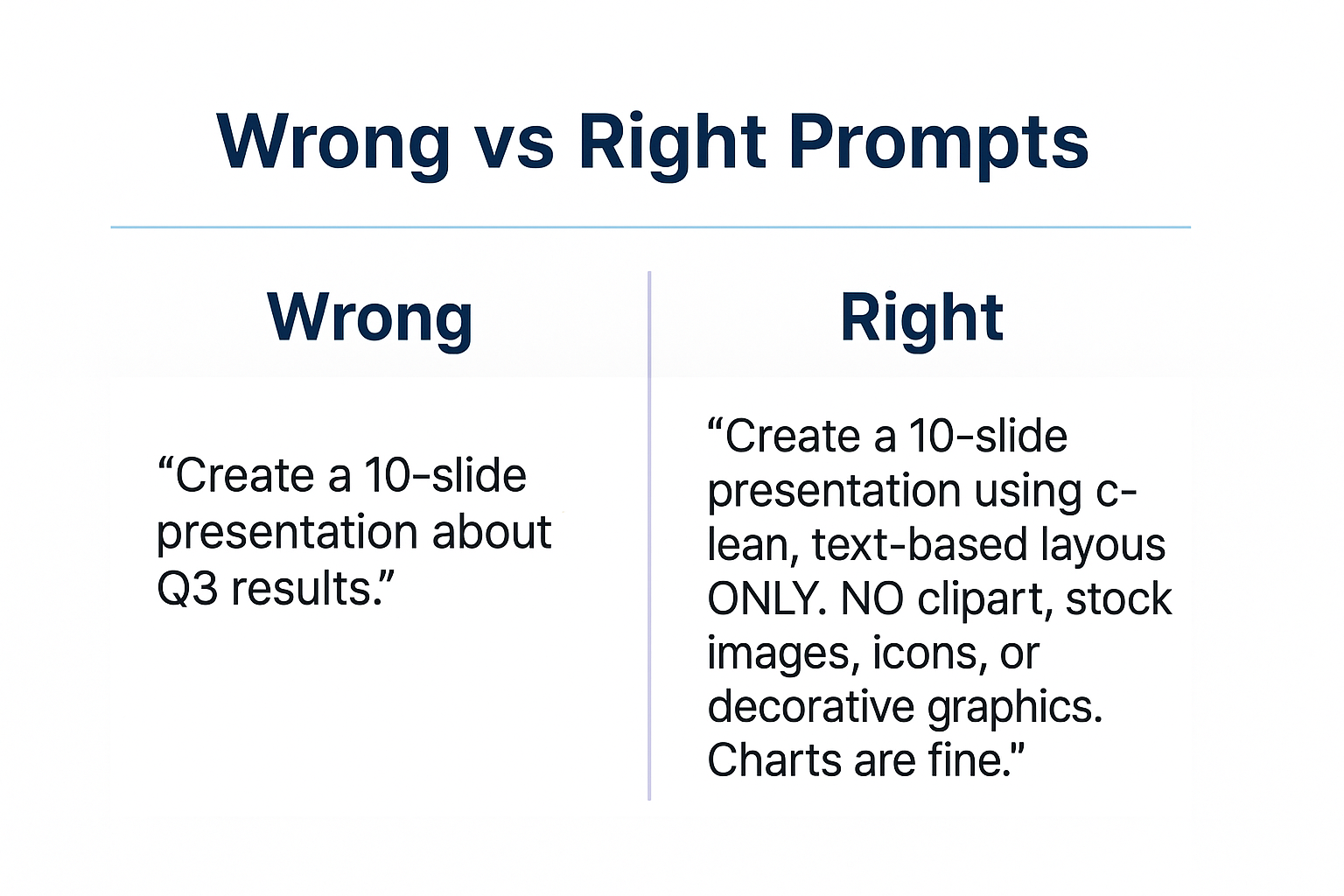
Before (clipart magnet):
“Create a 10-slide presentation about our Q3 financial performance.”
After (clean output):
“Create a 10-slide presentation about our Q3 financial performance. Use clean, text-based layouts only. NO clipart, stock images, icons, or decorative graphics. Charts and data visualizations are fine, but no generic business imagery.”
That last sentence is critical. Copilot interprets “no images” literally sometimes, which means it might skip your data charts too. Specifying “charts and data visualizations are fine” gives you the visual elements you actually need while blocking the clipart invasion.
Method 2: Removal Prompts for Existing Slides
Already have a deck full of unwanted clipart? Use these targeted removal commands:
For individual slides:
“Remove all images from this slide and keep the text layout clean.”
For the entire deck:
“Remove all clipart, stock photos, and decorative graphics from this presentation. Preserve charts and data visualizations.”
This works about 80% of the time. When it doesn’t, Copilot sometimes removes things you wanted to keep. That’s why prevention beats cure.
Method 3: Template Control (Enterprise Solution)
If you’re creating multiple decks weekly, set up a master template that limits Copilot’s image behaviour.
I helped a consulting firm configure their brand template to restrict Copilot’s image placeholders. Their consultants went from spending 15 minutes removing clipart per deck to zero. For the full brand consistency setup, my complete PowerPoint Copilot tutorial covers the technical configuration.

For 71 tested prompts covering every scenario — build from scratch, rescue an existing deck, or fix individual slides — the Executive Prompt Pack gives you exactly what to type, updated for the latest Copilot and ChatGPT capabilities.
The Copilot Clipart Mistake That Cost Me a Client Meeting
[WARNING] Don’t make my mistake:
Last year, I was demonstrating Copilot to a room of 30 investment bankers. I’d prepared a sample M&A deck to show the time savings.
I generated it live. Copilot added a stock photo of two businessmen in suits shaking hands to the deal structure slide. Then a lightbulb icon to the synergies page. Then—I swear this happened—a cartoon of a treasure chest to the valuation slide.
The room went silent. Then someone laughed. “This is what Microsoft thinks a £200M deal looks like?”
I recovered by showing them the proper prompts to prevent this. But I’d learned an expensive lesson: never demonstrate Copilot without explicit image controls in your prompts.
The fix I use now? I keep a tested prompt library that I know produces clean output. No more live surprises. If you want the same prompts I use for banking, biotech, and consulting decks.
Prompt Templates to Stop Copilot Adding Unwanted Images
Here are the exact phrases I add to prompts for clients who need professional, clipart-free output:
For financial presentations:
“Use institutional-quality layouts. No stock imagery, clipart, or icons. Text, charts, and tables only. This is for board-level executives.”
For consulting deliverables:
“Create clean, McKinsey-style slides. No decorative graphics. White space is fine. Focus on data visualization and structured text.”
For sales presentations:
“Professional B2B layout. Avoid generic business clipart. If images are needed, leave placeholder notes for custom screenshots or product images.”
These phrases work because they give Copilot positive direction (what style you want) alongside the negative constraint (no clipart). Copilot responds better to “McKinsey-style” than just “no clipart” alone.
When Copilot Clipart Removal Doesn’t Work
Sometimes Copilot ignores your instructions. I’ve seen this happen more frequently with:
- Very short prompts – Under 20 words, Copilot falls back to defaults
- Creative or marketing content – Copilot assumes these need visuals
- Slides generated from documents – The source file may trigger image insertion
If your removal prompts keep failing, try regenerating the slide entirely with stronger prevention language. Sometimes “NO images under any circumstances” works when softer phrasing doesn’t.
For persistent problems, the troubleshooting guide for failed Copilot prompts covers the edge cases I’ve encountered across hundreds of client decks.
71 Prompts. Every Scenario Covered.
Build from scratch, rescue an existing deck, or perfect individual slides — the Executive Prompt Pack covers every scenario. Works with ChatGPT, Copilot, and Edit with Copilot. Updated March 2026.
FAQ: Copilot Clipart Problems
Q: Why does Copilot add clipart even when I don’t ask for images?
Copilot defaults to adding visual elements when slides have empty space. Microsoft trained it to prioritize “engaging” layouts, which unfortunately means generic stock imagery appears unless you explicitly block it. Adding “no clipart, no stock images” to your prompts prevents this default behaviour.
Q: Can I remove clipart from multiple slides at once with Copilot?
Yes. Use the prompt “Remove all clipart and decorative images from this presentation, but keep charts and data visualizations.” This works deck-wide in most cases. For stubborn images, you may need slide-by-slide removal commands.
Q: Will telling Copilot “no images” also remove my charts?
It can. Be specific: “No clipart or stock images. Keep all charts, graphs, and data visualizations.” This distinction prevents Copilot from removing the visual elements you actually need while eliminating the generic business graphics.
Q: Is there a way to permanently stop Copilot adding clipart?
Not through settings currently. The only reliable method is consistent prompt engineering—adding image control instructions to every prompt. Enterprise users can configure brand templates that limit image placeholders, but individual users must rely on prompt discipline.
Q: Do these Copilot clipart fixes work on Mac and Windows?
Yes. PowerPoint Copilot behaves identically on both platforms. The prompt techniques for removing and preventing clipart work regardless of your operating system.
Stop Fighting Clipart—Start With the Right Prompts
That banking partner I mentioned at the start? He now uses a three-line prompt template for every board deck. No more 9pm panic calls. No more cartoon businessmen contaminating M&A slides.
The fix took 4 minutes to learn. It saves him 20+ minutes per deck in clipart removal. More importantly, his presentations look like they came from a senior professional, not someone experimenting with AI for the first time.
A consulting director told me last month: “I was embarrassed to admit I couldn’t control Copilot’s image behaviour. Your prompts fixed it immediately. My team now produces cleaner decks than we did before we had AI.”

If you want the complete prompt library I use with my banking, consulting, and biotech clients—the same prompts that consistently produce clean, clipart-free output: