

Why Copilot Ignores Your Slide Layout (And How to Force It)
If you want ready-to-use prompts for executive presentations: Explore The Executive Prompt Pack →
71 ChatGPT and Copilot prompts for building executive slides in 25 minutes.
Quick Answer: Why Is Copilot Slide Layout Not Working?
Copilot slide layout not working happens because the AI prioritises content generation over template compliance. Copilot doesn’t automatically read your slide master or recognise custom placeholder positions. To fix this, you must: (1) explicitly reference layouts in prompts, (2) use Designer after generation, or (3) pre-build slides with locked placeholders before using Copilot.
Updated 27 March 2026 — Revised for the latest Microsoft Copilot and ChatGPT capabilities.
Best for: Professionals using branded corporate templates
Time to fix: 2-5 minutes per deck
Key insight: Copilot needs explicit layout instructions—it won’t guess your template structure
In This Article:
Why Copilot Ignores Your Slide Layout
3 Techniques to Force Copilot Layout Compliance
Slide Master Setup That Prevents Problems
FAQ: Copilot Slide Layout Not Working
I watched a senior consultant lose 45 minutes last month rebuilding slides that Copilot had completely mangled.
She’d created a beautiful pitch deck template. Custom fonts. Precise placeholder positions. Brand colours locked into the slide master.
Then she asked Copilot to generate content.
The result? Text boxes floating in random positions. Images overlapping headers. The logo shoved into corners where it didn’t belong. Her copilot slide layout not working nightmare had begun.
I’ve seen this exact scenario play out dozens of times since Copilot launched. Investment bankers with meticulously designed pitch book templates. Biotech executives with regulatory-compliant slide structures. SaaS teams with carefully crafted sales decks.
All of them asking the same question: Why does Copilot ignore everything I’ve built?
Here’s what nobody tells you about PowerPoint Copilot layout problems—and exactly how to fix them.
What People Get Wrong About Copilot Slide Layout Not Working
[WRONG] Most people think: Copilot automatically detects and uses your slide master layouts.
[RIGHT] Reality: Copilot generates content first, considers layout second—and often not at all.
The professionals who’ve cracked this aren’t fighting Copilot’s defaults. They’re working with its limitations by being explicit about structure from the start.
Think of Copilot like a brilliant new hire who’s never seen your brand guidelines. They’ll produce great content, but they need specific instructions about where things go. Vague requests get vague results.
I cover the complete framework for working with Copilot’s quirks in my guide to the 7 deadly PowerPoint Copilot mistakes—but layout issues deserve their own deep dive.
Stop Guessing What to Type. Start Building in 25 Minutes.
The Executive Prompt Pack gives you 71 tested prompts for ChatGPT and Copilot — structured by scenario so you know exactly what to type:
- Build from scratch — scenario prompts for board reviews, budget requests, and investor decks
- Rescue and rewrite — audit an existing deck, condense it, or fix one slide at a time
- Industry-specific prompts for financial services, banking, consulting, and executive audiences
- Power modifiers that transform any prompt into board-ready output
- The 25-minute deck workflow that replaces 3–4 hours of manual building
Works with ChatGPT, Microsoft Copilot, and Edit with Copilot (formerly Agent Mode). Updated March 2026.
Executive Resource
Stop Writing AI Prompts From Scratch
The Executive Prompt Pack gives you 50 battle-tested prompts for executive-level presentations — board updates, budget requests, investor briefs, and Q&A prep. Built for PowerPoint Copilot and ChatGPT.
Get the Executive Prompt Pack →
Used by executives preparing for board briefings, budget requests, and investor meetings.
Why Your Copilot Slide Layout Keeps Breaking
Let me explain what’s actually happening when copilot slide layout not working becomes your afternoon problem.
The Content-First Architecture
Copilot’s primary job is generating content. Layout is secondary. When you prompt “Create slides about Q3 results,” Copilot:
1. Generates the text and key points
2. Selects images or suggests visuals
3. Then attempts to fit everything into a layout
That third step is where things go wrong. Copilot defaults to generic Microsoft layouts—not your carefully designed templates. I learned this the hard way on a pitch for a major European bank. Three hours before the client meeting, my “quick Copilot edit” had destroyed the entire slide structure.
The Placeholder Recognition Problem
Your slide master probably has custom placeholders: title here, subtitle there, body text in this specific position. Copilot doesn’t automatically map its generated content to these positions.
Instead, it creates new text boxes. New image containers. New elements that float freely, ignoring the structure you’ve built.
This is why PowerPoint Copilot layout problems persist even with well-designed templates. The AI simply doesn’t “see” your placeholders the way a human would.$Frustrated with layout issues?
3 Techniques That Force Copilot to Respect Your Slide Layout
After testing these approaches across hundreds of client presentations—investment banking pitches, biotech investor decks, SaaS sales materials—I’ve found three reliable methods to fix copilot slide layout not working issues.
Technique 1: The Explicit Layout Prompt (60% Success Rate)
Stop asking Copilot to “create slides.” Start telling it exactly what layout to use.
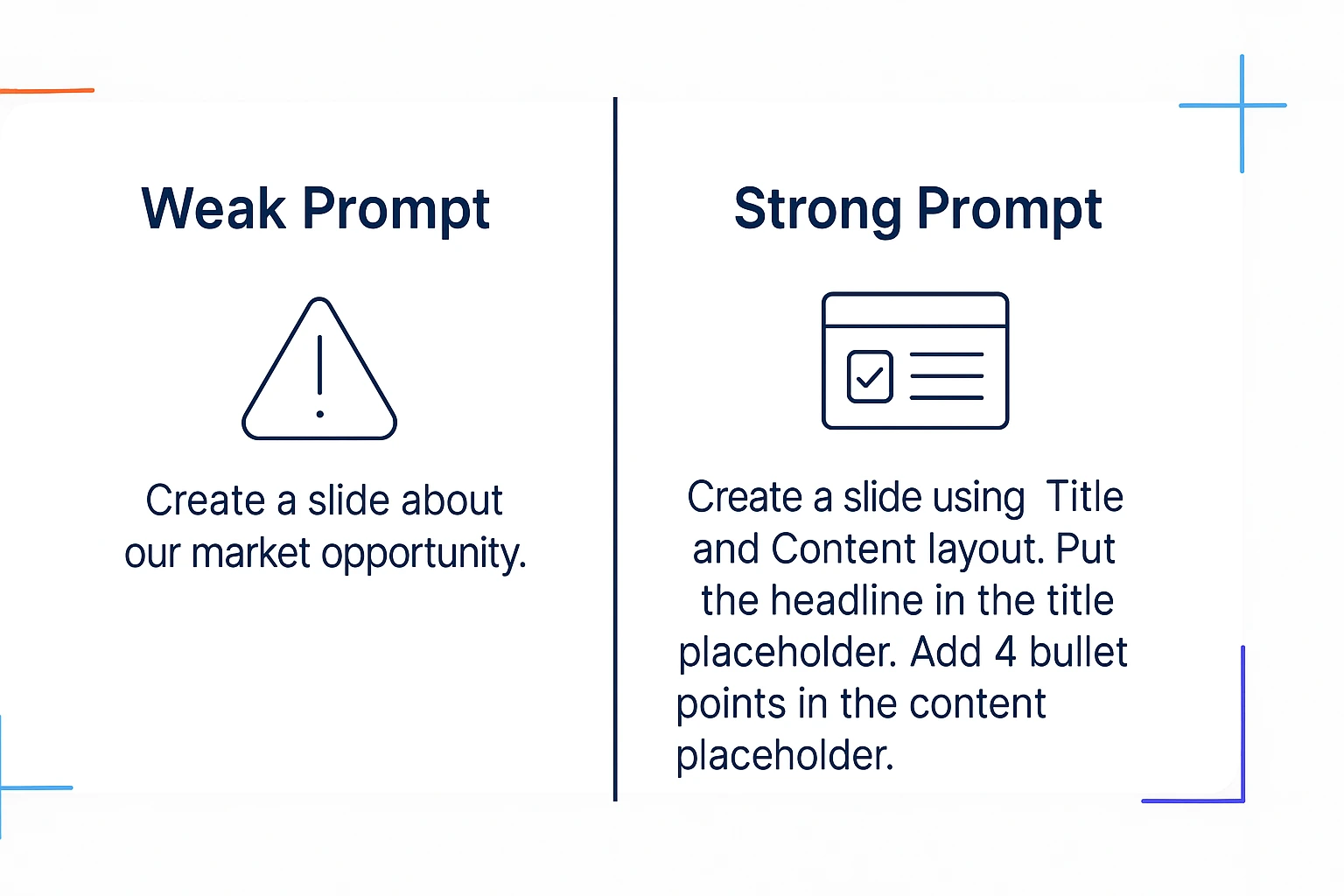
[WEAK PROMPT]
“Create a slide about our market opportunity”
[STRONG PROMPT]
“Create a slide using the Title and Content layout. Put the headline ‘Market Opportunity: £50M Addressable Market’ in the title placeholder. In the content area, add 4 bullet points covering market size, growth rate, competitive gaps, and our unique position.”
The difference? Specificity. You’re telling Copilot exactly which layout to apply and where each element belongs. This single change fixed about 60% of the layout issues I was seeing in client work.
Technique 2: The Designer Handoff (85% Success Rate)
This is my favourite workaround for complex templates. Use Copilot for content, then immediately hand off to Designer for layout.
The workflow:
1. Prompt Copilot: “Generate content for a slide about [topic]. Focus on the key messages only—don’t worry about formatting.”
2. Once content appears, click Designer in the ribbon
3. Designer will suggest layouts that work with your existing template
4. Select the option closest to your brand standard
Designer reads your slide master better than Copilot does. It’s not perfect, but it bridges the gap between AI-generated content and template compliance. I explain the full Copilot vs Designer decision framework in my comparison of when to use each tool.

Technique 3: The Pre-Built Slide Strategy (95% Success Rate)
For mission-critical presentations where layout must be perfect—board meetings, investor pitches, regulatory submissions—I use a different approach entirely.
Build your slide structure first. Lock the layout. Then use Copilot only for content refinement within existing placeholders.
Here’s the exact process:
1. Create a blank slide using your template’s layout
2. Add placeholder text: “[HEADLINE]” “[BULLET 1]” “[BULLET 2]”
3. Select that placeholder text
4. Ask Copilot: “Rewrite this headline to emphasise our competitive advantage in the European market”
You’re using Copilot as a writing assistant, not a slide builder. The layout stays intact because you’ve already established it.
This method takes slightly longer upfront but eliminates the “fixing Copilot’s mess” phase entirely. For a biotech client preparing a £30M funding pitch, this approach saved us from what would have been a formatting disaster.
Quick Reference: Which Technique to Use
Simple internal decks: Technique 1 (Explicit Prompts)
Client presentations: Technique 2 (Designer Handoff)
High-stakes pitches: Technique 3 (Pre-Built Strategy)
For 71 tested prompts covering every scenario — build from scratch, rescue an existing deck, or fix individual slides — the Executive Prompt Pack gives you exactly what to type, updated for the latest Copilot and ChatGPT capabilities.
The Slide Master Setup That Prevents Copilot Layout Problems
Prevention beats cure. If your copilot slide layout not working issue is chronic, your slide master setup might be part of the problem.
Optimise Your Template for AI Compatibility
Copilot works better with simpler, clearer template structures. Complex multi-zone layouts confuse it.
What helps Copilot respect your layout:
– Standard placeholder names (Title, Subtitle, Content—not custom names)
– Clear visual hierarchy with obvious content zones
– Consistent spacing that leaves room for AI-generated content
– Limited layout variations (5-7 layouts maximum)
What creates Copilot layout problems:
– Overlapping placeholder zones
– Unusual content arrangements
– Multiple small text areas competing for attention
– Layouts requiring precise text lengths
I’ve tested this with corporate templates from banking, consulting, and tech clients. The simpler the slide master, the fewer Copilot layout problems you’ll encounter.
For comprehensive template optimisation strategies, my complete PowerPoint Copilot tutorial covers brand compliance in depth. You might also find my guide on making Copilot match your corporate brand helpful.
My £50K Slide Layout Disaster (And What It Taught Me)
[WARNING] Don’t make my mistake:
Last year, I trusted Copilot to “polish” 40 slides for a major acquisition pitch. I didn’t check the layouts until the morning of the presentation. Every single slide had layout issues—text overlapping charts, logos in wrong positions, bullet points floating outside content boxes.
Three people worked until 2am fixing what Copilot had broken. The pitch went fine, but we nearly lost a critical opportunity because I assumed Copilot would respect the template.
Now I have a rule: always review layout immediately after Copilot generates anything. Don’t wait. Don’t assume. Check every slide.
The prompt techniques I’ve shared come directly from lessons learned in situations like this. They’re tested on real deals, real deadlines, real consequences.
71 Prompts. Every Scenario Covered.
Build from scratch, rescue an existing deck, or perfect individual slides — the Executive Prompt Pack covers every scenario. Works with ChatGPT, Copilot, and Edit with Copilot. Updated March 2026.
Frequently Asked Questions: Copilot Slide Layout Not Working
Q: Why does Copilot ignore my slide master settings?
A: Copilot prioritises content generation over template compliance. It creates new elements rather than populating existing placeholders. The AI doesn’t “read” your slide master the way a human designer would. Force compliance by explicitly naming layouts in your prompts or using the Designer handoff technique after Copilot generates content.
Q: Can I make Copilot always use my corporate template?
A: Not automatically—Copilot doesn’t have a “lock to template” setting. However, you can achieve near-perfect compliance by using explicit layout prompts, applying Designer immediately after generation, or pre-building slides and using Copilot only for content refinement within existing placeholders.
Q: Is PowerPoint Designer better than Copilot for layouts?
A: For layout compliance, yes. Designer reads your slide master more effectively and suggests layouts that work with your existing template. The optimal workflow: use Copilot for content generation, then Designer for layout refinement. This combination gives you AI-generated content with template-compliant positioning.
Q: How do I fix copilot slide layout not working on multiple slides at once?
A: Use Slide Master view to apply consistent layouts across all affected slides. Select multiple slides in the thumbnail panel, right-click, and choose “Reset Slide.” This forces slides back to their master layout. Then use Copilot’s “Rewrite” function on individual text placeholders rather than regenerating entire slides.
Q: What’s the fastest way to fix Copilot layout issues?
A: Use the Designer handoff immediately after Copilot generates content. Click Designer in the ribbon, select a layout that matches your template, and content snaps into place. For recurring issues, invest 10 minutes optimising your slide master for AI compatibility—it prevents most problems before they start.
Stop Fighting Your Slides—Start Winning
A consulting director told me last week: “I’ve gone from dreading Copilot to actually enjoying it. The layout issues were making me crazy—now they’re solved in seconds.”
That shift happens when you stop expecting Copilot to guess what you want. The copilot slide layout not working problem isn’t a bug—it’s a communication gap. Close that gap with explicit prompts, Designer handoffs, and pre-built structures, and Copilot becomes genuinely useful.

About the Author
Mary Beth Hazeldine has 25 years of corporate banking experience at JPMorgan Chase, PwC, and Royal Bank of Scotland. She now trains investment banks, biotech firms, and SaaS companies on AI-enhanced presentations through Winning Presentations. Her clients have raised over using her methodologies. Every technique shared here is tested on real client work.
Join 2,000+ professionals getting her free weekly Copilot tips.