Tag: virtual presentation

24 Apr 2026

Cross-Cultural Presentation: Adapting Executive Communication for Global Audiences

Quick Answer

A cross-cultural presentation requires adapting your communication style — not your content — to the decision-making norms of the audience in the room. What reads as confident directness in London can read as aggressive in Tokyo. What feels like thorough preparation in Frankfurt can feel like over-engineering in New York. The content stays the same. The framing, structure, and delivery shift to match how your audience processes information and makes decisions.

Astrid had presented the same strategic recommendation to three different regional boards in the space of two weeks.

In Stockholm, she led with the data, presented two options with a clear recommendation, asked for questions, and had approval within twenty minutes. In Singapore, she followed the same structure. Forty minutes later, the board thanked her for the presentation and said they would discuss it internally. Two weeks passed before she received a response — a set of questions she had already answered on slide four. In São Paulo, the board interrupted her before the second slide, asked about the commercial implications, challenged the competitive assumptions, and approved the recommendation on the spot — but with a modification she hadn’t anticipated.

Same proposal. Same slides. Same presenter. Three completely different outcomes. The content wasn’t the variable. The audience’s decision-making culture was. And Astrid’s presentation hadn’t adapted to any of them.

Presenting to an international executive audience soon?

The Executive Slide System gives you adaptable templates and frameworks that work across different audience cultures — so you can structure your content once and adjust the delivery for any room.

Explore the Executive Slide System →

Why Presentation Style Matters More Than Language

Most advice about cross-cultural presentations focuses on language: speak slowly, avoid idioms, use simple vocabulary. This is useful but insufficient. The deeper challenge is not whether the audience understands your words — it is whether your presentation structure matches how they expect to receive and process information.

In high-context cultures — Japan, South Korea, parts of the Middle East — what you don’t say often matters as much as what you do. A direct recommendation delivered early in the presentation can feel presumptuous, as though you have decided before consulting the room. In these settings, the expected structure is context first, analysis second, recommendation last — and the recommendation may be framed as a suggestion rather than a conclusion.

In low-context cultures — the US, UK, Netherlands, Australia — the opposite applies. A presentation that spends fifteen minutes building context before reaching the recommendation will lose the room. These audiences want the conclusion first, then the evidence to evaluate it. Anything else feels like deliberate delay.

German-speaking audiences occupy a different position entirely: they want depth. A presentation that moves quickly from recommendation to action without comprehensive supporting analysis feels superficial. They are not impatient for the conclusion — they are evaluating whether the analysis is rigorous enough to support the conclusion.

None of these preferences are wrong. They are simply different norms for how decisions get made. A strong cross-cultural presenter recognises which norm applies and adapts their structure accordingly. A weak one delivers the same presentation everywhere and wonders why it works in some rooms and fails in others.

The Three Decision-Making Norms That Change Everything

Rather than memorising cultural generalisations by country, focus on three structural variables that drive how your audience will respond to your presentation. Assess these before you build your deck.

1. Decision timing: in-room or post-meeting?

Some audiences expect to make decisions during the presentation. The US, UK, and much of Latin America fall into this category — if the case is strong, the decision should happen now. Other audiences — Japan, South Korea, and many Nordic organisations — prefer to deliberate after the presentation. The decision happens in a conversation you are not part of. If you structure your presentation to force an in-room decision with an audience that prefers post-meeting deliberation, you will get silence, not agreement. Build in a clear “next steps” slide that acknowledges the deliberation process without pushing for immediate commitment.

2. Detail appetite: executive summary or full evidence?

A board in New York may want three slides and a recommendation. A board in Munich may want thirty slides and a detailed appendix. Neither is wrong. The signal you need to read is how much analytical depth the audience requires before they feel comfortable making a decision. When in doubt, build a short core presentation with a comprehensive appendix. This lets you flex: present the summary to an action-oriented audience and pull up appendix slides for a detail-oriented one. The executive presentation structure that works globally is one designed to be modular, not fixed.

3. Dissent style: direct challenge or private question?

How an audience signals disagreement varies dramatically across cultures. In the Netherlands and Israel, disagreement is voiced openly and directly — it is not personal, it is the process. In Japan and many Southeast Asian cultures, disagreement is expressed indirectly: through questions, through silence, or through a follow-up conversation after the meeting. In parts of the Middle East, disagreement may come through a senior figure who speaks last, after everyone else has indicated support. If you misread the dissent style, you may think you have agreement when you actually have unresolved concerns — or you may interpret a direct challenge as hostility when it is simply how the conversation works.
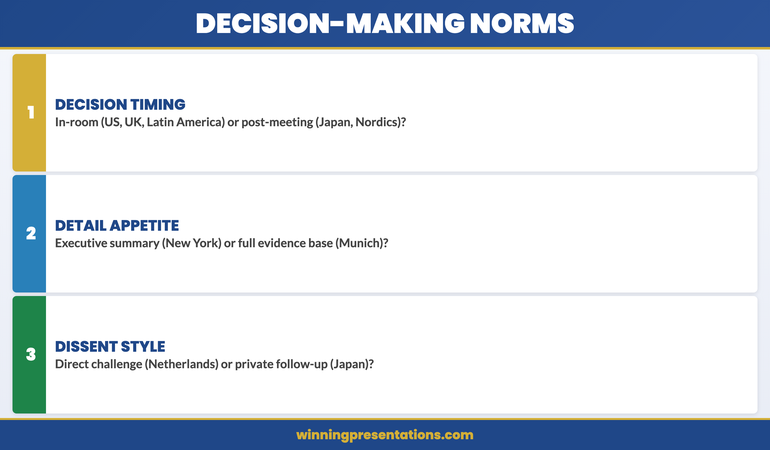
Three decision-making norms for cross-cultural presentations: decision timing, detail appetite, and dissent style — with examples of how different cultures approach each

One Deck, Any Audience — Built for Global Presenters

Presenting across cultures means building modular, adaptable decks — not starting from scratch for every region. The Executive Slide System — £39, instant access — gives you the templates designed for exactly this flexibility:

  • Modular slide templates that flex from executive summary to full evidence
  • AI prompt cards to adapt your messaging for different audience contexts
  • Framework guides for structuring presentations around decision-making norms
  • Executive summary formats that work for action-oriented and deliberation cultures

Get the Executive Slide System →

Designed for executives presenting strategic recommendations to global stakeholders.

Structural Adaptations for Different Audience Cultures

Once you understand which decision-making norms apply to your audience, the structural changes are straightforward. Here are the four most common adaptations.

Lead with context or lead with conclusion

For audiences that prefer deliberation (East Asia, Nordics, many Middle Eastern settings), start with the background, the analysis, and the options — then present your recommendation at the end. This respects the audience’s expectation that they should form their own view before hearing yours. For audiences that prefer action (US, UK, Latin America), invert the structure entirely: recommendation first, then the supporting evidence. These audiences find a context-first structure frustrating because they cannot evaluate the evidence without knowing what it is evidence for.

Adjust the level of explicit direction

Some cultures expect the presenter to tell the room what to do. “I recommend we proceed with Option B and sign off this week” is appropriate for a US or UK board. For a Japanese board, the equivalent might be: “Based on the analysis, Option B appears to address the criteria we discussed. We would welcome your guidance on the appropriate next steps.” The content is the same. The framing shifts from directive to facilitative. Getting this wrong does not just feel odd — it can actively undermine your credibility with the audience.

Build in deliberation space

For audiences that decide after the meeting, your presentation needs to work without you in the room. This means: clear written labels on every slide, no reliance on verbal commentary that won’t be available later, a summary slide that restates the recommendation and the key evidence, and printed or emailed materials that the group can review independently. Think of it as building a presentation that is also a document. For these audiences, the quality of your leave-behind material matters as much as the quality of your delivery.

Manage Q&A expectations explicitly

In some cultures, questions during the presentation are expected and welcomed. In others, questions are saved for the end — or asked through intermediaries after the meeting. If you are presenting to a mixed audience, make the Q&A format explicit at the start: “I’ll pause after each section for questions, or you’re welcome to raise them at the end — whichever is most useful for you.” This removes ambiguity and lets different cultural preferences coexist without awkwardness. The techniques for managing hybrid meeting facilitation apply here too — mixed formats require explicit ground rules.

If you need adaptable templates that flex across these structures, the Executive Slide System includes modular frameworks designed for executives presenting to diverse stakeholder groups across regions.

Presenting to a Mixed-Culture Audience

The most challenging cross-cultural presentation is not one delivered to a single unfamiliar culture. It is one delivered to a room containing multiple cultures simultaneously — a global steering committee, a cross-regional board, or a multinational client team.

In these settings, you cannot optimise for one culture without potentially alienating another. A direct, conclusion-first approach may engage the London and New York attendees while causing the Tokyo attendees to disengage. A context-first approach may lose the Americans before you reach the recommendation.

The practical solution is a layered structure that accommodates both preferences:

Layer 1: Executive summary on slide one

Open with a single slide that states the recommendation, the key evidence, and the ask. This satisfies the action-oriented attendees immediately. It also gives the deliberation-oriented attendees a frame for what follows — they now know where the presentation is going, which makes the supporting analysis easier to process.

Layer 2: Full supporting analysis

Walk through the evidence, the alternatives considered, and the risk assessment. This satisfies the detail-oriented attendees and gives the deliberation-oriented attendees the information they need to form their own view. For the action-oriented attendees who are already persuaded, these slides serve as validation rather than persuasion.

Layer 3: Clear next steps with flexible commitment

End with next steps that offer both immediate action and a deliberation path. “If the group is comfortable proceeding today, the next step is X. If you would prefer to review the materials and reconvene next week, I can have the supporting documentation to you by end of day.” This respects both norms without making either group feel pressured or sidelined.

Maintaining energy in virtual presentations is particularly important in cross-cultural settings, where audience engagement cues may be less visible — especially when cultural norms suppress visible reactions.
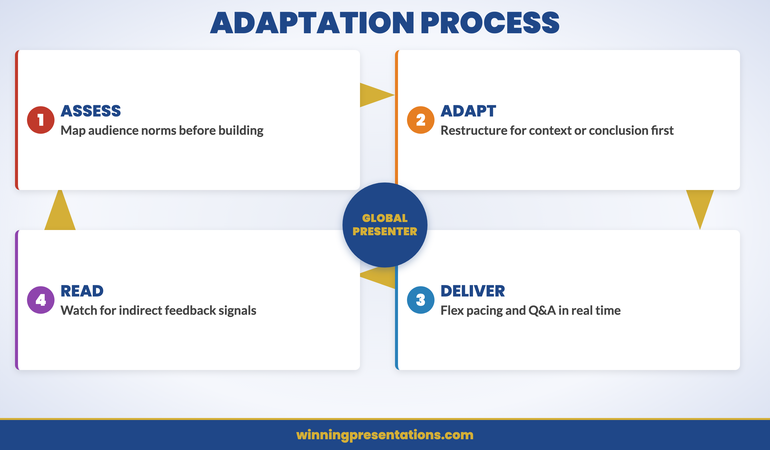
Cross-cultural presentation adaptation cycle: Assess Audience Norms, Adapt Structure, Deliver Flexibly, Read Feedback — continuous adaptation process for global presenters

Handling Q&A Across Cultural Expectations

Q&A dynamics change significantly across cultures, and misreading them can undo the work your presentation did.

When no one asks questions

In some cultures, an absence of questions does not mean agreement — it means the audience is processing, or that questions will come through private channels later. If you are presenting to a group that does not ask questions during the meeting, do not interpret the silence as assent. Instead, close with: “I expect there will be questions as you review the materials. I will follow up with each of you individually to address anything that needs further discussion.” This gives the audience a culturally appropriate channel for their concerns.

When questions come as challenges

In cultures with direct dissent norms (Netherlands, Israel, parts of Scandinavia), questions may feel like attacks — “Why didn’t you consider Option C?” or “These numbers don’t hold up under X scenario.” This is not aggression. It is rigorous evaluation, and it is a signal of engagement, not rejection. Respond with the same directness: acknowledge the point, address it with evidence, and move on. Becoming defensive in these settings signals that you haven’t thought through your position.

When questions are asked indirectly

In some East Asian and Middle Eastern settings, a question like “Have you also considered the implications for the regional team?” may actually mean “I disagree with the recommendation as it applies to our region.” Listen for the implicit concern behind the explicit question. Responding to the literal question without addressing the underlying concern will leave the issue unresolved — and it may surface as a block to the decision later.

See also how today’s related articles tackle adjacent challenges: structuring a budget overrun presentation for executive committees, understanding the career cost of avoiding presentations, and building structured boardroom presentation skills.

Build Decks That Work in Any Room

The Executive Slide System — £39, instant access — includes modular templates and AI prompt cards that adapt to different audience expectations. Stop rebuilding your deck for every region.

Get the Executive Slide System →

Designed for executives presenting strategic recommendations to global stakeholders.

Frequently Asked Questions

How do you adapt a presentation for an audience you haven’t met before?

Research the decision-making norms rather than the cultural stereotypes. Ask three questions: Does this audience typically decide in the room or after? Do they prefer high-level summaries or detailed evidence? Is dissent expressed openly or privately? You can often get answers from a local colleague or the person who arranged the meeting. Build a modular deck that lets you flex between a short executive summary and a full evidence walkthrough, and read the room’s energy in the first five minutes to adjust in real time.

What is the biggest mistake in cross-cultural presentations?

Assuming that silence means agreement. In many cultures, silence during a presentation is a sign of respect, processing, or deference to seniority — not consensus. The second biggest mistake is interpreting direct questions as hostility. In cultures with strong direct-dissent norms, challenging your analysis is a compliment — it means the audience is taking your proposal seriously enough to stress-test it.

Should you change your slide content for different cultures?

Rarely. The substance — the data, the analysis, the recommendation — should remain consistent. What changes is the structure and the framing. The order in which you present information, the level of explicit direction you give, the way you handle Q&A, and the amount of supporting detail you include in the main body versus the appendix. Think of cross-cultural adaptation as adjusting the delivery envelope, not rewriting the letter inside it.

The Winning Edge — Weekly Presentation Intelligence

Every Thursday, I share one framework, one real-world example, and one practical technique drawn from 24 years of presenting in boardrooms across three continents. Join The Winning Edge newsletter →

Not ready for the full system? Start here instead: download the free Executive Presentation Checklist — a one-page reference covering the structure, opening, and key elements every executive presentation needs before it goes to an international audience.

About the Author

Mary Beth Hazeldine is the Owner & Managing Director of Winning Presentations. With 24 years of corporate banking experience at JPMorgan Chase, PwC, Royal Bank of Scotland, and Commerzbank, she advises executives across financial services, healthcare, technology, and government on structuring presentations for high-stakes funding rounds and approvals.

Book a discovery call | View services

22 Apr 2026
A professional woman presenting on a video call with camera on, well-lit home office setup, laptop with ring light visible, attentive expression, navy background, editorial photography style

Camera On or Off in Virtual Presentations

Quick Answer

Camera on is the default for any presentation where you are presenting, seeking a decision, or building trust. Camera off is appropriate when you are part of a large passive audience or when technical constraints make a poor image worse than no image. The question isn’t whether cameras help — they do. The question is when the discomfort around cameras is worth working through, and when the decision to turn off is covering something that needs addressing.

Nadia had been on camera in every client meeting for three years. Then she got a new manager who ran every call with his camera off. Within two months, half the team had stopped using cameras too.

She noticed something shift in the quality of those meetings. Decisions took longer. Follow-up questions went unanswered until email. People multitasked in ways they didn’t before.

Nobody said anything. Camera-off had become the culture. And the culture was costing them something real — not in visibility, exactly, but in attention, trust, and the subtle accountability that comes from being seen.

The debate about cameras in virtual presentations is often framed as a comfort issue. It is sometimes that. But more often it’s a signal issue — and understanding what your camera choice signals to others is more useful than any general rule about when to turn it on or off.

If virtual presentations trigger more anxiety than in-person ones, you’re not alone — and it’s fixable.

Conquer Speaking Fear addresses the patterns that make virtual presentations feel harder than they should — including camera anxiety, self-consciousness on screen, and the specific challenge of reading an invisible audience.

Explore Conquer Speaking Fear →

What turning your camera off actually signals

Most people think of camera use in terms of what it does for them — whether they feel comfortable on screen, whether their background is presentable, whether the lighting is good enough. That’s the wrong frame.

Camera use is a signal to others. And the signal it sends when you turn it off depends heavily on the context and your role in the meeting.

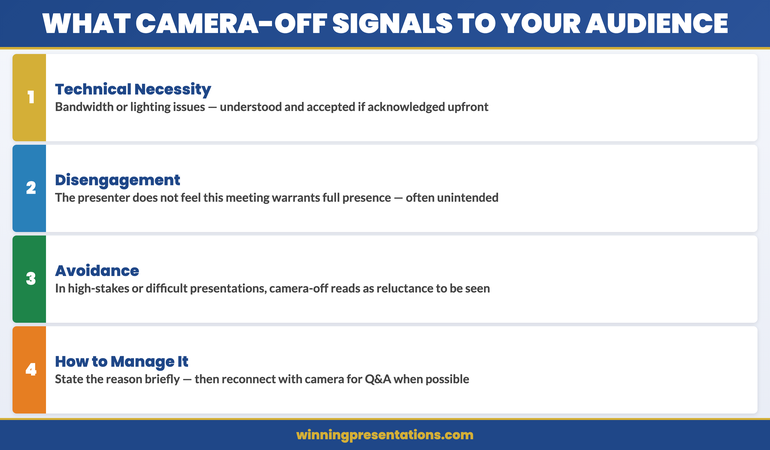
When a presenter turns their camera off, the audience receives one of three messages:

  • Technical necessity: bandwidth issues, poor lighting, technical failure. This is understood and accepted if acknowledged briefly.
  • Disengagement: the presenter doesn’t feel this interaction warrants full presence. This is not always the intended message, but it’s frequently the received one.
  • Avoidance: in presentations where the topic is difficult, or where the presenter is anxious, a switched-off camera can read as reluctance to be seen. Senior stakeholders notice this.

None of these perceptions is entirely fair. The person behind the camera-off screen may be intensely focused, technically constrained, or simply following what’s become their team’s default. But perception matters in presentations — and managing the signal you’re sending is part of the job.

Research into video call behaviour consistently shows that camera presence correlates with perceived engagement, trust, and commitment. This doesn’t mean camera-off makes you appear untrustworthy. It means that in high-stakes presentations — the ones where credibility is being assessed — the camera is doing more work than most people realise.

Stacked cards infographic showing the three signals sent by camera-off in presentations: technical necessity, disengagement, and avoidance — with guidance on each

When camera-on is non-negotiable

There are situations where presenting without camera is not a neutral choice. In these contexts, turning your camera off changes the nature of the interaction in ways that work against you.

When you are the primary presenter seeking a decision. If you’re presenting a proposal, requesting a budget, pitching a strategy, or asking for approval, your camera is part of your persuasive presence. The audience is not just evaluating your slides — they’re evaluating your confidence, your conviction, and your ability to respond to questions live. A camera-off presenter in this context appears either unprepared or evasive.

When you are managing a crisis or delivering difficult news. Camera presence in difficult conversations signals that you’re taking responsibility and engaging fully. A camera-off difficult conversation feels like a phone call with slides. It removes the human accountability that makes hard news easier to receive.

When you’re presenting to someone you haven’t met before. Trust is built through face-to-face interaction, even on a screen. The first impression you make to a new stakeholder, senior leader, or client group is shaped heavily by whether you’re visible. A first meeting with camera off creates a relationship deficit that takes subsequent meetings to recover.

When you’re in a small group presentation. In a meeting of three to six people, camera-off is conspicuous. In a large webinar of 100 people, camera-off is standard. The size of the audience changes what camera-off means.

Legitimate reasons to turn your camera off

There are contexts where camera-off is the right call — not because of anxiety or avoidance, but because it genuinely serves the interaction better.

When screen-sharing is the primary communication medium. If you’re conducting a technical walkthrough, demonstrating a product, or presenting a detailed document where the audience needs to focus on the screen content, your face in the corner can be a distraction rather than an aid. Some presenters prefer to turn camera off during the demonstration and on during the Q&A.

When bandwidth is genuinely degrading your image quality. A pixelated, freezing image is worse than no image. A face that breaks up every 30 seconds signals technical incompetence rather than presence. If your connection is poor, announce it clearly at the start — “I’m going to turn camera off to preserve audio quality, I’ll switch back on for Q&A” — and the choice becomes professional rather than evasive.

When you are a passive participant in a large meeting. In an all-hands presentation or a town hall where you’re not presenting, camera-off is standard. The etiquette scales with audience size. Above roughly 20 people, camera-off for non-presenters is normal and expected.

When team culture explicitly permits it and the stakes are low. Internal team catch-ups with an established team where camera-off is normalised carry different weight than a client presentation. Know the difference.

Virtual Presentations Feel Different Because They Are Different — Here’s How to Close the Gap

Conquer Speaking Fear — £39, instant access — addresses the specific patterns that make virtual presentations harder: camera anxiety, self-consciousness on screen, the absence of non-verbal feedback, and the feeling of presenting into a void. Built on clinical hypnotherapy and NLP, designed for professionals presenting under real pressure.

  • Techniques for managing camera anxiety and self-consciousness
  • Frameworks for reading virtual audiences without visible cues
  • Tools for building presence through a screen rather than despite it
  • Nervous system regulation approaches for high-stakes virtual presentations

Get Conquer Speaking Fear →

Designed for professionals who want to present with confidence in any format.

When camera anxiety is the real issue

There’s a pattern I see regularly: people who find every credible-sounding reason to turn their camera off — poor lighting, bandwidth, the meeting is too large, “I’m just listening today” — when the actual driver is anxiety about being seen on screen.

Camera anxiety is real. The experience of seeing yourself on screen while simultaneously trying to present is genuinely uncomfortable. You’re monitoring your own expression, your hair, whether your background looks acceptable, whether you look engaged or blank or nervous. It’s a cognitive load that doesn’t exist in in-person presentations.

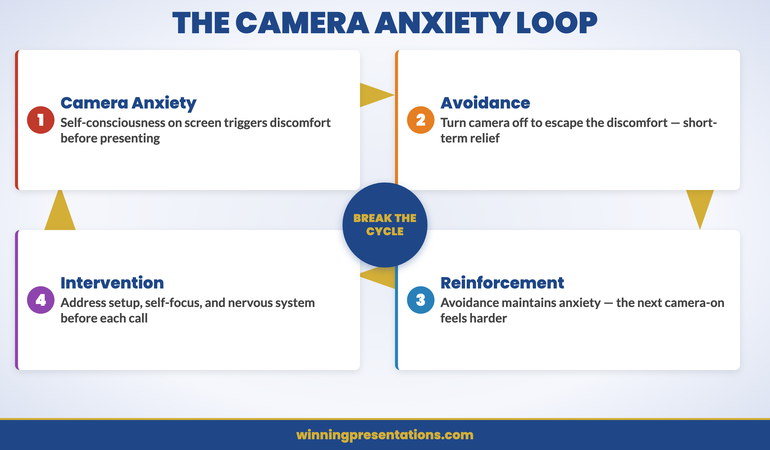
The problem with using camera-off as a permanent solution to camera anxiety is that it removes the anxiety without resolving it. The anxiety remains — it just gets smaller, because you’re avoiding the trigger. And avoidance maintains anxiety rather than reduces it. Each time you turn the camera off to escape the discomfort, the next camera-on experience feels harder.

The more productive path is to address what’s driving the discomfort directly. For many people, camera anxiety is a form of self-consciousness — an intense self-focus on how you appear rather than what you’re communicating. This is the same pattern that underlies general presentation anxiety, and it responds to the same approaches: structured techniques for redirecting attention, nervous system regulation before presenting, and gradual exposure to the trigger under controlled conditions.

If you recognise this pattern in yourself, the article on presentation anxiety and remote cameras addresses this specifically.

Cycle infographic showing the camera anxiety avoidance loop: camera anxiety, avoidance, short-term relief, reinforced anxiety, and the intervention point

The setup changes everything

Many camera decisions are driven by practical problems that are actually fixable. Before defaulting to camera-off, it’s worth considering whether the issue is technical rather than personal.

Lighting. The most common cause of a poor on-screen image is bad lighting, not poor equipment. If the primary light source is behind you (a window, a lamp), your face will be dark and your background will be washed out. A simple ring light or a repositioned desk lamp in front of you changes the image quality dramatically. This is a £30 fix that removes one of the most cited reasons for camera-off.

Camera angle. A laptop camera positioned below eye level produces an unflattering upward angle. Raising the laptop — even with a stack of books — brings the camera to eye level. At eye level, the image is more natural and the eye contact with the camera feels more direct. This is a two-minute adjustment that changes how you appear on screen.

Background. You don’t need a perfectly decorated office. You need a wall. A plain wall behind you with nothing distracting in frame creates a neutral, professional background. Virtual backgrounds work, but they introduce rendering artefacts that experienced viewers notice. A real background, even a simple one, is usually better.

When these three elements — lighting, angle, background — are addressed, most people find that camera-on feels significantly less uncomfortable. The discomfort was partly aesthetic, and the aesthetics are fixable.

For a complete guide to virtual presentation setup and how to maintain presence through a screen, the article on virtual presentation energy covers the physical and environmental factors in detail. And for managing the specific anxiety that comes from presenting content on screen, the article on screen sharing presentations addresses the moment-by-moment challenges.

If camera anxiety is part of a broader pattern of presentation fear, the structured approaches in Conquer Speaking Fear are designed to address the underlying patterns rather than just the surface symptoms.

Build Genuine Confidence in Virtual Presentations — Not Just Coping Strategies

Conquer Speaking Fear — £39, instant access — moves beyond tips and into the actual patterns that make presentations feel threatening. If virtual presenting feels harder than it should, this is the resource that addresses why — and what to do about it.

Get Conquer Speaking Fear →

Designed for professionals presenting under real pressure in any format.

Frequently Asked Questions

Is it rude to turn your camera off in a work meeting?

It depends on the meeting type and your role in it. If you’re presenting, leading, or actively participating in a small group, camera-off registers as disengagement to most colleagues. If you’re a passive participant in a large meeting, camera-off is standard. The social norm scales with meeting size and your role. When in doubt, camera on is the lower-risk default — it’s easier to turn off than to reverse the impression created by starting off screen.

Does camera-off affect how you’re perceived in virtual interviews or presentations to senior stakeholders?

Yes, meaningfully. Senior stakeholders in assessment contexts are evaluating your presence, confidence, and communication style — not just your content. Camera-off removes most of those signals. If technical issues prevent you from presenting with camera, acknowledge it directly at the start and offer to follow up with an in-person meeting or a call where you can be seen. Never leave camera-off unexplained in a high-stakes presentation.

What if my whole team has camera-off as the default — should I still turn mine on?

When you’re presenting, yes. When you’re participating as a listener in a team where camera-off is cultural, that’s a different consideration — you’re not going against convention in a meaningful way. But in any meeting where you are presenting, leading, or seeking something, camera-on is worth the discomfort. You will stand out — and standing out in those moments works in your favour.

The Winning Edge

Weekly insights on presenting with confidence and clarity — for professionals in every format. Every Thursday.

Subscribe Free →

Not ready for the full programme? Start here instead: download the free Virtual Presentation Checklist — a practical reference for setup, delivery, and follow-through in virtual presentations.

For the executive skill of opening virtual and in-person presentations with authority, see the guide on board presentation opening lines — the structures that establish credibility from your first sentence.

The camera question is, in the end, a question about presence. Turn yours on. Work on the setup until it feels comfortable. And if the discomfort is about more than lighting and angles, address that directly — because your virtual presence is now as important as your in-person one.

About the Author

Mary Beth Hazeldine is Owner & Managing Director of Winning Presentations. With 24 years of corporate banking experience at JPMorgan Chase, PwC, Royal Bank of Scotland, and Commerzbank, she advises executives across financial services, healthcare, technology, and government on structuring and delivering high-stakes presentations. She is a qualified clinical hypnotherapist and NLP practitioner, and draws on both disciplines in her approach to presentation confidence and anxiety.

18 Apr 2026

Asynchronous Presentation: How to Deliver Impact Without a Live Audience

Quick Answer: Recording an asynchronous presentation produces a specific kind of anxiety that live presenting does not — no audience feedback, no natural pacing cues, no recovery from a stumble. The result is often either a flat, over-rehearsed delivery that sounds scripted, or a fractured recording session full of restarts that never quite captures what you know you can do. The fix is a structured approach: script the architecture rather than the words, regulate your physical state before hitting record, and apply a clear protocol for when to continue versus when to re-record.

Ngozi was Head of Client Success at a SaaS company with teams across eight time zones. When her director asked her to record a 12-minute overview of Q1 client health metrics for a global leadership meeting, she assumed it would take an hour. Two and a half hours later, she had completed eight full takes and was still not happy with any of them.

The problem was not her knowledge of the material — she knew it precisely. It was the silence. In a live meeting, she could read the room: a nod told her to move on, a furrowed brow told her to explain further, a shift in posture told her she had the room’s attention. Recording herself for an audience she could not see produced a physical response she had not anticipated — a slight tightening in her voice, a tendency to rush through the data slides, and a persistent sense that she had somehow got the tone wrong even when the content was correct.

The restarts were making it worse. Each time she re-recorded, she became more self-conscious, not less. The ninth take was worse than the third. She stopped, spent fifteen minutes on a physical regulation routine she had learned from a coaching session, went back to her one-page script outline — not a word-for-word script, just the architecture of each section — and recorded it in one take that was good enough to send.

The leadership team’s response was warm and specific. The recording had landed. Not because it was technically perfect — there was one moment where she stumbled slightly and kept going — but because it felt real and considered. That is the standard an asynchronous presentation actually needs to meet.

If recording yourself triggers a physical anxiety response

The Calm Under Pressure programme is designed for in-the-moment physical symptom management during presentations — including the specific tension patterns that recording without a live audience tends to produce. It addresses the physical state, not just the mindset.

Explore the Programme →

Why Recording Yourself Creates a Different Kind of Anxiety Than Live Presenting

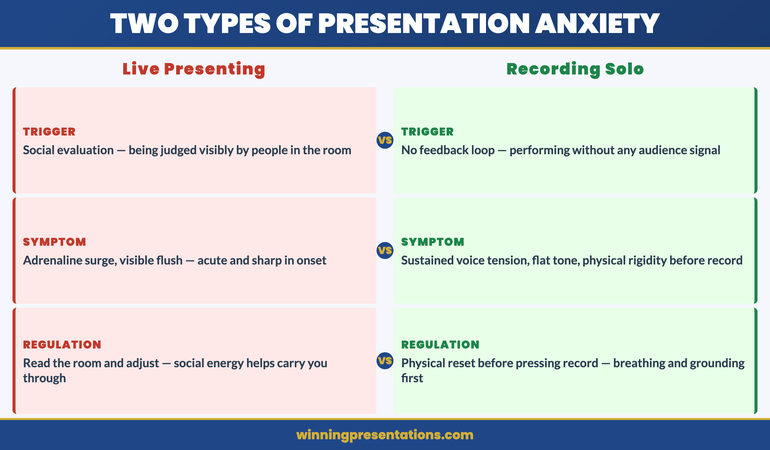
Live presenting produces anxiety primarily through social evaluation: the fear of being judged, of losing the room, of visibly struggling in front of people whose opinions matter. This is uncomfortable, but it comes with natural regulation mechanisms — you read the room, you adjust, you get into the flow of a conversation, and the social energy of the room often carries you through difficult moments.

Recording yourself without an audience removes all of those regulation mechanisms simultaneously. There is no room to read. There is no social energy to carry you. There is no feedback loop that tells you whether you are going well or badly — only your own internal critic, which has no information about how the recording is actually landing and tends to default to “worse than expected.”

The physical response to this is distinct from live presentation anxiety. Rather than the adrenaline surge of walking into a room, recording anxiety tends to manifest as a sustained physical tension — a slight tightness in the throat and chest, a flatness in vocal tone, a tendency toward over-precision in diction that makes delivery sound rehearsed rather than natural. Executives who present with considerable confidence in live settings often find that their recorded delivery sounds noticeably less authoritative than they know themselves to be. This is not a performance problem. It is a physiological response to an unnatural stimulus: performing without an audience for an audience you cannot see.

Understanding this distinction matters because the solution is different. Live presentation anxiety responds well to preparation and rehearsal. Recording anxiety responds better to physical regulation before recording and a structural approach to delivery that gives you something to navigate rather than a blank canvas to fill. The screen sharing and virtual presence framework covers the related challenge of delivering effectively on camera — many of the same principles apply here.

Calm Under Pressure

Manage the Physical Response That Undermines Your Recorded Delivery

Calm Under Pressure — £19.99, instant access — is designed for in-the-moment physical symptom management in presenting contexts. It addresses the specific physical patterns that recording without an audience tends to produce: voice tension, delivery flatness, and the physical spiral that makes restarts worse rather than better. Techniques designed for the moments before and during high-stakes presentation delivery.

  • In-the-moment physical regulation techniques for voice tension and delivery anxiety
  • Breathing and grounding frameworks for solo recording and virtual presentation environments
  • Physical symptom management for presenting without live audience feedback
  • Protocols for resetting your physical state when recording sessions are not going well

Get Calm Under Pressure →

Designed for executives who experience physical anxiety symptoms during presentations.


Asynchronous Presentation Anxiety infographic comparing Live Presentation anxiety triggers (social evaluation, losing the room, visible struggle) versus Recording anxiety triggers (no feedback loop, internal critic, sustained voice and physical tension) — with different regulation approaches for each

The Physical Setup That Reduces Delivery Anxiety

The physical environment in which you record has a measurable effect on delivery quality — not just for technical reasons, but because environmental signals shape your physiological state before you begin.

Camera position matters more than most executives realise. A camera positioned below eye level is the most common setup mistake in recorded presentations, and it produces a subtle but perceptible effect: the presenter appears to be looking slightly down, which reads as diminished authority or discomfort. Camera at eye level — which typically means elevating the laptop or external camera to head height — produces a noticeably different quality of presence on screen. You are speaking with your audience rather than at them or above them.

Lighting has a similar effect on the physical experience of recording. Poor lighting — particularly strong backlight from a window behind the presenter — forces a subtle physical tension as the camera struggles to compensate and the presenter senses that the image is not clear. A single key light source positioned in front of and slightly above the presenter reduces this tension significantly. Natural daylight from in front is ideal; a ring light is a reliable alternative. The practical principles behind virtual setup are covered in the hybrid meeting facilitation guide — the same environmental principles apply to async recording.

The two minutes before you hit record are as important as the setup itself. A brief physical regulation routine — slow breathing, a deliberate relaxation of the shoulders and jaw, and two or three slow exhales — reduces the physical tension that accumulates in the lead-up to recording. The goal is not to be relaxed in the way you might be in a casual conversation. The goal is to be in the physical state from which your natural authority emerges. Most people know what that state feels like. The regulation routine is designed to get you there intentionally rather than waiting to stumble into it.

How to Script Without Sounding Like You Are Reading

The instinct when recording an asynchronous presentation is to write a full script — every word, every transition, every data point — so that nothing gets missed and nothing sounds uncertain. The result is almost always a recording that sounds exactly like what it is: someone reading from a script. The fluency markers that indicate natural speech — the slight variation in sentence length, the occasional pause for thought, the natural emphasis that comes from actually thinking about what you are saying — are absent, and their absence is immediately perceptible to listeners.

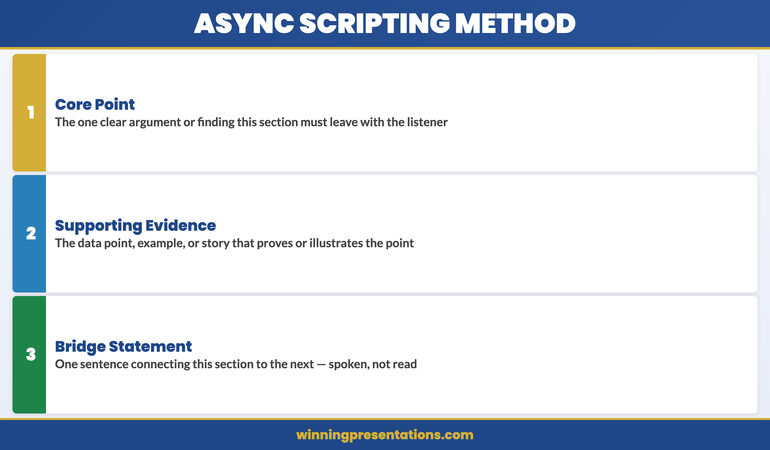
The alternative is not to record without preparation. It is to script the architecture rather than the words. For each section of your asynchronous presentation, prepare a one to three bullet point outline: the core point you are making, the supporting evidence or example you will use, and the bridging statement that moves you to the next section. That is your script. Within each section, you speak to those points rather than reading predetermined sentences.

This approach has a specific cognitive benefit. When you are working from an architectural outline rather than a word-for-word script, the process of expressing each point engages your thinking rather than your memory. Your delivery becomes the natural product of actually engaging with the material — which is exactly what your audience will perceive as authority and genuine expertise.

The exception to this principle is the opening statement. Writing and memorising a single strong opening sentence — delivered directly to camera — anchors the recording with presence and sets the tone for everything that follows. First impressions in recorded presentations are formed within the first ten seconds, and a confident, direct opening statement creates a frame that benefits every subsequent section. The principles behind effective opening delivery are covered in the Teams presentation delivery framework — the same opening principles apply across virtual and recorded formats.

If the physical symptoms of recording anxiety — voice tension, difficulty finding your natural delivery register, the restart spiral — are a consistent challenge, Calm Under Pressure addresses these at the physical level, with in-the-moment techniques designed for presenting contexts specifically.


Async Presentation Scripting Method infographic showing the architectural outline approach: for each section prepare Core Point, Supporting Evidence or Example, and Bridge to Next Section — contrasted with the full-script approach that produces robotic delivery

Your Voice Without an Audience: Why It Sounds Wrong and How to Fix It

Most people, when they first listen back to a recording of themselves presenting, have the same reaction: that does not sound like me. The voice sounds flatter, more monotone, more hesitant than the presenter believed they sounded while recording. This is not a delusion — it reflects something real about what happens to vocal delivery when the live audience is removed.

In a live presenting environment, your voice is shaped partly by the room’s response. You raise volume when the room gets quieter and you sense it is needed. You slow down when you see a furrowed brow. You lean into emphasis when a point lands and the room’s energy confirms that it has. These are not conscious decisions — they are automatic responses to social feedback that regulate your vocal delivery in real time.

Recording removes all of these regulation signals. The result is that voice tends to compress: the dynamic range narrows, the pace either rushes or stalls without natural audience pacing to guide it, and the emphasis becomes either over-performed (because the presenter is consciously trying to be expressive without feedback) or flat (because the effort of compensating has depleted the vocal presence that would otherwise emerge naturally).

The practical fix has two components. The first is physical: recording standing up rather than seated produces measurably better vocal quality for most people. Standing removes the subtle compression of the diaphragm that sitting produces, which allows the voice more physical resonance. The second is directional: speak to one person in your mind’s eye, not to an abstract audience. Identify a specific individual — a trusted colleague, a client whose opinion you respect — and speak to them directly. The voice naturally adjusts to direct conversation in ways that it does not adjust to broadcasting, and recorded presentations benefit from exactly that quality of directed, conversational engagement.

Managing the Urge to Restart: A Decision Framework

The restart spiral is the most common technical failure in asynchronous presentation recording. The presenter stumbles, stops, and starts again — and with each restart, the awareness of the stumble increases, the physical tension builds, and the subsequent take is marginally worse than the one before. After five or six restarts, the presenter is recording in a state of elevated anxiety that is audible in every take.

The instinct driving the restart spiral is the assumption that the recording needs to be perfect to be effective. This is not accurate. Listeners do not experience a slight stumble or an “um” in a recorded presentation the way presenters expect. What listeners notice is not individual errors — it is the overall quality of presence and the sense that the presenter actually knows what they are talking about. A recording with two minor stumbles delivered with genuine authority is significantly more effective than five careful restarts that produce technically perfect but lifeless delivery.

A clear decision framework for restarts reduces the spiral significantly. There are two situations in which a restart is warranted: you lose your place entirely and cannot recover the thread within three seconds, or you have said something factually incorrect that the audience will notice. Everything else — a filler word, a slight mis-step in phrasing, a pause that felt awkward — is not a restart. It is a moment of natural speech that most listeners will not consciously register.

If you do need to restart, build a full physical reset into the pause: stand up if you were seated, do a slow exhale, and physically shake out the tension in your hands and shoulders before sitting back down. Recording again immediately after a frustrating take compounds the physical tension that produced the problem in the first place. The reset is not a delay — it is the preparation for a take that is worth sending.

The Companion Message That Gets Your Recording Watched

An asynchronous presentation that no one watches has no impact, regardless of its quality. The single most underinvested element of async presentation preparation is the companion message — the text that accompanies the recording in the email, Teams message, or Slack post through which it is distributed.

The companion message serves three functions. First, it gives the recipient a reason to prioritise watching: not “please see attached recording” but “I have recorded a 12-minute overview of the Q1 client health metrics — the key finding is X, and I would like your view on Y before the leadership meeting on Thursday.” The reason to watch and the specific ask are both explicit. Second, it sets expectations: telling the recipient how long the recording is (“12 minutes”) and what decision you need from them by when removes the two most common friction points that cause async recordings to be deferred rather than watched. Third, it signals that you have not just offloaded information but prepared something worth their time.

The companion message should be no more than four sentences. One sentence that states the context and what the recording covers. One sentence with the key finding or recommendation. One sentence with the specific decision or input you need. One sentence with the deadline. Everything else is overhead that reduces the likelihood of the recording being watched promptly. If the asynchronous recording is followed by a live Q&A session, the STAR method for executive Q&A provides the structured response framework for handling the follow-up questions when you are eventually in the room with the audience.

Calm Under Pressure

Physical Symptom Management for Presenting Under Pressure

Calm Under Pressure — £19.99, instant access — gives you in-the-moment physical regulation techniques for the specific symptoms that undermine presentation delivery: voice tension, physical rigidity, the restart spiral, and the sustained anxiety of performing without live audience feedback. For virtual and recorded presenting contexts as well as live ones.

Get Calm Under Pressure →

Designed for executives who experience physical anxiety symptoms in presenting contexts.

Frequently Asked Questions

How do you make an asynchronous presentation sound natural?

The most reliable way to make a recorded asynchronous presentation sound natural is to script the architecture rather than the words. For each section, prepare a brief outline — the core point, the supporting evidence, and the transition to the next section — and speak to those points rather than reading from a full script. Full scripts produce delivery that sounds read because it is being read. The architectural outline gives you structure without suppressing the natural speech patterns that make delivery sound authoritative and genuine. The opening statement is an exception: write and memorise one strong opening sentence to deliver directly to camera. Everything after that should come from genuine engagement with your outline rather than precise recall.

How long should an asynchronous presentation be?

For most executive and business contexts, an asynchronous presentation should run between eight and fifteen minutes. Below eight minutes, the recording may not provide sufficient depth on complex topics. Above fifteen minutes, the likelihood of the full recording being watched in a single sitting drops significantly — most recipients will begin it, reach a natural break point, and not return. If your content genuinely requires more than fifteen minutes, break it into clearly labelled sections (each with its own short companion message) and allow recipients to watch sections in the order most relevant to them. Respecting your audience’s attention is a form of executive communication competence, and a concise recording that is watched in full is more effective than a comprehensive one that is watched in part.

What equipment do you actually need to record a professional asynchronous presentation?

For the majority of business contexts, the equipment you already have is adequate — with two adjustments. First, elevate your camera to eye level if you are using a laptop or built-in webcam; this single change has more impact on perceived authority than almost any other equipment decision. Second, address your lighting: ensure your light source is in front of you rather than behind you, and if possible use a simple ring light or position yourself facing a window. A good external microphone improves audio quality noticeably, and clean audio matters more than high-definition video for most business presentations. Beyond these adjustments, the quality of your delivery — preparation, physical state, scripting approach — has far greater impact on the recording’s effectiveness than the technical specifications of your equipment.

The Winning Edge

Weekly insights on executive presentations, delivered every Thursday. Practical frameworks, real scenarios, and no generic advice.

Subscribe to The Winning Edge →

About the Author

Mary Beth Hazeldine — Owner & Managing Director, Winning Presentations

With 25 years of corporate banking experience at JPMorgan Chase, PwC, Royal Bank of Scotland, and Commerzbank, Mary Beth Hazeldine advises executives across financial services, healthcare, technology, and government on structuring presentations for high-stakes funding rounds and approvals. She works directly with senior leaders to build the communication skills that hold up under pressure. Learn more at Winning Presentations.
04 Jan 2026
Virtual presentation tips comparison showing disengaged audience versus engaged presenter commanding attention through screen

Virtual Presentation Tips: How to Command Attention Through a Screen [2026]

Last updated: January 2026

Three minutes into my first virtual presentation to Equinox Financial’s leadership team, I realised nobody was listening.

I could see it in the tiny thumbnails — people checking phones, eyes drifting to second monitors, one person clearly typing emails. The same executives who hung on every word in boardrooms had mentally checked out the moment I shared my screen.

That was 2020. Since then, I’ve delivered over 200 virtual presentations to financial institutions, trained thousands of professionals on remote presenting, and discovered something uncomfortable: everything you know about presenting in person actively hurts you on camera.

This guide covers the virtual presentation tips that actually work — not the generic “look at the camera” advice you’ve read everywhere else, but the specific techniques I’ve refined through real client work at HSBC, UniCredit, and dozens of corporate teams struggling with the same problem you’re facing.

Free resource: Grab my Virtual Presentation Quick-Start Checklist — a one-page reference covering setup, engagement triggers, and the 10-minute rule framework.

Why Virtual Presentations Fail (It’s Not What You Think)

Most virtual presentation advice focuses on technology — lighting, microphones, backgrounds. That’s like telling someone to buy a better suit before fixing their terrible content.

The real problem is attention economics. In a physical room, you have a captive audience. On Zoom, you’re competing with:

Email notifications. Slack messages. The entire internet. Their phone. Whatever’s happening in their kitchen. The cognitive load of video itself.

Research from Stanford shows that video calls drain mental energy 15% faster than in-person meetings. Your audience is literally exhausted before you start.

Here’s what this means for your virtual presentation tips strategy: you can’t just adapt your in-person style — you need to completely rebuild your approach.

Want the complete virtual presenting toolkit? My Public Speaking Cheat Sheets (£14.99) include a dedicated virtual presentations quick-reference — camera setup, engagement triggers, platform-specific shortcuts all on one page.

The 10-minute attention rule timeline showing engagement resets for virtual presentations

The 10-Minute Rule for Virtual Presentations

In person, you might hold attention for 20-30 minutes before needing an interaction. Virtually, that window shrinks to 10 minutes — maximum.

Every 10 minutes, you need what I call an attention reset:

Minutes 1-10: Your opening hook and first major point. This is where you win or lose them.

Minute 10: First interaction — poll, question, or shift in visual format.

Minutes 11-20: Your second major point with different visual approach.

Minute 20: Second attention reset — breakout discussion, exercise, or dramatic reveal.

I learned this the hard way. A 45-minute presentation I’d delivered successfully in boardrooms completely bombed on Zoom. Same content. Same delivery. But without the physical presence and social pressure of a room, people simply… left. Cameras off, then gone entirely.

Now I structure every virtual presentation around these 10-minute blocks. The content quality didn’t change — but the engagement transformed.

Want 20+ opening hooks designed for virtual presentations? Grab my Presentation Openers & Closers Swipe File — includes specific hooks that work when you’re competing with email.

Camera Presence: The 3 Things That Actually Matter

Camera presence tips showing eye contact, energy amplification, and frame dominance techniques

Forget the advice about “professional backgrounds” and “good lighting.” Those are table stakes. Here’s what actually differentiates great virtual presenters:

1. The Eye Contact Illusion

Looking at your camera lens — not your screen — creates the illusion of eye contact. You know this. But here’s what nobody tells you: it only matters at specific moments.

You don’t need to stare at the camera constantly (that’s actually creepy). Use camera eye contact strategically:

When making your key point. When asking a question. When you want to create connection. During your opening 30 seconds. During your close.

The rest of the time? Look at your notes, your slides, your audience thumbnails. It’s fine. The strategic moments are what create presence.

2. The Energy Amplification Rule

Video flattens your energy by about 30%. The enthusiasm that feels natural in person comes across as flat and monotone on camera.

This doesn’t mean you should be manic or performative. It means you need to consciously dial up your vocal variety and facial expressions by about one-third.

If you normally speak at energy level 5, aim for 6.5 on camera. If you’re naturally reserved, push to what feels like “slightly too much” — it will land as normal to your audience.

I cringe watching recordings of my early virtual presentations. I thought I was being engaging. I looked half-asleep.

3. The Frame Dominance Principle

Most people sit too far from their camera. They appear small in the frame, surrounded by distracting background. This communicates low status and low confidence.

Your face should fill roughly 60-70% of the vertical frame. Your eyes should be in the upper third. This is the same framing used in news broadcasts and professional video — it communicates authority.

Adjust your camera height so you’re looking slightly down at it, not up. Looking up at a camera makes you appear submissive. Looking straight or slightly down communicates confidence.


Slide Design for Virtual: What Changes

Your beautifully designed boardroom slides will fail on Zoom. Here’s why and how to fix it:

The Screen Real Estate Problem

When you share your screen, your slides appear in a fraction of your audience’s display. They’re also viewing on everything from 27-inch monitors to phone screens.

This means:

Font size minimum: 28pt (what looked fine at 24pt in a conference room is illegible on a laptop).

Reduce text by 50% compared to in-person slides. If you had 5 bullet points, cut to 2-3.

Higher contrast colours. Subtle colour variations disappear on compressed video.

One idea per slide. The cognitive load of video means people can’t process complex slides while also processing you.

The Show-Your-Face Strategy

Most presenters share their screen and disappear. Their slides fill the entire view. Bad move.

Keep your camera on and visible alongside your slides. On Zoom, this means using “Side-by-side: Speaker” view for your audience. On Teams, ensure your video remains prominent.

Why? People trust faces more than slides. Your physical presence — even in a tiny thumbnail — maintains connection and credibility in ways slides alone cannot.

For critical points, consider stopping screen share entirely and speaking directly to camera. The visual break recaptures attention, and your full-screen face communicates importance.

Virtual Presentation Tips for Engagement

The engagement techniques that work in person often fall flat virtually. Here’s what to do instead:

Polls Over Questions

Asking “Any questions?” to a silent Zoom room is painful. Polls work better because they require no social courage — people click anonymously.

Use polls not just for feedback, but as attention resets. A poll at minute 10 forces everyone to engage, breaking the passive viewing pattern.

Pro tip: Show poll results and comment on them. “Interesting — 60% of you said X. Let me address that directly…” This creates dialogue even in a one-to-many presentation.

The Chat Thread Technique

Ask people to respond in chat rather than unmuting. This works because:

Lower barrier to participation. Introverts participate more easily. Creates visible engagement (others see the chat filling up). You can reference specific responses by name.

“Type in chat: what’s your biggest challenge with X?” Then read and respond to 2-3 answers. You’ve just created interaction without the awkward unmuting dance.

Breakout Rooms for Longer Sessions

For presentations over 30 minutes, breakout rooms are essential — not optional. A 2-minute paired discussion every 15-20 minutes prevents the passive viewing death spiral.

Give breakout rooms a specific task: “Discuss how this applies to your team. You have 90 seconds.”

Short timeframes create urgency and prevent off-topic drift.

The Technology Setup That Commands Authority

Now we can talk about tech — but strategically, not generically.

Audio Quality Trumps Video Quality

People will tolerate mediocre video. Bad audio kills credibility instantly.

Get a dedicated microphone. Even a £30 USB microphone dramatically outperforms your laptop’s built-in mic. The difference is immediate and obvious to your audience.

Test your audio before every important presentation. Not just “can they hear me” but “do I sound professional?”

Lighting: The One-Light Setup

Forget complicated three-point lighting setups. You need one thing: a light source in front of your face.

This can be a window (face the window, don’t sit with your back to it) or a simple ring light or desk lamp positioned behind your monitor.

The goal: even illumination on your face, no harsh shadows, no backlight turning you into a silhouette.

Background: Boring Beats Busy

A plain wall beats a cluttered home office. A professional virtual background beats a distracting real one.

But here’s what matters more than either: consistency. Use the same background every time. This builds recognition and professionalism.

I’ve used the same slightly blurred bookshelf background for three years. It’s not exciting. But it’s become part of my professional presence.

Opening a Virtual Presentation: The First 30 Seconds

Your opening matters even more virtually. You have seconds before people start multitasking.

Start with your camera on, slides off. Make human connection before showing content.

Skip the housekeeping. “Can everyone hear me? I’ll share my screen now…” is a waste of precious attention. Test tech before; assume it works.

Open with a hook, not an agenda. “Today I’ll cover three things…” is invisible. “We’re losing £2 million a month to a problem nobody’s talking about…” stops the scroll.

For more on powerful openings, see my complete guide: How to Open a Presentation.

Ready to master virtual openings that stop the multitasking? My Public Speaking Cheat Sheets (£14.99) include a dedicated virtual presentations quick-reference guide.

Handling Q&A in Virtual Presentations

Q&A is where virtual presentations often collapse. The awkward silence. The “you’re on mute” dance. People talking over each other.

Here’s how to manage it:

Seed questions in advance. Ask one or two trusted participants to prepare questions. This breaks the ice and encourages others.

Use the chat for question collection. “Drop your questions in chat. I’ll answer the most common ones.” This removes the unmuting barrier and lets you curate.

Name people before unmuting them. “Sarah, I saw your question in chat — let me unmute you.” This prevents the chaos of multiple people unmuting simultaneously.

Have a closing ready, not dependent on Q&A. If questions dry up, you need an exit that isn’t “Okay, I guess that’s it?” Prepare a strong closing statement you can deploy.

For more on handling difficult questions with confidence, see: Handle Difficult Questions in Presentations.

Presenting to executives virtually? My Executive Slide System (£39) includes virtual-specific templates designed for the compressed attention spans and higher stakes of remote executive presentations.

Platform-Specific Virtual Presentation Tips

Each platform has quirks. Quick essentials:

Zoom Presentations

Use “Hide Self View” to avoid the distraction of watching yourself. Enable “Touch up my appearance” if you’re tired (subtle but effective). Use Spotlight to keep your video prominent during slides.

For deep dive: Zoom Presentation Tips

Microsoft Teams Presentations

Teams compresses video more aggressively — high contrast visuals matter even more. Use PowerPoint Live for better slide control. The “Together Mode” can reduce Zoom fatigue for longer sessions.

For deep dive: Teams Presentation Tips

Google Meet Presentations

More limited features, but lower bandwidth requirements. Good for international audiences with variable connections. Use the “Pin” feature to control what participants see.

The Virtual Presentation Checklist

Before every important virtual presentation, run through this:

24 hours before: Test all technology on the actual platform. Send calendar invite with clear join instructions. Prepare backup contact method if tech fails.

1 hour before: Close unnecessary applications. Silence phone and notifications. Check lighting and camera framing. Have water nearby.

5 minutes before: Join early to greet people as they arrive. Confirm audio and video working. Have slides ready but not shared. Take three deep breaths.

During: 10-minute attention resets. Camera eye contact at key moments. Energy level +30%. Watch chat for questions and engagement.

Common Virtual Presentation Tips Mistakes to Avoid

After training thousands of professionals on virtual presenting, these are the mistakes I see constantly:

Reading slides. Even worse on video than in person. Your audience can read faster than you can speak.

No interaction for 30+ minutes. You’ve lost them by minute 12. Build in engagement every 10 minutes.

Over-apologising for technology. “Sorry, let me just… sorry, can you see this… sorry…” Projects incompetence. Handle tech smoothly or ignore minor glitches.

Ending weakly. “So, yeah, that’s basically it. Any questions? No? Okay, bye.” Have a prepared closing statement that ends with impact, regardless of Q&A.

Forgetting the post-presentation follow-up. Send a summary email within 24 hours. Include key points, any resources mentioned, and clear next steps.

Take Your Virtual Presentations From Surviving to Commanding

Virtual presenting isn’t going away. If anything, hybrid work means you’ll present through screens more often, not less.

The professionals who master these virtual presentation tips will have an enormous advantage — because most people won’t bother. They’ll keep using their in-person approach and wondering why engagement keeps dropping.

You now have the framework. The 10-minute rule. The camera presence techniques. The engagement strategies. The technology setup. What you do with it is up to you.

Want to master presentation skills systematically? My Executive Buy-In Presentation System includes dedicated modules on virtual presenting, plus live practice sessions where you’ll get real-time feedback on your camera presence and remote engagement.

Get weekly presentation tips that actually work: Join 2,000+ professionals getting my Wednesday newsletter — real techniques from real client work, not recycled theory. Subscribe free here.

Frequently Asked Questions

How long should a virtual presentation be?

Aim for 20-25 minutes of content with 5-10 minutes for Q&A. If you must go longer, build in interaction every 10 minutes and consider breaking into multiple sessions. Attention spans are significantly shorter virtually than in person.

Should I use a virtual background?

A professional virtual background is better than a distracting real background. But a clean, simple real background is best of all. Whatever you choose, use it consistently to build professional recognition.

How do I keep people engaged when I can’t see their faces?

Use polls and chat to create visible engagement. Ask specific people by name to contribute. Build in breakout discussions for longer sessions. And accept that some disengagement is inevitable — focus on making your content valuable enough that people want to stay focused.

What’s the biggest mistake in virtual presentations?

Treating them like in-person presentations. The attention dynamics are completely different. You need shorter segments, more interaction, higher energy, and simpler visuals. Adapt your entire approach, don’t just turn on your webcam.

How do I handle technical problems during a presentation?

Have a backup plan: phone number for audio, colleague who can take over screen sharing, pre-sent materials participants can reference. When problems occur, stay calm, briefly acknowledge the issue, and keep going. Over-apologising makes it worse.