Tag: executive slides

01 Feb 2026
Professional person looking frustrated at laptop screen showing AI-generated content that doesn't sound right

Why Your AI-Generated Executive Summary Always Sounds Wrong (The 30-Second Fix)

You asked ChatGPT to write your executive summary. It took 8 seconds. Then you spent 45 minutes rewriting it because it sounded like a press release written by a committee.

The sentences were technically correct. The structure was fine. But something was off. It didn’t sound like something you’d actually say to your CFO. It didn’t sound like something anyone would say to anyone.

This isn’t an AI problem. It’s a context problem. And it takes 30 seconds to fix.

Quick answer: AI-generated executive summaries sound wrong because the AI doesn’t know your audience, your relationship with them, or what decision you’re driving toward. It fills that gap with generic corporate language. The fix isn’t better editing—it’s better context injection. Before asking for content, give the AI three things: who’s reading, what they already know, and what you need them to do. This takes 30 seconds and transforms the output.

⚡ Presenting tomorrow? Copy this prompt:

AUDIENCE: [Who’s reading—role + what they care about]
KNOWLEDGE: [What they already know about this topic]
DECISION: [What action you need them to take]
TONE: [Formal/informal + your relationship]
CONSTRAINTS: [Word count, format, company style]

Write an executive summary for: [your topic]

Fill the 5 blanks. Paste into ChatGPT/Claude/Copilot. Watch the difference.

Why AI-Written Exec Summaries Sound “Off”

Last year, I watched a client—a VP at a major retailer—spend an entire afternoon fighting with ChatGPT.

She needed an executive summary for a board presentation on warehouse automation. ChatGPT gave her something that read like a Wikipedia entry crossed with a management consulting brochure. Phrases like “leveraging synergies” and “optimising operational efficiency” that no human being has ever said out loud to another human being.

She rewrote it. Fed it back. Asked for “more natural.” Got something slightly less robotic but still wrong. Three hours later, she wrote the whole thing herself.

“AI is supposed to save time,” she told me. “I would have been faster with a blank page.”

She wasn’t wrong. But she also wasn’t using the AI correctly. The problem wasn’t the tool—it was what she didn’t tell it.

Why does AI-generated content sound generic?

AI models are trained on vast amounts of text, which means they default to the most common patterns. Without specific context, they produce “average” corporate language—technically correct but lacking the specificity and voice that makes content feel human. The more context you provide about your audience, purpose, and constraints, the more specific (and useful) the summary output becomes.

The Context Gap (What AI Doesn’t Know)

When you ask AI to “draft an exec summary for my presentation,” here’s what the AI doesn’t know:

  • Who’s reading it — A board of directors? Your direct manager? External investors? Each requires completely different framing.
  • What they already know — Are they familiar with the project? New to it? Skeptical? Supportive?
  • What decision you need — Approval? Awareness? Budget? The summary should drive toward that outcome.
  • Your relationship with them — Formal? Informal? Do you have credibility or are you building it?
  • Your organisation’s voice — Every company has unwritten rules about how executives communicate.

Without this context, AI does what any reasonable system would do: it guesses. And it guesses conservatively, using the safest, most generic language possible.

That’s why the output sounds like it was written by someone who’s never met your audience. Because, in a sense, it was.

I’ve written extensively about how to structure executive summaries in my guide to the executive summary slide—but even the best structure falls flat if the voice is wrong.

The 30-Second Fix: Context Injection

Before you ask AI to write anything, spend 30 seconds injecting context. This is the single highest-leverage change you can make to AI-assisted presentation work.

The Context Injection Framework

Add this to the beginning of any prompt:

AUDIENCE: [Who will read this, their role, what they care about]

KNOWLEDGE LEVEL: [What they already know about this topic]

DECISION NEEDED: [What action you want them to take]

TONE: [Formal/informal, relationship context]

CONSTRAINTS: [Word count, format, company style]

That’s it. Five lines. Thirty seconds to write.

The difference in output quality is dramatic—not because the AI suddenly became smarter, but because you stopped asking it to read your mind.


Context injection framework showing five elements: Audience, Knowledge Level, Decision Needed, Tone, and Constraints

How do I make ChatGPT write in my voice?

Give it examples of your voice. Paste 2-3 paragraphs you’ve written previously and say: “Match this tone and style.” Combine this with context injection (audience, decision needed, constraints) and the output will be dramatically closer to how you actually communicate. The AI can mimic voice patterns—it just needs samples.

Master AI-Enhanced Executive Presentations

AI-Enhanced Presentation Mastery is the complete system for executives who want AI to accelerate their presentation work—not create more editing. Learn context injection, voice matching, and the full workflow that cuts creation time without sacrificing quality.

Enrol in AI-Enhanced Presentation Mastery → £249

Self-study modules + live Q&A calls. Study at your own pace.

Before and After Examples

Let me show you what context injection actually does.

Scenario: Q3 Results for the Board

Without context injection:

Prompt: “Write an executive summary for my Q3 results presentation.”

“This executive summary provides an overview of Q3 performance metrics and key achievements. The quarter demonstrated strong operational efficiency and strategic alignment with organisational objectives. Key highlights include revenue growth, cost optimisation initiatives, and enhanced customer satisfaction scores…”

Generic. Forgettable. Could be any company, any quarter, any presenter.

With context injection:

AUDIENCE: Board of directors, 8 people, mostly focused on margin and cash flow

KNOWLEDGE LEVEL: They saw Q2 results; know we’re behind on EBITDA target

DECISION NEEDED: Approve additional headcount for Q4 push

TONE: Direct, confident, acknowledge the miss but pivot to solution

CONSTRAINTS: 150 words max, no jargon, lead with the ask

Write an executive summary for my Q3 results presentation.

“Q3 EBITDA came in 12% below target. You’ll want to know why—and what we’re doing about it. The miss was driven by delayed product launches (now resolved) and higher-than-expected customer acquisition costs in APAC. Despite this, revenue grew 8% QoQ, and we’ve identified a clear path to recover margin in Q4. That path requires 6 additional headcount in sales engineering. This presentation makes the case for that investment and shows the projected impact on Q4 and FY targets. I’m asking for approval today so we can begin hiring next week.”

Same AI. Same request. Completely different output.

The second version sounds like a real person talking to real people about a real situation. It leads with the uncomfortable truth, acknowledges what the audience cares about, and drives toward a specific decision.

That’s what context injection does. It turns AI from a generic content machine into a tool that understands your specific communication challenge.

Want the complete library of context injection templates for every presentation type?

Get AI-Enhanced Presentation Mastery → £249

What context does AI need for executive presentations?

At minimum: who’s reading (role and what they care about), what they already know, and what decision you need. Adding tone guidance and constraints (word count, format) improves output further. The more specific your context, the less editing you’ll need. Think of it as briefing a smart but uninformed colleague—they need background before they can help.

Beyond Summaries: The Full Workflow

Context injection works for executive summaries, but it’s actually the foundation of a complete AI-assisted presentation workflow.

The Three-Layer Approach

Layer 1: Strategic Context (before any content)

Define your audience, decision, and constraints. This shapes everything that follows.

Layer 2: Structural Generation

Use AI to generate slide structures, not content. “Given this context, what are the 8 slides I need?” is a better prompt than “Write my presentation.”

Layer 3: Content Refinement

Generate content slide-by-slide, with context injection for each. Review and refine in passes, not all at once.

This approach typically cuts presentation creation time by 50-70%—not because AI writes everything, but because it handles the parts that don’t require your judgment while you focus on the parts that do.

I cover the full workflow in detail in my guide to using ChatGPT for PowerPoint presentations—including the specific prompts for each layer.

When AI Isn’t the Answer

Context injection dramatically improves AI output, but some elements of executive presentations still require human judgment:

  • Political navigation — AI doesn’t know that the CFO and COO are feuding, or that the CEO hates bullet points
  • Stakeholder relationships — The history between you and your audience shapes how you frame sensitive topics
  • Strategic ambiguity — Sometimes you need to be deliberately vague; AI defaults to clarity
  • Emotional calibration — Delivering bad news, building urgency, or inspiring action requires human touch

The goal isn’t to automate everything. It’s to automate the parts that don’t need you, so you can invest your judgment where it matters.

For more on the strategic side of executive presentations, see my article on AI for presentations.

The Compound Effect

Here’s what most people miss about AI-assisted presentations: the benefit compounds.

Once you have a context injection template for board presentations, you reuse it. Once you’ve trained AI on your voice with sample paragraphs, you can reference that conversation. Once you’ve built a library of prompts that work for your organisation’s style, every presentation gets faster.

The first presentation might save you 30 minutes. The tenth saves you 3 hours. The fiftieth is a completely different workflow—one where AI handles the scaffolding and you focus purely on strategic decisions and refinement.

That’s the real promise of AI for executive presentations. Not “AI writes your presentation.” But “AI handles the 80% that doesn’t need your brain, so your brain can focus on the 20% that does.”

Stop Fighting With AI. Start Collaborating.

AI-Enhanced Presentation Mastery teaches you the complete workflow: context injection templates, voice matching techniques, structural generation, and the refinement process that produces executive-ready output. Self-study modules you can complete at your own pace, plus live Q&A calls for personalised guidance.

Enrol in AI-Enhanced Presentation Mastery → £249

Created from 24 years of executive presentation experience combined with systematic AI workflow development.

Frequently Asked Questions

Will this work with any AI tool (ChatGPT, Claude, Copilot)?

Yes. Context injection is model-agnostic—it works with ChatGPT, Claude, Copilot, Gemini, and any other large language model. The principle is the same: AI produces better output when you give it better input. The specific prompts in AI-Enhanced Presentation Mastery are tested across multiple tools so you can use whichever your organisation prefers.

How long does it take to learn the context injection method?

The basic framework takes about 15 minutes to understand and apply. You’ll see improved output immediately. Mastering the nuances—when to add more context, how to iterate, how to build reusable templates—takes longer, typically 2-3 weeks of regular practice. The course accelerates this with pre-built templates and worked examples.

What if my company has a specific presentation style?

That’s actually ideal. Feed the AI examples of presentations your company has approved. Include style guidelines in your context injection. The more specific you are about organisational norms, the better the output matches. Many course participants create company-specific template libraries they reuse across their teams.

Is this different from prompt engineering courses?

Yes. General prompt engineering teaches principles that apply across use cases. AI-Enhanced Presentation Mastery is specifically designed for executive presentations—the context injection frameworks, the structural prompts, the refinement workflows are all built for the specific challenge of creating high-stakes business presentations. It’s specialised, not general.

📬 Get Weekly AI + Presentation Insights

Join professionals who receive my weekly newsletter on AI-enhanced presentations, executive communication, and high-stakes delivery.

Subscribe to The Winning Edge →

Related reading:

📋 Free Resource: 10 Essential AI Prompts for Presentations

Not ready for the full course? Start with my free prompt library—10 tested prompts for common presentation tasks, including context injection templates you can use immediately.

Get the Free AI Prompts →

Your Next Step

The next time you need an executive summary, don’t start with “Write an executive summary.”

Start with 30 seconds of context injection. Tell the AI who’s reading, what they know, and what decision you need.

Watch what happens to the output.

And if you want the complete system—not just context injection, but the full workflow that transforms how you create executive presentations—AI-Enhanced Presentation Mastery will show you how.

AI is a tool. The question is whether you’re using it as a content generator or a thought partner. Context injection is the difference.

About the Author

Mary Beth Hazeldine is the Owner & Managing Director of Winning Presentations. With 24 years of corporate banking experience at JPMorgan Chase, PwC, Royal Bank of Scotland, and Commerzbank, she has delivered hundreds of high-stakes executive presentations—and now teaches professionals how to use AI to create them more efficiently.

A qualified clinical hypnotherapist and NLP practitioner, Mary Beth combines executive communication expertise with systematic AI workflow development. She has helped senior professionals and teams transform their presentation process.

Book a discovery call | View services

30 Jan 2026
Executive woman with glasses looking frustrated at laptop screen while reviewing presentation slides

Why “Overview” Is the Worst Slide Title (And What to Write Instead)

The CFO glanced at slide 1, saw “Overview,” and started checking his phone.

By slide 3, he wasn’t even pretending to pay attention. The presenter—a talented VP with a genuinely good proposal—had lost the room before she’d said a word. Her slide titles told the CFO exactly what to expect: nothing worth his full attention.

Quick answer: Generic slide titles like “Overview,” “Summary,” “Background,” and “Next Steps” are attention killers. They tell executives nothing and signal that you haven’t thought hard about your message. The fix is simple: every slide title should be a complete sentence that delivers the point of that slide. Instead of “Q3 Results,” write “Q3 Revenue Exceeded Target by 12%.” Instead of “Overview,” write “This Initiative Will Save £2.4M Annually.” Slide title best practices start with one rule: if your title could appear on anyone’s deck, it’s not doing its job.

Why “Overview” Fails Every Time

I spent 24 years in corporate banking—JPMorgan Chase, PwC, Royal Bank of Scotland, Commerzbank. I’ve sat through thousands of presentations and delivered hundreds more. And I can tell you exactly what happens when an executive sees “Overview” as a slide title: nothing.

That’s the problem. “Overview” creates zero anticipation. It makes zero promises. It gives the reader zero reason to pay attention to what comes next.

Think about it from the executive’s perspective. They’re in back-to-back meetings. They have 47 unread emails. They’re thinking about three other problems while you’re presenting. When they see “Overview,” their brain registers: I don’t need to focus yet. This is just setup.

But here’s what most presenters miss: executives don’t read slides sequentially like a novel. They scan. They jump ahead. They look for the slides that matter and skip the ones that don’t. Your slide title is the only thing that tells them whether to pay attention or check out.

“Overview” says: Skip me.

The same is true for every generic title: “Background,” “Context,” “Agenda,” “Summary,” “Next Steps,” “Recommendations.” These words have appeared on so many thousands of slides that they’ve become invisible. They’re wallpaper.

If your slide titles could be swapped into any presentation in your company without anyone noticing, they’re not doing their job.

The Psychology of Executive Reading

Here’s something I learned watching senior leaders consume information: they don’t read presentations—they interrogate them.

An executive looking at your deck is asking one question on every slide: What’s the point? They want the answer immediately. If they have to read three paragraphs of body text to find it, you’ve already lost them.

This is why slide title best practices always come back to one principle: the title IS the point.

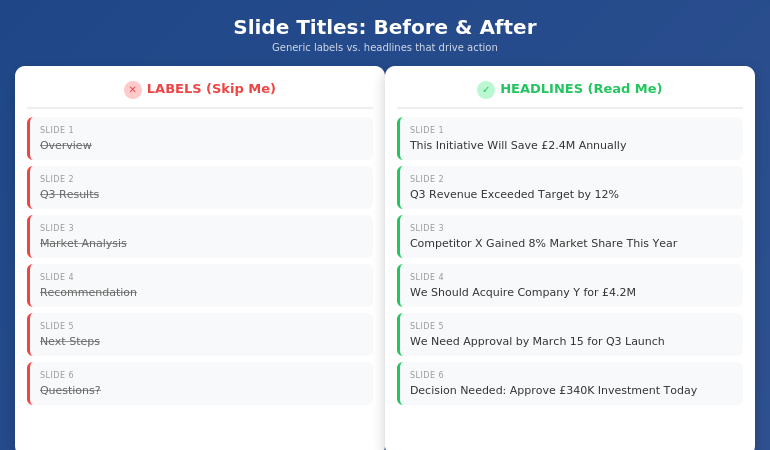
Before and after comparison showing generic slide title labels versus actionable headline titles

When I trained executives at UniCredit, I used to run an exercise. I’d show them a deck with all the body content removed—just the titles. Then I’d ask: “Can you understand the argument from titles alone?”

If the answer was no, the deck failed.

The best executive presentations tell a complete story through titles. You should be able to flip through the slides, read only the headlines, and understand exactly what the presenter is recommending and why. The body text, charts, and graphics are supporting evidence—not the main event.

This is why “Overview” is so damaging. It breaks the narrative. It’s a placeholder where a point should be. When an executive is scanning your deck (and they will scan), “Overview” tells them nothing. It’s a gap in your story.

And if you’re also struggling with how to stop rambling when you present, unclear slide titles are often the root cause—you haven’t clarified your point before you started speaking.

The Headline Formula That Works

The fix for generic slide titles is simple: write headlines, not labels.

A label describes what’s on the slide: “Q3 Results,” “Market Analysis,” “Team Structure.”

A headline delivers the insight: “Q3 Revenue Beat Target by 12%,” “Market Share Is Vulnerable in APAC,” “We Need Three Additional Engineers.”

Here’s the formula I teach:

Every slide title should be a complete sentence that a busy executive could read and understand without seeing the rest of the slide.

This forces you to do something most presenters avoid: commit to a point. When you write “Overview,” you’re not committing to anything. When you write “This Initiative Will Reduce Customer Churn by 23%,” you’ve made a claim. You’ve given the executive something to engage with, challenge, or approve.

The test: Read your slide title out loud. If it sounds like something you’d actually say in conversation—”We’re recommending Option B because it’s 40% cheaper”—it’s a good title. If it sounds like a filing cabinet label—”Recommendation”—rewrite it.

Some presenters worry this makes titles too long. But look at any newspaper. Headlines are complete thoughts, often 8-12 words. That’s not too long—that’s exactly right for conveying meaning at a glance.

Before and After: 10 Slide Title Transformations

Let me show you how this works in practice. I’ve taken 10 common generic titles and transformed them into headlines that actually work. For more examples, see my detailed guide on writing better slide titles with before and after examples.

1. Overview → This Proposal Will Save £2.4M Annually

The original says nothing. The revision states the entire value proposition. An executive knows immediately whether to keep reading.

2. Background → We’ve Lost 3 Key Accounts in 6 Months

Context slides often feel like wasted time. Make them urgent by leading with the problem.

3. Agenda → Three Decisions We Need Today

Agendas are almost always skipped. Tell them what’s at stake instead.

4. Q3 Results → Q3 Revenue Exceeded Target by 12%

Don’t make them hunt for the number. Put the headline in the headline.

5. Market Analysis → Competitor X Has Gained 8% Market Share This Year

Analysis is boring. Insight is interesting. Lead with the “so what.”

6. Recommendation → We Should Acquire Company Y for £4.2M

Don’t hide your recommendation behind a label. State it clearly so decision-makers can react.

7. Timeline → Full Implementation Takes 14 Months

Timeline slides usually show a Gantt chart nobody reads. Put the key number in the title.

8. Budget → This Requires £340K Investment Over 3 Years

Finance people scan for numbers. Make them impossible to miss.

9. Risks → The Main Risk Is Regulatory Delay (40% Probability)

Generic risk slides get ignored. Specific risk titles get discussed.

10. Next Steps → We Need Approval by March 15 to Hit Q3 Launch

Create urgency. Tell them exactly what you need and when you need it.

⭐ Transform Every Slide Title in Your Next Deck

The Executive Slide System gives you the headline formulas, templates, and before/after examples to make every slide command attention.

What’s included:

  • The complete headline formula for executive slides
  • 12 slide templates with pre-written title structures
  • Before/after transformations for every common slide type
  • The “title-first” workflow that saves hours

Get the Executive Slide System → £39

Built from 24 years creating executive presentations in corporate banking

The 7 Worst Slide Titles (And What to Write Instead)

Based on 24 years of reviewing executive presentations, these are the seven most common title mistakes—and how to fix each one.

1. “Overview”

The emptiest word in presentations. Replace with your core message: “This Investment Will Generate 3x ROI in 18 Months.”

2. “Summary”

At the end of a deck, executives know it’s a summary. Tell them what to remember instead: “Three Things to Approve Today.”

3. “Discussion”

This signals you don’t have a point. Replace with the question you actually want answered: “Should We Expand to Germany in Q2?”

4. “Update”

Updates are boring by definition. Lead with what changed: “Project Is Now 2 Weeks Behind Schedule.”

5. “Analysis”

Nobody wants analysis. They want insight. Write the insight: “Pricing Is Our Biggest Competitive Weakness.”

6. “Appendix”

If it’s worth including, it’s worth labeling properly: “Detailed Financial Model” or “Competitor Comparison Data.”

7. “Questions?”

The laziest closing slide. Replace with your call to action: “We Need Budget Approval by Friday” or “Next Step: Schedule Pilot with Team A.”

For a complete system on structuring your executive summary slide, including title formulas and placement strategies, see my detailed guide.

⭐ Never Write a Generic Slide Title Again

The Executive Slide System includes fill-in-the-blank headline templates for every executive slide type—from opening to recommendation to closing.

You’ll get:

  • Headline templates for 12 common executive slide types
  • The “assertion-evidence” structure used in consulting and boardrooms
  • Word-for-word title formulas you can copy and adapt
  • Examples from real executive presentations

Get the Executive Slide System → £39

Built from 24 years in corporate banking and executive presentation coaching

When to Break the Rules

Not every slide needs a sentence-headline title. Here are the exceptions:

Title slides: Your presentation title and your name. That’s it. Don’t add “Overview of Q3 Performance”—just write “Q3 Performance: On Track for Record Year.”

Section dividers: If you’re using divider slides to signal transitions in a long presentation, simple labels like “Phase 2: Implementation” work fine. But limit these to one or two in any deck.

Data-heavy slides: When showing a complex chart or table, sometimes a short label title works better than a long headline. But add a subtitle or callout that delivers the insight: “Revenue by Region” with a callout that says “APAC growth is masking European decline.”

Backup slides: Slides you don’t plan to present but include for Q&A can use simpler labels. But if you’re presenting a slide, it needs a headline.

The rule of thumb: if you’re going to say words while this slide is on screen, the title should do heavy lifting. If the slide is just a reference or transition, you have more flexibility.

What makes a good slide title for executives?

A good slide title for executives is a complete sentence that delivers the point of the slide without requiring them to read the body content. It should be specific, actionable, and impossible to swap into another presentation. Instead of “Market Analysis,” write “We’re Losing Market Share in Three Key Segments.” The test: can an executive understand your argument by reading only the slide titles? If yes, your titles are working.

How long should a slide title be?

Slide titles should be as long as necessary to convey the complete point—usually 8-15 words. Newspaper headlines routinely hit this length and remain scannable. “Q3 Revenue Exceeded Target by 12% Despite Supply Chain Disruption” is 10 words and delivers far more value than “Q3 Results.” Don’t sacrifice clarity for brevity. A specific 12-word title beats a vague 2-word label every time.

Should every slide have a different title format?

No—consistency helps executives scan faster. Use the same title structure throughout your deck: complete sentences that state the point. What should vary is the content and specificity, not the format. If your titles alternate between labels (“Overview”) and headlines (“Revenue Is Up 12%”), the deck feels disjointed. Pick headline-style titles and stick with them.

⭐ Make Every Slide Title Count

The Executive Slide System gives you everything you need to write slide titles that command attention and drive decisions.

Inside the system:

  • The headline formula for executive slides
  • 12 templates with pre-written title structures
  • Before/after examples for every slide type
  • The “title-first” method that cuts creation time in half

Get the Executive Slide System → £39

Instant download. Start using these formulas in your next presentation.

Frequently Asked Questions

What if my company has a template with short title fields?

Most corporate templates have title placeholders that look small, but they can hold more text than you think. Test it—you can usually fit 12-15 words before needing to reduce font size. If the template truly restricts you to 3-4 words, add a subtitle line below with the full headline. The point should be visible at the top of the slide, even if it takes two lines.

Won’t long titles make my slides look cluttered?

No—they make your slides look intentional. A specific headline like “We Recommend Investing £2.4M to Capture the APAC Market” fills the title space with meaning rather than leaving it occupied by a generic label. Clutter comes from too much body text, not from titles that actually say something. In fact, strong titles often let you reduce body content because the point is already clear.

How do I write good titles for data slides?

Lead with the insight, not the data type. Instead of “Revenue Chart” or “Q3 Financials,” write what the data shows: “Revenue Growth Accelerated in Q3” or “Margin Pressure Continues Despite Volume Gains.” The chart is evidence for the claim in your title. If you can’t summarize the data in a headline, you may be showing too much data on one slide.

Should I write titles first or last?

First. Write all your slide titles before you create any content. This forces you to clarify your argument upfront and ensures every slide has a clear purpose. It also makes the rest of the deck easier to build—once you know the point of each slide, the supporting content almost writes itself. The executive presentation template in my system uses this “title-first” workflow.

📧 The Winning Edge Newsletter

Weekly insights on executive presentations, slide design, and high-stakes communication. No fluff—just what works.

Subscribe Free →

📋 Free: Executive Presentation Checklist

The pre-presentation checklist I use before every high-stakes meeting. Includes a slide title audit section.

Download Free Checklist →

Your Next Step

Open your last presentation. Read only the slide titles. Ask yourself: could a busy executive understand my argument without reading anything else?

If the answer is no—if you see “Overview,” “Summary,” “Background,” or any other generic labels—you have work to do. Replace each label with a headline that states the point. Make every title a complete sentence that delivers value on its own.

The CFO who checked his phone during “Overview” would have paid attention to “This Initiative Will Save £2.4M Annually.” Same content. Different title. Completely different outcome.

Your slides are only as good as the attention they earn. And attention starts with the title.

Related: If unclear thinking is leading to rambling when you present, see how to stop rambling when nervous—the solution often starts with clearer slide structure.

24 Jan 2026
Professional woman evaluating her presentation slides and realizing what they signal about her competence to executives

What Your Slides Say About You (And It’s Not What You Think)

A CFO once told me why she rejected a £2 million budget request before the presenter finished slide three: “His slides told me everything I needed to know about his thinking. It was scattered.”

Quick answer: Executive slide design perception is how decision-makers read your competence, preparation, and thinking quality through your slides—before you speak a single word. Executives form judgments within 5 seconds of seeing your first slide. Cluttered slides signal cluttered thinking. Buried conclusions signal uncertainty. Wall-of-text slides signal you haven’t done the synthesis work.

In practice, the visual signals your slides send often matter more than the words on them. Executives aren’t reading your slides—they’re reading YOU through your slides.

When your slides send the right signals:

  • Executives lean in instead of checking email
  • Your recommendations get faster approvals
  • You’re seen as someone who “gets it”

Written by Mary Beth Hazeldine — executive presentation coach, 24 years corporate banking at JPMorgan Chase, PwC, RBS, and Commerzbank. I’ve sat in the room when slides killed careers and when they made them. Last updated: January 2026.

🚨 Presenting THIS WEEK? Check your slides for these 3 signals:

  1. Slide 1: Does your conclusion appear in the first 10 words? (If not, you’re burying the lead)
  2. Any slide: Can someone grasp the point in 3 seconds? (If not, it’s too cluttered)
  3. Titles: Do they make claims or just label topics? (“Revenue grew 23%” beats “Revenue Overview”)

Fix these three and you’ll send different signals immediately.

→ If your slide 1 doesn’t contain your decision ask, executives assume you don’t have one. Get the templates that fix this in 60 seconds →

📅 Have 7 days to transform your deck?

The slide signal system in this article takes one focused session to implement. Most professionals see the difference in how executives respond within their very next presentation.

I learned this lesson the hard way. Early in my banking career, I spent 40 hours building what I thought was a comprehensive deck. Fifty-seven slides. Every data point. Complete background on every issue.

The Managing Director stopped me on slide four.

“I can see you worked hard on this,” she said. “But I still don’t know what you want me to do.”

Forty hours of work. Four slides in. And my slides had already told her I didn’t understand what mattered. Not because of the content—but because of the signals the design sent about my thinking.

That moment changed how I approach every deck. And after 24 years of watching executives react to presentations, I now know exactly what signals matter—and which ones kill your credibility before you’ve finished your opening sentence.

What Executives Actually See (In the First 5 Seconds)

When an executive sees your slide, they’re not reading it. They’re scanning it for signals about YOU.

Research on cognitive load shows people form impressions within milliseconds of seeing a visual. Your audience has judged your slide—and by extension, your thinking—before you’ve finished your opening sentence.

Here’s what they’re actually processing:

Signal 1: Hierarchy (Do you know what matters?)

The first thing executives notice is whether there’s a clear visual hierarchy. Is there one dominant element? Or is everything competing for attention?

A slide with five equally-weighted bullet points tells the executive: “I couldn’t decide what was important, so I’m making you do it.”

A slide with one clear headline supported by three subordinate points tells them: “I’ve done the thinking. Here’s what matters.”

Signal 2: Density (Do you respect my time?)

Wall-of-text slides send an unmistakable message: “I haven’t distilled this enough to present it clearly, so I’m going to read to you.”

One senior partner at a consulting firm told me: “When I see a dense slide, I immediately wonder if the presenter understands the material well enough to simplify it. Usually they don’t.”

Signal 3: Structure (Can you think clearly?)

Executives are pattern-matchers. They’ve seen thousands of presentations. They immediately notice whether your deck follows a logical structure or feels random.

A deck that jumps from problem to solution to background to data to recommendation signals scattered thinking. A deck that flows—situation, complication, resolution—signals someone who can construct a coherent argument.

For more on title mistakes, see why “Overview” is the worst slide title.

Diagram showing what executives see in the first 5 seconds of viewing a slide: hierarchy, density, and structure signals

The Hidden Messages Your Slides Are Sending

Beyond the conscious signals, your slides send subconscious messages that executives process without even realising it.

“I’m not confident in my recommendation”

When you bury your conclusion on slide 15 instead of leading with it, executives interpret this as hedging. You’re building up to something because you’re not sure they’ll accept it.

A VP of product once told me: “When someone buries the ask, I assume they know it’s weak. If they believed in their recommendation, they’d lead with it.”

“I don’t understand my audience”

Technical details that belong in an appendix. Jargon that assumes expertise they don’t have. Context they already know being explained at length.

All of these signal the same thing: you haven’t thought about who’s in the room and what they need.

“I’m trying to impress rather than inform”

Over-designed slides with animations, complex charts, and visual flourishes often backfire. Executives see through them immediately.

A managing director at an investment bank put it bluntly: “Fancy slides usually mean the content is weak. The best presenters I know use the simplest slides.”

“I haven’t done the hard work”

It takes more effort to create a simple, clear slide than a complex one. As the saying goes: “If you can’t explain it simply, you don’t understand it well enough.”

Executives know this. When they see complex slides, they question whether you’ve done the synthesis work—or whether you’re just dumping information and hoping they’ll sort it out.

⭐ Slides That Signal “This Person Gets It”

The Executive Slide System gives you the exact structures that send the right signals—hierarchy, clarity, and confidence—from slide one.

What’s inside:

  • 12 executive-tested slide templates (board updates, budget requests, project proposals)
  • The “Headline Test” that ensures every title makes a claim
  • Before/after examples showing signal transformation

Get the Executive Slide System → £39

Built from 24 years in corporate banking + executive training work with senior stakeholders.

5 Slide Signals That Kill Your Credibility

These are the specific executive slide design perception mistakes that damage how you’re seen:

1. The “Agenda” Opening Slide

Starting with “Agenda” or “Overview” tells executives nothing. It’s a missed opportunity to signal that you understand what matters.

What it signals: “I’m going to walk you through this linearly because I haven’t identified what you actually need to know.”

The fix: Open with your conclusion or recommendation. “We should approve the £2M investment because it will generate £8M in returns within 18 months.”

2. The Wall of Bullets

Five or more bullet points of equal weight, each a complete sentence, filling the slide.

What it signals: “I couldn’t synthesise this information, so I’m presenting my notes instead of my thinking.”

The fix: One headline that makes a claim. Three supporting points maximum. If you need more, you need more slides.

3. The Chart Without a Story

A complex chart with no annotation, no highlight, no indication of what the viewer should notice.

What it signals: “I’m showing you data but I haven’t interpreted it. You figure out what it means.”

The fix: Every chart needs a headline that states the insight. “Revenue grew 23% despite market contraction” not “Revenue Chart Q3.”

4. The “Let Me Give You Context” Deck

Slides 1-10 are background. The recommendation doesn’t appear until slide 15.

What it signals: “I’m afraid you’ll reject my recommendation, so I’m delaying it as long as possible.”

The fix: Recommendation on slide 1. Context only when asked for or as appendix.

5. The Design-Over-Substance Slide

Beautiful gradients, custom icons, animations—but the content is thin or unclear.

What it signals: “I spent time on how this looks because I didn’t have confidence in what it says.”

The fix: Simple, clean, content-focused. Let the message carry the weight.

For more on executive summary best practices, see how to write the only slide that matters.

Want slide templates that send the right signals? The Executive Slide System (£39) includes 12 proven structures used by executives at top firms.

5 Slide Signals That Build Authority

These are the signals that make executives think “this person knows what they’re doing”:

1. Conclusion-First Structure

Your recommendation or key message appears in the first 10 seconds. No buildup. No suspense.

What it signals: “I’m confident in my position. I’ve done the analysis. Here’s what we should do.”

2. Headline-Driven Slides

Every slide title makes a claim, not a label. “Market share increased 15%” not “Market Share Update.”

What it signals: “I’ve interpreted the data. I’m not making you do my job.”

3. Strategic White Space

Slides that breathe. One idea per slide. Room for the eye to rest.

What it signals: “I’ve distilled this to what matters. I respect your cognitive load.”

4. Annotated Visuals

Charts with callouts. Diagrams with explanatory text. Visual elements that guide rather than overwhelm.

What it signals: “I’ve thought about what you need to see and made it easy to find.”

5. The “So What?” Test

Every slide answers “so what?” explicitly. No slide exists just to show information—each one drives toward the conclusion.

What it signals: “Everything here has a purpose. I’m not wasting your time.”

Comparison of credibility-killing slide signals versus authority-building slide signals that executives notice

⭐ If Your Slides Aren’t Getting the Response You Want

It’s probably not your content—it’s the signals your slides are sending. The Executive Slide System rewires how your deck communicates before you even speak.

You’ll get:

  • The “Signal Audit” checklist (run before every important presentation)
  • 12 slide templates that pass the executive perception test
  • Real before/after transformations from actual client decks

Get the Executive Slide System → £39

The same structures I used for 24 years in banking—now available as templates.

Before and After: Real Slide Transformations

Here’s what changing your slide signals looks like in practice:

Transformation 1: The Opening Slide

Before: “Q3 Performance Review — Agenda: 1. Background, 2. Market Overview, 3. Results, 4. Challenges, 5. Next Steps”

What it signalled: “Buckle up for a linear data dump. I’ll get to the point eventually.”

After: “Recommendation: Approve £500K additional investment in Product X. Q3 results exceeded targets by 23%, validating our strategy.”

What it signals now: “I know what you need to decide. Here it is.”

Transformation 2: The Data Slide

Before: Title: “Revenue Data” — Complex chart with 8 data series, no annotations, legend in small text.

What it signalled: “Here’s all the data. Good luck finding the insight.”

After: Title: “Revenue grew 23% while competitors declined” — Same data, but one trend highlighted, callout pointing to key inflection, competitors greyed out.

What it signals now: “I’ve analysed this. Here’s what matters.”

Transformation 3: The Recommendation Slide

Before: Bullet list of 7 recommendations, all equal weight, no prioritisation.

What it signalled: “I generated a list but couldn’t prioritise it for you.”

After: One primary recommendation in large text. Three supporting actions in smaller text. Clear next step with owner and deadline.

What it signals now: “I know what matters most. I’ve made the decision easy for you.”

For proven executive presentation structures, see the 12-slide template that commands the room.

Ready to transform your slides? The Executive Slide System (£39) includes the exact before/after templates you can apply immediately.

Frequently Asked Questions

How quickly do executives form impressions from slides?

Research suggests visual impressions form within milliseconds—faster than conscious thought. By the time you’ve said your first sentence, they’ve already judged your slide. This is why executive slide design perception matters so much: the signals happen before your content has a chance to land.

Does slide design really matter more than content?

No—but poor slide design can prevent good content from being heard. If your slides signal scattered thinking, executives will be skeptical of your content regardless of its quality. The design IS the first impression of your content.

What’s the biggest slide mistake executives notice?

Burying the lead. When your conclusion or recommendation doesn’t appear until deep in the deck, executives interpret this as either lack of confidence or lack of synthesis. Lead with your point. Support it with evidence.

Should I use professional design templates?

Clean, simple templates are fine. Over-designed templates can actually hurt you—they signal that you’re compensating for weak content. The goal is invisible design: formatting that helps the content communicate, not formatting that draws attention to itself.

How do I know if my slides are sending the wrong signals?

Apply the “3-second test”: show someone your slide for 3 seconds, then hide it. Ask them what the main point was. If they can’t tell you, your hierarchy is wrong. If they mention something other than your main point, your emphasis is wrong. If they say “it was really busy,” your density is wrong.

Can I fix bad slide signals quickly before a presentation?

Yes. Focus on three things: (1) Move your conclusion to slide 1, (2) Make every title a claim instead of a label, (3) Remove any slide that doesn’t directly support your conclusion. This won’t make your deck perfect, but it will send dramatically better signals.

Why do executives care about slides if they’re listening to me?

Executives are overwhelmed with information. Slides act as a filter—a quick way to assess whether this presentation is worth their full attention. Clean, well-structured slides signal that you’ve done the hard work of synthesis. That earns their attention. Cluttered slides signal the opposite.

Is This Right For You?

✓ This is for you if:

  • You present to executives, boards, or senior stakeholders
  • You’ve noticed your slides aren’t getting the response you want
  • You want templates that signal competence immediately
  • You’re willing to restructure how you build decks

✗ This is NOT for you if:

  • You only present to internal teams (lower stakes)
  • You want design software training, not structure help
  • Your main issue is delivery, not deck construction
  • You’re not willing to change how you organise information

⭐ The MD Who Stopped Me on Slide Four Taught Me Everything

That 57-slide deck that died on slide four? I rebuilt it using the structures now in the Executive Slide System. Same content. Different signals. The same MD approved it two weeks later—and asked for the template.

What you’ll get:

  • 12 executive-tested slide templates
  • The Signal Audit checklist
  • Before/after transformation examples

Get the Executive Slide System → £39

Built from structures that work in global banking and consulting-style environments.

📧 Optional: Get weekly slide strategies in The Winning Edge newsletter (free).

Your Next Step

Your slides are sending signals whether you intend them to or not. The question is whether those signals build your credibility or undermine it.

Run the 3-second test on your next deck. Check whether your conclusion appears in the first 10 seconds. Make sure every title makes a claim instead of labelling a topic.

Those three changes alone will transform your executive slide design perception—how executives read you through your slides.

For the complete system with templates and checklists, get the Executive Slide System (£39).

P.S. If presentation anxiety is affecting your delivery regardless of how strong your slides are, see what to do if you have a panic attack before presenting.

About the Author

Mary Beth Hazeldine is the Owner & Managing Director of Winning Presentations. The MD story that opened this article is real—and that rejected deck became the foundation for how she now teaches slide structure.

With 24 years at JPMorgan Chase, PwC, Royal Bank of Scotland, and Commerzbank—where one presentation could change funding, strategy, or careers—she’s seen thousands of executive presentations. The patterns of what works became the Executive Slide System.

Book a discovery call | View services

19 Jan 2026
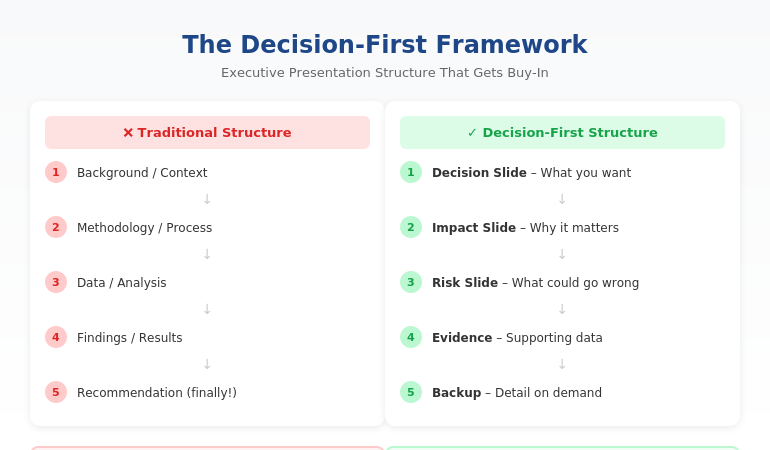
Executive presentation structure diagram showing the Decision-First Framework for C-suite buy-in

Executive Presentation Structure: The Format That Gets Instant Buy-In

Quick answer: The best executive presentation structure leads with the decision, not the data. Put your recommendation on slide one, follow with business impact and risk, then provide supporting detail only if asked. This “decision-first” structure matches how executives actually process information—and it’s why some presenters get instant buy-in while others get “let’s circle back.”

⚡ Presenting to executives in the next 48 hours? Here’s your structure:

Slide 1: Decision — what you want + expected outcome

Slide 2: Impact — why it matters (revenue, cost, risk)

Slide 3: Risk — what could go wrong + mitigation

Slides 4–6: Evidence — only data that supports your ask

Backup: Detail on demand (methodology, deep analysis)

The 11-Word Slide That Rescued a £4M Budget Request

The right executive presentation structure can change everything. I learned this watching a client named Sarah lose—then win—the same £4 million budget request.

The first time, Sarah presented 47 slides. Background, methodology, analysis, findings, recommendations. Textbook structure. The CFO flipped through seven slides, said “I don’t see what you’re asking for,” and moved to the next agenda item. Fourteen hours of preparation, dismissed in 60 seconds.

Six weeks later, Sarah presented again. Same request. Same CFO. But this time, her opening slide contained exactly 11 words: “Request: £4M to reduce customer churn by 23% within 18 months.”

The CFO leaned forward. “Now we’re talking. Walk me through the numbers.”

She got her budget approved in that meeting.

The data hadn’t changed. The structure had. After 24 years in corporate banking at JPMorgan Chase, PwC, and Commerzbank, I’ve seen this pattern hundreds of times. The executives who get buy-in aren’t better at analysis. They’re better at structure.

⭐ Maven Flagship — Executive Buy-In

Build the case your stakeholders can’t dismiss

The Executive Buy-In Presentation System is a self-paced framework — 7 modules walking you through the structure, psychology, and delivery that get senior approval. Monthly cohort enrolment, optional recorded Q&A calls.

£499, lifetime access.

Enrol in the Executive Buy-In System →

Why the Structure You Learned Is Wrong for Executives

Most professionals structure presentations the way they were taught: background → methodology → analysis → findings → recommendation. This is logical. It’s how you think through problems. And it’s exactly why executives stop listening by slide three.

Here’s the disconnect: you build presentations chronologically, but executives don’t consume them that way.

When a CFO opens your deck, they’re not thinking “I can’t wait to understand your methodology.” They’re thinking: “What do you need? Why should I care? Can I say yes and move on?”

If those questions aren’t answered immediately, you’ve lost them. Not because they’re impatient—because they’re triaging. A typical C-suite executive makes 35+ decisions per day. Every slide that doesn’t answer “so what?” gets mentally filed under “I’ll review later.” (They won’t.)

The executives who command attention flip the traditional structure entirely. They lead with the end. They put the decision first and the supporting detail last.

The Decision-First Structure Executives Actually Want

The most effective executive presentation structure follows what I call the Decision-First Framework. It’s the opposite of how most presentations are built—and that’s exactly why it works.

Traditional structure (what you learned):

Background → Process → Data → Analysis → Recommendation

Decision-first structure (what executives want):

Recommendation → Impact → Risk → Supporting Data (if needed)

This structure works because it matches how executives actually think. They don’t need to understand your journey to make a decision. They need to understand the decision itself, what happens if they say yes, and what could go wrong.

When you lead with your recommendation, something remarkable happens: executives engage differently. Instead of waiting to find out what you want, they’re immediately evaluating whether to approve it. You’ve shifted from “presenter explaining things” to “advisor proposing solutions.”

This is exactly how top-tier consulting firms structure client presentations. It’s how I structured every pitch at JPMorgan Chase. And it’s how my clients consistently get faster decisions than their peers.

Want the complete framework with templates for different scenarios? The Executive Slide System includes everything you need to restructure your next presentation. Get instant access →

The Exact Slide Order for Executive Presentations

Here’s the executive presentation structure I teach to banking professionals and FTSE 100 leaders. This works for budget requests, strategic recommendations, project updates, and board presentations:

Slide 1: The Decision Slide

State exactly what you’re asking for and the expected outcome. No background. No preamble. Example: “Recommendation: Approve £2.1M for CRM upgrade. Expected ROI: 340% over 3 years.”

Slide 2: The Impact Slide

Show what happens if they say yes. Revenue impact, cost savings, risk reduction—whatever matters most to this audience. Make the benefit concrete and quantified.

Slide 3: The Risk Slide

Address what could go wrong and how you’ll mitigate it. Executives always think about downside. If you don’t address it, they’ll ask—and you’ll look unprepared.

Slides 4-6: Supporting Evidence

Only include data that directly supports your recommendation. If a slide doesn’t help them say yes, cut it.

Backup Slides: Detail on Demand

Put methodology, detailed analysis, and additional data in backup. You’ll rarely need it—but when an executive asks, you look thorough, not disorganised.

This structure typically reduces a 30-slide presentation to 8-12 slides. More importantly, it reduces decision time from “let’s reconvene” to “approved.”


Decision slide, Impact slide, Risk slide, Supporting evidence, then Backup slides

⭐ Stop Building Slides That Get Ignored

Get the complete Decision-First Framework with plug-and-play templates for every executive scenario.

Includes:

  • The exact slide order for budget requests, board updates, and strategic recommendations
  • Action-title formulas that eliminate “Overview” and “Background” slides
  • Before/after transformations from real presentations

Transform Your Presentation Structure → £39

Instant download. Apply to your next presentation immediately.

How to Apply This Structure to Your Next Presentation

You don’t need to rebuild your entire deck. Start with these three changes:

1. Rewrite your first slide as a decision.

Take whatever’s on your current slide 1 and replace it with: “[Action verb]: [What you want] to [achieve outcome].” If your current first slide says “Q3 Project Update,” change it to “Recommendation: Extend Q3 timeline by 2 weeks to protect £400K deliverable.”

2. Move your recommendation forward.

Find wherever your current recommendation lives (usually slide 15 or later). Move it to slide 1. Yes, it feels uncomfortable. Do it anyway. The supporting detail still exists—it’s just in the right place now.

3. Apply the “so what?” test to every slide.

For each slide, ask: “Does this directly support my recommendation?” If the answer is no, move it to backup. Most presentations lose 30-40% of their slides this way—and become dramatically more effective.

This is exactly how successful CFO presentations are structured. The content isn’t simpler—it’s organised for how finance leaders actually make decisions.

Want a step-by-step system for restructuring your slides? The Executive Slide System walks you through the entire process with templates and real examples. See what’s included →

Related: Great structure is only half the equation. If nerves undermine your delivery, read How to Stop Saying “Um” (Without Sounding Robotic).

Common Questions About Executive Presentation Structure

What is the best structure for an executive presentation?

The best executive presentation structure leads with your recommendation, followed by business impact, risks, and supporting evidence. This “decision-first” approach matches how executives process information. They want to know what you’re asking for before they evaluate whether to approve it. Traditional structures that build to a conclusion waste executive attention.

How do you structure a presentation for senior leadership?

Structure presentations for senior leadership around decisions, not information. Open with your recommendation and expected outcome. Follow with the business case (why it matters), risk assessment (what could go wrong), and supporting data. Keep the main presentation to 8-12 slides and put additional detail in backup slides for reference.

How many slides should an executive presentation have?

Most effective executive presentations have 8-12 slides, plus backup. The goal isn’t a specific number—it’s ensuring every slide directly supports your recommendation. If a slide doesn’t help executives make a decision, it belongs in backup or should be cut entirely. Your executive summary slide alone should convey the core message.

⭐ Present Like Someone Who Understands Executives

Get the complete system for structuring presentations that get immediate buy-in—not polite nods and forgotten follow-ups.

What’s included:

  • The Decision-First Framework with exact slide order
  • 12 executive slide templates (budget, board, strategy, updates)
  • Before/after examples from real presentations
  • Action-title formulas that eliminate weak slide titles

Get Instant Access → £39

The same framework used in FTSE 100 boardrooms, investment banking pitches, and C-suite budget approvals.

FAQ

How long does it take to restructure my existing slides?

Most people can restructure a 20-slide presentation in 60-90 minutes once they understand the Decision-First Framework. The first time takes longest because you’re learning the approach. After that, you’ll naturally build presentations this way from the start—which actually saves time because you’re not second-guessing your structure.

What if my executive actually prefers detailed presentations?

Executives who “prefer detail” actually prefer having detail available when they want it. Lead with your recommendation and keep supporting detail in backup slides. When they ask for more information, you’ll look prepared. In my experience, once executives see a well-structured presentation, they rarely ask for the backup—but they appreciate knowing it exists.

Does this structure work for technical presentations?

Especially for technical presentations. Technical experts often bury their conclusions under methodology because that’s how they solve problems. But executives don’t need to understand your process—they need to understand your conclusion and its business implications. The Decision-First structure forces you to separate “what I did” from “what it means.”

Should I use the same structure for board meetings?

Yes, with one adjustment: boards have even less time and need even clearer decisions. For board presentations, I recommend putting your recommendation AND the expected vote on slide one. Example: “Recommendation: Approve acquisition of XYZ Corp for £12M. Board action requested: Approval vote.” This immediately frames the entire discussion.

📧 The Winning Edge Newsletter

Weekly insights on executive communication, presentation structure, and career-building skills. No fluff—just actionable frameworks from 24 years in corporate banking.

Subscribe Free →

Your Next Step

The right executive presentation structure isn’t about simplifying your message—it’s about sequencing it for how leaders actually make decisions. Lead with the decision. Follow with impact and risk. Put supporting detail where it belongs: available but not in the way.

Try this with your next presentation: write your recommendation as slide one before you create anything else. Build the rest of your deck to support that single slide. You’ll be surprised how much easier the whole process becomes—and how differently executives respond.

If you want the complete framework with templates, examples, and step-by-step guidance, get the Executive Slide System.

📋 Free Resource: Executive Presentation Checklist

Not ready for the full system? Start with this free checklist covering the 10 structural elements every executive presentation needs.

Download Free Checklist →

About the Author

Mary Beth Hazeldine is the Owner & Managing Director of Winning Presentations and a former corporate banker with 24 years of experience at JPMorgan Chase, PwC, Royal Bank of Scotland, and Commerzbank. She has trained over 5,000 executives on high-stakes presentation skills and helped clients secure more than £250 million in funding and budget approvals.

Mary Beth is also a qualified clinical hypnotherapist and NLP practitioner, specialising in helping professionals overcome presentation anxiety. After spending five years battling her own fear of presenting at JPMorgan, she developed the techniques she now teaches to executives worldwide.

Book a discovery call | View services

17 Jan 2026
Man in a dark blazer presents data on a large screen displaying charts in a modern office setting.

Town Hall Presentation Template for Leaders (Agenda + Narrative That Builds Trust Fast)

Quick Answer: A high-performing town hall presentation template is not “updates first.”
It’s certainty first. Use a 9-slide sequence: (1) Truth + tone (2) One-sentence narrative (3) Why it matters
(4) What’s changing (5) What stays the same (6) Town hall agenda (7) Priorities + timeline (8) What you need from people
(9) Close with certainty. This structure calms the room in the first 2 minutes and keeps Q&A from hijacking the message.

I once watched a CEO walk on stage for a company town hall with a beautifully designed deck… and lose the room in 90 seconds.

Not because she wasn’t credible. Not because people weren’t listening. But because she opened with updates instead of meaning.

The audience didn’t need more information. They needed reassurance. In a town hall, people arrive silently asking:

  • Are we safe?
  • Is leadership in control?
  • What happens next?

Here’s what I learned after 24 years in high-stakes banking environments (JPMorgan, PwC, RBS, Commerzbank): a town hall isn’t a presentation. It’s a trust event. This template is designed to build certainty first—then deliver the agenda.

⭐ Executive Slide System: Build a Town Hall Deck That Lands

If you’re searching for a town hall presentation template, you don’t want “ideas.” You want a deck you can build fast,
that sounds confident, looks executive, and keeps the room aligned—even when questions get tense.

What you get inside:

  • Executive slide layouts + headline patterns (copy/paste)
  • Town hall narrative-first structure (plus a 7-slide virtual version)
  • Decision, change, and priority templates that fit leadership comms
  • “What to remove” checklist (so you stop overloading slides)

This is for you if: you’re a leader, HR/Comms partner, programme owner, or manager who needs clarity—not clutter.


Get the Executive Slide System → £39

Instant download. Use it today. Built for executive-level clarity.

Why Most Town Hall Presentations Fail (Even With Good Content)

Most town halls fail because the sequence is wrong. Leaders start with updates, but people arrive with uncertainty.

When uncertainty is high, detail doesn’t land. People need:

  • Orientation: what’s happening overall?
  • Meaning: why are we doing this?
  • Stability: what stays the same?
  • Action: what do you need from me next?

Related: If you’re communicating change, you’ll also want this: Change Management Presentation Template.

Town Hall Presentation Agenda (What to Include + In What Order)

This is the agenda that works because it answers human questions before business questions.

Town hall agenda (best-practice order):

  1. Truth + narrative: what’s happening, why, and what’s next
  2. 3 updates: only what people need to know today
  3. Priorities + timeline: the next 30–90 days
  4. Support: what you’re doing to help teams execute
  5. Q&A format: how questions will be handled
  6. Close with certainty: repeat the plan and focus

Related: For tight “leader summary” slides, use this: Executive Summary Slides Template.

The 9-Slide Town Hall Presentation Template (Narrative-First)

This structure works for company-wide town halls, all-hands meetings, quarterly updates, and hybrid sessions.

9-slide town hall presentation template showing narrative-first agenda and leader messaging flow

Slide 1 — Truth + Tone

Goal: set emotional direction in one breath.

Slide 2 — One-Sentence Narrative

Template: “We’re doing X because Y, so that Z.”

Slide 3 — Why This Matters (So What)

Make it relevant to people, not the org chart.

Slide 4 — What’s Changing

Limit to 3 changes max.

Slide 5 — What Stays the Same

This is the stability anchor.

Slide 6 — Agenda

Now you earn attention for updates.

Slide 7 — Priorities + Timeline

Certainty beats detail.

Slide 8 — What We Need From You

Turn the town hall into action.

Slide 9 — Close With Certainty

Repeat the narrative and focus.

Want the slide headlines and layouts pre-built? Use Executive Slide System.

Agenda vs Narrative: The Order That Keeps People Calm

Most leaders put the agenda on Slide 2 because it feels logical. But logic isn’t the first need. Orientation is.

Agenda vs narrative order for town halls showing narrative first then agenda

Hybrid & Virtual Town Halls (The 4 Changes That Keep Attention)

  • Shorten the deck: 7 slides instead of 9
  • Tighten headlines: one message per slide
  • Pre-load Q&A: collect questions beforehand
  • Repeat the narrative twice: opening + close

Related: If your town hall has decision points, use this: Decision Slide Template.

Town Hall Q&A Scripts (Stay Honest Without Losing Control)

Use “truth + boundary + next step” to stay calm and credible.

Town hall Q&A boundary scripts that keep leaders calm and credible

⭐ Build Your Next Town Hall in 30 Minutes

Use the leadership-ready slide templates inside Executive Slide System.


Get the Executive Slide System → £39

Frequently Asked Questions

How many slides should a town hall presentation have?

9 slides is ideal in-person. For virtual, 6–7 slides keeps attention.

What should be included in a town hall presentation agenda?

Start with narrative, then 3 updates, then priorities + timeline, then support, then Q&A format, then close with certainty.

Should leaders share the town hall slides afterward?

Yes—share a PDF within 24 hours. Most people re-open Slide 2 and Slide 7.

⭐ Your Next Town Hall Can Be Calm, Clear, and Executive

You can rebuild a town hall from scratch… or use a system that already works for leadership communication.


Get the Executive Slide System → £39

📧 Want sharper leadership messaging every week?
Subscribe to The Winning Edge →
Not ready to buy yet? Start with the free Executive Presentation Checklist.Download the Executive Presentation Checklist →

Related Resources


About the author: Mary Beth Hazeldine leads Winning Presentations and has trained 5,000+ executives to communicate with clarity and confidence in high-stakes environments.

06 Jan 2026
Man in a navy blazer working on a laptop at a desk in a high-rise office, city skyline visible through large windows.

Copilot Executive Slides: Prompts That Actually Work

Quick Answer: Most Copilot executive slides fail because prompts are too vague. The fix: specify your audience (board, C-suite, investors), constrain the format (no clipart, 6 words max per bullet), and include brand requirements upfront. The five prompts in this article generate slides that look professionally designed—not AI-generated.

The £50,000 Copilot rollout produced a 12% adoption rate.

I saw this firsthand during a consulting engagement at a major bank. They’d invested heavily in Microsoft 365 Copilot licenses, expecting transformation. Six months later, most executives had abandoned it entirely. The reason? Every time they tried to create Copilot executive slides, they got the same generic output: clip art icons, bullet-heavy layouts, and that unmistakable “AI made this” aesthetic.

“It’s faster to just build slides myself,” one MD told me. “At least those don’t embarrass me in front of the board.”

The problem wasn’t Copilot. It was the prompts.

After testing hundreds of variations across executive presentations, I’ve identified the five prompts that consistently produce Copilot executive slides worth presenting. Here’s what actually works.

Why Most Copilot Executive Slides Prompts Fail

The default Copilot experience is designed for general users, not executives presenting to boards. When you prompt “Create a presentation about Q3 results,” Copilot makes assumptions that work for team meetings but fail spectacularly in boardrooms:

It adds clip art. Nothing says “I didn’t take this seriously” like cartoon icons on a slide requesting £2M in budget.

It uses generic templates. Board members have seen thousands of presentations. Generic layouts signal junior work.

It writes too much text. Copilot defaults to paragraph-style bullets. Executives want headlines, not essays.

It ignores visual hierarchy. Without explicit instructions, every element gets equal visual weight—making nothing stand out.

The solution isn’t abandoning Copilot. It’s constraining it properly.

Stop Guessing What to Type. Start Building in 25 Minutes.

The Executive Prompt Pack gives you 71 tested prompts for ChatGPT and Copilot — structured by scenario so you know exactly what to type:

  • Build from scratch — scenario prompts for board reviews, budget requests, and investor decks
  • Rescue and rewrite — audit an existing deck, condense it, or fix one slide at a time
  • Industry-specific prompts for financial services, banking, consulting, and executive audiences
  • Power modifiers that transform any prompt into board-ready output
  • The 25-minute deck workflow that replaces 3–4 hours of manual building

Works with ChatGPT, Microsoft Copilot, and Edit with Copilot (formerly Agent Mode). Updated March 2026.

Get the Executive Prompt Pack → £19.99

5 Copilot Executive Slides Prompts That Produce Board-Ready Results

Each prompt below has been tested across dozens of executive presentations. Copy them exactly, then adapt the specifics to your content.

Prompt 1: The Executive Summary Slide

“Create one executive summary slide for [TOPIC]. Use exactly 3 bullet points, maximum 8 words each. No icons or clip art. Include a headline that states the key recommendation, not the topic. Leave space for one data visualization placeholder on the right.”

This prompt works because it constrains every element executives care about: brevity, clarity, and visual simplicity.

Prompt 2: The Data Slide

“Create a slide presenting [SPECIFIC METRIC]. Use a single chart—bar, line, or pie based on what best shows the trend. Chart title should state the insight, not describe the data. Include exactly 3 annotation callouts highlighting key findings. No decorative elements.”

The key phrase is “chart title should state the insight.” This transforms “Q3 Revenue by Region” into “EMEA Growth Outpaced North America by 23%.”

Prompt 3: The Recommendation Slide

“Create a recommendation slide with this structure: Headline stating the recommendation as a decision (not a question). Three supporting points as single-line bullets. One risk/mitigation pair. Financial impact in bottom right. No clip art, icons, or decorative elements.”

This structure mirrors how McKinsey and top consulting firms format recommendation slides—because that’s what boards expect.

Prompt 4: The Brand-Compliant Slide

“Redesign this slide using these brand requirements: Primary color [HEX CODE], accent color [HEX CODE], [FONT NAME] font only. No gradients, shadows, or 3D effects. Maintain generous white space. Text should be minimum 18pt for body, 28pt for headlines.”

Without brand constraints, Copilot executive slides default to Microsoft’s built-in themes—which every other Copilot user is also producing.

Prompt 5: The Iteration Fix

“This slide has too much text. Reduce each bullet to maximum 6 words while preserving the core message. Remove any bullet that doesn’t directly support the headline. If information is important but doesn’t fit, note it for speaker notes instead.”

Most Copilot executive slides need iteration. This prompt gives Copilot specific, actionable constraints for the second pass.

Copilot executive slides prompt framework - 5 prompts for board-ready PowerPoint presentations

For 71 tested prompts covering every scenario — build from scratch, rescue an existing deck, or fix individual slides — the Executive Prompt Pack gives you exactly what to type, updated for the latest Copilot and ChatGPT capabilities.

The Iteration Workflow for Copilot Executive Slides

No single prompt produces perfect output. Expect 2-3 iterations minimum. Here’s the workflow:

Round 1: Generate initial slides with detailed constraints (Prompts 1-4 above).

Round 2: Review each slide and identify specific problems. Use targeted fix prompts like #5.

Round 3: Manual refinement. Copilot gets you 80% there; the final 20% requires human judgment—especially for sensitive board content.

For the complete Copilot workflow including advanced prompts and troubleshooting, see my full guide: PowerPoint Copilot Tutorial: Complete Guide to Prompts, Workflows & Updates.

71 Prompts. Every Scenario Covered.

Build from scratch, rescue an existing deck, or perfect individual slides — the Executive Prompt Pack covers every scenario. Works with ChatGPT, Copilot, and Edit with Copilot. Updated March 2026.

Get the Prompts → £19.99

FAQ: Copilot Executive Slides

Why do most Copilot executive slides look so generic?

Copilot defaults to templates designed for general audiences, not boardrooms. Without specific constraints—like “no clipart,” “maximum 6 words per bullet,” or “use data placeholders not lorem ipsum”—it produces slides that scream “AI-generated” to any senior executive.

Can Copilot match my company’s brand guidelines?

Yes, but only if you tell it explicitly. Include your brand colors as hex codes, specify fonts, and reference your corporate template. The prompt “Apply our brand: Navy #1F4788, Gold #D4AF37, Arial font, no gradients” produces dramatically better results than hoping Copilot guesses correctly.

How many slides should I ask Copilot to generate at once?

Never more than 5-7 slides per prompt. When you ask for 20+ slides, quality drops significantly. Generate in batches, review each batch, then prompt for the next section with specific feedback on what to adjust.

📧 Join 2,000+ professionals getting weekly presentation insights. Subscribe to The Winning Edge →

📋 Free Download: 10 Essential Copilot Prompts

Get my 10 most-used Copilot prompts for executive presentations—tested across hundreds of board decks and investor pitches.

Get Your Free Prompts →

Updated 27 March 2026 — Revised for the latest Microsoft Copilot and ChatGPT capabilities.


About the Author

Mary Beth Hazeldine spent 24 years at JPMorgan, PwC, RBS, and Commerzbank. She’s a clinical hypnotherapist and MD of Winning Presentations.

This article was created with AI assistance; all stories and insights are based on 35 years of real client work.

13 Dec 2025
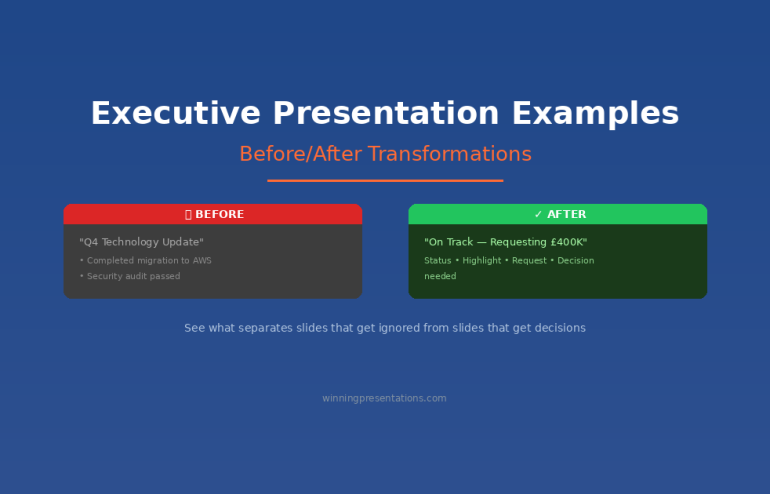
Executive presentation examples - before and after transformations that get decisions

Executive Presentation Examples: Before/After Transformations

📅 Updated: December 2025 | Real examples from client work

Executive presentation examples - before and after transformations that get decisions

Need a Faster Way to Build Executive Slides?

Most executives spend hours on slides that still miss the mark. The Executive Slide System gives you a structured framework for building slides that land with senior audiences — without starting from scratch every time.

Explore the System →

Quick Answer

The best executive presentation examples share three traits: they lead with the recommendation, quantify everything, and make the decision obvious. Below are five real before/after transformations showing how small changes to structure, titles, and content turn forgettable slides into decision-driving presentations.

🎁 FREE DOWNLOAD

Executive Presentation Checklist

12-point checklist to transform your slides before your next executive meeting.

Download Free Checklist →

No spam. Unsubscribe anytime.


I’ve reviewed thousands of executive presentations over more than 16 years of coaching. The difference between slides that get ignored and slides that get decisions usually comes down to a handful of fixable mistakes.

A Head of Product at a fintech company came to me last month with a “failed” board presentation. She’d requested £2M for a platform rebuild. The board said “not now.”

I looked at her deck. The content was solid. The analysis was thorough. But the structure was backwards — she’d buried her ask on slide 14 of 18.

We restructured it in an afternoon. Same content. Different order. She re-presented two weeks later and got full approval.

Here are five transformations that show what actually changes.

Building an executive presentation this week?

The Executive Slide System gives you 10 slide templates with these transformations already applied — decision-first titles, executive summaries that fit on one slide, and AI prompts to populate them in minutes.

Example 1: The Executive Summary Slide

❌ Before: Information Dump

Title: “Q4 Technology Update”

Content:

  • Completed migration to AWS (3 months ahead of schedule)
  • Security audit passed with zero critical findings
  • New CRM integration live across 4 regions
  • Mobile app downloads up 34% QoQ
  • Technical debt reduced by 40%
  • Team expanded to 47 FTEs
  • Budget tracking 3% under forecast

Problem: No recommendation. No ask. No clear “so what?” The executive has to work to figure out what matters.

✅ After: Decision-Ready

Title: “Q4 Technology: On Track — Requesting £400K for Q1 Security Enhancement”

Content:

  • Status: All major initiatives on track, 3% under budget
  • Highlight: AWS migration complete 3 months early, saving £180K annually
  • Request: £400K Q1 investment in security automation (ROI: 200% over 2 years)
  • Decision needed: Approve budget allocation by January 15

Why it works: The title tells you everything. Status, headline win, and the ask — all visible in 10 seconds.

Related: The Executive Summary Slide: How to Write the Only Slide That Matters

Built for High-Stakes Presentations

Move Beyond Examples — Build Your Own Executive Deck

The Executive Slide System (£39, instant access): 17 field-tested structures for executive presentations — board updates, budget requests, strategic recommendations. Each template comes with the exact narrative flow that keeps senior audiences engaged.

Designed for executives who need slides that work in high-stakes boardrooms, not just look good.

Get the Executive Slide System →

Before and after executive slide title transformation - from Q4 Technology Update to decision-ready title with specific ask

Example 2: The Budget Request

❌ Before: Buried Ask

Slide 1: “Marketing Technology Assessment”

Slides 2-8: Current state analysis, market research, competitor benchmarking

Slide 9: Vendor evaluation matrix

Slide 10: Implementation considerations

Slide 11: “Recommendation: Invest £350K in marketing automation platform”

Problem: The CFO stopped listening at slide 4. By the time you reached your ask, the room had mentally moved on.

✅ After: Ask First

Slide 1: “Requesting £350K for Marketing Automation — 280% ROI in 18 Months”

  • The ask: £350K one-time + £40K annual
  • The return: £980K revenue impact by Q4 2026
  • The risk: Vendor lock-in mitigated by 90-day exit clause
  • Decision needed today: Approve for Q1 implementation

Slides 2-4: Supporting evidence (for those who want it)

Appendix: Full analysis, vendor comparison, implementation plan

Why it works: Executives can say yes at slide 1. Everything else is backup.

Related: Budget Presentation Template: How to Get Your Budget Approved First Time

📄
Transform Your Next Presentation

Get the 12-point checklist to audit your slides before any executive meeting.

Download Free →

Example 3: The Slide Title

This is the single highest-impact change you can make. Most presenters use slide titles as labels. Executives want slide titles as headlines.

❌ Before: Label Titles

  • “Q3 Sales Results”
  • “Customer Satisfaction Data”
  • “Competitive Analysis”
  • “Risk Assessment”
  • “Next Steps”

✅ After: Headline Titles

  • “Q3 Sales Beat Target by 12% — Driven by Enterprise Segment”
  • “NPS Up 18 Points: Product Changes Working”
  • “We’re Losing on Price but Winning on Support”
  • “Three Risks to Monitor — All Have Mitigation Plans”
  • “Approve £200K Today to Capture Q4 Opportunity”

The test: Could an executive skip your presentation, read only the titles, and understand your message? If yes, you’ve done it right.

Related: Stop Writing Slide Titles Like This (Before and After Examples)

Example 4: The Risk Slide

❌ Before: Risk Register Dump

A 30-row table with columns for risk ID, category, description, likelihood, impact, owner, status, mitigation, and last updated. Unreadable. Ignored.

✅ After: Top 3 That Matter

Title: “Three Risks to Watch — All Have Mitigation Plans”

Risk Impact Mitigation
Vendor delivery slips 6-week delay Backup vendor on standby; penalty clause in contract
Key hire doesn’t close 3-month delay Two backup candidates in final stage
Regulatory change Scope increase Monitoring weekly; 15% contingency in budget

Why it works: Executives don’t want to see every risk. They want to know you’ve thought about what matters and have a plan.

Related: How to Present to a CFO: The Finance-First Framework

Example 5: The Recommendation Slide

❌ Before: Vague Direction

Title: “Recommendation”

Content: “We recommend investing in customer experience improvements to drive retention and growth.”

Problem: What investment? How much? What improvements? When? This isn’t a recommendation — it’s a direction.

✅ After: Specific and Actionable

Title: “Recommendation: Approve £180K for CX Platform by December 15”

Content:

  • Investment: £180K (£120K platform + £60K implementation)
  • Timeline: Go-live March 2026
  • Expected return: 8% improvement in retention = £420K annual revenue
  • Alternative: Do nothing — continue losing 2.3% customers monthly to competitors
  • Your decision: Approve budget allocation today

Why it works: Specific. Quantified. Clear consequence of inaction. Easy to say yes.

Related: Executive Presentation Template: 12 Slides That Command the Room

The Pattern Across All Examples

Every transformation follows the same principles:

  1. Lead with the conclusion — Put your recommendation in the title, not the body
  2. Quantify everything — “Significant improvement” means nothing; “12% increase” means something
  3. Make the decision obvious — Tell them exactly what you need and when
  4. Respect their time — If it can be in the appendix, put it in the appendix

Want Ready-to-Use Templates?

These examples show the principles. But building slides from scratch takes time.

The Executive Slide System gives you pre-built templates with these transformations already applied — so you can focus on your content, not your structure.

⭐ RECOMMENDED

If you present to senior leadership regularly, the Executive Slide System gives you a structured framework for building slides that land — without starting from scratch each time.

The Executive Slide System (£39)

Executive Slide System — £39, instant access.
10 ready-to-use templates with the structure that gets decisions — plus before/after examples for every slide type.

  • 10 executive templates — Board, budget, strategy, project update, and more
  • Before/after examples — See exactly how to transform each slide
  • 30 AI prompts — Customise templates in minutes with Copilot
  • Headline title formulas — Never write a weak title again

Get the Executive Slide System →

Instant download. Use for unlimited presentations.

Start With the Free Checklist

12 questions to audit any executive presentation. Print it before your next meeting.

Download Free Checklist →

The before examples in this article aren’t unusual — they’re the default for most executive decks.

The Executive Slide System gives you the “after” versions as ready-made templates — so your next presentation starts from the right structure, not a blank slide.

Executive Slide System — £39, instant access.

Designed for executives who present where decisions are made.

Structure That Commands Attention

From Example to Action in 30 Minutes

The Executive Slide System (£39) gives you the structure behind the best executive presentations — not just examples to admire, but frameworks you can apply to your next deck immediately.

Get the Executive Slide System →

Frequently Asked Questions

How long should an executive presentation be?

12 slides maximum for a major decision. 6 slides for an update. Put everything else in the appendix — most executives won’t look at it, but it shows you’ve done the work.

Should every slide have a headline title?

Yes. If you can’t summarise the slide’s message in the title, the slide probably doesn’t have a clear message. Fix the thinking, then fix the title.

What if my executive prefers detailed slides?

Ask them. Some executives genuinely want more detail. But most who say this actually want confidence that detail exists — which the appendix provides. Test with your specific audience.

📧
The Winning Edge Newsletter

Weekly before/after examples and executive presentation tips. No fluff.

Subscribe Free →

Related Resources

About the Author

Mary Beth Hazeldine has trained executives on high-stakes presentations for more than 16 years. These examples come from real client transformations across banking, biotech, SaaS, and consulting. She teaches at Winning Presentations.

13 Dec 2025
Executive presentation template - 12 slides that command the room

Executive Presentation Template: 12 Slides That Command the Room

📅 Updated: January 2026 | Based on 25 years presenting to C-suite leaders

Quick Answer

The best executive presentation template follows a 12-slide structure: Executive Summary, Situation Overview, Problem/Opportunity, Recommendation, Strategic Options, Implementation Plan, Resource Requirements, Risk Assessment, Timeline, Success Metrics, Governance, and Call to Action. Lead with your conclusion. Executives decide in the first 2 minutes — give them what they need upfront.

The first time I presented to JPMorgan’s Executive Committee, I made a classic mistake.

I built a 35-slide deck. Started with background context. Walked through the analysis methodically. Saved my recommendation for slide 28.

The Managing Director interrupted at slide 4: “What do you want us to do?”

I fumbled forward to my recommendation, completely thrown off. The meeting ended with “send us a summary” — the polite executive way of saying no.

That experience taught me something that changed every presentation I’ve given since: executives don’t want information. They want decisions.

After 25 years presenting to C-suite leaders at JPMorgan, PwC, RBS, and Commerzbank — and training executives on their own presentations — I’ve developed a 12-slide structure that works every time.

Why Most Executive Presentations Fail

Before I share the template, you need to understand why the typical approach doesn’t work.

Mistake #1: Building up to the conclusion

Academic training teaches us to present evidence, then reach a conclusion. Executive presentations are the opposite. Lead with your recommendation. Then provide supporting evidence for those who want it.

Mistake #2: Including everything

Your 40-slide deck shows how much work you’ve done. Executives don’t care about your effort. They care about the decision in front of them. The appendix exists for a reason — use it.

Mistake #3: Presenting information instead of decisions

“Here’s an update on Project X” is information. “Project X requires £200K additional funding to hit the Q2 deadline — I recommend we approve it” is a decision. Executives want the second one.

Related: The 3-Slide System That Gets Executive Decisions Fast

12-slide executive presentation structure from executive summary to call to action

Board presentation in two weeks — and slide one is still the title slide?

Executive Slide System has 16 Executive Templates including Executive Summary, Strategic Recommendation, and Board Meeting Opener — the exact slides this article teaches. £39, instant download, 30-day refund.

Get the Slide System →

The 12-Slide Executive Presentation Template

This structure works for board updates, strategic recommendations, budget requests, and major initiative proposals. Adjust the emphasis based on your specific context, but the flow remains consistent.

Slide 1: Executive Summary

Purpose: Give them everything they need in 60 seconds.

This single slide should answer: What’s the situation? What do you recommend? What do you need from them?

If an executive could only see one slide, this is it. Many will make their decision here and use the rest of your presentation to confirm it.

Include:

  • One-sentence situation statement
  • Your recommendation (specific and actionable)
  • Key supporting points (3 maximum)
  • What you need from them (decision, resources, approval)

Related: The Executive Summary Slide: How to Write the Only Slide That Matters

Slide 2: Situation Overview

Purpose: Establish shared understanding of current state.

Keep this factual and brief. You’re not building a case yet — you’re ensuring everyone starts from the same place.

Include:

  • Current state (quantified where possible)
  • Key context executives need
  • What triggered this presentation

Slide 3: Problem or Opportunity

Purpose: Make the case for action.

This is where you create urgency. Quantify the cost of the problem or the value of the opportunity. Make inaction feel expensive.

Include:

  • The problem/opportunity clearly stated
  • Financial impact (cost of inaction or value of action)
  • Why now — what happens if we wait?

Slide 4: Recommendation

Purpose: State exactly what you want them to do.

Be specific. “Approve £1.2M investment in customer platform upgrade with a go-live target of September 2026” is a recommendation. “Consider investing in technology improvements” is not.

Include:

  • Your specific recommendation
  • Why this approach over alternatives
  • Expected outcome if approved

From blank slide to board-ready in under 30 minutes

26 templates, 93 AI prompts, 16 scenario playbooks. £39, instant access, lifetime use.

Get the System →

Slide 5: Strategic Options

Purpose: Show you’ve considered alternatives.

Present 2-3 options including your recommendation. This demonstrates rigorous thinking and gives executives a sense of control. Make your recommended option clearly the best choice.

Include:

  • Option A (your recommendation) — with pros/cons
  • Option B (viable alternative) — with pros/cons
  • Option C (do nothing) — with consequences

Slide 6: Implementation Plan

Purpose: Prove you can execute.

Executives approve ideas they believe will actually happen. Show you’ve thought through how to make this real.

Include:

  • Key phases or workstreams
  • Major milestones
  • Who owns what
  • Dependencies and assumptions

Slide 7: Resource Requirements

Purpose: Be transparent about what you need.

This is where trust is built or broken. Understate requirements and you’ll lose credibility when reality hits. Overstate and you won’t get approval.

Include:

  • Financial investment (broken down by category)
  • People required (FTEs, contractors, skills)
  • Technology or infrastructure needs
  • Timeline for each investment

Related: Budget Presentation Template: How to Get Your Budget Approved First Time

Slide 8: Risk Assessment

Purpose: Show you’ve thought about what could go wrong.

This is where most presenters lose executives — by either ignoring risks or drowning them in a 50-row risk register.

At RBS, I watched a colleague present a £5M initiative with a single line: “Risks are manageable.” The CFO’s response: “Name three.” He couldn’t. Proposal rejected.

The next week, I presented a similar-sized initiative. I led with our top three risks and the mitigation plan for each. Same CFO said: “You’ve clearly thought this through. Let’s discuss the timeline.”

Include:

  • Top 3-5 risks (no more)
  • Likelihood and impact for each
  • Mitigation strategy
  • Kill switch — what would make you stop?

Related: How to Present to a CFO: The Finance-First Framework

Slide 9: Timeline

Purpose: Make progress visible and measurable.

Executives want to know when they’ll see results and how they’ll track progress. Give them clear milestones.

Include:

  • Key milestones with dates
  • Decision points and checkpoints
  • Quick wins (what will we see in 90 days?)
  • Full completion date

Slide 10: Success Metrics

Purpose: Define what winning looks like.

If you can’t measure it, executives can’t evaluate it. Be specific about how you’ll know this worked.

Include:

  • Primary KPIs (3 maximum)
  • Baseline and target for each
  • How and when you’ll measure
  • Leading indicators (early signs of success/failure)

Slide 11: Governance

Purpose: Show how you’ll stay accountable.

Who’s responsible? How will progress be reported? What authority does the team have? Executives want to approve and move on — show them they can trust the process.

Include:

  • Executive sponsor and project lead
  • Steering committee (if applicable)
  • Reporting cadence and format
  • Escalation process

Slide 12: Call to Action

Purpose: Make the decision easy.

Don’t end with “any questions?” End with exactly what you need them to do, right now.

Include:

  • Specific decision requested
  • What happens after approval
  • Next steps with owners and dates
  • Your contact for follow-up

The Presentation That Changed Everything

Six months after my JPMorgan disaster, I used this structure for a £4M technology investment proposal.

Same Executive Committee. Same intimidating room. Different approach.

I opened with my executive summary: “I’m requesting £4M to modernise our client onboarding platform. Return is strong. Main risk is vendor delivery — we’ve built in a kill switch at Phase 1 completion. I need your approval today to hit our Q3 deadline.”

The Managing Director who’d shut me down six months earlier nodded and said: “Walk us through the risks.”

Forty-five minutes later, I had full approval. Not because I was a better speaker. Because I’d given them what they needed in the format they expected.

The structure works. Trust it.

Before and after executive presentation comparison - from information dump to decision-ready structure

Adapting the Template for Different Contexts

The 12-slide structure is a framework, not a straitjacket. Here’s how to adjust for common scenarios:

Board presentations: Emphasise governance, risk, and strategic alignment. Boards think in quarters and years, not weeks. See: Board Presentation Template

Budget requests: Lead with ROI and resource requirements. CFOs want numbers upfront. See: Budget Presentation Template

Project updates: Simplify to 6 slides — summary, progress, risks, decisions needed, next steps, appendix. See: Project Status Updates That Don’t Waste Everyone’s Time

QBR presentations: Focus on metrics, insights, and forward-looking actions. See: QBR Presentation Template

Using AI to Build Your Executive Presentation

Tools like PowerPoint Copilot can accelerate your executive presentations — if you use them strategically.

What AI does well:

  • Generating first-draft structure from your notes
  • Creating consistent formatting across slides
  • Transforming bullet points into visual layouts

What AI can’t do:

  • Know your audience’s politics and priorities
  • Determine the right recommendation for your context
  • Anticipate the questions your specific executives will ask

Use AI for speed. Use your judgment for substance.

Related: Best Copilot PowerPoint Prompts That Actually Work

Why a Template Isn’t Enough

This structure will get you 80% of the way. But structure alone doesn’t command a room.

The executives who consistently get approvals have more than a good template. They have:

  • Pre-meeting relationships — They’ve socialised the recommendation before the meeting
  • Confident delivery — They present without reading slides
  • Q&A mastery — They handle tough questions without getting defensive
  • Executive presence — They project credibility before they say a word

The template is the foundation. The skills are what make it work.

Walk into the boardroom with a deck built on proven structure

Executive Slide System — 26 templates plus the Pyramid Principle, SCQA, and AVP frameworks built in. Designed for senior audiences who want the recommendation first, not the journey. £39.

Explore the System →

Frequently Asked Questions

How long should an executive presentation be?

12 slides for a major decision. 6 slides for an update. Rule of thumb: 2 minutes per slide maximum. If your meeting is 30 minutes, prepare 12 slides and expect to only get through 8 — the rest is Q&A.

Should I send the presentation before the meeting?

Yes — 24-48 hours in advance if possible. This gives executives time to form questions and means less time presenting, more time discussing. Pre-read culture is standard at most global organisations.

How do I handle pushback on my recommendation?

Don’t get defensive. Acknowledge the concern, ask a clarifying question, then address it directly. “That’s a fair point. Can you help me understand what specifically concerns you about the timeline? … I see. Here’s how we’ve built in contingency for that.”

What if I have more than 12 slides of content?

Put it in the appendix. The core 12 slides are your presentation. Everything else is backup for questions. Most executive meetings never get to the appendix — and that’s fine.

How do I present virtually vs. in-person?

Virtual requires tighter structure and more visual slides — executives are more likely to multitask. Keep slides less text-heavy, use more visuals, and check in more frequently: “Any questions before I move to risks?”

Ready for the deeper buy-in framework?

The Executive Buy-In Presentation System

A self-paced programme on Maven covering the structure, psychology, and stakeholder analysis behind senior approvals. 7 modules with optional recorded Q&A sessions — no deadlines, no mandatory attendance. £499, lifetime access to materials.

Explore the programme →

📧 The Winning Edge Newsletter

Weekly insights on executive presentations, AI-enhanced workflows, and what’s actually working in boardrooms right now.

Subscribe Free →

Related Resources

🎁 Free: Executive Presentation Checklist

The 12-point checklist I use before every executive presentation. One page. Covers structure, timing, and the mistakes that get decks rejected.

Download Free Checklist →

No email required. Instant download.

About the Author

Mary Beth Hazeldine is Owner & Managing Director of Winning Presentations. With 25 years in corporate banking at JPMorgan Chase, PwC, Royal Bank of Scotland, and Commerzbank, she advises senior professionals across financial services, consulting, and technology on structuring presentations for board approval and high-stakes funding decisions.

11 Dec 2025
Budget request slides - the CFO-approved 6-slide format that gets yes

Budget Request Slides: The CFO-Approved Format That Gets Yes [2026]

📅 Updated: December 2025 — Includes AI prompts to build your slides in 20 minutes

Updated 27 March 2026 — Revised for the latest Microsoft Copilot and ChatGPT capabilities.

Quick Answer: What Should Budget Request Slides Include?

Effective budget request slides follow a 6-slide format: (1) The Ask — your specific request and expected ROI upfront, (2) The Problem — cost of inaction, (3) The Solution, (4) ROI calculation with visible assumptions, (5) Implementation timeline, (6) Risk mitigation. The key is leading with your number, not burying it after 20 slides of background research.

⭐ GET BUDGET REQUEST TEMPLATES

Executive Slide System

Pre-built budget slides + ROI calculator + AI prompts to customise

Download Templates — £39

Includes budget, board, QBR, and strategy templates


Stop Guessing What to Type. Start Building in 25 Minutes.

The Executive Prompt Pack gives you 71 tested prompts for ChatGPT and Copilot — structured by scenario so you know exactly what to type:

  • Build from scratch — scenario prompts for board reviews, budget requests, and investor decks
  • Rescue and rewrite — audit an existing deck, condense it, or fix one slide at a time
  • Industry-specific prompts for financial services, banking, consulting, and executive audiences
  • Power modifiers that transform any prompt into board-ready output
  • The 25-minute deck workflow that replaces 3–4 hours of manual building

Works with ChatGPT, Microsoft Copilot, and Edit with Copilot (formerly Agent Mode). Updated March 2026.

Get the Executive Prompt Pack → £19.99

Why Most Budget Slides Get Rejected

I’ve reviewed hundreds of budget presentations. The pattern is always the same: 20 slides of research, analysis, and justification — then finally, buried on slide 18, the actual request.

By then, the CFO has mentally checked out.

Here’s what CFOs are actually thinking during your presentation: “What do you want, how much, and why should I prioritise this over everything else competing for budget?”

If you don’t answer that in the first 30 seconds, you’re fighting uphill.

Related: Budget Presentation Template: Complete Guide

The 6-Slide Budget Format That Works

This format has helped my clients secure over £250 million in funding. It works because it mirrors how CFOs actually evaluate requests.

Budget request slides - the CFO-approved 6-slide format that gets yes

Slide 1: The Ask

State your request in the first 30 seconds. Example: “Requesting £400K for marketing automation. Expected return: £1.2M in 12 months. 3x ROI. Decision needed by January 15.”

Slide 2: The Problem

Quantify the cost of doing nothing. CFOs respond to loss more than gain. What is the current situation costing in money, time, or missed opportunity?

Slide 3: The Solution

What you’re proposing and why this option versus alternatives. Keep it tight — you’re not selling the product, you’re selling the outcome.

Slide 4: The ROI

This is the slide CFOs actually care about. Show investment, expected return, payback period, and — critically — your assumptions. CFOs don’t trust black-box numbers.

Slide 5: The Timeline

Key milestones with dates. Include a checkpoint where you’ll evaluate results. This reduces perceived risk.

Slide 6: The Risk

Address what could go wrong before they ask. Show your mitigation plan. CFOs trust presenters who acknowledge uncertainty.

📧
Get Weekly Presentation Tips

Join executives getting my best frameworks and AI prompts every Thursday.

Subscribe to The Winning Edge →

For 71 tested prompts covering every scenario — build from scratch, rescue an existing deck, or fix individual slides — the Executive Prompt Pack gives you exactly what to type, updated for the latest Copilot and ChatGPT capabilities.

The ROI Slide: Get This Right

Your ROI slide should be scannable in 5 seconds. Use this format:

Metric Amount
Total Investment £400,000
Expected Return (Year 1) £1,200,000
ROI 200%
Payback Period 4 months

Always show your assumptions. A footnote saying “Based on 15% conversion improvement (industry benchmark: 12-18%)” builds credibility instantly.

71 Prompts. Every Scenario Covered.

Build from scratch, rescue an existing deck, or perfect individual slides — the Executive Prompt Pack covers every scenario. Works with ChatGPT, Copilot, and Edit with Copilot. Updated March 2026.

Get the Prompts → £19.99

Use AI to Build Your Budget Slides

With Copilot, you can generate the first draft in 20 minutes.

Try this prompt:

"Create a 6-slide budget request presentation. Slide 1: Executive ask with amount, expected ROI, and deadline. Slide 2: Cost of current problem. Slide 3: Proposed solution. Slide 4: ROI table with assumptions. Slide 5: Implementation timeline. Slide 6: Risk mitigation. Context: [your details]. Professional tone for CFO audience."

Related: 50 Best Copilot Prompts for PowerPoint

Related Resources

About the Author

Mary Beth Hazeldine spent 24 years in corporate banking at JPMorgan Chase, PwC, Royal Bank of Scotland, and Commerzbank, helping clients secure over £250 million in funding. She now trains executives at Winning Presentations.

02 Dec 2025
30 AI prompt cards for executive presentations - Copilot and ChatGPT prompts for budget requests, board decks, QBRs and more

5 Copilot Prompts That Turn Bullet Points into Executive Slides

These 5 Copilot prompts for executive slides will transform how you build presentations.

Most people type “create a presentation about Q3 results” and wonder why they get generic garbage. That’s like asking a chef to “make food” and expecting a Michelin-star meal. The problem isn’t Copilot — it’s the prompts.

After testing hundreds of Copilot prompts on real executive slides — board decks, investor pitches, QBRs, budget requests — I’ve found 5 that consistently turn rough bullet points into slides that leadership actually approves. These aren’t theoretical. I’ve used every one on client work at investment banks, consultancies, and Fortune 500 companies.

One client used these exact Copilot prompts to build the executive slides that secured £2M in Series A funding. Another cut her presentation prep time from 3 hours to 40 minutes.

30 AI prompt cards for executive presentations - Copilot and ChatGPT prompts for budget requests, board decks, QBRs and more
Each executive slide type needs specific Copilot prompts — generic prompts produce generic output

Getting generic results from Copilot prompts?

Generic prompts produce generic slides. The Executive Prompt Pack gives you 71 prompts pre-structured for executive scenarios — so Copilot produces board-ready content, not formatted text that still needs rewriting.

Explore the Executive Prompt Pack →

Why Generic Copilot Prompts Fail for Executive Slides

Copilot is trained on millions of presentations. Most are mediocre. So when you give Copilot a vague prompt, it produces the average of everything it’s seen — which is mediocre.

To get executive-quality output from your Copilot prompts, you need to specify three things:

  • Who’s reading this — their role, what they care about, what decision they’ll make
  • What you need — the specific structure, not just the topic
  • What good looks like — the standard you’re aiming for

The Copilot prompts below do all three. Copy them exactly, fill in your specifics, and watch Copilot finally produce executive slides worth presenting.

Copilot Prompt #1: The Instant Draft for Executive Slides

Use this when you’re staring at bullet points and need a first draft fast.

I need to create an executive slide about [TOPIC].

My audience is [ROLE/LEVEL] who need to [DECISION OR ACTION].

Here are my rough bullet points:
[PASTE YOUR BULLETS]

Turn these into a single slide with:
– A headline title that communicates the key message (not a label)
– 3-4 bullet points maximum
– A clear “so what” — why this matters
– A recommendation or next step if relevant

Executive Resource

Stop Writing AI Prompts From Scratch

The Executive Prompt Pack gives you 50 battle-tested prompts for executive-level presentations — board updates, budget requests, investor briefs, and Q&A preparation. Built for PowerPoint Copilot and ChatGPT.

Get the Executive Prompt Pack →

Used by executives preparing for board briefings, budget requests, and high-stakes presentations.

Write in a direct, confident tone. No filler words.

Why this Copilot prompt works: You’ve told Copilot the audience, the purpose, and the structure. It can’t give you generic output because you’ve constrained it to a specific format for your executive slide.

Example input:

  • Topic: October marketing campaign results
  • Audience: CMO who needs to approve Q1 budget
  • Bullets: launched Oct 15, 50K impressions, 1,200 leads, £42 cost per lead, industry benchmark £65, want to scale in Q1

What Copilot produces: An executive slide titled “October Campaign Delivered Leads at 35% Below Industry Cost” with tight bullets and a clear recommendation to increase Q1 budget.

Copilot Prompt #2: The Executive Slide Polish

Use this Copilot prompt when you have a draft executive slide but it feels too long, too detailed, or too “junior.”

Review this executive slide content through the eyes of a [CEO/CFO/BOARD MEMBER].

Current content:
[PASTE YOUR SLIDE TEXT]

They will spend 5 seconds scanning this. Tell me:
1. What would make them say “so what?” or lose interest?
2. What questions would they immediately ask?
3. What’s missing that they’d expect to see?

Then rewrite the slide to fix these issues. Make it scannable in 5 seconds with one clear takeaway.

Why this Copilot prompt works: It forces Copilot to critique before improving. The critique identifies real problems; the rewrite fixes them. You get executive-level thinking applied to your slides, not just rewording.

When to use it: After your first draft, before any important presentation, when feedback says your executive slides are “too detailed.”

Copilot Prompt #3: The Headline Generator for Executive Slides

The single biggest problem with executive slides? Label titles instead of headline titles. This Copilot prompt fixes that instantly.

I have an executive slide with this label title: “[YOUR CURRENT TITLE]”

The slide content shows: [BRIEF DESCRIPTION OF WHAT THE SLIDE SAYS]

Generate 5 alternative headline titles that:
– Communicate the key message, not just the topic
– Work as standalone statements (make sense without seeing the slide)
– Are specific and include numbers where relevant
– Would make an executive want to read more

Format: Just list the 5 titles, no explanations.

Why this Copilot prompt works: You get options, not just one suggestion. Often the third or fourth option is the winner. And by specifying “numbers where relevant,” you push Copilot toward concrete headlines for your executive slides.

Example transformation:

  • Before: “Project Status Update”
  • After options: “Project 3 Weeks Ahead of Schedule, Under Budget” / “Phase 2 Complete — On Track for March Launch” / “Project Green: All Milestones Hit, No Blockers”

10 executive presentation templates - QBR, budget request, board meeting, investor pitch, strategic recommendation slides
Each executive slide type has different structures — and needs different Copilot prompts

These 3 Copilot prompts are just the start.

The Executive Slide System includes 30 prompt cards — 3 for each of the 10 executive slide types. The same prompts I used to help a biotech client build the deck that raised £8M in Series B funding.

Copilot Prompt #4: The Objection Killer for Executive Slides

Before presenting executive slides, you need to anticipate pushback. This Copilot prompt finds the holes before your audience does.

I’m presenting this executive slide to [AUDIENCE] who will decide whether to [APPROVE/FUND/SUPPORT] my [REQUEST].

Here’s my slide content:
[PASTE SLIDE]

Act as a skeptical [CFO/CEO/BOARD MEMBER]. Give me:
1. The 3 most likely objections or tough questions
2. What evidence or data would address each objection
3. Suggested additions to the slide that preempt these concerns

Be direct and critical. I need to find the weaknesses before they do.

Why this Copilot prompt works: Executives are paid to find problems. If you don’t find them first, you’ll discover them in the meeting — when it’s too late. This prompt stress-tests your executive slides before showtime.

Real example: I used this Copilot prompt on a budget request slide. It identified that I hadn’t addressed “what happens if we don’t fund this?” Adding that one line — the cost of inaction — doubled the executive slide’s persuasive power.

Copilot Prompt #5: The One-Pager for Executive Slides

You have 10 slides. Leadership wants 1. This Copilot prompt compresses your executive slides without losing the message.

I have a [X]-slide presentation. I need to condense it into ONE executive summary slide.

Here’s the content from all slides:
[PASTE KEY POINTS FROM EACH SLIDE]

Create a single executive slide with:
– Headline title: The single most important message
– Bottom line: 1-2 sentences summarizing the entire presentation
– Key points: Maximum 4 bullets covering the essentials
– Decision needed: What you need from leadership

Ruthlessly cut anything that isn’t essential for the decision at hand.

Why this Copilot prompt works: The instruction to “ruthlessly cut” gives Copilot permission to be aggressive. Without it, AI tries to include everything. This prompt produces executive slides that respect the audience’s time.

When to use it: Before board meetings (always have a one-page executive slide ready), when asked to “give me the summary,” when presenting to someone more senior than expected.

Want all 30 Copilot prompts for executive slides as printable cards?

The prompt cards in The Executive Slide System cover every scenario: QBRs, budget requests, board presentations, strategic recommendations, and more. Plus 10 PowerPoint templates with the structures already built in.

The Universal Copilot Prompt for Any Executive Slide

If you only remember one Copilot prompt from this article, make it this one. It works on any executive slide, any situation:

I’m presenting this executive slide to [AUDIENCE] who need to [DECISION/ACTION].

Review my content and tell me: what would make them say no?

Then fix those issues.

[PASTE YOUR CONTENT]

This Copilot prompt works because it forces audience-first thinking. Most people write executive slides from their own perspective — what they want to say. Executives don’t care what you want to say. They care whether your content helps them make a decision.

This single Copilot prompt has saved more executive slides than any other technique I know.

Common Mistakes With Copilot Prompts for Executive Slides

Mistake 1: Too vague. “Make this better” tells Copilot nothing. Be specific: better how? Shorter? More persuasive? Clearer structure? Your Copilot prompts should specify exactly what “better” means for your executive slides.

Mistake 2: No audience. An executive slide for a CFO is different from one for a sales team. Always specify who’s reading in your Copilot prompts.

Mistake 3: Accepting first output. Copilot’s first response is rarely the best. Use follow-up prompts: “Make it shorter,” “Add more specifics,” “Make the recommendation clearer.” Iterate on your executive slides.

Mistake 4: Ignoring structure. If you want 4 bullets, say “4 bullets maximum.” If you want a headline title, say “headline title, not a label.” Copilot follows instructions for executive slides — if you give them.

71 Prompts Ready to Use — No Customisation Required

The Executive Prompt Pack (£19.99, instant access) gives you 71 tested Copilot and ChatGPT prompts for every executive presentation scenario — board updates, budget requests, investor briefs, and Q&A preparation. Each prompt is built around executive communication frameworks so the output is ready to present, not just formatted text.

  • Prompts pre-structured for executive audiences — not generic business templates
  • Covers PowerPoint Copilot and ChatGPT workflows
  • Instant download, use before your next presentation

Get the Executive Prompt Pack →

For executives wanting a complete library of structured AI prompts for executive presentations, the Executive Prompt Pack includes 71 prompt cards covering every executive presentation scenario — from slide structure to Q&A preparation.

Used by executives across banking, consulting, and technology for high-stakes presentations.

FAQs About Copilot Prompts for Executive Slides

Do these Copilot prompts work with ChatGPT or Claude?

Yes. These prompts work with any AI assistant. I’ve tested them on Copilot, ChatGPT-4, and Claude for building executive slides. The structure and specificity is what makes them effective, not the platform.

How specific should my bullet points be before using Copilot?

The more specific, the better. “Revenue up” gives you generic output. “Revenue up 12% to £4.2M, driven by Enterprise deals” gives you executive slides worth presenting. Garbage in, garbage out.

Should I use Copilot inside PowerPoint or separately?

Both work for executive slides. Copilot in PowerPoint is convenient for quick edits. For complex prompts like the Objection Killer, I prefer standalone Copilot or ChatGPT — more room for detailed prompts and responses.

How long should a Copilot prompt be for executive slides?

As long as needed to be specific. The prompts above are 50-100 words. That’s not too long — it’s precise. Short Copilot prompts produce vague executive slides.

Build Your Next Executive Slide in 5 Minutes

You probably have a presentation due soon. Open it. Find the weakest slide — the one that feels too long, too vague, or too “so what?”

Pick one of the five Copilot prompts above. Run it. See what happens.

I’d bet the output is better than what you have now. And it took 30 seconds instead of 30 minutes.

That’s the point. Copilot prompts for executive slides aren’t about replacing your thinking — they’re about accelerating it. You still decide what matters. You still know your audience. Copilot just gets you to polished executive slides faster.

The Executive Slide System complete package - 10 PowerPoint templates, 30 AI prompts, and quick start guide for executive presentations

Get All 30 Copilot Prompts for Executive Slides

These 5 prompts are just the start. The Executive Slide System includes 30 prompt cards — 3 for each of the 10 executive slide types — plus ready-made PowerPoint templates.

Clients have used these Copilot prompts to build executive slides that

GET INSTANT ACCESS → £39

30 prompts • 10 templates • Instant download • 30-day guarantee


Related: How to Create Executive Presentations That Get Approved in 2025 — the complete guide covering all 10 executive slide types with structures and Copilot prompts.