Quick answer: Copilot custom instructions for executives are the standing settings that tell Microsoft Copilot who you are, what you present on, who your audience is, and how you write — so it stops producing the generic, overly enthusiastic output that reads like marketing copy. Set them once in Copilot’s personalisation panel, then every prompt inherits them. The four fields that matter most are role, audience, tone constraints, and forbidden phrases.
In this article
- Why Copilot’s default output sounds generic for senior audiences
- What custom instructions actually are (and where to find them)
- The four fields that change executive output the most
- A copy-paste custom instructions template for senior presenters
- How to test whether your settings are actually working
- Three mistakes that quietly undo your custom instructions
- FAQ
Henrik runs strategy for a mid-sized European insurer. He spent three weeks last quarter using Copilot to build presentations for the executive committee. By the fourth week, the CFO pulled him aside after a board pre-read and said: “These read like a junior consultant wrote them.” Henrik had spent more time using AI than ever before, and his slides had got measurably worse.
The problem was not Copilot. It was that Henrik was issuing brilliant, detailed prompts every time — and Copilot was responding to each prompt as if it had never met him before. There was no continuity. No standing context. Every output started from the same blank assumptions: enthusiastic tone, generic audience, “many businesses” framing, hedged conclusions. The fix took him fifteen minutes to apply, and it changed every prompt he wrote afterwards.
That fix is custom instructions — and it is the single highest-leverage Copilot setting that almost no senior professional has configured.
If you want a structured starting point
The Executive Prompt Pack contains 71 ChatGPT and Copilot prompts written specifically for senior-level presentation work — including a full custom instructions template you can paste straight into Copilot’s settings.
Why Copilot’s default output sounds generic for senior audiences
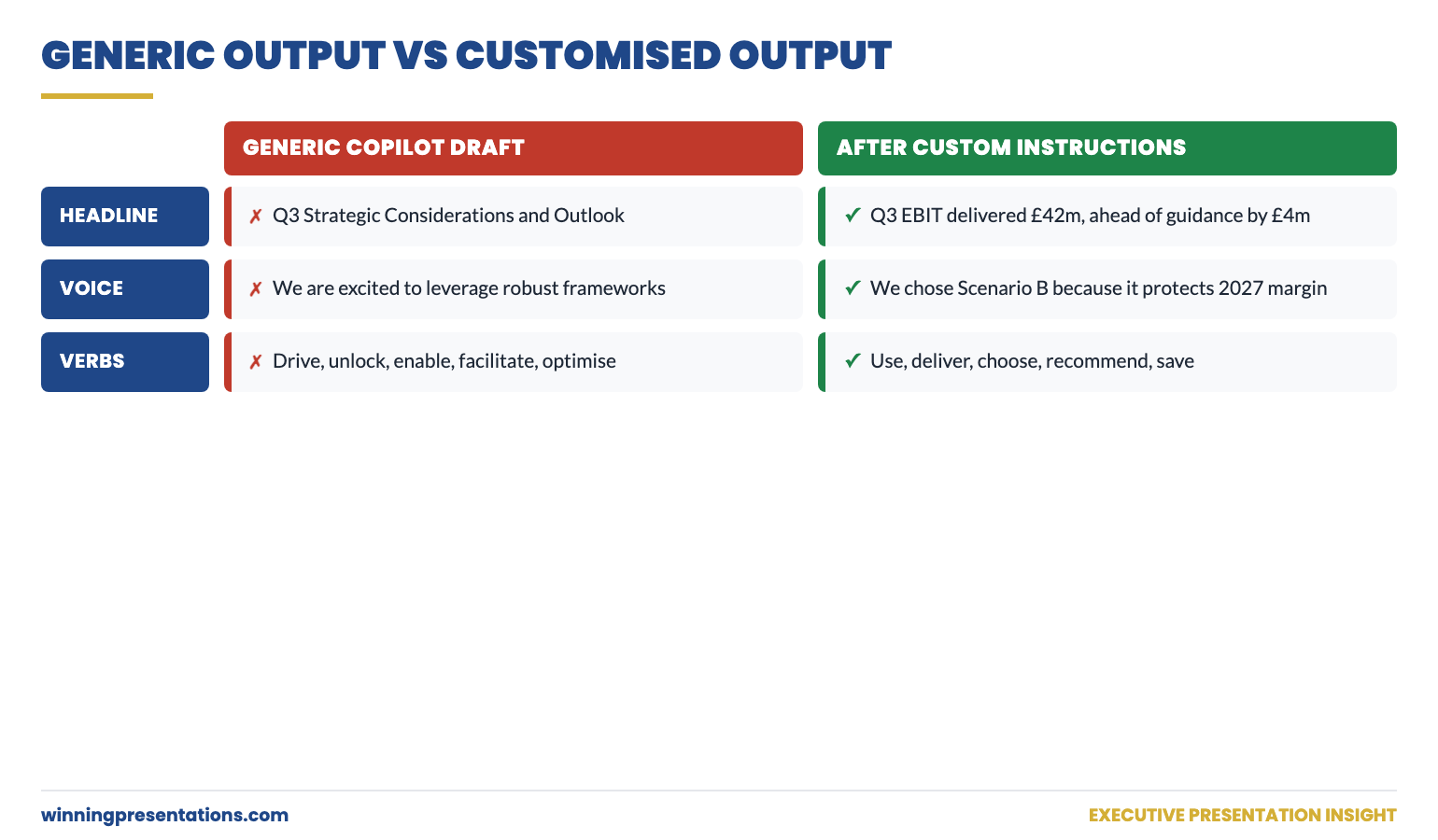
Copilot is trained to be helpful to the broadest possible range of users — small business owners, students, marketing teams, individual contributors, executives. Without instructions, it defaults to language that lands somewhere safely between all of those audiences. Lots of bullet points. Hedged language. The phrase “moreover” appears more often than it should. Sentences end with adverbs like “effectively” and “successfully”. Every output assumes you might need things explained, so explanations creep into slide content where they do not belong.
For a senior audience, this is a failure mode. Executive readers are time-poor and pattern-trained. They read slides the way they read briefings: top to bottom, scanning for the answer. When the language sounds explanatory rather than declarative, two things happen — they lose patience, and they downgrade their estimate of who wrote it. The slide content might be technically correct, but the voice signals “this person is not at my level.”
This is what Henrik’s CFO was responding to. Not a content problem. A voice problem. And a voice problem that custom instructions exist to solve.
What custom instructions actually are (and where to find them)
Custom instructions are a set of standing notes that Copilot reads silently before responding to every prompt. They are not visible in your chat. They do not get repeated in the output. They sit in the background and shape every response.
You find them in Copilot’s settings — in Microsoft 365 Copilot, this is under the personalisation panel; in Copilot for the web, look under “Customise Copilot” or your profile menu. The exact location moves periodically as Microsoft updates the interface. The setting itself does not move; the menu does.
Once set, custom instructions persist across sessions, devices where you are signed into the same account, and most Copilot surfaces — including the Copilot panel inside PowerPoint. This is why they are the highest-leverage setting available: you configure once and benefit every time.
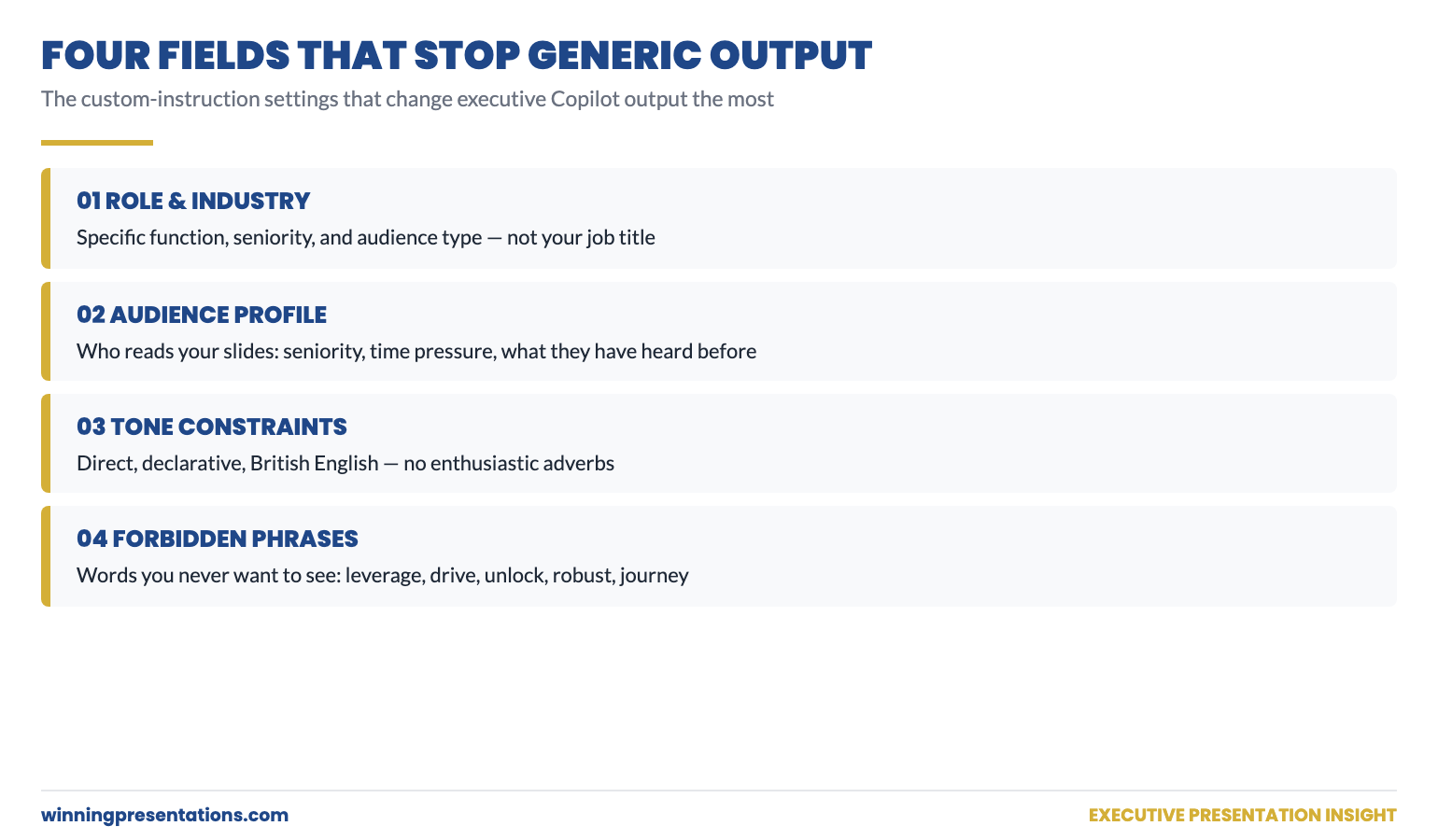
The four fields that change executive output the most
Custom instructions usually have two free-text boxes: What would you like Copilot to know about you? and How would you like Copilot to respond? Different surfaces label them differently, but the structure is the same. Within those two boxes, four pieces of information do most of the work for senior presenters.
1. Role and industry context
Tell Copilot what you do, at what seniority level, in what industry, and to what kind of audience. Not your job title. Your actual function. “Strategy director in mid-sized European insurance, presenting to executive committee and board on quarterly performance and capital allocation” gives Copilot far more to work with than “head of strategy.” The detail teaches Copilot which vocabulary feels native to your world and which sounds borrowed.
2. Audience profile
Describe the people you typically present to. Their seniority, time pressure, what they care about, what they have heard a hundred times before. “My audience is a 12-person executive committee. They are time-poor, sceptical of jargon, and they have seen every transformation deck cliché. They want the answer first, the evidence second, the implications third” gives Copilot a target reader to write for. Without this, it writes for nobody in particular and lands somewhere in the middle.
3. Tone constraints
Tell Copilot what voice you write in. Specific is better than abstract. “Direct, declarative, no enthusiastic language, British English spellings” outperforms “professional and engaging.” The word “professional” means almost nothing to a language model — it has been used to describe everything from legal contracts to motivational LinkedIn posts. Specific tonal instructions (“no exclamation marks”, “do not begin sentences with adverbs”, “no marketing language”) give Copilot something to actually constrain itself against.
4. Forbidden phrases
This is the field that most people miss. Tell Copilot which phrases you never want to see. “Do not use the words: leverage, robust, holistic, drive, unlock, in today’s fast-paced world, moreover, furthermore, effectively, successfully” removes the corporate filler that makes Copilot output instantly identifiable. The forbidden-phrase list is the difference between AI output that needs heavy editing and AI output you can drop into a deck after light reading.
A copy-paste custom instructions template for senior presenters
The template below is a starting point. Adapt the role, industry, and audience description to match your situation. Keep the tone constraints and forbidden phrases largely as written — they have been refined across a lot of senior-level output.
Field 1 — What would you like Copilot to know about you?
“I am a [role, e.g. director of strategy] in [industry, e.g. UK life insurance]. I present primarily to [audience, e.g. executive committee, board, audit committee] on [topics, e.g. quarterly performance, capital allocation, regulatory change]. My presentations need to drive decisions in 20–40 minute slots, often with hostile or sceptical Q&A. My audience has 20+ years of senior experience and reads slides top-to-bottom in 90 seconds before any spoken commentary.”
Field 2 — How would you like Copilot to respond?
“Write in British English. Direct, declarative voice. Lead with the answer, then evidence, then implications. Use short sentences and concrete nouns. No exclamation marks. No adverbs at the end of sentences. No corporate filler. Do not use the words: leverage, robust, holistic, drive, unlock, in today’s fast-paced world, moreover, furthermore, effectively, seamlessly, comprehensive, journey, ecosystem, synergy. Do not use bullet points unless I explicitly ask for them — write in full sentences for slide content. When I ask for slide copy, give me three options ranked by how confidently they assert the point, not how ‘engaging’ they sound.”
Stop rewriting Copilot output before every meeting
If you spend longer editing AI drafts than you would have spent writing them yourself, the prompts are the problem — not the tool. The Executive Prompt Pack gives you 71 ready-to-use ChatGPT and Copilot prompts designed for senior-level presentation work, plus a full custom instructions template like the one above.
- 71 prompts covering board updates, budget cases, change proposals, Q&A prep, and pitch decks
- A custom instructions template designed for senior presenters
- Prompt patterns that produce executive-grade output the first time, not the third
- Instant download, lifetime access, £19.99
Get the Executive Prompt Pack — £19.99 →
Designed for senior professionals who present to boards, executive committees, and investment panels.
How to test whether your settings are actually working
Custom instructions can fail silently. The settings can save successfully and still not be applied to every Copilot surface — particularly the Copilot panel inside PowerPoint and Word, which sometimes lags the web version. The test is simple.
Open a fresh Copilot chat. Type: “In one sentence, who am I and what do I write about?” If your custom instructions are active, Copilot will summarise your role, industry, and audience back to you. If it gives you a generic answer (“you are a professional working on presentations”) or asks you to clarify, the instructions are not being read on that surface.
Run the same test inside the Copilot panel in PowerPoint. Then in Outlook. Then on Copilot.com. If any surface fails the test, your instructions are not active there — and any prompts you issue on that surface will revert to generic output.
For surfaces where instructions do not apply, you have two options: paste a shortened version of the instructions at the top of every prompt as a manual prefix, or do your drafting on a surface where the settings are active and copy the output across. Most senior users settle on the second approach: draft in the Copilot web app, paste into PowerPoint.
Three mistakes that quietly undo your custom instructions
Mistake one: writing the instructions like a job description. “I am a results-driven senior leader passionate about delivering value” tells Copilot nothing useful and reinforces the very voice you are trying to avoid. Instructions should sound like a quiet briefing to a new colleague, not a LinkedIn bio.
Mistake two: forgetting to update the audience. If you originally configured Copilot for board presentations and later use it for an internal team update or a sales pitch, the audience description is now wrong. The output will sound oddly senior for the audience you are actually addressing. Either rewrite the audience field for the new context, or add a one-line audience override at the top of the relevant prompt.
Mistake three: contradicting your own instructions in the prompt. If your standing instructions say “no enthusiastic language” and your prompt says “make this exciting and engaging,” Copilot will follow the prompt — your standing instructions get overridden. Audit your prompts for language that quietly contradicts your settings. If you find yourself asking Copilot to “make it more compelling,” check whether the issue is the prompt or the brief you started from.
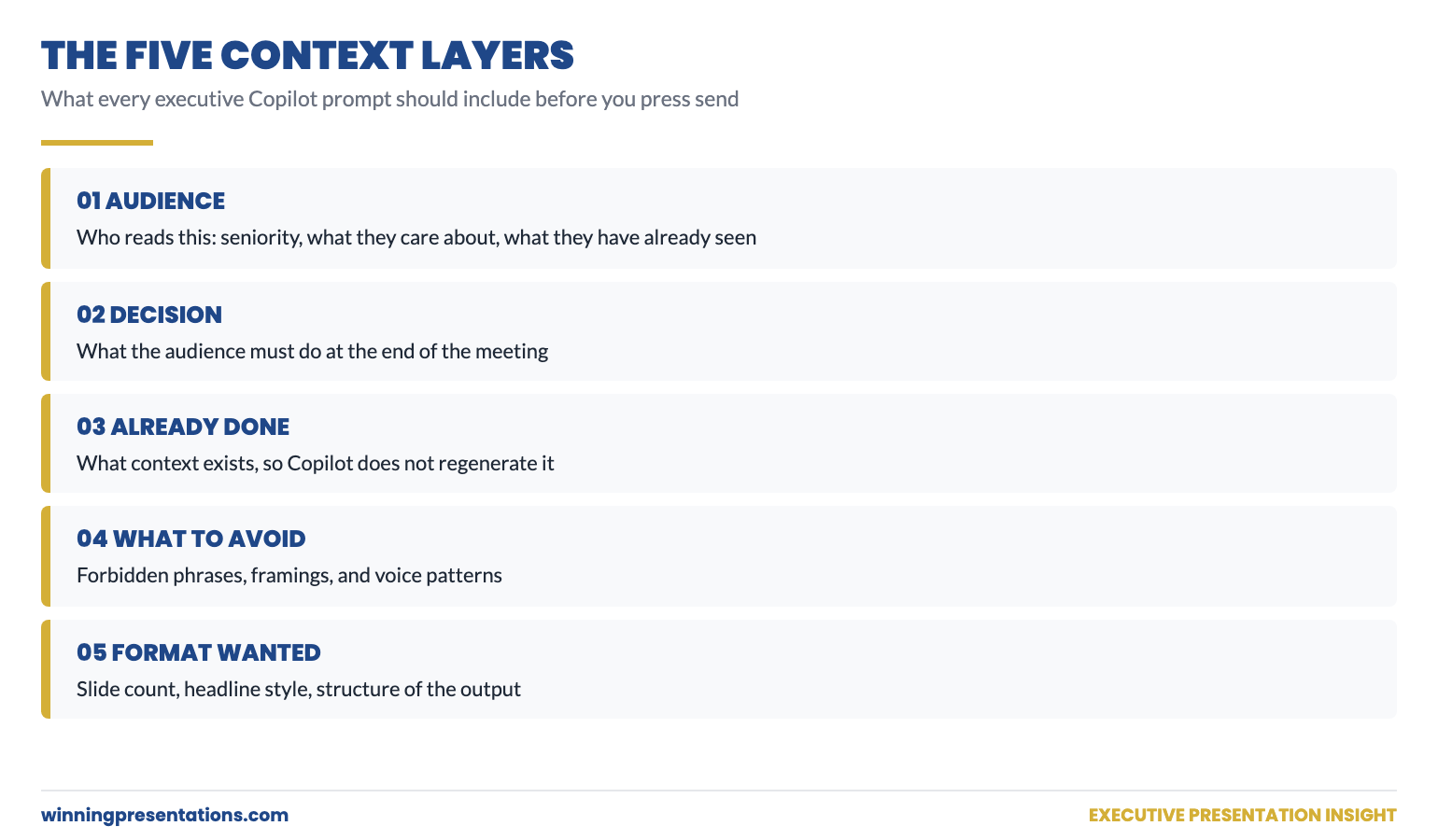
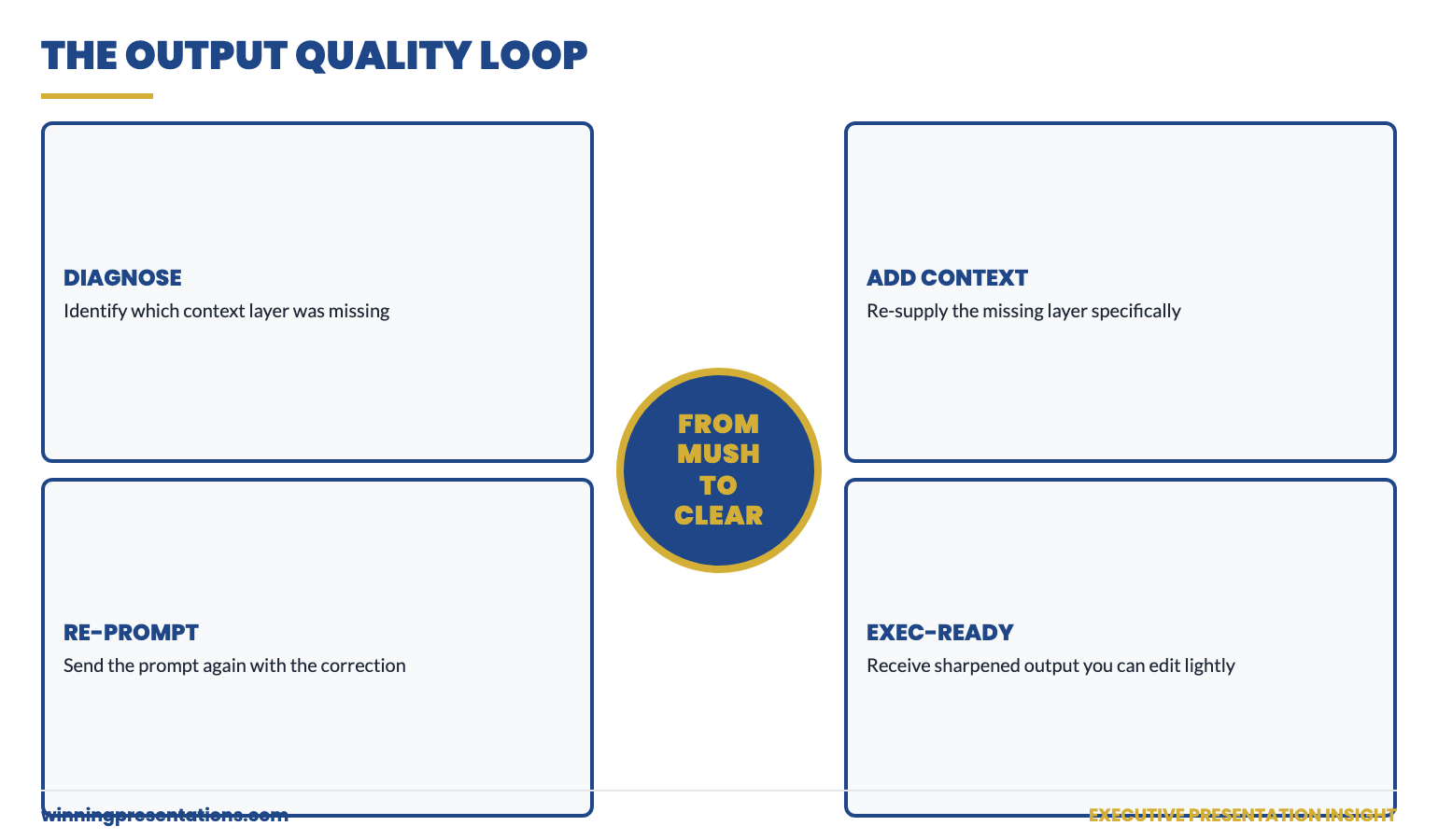
Custom instructions are not a fix for thin briefs or unclear thinking. They are an amplifier. They make a clear prompt produce sharper output, and a vague prompt produce vague output more efficiently. Pair them with a structured prompt practice and the editing time drops dramatically. For a deeper look at why Copilot produces what one client called “corporate mush,” see the partner article on the context-stacking technique — it explains the prompt-side fix that complements your settings-side fix.
If you want a ready-made prompt library to plug straight into your settings-tuned Copilot, the Executive Prompt Pack (£19.99) includes a custom instructions template plus 71 ChatGPT and Copilot prompts written for senior-level work.
For senior presenters working on board buy-in or stakeholder approval, the AI tooling sits underneath a structural challenge: the deck has to win the room before the spoken commentary starts. The structural side of executive buy-in is worth reading alongside any AI workflow improvements.
The whole prompt library, not just one template
The custom instructions template is one of 71 prompts in the Executive Prompt Pack. The pack covers every major executive presentation scenario — board updates, capital cases, change proposals, hostile Q&A, and pitch decks. £19.99, instant download.
Get the Executive Prompt Pack →
Built for senior professionals across financial services, technology, and consulting.
FAQ
Do Copilot custom instructions work inside PowerPoint?
Sometimes. The Copilot panel inside PowerPoint reads your account-level custom instructions in most current configurations, but the application has historically lagged behind the web version. Run the test prompt described above (“In one sentence, who am I and what do I write about?”) inside the PowerPoint Copilot panel to confirm. If it fails, draft on the web and paste into your slides.
Will custom instructions stop Copilot from using bullet points?
Only if you explicitly tell them to. Copilot defaults heavily to bullet points because most users want lists. Add a constraint to your tone field: “Do not use bullet points unless I explicitly ask for them — write in full sentences for slide content.” Then in prompts where you do want bullets, ask for them by name.
How long should custom instructions be?
Long enough to specify your role, audience, and voice constraints; short enough to read in 30 seconds. Most useful executive instructions sit between 150 and 300 words across the two fields combined. Beyond that, Copilot starts giving more weight to your standing instructions than to the prompt at hand, which becomes its own problem.
Can I have different custom instructions for different audiences?
Not in the same Copilot account, no. The instructions are global. If you regularly present to two distinct audiences (board and team, for example), the workaround is to write your standing instructions for the harder audience (board) and add a one-line audience override at the top of any prompt where you want a different voice (“This is for an internal team update, not the board — adjust accordingly”).
Get The Winning Edge — weekly
One sharp, story-led idea every Thursday on executive presentation craft, AI workflows, and the small habits that change how senior audiences receive you. Read by senior professionals across financial services, technology, and consulting.
Not ready for the full system? Start here instead: download the free Executive Presentation Checklist — a one-page reference covering the structural moves that hold any executive deck together, AI-assisted or not.
Open Copilot’s settings tonight. Spend fifteen minutes filling in the four fields. Run the test prompt. By tomorrow morning, every Copilot output you produce will sound more like the senior presenter you actually are — and less like a generic assistant working from blank assumptions.
About the author. Mary Beth Hazeldine is Owner & Managing Director of Winning Presentations Ltd, founded 1990. With 24 years of corporate banking experience at JPMorgan Chase, PwC, Royal Bank of Scotland, and Commerzbank, she advises executives across financial services, healthcare, technology, and government on structuring presentations for high-stakes funding rounds and approvals.