Category: About Us

26 Jan 2026
Executive woman having breakthrough moment explaining AI presentation insight to colleagues in boardroom

AI-Enhanced vs AI-Generated: The Distinction That Changes Everything

“Can you tell this was made with AI?”

A senior director asked me this after a board presentation. He’d used Copilot to build his deck, spent hours refining prompts, and was proud of how quickly he’d pulled it together. The slides looked polished. The formatting was clean.

And yes—I could tell immediately. So could the board.

The problem wasn’t the tool. The problem was the approach. He’d let AI generate his presentation instead of using AI to enhance his thinking. The difference sounds subtle. It’s not. It’s the difference between slides that look like everyone else’s and slides that command executive attention.

Quick answer: AI-generated presentations let the tool drive—you input content, AI creates slides, you tweak the output. AI-enhanced presentations let you drive—you develop the strategy, structure, and message, then use AI to accelerate execution. The first approach produces generic, forgettable decks. The second produces executive-grade presentations in a fraction of the time. The distinction isn’t about which tools you use. It’s about who’s thinking.

Written by Mary Beth Hazeldine, Owner & Managing Director of Winning Presentations. 24 years corporate banking at JPMorgan Chase, PwC, RBS, and Commerzbank. I’ve trained executives on presentation skills since before AI tools existed—and now teach how to integrate AI without losing what makes presentations work. Last updated: January 2026.

The Core Distinction (And Why It Matters)

Let me make the distinction concrete:

AI-Generated (Tool Drives)

Process: You give AI your content or topic → AI creates slides → You edit the output

Example prompt: “Create a presentation about Q3 results for the board”

Result: Slides that are structurally sound but strategically empty. They look like presentations. They don’t work like presentations.

AI-Enhanced (You Drive)

Process: You develop strategy and structure → You use AI to accelerate specific tasks → You maintain creative control

Example approach: “I need to recommend a £2M budget increase. My structure is: recommendation, stakes, three supporting points, ask. Help me draft the executive summary slide.”

Result: Slides that reflect your strategic thinking, accelerated by AI capabilities.

The fundamental question: Who is doing the thinking—you or the AI? If AI is generating your structure, your flow, your message… executives will sense it. Not because AI is bad, but because AI doesn’t know your audience, your context, or your strategic intent.

Why AI-Generated Presentations Fail

AI-generated presentations fail not because the AI is incompetent, but because the AI is missing crucial context that only you have.

Problem 1: Generic Structure

When you ask AI to “create a presentation,” it draws on patterns from millions of presentations. The result is statistically average—which means forgettable.

AI doesn’t know that your CFO hates agenda slides. It doesn’t know that this board always asks about risk first. It doesn’t know that your last proposal was rejected for being too long.

AI produces what’s typical. Executives respond to what’s tailored.

Problem 2: Missing Strategic Intent

AI can’t read the room. It doesn’t know you’re presenting after a failed project. It doesn’t know the political dynamics between departments. It doesn’t know that this decision has been deferred twice already.

Your strategic intent—what you’re really trying to achieve and why—can’t be captured in a prompt. It requires human judgment that AI simply doesn’t have.

Problem 3: Surface-Level Polish

AI-generated slides often look professional. Clean formatting. Consistent styling. Nice transitions.

But polish isn’t persuasion. Executives don’t approve budgets because the slides look good. They approve budgets because the thinking is sound. AI can polish your output. It can’t do your thinking.

For more on why AI presentations fail, see the complete analysis.

Comparison diagram showing AI-Generated approach (tool drives, generic output) versus AI-Enhanced approach (you drive, executive-grade output)

⭐ Master the AI-Enhanced Approach

AI-Enhanced Presentation Mastery teaches the framework-first methodology that separates executive-grade presentations from generic AI output. It’s 70% presentation frameworks, 30% AI integration—because the frameworks are what make AI useful.

What you’ll learn:

  • Executive presentation frameworks (recommendation-first, pyramid principle, decision structures)
  • Where AI accelerates vs. where AI fails
  • The specific workflow that produces executive-grade output
  • How to maintain strategic control while leveraging AI speed

See the Full Curriculum →

Live cohort-based course with direct feedback. Limited to 25 participants per cohort.

The AI-Enhanced Approach

The AI-enhanced approach treats AI as an accelerator, not a replacement. Here’s what that looks like in practice:

Step 1: You Define the Strategy

Before touching any AI tool, answer these questions:

  • What decision am I asking for?
  • Who is my audience and what do they care about?
  • What’s my one core message?
  • What objections will I face?

This strategic work happens in your head or on paper—not in a prompt box. AI can’t do this for you, and if you skip it, your presentation will show it.

Step 2: You Build the Structure

Using proven frameworks (pyramid principle, recommendation-first, problem-solution-benefit), you create the skeleton of your presentation:

  • What goes on slide 1?
  • What’s the logical flow?
  • Where do you need data? Story? Call to action?

This is where most AI users go wrong. They skip structure and go straight to “create slides.” The structure IS the thinking. Skip it, and you’ve outsourced your thinking to a statistical average.

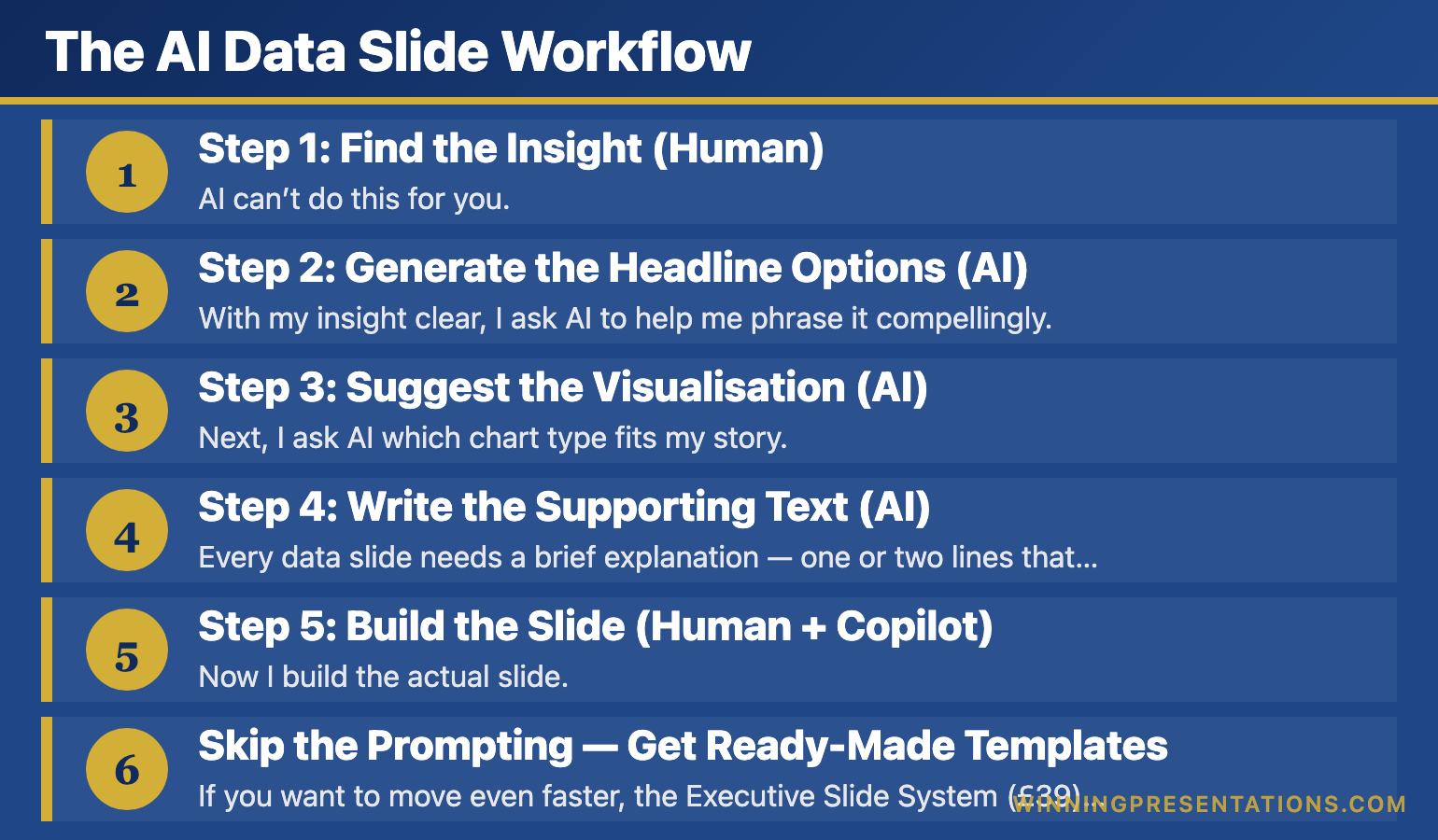
Step 3: AI Accelerates Execution

Now—and only now—AI becomes valuable:

  • Drafting: “Based on this structure, draft the executive summary slide”
  • Data visualization: “Suggest the best chart type for this comparison”
  • Refinement: “Make this headline more action-oriented”
  • Polish: “Check this slide for consistency with the rest of the deck”

AI handles the execution. You maintain the strategy. The result: presentations that are both fast to create AND strategically sound.

For a detailed workflow, see the AI presentation workflow.

→ Want to master this approach? AI-Enhanced Presentation Mastery teaches the complete framework-first methodology in a live cohort format with direct feedback.

Why Framework-First Beats Prompt-First

There’s a popular belief that getting better at AI presentations means getting better at prompts. Write better prompts, get better output.

This is backwards.

Better prompts produce better-executed bad strategy. If your underlying structure is wrong, a perfect prompt just makes the wrong thing faster.

The Prompt-First Trap

Prompt-first users spend hours refining how they ask AI for slides. They experiment with specificity, tone, formatting instructions. They join communities about “prompt engineering.”

And their presentations still look generic. Because the problem was never the prompt—it was the absence of strategic thinking before the prompt.

The Framework-First Advantage

Framework-first users spend their time on:

  • Understanding executive decision-making patterns
  • Learning structures that guide attention (pyramid principle, SCQA, etc.)
  • Developing judgment about what belongs where

Then they use simple prompts—because when the strategy is clear, the prompts don’t need to be clever.

The framework does the heavy lifting. AI just executes.

🚨 The Test: Ask Yourself This

If AI disappeared tomorrow, could you still create an executive-grade presentation? If the answer is “no” or “it would take much longer,” you’ve become dependent on the tool without building the underlying skill. That dependency shows in your output.

What Executives Actually Notice

Here’s what gives away AI-generated presentations to experienced executives:

1. Generic Opening Slides

“Today I’ll walk you through…” or “Agenda” slides that could belong to any presentation. AI defaults to these because they’re common. Executives skip them because they’re worthless.

2. Missing Strategic Logic

Slides that present information without a clear “so what.” Data without insight. Points without connection to a recommendation. AI can organize information. It can’t create strategic narrative.

3. Surface-Level Personalisation

AI can add your company name, reference your industry, include relevant buzzwords. But it can’t capture the specific context of THIS presentation to THIS audience at THIS moment. That kind of tailoring requires human judgment.

4. Perfectly Mediocre

AI-generated slides are never terrible. They’re also never exceptional. They hit a plateau of “acceptable but forgettable.” Executives notice when nothing stands out—because standing out is what drives decisions.

What executives notice in AI-generated presentations: generic openings, missing strategic logic, surface personalisation, and perfectly mediocre output

⭐ Stop Looking Like Everyone Else

AI-Enhanced Presentation Mastery teaches the frameworks that transform AI from a crutch into an accelerator. You’ll learn executive presentation methodology first, then how to deploy AI within that methodology.

Course structure:

  • Week 1-2: Executive presentation frameworks
  • Week 3: AI integration methodology
  • Week 4: Application and feedback
  • Live sessions + async practice + direct feedback

See the Full Curriculum →

Next cohort starts soon. Limited to 25 participants for quality feedback.

The Real Competitive Advantage

Here’s what most people miss: as AI tools become universal, the competitive advantage shifts.

When everyone has access to the same AI tools, the differentiator isn’t the tool—it’s the thinking behind how you use it.

Two presenters using identical AI tools:

  • Presenter A: Asks AI to generate a presentation → Gets generic output → Tweaks formatting → Presents
  • Presenter B: Develops strategy → Builds structure using frameworks → Uses AI to accelerate execution → Presents

Same tools. Radically different outcomes. The difference is methodology, not technology.

The executives who will thrive in an AI world are those who pair AI speed with human judgment. That’s the AI-enhanced approach.

For current AI tool capabilities, see what PowerPoint Copilot actually does well.

→ Ready to build the methodology that makes AI useful? AI-Enhanced Presentation Mastery is framework-first by design—because frameworks are what separate generic from executive-grade.

Is This Right For You?

✓ This course is for you if:

  • You present to executives, boards, or senior stakeholders
  • You’re using AI but suspect your output looks generic
  • You want frameworks, not just tool tutorials
  • You’re willing to invest in methodology, not just shortcuts

✗ This course is NOT for you if:

  • You mainly present to peers (lower stakes)
  • You’re looking for quick prompt templates
  • You want AI to do the thinking for you
  • You’re not willing to learn underlying frameworks

⭐ The Framework-First Methodology for AI-Era Presentations

That senior director who asked if I could tell his presentation was AI-generated? He didn’t need better prompts. He needed better frameworks. AI-Enhanced Presentation Mastery teaches both—in the right order.

What you’ll master:

  • Executive presentation structures (pyramid, SCQA, recommendation-first)
  • The specific tasks where AI excels vs. fails
  • A complete workflow from strategy to final slides
  • Techniques for maintaining strategic control at AI speed
  • Live feedback on your actual presentations

See the Full Curriculum →

Live cohort format ensures you get direct feedback, not just content consumption.

Frequently Asked Questions

Can’t I just learn better prompts?

Better prompts help with execution, not strategy. If your underlying structure is wrong—if you’re not thinking like an executive thinks—better prompts just make the wrong thing faster. Framework-first, then prompts.

What if I’m already using Copilot effectively?

If your presentations consistently drive executive decisions and don’t look generic, you may have already developed framework-thinking intuitively. This course makes that thinking explicit and systematic. Most people who think they’re using AI effectively are actually in the AI-generated camp without realising it.

Is this course about the tools or the methodology?

70% methodology, 30% tools. The methodology is what makes the tools useful. We cover AI integration, but only after establishing the executive presentation frameworks that give AI direction. Tools change; frameworks endure.

How is this different from YouTube tutorials?

YouTube tutorials teach tool features. They don’t teach executive-level thinking. They don’t provide feedback on your specific presentations. And they don’t create accountability for actually implementing what you learn. This is a cohort-based course with live sessions and direct feedback.

📧 Optional: Get weekly insights on executive presentations and AI integration in The Winning Edge newsletter (free).

Your Next Step

The next time you open an AI tool to build a presentation, pause.

Ask yourself: Am I about to generate a presentation, or enhance one?

If you don’t have a clear strategy, structure, and message before you type a prompt, you’re in AI-generated territory. The output will show it.

The shift from AI-generated to AI-enhanced isn’t about using different tools. It’s about developing the frameworks that make any tool useful. Start there.

For the complete framework-first methodology—with live instruction and feedback on your actual presentations—explore AI-Enhanced Presentation Mastery.

P.S. If your slides are strong but your delivery needs work, see how to stop hands shaking during presentations. And if your data presentations aren’t landing with executives, see why data-driven presentations often backfire.

About the Author

Mary Beth Hazeldine is the Owner & Managing Director of Winning Presentations. She’s been training executives on presentation skills since before AI tools existed—and now teaches how to integrate AI without losing what makes presentations work.

With 24 years at JPMorgan Chase, PwC, Royal Bank of Scotland, and Commerzbank, she understands what executives actually respond to. The AI-Enhanced Presentation Mastery course combines that executive insight with practical AI integration methodology.

Book a discovery call | View services

15 Jan 2026
Should you memorize presentations word-for-word - why it backfires

Should You Memorize Presentations? Why Word-for-Word Is the Worst Strategy

Quick Answer: Don’t memorize presentations word-for-word—it creates a false sense of security that collapses under pressure. When you forget one sentence, you lose the thread entirely. The better approach: memorize your framework and key transitions, then speak naturally from each slide. This gives you flexibility to recover from interruptions while maintaining your core message.


In This Article:

The VP of Strategy at RBS had memorized every word of her board presentation. Three weeks of practice. 47 slides. Perfectly scripted.

Twelve minutes in, a director interrupted with a question. She answered it. Then froze.

She couldn’t find her place in the script. The next 20 minutes were painful—fumbling through slides, apologizing repeatedly, reading directly from the screen. A presentation she knew backwards fell apart because one interruption broke the chain.

I’ve seen this happen dozens of times in my 25 years at JPMorgan, PwC, RBS, and Commerzbank. The executives who memorize word-for-word are actually the most vulnerable when things go off-script. And things always go off-script.

⭐ Want a Structured Framework Instead?

If you want ready-made slide structures that guide your delivery — so you can present confidently from any slide without memorising a script — the Executive Slide System gives you exactly that.

Explore the Executive Slide System →

Stop Memorizing Scripts. Start Using Frameworks.

The Executive Slide System gives you pre-built structures that let you present confidently from any slide—without memorizing a single script. When your slides guide you naturally, you never lose your place.

Get the Executive Slide System → £39

Should you memorize presentations word-for-word - why it backfires

Why Word-for-Word Memorizing Backfires

When you memorize a presentation word-for-word, you’re creating a chain. Each sentence depends on the previous one to trigger the next. This works perfectly in practice—and catastrophically in reality.

Here’s what breaks the chain:

  • A question from the audience
  • A technical glitch that skips slides
  • Running short on time
  • An executive who asks you to “jump to the recommendation”
  • Your own mind blanking on one word

Any of these—and they happen in nearly every business presentation—leaves you stranded. You know the material, but you can’t access it because the retrieval system (your memorized sequence) is broken.

For more on why over-rehearsing creates this vulnerability, see my full guide on presentation rehearsal and the diminishing returns of practice.

The Framework Approach That Actually Works

Instead of memorizing words, memorize structures. Here’s the difference:

Word-for-word memorization: “In Q3, we achieved 127% of our revenue target, driven primarily by expansion in the EMEA region, which contributed 43% of new bookings…”

Framework memorization: “Q3 results → what drove them → EMEA specifics → next steps”

With the framework approach, you know what each section covers and how it connects to the next. The exact words come naturally because you understand the flow, not because you’ve rehearsed a script.

This is why executives who present frequently rarely memorize—they’re too busy to rehearse scripts. Instead, they internalize the story arc and speak from knowledge.

How to memorize a presentation - what to memorize vs what to speak naturally

What You SHOULD Memorize (Only These Four Things)

1. Your opening line. The first 10 seconds set your confidence. Have it locked.

2. Your transitions. Know exactly how you’ll move from section to section. “That’s the problem. Here’s what we’re proposing…” These bridges keep you flowing.

3. Your closing call to action. End strong with a clear ask. Don’t fumble the landing.

4. Your story arc/framework. Know the general framework/story arc of your presentation.

Everything in between? Speak from your slides, your expertise, and your framework. That’s where authentic confidence comes from.

🏆 PREMIUM TRAINING

Master Executive Presentations Without Scripts

The Executive Buy-In System teaches you to present with authority—even when interrupted, challenged, or thrown off-script. Learn the same frameworks I’ve taught to 5,000+ executives at JPMorgan, PwC, and Commerzbank.

Learn More About Executive Buy-In → £199

📧 Join 2,000+ professionals getting weekly presentation insights—frameworks, not scripts. Subscribe to The Winning Edge →

FAQs

Should I memorize my presentation word-for-word?

No. Word-for-word memorization creates vulnerability—one interruption or forgotten word breaks your entire flow. Instead, memorize your framework (the structure and key transitions) and speak naturally from your expertise. This gives you flexibility to handle questions and still deliver your core message.

How do I remember my presentation without memorizing it?

Focus on the story arc, not the script. Know your opening line, your section transitions, and your closing call to action. Let your slides serve as visual prompts for the content in between. Practice talking through your framework rather than reciting words.

What if I forget what to say during a presentation?

With framework-based preparation, forgetting a word doesn’t derail you—you simply continue with the next point in your structure. If you do lose your place, glance at your current slide, take a breath, and state the main point of that slide. Your audience won’t know you skipped anything.

📥 Free Download: 7 Presentation Frameworks

Get the exact structures executives use to present without scripts—including the PREP method mentioned above.

Download Free Frameworks →

Related: Presentation Rehearsal: Why 3 Hours of Practice Makes You Worse


Mary Beth Hazeldine spent 25 years at JPMorgan, PwC, RBS, and Commerzbank. She’s a clinical hypnotherapist and MD of Winning Presentations.

15 Jan 2026
presentation rehearsal techniques - the right way to practice presentations without becoming robotic or losing authenticity

Presentation Rehearsal: Why 3 Hours of Practice Makes You Worse

Quick Answer: More rehearsal doesn’t mean better delivery. Over-practice creates robotic speakers who’ve memorised words but lost connection. Effective presentation rehearsal is distributed (spread across days), varied (different conditions), and focused (specific goals per session). Three 20-minute focused sessions beat one 3-hour marathon every time.

I watched an executive destroy her presentation by rehearsing too much.

Sarah was presenting to the PwC leadership team—a career-defining moment. She’d spent 14 hours over three days grinding through her slides. By presentation day, she could recite every word perfectly.

And that was the problem.

Her delivery was flawless but lifeless. Every sentence sounded scripted. When a director asked a question mid-presentation, she froze—the interruption shattered the mental track she’d memorised. She stumbled through the rest, visibly rattled.

Afterward, she asked me what went wrong. “I prepared more than I’ve ever prepared for anything.”

“That’s exactly what went wrong,” I told her. “You didn’t rehearse. You memorised. There’s a difference.”

This pattern repeats constantly. Executives prepare for important presentations by rehearsing until they can recite their content word-for-word. Then they deliver those words like robots, without the flexibility to adapt, engage, or recover from interruptions.

Over my 25 years at JPMorgan, PwC, RBS, and Commerzbank, I’ve seen brilliant professionals undermine themselves through over-rehearsal more often than under-preparation. The instinct to practice more feels responsible. But past a certain point, more practice makes you worse.

What follows is the rehearsal method I teach executives who need to sound prepared but present—not scripted but confident.

⭐ Want a Structured Framework Instead?

If you want ready-made slide structures that guide your delivery — so you spend less time rehearsing and more time connecting — the Executive Slide System gives you exactly that.

Explore the Executive Slide System →

⭐ Rehearsal Gets Easier When Slides Guide You

The Executive Slide System gives you frameworks that let you present from any slide without memorising a script. When your slides follow clear logic, rehearsal becomes about delivery—not desperately trying to remember what comes next.

Structure that works with you, not against you.

Get the Executive Slide System → £39

Why More Practice Often Makes You Worse

Over-rehearsal creates three distinct problems:

1. Robotic Delivery

When you’ve rehearsed the same words fifty times, you stop thinking about meaning and start reciting sounds. Your brain shifts from “communicating ideas” to “reproducing a recording.” Audiences feel the difference instantly—you’re present in body but absent in mind.

2. Brittleness

Memorised presentations are fragile. Skip one word and your brain panics, searching for the exact phrase it memorised. Interruptions become disasters because you’ve created one rigid path through your content with no alternative routes.

This is why executives who “know their material perfectly” sometimes fall apart when asked a question mid-presentation. Their rehearsal didn’t prepare them for flexibility—it trained them for one specific performance that no longer exists once disrupted.

3. Lost Connection

The first time you run through a presentation, you’re engaged with the ideas. By the twentieth time, you’re bored with content you’ve heard yourself say repeatedly. That boredom transmits to the audience. You’ve rehearsed the meaning out of your own words.

For more on building authentic confidence rather than scripted performance, see our guide to presentation confidence.

[IMAGE: presentation-rehearsal-over-practice-curve.png]

Alt text: The over-rehearsal curve showing how presentation quality improves then declines with excessive practice

Dimensions: 770 × 450px

The Three-Pass Rehearsal Method

Effective presentation rehearsal isn’t about grinding through slides repeatedly. It’s about focused practice with specific objectives. I teach the Three-Pass Method:

Pass 1: Structure (Can You Navigate Without Notes?)

First rehearsal focuses purely on structure. Can you move through your presentation hitting every key point without reading from notes or slides?

Don’t worry about exact wording. Focus on:

  • Do you know what comes next at every transition?
  • Can you state the main point of each section in one sentence?
  • If someone interrupted you, could you find your place again?

If you can’t pass the structure test, more rehearsal won’t help—you need better presentation structure before practicing delivery.

Pass 2: Transitions (Do Sections Flow Naturally?)

Second rehearsal focuses on the bridges between sections. Transitions are where most presentations stumble—the awkward pause while you figure out what comes next.

For each transition, develop a “bridge phrase”—a sentence that connects one section to the next:

  • “That’s the problem. Here’s what we’re proposing…”
  • “So we know what’s happening. The question is why…”
  • “Those are the risks. Now let’s look at mitigation…”

Bridge phrases are worth memorising exactly. They’re your guardrails between sections.

Pass 3: Delivery (Presence, Pace, Emphasis)

Only after structure and transitions are solid do you focus on delivery—how you’ll actually present.

This pass addresses:

  • Where will you pause for emphasis?
  • Which phrases need to land with impact?
  • Where’s your pace too fast or too slow?
  • How will you open with impact and close with clarity?

Record this pass. Watch it later—not during practice—to identify delivery issues without splitting your attention.

The Three-Pass Method for presentation rehearsal - structure, transitions, delivery

Distributed Practice: The Science of Retention

Cognitive science is clear: distributed practice beats massed practice for retention and performance.

Massed practice: 3 hours of rehearsal the night before.

Distributed practice: Three 20-minute sessions across three days.

Same total time. Dramatically different results.

Here’s why distributed practice works:

Sleep Consolidates Learning

Your brain processes and strengthens memories during sleep. When you rehearse, sleep, then rehearse again, each session builds on consolidated learning. Marathon rehearsal the night before gives your brain no time to process.

Retrieval Strengthens Memory

Each time you retrieve information after a gap, you strengthen the neural pathway. Coming back to your presentation after a day away forces active retrieval—much more powerful than continuous repetition where content never leaves short-term memory.

Fresh Eyes Catch Problems

Rehearsing in one long session creates tunnel vision. You stop hearing what’s confusing because you’ve heard it twenty times. Coming back fresh, you notice where transitions are weak or points are unclear.

For an important presentation, spread rehearsal across at least three days:

  • Day 1: Structure pass (20-30 minutes)
  • Day 2: Transitions pass (20-30 minutes)
  • Day 3: Delivery pass + one complete run-through (30-40 minutes)

This approach is part of comprehensive presentation skills training that actually changes behaviour.

What to Memorize (And What to Leave Flexible)

The goal isn’t zero memorisation—it’s strategic memorisation. Some elements benefit from exact preparation; others need flexibility.

Memorize Exactly:

  • Your opening line. The first 10 seconds set the tone. Know exactly how you’ll begin. For techniques, see how to start a presentation.
  • Your closing line. End with intention, not awkward trailing off. See how to end a presentation.
  • Bridge phrases. The transitions between sections.
  • Key statistics. Numbers you’ll cite should be precise.
  • Your ask. If you’re requesting action, know exactly what you’re requesting.

Leave Flexible:

  • Explanations. You know the concepts—explain them conversationally, not from script.
  • Examples. Have several ready so you can choose based on audience reaction.
  • Supporting details. Hit the main points; let details flow naturally.
  • Stories. Know the beats of your stories, but tell them fresh each time.

This balance—memorised anchors with flexible content—creates presentations that sound prepared but present. You know where you’re going but you’re actually communicating, not performing.

For handling moments when things go wrong despite preparation, see what to do when your mind goes blank.

What to memorize vs keep flexible in presentation rehearsal - strategic preparation approach

Rehearsing in Varied Conditions

One of the biggest rehearsal mistakes: practicing only in ideal conditions.

You rehearse alone, in silence, sitting at your desk, reading from your screen. Then you present standing, in a conference room, with twelve people watching and side conversations happening.

The gap between practice conditions and performance conditions undermines your preparation.

Vary Your Physical Position

If you’ll present standing, rehearse standing. If you’ll be at a podium, practice with something in front of you. If you’ll be walking, practice while moving. Your body needs to rehearse, not just your voice.

Vary Your Environment

Rehearse in different rooms. Practice with background noise. Run through while someone else is in the room. Building adaptability requires varied conditions.

Practice With Interruptions

Have someone interrupt you mid-sentence with a question. Practice recovering gracefully. This builds the flexibility that over-rehearsal destroys.

For handling Q&A with confidence, see our guide to presentation Q&A.

Rehearse Worst-Case Scenarios

What if the projector fails? Practice delivering key points without slides. What if you only get half your time? Know which sections to cut. What if you’re asked something you can’t answer? Practice saying “I don’t have that data, but I’ll follow up.”

Varied condition rehearsal doesn’t take more time—it makes the same time more valuable.

🏆 Master High-Stakes Presentation Preparation

The Executive Buy-In Presentation System includes complete preparation frameworks for board meetings, investor pitches, and career-defining presentations—where rehearsal strategy can make or break your outcome.

Learn More About the Programme → £199

Case Study: From 6 Hours to 90 Minutes

James was a finance director who came to me before a critical board presentation. His preparation pattern: marathon rehearsal sessions that left him exhausted and robotic.

“I rehearse for six hours the day before any important presentation,” he told me. “I run through it at least fifteen times. By the end, I know every word.”

“And how do those presentations go?” I asked.

He paused. “Fine. But somehow… flat. People tell me I seem scripted.”

We restructured his preparation entirely:

Monday (Day 1): 30 minutes. Structure pass only. Could he hit every key point from memory? We found two transitions where he consistently stumbled. We fixed the structure, not the rehearsal.

Wednesday (Day 2): 30 minutes. Transitions pass. He developed specific bridge phrases for each section change. We also identified his opening line and closing line—memorised exactly.

Thursday (Day 3): 30 minutes. Delivery pass with recording. He watched the recording that evening and noted two pacing issues.

Friday morning (Presentation day): One 20-minute run-through focusing on the pacing adjustments. Then he stopped rehearsing completely.

Total rehearsal time: 110 minutes across four days.

His previous approach: 6+ hours in one day.

The board presentation was his best ever. His CEO mentioned afterward: “That was different. You seemed actually engaged, not just reciting.”

James’s feedback: “I felt less prepared going in—which scared me. But during the presentation, I felt more present. I was actually thinking about what I was saying instead of trying to remember what came next.”

That’s the difference between effective rehearsal and over-practice.

📧 Join 2,000+ professionals getting weekly presentation insights. Subscribe to The Winning Edge →

Frequently Asked Questions

How long should I rehearse a presentation?

Quality beats quantity. Three focused 20-minute sessions spread across days works better than one 3-hour marathon. Each session should have a specific focus: structure, transitions, or delivery. Rehearsing past the point of diminishing returns creates robotic delivery and actually undermines presentation confidence.

Should I memorize my presentation word-for-word?

No. Memorisation creates brittleness—one forgotten word and your brain panics. Instead, memorise your structure (the flow of ideas) and your anchor phrases (key sentences that trigger the next section). This gives you flexibility while maintaining confidence.

Why do I feel worse after rehearsing more?

Over-rehearsal creates three problems: robotic delivery (you sound scripted), brittleness (any deviation causes panic), and boredom (you’ve lost connection to your own content). The solution is distributed practice with varied conditions, not grinding through the same script repeatedly.

What’s the best way to rehearse a presentation?

Use the Three-Pass Method: First pass focuses on structure (can you hit every point without notes?), second pass on transitions (do sections flow naturally?), third pass on delivery (presence, pace, emphasis). Rehearse in varied conditions—standing, sitting, different rooms—to build adaptability. See also our public speaking tips for delivery techniques.

Should I rehearse in front of a mirror?

Occasionally, but not primarily. Mirror rehearsal splits your attention between delivering and watching, which isn’t how you’ll present. Better: record yourself on video, then watch separately. This gives you feedback without the cognitive split during practice.

How do I know when I’ve rehearsed enough?

You’ve rehearsed enough when you can deliver from any starting point, handle an interruption without losing your place, and feel engaged with your content rather than reciting it. If you feel bored or robotic, you’ve over-rehearsed. Build adaptability through impromptu speaking practice as well.

📥 Free Download: 7 Presentation Frameworks

When your presentation follows a clear framework, rehearsal becomes about delivery—not desperately trying to remember structure. Get seven structured frameworks that make preparation easier.

Download Free →

Related Resources

Continue building your presentation preparation skills:

The Paradox of Preparation

Here’s the paradox that transformed how I think about rehearsal: the goal isn’t to prepare until you’re perfect. It’s to prepare until you’re adaptable.

Perfectly rehearsed presenters are fragile. They’ve optimised for one specific performance that rarely survives contact with reality. Adaptable presenters have built flexibility into their preparation—they can navigate interruptions, adjust to audience reactions, and recover from mistakes without losing their thread.

Sarah, the executive from my opening story, eventually learned this. Her next major presentation used distributed practice, focused passes, and strategic memorisation. She rehearsed less than half the time but performed twice as well.

“The difference,” she told me afterward, “is that I was actually present. I wasn’t trying to reproduce a recording in my head. I was communicating with people in the room.”

That’s the goal of effective rehearsal: not word-perfect delivery, but confident presence. Not memorisation, but mastery. Not robotic performance, but genuine communication.

Three hours of grinding practice won’t get you there. Ninety minutes of strategic rehearsal will.


Mary Beth Hazeldine is a qualified clinical hypnotherapist, NLP practitioner, and Managing Director of Winning Presentations. After 5 years terrified of presenting, she built a 25-year banking career at JPMorgan Chase, PwC, RBS, and Commerzbank. She has treated hundreds of anxiety clients and trained over 5,000 executives.

14 Jan 2026
persuasive presentation opening techniques - the first 10 seconds that determine whether your audience says yes or no

Persuasive Presentation Opening: The First 10 Seconds That Determine Everything

Quick Answer: Your audience decides in the first 10 seconds whether to engage or resist. Most presenters waste this window on introductions and agendas. Persuasive openings activate a problem the audience already feels—creating psychological readiness for your solution before resistance forms.

Two presentations. Same recommendation. Same data. Completely different outcomes.

The first opened with: “Today I’ll walk you through our Q3 marketing analysis and recommendations for budget reallocation.”

The board checked their phones within 30 seconds.

The second opened with: “We’re leaving £2.3 million on the table every quarter. I’m going to show you exactly where it’s going and how to capture it.”

The board leaned forward.

Same presenter. Same room. Same data. The only difference was the first 10 seconds.

After watching hundreds of pitches succeed and fail at JPMorgan, I became obsessed with what separates openings that persuade from openings that lose the room before you’ve even started.

The difference isn’t charisma. It’s psychology.

⭐ Want a Structured Framework Instead?

If you want ready-made slide structures that guide your delivery — so you spend less time rehearsing and more time connecting — the Executive Slide System gives you exactly that.

Explore the Executive Slide System →

⭐ Slides That Persuade From Slide One

The Executive Slide System includes opening slide frameworks designed to capture attention and prime agreement—not just inform. Your first slide sets the psychological frame for everything that follows.

Get the Executive Slide System → £39

Why the First 10 Seconds Determine Everything

Your audience isn’t a blank slate. They arrive with competing priorities, natural skepticism, and limited attention. In the first 10 seconds, they’re unconsciously answering one question:

“Is this worth my attention?”

Open with your agenda, and the answer is “probably not.” Open with something that activates a problem they already feel, and the answer is “tell me more.”

This isn’t manipulation. It’s recognising that persuasion has a sequence. You can’t convince someone of your solution until they’re engaged with the problem. And you can’t engage them with the problem by talking about yourself.

The first 10 seconds set the frame. Everything after either reinforces that frame or fights against it.

For the complete psychology of influence in presentations, see our guide to persuasive presentations.

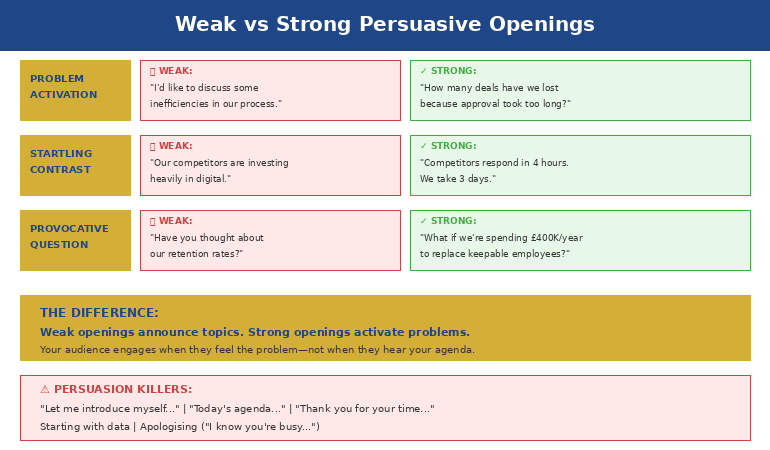
Comparison of weak vs strong persuasive presentation openings - what loses the room vs what captures attention

Three Persuasive Opening Techniques

1. The Problem Activation

Start with a problem your audience already feels—not one you need to convince them exists.

Weak: “I’d like to discuss some inefficiencies in our approval process.”

Strong: “How many deals have we lost because approval took too long?”

The weak version announces a topic. The strong version activates a frustration they’ve already experienced. Now they want to hear your solution.

2. The Startling Contrast

Juxtapose where they are with where they could be.

Weak: “Our competitors are investing heavily in digital transformation.”

Strong: “Our competitors respond to customer inquiries in 4 hours. We take 3 days. That gap is costing us market share every week.”

The contrast creates urgency. The specificity makes it real.

3. The Provocative Question

Ask something they can’t ignore.

Weak: “Have you thought about our retention rates?”

Strong: “What if I told you we’re spending £400,000 a year to replace employees we could have kept?”

The question engages their mind. The specific number demands attention.

These techniques are part of a broader framework for persuasive presentations that work at every level.

What to Avoid in Persuasive Openings

The most common persuasion-killers I’ve seen in 25 years:

  • “Let me introduce myself…” — They don’t care about you yet. Make them care about the problem first.
  • “Today’s agenda covers…” — Agendas are administrative, not persuasive. Save them for after you’ve hooked attention.
  • “Thank you for your time…” — Gratitude is fine, but it signals you’re about to take, not give.
  • Starting with data — Numbers without context invite analysis, not agreement. Establish why the numbers matter first.
  • Apologising — “I know you’re busy” or “This might be boring” primes them to disengage.

Every one of these openings puts the focus on you or on neutral information. Persuasive openings put the focus on a problem the audience cares about solving.

🏆 Master Executive Persuasion

The Executive Buy-In Presentation System teaches the complete psychology of persuading senior leadership—from opening frames to closing techniques that get yes.

Learn More → £199

📧 Join 2,000+ professionals getting weekly presentation insights. Subscribe to The Winning Edge →

Frequently Asked Questions

Why are the first 10 seconds so important for persuasion?

Your audience decides in the first 10 seconds whether to engage or resist. Open with data, and they’re already forming counterarguments. Open by activating a problem they feel, and they’re primed to hear your solution. You’re not just starting—you’re setting the psychological frame for everything that follows. More techniques in our persuasive presentations guide.

What’s the best way to open a persuasive presentation?

Start with a problem your audience already feels, not with your solution. “What would it mean if you could cut approval time in half?” activates desire before resistance. Then your recommendation becomes the answer to their question, not an idea they need to evaluate.

Should I start a persuasive presentation with data or story?

Neither—start with a question or statement that activates a felt problem. Data invites analysis; stories take time to land. A sharp question that hits an existing pain point creates immediate engagement. Save data and stories for after you’ve captured attention. See our full persuasive presentations framework for sequencing.

📥 Free Download: 7 Presentation Frameworks

Get structured structures for persuasive presentations—including opening frameworks that capture attention and prime agreement.

Download Free →

Related: Persuasive Presentations: How to Change Minds Without Manipulation


Mary Beth Hazeldine spent 25 years at JPMorgan, PwC, RBS, and Commerzbank. She’s a clinical hypnotherapist and MD of Winning Presentations.

06 Jan 2026
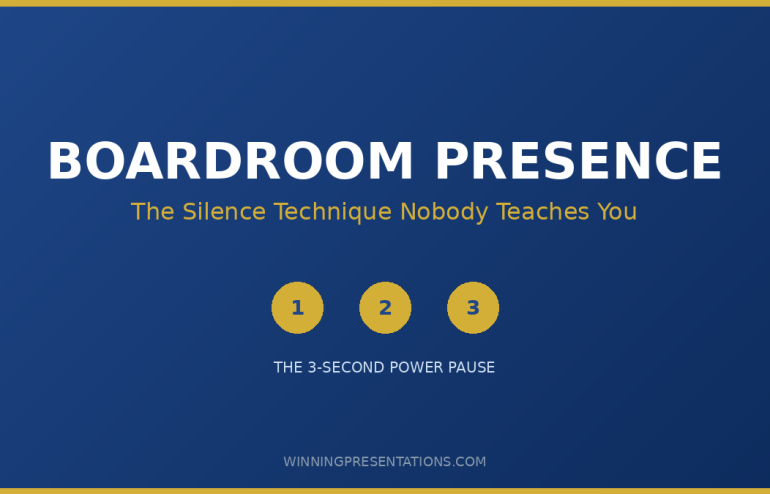
Boardroom presence - executive using strategic silence to command attention in board meeting

Boardroom Presence: The Silence Technique Nobody Teaches You

Quick Answer: Boardroom presence comes from strategic silence, not more talking. The technique: pause for 3 seconds before your key recommendation, hold eye contact with the decision-maker, then deliver your point. This “power pause” signals confidence and commands attention. Most professionals rush through their most important moments—the silence technique forces the room to lean in.

The VP had 47 metrics on 23 slides. She talked for 12 minutes straight.

Nobody remembered a single number.

I watched this unfold at JPMorgan Chase during a quarterly review. Her analysis was thorough. Her boardroom presence, however, was non-existent. She filled every silence with more words, more data, more justification—as if volume could substitute for authority.

The CFO interrupted: “What’s your recommendation?”

She hesitated. Then launched into another explanation.

He checked his phone. The room followed.

Three months later, I coached a different executive on the same presentation. Same data. Same audience. But this time, she paused for three full seconds before her recommendation. The room went quiet. Everyone leaned in.

She got unanimous approval in under eight minutes.

The difference? Boardroom presence through strategic silence.

The Executive Slide System

Your boardroom presence starts with slides that command attention. The Executive Slide System gives you the exact frameworks, templates, and structures that senior leaders expect—so your delivery can focus on presence, not fumbling with format.

Includes: Board-ready slide templates, executive summary frameworks, and the one-page formats that get read.

Get the Executive Slide System →

Why Boardroom Presence Comes From Silence, Not Speaking

Most professionals believe boardroom presence means commanding the room with words. More data. Stronger arguments. Louder delivery.

They’re wrong.

After 24 years coaching executives at JPMorgan, PwC, RBS, and Commerzbank, I’ve observed a consistent pattern: the leaders with the strongest boardroom presence speak less than everyone else. They use silence as a tool.

Here’s why it works: When you pause before a key point, you create anticipation. The room’s attention shifts from passive listening to active waiting. Your next words carry weight they wouldn’t otherwise have.

Neuroscience backs this up. The brain processes silence as a signal that something important is coming. It’s the verbal equivalent of a spotlight—everything that follows gets heightened attention.

The 3-Second Boardroom Presence Technique

The technique is simple. Executing it under pressure is hard. Here’s the framework:

Step 1: Identify your key moment. Every boardroom presentation has one critical point—the recommendation, the ask, the decision you need. Know exactly when it’s coming.

Step 2: Stop talking. When you reach that moment, close your mouth. Don’t fill the space with “so,” “um,” or “basically.” Just stop.

Step 3: Hold for three seconds. Count in your head: one-Mississippi, two-Mississippi, three-Mississippi. It will feel like an eternity. That discomfort is the point.

Step 4: Make eye contact. During the pause, find the primary decision-maker. Hold their gaze. This isn’t aggressive—it’s confident.

Step 5: Deliver with conviction. After the pause, state your point clearly. No hedging. No qualifiers. “I recommend we proceed with Option B.”

Boardroom presence 3-second silence technique - 5-step framework for commanding executive attention

What Boardroom Presence Mistakes Kill Your Credibility

The silence technique works because it counters the three most common boardroom presence killers:

Mistake 1: Rushing through recommendations. When you’re nervous, you speed up. Your most important point gets buried in a flood of words. The pause forces you to slow down precisely when it matters most.

Mistake 2: Over-explaining before asking. Executives don’t need 15 minutes of context before your recommendation. They need your recommendation, followed by supporting evidence if they ask. The pause separates setup from substance.

Mistake 3: Filling silence with justification. The moment you make a recommendation, the instinct is to keep talking—to defend before you’re attacked. Resist. Let your point land. If they have questions, they’ll ask.

How to Practice Boardroom Presence Before Your Next Meeting

You can’t learn this in the boardroom. You need to practice before the stakes are real.

Rehearsal method: Record yourself delivering your key recommendation. Watch the playback. Notice where you rush, where you fill silence, where you look away. Then do it again with deliberate pauses.

The mirror test: Practice holding your own gaze in a mirror during the 3-second pause. If you can’t maintain eye contact with yourself, you won’t maintain it with a skeptical CFO.

The conversation test: Use the technique in low-stakes conversations first. Pause before answering questions in team meetings. Get comfortable with silence when it doesn’t matter, so you can deploy it when it does.

For more on building executive presence that commands any room, read my complete guide: Executive Presence Presentations: Why Your Content Fails Without It.

FAQ: Boardroom Presence

How long does the boardroom presence silence technique take to master?

Most professionals can execute the basic 3-second pause within 1-2 practice sessions. However, doing it under pressure—when a CFO is staring at you—takes 2-3 weeks of deliberate practice. Start in low-stakes meetings and gradually work up to boardroom settings.

Won’t pausing make me look like I’ve forgotten what to say?

Only if you look panicked. Boardroom presence through silence works because of what you do during the pause: maintain eye contact, keep your posture grounded, and breathe normally. The difference between “forgot my words” and “commanding the room” is entirely in your body language.

Does boardroom presence differ for virtual board meetings?

Yes. In virtual settings, the pause needs to be slightly shorter (2 seconds instead of 3) because screen silence feels longer. More importantly, you must look directly at your camera during the pause—not at participants’ faces on screen. This creates the eye contact that signals boardroom presence virtually.

What if someone interrupts during my strategic pause?

Let them. If a board member speaks during your pause, they’ve just revealed what’s on their mind—valuable information. Address their point briefly, then reset: “To answer your question directly…” followed by another deliberate pause before your recommendation. Boardroom presence means staying composed regardless of interruptions.

Can I use the silence technique multiple times in one presentation?

Use it sparingly—once or twice maximum. If you pause dramatically before every point, it loses impact and starts feeling performative. Reserve your strategic silence for the one moment that matters most: your core recommendation or the decision you need from the room.

📧 Join 2,000+ professionals getting weekly presentation insights. Subscribe to The Winning Edge →

📋 Free Download: Executive Presentation Checklist

Get the same pre-boardroom checklist I give to clients before high-stakes presentations. Covers presence signals, slide structure, and room preparation.

Get Your Free Checklist →


About the Author

Mary Beth Hazeldine spent 24 years at JPMorgan, PwC, RBS, and Commerzbank. She’s a clinical hypnotherapist and MD of Winning Presentations.

04 Jan 2026
Microsoft Teams presentation tips showing professional presenter using PowerPoint Live

Microsoft Teams Presentation Tips: How to Present Professionally in the Corporate Standard [2026]

Last updated: January 2026

My first presentation on Microsoft Teams to a major bank’s risk committee was a disaster I didn’t even recognise as a disaster until afterwards.

The presentation went “fine.” Nobody complained. But when I reviewed the recording, I understood why the engagement felt off: Teams had compressed my video so aggressively that my facial expressions were nearly invisible. The subtle visual cues I relied on to connect — a raised eyebrow, a slight smile — weren’t transmitting.

I looked like a talking head with no humanity.

Microsoft Teams is now the default platform for corporate presentations. Over 320 million people use it monthly. If you’re presenting in a corporate environment, you’re almost certainly presenting on Teams. These Microsoft Teams presentation tips will help you master the platform’s quirks and present with the same impact you’d have in a boardroom.

Free resource: Download my Virtual Presentation Quick-Start Checklist — includes Teams-specific PowerPoint Live setup and the compression workaround checklist.


Teams Presentation Tips: The Video Compression Problem (And How to Fix It)

Teams compresses video more aggressively than Zoom. This is intentional — it’s optimised for corporate networks where bandwidth matters. But it creates a presentation challenge.

High Contrast Is Essential

Subtle visual distinctions disappear. That light grey text on white background? Gone. The nuanced colour palette in your slides? Flattened.

For Teams presentations:

Slides: Maximum contrast. Dark text on light backgrounds, or light text on dark backgrounds. Avoid mid-tones.

Your appearance: Solid colours outperform patterns. A plain dark shirt against a light background reads clearly. A subtle checked pattern becomes visual noise.

Lighting: Needs to be brighter than you think. Teams’ compression handles high-light situations better than low-light.

Exaggerate Facial Expressions

Because compression flattens subtle expressions, dial up your facial animation by about 40%. What feels slightly over-the-top in the mirror will land as normal on the compressed Teams video.

This isn’t about being fake. It’s about compensating for technical limitations that would otherwise make you appear flat and disengaged.

PowerPoint Live: The Teams Feature Most Presenters Miss

If you’re presenting PowerPoint slides on Teams, stop using screen share. Use PowerPoint Live instead.

How to Use PowerPoint Live

Click the Share button → Browse → Select your PowerPoint file → It opens in PowerPoint Live mode.

Why this is better:

You stay visible. Your video remains prominent alongside slides, not shrunk to a tiny corner.

Participants can browse. They can look ahead or back without affecting what others see. Some presenters hate this, but I’ve found it reduces the “wait, go back” interruptions.

You see private notes. Your presenter view includes notes that only you can see — no second monitor required.

Better quality. PowerPoint Live transmits slides as slides, not as compressed video of slides. Text is crisp, images are clear.

The PowerPoint Live Standout Feature

With PowerPoint Live, you can use Standout Mode: your video appears in front of your slides, with your background removed. You become visually integrated with your content.

Use this sparingly — it’s attention-grabbing but can feel gimmicky. Reserve it for key moments when you want maximum presence.

PowerPoint Live vs Screen Share comparison showing advantages of PowerPoint Live in Teams

Teams-Specific Engagement Tools

Teams has different engagement features than Zoom. Here’s how to use them effectively:

Reactions

Teams reactions (👍❤️😂👏😮) appear as floating animations. Prompt them: “Give me a thumbs up if this resonates with your experience…”

The animations create visible engagement and energy, breaking the flat-screen monotony.

The Raise Hand Feature

Participants can click “Raise Hand” to signal they want to speak. As presenter, you’ll see a hand icon on their video.

Acknowledge them by name: “I see David has his hand up — go ahead, David.”

This creates orderly discussion without the chaotic unmuting of people talking over each other.

Meeting Chat

Teams meeting chat persists after the meeting — unlike Zoom, where chat disappears unless you save it. This means:

You can reference chat comments even after the meeting ends. Participants can continue discussions in the chat thread. Links and resources shared remain accessible.

Use this: “I’ll drop some resources in chat after we finish, and they’ll be there in your Teams history for reference.”

Polls in Teams

Forms app integrates directly with Teams meetings. Create polls before the meeting in Microsoft Forms, then launch them during the presentation.

Just like virtual presentations generally, use polls every 10-15 minutes as attention resets.

Presenting to corporate executives on Teams? My Executive Slide System (£39) includes high-contrast templates optimised for Teams’ aggressive video compression — your slides stay readable even on bandwidth-constrained corporate networks.

Want opening hooks that cut through the Teams compression? My Presentation Openers Swipe File (£9.99) includes high-impact openings designed for virtual environments where every second counts.

Together Mode: When to Use It

Together Mode places everyone in a shared virtual space — like sitting in an auditorium together. It sounds gimmicky but has genuine uses.

Use Together Mode for:

Longer sessions (30+ minutes) where Zoom fatigue becomes an issue. The shared space reduces the cognitive load of the grid view.

Team meetings where collaboration matters more than formal presentation.

Sessions where you want a more informal, connected atmosphere.

Don’t use Together Mode for:

Formal executive presentations. Client-facing meetings where professionalism matters. Situations where participants might find it frivolous.

Teams Audio: The Corporate Network Challenge

Many corporate Teams users are on locked-down machines where they can’t install optimised audio settings. If you’re presenting to corporate audiences, assume some participants have mediocre audio.

This means:

Speak more clearly than normal. Slight mumbling that’s fine in person becomes incomprehensible over compressed Teams audio.

Pause between key points. Latency can cause slight delays; pauses ensure people catch everything.

Avoid speaking while slides transition. The visual change combined with audio can overwhelm compressed bandwidth.

Starting Your Teams Presentation Right

The Teams waiting room is called the “Lobby.” As host, you control when people are admitted.

Pro tip: Join your own meeting 5 minutes early. Admit people as they arrive, greet them by name. This creates connection before you start and fills the awkward “waiting for everyone” silence.

When ready to begin:

Camera on, no screen share yet. Deliver your opening hook to faces, not slides. Then share PowerPoint Live once you’ve established presence.

“Let me share something that surprised me last quarter…” [30-second hook] “…let me show you what I mean.” [Then share slides]

For more on powerful openings: How to Open a Presentation

Recording Teams Presentations

Teams recordings automatically save to SharePoint/OneDrive. This has implications:

Assume you’re being recorded. Even if you don’t record, participants might. Behave accordingly.

Announce if recording. “I’m going to record this for anyone who couldn’t make it. Any objections?”

Use recordings for self-review. Watch yourself afterwards. Teams recordings include your video, slides, and chat — comprehensive feedback for improvement.

The Teams Presentation Quick Checklist

Before:

☐ Slides optimised for high contrast

☐ PowerPoint file ready for PowerPoint Live

☐ Forms polls created (if using)

☐ Lighting brighter than usual

☐ Solid colour clothing (no patterns)

☐ Test audio with headphones

During:

☐ Use PowerPoint Live (not screen share)

☐ Exaggerate facial expressions 40%

☐ Watch for raised hands

☐ Prompt reactions for engagement

☐ Reference chat by name

☐ 10-minute attention resets

After:

☐ Drop resources in meeting chat

☐ Follow up email within 24 hours

☐ Review recording for self-improvement

Common Teams Presentation Tips Mistakes

Using screen share instead of PowerPoint Live. You lose video prominence, slide quality, and presenter notes.

Ignoring the compression factor. Subtle visuals and expressions don’t transmit. Dial up contrast and expressiveness.

Not testing corporate firewalls. If presenting to a new corporate client, their firewall might block certain features. Test in advance.

Forgetting the persistent chat. Unlike Zoom, Teams chat sticks around. Don’t write anything you wouldn’t want seen later.

Master Teams Presentations

Microsoft Teams is the corporate standard, and it’s not going anywhere. Master these Teams presentation tips and you’ll stand out from the majority who just click “Share Screen” and hope for the best.

For the complete virtual presenting framework: Virtual Presentation Tips: The Complete Guide

For Zoom-specific techniques: Zoom Presentation Tips

Ready to command any virtual room? My Executive Buy-In Presentation System includes live practice sessions with real-time feedback on your virtual presence and platform mastery.

Free weekly tips: Join 2,000+ professionals getting my Wednesday newsletter. Subscribe here.

Frequently Asked Questions

Is PowerPoint Live better than screen sharing?

Yes, for presentations. PowerPoint Live keeps you visible, provides presenter notes, delivers crisper slide quality, and offers Standout Mode. Use screen share only when you need to show something other than PowerPoint.

How do I keep people engaged in long Teams meetings?

Use polls and reactions every 10-15 minutes. Break into breakout rooms for longer sessions. Consider Together Mode to reduce video fatigue. And honestly — question whether the meeting needs to be that long.

What’s the best Teams background for presentations?

A real, clean background beats a virtual one. If you must use virtual backgrounds, Teams’ built-in options are optimised for the platform. Avoid custom backgrounds that might glitch with Teams’ compression.

How do I handle Teams technical issues mid-presentation?

Have a backup: phone dial-in number, colleague who can take over sharing, pre-sent materials. When issues occur, acknowledge briefly and move on. “Let me switch to my backup here… right, as I was saying…” Don’t over-apologise.

(This article was created with AI assistance; all stories and insights are based on 35 years of real client work.)

03 Jan 2026
How to open a presentation - the first 30 seconds that win your audience

[2026]How to Open a Presentation: The First 30 Seconds That Win Your Audienc

You have 30 seconds. That’s how long your audience takes to decide whether you’re worth their attention. Most presenters lose them before slide two.I learned this the hard way.

Early in my banking career at JPMorgan Chase, I opened a critical client pitch with: “Good morning, I’m Mary Beth, and today I’ll be walking you through our Q3 performance…”

I watched the CFO check his phone before I finished the sentence.

That presentation didn’t fail because of bad data or weak recommendations. It failed in the first 30 seconds — because I didn’t know how to open a presentation properly.

Over 25 years and hundreds of executive presentations later, I’ve developed a systematic approach to opening presentations that commands attention. Not tricks. Not gimmicks. A framework that works whether you’re pitching to investors, updating your board, or presenting to your team.

In this guide, I’ll show you exactly how to open a presentation that makes your audience lean in — with 20 techniques you can use immediately.

⭐ Want a Framework for Opening Every Presentation?

If you want ready-made slide structures that guide your opening, middle, and close — the Executive Slide System includes 22 templates for every executive scenario, so you always know how to start strong.

Explore the Executive Slide System →

Why How You Open a Presentation Determines Everything That Follows

The opening of your presentation isn’t just important — it’s decisive.

Research in cognitive psychology shows that first impressions form within milliseconds and are remarkably resistant to change. In presentations, this means your audience is making judgments about your competence, credibility, and whether you’re worth listening to before you’ve finished your first paragraph.

Here’s what happens neurologically when you open a presentation:

The attention gate opens (or closes). Your audience’s prefrontal cortex decides whether to allocate cognitive resources to processing your message. A strong opening triggers engagement. A weak one triggers the “this isn’t worth my full attention” response — and that phone comes out.

Expectations crystallise. Within 30 seconds, your audience forms predictions about the entire presentation. Will this be valuable? Will it be boring? Will it waste my time? These predictions become self-fulfilling — people find what they expect to find.

Social proof activates. In group settings, audience members look to each other for cues. If you open strong and capture the room, others follow. If you stumble, scepticism spreads.

The executives I work with — in corporate banking and financial services — all say the same thing: they know within 30 seconds whether a presentation will be good. Learning how to open a presentation properly isn’t a nice-to-have. It’s the difference between being heard and being ignored.

The 5 Fatal Mistakes When Opening a Presentation

Before I show you what works, let’s eliminate what doesn’t. These opening mistakes kill presentations:

Mistake 1: The Autobiographical Opening

“Good morning, my name is Sarah, I’m the Director of Marketing, and I’ve been with the company for seven years…”

Unless you’re speaking to complete strangers, your audience knows who you are. Even if they don’t, they don’t care — yet. Your credentials matter only after you’ve demonstrated value. Opening with your biography is like a restaurant describing the chef’s CV before letting you taste the food.

Mistake 2: The Agenda Recitation

“Today I’m going to cover four main areas: first, the market analysis; second, our competitive position; third, the proposed strategy; and fourth, the implementation timeline…”

Agendas are useful — but not as openings. They tell people what’s coming without giving them a reason to care. It’s like a film trailer that just lists the scenes in order.

Mistake 3: The Apology Opening

“I know you’re all busy, so I’ll try to keep this brief…” or “I’m not really an expert on this, but…” or “Sorry, I’m a bit nervous…”

Apologetic openings destroy your authority before you’ve established it. They signal that even you don’t think what you’re saying is worth their time. Never apologise for presenting.

Mistake 4: The Technical Difficulties Opening

“Can everyone see this okay? Let me just… hold on… is this working? Sorry, technical issues…”

Test your technology before you present. Technical problems in your opening signal poor preparation and immediately put you on the back foot.

Mistake 5: The Housekeeping Opening

“Before we begin, just a few housekeeping items — toilets are down the hall, fire exits are here and here, please silence your phones…”

Housekeeping can wait. Or be handled by someone else. Or be skipped entirely. Don’t waste your most valuable real estate on logistics.

Every one of these mistakes shares the same flaw: they’re about you, not your audience. A powerful opening answers one question immediately: why should I pay attention to this?

5 fatal presentation opening mistakes to avoid - the autobiography, agenda recitation, apology, tech check, and housekeeping

How to Open a Presentation: The 30-Second Framework

After analysing thousands of presentations — the ones that succeeded and the ones that failed — I’ve identified a framework that consistently works. Here’s how to open a presentation in 30 seconds:

Second 0-10: The Hook

Capture attention with a surprising statement, question, statistic, or story opening. This is your “pattern interrupt” — something that breaks through the noise and signals “this is different.”

Second 10-20: The Relevance Bridge

Connect your hook to something your audience cares about. Why does this matter to them? What’s at stake? This transforms curiosity into investment.

Second 20-30: The Promise

Tell them what they’ll get from paying attention. What will they know, be able to do, or decide by the end? This creates forward momentum.

Let me show you this framework in action with 20 specific techniques.

The 30-second presentation opening framework - Hook (0-10 seconds), Relevance (10-20 seconds), Promise (20-30 seconds)

How to Open a Presentation: 20 structured Techniques

Here are 20 ways to open a presentation that commands attention. Each one follows the 30-second framework and can be adapted to any context.

Category 1: Question Openings

Questions activate your audience’s brain. They can’t help but start formulating answers — which means they’re engaged.

Technique 1: The Pain Point Question

“How many hours did your team spend on presentations last month? For most companies I work with, the answer is shocking — and most of that time is wasted. Today I’m going to show you how to cut that number by 70%.”

Technique 2: The Thought-Provoking Question

“What would you do with an extra £2 million in your budget? That’s not hypothetical — it’s what’s at stake in the decision we’re making today.”

Technique 3: The Show of Hands Question

“By show of hands, how many of you have sat through a presentation this month that should have been an email? [Wait for hands] Keep your hand up if you’ve given one. [Pause] Today we’re fixing that.”

Technique 4: The Rhetorical Challenge

“What if everything you believe about [topic] is holding you back? In the next 15 minutes, I’m going to challenge three assumptions that are costing this company money.”

Category 2: Story Openings

Stories are neurologically powerful. They release oxytocin, activate multiple brain regions, and are remembered 22 times more than facts alone.

Technique 5: The Personal Failure Story

“Three years ago, I nearly lost our biggest client. Not because of bad work — because of a presentation I thought was good but wasn’t. What I learned from that failure is why we’re here today.”

Technique 6: The Client Success Story

“Last month, a client called me in a panic. Board presentation in four hours, zero slides ready. By the time she walked into that boardroom, she had 12 polished slides and the confidence to deliver them. The board approved her £5 million proposal. Here’s the method she used.”

Technique 7: The “I Was There” Story

“I was sitting in the boardroom at [Company] when the CEO said something that changed how I think about [topic]. She said: ‘[Quote].’ Today I’m going to show you how to apply that insight.”

Technique 8: The Contrast Story

“Two teams. Same data. Same deadline. Same stakeholders. One got their proposal approved in the first meeting. The other is still waiting after six months. The difference? How they opened their presentation.”

Your Opening Sets the Frame — Your Slides Keep It

A strong opening earns attention. The Executive Slide System gives you the structures to sustain it — 22 templates, 51 AI prompts, and 15 scenario playbooks for every executive presentation. £39, instant access.

Get the Executive Slide System →

Designed for executives who present in high-stakes settings.

Category 3: Data Openings

The right statistic stops people in their tracks. The key word is “right” — it needs to be surprising, relevant, and immediately graspable.

Technique 9: The Shocking Statistic

“£2.3 million. That’s how much this problem cost us last year. Today I’m going to show you how to cut that number in half — with an investment of £150,000.”

Technique 10: The Comparison Statistic

“Our competitors close deals in 45 days. We take 78. That 33-day gap is costing us £4 million annually in delayed revenue. This presentation is about closing that gap.”

Technique 11: The Time-Based Statistic

“In the time it takes to give this presentation — 15 minutes — we’ll lose £12,000 to [problem]. By the end, you’ll know how to stop that leak.”

Technique 12: The Personal Statistic

“I’ve given over 500 presentations in my career. Exactly 3 of them changed my life. Today I’m going to show you what made those 3 different — and how to apply it to your next presentation.”

Category 4: Bold Statement Openings

Bold statements signal confidence and create immediate intrigue. They work when you can back them up.

Technique 13: The Contrarian Statement

“Everything you’ve been told about [topic] is wrong. The conventional wisdom is costing companies millions — and I have the data to prove it.”

Technique 14: The Prediction Statement

“By 2027, half the companies in this industry will be gone. The ones that survive will have done one thing differently. That’s what we’re here to discuss.”

Technique 15: The Promise Statement

“In the next 15 minutes, I’m going to give you a framework that will cut your presentation prep time from 6 hours to 90 minutes. And I’ll prove it works before you leave this room.”

Technique 16: The Challenge Statement

“I’m going to challenge you to think differently about [topic]. Some of you will resist. By the end, I think you’ll agree the change is worth it.”

Category 5: Situational Openings

These openings acknowledge the specific context and create immediate relevance.

Technique 17: The Current Event Opening

“You’ve seen the news this morning about [relevant event]. What you might not realise is how directly it affects what we’re deciding today. Let me show you the connection.”

Technique 18: The Callback Opening

“In our last meeting, someone asked a question I couldn’t fully answer. I’ve spent the past two weeks finding that answer — and it led me somewhere unexpected.”

Technique 19: The Elephant in the Room Opening

“I know what you’re thinking: not another presentation about [topic]. I thought the same thing before I saw these numbers. Give me 10 minutes to change your mind.”

Technique 20: The Direct Address Opening

“You asked for a recommendation on [topic]. My recommendation is [answer]. The rest of this presentation is the evidence. If you’re convinced after 10 minutes, we can stop early.”

20 structured presentation opening techniques organized by category - Questions, Stories, Data, Bold Claims, and Situational approaches with audience matching guide

If you want a structured approach to building presentations that open strong, the Executive Slide System gives you 22 templates with built-in opening frameworks for every executive scenario.

How to Open a Presentation: Matching Technique to Context

Not every opening works for every situation. Here’s how to choose:

For Board Presentations

Best techniques: Direct Address (#20), Shocking Statistic (#9), Promise Statement (#15)

Board members are time-poor and decision-focused. Open with your recommendation or the key number, then support it. Don’t make them wait.

For Sales Pitches

Best techniques: Pain Point Question (#1), Client Success Story (#6), Comparison Statistic (#10)

Sales openings should connect to the prospect’s world immediately. Lead with their problem or a result someone like them achieved.

For Team Meetings

Best techniques: Show of Hands (#3), Personal Failure Story (#5), Contrast Story (#8)

Teams respond to connection and authenticity. Stories and interactive elements build engagement.

For Conference Talks

Best techniques: Contrarian Statement (#13), Personal Statistic (#12), Thought-Provoking Question (#2)

Conference audiences have chosen to be there but are easily distracted. Open with something memorable and different.

For Investor Pitches

Best techniques: Time-Based Statistic (#11), Prediction Statement (#14), “I Was There” Story (#7)

Investors want to see pattern recognition and urgency. Show you understand where the market is going and why now matters.

How to Open a Presentation: The First Slide Question

Your opening isn’t just what you say — it’s what you show. Here’s how to handle your first slide:

Rule 1: Your first slide should support your opening, not replace it.

If you’re opening with a statistic, your first slide might display that number in large text. If you’re opening with a question, your first slide might show that question. If you’re opening with a story, your first slide might be a simple image that sets the scene.

Rule 2: Avoid the title card trap.

The standard “Title / Your Name / Date / Company Logo” slide is wasted space. It tells your audience nothing and creates no engagement. Skip it or replace it with something that hooks.

Rule 3: Consider starting with a black screen.

For high-stakes presentations, try opening with no slide at all. Just you, speaking directly to the room. Advance to your first visual only after you’ve delivered your hook. This creates presence and signals confidence.

For more on this, see: The First 30 Seconds: Why Most Presenters Lose Their Audience Immediately

How to Open a Presentation: Practice Protocol

Knowing how to open a presentation isn’t enough — you need to execute it smoothly. Here’s my practice protocol:

Step 1: Write your opening word-for-word.

Don’t wing the most important 30 seconds of your presentation. Script it precisely.

Step 2: Time it.

Your opening should be 30-45 seconds maximum. If it’s longer, cut it.

Step 3: Memorise it.

Your opening is the one part of your presentation you should know cold. You should be able to deliver it while walking into the room, without notes, without slides.

Step 4: Practice it out loud 10 times.

Not in your head — out loud. Record yourself. Listen back. Refine.

Step 5: Practice the transition.

The move from your opening to your first main point should be seamless. Practice this bridge until it’s automatic.

This protocol takes 30 minutes. It’s the highest-ROI time you can spend on any presentation.

How to Open a Presentation: Common Questions

How long should a presentation opening be?

30-45 seconds maximum. That’s roughly 75-100 words spoken at a natural pace. Your opening should hook attention, establish relevance, and create forward momentum — then get out of the way.

Should I introduce myself when opening a presentation?

Only if the audience genuinely doesn’t know who you are. Even then, keep it to one sentence after your hook, not before it. Establish value first, credentials second.

How do I open a presentation when I’m nervous?

Memorise your opening word-for-word. When you know your first 30 seconds cold, you can deliver them on autopilot while your nerves settle. Most presentation anxiety peaks in the first minute — a solid, memorised opening gets you through it.

What if my opening doesn’t land?

Keep going. Don’t acknowledge it, don’t apologise, don’t try a different opening. Commit to your approach and trust your content. One flat moment doesn’t define a presentation.

Can I use humour to open a presentation?

Only if you’re genuinely funny and the context supports it. Bad humour is worse than no humour. If you’re unsure, use a different technique. A compelling question or statistic is safer and often more effective than a joke.

Your Presentation Opening Toolkit

Now you know how to open a presentation. Here are resources to help you execute:

Want Slide Structures That Open Strong Every Time?

The Executive Slide System gives you 22 executive slide templates with built-in opening frameworks — board meetings, investor pitches, quarterly reviews. Stop building from blank slides and start with structures that work. £39, instant access.

Get the Executive Slide System →

Designed for board meetings, investor pitches, and leadership presentations.

🎓 Master High-Stakes Presentations

Knowing how to open a presentation is just the beginning. The Executive Buy-In Presentation System teaches you how to structure for approval, handle tough questions, and deliver with authority.

  • 7 modules of video training
  • Opening frameworks for every executive scenario
  • Live practice sessions with feedback
  • AI prompt sequences that actually work

Learn More About the Course →


Related Articles:

Frequently Asked Questions

What is the best way to open a presentation?

Open with something your audience cares about — a problem they face, a question that matters to them, or a specific result they want. The worst openings are self-introductions and agenda slides. Your first 30 seconds should answer the audience’s unspoken question: “Why should I pay attention?”

How do you open a presentation without being nervous?

Memorise your first two sentences word-for-word. This gives you a reliable start while your nerves settle. Once you’ve delivered those first lines confidently, adrenaline works for you rather than against you. Structure removes uncertainty, and uncertainty is what amplifies nerves.

Should you start a presentation with a joke?

Only if it’s genuinely relevant to your topic and you’re confident in the delivery. Most business presentations are better served by a striking fact, a problem statement, or a short story. A joke that misses creates awkwardness; a strong opening statement creates authority.

How do you open a presentation to senior executives?

Lead with the decision or recommendation, not the background. Senior executives want to know what you’re asking for and why it matters before they’ll invest attention in your evidence. Open with the outcome, then work backwards through the logic.

📧 Get The Winning Edge

Weekly presentation techniques, opening scripts, and frameworks from 25 years in corporate boardrooms.

Subscribe Free →


Mary Beth Hazeldine spent 25 years in corporate banking at JPMorgan Chase, PwC, Royal Bank of Scotland, and Commerzbank. She now advises professionals on high-stakes presentations through Winning Presentations. She advises executives across financial services, healthcare, technology, and government on structuring presentations for high-stakes scenarios.

29 Dec 2025
How to present to a board of directors - 7 critical mistakes to avoid

How to Present to a Board of Directors: 7 Mistakes to Avoid

Last updated: December 29, 2025 · 5 minute read

Learning how to present to board of directors is one of the most high-stakes skills in business — and the first time I did it, I made every mistake on this list.

Forty slides. Twenty-five minutes of monologue. A recommendation buried on slide 37. The Chairman interrupted me halfway through: “What exactly are you asking us to decide?”

That was at Royal Bank of Scotland, early in my career. It was humiliating — but it taught me how differently boards operate compared to every other audience.

After 24 years of presenting to boards at JPMorgan Chase, RBS, PwC, and Commerzbank, and training hundreds of senior professionals at Winning Presentations, I’ve seen these same mistakes destroy otherwise strong presenters.

Here are the seven mistakes to avoid when you present to a board of directors.

⚡ Key Takeaways

  • Don’t bury your recommendation — lead with it on slide one
  • Don’t over-explain your process — boards want conclusions, not journeys
  • Don’t hide the risks — experienced directors always notice
  • Don’t read the board paper aloud — assume they’ve read it
  • Don’t use too many slides — 5-8 maximum for 15 minutes

📥 FREE DOWNLOAD: Executive Presentation Checklist

The pre-board-meeting checklist I use before every executive presentation.

Download Free →

7 Mistakes to Avoid When You Present to Board of Directors

7 mistakes to avoid when presenting to a board of directors

Mistake 1: Burying Your Recommendation

Most presenters build up to their conclusion. Background, analysis, options, then finally — the recommendation.

This fails catastrophically with boards. Directors are time-poor and decision-focused. If they don’t know what you’re asking within the first minute, they lose patience.

Fix: First slide, first sentence: your recommendation. “I’m recommending we proceed with Option B at £2.4 million.”

For the complete framework, see my guide on how to brief executives.

Mistake 2: Over-Explaining Your Process

“First we conducted market research, then we interviewed stakeholders, then we built financial models, then we…”

Board members don’t care about your process. They care whether your conclusions are sound. Explaining how you worked signals insecurity.

Fix: Cut process explanations entirely. If someone asks “How did you arrive at that figure?”, answer briefly then. Don’t pre-emptively justify.

Mistake 3: Hiding the Risks

Inexperienced presenters minimise risks, hoping board members won’t probe. This always backfires.

Experienced directors have seen thousands of presentations. They know every proposal has risks. When you don’t mention them, they assume either: (a) you haven’t thought it through, or (b) you’re hiding something.

Fix: Address risks proactively. “Here are the three main risks and how we’d mitigate each.” This builds credibility.

💡 Want Board-Ready Templates?

The Executive Slide System includes 7 frameworks specifically designed for board presentations, including risk presentation templates.

Get the Executive Slide System — £39 →

Mistake 4: Reading the Board Paper Aloud

Board members receive papers in advance — often hundreds of pages for a single meeting. They’ve read yours (or at least skimmed it).

Repeating what’s in the paper wastes time and signals you don’t understand how boards work.

Fix: Assume they’ve read it. Say: “You’ve seen the detailed analysis in the paper. I’ll focus on the three points that most need discussion.”

Mistake 5: Using Too Many Slides

Harvard Business Review recommends senior executives see no more than one slide per two minutes.

For a 15-minute board presentation, that’s 5-8 slides maximum. Most presenters use three times that.

Fix: Move detail to backup slides. Your main deck should contain only what’s essential for the decision. Everything else is “detail on demand.”

Mistake 6: Filling Every Silence

When the Chairman pauses to think, anxious presenters jump in with more information. This interrupts the decision-making process.

Fix: When you finish a point, stop talking. When someone asks a question and you’ve answered, stop talking. Let silence exist. Directors use it to think.

Mistake 7: Getting Defensive Under Questioning

Board members will probe, challenge, and sometimes disagree. This isn’t hostility — it’s their job. Responding defensively makes you look unprepared.

Fix: Pause before answering. Thank them for the question (briefly). Answer directly. If you don’t know, say “I’ll need to confirm that and follow up.” Never bluff.

For more on handling tough questions, see my guide on how to present to the CFO.

What Works When You Present to Board of Directors

Avoiding these mistakes is half the battle. The other half is having the right structure.

The 4-part framework that works:

  1. Headline (30 seconds) — Your recommendation, first slide
  2. Context (2 minutes) — Why this decision matters now
  3. Substance (8-10 minutes) — Your case, alternatives, risks
  4. The Ask (1 minute) — Exactly what you need from them

This leaves time for questions within a typical 30-minute slot.

For the complete structure with examples, see my hub guide on how to brief executives.

For general presentation confidence, see my guide on how to speak confidently in public.

🎓 Want to Master Board Presentations?

AI-Enhanced Presentation Mastery includes a complete module on executive and board presentations, plus live coaching sessions where I work with you on your actual board decks.

8 modules. 2 live sessions. Frameworks from 24 years of boardroom experience.

Learn More — £249 →

Resources for Board Presentations

📖 FREE: Executive Presentation Checklist
Pre-meeting checklist for any board or C-suite presentation.
Download Free →

💡 QUICK WIN: Executive Slide System — £39
7 board-ready frameworks + templates + video walkthroughs.
Get Instant Access →

🎓 COMPLETE SYSTEM: AI-Enhanced Presentation Mastery — £249
8-module course including executive presentations module + live coaching.
Learn More →

FAQs: How to Present to Board of Directors

How do I prepare to present to a board of directors for the first time?

Structure your presentation using the 4-part framework: Headline, Context, Substance, Ask. Practice until your opening 30 seconds is automatic. Prepare backup slides for likely questions. Arrive early and test the technology. Most importantly, lead with your recommendation — don’t make them wait.

How long should a board presentation be?

Prepare 15 minutes of speaking maximum, even if you’re given 30 minutes. Boards value discussion time. If your prepared remarks take 15 minutes, that leaves 15 for questions — which is often where the real decision-making happens.

What do board members really want to see?

A clear recommendation. Honest assessment of risks. Evidence you’ve considered alternatives. And brevity. Boards see dozens of presentations per meeting. The ones that stand out respect their time and get to the point quickly.

How do I handle tough questions from board members?

Pause before answering — it shows confidence, not uncertainty. Answer directly without being defensive. If you don’t know something, say “I’ll confirm that and follow up” rather than guessing. Board members respect honesty far more than bluffing. They’ve seen too many presentations to miss evasion.


Mary Beth Hazeldine is the Owner & Managing Director of Winning Presentations and a Microsoft Copilot PowerPoint specialist. She has presented to boards at JPMorgan Chase, Royal Bank of Scotland, PwC, and Commerzbank during her 24-year corporate career. Her clients have collectively raised over £250 million using her presentation techniques.

Get Weekly Presentation Insights

Join 2,000+ professionals getting practical presentation tips every Tuesday.

Subscribe to The Winning Edge →

26 Dec 2025
AI workflow for creating data slides and presentations in 10 minutes

How I Use AI to Create Data Slides in 10 Minutes (Instead of 2 Hours)

The prompts and workflow that transformed how I build data presentations

I used to spend hours on data slides. Exporting from Excel. Formatting charts. Tweaking layouts. Rewriting headlines until they made sense.

Now I do it in 10 minutes.

The difference isn’t working faster. It’s working with AI as a thinking partner — using it for the parts it’s good at while I focus on what it can’t do: the insight.

Here’s my actual workflow.

The AI Data Slide Workflow

Most people use AI wrong for data presentations. They dump numbers into ChatGPT and ask it to “create a presentation.” The result is generic, insight-free, and usually wrong.

The trick is breaking the process into steps — using AI for some, doing others yourself.

Step 1: Find the Insight (Human)

AI can’t do this for you. Before touching any tool, I look at my data and ask: “What’s the one thing that matters here?”

This takes 5 minutes of thinking. It’s the most important part.

Once I have my insight — “EMEA is growing 3x faster than Americas” or “Churn dropped 40% after the intervention” — everything else becomes easier.

Step 2: Generate the Headline Options (AI)

With my insight clear, I ask AI to help me phrase it compellingly.

My prompt:

“I need a slide headline for this insight: [INSIGHT]. The audience is [AUDIENCE]. Give me 5 options — punchy, clear, no jargon. The headline should state the insight, not label the data.”

AI gives me 5 options. I pick the best one or combine elements from multiple.

This takes 1 minute instead of 15 minutes staring at a blank slide.

Step 3: Suggest the Visualisation (AI)

Next, I ask AI which chart type fits my story.

My prompt:

“I want to show [INSIGHT] using this data: [PASTE KEY DATA POINTS]. What’s the best chart type? Options: bar chart, line chart, pie chart, single big number, comparison table. Explain why.”

AI doesn’t just give me an answer — it explains the logic. “A line chart works because you’re showing change over time, and the inflection point in March is your story.”

Sometimes I disagree with its recommendation. That’s fine. The value is in the reasoning, not the answer.

Related: Data Storytelling: How to Make Numbers Compelling (Not Boring)

Step 4: Write the Supporting Text (AI)

Every data slide needs a brief explanation — one or two lines that reinforce the insight. AI drafts this fast.

My prompt:

“Write 1-2 sentences explaining this data insight to a busy executive: [INSIGHT + KEY NUMBERS]. Be direct. No filler words. End with the implication or recommended action.”

I usually edit what it gives me — cutting words, adding specifics — but it’s faster than writing from scratch.

Step 5: Build the Slide (Human + Copilot)

Now I build the actual slide. If you have Copilot in PowerPoint, you can prompt it directly:

My Copilot prompt:

“Create a slide with headline ‘[YOUR HEADLINE]’. Include a [CHART TYPE] showing [DATA DESCRIPTION]. Add a text box below with: ‘[YOUR SUPPORTING TEXT]’. Keep the design clean and professional.”

Copilot gets me 70% of the way there. I spend another 2-3 minutes adjusting formatting, colours, and emphasis.

Total time: 10 minutes for a data slide that used to take 2 hours.

Related: Best PowerPoint Copilot Prompts That Actually Work

Skip the Prompting — Get Ready-Made Templates

If you want to move even faster, the Executive Slide System (£39) includes data slide templates with the insight-first structure already built in.

What’s included:

  • Data slide templates you can populate directly
  • Dashboard layouts designed for executive audiences
  • The headline framework built into every slide
  • Before/after examples showing transformations

Get the Executive Slide System →

The Prompts I Use Most Often

Here are three more prompts from my data presentation workflow:

For simplifying complex data:

“I have this data table: [PASTE TABLE]. What are the 3 most important insights an executive would care about? Rank them by business impact.”

For anticipating questions:

“I’m presenting this data to a CFO: [INSIGHT + DATA]. What 3 questions will they likely ask? And how should I prepare to answer them?”

For creating the narrative:

“I have 4 data slides with these insights: [LIST INSIGHTS]. Help me create a narrative flow — what order should I present them, and what’s the connecting thread?”

These prompts save me hours every week. Not because AI is doing my thinking — but because it’s accelerating the parts that used to be slow.

Related: AI Presentation Workflow: How I Cut Creation Time from 6 Hours to 90 Minutes

📬 Get More AI + Presentation Tips

Every week, I share prompts, workflows, and techniques for better presentations. No fluff.

Subscribe to The Winning Edge →

What AI Can’t Do (And Shouldn’t Try)

AI accelerates data presentations. It doesn’t replace your judgment.

AI can’t find your insight. It can summarise data, but it doesn’t know what matters to your specific audience. That’s your job.

AI can’t know your politics. It doesn’t know that your CEO hates pie charts or that the board has seen this data before. Context is human.

AI can’t guarantee accuracy. Always verify numbers. I’ve seen AI confidently miscalculate percentages. Trust but verify.

Use AI for speed. Use your brain for strategy.


Learn the Complete AI Presentation System

This article shows one workflow. AI-Enhanced Presentation Mastery teaches the complete system — from data storytelling to AI-assisted delivery prep.

What you’ll learn:

  • AI prompts for every presentation type (not just data slides)
  • The 90-minute deck creation workflow
  • How to use AI for Q&A preparation
  • Data storytelling and the insight-first framework
  • Delivery techniques that technology can’t replace

8 self-paced modules (January–April 2026) plus 2 live coaching sessions.

Presale price: £249 (increases to £499)

See the full curriculum →

Try This Today

Next time you have data to present, try Step 2 from my workflow:

Write down your insight in one sentence. Then ask AI: “Give me 5 headline options for this insight. Punchy, clear, no jargon.”

See how much faster it makes you.

📖 Learn the framework: Data Storytelling: How to Make Numbers Compelling — the complete insight-first system.

📘 Get the templates (£39): Executive Slide System — data slide templates ready to use.

🎓 Master the AI workflow (£249): AI-Enhanced Presentation Mastery — prompts, workflows, and systems for every presentation type.


Mary Beth Hazeldine combines 24 years of corporate banking experience with expertise in AI-enhanced workflows. She helps professionals create better presentations in less time.