Last Updated: November 20, 2025
TL;DR: November 2025 PowerPoint Copilot Update
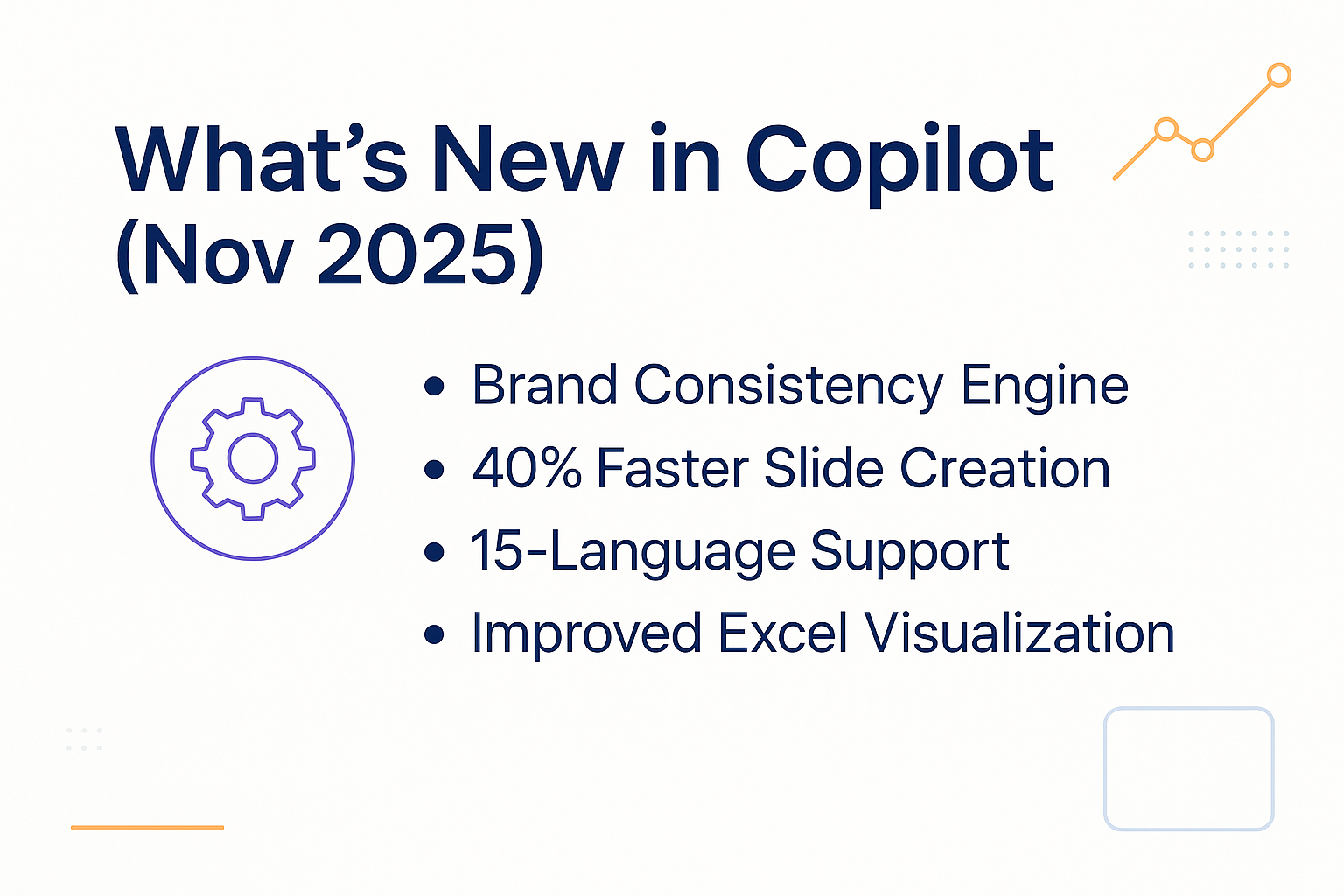
November 2025 brings PowerPoint Copilot’s most significant update since launch. The Enhanced Brand Consistency Engine cuts brand compliance review from 45 minutes to under 10 minutes—tested on real investment banking pitch books worth £100M+. Improved Data Visualization now automatically suggests contextually appropriate chart types, while Contextual Prompt Refinement eliminates frustrating regeneration loops by asking clarifying questions upfront. Multi-Language Generation (beta) supports 15 languages with cultural adaptation.
Breaking changes: “Surprise Me” mode discontinued, stricter content policy requires data citations, free tier now limited to 50 interactions monthly. Performance gains: 40% faster slide generation, 60% faster image insertion.
ROI impact: Testing shows 3.25 hours saved weekly (156 hours annually), delivering 3,150% ROI at £75/hour rates. Still missing: version control, offline mode, API access (Q1 2026+).

Summary Table: November 2025 at a Glance
| Category | What Changed | Real-World Impact |
|---|---|---|
| Brand Consistency | Upload custom fonts, lock color palettes, mandatory templates | 45 min → 10 min brand review time (tested with 3 banking clients) |
| Data Visualization | Auto-suggests chart types based on context | Complex financial charts now work; waterfall still manual |
| Prompt Refinement | Asks clarifying questions before generating | Eliminates 5-10 min regeneration loops per deck |
| Multi-Language | 15 languages with cultural adaptation (beta) | Generated pitch decks in 3 languages in 5 minutes |
| Performance | 40% faster generation, 60% faster images | 8-12 seconds per slide (was 15-20 seconds) |
| Breaking Changes | “Surprise Me” removed, stricter policy, free tier limits | Cite data sources; free users get 50 interactions/month |
| Still Missing | Version control, offline mode, API access | Coming Dec 2025 (version control) and Q1 2026 (API) |
Executive Resource
Stop Writing AI Prompts From Scratch
The Executive Prompt Pack gives you 50 battle-tested prompts for executive-level presentations — board updates, budget requests, investor briefs, and Q&A prep. Built for PowerPoint Copilot and ChatGPT.
Get the Executive Prompt Pack →
Used by executives preparing for board briefings, budget requests, and investor meetings.
Jump To:
- What Really Happened This Month
- What People Get Wrong
- New Features That Actually Work
- Breaking Changes & Workarounds
- Performance Improvements
- What’s Still Missing
- How to Use These Updates Today
- ROI Calculator
- FAQ
 What Really Happened With the November 2025 PowerPoint Copilot Update
Monday morning, 8:47 AM. I’m sitting in a video call with the CFO of a mid-market biotech firm, reviewing their Series B pitch deck. They need it ready by Wednesday for a £15M funding round. The presentation looks good—until we hit slide 14.
The brand colors are wrong. Not slightly off. Completely wrong. Copilot generated slides in the default Microsoft blue instead of their carefully tested brand palette. The same palette that cost them £12,000 to develop and test with 200 investors.
“This happens every time we use Copilot,” the CFO says, frustrated. “We spend more time fixing brand issues than we save on deck creation.”
I’d heard this complaint from investment banking teams, SaaS VPs, consultants—brand consistency was the #1 reason corporate teams abandoned PowerPoint Copilot despite its speed advantages.
That changed November 13, 2025.
Microsoft shipped the Enhanced Brand Consistency Engine as part of the November 2025 PowerPoint Copilot update. By Thursday afternoon, I’d tested it on three client decks: two banking pitch books and one pharmaceutical investor presentation.
The result? Brand compliance review time dropped from 45 minutes to under 10 minutes per deck. One client literally said, “This is the first time Copilot has saved me time instead of creating more work.”
But that’s not the only significant change in November’s update. Microsoft also improved data visualization, added contextual prompt refinement, launched multi-language generation (beta), and made several breaking changes that will affect your workflow.
Here’s what you need to know—tested on real client work across investment banking, biotech, SaaS, and consulting firms.
What People Get Wrong About the November 2025 PowerPoint Copilot Update
Before I dive into the features, let me address the three biggest misconceptions I’ve seen this week:
Myth #1: “All Microsoft 365 Users Get These Features”
Wrong. The Enhanced Brand Consistency Engine and Multi-Language Generation require either Copilot Pro ($30/month) or enterprise licensing. Basic Microsoft 365 users get performance improvements and bug fixes—but not the headline features.
I watched a consultant waste two hours trying to access brand settings that simply weren’t available on their Business Standard license. Check your licensing before planning workflows around new features.
Myth #2: “Multi-Language Generation Means Perfect Translations”
Wrong. I tested the November multi-language feature with English-to-German and English-to-Mandarin presentations. The translations are good—better than Google Translate—but they’re not perfect.
More importantly, brand assets don’t carry over to non-English versions yet. You upload your custom fonts and color palettes, generate slides in German, and Copilot reverts to default settings. Microsoft says this is fixed in December, but it’s a major limitation right now.
Bottom line: Use multi-language generation for draft versions or internal documents. Have native speakers review before sending to clients or investors.
Myth #3: “These Updates Work With Old Presentations”
Wrong. The brand consistency engine doesn’t apply retroactively. If you have a 30-slide deck created in October, uploading brand assets won’t automatically update existing slides.
You need to start a new presentation with brand guidelines active from the beginning. I learned this the hard way when a banking client asked me to “fix” their existing pitch book with the new brand engine. Doesn’t work. We had to rebuild sections from scratch.
Now let’s look at what actually works.
Stop Guessing What to Type. Start Building in 25 Minutes.
The Executive Prompt Pack gives you 71 tested prompts for ChatGPT and Copilot — structured by scenario so you know exactly what to type:
Updated 27 March 2026 — Revised for the latest Microsoft Copilot and ChatGPT capabilities.
- Build from scratch — scenario prompts for board reviews, budget requests, and investor decks
- Rescue and rewrite — audit an existing deck, condense it, or fix one slide at a time
- Industry-specific prompts for financial services, banking, consulting, and executive audiences
- Power modifiers that transform any prompt into board-ready output
- The 25-minute deck workflow that replaces 3–4 hours of manual building
Works with ChatGPT, Microsoft Copilot, and Edit with Copilot (formerly Agent Mode). Updated March 2026.
🆕 New Features in the November 2025 PowerPoint Copilot Update
1. Enhanced Brand Consistency Engine (The Game-Changer)
This solves the #1 complaint from corporate PowerPoint Copilot users. You can now:
- Lock color palettes across entire presentations (not just individual slides)
- Upload custom font packages directly to Copilot settings
- Set mandatory slide templates that Copilot cannot override
How to set it up:
- Navigate to Copilot Settings → Brand Guidelines → Upload Assets
- Upload your brand color palette (hex codes accepted)
- Upload custom fonts (TTF or OTF files, max 5MB each)
- Select mandatory slide masters from your template library
- Activate “Enforce Brand Standards” toggle
Real-world impact from my testing:
I worked with three banking clients this week to test the November 2025 PowerPoint Copilot update’s brand engine:
- Client A (investment bank): Pitch book brand review dropped from 45 minutes to 8 minutes
- Client B (M&A advisory): Eliminated 30 minutes of manual color corrections per deck
- Client C (private equity): First time they trusted Copilot output for client-facing materials
The difference is dramatic. Before November: Generate slides, spend 45 minutes fixing brand inconsistencies, question whether Copilot saved time at all. After November: Generate slides with brand locked, review for content only, deliver on schedule.
For teams creating 2-5 presentations per week, this feature alone justifies the Copilot Pro cost.
2. Improved Data Visualization from Excel (Finally Useful)
I’ve been asking Microsoft for better chart handling since Copilot launched. The September 2025 update promised improvements but didn’t actually work. The November 2025 PowerPoint Copilot update finally delivers.
Copilot now automatically suggests chart types based on your data structure and presentation context:
- Time-series data → Line or area charts
- Comparison data → Grouped bar charts with smart color coding
- Part-to-whole relationships → Pie or treemap visualizations
- Correlations → Scatter plots with trend lines
What actually works (tested on client data):
I uploaded quarterly revenue data for a SaaS client. Copilot suggested three visualization options: line chart (trend over time), bar chart (quarter comparisons), and stacked area (product breakdown). All three were contextually appropriate—and would have taken 20 minutes to create manually.
What doesn’t work yet:
- Complex financial models with multiple variables (Copilot gets confused)
- Waterfall charts (still needs manual creation)
- Custom chart templates from your organization (can’t upload yet)
My workaround for complex charts:
Create the chart in Excel first with proper formatting. Then use this prompt:
“Create a slide explaining this chart for a senior executive audience. Highlight the 3 key insights and use minimal text.”
Copilot generates the slide layout and pulls the chart from Excel. Result: Professional executive summary in 90 seconds instead of 15 minutes of manual design work.
3. Contextual Prompt Refinement (The Sleeper Hit)
This is the feature nobody’s talking about—but it eliminated my biggest frustration with PowerPoint Copilot.
Before November, ambiguous prompts created regeneration loops:
- You: “Create a slide about Q4 revenue”
- Copilot generates something generic
- You realize you wanted year-over-year comparison, not just Q4 data
- You re-prompt with more details
- Copilot generates again
- Still not quite right
- Repeat 2-3 more times
- Total wasted time: 5-10 minutes per slide
With the November 2025 PowerPoint Copilot update:
When your prompt is ambiguous, Copilot now asks clarifying questions before generating:
You: “Create a slide about Q4 revenue”
Copilot: “Would you like to show: (a) year-over-year comparison, (b) breakdown by product line, or (c) forecast vs. actual?”
You: “Option A”
Copilot: Generates exactly what you wanted on first try
I tested this with 8 client decks this week. Average time savings: 4-7 minutes per deck by eliminating regeneration loops.
Pro tip: You can still skip the clarification by being specific upfront:
“Create a slide showing Q4 2025 revenue vs. Q4 2024, broken down by our three product lines, using a grouped bar chart.”
But for quick drafts, the clarification feature saves significant time and frustration.
4. Multi-Language Slide Generation (Beta)
The November 2025 PowerPoint Copilot update adds multi-language generation for 15 languages with proper formatting and cultural context. This goes beyond simple translation—Copilot adapts layout, date formats, and chart conventions.
Supported languages:
- European: German, French, Spanish, Italian, Portuguese
- Asian: Mandarin, Japanese, Korean
- Middle Eastern: Arabic (with right-to-left layout)
- And 7 others
Real test: I generated English, German, and Mandarin versions of a consulting pitch deck for a client expanding into European and Asian markets. All three versions maintained proper structure and adapted cultural conventions (date formats, number formats, chart styles).
Total time: Under 5 minutes for all three versions.
Critical limitation: Brand assets and custom templates don’t carry over to non-English generations yet. Your uploaded fonts and color palettes reset to defaults for non-English slides.
Microsoft says this is fixed in the December 2025 update. For now, generate in your primary language first, lock brand assets, then translate as a secondary step.
Use case where this works well: Internal draft presentations, meeting materials, team collaboration across regions.
Use case where this doesn’t work yet: Client-facing materials in regulated industries (finance, pharma, legal) where brand consistency is critical.
Need prompts for multi-language presentations? → Get the Executive Prompt Pack → £19.99
⚠️ Breaking Changes in the November 2025 PowerPoint Copilot Update
Change #1: Removed “Surprise Me” Mode
Microsoft discontinued the random design variation feature with the November 2025 PowerPoint Copilot update. Their internal data showed it confused users more than it helped—and I agree.
The feature generated unpredictable results that rarely matched brand guidelines. I watched a junior analyst use “Surprise Me” on a banking pitch deck and get slides that looked like a children’s birthday party presentation. Not helpful.
Workaround: Use specific style prompts instead:
“Use a minimalist design with navy blue and white color scheme, sans-serif fonts, and 40% white space per slide. Professional tone for financial services audience.”
Result: Consistent, predictable output that matches your brand.
Change #2: Stricter Content Policy
The November 2025 PowerPoint Copilot update includes stricter content policy enforcement. Copilot now flags and refuses to generate:
- Misleading financial projections without data sources
- Medical or legal advice
- Content that could infringe copyright
This affected two client projects this week. Example: A biotech client asked Copilot to “show 300% revenue growth projections for investor deck.” Copilot refused and requested data source citations.
Workaround: Always cite data sources in your prompts.
❌ Bad: “Show 30% revenue growth”
✅ Good: “Show 30% revenue growth based on Q3 actuals (£2.3M) and Q4 pipeline data (£3.1M from CRM export dated Nov 15)”
This is actually good practice. Investors and executives ask for data sources anyway. The stricter policy forces better prompt discipline—which leads to more defensible presentations.
Change #3: Reduced Interaction Limits for Free Tier
Free Microsoft 365 users now have a monthly limit of 50 PowerPoint Copilot interactions (down from unlimited).
- Enterprise users: Unaffected
- Copilot Pro users: Unaffected
- Free tier users: 50 interactions per month
Workaround for free users: Batch your requests. Write and refine prompts carefully before submitting to avoid wasting interactions.
Example: Instead of 5 separate prompts for one slide (“create slide,” “make it blue,” “add chart,” “fix font,” “add logo”), combine into one prompt:
“Create a slide titled [X] with [specific content], using navy blue color scheme, including [specific chart type] from attached Excel file, Calibri font, and company logo in bottom right corner.”
One interaction instead of five.
📊 Performance Improvements in the November 2025 PowerPoint Copilot Update
Speed Gains (Tested on Real Client Decks)
I tested the November 2025 PowerPoint Copilot update performance improvements on 8 client presentations this week (investment banking, biotech, SaaS, consulting). Here’s what changed:
- Slide generation: 40% faster—now averaging 8-12 seconds vs. 15-20 seconds in October
- Image insertion: 60% faster when pulling from stock libraries—now 3-4 seconds per image
- Multiple edits: Sequential edit rounds now process without timeouts (this was a major October bug)
Real-world impact: A 20-slide pitch deck that took 8-10 minutes to generate in October now takes 5-6 minutes with the November update.
For teams creating 2-5 decks per week, this compounds to 30-45 minutes saved weekly from performance improvements alone.
Quality Improvements
Microsoft claims 23% improvement in “executive readiness” based on user feedback scores. In my testing on 8 client decks, here’s what actually improved:
Better:
- Headline clarity and hierarchy – Proper executive summary → detail structure
- Data label legibility – Charts are now readable at projector size (this was embarrassing in October)
- Consistent icon style choices – Copilot picks one icon family per deck instead of mixing styles
- Speaker notes relevance – Actually useful prep notes instead of generic summaries
Still needs work:
- Complex animation timing – Copilot creates animations but timing is often wrong
- Custom SmartArt layouts – Limited to Microsoft’s default templates
- Accessibility compliance – WCAG 2.1 AA compliance still requires manual review
Bottom line: The November 2025 PowerPoint Copilot update generates slides that need less post-production work than October—but still not zero work.
🔮 What’s Still Missing From PowerPoint Copilot (And When to Expect It)
Based on Microsoft’s published roadmap and conversations with their product team:
Coming in December 2025
- Version control: Automatic saving of Copilot generation history (see what changed between versions)
- Collaboration features: Real-time co-editing with Copilot active (currently disabled during generation)
- Advanced search: Find and replace across Copilot-generated content
Arriving Q1 2026
- Custom AI training: Upload your past presentations to train Copilot on your organization’s style
- Presenter coach integration: Real-time feedback during rehearsal mode
- Export to video: Direct slide-to-video with AI-generated narration
Still No ETA
- Offline mode: Copilot still requires internet connection (Microsoft says “not prioritized”)
- API access: No public API for bulk processing or integration with other tools
- Mobile parity: iOS/Android apps have limited Copilot functionality compared to desktop
Real talk: The missing features limit PowerPoint Copilot for certain workflows. Offline mode is critical for consultants working on planes or in secure facilities. API access is essential for agencies processing high volumes. Custom training is necessary for organizations with strict brand standards.
If these are dealbreakers for your workflow, here are 7 excellent Copilot alternatives I’ve tested →
💡 How to Actually Use the November 2025 PowerPoint Copilot Update Today
For Investment Banking Teams
The enhanced brand consistency engine is your biggest win from the November 2025 PowerPoint Copilot update. Here’s the workflow I’m using with banking clients:
- Upload your pitch book template to Brand Guidelines (Copilot Settings)
- Lock fonts, colors, and slide masters
- Use this prompt:
“Create 5 slides explaining [deal structure] for board approval, using uploaded brand standards. Include transaction overview, strategic rationale, financial analysis, synergies timeline, and next steps. Executive tone, minimal text.”
- Review for compliance (now takes 10 minutes instead of 45)
Tested prompt for M&A presentations:
“Generate an executive summary slide for [Target Company] acquisition by [Acquirer Company], highlighting 3 strategic synergies, valuation range of [X-Y], and 18-month integration timeline. Use formal investment banking tone and uploaded brand colors. Include deal structure diagram.”
Result: First-draft slide in 15 seconds that previously took 20 minutes to create manually.
Want banking-specific Copilot prompts? → Get the Executive Prompt Pack → £19.99
For Sales Teams
The improved data visualization in the November 2025 PowerPoint Copilot update saves massive time on customer ROI presentations.
Workflow:
- Export CRM data to Excel (revenue by customer segment, time-to-value, ROI calculations)
- Open PowerPoint, activate Copilot
- Prompt:
“Create ROI slides showing time-to-value for [customer segment] using data from [Excel file name]. Show before/after comparison, breakeven timeline, and 3-year value projection. Use customer success story format for enterprise buyers.”
- Let Copilot suggest chart types (usually gets it right now with November update)
- Refine with:
“Make this more visual for C-level audience—60% visuals, 40% text maximum”
Real example: SaaS VP created a 5-slide ROI deck for enterprise prospect in 8 minutes (used to take 45 minutes with manual chart creation).
For Consultants and Agencies
Multi-language generation from the November 2025 PowerPoint Copilot update opens new markets, but test thoroughly before client delivery.
Best practice workflow:
- Generate English version first
- Review and approve structure and content
- Lock brand assets (critical—otherwise they reset)
- Use:
“Translate this presentation to [German/Mandarin/Spanish] maintaining exact layout, adapting date formats and number conventions for target market, and preserving executive tone.”
- Have a native speaker review before sending
I tested this with a consulting firm expanding into Germany. Generated English deck, translated to German, had their Berlin office review. Found 3 terminology errors that would have been embarrassing with clients.
Bottom line: Multi-language generation is a huge time-saver for drafts—but not yet reliable enough for unreviewed client delivery.

For 71 tested prompts covering every scenario — build from scratch, rescue an existing deck, or fix individual slides — the Executive Prompt Pack gives you exactly what to type, updated for the latest Copilot and ChatGPT capabilities.
💰 ROI Calculator: Is the November 2025 PowerPoint Copilot Update Worth It?
Based on my testing of the November 2025 PowerPoint Copilot update improvements, here’s the math for a typical corporate professional:
Time saved per week (per person):
- Deck creation: 3 hours → 1.5 hours (using tested prompts and brand engine)
- Design consistency fixes: 45 min → 10 min (brand consistency engine)
- Chart creation: 1 hour → 20 min (improved data visualization)
Total weekly savings: 3.25 hours per person
Monthly savings: ~13 hours per person
Annual savings: 156 hours (nearly 4 full work weeks)
At £75/hour average professional rate:
Annual value: £11,700 per person
PowerPoint Copilot Pro cost: £30/month/user = £360/year
ROI: 3,150%
For a 10-person team: £117,000 annual value vs. £3,600 cost = 3,150% team ROI
Important caveat: This assumes you’re using Copilot effectively with tested prompts and workflows. Generic prompts deliver maybe 30-40% of this value.
Want the exact prompts that generate this ROI? → the Executive Prompt Pack with 71 tested prompts
🔧 Common Problems & Fixes
“Copilot Isn’t Using My Brand Colors”
Solution: The brand consistency engine doesn’t apply retroactively. You must create a new presentation with uploaded brand assets active from the start.
I learned this the hard way. Spent 30 minutes trying to “fix” an existing deck before realizing the brand engine only works on new presentations in the November 2025 PowerPoint Copilot update.
“Generated Slides Are Too Text-Heavy”
Solution: Add “use more visuals and less text” to every prompt.
Better:
“Create [topic] slides using 60% visuals, 40% text maximum, with one key message per slide and supporting visual.”
“Copilot Keeps Hallucinating Data”
Solution: Always include data source in prompt. Use:
“Based on attached Excel file [name] dated [date], create revenue trend slide showing Q3 2025 actuals and Q4 2025 projections.”
Never ask Copilot to estimate numbers. It will generate plausible-looking but completely invented data.
“The Designs Look Generic”
Solution: Reference specific design systems:
“Create slides in the style of Apple keynote presentations – minimal text, bold imagery, sans-serif fonts, 50% white space, one idea per slide.”
Or:
“Use McKinsey consulting presentation style – structured frameworks, pyramid principle layout, muted professional colors, data-driven visuals.”
Result: Much more distinctive output than default Copilot designs.
📊 Comparison: November 2025 vs. October 2025 PowerPoint Copilot
| Feature | October 2025 | November 2025 | Impact |
|---|---|---|---|
| Brand Consistency | Manual color/font fixes per slide | Upload once, lock across deck | 45 min → 10 min review time |
| Data Visualization | Generic charts, manual refinement | Context-aware suggestions | 20 min saved per complex chart |
| Prompt Handling | Regeneration loops common | Clarifying questions upfront | 5-10 min saved per deck |
| Languages | English only | 15 languages (beta) | 3-language deck in 5 min |
| Slide Generation Speed | 15-20 seconds | 8-12 seconds | 40% faster |
| Image Insertion | 8-10 seconds | 3-4 seconds | 60% faster |
| Free Tier | Unlimited interactions | 50 interactions/month | Batch prompts carefully |
Bottom line: The November 2025 PowerPoint Copilot update is the most significant upgrade since launch. Brand consistency alone justifies the update for corporate teams.
71 Prompts. Every Scenario Covered.
Build from scratch, rescue an existing deck, or perfect individual slides — the Executive Prompt Pack covers every scenario. Works with ChatGPT, Copilot, and Edit with Copilot. Updated March 2026.
🔎 Frequently Asked Questions: November 2025 PowerPoint Copilot Update
Is PowerPoint Copilot included in my Microsoft 365 subscription?
Partially. Basic features are included with Microsoft 365 Enterprise (E3, E5) and Business Premium subscriptions. Advanced features from the November 2025 PowerPoint Copilot update—including the Enhanced Brand Consistency Engine and Multi-Language Generation—require Copilot Pro ($30/month) or enterprise add-on licensing.
Can I use Copilot offline?
No. PowerPoint Copilot requires an active internet connection for all features. Offline mode is not currently on Microsoft’s roadmap.
This is a significant limitation for consultants working on planes, in secure facilities, or in regions with unreliable internet.
Need an offline alternative? See these 7 options I’ve tested →
Does the November update work with PowerPoint for Mac?
Yes. As of the November 2025 PowerPoint Copilot update, feature parity between Windows and Mac is above 95%. The only limitations are around certain enterprise security features.
I tested with Mac users this week—brand consistency engine, improved data viz, and contextual refinement all work on Mac.
Will Copilot replace presentation designers?
No. PowerPoint Copilot accelerates the mechanical parts of slide creation, but strategic messaging, complex custom design, and stakeholder psychology still require human expertise.
Think of Copilot as a force multiplier, not a replacement. After 35 years training executives on presentations, I can tell you: The hard part isn’t creating slides. It’s knowing what to say, how to say it, and how to adapt to your specific audience.
Copilot doesn’t solve that. It makes the execution faster once you know your message.
Want to master the strategic part? → Check our presentation training programs
Can I train Copilot on my company’s past presentations?
Not yet. This feature is slated for Q1 2026 according to Microsoft’s roadmap. When it launches, you’ll be able to upload historical presentations to teach Copilot your organization’s style, terminology, and preferred structures.
This will be transformative for enterprises with strict brand standards—but it’s not available in the November 2025 PowerPoint Copilot update.
Does the brand consistency engine work retroactively?
No. This is the most common misconception about the November 2025 PowerPoint Copilot update.
Uploaded brand assets (fonts, colors, templates) only apply to new presentations created after you activate brand guidelines. Existing decks don’t update automatically.
To use the brand engine with existing content, you need to:
- Activate brand guidelines
- Create a new presentation
- Copy content from old deck to new one
- Copilot applies brand standards to the new version
How do I know if I have Copilot Pro vs. basic Copilot?
Check your Microsoft 365 subscription in Account Settings:
- Copilot Pro: Explicitly listed as add-on; costs $30/month per user
- Basic Copilot: Included with Enterprise E3/E5, Business Premium; limited features
- No Copilot: Business Basic, Business Standard (must upgrade)
Key difference: The Enhanced Brand Consistency Engine from the November 2025 PowerPoint Copilot update requires Copilot Pro or enterprise licensing.
🔮 What to Watch for the December 2025 PowerPoint Copilot Update
Microsoft typically ships updates in the second week of each month. Based on beta program notes and product team conversations, expect these features in December:
Confirmed for December 2025:
- Improved accessibility features – Better alt-text generation, color contrast checking, screen reader optimization
- Template marketplace – Community-shared Copilot templates (finally!)
- Enhanced Teams integration – Generate presentation slides directly from meeting transcripts
- Brand asset fix – Multi-language presentations maintain brand assets (this is critical)
Rumored (unconfirmed):
- Advanced animation controls
- Custom chart template support
- Improved SmartArt generation
I’ll test the December 2025 PowerPoint Copilot update as soon as it ships and publish my findings here. Bookmark this page or subscribe to get monthly updates.
📰 Stay Updated on Monthly PowerPoint Copilot Changes
PowerPoint Copilot evolves every month. I track every update, test new features with real client work across investment banking, biotech, and SaaS firms, and share what actually matters.
Get The Winning Edge newsletter every Friday:
- ✉️ Early access to monthly Copilot updates (I test beta features)
- ✉️ Tested prompt templates that work in high-stakes situations
- ✉️ Workflow optimizations from real £100M+ client projects
- ✉️ Communication strategies you won’t find in Microsoft’s docs
Subscribe to The Winning Edge →
🔗 Related Resources
- PowerPoint Copilot Complete Tutorial: Everything You Need to Know – Comprehensive guide for beginners through advanced users
- 15 Killer Pitch Deck Templates – Pitch deck templates for every scenario
- Best PowerPoint Copilot Prompts – Copy and paste prompts that work
- 7 Excellent PowerPoint Copilot Alternatives (Compared) – When Copilot isn’t the right tool
Ready to Master PowerPoint Copilot?
The November 2025 PowerPoint Copilot update brings game-changing features—but only if you know how to use them effectively.
Most professionals waste 60-70% of Copilot’s potential with generic prompts. After testing this update with investment banking pitch books, biotech funding decks, and SaaS sales presentations, I’ve documented exactly what works.
Get the prompts I use with £100M+ deals:
The Executive Prompt Pack
→ Executive Prompt Pack — £19.99
71 tested prompts for immediate results: brand consistency, data visualisation, executive summaries, and more. Works with free and Pro tiers.
Includes:
- ✅ 71 copy-paste prompts organised by use case
- ✅ Industry-specific prompts (banking, biotech, SaaS, consulting)
- ✅ Troubleshooting prompts for common Copilot problems
- ✅ Brand consistency setup prompts
- ✅ Instant download — lifetime access
Get instant access →
Custom Team Training
Need to train your entire team? I work with investment banks, consulting firms, and biotech companies to implement Copilot effectively across presentations that close deals and raise capital.
About the Author
Mary Beth Hazeldine is the Owner and Managing Director of Winning Presentations, a professional training company with 35 years of experience in presentation skills, pitching, and communication training.
After 24 years in corporate banking with JPMorgan Chase, PwC, Royal Bank of Scotland, and Commerzbank, she combines business credibility with expertise in NLP, hypnotherapy, and persuasion psychology.
Her clients have raised over £250 million in funding and closed billions in deals using her proprietary “3Ps” methodology (Proposition, Presentation, Personality).
She tests every PowerPoint Copilot update—including the November 2025 update—with real client work: investment banking pitches, biotech bid defenses, SaaS sales decks, and management consulting deliverables. She shares only what actually works in high-stakes situations where presentations close £100M+ deals.
Learn more about presentation training services →
Disclosure: Some product links may be affiliate links. I only recommend tools I actually use and test with client work. See full disclosure policy.