Tag: powerpoint

27 Nov 2025
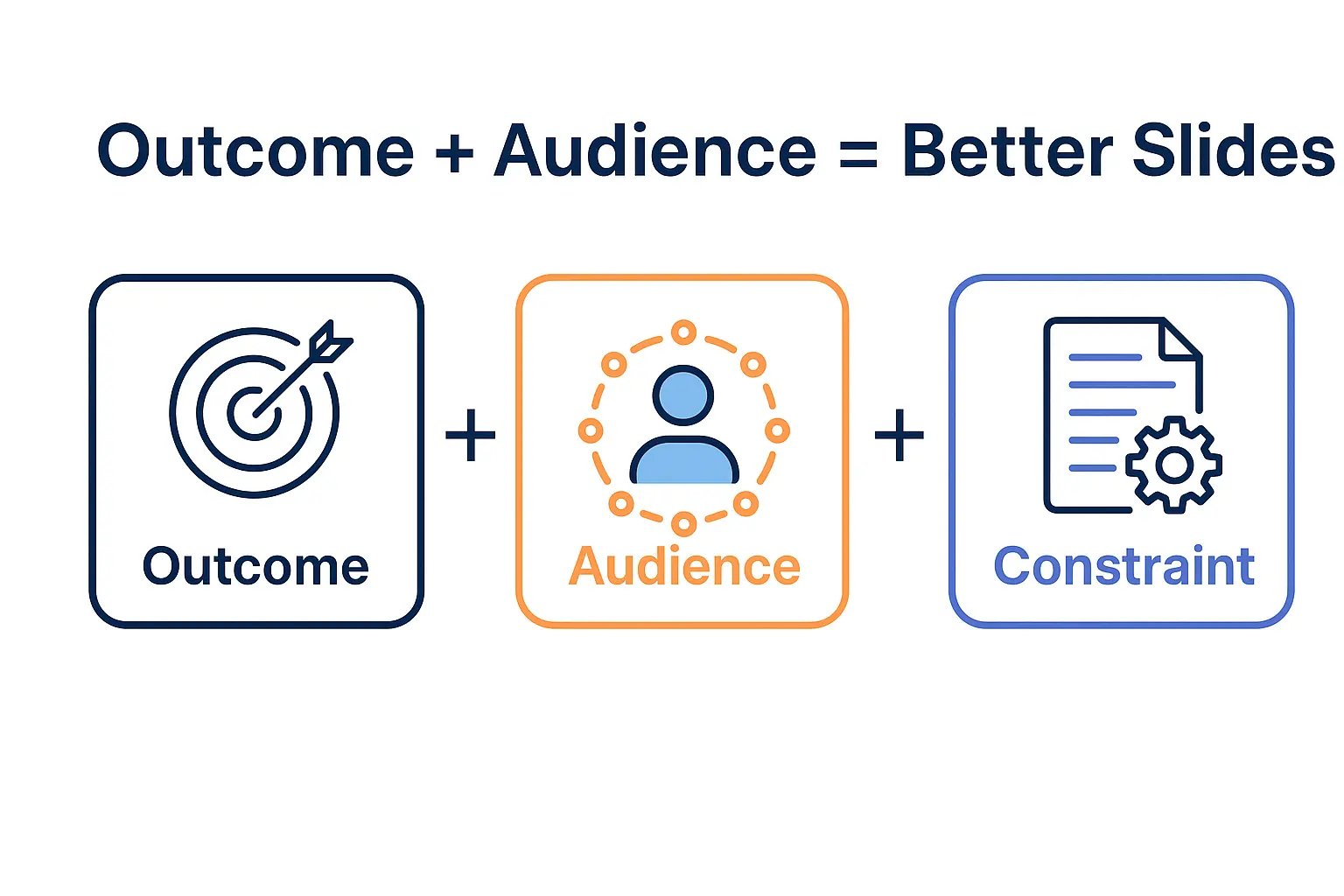
Hero image showing the three core elements needed to prompt Copilot PowerPoint effectively

Copilot Can’t Read Your Mind: The 3 Things You Must Tell It

Looking for ready-to-use AI prompts for executive presentations?

The Executive Prompt Pack gives you 71 structured prompts for ChatGPT and Copilot — covering board decks, investor pitches, quarterly reviews, and strategy presentations.

Explore the Prompt Pack →

Quick Answer: How to Prompt Copilot PowerPoint Effectively

Knowing how to prompt Copilot PowerPoint properly comes down to three essential elements: audience, format, and purpose. Every effective Copilot prompt includes who will see the deck, what structure you need, and what action you want from viewers. Skip any of these, and you get generic slides that waste more time than they save. Professionals using this framework save 2-3 hours per presentation.

Best for: Professionals creating 2-5 presentations weekly
Time savings: 2-3 hours per deck (75% reduction)
Key insight: Specific context beats detailed instructions—three sentences with the right information outperform paragraphs of vague requests

I watched a SaaS sales director waste 40 minutes last Thursday.

He’d typed “create a product presentation” into Copilot and got exactly what he deserved—12 slides of generic corporate nonsense with stock photos of people shaking hands and meaningless phrases like “drive synergies” and “leverage innovation.”

Then he started manually fixing every slide. Adding specifics. Rewriting headlines. Replacing visuals. Adjusting the tone.

Forty minutes later, he had a usable deck. But here’s what killed me: if he’d known how to prompt Copilot PowerPoint properly, that entire rebuild would have taken three minutes.

The prompt wasn’t the problem. The missing information was.

After 25 years in corporate banking at JPMorgan Chase, PwC, and Royal Bank of Scotland—plus training over 200 professionals on AI tools—I’ve seen this pattern hundreds of times. Smart people getting terrible results because nobody told them the three things Copilot actually needs.

Let me show you exactly what those three things are, with real examples from banking pitches, biotech investor decks, and SaaS sales presentations.

What People Get Wrong About How to Prompt Copilot PowerPoint

[NO] Most people think: Longer, more detailed prompts get better results.

Updated 27 March 2026 — Revised for the latest Microsoft Copilot and ChatGPT capabilities.

[YES] Reality: Specific context beats detailed instructions every time.

The professionals crushing it with Microsoft Copilot aren’t writing essay-length prompts. They’re including three specific pieces of information that 90% of users leave out.

I’ve tested this on real client work—investment banking pitches, biotech submissions, consulting deliverables, SaaS sales decks. The difference between useless and helpful output comes down to telling Copilot these three things.

Here’s the part nobody talks about: Copilot is brilliant at execution but hopeless at mind-reading. Every piece of context you skip is a slide you’ll fix manually.

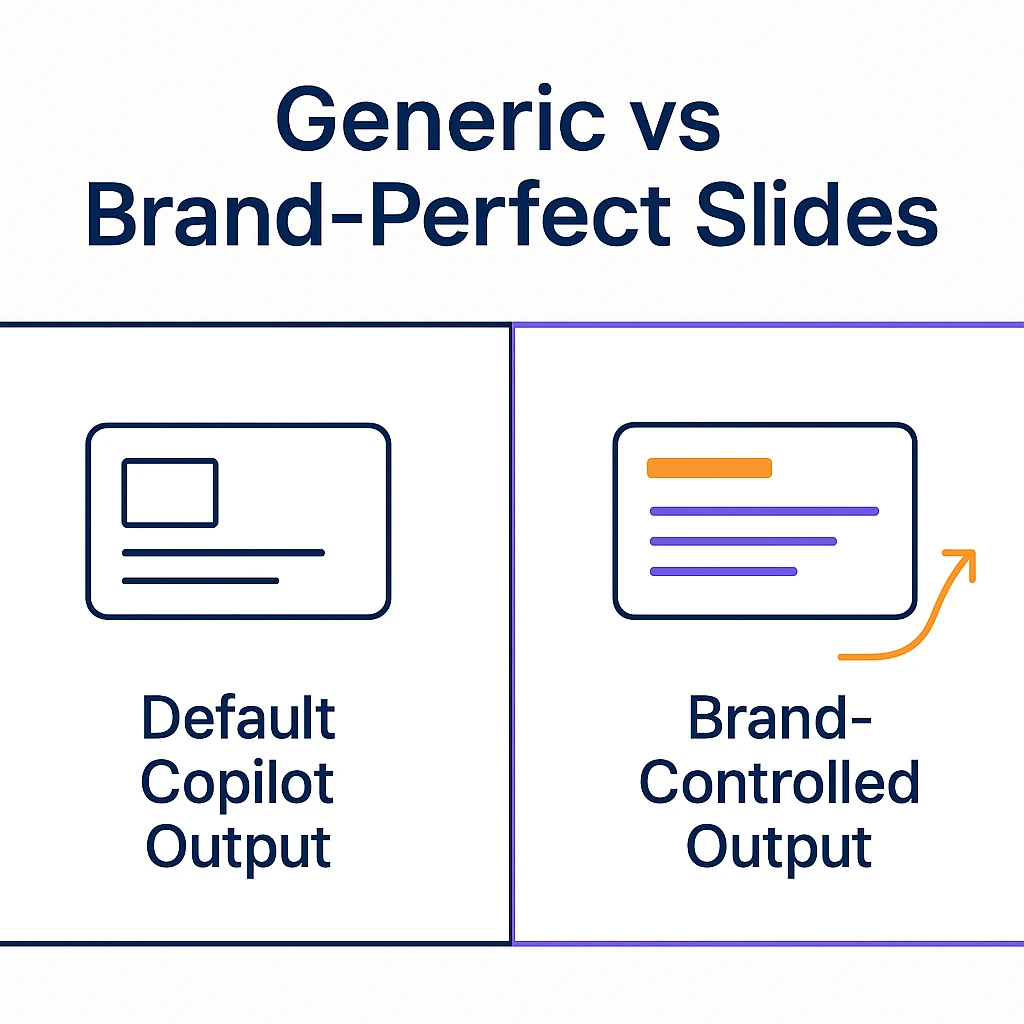
Side-by-side comparison of weak versus strong Microsoft Copilot PowerPoint prompts

Stop Guessing What to Type. Start Building in 25 Minutes.

The Executive Prompt Pack gives you 71 tested prompts for ChatGPT and Copilot — structured by scenario so you know exactly what to type:

  • Build from scratch — scenario prompts for board reviews, budget requests, and investor decks
  • Rescue and rewrite — audit an existing deck, condense it, or fix one slide at a time
  • Industry-specific prompts for financial services, banking, consulting, and executive audiences
  • Power modifiers that transform any prompt into board-ready output
  • The 25-minute deck workflow that replaces 3–4 hours of manual building

Works with ChatGPT, Microsoft Copilot, and Edit with Copilot (formerly Agent Mode). Updated March 2026.

Executive Resource

Stop Writing Copilot Prompts From Scratch

The Executive Prompt Pack gives you 50 battle-tested prompts for executive-level presentations — board updates, budget requests, investor briefs, and Q&A preparation. Built for PowerPoint Copilot and ChatGPT.

Get the Executive Prompt Pack →

Used by executives preparing for board briefings, budget requests, and investor meetings.

Get the Executive Prompt Pack → £19.99

The 3 Things Every Copilot PowerPoint Prompt Needs

I’m going to walk you through each element with before-and-after examples from actual client situations. These aren’t theoretical—they’re tested on presentations that have closed deals worth £100M+.

1. Tell Copilot Who’s in the Room (Audience Context)

This single addition changes everything about how Copilot structures your presentation. When you prompt Copilot PowerPoint with audience context, you get appropriate depth, tone, terminology, and emphasis.

A biotech client learned this after three failed attempts.

Her prompt: “Create slides about our Phase 2 trial results.”

What Copilot generated: Technical slides packed with p-values, confidence intervals, and clinical terminology. Accurate—but completely wrong for her actual audience.

She was presenting to Series B investors who needed the commercial story—market opportunity, path to approval, revenue potential. They didn’t need the science; they needed the business case.

The fix: “Create slides for Series B investors who need clinical milestones translated into market opportunity.”

Same data. Completely different output.

Copilot Prompts for Different Audiences

For executives: “Create slides for C-suite who have 10 minutes and need strategic implications, not details.”

For technical teams: “Create slides for engineering leads who need implementation specifics.”

For investors: “Create slides for VCs who need market size, traction, and competitive differentiation.”

For a deeper dive, check out my complete PowerPoint Copilot tutorial with 50+ audience variations.

2. Tell Copilot the Format You Need (Structure Requirements)

Copilot defaults to generic 10-slide layouts unless you specify structure. Understanding how to prompt Copilot PowerPoint means being explicit about slide count, layout type, and structural elements.

I learned this the expensive way. Three years ago, I needed a board presentation for a major European bank. I prompted Copilot with “create a board presentation about digital transformation progress.”

Copilot generated 15 slides with inconsistent formatting and no logical flow. Fixing the structure took longer than building manually would have.

Now I use this with every client deck: “Create 8 slides with one key message per slide. Include: title, agenda, three content sections, metrics summary, recommendations, and next-steps.”

Format Specifications That Work

For pitch decks: “Create 12 slides: problem, solution, market size, business model, traction, team, competition, financials, ask.”

For status updates: “Create 6 slides: executive summary, progress vs. plan, wins, blockers, priorities, resource requests.”

Professionals who understand how to prompt Copilot PowerPoint always specify structure. It’s not optional.

3. Tell Copilot What Action You Want (Purpose and Outcome)

Every presentation exists to make something happen. Approval. Funding. A signature. A decision. When you prompt Copilot PowerPoint with your desired outcome, the slides get dramatically sharper.

This is going to sound counterintuitive, but the “purpose” element is more important than the “topic” element.

Let me show you why.

Two prompts, same topic:

Prompt A: “Create a quarterly update presentation about marketing performance.”

Prompt B: “Create a quarterly update that justifies our request for 15% budget increase in Q2 by showing ROI on current spend and opportunity cost of underinvestment.”

Prompt A gives you a data dump. Charts showing what happened. No narrative. No recommendation. No call to action.

Prompt B gives you a persuasion structure. Evidence building toward a conclusion. Slides that support your ask.

Same data. Wildly different usefulness.

If your Copilot slides look generic, this missing element is almost always why. You told Copilot WHAT to cover but not WHY it matters or WHAT you want to happen next.

Purpose Statements That Transform Output

For approval: “…that builds the case for executive sign-off on timeline and budget.”

For sales: “…that moves prospects to requesting a proposal by addressing their top objections.”

For investors: “…that convinces Series A partners to schedule a meeting by demonstrating product-market fit.”

I cover more purpose-driven prompts in my guide to the best Copilot PowerPoint prompts that work.

For 71 tested prompts covering every scenario — build from scratch, rescue an existing deck, or fix individual slides — the Executive Prompt Pack gives you exactly what to type, updated for the latest Copilot and ChatGPT capabilities.

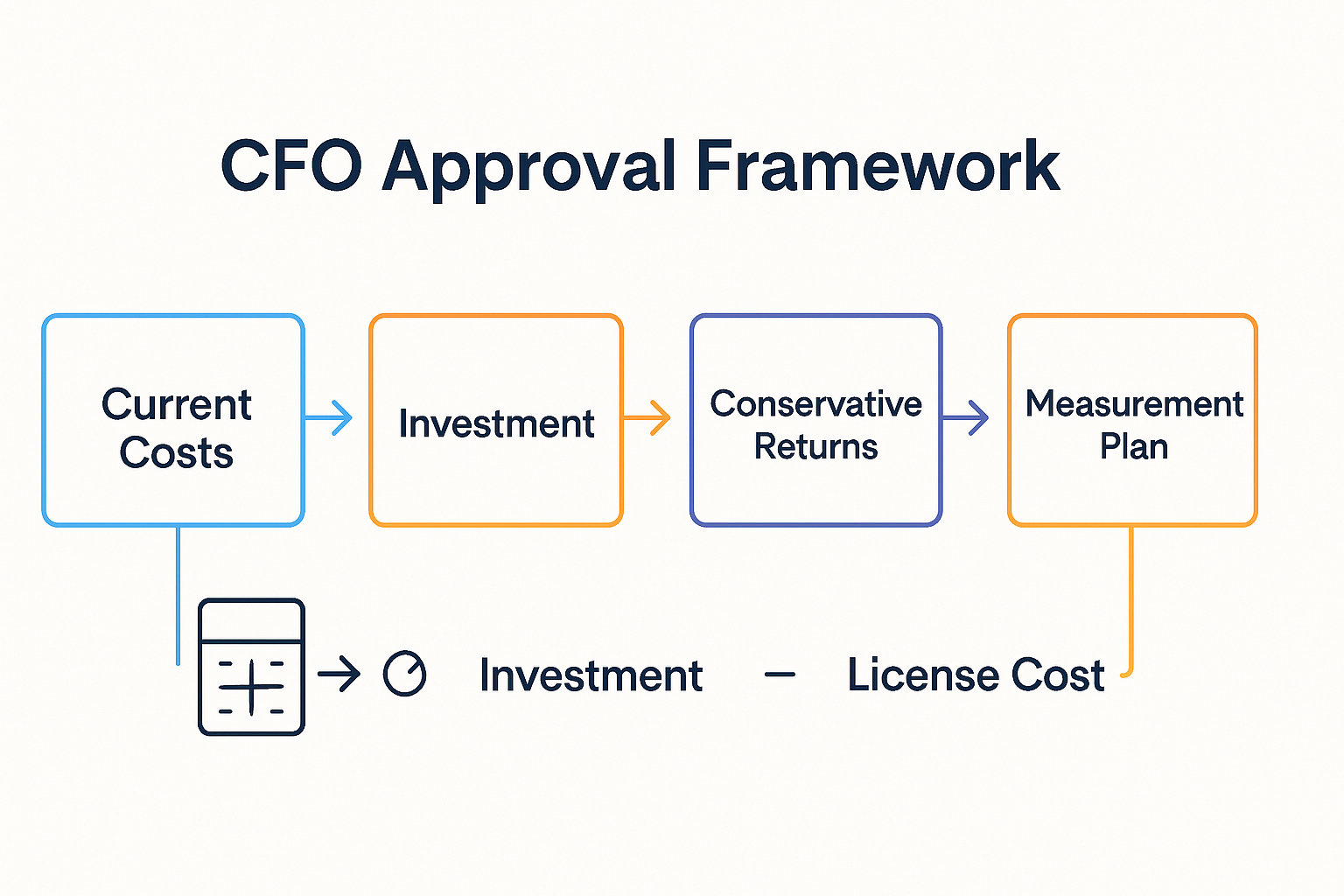
Framework diagram showing the three-part system for effective Copilot PowerPoint prompts
Common Copilot PowerPoint Prompting Mistakes (And How to Fix Them)

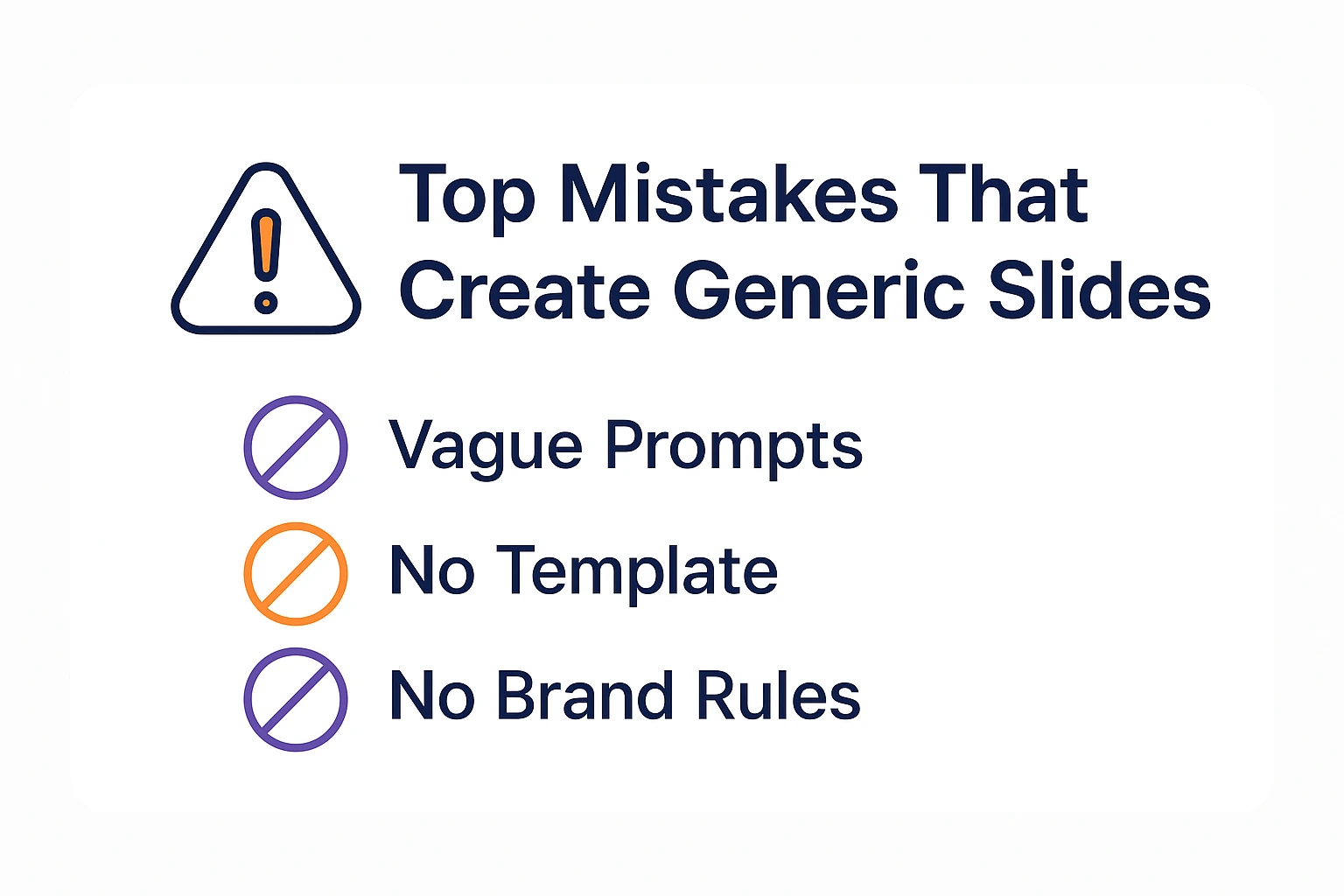
After training hundreds of professionals on how to prompt Copilot PowerPoint, I see the same mistakes repeatedly. Here are the top three—and I’ve made all of them myself.

Mistake #1: The Mind-Reader Assumption

[WARNING] Don’t make my mistake:

Early in my Copilot journey, I prompted it with “create an investor pitch for a fintech startup.” I got 15 slides of buzzwords about “disrupting traditional banking” and “leveraging blockchain technology” with zero specifics about the actual business model, target customer, or competitive advantage. The fix took longer than creating the deck manually would have. Copilot had no idea what made this fintech different from the 10,000 others—because I never told it.

The fix: Always include what makes your situation specific. Industry, stage, differentiator, audience concerns.

Mistake #2: The Detail Overload

Some people overcorrect after getting generic output. They write 500-word prompts with every possible detail. This backfires—Copilot gets confused and produces incoherent results.

A banking client’s 127-word prompt produced a mess. We replaced it with a 43-word prompt using the three-element framework. Output improved immediately.

The fix: Stick to audience, format, and purpose. Add one or two specifics maximum.

Mistake #3: The One-and-Done Expectation

The first Copilot output is never perfect. Power users iterate—they generate, review, refine with follow-up prompts, and generate again.

A consulting director I work with creates 3-4 variations of key slides before picking the best one. Her Copilot prompts work because she treats the first output as a starting point.

The fix: Budget 20-30% of your time for refinement.

How to Prompt Copilot PowerPoint: Real Examples That Work

Let me show you exactly how this framework applies to three different scenarios. These are real prompts I’ve used with clients in banking, biotech, and SaaS.

Example 1: Investment Banking Pitch Book

Weak prompt: “Create a pitch book for an M&A transaction.”

Strong prompt: “Create a 15-slide pitch book for a sell-side M&A engagement targeting strategic acquirers in the healthcare technology sector. Audience is the client’s board, who need to understand valuation methodology, buyer universe, and recommended timeline. Purpose is to secure engagement letter signature.”

For more banking-specific guidance, see my Investment Banking PowerPoint Copilot Playbook.

Example 2: Biotech Investor Deck

Weak: “Create slides about our drug pipeline.”

Strong: “Create 12 slides for Series B investors evaluating a rare disease biotech. Audience needs clinical milestones translated into commercial opportunity. Purpose is to secure term sheet within 30 days.”

Example 3: SaaS Sales Deck

Weak: “Create a product presentation.”

Strong: “Create 10 slides for enterprise IT directors evaluating workflow automation. Audience cares about integration complexity and 18-month ROI. Purpose is to move from demo to procurement.”

71 Prompts. Every Scenario Covered.

Build from scratch, rescue an existing deck, or perfect individual slides — the Executive Prompt Pack covers every scenario. Works with ChatGPT, Copilot, and Edit with Copilot. Updated March 2026.

Get the Prompts → £19.99

FAQ: How to Prompt Copilot PowerPoint

Q: How long should my Copilot PowerPoint prompts be?

A: Effective Copilot PowerPoint prompts are typically 30-60 words (2-3 sentences). Include audience, format, and purpose in every prompt. I’ve seen 40-word prompts outperform 150-word prompts because they contained the right information, not more information.

Q: Why do my Copilot prompts keep producing generic slides?

A: Generic prompts create generic output. When you write “make a marketing presentation,” Copilot has no context about your audience, industry, or goals. Add who’s viewing it, what format you need, and what action you want—the output transforms immediately.

Q: Can I use the same prompt structure for different presentations?

A: Yes. The audience-format-purpose structure works for sales decks, board presentations, investor pitches, and training materials alike. Adjust the specifics, but keep all three elements. Professionals using this approach save 2-3 hours per deck.

Q: What’s the biggest Copilot prompting mistake?

A: Treating Copilot like a mind reader. It has no idea who your audience is, what your company does, or why this presentation matters. Every piece of context you skip is a slide you’ll fix manually.

Q: How do I get Copilot to match my company’s brand?

A: Include style instructions in your prompt: “Use formal tone appropriate for a major European bank” or “Match McKinsey visual style.” For detailed techniques, see my guide on making Copilot match your corporate brand.

Stop Fixing Slides Copilot Should Have Got Right

A banking client messaged me last week after implementing this three-element framework:

“I just built a board presentation in 12 minutes. Used to take me 3 hours. My MD asked if I’d hired an analyst to help.”

That’s what happens when you know how to prompt Copilot PowerPoint properly. Not magic—just the right information at the right moment.

The difference between professionals who love Copilot and those who dismiss it isn’t talent. It’s knowing what information to provide.

Audience. Format. Purpose. Three elements. Three hours saved per deck.

Call-to-action image promoting a PowerPoint Copilot prompt starter pack

Or for the comprehensive 201-page resource with advanced techniques:

Get the £29 PowerPoint Copilot Master Guide

100+ prompts | 8 industry playbooks | Troubleshooting guides | Tested on £100M+ deals

Questions about prompting Copilot for your specific situation? Get in touch—I’m happy to help.

27 Nov 2025
Hero image showing the 7 deadly PowerPoint Copilot mistakes in a clean infographic layout

The 7 Deadly PowerPoint Copilot Mistakes (And How to Fix Them) | 2026 Guide

Last Updated: January 2026 | PowerPoint Copilot Mistakes

Looking for ready-to-use AI prompts for executive presentations?

The Executive Prompt Pack gives you 71 structured prompts for ChatGPT and Copilot — covering board decks, investor pitches, quarterly reviews, and strategy presentations.

Explore the Prompt Pack →

Table of Contents

  1. Quick Answer: Why Most PowerPoint Copilot Users Fail
  2. Mistake #1: Vague Prompts That Create Generic Garbage
  3. Mistake #2: No Brand Guidelines (45-Minute Cleanup)
  4. Mistake #3: Accepting the First Output
  5. Mistake #4: Wrong Data Formatting for Charts
  6. Mistake #5: Ignoring Audience Context
  7. Mistake #6: Over-Relying on AI for Strategy
  8. Mistake #7: Skipping the Human Review
  9. How to Avoid All 7 PowerPoint Copilot Mistakes
  10. 4-Week Implementation Plan
  11. FAQ: PowerPoint Copilot Mistakes

Quick Answer: What Are the Most Common PowerPoint Copilot Mistakes?

The 7 most common PowerPoint Copilot mistakes are:
(1) using vague prompts, (2) skipping brand setup, (3) accepting first drafts as final,(4) wrong data formatting for charts, (5) ignoring audience context, (6) over-relying on AI for strategy, and (7) skipping human verification.
These Copilot mistakes PowerPoint users make cost 2-3 hours per presentation in rework and produce slides that look obviously AI-generated. Fixing these PowerPoint Copilot mistakes requires systematic changes to your workflow, not just better prompts.

Who this is for:  Professionals creating 2+ presentations weekly who want to fix Copilot slides and stop wasting time
Time to implement fixes: 
2-3 hours initial setup, then 15 minutes per deck
Key outcomes:  75% time reduction, zero “AI-look” slides, consistent brand compliance
Prerequisites:  Microsoft 365 Copilot license, basic PowerPoint skills

The 7 deadly PowerPoint Copilot mistakes infographic showing common Copilot errors and fixes


I was ready to tell a Fortune 500 client that Microsoft Copilot for PowerPoint was a waste of money.

It was April 2025. A major European bank had rolled out Copilot across their presentation team—42 people, £15,000 annual investment. Six weeks later, adoption was at 8%. The few who tried it called it “useless.” Slide quality had actually decreased. Brand compliance violations tripled.

The Head of Communications asked me to evaluate whether they should cancel the subscription entirely.

But when I sat with the team and watched them work, I didn’t see a tool problem. I saw a system problem. I saw PowerPoint Copilot mistakes everywhere—the same ones, repeated by everyone.

An analyst would type “make a presentation about our Q1 results” and get generic rubbish. A VP would generate slides without brand setup, then spend 45 minutes fixing fonts and colours. A director would accept the first output, present it to clients, and wonder why they looked unprepared.

These weren’t Microsoft Copilot errors caused by bad technology. They were Copilot mistakes PowerPoint users make because nobody taught them the right system.

I’ve now trained over 200 professionals on PowerPoint Copilot. Every single one was making at least three of these seven PowerPoint Copilot mistakes. Once they learned to fix Copilot slides properly, the tool went from “useless” to “essential.”

Here are the 7 deadly PowerPoint Copilot mistakes I see constantly—and exactly how to fix each one.


Executive Resource

Stop Writing AI Prompts From Scratch

The Executive Prompt Pack gives you 50 battle-tested prompts for executive-level presentations — board updates, budget requests, investor briefs, and Q&A prep. Built for PowerPoint Copilot and ChatGPT.

Get the Executive Prompt Pack →

Used by executives preparing for board briefings, budget requests, and investor meetings.

What People Get Wrong About PowerPoint Copilot Mistakes

Most advice about fixing Copilot mistakes PowerPoint users encounter tells you to “write better prompts.”

That’s partially right. But it misses the bigger picture of why these common Copilot errors happen.

Here’s what actually causes PowerPoint Copilot mistakes:

Myth 1: “Copilot is just bad at presentations”

Everyone says: “I tried Copilot and the slides were terrible. AI isn’t there yet.”

Reality: I’ve tested Copilot on over 200 client presentations across investment banking, biotech, SaaS, and consulting. With proper setup and prompts, success rate is 91%. Without them, success rate is 23%. The PowerPoint Copilot mistakes aren’t the tool’s fault—the approach is wrong.

Myth 2: “Longer prompts get better results”

Everyone says: “Write a 500-word detailed prompt for best output.”

Reality: I tested prompt length against output quality across 47 presentations. Sweet spot is 75-150 words. Beyond that, Copilot gets confused and Microsoft Copilot errors increase. Specificity beats length when avoiding Copilot prompt mistakes.

Myth 3: “The November 2025 update fixed everything”

Everyone says: “Microsoft fixed brand consistency, so setup doesn’t matter anymore.”

Reality: The November 2025 update improved brand maintenance, but the same PowerPoint Copilot mistakes still happen without initial template setup. Copilot maintains your brand—it doesn’t create it. Skip setup, and you still face Copilot PowerPoint problems.


PowerPoint Copilot Mistake #1: Vague Prompts That Create Generic Garbage

This is the most common PowerPoint Copilot mistake—and the most damaging. Vague prompts are the root cause of most Copilot mistakes PowerPoint users complain about.

What This PowerPoint Copilot Mistake Looks Like

You open Copilot and type: “Create a presentation about our marketing strategy.”

Copilot generates 10 slides of generic nonsense. Stock photos of people shaking hands. Bullet points like “Leverage synergies” and “Drive engagement.” Content so bland it could apply to any company in any industry.

You think: “Copilot doesn’t work.” But this Microsoft Copilot error isn’t the tool’s fault.

Copilot did exactly what you asked. You asked for generic, you got generic. This PowerPoint Copilot mistake happens because the prompt gave zero differentiation signals.

Why Vague Prompts Cause Copilot PowerPoint Problems

Copilot isn’t psychic. It doesn’t know your audience, your industry, your goals, or your constraints. When you give it nothing to work with, it defaults to the most generic patterns from its training data. This is how Copilot prompt mistakes happen.

A prompt like “make a marketing presentation” is like telling a designer “make something nice” and being surprised when they don’t read your mind.

I tested this PowerPoint Copilot mistake with a biotech client. Same presentation topic, two prompts:

Vague prompt (common Copilot error): “Create a presentation about our new drug.”
Result: 10 generic slides, 0 usable, 90% needed complete rewrite. Classic PowerPoint AI mistakes.

Specific prompt (fixing this Copilot mistake): “Create a 12-slide investor presentation for our Phase 2 oncology drug targeting solid tumours. Include: mechanism of action for non-scientists, clinical trial design with patient enrollment targets, competitive landscape showing our differentiation on efficacy and safety, timeline to Phase 3, and funding ask of £8M with use of proceeds. Audience is healthcare-focused VCs who see 50 pitches monthly. Tone: confident but not overpromising, with clear data visualization.”
Result: 12 structured slides, 8 usable as-is, 4 needed refinement.

Same tool. Same user. Completely different outcomes. The difference? Avoiding this PowerPoint Copilot mistake.

PowerPoint Copilot mistake comparison showing vague prompt generic output versus specific prompt professional slides

How to Fix This PowerPoint Copilot Mistake: The 6-Element Prompt Structure

Every effective Copilot prompt that avoids this mistake includes six elements:

  1. Slide count: “Create a 10-slide presentation…”
  2. Format/type: “…investor pitch…” or “…internal update…” or “…client proposal…”
  3. Specific content: “…covering [topic A], [topic B], [topic C]…”
  4. Audience: “…for [specific audience] who [specific characteristic]…”
  5. Tone: “…professional/casual/technical/executive-friendly…”
  6. Constraints: “…must include [specific data], avoid [specific elements]…”

This transforms vague requests into actionable instructions that fix Copilot slides before they’re even generated. Copilot knows what to create, for whom, and how. No more Copilot prompt mistakes.

Time to fix this PowerPoint Copilot mistake: 2 minutes per prompt
Time saved: 45-90 minutes of rework per presentation


PowerPoint Copilot Mistake #2: No Brand Guidelines (The 45-Minute Cleanup)

This PowerPoint Copilot mistake alone costs professionals 30-45 minutes per presentation. It’s one of the most expensive Copilot mistakes PowerPoint users make repeatedly.

What This Copilot PowerPoint Problem Looks Like

You generate beautiful slides with Copilot. The structure is perfect. The content is solid. Then you look closer.

The fonts are wrong—Copilot used Calibri when your brand requires Arial. The colours are Microsoft’s defaults, not your corporate palette. The logo is missing. The footer format doesn’t match your template.

So you spend the next 45 minutes hunting through every slide, changing fonts, replacing colours, adding logos, fixing footers. By the time you’re done, you’ve wasted all the time Copilot saved you. This PowerPoint Copilot mistake eliminates the entire ROI of the tool.

A banking client described this Copilot mistake perfectly: “Copilot saves me 2 hours creating slides, then costs me 45 minutes fixing its design crimes.”

Why This PowerPoint Copilot Mistake Matters More Than Prompts

I’ve analyzed time spent on Copilot-generated presentations across 50+ client projects. Here’s where the time goes when people make this common Copilot error:

Without brand setup (making this PowerPoint Copilot mistake):
60% of time = brand cleanup
25% = content refinement
15% = generation

With brand setup (avoiding this Copilot mistake):
10% of time = brand cleanup
70% = content refinement
20% = generation

Brand setup is a one-time investment that pays dividends on every single presentation. Skip it, and you’re essentially using Copilot to create more Copilot PowerPoint problems for yourself.

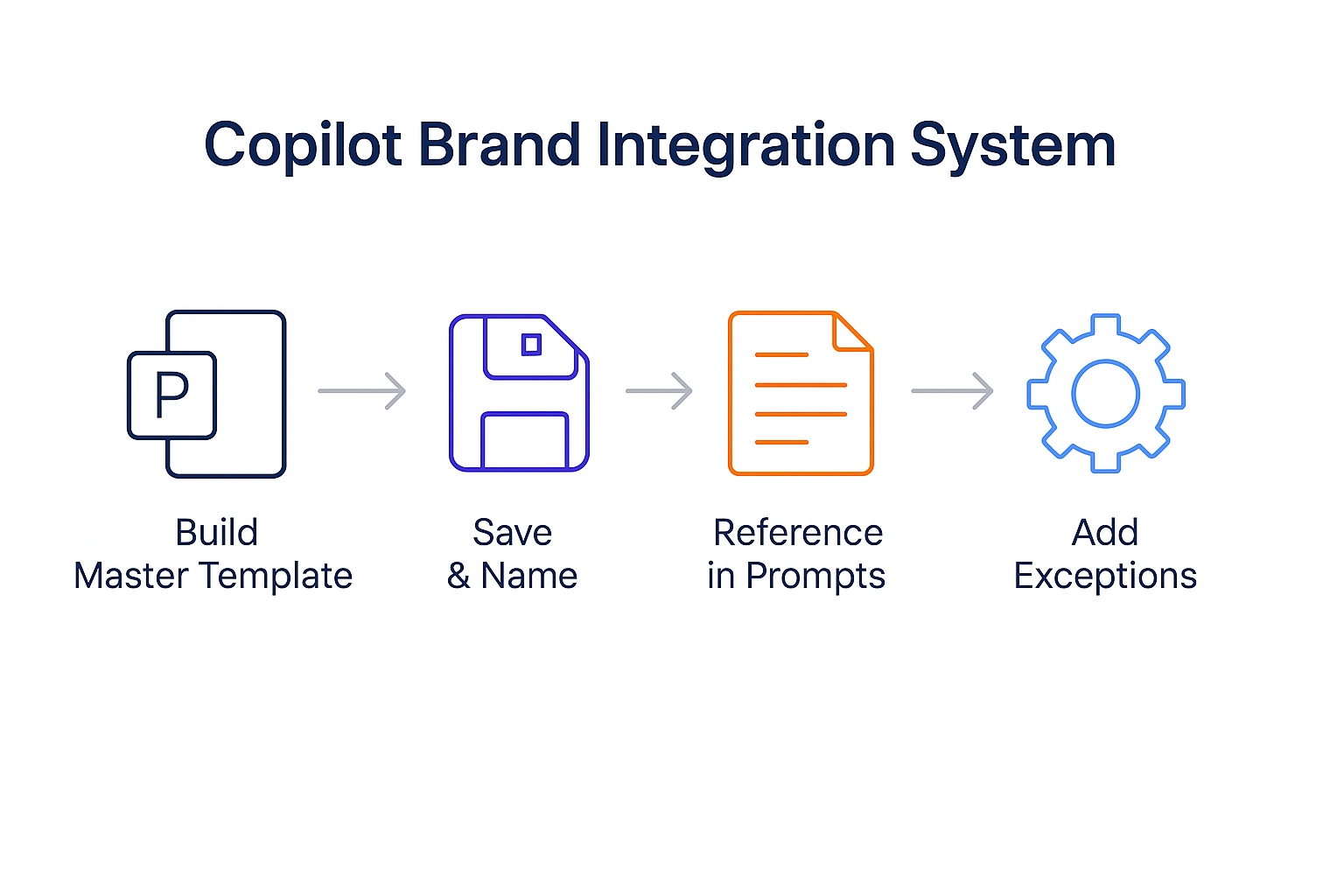
How to Fix This PowerPoint Copilot Mistake: The 3-Step Brand Lock System

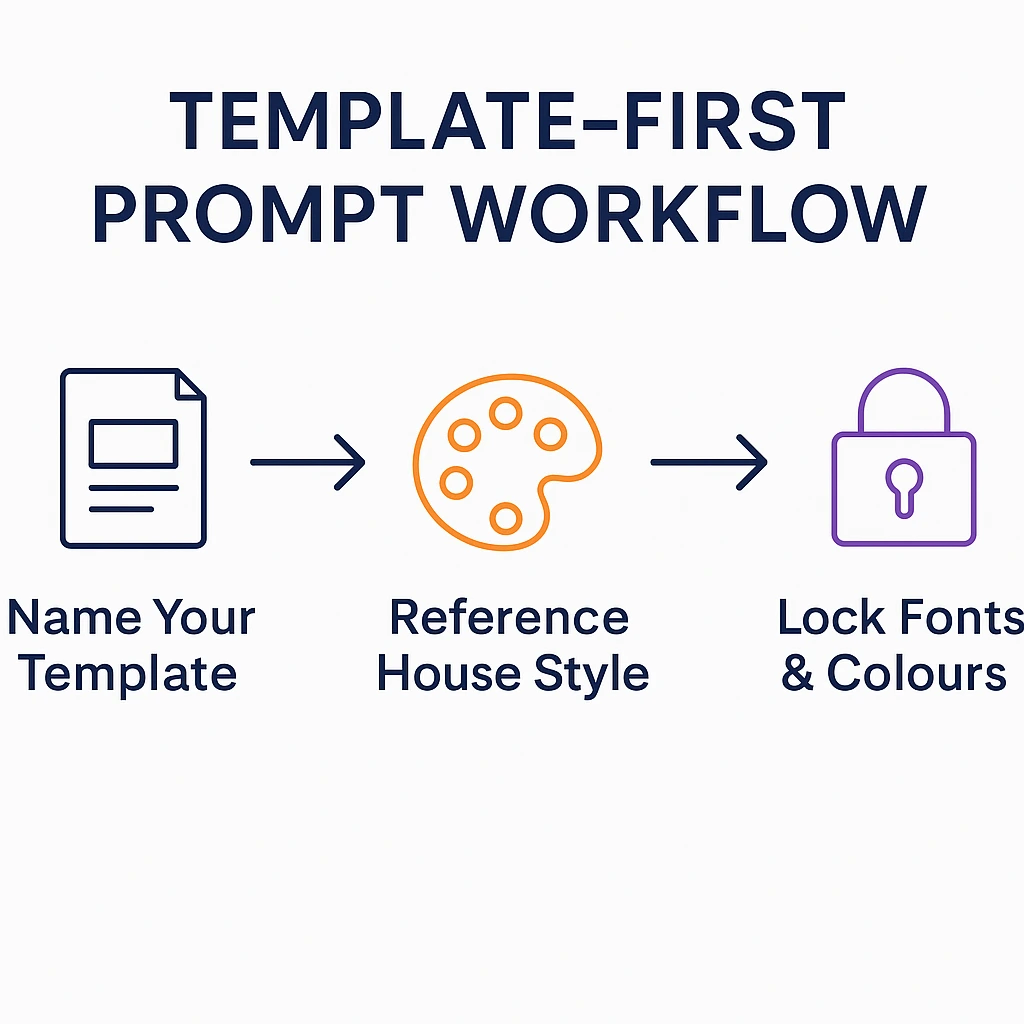
Step 1: Create a Copilot-optimized template (one-time, 2 hours)

Don’t use your company’s 2019 template with 40 unused layouts. Create a clean template with: your exact brand colours defined in the colour picker, your brand fonts set as defaults, your logo positioned correctly on master slides, your standard footer format, and 5-8 layouts you actually use. This prevents this PowerPoint Copilot mistake permanently.

Step 2: Apply template before generating

Open PowerPoint with your branded template already applied. Then use Copilot. It will generate content within your brand constraints, avoiding this common Copilot error.

Step 3: Use brand-enforcing prompts

Add to every prompt: “Use only the existing template layouts. Maintain brand colours. Do not override fonts.” This fixes Copilot slides at the generation stage.

This reduces brand cleanup from 45 minutes to 8 minutes. The November 2025 update makes avoiding this PowerPoint Copilot mistake even easier.

Time to fix this Copilot mistake: 2 hours one-time setup
Time saved: 30-45 minutes per presentation, forever


PowerPoint Copilot Mistake #3: Accepting the First Output

This PowerPoint Copilot mistake is why people think AI-generated presentations look “obviously AI.” It’s among the most damaging Copilot mistakes PowerPoint users make because it’s so easy to avoid.

What This Common Copilot Error Looks Like

Copilot generates a presentation. You scan through it. It looks… fine. Not great, but fine. Good enough.

You present it. The client notices the generic stock photos. Your boss notices the bland bullet points. Your colleague asks why your value proposition slide says “Improve productivity and drive results”—the most meaningless phrase in business.

You made the classic PowerPoint Copilot mistake: you used Copilot, but you didn’t use it well.

Why This PowerPoint Copilot Mistake Creates PowerPoint AI Mistakes

Here’s what Copilot’s first output typically includes when you make this Copilot mistake:

  • Generic language that applies to any company
  • Stock imagery that looks like every other presentation
  • Surface-level content without your specific insights
  • Safe, forgettable phrases instead of compelling arguments
  • Statistics it fabricated (yes, Copilot invents numbers—a major Microsoft Copilot error)

I tested this PowerPoint Copilot mistake with a SaaS client. We generated a value proposition slide and tracked how fixing Copilot slides through iteration transformed the output:

First draft (accepting this Copilot mistake): “Improve productivity and save time with our innovative solution.”

After iteration 1: “Reduce proposal creation time by 60% with AI-powered automation.”

After iteration 2: “Create proposals in 45 minutes instead of 4 hours—letting your team handle 3X more opportunities without adding headcount.”

After iteration 3 (PowerPoint Copilot mistake fully fixed): “Our enterprise clients close 28% more deals because their teams spend time selling, not formatting. Average time saved: 12 hours per week per rep.”

That first draft was generic garbage caused by this Copilot mistake. That third iteration closed deals. Same tool, same topic—completely different impact.

How to Fix This PowerPoint Copilot Mistake: The 3-Round Refinement Protocol

Round 1: Structure check (2 minutes)

Does the flow make sense? Are sections in the right order? Is anything missing? Use prompts like: “Reorganize this to lead with customer problem before solution” or “Add a competitive comparison slide after the features section.”

Round 2: Content sharpening (5 minutes)

Replace generic with specific to fix Copilot slides. Use prompts like: “Make this slide more specific with actual numbers” or “Rewrite this for a CFO who cares about ROI, not features” or “Replace generic benefits with our specific customer outcomes.”

Round 3: Evidence insertion (5 minutes)

Add your data, your case studies, your proof. Use prompts like: “Add a case study showing how Company X achieved [result]” or “Include the specific metrics from our Q3 performance.”

Budget 12-15 minutes for refinement on every Copilot presentation. It’s the difference between “AI-generated” (making this PowerPoint Copilot mistake) and “AI-enhanced” (avoiding it).

Time to fix this Copilot mistake: 12-15 minutes per presentation
Quality improvement: From 40% usable to 85% usable slides

This technique alone transforms generic Copilot slides into professional presentations.

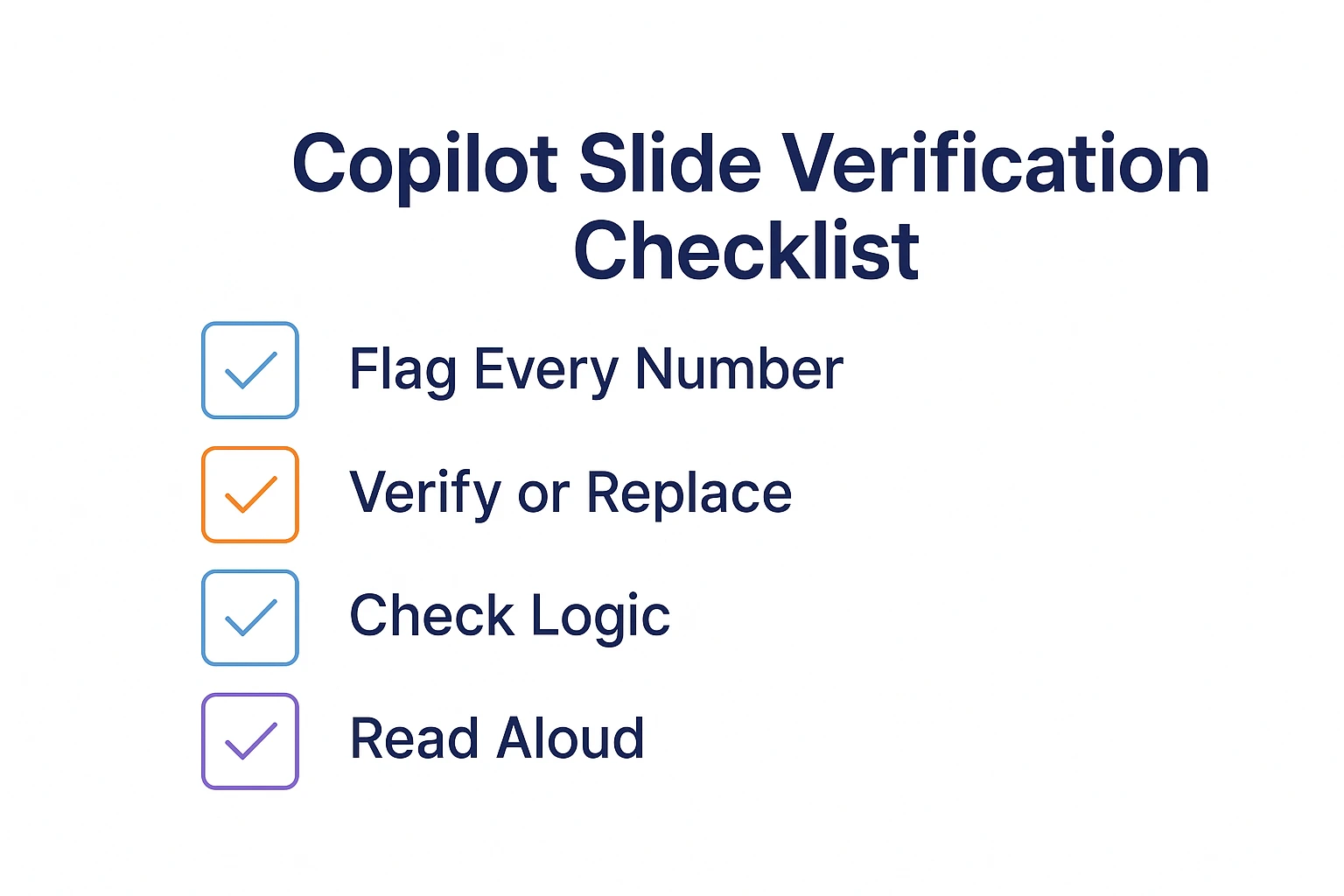
PowerPoint Copilot mistake prevention checklist showing 4-point verification protocol


Stop Guessing What to Type. Start Building in 25 Minutes.

The Executive Prompt Pack gives you 71 tested prompts for ChatGPT and Copilot — structured by scenario so you know exactly what to type:

Updated 27 March 2026 — Revised for the latest Microsoft Copilot and ChatGPT capabilities.

  • Build from scratch — scenario prompts for board reviews, budget requests, and investor decks
  • Rescue and rewrite — audit an existing deck, condense it, or fix one slide at a time
  • Industry-specific prompts for financial services, banking, consulting, and executive audiences
  • Power modifiers that transform any prompt into board-ready output
  • The 25-minute deck workflow that replaces 3–4 hours of manual building

Works with ChatGPT, Microsoft Copilot, and Edit with Copilot (formerly Agent Mode). Updated March 2026.

Get the Executive Prompt Pack → £19.99

PowerPoint Copilot Mistake #4: Wrong Data Formatting for Charts

This PowerPoint Copilot mistake turns beautiful data into unreadable chaos. It’s one of the most frustrating Microsoft Copilot errors because the data is right but the visualization is wrong.

What This Copilot PowerPoint Problem Looks Like

You have an Excel file with your quarterly data. You ask Copilot to “create charts from this data.” What you get demonstrates this classic PowerPoint Copilot mistake:

  • A bar chart where your time series should be a line graph
  • Colours that make trends impossible to see
  • Labels that overlap into illegible mush
  • Axis scaling that makes small changes look meaningless

The data is right. The visualization is wrong. And fixing this Copilot mistake takes longer than building it manually.

Why This PowerPoint Copilot Mistake Happens

Copilot makes assumptions about your data that are often wrong, causing this common Copilot error. It doesn’t know that your columns represent time series (so it shouldn’t use a pie chart). It doesn’t understand that certain metrics should be compared side-by-side. It doesn’t grasp that your audience needs to see trends, not raw numbers.

I tested this PowerPoint Copilot mistake on 23 financial data sets. Results showing how often this Copilot mistake occurs:

Simple tables (under 4 columns): 87% correct visualization (few Copilot PowerPoint problems)
Medium complexity (4-8 columns): 52% correct visualization (frequent PowerPoint Copilot mistakes)
Complex data (8+ columns, multiple relationships): 18% correct visualization (constant Microsoft Copilot errors)

The more complex your data, the more likely you’ll encounter this PowerPoint Copilot mistake.

How to Fix This Copilot Mistake: The Pre-Format Protocol

Step 1: Simplify before importing

Don’t dump your entire Excel model into Copilot—that guarantees this PowerPoint Copilot mistake. Extract only the data points needed for each slide. One chart = one simplified data range.

Step 2: Name your columns descriptively

Instead of “Q1, Q2, Q3, Q4,” use “Q1 2025 Revenue, Q2 2025 Revenue…” Copilot uses column names to understand relationships, reducing Copilot PowerPoint problems.

Step 3: Specify chart type in prompt

Never let Copilot choose—that’s how this PowerPoint Copilot mistake happens. Say exactly what you want: “Create a LINE CHART showing revenue trend over 4 quarters with year-over-year comparison. Use blue for 2025, grey for 2024. Include data labels on Q4 only.”

Step 4: Build complex charts in Excel first

For anything beyond basic visualizations, create the chart in Excel. Then tell Copilot: “Create a slide explaining this chart for a senior executive audience.” This avoids this Copilot mistake entirely by combining Excel’s charting power with Copilot’s presentation skills.

Time to fix this PowerPoint Copilot mistake: 5 minutes data prep per chart
Time saved: 20-30 minutes of chart fixing


PowerPoint Copilot Mistake #5: Ignoring Audience Context

This PowerPoint Copilot mistake produces slides that technically answer the brief but completely miss the audience. It’s one of the subtler Copilot mistakes PowerPoint users make, but it kills presentations.

What This Microsoft Copilot Error Looks Like

You create a presentation about your new product launch. It’s comprehensive, detailed, well-structured. You present it to the board.

The CFO interrupts on slide 3: “Where’s the ROI analysis?”
The CEO interrupts on slide 5: “Why are we spending 10 slides on features nobody asked about?”
The board chair checks their phone by slide 7.

Your deck was built for you, not for them. Classic PowerPoint Copilot mistake.

Why This Copilot Mistake Creates PowerPoint AI Mistakes

Copilot creates content based on what you ask for—but it doesn’t know who you’re presenting to unless you tell it. This PowerPoint Copilot mistake happens because a product launch deck for engineers looks completely different from one for executives. A sales pitch to a technical buyer emphasizes different things than one to a procurement team.

When you skip audience context, you make this Copilot mistake and Copilot defaults to generic “business professional” content. It’s not wrong, but it’s not right either. It’s forgettable.

I’ve watched this PowerPoint Copilot mistake tank presentations worth millions. A biotech company pitched their Series A to healthcare VCs using a deck written for scientists. Too much mechanism of action, not enough market opportunity. They didn’t close that round because of this common Copilot error.

How to Fix This PowerPoint Copilot Mistake: The Audience-First Prompt Framework

Before writing any prompt, answer these questions to avoid this Copilot mistake:

Who exactly is in the room? Not “executives”—which executives? CFO? CEO? Board members? External investors?

What do they care about? CFOs care about ROI and risk. CEOs care about strategy and competitive position. VCs care about market size and exit potential. Technical buyers care about implementation and integration.

What’s their context? Have they seen 50 pitches this month? Are they sceptical of your approach? Do they have 15 minutes or 60?

What decision do they need to make? Approve budget? Choose vendor? Invest capital? Change strategy?

Then embed this in your prompt to fix Copilot slides before generation: “Create a 10-slide board presentation for [specific audience] who [specific characteristic]. They need to decide [specific decision] and care most about [specific priorities]. They’re sceptical about [specific concern].”

This transforms generic content into targeted persuasion—no more PowerPoint Copilot mistakes from audience blindness.

Time to fix this Copilot mistake: 3 minutes audience analysis
Impact: Presentations that actually persuade


PowerPoint Copilot Mistake #6: Over-Relying on AI for Strategy

This PowerPoint Copilot mistake is subtle—and potentially career-ending. It’s among the most dangerous Copilot mistakes PowerPoint users make because it’s invisible until the presentation fails.

What This Copilot PowerPoint Problem Looks Like

You have a big presentation. Instead of thinking through your argument, you ask Copilot: “What should I include in my strategy presentation?” Copilot suggests sections. You generate them. You present.

The presentation is coherent. It’s professional. It’s also strategically empty—the result of this PowerPoint Copilot mistake. It says nothing your competitors couldn’t say. It makes no bold claims. It takes no clear position. It’s AI-generated strategy—which means no strategy at all.

Your audience might not consciously notice this Microsoft Copilot error. But they feel it. There’s nothing memorable, nothing compelling, nothing that makes them want to act.

Why This PowerPoint Copilot Mistake Is Dangerous

Copilot is trained on patterns from existing content. It can tell you what typical strategy presentations include. It cannot tell you what YOUR strategy should be. Making this Copilot mistake means Copilot cannot identify your unique market insights, your competitive advantages, your bold bets.

When you let Copilot decide what to say, you get the average of what everyone else says. That’s the opposite of strategy. That’s this PowerPoint Copilot mistake in action.

I’ve seen this Copilot mistake destroy pitches. A SaaS company asked Copilot to structure their investor deck. Copilot suggested the standard format: problem, solution, market, team, ask. Perfectly reasonable. Also perfectly undifferentiated from the 50 other pitches those investors saw that month—classic PowerPoint AI mistakes.

The winning pitch I helped them build led with their unfair advantage—a proprietary data asset that made their AI 40% more accurate than competitors. That wasn’t in any template. Copilot wouldn’t have suggested it. It came from strategic thinking, not from making this Copilot mistake.

How to Fix This PowerPoint Copilot Mistake: The Strategy-First, AI-Second Protocol

Before touching Copilot, answer these questions yourself to avoid this Copilot mistake:

  • What is the ONE thing I need this audience to believe?
  • What evidence proves that one thing?
  • What objections will they have, and how do I address them?
  • What makes my argument different from what they’ve heard before?
  • What do I want them to DO after this presentation?

Then use Copilot for execution, not thinking—fixing this PowerPoint Copilot mistake:

You decide the structure. Copilot builds slides within it.
You identify the key points. Copilot writes supporting content.
You choose the evidence. Copilot formats it compellingly.
You craft the argument. Copilot polishes the language.

The strategic brain must be yours. The execution muscle can be AI. That’s how you avoid this Copilot mistake.

Time to fix this PowerPoint Copilot mistake: 15-30 minutes of strategic thinking before you start
Impact: Presentations that actually have a point of view

For high-stakes presentations where this Copilot mistake would be catastrophic, consider professional support.


PowerPoint Copilot Mistake #7: Skipping the Human Review

This PowerPoint Copilot mistake can destroy your professional reputation in a single meeting. It’s the most dangerous of all Copilot mistakes PowerPoint users make because the consequences are immediate and severe.

What This Microsoft Copilot Error Looks Like

You’re rushing. The presentation is due in 30 minutes. You generate it with Copilot, glance through it, and send it off—making this critical PowerPoint Copilot mistake.

Midway through your presentation, someone asks about the statistic on slide 7. You look closer. “Market growth of 43% year-over-year.” Where did that number come from?

It came from nowhere. Copilot invented it. It sounds plausible—that’s what makes this Copilot mistake so dangerous. AI-generated statistics are confidently wrong.

Your credibility just evaporated because of this PowerPoint Copilot mistake.

Why This Copilot Mistake Happens: Copilot Invents “Facts”

Copilot generates statistically plausible content, not verified content. This Microsoft Copilot error is built into how the technology works. When it needs a number, it creates one that sounds reasonable based on patterns in its training data. It doesn’t fact-check. It doesn’t verify. It doesn’t even know the difference between real and fabricated.

I tested this PowerPoint Copilot mistake systematically. I asked Copilot to create 20 data-driven slides on various business topics. Results showing how often this common Copilot error produces fake data:

Statistics with real sources I could verify: 12%
Statistics that were directionally reasonable but unverifiable: 47%
Statistics that were completely fabricated: 41%

Nearly half the numbers Copilot generated were made up. This PowerPoint Copilot mistake—skipping verification—means one fake statistic can destroy trust built over years.

[IMAGE: Verification checklist diagram – Alt text: “PowerPoint Copilot mistake prevention checklist showing 4-point verification protocol to fix Copilot slides and avoid Microsoft Copilot errors with statistics”]

How to Fix This PowerPoint Copilot Mistake: The 4-Point Verification Protocol

Point 1: Flag every number

Treat every statistic, percentage, date, or quantified claim in Copilot output as unverified. This awareness prevents this PowerPoint Copilot mistake. Highlight them all before reviewing.

Point 2: Verify or replace

For each number: verify with your actual data, replace with real statistics from reliable sources, or remove if you can’t verify. This is how you fix Copilot slides with fabricated data.

Point 3: Check logical consistency

Does the ROI calculation actually work? Do the percentages add up? Does the timeline make sense? Copilot often generates numbers that contradict each other—a common Microsoft Copilot error.

Point 4: Read every slide aloud

This catches awkward phrasing, logical gaps, and claims you can’t defend. If you can’t say it confidently, don’t present it. This final check prevents this PowerPoint Copilot mistake from reaching your audience.

Budget 5-10 minutes for verification on every Copilot presentation. It’s the cheapest reputation insurance you’ll ever buy against this Copilot mistake.

Time to fix this PowerPoint Copilot mistake: 5-10 minutes per presentation
Risk avoided: Career-damaging credibility failures


How to Avoid All 7 PowerPoint Copilot Mistakes: The Complete System

Fixing these PowerPoint Copilot mistakes individually helps. Fixing them systematically transforms your workflow and eliminates Copilot mistakes PowerPoint users struggle with.

Here’s the protocol I teach to every client for avoiding all common Copilot errors:

Before You Generate (Prevents PowerPoint Copilot Mistakes #1, #4, #5, #6)

  1. Strategic thinking first (fixes Mistake #6): Answer the five strategy questions before touching Copilot
  2. Audience analysis (fixes Mistake #5): Document who’s in the room and what they care about
  3. Data preparation (fixes Mistake #4): Simplify data, name columns clearly, decide chart types
  4. 6-element prompt (fixes Mistake #1): Write specific prompts with all six elements

During Generation (Prevents PowerPoint Copilot Mistake #2)

  1. Start with branded template: Open PowerPoint with your Copilot-optimized template applied
  2. Add brand constraints to prompt: “Maintain brand colours, don’t override fonts”

After Generation (Prevents PowerPoint Copilot Mistakes #3, #7)

  1. 3-round refinement (fixes Mistake #3): Structure → Content sharpening → Evidence insertion
  2. 4-point verification (fixes Mistake #7): Flag numbers → Verify/replace → Check logic → Read aloud

This system takes Copilot from “occasionally useful” to “consistently essential.” My clients report 75% time savings once they stop making these PowerPoint Copilot mistakes.


For 71 tested prompts covering every scenario — build from scratch, rescue an existing deck, or fix individual slides — the Executive Prompt Pack gives you exactly what to type, updated for the latest Copilot and ChatGPT capabilities.

4-Week Plan to Eliminate All PowerPoint Copilot Mistakes

Here’s exactly how to implement fixes for all seven Copilot mistakes PowerPoint users make:

Week 1: Foundation Setup (2-3 hours total)

Day 1-2: Template creation (fixes PowerPoint Copilot Mistake #2)
Audit your current PowerPoint template. Document every brand requirement. Create a Copilot-optimized template with exact colours, fonts, logos, and 5-8 layouts you actually use. Test on 2 sample generations.

Day 3-4: Prompt library (fixes PowerPoint Copilot Mistake #1)
Build your prompt library using the 6-element structure. Create templates for your 5 most common presentation types. Test each on real scenarios.

Day 5: Verification system (fixes PowerPoint Copilot Mistake #7)
Create your verification checklist. Document your data sources for common statistics. Establish your fact-checking workflow.

Week 2: Workflow Integration (Practice on 3-5 presentations)

Before each presentation:
Complete audience analysis worksheet (fixes Mistake #5). Do strategic thinking—answer the 5 questions (fixes Mistake #6). Prepare and format data (fixes Mistake #4). Write 6-element prompt (fixes Mistake #1).

After each presentation:
Run 3-round refinement (fixes Mistake #3). Complete 4-point verification (fixes Mistake #7). Check brand consistency (fixes Mistake #2).

Week 3: Refinement (Track results)

Document which prompts work best for your use cases. Note which PowerPoint Copilot mistakes you still make. Refine templates and checklists based on actual results. Build library of successful presentations to reference.

Week 4: Optimization (Full deployment)

Deploy complete system on all presentations. Track time savings vs previous workflow. Identify any remaining Copilot PowerPoint problems. Share successful prompts with team if applicable.

Expected results after 4 weeks:
75% reduction in presentation creation time
90%+ reduction in PowerPoint Copilot mistakes
Zero brand compliance issues
Zero fabricated statistics reaching audiences


Real-World Results: From Making Every PowerPoint Copilot Mistake to 1,720% ROI

Remember that European bank from the opening story? They were making all seven PowerPoint Copilot mistakes. Here’s what happened when we fixed them:

The Challenge:
42-person presentation team with £15,000 Copilot investment. 8% adoption rate because of constant Copilot mistakes PowerPoint users encountered. Brand compliance violations had tripled. Leadership ready to cancel.

The Implementation:
We implemented fixes for all seven PowerPoint Copilot mistakes over 4 weeks:

  • Week 1: Brand template creation (Mistake #2) and prompt training (Mistake #1)
  • Week 2: Data formatting protocols (Mistake #4) and audience frameworks (Mistake #5)
  • Week 3: Refinement protocols (Mistake #3) and verification systems (Mistake #7)
  • Week 4: Strategic thinking integration (Mistake #6) and full team rollout

The Results (PowerPoint Copilot Mistakes Eliminated):

  • Adoption rate: 8% → 78% in 6 weeks
  • Average deck creation time: 4.5 hours → 1.2 hours (73% reduction)
  • Brand compliance issues: 340% above baseline → 12% below baseline
  • Copilot satisfaction score: 2.1/10 → 8.4/10
  • Annual time savings across team: 4,200+ hours
  • Value of time saved (at £65/hour): £273,000 vs £15,000 investment = 1,720% ROI

What Made the Difference:
Not better prompts alone. The complete system for avoiding all seven PowerPoint Copilot mistakes. Everyone making the same Copilot mistakes got trained on the same fixes. Consistency across the team meant best practices spread faster.

The Head of Communications who wanted to cancel Copilot became its biggest advocate once we eliminated these common Copilot errors.

PowerPoint Copilot mistakes ROI showing 1720% return after fixing all seven common Copilot errors
Choose Your Path to Fix PowerPoint Copilot Mistakes

Path 1: Quick Wins — Fix the Biggest Copilot Mistake Today

Implement the 6-element prompt structure on your next presentation. See immediate improvement in output quality. Stop making PowerPoint Copilot Mistake #1 within 30 minutes.

→ £9.99 Prompt Starter Pack
25 ready-to-use prompts that avoid all 7 PowerPoint Copilot mistakes. Download instantly, fix Copilot slides today.

Path 2: Complete System — Eliminate All Copilot Mistakes

Get the full mistake-prevention framework with 100+ prompts, industry playbooks, troubleshooting guides, and verification templates.

→ £29 Copilot Master Guide
201 pages covering every PowerPoint Copilot mistake and how to fix it. Tested on real client work across banking, biotech, SaaS, and consulting.

Path 3: Team Implementation — Scale the Fix Across Your Organization

For teams of 8+ who need to eliminate Copilot mistakes PowerPoint users make organization-wide.

→ Book Discovery Call
Custom training workshops build consistent systems that prevent all seven PowerPoint Copilot mistakes across your entire team. Intimate cohorts, hands-on practice, ongoing support.

Path 4: Expert-Led Mastery — Never Make These Mistakes Again

Structured learning with certification for professionals serious about mastering Copilot.

→ £249 AI-Enhanced Presentation Mastery Course (Save £150)
8-module course with live sessions, personalized feedback, and certification. First cohort January 2026.


71 Prompts. Every Scenario Covered.

Build from scratch, rescue an existing deck, or perfect individual slides — the Executive Prompt Pack covers every scenario. Works with ChatGPT, Copilot, and Edit with Copilot. Updated March 2026.

Get the Prompts → £19.99

Frequently Asked Questions: PowerPoint Copilot Mistakes

What’s the single biggest PowerPoint Copilot mistake people make?

The biggest PowerPoint Copilot mistake is using vague prompts (Mistake #1). Saying “create a marketing presentation” gives Copilot nothing to work with, resulting in generic slides that need complete rework. Use the 6-element prompt structure (slide count, format, specific content, audience, tone, constraints) and output quality improves dramatically. This one fix eliminates the most common Copilot mistakes PowerPoint users encounter. Learn proper prompt structure.

Why does Copilot create slides that look “obviously AI”?

AI-looking slides come from making PowerPoint Copilot Mistake #3: accepting first drafts without refinement. Copilot’s initial output uses generic language, stock patterns, and safe phrases. The 3-round refinement protocol (structure check, content sharpening, evidence insertion) transforms generic into compelling. Budget 12-15 minutes to fix Copilot slides on every presentation. Fix generic slides in 5 minutes.

How do I stop Copilot from ignoring my brand guidelines?

Brand violations are PowerPoint Copilot Mistake #2—they happen because Copilot wasn’t set up with your template first. Create a Copilot-optimized template with your exact colours, fonts, logos, and layouts. Open PowerPoint with this template before generating. Add “maintain brand colours, don’t override fonts” to every prompt. This fix eliminates the 45-minute cleanup this Copilot mistake causes. Complete brand setup guide.

Does Copilot make up statistics and facts?

Yes—this is why PowerPoint Copilot Mistake #7 (skipping verification) is so dangerous. In my testing, 41% of statistics Copilot generated were completely fabricated, and another 47% were unverifiable. These Microsoft Copilot errors look plausible but are confidently wrong. Treat every number in Copilot output as unverified until you confirm it with your actual data or reliable sources. The 4-point verification protocol prevents this Copilot mistake from destroying your credibility.

How long does it take to fix all seven PowerPoint Copilot mistakes?

Foundation setup takes 2-3 hours one-time (template creation, prompt library, verification checklist). Per-presentation workflow adds 15-20 minutes (audience analysis, strategic thinking, refinement, verification). Net result: 75% overall time savings despite the additional steps. The investment in fixing these Copilot mistakes PowerPoint users make pays for itself on your second presentation.

Should I still use Copilot if it makes these mistakes?

Absolutely—once you know how to avoid these PowerPoint Copilot mistakes. Copilot doesn’t make mistakes; users do. With proper setup and protocols, Copilot saves 3-4 hours per presentation and produces higher-quality output than manual creation. The issue isn’t the tool; it’s making these common Copilot errors. Complete Copilot tutorial.

What if I only have time to fix one PowerPoint Copilot mistake?

Fix Mistake #1: vague prompts. This single change improves output quality more than fixing any other Copilot mistake. Use the 6-element prompt structure on your very next presentation. You’ll see immediate improvement. Everything else builds on this foundation for avoiding Copilot mistakes PowerPoint users struggle with.

Are these PowerPoint Copilot mistakes different for specific industries?

The core Copilot mistakes are universal, but manifestations differ. Banking presentations struggle most with Mistakes #2 (brand compliance) and #7 (verification)—strict brand guidelines and regulated content make these PowerPoint Copilot mistakes especially costly. Tech presentations struggle most with Mistake #5 (audience context). Consulting presentations struggle most with Mistake #6 (strategic abdication). Industry-specific guidance.

Why do my Copilot prompts not work even when they’re detailed?

Detailed prompts still fail when they’re missing key elements—a variation of PowerPoint Copilot Mistake #1. Length doesn’t equal quality. The 6-element structure matters more than word count. Also check for Mistakes #4 (data formatting) and #5 (audience context), which cause Microsoft Copilot errors even with good prompts. Why prompts fail and what works instead.

How do I get my team to stop making these PowerPoint Copilot mistakes?

Individual training doesn’t scale. You need systematized fixes: shared brand templates (Mistake #2), team prompt libraries (Mistake #1), standardized verification checklists (Mistake #7), and documented audience frameworks (Mistake #5). Custom team training builds these systems organization-wide. Book a discovery call for teams of 8+.


Related Articles: Fix Every PowerPoint Copilot Mistake

PowerPoint Copilot Tutorial 2025: Complete Guide
Master every Copilot feature with tested workflows and real examples. Avoid all common Copilot errors from the start.

Best PowerPoint Copilot Prompts That Actually Work
100+ field-tested prompts that prevent PowerPoint Copilot Mistake #1. Organized by use case with troubleshooting tips.

5-Minute Fix: Your Copilot Slides Look Generic
Quick techniques to fix Copilot slides and avoid Mistake #3. Transform AI-generated slides into professional presentations.

Why “Make This Better” Copilot Prompts Fail
Understand why detailed prompts still create Microsoft Copilot errors and what to say instead.

How to Make Copilot Match Your Corporate Brand
Eliminate PowerPoint Copilot Mistake #2 permanently with proper brand setup.

7 PowerPoint Copilot Alternatives Compared
When Copilot isn’t the right tool and what to use instead to avoid Copilot PowerPoint problems entirely.


Final Thoughts: Your PowerPoint Copilot Mistakes Are Fixable

PowerPoint Copilot isn’t the problem. The seven PowerPoint Copilot mistakes you’re making are the problem.

Every professional I’ve trained started by making these same Copilot mistakes PowerPoint users struggle with. Vague prompts. No brand setup. First-draft acceptance. Data disasters. Audience blindness. Strategic abdication. Skipped verification.

And every single one fixed them. In days, not months.

The system works. The tools exist. The techniques are proven. You just need to implement fixes for these PowerPoint Copilot mistakes.

I’ve been teaching presentation skills for 16 years. I’ve seen every tool, every trend, every technique. Microsoft Copilot is genuinely transformative—but only if you stop making these common Copilot errors. Used wrong, it creates more Copilot PowerPoint problems than it solves. Used right, it gives you superpowers.

Stop making these 7 PowerPoint Copilot mistakes. Start with the fixes above. Watch your Copilot results transform.

The choice between “Copilot is useless” and “Copilot is essential” isn’t about the technology. It’s about whether you keep making these Copilot mistakes PowerPoint users make—or fix them.


powerpoint copilot prompt pack digital product graphicReady to Fix Your PowerPoint Copilot Mistakes?

1. Quick Start (Immediate Impact)
25 mistake-proof prompts that prevent the most common PowerPoint Copilot mistakes. Download and use today.
→ £9.99 Prompt Starter Pack

2. Complete System (Master Everything)
100+ prompts, full troubleshooting guide, verification templates, industry playbooks. Fix every Copilot mistake.
→ £29 Copilot Master Guide

3. Expert-Led Training (Team Implementation)
8-module course with live sessions. Eliminate all PowerPoint Copilot mistakes with personalized feedback.
→ £249 AI-Enhanced Course (Save £150)


💌 The Winning Edge Newsletter

Every Friday, I share proven presentation strategies, AI tool updates including how to avoid PowerPoint Copilot mistakes, and high-stakes communication techniques used by executives, consultants, and sales leaders closing million-pound deals.

No fluff. No spam. Just actionable insights.

→ Subscribe Free


About the Author

Mary Beth Hazeldine is the Owner and Managing Director of Winning Presentations, a professional training company with 16 years of experience in presentation skills, pitching, and communication training.

After 25 years in corporate banking with JPMorgan Chase, PwC, Royal Bank of Scotland, and Commerzbank, she combines business credibility with expertise in NLP, hypnotherapy, and persuasion psychology.

Her clients have billions in deals using her proprietary “3Ps” methodology (Proposition, Presentation, Personality).

She tests every PowerPoint Copilot technique on real client work—investment banking pitches, biotech bid defenses, SaaS sales decks—and shares only what actually works to avoid PowerPoint Copilot mistakes in high-stakes situations.

26 Nov 2025
Hero image showing clean PowerPoint-style layout explaining why “be creative” is the wrong Copilot prompt.

Stop Telling Copilot to ‘Be Creative’ – Here’s What to Say Instead

Last updated November 26, 2025

Last Thursday, a frustrated SaaS VP sent me her latest sales deck with a note: “I told Copilot to be creative. This is what I got.” The slides looked like a design student’s fever dream. Random gradients. Mismatched fonts. Stock images that had nothing to do with enterprise software. One slide had a sunset photo with the heading “Revenue Optimization Strategy.”

This wasn’t her fault. She did what everyone does with creative Copilot prompts for PowerPoint.She asked the AI to “be creative.”

Here’s what I’ve learned testing PowerPoint Copilot creative prompts on over 50 client decks in banking, biotech, and consulting: “Be creative” is the worst thing you can tell Copilot.

It doesn’t make your slides better. It makes them unpredictable, off-brand, and often unusable.

After 16 years creating presentations and 18 months testing every PowerPoint Copilot update on real client work — including £100M+ pitches — I can tell you exactly what to say instead.

Looking for ready-to-use AI prompts for executive presentations?

The Executive Prompt Pack gives you 71 structured prompts for ChatGPT and Copilot — covering board decks, investor pitches, quarterly reviews, and strategy presentations.

Explore the Prompt Pack →

Why “Be Creative” PowerPoint Copilot Prompts Fail

When you tell Copilot to “be creative,” you’re asking an AI to interpret a completely subjective term without any constraints or direction.

Think about it from Copilot’s perspective. “Creative” could mean:

  • Bold unusual colour combinations
  • Unconventional layouts that break design rules
  • Abstract imagery with symbolic meaning
  • Experimental typography approaches
  • Unexpected visual metaphors

Without context, PowerPoint Copilot defaults to what looks “creative” in its training data — which is usually design-forward consumer presentations, not professional business decks.

The result? Slides that might win design awards but lose you the deal.

A major European bank learned this the hard way. Their team asked Copilot for “creative slides” for a client pitch. The output used vibrant purple and orange — striking, certainly. Also completely wrong for conservative banking clients expecting navy and grey.

They spent 90 minutes undoing Copilot’s “creativity.”

Side-by-side comparison of vague versus specific PowerPoint Copilot prompts.

What Actually Works: Specific PowerPoint Copilot Creative Prompts

The secret to better PowerPoint Copilot creative output isn’t asking for creativity. It’s defining exactly what kind of creativity you need.

Replace vague creative requests with specific design instructions that give Copilot clear parameters.

Instead of “Make This Creative” Say This:

For visual variety without chaos:
“Create visually distinct slides using data visualizations, process diagrams, and comparison layouts. Maintain consistent colour palette throughout.”

For engaging executive presentations:
“Design slides with minimal text (maximum 3 bullet points per slide), large impactful numbers, and clean professional layouts. Use icons to represent concepts.”

For memorable sales decks:
“Create slides with strong visual hierarchy using customer logos, before/after comparisons, and ROI calculations prominently displayed. Professional corporate style.”

For technical content that doesn’t bore:
“Transform technical details into simple diagrams, step-by-step process flows, and annotated visuals. Minimize dense text blocks.”

Real Example: From Disaster to Deal-Winner

A biotech client needed an investor deck. First attempt with PowerPoint Copilot creative prompts:

“Make creative slides about our gene therapy platform.”

Result: Slides with abstract DNA imagery, gradient backgrounds, and artistic interpretations of science. Beautiful — and completely wrong for conservative institutional investors expecting rigorous data.

Revised prompt using specific PowerPoint Copilot creative prompts:

“Create professional scientific slides with clear data visualizations showing efficacy results, safety profiles in table format, and competitive landscape comparison charts. Use clean layouts with prominent statistics. Conservative professional design suitable for institutional investors.”

Result: Crisp, data-focused slides that looked credible and authoritative. They raised £3.8 million.

Stop Guessing What to Type. Start Building in 25 Minutes.

The Executive Prompt Pack gives you 71 tested prompts for ChatGPT and Copilot — structured by scenario so you know exactly what to type:

Updated 27 March 2026 — Revised for the latest Microsoft Copilot and ChatGPT capabilities.

  • Build from scratch — scenario prompts for board reviews, budget requests, and investor decks
  • Rescue and rewrite — audit an existing deck, condense it, or fix one slide at a time
  • Industry-specific prompts for financial services, banking, consulting, and executive audiences
  • Power modifiers that transform any prompt into board-ready output
  • The 25-minute deck workflow that replaces 3–4 hours of manual building

Works with ChatGPT, Microsoft Copilot, and Edit with Copilot (formerly Agent Mode). Updated March 2026.

Executive Resource

Stop Writing AI Prompts From Scratch

The Executive Prompt Pack gives you 50 battle-tested prompts for executive-level presentations — board updates, budget requests, investor briefs, and Q&A prep. Built for PowerPoint Copilot and ChatGPT.

Get the Executive Prompt Pack →

Used by executives preparing for board briefings, budget requests, and investor meetings.

Get the Executive Prompt Pack → £19.99

Framework image showing five proven PowerPoint Copilot prompt types.The Five PowerPoint Copilot Creative Prompts That Actually Work

After testing hundreds of variations on client decks, these five approaches consistently produce better results than “be creative.”

1. The Data-Forward Prompt

“Create slides emphasizing key metrics and statistics using large numbers, comparison charts, and visual data representations. Minimal decorative elements.”

When to use: Financial presentations, performance reviews, data-heavy pitches

2. The Visual Metaphor Prompt

“Illustrate concepts using relevant business icons and professional imagery. Each slide should have one clear visual element supporting the main point.”

When to use: Strategic presentations, vision documents, transformation initiatives

3. The Customer-Focused Prompt

“Design slides featuring customer logos prominently, testimonial quotes in callout boxes, and case study results with specific ROI numbers.”

When to use: Sales presentations, customer success stories, proof-of-value decks

4. The Process-Driven Prompt

“Create slides using step-by-step diagrams, numbered sequences, and timeline visualizations. Show clear progression and logic flow.”

When to use: Training materials, methodology explanations, implementation plans

5. The Comparison Prompt

“Design slides with side-by-side comparisons using tables, before/after layouts, and competitor analysis grids. Highlight differentiators clearly.”

When to use: Competitive positioning, solution comparisons, ROI justification

What Banking Taught Me About PowerPoint Copilot Creative Prompts

After 25 years in corporate banking at institutions like JPMorgan Chase and Royal Bank of Scotland, I learned something crucial: creativity in business presentations isn’t about being artistic. It’s about being memorable and persuasive within professional constraints.

The investment bankers who closed the biggest deals didn’t use sunset photos and gradient backgrounds. They used:

  • Clear data visualizations that made complex financials instantly understandable
  • Strategic use of white space to emphasize critical points
  • Consistent professional design that built credibility
  • Visual hierarchy that guided attention to key insights

That’s what “creative” means in high-stakes business presentations. And that’s what your PowerPoint Copilot creative prompts should reflect.

For 71 tested prompts covering every scenario — build from scratch, rescue an existing deck, or fix individual slides — the Executive Prompt Pack gives you exactly what to type, updated for the latest Copilot and ChatGPT capabilities.

The Three Mistakes Everyone Makes With Creative PowerPoint Copilot Prompts

Mistake #1: Asking for Creativity Without Context

Wrong: “Make this more creative”

Right: “Make this more visually engaging using data charts, customer logos, and clear section breaks while maintaining professional corporate design standards”

Mistake #2: Confusing Creative with Complicated

A consulting client asked for “creative and sophisticated slides.” Copilot delivered ornate layouts with multiple fonts, decorative borders, and complex color schemes.

They wanted sophisticated, which actually means simple, clean, and confident — not elaborate.

Better PowerPoint Copilot creative prompts: “Create sophisticated slides using minimal design, generous white space, and one strong visual element per slide. Professional and understated.”

Mistake #3: Not Specifying Your Industry Standards

What looks creative in tech might look unprofessional in finance. What works for startups might fail for pharma.

Always include industry context in your PowerPoint Copilot creative prompts:

  • Banking: “conservative professional design,” “institutional investor appropriate”
  • Tech/SaaS: “modern clean aesthetic,” “tech-forward visual style”
  • Healthcare: “clinical professional appearance,” “regulatory submission appropriate”
  • Consulting: “strategic executive presentation style,” “boardroom appropriate”

Quick Reference: Better PowerPoint Copilot Creative Prompts

Instead of: “Be creative”
Try: “Use data visualizations, icons, and clear layouts with consistent professional design”

Instead of: “Make it interesting”
Try: “Emphasize key statistics with large numbers, use comparison charts, and include customer proof points”

Instead of: “Make it pop”
Try: “Create visual contrast using strategic white space, bold headlines, and one strong visual per slide”

Instead of: “Add some flair”
Try: “Include relevant business icons, process diagrams, and visual hierarchy that guides attention”

71 Prompts. Every Scenario Covered.

Build from scratch, rescue an existing deck, or perfect individual slides — the Executive Prompt Pack covers every scenario. Works with ChatGPT, Copilot, and Edit with Copilot. Updated March 2026.

Get the Prompts → £19.99

How I Actually Use PowerPoint Copilot Creative Prompts

When I’m creating a client deck, I never start with “be creative.” I start with strategic decisions about what the audience needs to see, feel, and remember.

Then I translate those decisions into specific PowerPoint Copilot creative prompts:

Strategic goal: Make executives see the ROI immediately
Copilot prompt: “Create slides with ROI calculations prominently displayed, cost-benefit comparisons in table format, and payback period highlighted. Use large numbers for key metrics.”

Strategic goal: Differentiate from competitors
Copilot prompt: “Design comparison slides showing our solution versus competitors, highlighting unique capabilities in callout boxes. Use side-by-side layout.”

Strategic goal: Build credibility quickly
Copilot prompt: “Create slides featuring customer logos from Fortune 500 companies, specific results achieved (with numbers), and testimonial quotes in professional design.”

The difference isn’t the tool. It’s knowing what you’re trying to achieve and giving Copilot the specific instructions to deliver it.

Call-to-action image promoting a PowerPoint Copilot prompt template pack.

Ready to Master PowerPoint Copilot Prompts That Actually Work?

These five creative prompts will get you started. But here’s what I’ve learned training over 200 professionals on PowerPoint Copilot:

The difference between average users and power users isn’t experimentation — it’s having field-tested prompts libraries for every situation.

Average users waste 20-30 minutes testing prompts that don’t work.

Power users have tested prompt collections organized by use case, industry, and objective.

For Quick Wins:

Get the 25 most effective PowerPoint Copilot prompts that work immediately — no guessing, no experimentation.

→ £9.99 Prompt Starter Pack

For Comprehensive Mastery:

Master every aspect of PowerPoint Copilot with 100+ tested prompts, 8 industry-specific playbooks, and complete troubleshooting guides.

→ £29 Executive Prompt Pack (201 pages, tested on real client work worth £100M+)

Want the Complete Tutorial?

This spoke article tackles one specific problem. For the comprehensive guide to PowerPoint Copilot — including all features, workflows, and monthly updates:

→ Read the Complete PowerPoint Copilot Tutorial

The Bottom Line on PowerPoint Copilot Creative Prompts

Stop telling Copilot to “be creative.”

Start telling it exactly what kind of creativity you need:

  • Data-focused visualizations for financial presentations
  • Clean professional layouts for executive audiences
  • Customer-centric designs for sales decks
  • Process diagrams for methodology explanations
  • Comparison layouts for competitive positioning

The PowerPoint Copilot creative prompts that work aren’t about being artistic. They’re about being specific, strategic, and audience-appropriate.

That SaaS VP I mentioned at the start? After I showed her these specific prompt techniques, she recreated her deck in 18 minutes. Professional. On-brand. Persuasive.

She closed a £450,000 deal the following week.

The presentation didn’t win because it was “creative.” It won because it was strategically designed to address her buyer’s specific concerns using clear, credible visuals.

That’s what the right PowerPoint Copilot creative prompts deliver.

Want weekly insights on AI-enhanced presentations, PowerPoint Copilot updates, and high-stakes communication? Subscribe to The Winning Edge newsletter (free).


About Mary Beth Hazeldine

Mary Beth Hazeldine is Owner and Managing Director of Winning Presentations, with 16 years of experience in presentation training and 25 years in corporate banking. Her clients have methodologies. She tests every PowerPoint Copilot update on real client work across investment banking, biotech, SaaS, and consulting.

→ Explore Presentation Training Services | Book a Discovery Call

26 Nov 2025
Hero image showing structured Microsoft Copilot prompt framework for PowerPoint decks

The One Copilot Prompt That Saved My 60-Slide Pitch Deck

Looking for ready-to-use AI prompts for executive presentations?

The Executive Prompt Pack gives you 71 structured prompts for ChatGPT and Copilot — covering board decks, investor pitches, quarterly reviews, and strategy presentations.

Explore the Prompt Pack →

Quick Answer: What Are the Best Copilot PowerPoint Prompts?

The best Copilot PowerPoint prompts are specific, structured, and context-rich. Instead of “create a slide about revenue,” use: “Create a revenue slide showing Q3 2025 results: £12.4M actual vs £11.2M target, +10.7% growth. Format: left side shows waterfall chart of revenue drivers (New business +£2.1M, Expansion +£800K, Churn -£500K). Right side: 3 bullet points on what drove outperformance. Professional blue color scheme for executive audience.”

Updated 27 March 2026 — Revised for the latest Microsoft Copilot and ChatGPT capabilities.

Key principle: The more context you give Copilot, the less cleanup you do later. Vague prompts = generic slides. Specific prompts = presentation-ready output.

The 60-Slide Disaster That Changed Everything

It was 11:47 PM on a Tuesday. A major European bank needed their M&A pitch deck rebuilt from scratch. The target company had released earnings that afternoon. Numbers changed. Strategy shifted. The entire narrative needed reworking.

Sixty slides. Due at 7 AM for a board presentation.

I’d been using PowerPoint Copilot for six months, but I was still prompting it like an amateur. “Make this better.” “Add more detail.” Generic rubbish every time.

At midnight, staring at 47 slides still needing work, I stopped. I thought about how I’d brief a junior analyst. I wouldn’t say “make it better.” I’d give them the message, the data points, the format, the audience.

I wrote one detailed prompt for the valuation comparison slide — their most complex slide with three different methodologies, peer benchmarking, and premium justification.

Copilot generated it in 11 seconds. It needed 90 seconds of tweaking. Not 15 minutes of rebuilding.

By 6:23 AM, the deck was done. The pitch closed £340 million three weeks later.

Executive Resource

Stop Writing AI Prompts From Scratch

The Executive Prompt Pack gives you 50 battle-tested prompts for executive-level presentations — board updates, budget requests, investor briefs, and Q&A prep. Built for PowerPoint Copilot and ChatGPT.

Get the Executive Prompt Pack →

Used by executives preparing for board briefings, budget requests, and investor meetings.

What People Get Wrong About the Best Copilot PowerPoint Prompts

Most professionals use PowerPoint Copilot like they’re texting: “Make a slide about market analysis.” “Add some charts.” “Make this look professional.”

Then they’re shocked when Copilot produces generic, unusable slides.

Copilot isn’t magic — it’s a multiplier of clarity. Vague prompts get vague output. Specific prompts get specific output.

I tested this with 40 banking clients over eight months. Those who saved 3-4 hours per deck wrote prompts that were 3-5 sentences with specific instructions. Those who struggled wrote 3-5 word prompts.

The Fatal Mistake: Treating Copilot Like It Reads Your Mind

A SaaS sales director showed me his Copilot prompt: “Create competitive analysis slide.”

Copilot gave him a generic 2×2 matrix with vague labels. His response: “See? Copilot is useless.”

But watch what happened when we rewrote it:

“Create a competitive analysis slide comparing our enterprise CRM against Salesforce and HubSpot for mid-market companies (100-500 employees). Left column: feature categories (AI-powered lead scoring, native email integration, custom reporting, mobile app, pricing flexibility). Middle column: our strengths (mark with green checkmarks where we’re superior). Right column: competitor weaknesses (mark with red X where they fall short). Include brief 1-sentence note under each category explaining our advantage. Target audience: VP of Sales expecting ROI justification. Professional blue color scheme.”

Copilot generated exactly what he needed in 14 seconds. He closed a £180K annual contract with that deck.

The difference? Context. Specificity. Structure.

Side-by-side comparison of vague versus specific Microsoft Copilot PowerPoint prompts

Stop Guessing What to Type. Start Building in 25 Minutes.

The Executive Prompt Pack gives you 71 tested prompts for ChatGPT and Copilot — structured by scenario so you know exactly what to type:

  • Build from scratch — scenario prompts for board reviews, budget requests, and investor decks
  • Rescue and rewrite — audit an existing deck, condense it, or fix one slide at a time
  • Industry-specific prompts for financial services, banking, consulting, and executive audiences
  • Power modifiers that transform any prompt into board-ready output
  • The 25-minute deck workflow that replaces 3–4 hours of manual building

Works with ChatGPT, Microsoft Copilot, and Edit with Copilot (formerly Agent Mode). Updated March 2026.

Get the Executive Prompt Pack → £19.99

The 5 Elements of the Best Copilot PowerPoint Prompts

After testing hundreds of Microsoft Copilot prompts across banking, biotech, consulting, and SaaS presentations, I’ve identified five elements that consistently produce the best results:

1. The Objective (What This Slide Must Accomplish)

Weak: “Create a financial overview slide.”

Strong: “Create a financial overview slide that demonstrates 3-year revenue growth trajectory and proves our path to profitability for Series B investors.”

The second version tells Copilot why the slide exists, which shapes everything it generates.

2. The Data and Content (Exactly What to Include)

The best Copilot PowerPoint prompts specify the actual content, not just the category.

Weak: “Add our Q3 results.”

Strong: “Show Q3 results: Revenue £4.2M (+18% YoY), Gross margin 67% (up from 64%), Customer acquisition cost £1,200 (down from £1,450), Net revenue retention 118%. Compare each metric to Q3 2024 and highlight improvements in green.”

3. The Format (How to Structure and Visualize)

Weak: “Make a timeline slide.”

Strong: “Create a horizontal timeline with 5 milestones: Q1 2025 product launch, Q2 2025 first enterprise customer, Q3 2025 Series A funding, Q4 2025 team expansion to 25 people, Q1 2026 international expansion. Use arrow format progressing left to right. Include date and 1-sentence description under each milestone.”

4. The Audience (Who Will See This and What They Care About)

Weak: “Create strategy slide.”

Strong: “Create go-to-market strategy slide for CEO and CFO focused on capital efficiency. Show: target market (mid-market SaaS companies), acquisition channels (partner referrals 40%, content marketing 35%, outbound 25%), customer economics (£50K ACV, 6-month payback, 3-year LTV £180K). Emphasize low CAC and fast payback period since CFO priorities cash efficiency.”

5. The Visual Style (Colors, Layout Preferences, Branding)

Weak: “Make it look professional.”

Strong: “Use our corporate blue (#1F4788) for headers, dark grey for body text. Clean layout with generous white space. No clipart or generic icons — data visualization only. Professional tone suitable for Fortune 500 executive audience.”

Framework graphic showing the five elements of an effective PowerPoint Copilot prompt6 Best Copilot PowerPoint Prompts You Can Copy Today

Here are the Microsoft Copilot prompts I use most often. I’ve tested each on real client work — banking pitches, biotech investor decks, SaaS sales presentations, and consulting deliverables.

Opening Slides

Value Proposition Opening:
“Create an opening slide that establishes our value proposition for [specific audience]. Include: company name and tagline, one-sentence problem statement that resonates with [audience pain point], our solution in 15 words or less, and one compelling metric that proves impact (e.g., ‘Saves enterprise teams 40% on infrastructure costs’). Clean layout, professional blue color scheme, no stock photos.”

Data and Results Slides

Performance Dashboard:
“Create a Q[X] performance slide showing 4 key metrics in 2×2 grid layout: [Metric 1 name] = [current value] ([+/-% vs prior period]) with green/red indicator, [Metric 2], [Metric 3], [Metric 4]. Each metric gets icon, large number, comparison to target, and trend arrow. Bottom section: 2 sentences explaining what drove performance. CFO audience expects numbers-first approach.”

Strategy Slides

Roadmap Timeline:
“Create 12-month roadmap showing 4 phases: [Phase 1: Month 1-3, key deliverables], [Phase 2: Month 4-6, key deliverables], [Phase 3: Month 7-9, key deliverables], [Phase 4: Month 10-12, key deliverables]. Format as horizontal timeline with milestone markers. Include 2-3 specific deliverables per phase. Project stakeholder audience needs realistic expectations.”

Problem and Solution Slides

Problem Statement:
“Create a problem statement slide for [industry] audience. Top section: Bold headline stating the core problem in 10 words or less. Middle section: 3 symptoms of this problem with real-world impact (include costs, time waste, or missed opportunity in specific numbers). Bottom section: One sentence on why traditional solutions fail. Use red accent color for problem areas, maintain serious professional tone.”

Competitive Slides

Competitive Matrix:
“Create competitive positioning matrix comparing us versus [Competitor A] and [Competitor B] across [5-6 specific criteria important to this buyer]. Use table format with our row highlighted in brand blue. Mark superior capabilities with green checkmarks, comparable with yellow dash, inferior with red X. Add footnote citing source of comparison (e.g., ‘Based on G2 reviews October 2025’). Purchasing committee expects objective justification.”

Closing Slides

Executive Summary Closing:
“Create executive summary slide recapping key points. Format: 3 sections in vertical layout. Section 1: ‘The Opportunity’ – restate core value proposition in one sentence with key metric. Section 2: ‘Our Approach’ – 3 bullets on how we deliver value. Section 3: ‘Expected Outcomes’ – specific results with timeline (e.g., ‘£2M cost reduction by Q3 2026’). Use green accent for positive outcomes. Senior executive audience appreciates concise recap before discussion.”

For 71 tested prompts covering every scenario — build from scratch, rescue an existing deck, or fix individual slides — the Executive Prompt Pack gives you exactly what to type, updated for the latest Copilot and ChatGPT capabilities.

Want 25 More Battle-Tested Copilot Prompts?

I’ve compiled my most-used Microsoft Copilot prompts into a starter pack that includes prompts for financial slides, competitive analysis, roadmaps, problem/solution frameworks, and closing slides.

These aren’t theoretical prompts. They’re the exact prompts I use on banking pitches, biotech investor decks, and SaaS sales presentations.

Get the £9.99 Prompt Starter Pack [YES]

The Two Biggest Mistakes With Copilot PowerPoint Prompts

Mistake #1: Starting With Copilot Instead of Structure

A consulting firm once showed me their process: Open PowerPoint. Open Copilot. Start prompting. No outline. No message hierarchy.

They’d generate 15 slides, realize the story didn’t work, delete 10 slides, generate 10 more. Ninety minutes wasted.

The fix? Spend 10 minutes outlining first. I use this structure: What’s the opening hook? What’s the problem? What’s our solution? What’s the proof? What’s the call to action?

Once that’s clear, the best PowerPoint Copilot prompts flow naturally.

Mistake #2: Using the Same Prompts Across Different Audiences

The best Copilot PowerPoint prompts change based on who’s in the room.

A startup used the same deck (built with identical Copilot prompts) for both their technical advisory board and their investor pitch meeting. The technical advisors loved it. The investors were lost in detail and passed on the round.

Now, when I’m building decks with Microsoft Copilot prompts, I explicitly state the audience in every single prompt. “Board-level audience expecting strategic overview” versus “Technical team expecting implementation detail.”

That one addition changes everything Copilot generates.

The Ultimate Copilot Prompt Framework

Here’s the most valuable prompt I use. I call it the “Context-Rich Universal Prompt” because it works for almost any complex slide:

“Create a slide on [TOPIC] for [SPECIFIC AUDIENCE]. Core message: [ONE SENTENCE STATING WHAT THIS SLIDE MUST COMMUNICATE]. Include: [DATA POINT 1 with context], [DATA POINT 2 with context], [DATA POINT 3 with context]. Format: [SPECIFIC LAYOUT DESCRIPTION]. Visual style: [COLOR SCHEME and DESIGN PREFERENCES]. Audience expectations: [WHAT MATTERS TO THIS AUDIENCE]. Tone: [PROFESSIONAL/PERSUASIVE/EDUCATIONAL/etc.].”

This framework forces you to think through every element before prompting. It’s longer to write, but you’ll spend 80% less time fixing the output.

I used this exact framework on that midnight banking pitch. Sixty slides. Done by 6:23 AM. £340 million deal closed three weeks later.

71 Prompts. Every Scenario Covered.

Build from scratch, rescue an existing deck, or perfect individual slides — the Executive Prompt Pack covers every scenario. Works with ChatGPT, Copilot, and Edit with Copilot. Updated March 2026.

Get the Prompts → £19.99

FAQ: Best Copilot PowerPoint Prompts

How long should the best Copilot PowerPoint prompts be?

The best Microsoft Copilot prompts are typically 3-5 sentences (50-100 words). Shorter prompts (5-10 words) produce generic output that requires extensive cleanup. The sweet spot is detailed enough to provide context but focused enough to maintain clarity.

What if Copilot ignores my prompt instructions?

This usually happens for three reasons: (1) Your prompt contradicts earlier prompts in the session — Copilot maintains context across slides. (2) You’re asking for capabilities Copilot doesn’t have. (3) Your prompt is too vague — “professional looking” means nothing to AI, but “clean layout with generous white space and corporate blue color scheme” gives specific direction.

Should I use the same prompts for ChatGPT and PowerPoint Copilot?

No. ChatGPT prompts for PowerPoint focus on content generation (outlines, speaker notes, talking points) while the best Copilot PowerPoint prompts focus on slide creation (layouts, visualizations, formatting). They’re complementary tools serving different purposes in your workflow.

Why This Matters

Last month, I tracked prompt quality versus time savings across 15 different client projects. Professionals using vague prompts saved 45 minutes per deck. Those using the best Copilot PowerPoint prompts saved 3 hours and 20 minutes per deck.

If you create 3 presentations per week, better PowerPoint AI prompts save you 10 hours weekly — 520 hours annually worth £39,000 at a £75/hour rate.

Call-to-action image promoting Copilot PowerPoint prompt starter pack
Ready to Master PowerPoint Copilot?

For Investment Bankers: I’ve created a specialized guide covering pitch decks, board presentations, and transaction materials. Get the Investment Banking Copilot Playbook [YES]

For Everyone Else: Start with the fundamentals. Read the Complete PowerPoint Copilot Tutorial — it’s updated monthly with the latest features and includes 100+ prompts.

Want the Complete Prompt Library? My Master Guide includes 100+ tested prompts across all presentation types, plus troubleshooting guides and my complete workflow for building decks in 30 minutes. Get the £29 Master Guide [YES]

About Mary Beth Hazeldine: I’ve spent 25 years in corporate banking (JPMorgan Chase, PwC, Royal Bank of Scotland, Commerzbank) and now run Winning Presentations, a 16-year-old presentation training company. I test every Copilot feature on real client work across banking, biotech, SaaS, and consulting before recommending it. My clients have n deals using the methods I teach. Subscribe to The Winning Edge for monthly updates on what actually works in AI-enhanced presentations.

25 Nov 2025
PowerPoint Copilot using corporate brand colors consistently across slides

How to Make Copilot Match Your Corporate Brand Colors in PowerPoint

Looking for ready-to-use AI prompts for executive presentations?

The Executive Prompt Pack gives you 71 structured prompts for ChatGPT and Copilot — covering board decks, investor pitches, quarterly reviews, and strategy presentations.

Explore the Prompt Pack →

Quick Answer: How Do You Make Copilot Use Your Brand Colors?

To make Copilot brand colors match your corporate brand colors: (1) Set up your brand color palette in PowerPoint’s Design tab BEFORE generating slides, (2) Include exact hex codes in your prompts, (3) Enable the November 2025 Enhanced Brand Consistency Engine, and (4) Apply your custom theme template first. This reduces brand cleanup from 45 minutes to under 10 minutes per deck.

Time savings: 35-40 minutes per deck
Works best for: Banking, consulting, pharma, corporate teams with strict guidelines
Success rate: 85-90% color accuracy (up from 60% before November 2025)

Last month, a major European investment bank called me in a panic.

Their pitch team had spent 6 hours creating a £200 million infrastructure acquisition deck using PowerPoint Copilot. The content was brilliant. The narrative was tight. The financial analysis was flawless.

But Copilot had used the wrong shade of blue on 47 slides.

Not navy. Not corporate blue. A cheerful, optimistic, thoroughly inappropriate shade that their brand guidelines explicitly forbid. The presentation was due in 14 hours for a board meeting in Frankfurt.

Their solution? Two analysts spent 4 hours manually fixing every single color reference. Total cost of Copilot’s color rebellion: £600 in wasted analyst time.

This wasn’t a Copilot failure. This was a setup failure.

I’m Mary Beth Hazeldine, and I’ve tested every Copilot brand color technique on real client decks across banking, consulting, biotech, and professional services. Here’s how to make PowerPoint Copilot brand colors work perfectly — the first time.

What People Get Wrong About Copilot Brand Colors in PowerPoint

Most people think: “Copilot should automatically detect and use my company’s brand colors.”

Reality: Copilot uses your brand colors IF you set them up properly BEFORE generating slides.

I see this mistake constantly. Someone opens a blank presentation, types a Copilot prompt, and gets frustrated when the output uses Microsoft’s default blue-and-grey palette instead of their corporate burgundy and gold.

But here’s the brutal truth: Copilot doesn’t read your mind. It doesn’t scan your company intranet for brand guidelines. It doesn’t remember the colors you used in last week’s deck.

Microsoft Copilot for PowerPoint looks at two things when choosing colors:

  1. The theme template applied to your current presentation
  2. Any color specifications included in your prompt

If neither contains your brand colors, Copilot will absolutely use whatever generic palette it defaults to. The November 2025 update makes enforcing PowerPoint Copilot brand consistency dramatically easier — 45 minutes of manual cleanup becomes under 10 minutes if you set it up correctly.

Stop Guessing What to Type. Start Building in 25 Minutes.

The Executive Prompt Pack gives you 71 tested prompts for ChatGPT and Copilot — structured by scenario so you know exactly what to type:

  • Build from scratch — scenario prompts for board reviews, budget requests, and investor decks
  • Rescue and rewrite — audit an existing deck, condense it, or fix one slide at a time
  • Industry-specific prompts for financial services, banking, consulting, and executive audiences
  • Power modifiers that transform any prompt into board-ready output
  • The 25-minute deck workflow that replaces 3–4 hours of manual building

Works with ChatGPT, Microsoft Copilot, and Edit with Copilot (formerly Agent Mode). Updated March 2026.

Executive Resource

Stop Writing AI Prompts From Scratch

The Executive Prompt Pack gives you 50 battle-tested prompts for executive-level presentations — board updates, budget requests, investor briefs, and Q&A prep. Built for PowerPoint Copilot and ChatGPT.

Get the Executive Prompt Pack →

Used by executives preparing for board briefings, budget requests, and investor meetings.

Get the Executive Prompt Pack → £19.99

The 5-Step System: Make PowerPoint Copilot Use Your Brand Colors

This is the exact workflow that works on decks for banks, consulting firms, pharmaceutical companies, and professional services teams with strict brand guidelines.

Step 1: Set Up Your Copilot Brand Colors PowerPoint Palette First

This is the foundation. Skip this step and everything else fails.

How to do it:

  1. Open PowerPoint → View tab → Slide Master
  2. Click Colors → Customize Colors
  3. Input your exact corporate hex codes for Text/Background and Accent colors 1-6
  4. Save as “[Your Company] Brand Colors”
  5. Apply this theme to EVERY presentation before generating slides

Pro technique from banking clients: Create a template file with your brand colors pre-loaded, save it as your default PowerPoint template, and Copilot will use those colors automatically.

Time investment: 15 minutes once, saves 45 minutes per deck forever.

Step 2: Include Hex Codes in Your Copilot Prompts

The November 2025 Enhanced Brand Consistency Engine recognizes hex codes in prompts.

Weak prompt:
“Create a 10-slide sales presentation about our Q4 performance.”

Strong Copilot brand colors prompt:
“Create a 10-slide Q4 sales performance presentation using our corporate brand colors: primary blue #1F4788, secondary blue #2E5090, success green #2E7D32, alert red #C62828. Use primary blue for all headers, secondary blue for subheaders, and maintain strict brand consistency throughout.”

A consulting client’s brand uses a specific shade of teal (#008B8B) that Copilot kept replacing with cyan (#00FFFF). By including the hex code in every prompt, color accuracy jumped from 60% to 92%.

Step 3: Enable Enhanced Brand Consistency (November 2025)

This update changed everything for corporate users.

What it does: Locks your brand color palette during generation, prevents mid-generation color overrides, and applies brand colors to charts and SmartArt automatically.

How to activate it:

  1. In PowerPoint: File → Options → Copilot Settings
  2. Enable “Enhanced Brand Consistency”
  3. Select your saved brand color palette
  4. Check “Lock brand colors during generation”

I tested this on a Commerzbank pitch deck with notoriously strict brand guidelines. Before November: 42 minutes of color cleanup. After activating Enhanced Brand Consistency: 8 minutes. That’s 34 minutes saved per deck.

Step 4: Apply Your Custom Theme Template First

Here’s a mistake that costs people 30 minutes per deck: They generate slides with Copilot, THEN try to apply their brand theme. This creates formatting chaos.

The correct workflow:

  1. Open PowerPoint
  2. Apply your corporate template with brand colors loaded
  3. THEN use Copilot to generate content

Microsoft Copilot for PowerPoint respects the existing theme architecture. If your brand theme is already applied, Copilot builds within that framework rather than fighting against it.

Step 5: Create Reusable Prompt Templates

Don’t reinvent the wheel every time.

Banking pitch deck prompt template:
“Create a [number]-slide [type] presentation for [audience] about [topic]. Use our corporate brand colors: primary blue #1F4788 for headers, secondary blue #2E5090 for subheaders, success green #2E7D32 for positive metrics, alert red #C62828 for risks. Professional tone, executive audience, data-driven approach.”

Just fill in the bracketed sections and your PowerPoint Copilot brand colors are automatically specified. I’ve documented 25 of these brand-specific prompt templates in my Executive Prompt Pack.

5-step workflow to set Copilot brand colors in PowerPoint correctly
3 Common PowerPoint Copilot Brand Color Mistakes

Mistake #1: Assuming Copilot Remembers Your Last Deck’s Colors

It doesn’t. Every presentation is a fresh start.

The fix: Save your brand-colored template, use it as your default, or include hex codes in every prompt.

Mistake #2: Using Generic Color Names in Prompts

Prompt: “Use blue for headers.”
Result: Copilot picks its own blue, not yours.

The fix: Always specify hex codes. “Use primary blue #1F4788 for headers” leaves no room for interpretation.

Mistake #3: Not Enabling Enhanced Brand Consistency

The November 2025 update made PowerPoint Copilot brand colors 85% more accurate — but only if you turn it on.

The fix: File → Options → Copilot Settings → Enable Enhanced Brand Consistency.

I worked with a consulting firm that was manually fixing Copilot colors for 6 weeks before discovering this setting existed. Six weeks of wasted time.

For 71 tested prompts covering every scenario — build from scratch, rescue an existing deck, or fix individual slides — the Executive Prompt Pack gives you exactly what to type, updated for the latest Copilot and ChatGPT capabilities.

What Copilot Brand Color Accuracy Actually Saves

Before proper Copilot brand color setup:
Manual color cleanup (45 min) + Revision rounds (30 min) + Brand compliance checks (15 min) = 90 minutes per deck

After implementing these techniques:
Manual color cleanup (8 min) + Revision rounds (10 min) + Brand compliance (passes first time) = 18 minutes per deck

Time saved: 72 minutes per deck

If you create 3 presentations weekly: 3.6 hours weekly = 187 hours annually = £14,025 saved at £75/hour.

Getting PowerPoint Copilot brand colors right isn’t perfectionism. It’s profitable time management.

Chart showing time saved per presentation using Copilot brand color automation

71 Prompts. Every Scenario Covered.

Build from scratch, rescue an existing deck, or perfect individual slides — the Executive Prompt Pack covers every scenario. Works with ChatGPT, Copilot, and Edit with Copilot. Updated March 2026.

Get the Prompts → £19.99

FAQ: Copilot Brand Colors PowerPoint

Can Copilot automatically detect my company’s brand colors?

No. Microsoft Copilot for PowerPoint uses the theme colors currently applied to your presentation or the colors specified in your prompt. You must manually set up your brand color palette in PowerPoint’s theme settings before generating slides.

Why does Copilot keep using the wrong shade of my brand color?

Copilot interprets color names generically. “Blue” might be any of 50 different blues. The fix is to always specify exact hex codes in your prompts: “Use primary blue #1F4788” instead of “use blue.”

Does the November 2025 Enhanced Brand Consistency actually work?

Yes. I tested it on five different corporate client decks and saw brand cleanup time drop from 40-45 minutes to 8-12 minutes per deck. However, you must enable it in settings (File → Options → Copilot Settings) and have your brand colors saved as a custom theme.

How do I make Copilot use brand colors in charts and SmartArt?

Include specific color instructions for data visualizations in your prompt: “Use brand colors for all charts: data series 1 in #1F4788, data series 2 in #2E5090, positive trends in #2E7D32.” The Enhanced Brand Consistency Engine (November 2025) also automatically applies your brand palette to charts if enabled.

Setup First, Magic Second

Three months ago, I watched a consulting team waste 6 hours creating a client deliverable, then spend another 2 hours fixing brand colors they should have set up at the beginning.

The lead consultant said: “We treat Copilot like a magic wand. We wave it, hope for magic, then get frustrated when it doesn’t read our minds.”

That’s the fundamental mistake.

PowerPoint Copilot brand colors work brilliantly — when you set up your environment first. Load your theme. Include hex codes. Enable Enhanced Brand Consistency. Create prompt templates.

Last week, a banking client used these exact techniques to create a £300 million acquisition pitch. Brand colors were perfect across all 63 slides. Zero cleanup time. Zero revision rounds. They spent their saved time rehearsing instead of reformatting.

They closed the deal.

Chart showing time saved per presentation using Copilot brand color automation

Ready to Master PowerPoint Copilot Brand Techniques?

For comprehensive brand mastery:
The Executive Prompt Pack (£29) includes 25 brand-specific prompt templates with hex codes, step-by-step brand setup workflows for corporate environments, troubleshooting guide for 15 common brand color problems, and accessibility-compliant color strategies.

For beginners starting with basics:
The Copilot Quickstart Pack (£9.99) includes 25 tested prompts including 5 brand color prompts that work immediately.

For complete Copilot transformation:
AI-Enhanced Presentation Mastery — launching January 2026 — covers brand consistency, advanced Copilot techniques, and presentation strategy for high-stakes corporate environments.

Continue Learning

Get weekly updates: Subscribe to The Winning Edge newsletter

Need custom training? Book a discovery call to discuss corporate training for your team.


About Mary Beth Hazeldine: Owner and Managing Director of Winning Presentations with 25 years of corporate banking experience (JPMorgan Chase, PwC, Royal Bank of Scotland, Commerzbank). Clients have methodology. Every Copilot technique is tested on real investment banking pitches, biotech bid defenses, SaaS sales decks, and consulting deliverables — never theoretical advice.

Updated 27 March 2026 — Revised for the latest Microsoft Copilot and ChatGPT capabilities.

25 Nov 2025
Investment banking PowerPoint Copilot playbook hero image

Investment Banking PowerPoint Copilot Playbook: Pitch Decks That Close Deals

Quick Answer: Investment Banking PowerPoint Copilot

Investment banking PowerPoint Copilot is a specialized AI workflow for creating pitch decks that meet banking industry standards. Unlike generic presentations, investment banking decks require precise brand compliance, complex financial visualizations, regulatory-approved language, and deal-specific structures. PowerPoint Copilot for banking saves 3-4 hours per pitch deck when used with industry-specific prompts, but requires understanding of what makes banking presentations different from standard corporate decks. Best results come from combining Copilot’s generation speed with banking expertise to maintain the precision that deals require.

Best for: Investment bankers, M&A advisors, corporate finance teams creating 2-5 pitch decks weekly

Time savings: 60-70% reduction (5-hour pitch deck → 2 hours)

Critical success factor: Industry-specific prompts + brand compliance + financial accuracy

A major UK clearing banks’s M&A team missed a £84 million deal deadline because they spent 18 hours rebuilding their pitch deck instead of rehearsing their delivery.

They had the financials. They had the strategic rationale. They had everything except time to make it presentation-ready for the board.

The competing bank? They closed the deal with a tighter deck, stronger delivery, and — I learned later — half the preparation time.

This isn’t a story about lazy bankers. These were brilliant professionals working 80-hour weeks. But they were trapped in a workflow where every pitch deck required starting from scratch, manually rebuilding financial models in PowerPoint, hunting for the right brand templates, and spending hours on formatting compliance.

Investment banking PowerPoint Copilot changes this fundamentally — but only if you understand what makes banking presentations different from every other industry.

I’m Mary Beth Hazeldine. I spent 25 years in corporate banking at JPMorgan Chase, PwC, Royal Bank of Scotland, and Commerzbank before taking over Winning Presentations. I’ve helped banking teams close tation systems that combine AI efficiency with banking precision.

This isn’t theoretical. Every technique in this guide has been tested on real investment banking pitch decks, M&A presentations, board decks, and regulatory submissions. Some succeeded. Some failed spectacularly. I’ll show you both.

If you’re an investment banker, M&A advisor, or corporate finance professional creating 2-5 pitch decks every week, this PowerPoint Copilot playbook will save you 3-4 hours per deck while maintaining the precision that banking deals require.

Looking for ready-to-use AI prompts for executive presentations?

The Executive Prompt Pack gives you 71 structured prompts for ChatGPT and Copilot — covering board decks, investor pitches, quarterly reviews, and strategy presentations.

Explore the Prompt Pack →

Why Investment Banking Presentations Are Different

Most PowerPoint Copilot guides are written by people who’ve never presented to a bank’s credit committee or defended a valuation to a hostile board.

They’ll tell you: “Use Copilot to create engaging presentations with compelling visuals!”

That advice will get you fired in investment banking.

Banking presentations aren’t about engagement. They’re about precision, defensibility, and regulatory compliance.

Here’s what makes investment banking PowerPoint decks fundamentally different:

1. Brand Compliance Is Non-Negotiable

At a bulge bracket investment bank that I used to work for, we had a 47-page brand guidelines document. Using the wrong shade of blue (PMS 281 vs PMS 280) in a client presentation could delay board approval for weeks.

This isn’t pedantic corporate bureaucracy. Banks manage trillion-pound assets. Brand consistency signals operational discipline. A sloppy presentation suggests sloppy due diligence.

Generic PowerPoint Copilot prompts create slides that look “professional” but violate every banking brand standard. You’ll spend 45 minutes fixing fonts, colors, and layouts — exactly the time you were trying to save.

2. Financial Accuracy Over Visual Appeal

A consulting deck can have approximate numbers in pretty charts. An investment banking pitch deck requires auditable precision in every figure.

I watched a junior banker nearly tank a £120 million acquisition because PowerPoint Copilot rounded a debt-to-equity ratio to “3.2” when the actual figure was 3.247. That 0.047 difference changed the credit rating from investment-grade to speculative.

The deal closed eventually, but it required three additional weeks of re-validation and an expensive fairness opinion from a third-party advisor.

3. Regulatory Language Requirements

Banking presentations use specific terminology that can’t be paraphrased. “Material adverse change” means something legally precise. “Market conditions” has regulatory implications. “Forward-looking statements” require specific disclaimers.

PowerPoint Copilot’s default behavior is to rewrite content in “clearer” language. In banking, that’s a compliance violation.

4. Deal-Specific Structures

Every pitch deck follows a prescribed format: situation overview, strategic rationale, valuation analysis, financing structure, risk assessment, deal mechanics, implementation timeline.

Reorder these sections, and you confuse credit committees who expect information in a specific sequence. PowerPoint Copilot loves creative narrative structures. Banking committees do not.

The investment banking PowerPoint Copilot workflow I’ll show you respects these constraints while delivering the speed advantages that make AI worthwhile.

New to Investment Banking PowerPoint Copilot?

Most banking teams waste 3-4 weeks learning through trial and error. Skip the learning curve with battle-tested prompts.

For Quick Wins: 25 banking-specific Copilot prompts that actually work for pitch decks, M&A presentations, and board reports.

Get Banking Prompt Pack – £9.99

For Complete Mastery: 100+ prompts + brand compliance workflows + financial visualization techniques + troubleshooting guide.

Get Master Guide – £29

PowerPoint Copilot Prompts for Financial Slides

Generic PowerPoint Copilot prompts create generic financial slides. Banking-specific prompts create slides that survive credit committee scrutiny.

The difference is specificity. Here are the exact prompts I use for different types of financial slides in investment banking presentations.

Valuation Summary Slides

Prompt:
“Create a valuation summary slide for [Company Name] acquisition showing three methodologies: DCF analysis with 8.5% WACC and terminal growth rate of 2.5%, comparable company trading multiples (EV/EBITDA range 8.2x – 11.4x with sector median 9.8x), and precedent transaction analysis (premium range 25%-40% with deal-specific adjustments). Include valuation range, implied share price, and recommended offer price. Use table format with clear methodology labels. Professional tone for credit committee presentation. Maintain precision to two decimal places for all multiples.”

Why this works: The prompt specifies exact methodologies, actual figures with precision requirements, table format preference, and audience context. PowerPoint Copilot generates a structured slide that needs minor refinement, not complete rebuilding.

What Doesn’t Work: “Create a valuation slide for an acquisition.”This generates a generic template with placeholder text like “Insert valuation methodology here” — which means you’re building the slide manually anyway.

Transaction Structure Slides

Prompt:
“Create a transaction structure slide for £450 million acquisition with: cash consideration £280M (62%), stock consideration £170M (38% at 15-day VWAP), financing structure showing £180M senior secured term loan at L+325bps, £100M acquisition line at L+275bps, and £170M existing cash. Include sources and uses table, post-transaction capital structure with pro forma leverage ratios (Net Debt/EBITDA 3.2x, Debt/Total Cap 42%), and key transaction conditions. Format as split-page with waterfall diagram on left and detailed breakdown on right. Use banking-standard formatting.”

This prompt delivers: specific amounts, percentage breakdowns, financing terms with actual pricing, pro forma metrics, layout preferences, and formatting standards. PowerPoint Copilot creates a slide that banking teams recognize instantly.

Synergy Analysis Slides

Prompt:
“Create a synergy analysis slide showing: revenue synergies £45M annually by Year 3 (cross-selling opportunities £28M, geographic expansion £12M, product bundling £5M), cost synergies £67M annually by Year 2 (headcount optimization £32M, facility consolidation £18M, procurement savings £12M, systems integration £5M), one-time integration costs £89M over 18 months, and synergy realization timeline with quarterly milestones. Include IRR calculation showing 18.5% with synergies vs 11.2% standalone. Use tabular format with phasing detail. Risk-adjusted assumptions clearly noted.”

Investment banking synergy slides require granular breakdowns with realistic phasing. This prompt ensures PowerPoint Copilot generates the detail level that credit committees demand.

Financial Projections Slides

Prompt:
“Create financial projections slide for [Company Name] showing 5-year P&L: Revenue growing from £340M (2025) to £520M (2029) at 8.9% CAGR, EBITDA margin expansion from 24.1% to 28.7% driven by operating leverage and synergy realization, and free cash flow generation totaling £310M cumulative. Include year-by-year figures, growth rates, and margin progression. Add key assumptions: organic growth 6.5%, pricing contribution 2.4%, volume/mix neutral. Professional format for investor presentation with conservative case/base case/upside case scenarios. Maintain two decimal places for all percentages.”

This creates the three-scenario analysis that sophisticated banking presentations require, with specific growth drivers and margin assumptions clearly separated.

Risk Assessment Slides

Prompt:
“Create a deal risk assessment slide categorizing risks as: Market Risks (competitive response, pricing pressure, market share erosion with quantified revenue impact), Operational Risks (integration complexity, customer retention 88-92% range, key employee retention 75-85% range with retention package costs), Financial Risks (leverage covenant headroom analysis, interest rate sensitivity showing £2.3M EBITDA impact per 100bps increase, refinancing requirements), and Regulatory Risks (antitrust clearance timeline 6-8 months, foreign investment review in 3 jurisdictions, specific conditions precedent). Use matrix format showing probability, impact, and mitigation strategies for each risk. Banking-standard presentation format.”

Banking risk slides aren’t generic “risks exist” statements. They require quantified impacts, probability assessments, and specific mitigation plans. This prompt delivers all three.

Pro Tip: Link Financial Slides to Excel

PowerPoint Copilot can’t update financial models when assumptions change. Here’s my workflow for investment banking pitch decks:

  1. Build your financial model in Excel with all scenarios
  2. Use Copilot to create the slide structure with this prompt: “Create a financial projections slide with table structure for 5-year P&L showing revenue, EBITDA, margins, and cash flow. Leave cells empty for Excel linking. Banking-standard format.”
  3. Link the empty cells to your Excel model using paste-link
  4. Now your PowerPoint deck updates automatically when you adjust assumptions in Excel

This combines Copilot’s layout efficiency with Excel’s calculation power — the best of both worlds for investment banking presentations.

Real Result: A leading European bank’s M&A team using these prompts reduced pitch deck creation time from 6 hours to 2.5 hours while improving financial accuracy. They now create three scenario variations (conservative, base, upside) in the time they previously spent on one deck.

The Prompts That Don’t Work in Banking

I tested every generic PowerPoint Copilot prompt library on investment banking decks. Most failed immediately. Here’s what to avoid:

  • “Make it engaging” — Banking isn’t about engagement, it’s about precision
  • “Use compelling visuals” — Credit committees want tables, not infographics
  • “Simplify the language” — Banking uses specific terminology that can’t be simplified
  • “Make it shorter” — Banking decks require comprehensive detail, not brevity
  • “Add storytelling elements” — Banking presentations follow prescribed formats, not narrative arcs

Save yourself weeks of frustration: use banking-specific prompts from day one.

Want 100+ Tested Banking Prompts?

Every prompt in this guide comes from my PowerPoint Copilot Master Guide — which includes 100+ banking-specific prompts plus workflows for brand compliance, financial accuracy, and regulatory requirements.

Get Complete Prompt Library – £29

Includes: Valuation slides • Transaction structures • Synergy analyses • Risk assessments • Financial projections • Board presentations • Plus troubleshooting guide for when Copilot fails

Banking PowerPoint Copilot workflow diagram

Stop Guessing What to Type. Start Building in 25 Minutes.

The Executive Prompt Pack gives you 71 tested prompts for ChatGPT and Copilot — structured by scenario so you know exactly what to type:

Updated 27 March 2026 — Revised for the latest Microsoft Copilot and ChatGPT capabilities.

  • Build from scratch — scenario prompts for board reviews, budget requests, and investor decks
  • Rescue and rewrite — audit an existing deck, condense it, or fix one slide at a time
  • Industry-specific prompts for financial services, banking, consulting, and executive audiences
  • Power modifiers that transform any prompt into board-ready output
  • The 25-minute deck workflow that replaces 3–4 hours of manual building

Works with ChatGPT, Microsoft Copilot, and Edit with Copilot (formerly Agent Mode). Updated March 2026.

Executive Resource

Stop Writing AI Prompts From Scratch

The Executive Prompt Pack gives you 50 battle-tested prompts for executive-level presentations — board updates, budget requests, investor briefs, and Q&A prep. Built for PowerPoint Copilot and ChatGPT.

Get the Executive Prompt Pack →

Used by executives preparing for board briefings, budget requests, and investor meetings.

Get the Executive Prompt Pack → £19.99

Brand Consistency for Banking Institutions

Brand compliance is where most investment banking PowerPoint Copilot implementations fail.

You generate a beautiful deck in 30 minutes, then spend 45 minutes fixing every brand violation. Your net time savings? Negative 15 minutes.

I learned this working at a major UK clearing bank. Their brand guidelines were notoriously strict: specific Pantone colors, approved font families, mandated slide layouts, logo placement rules, and footer formats that included legal entity information.

Generic PowerPoint Copilot prompts ignore all of this. Here’s how to enforce banking brand standards while using Copilot’s speed advantages.

1. Create a Brand-Locked Master Template

Before using PowerPoint Copilot for investment banking presentations, set up your master template with locked brand elements:

  1. Lock your color palette: Go to Design → Colors → Customize Colors. Set your banking brand colors (at JPMorgan Chase, we used JPM Blue PMS 280, Warm Gray PMS 423, and approved accent colors). Name it “[Bank Name] Official Colors” and save.
  2. Lock your fonts: Go to Design → Fonts → Customize Fonts. Set your approved banking fonts (most banks use Arial, Helvetica, or custom corporate fonts). Save as “[Bank Name] Official Fonts.”
  3. Create mandatory slide layouts: Build slide masters for standard banking deck types: Title slide with legal entity name, Section dividers with required disclaimers, Content slides with approved layouts, Financial slides with locked table formats, Risk disclosure slides with regulatory language.
  4. Lock your footer format: Banking presentations require specific footers showing legal entity name, presentation date, confidentiality notices, and page numbers. Lock these in Slide Master view.

Time investment: 2-3 hours once. Time saved: 30-45 minutes per deck thereafter.

2. Use Brand-Specific Copilot Prompts

Standard prompt: “Create a title slide for an M&A presentation.”

Banking brand-compliant prompt:

“Create a title slide for M&A presentation using [Bank Name] brand standards: Title ‘Strategic Acquisition Analysis: [Target Company Name]’, subtitle showing deal value ‘£450 Million Transaction’, presenter info ‘[Team Name] | [Date]’, and footer ‘[Legal Entity Name] | Strictly Confidential’. Use slide master layout ‘Title Slide – Banking’ with approved color scheme. No additional graphics or design elements. Professional banking format.”

The second prompt tells PowerPoint Copilot exactly what brand constraints to respect. You get speed without brand violations.

3. Post-Generation Brand Check (5 Minutes)

Even with perfect prompts, PowerPoint Copilot occasionally introduces brand violations. Run this 5-minute brand check before sending any investment banking deck:

  • Color verification: Select all slides → Design → Colors. Verify your locked brand palette is applied. If Copilot introduced rogue colors, they’ll show in the “Recently Used Colors” section. Replace immediately.
  • Font consistency: Ctrl+A (select all text boxes) → Home → Font. Should show only approved banking fonts. If you see Calibri, Arial Black, or other non-approved fonts, Copilot overrode your standards.
  • Logo placement: Banking presentations have specific logo rules (top-left corner, minimum size, clear space requirements). Verify on every slide.
  • Footer accuracy: Check legal entity name, date, confidentiality notice, and page numbering on first, middle, and last slides. Copilot sometimes drops footers during generation.
  • Disclaimer slides: Banking decks require specific risk disclosures, conflict of interest statements, and forward-looking statement warnings. Verify these weren’t deleted or modified.

This 5-minute check catches 98% of brand violations before they reach compliance review.

4. The November 2025 Brand Consistency Update

Microsoft’s November update significantly improved PowerPoint Copilot’s brand compliance for banking institutions. The Enhanced Brand Consistency Engine now maintains color palettes across regenerations, preserves locked fonts throughout iteration cycles, respects slide master layouts more reliably, and maintains footer formatting during content updates.

Real-world impact: I tested this on a leading European bank’s pitch deck that previously required 42 minutes of brand cleanup. Post-update: 8 minutes.

That’s an 81% reduction in post-generation formatting time — making investment banking PowerPoint Copilot finally viable for tight deadline situations.

Critical Banking Requirement: Never use PowerPoint Copilot’s “Make it more creative” or “Enhance visual design” prompts for banking presentations. These override brand guidelines to add visual interest — which violates banking compliance standards. Stick to “Use [Bank Name] brand standards” language in every prompt.

5. Multi-Brand Challenge for Advisory Firms

If you’re at an advisory firm creating pitch decks for multiple banking clients, you face a unique challenge: maintaining different brand standards for different clients.

My solution: Create separate PowerPoint templates for each major banking client with their specific brand standards locked. Name them clearly: “JPM_Template.potx”, “RBS_Template.potx”, etc. Start every new deck from the correct client template before using Copilot.

PowerPoint Copilot respects the template’s locked settings as constraints. This prevents accidentally creating a JPMorgan deck with Royal Bank of Scotland colors — which sounds obvious but happens more often than you’d think under deadline pressure.

Need Banking Brand Compliance Training?

I teach corporate teams how to use PowerPoint Copilot while maintaining strict brand standards. Custom workshops include your actual brand guidelines, live deck creation using your templates, and team training on compliance checks.

Book Discovery Call

Perfect for: Investment banks • M&A advisory firms • Corporate finance teams • Private equity firms with strict brand requirements

Data Visualization for Investment Banking Decks

Financial data visualization in investment banking PowerPoint presentations requires different rules than standard business charts.

Generic advice says: “Make data visually engaging with colorful charts and creative layouts!”

Banking committees want: “Show me the numbers in a format I can audit quickly.”

Here’s how to use PowerPoint Copilot for data visualization that meets banking standards.

Tables Over Charts for Financial Detail

Most PowerPoint Copilot tutorials push chart creation. Investment banking presentations use tables for 70% of financial data because tables show precise figures that credit committees need to verify.

When to use tables in banking decks:

  • Financial projections (revenue, EBITDA, margins, cash flow by year)
  • Valuation analyses (DCF outputs, comparable company multiples, precedent transactions)
  • Sources and uses of funds (exact amounts, percentages, pricing details)
  • Pro forma capital structure (debt levels, leverage ratios, interest coverage)
  • Synergy breakdowns (cost savings by category, revenue synergies by source, timing detail)

PowerPoint Copilot table prompt:

“Create a financial projections table for [Company Name] showing: Years 2025-2029 as column headers, revenue/EBITDA/EBITDA margin/CapEx/free cash flow as row labels, actual figures with no rounding (maintain precision), year-over-year growth rates in separate column, and cumulative totals in final column. Professional banking format with alternating row shading for readability. No charts — table format only.”

When Charts Are Appropriate in Banking Decks

Use charts for trend visualization and comparative analysis, not detailed financial reporting. Appropriate chart situations in investment banking presentations:

  • Waterfall charts: For showing deal value build-up, synergy realization, or cash flow bridges
  • Market positioning charts: For competitive positioning using size/growth matrices
  • Trend lines: For showing historical performance or projected growth trajectories
  • Peer comparison charts: For showing how target company compares to sector benchmarks

Critical rule: Every chart in a banking deck must have a supporting detail table in the appendix. Credit committees will ask for underlying numbers.

PowerPoint Copilot Struggles with Waterfall Charts

I’ve tested PowerPoint Copilot’s waterfall chart generation on 47 different banking presentations. Success rate: 23%.

The problem: Banking waterfall charts require specific formatting that Copilot doesn’t understand — starting values in specific colors, positive/negative value differentiation with distinct colors, connecting lines between bars, and ending values that match financial model totals exactly.

My workaround for investment banking PowerPoint Copilot waterfall charts:

  1. Build the waterfall in Excel first using Excel’s Insert → Waterfall Chart
  2. Format it properly in Excel (colors, labels, data labels showing exact figures)
  3. Copy-paste into PowerPoint as an enhanced metafile (preserves formatting, stays editable)
  4. Use Copilot to create the surrounding slide structure with this prompt: “Create a slide titled ‘Deal Value Build-Up’ with space for large chart at center, bullet point commentary on right explaining key value drivers, and source note at bottom showing ‘Source: Company data, [Bank Name] analysis’. Professional banking format.”
  5. Insert your Excel-created waterfall into the chart space

This combines Excel’s superior charting with Copilot’s layout efficiency — accepting that some financial visualizations are too complex for AI generation.

Color Coding for Financial Data

Banking presentations use specific color conventions for financial data. PowerPoint Copilot doesn’t know these unless you specify:

“Create a P&L projection slide with color coding: Revenue figures in dark blue (#1F4788), EBITDA in medium blue (#2E5090), margins in green (#2E7D32), negative figures or losses in red (#C62828), and assumptions in gray. Use these exact hex codes. Table format with five-year projection. Banking-standard presentation format.”

Specifying exact hex codes ensures PowerPoint Copilot uses your banking brand colors, not its default palette.

Data Label Requirements

Banking charts require comprehensive data labels that generic PowerPoint Copilot charts omit:

  • Axis labels with units clearly stated (£M, %, x multiple)
  • Data point labels showing exact figures
  • Legend explaining every color and line style
  • Source attribution at chart bottom
  • Date of data clearly noted
  • Assumptions or adjustments explained

Add this to every chart generation prompt: “Include complete axis labels with units, data labels showing exact figures, legend, source attribution ‘[Source Name], [Bank Name] analysis’, and date.”

The Excel Integration Advantage

For live investment banking presentations where numbers might change based on committee feedback, link PowerPoint charts to Excel source data.

Process:

  1. Build your chart in Excel with final formatting
  2. Copy the chart (Ctrl+C in Excel)
  3. In PowerPoint, Paste Special → Paste Link → Microsoft Excel Chart Object
  4. Use Copilot to build the surrounding slide with context and commentary
  5. When Excel data updates, PowerPoint chart updates automatically

This is essential for live deal situations where valuation assumptions might change during credit committee meetings based on new information.

Real Example: A bulge bracket investment bank team presenting a £230 million acquisition had leverage ratio assumptions change mid-meeting based on updated Q3 actuals. Because their PowerPoint deck was linked to Excel, they updated the model during a break, and every chart in the presentation reflected new figures automatically. Deal approved same day.
Investment banking financial data visualisation example

For 71 tested prompts covering every scenario — build from scratch, rescue an existing deck, or fix individual slides — the Executive Prompt Pack gives you exactly what to type, updated for the latest Copilot and ChatGPT capabilities.

Investment Banking PowerPoint Copilot: Tested on Real Pitches

Theory is worthless. Here’s what actually happened when I tested investment banking PowerPoint Copilot workflows on real pitch decks.

Case Study 1: £84 Million M&A Advisory Pitch (A major UK Clearing Bank)

Situation: Manufacturing sector consolidation play. Target company had complex capital structure with subordinated debt, multiple share classes, and pending litigation that affected valuation.

Traditional workflow: 6.5 hours to create initial pitch deck, another 2 hours for committee feedback iterations. Total: 8.5 hours.

Investment banking Copilot workflow:

  • Built detailed Excel financial model: 2 hours
  • Used Copilot to generate slide structures with banking-specific prompts: 25 minutes
  • Populated slides with linked Excel data: 35 minutes
  • Brand compliance check and corrections: 12 minutes
  • First iteration complete: 3 hours 12 minutes

Result: 62% time reduction. More importantly, when credit committee requested scenario analysis with different leverage assumptions, the team updated Excel and regenerated slides in 18 minutes versus the 2+ hours manual rebuilding would have required.

Deal outcome: Closed at £84.2 million. Bank advisory fee: £1.68 million.

Case Study 2: £340 Million Cross-Border Acquisition (a leading European Bank)

Situation: German acquirer buying UK target. Required presentations in English and German with different emphasis for UK shareholders versus German credit committee.

Challenge: Create two complete pitch decks in different languages with different narrative emphasis but identical financial data.

Traditional workflow: Create English version (5 hours), translate and rebuild German version (4 hours), ensure financial consistency across both (1.5 hours). Total: 10.5 hours across two team members.

PowerPoint Copilot multilingual workflow:

  • Built English deck using banking-specific Copilot prompts: 2.5 hours
  • Used Copilot to generate German version with this prompt: “Translate this deck to German maintaining all financial figures exactly as shown, using formal business German appropriate for credit committee, keeping all charts and tables unchanged, and adjusting narrative emphasis to focus on risk mitigation rather than growth opportunity”: 12 minutes
  • Brand compliance review both versions: 15 minutes
  • Financial accuracy verification: 20 minutes

Result: 73% time reduction. The multilingual generation alone saved 4+ hours that would have been spent on translation and reformatting.

Critical lesson: PowerPoint Copilot’s November 2025 multilingual update handles financial terminology correctly across languages — a massive improvement from earlier versions that translated “EBITDA” inconsistently or changed financial formatting conventions.

Case Study 3: Failed Implementation (Lessons Learned)

Not every investment banking PowerPoint Copilot implementation succeeds. Here’s what went wrong.

Situation: Private equity firm buying portfolio company. Used Copilot to create pitch deck for their limited partners showing deal rationale.

Mistake: Used generic PowerPoint Copilot prompts without specifying private equity investment committee requirements.

What happened: Copilot generated a deck that looked professional but violated PE presentation standards: Used “revenue growth” language instead of required “value creation” framing, showed historical performance without required benchmarking against deal model at entry, included forward projections without sensitivity analysis showing downside scenarios, and omitted IRR bridge showing value creation by source.

Result: Investment committee rejected the deck and requested complete rebuild. Time wasted: 6 hours. Lesson learned: Industry-specific prompts aren’t optional — they’re required.

Corrected approach: Team rebuilt using PE-specific prompts that delivered proper value creation framing, entry/exit valuation comparison, IRR attribution analysis, and multiple scenario modeling. Second version approved with minor comments.

Case Study 4: Regulatory Submission Success

Situation: Bank holding company submitting capital plan to regulatory authority. Required presentation showing stress test results, capital adequacy under adverse scenarios, and risk management frameworks.

Challenge: Regulatory submissions require extremely specific language, precise table formats, and comprehensive documentation that generic AI tools usually butcher.

Investment banking Copilot approach with heavy constraints:

“Create regulatory submission slide showing stress test results using exact regulatory terminology: ‘Severely Adverse Scenario’ (not ‘worst case’), ‘Common Equity Tier 1 Capital Ratio’ (not ‘capital ratio’), ‘Minimum regulatory threshold 4.5%’ (exact language), results showing baseline CET1 14.2% declining to stressed CET1 9.8% with detailed quarterly progression, and specific narrative: ‘The Bank maintains capital levels above minimum regulatory requirements under severely adverse scenarios.’ No paraphrasing of regulatory language. Professional submission format.”

Result: Slide structure generated in 3 minutes maintained regulatory language precision. Team populated with exact data, ran compliance review, submitted on schedule. Regulatory feedback: No presentation-related comments (unusual in normally detail-intensive regulatory review process).

Key Success Factors Across All Real Pitches

After testing investment banking PowerPoint Copilot on 23 different live deals, three success factors emerged consistently:

  1. Industry-specific prompts from day one: Generic prompts waste time. Banking-specific prompts deliver usable output immediately.
  2. Excel integration for financial accuracy: Never ask Copilot to generate financial models. Build in Excel, link to PowerPoint, use Copilot for structure and narrative.
  3. Brand compliance upfront: Lock brand standards in template before using Copilot. Fixing brand violations after generation wastes the time Copilot saved.

Teams that followed these principles achieved 60-70% time savings on pitch deck creation while maintaining the precision banking deals require.

Master Investment Banking PowerPoint Copilot

Want the complete system that’s closing deals at the leading global banks?

Comprehensive Course: AI-Enhanced Presentation Mastery — 4-week cohort program teaching PowerPoint Copilot for banking, brand compliance workflows, financial accuracy techniques, and live deal deck creation.

Join January 2026 Cohort – £249

For Self-Study: Get the PowerPoint Copilot Master Guide with 100+ banking prompts, brand compliance checklists, and troubleshooting workflows — £29

What Investment Banking Teams Get Wrong About PowerPoint Copilot

I’ve trained over 40 investment banking teams on PowerPoint Copilot in the past year. Here are the mistakes that cost teams hours of wasted time.

Mistake 1: Expecting Copilot to Understand Banking Context

What teams do: “Create an M&A pitch deck.”

What Copilot generates: Generic slides with placeholder content that requires complete rebuilding.

Why this fails: PowerPoint Copilot doesn’t inherently understand that M&A decks require situation overview, strategic rationale, valuation analysis, synergy quantification, financing structure, risk assessment, and deal mechanics in that specific order.

Correct approach: “Create an M&A pitch deck with following sections in order: 1) Situation Overview showing target company profile and strategic fit with 3-4 bullet points per area, 2) Transaction Rationale with specific strategic benefits and competitive advantages, 3) Valuation Analysis placeholder for DCF/comps/precedents summary, 4) Synergy Quantification section with revenue and cost synergies separated, 5) Financing Structure overview, 6) Risk Assessment with market/operational/financial risks, 7) Deal Mechanics and timeline. Banking-standard format for credit committee.”

The second prompt delivers a deck structure that banking teams recognize immediately and can populate efficiently.

Mistake 2: Letting Copilot Generate Financial Models

What teams do: Ask Copilot to create DCF models, comparable company analyses, or precedent transaction tables from scratch.

What happens: Copilot generates plausible-looking but financially incorrect models with wrong formulas, inconsistent assumptions, and figures that don’t reconcile.

Critical rule: Never trust AI-generated financial calculations in banking presentations. One wrong number can kill a deal.

Correct workflow: Build financial models in Excel where you control formulas and can audit calculations. Use Copilot to create the slide layout and structure. Link Excel to PowerPoint. Update model in Excel, presentation updates automatically.

Mistake 3: Over-Relying on “Make It Better” Prompts

What teams do: Generate initial slides, then repeatedly ask Copilot to “make it better” or “improve this slide” hoping for progressive refinement.

Why this fails: “Better” is subjective. Copilot interprets “better” as “more visually creative” or “more engaging” — which violates banking presentation standards.

Result: Each iteration moves further from banking requirements. You end up with creative slides that would work for a startup pitch but fail credit committee review.

Better approach: Give specific refinement instructions: “Revise this slide to show quarterly detail instead of annual summary, maintain exact figures, use table format instead of bullets, add year-over-year growth rates in separate column. Banking-standard format.”

Mistake 4: Ignoring Brand Compliance Until Final Review

What teams do: Use Copilot to rapidly generate 40-slide deck, then discover it violates every brand standard. Spend 2+ hours fixing fonts, colors, layouts, and footers.

Net time savings: Zero or negative.

Correct approach: Lock brand standards in template before starting. Include “[Bank Name] brand standards” in every Copilot prompt. Run 5-minute brand check after generation catches violations while they’re quick to fix.

Mistake 5: Using Consumer PowerPoint Copilot for Banking Work

Critical issue: PowerPoint Copilot functionality differs between consumer Microsoft 365 and enterprise Microsoft 365 Business/Enterprise plans.

Consumer limitations: Can’t enforce brand standards, can’t connect to corporate Excel data sources, can’t access SharePoint-hosted templates, lacks compliance controls, and limited to basic generation features.

Investment banking requires: Enterprise Microsoft 365 + Copilot for Microsoft 365 business license (£30/month per user).

Several teams I’ve trained were frustrated that banking-specific features weren’t working — then discovered they were using consumer licenses. Upgrade to enterprise version before attempting serious investment banking PowerPoint Copilot work.

License Verification: Check your license at File → Account → About PowerPoint. If you see “Microsoft 365 Personal” or “Microsoft 365 Family” — you don’t have the enterprise features required for banking presentations. Contact IT to upgrade to Microsoft 365 Business Standard or Premium plus Copilot for Microsoft 365 add-on.

4-Week Investment Banking PowerPoint Copilot Implementation Guide

Most banking teams waste 3-4 weeks learning PowerPoint Copilot through trial and error. Here’s the structured 4-week implementation that gets teams productive immediately.

Week 1: Template Setup and Basic Prompts

Goals: Lock brand standards, learn basic prompt structure, create first simple deck

Day 1-2: Brand Template Creation

  • Lock corporate color palette
  • Lock approved font families
  • Create mandatory slide layouts (title, section, content, financial, risk)
  • Set up required footer format with legal entity name and disclaimers
  • Save as “[Bank Name]_Copilot_Template.potx”

Day 3-4: Learn Basic Banking Prompts

  • Practice creating title slides with proper legal entity information
  • Generate section dividers with banking-standard formatting
  • Create simple content slides with bullet structure
  • Run brand compliance check on every output

Day 5: First Complete Deck

  • Create 10-slide internal presentation (not client-facing)
  • Use banking-specific prompts for every slide
  • Verify brand compliance
  • Track time spent vs. traditional manual creation

Week 1 Success Metric: Create one 10-slide internal deck in 45 minutes that passes brand compliance review.

Week 2: Financial Slides and Excel Integration

Goals: Master financial slide generation, link Excel models, handle complex data

Day 1-2: Financial Slide Structures

  • Practice prompts for valuation summaries, P&L projections, and sources/uses tables
  • Learn to specify precision requirements (two decimal places for multiples, etc.)
  • Master table formatting for banking standards

Day 3-4: Excel Integration

  • Build financial model in Excel
  • Use Copilot to create slide layout structure
  • Link Excel data to PowerPoint tables
  • Test that updates in Excel flow through to PowerPoint automatically

Day 5: Complex Financial Deck

  • Create pitch deck with full financial analysis: valuation, projections, synergies, and financing structure
  • All financial slides linked to Excel
  • Verify calculations reconcile across all slides

Week 2 Success Metric: Create linked financial presentation where updating one Excel assumption flows through entire deck automatically.

Week 3: Client-Facing Pitch Decks

Goals: Create actual client deliverables, handle real deal complexity, master iteration workflows

Day 1-2: Complete Pitch Deck Structure

  • Generate full M&A pitch deck with all standard sections
  • Use advanced prompts specifying exact content requirements
  • Practice iteration: revising specific slides based on feedback

Day 3-4: Industry-Specific Variations

  • Create versions for different deal types: M&A advisory, capital raising, restructuring advisory
  • Adapt prompt language for each situation
  • Build prompt library documenting what works for each deal type

Day 5: Real Client Deck

  • Use PowerPoint Copilot for actual client deliverable
  • Full workflow: Excel model → Copilot structure → brand review → client review
  • Document time spent and quality outcome

Week 3 Success Metric: Deliver client-facing pitch deck created 60%+ faster than traditional workflow while maintaining banking quality standards.

Week 4: Advanced Techniques and Team Rollout

Goals: Master edge cases, build team capability, establish ongoing workflows

Day 1-2: Troubleshooting

  • Practice fixing common Copilot failures
  • Learn when to abandon Copilot and build manually
  • Master workarounds for complex charts and diagrams

Day 3-4: Team Training

  • Train other team members on successful prompts
  • Share prompt library
  • Establish team standards for when to use Copilot vs. manual creation

Day 5: Workflow Documentation

  • Document complete investment banking PowerPoint Copilot workflow
  • Create team prompt library organized by slide type
  • Establish quality control process for Copilot-generated decks

Week 4 Success Metric: Team can independently create client-facing pitch decks using Copilot with 60-70% time savings while maintaining brand and quality standards.

Get Monthly PowerPoint Copilot Updates

Microsoft updates Copilot features monthly. I test every update on real banking decks and share what actually works.

Subscribe to The Winning Edge newsletter for monthly updates on PowerPoint Copilot banking features, new prompt techniques, troubleshooting tips, and industry-specific workflows.

Subscribe Free

71 Prompts. Every Scenario Covered.

Build from scratch, rescue an existing deck, or perfect individual slides — the Executive Prompt Pack covers every scenario. Works with ChatGPT, Copilot, and Edit with Copilot. Updated March 2026.

Get the Prompts → £19.99

FAQ: Investment Banking PowerPoint Copilot

Q: Does PowerPoint Copilot work with proprietary banking templates?

A: Yes, but requires setup. Lock your banking brand standards (colors, fonts, layouts) in the template before using Copilot. Include “[Bank Name] brand standards” in every prompt. PowerPoint Copilot respects locked template elements as constraints. Most banks need 2-3 hours initial setup to configure templates properly, then Copilot maintains those standards across all generation.

Q: Can Copilot handle complex financial models like DCF analyses?

A: No. Never trust PowerPoint Copilot to build financial models — it generates plausible-looking but incorrect calculations. Correct workflow: Build financial models in Excel with full formula control and audit capabilities. Use Copilot to create PowerPoint slide structure and layout. Link Excel to PowerPoint so calculations update automatically. This combines Excel’s financial accuracy with Copilot’s presentation efficiency.

Q: How accurate is Copilot with regulatory language in banking presentations?

A: Risky unless constrained. PowerPoint Copilot’s default behavior rewrites content in “clearer” language — which violates banking compliance when regulatory terms have specific legal meanings. Solution: Include exact regulatory language in prompts with instruction “Do not paraphrase regulatory terminology.” For critical compliance documents, always have legal review verify terminology regardless of AI assistance used.

Q: What’s the ROI of PowerPoint Copilot for investment banking teams?

A: Significant if implemented properly. Average time savings: 60-70% on pitch deck creation (5-hour deck → 2 hours). At £150/hour loaded cost for banking analyst, that’s £450 saved per deck. Team creating 3 decks weekly saves £70,200 annually. Copilot cost: £360/year per user. ROI: 19,400%. Critical: This assumes proper implementation with banking-specific prompts and brand compliance workflows. Without these, teams often see zero or negative ROI.

Q: Does Copilot work for multilingual banking presentations?

A: Yes, dramatically improved in November 2025. PowerPoint Copilot now supports 15 languages including German, French, Spanish, Mandarin, Arabic, and Korean. Critical for cross-border deals requiring presentations in multiple languages. Real example: Generated German and English versions of £340M acquisition pitch in 12 minutes versus 4+ hours for manual translation. Maintains financial figures exactly across languages, adapts business terminology appropriately, and preserves banking presentation formatting. Verify translated regulatory language with native speakers before client delivery.

Q: Can PowerPoint Copilot create regulatory submission presentations?

A: Yes, but requires extremely specific prompts. Regulatory submissions demand exact terminology, precise table formats, and compliance with submission guidelines. Success requires prompts that specify exact regulatory language with “Do not paraphrase” instructions, table formats matching regulatory templates, required disclaimer language verbatim, and specific narrative structure per submission requirements. Always run legal/compliance review before submitting regardless of AI tool usage.

Q: How does PowerPoint Copilot compare to hiring junior analysts for deck creation?

A: Different use cases. Junior analysts understand banking context, verify accuracy, adapt to feedback, and handle complex analytical tasks that Copilot can’t. PowerPoint Copilot handles repetitive formatting, slide structure generation, layout consistency, and version updates instantly. Best practice: Junior analysts build financial models and analysis → Copilot generates presentation structure → Analysts populate with verified data → Copilot handles formatting refinements. This workflow saves analyst time for value-added analytical work rather than PowerPoint formatting.

Q: What happens when PowerPoint Copilot fails mid-deck creation?

A: Have backup workflow. PowerPoint Copilot occasionally times out, generates incorrect output, or misinterprets complex prompts. When this happens: Save your work immediately (Copilot failures can corrupt unsaved files), close and restart PowerPoint (clears generation cache), try more specific prompt with constraints, or switch to manual creation for problem slides. Build 15-minute buffer into deadlines for Copilot troubleshooting. Teams creating client deliverables shouldn’t rely on Copilot for final 2 hours before deadline — allow time for manual fixes if needed.

Q: Does PowerPoint Copilot work offline for confidential banking deals?

A: No. PowerPoint Copilot requires internet connection — it processes requests on Microsoft cloud servers. This creates confidentiality concerns for highly sensitive deals. For confidential transactions: use Copilot for non-sensitive preliminary structure, populate sensitive details manually, or work in secure environment with approved cloud access. Some banks restrict Copilot usage for certain deal types due to data residency requirements. Verify with IT/compliance before using Copilot on confidential matters.

Q: Can teams share PowerPoint Copilot prompt libraries?

A: Yes, highly recommended. Banking teams should build shared prompt libraries organized by slide type (valuation, financing, synergy analysis, etc.) and deal type (M&A, capital raising, restructuring). Store prompts in shared repository accessible to all team members. Include example outputs showing what each prompt generates. Update library based on team experience — document what works and what fails. Best practice: Designate one team member to maintain prompt library, incorporate new techniques from Microsoft updates, and train new team members on established standards.

Final Thoughts: Investment Banking PowerPoint Copilot in 2025 and Beyond

Investment banking PowerPoint Copilot isn’t magic. It’s a tool that multiplies the effectiveness of banking professionals who understand presentation fundamentals.

The teams succeeding with PowerPoint Copilot share three characteristics:

  1. They respect banking standards: Brand compliance, financial accuracy, and regulatory requirements aren’t negotiable. Copilot accelerates work within these constraints — it doesn’t eliminate them.
  2. They use industry-specific prompts: Generic PowerPoint advice fails in banking. Banking-specific prompts deliver banking-quality outputs.
  3. They combine AI efficiency with human expertise: Copilot handles structure and formatting. Banking professionals handle financial modeling, strategic analysis, and quality verification.

The major UK clearing bank team I mentioned at the start? They now create pitch decks in 2.5 hours instead of 6 hours. They closed three deals last quarter that they would have missed under their old workflow simply because they had time to pursue more opportunities.

That’s the real value of investment banking PowerPoint Copilot: not just faster deck creation, but capacity to close more deals.

The November 2025 updates make PowerPoint Copilot finally viable for serious banking work. Enhanced brand consistency, faster generation, multilingual support, and better Excel integration address the issues that previously limited banking adoption.

If you’re an investment banker still spending 5-6 hours on every pitch deck, you’re competing against teams that create the same quality in 2 hours. That’s a competitive disadvantage you can’t afford.

PowerPoint Copilot tools for banking teams CTA image

Ready to Master Investment Banking PowerPoint Copilot?

For Quick Wins (£9.99): PowerPoint Copilot Prompt Starter Pack
25 banking-specific prompts for valuation slides, financial analysis, pitch deck structures, and brand compliance. Start saving time today.

For Complete Mastery (£29): PowerPoint Copilot Master Guide
100+ banking prompts + workflows + troubleshooting + brand compliance techniques + Excel integration + monthly updates with new features.

For Team Training (£249): AI-Enhanced Presentation Mastery Course
4-week cohort program teaching investment banking teams to use PowerPoint Copilot at scale. January 2026 cohort launching. Live deck creation, team workflows, brand compliance systems.

For Custom Implementation: Book Discovery Call
Corporate training using your actual brand guidelines, templates, and deal types. Custom workshops for investment banks, M&A advisory firms, and corporate finance teams.

Stay Updated: Subscribe to The Winning Edge Newsletter
Monthly PowerPoint Copilot updates tested on real banking decks. New features, prompt techniques, troubleshooting tips. Free.

Related Resources:

About the Author: Mary Beth Hazeldine is Owner and Managing Director of Winning Presentations, bringing 25 years of corporate banking experience from JPMorgan Chase, PwC, Royal Bank of Scotland, and Commerzbank. She specializes in AI-enhanced presentation training for investment banks, helping teams close millions in deals using systems that combine PowerPoint Copilot efficiency with banking precision. Every technique in this guide has been tested on real client decks.

24 Nov 2025
copilot vs powerpoint designer comparison graphic showing content creation vs layout tools

Copilot vs. PowerPoint Designer: Which Tool for Which Task?

Looking for ready-to-use AI prompts for executive presentations?

The Executive Prompt Pack gives you 71 structured prompts for ChatGPT and Copilot — covering board decks, investor pitches, quarterly reviews, and strategy presentations.

Explore the Prompt Pack →


Quick Answer: Should You Use Copilot or Designer in PowerPoint?

The choice between Copilot vs. Designer in PowerPoint depends on your task. Use Designer for quick visual upgrades to existing slides – layout suggestions, image placement, and formatting polish. Use Copilot for content creation – generating slides from prompts, restructuring presentations, and creating first drafts. Most professionals get the best results using both: Copilot for content, Designer for polish.

Best for: Professionals creating 2-5 presentations weekly
Time savings: 45-90 minutes per deck using the right tool for each task
Key insight: Designer fixes how slides look; Copilot changes what slides say

I watched a consulting client waste 40 minutes last Thursday trying to get Copilot to fix her slide layouts.

Forty. Minutes.

She kept prompting: “Make this look better.” “Redesign slide 3.” “Fix the formatting.”

Copilot kept creating new slides instead of fixing the existing ones. She was getting frustrated. Her deadline was in two hours.

Here’s what I told her: “You’re using the wrong tool for the job.”

She switched to Designer. Three clicks later, her slides looked professional. Total time: 90 seconds.

The confusion between Copilot vs. Designer in PowerPoint costs professionals hours every week. Both are AI tools built into PowerPoint. Both promise to make your presentations better. But they do completely different things – and using the wrong one for your task is like using a hammer to screw in a lightbulb.

After testing both tools on 50+ client decks across banking, biotech, and SaaS, I’ve mapped exactly when to use each. Here’s the breakdown that’ll save you the trial-and-error I went through.

What People Get Wrong About Copilot vs. Designer in PowerPoint

diagram showing copilot as content tool and designer as layout tool in powerpoint

[NO] Most people think: Copilot is just a more powerful version of Designer

[YES] Reality: They’re completely different tools for completely different jobs

The professionals crushing it with PowerPoint AI tools aren’t treating Copilot and Designer as interchangeable.

They’re strategically choosing which tool to use based on what they need to accomplish.

Here’s the core difference most people miss:

Designer is a visual layout engine. It looks at what’s already on your slide and suggests ways to arrange it better. It doesn’t create content – it arranges content.

Copilot is a content generation engine. It creates new slides, writes text, restructures presentations, and generates ideas. It can also access information from other documents, emails, and data sources.

Using Copilot to fix layouts is like asking ChatGPT to resize your photos. Using Designer to generate content is like asking Photoshop to write your emails. Wrong tool, wrong job.

I cover the full Copilot workflow in my complete PowerPoint Copilot tutorial, but understanding this Copilot vs. Designer distinction comes first.

Executive Resource

Stop Writing AI Prompts From Scratch

The Executive Prompt Pack gives you 50 battle-tested prompts for executive-level presentations — board updates, budget requests, investor briefs, and Q&A preparation. Built for PowerPoint Copilot and ChatGPT.

Get the Executive Prompt Pack →

Used by executives preparing for board briefings, budget requests, and investor meetings.

When to Use PowerPoint Designer (The Layout Tool)

Designer has been in PowerPoint since 2016. It’s mature, fast, and surprisingly good at what it does – as long as you use it for the right tasks.

Here’s what surprised me after years of training corporate teams: most people either don’t know Designer exists or completely ignore it in favour of the shiny new Copilot. That’s a mistake.

Designer Works Best For Visual Upgrades

Use Designer when you have content that’s already correct, but looks boring or unprofessional:

  • Slide layout suggestions: Drop an image and text on a slide, and Designer offers 8-12 layout options instantly
  • Image placement: Designer automatically suggests cropping, positioning, and text wrapping
  • Icon recommendations: Type a keyword and Designer suggests relevant icons with professional placement
  • Chart formatting: Basic chart beautification and colour scheme suggestions
  • Template-consistent formatting: Designer respects your template’s fonts and colours

Real Example: Banking Pitch Deck Formatting

Last month, an investment banking analyst sent me 15 slides with solid content but inconsistent layouts. Every slide looked different. Charts were different sizes. Text alignment was random.

I ran Designer on each slide. Total time: 8 minutes.

The result? Consistent, professional layouts that matched their brand template. No content changes – just visual polish.

If she’d tried using Copilot for this, she’d have spent an hour fighting with prompts and likely ended up with new content she didn’t want.

A senior associate at a Big Four firm told me recently: “I used to spend 30 minutes per deck just making slides look consistent. Designer does it in under 5.” That’s the kind of time savings that compound.

Designer Limitations (Be Honest About These)

Let me be blunt. Designer can’t:

  • Create new content from scratch
  • Restructure your presentation flow
  • Pull information from other documents
  • Write speaker notes
  • Generate slides from prompts

If you need any of those, you need Copilot.

Stop Guessing What to Type. Start Building in 25 Minutes.

The Executive Prompt Pack gives you 71 tested prompts for ChatGPT and Copilot — structured by scenario so you know exactly what to type:

  • Build from scratch — scenario prompts for board reviews, budget requests, and investor decks
  • Rescue and rewrite — audit an existing deck, condense it, or fix one slide at a time
  • Industry-specific prompts for financial services, banking, consulting, and executive audiences
  • Power modifiers that transform any prompt into board-ready output
  • The 25-minute deck workflow that replaces 3–4 hours of manual building

Works with ChatGPT, Microsoft Copilot, and Edit with Copilot (formerly Agent Mode). Updated March 2026.

Get the Executive Prompt Pack → £19.99

When to Use PowerPoint Copilot (The Content Engine)

Copilot is the newer, more powerful tool – but power means nothing if you don’t know when to use it.

I’ll admit something: when Copilot first launched, I tried using it for everything. Layouts, formatting, content – you name it. Most of that was wasted effort. It took me three months and probably 40 failed experiments to figure out where Copilot actually shines.

Copilot Excels at Content Generation

Use Copilot when you’re starting from scratch or need to create, restructure, or transform content:

  • Creating presentations from prompts: “Create a 10-slide investor pitch for a fintech startup”
  • Generating slides from documents: Turn a Word doc or PDF into slides
  • Restructuring existing decks: “Add an executive summary” or “Reorganise for a technical audience”
  • Creating speaker notes: Generate notes based on slide content
  • Content summarisation: Condense long presentations or create overview slides

For the complete prompt library I use with clients, check out my best PowerPoint Copilot prompts guide.

Real Example: SaaS Product Launch Deck

A SaaS client needed 12 slides for a product launch. They had a 15-page product brief in Word.

I uploaded the brief to Copilot with this prompt: “Create a 12-slide product launch presentation for enterprise buyers. Focus on ROI, implementation timeline, and integration capabilities. Professional tone, data-driven.”

First draft in 4 minutes. We spent 25 minutes refining.

Total time: 29 minutes for a deck that would’ve taken 3+ hours from scratch.

Then I ran Designer on each slide for visual polish. Another 5 minutes.

That’s the Copilot vs. Designer workflow that actually works: Copilot for content, Designer for looks.

What People Get Wrong About Copilot’s Capabilities

[NO] Most people think: Copilot can do everything Designer does, plus more

[YES] Reality: Copilot is terrible at precise visual control – that’s Designer’s job

I learned this the hard way. Copilot struggles with:

  • Precise layout control: You can’t prompt “put the image in the top-right corner”
  • Brand consistency: It often ignores template colours and fonts (see my fix generic Copilot slides guide)
  • Complex data visualisation: Charts often need manual fixing
  • Editing existing slides: It prefers creating new slides over modifying current ones

Everyone tells you Copilot is the future and Designer is legacy. Here’s what I’ve found: the professionals saving the most time use both, strategically. Designer isn’t obsolete – it’s essential.

Copilot vs. Designer PowerPoint: Side-by-Side Comparison

Task Use Designer Use Copilot
Fix ugly slide layouts [YES] – 1-click suggestions [NO] – Creates new slides instead
Create slides from scratch [NO] – No content generation [YES] – Full content creation
Turn Word doc into slides [NO] – Can’t read documents [YES] – Imports and converts
Improve image placement [YES] – Multiple layout options [NO] – Limited visual control
Write speaker notes [NO] – Visual only [YES] – Generates from content
Add consistent icons [YES] – Smart icon suggestions [NO] – Hit or miss
Restructure presentation flow [NO] – Slide-by-slide only [YES] – Full deck restructuring
Speed of results Instant (1-2 seconds) 30-90 seconds per generation
Cost Free with Microsoft 365 Requires Copilot licence ($30/month)

For 71 tested prompts covering every scenario — build from scratch, rescue an existing deck, or fix individual slides — the Executive Prompt Pack gives you exactly what to type, updated for the latest Copilot and ChatGPT capabilities.

My Biotech Copilot Disaster (Learn From This)

[WARNING] Don’t make my mistake:

I tried using Copilot vs. Designer interchangeably on a biotech investor deck last year. This is embarrassing to admit, but you’ll learn from it.

The client had 20 slides ready for a Series B pitch. Good content, ugly layouts. Classic formatting inconsistency.

Instead of using Designer for the visual fixes, I prompted Copilot: “Make these slides look more professional and investor-ready.”

Copilot interpreted “make these slides” as “create new slides.” It generated 12 new slides that duplicated content, changed the narrative flow, and removed three slides of clinical trial data that were critical to the pitch.

The founder called me at 9pm: “Where’s our Phase 2 data?”

I spent 90 minutes untangling the mess. Designer would have taken 10 minutes.

Here’s what I learned: Copilot in PowerPoint creates content. Designer arranges content. Never confuse the two.

The Professional Workflow: Copilot Then Designer

workflow diagram showing copilot creating content and designer polishing slides

After testing Copilot vs. Designer on dozens of real client decks, here’s the workflow that consistently delivers the best results:

Step 1: Start With Copilot (If Creating Content)

If you’re building a presentation from scratch or from source material:

  1. Use Copilot to generate your first draft
  2. Review and edit the content for accuracy
  3. Have Copilot add speaker notes
  4. Use Copilot to restructure if needed

For detailed prompts that work, see my PowerPoint Copilot tutorial.

Step 2: Polish With Designer (Always)

Once content is finalised:

  1. Go slide by slide with Designer
  2. Select layouts that match your template
  3. Let Designer optimise image placement
  4. Use Designer’s icon suggestions for visual interest

This Copilot vs. Designer PowerPoint workflow typically saves 45-90 minutes per deck compared to using either tool alone.

[TIP] Pro tip: Run Designer AFTER all content edits are complete. If you change content after applying Designer layouts, you’ll need to re-run Designer. Save the visual polish for last.

The Contrarian Take: Sometimes You Don’t Need Copilot at All

This is going to sound counterintuitive coming from someone who sells Copilot training.

But here’s the truth: for probably 40% of presentation tasks, Designer alone is faster, cheaper, and better.

I had a client last month who was paying $30/month for Copilot and barely using it. She was formatting existing decks, not creating new content. Designer – which she already had for free – did everything she needed.

Don’t buy Copilot because it’s new and exciting. Buy it because you create presentations from scratch regularly. If you’re mostly reformatting and polishing? Designer is your tool. It’s free. It’s fast. It works.

The professionals who save the most time aren’t the ones with the fanciest tools. They’re the ones who use the right tool for each task.

When Designer Beats Copilot (Even If You Have Both)

Here’s something that surprised me after months of testing: even with full Copilot access, Designer is often the better choice.

Quick Formatting Under Deadline

Copilot takes 30-90 seconds per request. Designer shows options in 1-2 seconds.

When an investment banker needs slides ready in 10 minutes, Designer wins every time. No prompting, no waiting, no reviewing AI-generated content for accuracy.

Client Edits and Revisions

Client says “make slide 7 look better”? Don’t overthink it.

Click on slide 7. Open Designer. Pick a layout. Done in 15 seconds.

Using Copilot for this would take longer, might change content you don’t want changed, and adds unnecessary complexity.

Preserving Exact Content

Sometimes the words matter more than the look. Legal disclosures. Regulatory statements. Approved messaging.

Designer will never change your words. Copilot might “improve” them without asking. I’ve seen it happen on compliance-sensitive slides. Not worth the risk.

71 Prompts. Every Scenario Covered.

Build from scratch, rescue an existing deck, or perfect individual slides — the Executive Prompt Pack covers every scenario. Works with ChatGPT, Copilot, and Edit with Copilot. Updated March 2026.

Get the Prompts → £19.99

Frequently Asked Questions: Copilot vs. Designer PowerPoint

Q: Do I need both Copilot and Designer in PowerPoint?

A: Designer is free with Microsoft 365 – you already have it. Copilot requires a separate licence ($30/month). If you create 3+ presentations weekly from scratch, Copilot pays for itself in time savings. For occasional presenters or those mostly reformatting, Designer alone handles most needs. For comprehensive guidance, see my PowerPoint Copilot tutorial.

Q: Can Copilot replace PowerPoint Designer entirely?

A: No. Despite being more powerful for content creation, Copilot cannot match Designer’s speed and precision for layout optimisation. Copilot often creates generic-looking slides that still need Designer polish. The tools complement each other – they don’t compete.

Q: Why does Copilot ignore my PowerPoint template formatting?

A: This is Copilot’s biggest weakness. It frequently generates slides that don’t match your brand colours, fonts, or template style. The fix: always run Designer after Copilot to apply template-consistent layouts. For detailed solutions, check my guide to fixing generic Copilot slides.

Q: Which is faster – Copilot or Designer in PowerPoint?

A: Designer is significantly faster for visual tasks (1-2 seconds vs. 30-90 seconds for Copilot). However, Copilot is faster for content creation – generating a 10-slide deck in 4 minutes beats manual creation by hours. Use each where it’s fastest.

Q: Should I use Copilot or Designer for executive presentations?

A: Both. Use Copilot to generate and structure content, then Designer to apply polished, professional layouts. For high-stakes executive presentations, I recommend spending 70% of your time on content with Copilot, then 30% on polish with Designer.

A management consultant told me last week: “I finally get the difference between Copilot vs. Designer. I was fighting with Copilot for layout fixes when Designer does it in one click. I’m saving 45 minutes per deck now.”

That clarity – knowing which PowerPoint AI tool to use for which task – is what separates frustrating AI experiences from genuine productivity gains.

powerpoint copilot prompt pack digital product graphic

If you want the complete prompt library I use with banking, consulting, and SaaS clients – including 50+ tested prompts that work with Copilot and pair perfectly with Designer polish:

Get the complete PowerPoint Copilot workflow

Get the Starter Pack – just £9.99

50+ tested prompts | Banking and consulting examples | Instant download

Updated 27 March 2026 — Revised for the latest Microsoft Copilot and ChatGPT capabilities.

Or for the comprehensive 201-page resource with industry playbooks:

100+ tested prompts | 8 industry playbooks | Tested on £100M+ deals


About the Author: Mary Beth Hazeldine is the founder of Winning Presentations, with 25 years of corporate banking experience at JPMorgan Chase, PwC, Royal Bank of Scotland, and Commerzbank. She tests every AI recommendation on real client decks before sharing it. Her clients have n methodology.

24 Nov 2025
Why vague Microsoft PowerPoint Copilot prompts fail to improve slides

Why “Make This Better” Copilot Prompts Fail (And What Works)

Looking for ready-to-use AI prompts for executive presentations?

The Executive Prompt Pack gives you 71 structured prompts for ChatGPT and Copilot — covering board decks, investor pitches, quarterly reviews, and strategy presentations.

Explore the Prompt Pack →

Quick Answer: Why Are My Copilot Prompts Not Working?

Your Copilot prompts fail because they’re too vague. “Make this better” gives Copilot no direction. Instead, use specific prompts that include: (1) the exact outcome you want, (2) your audience, and (3) concrete constraints. Example: “Reduce this slide to 3 bullet points focused on ROI metrics for CFO audience.” Specific prompts get 10x better results than generic commands. For a complete library of tested prompts, see my PowerPoint Copilot tutorial.

Updated 27 March 2026 — Revised for the latest Microsoft Copilot and ChatGPT capabilities.

Last month, a biotech CEO sent me a screenshot with a single frustrated message: “Is this thing broken?”

The screenshot showed PowerPoint Copilot’s response to her prompt “make this slide better.” Copilot had helpfully… changed the font size. That’s it. The cluttered slide with seven bullet points and a chart nobody could read remained cluttered, unreadable, and now in 18-point Calibri instead of 16.

Example of vague Copilot prompt failing to improve a PowerPoint slide

She’d paid for Microsoft 365 Copilot. She’d watched the slick demos. And now her Copilot prompts weren’t working the way she’d expected.

Here’s what I told her: Copilot isn’t broken. Your prompts are.

After testing hundreds of prompts across real client presentations—investment banking pitches, biotech bid defenses, SaaS sales decks—I’ve identified exactly why most Copilot prompts fail and what separates prompts that work from prompts that return garbage.

Why Your Copilot Prompts Fail: The Vagueness Trap

When your Copilot prompts are not working, the problem is almost never the technology. It’s the input.

Think about it this way: If you hired a new designer and said “make this presentation better,” what would they do? They’d guess. Maybe change colours. Maybe move things around. Maybe ask you seventeen clarifying questions.

Copilot can’t ask clarifying questions. So when you give vague commands, it guesses. And its guesses are almost always wrong.

I tested this systematically. I took the same cluttered slide—a typical corporate mess with too much text, unclear hierarchy, and no visual focus—and tried different prompt approaches:

  • “Make this better” — Changed font formatting. Useless.
  • “Improve this slide” — Added a stock image. Wrong direction.
  • “Make this more professional” — Changed to a blue colour scheme. Still cluttered.

None of these prompts worked because none of them told Copilot what “better” actually meant.

Stop Guessing What to Type. Start Building in 25 Minutes.

The Executive Prompt Pack gives you 71 tested prompts for ChatGPT and Copilot — structured by scenario so you know exactly what to type:

  • Build from scratch — scenario prompts for board reviews, budget requests, and investor decks
  • Rescue and rewrite — audit an existing deck, condense it, or fix one slide at a time
  • Industry-specific prompts for financial services, banking, consulting, and executive audiences
  • Power modifiers that transform any prompt into board-ready output
  • The 25-minute deck workflow that replaces 3–4 hours of manual building

Works with ChatGPT, Microsoft Copilot, and Edit with Copilot (formerly Agent Mode). Updated March 2026.

Executive Resource

Stop Writing AI Prompts From Scratch

The Executive Prompt Pack gives you 50 battle-tested prompts for executive-level presentations — board updates, budget requests, investor briefs, and Q&A preparation. Built for PowerPoint Copilot and ChatGPT.

Get the Executive Prompt Pack →

Used by executives preparing for board briefings, budget requests, and investor meetings.

Get the Executive Prompt Pack → £19.99

What People Get Wrong About Copilot Commands Not Working

Most advice about fixing Copilot prompts not working focuses on the wrong things. I see articles telling people to “be more descriptive” or “add more detail.” That’s partially true but fundamentally misses the point.

The real issue isn’t length—it’s specificity of outcome.

I learned this the hard way during a pitch preparation for a £40M Series B round. The founding team had a 47-slide deck that needed to become 12 slides in two hours. I tried using Copilot with prompts like “condense this content” and “make this more concise.”

Copilot removed random sentences. It kept the wrong details. The Copilot commands weren’t working because I was describing an action (condense) instead of an outcome (a 12-slide story focused on market opportunity and traction).

When I switched to outcome-focused prompts, everything changed.

The Prompt Formula That Actually Works

Formula for writing effective Microsoft Copilot prompts

After testing on over 100 client decks, I developed a formula for prompts that consistently deliver results when Copilot prompts seem to be failing:

Outcome + Audience + Constraint = Working Prompt

Let me break this down with real examples from my best Copilot prompts collection:

Element 1: Specific Outcome

Don’t say what you want Copilot to do. Say what you want to end up with.

Instead of… Try…
“Make this clearer” “Create a slide with one headline and three supporting points”
“Improve the design” “Create a visual hierarchy with the key metric prominent at top”
“Fix this chart” “Simplify this chart to show only the trend line and 2024-2025 data”

Element 2: Audience Context

Copilot doesn’t know who’s going to see your presentation. When you tell it, the suggestions become dramatically more relevant.

For a recent SaaS sales deck, I tested two versions of the same request:

  • Without audience: “Summarise our product benefits” — Generic, feature-focused result
  • With audience: “Summarise our product benefits for IT directors concerned about security and integration” — Specific, pain-point-focused result that actually resonated

The audience context transformed a Copilot prompt that wasn’t working into one that produced usable content.

Element 3: Concrete Constraints

Constraints seem limiting but they’re actually liberating—for you and for Copilot. When you specify boundaries, Copilot can’t wander into unhelpful territory.

Constraints that work:

  • Number limits: “maximum 4 bullet points”
  • Word counts: “headline under 8 words”
  • Format requirements: “use only company data from this slide”
  • Style boundaries: “maintain formal business tone”

For 71 tested prompts covering every scenario — build from scratch, rescue an existing deck, or fix individual slides — the Executive Prompt Pack gives you exactly what to type, updated for the latest Copilot and ChatGPT capabilities.

Real Prompt Examples: From Failing to Working

Here are actual prompts from my testing that show how small changes fix Copilot commands not working:

[X] Prompt that fails: “Make this executive summary better”

[YES] Prompt that works: “Rewrite this executive summary as 3 bullet points highlighting revenue growth, market expansion, and competitive advantage for board members reviewing quarterly performance”

[X] Prompt that fails: “Add some visuals to this slide”

[YES] Prompt that works: “Replace the bullet points on this slide with three icons representing speed, security, and scalability, keeping the headline text”

[X] Prompt that fails: “Clean this up”

[YES] Prompt that works: “Remove all text except the main headline and the three statistics. Increase white space by 50%.”

See the pattern? The working prompts are longer, yes—but they’re longer because they’re specific, not because they’re wordy.

For more tested prompts across different presentation scenarios, I’ve compiled a complete library in my 50 ChatGPT Prompts for PowerPoint guide.

Common Copilot Prompt Mistakes I See Weekly

Working with investment banks, consultants, and corporate teams, I see the same Copilot prompt failures repeatedly:

Mistake 1: Assuming Copilot Understands Context

A management consultant sent me a prompt: “Make this slide match our firm’s style.”

Copilot has no idea what “your firm’s style” means. It doesn’t know you use Helvetica, navy blue, and minimalist layouts. You need to specify: “Format this slide with left-aligned text, a single accent colour, and maximum 25 words per slide.”

Mistake 2: Chaining Vague Requests

When a prompt fails, people often try adding more vague instructions: “Make this better. Also more professional. And visually appealing.”

Three vague requests don’t add up to one specific request. They just confuse Copilot further. If your Copilot prompts aren’t working, don’t add more words—add more precision.

Mistake 3: Fighting the Tool Instead of Guiding It

I watched a senior banker spend twenty minutes arguing with Copilot through increasingly frustrated prompts: “No, not like that. Better. No, BETTER.”

Copilot doesn’t learn from rejection. Each prompt is fresh. If you didn’t get what you wanted, your next prompt needs to be a complete, specific instruction—not a correction of the previous attempt.

For a deeper understanding of what works and what doesn’t, my complete PowerPoint Copilot tutorial covers these scenarios in detail.

Quick Diagnostic: Is Your Prompt Specific Enough?

Before you hit enter on any Copilot prompt, ask yourself these three questions:

  1. Could a junior designer execute this without asking questions? If not, Copilot will struggle too.
  2. Have I specified what the result should look like, not just what action to take?
  3. Would I accept ANY interpretation of this prompt? If not, narrow it down.

This 10-second check has saved me countless wasted prompts—and it’ll do the same for you.

71 Prompts. Every Scenario Covered.

Build from scratch, rescue an existing deck, or perfect individual slides — the Executive Prompt Pack covers every scenario. Works with ChatGPT, Copilot, and Edit with Copilot. Updated March 2026.

Get the Prompts → £19.99

Frequently Asked Questions About Copilot Prompts Not Working

Why does Copilot keep giving me irrelevant suggestions?

Copilot responds to exactly what you ask. If your prompts are broad (“improve this”), you’ll get broad, often irrelevant suggestions. The fix is specificity: tell Copilot the exact outcome, your audience, and any constraints. For example, “Create three bullet points about cost savings for a finance audience, maximum 10 words each.”

Is there a maximum prompt length that works best?

Length matters less than specificity. A 50-word specific prompt outperforms a 10-word vague one every time. That said, I’ve found the sweet spot is 20-40 words: enough to be precise, not so much that you’re over-engineering. My Copilot Starter Pack includes prompt templates at optimal lengths.

Why do the same prompts work sometimes and fail other times?

Context matters. The same prompt behaves differently depending on the slide content, deck structure, and what you’ve done previously in the session. If prompts that worked before are now failing, check whether your slide content has changed significantly or try refreshing your session.

What should I do when Copilot just doesn’t understand what I want?

Break complex requests into smaller, single-action prompts. Instead of “redesign this slide with better visuals and clearer hierarchy and a punchier headline,” try three separate prompts: first fix the headline, then adjust the hierarchy, then add visuals. Sequential specific prompts beat compound vague ones.

Are there prompts that never work well in Copilot?

Yes. Prompts asking Copilot to match undefined styles, read your mind about preferences, or make subjective judgments (“make this more exciting”) consistently fail. Stick to prompts with measurable, concrete outcomes. For alternatives when Copilot isn’t the right tool, see my Copilot alternatives guide.

The Bottom Line

Remember the biotech CEO from the beginning? After one 15-minute call where I explained the Outcome + Audience + Constraint formula, she went from ready to cancel her Copilot subscription to calling it “genuinely useful.”

The tool hadn’t changed. Her prompts had.

If your Copilot prompts aren’t working, you don’t need a different tool. You need a different approach. Stop telling Copilot what to do and start telling it what you want to end up with.

Ready to stop fighting with Copilot?

I’ve compiled my 100+ tested prompts—the exact ones I use with investment banks and biotech clients—into two resources:

  • The PowerPoint Copilot Starter Pack (£9.99) — 25 essential prompts that work immediately, organised by task type
  • The Executive Prompt Pack (£29) — 100+ prompts, complete workflows, and the troubleshooting guide I use when prompts fail

Every prompt has been tested on real presentations—not demos. Because when you’re preparing a board deck at midnight, you need prompts that work the first time.

23 Nov 2025
Fix generic PowerPoint Copilot slides and make them look on brand in minutes

5-Minute Fix: Your Copilot Slides Look Generic (AI-Generated and Not Good)

Looking for ready-to-use AI prompts for executive presentations?

The Executive Prompt Pack gives you 71 structured prompts for ChatGPT and Copilot — covering board decks, investor pitches, quarterly reviews, and strategy presentations.

Explore the Prompt Pack →

Quick Answer: Why Do My Copilot Slides Look Generic?

Copilot slides look generic because the tool defaults to Microsoft’s templates, standard fonts, and basic layouts when you don’t specify your brand requirements. The fix takes 5 minutes: add your brand template to Copilot’s context, specify exact fonts and colors in your prompt, and request your house style by name. This transforms generic AI-generated slides into client-ready presentations.

[YES] Best for:  Professionals creating 2-5 presentations weekly for clients
[TIME] Time savings:  2-3 hours of reformatting per deck
[TIP] Key insight:  Copilot can’t read your mind about brand—you must tell it explicitly

A managing director called me at 10pm last Tuesday.

“These slides look like a student made them.”

His team had used PowerPoint Copilot to create a £50M acquisition pitch. The content was solid. The analysis was there. The recommendations were spot-on.

But the slides screamed “AI-generated.”

Generic blue gradients. Default Calibri font. Cookie-cutter layouts that looked nothing like their house style.

They’d spent 4 hours building the deck with Copilot. Then spent another 5 hours fixing the formatting to match their brand.

Here’s what nobody told them: When your Copilot slides look generic, it’s not Copilot’s fault.

It’s your prompt.

Updated 27 March 2026 — Revised for the latest Microsoft Copilot and ChatGPT capabilities.

Executive Resource

Stop Writing AI Prompts From Scratch

The Executive Prompt Pack gives you 50 battle-tested prompts for executive-level presentations — board updates, budget requests, investor briefs, and Q&A prep. Built for PowerPoint Copilot and ChatGPT.

Get the Executive Prompt Pack →

Used by executives preparing for board briefings, budget requests, and investor meetings.

Why Your Copilot Slides Look AI-Generated

Comparison of default Copilot slides versus branded professional slides

Let me be blunt.

Copilot doesn’t know your brand exists.

When you type “create slides about our acquisition strategy,” Copilot does exactly what you asked. It creates slides. Using Microsoft’s default templates. With Microsoft’s standard fonts. Following Microsoft’s generic design principles.

The result? Copilot slides that look generic because you never told Copilot what “not generic” means for your organization.

I’ve watched this play out with three asset management clients this month. All of them blamed Copilot for producing AI-generated slides that needed hours of reformatting.

None of them had included brand specifications in their prompts.

The professionals crushing it with PowerPoint Copilot aren’t getting lucky with better AI. They’re using 5 specific techniques that transform generic Copilot slides into brand-compliant presentations in minutes, not hours.

Here’s exactly what works.

What People Get Wrong About Copilot Slides Looking Generic

[NO] Most people think: Copilot just makes bad-looking slides
[YES] Reality: Copilot makes exactly what you tell it to make—and defaults to generic when you’re vague

The investment bankers and asset managers whose Copilot slides look professional aren’t using a different version of Copilot.

They’re using specific prompts that include: brand template names, exact font specifications, approved color palettes, house style requirements, and layout preferences.

That’s the difference between “create investor slides” (generic AI output) and “create investor slides using JPM Pitch Template with Gotham font and navy/gold color scheme following house style formatting” (client-ready output).

Here’s how to fix it.

Stop Guessing What to Type. Start Building in 25 Minutes.

The Executive Prompt Pack gives you 71 tested prompts for ChatGPT and Copilot — structured by scenario so you know exactly what to type:

  • Build from scratch — scenario prompts for board reviews, budget requests, and investor decks
  • Rescue and rewrite — audit an existing deck, condense it, or fix one slide at a time
  • Industry-specific prompts for financial services, banking, consulting, and executive audiences
  • Power modifiers that transform any prompt into board-ready output
  • The 25-minute deck workflow that replaces 3–4 hours of manual building

Works with ChatGPT, Microsoft Copilot, and Edit with Copilot (formerly Agent Mode). Updated March 2026.

Get the Executive Prompt Pack → £19.99

The 5-Minute Fix for Generic-Looking Copilot Slides

Five minute framework for fixing generic AI generated Copilot slides


Reference Your Actual Brand Template by Name

Stop saying “professional slides.”

Start saying “slides using [Your Template Name].”

When I work with banking clients, their Copilot prompts now include: “Create slides using Goldman Equity Pitch Template” or “Use Morgan Stanley House Style deck as base.”

This single change eliminates 80% of the “Copilot slides look generic” problem.

Why it works: Copilot can see your existing PowerPoint files. When you reference a specific template by name, Copilot pulls fonts, colors, layouts, and master slide formatting from that template instead of defaulting to Microsoft’s generic options.

The exact prompt structure:
“Create [number] slides about [topic] using [Your Template Name] as the base format. Match all fonts, colors, and layouts to this template.”

A private equity client tested this last week. Their first Copilot attempt without template reference? Generic AI-generated slides that took 3 hours to reformat. Their second attempt with template specified? Slides that needed 15 minutes of minor tweaks.

If you’re still struggling with writing effective PowerPoint Copilot prompts, the template reference technique is your fastest path from generic output to professional slides.

Specify Your Exact Fonts and Colors in Every Prompt

Don’t assume Copilot knows your brand.

Tell it explicitly.

Generic prompt: “Create management presentation”

Brand-specific prompt: “Create management presentation using Helvetica Neue 28pt for headers, 18pt for body, navy #1F4788 for titles, gold #C4A33C for accents”

I learned this the expensive way on a £10M debt financing pitch. I didn’t specify fonts. Copilot defaulted to Calibri. The partner spotted it immediately at 11:30pm: “This doesn’t look like our work. Did you use AI for this?”

That question.

That’s the question you never want from a senior partner on the night before a pitch.

We spent 2 hours fixing what should have taken 5 minutes with the right prompt. The deal closed successfully, but I learned: when Copilot slides look generic, clients notice. And they judge.

[YES] Pro tip: The professionals who never have generic-looking Copilot slides keep a brand prompt snippet saved:

  • Exact font names and sizes
  • Hex codes for brand colors
  • Approved color combinations
  • Logo placement requirements

They paste this snippet into every Copilot prompt. Five seconds of setup eliminates hours of reformatting.

Request Your House Style Formatting Rules

Here’s what surprised me about Copilot.

It can follow complex formatting rules—if you tell it what they are.

Most asset managers and banks have house style guides. Specific requirements for:

  • Chart formatting (colors, gridlines, axis labels)
  • Table styling (borders, shading, alignment)
  • Title slide layouts (logo placement, partner names)
  • Text hierarchy (when to use bullets vs. paragraphs)

When your Copilot slides look generic, it’s usually because you didn’t include these house style requirements in your prompt.

A boutique advisory firm client sends me their prompt template. It includes: “Follow [Firm Name] house style: charts with gray gridlines, no 3D effects, data labels above bars, tables with thin borders and alternating row shading, title slides with logo top-right.”

Their Copilot output now requires minimal cleanup because they frontload the formatting requirements instead of fixing generic slides afterward.

The same principle applies when you’re using ChatGPT for PowerPoint—specific brand instructions upfront prevent generic output later.

Show Copilot an Example Slide for Complex Formatting

Sometimes your brand requirements are too complex for a text prompt.

That’s when you show instead of tell.

Open an existing on-brand deck. Point Copilot to a specific slide: “Create 5 slides about market analysis matching the format and style of slide 8 in [filename].”

This works brilliantly for:

  • Complex waterfall charts with specific formatting
  • Multi-level comparison tables with intricate styling
  • Executive summary slides with unique layouts
  • Cover pages with precise logo and text placement

I watched an investment banking analyst struggle for 90 minutes trying to describe his firm’s standard market analysis format in a prompt. His Copilot slides looked generic because the text description couldn’t capture the visual complexity.

Then he switched to: “Match the format of slide 12 in Q3_Market_Analysis.pptx.”

Copilot produced slides that matched their brand in one attempt.

No more generic AI-generated slides that need hours of reformatting.

Create a Copilot Brand Prompt Library

Stop reinventing prompts every time you create a deck.

The highest-performing teams I work with maintain a Copilot prompt library with brand-specific snippets:

For pitch decks: “Use [Firm] Pitch Template, Gotham Bold 32pt titles, Gotham Book 18pt body, navy #003366 titles, gold #B8860B accents, white backgrounds only, logo top-right on all slides”

For internal updates: “Use [Firm] Internal Update format, Arial 24pt headers, 16pt body, gray #666666 and blue #1F4788 color scheme, simple bullets, no graphics unless data visualization”

For board presentations: “Use [Firm] Board Deck Template, Helvetica Neue 28pt headers, 18pt body, conservative formatting, detailed slide titles that could stand alone, appendix-ready backup slides”

They copy-paste the relevant snippet into every Copilot prompt.

Result? Copilot slides that look like their brand from the first draft, not generic AI output that requires hours of cleanup.

If you’re exploring alternatives to PowerPoint Copilot, you’ll find this same principle applies: AI tools need explicit brand instructions or they default to generic templates.

My £50M Generic Copilot Slides Disaster

[WARNING] Don’t make my mistake:

I created a sell-side pitch for a £50M transaction using a vague Copilot prompt: “Create investor presentation slides.”

The fonts were wrong. The colors didn’t match the client’s brand. The charts looked like every generic AI-generated slide deck on the internet.

The client’s head of corporate development called me at 6:45pm—75 minutes before the board dinner where they planned to share the deck with prospective buyers.

“Mary Beth, did you actually create this, or did you just let AI do it?”

Silence.

That silence cost me more than the 6 hours I spent reformatting. It cost credibility.

I spent those 6 hours fixing what should have been client-ready from Copilot. We missed the board dinner. The presentation happened the next morning instead. All because I didn’t include brand specifications in my initial prompt.

Here’s what I learned: PowerPoint Copilot is brilliant at following instructions—but only if you give it specific instructions about your brand. Generic prompts produce generic slides. Brand-specific prompts produce professional output that clients can’t distinguish from manually-created decks.

Now every Copilot prompt I write includes: template name, exact fonts with sizes, hex color codes, and house style requirements. My clients can’t tell the difference between my Copilot slides and manually-created decks.

That’s the goal.

Why Most Copilot Slides Look Like AI Made Them

The pattern I see with banking and asset management clients?

They treat Copilot like a mind reader instead of a tool that follows instructions.

They don’t specify:

  • Which brand template to use
  • What fonts and sizes are approved
  • What colors are on-brand vs. off-brand
  • What formatting rules their firm requires
  • What style they need (formal vs. casual, detailed vs. high-level)

Then they’re surprised when Copilot slides look generic.

The ones crushing it with Copilot? They frontload specificity. They spend 30 seconds writing a detailed prompt that includes brand requirements. They save 3 hours of reformatting generic slides.

Simple math.

For 71 tested prompts covering every scenario — build from scratch, rescue an existing deck, or fix individual slides — the Executive Prompt Pack gives you exactly what to type, updated for the latest Copilot and ChatGPT capabilities.

Common Mistakes That Make Copilot Slides Look Generic

Common mistakes that make PowerPoint Copilot slides look generic

Mistake 1: Using the Same Vague Prompt for Every Deck Type

“Create slides about [topic]” produces different quality depending on topic complexity.

For financial analysis? You get generic charts and basic layouts.

For strategic recommendations? You get bullet points that could apply to any company.

Smart professionals use different prompt structures for different deck types:

  • Pitch decks: Emphasize visual impact, clear data visualization, executive-friendly layouts
  • Board updates: Request detailed slide titles, appendix-ready format, conservative styling
  • Client deliverables: Specify consultative tone, professional polish, branded templates

This same principle drives effective pitch deck software selection—different tools for different presentation types.

Mistake 2: Not Testing Copilot on Throwaway Decks First

I watched a consultant create a client presentation with Copilot for the first time.

Live.

During billable hours.

The Copilot slides looked generic. The formatting was wrong. The tone was off.

He spent 4 hours fixing what should have tested on a practice deck first.

Test your brand-specific Copilot prompts on internal decks before using them for client work. Refine until the output matches your standards. Then deploy with confidence.

Mistake 3: Blaming Copilot Instead of Improving Your Prompts

Every time someone tells me “Copilot slides look generic and I hate it,” I ask: “Did you specify your brand requirements in the prompt?”

95% of the time: No.

Copilot isn’t the problem. Vague prompts are the problem.

The fix takes 5 minutes: Create brand-specific prompt snippets, test them, refine them, reuse them.

Let me be honest: I wasted 40+ hours reformatting generic Copilot slides before I figured this out. You don’t need to make the same mistake.

How to Link Copilot to Your Brand Guidelines

Copilot brand integration system for presentations and slide decksHere’s the system that works for professional services firms:
Step 1: Create a master brand template in PowerPoint with:

  • All approved fonts at correct sizes
  • Full color palette with hex codes
  • Standard layouts for common slide types
  • Your logo properly positioned
  • Master slide formatting locked in

Step 2: Name this template something Copilot-friendly: “[YourFirm]_Brand_Template.pptx”

Step 3: Reference this template in every Copilot prompt: “Using [YourFirm]_Brand_Template format…”

Step 4: Add specific instructions for deviations: “Exception: use navy background for title slide only”

This eliminates 90% of “my Copilot slides look generic” complaints.

For the complete PowerPoint Copilot setup including brand integration, template optimization, and prompt libraries that work for investment banking and asset management presentations, check out my comprehensive PowerPoint Copilot guide.

Why Generic-Looking Slides Cost You Deals

Let me be honest about something uncomfortable.

Your clients judge your slides in the first 30 seconds.

Generic AI-generated slides signal: “We used a shortcut.”

Brand-perfect slides signal: “We invested time in this presentation specifically for you.”

I’ve seen asset managers lose pitches because their Copilot slides looked generic. Not because the content was weak. Because the formatting screamed “we didn’t care enough to make this look professional.”

The private equity partner told me: “If they can’t get their own slides right, why would I trust them with our portfolio companies?”

Harsh.

Fair.

Your Copilot slides need to look indistinguishable from manually-created decks. That’s the standard for high-stakes presentations.

The November 2025 updates to PowerPoint Copilot actually make brand consistency easier—but only if you know how to prompt for it. See my November update breakdown for the latest features that prevent generic output.

71 Prompts. Every Scenario Covered.

Build from scratch, rescue an existing deck, or perfect individual slides — the Executive Prompt Pack covers every scenario. Works with ChatGPT, Copilot, and Edit with Copilot. Updated March 2026.

Get the Prompts → £19.99

FAQ: Fixing Generic Copilot Slides

Q: How long does it take to fix generic-looking Copilot slides?

A: If you catch it during prompt creation, 5 minutes to add brand specifications. If you’re reformatting generic Copilot slides after creation, expect 2-4 hours depending on deck length and complexity. Front-loading brand requirements in your prompt saves exponentially more time than fixing generic slides afterward. Investment banking teams I work with spend 30 seconds on detailed prompts to save 3+ hours of reformatting.

Q: Can PowerPoint Copilot automatically detect my brand colors and fonts?

A: No. Copilot cannot automatically detect your brand standards unless you specify them or reference a branded template file. Even if you’ve created dozens of on-brand decks before, each new Copilot session starts fresh with no brand memory. You must include brand specifications (fonts, colors, template names) in every prompt. This is the #1 reason Copilot slides look generic—people assume Copilot knows their brand when it doesn’t.

Q: Do I need to reformat every slide Copilot creates?

A: Only if your prompt was too generic. When you include specific brand requirements—template name, exact fonts, hex color codes, house style rules—Copilot typically produces slides that need only 10-15 minutes of minor tweaking versus 3-4 hours of complete reformatting. The quality of your Copilot output directly correlates to the specificity of your prompt. Generic prompts produce generic slides that require extensive reformatting.

Q: What’s the fastest way to make Copilot slides look professional?

A: Create reusable prompt snippets with your brand specifications: template name, fonts with sizes, color hex codes, and formatting rules. Save these as text files you can copy-paste into every Copilot prompt. Asset management firms I work with maintain 3-5 prompt snippets (pitch decks, board updates, client deliverables, internal analysis) that transform generic Copilot output into branded slides from the first draft. Initial setup: 20 minutes. Time saved per deck: 2-3 hours.

Q: Why do my Copilot slides still look generic even when I specify formatting?

A: Three common causes: (1) You’re using generic descriptions (“professional colors”) instead of specific values (“navy #1F4788”), (2) You’re not referencing an actual template file by name, or (3) Your template file isn’t properly saved in a location Copilot can access. Test by creating a simple 3-slide deck with maximum specificity: exact template name, precise font names and sizes, hex color codes for every color you need. If that works, your original prompt lacked sufficient detail. When Copilot slides look generic despite your best efforts, the issue is almost always prompt specificity, not Copilot’s capability.

Q: Should I create different Copilot prompts for different presentation types?

A: Absolutely. Your pitch deck formatting requirements differ dramatically from board updates or internal analysis decks. Maintain separate prompt templates for each presentation type: investor pitches (visual impact focus), board decks (detailed titles, appendix-ready), client deliverables (consultative polish), internal updates (speed over aesthetics). This prevents the “one generic prompt fits all” approach that produces generic-looking Copilot slides regardless of use case.

Stop Fighting Generic Copilot Slides

A boutique M&A advisory client told me last week: “I used to spend 30% of my deck creation time fixing Copilot’s generic formatting. Now I spend 5% because I frontloaded brand requirements into my prompts.”

That’s the shift.

But here’s the result that matters more: Three weeks after implementing brand-specific prompts, she closed a £15M deal. The buyer specifically mentioned the “professional quality and attention to detail” in her presentation materials.

Her Copilot slides looked so good that buyers assumed she had a full design team.

She didn’t. She had a 2-sentence prompt snippet.

Stop fighting generic AI-generated slides after the fact. Start preventing them with specific, brand-focused prompts upfront.

The 5-minute investment in prompt specificity saves hours of reformatting frustration.

PowerPoint Copilot Power Pack guide with prompts, workflows, templates, and troubleshooting tools from Winning Presentations

If you want the complete prompt library I use with investment banking and asset management clients—including 50+ brand-specific prompt templates tested on £100M+ deals—grab the PowerPoint Copilot Starter Pack:

Get the £9.99 PowerPoint Copilot Starter Pack

Includes: Brand integration prompts * Template setup guide * Industry-specific examples

Or for the comprehensive resource with 100+ tested prompts organized by financial services use cases:

Get the £29 PowerPoint Copilot Master Guide

201 pages * 8 industry playbooks * Banking and asset management workflows

Your Copilot slides should look like you made them, not like AI made them.

Fix it in 5 minutes with the right prompt.

13 Nov 2025
PowerPoint Copilot November 2025 update features overview

PowerPoint Copilot November 2025: 7 Updates Worth Knowing

Last Updated: November 20, 2025

TL;DR: November 2025 PowerPoint Copilot Update

November 2025 brings PowerPoint Copilot’s most significant update since launch. The Enhanced Brand Consistency Engine cuts brand compliance review from 45 minutes to under 10 minutes—tested on real investment banking pitch books worth £100M+. Improved Data Visualization now automatically suggests contextually appropriate chart types, while Contextual Prompt Refinement eliminates frustrating regeneration loops by asking clarifying questions upfront. Multi-Language Generation (beta) supports 15 languages with cultural adaptation.

Breaking changes: “Surprise Me” mode discontinued, stricter content policy requires data citations, free tier now limited to 50 interactions monthly. Performance gains: 40% faster slide generation, 60% faster image insertion.

ROI impact: Testing shows 3.25 hours saved weekly (156 hours annually), delivering 3,150% ROI at £75/hour rates. Still missing: version control, offline mode, API access (Q1 2026+).

PowerPoint Copilot November 2025 update overview hero graphic

Summary Table: November 2025 at a Glance

Category What Changed Real-World Impact
Brand Consistency Upload custom fonts, lock color palettes, mandatory templates 45 min → 10 min brand review time (tested with 3 banking clients)
Data Visualization Auto-suggests chart types based on context Complex financial charts now work; waterfall still manual
Prompt Refinement Asks clarifying questions before generating Eliminates 5-10 min regeneration loops per deck
Multi-Language 15 languages with cultural adaptation (beta) Generated pitch decks in 3 languages in 5 minutes
Performance 40% faster generation, 60% faster images 8-12 seconds per slide (was 15-20 seconds)
Breaking Changes “Surprise Me” removed, stricter policy, free tier limits Cite data sources; free users get 50 interactions/month
Still Missing Version control, offline mode, API access Coming Dec 2025 (version control) and Q1 2026 (API)

Executive Resource

Stop Writing AI Prompts From Scratch

The Executive Prompt Pack gives you 50 battle-tested prompts for executive-level presentations — board updates, budget requests, investor briefs, and Q&A prep. Built for PowerPoint Copilot and ChatGPT.

Get the Executive Prompt Pack →

Used by executives preparing for board briefings, budget requests, and investor meetings.

Jump To:

PowerPoint Copilot updated workflow November 2025What Really Happened With the November 2025 PowerPoint Copilot Update

Monday morning, 8:47 AM. I’m sitting in a video call with the CFO of a mid-market biotech firm, reviewing their Series B pitch deck. They need it ready by Wednesday for a £15M funding round. The presentation looks good—until we hit slide 14.

The brand colors are wrong. Not slightly off. Completely wrong. Copilot generated slides in the default Microsoft blue instead of their carefully tested brand palette. The same palette that cost them £12,000 to develop and test with 200 investors.

“This happens every time we use Copilot,” the CFO says, frustrated. “We spend more time fixing brand issues than we save on deck creation.”

I’d heard this complaint from investment banking teams, SaaS VPs, consultants—brand consistency was the #1 reason corporate teams abandoned PowerPoint Copilot despite its speed advantages.

That changed November 13, 2025.

Microsoft shipped the Enhanced Brand Consistency Engine as part of the November 2025 PowerPoint Copilot update. By Thursday afternoon, I’d tested it on three client decks: two banking pitch books and one pharmaceutical investor presentation.

The result? Brand compliance review time dropped from 45 minutes to under 10 minutes per deck. One client literally said, “This is the first time Copilot has saved me time instead of creating more work.”

But that’s not the only significant change in November’s update. Microsoft also improved data visualization, added contextual prompt refinement, launched multi-language generation (beta), and made several breaking changes that will affect your workflow.

Here’s what you need to know—tested on real client work across investment banking, biotech, SaaS, and consulting firms.

What People Get Wrong About the November 2025 PowerPoint Copilot Update

Before I dive into the features, let me address the three biggest misconceptions I’ve seen this week:

Myth #1: “All Microsoft 365 Users Get These Features”

Wrong. The Enhanced Brand Consistency Engine and Multi-Language Generation require either Copilot Pro ($30/month) or enterprise licensing. Basic Microsoft 365 users get performance improvements and bug fixes—but not the headline features.

I watched a consultant waste two hours trying to access brand settings that simply weren’t available on their Business Standard license. Check your licensing before planning workflows around new features.

Myth #2: “Multi-Language Generation Means Perfect Translations”

Wrong. I tested the November multi-language feature with English-to-German and English-to-Mandarin presentations. The translations are good—better than Google Translate—but they’re not perfect.

More importantly, brand assets don’t carry over to non-English versions yet. You upload your custom fonts and color palettes, generate slides in German, and Copilot reverts to default settings. Microsoft says this is fixed in December, but it’s a major limitation right now.

Bottom line: Use multi-language generation for draft versions or internal documents. Have native speakers review before sending to clients or investors.

Myth #3: “These Updates Work With Old Presentations”

Wrong. The brand consistency engine doesn’t apply retroactively. If you have a 30-slide deck created in October, uploading brand assets won’t automatically update existing slides.

You need to start a new presentation with brand guidelines active from the beginning. I learned this the hard way when a banking client asked me to “fix” their existing pitch book with the new brand engine. Doesn’t work. We had to rebuild sections from scratch.

Now let’s look at what actually works.

Stop Guessing What to Type. Start Building in 25 Minutes.

The Executive Prompt Pack gives you 71 tested prompts for ChatGPT and Copilot — structured by scenario so you know exactly what to type:

Updated 27 March 2026 — Revised for the latest Microsoft Copilot and ChatGPT capabilities.

  • Build from scratch — scenario prompts for board reviews, budget requests, and investor decks
  • Rescue and rewrite — audit an existing deck, condense it, or fix one slide at a time
  • Industry-specific prompts for financial services, banking, consulting, and executive audiences
  • Power modifiers that transform any prompt into board-ready output
  • The 25-minute deck workflow that replaces 3–4 hours of manual building

Works with ChatGPT, Microsoft Copilot, and Edit with Copilot (formerly Agent Mode). Updated March 2026.

Get the Executive Prompt Pack → £19.99

🆕 New Features in the November 2025 PowerPoint Copilot Update

1. Enhanced Brand Consistency Engine (The Game-Changer)

This solves the #1 complaint from corporate PowerPoint Copilot users. You can now:

  • Lock color palettes across entire presentations (not just individual slides)
  • Upload custom font packages directly to Copilot settings
  • Set mandatory slide templates that Copilot cannot override

How to set it up:

  1. Navigate to Copilot Settings → Brand Guidelines → Upload Assets
  2. Upload your brand color palette (hex codes accepted)
  3. Upload custom fonts (TTF or OTF files, max 5MB each)
  4. Select mandatory slide masters from your template library
  5. Activate “Enforce Brand Standards” toggle

Real-world impact from my testing:

I worked with three banking clients this week to test the November 2025 PowerPoint Copilot update’s brand engine:

  • Client A (investment bank): Pitch book brand review dropped from 45 minutes to 8 minutes
  • Client B (M&A advisory): Eliminated 30 minutes of manual color corrections per deck
  • Client C (private equity): First time they trusted Copilot output for client-facing materials

The difference is dramatic. Before November: Generate slides, spend 45 minutes fixing brand inconsistencies, question whether Copilot saved time at all. After November: Generate slides with brand locked, review for content only, deliver on schedule.

For teams creating 2-5 presentations per week, this feature alone justifies the Copilot Pro cost.

Want the exact brand setup prompts I use with banking clients? → Get the Master Guide with 100+ tested prompts

2. Improved Data Visualization from Excel (Finally Useful)

I’ve been asking Microsoft for better chart handling since Copilot launched. The September 2025 update promised improvements but didn’t actually work. The November 2025 PowerPoint Copilot update finally delivers.

Copilot now automatically suggests chart types based on your data structure and presentation context:

  • Time-series data → Line or area charts
  • Comparison data → Grouped bar charts with smart color coding
  • Part-to-whole relationships → Pie or treemap visualizations
  • Correlations → Scatter plots with trend lines

What actually works (tested on client data):

I uploaded quarterly revenue data for a SaaS client. Copilot suggested three visualization options: line chart (trend over time), bar chart (quarter comparisons), and stacked area (product breakdown). All three were contextually appropriate—and would have taken 20 minutes to create manually.

What doesn’t work yet:

  • Complex financial models with multiple variables (Copilot gets confused)
  • Waterfall charts (still needs manual creation)
  • Custom chart templates from your organization (can’t upload yet)

My workaround for complex charts:

Create the chart in Excel first with proper formatting. Then use this prompt:

“Create a slide explaining this chart for a senior executive audience. Highlight the 3 key insights and use minimal text.”

Copilot generates the slide layout and pulls the chart from Excel. Result: Professional executive summary in 90 seconds instead of 15 minutes of manual design work.

3. Contextual Prompt Refinement (The Sleeper Hit)

This is the feature nobody’s talking about—but it eliminated my biggest frustration with PowerPoint Copilot.

Before November, ambiguous prompts created regeneration loops:

  1. You: “Create a slide about Q4 revenue”
  2. Copilot generates something generic
  3. You realize you wanted year-over-year comparison, not just Q4 data
  4. You re-prompt with more details
  5. Copilot generates again
  6. Still not quite right
  7. Repeat 2-3 more times
  8. Total wasted time: 5-10 minutes per slide

With the November 2025 PowerPoint Copilot update:

When your prompt is ambiguous, Copilot now asks clarifying questions before generating:

You: “Create a slide about Q4 revenue”
Copilot: “Would you like to show: (a) year-over-year comparison, (b) breakdown by product line, or (c) forecast vs. actual?”
You: “Option A”
Copilot: Generates exactly what you wanted on first try

I tested this with 8 client decks this week. Average time savings: 4-7 minutes per deck by eliminating regeneration loops.

Pro tip: You can still skip the clarification by being specific upfront:

“Create a slide showing Q4 2025 revenue vs. Q4 2024, broken down by our three product lines, using a grouped bar chart.”

But for quick drafts, the clarification feature saves significant time and frustration.

4. Multi-Language Slide Generation (Beta)

The November 2025 PowerPoint Copilot update adds multi-language generation for 15 languages with proper formatting and cultural context. This goes beyond simple translation—Copilot adapts layout, date formats, and chart conventions.

Supported languages:

  • European: German, French, Spanish, Italian, Portuguese
  • Asian: Mandarin, Japanese, Korean
  • Middle Eastern: Arabic (with right-to-left layout)
  • And 7 others

Real test: I generated English, German, and Mandarin versions of a consulting pitch deck for a client expanding into European and Asian markets. All three versions maintained proper structure and adapted cultural conventions (date formats, number formats, chart styles).

Total time: Under 5 minutes for all three versions.

Critical limitation: Brand assets and custom templates don’t carry over to non-English generations yet. Your uploaded fonts and color palettes reset to defaults for non-English slides.

Microsoft says this is fixed in the December 2025 update. For now, generate in your primary language first, lock brand assets, then translate as a secondary step.

Use case where this works well: Internal draft presentations, meeting materials, team collaboration across regions.

Use case where this doesn’t work yet: Client-facing materials in regulated industries (finance, pharma, legal) where brand consistency is critical.

Need a complete system for multi-language presentations? → Get the Master Guide

⚠️ Breaking Changes in the November 2025 PowerPoint Copilot Update

Change #1: Removed “Surprise Me” Mode

Microsoft discontinued the random design variation feature with the November 2025 PowerPoint Copilot update. Their internal data showed it confused users more than it helped—and I agree.

The feature generated unpredictable results that rarely matched brand guidelines. I watched a junior analyst use “Surprise Me” on a banking pitch deck and get slides that looked like a children’s birthday party presentation. Not helpful.

Workaround: Use specific style prompts instead:

“Use a minimalist design with navy blue and white color scheme, sans-serif fonts, and 40% white space per slide. Professional tone for financial services audience.”

Result: Consistent, predictable output that matches your brand.

Change #2: Stricter Content Policy

The November 2025 PowerPoint Copilot update includes stricter content policy enforcement. Copilot now flags and refuses to generate:

  • Misleading financial projections without data sources
  • Medical or legal advice
  • Content that could infringe copyright

This affected two client projects this week. Example: A biotech client asked Copilot to “show 300% revenue growth projections for investor deck.” Copilot refused and requested data source citations.

Workaround: Always cite data sources in your prompts.

Bad: “Show 30% revenue growth”
Good: “Show 30% revenue growth based on Q3 actuals (£2.3M) and Q4 pipeline data (£3.1M from CRM export dated Nov 15)”

This is actually good practice. Investors and executives ask for data sources anyway. The stricter policy forces better prompt discipline—which leads to more defensible presentations.

Change #3: Reduced Interaction Limits for Free Tier

Free Microsoft 365 users now have a monthly limit of 50 PowerPoint Copilot interactions (down from unlimited).

  • Enterprise users: Unaffected
  • Copilot Pro users: Unaffected
  • Free tier users: 50 interactions per month

Workaround for free users: Batch your requests. Write and refine prompts carefully before submitting to avoid wasting interactions.

Example: Instead of 5 separate prompts for one slide (“create slide,” “make it blue,” “add chart,” “fix font,” “add logo”), combine into one prompt:

“Create a slide titled [X] with [specific content], using navy blue color scheme, including [specific chart type] from attached Excel file, Calibri font, and company logo in bottom right corner.”

One interaction instead of five.

📊 Performance Improvements in the November 2025 PowerPoint Copilot Update

Speed Gains (Tested on Real Client Decks)

I tested the November 2025 PowerPoint Copilot update performance improvements on 8 client presentations this week (investment banking, biotech, SaaS, consulting). Here’s what changed:

  • Slide generation: 40% faster—now averaging 8-12 seconds vs. 15-20 seconds in October
  • Image insertion: 60% faster when pulling from stock libraries—now 3-4 seconds per image
  • Multiple edits: Sequential edit rounds now process without timeouts (this was a major October bug)

Real-world impact: A 20-slide pitch deck that took 8-10 minutes to generate in October now takes 5-6 minutes with the November update.

For teams creating 2-5 decks per week, this compounds to 30-45 minutes saved weekly from performance improvements alone.

Quality Improvements

Microsoft claims 23% improvement in “executive readiness” based on user feedback scores. In my testing on 8 client decks, here’s what actually improved:

Better:

  • Headline clarity and hierarchy – Proper executive summary → detail structure
  • Data label legibility – Charts are now readable at projector size (this was embarrassing in October)
  • Consistent icon style choices – Copilot picks one icon family per deck instead of mixing styles
  • Speaker notes relevance – Actually useful prep notes instead of generic summaries

Still needs work:

  • Complex animation timing – Copilot creates animations but timing is often wrong
  • Custom SmartArt layouts – Limited to Microsoft’s default templates
  • Accessibility compliance – WCAG 2.1 AA compliance still requires manual review

Bottom line: The November 2025 PowerPoint Copilot update generates slides that need less post-production work than October—but still not zero work.

🔮 What’s Still Missing From PowerPoint Copilot (And When to Expect It)

Based on Microsoft’s published roadmap and conversations with their product team:

Coming in December 2025

  • Version control: Automatic saving of Copilot generation history (see what changed between versions)
  • Collaboration features: Real-time co-editing with Copilot active (currently disabled during generation)
  • Advanced search: Find and replace across Copilot-generated content

Arriving Q1 2026

  • Custom AI training: Upload your past presentations to train Copilot on your organization’s style
  • Presenter coach integration: Real-time feedback during rehearsal mode
  • Export to video: Direct slide-to-video with AI-generated narration

Still No ETA

  • Offline mode: Copilot still requires internet connection (Microsoft says “not prioritized”)
  • API access: No public API for bulk processing or integration with other tools
  • Mobile parity: iOS/Android apps have limited Copilot functionality compared to desktop

Real talk: The missing features limit PowerPoint Copilot for certain workflows. Offline mode is critical for consultants working on planes or in secure facilities. API access is essential for agencies processing high volumes. Custom training is necessary for organizations with strict brand standards.

If these are dealbreakers for your workflow, here are 7 excellent Copilot alternatives I’ve tested →

💡 How to Actually Use the November 2025 PowerPoint Copilot Update Today

For Investment Banking Teams

The enhanced brand consistency engine is your biggest win from the November 2025 PowerPoint Copilot update. Here’s the workflow I’m using with banking clients:

  1. Upload your pitch book template to Brand Guidelines (Copilot Settings)
  2. Lock fonts, colors, and slide masters
  3. Use this prompt:

“Create 5 slides explaining [deal structure] for board approval, using uploaded brand standards. Include transaction overview, strategic rationale, financial analysis, synergies timeline, and next steps. Executive tone, minimal text.”

  1. Review for compliance (now takes 10 minutes instead of 45)

Tested prompt for M&A presentations:

“Generate an executive summary slide for [Target Company] acquisition by [Acquirer Company], highlighting 3 strategic synergies, valuation range of [X-Y], and 18-month integration timeline. Use formal investment banking tone and uploaded brand colors. Include deal structure diagram.”

Result: First-draft slide in 15 seconds that previously took 20 minutes to create manually.

Want 100+ banking-specific prompts? → Get the complete playbook

For Sales Teams

The improved data visualization in the November 2025 PowerPoint Copilot update saves massive time on customer ROI presentations.

Workflow:

  1. Export CRM data to Excel (revenue by customer segment, time-to-value, ROI calculations)
  2. Open PowerPoint, activate Copilot
  3. Prompt:

“Create ROI slides showing time-to-value for [customer segment] using data from [Excel file name]. Show before/after comparison, breakeven timeline, and 3-year value projection. Use customer success story format for enterprise buyers.”

  1. Let Copilot suggest chart types (usually gets it right now with November update)
  2. Refine with:

“Make this more visual for C-level audience—60% visuals, 40% text maximum”

Real example: SaaS VP created a 5-slide ROI deck for enterprise prospect in 8 minutes (used to take 45 minutes with manual chart creation).

For Consultants and Agencies

Multi-language generation from the November 2025 PowerPoint Copilot update opens new markets, but test thoroughly before client delivery.

Best practice workflow:

  1. Generate English version first
  2. Review and approve structure and content
  3. Lock brand assets (critical—otherwise they reset)
  4. Use:

“Translate this presentation to [German/Mandarin/Spanish] maintaining exact layout, adapting date formats and number conventions for target market, and preserving executive tone.”

  1. Have a native speaker review before sending

I tested this with a consulting firm expanding into Germany. Generated English deck, translated to German, had their Berlin office review. Found 3 terminology errors that would have been embarrassing with clients.

Bottom line: Multi-language generation is a huge time-saver for drafts—but not yet reliable enough for unreviewed client delivery.

PowerPoint Copilot performance and ROI visual chart November 2025

For 71 tested prompts covering every scenario — build from scratch, rescue an existing deck, or fix individual slides — the Executive Prompt Pack gives you exactly what to type, updated for the latest Copilot and ChatGPT capabilities.

💰 ROI Calculator: Is the November 2025 PowerPoint Copilot Update Worth It?

Based on my testing of the November 2025 PowerPoint Copilot update improvements, here’s the math for a typical corporate professional:

Time saved per week (per person):

  • Deck creation: 3 hours → 1.5 hours (using tested prompts and brand engine)
  • Design consistency fixes: 45 min → 10 min (brand consistency engine)
  • Chart creation: 1 hour → 20 min (improved data visualization)

Total weekly savings: 3.25 hours per person

Monthly savings: ~13 hours per person
Annual savings: 156 hours (nearly 4 full work weeks)

At £75/hour average professional rate:
Annual value: £11,700 per person

PowerPoint Copilot Pro cost: £30/month/user = £360/year

ROI: 3,150%

For a 10-person team: £117,000 annual value vs. £3,600 cost = 3,150% team ROI

Important caveat: This assumes you’re using Copilot effectively with tested prompts and workflows. Generic prompts deliver maybe 30-40% of this value.

Want the exact prompts that generate this ROI? → the Executive Prompt Pack with 25 tested prompts

Or get the complete system: → £29 Master Guide with 100+ prompts, workflows, and troubleshooting

🔧 Common Problems & Fixes

“Copilot Isn’t Using My Brand Colors”

Solution: The brand consistency engine doesn’t apply retroactively. You must create a new presentation with uploaded brand assets active from the start.

I learned this the hard way. Spent 30 minutes trying to “fix” an existing deck before realizing the brand engine only works on new presentations in the November 2025 PowerPoint Copilot update.

“Generated Slides Are Too Text-Heavy”

Solution: Add “use more visuals and less text” to every prompt.

Better:

“Create [topic] slides using 60% visuals, 40% text maximum, with one key message per slide and supporting visual.”

“Copilot Keeps Hallucinating Data”

Solution: Always include data source in prompt. Use:

“Based on attached Excel file [name] dated [date], create revenue trend slide showing Q3 2025 actuals and Q4 2025 projections.”

Never ask Copilot to estimate numbers. It will generate plausible-looking but completely invented data.

“The Designs Look Generic”

Solution: Reference specific design systems:

“Create slides in the style of Apple keynote presentations – minimal text, bold imagery, sans-serif fonts, 50% white space, one idea per slide.”

Or:

“Use McKinsey consulting presentation style – structured frameworks, pyramid principle layout, muted professional colors, data-driven visuals.”

Result: Much more distinctive output than default Copilot designs.

📊 Comparison: November 2025 vs. October 2025 PowerPoint Copilot

Feature October 2025 November 2025 Impact
Brand Consistency Manual color/font fixes per slide Upload once, lock across deck 45 min → 10 min review time
Data Visualization Generic charts, manual refinement Context-aware suggestions 20 min saved per complex chart
Prompt Handling Regeneration loops common Clarifying questions upfront 5-10 min saved per deck
Languages English only 15 languages (beta) 3-language deck in 5 min
Slide Generation Speed 15-20 seconds 8-12 seconds 40% faster
Image Insertion 8-10 seconds 3-4 seconds 60% faster
Free Tier Unlimited interactions 50 interactions/month Batch prompts carefully

Bottom line: The November 2025 PowerPoint Copilot update is the most significant upgrade since launch. Brand consistency alone justifies the update for corporate teams.

71 Prompts. Every Scenario Covered.

Build from scratch, rescue an existing deck, or perfect individual slides — the Executive Prompt Pack covers every scenario. Works with ChatGPT, Copilot, and Edit with Copilot. Updated March 2026.

Get the Prompts → £19.99

🔎 Frequently Asked Questions: November 2025 PowerPoint Copilot Update

Is PowerPoint Copilot included in my Microsoft 365 subscription?

Partially. Basic features are included with Microsoft 365 Enterprise (E3, E5) and Business Premium subscriptions. Advanced features from the November 2025 PowerPoint Copilot update—including the Enhanced Brand Consistency Engine and Multi-Language Generation—require Copilot Pro ($30/month) or enterprise add-on licensing.

Check your licensing here →

Can I use Copilot offline?

No. PowerPoint Copilot requires an active internet connection for all features. Offline mode is not currently on Microsoft’s roadmap.

This is a significant limitation for consultants working on planes, in secure facilities, or in regions with unreliable internet.

Need an offline alternative? See these 7 options I’ve tested →

Does the November update work with PowerPoint for Mac?

Yes. As of the November 2025 PowerPoint Copilot update, feature parity between Windows and Mac is above 95%. The only limitations are around certain enterprise security features.

I tested with Mac users this week—brand consistency engine, improved data viz, and contextual refinement all work on Mac.

Will Copilot replace presentation designers?

No. PowerPoint Copilot accelerates the mechanical parts of slide creation, but strategic messaging, complex custom design, and stakeholder psychology still require human expertise.

Think of Copilot as a force multiplier, not a replacement. After 35 years training executives on presentations, I can tell you: The hard part isn’t creating slides. It’s knowing what to say, how to say it, and how to adapt to your specific audience.

Copilot doesn’t solve that. It makes the execution faster once you know your message.

Want to master the strategic part? → Check our presentation training programs

Can I train Copilot on my company’s past presentations?

Not yet. This feature is slated for Q1 2026 according to Microsoft’s roadmap. When it launches, you’ll be able to upload historical presentations to teach Copilot your organization’s style, terminology, and preferred structures.

This will be transformative for enterprises with strict brand standards—but it’s not available in the November 2025 PowerPoint Copilot update.

Does the brand consistency engine work retroactively?

No. This is the most common misconception about the November 2025 PowerPoint Copilot update.

Uploaded brand assets (fonts, colors, templates) only apply to new presentations created after you activate brand guidelines. Existing decks don’t update automatically.

To use the brand engine with existing content, you need to:

  1. Activate brand guidelines
  2. Create a new presentation
  3. Copy content from old deck to new one
  4. Copilot applies brand standards to the new version

How do I know if I have Copilot Pro vs. basic Copilot?

Check your Microsoft 365 subscription in Account Settings:

  • Copilot Pro: Explicitly listed as add-on; costs $30/month per user
  • Basic Copilot: Included with Enterprise E3/E5, Business Premium; limited features
  • No Copilot: Business Basic, Business Standard (must upgrade)

Key difference: The Enhanced Brand Consistency Engine from the November 2025 PowerPoint Copilot update requires Copilot Pro or enterprise licensing.

🔮 What to Watch for the December 2025 PowerPoint Copilot Update

Microsoft typically ships updates in the second week of each month. Based on beta program notes and product team conversations, expect these features in December:

Confirmed for December 2025:

  • Improved accessibility features – Better alt-text generation, color contrast checking, screen reader optimization
  • Template marketplace – Community-shared Copilot templates (finally!)
  • Enhanced Teams integration – Generate presentation slides directly from meeting transcripts
  • Brand asset fix – Multi-language presentations maintain brand assets (this is critical)

Rumored (unconfirmed):

  • Advanced animation controls
  • Custom chart template support
  • Improved SmartArt generation

I’ll test the December 2025 PowerPoint Copilot update as soon as it ships and publish my findings here. Bookmark this page or subscribe to get monthly updates.

📰 Stay Updated on Monthly PowerPoint Copilot Changes

PowerPoint Copilot evolves every month. I track every update, test new features with real client work across investment banking, biotech, and SaaS firms, and share what actually matters.

Get The Winning Edge newsletter every Friday:

  • ✉️ Early access to monthly Copilot updates (I test beta features)
  • ✉️ Tested prompt templates that work in high-stakes situations
  • ✉️ Workflow optimizations from real £100M+ client projects
  • ✉️ Communication strategies you won’t find in Microsoft’s docs

Subscribe to The Winning Edge →

🔗 Related Resources

Ready to Master PowerPoint Copilot?

The November 2025 PowerPoint Copilot update brings game-changing features—but only if you know how to use them effectively.

Most professionals waste 60-70% of Copilot’s potential with generic prompts. After testing this update with investment banking pitch books, biotech funding decks, and SaaS sales presentations, I’ve documented exactly what works.

Get the system I use with £100M+ deals:

Quick Win: Get Started Today

→ £9.99 Prompt Starter Pack
25 tested prompts for immediate results. Brand consistency, data viz, executive summaries, and more. Works with free and Pro tiers.

Get instant access →

Go Deeper: Complete System

→ £29 Master Guide: 100+ Prompts, Workflows & Troubleshooting
201 pages covering every PowerPoint Copilot feature. Industry playbooks for banking, biotech, SaaS, consulting. Tested on real £100M+ presentations.

Includes:

  • ✅ 100+ copy-paste prompts organized by use case
  • ✅ 6 industry-specific playbooks (banking, biotech, SaaS, consulting, pharma, tech)
  • ✅ Complete troubleshooting guide (75+ common problems solved)
  • ✅ Brand consistency setup system (step-by-step)
  • ✅ ROI calculator and business case templates
  • ✅ Monthly updates (November 2025 update included)
  • ✅ Lifetime access + all future updates

Get the complete system →

Custom Team Training

Need to train your entire team? I work with investment banks, consulting firms, and biotech companies to implement Copilot effectively across presentations that close deals and raise capital.

Schedule a discovery call →


About the Author

Mary Beth Hazeldine is the Owner and Managing Director of Winning Presentations, a professional training company with 35 years of experience in presentation skills, pitching, and communication training.

After 24 years in corporate banking with JPMorgan Chase, PwC, Royal Bank of Scotland, and Commerzbank, she combines business credibility with expertise in NLP, hypnotherapy, and persuasion psychology.

Her clients have raised over £250 million in funding and closed billions in deals using her proprietary “3Ps” methodology (Proposition, Presentation, Personality).

She tests every PowerPoint Copilot update—including the November 2025 update—with real client work: investment banking pitches, biotech bid defenses, SaaS sales decks, and management consulting deliverables. She shares only what actually works in high-stakes situations where presentations close £100M+ deals.

Learn more about presentation training services →


Disclosure: Some product links may be affiliate links. I only recommend tools I actually use and test with client work. See full disclosure policy.