Quick answer: Copilot Business Chat replaces the scattered Googling that precedes most executive decks. A two-hour research pass — pulling internal documents, market context, regulatory filings, competitor data, and historical decisions — compresses to about twenty minutes when run through a structured prompt sequence. The workflow has four moves: scope the question, pull the internal evidence, layer the external context, and ask for the contradictions. Each move uses a different Copilot capability. The output is a research brief the leader can take into deck-writing, not a slide draft. Treat Copilot Business Chat as an analyst, not as a writer.
JUMP TO:
- Why scattered Googling is the wrong tool for executive prep
- The four-move Copilot Business Chat research workflow
- Move 1: scoping the question into a research brief
- Moves 3 and 4: layering external context and surfacing contradictions
- What Copilot Business Chat cannot do for you
- Frequently asked questions
Daniel, a director of strategy at a mid-cap insurer, had a Tuesday-morning steering committee on his calendar with a question that needed a real answer: should the firm enter a partnership with a new claims-automation vendor, or extend the existing in-house capability for another twelve months. He had the technical comparison from his team. He needed the surrounding picture — what the regulator had said in the last three quarters, what comparable firms had announced, where the firm’s own reinsurance treaty already constrained the choice, and where the existing platform vendor had landed in their last earnings call.
The old version of this work was a two-hour Sunday-night spiral. Open six tabs. Search the regulator site. Copy paragraphs into a notes document. Find the firm’s own intranet. Search internally for the platform contract. Switch to LinkedIn for the vendor’s last hire announcements. Switch to Google News. Lose the thread. Realise the second open tab was about a different vendor with a similar name. Start over.
The new version is twenty minutes inside Copilot Business Chat with four prompts. The first scopes the research brief. The second pulls the internal evidence the firm already holds. The third layers the external context. The fourth asks the model to surface the contradictions in what it just produced. By Sunday at half past ten Daniel had a tight three-page brief, source-tagged, with a list of five questions the steering committee was likely to ask and where each answer would come from. He spent the rest of the evening reading rather than searching. The deck the following morning was sharper for it.
If you want a structured prompt library to run this kind of research workflow:
The Executive Prompt Pack contains 71 ChatGPT and Copilot prompts for executive PowerPoint work — including research, structure, and refinement prompts designed for the senior-deck use cases where generic prompting falls flat.
Why scattered Googling is the wrong tool for executive prep
The work that precedes a senior deck is rarely a single search. It is a layered question that needs internal evidence, external context, and the contradictions between the two. Search engines were built for the first half of that — public sources, ranked by general relevance — and have nothing to say about the firm’s own intranet, the contract that already exists with the vendor in question, or the line in last quarter’s board minutes that quietly closed off one of the options the deck is now considering.
The second failure of search-led prep is that it scales the wrong dimension. Google returns more results when the executive needs fewer. A senior leader preparing for a steering committee does not need 1.4 million pages on claims automation. They need the four or five sources that a well-briefed colleague would point them to, and a synthesis that maps those sources onto the specific decision the firm is weighing. Search delivers volume; the leader needs compression.
The third failure is silent error. Search engines surface what is popular, not what is current. A leader researching a regulatory question by Googling on a Sunday night may pick up a 2023 commentary that has been overtaken by a 2026 ruling — and arrive at the steering committee briefed on the wrong baseline. Copilot Business Chat, by contrast, can be pointed at the firm’s own SharePoint, the live regulator feed, and current quarter market data simultaneously, and asked to flag where its sources disagree. The compression and the version-control are the work the search bar cannot do. For a related treatment of how senior leaders use AI without losing analytical rigour, see our companion guide on Microsoft Copilot for senior presentation work.
The four-move Copilot Business Chat research workflow
The workflow that consistently turns two hours of scattered Googling into twenty minutes of structured research uses four moves: scope, pull, layer, and contradict. It treats Copilot Business Chat as an analyst-in-the-loop. The leader does the structural thinking; Copilot does the source-finding, the cross-referencing, and the first-pass synthesis. The output is a research brief, not a draft deck. Slides are written from the brief afterwards — using a different toolset and a different mental mode.
The four moves run in strict sequence. Skipping the scoping move and going straight to “pull internal evidence” produces an undirected dump that the leader has to reorganise by hand. Skipping the contradiction move means the brief reads like a single advocate’s case rather than the balanced view that an executive committee will press on. Each move is short — typically three to six sentences of prompt — and each move generates the input for the next. The discipline is in the order, not in the prompt length.
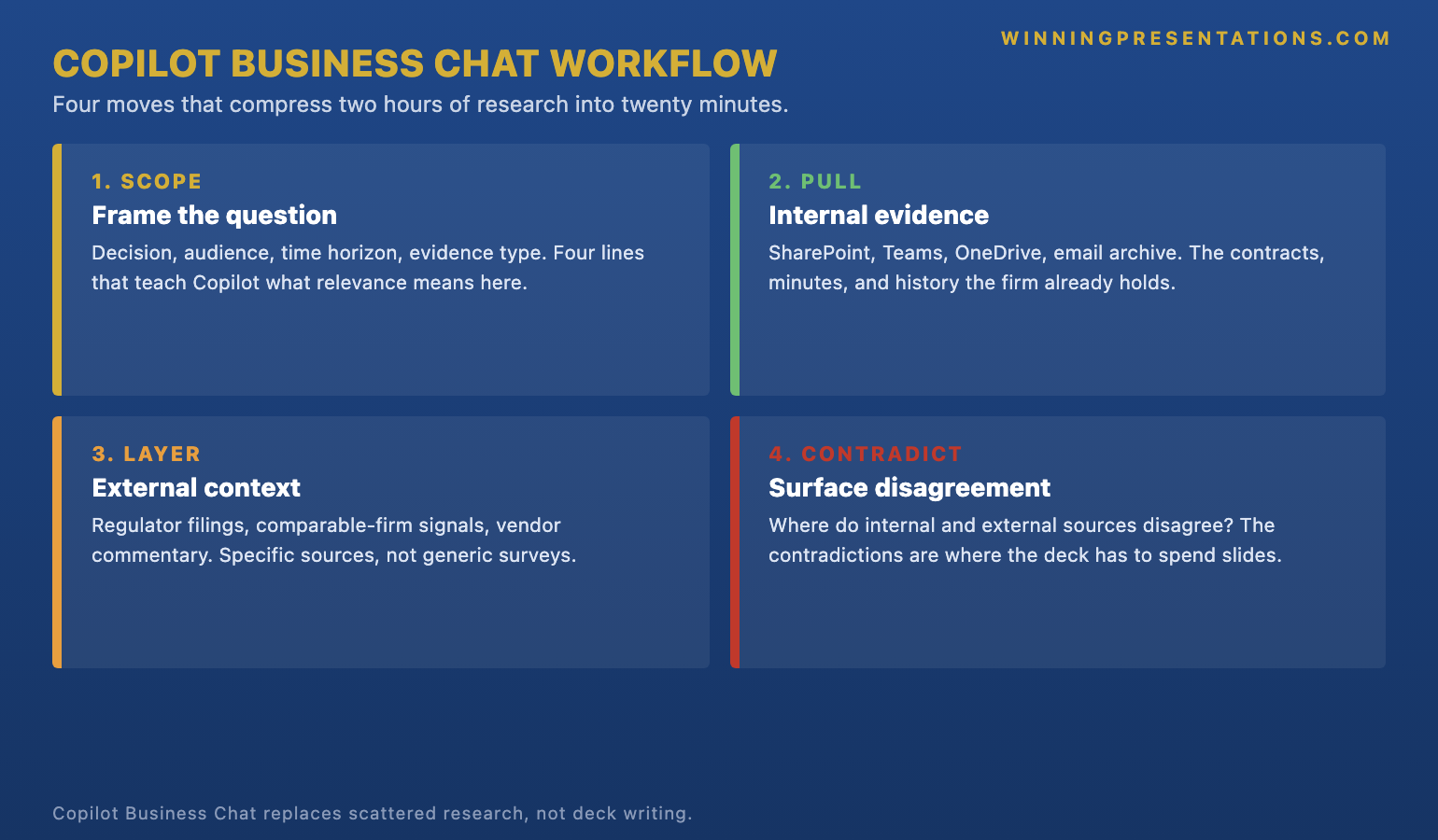
The scope move frames the question precisely enough for Copilot to work against it. The pull move points Copilot at the firm’s own connected sources — SharePoint, Teams, OneDrive, the email archive — and asks for the existing internal evidence. The layer move broadens to the public web for market context, regulatory updates, and competitor signals. The contradict move asks Copilot to find where the sources disagree, where the firm’s internal evidence runs counter to the public picture, or where the public picture has shifted while the firm’s internal documents have not been updated. That fourth move is where the research brief becomes useful. Without it, the brief is a tidy stack of agreeable sources. With it, the brief is the start of a real argument.
Build executive slides in 25 minutes, not 3 hours — with Copilot prompts that work for senior decks.
The Executive Prompt Pack is a practical library of 71 ChatGPT and Copilot prompts for executive PowerPoint presentations. Research prompts, structure prompts, slide-refinement prompts, and committee-prep prompts — written for the scenarios where senior leaders actually use AI, not the generic productivity examples.
- 71 prompts covering executive research, structure, refinement, and committee preparation
- Designed for ChatGPT and Microsoft Copilot — not platform-specific syntax
- Written for senior-deck scenarios: board prep, steering committees, capital cases, strategic recommendations
- Instant download on purchase, no subscription, lifetime access to updates
Move 1: scoping the question into a research brief
The first move sounds slow and turns out to be the most time-saving. Before pointing Copilot at any source, the leader writes a single prompt that defines the decision the deck is supporting, the audience for the deck, the time horizon of the question, and the kind of evidence the audience will actually weigh. A scoping prompt that takes three minutes to draft saves forty minutes of irrelevant output downstream. The leader is teaching Copilot what relevance means for this specific committee, this specific topic, this specific moment.
The structural shape of a good scope prompt has four lines. Line one names the decision: “We are weighing whether to extend our claims-automation vendor or build the next twelve months in-house.” Line two names the audience: “The audience is the firm’s executive committee — financial-services, risk-led, focused on regulatory exposure and reinsurance treaty constraints.” Line three names the time horizon: “We need data and signals from the last twelve months, with regulatory updates from the last three.” Line four names the evidence type: “We want internal contracts and minutes, public regulator filings, vendor earnings commentary, and comparable-firm announcements — not generic articles about claims automation.”
That four-line scope is then handed to Copilot Business Chat as the framing for everything that follows. Copilot will use it to filter what it pulls, what it surfaces, and what it deprioritises. The leader is not just asking a question — they are giving the model the criteria by which the answer will be judged. The closer the framing is to the way the executive committee actually evaluates the topic, the closer the research brief will be to what the meeting needs. For a closely related discipline, the guide on Copilot prompts for executive presentations covers the prompt-writing patterns that translate boardroom criteria into model instructions.
Moves 3 and 4: layering external context and surfacing contradictions
Once the scope is set and the internal pull has surfaced what the firm already holds — the existing contracts, the platform decisions taken in the last twelve months, the email exchanges with the vendor’s account team, the relevant lines from past board minutes — the third move broadens the picture. The external layer brings in the regulator’s published positions, comparable-firm announcements, the vendor’s own public commentary, and any market analysis that bears on the decision. The leader prompts Copilot for these specifically: “Layer in regulator commentary on claims-automation governance from the last three quarters, the last two quarterly earnings calls from our existing vendor, and any public announcements from comparable mid-cap insurers about similar partnerships.” Specificity is the discipline. A vague external pull returns generic survey data; a specific one returns the four sources the committee will recognise.
The fourth move is where the brief earns its weight. The leader prompts Copilot directly: “Where do the internal sources you found in step two disagree with the external sources you found in step three? Where are the contradictions, the silences, the timing mismatches?” This prompt does what no search engine can. It asks the model to take both passes of evidence and tension-test them against each other. Most of what comes back is mundane — wording differences, scope mismatches, harmless gaps. But once or twice in a brief, a real contradiction surfaces: a regulator position that the firm’s internal documents have not absorbed; a vendor commitment in a public earnings call that contradicts the line in the most recent contract; a comparable firm that has reversed a decision the committee is about to make.
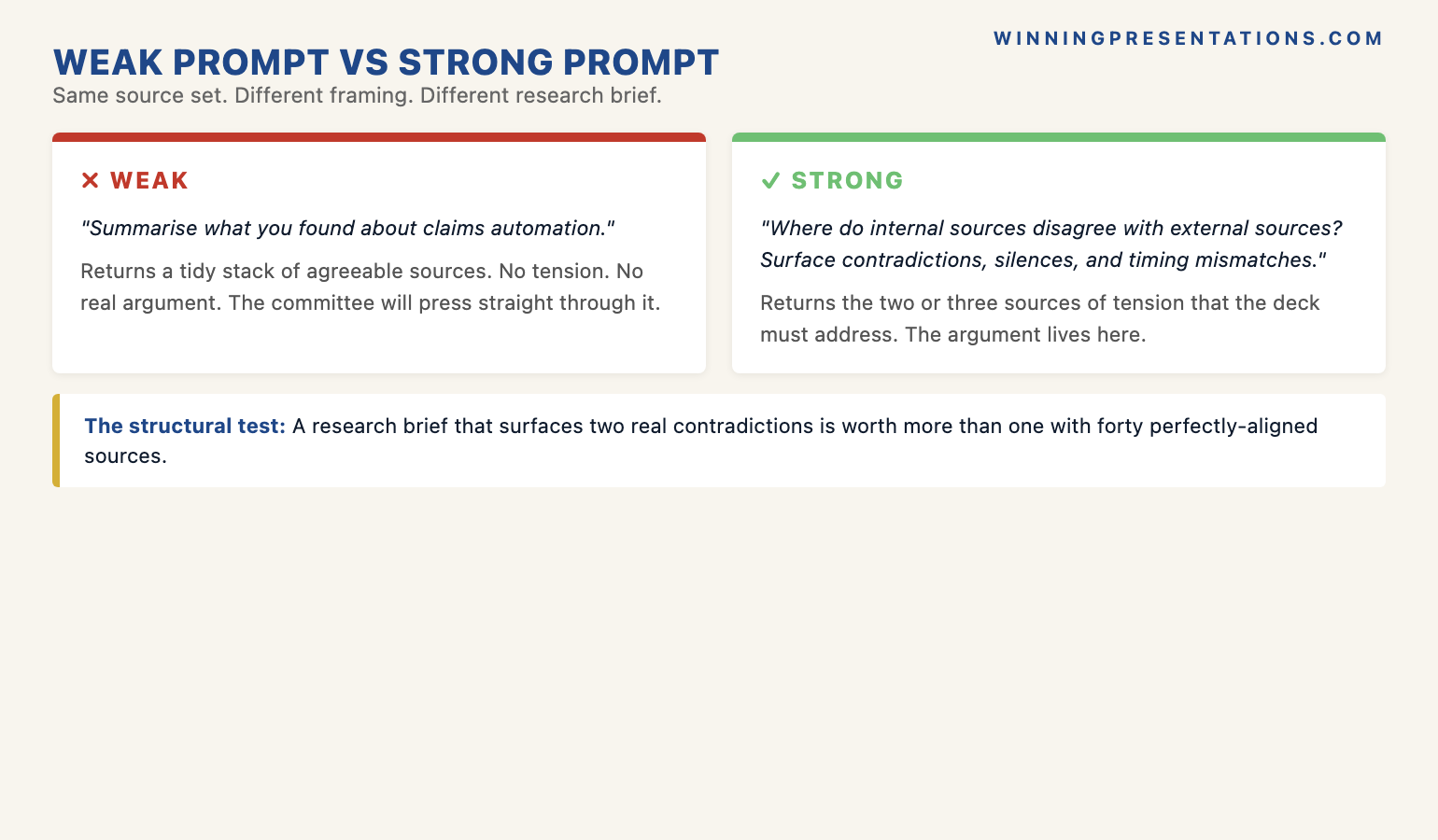
The contradiction is the answer the leader actually needed. It tells them where the deck must spend a slide, what the committee will press on, and where the recommendation has to address an asymmetry the firm’s internal documents have not yet caught up with. A research brief that surfaces two such contradictions is worth more than a research brief that returns forty perfectly aligned sources. For a deeper treatment of the workflow that turns this brief into structured slides, see our companion piece on Copilot versus ChatGPT for executive slides.
If you want the structured programme behind this — the AI-assisted workflow for senior-deck production:
The AI-Enhanced Presentation Mastery course is a self-paced Maven programme — 8 modules, 83 lessons covering AI workflows for executive-grade presentation work, with monthly cohort enrolment. 2 optional live coaching sessions, fully recorded. £499, lifetime access to materials.
What Copilot Business Chat cannot do for you
The discipline that holds the workflow together is knowing what to keep on the human side. Copilot Business Chat compresses research; it does not write the deck. The structural choices the leader makes after the brief — which contradiction to spend a slide on, which evidence is load-bearing for the recommendation, which option to put first when the committee weighs alternatives — are not work the model should do. They are the work the leader is in the room to do. A leader who skips this step and asks Copilot to draft slides directly from the research brief produces decks that read as competent but generic. The committee notices, and the recommendation softens.
The second limit is editorial. Copilot will tell the leader what comparable firms announced. It will not tell the leader which announcement the committee will already know about, which one has been quietly discounted internally, and which one will land freshly. That weighting is local knowledge. The model has not sat in the last six executive sessions; the leader has. The brief flags the candidates; the leader chooses which two will appear in the deck and which eight will not. Treat the brief as raw material, not as the finished frame.
The third limit is verification. Even with internal sources connected, Copilot can mis-attribute lines, conflate two similar documents, or summarise away a nuance that mattered. Every load-bearing claim in the brief — the regulator quote, the contract clause, the vendor’s earnings line — should be opened in its source before the leader builds a slide around it. The workflow saves time by structuring the search. It does not save time by removing the verification step. Skipping that step is where senior leaders who use AI get burnt; doing it consistently is the discipline that separates effective AI users from cautious ones. For more on the operational workflow including the post-research step, see our companion guide on Copilot Agent Mode for executive deck workflow.
Frequently asked questions
What is the difference between Copilot Business Chat and the regular Copilot in PowerPoint?
Copilot Business Chat (sometimes called Microsoft 365 Copilot Chat or “work” chat) is a separate surface designed to query across the firm’s connected M365 sources — SharePoint, Teams, OneDrive, email — alongside the public web. The Copilot inside PowerPoint is task-bound to slide creation. For research that draws on internal documents and external sources together, Business Chat is the right surface. For drafting a slide once the research is in hand, the Copilot inside PowerPoint is the right surface. The two serve different stages of the executive workflow and should not be conflated.
Does Copilot Business Chat actually replace the research a junior analyst would do?
It replaces the source-hunting and the first-pass synthesis. It does not replace the editorial judgement, the local knowledge, or the verification step. A senior leader using Copilot Business Chat ends up doing roughly the same number of editorial decisions they would have made anyway — but on a brief assembled in twenty minutes rather than two hours. For very junior analyst work — formatting a slide, transcribing a meeting, drafting a routine email — Copilot is a near-substitute. For senior research where the contradictions and the local knowledge are what matter, it is a force-multiplier rather than a substitute.
How do I stop Copilot from giving me generic management-consulting answers?
The fix is in the scoping prompt. A vague prompt produces a vague output. The four-line scope — decision, audience, time horizon, evidence type — narrows the model’s response space dramatically. The other lever is asking for sources, not summaries. “Tell me about claims automation” returns a generic essay. “Surface the four most relevant regulator publications, vendor earnings calls, and comparable firm announcements from the last three quarters, with one-line summaries of why each matters for our decision” returns something the leader can actually take into the meeting. Specificity in the prompt is specificity in the output.
Should I run the four-move workflow for every deck?
For decision-presentations and committee briefings, yes. The compression of two hours into twenty minutes makes it worth the discipline of writing a four-line scope every time. For routine status updates, project reporting, or internal team briefings, the workflow is over-engineered. The signal that the workflow is the right tool is the question: would I be embarrassed in the meeting if I had not seen a contradiction the brief would have surfaced? If yes, run the four moves. If no, write the deck without the formal research pass.
The Winning Edge — weekly newsletter
The Winning Edge is a weekly newsletter for senior professionals who present at the executive level. One short email a week, focused on the structural moves that separate decks committees back from decks they defer. Subscribe to The Winning Edge →
Not ready for the full Executive Prompt Pack? Start here instead: download the free 10 Essential Copilot PowerPoint Prompts cheat sheet — a one-page reference for the prompts senior leaders run before every executive deck.
About the author
Mary Beth Hazeldine is Owner & Managing Director of Winning Presentations Ltd. With 24 years of corporate banking experience at JPMorgan Chase, PwC, Royal Bank of Scotland, and Commerzbank, she advises executives across financial services, healthcare, technology, and government on structuring presentations for high-stakes funding rounds, board approvals, and strategic decisions.