Tag: virtual presentations

19 Apr 2026

Virtual Presentation Energy: How to Project Confidence Through a Camera

Quick Answer

Virtual presentation energy drops because the camera compresses physical presence and eliminates the environmental cues that naturally regulate your nervous system. The fixes are specific: eye-level camera, slight vocal projection, deliberate pause technique, and a two-minute physical reset before you open the call. Fatigue and flatness on camera are not personality traits. They are physiological responses to a format that most executives have never been trained to manage.

Rafaela had been presenting to senior committees for eleven years. Boards, excos, client panels — none of them rattled her. She knew how to read a room, how to use space, how to pitch her voice to the back of a boardroom. She had presence.

Then every meeting moved online.

She noticed it in the feedback first. “You seemed a little flat.” “Hard to gauge your energy.” “Felt like you were reading rather than presenting.” She was doing exactly what she had always done. But through a camera, her performance was landing differently. What had been authoritative in a room was reading as subdued on screen. The techniques that had built her reputation over a decade were not transferring.

This is one of the least-discussed challenges facing senior executives in a permanent hybrid environment. Presence in a physical room is partly about physical scale, proximity, movement, and the ambient energy of being in a space with other people. None of those elements translate through a camera. What reads as composed and measured in a boardroom can read as flat and disengaged on a laptop screen. The format changes the physics of presence, and most executives have not adapted their technique to account for it.

Struggling with physical symptoms that affect your on-screen presence?

Calm Under Pressure is designed for the in-the-moment physical symptoms that flatten energy on camera: voice tension, shallow breathing, and the freeze response that makes you read as flat rather than composed.

Explore Calm Under Pressure →

Why Executive Energy Drops on Camera

Understanding why your energy drops on camera is the first step to correcting it, because most of the fixes are specific to the cause rather than general performance adjustments.

The primary factor is the absence of environmental regulation. In a physical room, your nervous system receives constant environmental feedback: the presence of other people, ambient sound, spatial awareness, eye contact with a distributed audience, the physical sensation of standing or moving. This feedback keeps your nervous system engaged and your energy regulated without any conscious effort. On camera, all of that disappears. You are looking at a two-dimensional screen in a static position, with no ambient input, no physical connection to an audience, and no spatial feedback. The result is a mild but significant suppression of the neural systems that generate what audiences perceive as presence and energy.

The second factor is vocal feedback. In a room, your voice has physical resonance — you can feel it in your chest, hear it reflected off surfaces, and instinctively calibrate it to the space. Through a microphone, that resonance is compressed and flattened. Executives who project naturally in a room tend to under-project on camera because the acoustic environment no longer cues them to increase volume and variation. The result is a delivery that sounds monotone and low-energy to the audience, even when the speaker feels they are presenting at normal intensity.

The third factor is the anxiety response that camera visibility triggers in many presenters. Being watched through a camera — particularly in a static frame where there is nowhere to move — activates a mild threat response in the nervous system. This manifests as vocal tension, shortened breath, reduced facial expressiveness, and a tendency toward faster speech and fewer pauses. The physical symptoms are subtle but visible to an audience. They read not as anxiety but as flatness, disengagement, or lack of confidence.
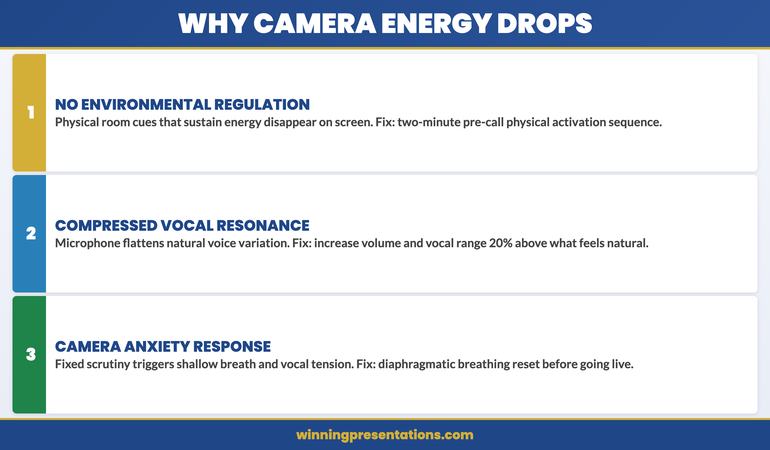
Why executive energy drops on camera: three causes — no environmental regulation, compressed vocal resonance, and camera-triggered anxiety response

The Physical Setup That Protects Your Presence

Your physical setup is not peripheral to your virtual presence. It is the foundation of it. Three elements matter most.

Camera height. The camera should be at or slightly above eye level. When the camera is below eye level — as it is on a standard laptop sitting on a desk — you are looking slightly down at the screen throughout the presentation. This creates a subtle subordinate posture that communicates deference rather than authority. Raising the camera to eye level by using a monitor riser, an external webcam on a stand, or a laptop on books is a five-minute adjustment that materially changes how your authority reads to the audience. It also naturally lifts your chin and opens your posture, which improves vocal resonance immediately.

Lighting direction. Light source should be in front of you, not behind or to the side. A window behind you creates a silhouette. A window to one side creates uneven shadows that make facial expressions harder to read. A soft light source in front of you — a window, a lamp, or a ring light — illuminates your face evenly and makes expression visible at small screen sizes. This matters because facial expression is a significant part of how presence and energy are read by a virtual audience, and it is lost entirely when the lighting is wrong.

Body position. Sit or stand slightly forward, with shoulders back and both feet flat on the floor if sitting. Leaning back into a chair collapses your posture and compresses your diaphragm, which restricts vocal projection and reads as disengagement. Sitting forward with upright posture is the virtual equivalent of standing up to present — it activates the same physical positioning that generates presence in a room.

Vocal Projection and Pace in a Virtual Format

The single most effective vocal adjustment for virtual presentations is increasing both your volume and your vocal variation by approximately 20% above what feels natural. This counteracts the compression effect of microphone audio and restores the dynamic range that audiences associate with energy and confidence.

Pace is the other critical variable. The natural reaction to virtual anxiety is to speak faster — it feels like it fills the silence and reduces the exposure time under the camera’s gaze. In practice, faster speech on camera reads as nervous and difficult to follow. Deliberately slowing your pace by around 15% below your natural speaking rate, and pausing for a full beat between major points, signals authority and control. Pauses that feel uncomfortably long to the speaker are usually comfortable and useful for the audience.

Vocal variation — the contrast between higher and lower pitch, louder and quieter moments — is the element that prevents a virtual presentation from sounding like a recording. Executives who use vocal monotone in virtual settings are not disengaged; they are simply not aware that the audio compression of a microphone strips the natural variation out of their voice unless they consciously exaggerate it. The fix is not to perform — it is to recalibrate upward to compensate for what the technology takes away.

The Two-Minute Pre-Call Reset

A two-minute physiological reset before a virtual presentation is the single highest-return investment in on-screen energy. The purpose is to shift your nervous system out of the low-arousal, slightly suppressed state that comes from sitting in front of a screen into the activated, regulated state that generates presence.

The sequence has four elements. First, stand up and take three deep breaths that fully expand the diaphragm — you should feel your belly expand on the inhale. This increases oxygen levels and reduces the shallow-breath pattern that compresses vocal energy. Second, do 20 seconds of light physical movement — shaking out your hands, rolling your shoulders, or briefly walking around. This activates the same neural pathways that regulate energy in a physical presentation environment. Third, say two or three sentences aloud at slightly above your natural volume, as if warming up your voice before a physical presentation. This recalibrates your vocal projection before the camera is live. Fourth, check your camera angle, lighting, and posture, and sit forward into your speaking position before you open the call.

This sequence takes less than two minutes and has a measurable effect on how you present in the first five minutes of a virtual meeting — which is when first impressions are formed and when energy most often drops for executives who have moved directly from a screen-reading task to a live presentation.

Manage the Physical Symptoms That Flatten Your Camera Presence

Calm Under Pressure — £19.99, instant access — is designed for the in-the-moment physical symptoms that undermine virtual presence: voice tension, shallow breathing, and the physical freeze that makes you read as flat rather than authoritative on screen.

  • 60-second resets for vocal tension, shallow breathing, and physical freeze
  • Pre-call activation sequence to shift your nervous system into presentation state
  • In-the-moment physical symptom management for live virtual meetings
  • Techniques for sustaining energy across longer remote presentations

Get Calm Under Pressure →

Designed for executives whose physical symptoms are affecting their authority on screen.

Camera Eye Contact and Why Most Executives Get This Wrong

Eye contact is one of the most powerful signals of authority and engagement in a face-to-face presentation. On camera, most executives manage eye contact in a way that does the opposite of what they intend.

The common pattern is to look at the gallery view of faces on screen while speaking. This feels natural — you are looking at your audience. But from the audience’s perspective, your eyes are consistently below the camera, which reads as looking down or looking away. The result is a delivery that feels like you are avoiding eye contact even when you are actively looking at the people you are presenting to.

True camera eye contact means looking directly into the lens of the camera, not at the screen. For most executives this feels deeply unnatural, because there is no face in the lens — only a small dot. The technique that makes this workable is to use the screen for context and reference, but return to the lens for the moments that matter: when you are making your key argument, when you are asking for a decision, and when you are addressing a specific individual directly.

A practical approach is to place a small sticker or arrow near the camera lens as a visual anchor point. This gives your eye contact a target that is physically distinct from the screen content, making it easier to return to the lens without losing your place in the presentation. It sounds like a small adjustment. For audience members, the difference between a presenter who looks at the camera and one who does not is the difference between feeling addressed and feeling observed.

For virtual presentations where you are sharing your screen or navigating between slides, the screen sharing presentation guide covers the specific techniques for maintaining audience engagement when your screen content is visible alongside your face. And for presentations that are recorded rather than delivered live, asynchronous presentation recording addresses the different energy challenge of presenting to a camera with no live audience at all.

The physical symptoms that create camera anxiety — vocal tension, shallow breathing, and the tightening that reduces expressiveness — are the same symptoms addressed by the techniques in managing presentation anxiety on remote and camera formats. If you find that the energy issue is rooted in anxiety rather than technique, that is the right starting point.

If the physical symptoms are consistent enough to affect your performance across multiple virtual meetings, the Calm Under Pressure programme is designed specifically for the in-the-moment physical reset techniques that restore vocal quality and physical presence before and during virtual presentations.

Sustaining Energy Across Longer Virtual Presentations

The energy management challenge in a 90-minute virtual presentation is fundamentally different from a 90-minute in-person one. In a physical setting, movement, spatial change, and human interaction naturally sustain your energy. Online, the static format creates a progressive drain that most presenters do not notice until the final 30 minutes — when their audience does.

Three techniques sustain virtual energy across longer presentations. First, build in structured interaction points every 15–20 minutes. This is not for audience engagement alone — it is to activate your own nervous system. The act of asking a question, reading responses, or managing a polling tool interrupts the static energy drain and forces a brief reset. Second, stand for the sections of the presentation where you need the highest energy — typically the opening, the key recommendation, and the close. Standing activates the same physiological engagement as presenting in a room and is audible in your vocal delivery even to an audience who cannot see your full body. Third, have a glass of water within reach and use a sip during a natural transition point as an opportunity to reset your posture and take a breath before moving to the next section.

Managing physical symptoms that undermine energy on camera is the focus of Calm Under Pressure. The programme provides 60-second reset techniques for vocal tension, shallow breathing, and the physical tightening that reduces expressiveness on screen — all of which are more manageable than most executives realise once they have the right tools.

Sustaining virtual presentation energy: three techniques — structured interaction every 15-20 minutes, standing for high-energy sections, and physical reset between transitions

Stop Physical Symptoms from Flattening Your Virtual Presence

Calm Under Pressure — £19.99, instant access — gives you the 60-second in-the-moment resets that stop physical symptoms before they affect your authority on screen.

  • Vocal tension and shallow breathing reset techniques
  • Pre-call activation sequence to shift your nervous system into presentation state

Get Calm Under Pressure →

Designed for executives whose physical symptoms are undermining their authority in virtual settings.

Frequently Asked Questions

Why do I feel more anxious presenting virtually than in person?

Several factors compound in the virtual format. The absence of ambient environmental feedback — no physical room, no spatial awareness, no distributed audience — removes the neural regulation that naturally manages your anxiety in a physical setting. The camera creates a fixed point of scrutiny that activates a mild threat response in many presenters. And the audio delay and absence of real-time audience cues make it harder to regulate your delivery through the feedback loop you rely on in a room. These are physiological responses to a novel format, not character traits — and they are addressable with specific techniques.

Does virtual presentation anxiety get better with more experience?

For most executives, experience with virtual presentations reduces the novelty anxiety but does not automatically resolve the physiological energy problem. You can become very comfortable with the format and still present with flat energy, because the environmental regulation issue is structural rather than psychological. What does get better with deliberate practice is the specific technique adjustments: camera eye contact, vocal projection calibration, and the pre-call reset. These require conscious effort at first and become habitual with repetition.

Is a ring light worth the investment for virtual presentations?

For executives who present virtually more than twice a week, a modest ring light or softbox is worth the cost. The lighting difference is significant: it eliminates the patchy, shadow-heavy quality that most home and office setups produce and replaces it with even, flattering illumination that makes facial expression fully readable at small screen sizes. The psychological effect is also real — presenting in good light feels more like presenting in a professional environment, which activates the same performance mindset as a physical boardroom setting.

How do I handle the energy drain when I have four back-to-back virtual meetings in a day?

The two-minute pre-call reset is your primary tool for managing this. Between each call, stand up, move briefly, take three deep diaphragmatic breaths, and reset your camera position before the next call opens. This is the virtual equivalent of walking between meeting rooms. The movement and physiological reset interrupt the energy drain cycle that builds across consecutive static screen time. For days with a particularly high-stakes virtual presentation — such as a board or exco meeting late in a full schedule — schedule a 10-minute break before it, even if other meetings have to be shortened to create that buffer.

The Winning Edge — Weekly Executive Communication Insights

Each Thursday: one high-stakes communication technique, one real case study, one action you can apply before your next meeting.

Subscribe to The Winning Edge →

About the Author

Mary Beth Hazeldine is the Owner & Managing Director of Winning Presentations. With 25 years of corporate banking experience at JPMorgan Chase, PwC, Royal Bank of Scotland, and Commerzbank, she has delivered high-stakes presentations in boardrooms across three continents.

A qualified clinical hypnotherapist and NLP practitioner, Mary Beth advises executives across financial services, healthcare, technology, and government on structuring presentations for high-stakes funding rounds and approvals.

Book a discovery call | View services

31 Mar 2026
Professional managing a virtual Q&A session with multiple screens showing remote participants

Q&A for Virtual Presentations: Why the Format Changes Everything

Quick Answer: Virtual presentation Q&A operates entirely differently from in-person formats. You cannot read body language, manage chat overlaps, control the timing of interruptions, or employ standard panel management techniques. Executives who master this specific format gain a measurable advantage in digital engagement and approval-stage decisions.

A Virtual Q&A Turned the Deal Around

Henrik managed a funding presentation for a 200-person digital security firm. The slide deck was flawless, the narrative tight, the numbers compelling. When the live Q&A session began on Zoom, three things happened simultaneously: a question appeared in chat, another participant unmuted and spoke over him, and the host accidentally muted Henrik mid-answer. In thirty seconds, he lost control of the room. What could have derailed the outcome became, instead, a demonstration of composure and clarity. Henrik recovered by naming each question type, answering the chat query first, then addressing the unmuted interrupt, then asking to be unmuted by the host. By the end of the Q&A, the investors commented not on the disruptions but on his handling of them. The deal moved forward. The difference: he’d prepared specifically for virtual Q&A dynamics, not generic Q&A technique.

If virtual Q&A feels chaotic, it’s not lack of confidence. It’s lack of format-specific strategy. In-person Q&A and virtual Q&A are fundamentally different channels. They require different preparation, different timing, different interruption management, and different audience reading. This article teaches you the specific moves that work in the virtual environment.

Handling Chat Questions: The Visible Backlog Problem

In-person Q&A gives you a queue you control. Raise your hand. Wait for the host. Answer. Next. Virtual presentation Q&A gives you a visible backlog. Participants type questions simultaneously. Everyone watching can see unanswered questions stacking up. This creates psychological pressure: the longer your answer, the longer the unanswered queue grows, and the audience perceives you as slow or evasive.

The format-specific solution: acknowledge the backlog explicitly. Early in your Q&A, say: “I can see several questions here—I’m going to answer the top three in full, then circle back to the others after.” This move does three things. It signals you’ve seen the questions (addressing the visible-backlog anxiety). It sets boundaries on your time without appearing rushed. It gives you permission to move quickly without appearing dismissive.

Second, distinguish between chat questions and spoken questions. Many executives answer both the same way. Chat questions often signal something else: the participant wasn’t confident enough to unmute, or they wanted a record of the answer. Answer chat questions directly, briefly, and on-record. Spoken questions often signal something else: the participant wanted to be heard in real time, or they’re testing your composure. These typically require more engagement. Treating them differently changes your entire Q&A dynamic.

Master Virtual Q&A Handling in 6 Modules

The Executive Q&A Handling System £39 teaches you exactly how to prepare for—and dominate—virtual presentation Q&A. Learn format-specific timing, interruption recovery, chat management, and the psychological moves that keep approval-stage executives engaged.

£39 · Lifetime Access · 6 Training Modules

Access the System

Managing Unmuted Interruptions: The Real-Time Override

In-person Q&A, you see the hand raise. You invite the question. The interruption is structured. Virtual Q&A, someone unmutes and speaks. You’re mid-answer. The interruption is real-time and uncontrolled. This is the single most destabilising element of virtual presentation Q&A because it happens in live time and you must respond instantly.

The format-specific response: acknowledge the interruption without stopping. Do not finish your answer as if the interruption didn’t happen. Instead, pause, say the person’s name if you know it (or say “I hear you”), and ask if they can wait thirty seconds. Most will. You finish your answer, then directly address their point. This does three critical things: it signals you’re not avoiding them, it keeps your answer intact, and it demonstrates you can prioritise multiple speakers without losing your thread.

If the interruption is a genuine clarification question—something that makes your current answer irrelevant—stop mid-answer and say: “That’s a useful question. Let me address that first, then I’ll come back to my original point.” This signals flexibility and real-time listening, not rigidity. By contrast, ignoring the interruption makes you look either unprepared or dismissive, neither of which serves your credibility.

The distinction matters enormously: if you cannot distinguish between a clarifying interrupt and a derailing interrupt in real time, you cannot manage virtual Q&A effectively.

Navigating Delayed Responses: The Technology Gap

In-person Q&A, you answer immediately. Virtual Q&A, there are four potential delays: your microphone lag, the participant’s audio lag, the platform processing lag, and the internet bandwidth lag. These delays compound. You finish answering, genuinely believing the other person heard you, only to discover they’re still waiting for a response. Or you begin speaking at exactly the moment they start speaking, creating a collision. Or the host mutes you accidentally mid-answer because the platform glitched.

The format-specific preparation: before the Q&A begins, ask the host to confirm audio setup, agree on a silent signal if you need unmuting (usually a raised hand or typed message), and confirm whether questions will come from the floor or from the host reading them. Second, assume 2–3 seconds of processing delay. This means pausing after you finish an answer for 2–3 seconds before moving to the next question. It means speaking slightly more slowly than in-person, not because of intelligence but because of technology. It means repeating critical numbers and dates, because participants may have missed them due to the delay.

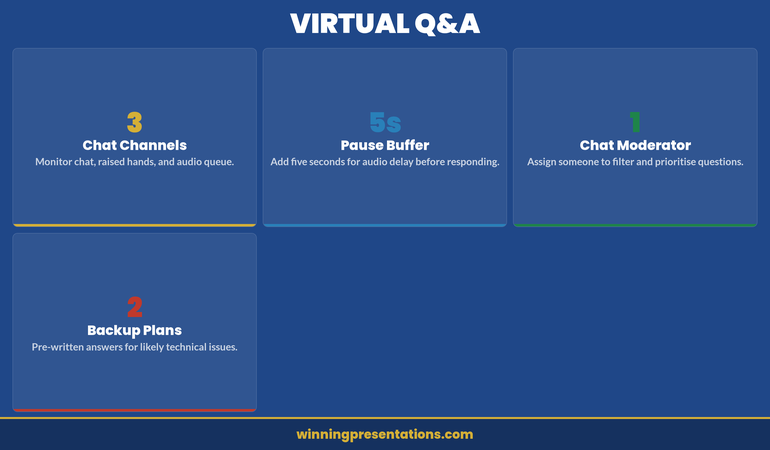
Virtual Q&A management dashboard showing chat channels to monitor, pause buffer duration, chat moderator role, and backup plans

The four pillars of virtual Q&A infrastructure: monitor three channels, buffer five seconds, assign a moderator, prepare backup plans.

The framework above identifies the four elements that separate controlled virtual Q&A from chaotic improvisation. Chat Channels — monitoring chat, raised hands, and audio queue simultaneously — is the first structural challenge. In-person, you have one input channel: someone raises a hand. Virtually, you have at least three. Without deliberate attention management, you’ll answer the loudest channel (audio) and ignore the others, which the audience sees as selective engagement. The fix: announce at the start which channels you’ll prioritise and in what order.

Pause Buffer — adding five seconds for audio delay before responding — prevents the collision problem Henrik experienced. Five seconds feels uncomfortably long when you’re the presenter, but the audience doesn’t experience it that way. They experience it as thoughtfulness. Without the buffer, you begin answering before the questioner has finished (because of lag), creating a pattern of talking over people that erodes trust rapidly in a virtual environment.

Chat Moderator — assigning someone to filter and prioritise questions — removes the cognitive load of managing both content and logistics simultaneously. In-person, a host can do this naturally. Virtually, the presenter is often expected to manage the platform and answer the questions, which splits attention in ways that visibly degrade performance. Even a junior colleague reading chat and flagging the three most substantive questions changes the dynamic entirely.

Backup Plans — pre-written answers for likely technical issues — address the reality that virtual Q&A includes a category of disruption that doesn’t exist in-person: platform failure. If your audio drops, if screen-share freezes, if the host accidentally ends the meeting, you need a pre-agreed recovery protocol. “I’ll rejoin within 60 seconds. If the meeting closes, [colleague name] will restart it.” That single sentence, agreed before the call, prevents the panic spiral that technical failures trigger mid-Q&A.

The psychological impact is significant: if you appear rushed or impatient during a delayed-response moment, the audience perceives it as lack of composure. If you build in deliberate pauses, the audience perceives it as confidence and control. The technology is the same; the interpretation is entirely different.

Want a step-by-step checklist for virtual Q&A timing? The Executive Q&A Handling System includes a detailed preparation guide for every platform—Zoom, Teams, WebEx—with exact timing protocols for each.

Strategic Q&A Preparation: The Three-Layer Model

Generic Q&A preparation teaches you to anticipate questions and prepare answers. Format-specific Q&A preparation teaches you to anticipate question types, interruption patterns, and timing scenarios unique to the virtual environment.

Layer One: Question Anticipation. Identify the 8–12 questions most likely to arise based on your presentation content, your audience, and your approval stage. This is standard. Where it becomes format-specific: for each question, prepare two versions—a full answer (60–90 seconds) and a cliff-note answer (15–20 seconds). Why? Because if a question appears in chat, you answer briefly. If someone unmutes and asks it, you have permission to answer fully. If the host reads it, you can calibrate based on time remaining. One question, three delivery modes, two answer lengths.

Layer Two: Interruption Scenario Mapping. Write out five scenarios: (1) you’re interrupted mid-answer by chat question, (2) you’re interrupted mid-answer by unmuted speaker, (3) you’re muted accidentally, (4) you experience audio lag and miss what was asked, (5) two people ask questions simultaneously. For each, write out your exact response in advance. This sounds mechanical, but in live pressure, you default to what you’ve already practised. Without this layer, you improvise, and improvisation under pressure typically looks like evasion.

Layer Three: Timing Architecture. Assign time budgets to each question type based on your Q&A length. If you have 30 minutes, you might allocate 3 minutes per substantive question, 1 minute per clarification, 30 seconds per chat question. Build in a 2-minute buffer. During the Q&A, manage to this architecture. This prevents you from spending eight minutes on the first question and leaving substantive questions unanswered—a common pattern that damages credibility in approval-stage scenarios.

The Format That Changes Everything

Virtual Q&A isn’t a minor variation of in-person Q&A. It’s a fundamentally different format requiring fundamentally different preparation. The Executive Q&A Handling System (£39) walks you through all three layers with real scenarios, timing models, and recovery techniques.

Learn the System

The shift from generic to format-specific preparation is where most executives go wrong. They prepare answers. They don’t prepare for the virtual Q&A environment itself. This means when a real interruption happens, or when they experience audio lag, or when the chat backlog grows, they respond as if they’re in an in-person Q&A, which doesn’t work. The executives who dominate virtual Q&A are those who’ve practised the format itself, not just the content.

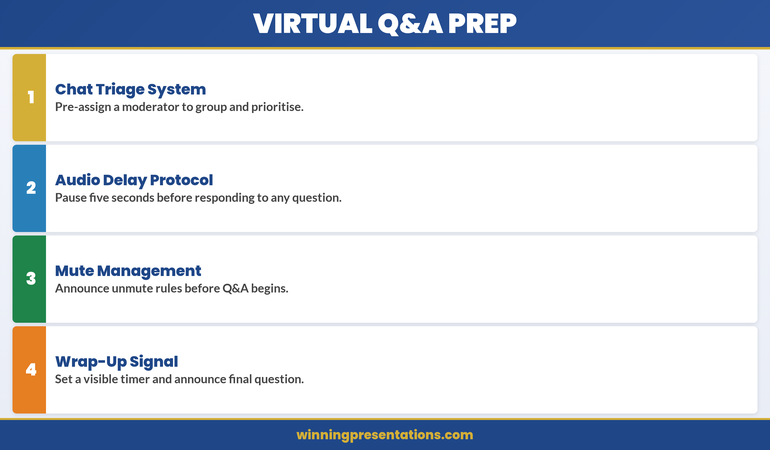
Four preparation steps for virtual Q&A: chat triage system, audio delay protocol, mute management, and wrap-up signal

The four-step virtual Q&A preparation protocol: triage, delay, mute rules, and wrap-up.

The preparation framework above translates the three-layer model into four actionable steps you complete before the Q&A begins. Chat Triage System means pre-assigning a moderator to group and prioritise incoming chat questions into three categories: decision-critical (answer immediately), clarification (answer briefly), and off-topic (acknowledge and defer). Without triage, you’re performing real-time sorting while also formulating answers, which is the cognitive equivalent of reading email while driving.

Audio Delay Protocol — pausing five seconds before responding to any question — is the single most impactful preparation step. It accounts for the platform lag that creates talking-over-each-other collisions, and it gives you processing time that in-person Q&A provides naturally through the physical act of someone standing or raising a hand. Announce this protocol at the start: “I’m going to pause briefly before each answer to ensure I’ve heard the full question.” The audience interprets this as professionalism, not hesitation.

Mute Management means announcing unmute rules before Q&A begins. “Please stay muted until I call on you. If you’d like to ask a question, use the raised hand feature or type it in chat.” This removes the ambiguity that creates unmuted interruptions. Without explicit rules, some participants will unmute spontaneously, others will type in chat, and the resulting overlap makes you look like you’re losing control of the room — when in reality, the room never had rules to begin with.

Wrap-Up Signal — setting a visible timer and announcing the final question — prevents the awkward fade-out that plagues virtual Q&A sessions. “We have time for one more question” is the verbal equivalent of a closing bell. Without it, sessions drift, participants leave silently, and the Q&A ends with a whimper rather than a controlled close. The signal also creates urgency: participants with important questions will ask them rather than assuming there’s unlimited time.

Frequently Asked Questions

Should I answer every question in chat, or can I select which ones to address? You can select, but you must signal this clearly at the start: “I’m going to prioritise questions that affect the core decision, and I’ll circle back to secondary questions in writing.” This is different from appearing to ignore questions. Transparency about your selection criteria actually increases credibility rather than diminishing it.

What do I do if someone asks a question I genuinely cannot answer in the moment? Say so directly: “That’s a specific question I want to answer accurately—I’ll follow up with you in writing within 24 hours.” Then do it. This is stronger than guessing or stalling, both of which signal uncertainty. A commitment to follow-up in writing actually increases trust, particularly in approval-stage scenarios where precision matters more than speed.

How do I prevent the Q&A from running over time and cutting into my presentation close? Build the timing architecture I described above, and announce it upfront: “We have 25 minutes for Q&A, which gives us time for roughly eight substantive questions. I want to make sure we cover the approval-critical items, so I’ll be managing our time to that target.” This gives you permission to move through questions efficiently without appearing rushed. You’re managing the format, not dodging engagement.

Get Weekly Insights on Executive Presentations

Join The Winning Edge for actionable strategies on structuring presentations for high-stakes approvals, managing Q&A in real time, and building executive credibility. Every Thursday, direct to your inbox.

Subscribe to The Winning Edge

The Format Changes Everything

Virtual presentation Q&A is not in-person Q&A delivered over Zoom. It’s a distinct format with its own rules, timing patterns, interruption dynamics, and psychological pressures. Executives who master it gain a measurable edge in approval-stage decisions, funding conversations, and board-level presentations. The difference is not confidence or intelligence—it’s preparation specific to the virtual environment.

Related Reading:

Today’s other articles: Succession Planning Presentations | Department Update Presentations | Presentation Anxiety Relapse


About the Author

Mary Beth Hazeldine is Owner & Managing Director of Winning Presentations. With 24 years of corporate banking experience at JPMorgan Chase, PwC, Royal Bank of Scotland, and Commerzbank, she advises executives across financial services, healthcare, technology, and government on structuring presentations for high-stakes funding rounds and approvals.
27 Mar 2026
Professional laptop setup showing a virtual meeting screen with warm lighting and a calm workspace environment

I Was Fine in Boardrooms. Then Zoom Destroyed My Confidence.

Quick answer: Camera-based presenting triggers distinct anxiety because you can see yourself, lose real-time audience feedback, and face screen fatigue. Unlike in-person presenting—where you read the room—virtual meetings isolate you with your own image and a grid of faces you can’t fully process. The self-view effect can intensify anxiety. Three immediate fixes: disable self-view, position your camera at eye level, and use the “pause and breathe” technique between responses.

The Scene: Petra had delivered presentations to boardrooms across Europe with barely a tremor. But when her company moved to hybrid meetings, something shifted. During her first Zoom call with the leadership team, she felt her chest tighten the moment her camera went live. She could see herself in the small box—the tilt of her head, the occasional blink—and it was distracting her completely. The faces on screen seemed distant and unreadable. No nods, no engaged eye contact. Just flat tiles and occasional frozen frames. By the time she finished her slides, her shoulders were in her ears and she’d forgotten half of what she planned to say.

“It’s completely different from in-person,” she told her colleague afterwards. “I know how to work a room. But this? I can’t read anyone. And I’m stuck watching myself.”

Petra’s experience isn’t unusual. Virtual presentation anxiety is its own beast—distinct from stage fright or boardroom nerves. And understanding why is the first step to managing it.

Managing camera anxiety takes more than tips.

The Conquer Speaking Fear programme teaches nervous system techniques specifically designed for remote anxiety.

Explore Conquer Speaking Fear →

Why Self-View Breaks Your Confidence

The moment your camera goes live, you face a fundamental difference from in-person presenting: you can see yourself. In a boardroom, you never watch yourself present. You read the audience. You track energy. You adjust. But on Zoom? There you are, in a small box, present for your own performance.

This isn’t vanity. It’s neuroscience. Research shows that seeing your own face on screen can increase self-focused attention and affect stress responses. You’re essentially creating a second “observer” in your own mind, constantly monitoring and judging your appearance, your expressions, even the slight delay in video transmission.

That split attention—between what you’re saying and how you look saying it—hijacks working memory. You have fewer cognitive resources left for the actual content. Your delivery becomes smaller, more cautious. Your voice may tighten. And paradoxically, the more aware you become of this, the more anxious you feel.

Professional presenters often disable self-view entirely during live streams for exactly this reason. The moment they stop watching themselves, delivery improves dramatically.


Camera Anxiety Cycle infographic showing four stages in a continuous loop: See Yourself, Monitor Expression, Lose Flow, and Anxiety Builds — with a central Self-View hub indicating where to break the cycle

Loss of Real Audience Feedback

In a physical room, you read microexpressions. A furrowed brow tells you someone’s confused. A smile and a nod say you’ve landed a point. Leaning forward signals engagement. These cues are instantaneous and unconscious—your nervous system processes them automatically, and your brain adjusts your delivery in real time.

On a video call, that feedback loop breaks. Faces are small. The bandwidth of Zoom video is compressed, which flattens micro-expressions. Internet latency creates a slight delay, so even if someone nods, you might not see it immediately. And if someone’s camera is off, or they’re multitasking off-screen, you have absolutely no signal of whether your message is landing.

This uncertainty creates what neuroscientists call “communicative stress.” Your brain is wired to seek evidence that you’re being understood. Without it, anxiety builds. You may find yourself overexplaining, speaking faster, or becoming overly formal—all compensation behaviours that make you sound less confident.

Some presenters experience this as a unique form of isolation: you’re performing into a void. You can’t modulate your message based on real feedback. That loss of control triggers the ancient anxiety response—your nervous system interprets silence or ambiguous facial expressions as potential rejection or disapproval.

The Real Issue: Your Nervous System Isn’t Built for This

Camera anxiety isn’t a character flaw or a confidence issue. It’s your nervous system responding to genuine communicative ambiguity. When you’re unsure if you’re being understood, or aware that you’re being watched through a screen, your body triggers a mild threat response. Your sympathetic nervous system activates. Heart rate climbs. Breathing becomes shallow.

The Conquer Speaking Fear programme gives you three frameworks to reverse this:

  • Nervous System Reset Technique: A 90-second body-based practice that shifts your physiology from threat mode to task focus—proven to lower cortisol and stabilise heart rate before you go live.
  • Anxiety Reframe Method: Transform the physical sensations of anxiety (racing heart, butterflies) into signals of readiness, not danger. This rewires your stress response in real time.
  • Audience-Centred Grounding: A mental technique that shifts your focus from how you look to the value you’re delivering—dissolving self-consciousness and rebuilding confidence.

These aren’t willpower strategies. They’re neuroscience-backed tools that work with your biology, not against it.

Get Conquer Speaking Fear → £39

Screen Fatigue and Cognitive Overload

Virtual presenting demands more cognitive effort than in-person delivering. You’re processing multiple information streams simultaneously: your own image, the faces of attendees, your slides or notes, chat messages, and the slight technical delay that creates a cognitive friction with your speech.

This is called “Zoom fatigue” in the research literature, and it’s real. Studies from Microsoft and the University of Arizona found that video calls cause higher cognitive load than equivalent in-person meetings. Your brain has to work harder to extract meaning from compressed video, to compensate for the loss of body language, and to manage the slight asynchronisation between audio and video.

That effort is exhausting. After a 60-minute video presentation, many people report feeling drained in a way that a 90-minute in-person presentation doesn’t trigger. And when you’re cognitively fatigued, anxiety often spikes. Your emotional regulation becomes compromised. That wobble in your voice, the stumble over a word, the moment you lose your thread—these happen more often when you’re running on depleted resources.

Some presenters also experience what’s called “glass face syndrome”—the feeling that the camera is capturing every minute of emotion, every flicker of uncertainty. Combined with cognitive fatigue, this creates a perfect storm: you’re exhausted, watching yourself, and convinced that every slip is visible to everyone.

Practical Fixes You Can Use Today

1. Disable Self-View (Immediately)

This matters. In Zoom, click your video thumbnail and select “Hide Self View.” In Microsoft Teams, right-click your video and choose “Turn off my video preview.” In Google Meet, click your video icon and select “Settings” → “Hide self view.”

Removing self-view can reduce anxiety markers and improve natural delivery. You’re no longer operating with a self-consciousness observer in the room. Try it for one meeting and notice the difference in how you feel.

2. Position Your Camera at Eye Level

If your camera is below your eye line, you’re presenting looking down, which unconsciously conveys submission or low confidence. If it’s above, you’re looking up, which can read as uncertain or seeking approval. A camera positioned at your eye level creates psychological equilibrium and more confident body language.

Use a laptop stand, a stack of books, or a monitor arm. This single adjustment will improve how you feel and how you’re perceived.

3. Use the “Pause and Breathe” Technique

During your presentation, pause after each major point for 2-3 seconds. Use those seconds to take a deliberate breath through your nose. This serves multiple functions: it resets your nervous system, it gives your audience time to absorb your message (compensating for the feedback loss), and it creates a natural rhythm that reduces the sense of needing to fill silence.

The pause also breaks the illusion that you’re “on camera performing.” It grounds you in the present moment, which dissolves much of the self-consciousness.

4. Create a “Green Room” Ritual

Fifteen minutes before going live, step away from your desk. Do something physical: a short walk, five minutes of stretching, or even standing and shaking out your shoulders. This activates your parasympathetic nervous system (the “rest and digest” state) and prevents you from sitting in anxiety-rumination mode until the meeting starts.

If you’re presenting from your office, even a 60-second walk to the kitchen and back will interrupt the anxiety loop.

Feeling like you need more than tactics?

The nervous system techniques in Conquer Speaking Fear address the physiology of camera anxiety. You’ll learn structured methods to manage the physical sensations of anxiety and present with more ease, regardless of your delivery medium.

Learn more about Conquer Speaking Fear

Calm Your Nervous System Before Going Live

The 2-5 minutes immediately before your presentation are critical. Your nervous system is hypervigilant, scanning for threat. Here’s what works:

The 4-7-8 Breathing Pattern: Breathe in for 4 counts, hold for 7, exhale for 8. Do this three times. This is a practical nervous system technique that can help reduce heart rate and activate your parasympathetic system. Many find it helpful before presenting.

Grounding: Feel your feet on the floor. Notice the texture of your chair. Name five things you can see in your room. This pulls your attention out of anxious anticipation and into the present moment, where you’re actually safe.

A Simple Affirmation (Not Toxic Positivity): Rather than “I’m going to be amazing,” try “I’ve prepared for this, and I know my material.” This is grounded in fact and activates your competence nervous system rather than your performance anxiety system.

Combine these three elements in a 5-minute pre-presentation ritual, and you’ll notice your anxiety shifts from anticipatory dread to focused readiness.

From Anxiety to Presence

Virtual presenting anxiety is distinct from in-person stage fright because it activates different neural pathways. The self-view effect, the loss of real-time feedback, the cognitive load—these are specific problems with specific solutions.

But there’s a deeper shift that happens when you understand what’s actually triggering your anxiety. You move from “Something is wrong with me” to “This is a communication design problem, and it has solutions.” That’s where real confidence begins.

The executives and entrepreneurs we work with at Winning Presentations don’t become anxiety-free overnight. Instead, they develop the nervous system literacy to recognise when anxiety is rising, to intervene quickly, and to use that energy as fuel rather than fighting it. That’s what changes presentations from white-knuckle performances into genuine communication.

Your camera isn’t your enemy. Your nervous system isn’t broken. You just need to understand how this specific medium works and adjust accordingly.


Virtual Presenting split comparison infographic contrasting anxiety-increasing behaviours (watching yourself, looking at faces, staying still) against anxiety-reducing alternatives (hiding self-view, looking at lens, using controlled gesture)

Frequently Asked Questions

Is camera anxiety the same as regular stage fright?

No. Stage fright is triggered by physical presence in a room and the immediate risk of judgment. Camera anxiety is triggered by self-visibility, loss of audience feedback, and cognitive overload from the digital medium. The techniques that work for one don’t always transfer to the other. In-person presenting relies on reading the room and adjusting energy; virtual presenting requires managing self-consciousness and creating connection through a screen. If you’re comfortable in boardrooms but anxious on video calls, that’s a medium-specific issue, not a confidence issue.

If I disable self-view, won’t I stop caring about how I look?

The opposite. When you remove the self-monitoring, you typically become more natural and more present. You stop performing and start communicating. Your posture improves, your voice becomes steadier, and you actually deliver better content. The self-view doesn’t improve your appearance—it just increases anxiety and degrades your delivery. Most professional presenters and newsreaders disable self-view specifically to present more confidently.

How long before these techniques actually work?

The breathing and grounding techniques create an immediate shift—you should notice a difference in heart rate and focus within 5 minutes. The reframing tools and nervous system reset typically show benefits within 3-5 presentations as your body learns that the “threat” scenario isn’t actually dangerous. The deeper presence shift, where you stop thinking about anxiety altogether, often takes 2-3 weeks of consistent practice.

Want proven strategies delivered to your inbox?

Join The Winning Edge newsletter for executive-level presentation techniques, anxiety management frameworks, and the occasional uncomfortable truth about what actually builds speaking confidence.

Subscribe to The Winning Edge

Or grab our free Executive Presentation Checklist to ensure every detail is covered before you present.

Related: If camera anxiety often emerges during difficult questions, read how to use bridging techniques to reset your nervous system mid-conversation.

Camera anxiety isn’t a weakness. It’s your nervous system responding accurately to a genuinely different communicative context. The fix isn’t willpower or more practice delivering to a webcam—it’s understanding the mechanism and using tools designed specifically for this medium.

About the Author

Mary Beth Hazeldine is Owner & Managing Director of Winning Presentations. With 24 years of corporate banking experience at JPMorgan Chase, PwC, Royal Bank of Scotland, and Commerzbank, she advises executives across financial services, healthcare, technology, and government on structuring presentations for high-stakes funding rounds and approvals.

Book a discovery call | View services

12 Jan 2026
Read the room virtual presentation - how to detect audience engagement signals during Zoom and Teams meetings

Read the Room Virtual Presentation: What You CAN See (When Everyone Says You Can’t)

Quick Answer: Everyone says you can’t read the room on Zoom. They’re wrong. You’re reading different signals—chat patterns, camera behaviour, response timing, voice tone—but the information is there. Virtual audiences are constantly telling you how engaged they are. You just need to know where to look.

“It’s impossible to read the room when everyone’s on mute with cameras off.”

I hear this from clients constantly. And I understand the frustration. You’re presenting to a grid of black rectangles, talking into silence, with no idea whether anyone is listening or scrolling Instagram.

But after coaching hundreds of executives through virtual presentations since 2020, I’ve learned something surprising: you can absolutely read a virtual room. You’re just looking for the wrong signals.

In person, you watch body language. Virtually, you watch behaviour patterns. And once you know what to look for, a “silent” Zoom room becomes remarkably readable.

Here’s what five years of virtual presentation coaching has taught me about reading the room when you can’t actually see the room.

🎯 Virtual Presentation Mastery

The Public Speaking Cheat Sheets include virtual-specific techniques for reading audiences, recovering engagement, and commanding attention through a screen.

Get the Cheat Sheets → £14.99

The Five Virtual Signals You’re Missing

Forget trying to read facial expressions through pixelated video. These behaviour patterns are far more reliable:

1. Chat Participation Patterns

Chat is your virtual equivalent of nodding and leaning forward. Watch for:

  • Early activity that goes silent: They were engaged, then you lost them. What changed?
  • Who responds vs. who doesn’t: If the same three people always engage, you’ve lost the rest.
  • Response speed: Instant replies mean they’re present. Delayed responses mean they’re multitasking.
  • Quality of responses: Thoughtful answers vs. “yes” or emoji reactions tell you depth of engagement.

2. Camera Behaviour

Cameras tell stories—even when they’re off:

  • Cameras turning off mid-presentation: You’ve given them permission to check out.
  • Cameras that were off coming on: Something you said pulled them back. Note what it was.
  • The decision-maker’s camera: If the senior person turns off, others often follow.

3. Response Timing to Direct Questions

When you ask “Marcus, what’s your take?”—the pause tells you everything:

  • Immediate unmute + response: They were listening.
  • Long pause, then “Sorry, could you repeat that?”: They were elsewhere.
  • Typing sounds before answering: They’re finishing something else first.

4. Unmute Patterns

Who jumps in voluntarily? Who stays silent even when invited?

  • Same people always unmuting: Others have mentally left.
  • Nobody unmuting after your question: Either they’re confused, disengaged, or the question was too vague.
  • People unmuting to add points: High engagement—they want to contribute.

5. The Audio Clues

Listen for what you can’t see:

  • Background typing: They’re doing something else.
  • Notification sounds: Their attention is being pulled away.
  • Children, dogs, doorbells: They’re dealing with distractions—grace required.
  • Complete silence vs. occasional “mmm” or acknowledgment: The first is concerning; the second shows presence.

For a complete guide to virtual delivery, see our virtual presentation tips.

Five virtual presentation signals - chat patterns, camera behaviour, response timing, unmute patterns, and audio clues

The “Create to Read” Principle

Here’s the key insight: in virtual presentations, you often need to create moments that force readable responses.

In person, you can passively observe. Virtually, you must actively prompt.

  • Instead of watching for nods: Ask “Type ‘yes’ in chat if this resonates with your experience.”
  • Instead of scanning for confusion: Say “On a scale of 1-5, how clear is this so far? Drop your number in chat.”
  • Instead of hoping for questions: Call on someone directly: “Priya, you’ve implemented something similar—what am I missing?”

The less you can see, the more you need to engineer visibility. Every 3-4 minutes, create a moment that requires your audience to do something observable.

This principle is central to effective audience engagement in presentations—and it matters even more in virtual settings.

When the Signals Say You’re Losing Them

You’ve spotted the warning signs. Now what?

  • Energy drop (cameras off, chat silent): “I want to pause here. I’m sensing this might not be landing the way I intended. What questions do you have before I continue?”
  • Confusion signals (hesitant responses, requests to repeat): “Let me approach this differently…” then simplify or use an analogy.
  • Multitasking sounds: “I know everyone’s juggling multiple priorities. Let me get to the decision point so we can wrap this up.”

Acknowledging reality—without apologising—builds trust. Your audience knows when they’re disengaged. Pretending otherwise loses credibility.

⭐ Slides Designed for Virtual Delivery

The Executive Slide System includes virtual-optimised frameworks—structured for screen sharing, with built-in engagement points that give you natural moments to read your audience’s response.

Get the Executive Slide System → £39

📧 Join 2,000+ professionals getting weekly presentation insights. Subscribe to The Winning Edge →

Frequently Asked Questions

Can you read the room in a virtual presentation?

Yes—but you’re reading different signals. Chat participation, camera behaviour, response timing, and voice tone all reveal engagement levels. The information is there; you just need to know where to look. See our full guide to audience engagement for more techniques.

What are the signs of a disengaged virtual audience?

Cameras turning off mid-presentation, chat going silent after early activity, delayed responses to direct questions, multitasking sounds (typing), and single-word answers when you ask for input. The earlier you spot these patterns, the easier to recover.

How do I keep a virtual audience engaged when I can’t see them?

Increase interaction frequency to every 3-4 minutes. Use chat prompts, polls, and direct name-calls. The less you can see, the more you need to create moments that require visible response. More strategies in our virtual presentation tips guide.

📥 Free Download: Virtual Presentation Checklist

Get the complete checklist for virtual presentation setup, delivery, and audience engagement—including the signals to watch for throughout.

Download Free →

Related: Audience Engagement Presentation: Why ‘Any Questions?’ Kills Every Presentation


Mary Beth Hazeldine spent 24 years at JPMorgan, PwC, RBS, and Commerzbank. She’s a clinical hypnotherapist and MD of Winning Presentations.