
Quick Answer
Camera on is the default for any presentation where you are presenting, seeking a decision, or building trust. Camera off is appropriate when you are part of a large passive audience or when technical constraints make a poor image worse than no image. The question isn’t whether cameras help — they do. The question is when the discomfort around cameras is worth working through, and when the decision to turn off is covering something that needs addressing.
Nadia had been on camera in every client meeting for three years. Then she got a new manager who ran every call with his camera off. Within two months, half the team had stopped using cameras too.
She noticed something shift in the quality of those meetings. Decisions took longer. Follow-up questions went unanswered until email. People multitasked in ways they didn’t before.
Nobody said anything. Camera-off had become the culture. And the culture was costing them something real — not in visibility, exactly, but in attention, trust, and the subtle accountability that comes from being seen.
The debate about cameras in virtual presentations is often framed as a comfort issue. It is sometimes that. But more often it’s a signal issue — and understanding what your camera choice signals to others is more useful than any general rule about when to turn it on or off.
If virtual presentations trigger more anxiety than in-person ones, you’re not alone — and it’s fixable.
Conquer Speaking Fear addresses the patterns that make virtual presentations feel harder than they should — including camera anxiety, self-consciousness on screen, and the specific challenge of reading an invisible audience.
What turning your camera off actually signals
Most people think of camera use in terms of what it does for them — whether they feel comfortable on screen, whether their background is presentable, whether the lighting is good enough. That’s the wrong frame.
Camera use is a signal to others. And the signal it sends when you turn it off depends heavily on the context and your role in the meeting.
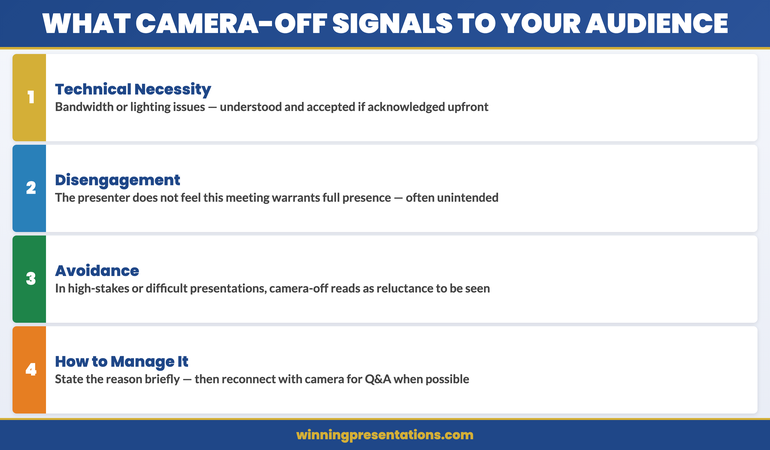
When a presenter turns their camera off, the audience receives one of three messages:
- Technical necessity: bandwidth issues, poor lighting, technical failure. This is understood and accepted if acknowledged briefly.
- Disengagement: the presenter doesn’t feel this interaction warrants full presence. This is not always the intended message, but it’s frequently the received one.
- Avoidance: in presentations where the topic is difficult, or where the presenter is anxious, a switched-off camera can read as reluctance to be seen. Senior stakeholders notice this.
None of these perceptions is entirely fair. The person behind the camera-off screen may be intensely focused, technically constrained, or simply following what’s become their team’s default. But perception matters in presentations — and managing the signal you’re sending is part of the job.
Research into video call behaviour consistently shows that camera presence correlates with perceived engagement, trust, and commitment. This doesn’t mean camera-off makes you appear untrustworthy. It means that in high-stakes presentations — the ones where credibility is being assessed — the camera is doing more work than most people realise.
When camera-on is non-negotiable
There are situations where presenting without camera is not a neutral choice. In these contexts, turning your camera off changes the nature of the interaction in ways that work against you.
When you are the primary presenter seeking a decision. If you’re presenting a proposal, requesting a budget, pitching a strategy, or asking for approval, your camera is part of your persuasive presence. The audience is not just evaluating your slides — they’re evaluating your confidence, your conviction, and your ability to respond to questions live. A camera-off presenter in this context appears either unprepared or evasive.
When you are managing a crisis or delivering difficult news. Camera presence in difficult conversations signals that you’re taking responsibility and engaging fully. A camera-off difficult conversation feels like a phone call with slides. It removes the human accountability that makes hard news easier to receive.
When you’re presenting to someone you haven’t met before. Trust is built through face-to-face interaction, even on a screen. The first impression you make to a new stakeholder, senior leader, or client group is shaped heavily by whether you’re visible. A first meeting with camera off creates a relationship deficit that takes subsequent meetings to recover.
When you’re in a small group presentation. In a meeting of three to six people, camera-off is conspicuous. In a large webinar of 100 people, camera-off is standard. The size of the audience changes what camera-off means.
Legitimate reasons to turn your camera off
There are contexts where camera-off is the right call — not because of anxiety or avoidance, but because it genuinely serves the interaction better.
When screen-sharing is the primary communication medium. If you’re conducting a technical walkthrough, demonstrating a product, or presenting a detailed document where the audience needs to focus on the screen content, your face in the corner can be a distraction rather than an aid. Some presenters prefer to turn camera off during the demonstration and on during the Q&A.
When bandwidth is genuinely degrading your image quality. A pixelated, freezing image is worse than no image. A face that breaks up every 30 seconds signals technical incompetence rather than presence. If your connection is poor, announce it clearly at the start — “I’m going to turn camera off to preserve audio quality, I’ll switch back on for Q&A” — and the choice becomes professional rather than evasive.
When you are a passive participant in a large meeting. In an all-hands presentation or a town hall where you’re not presenting, camera-off is standard. The etiquette scales with audience size. Above roughly 20 people, camera-off for non-presenters is normal and expected.
When team culture explicitly permits it and the stakes are low. Internal team catch-ups with an established team where camera-off is normalised carry different weight than a client presentation. Know the difference.
Virtual Presentations Feel Different Because They Are Different — Here’s How to Close the Gap
Conquer Speaking Fear — £39, instant access — addresses the specific patterns that make virtual presentations harder: camera anxiety, self-consciousness on screen, the absence of non-verbal feedback, and the feeling of presenting into a void. Built on clinical hypnotherapy and NLP, designed for professionals presenting under real pressure.
- Techniques for managing camera anxiety and self-consciousness
- Frameworks for reading virtual audiences without visible cues
- Tools for building presence through a screen rather than despite it
- Nervous system regulation approaches for high-stakes virtual presentations
Designed for professionals who want to present with confidence in any format.
When camera anxiety is the real issue
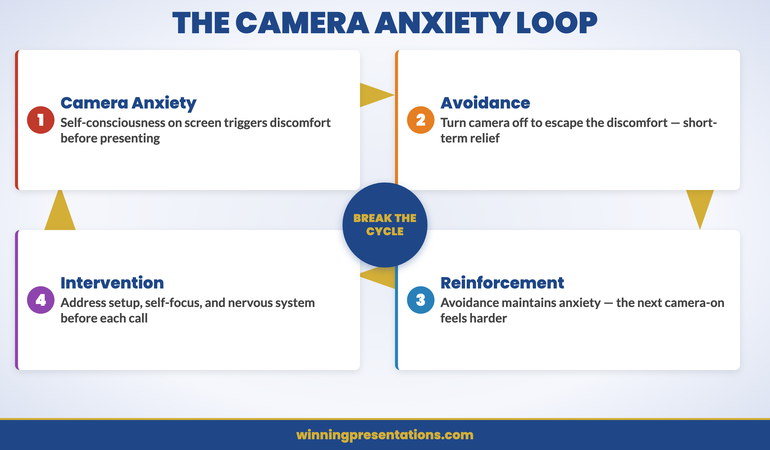
There’s a pattern I see regularly: people who find every credible-sounding reason to turn their camera off — poor lighting, bandwidth, the meeting is too large, “I’m just listening today” — when the actual driver is anxiety about being seen on screen.
Camera anxiety is real. The experience of seeing yourself on screen while simultaneously trying to present is genuinely uncomfortable. You’re monitoring your own expression, your hair, whether your background looks acceptable, whether you look engaged or blank or nervous. It’s a cognitive load that doesn’t exist in in-person presentations.
The problem with using camera-off as a permanent solution to camera anxiety is that it removes the anxiety without resolving it. The anxiety remains — it just gets smaller, because you’re avoiding the trigger. And avoidance maintains anxiety rather than reduces it. Each time you turn the camera off to escape the discomfort, the next camera-on experience feels harder.
The more productive path is to address what’s driving the discomfort directly. For many people, camera anxiety is a form of self-consciousness — an intense self-focus on how you appear rather than what you’re communicating. This is the same pattern that underlies general presentation anxiety, and it responds to the same approaches: structured techniques for redirecting attention, nervous system regulation before presenting, and gradual exposure to the trigger under controlled conditions.
If you recognise this pattern in yourself, the article on presentation anxiety and remote cameras addresses this specifically.
The setup changes everything
Many camera decisions are driven by practical problems that are actually fixable. Before defaulting to camera-off, it’s worth considering whether the issue is technical rather than personal.
Lighting. The most common cause of a poor on-screen image is bad lighting, not poor equipment. If the primary light source is behind you (a window, a lamp), your face will be dark and your background will be washed out. A simple ring light or a repositioned desk lamp in front of you changes the image quality dramatically. This is a £30 fix that removes one of the most cited reasons for camera-off.
Camera angle. A laptop camera positioned below eye level produces an unflattering upward angle. Raising the laptop — even with a stack of books — brings the camera to eye level. At eye level, the image is more natural and the eye contact with the camera feels more direct. This is a two-minute adjustment that changes how you appear on screen.
Background. You don’t need a perfectly decorated office. You need a wall. A plain wall behind you with nothing distracting in frame creates a neutral, professional background. Virtual backgrounds work, but they introduce rendering artefacts that experienced viewers notice. A real background, even a simple one, is usually better.
When these three elements — lighting, angle, background — are addressed, most people find that camera-on feels significantly less uncomfortable. The discomfort was partly aesthetic, and the aesthetics are fixable.
For a complete guide to virtual presentation setup and how to maintain presence through a screen, the article on virtual presentation energy covers the physical and environmental factors in detail. And for managing the specific anxiety that comes from presenting content on screen, the article on screen sharing presentations addresses the moment-by-moment challenges.
If camera anxiety is part of a broader pattern of presentation fear, the structured approaches in Conquer Speaking Fear are designed to address the underlying patterns rather than just the surface symptoms.
Build Genuine Confidence in Virtual Presentations — Not Just Coping Strategies
Conquer Speaking Fear — £39, instant access — moves beyond tips and into the actual patterns that make presentations feel threatening. If virtual presenting feels harder than it should, this is the resource that addresses why — and what to do about it.
Designed for professionals presenting under real pressure in any format.
Frequently Asked Questions
Is it rude to turn your camera off in a work meeting?
It depends on the meeting type and your role in it. If you’re presenting, leading, or actively participating in a small group, camera-off registers as disengagement to most colleagues. If you’re a passive participant in a large meeting, camera-off is standard. The social norm scales with meeting size and your role. When in doubt, camera on is the lower-risk default — it’s easier to turn off than to reverse the impression created by starting off screen.
Does camera-off affect how you’re perceived in virtual interviews or presentations to senior stakeholders?
Yes, meaningfully. Senior stakeholders in assessment contexts are evaluating your presence, confidence, and communication style — not just your content. Camera-off removes most of those signals. If technical issues prevent you from presenting with camera, acknowledge it directly at the start and offer to follow up with an in-person meeting or a call where you can be seen. Never leave camera-off unexplained in a high-stakes presentation.
What if my whole team has camera-off as the default — should I still turn mine on?
When you’re presenting, yes. When you’re participating as a listener in a team where camera-off is cultural, that’s a different consideration — you’re not going against convention in a meaningful way. But in any meeting where you are presenting, leading, or seeking something, camera-on is worth the discomfort. You will stand out — and standing out in those moments works in your favour.
The Winning Edge
Weekly insights on presenting with confidence and clarity — for professionals in every format. Every Thursday.
Not ready for the full programme? Start here instead: download the free Virtual Presentation Checklist — a practical reference for setup, delivery, and follow-through in virtual presentations.
For the executive skill of opening virtual and in-person presentations with authority, see the guide on board presentation opening lines — the structures that establish credibility from your first sentence.
The camera question is, in the end, a question about presence. Turn yours on. Work on the setup until it feels comfortable. And if the discomfort is about more than lighting and angles, address that directly — because your virtual presence is now as important as your in-person one.
About the Author
Mary Beth Hazeldine is Owner & Managing Director of Winning Presentations. With 24 years of corporate banking experience at JPMorgan Chase, PwC, Royal Bank of Scotland, and Commerzbank, she advises executives across financial services, healthcare, technology, and government on structuring and delivering high-stakes presentations. She is a qualified clinical hypnotherapist and NLP practitioner, and draws on both disciplines in her approach to presentation confidence and anxiety.