
Tag: presentation templates

13 May 2026
Featured image for Executive Slide Templates 2026: What to Download vs Build From Scratch

Executive Slide Templates 2026: What to Download vs Build From Scratch

Quick answer: Download executive slide templates when the slide structure is well-understood and the value is in the content (board updates, capital cases, status reports). Build from scratch when the structure itself is part of the argument (a new strategic narrative, a one-off pitch, a reframing slide). Most senior presenters need ~80% downloaded and ~20% custom. The mistake is thinking it has to be one or the other.

Priya runs corporate development for a UK-listed industrials business. Last quarter she was preparing a £40m capital case for the board, an internal strategy update for the executive committee, and a pitch deck for a partnership the CEO had asked her to scope. Three decks. Three audiences. Three deadlines inside ten working days. She started all three the same way: blank slide one, blinking cursor.

By day six she had finished none of them. The capital case was 40% built but felt structurally wrong. The strategy update kept losing its thread. The partnership pitch had gone through four openings, none of them right. Her CFO walked past her office and said, quietly, “you do not need to design every slide from scratch — there are templates for this.” She bought a senior-level template pack that night, finished the capital case the next morning, and used the time it freed up to do the partnership pitch properly.

She did not realise it at the time, but she had answered the most useful question a senior presenter can answer about template work: when does downloading save you, and when does building from scratch matter?

If you keep starting decks from blank slides

The Executive Slide System gives you 26 templates, 93 AI prompts, and 16 scenario playbooks built for senior-level presentation work — board updates, capital cases, strategy reviews, change proposals. Designed so you start from a structured slide that already knows what executive readers need.

Explore the Executive Slide System →

Why this question matters more in 2026 than it did three years ago

Three years ago, executive slide templates were a smaller market and a bigger compromise. The downloads available looked generic — corporate stock imagery, brittle layouts, fonts that broke in branded environments, structures that felt right for a startup pitch and wrong for a board audit committee. Senior presenters who tried them often came away with the same conclusion: faster, but the output looked lighter than the audience deserved.

That has changed. Two things shifted. First, the template market matured. Senior-level template packs now exist that were built by people who actually present at executive level — not designers reverse-engineering what they think senior decks look like. The structures inside them assume a 12-person executive committee reading 90 seconds before any spoken commentary, not a sales floor cheering at the next reveal. Second, AI changed what “templated” means. With Copilot or ChatGPT, a downloaded template can be customised in minutes for a specific industry, audience, and argument — so the trade-off between speed and fit has narrowed.

The result is that the old binary — download cheap and look junior, or build from scratch and look senior — no longer holds. Senior presenters now face a more nuanced question: which type of deck genuinely benefits from custom structure, and which type is a structural problem that has already been solved?

When downloading is the right call

Downloading is the right call when the structural problem is well-understood and the value of the deck is in the content, not the form.

Board updates. A quarterly board update is a structurally solved problem. Executive committees and boards have read hundreds of them. They know what they want: performance against plan, risks, capital, decisions required. The structure is conventional because the structure works. Building it from scratch is a kind of vanity — your audience is not reading the deck to admire the format. They are reading it for the numbers and the judgement. A downloaded board update template that follows the conventional structure lets you spend your time on the content, which is where the value sits.

Capital cases. The structure of a capital approval case is also largely solved: the ask, the rationale, the alternatives considered, the financial case, the risks and mitigations, the implementation plan. Investment committees read them in roughly that order regardless of what you put on which slide. A template that already has these sections in place removes 70% of the structural decisions and lets you focus on the analysis. The strategy directors who consistently get capital approved are not the ones with the most beautifully bespoke decks. They are the ones whose decks the committee can read in eight minutes without losing the thread.

Status reports and steering committee updates. Same principle. The audience knows what they are looking for, the structure is conventional, and your time is better spent on the substance than on reinventing the form.

Pitch decks following a known structure. A standard fundraising or partnership pitch follows a recognisable arc — problem, solution, market, traction, team, ask. The downloaded template is not lazy here; it is meeting investor expectations of how to read a deck. Senior pitches that deviate too far from the arc tend to confuse investors, who lose patience faster than entrepreneurs realise.
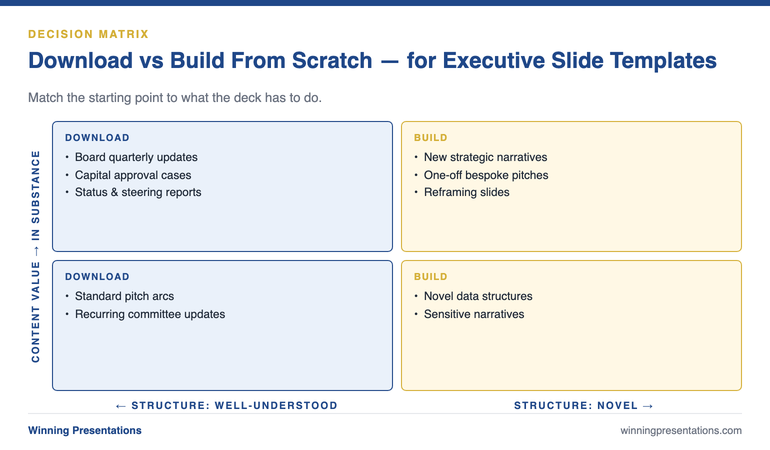
The Download vs Build Decision Matrix for Executive Slide Templates: a four-quadrant chart with Structure (well-understood vs novel) on the x-axis and Content Value (in form vs in substance) on the y-axis, showing where to download (board updates, capital cases, status reports) and where to build (new strategic narratives, one-off pitches, reframing slides).

When building from scratch is worth the time

Building from scratch is worth the time when the structure of the deck is itself part of the argument.

A new strategic narrative. When you are introducing a strategy that the audience has not heard before — a different way of framing the business, a fundamentally new direction — the structure of how you walk them through it matters. A downloaded “strategy update” template assumes the audience already understands the framing. If your job is to teach them the framing, the template will fight you. The unfolding of the argument is the work, and unfolding requires a custom slide path.

One-off high-stakes pitches. A bespoke pitch to a specific board, regulator, or partner — where you know exactly who is in the room and what their starting position is — sometimes warrants a custom build. Not always. Most of the time the standard pitch arc still works. But when you are pitching to one decision-maker whose objections you can predict in advance, structuring the deck around their specific objections rather than the generic arc can be the difference between progress and a polite “thank you.”

Reframing slides. Every senior deck has one or two slides whose job is to change how the reader sees the problem. The slide that recasts a cost discussion as an investment discussion. The slide that reframes a competitive threat as a strategic option. The slide that turns “we missed plan” into “here is what we have learned about the market.” These slides almost always need to be built from scratch because what they are doing is unconventional. A template will not have a layout for “make my reader see this differently than they did 30 seconds ago.”

Slides that carry novel data structure. If you are presenting a unique chart, a custom matrix, or a comparison framework that your audience has not seen before, the slide containing it is custom by definition. The template would just be a frame around the part you have to design yourself.

A 60-second test to apply before every deck

Before you start any executive deck, ask yourself three questions in sequence. They take less than a minute and they protect you from spending hours building something that should have been downloaded — or downloading something that needed to be built.

Question one: has my audience read a deck like this before? If yes, the structure is solved and a template is appropriate. If no, you may need to build the structural part yourself so the unfamiliar argument has a clear path through it.

Question two: is the value of this deck in its structure or in its content? If the value is in the content (the numbers, the analysis, the recommendation), use a template and put your time on the content. If the value is in how you reframe the structure itself (a new way of seeing the problem), build the structure custom.

Question three: how much time do I genuinely have? Be honest. If you have eight working days and three decks to deliver, “I will design this from scratch because it deserves it” is rarely a real option — it is wishful thinking that ends in a half-finished deck the night before. Templates exist for the times when the deck deserves to be good and your time is finite. Both of those things are usually true.

Stop starting from blank slides for the structurally solved decks

The Executive Slide System gives you a structured starting point for the 80% of executive decks where the structure is already well-understood. Use the template, free up the time, and put it where it actually changes outcomes — on the analysis and the reframing slides.

  • 26 templates covering board updates, capital cases, change proposals, strategy reviews, and pitch arcs
  • 93 AI prompts to customise each template for your industry, audience, and argument
  • 16 scenario playbooks for the difficult variants — hostile boards, sceptical CFOs, regulatory pre-reads
  • £39, instant download, lifetime access

Get the Executive Slide System — £39 →

Designed for senior professionals presenting to boards, executive committees, and investment panels.

The 80/20 hybrid most senior presenters end up using

Senior presenters who have been doing this for a decade or more rarely treat the question as binary. The pattern they settle on is roughly 80% template, 20% custom — and the 20% is concentrated on the slides that carry the most decision weight.

The 80% is everything that follows convention: title slide, agenda, executive summary in pyramid form, performance overview, financial summary, risks, decisions, appendix. These are downloaded, customised lightly with branding and content, and finished quickly.

The 20% is the slides where the argument turns. The reframe slide. The chart that carries the new data point. The decision slide that makes the ask explicit. These are built from scratch because they are doing structural work that no template can do for you. A senior presenter who can identify which 20% of their deck deserves custom design — and protect their time accordingly — produces consistently better decks than one who treats every slide as either equally templated or equally bespoke.
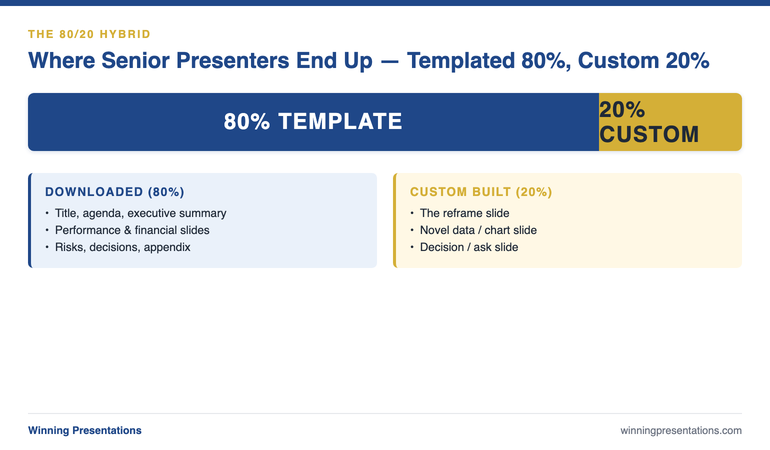
The 80/20 Hybrid Approach for Executive Decks: a horizontal bar showing 80% downloaded templates (title, agenda, executive summary, performance, financials, risks, appendix) and 20% custom-built slides (reframe slide, novel data slide, decision/ask slide, structural pivot) — labelled as the pattern senior presenters settle on.

Three mistakes to avoid in either approach

Mistake one: downloading a template and not editing it. A template is a starting structure, not a finished deck. The Lorem Ipsum body copy, the placeholder photos, the generic chart titles — every one of them needs to be replaced before a senior audience sees the slide. The fastest way to look junior with a downloaded template is to leave any of the template’s own copy visible. Set a rule: before any executive deck goes out, scan every slide for any element that came from the template untouched. Replace them all.

Mistake two: building from scratch as a procrastination tactic. Designing slides feels productive. It looks like work, it shows progress, and it postpones the harder problem of deciding what the deck is actually arguing. If you find yourself spending three hours on a single slide’s design when you have not finalised the recommendation, the design work is procrastination. Stop. Pick a template. Force yourself back to the structural and analytical decisions that actually drive whether the deck succeeds.

Mistake three: mixing template visual languages. If you download templates from three different sources to assemble a single deck — one for the title, another for the financials, a third for the appendix — the deck will read as visually inconsistent even if you do not consciously notice why. Senior audiences absolutely notice. The fix is to commit to a single template family for any given deck and live with its limitations on a few slides rather than borrowing from elsewhere. For a deeper look at the structural side of this question, see the partner article on when each approach saves or kills your board presentation.

The download-vs-build decision is one of the highest-leverage choices a senior presenter makes, and most people make it badly because they default to one approach for everything. The presenters who consistently produce good decks under time pressure have learned to ask which type of deck this is — and to spend their precious 20% of custom design on the slides that actually move decisions.

For senior presenters whose templates have to support board-level approvals, the structural side and the persuasive side both matter. The structural foundations of executive buy-in are worth reading alongside any template selection process — because the right template for the wrong argument still loses the room.

If you want a tactical starting point that already understands senior-level deck structure, the Executive Slide System (£39) includes 26 templates designed for the conventional 80% — and frees up your time to build the 20% that needs custom work.

The full system, not just the templates

The Executive Slide System pairs 26 templates with 93 AI prompts and 16 scenario playbooks. Build board-ready executive slides in 30 minutes. £39, instant download.

Get the Executive Slide System →

Built for senior professionals across financial services, technology, and consulting.

FAQ

Are downloaded executive slide templates seen as junior by senior audiences?

Only when the template is clearly visible underneath the customisation — Lorem Ipsum left in, generic stock photos, placeholder titles. A well-customised template is invisible to the audience, who reads only the content. The “junior” perception almost always traces back to insufficient editing of the template, not the use of a template in the first place. Senior strategy teams use templates routinely; the difference is they edit them properly.

How long should it take to customise a downloaded template for a board deck?

For a 12 to 15-slide board update with content already prepared, a well-designed template should take 60 to 90 minutes to customise — branding, content replacement, chart creation, and a final review. If it is taking longer, either the template is fighting your content (wrong template choice) or the content is not yet finalised (you are designing your way through unsettled thinking).

Should I build my own template library or buy one?

Both, eventually. Most senior presenters start by buying a senior-level pack to get a structured baseline, then over time add custom templates of their own for the slides they build repeatedly that are not in the pack. After two or three years, your library is a hybrid — purchased templates for the conventional 80%, your own templates for the recurring custom work in your specific role. Building from absolute zero takes longer and produces a worse result for the first year.

Do AI tools change the download-vs-build calculation?

They narrow the gap. AI assistance lets you customise a downloaded template much faster than was previously possible — the prompt-driven editing of headlines, body copy, and chart commentary cuts customisation time roughly in half. AI assistance does not, however, change the underlying decision about which slides need custom structural design. The reframe slide still needs to be built; AI just helps you write the words once you have built it.

Get The Winning Edge — weekly

One sharp, story-led idea every Thursday on executive presentation craft, slide design, and the small decisions that change how senior audiences receive you. Read by senior professionals across financial services, technology, and consulting.

Subscribe to The Winning Edge →

Not ready for the full system? Start here instead: download the free Executive Presentation Checklist — a one-page reference covering the structural moves that hold any executive deck together, templated or custom.

Pick your next deck. Run the 60-second test. Decide which 80% gets a template and which 20% gets your custom attention. Spend the saved time where it actually matters — on the slides that move the decision.


About the author. Mary Beth Hazeldine is Owner & Managing Director of Winning Presentations Ltd, founded 1990. With 24 years of corporate banking experience at JPMorgan Chase, PwC, Royal Bank of Scotland, and Commerzbank, she advises executives across financial services, healthcare, technology, and government on structuring presentations for high-stakes funding rounds and approvals.

12 May 2026
Featured image for Slide Template vs Blank Canvas: When Each Saves Your Board Presentation

Slide Template vs Blank Canvas: When Each Saves Your Board Presentation

Quick answer: A slide template saves your board presentation when the structural problem is well-understood and your time is finite — most quarterly updates, capital cases, and steering committee reports. A blank canvas saves your board presentation when the deck has to teach the board a new way of seeing the problem — strategic reframes, novel pitches, sensitive narratives. Choosing the wrong starting point quietly kills decks that should have succeeded.

Damian, a finance director at a mid-sized infrastructure group, walked into a board meeting on a Tuesday with a deck he had built from a downloaded template. Same template he had used for the previous four quarterly updates. Same structure. Same shape of slides. The board approved the recommendation in 22 minutes and moved on.

Two weeks later, he walked into the same room with a new strategic proposal — a fundamental rethink of the group’s allocation between three operating divisions. He had built it from the same template, lightly customised. The board spent 90 minutes pulling the deck apart, asking questions that the structure could not accommodate, and ultimately deferring the decision. Damian was furious with the board’s response. The next morning, sitting with a chair he trusted, he heard the diagnosis: “The template you used is built to update us on what we already know. You were trying to teach us something we did not know yet. The template fought you.”

This is the hidden decision before slide one — and senior presenters who get it right consistently outperform presenters who get it wrong, even when both are working with similar content quality.

If you keep choosing the wrong starting point

The Executive Slide System gives you 26 templates with explicit guidance on which board scenarios each one is designed for — so you stop using a quarterly update template for a strategic reframe deck. Designed for senior professionals presenting to boards, executive committees, and investment panels.

Explore the Executive Slide System →

The hidden decision before slide one

Most senior presenters treat the choice between a template and a blank canvas as a question of style — “I prefer to design my own” or “I do not have time for that, I will use a template.” Both framings miss the point. The choice is structural, not stylistic, and the structure determines what your audience can read from the deck.

A template is a pre-built path through a familiar argument. It assumes the audience already knows the kind of argument they are about to read and just needs the specifics filled in. A board update template assumes the board knows what a board update is. A capital case template assumes the audit committee knows how a capital case is structured. The template’s job is to make those familiar arguments efficient.

A blank canvas is the absence of a path. It forces you to design the path yourself, slide by slide, before you can begin filling it. That work is expensive — but for some decks it is the only way to lead the audience through an argument they have not seen before. When the structure is the work, a template’s pre-built path is not a shortcut; it is a wrong turn.

The hidden decision is: am I making a familiar argument or an unfamiliar one? Get that one diagnosis right and the rest follows. Get it wrong, and even excellent content suffers.

When a template saves the board presentation

A well-chosen template saves your board presentation in four scenarios.

Quarterly performance updates. The board has read dozens of these. They expect a familiar shape: performance against plan, variances explained, outlook, decisions required, risks. A template that follows this shape lets you spend your time on the substance — the variance commentary, the forward forecast, the risk update. Without a template, you waste design time on slides whose structure is solved, and you arrive at the meeting under-prepared on the content that actually matters. The template saves you because it removes work that does not need doing.

Capital approval cases. Investment committees read capital cases in a predictable order: ask, rationale, alternatives, financial case, risks, implementation. A template enforces this discipline and prevents the meandering that under-prepared cases tend toward. Strategy directors who consistently get capital approved are not necessarily better designers — they are better at sticking to the structure investment committees expect, and a template makes that automatic.

Recurring steering committee or working group updates. If you present to the same group every six weeks, a templated update format becomes a feature, not a limitation. The audience can read your deck faster because they know where each piece of information sits. Switching the format every time forces them to re-orient before they can absorb anything. The template saves you, and it saves your audience.

Standard pitch arcs. A typical investor or partnership pitch follows a recognisable arc — problem, solution, market, traction, team, ask. Investors read decks that follow this arc faster, and faster reading typically correlates with more attention spent on the substance. The template does not signal junior; it signals “I respect the time of the people reading this enough to put the information where they expect to find it.”

Template vs Blank Canvas Decision Framework: a side-by-side comparison showing four scenarios where templates save (quarterly updates, capital cases, recurring steerings, standard pitches) and four scenarios where blank canvas saves (strategic reframes, novel pitches, sensitive narratives, novel data structures) — colour-coded navy and gold.

When a template kills the board presentation

A template kills the board presentation when the deck’s job is to lead the audience through unfamiliar territory.

A new strategic reframe. If you are introducing a fundamentally different way of seeing the business — a new operating model, a market repositioning, a divestment thesis — the structure of your argument is the work. The board has not read this argument before; they need a custom path through it. A template will fight you because every template assumes a familiar argument shape. The slides will arrive in the wrong order, the executive summary will summarise the wrong thing, the appendix will not have a place for the evidence that actually matters. Damian’s mistake fits exactly here.

Sensitive narratives. A deck that has to deliver bad news, address a governance failure, or walk the board through a sensitive personnel matter has to be paced unusually. The conventional template — top-line summary, then evidence — sometimes lands wrong when the conclusion needs context to be received fairly. These decks often need a more careful walk-up than templates allow.

One-off bespoke pitches. When you know exactly who is in the room — one specific decision-maker whose objections you can predict — a custom-built deck structured around their specific pattern of resistance often beats a generic pitch arc. The template gives you the average. The custom build gives you the bespoke.

Decks that depend on novel data structures. If the heart of your argument is a single unique chart, a custom matrix, or a comparison that has not been done this way before, the surrounding slides need to be built around that one centrepiece. A template designed for standard finance charts will surround it badly.

When a blank canvas saves the board presentation

The blank canvas saves a board presentation when the structural decisions you need to make are themselves part of the argument.

Building from a blank slide is slow. There is no honest way to make it faster except to skip steps that should not be skipped. So the blank canvas pays off only when the structural work it forces is the work that needed to be done anyway. The strategic reframe is the clearest example. To present a new strategy properly, you have to decide which order the components arrive in, which assumptions are explicit and which are implicit, where the pivot from old framing to new framing happens, and what the board sees in the executive summary versus the body of the deck. None of those decisions can be borrowed from a template. They are the work.

The blank canvas also saves you when the deck has to be unusually short. A template imposes its own slide count — typically 12 to 18 slides for an executive deck. If your situation calls for six slides, a template will fight you toward more. The blank canvas lets you stop where the argument ends. Some of the most effective board decks ever delivered have been six slides long, ended with a single decision request, and would have been ruined by a template that wanted to add five more slides of context.

Match the template to the type of board argument

The Executive Slide System includes 16 scenario playbooks covering the variants — board update vs strategic reframe, capital case vs partnership pitch, hostile committee vs supportive committee. So the template you use matches what the deck has to do.

  • 26 templates covering board updates, capital cases, change proposals, strategy reviews, and pitch arcs
  • 93 AI prompts to customise each template for industry, audience, and argument
  • 16 scenario playbooks including the difficult variants — hostile boards, sceptical CFOs, regulatory pre-reads
  • £39, instant download, lifetime access

Get the Executive Slide System — £39 →

Designed for senior professionals presenting to boards, executive committees, and investment panels.

When a blank canvas kills the board presentation

The blank canvas kills your board presentation in three patterns, and they are easy to recognise once you know to look for them.

Pattern one: time runs out before the deck is finished. You start with the blank canvas because the deck “deserves to be designed properly,” and the structural work takes you twice as long as you planned. By the night before the meeting, you are still on slide 8 of 14 and the executive summary has not been written. You ship a deck that is structurally bespoke but content-thin. The board reads it, finds gaps, and your bespoke design now looks like overconfidence.

Pattern two: the design becomes the procrastination. Designing a slide is satisfying. It feels like progress. It postpones the harder problem of deciding what the slide is actually arguing. Senior presenters who spend three hours on a single slide layout when the recommendation is still ambiguous have used the design work as a hiding place. Templates protect against this because they remove the design choice and force you back to the substance.

Pattern three: the deck does not look senior enough. Designing executive slides from scratch is a craft. Done well, it produces decks that look unmistakeably senior. Done at speed by someone whose primary job is not slide design, it tends to produce decks that look slightly off — fonts at three sizes that are almost the same, alignment that is almost right, charts that are almost legible. A senior audience reads “almost” as “not quite.” A template that has been refined to look senior is a faster path to a deck that lands as senior.

The honest test: when you choose blank canvas, are you doing it because the structural work is genuinely the work this deck needs — or because you do not want to be seen using a template? The first reason justifies the time. The second reason almost never does.

How to diagnose which one this deck needs

Three diagnostic questions, asked before you open PowerPoint or any template, will tell you which starting point this specific deck deserves.

Question one: has my audience read a deck like this before? If yes (quarterly update, capital case, regular steering report), the structure is solved and a template is appropriate. If no (new strategic direction, novel pitch), some structural work is yours to do.

Question two: is the order of the slides obvious before I start, or do I need to design the order itself? If you can sketch the slide titles in correct order on the back of an envelope in two minutes, the structure is solved — use a template. If you are not yet sure which slide should come third versus fifth, the structural design is the work, and a blank canvas (or a customised template you cannibalise) is appropriate.

Question three: how much time do I have between now and the meeting? Be brutally honest. Blank-canvas decks take two to four times as long as templated decks. If you have less than three working days, the blank canvas is rarely a real option, regardless of how much the deck deserves it. Templated, well-edited decks beat half-finished bespoke decks every time. The board reads the finished deck; they do not read your design ambitions.

Three Diagnostic Questions Before Slide One: an editorial-style infographic listing the three questions (familiar argument? sketchable order? real time?) with branching paths leading to either Template (left, green) or Blank Canvas (right, gold) — designed as a decision tree for senior presenters.

Most senior presenters who have done this work for years end up using templates for roughly 70 to 80% of their board decks and blank canvases for the remaining 20 to 30%. The 20 to 30% is concentrated where it earns its time — strategic reframes, novel pitches, sensitive narratives. The 70 to 80% is everywhere the structure has been solved by everyone who came before. Senior judgement is recognising which deck this is.

For senior presenters whose decks need to win board approval, both the starting-point decision and the persuasive structure underneath it matter together. The structural foundations of executive buy-in apply whether you start from a template or a blank slide.

If you want a starting library that already understands which scenarios call for which template, the Executive Slide System (£39) includes 26 templates plus 16 scenario playbooks that map argument types to slide structures — so you stop reaching for the wrong template under deadline pressure.

For the partner discussion on the broader question — when to download a template at all versus build your own — see the related article on executive slide templates in 2026: download vs build from scratch.

A scenario library, not just templates

The Executive Slide System pairs 26 templates with 16 scenario playbooks — so you know which template fits a hostile board pre-read, a capital case for a sceptical CFO, or a regulatory committee update. £39, instant download.

Get the Executive Slide System →

Built for senior professionals across financial services, technology, and consulting.

FAQ

Can I tell from a finished deck whether it started as a template or a blank canvas?

Usually no. A well-customised template should be invisible to the audience, and a blank-canvas deck built well should look as polished as a templated one. The audience reads content, not provenance. The exception is when a template is under-customised (placeholder text left in, generic stock images, mismatched fonts) — those tells signal “templated” because they signal insufficient editing, not because templates are inherently visible.

If I am unsure which approach this deck needs, what is the safer default?

Template, almost always. The blank canvas penalty (running out of time) is more severe than the template penalty (slight constraint on structure). If the deck genuinely needs custom structural work, you can usually identify that within the first 20 minutes of editing the template — at which point you can switch. The reverse rarely works: starting blank and switching to a template halfway through a deadline tends to produce a Frankenstein deck.

Does the choice differ for a hostile board versus a supportive board?

Yes. Hostile or sceptical board audiences benefit from familiar structures because familiarity reduces the cognitive load of decoding the deck — they can focus their scrutiny on the content rather than the form. Templates are particularly valuable here. Supportive boards are more forgiving of unconventional structures, which is one reason novel reframes are sometimes timed for boards where the relationship is strongest.

What about the executive summary specifically — template or custom?

The executive summary should almost always be custom-written, even if the rest of the deck is templated. The executive summary is where your specific argument gets distilled, and a templated executive summary is the slide that most often gives the deck away as under-edited. Spend disproportionate time on this slide regardless of which starting point the rest of the deck uses.

Get The Winning Edge — weekly

One sharp, story-led idea every Thursday on executive presentation craft, slide design, and the small decisions that change how senior audiences receive you. Read by senior professionals across financial services, technology, and consulting.

Subscribe to The Winning Edge →

Not ready for the full system? Start here instead: download the free Executive Presentation Checklist — a one-page reference covering the structural moves that hold any executive deck together, templated or custom.

Look at the next deck on your calendar. Ask the three diagnostic questions before you open PowerPoint. Pick the starting point that matches what this deck has to do, not the starting point you prefer in principle. The boards you present to will read the difference.


About the author. Mary Beth Hazeldine is Owner & Managing Director of Winning Presentations Ltd, founded 1990. With 24 years of corporate banking experience at JPMorgan Chase, PwC, Royal Bank of Scotland, and Commerzbank, she advises executives across financial services, healthcare, technology, and government on structuring presentations for high-stakes funding rounds and approvals.

02 Jan 2026
Businessman in a navy suit speaks to colleagues around a conference table, gesturing with his hands.

How to Make a Presentation: The Complete Guide to Creating Slides That Work [2026]

Learning how to make a presentation doesn’t have to take hours. Whether you’re creating your first PowerPoint for school, preparing a business pitch, or building slides for a conference talk — the fundamentals are the same.I’ve spent 24 years making presentations at JPMorgan Chase, PwC, Royal Bank of Scotland, and Commerzbank. I’ve created hundreds of decks — from quick team updates to £50 million investment pitches. And I’ve watched talented people fail because they didn’t understand one thing:

A presentation isn’t about slides. It’s about moving people from where they are to where you need them to be.

The slides are just the vehicle.

In this guide, I’ll show you exactly how to make a presentation that works — step by step. You’ll learn the process I use for every presentation, whether it takes 30 minutes or 3 hours to create.

By the end, you’ll know how to make a presentation for any situation: work, school, conferences, or pitches.

How to make a presentation - 5-step process from purpose to delivery

The 5-step process for making presentations that work — regardless of which software you use

🎁 Free Download: Grab my 7 Presentation Frameworks Cheat Sheet — the structures I use for every presentation I create. Works with any software.

How to Make a Presentation: The 5-Step Process

Every great presentation follows the same basic process — regardless of whether you’re using PowerPoint, Google Slides, Canva, Keynote, or AI tools.

Here’s the framework for how to make a presentation that actually lands:

  1. Define your purpose — What do you want your audience to do?
  2. Know your audience — Who are they and what do they care about?
  3. Build your structure — What’s the logical flow?
  4. Create your slides — What visuals support your message?
  5. Refine and practise — What needs polishing?

Most people jump straight to step 4 — opening PowerPoint and staring at a blank slide. That’s why they struggle.

Let me walk you through each step.

Step 1: Define Your Purpose (Before You Touch Any Software)

Before you learn how to make a presentation in any tool, you need to answer one question:

“What do I want my audience to think, feel, or do after this presentation?”

This isn’t your topic. It’s your destination.

Weak purpose: “I’m presenting our Q3 results.”

Strong purpose: “I need the board to approve increased marketing spend for Q4.”

The weak version describes what you’ll talk about. The strong version describes what you need to achieve.

Write your purpose in one sentence. Everything else flows from this.

Examples of strong presentation purposes:

  • “Convince my professor I understand the key themes of this novel”
  • “Get my team excited about the new project direction”
  • “Persuade investors to schedule a follow-up meeting”
  • “Help new hires understand our company culture”
  • “Get my manager to approve this budget request”

If you can’t state your purpose clearly, you’re not ready to make a presentation yet.

Step 2: Know Your Audience

The second step in how to make a presentation is understanding who you’re presenting to.

A presentation to your CEO looks different from a presentation to new graduates. Not just in content — in structure, depth, and tone.

Ask yourself these five questions before you start building slides:

Answer these 5 questions BEFORE you open PowerPoint or Google Slides

A common mistake when learning how to make a presentation: creating the same slides for every audience. Don’t do this. A technical audience wants data. Executives want recommendations. Students want relatable examples.

Adapt your presentation to your audience — every single time.

Step 3: Build Your Structure

Now you’re ready to plan your presentation’s structure — still without opening any software.

This step separates people who know how to make a presentation from people who just make slides.

Your structure is the logical flow that takes your audience from where they are now to your desired outcome (your purpose from Step 1).

Three Structures That Work for 90% of Presentations

Choose ONE of these structures before you start building slides

Structure 1: Problem → Solution → Action

Best for: Pitches, proposals, requesting approval

  1. Here’s the problem we’re facing
  2. Here’s the solution I recommend
  3. Here’s what I need you to do/approve

Structure 2: What → So What → Now What

Best for: Updates, reports, presenting data

  1. Here’s what happened / what the data shows
  2. Here’s why it matters / what it means
  3. Here’s what we should do next

Structure 3: Context → Options → Recommendation

Best for: Complex decisions, strategy presentations

  1. Here’s the situation and constraints
  2. Here are the options we considered
  3. Here’s what I recommend (and why)

Choose a structure. Write out your main points as bullet points — one per slide. This is your presentation skeleton.

For a typical 15-minute presentation, you need 5-8 main points. For 30 minutes, 10-15.

Don’t write full sentences yet. Just capture the flow:

  • Opening: The problem with our current process
  • Point 1: What’s causing the delays
  • Point 2: The cost of doing nothing
  • Point 3: My proposed solution
  • Point 4: How it works in practice
  • Point 5: Investment required
  • Point 6: Expected results
  • Closing: What I need from you today

That’s a complete presentation structure — before you’ve created a single slide.

📋 Need Help With Structure?

The Presentation Openers & Closers Swipe File (£9.99) includes 50+ tested scripts for starting strong and ending memorably — plus templates for each structure above.

Step 4: How to Make a Presentation — Creating Your Slides

Now you’re ready to open your presentation software and start making slides.

Here’s how to make a presentation that looks professional — regardless of which tool you use.

Choosing Your Presentation Software

The best tool depends on your situation:

Choose your presentation software based on your situation — not trends

If you’re making a business presentation, PowerPoint or Google Slides are usually your best options. Most organisations expect these formats.

If you’re learning how to make a presentation for the first time, start with Google Slides — it’s free and simpler than PowerPoint.

The One-Slide-One-Point Rule

The most important principle when making slides: each slide should make exactly one point.

If you have two points, make two slides. Slides are free.

This rule alone will make your presentations clearer than 80% of what your audience usually sees.

How to Design Slides That Don’t Overwhelm

When you’re learning how to make a presentation, less is always more.

Apply these 4 rules to every slide you create

Text:

  • Maximum 6 bullet points per slide
  • Maximum 6 words per bullet point
  • Never write full sentences (that’s what you say, not what they read)

Fonts:

  • Stick to one or two fonts
  • Minimum 24pt for body text, 32pt+ for titles
  • Sans-serif fonts (Arial, Calibri, Helvetica) are easier to read on screen

Colours:

  • Use 2-3 colours maximum
  • Ensure high contrast between text and background
  • If in doubt, dark text on light background works best

Images:

  • Use high-quality images (no pixelated photos)
  • One image per slide maximum
  • Images should support your point, not decorate

The Squint Test

After making each slide, squint at it from arm’s length.

Can you tell what the slide is about?

If not, simplify. Remove elements until the main point is unmistakable.

Step 5: Refine and Practise

The final step in how to make a presentation: polish your work and prepare to deliver it.

The Refinement Checklist

Go through your presentation and check each section:

Complete this checklist before you present — catches 90% of common issues

Opening (Slide 1-2):

  • Does it grab attention?
  • Is your purpose clear within the first 30 seconds?

Flow (All slides):

  • Does each slide lead naturally to the next?
  • Are there any jumps that might confuse people?

Closing (Final slide):

  • Is there a clear call to action?
  • Will your audience know exactly what to do next?

Technical:

  • Have you spell-checked everything?
  • Do all images display correctly?
  • Is the file saved in the right format?

Practise Out Loud

Knowing how to make a presentation is only half the battle. You also need to deliver it well.

Practise your presentation out loud at least twice before you deliver it for real. This helps you:

  • Find awkward transitions
  • Check your timing
  • Build confidence
  • Discover slides that don’t work

If possible, practise in front of someone else and ask for honest feedback.

How to Make a Presentation Quickly (When You’re Short on Time)

Sometimes you don’t have hours to prepare. Here’s how to make a presentation when time is tight:

60 minutes available:

  • 10 minutes on purpose and structure
  • 40 minutes creating slides
  • 10 minutes refining

30 minutes available:

  • 5 minutes on purpose and structure
  • 20 minutes creating slides
  • 5 minutes quick review

15 minutes available:

  • Write 5 headlines on paper
  • Create 5 simple slides with just headlines
  • Let your speaking do the work

The key insight: never skip the purpose and structure steps, even when rushed. A clear 5-slide presentation beats a confusing 20-slide one.

For a detailed breakdown of making presentations quickly using AI, see my guide: How to Make a Presentation With AI: The 90-Minute Method.

How to Make a Presentation Using AI Tools

AI tools like Microsoft Copilot, ChatGPT, and Canva AI can dramatically speed up how you make a presentation.

Here’s when they’re useful:

  • Generating first drafts — AI can create a starting structure
  • Writing content — AI can help with bullet points and speaker notes
  • Design suggestions — AI can recommend layouts and formats
  • Editing — AI can help simplify and clarify your text

But AI tools have limitations. They don’t know your specific audience, your company context, or the politics in your boardroom. You still need to apply Steps 1-3 yourself.

Think of AI as a fast assistant, not a replacement for thinking.

For a complete guide to using AI effectively, see: How to Make a Presentation With AI: The Complete Guide.

Common Mistakes When Learning How to Make a Presentation

After reviewing thousands of presentations, these are the most common mistakes I see:

Mistake 1: Starting with slides instead of structure. Plan first, design second. Always.

Mistake 2: Too much text on slides. Your slides are prompts, not scripts. Say more, show less.

Mistake 3: No clear purpose. If you don’t know what you want from your audience, neither will they.

Mistake 4: No call to action. Every presentation should end with “Here’s what I need from you.”

Mistake 5: Reading slides aloud. If you’re just reading what’s on screen, why does your audience need you?

Mistake 6: Too many slides. A 30-minute presentation needs 10-15 slides, not 40. Quality over quantity.

How to Make a Presentation: Frequently Asked Questions

How many slides should a presentation have?

A useful rule: one slide per 2-3 minutes of speaking. For a 15-minute presentation, aim for 5-8 slides. For 30 minutes, 10-15 slides. For an hour, 20-30 slides maximum. But quality matters more than quantity — 5 clear slides beat 20 cluttered ones.

What’s the best presentation software for beginners?

Google Slides is free, simple, and works in any browser. It’s the easiest way to learn how to make a presentation. Once you’re comfortable, you can move to PowerPoint for more advanced features.

How long does it take to make a presentation?

A simple 10-slide presentation takes most people 2-4 hours. With practice and templates, you can reduce this to 1-2 hours. Experienced presenters using AI tools can create solid presentations in under an hour.

Should I use animations in my presentation?

Use animations sparingly. Simple fade-ins can help reveal information gradually. But flying text and bouncing graphics distract from your message. When in doubt, skip the animations.

How do I make a presentation for school vs work?

The process is the same. The difference is audience expectations. School presentations often require more explanation of methodology. Work presentations focus more on outcomes and recommendations. Always adapt your depth and language to your audience.

What if I don’t have design skills?

Use templates. Every presentation tool includes professional templates that handle the design for you. Canva has particularly good free options. You don’t need design skills to make a presentation that looks professional.

Your Complete Presentation Toolkit

Now you know how to make a presentation from scratch. But having the right resources makes it faster and easier.

Here’s what I recommend based on where you are:

🎁 FREE: 7 Presentation Frameworks Download
The same structures I use for every presentation — works with any software.


📋 QUICK WINS:


🎯 BEST VALUE — The Presentation Confidence Bundle (£29.99)

Get all three resources together and save 33%:

  • Public Speaking Cheat Sheets (£14.99 value)
  • Presentation Openers & Closers (£9.99 value)
  • Calm Under Pressure Guide (£19.99 value)

Total value: £44.97 → Bundle price: £29.99


🏆 COMPLETE SYSTEM: The Executive Slide System (£39)
17 templates + 51 AI prompts + video training. The framework clients have used to secure approvals totalling over £250 million.

🎓 Want to Master High-Stakes Presentations?

If you present to executives, boards, or investors, knowing how to make a presentation is just the start. The Executive Buy-In Presentation System teaches you how to structure for approval, handle tough questions, and deliver with confidence.

  • 7 modules of video training
  • The Decision Definition Canvas
  • Executive-ready templates
  • AI prompt sequences that work
  • Live Q&A sessions

Learn More About the Course →


Related Articles:

📧 Get The Winning Edge

Weekly presentation tips, templates, and insights from 24 years in corporate boardrooms. No fluff. No spam.

Subscribe Free →


Mary Beth Hazeldine spent 24 years in corporate banking at JPMorgan Chase, PwC, Royal Bank of Scotland, and Commerzbank. She now trains professionals on high-stakes presentations through Winning Presentations. Her clients have raised over £250 million using her frameworks.

08 Dec 2025
The Story-First Dashboard Framework showing 5 steps: Lead with headline, show only what matters, add context, explain why, connect to the ask

Team Dashboards That Tell a Story (Not Just Show Numbers)

I once watched a VP present 47 metrics in 12 minutes.

Forty-seven. Charts in every corner. Trend lines crossing like spaghetti. Numbers I’m certain even he didn’t fully understand. When he finished, the CEO had one question:

“So… is the team on track or not?”

Twelve minutes of data, and leadership still didn’t know the answer to the only question that mattered.

I’ve sat through hundreds of these presentations over 25 years at JPMorgan Chase, PwC, Royal Bank of Scotland, and Commerzbank. The pattern is painfully predictable: charts, graphs, metrics — and leadership still asking “so what does this mean?” at the end.

A dashboard isn’t a data dump. It’s a story about performance, told through carefully chosen numbers. When your dashboard tells a story, leadership understands what’s working, what’s not, and what you need from them — in 60 seconds.

Here’s how to transform your team dashboard presentation from a numbers report into a narrative that drives action.

The Story-First Dashboard Framework showing 5 steps: Lead with headline, show only what matters, add context, explain why, connect to the ask
The framework that transforms dashboards from data dumps into decision drivers

Building a team dashboard presentation for leadership this week?

The Executive Slide System gives you dashboard and team update templates built for the structure above — with AI prompt cards so you can populate them from your actual metrics in under an hour.

If you want a ready-made framework for executive presentations: Explore The Executive Slide System →

Templates, AI prompts, and scenario playbooks for building board-ready slides.

Why Most Dashboards Fail

The typical dashboard looks like a spreadsheet converted to slides. Metrics everywhere. Charts in every corner. Numbers without narrative.

Leadership sees this and thinks: “Which of these 15 metrics actually matter? Is 73% good or bad? What am I supposed to do with this information?”

The problem isn’t the data. It’s that a dashboard without story forces leadership to do the interpretation work. They won’t. They’ll nod politely and move to the next agenda item — and you’ll wonder why nothing changes.

An effective dashboard does the interpretation for them. It says: here’s what happened, here’s what it means, here’s what we need.

The Story-First Framework That Works

Every effective team dashboard presentation follows a narrative structure. Not data-first — story-first, with data as evidence.

Step 1: Lead With the Headline

Start with a one-sentence summary of performance. Not “Q3 Team Dashboard” as your title — that tells leadership nothing.

Weak: “Q3 2025 Team Performance Dashboard”

Strong: “Team exceeded delivery targets while managing 20% headcount gap”

Your headline should answer “how are things going?” before leadership looks at a single number. If they only read the title and nothing else, they should understand the situation.

Step 2: Show Only Metrics That Matter

A dashboard with 15 metrics is a dashboard where nothing stands out. Choose 4-6 maximum — the ones that actually indicate performance.

For each metric, apply this filter:

  • Does leadership need this to understand team performance? (If no, cut it)
  • Can they take action based on this metric? (If no, question it)
  • Does it tell a different story than other metrics? (If no, it’s redundant)

More metrics doesn’t mean more insight. It means more confusion and less time on what matters.

Step 3: Add Context to Every Number

A number without context is meaningless. “Customer satisfaction: 78%” tells leadership nothing. 78% compared to what?

For every metric, provide:

  • Target: What were we aiming for?
  • Previous period: What was it last quarter?
  • Trend: Improving or declining?
  • Interpretation: Good news or concerning?

Example: “Customer satisfaction: 78% (target: 75%, up from 72% last quarter) ✓ On track”

Now leadership knows 78% is good news — above target and improving. No interpretation required.

Want the exact template?

The Executive Slide System includes a team dashboard template with this structure built in — metrics with context, visual status indicators, and narrative framing. The same templates clients have used to secure approvals totalling significant capital.

Step 4: Explain the Why Behind the Numbers

Don’t just report what happened — explain why.

Weak: “Delivery velocity decreased 15% this quarter.”

Strong: “Delivery velocity decreased 15% this quarter due to planned architecture refactoring. This short-term dip enables the 40% improvement projected for Q1.”

Leadership doesn’t just want to see numbers change. They want to understand the drivers. A dashboard that explains causation builds confidence in your grasp of the situation.

Step 5: Connect to What You Need

Every dashboard should end with implications and asks. What does this performance mean for decisions leadership needs to make?

Examples:

  • “Based on current trajectory, we’ll miss Q4 target without additional resources. Requesting approval for 2 contract developers.”
  • “Performance is strong. I recommend accelerating the Phase 2 timeline.”
  • “Team is on track. No decisions needed — I’ll flag if anything changes.”

A dashboard without implications is just information. A dashboard with implications drives action.

Side-by-side comparison of a data dump dashboard versus a story-first dashboard that gets decisions
The difference between “Is 78% good?” and “Got it. Approved. Next item.”

The One-Slide Version

Sometimes your entire update needs to fit on a single slide. Here’s the structure that works:

Section Content
Headline One sentence summarising overall performance
Key Metrics 4-6 metrics with target, actual, and status (✓ On track / ⚠ Watch / ✗ Off track)
What Changed 2-3 bullets on significant changes since last period
Watch Items Any metrics trending toward concern, with your mitigation plan
Ask / Implication What you need from leadership, or “No action required”

This single-slide structure tells the complete story in 30 seconds. Leadership can ask questions if they want depth, but they have the full picture immediately.

The one-slide team dashboard template showing headline, metrics, changes, watch items, and ask sections
Everything leadership needs to know — on one slide

If you need dashboard slides that tell a clear story to senior leadership, The Executive Slide System gives you 22 ready-made templates to start from.

5 Dashboard Mistakes That Lose Leadership

Mistake 1: Starting with the worst number. Leading with failures puts leadership in critical mode for everything that follows. They stop listening for solutions. Lead with a balanced headline, then address specifics.

Mistake 2: Showing every metric you track. Just because you track 30 metrics doesn’t mean leadership needs all of them. More data creates more confusion. Select ruthlessly — if it doesn’t change decisions, cut it.

Mistake 3: Charts without obvious takeaways. A dashboard full of complex charts looks sophisticated. But if leadership has to study a chart to extract the insight, you’ve failed. Every visualisation should have an obvious takeaway. If it doesn’t, replace it with a simple number and statement.

Mistake 4: Numbers without comparison. “Revenue: £2.3M” forces leadership to remember what’s normal. They won’t. Always include targets and trends so the number means something.

Mistake 5: Missing the “so what.” The most common failure: reporting numbers without implications. What does this performance mean? What should leadership do differently? If there’s no “so what,” leadership wonders why they’re looking at this.

5 dashboard presentation mistakes that lose leadership - infographic
Avoid these five mistakes and you’re already ahead of most presenters

The 60-Second Verbal Delivery

How you present the dashboard matters as much as the slide itself. Here’s a script that works:

“The team had a strong quarter — we exceeded delivery targets while managing a significant headcount gap.

Four metrics to highlight: [walk through each with status]. The velocity dip is planned — we’re investing in architecture that pays off next quarter.

One watch item: contractor costs are running above budget. We’ve implemented controls that should bring this in line by month-end.

No decisions needed today. I’ll flag if the cost situation doesn’t improve by our next check-in.”

That’s 60 seconds. Leadership has the full picture. They can ask questions or move on — but they’re not left wondering what you need from them.

Dashboard data is only as useful as the story you build around it.

The Executive Slide System includes team dashboard and status update templates — structured to turn your numbers into a narrative that drives the decisions you need.

Executive Slide System — £39, instant access.

Designed for directors and VPs who present team performance to senior leadership.

Frequently Asked Questions

How often should I update my dashboard?

Match your organisation’s rhythm. Monthly for most teams, weekly for fast-moving projects, quarterly for stable operations. Your dashboard should show meaningful change — if metrics barely move between updates, you’re reporting too frequently.

What if my numbers are bad?

A dashboard with bad numbers should still lead with an honest headline, explain the causes, and present your recovery plan. Leadership respects transparency and action plans. They don’t respect hiding problems in dense data or burying bad news on slide 12.

Should I show the raw data?

Show interpreted data — metrics with context. Have raw data available in an appendix if leadership wants to drill down, but don’t lead with it. Your job is to do the interpretation work so they don’t have to.

How do I handle metrics where we missed targets?

Acknowledge the miss, explain why, and show what’s being done. “Delivery: 82% (target: 90%) — missed due to unexpected security requirements. Mitigating with additional sprint capacity in Q4.” Don’t hide it; own it.

Get the Dashboard Template

The Executive Slide System includes the team dashboard template with this exact structure — headline, metrics with context, watch items, and implications. Turn your data dump into a story that drives decisions.

Clients have used these templates to secure approvals totalling significant capital. 10 templates. 30 AI prompts. Instant download.

GET INSTANT ACCESS →

30-day money-back guarantee • Instant PDF download • Use on unlimited presentations


Related: How to Create Executive Presentations That Get Approved in 2025

📧 The Winning Edge Newsletter

Weekly insights on executive presentations, QBR strategies, and what’s actually working in boardrooms right now.

Subscribe Free →