Tag: Microsoft Copilot

06 Jan 2026
Copilot executive slides - prompts that generate board-ready PowerPoint presentations

Copilot Executive Slides: Prompts That Actually Work

Quick Answer: Most Copilot executive slides fail because prompts are too vague. The fix: specify your audience (board, C-suite, investors), constrain the format (no clipart, 6 words max per bullet), and include brand requirements upfront. The five prompts in this article generate slides that look professionally designed—not AI-generated.

The £50,000 Copilot rollout produced a 12% adoption rate.

I saw this firsthand during a consulting engagement at a major bank. They’d invested heavily in Microsoft 365 Copilot licenses, expecting transformation. Six months later, most executives had abandoned it entirely. The reason? Every time they tried to create Copilot executive slides, they got the same generic output: clip art icons, bullet-heavy layouts, and that unmistakable “AI made this” aesthetic.

“It’s faster to just build slides myself,” one MD told me. “At least those don’t embarrass me in front of the board.”

The problem wasn’t Copilot. It was the prompts.

After testing hundreds of variations across executive presentations, I’ve identified the five prompts that consistently produce Copilot executive slides worth presenting. Here’s what actually works.

Why Most Copilot Executive Slides Prompts Fail

The default Copilot experience is designed for general users, not executives presenting to boards. When you prompt “Create a presentation about Q3 results,” Copilot makes assumptions that work for team meetings but fail spectacularly in boardrooms:

It adds clip art. Nothing says “I didn’t take this seriously” like cartoon icons on a slide requesting £2M in budget.

It uses generic templates. Board members have seen thousands of presentations. Generic layouts signal junior work.

It writes too much text. Copilot defaults to paragraph-style bullets. Executives want headlines, not essays.

It ignores visual hierarchy. Without explicit instructions, every element gets equal visual weight—making nothing stand out.

The solution isn’t abandoning Copilot. It’s constraining it properly.

Stop Guessing What to Type. Start Building in 25 Minutes.

The Executive Prompt Pack gives you 71 tested prompts for ChatGPT and Copilot — structured by scenario so you know exactly what to type:

  • Build from scratch — scenario prompts for board reviews, budget requests, and investor decks
  • Rescue and rewrite — audit an existing deck, condense it, or fix one slide at a time
  • Industry-specific prompts for financial services, banking, consulting, and executive audiences
  • Power modifiers that transform any prompt into board-ready output
  • The 25-minute deck workflow that replaces 3–4 hours of manual building

Works with ChatGPT, Microsoft Copilot, and Edit with Copilot (formerly Agent Mode). Updated March 2026.

Get the Executive Prompt Pack → £19.99

5 Copilot Executive Slides Prompts That Produce Board-Ready Results

Each prompt below has been tested across dozens of executive presentations. Copy them exactly, then adapt the specifics to your content.

Prompt 1: The Executive Summary Slide

“Create one executive summary slide for [TOPIC]. Use exactly 3 bullet points, maximum 8 words each. No icons or clip art. Include a headline that states the key recommendation, not the topic. Leave space for one data visualization placeholder on the right.”

This prompt works because it constrains every element executives care about: brevity, clarity, and visual simplicity.

Prompt 2: The Data Slide

“Create a slide presenting [SPECIFIC METRIC]. Use a single chart—bar, line, or pie based on what best shows the trend. Chart title should state the insight, not describe the data. Include exactly 3 annotation callouts highlighting key findings. No decorative elements.”

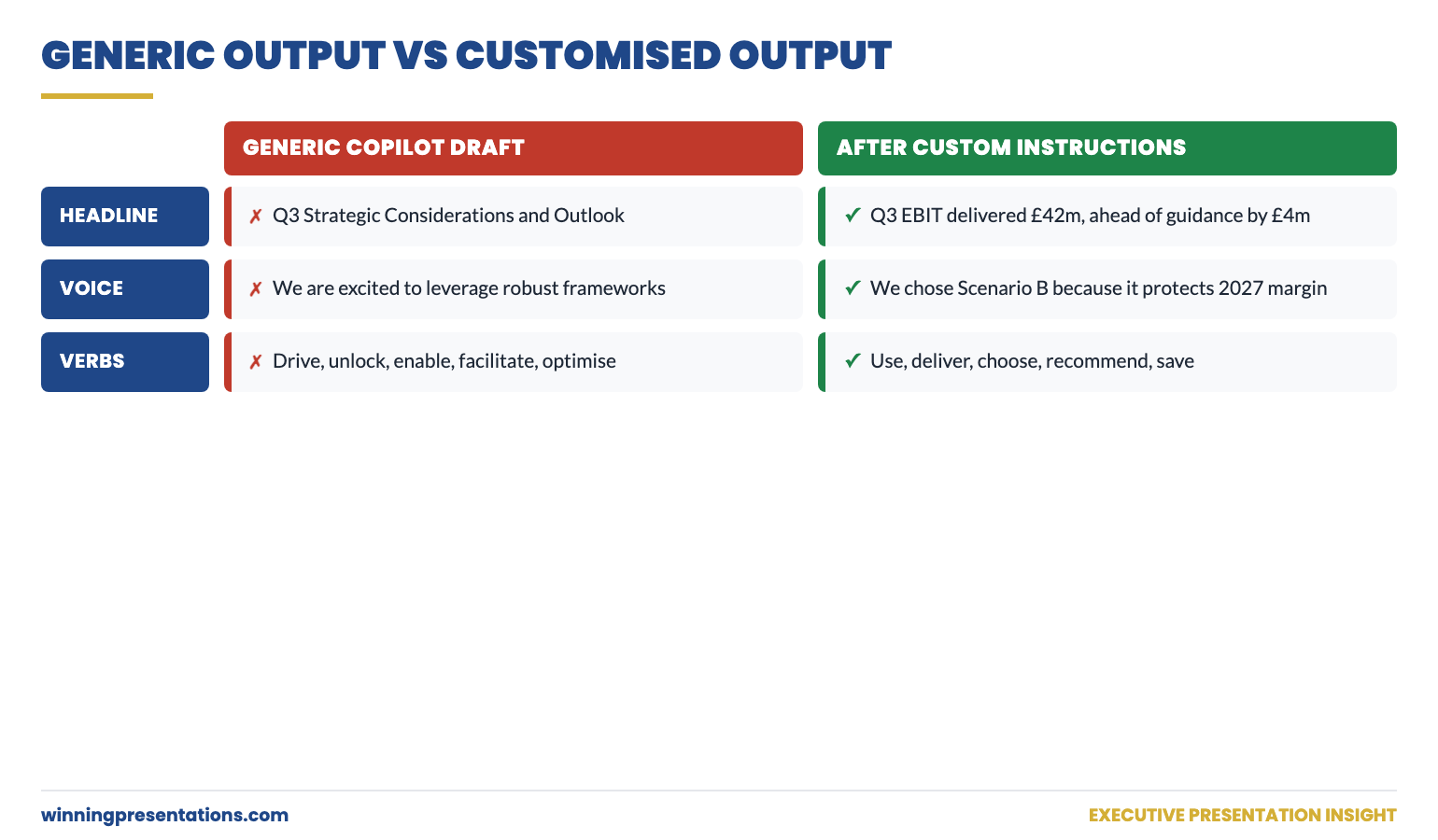
The key phrase is “chart title should state the insight.” This transforms “Q3 Revenue by Region” into “EMEA Growth Outpaced North America by 23%.”

Prompt 3: The Recommendation Slide

“Create a recommendation slide with this structure: Headline stating the recommendation as a decision (not a question). Three supporting points as single-line bullets. One risk/mitigation pair. Financial impact in bottom right. No clip art, icons, or decorative elements.”

This structure mirrors how McKinsey and top consulting firms format recommendation slides—because that’s what boards expect.

Prompt 4: The Brand-Compliant Slide

“Redesign this slide using these brand requirements: Primary color [HEX CODE], accent color [HEX CODE], [FONT NAME] font only. No gradients, shadows, or 3D effects. Maintain generous white space. Text should be minimum 18pt for body, 28pt for headlines.”

Without brand constraints, Copilot executive slides default to Microsoft’s built-in themes—which every other Copilot user is also producing.

Prompt 5: The Iteration Fix

“This slide has too much text. Reduce each bullet to maximum 6 words while preserving the core message. Remove any bullet that doesn’t directly support the headline. If information is important but doesn’t fit, note it for speaker notes instead.”

Most Copilot executive slides need iteration. This prompt gives Copilot specific, actionable constraints for the second pass.

Copilot executive slides prompt framework - 5 prompts for board-ready PowerPoint presentations

For 71 tested prompts covering every scenario — build from scratch, rescue an existing deck, or fix individual slides — the Executive Prompt Pack gives you exactly what to type, updated for the latest Copilot and ChatGPT capabilities.

The Iteration Workflow for Copilot Executive Slides

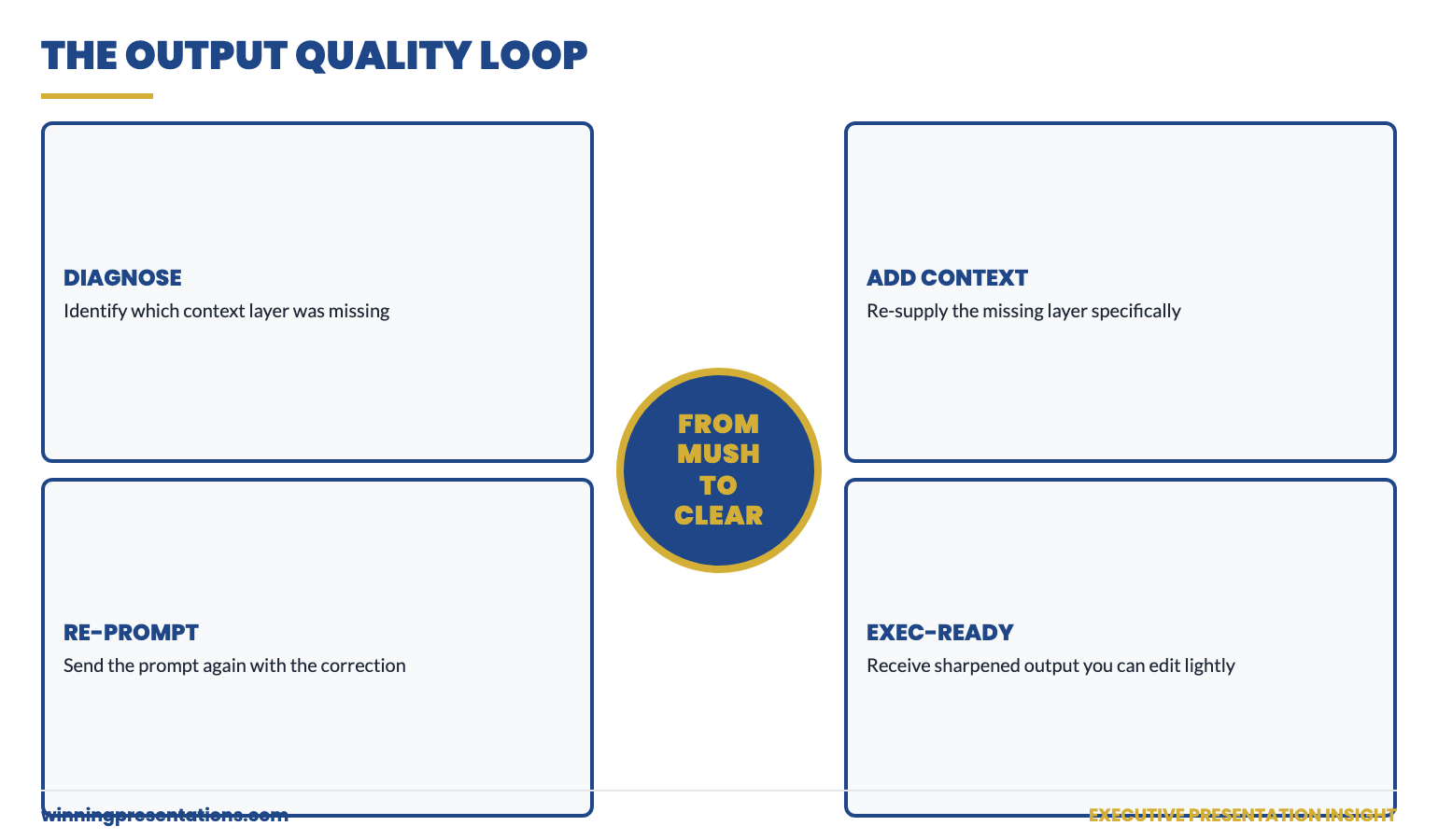
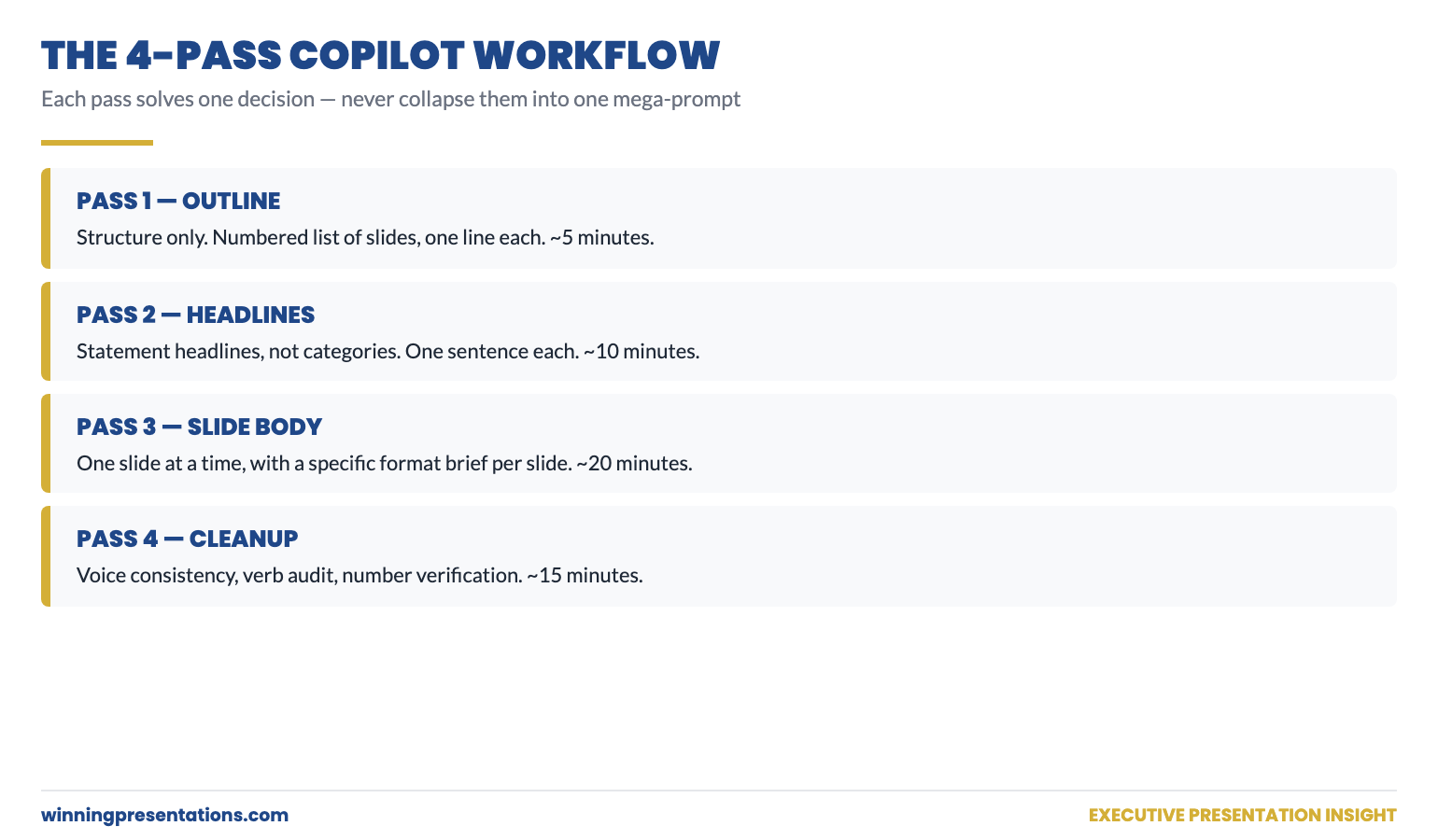
No single prompt produces perfect output. Expect 2-3 iterations minimum. Here’s the workflow:

Round 1: Generate initial slides with detailed constraints (Prompts 1-4 above).

Round 2: Review each slide and identify specific problems. Use targeted fix prompts like #5.

Round 3: Manual refinement. Copilot gets you 80% there; the final 20% requires human judgment—especially for sensitive board content.

For the complete Copilot workflow including advanced prompts and troubleshooting, see my full guide: PowerPoint Copilot Tutorial: Complete Guide to Prompts, Workflows & Updates.

71 Prompts. Every Scenario Covered.

Build from scratch, rescue an existing deck, or perfect individual slides — the Executive Prompt Pack covers every scenario. Works with ChatGPT, Copilot, and Edit with Copilot. Updated March 2026.

Get the Prompts → £19.99

FAQ: Copilot Executive Slides

Why do most Copilot executive slides look so generic?

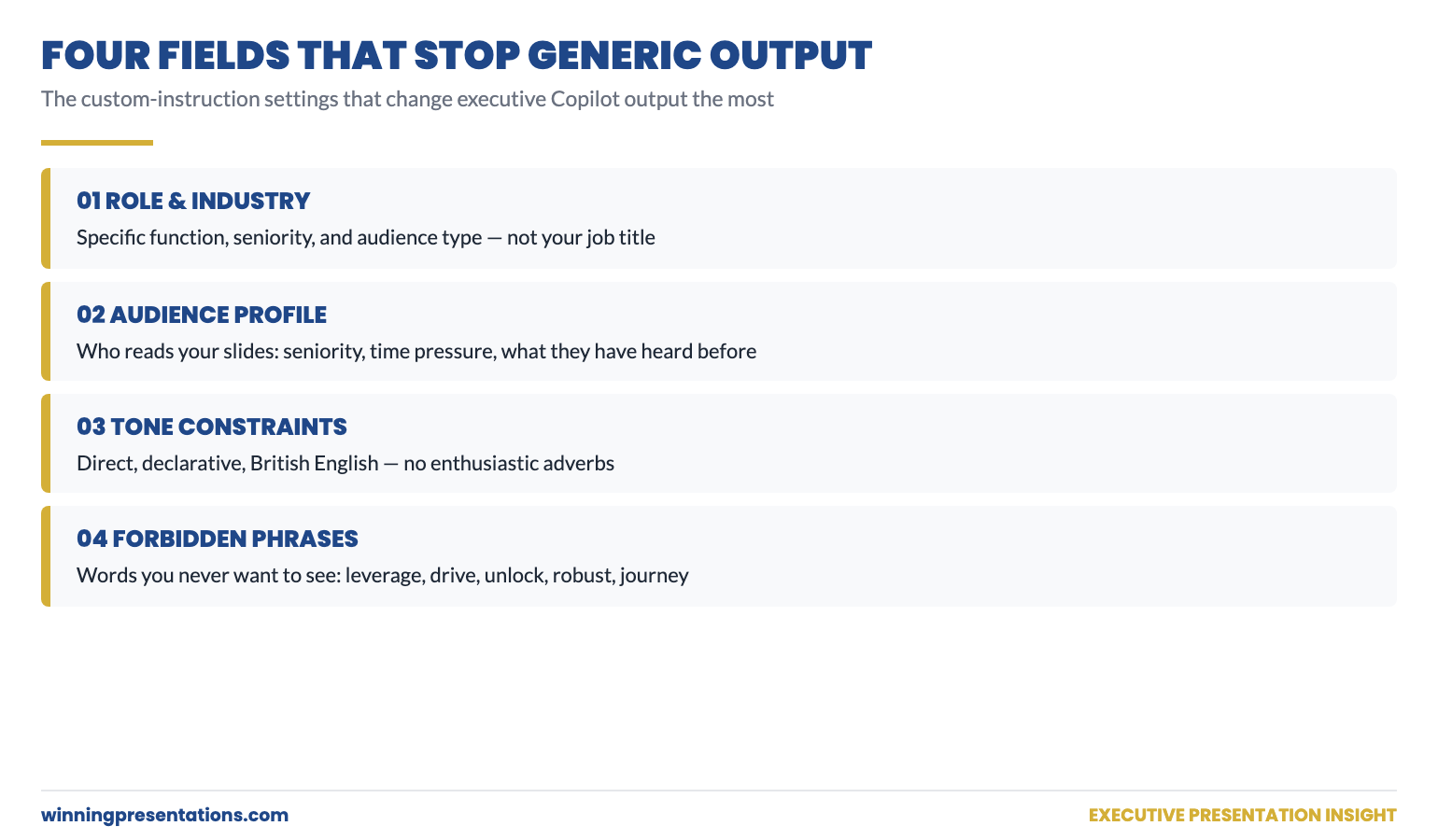
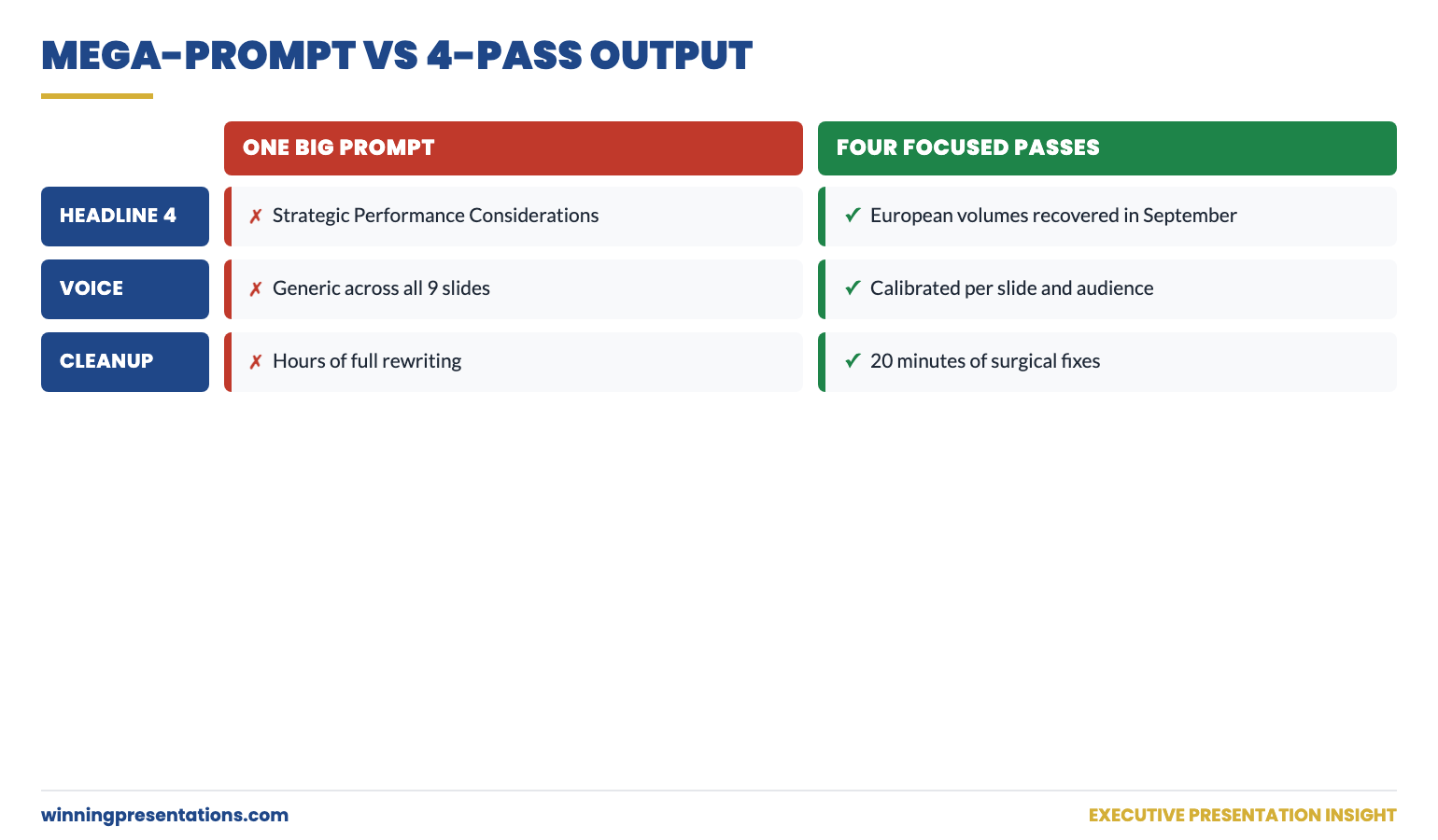
Copilot defaults to templates designed for general audiences, not boardrooms. Without specific constraints—like “no clipart,” “maximum 6 words per bullet,” or “use data placeholders not lorem ipsum”—it produces slides that scream “AI-generated” to any senior executive.

Can Copilot match my company’s brand guidelines?

Yes, but only if you tell it explicitly. Include your brand colors as hex codes, specify fonts, and reference your corporate template. The prompt “Apply our brand: Navy #1F4788, Gold #D4AF37, Arial font, no gradients” produces dramatically better results than hoping Copilot guesses correctly.

How many slides should I ask Copilot to generate at once?

Never more than 5-7 slides per prompt. When you ask for 20+ slides, quality drops significantly. Generate in batches, review each batch, then prompt for the next section with specific feedback on what to adjust.

📧 Join 2,000+ professionals getting weekly presentation insights. Subscribe to The Winning Edge →

📋 Free Download: 10 Essential Copilot Prompts

Get my 10 most-used Copilot prompts for executive presentations—tested across hundreds of board decks and investor pitches.

Get Your Free Prompts →

Updated 27 March 2026 — Revised for the latest Microsoft Copilot and ChatGPT capabilities.


About the Author

Mary Beth Hazeldine spent 24 years at JPMorgan, PwC, RBS, and Commerzbank. She’s a clinical hypnotherapist and MD of Winning Presentations.

This article was created with AI assistance; all stories and insights are based on 35 years of real client work.

04 Dec 2025
30 AI prompt cards for executive presentations - Copilot and ChatGPT prompts for budget requests, board decks, QBRs and more

PowerPoint Copilot: What It Actually Does Well (And What It Doesn’t)

PowerPoint Copilot is the most overhyped and underutilised tool in Microsoft 365.

Overhyped because Microsoft’s marketing suggests it will create brilliant presentations from a single prompt. It won’t. Underutilised because most people give up after the first disappointing result, missing the things PowerPoint Copilot actually does brilliantly.

I’ve tested PowerPoint Copilot on over 100 real client presentations — board decks, investor pitches, QBRs, budget requests. Not demo presentations with perfect data. Real presentations with messy content and tight deadlines.

Here’s an honest assessment of what PowerPoint Copilot does well, what it does poorly, and how to use it effectively in your workflow.

30 AI prompt cards for executive presentations - Copilot and ChatGPT prompts for budget requests, board decks, QBRs and more
The right prompts make PowerPoint Copilot useful — generic prompts produce generic output

What PowerPoint Copilot Does Brilliantly

Let’s start with the good news. There are specific tasks where PowerPoint Copilot genuinely saves hours of work.

PowerPoint Copilot Strength #1: Summarising Long Documents

Feed PowerPoint Copilot a 30-page Word document and ask it to create a presentation summary. This is where the tool shines. It will extract key points, organise them logically, and create a first draft in under a minute.

Is the draft perfect? No. But it’s a solid starting point that would have taken you an hour to create manually. PowerPoint Copilot handles the extraction; you handle the refinement.

Best prompt for this: “Create a 10-slide presentation summarising this document. Focus on [specific topic]. The audience is [role] who need to [decision/action].”

PowerPoint Copilot Strength #2: Generating First Drafts From Bullet Points

When you have rough notes or bullet points but no structure, PowerPoint Copilot can organise them into a coherent presentation draft. It’s particularly good at identifying logical groupings and suggesting a narrative flow.

I’ve used PowerPoint Copilot to turn a client’s 50-bullet brainstorm into an 8-slide deck structure in minutes. The content needed editing, but the organisation was solid.

Best prompt for this: “Organise these bullet points into a presentation for [audience]. Group related points together. Suggest a logical flow from problem to solution to recommendation.”

PowerPoint Copilot Strength #3: Rewriting and Polishing Text

Have a slide that’s too wordy? PowerPoint Copilot excels at condensing. Ask it to make bullet points more concise, and it will cut the fluff while keeping the meaning.

This is where I use PowerPoint Copilot most frequently. I draft content quickly without worrying about wordsmithing, then ask PowerPoint Copilot to tighten everything up. It’s like having an editor who works in seconds.

Best prompt for this: “Rewrite these bullet points to be more concise. Maximum 10 words per bullet. Keep the key message but remove filler words.”

PowerPoint Copilot Strength #4: Generating Speaker Notes

Need speaker notes but don’t have time to write them? PowerPoint Copilot can generate talking points for each slide based on the content. The notes aren’t perfect scripts, but they’re excellent memory joggers.

This PowerPoint Copilot feature saves significant time for presentations where you need notes but don’t want to spend hours writing them.

Best prompt for this: “Generate speaker notes for this slide. Include the key points to mention, relevant context, and a transition to the next slide. Keep it conversational, not scripted.”

Want 30 PowerPoint Copilot prompts that actually work?

The prompt cards in The Executive Slide System are tested on real presentations — not demos. Each prompt is designed to get useful PowerPoint Copilot output on the first try.

What PowerPoint Copilot Does Poorly

Now the bad news. There are tasks where PowerPoint Copilot will waste your time or produce output that needs complete replacement.

PowerPoint Copilot Weakness #1: Creating Presentations From Scratch

“Create a presentation about Q3 results” will produce generic garbage. PowerPoint Copilot doesn’t know your company, your data, your audience, or your message. It will generate placeholder content that looks professional but says nothing.

Don’t use PowerPoint Copilot to create presentations from nothing. Use it to enhance, organise, or refine content you’ve already developed.

PowerPoint Copilot Weakness #2: Design and Visual Layout

PowerPoint Copilot can apply templates and suggest layouts, but it doesn’t have design taste. It will create slides that are technically correct but visually mediocre.

For executive presentations where visual impact matters, you’ll need to handle design yourself or work with a designer. PowerPoint Copilot is a writing tool, not a design tool.

PowerPoint Copilot Weakness #3: Data Visualisation

Ask PowerPoint Copilot to create charts from data, and you’ll get basic charts with default formatting. It doesn’t understand which chart type best communicates your message or how to highlight the key insight.

Build your charts manually or in Excel, then import them. PowerPoint Copilot can help you write the chart titles and callouts, but don’t trust it with visualisation choices.

PowerPoint Copilot Weakness #4: Industry-Specific Content

PowerPoint Copilot doesn’t know your industry’s terminology, benchmarks, or conventions. Ask it to create a biotech investor pitch or an investment banking deal memo, and it will produce generic business content that misses the mark.

You need to provide the industry context in your prompts, or PowerPoint Copilot will default to generic corporate language.

10 executive presentation templates - QBR, budget request, board meeting, investor pitch, strategic recommendation slides
Purpose-built templates give you better starting points than PowerPoint Copilot’s generic output

The PowerPoint Copilot Workflow That Actually Works

Based on 100+ presentations, here’s how to integrate PowerPoint Copilot effectively:

PowerPoint Copilot Workflow Step 1: Start With Structure, Not Copilot

Before opening PowerPoint Copilot, know your message. What’s your recommendation? What does your audience need to decide? What are the 3-5 key points?

PowerPoint Copilot is an accelerator, not a strategist. If you don’t know your message, PowerPoint Copilot will give you generic filler.

PowerPoint Copilot Workflow Step 2: Use Copilot for First Drafts

Once you have structure, use PowerPoint Copilot to generate content quickly. Feed it your bullet points and ask for organised slides. Don’t expect perfection — expect a starting point.

This is where PowerPoint Copilot saves the most time: the blank-page-to-first-draft phase that usually takes hours.

PowerPoint Copilot Workflow Step 3: Refine Manually

Go through each PowerPoint Copilot output and edit. Strengthen headlines, cut unnecessary words, ensure the “so what” is clear. This is where your expertise matters.

The combination of PowerPoint Copilot speed and human judgment produces better results than either alone.

PowerPoint Copilot Workflow Step 4: Use Copilot for Polish

After manual refinement, use PowerPoint Copilot again for final polish. Ask it to make bullets more concise, generate speaker notes, or check for consistency across slides.

This second-pass use of PowerPoint Copilot catches things you might miss and adds final professional polish.

Skip the trial-and-error with PowerPoint Copilot.

The Executive Slide System includes 30 tested prompts for PowerPoint Copilot — 3 for each executive presentation type. Plus templates that give you better starting structures than Copilot’s generic output. Clients have used these to cut presentation prep time by 60%.

PowerPoint Copilot Prompts That Get Results

The difference between useful and useless PowerPoint Copilot output is the prompt. Here are patterns that work:

Bad PowerPoint Copilot prompt: “Create a presentation about our marketing results.”

Good PowerPoint Copilot prompt: “Create a 5-slide presentation for our CMO about Q3 marketing results. She needs to decide whether to increase Q4 budget. Include: headline results, channel performance comparison, ROI analysis, recommendation. Tone: confident, data-driven, concise.”

The difference? The good prompt tells PowerPoint Copilot the audience, the decision, the structure, and the tone. It can’t give generic output because you’ve specified exactly what you need.

PowerPoint Copilot Prompt Template

Use this structure for any PowerPoint Copilot prompt:

Create a [NUMBER]-slide presentation for [AUDIENCE/ROLE].

They need to [DECISION OR ACTION].

Include these sections:
[LIST YOUR REQUIRED SECTIONS]

Tone: [DESCRIBE THE TONE]

Here’s my raw content:
[PASTE YOUR BULLETS OR NOTES]

This template consistently produces better PowerPoint Copilot output than vague requests.

PowerPoint Copilot vs. ChatGPT vs. Claude for Presentations

Should you use PowerPoint Copilot, or another AI tool? Here’s my take after extensive testing:

Use PowerPoint Copilot when:

  • You’re working inside PowerPoint and want seamless integration
  • You’re summarising Word documents into presentations
  • You need quick edits to existing slides

Use ChatGPT or Claude when:

  • You need more sophisticated reasoning about structure and messaging
  • You’re developing strategy before building slides
  • You want longer, more nuanced responses

I often use ChatGPT or Claude for strategy and structure, then PowerPoint Copilot for execution. They complement each other.

FAQs About PowerPoint Copilot

Is PowerPoint Copilot worth the cost?

If you create presentations frequently (weekly or more), yes. The time savings on first drafts and polishing pays for the subscription quickly. If you present monthly or less, the value is marginal.

Does PowerPoint Copilot work offline?

No. PowerPoint Copilot requires an internet connection to process requests. This can be an issue in secure environments or when travelling.

Can PowerPoint Copilot access my company data?

PowerPoint Copilot can access documents you explicitly share with it or that are stored in your Microsoft 365 environment. It can summarise SharePoint documents, emails, and other M365 content if you have appropriate permissions.

How do I get better at using PowerPoint Copilot?

Practice with specific prompts. The more detail you provide in your prompts, the better PowerPoint Copilot output becomes. Start with the prompt template above and refine based on results.

The Honest PowerPoint Copilot Verdict

PowerPoint Copilot is a productivity tool, not a magic solution. It won’t turn bad ideas into good presentations or replace strategic thinking. But it will significantly speed up the mechanical work of building presentations.

Use PowerPoint Copilot for:

  • Summarising documents into presentations
  • Organising bullet points into slides
  • Rewriting and condensing text
  • Generating speaker notes

Don’t use PowerPoint Copilot for:

  • Creating presentations from scratch
  • Design and visual layout
  • Data visualisation choices
  • Industry-specific content without guidance

With the right prompts and realistic expectations, PowerPoint Copilot is a valuable tool. Without them, it’s an expensive disappointment.

The Executive Slide System complete package - 10 PowerPoint templates, 30 AI prompts, and quick start guide for executive presentations

Get 30 Tested PowerPoint Copilot Prompts

Stop guessing what prompts work. The Executive Slide System includes 30 PowerPoint Copilot prompts tested on real presentations — 3 for each executive presentation type.

Plus 10 templates that give you better starting structures than PowerPoint Copilot’s generic output.

GET INSTANT ACCESS → £39

30 prompts • 10 templates • Instant download • 30-day guarantee


Related: How to Create Executive Presentations That Get Approved in 2025 — the complete guide covering all 10 executive presentation types with AI prompts that work with PowerPoint Copilot, ChatGPT, and Claude.

02 Dec 2025
30 AI prompt cards for executive presentations - Copilot and ChatGPT prompts for budget requests, board decks, QBRs and more

5 Copilot Prompts That Turn Bullet Points into Executive Slides

These 5 Copilot prompts for executive slides will transform how you build presentations.

Most people type “create a presentation about Q3 results” and wonder why they get generic garbage. That’s like asking a chef to “make food” and expecting a Michelin-star meal. The problem isn’t Copilot — it’s the prompts.

After testing hundreds of Copilot prompts on real executive slides — board decks, investor pitches, QBRs, budget requests — I’ve found 5 that consistently turn rough bullet points into slides that leadership actually approves. These aren’t theoretical. I’ve used every one on client work at investment banks, consultancies, and Fortune 500 companies.

One client used these exact Copilot prompts to build the executive slides that secured £2M in Series A funding. Another cut her presentation prep time from 3 hours to 40 minutes.

30 AI prompt cards for executive presentations - Copilot and ChatGPT prompts for budget requests, board decks, QBRs and more
Each executive slide type needs specific Copilot prompts — generic prompts produce generic output

Getting generic results from Copilot prompts?

Generic prompts produce generic slides. The Executive Prompt Pack gives you 71 prompts pre-structured for executive scenarios — so Copilot produces board-ready content, not formatted text that still needs rewriting.

Explore the Executive Prompt Pack →

Why Generic Copilot Prompts Fail for Executive Slides

Copilot is trained on millions of presentations. Most are mediocre. So when you give Copilot a vague prompt, it produces the average of everything it’s seen — which is mediocre.

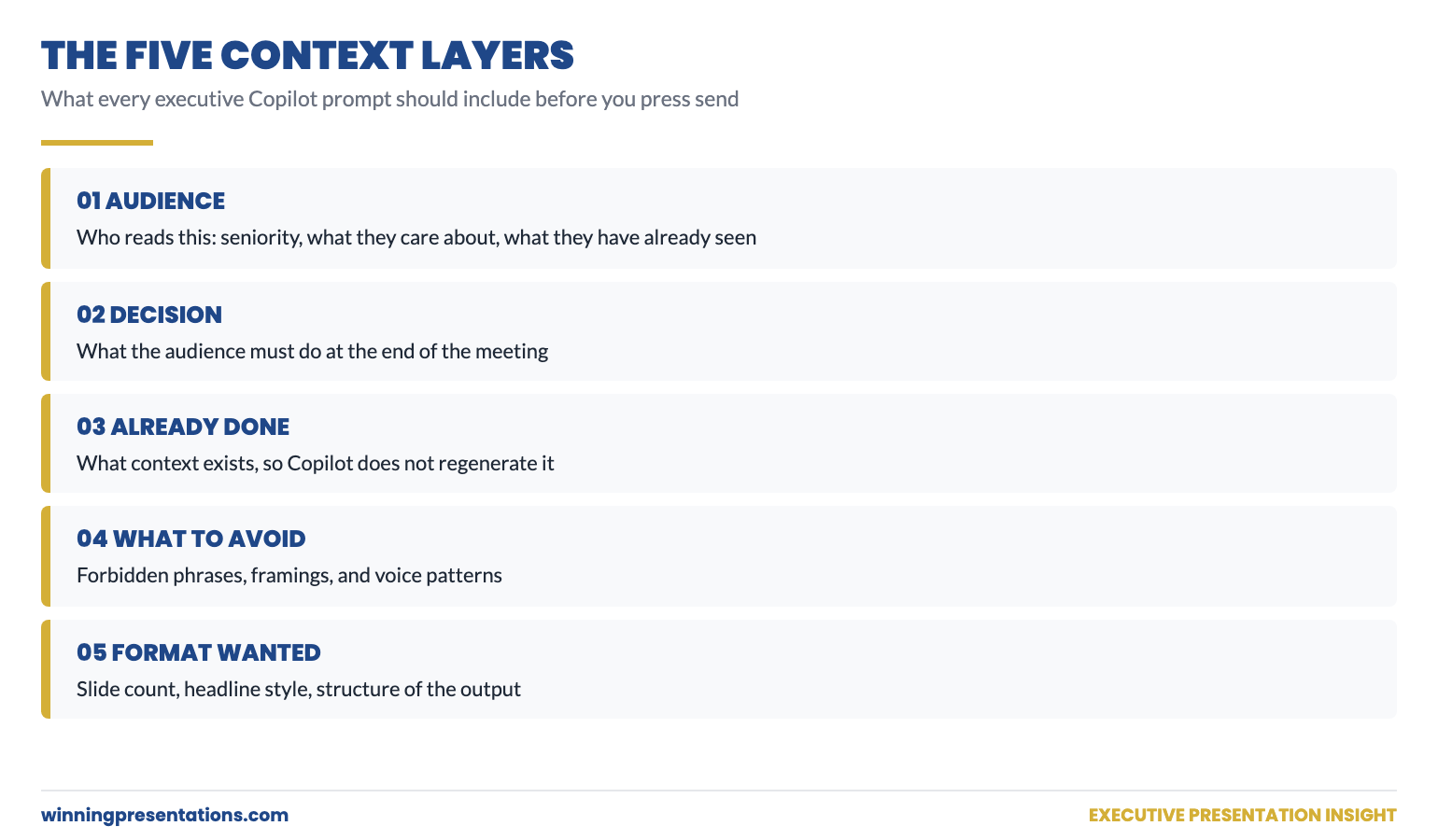
To get executive-quality output from your Copilot prompts, you need to specify three things:

  • Who’s reading this — their role, what they care about, what decision they’ll make
  • What you need — the specific structure, not just the topic
  • What good looks like — the standard you’re aiming for

The Copilot prompts below do all three. Copy them exactly, fill in your specifics, and watch Copilot finally produce executive slides worth presenting.

Copilot Prompt #1: The Instant Draft for Executive Slides

Use this when you’re staring at bullet points and need a first draft fast.

I need to create an executive slide about [TOPIC].

My audience is [ROLE/LEVEL] who need to [DECISION OR ACTION].

Here are my rough bullet points:
[PASTE YOUR BULLETS]

Turn these into a single slide with:
– A headline title that communicates the key message (not a label)
– 3-4 bullet points maximum
– A clear “so what” — why this matters
– A recommendation or next step if relevant

Executive Resource

Stop Writing AI Prompts From Scratch

The Executive Prompt Pack gives you 50 battle-tested prompts for executive-level presentations — board updates, budget requests, investor briefs, and Q&A preparation. Built for PowerPoint Copilot and ChatGPT.

Get the Executive Prompt Pack →

Used by executives preparing for board briefings, budget requests, and high-stakes presentations.

Write in a direct, confident tone. No filler words.

Why this Copilot prompt works: You’ve told Copilot the audience, the purpose, and the structure. It can’t give you generic output because you’ve constrained it to a specific format for your executive slide.

Example input:

  • Topic: October marketing campaign results
  • Audience: CMO who needs to approve Q1 budget
  • Bullets: launched Oct 15, 50K impressions, 1,200 leads, £42 cost per lead, industry benchmark £65, want to scale in Q1

What Copilot produces: An executive slide titled “October Campaign Delivered Leads at 35% Below Industry Cost” with tight bullets and a clear recommendation to increase Q1 budget.

Copilot Prompt #2: The Executive Slide Polish

Use this Copilot prompt when you have a draft executive slide but it feels too long, too detailed, or too “junior.”

Review this executive slide content through the eyes of a [CEO/CFO/BOARD MEMBER].

Current content:
[PASTE YOUR SLIDE TEXT]

They will spend 5 seconds scanning this. Tell me:
1. What would make them say “so what?” or lose interest?
2. What questions would they immediately ask?
3. What’s missing that they’d expect to see?

Then rewrite the slide to fix these issues. Make it scannable in 5 seconds with one clear takeaway.

Why this Copilot prompt works: It forces Copilot to critique before improving. The critique identifies real problems; the rewrite fixes them. You get executive-level thinking applied to your slides, not just rewording.

When to use it: After your first draft, before any important presentation, when feedback says your executive slides are “too detailed.”

Copilot Prompt #3: The Headline Generator for Executive Slides

The single biggest problem with executive slides? Label titles instead of headline titles. This Copilot prompt fixes that instantly.

I have an executive slide with this label title: “[YOUR CURRENT TITLE]”

The slide content shows: [BRIEF DESCRIPTION OF WHAT THE SLIDE SAYS]

Generate 5 alternative headline titles that:
– Communicate the key message, not just the topic
– Work as standalone statements (make sense without seeing the slide)
– Are specific and include numbers where relevant
– Would make an executive want to read more

Format: Just list the 5 titles, no explanations.

Why this Copilot prompt works: You get options, not just one suggestion. Often the third or fourth option is the winner. And by specifying “numbers where relevant,” you push Copilot toward concrete headlines for your executive slides.

Example transformation:

  • Before: “Project Status Update”
  • After options: “Project 3 Weeks Ahead of Schedule, Under Budget” / “Phase 2 Complete — On Track for March Launch” / “Project Green: All Milestones Hit, No Blockers”

10 executive presentation templates - QBR, budget request, board meeting, investor pitch, strategic recommendation slides
Each executive slide type has different structures — and needs different Copilot prompts

These 3 Copilot prompts are just the start.

The Executive Slide System includes 30 prompt cards — 3 for each of the 10 executive slide types. The same prompts I used to help a biotech client build the deck that raised £8M in Series B funding.

Copilot Prompt #4: The Objection Killer for Executive Slides

Before presenting executive slides, you need to anticipate pushback. This Copilot prompt finds the holes before your audience does.

I’m presenting this executive slide to [AUDIENCE] who will decide whether to [APPROVE/FUND/SUPPORT] my [REQUEST].

Here’s my slide content:
[PASTE SLIDE]

Act as a skeptical [CFO/CEO/BOARD MEMBER]. Give me:
1. The 3 most likely objections or tough questions
2. What evidence or data would address each objection
3. Suggested additions to the slide that preempt these concerns

Be direct and critical. I need to find the weaknesses before they do.

Why this Copilot prompt works: Executives are paid to find problems. If you don’t find them first, you’ll discover them in the meeting — when it’s too late. This prompt stress-tests your executive slides before showtime.

Real example: I used this Copilot prompt on a budget request slide. It identified that I hadn’t addressed “what happens if we don’t fund this?” Adding that one line — the cost of inaction — doubled the executive slide’s persuasive power.

Copilot Prompt #5: The One-Pager for Executive Slides

You have 10 slides. Leadership wants 1. This Copilot prompt compresses your executive slides without losing the message.

I have a [X]-slide presentation. I need to condense it into ONE executive summary slide.

Here’s the content from all slides:
[PASTE KEY POINTS FROM EACH SLIDE]

Create a single executive slide with:
– Headline title: The single most important message
– Bottom line: 1-2 sentences summarizing the entire presentation
– Key points: Maximum 4 bullets covering the essentials
– Decision needed: What you need from leadership

Ruthlessly cut anything that isn’t essential for the decision at hand.

Why this Copilot prompt works: The instruction to “ruthlessly cut” gives Copilot permission to be aggressive. Without it, AI tries to include everything. This prompt produces executive slides that respect the audience’s time.

When to use it: Before board meetings (always have a one-page executive slide ready), when asked to “give me the summary,” when presenting to someone more senior than expected.

Want all 30 Copilot prompts for executive slides as printable cards?

The prompt cards in The Executive Slide System cover every scenario: QBRs, budget requests, board presentations, strategic recommendations, and more. Plus 10 PowerPoint templates with the structures already built in.

The Universal Copilot Prompt for Any Executive Slide

If you only remember one Copilot prompt from this article, make it this one. It works on any executive slide, any situation:

I’m presenting this executive slide to [AUDIENCE] who need to [DECISION/ACTION].

Review my content and tell me: what would make them say no?

Then fix those issues.

[PASTE YOUR CONTENT]

This Copilot prompt works because it forces audience-first thinking. Most people write executive slides from their own perspective — what they want to say. Executives don’t care what you want to say. They care whether your content helps them make a decision.

This single Copilot prompt has saved more executive slides than any other technique I know.

Common Mistakes With Copilot Prompts for Executive Slides

Mistake 1: Too vague. “Make this better” tells Copilot nothing. Be specific: better how? Shorter? More persuasive? Clearer structure? Your Copilot prompts should specify exactly what “better” means for your executive slides.

Mistake 2: No audience. An executive slide for a CFO is different from one for a sales team. Always specify who’s reading in your Copilot prompts.

Mistake 3: Accepting first output. Copilot’s first response is rarely the best. Use follow-up prompts: “Make it shorter,” “Add more specifics,” “Make the recommendation clearer.” Iterate on your executive slides.

Mistake 4: Ignoring structure. If you want 4 bullets, say “4 bullets maximum.” If you want a headline title, say “headline title, not a label.” Copilot follows instructions for executive slides — if you give them.

71 Prompts Ready to Use — No Customisation Required

The Executive Prompt Pack (£19.99, instant access) gives you 71 tested Copilot and ChatGPT prompts for every executive presentation scenario — board updates, budget requests, investor briefs, and Q&A preparation. Each prompt is built around executive communication frameworks so the output is ready to present, not just formatted text.

  • Prompts pre-structured for executive audiences — not generic business templates
  • Covers PowerPoint Copilot and ChatGPT workflows
  • Instant download, use before your next presentation

Get the Executive Prompt Pack →

For executives wanting a complete library of structured AI prompts for executive presentations, the Executive Prompt Pack includes 71 prompt cards covering every executive presentation scenario — from slide structure to Q&A preparation.

Used by executives across banking, consulting, and technology for high-stakes presentations.

FAQs About Copilot Prompts for Executive Slides

Do these Copilot prompts work with ChatGPT or Claude?

Yes. These prompts work with any AI assistant. I’ve tested them on Copilot, ChatGPT-4, and Claude for building executive slides. The structure and specificity is what makes them effective, not the platform.

How specific should my bullet points be before using Copilot?

The more specific, the better. “Revenue up” gives you generic output. “Revenue up 12% to £4.2M, driven by Enterprise deals” gives you executive slides worth presenting. Garbage in, garbage out.

Should I use Copilot inside PowerPoint or separately?

Both work for executive slides. Copilot in PowerPoint is convenient for quick edits. For complex prompts like the Objection Killer, I prefer standalone Copilot or ChatGPT — more room for detailed prompts and responses.

How long should a Copilot prompt be for executive slides?

As long as needed to be specific. The prompts above are 50-100 words. That’s not too long — it’s precise. Short Copilot prompts produce vague executive slides.

Build Your Next Executive Slide in 5 Minutes

You probably have a presentation due soon. Open it. Find the weakest slide — the one that feels too long, too vague, or too “so what?”

Pick one of the five Copilot prompts above. Run it. See what happens.

I’d bet the output is better than what you have now. And it took 30 seconds instead of 30 minutes.

That’s the point. Copilot prompts for executive slides aren’t about replacing your thinking — they’re about accelerating it. You still decide what matters. You still know your audience. Copilot just gets you to polished executive slides faster.

The Executive Slide System complete package - 10 PowerPoint templates, 30 AI prompts, and quick start guide for executive presentations

Get All 30 Copilot Prompts for Executive Slides

These 5 prompts are just the start. The Executive Slide System includes 30 prompt cards — 3 for each of the 10 executive slide types — plus ready-made PowerPoint templates.

Clients have used these Copilot prompts to build executive slides that

GET INSTANT ACCESS → £39

30 prompts • 10 templates • Instant download • 30-day guarantee


Related: How to Create Executive Presentations That Get Approved in 2025 — the complete guide covering all 10 executive slide types with structures and Copilot prompts.