Tag: executive ai

11 May 2026
Featured image for Copilot Custom Instructions for Executives

Copilot Custom Instructions for Executives: The Settings That Stop Generic Output

Quick answer: Copilot custom instructions for executives are the standing settings that tell Microsoft Copilot who you are, what you present on, who your audience is, and how you write — so it stops producing the generic, overly enthusiastic output that reads like marketing copy. Set them once in Copilot’s personalisation panel, then every prompt inherits them. The four fields that matter most are role, audience, tone constraints, and forbidden phrases.

Henrik runs strategy for a mid-sized European insurer. He spent three weeks last quarter using Copilot to build presentations for the executive committee. By the fourth week, the CFO pulled him aside after a board pre-read and said: “These read like a junior consultant wrote them.” Henrik had spent more time using AI than ever before, and his slides had got measurably worse.

The problem was not Copilot. It was that Henrik was issuing brilliant, detailed prompts every time — and Copilot was responding to each prompt as if it had never met him before. There was no continuity. No standing context. Every output started from the same blank assumptions: enthusiastic tone, generic audience, “many businesses” framing, hedged conclusions. The fix took him fifteen minutes to apply, and it changed every prompt he wrote afterwards.

That fix is custom instructions — and it is the single highest-leverage Copilot setting that almost no senior professional has configured.

If you want a structured starting point

The Executive Prompt Pack contains 71 ChatGPT and Copilot prompts written specifically for senior-level presentation work — including a full custom instructions template you can paste straight into Copilot’s settings.

Explore the Executive Prompt Pack →

Why Copilot’s default output sounds generic for senior audiences

Copilot is trained to be helpful to the broadest possible range of users — small business owners, students, marketing teams, individual contributors, executives. Without instructions, it defaults to language that lands somewhere safely between all of those audiences. Lots of bullet points. Hedged language. The phrase “moreover” appears more often than it should. Sentences end with adverbs like “effectively” and “successfully”. Every output assumes you might need things explained, so explanations creep into slide content where they do not belong.

For a senior audience, this is a failure mode. Executive readers are time-poor and pattern-trained. They read slides the way they read briefings: top to bottom, scanning for the answer. When the language sounds explanatory rather than declarative, two things happen — they lose patience, and they downgrade their estimate of who wrote it. The slide content might be technically correct, but the voice signals “this person is not at my level.”

This is what Henrik’s CFO was responding to. Not a content problem. A voice problem. And a voice problem that custom instructions exist to solve.

What custom instructions actually are (and where to find them)

Custom instructions are a set of standing notes that Copilot reads silently before responding to every prompt. They are not visible in your chat. They do not get repeated in the output. They sit in the background and shape every response.

You find them in Copilot’s settings — in Microsoft 365 Copilot, this is under the personalisation panel; in Copilot for the web, look under “Customise Copilot” or your profile menu. The exact location moves periodically as Microsoft updates the interface. The setting itself does not move; the menu does.

Once set, custom instructions persist across sessions, devices where you are signed into the same account, and most Copilot surfaces — including the Copilot panel inside PowerPoint. This is why they are the highest-leverage setting available: you configure once and benefit every time.

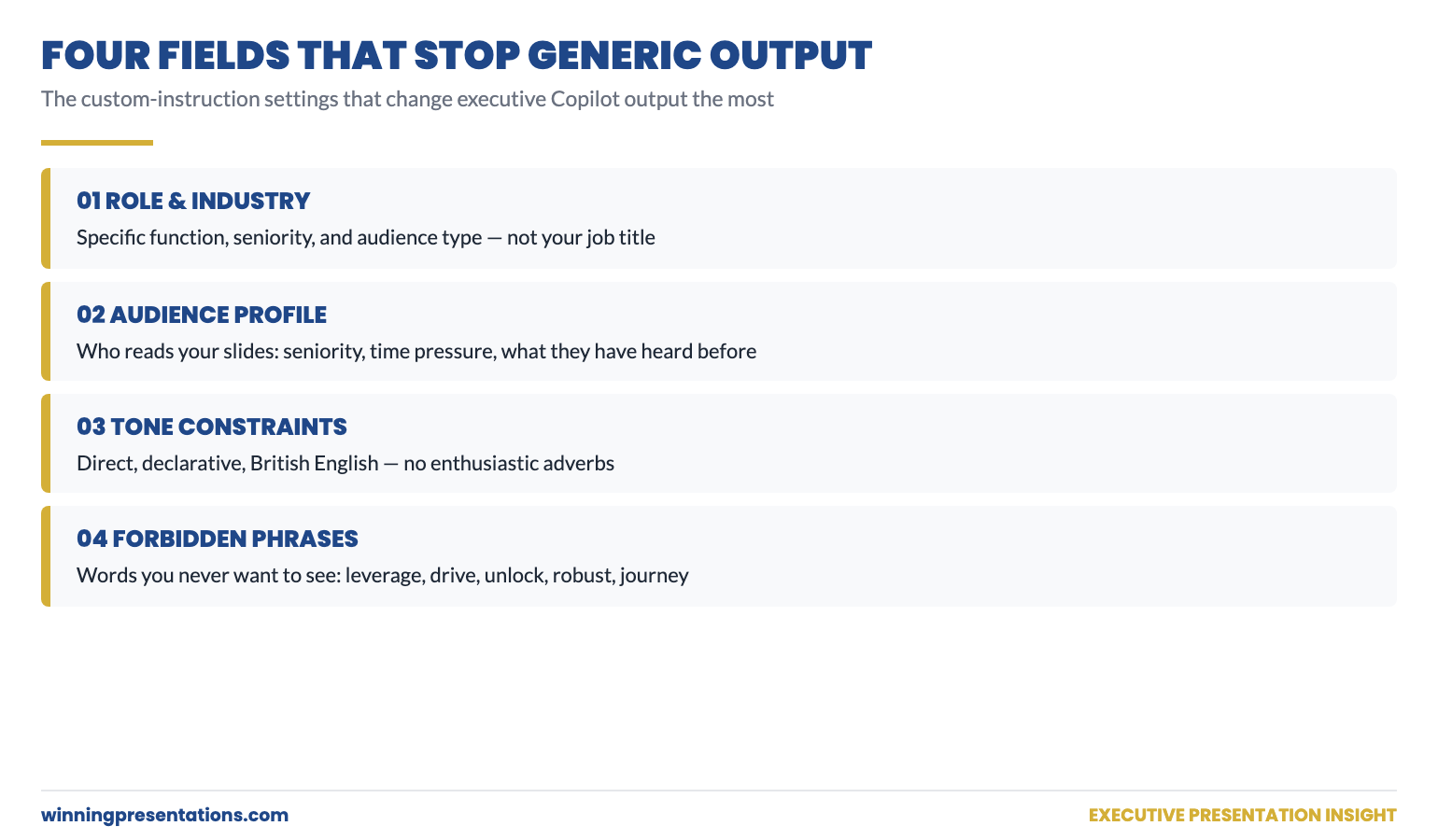
The Four Custom Instruction Fields That Stop Generic Copilot Output: Role & Industry, Audience Profile, Tone Constraints, and Forbidden Phrases — each field shown with example content for senior presenters.

The four fields that change executive output the most

Custom instructions usually have two free-text boxes: What would you like Copilot to know about you? and How would you like Copilot to respond? Different surfaces label them differently, but the structure is the same. Within those two boxes, four pieces of information do most of the work for senior presenters.

1. Role and industry context

Tell Copilot what you do, at what seniority level, in what industry, and to what kind of audience. Not your job title. Your actual function. “Strategy director in mid-sized European insurance, presenting to executive committee and board on quarterly performance and capital allocation” gives Copilot far more to work with than “head of strategy.” The detail teaches Copilot which vocabulary feels native to your world and which sounds borrowed.

2. Audience profile

Describe the people you typically present to. Their seniority, time pressure, what they care about, what they have heard a hundred times before. “My audience is a 12-person executive committee. They are time-poor, sceptical of jargon, and they have seen every transformation deck cliché. They want the answer first, the evidence second, the implications third” gives Copilot a target reader to write for. Without this, it writes for nobody in particular and lands somewhere in the middle.

3. Tone constraints

Tell Copilot what voice you write in. Specific is better than abstract. “Direct, declarative, no enthusiastic language, British English spellings” outperforms “professional and engaging.” The word “professional” means almost nothing to a language model — it has been used to describe everything from legal contracts to motivational LinkedIn posts. Specific tonal instructions (“no exclamation marks”, “do not begin sentences with adverbs”, “no marketing language”) give Copilot something to actually constrain itself against.

4. Forbidden phrases

This is the field that most people miss. Tell Copilot which phrases you never want to see. “Do not use the words: leverage, robust, holistic, drive, unlock, in today’s fast-paced world, moreover, furthermore, effectively, successfully” removes the corporate filler that makes Copilot output instantly identifiable. The forbidden-phrase list is the difference between AI output that needs heavy editing and AI output you can drop into a deck after light reading.

A copy-paste custom instructions template for senior presenters

The template below is a starting point. Adapt the role, industry, and audience description to match your situation. Keep the tone constraints and forbidden phrases largely as written — they have been refined across a lot of senior-level output.

Field 1 — What would you like Copilot to know about you?

“I am a [role, e.g. director of strategy] in [industry, e.g. UK life insurance]. I present primarily to [audience, e.g. executive committee, board, audit committee] on [topics, e.g. quarterly performance, capital allocation, regulatory change]. My presentations need to drive decisions in 20–40 minute slots, often with hostile or sceptical Q&A. My audience has 20+ years of senior experience and reads slides top-to-bottom in 90 seconds before any spoken commentary.”

Field 2 — How would you like Copilot to respond?

“Write in British English. Direct, declarative voice. Lead with the answer, then evidence, then implications. Use short sentences and concrete nouns. No exclamation marks. No adverbs at the end of sentences. No corporate filler. Do not use the words: leverage, robust, holistic, drive, unlock, in today’s fast-paced world, moreover, furthermore, effectively, seamlessly, comprehensive, journey, ecosystem, synergy. Do not use bullet points unless I explicitly ask for them — write in full sentences for slide content. When I ask for slide copy, give me three options ranked by how confidently they assert the point, not how ‘engaging’ they sound.”

Stop rewriting Copilot output before every meeting

If you spend longer editing AI drafts than you would have spent writing them yourself, the prompts are the problem — not the tool. The Executive Prompt Pack gives you 71 ready-to-use ChatGPT and Copilot prompts designed for senior-level presentation work, plus a full custom instructions template like the one above.

  • 71 prompts covering board updates, budget cases, change proposals, Q&A prep, and pitch decks
  • A custom instructions template designed for senior presenters
  • Prompt patterns that produce executive-grade output the first time, not the third
  • Instant download, lifetime access, £19.99

Get the Executive Prompt Pack — £19.99 →

Designed for senior professionals who present to boards, executive committees, and investment panels.

How to test whether your settings are actually working

Custom instructions can fail silently. The settings can save successfully and still not be applied to every Copilot surface — particularly the Copilot panel inside PowerPoint and Word, which sometimes lags the web version. The test is simple.

Open a fresh Copilot chat. Type: “In one sentence, who am I and what do I write about?” If your custom instructions are active, Copilot will summarise your role, industry, and audience back to you. If it gives you a generic answer (“you are a professional working on presentations”) or asks you to clarify, the instructions are not being read on that surface.

Run the same test inside the Copilot panel in PowerPoint. Then in Outlook. Then on Copilot.com. If any surface fails the test, your instructions are not active there — and any prompts you issue on that surface will revert to generic output.

For surfaces where instructions do not apply, you have two options: paste a shortened version of the instructions at the top of every prompt as a manual prefix, or do your drafting on a surface where the settings are active and copy the output across. Most senior users settle on the second approach: draft in the Copilot web app, paste into PowerPoint.

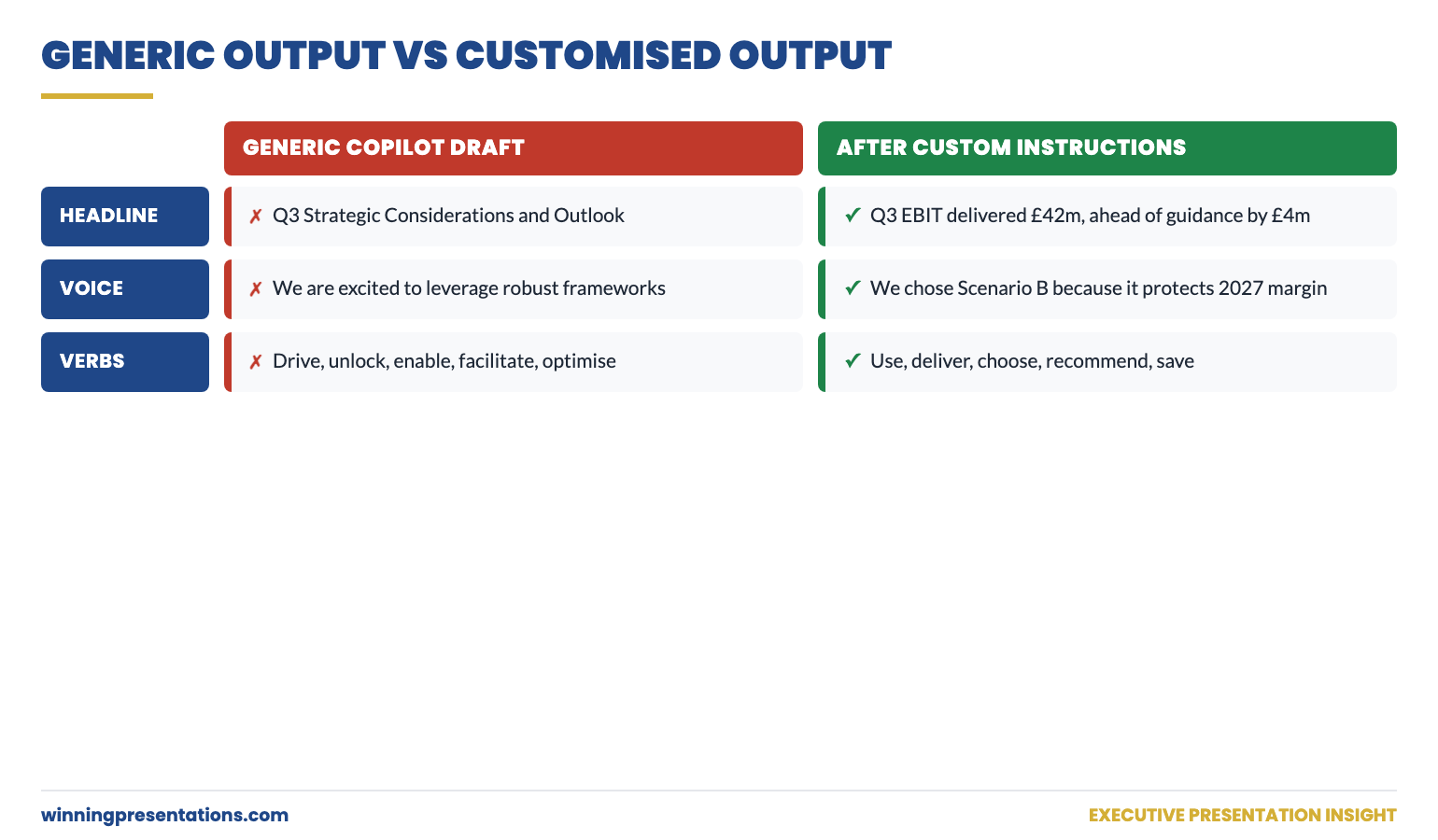
Generic Copilot Output vs Customised Output side-by-side comparison: the left column shows enthusiastic, hedged, jargon-filled draft language; the right column shows direct, declarative, executive-ready language after custom instructions are applied.

Three mistakes that quietly undo your custom instructions

Mistake one: writing the instructions like a job description. “I am a results-driven senior leader passionate about delivering value” tells Copilot nothing useful and reinforces the very voice you are trying to avoid. Instructions should sound like a quiet briefing to a new colleague, not a LinkedIn bio.

Mistake two: forgetting to update the audience. If you originally configured Copilot for board presentations and later use it for an internal team update or a sales pitch, the audience description is now wrong. The output will sound oddly senior for the audience you are actually addressing. Either rewrite the audience field for the new context, or add a one-line audience override at the top of the relevant prompt.

Mistake three: contradicting your own instructions in the prompt. If your standing instructions say “no enthusiastic language” and your prompt says “make this exciting and engaging,” Copilot will follow the prompt — your standing instructions get overridden. Audit your prompts for language that quietly contradicts your settings. If you find yourself asking Copilot to “make it more compelling,” check whether the issue is the prompt or the brief you started from.

Custom instructions are not a fix for thin briefs or unclear thinking. They are an amplifier. They make a clear prompt produce sharper output, and a vague prompt produce vague output more efficiently. Pair them with a structured prompt practice and the editing time drops dramatically. For a deeper look at why Copilot produces what one client called “corporate mush,” see the partner article on the context-stacking technique — it explains the prompt-side fix that complements your settings-side fix.

If you want a ready-made prompt library to plug straight into your settings-tuned Copilot, the Executive Prompt Pack (£19.99) includes a custom instructions template plus 71 ChatGPT and Copilot prompts written for senior-level work.

For senior presenters working on board buy-in or stakeholder approval, the AI tooling sits underneath a structural challenge: the deck has to win the room before the spoken commentary starts. The structural side of executive buy-in is worth reading alongside any AI workflow improvements.

The whole prompt library, not just one template

The custom instructions template is one of 71 prompts in the Executive Prompt Pack. The pack covers every major executive presentation scenario — board updates, capital cases, change proposals, hostile Q&A, and pitch decks. £19.99, instant download.

Get the Executive Prompt Pack →

Built for senior professionals across financial services, technology, and consulting.

FAQ

Do Copilot custom instructions work inside PowerPoint?

Sometimes. The Copilot panel inside PowerPoint reads your account-level custom instructions in most current configurations, but the application has historically lagged behind the web version. Run the test prompt described above (“In one sentence, who am I and what do I write about?”) inside the PowerPoint Copilot panel to confirm. If it fails, draft on the web and paste into your slides.

Will custom instructions stop Copilot from using bullet points?

Only if you explicitly tell them to. Copilot defaults heavily to bullet points because most users want lists. Add a constraint to your tone field: “Do not use bullet points unless I explicitly ask for them — write in full sentences for slide content.” Then in prompts where you do want bullets, ask for them by name.

How long should custom instructions be?

Long enough to specify your role, audience, and voice constraints; short enough to read in 30 seconds. Most useful executive instructions sit between 150 and 300 words across the two fields combined. Beyond that, Copilot starts giving more weight to your standing instructions than to the prompt at hand, which becomes its own problem.

Can I have different custom instructions for different audiences?

Not in the same Copilot account, no. The instructions are global. If you regularly present to two distinct audiences (board and team, for example), the workaround is to write your standing instructions for the harder audience (board) and add a one-line audience override at the top of any prompt where you want a different voice (“This is for an internal team update, not the board — adjust accordingly”).

Get The Winning Edge — weekly

One sharp, story-led idea every Thursday on executive presentation craft, AI workflows, and the small habits that change how senior audiences receive you. Read by senior professionals across financial services, technology, and consulting.

Subscribe to The Winning Edge →

Not ready for the full system? Start here instead: download the free Executive Presentation Checklist — a one-page reference covering the structural moves that hold any executive deck together, AI-assisted or not.

Open Copilot’s settings tonight. Spend fifteen minutes filling in the four fields. Run the test prompt. By tomorrow morning, every Copilot output you produce will sound more like the senior presenter you actually are — and less like a generic assistant working from blank assumptions.


About the author. Mary Beth Hazeldine is Owner & Managing Director of Winning Presentations Ltd, founded 1990. With 24 years of corporate banking experience at JPMorgan Chase, PwC, Royal Bank of Scotland, and Commerzbank, she advises executives across financial services, healthcare, technology, and government on structuring presentations for high-stakes funding rounds and approvals.

11 May 2026
Featured image for Why Copilot Gives You Corporate Mush: The Context-Stacking Technique That Fixes It

Why Copilot Gives You Corporate Mush: The Context-Stacking Technique That Fixes It

Quick answer: Copilot produces “corporate mush” — the bland, hedged, generically optimistic prose that reads like a transformation deck from 2018 — because the prompt has not given it enough context to write specifically. The fix is context-stacking: layering five pieces of information into a single prompt before you ask for output. Audience, decision being made, what you have already tried, what to avoid, and the precise format you want back. Skip any layer and Copilot fills the gap with mush.

Mei runs the European product portfolio for a global pharmaceuticals company. She had a board strategy session coming up — a 25-minute slot to present three portfolio scenarios and recommend one. She fed Copilot a clean prompt: “Help me write a board presentation on three portfolio scenarios for our European business, and recommend the strongest one.” Copilot produced eleven slides of what her chief of staff later called “corporate mush”: directional headlines, hedged conclusions, three nearly identical scenarios written in identical voice, and a recommendation that read like all three had been picked.

Mei asked again, more specifically. The output got slightly less mushy. She asked again. It improved marginally. By the fifth iteration she had spent forty minutes and had something she could not use without a complete rewrite.

She had not done anything wrong with Copilot. She had simply skipped the step that separates AI drafts that need light editing from AI drafts that need rewriting. That step is context-stacking — and it is closer to writing a brief than writing a prompt.

If you want a structured starting point

The Executive Prompt Pack contains 71 ChatGPT and Copilot prompts written specifically for senior-level presentation work — every prompt is structured around the context layers described in this article, so you skip the briefing step and go straight to usable output.

Explore the Executive Prompt Pack →

What “corporate mush” actually sounds like (and why senior readers spot it instantly)

Corporate mush has identifiable markers. Sentences that begin with “in today’s rapidly evolving landscape.” Verbs like “leverage,” “unlock,” “drive,” and “empower” appearing within three sentences of each other. Conclusions phrased as “this presents a unique opportunity to…” Recommendations hedged with “could potentially” and “may consider exploring.” Section transitions using the words “moreover” and “furthermore.” Slide headlines that are categories rather than statements (“Strategic Considerations” rather than “Scenario B is the only one that protects margin in 2027”).

Senior readers do not spot mush by analysing it. They feel it. The voice signals “this was written for nobody in particular” — and the entire slide deck loses authority within the first 30 seconds of reading. This is true even when the underlying content is correct. The voice carries a credibility tax.

Mush happens because Copilot is solving an impossible problem: produce a presentation for an unspecified audience, in an unspecified industry, addressing an unspecified decision, in an unspecified voice. When all four variables are blank, Copilot pattern-matches on the average corporate presentation it has been trained on. That average is mush.

The five layers of context that fix the output

Context-stacking means writing your prompt so that five specific layers are present before you ask for any output. Each layer answers a question Copilot would otherwise have to guess.

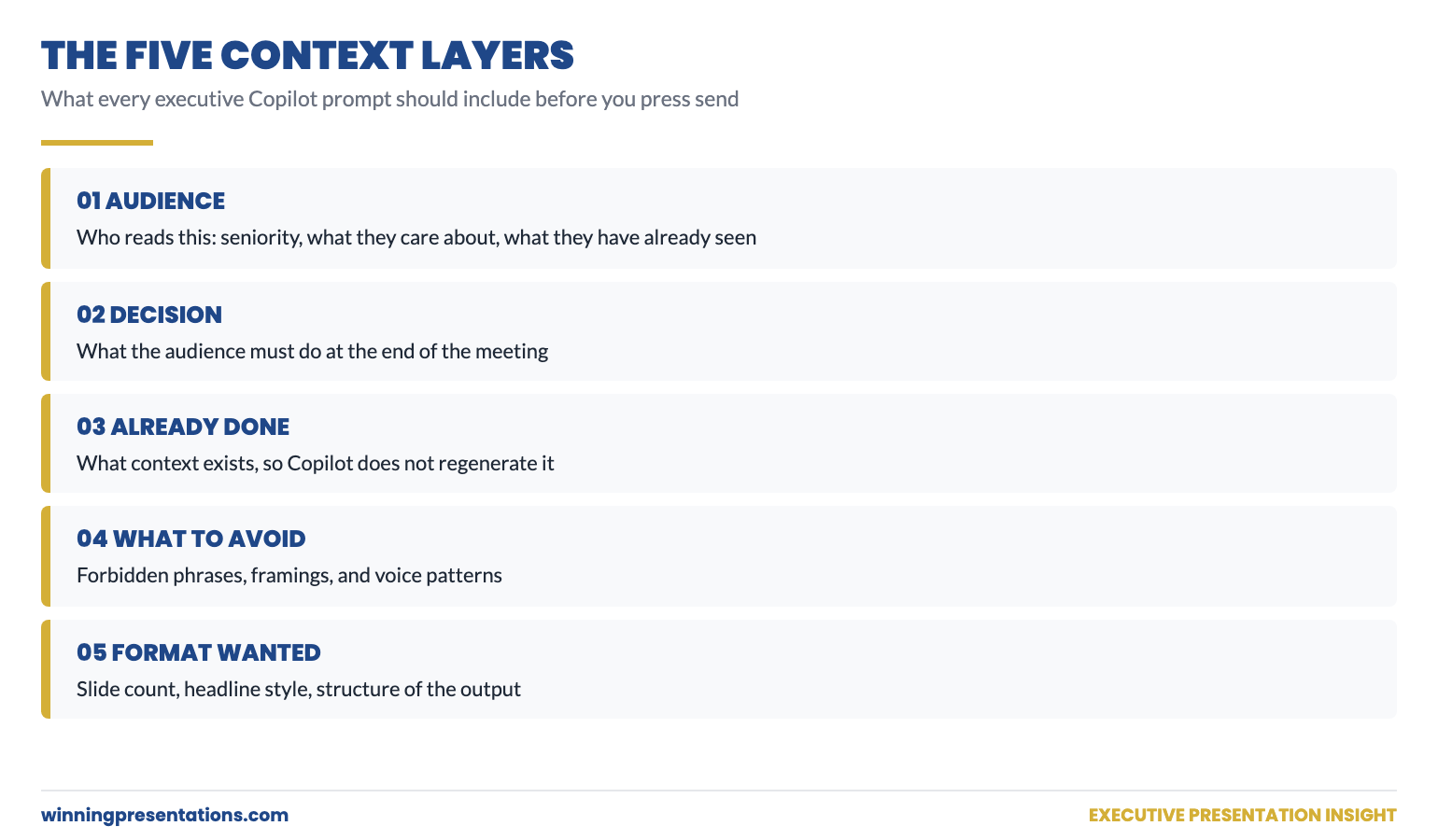
Layer 1: Audience

Who specifically will read or hear this? Job titles, seniority, what they already know, what they care about, what they have heard a hundred times before. “I am presenting to the global executive committee — eight people, average 22 years in pharma, all of whom have seen at least three portfolio strategy decks already this year. They are sceptical of strategy frameworks and want financial impact in the first slide.”

Layer 2: Decision being made

What does the audience need to do at the end of the presentation? Approve a budget? Pick between options? Sign off on a timeline? Sponsor a programme? “They need to choose one of three portfolio scenarios for 2026–28 capital allocation, by the end of this 25-minute session.” When the decision is named, every slide can be assessed against whether it helps make that decision.

Layer 3: What has already been tried (or already exists)

This layer prevents Copilot from regenerating things you have already done. “We have already presented the high-level strategy in March; this is the deeper portfolio cut. Do not repeat the strategic context — assume the audience knows it.” Without this, Copilot reinvents the wheel and you waste slides on context the room already has.

Layer 4: What to avoid

Negative constraints. Voice you do not want, phrases you have heard too often, framings you know will fail in this room. “Avoid: any reference to ‘unlocking value’, ‘transformation’, or ‘agile portfolios’. The CFO has banned all three from the strategy vocabulary. Do not hedge conclusions — recommend one scenario and defend it.” Negative constraints work because they remove the safe-default language Copilot otherwise gravitates toward.

Layer 5: Format and output structure

Exactly what you want back. Slide count, headline style, where to put the recommendation, whether to include speaker notes, whether to give you alternatives. “Give me 9 slides. Slide 1: the recommendation. Slides 2–4: scenario A, B, C with three bullets each. Slides 5–7: financial impact comparison. Slide 8: risks. Slide 9: ask. Headlines must be statements, not categories. No speaker notes.” Format-as-a-constraint produces dramatically tighter output than asking for “a presentation.”

The Five Context Layers That Stop Corporate Mush in Copilot Output: Audience, Decision Being Made, Already Done, What To Avoid, Format Wanted Back — each layer shown with example content for executive presentations.

A worked example: the same request, with and without context-stacking

Take Mei’s original prompt: “Help me write a board presentation on three portfolio scenarios for our European business, and recommend the strongest one.”

Copilot produces a generic 11-slide deck. Headlines like “Strategic Portfolio Considerations” and “Path Forward”. Three scenarios written in identical voice. Recommendation hedged. The whole thing reads as written for “any board” rather than her board.

Now the context-stacked version of the same request:

“Audience: Global executive committee, 8 people, all 20+ years in pharma. They have seen our March strategy deck already. They are sceptical of frameworks and want financial impact early.

Decision: They need to pick one of three European portfolio scenarios for 2026–28 capital allocation, in this 25-minute session.

Already done: March strategy deck covered the rationale for refocusing on Europe. Do not repeat strategic context.

Avoid: Words like ‘leverage’, ‘transformation’, ‘unlock’, ‘journey’. Avoid hedging — recommend Scenario B and defend it. The CFO will reject any deck that does not include 2026 EBIT impact on slide 1.

Format: 9 slides. Slide 1 — recommendation and 2026 EBIT impact. Slides 2–4 — three scenarios in identical structure (definition, financial impact, risk). Slides 5–7 — comparison: EBIT impact, capital intensity, regulatory risk. Slide 8 — what we are betting on if Scenario B is chosen. Slide 9 — the ask. Headlines must be assertions, not categories. No speaker notes.”

The output from the second prompt is unrecognisable from the first. Statement headlines (“Scenario B delivers £180m EBIT in 2026 against £140m and £95m”). Specific framings. A recommendation that defends itself. The deck still needs editorial review — Copilot’s numbers should always be checked against a trusted source — but the voice and structure are 80% of the way to where they need to be.

The difference is not Copilot. The difference is the brief.

Skip the briefing step — start from prompts already structured for executive work

Building a context-stacked prompt from scratch every time takes 5–10 minutes per request. The Executive Prompt Pack gives you 71 prompts already structured around the five context layers — for board updates, capital cases, change proposals, Q&A prep, and pitch decks.

  • 71 prompts spanning the most common senior-level presentation scenarios
  • Every prompt structured around audience, decision, constraints, and output format
  • Ready-to-paste — adapt the audience and decision lines, send
  • Instant download, lifetime access, £19.99

Get the Executive Prompt Pack — £19.99 →

Designed for senior professionals across financial services, technology, and consulting.

The one-paragraph shortcut for time-pressed executives

If you do not have time to write five distinct layers, write a single paragraph that contains all five answers in any order. Copilot reads them. Example for a budget presentation:

“I need a 6-slide budget approval deck for our 9-person investment committee. They are time-poor, they have already seen the strategy, and they have rejected our last two CapEx requests for being too vague. They need to approve £4.2m for IT infrastructure modernisation. Avoid ‘transformation’, avoid ‘unlock value’, and do not hedge the ROI. Slide 1 — the ask and 36-month payback. Slides 2–3 — what the £4.2m buys. Slide 4 — the risk of not investing. Slide 5 — milestones. Slide 6 — decision needed today. Statement headlines, no bullet lists in slide titles.”

That paragraph contains all five context layers. It takes 90 seconds to write. The output it produces is 10× more useful than a one-line request — and the saved editing time more than repays the upfront briefing time.

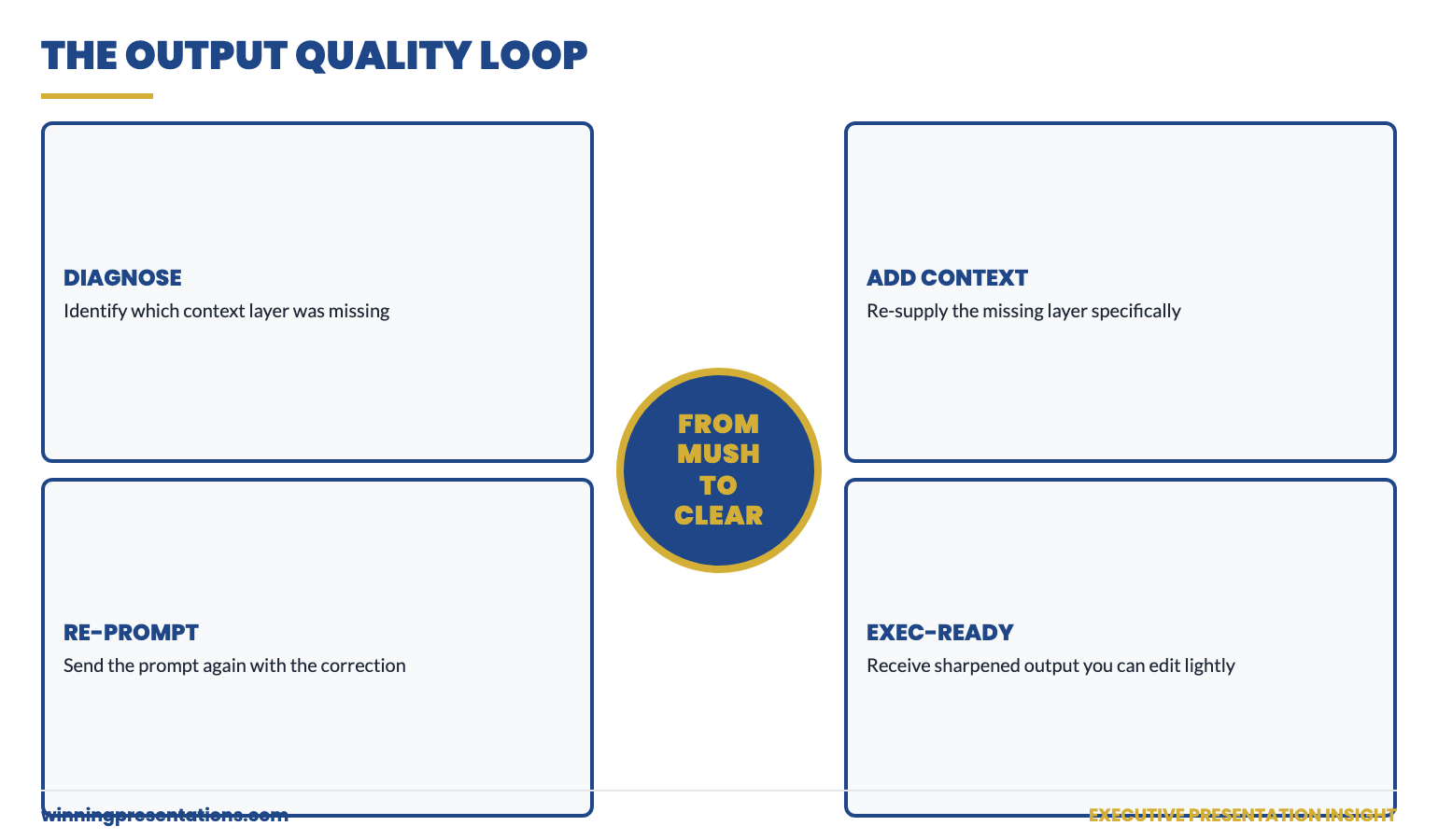
Copilot Output Quality Cycle: when corporate mush appears in the draft, the diagnosis and fix flow shown in four stages — Diagnose Missing Layer, Add Missing Context, Re-prompt Specifically, Receive Sharpened Output — looping back to executive-ready slides.

How to refine the output without starting over

Even with full context-stacking, the first draft will not be perfect. The mistake most senior users make is to start a fresh prompt from scratch. This loses all the context Copilot has just built up. The better move is to refine the existing draft in the same conversation.

Three refinement patterns that work:

Pattern 1 — voice surgery. “Slide 4 reads as defensive. Rewrite it as a confident assertion of why the risk is acceptable. Same content, different posture.” This works because Copilot already has the slide content; you are only adjusting the voice.

Pattern 2 — structural adjustment. “Move the financial impact from slide 5 to slide 2. Shorten the strategy context on slides 2–3 to fit on a single slide.” Copilot will rebuild the deck around the structural change without reinventing the content.

Pattern 3 — comparative iteration. “Give me three alternative versions of slide 1 — one that leads with the 2026 EBIT number, one that leads with the recommendation, one that leads with the question the committee needs to answer. I will pick one.” Comparative options force Copilot out of its default phrasing and surface the version most likely to land.

The pairing that produces the strongest output is context-stacked initial prompt plus disciplined refinement. Both halves matter. The brief gets you to a usable first draft; the refinement gets you to the version you take into the room. For a deeper look at the settings-side fix that complements this prompt-side technique, see the partner article on Copilot custom instructions for executives.

For a complete prompt library already built around the five-layer structure described above, the Executive Prompt Pack (£19.99) is the lowest-friction starting point — 71 prompts, every one structured for senior presentation work.

The structural side of any executive deck — what goes where, what gets cut, how the recommendation lands — sits underneath every AI prompt. If your underlying structure is unclear, no amount of prompt craft will save the output. The structural conventions of a strong board presentation are worth a separate read.

Stop building each prompt from scratch

71 ready-to-paste prompts for senior-level presentation work, every one structured around the five context layers in this article. £19.99, instant download, lifetime access.

Get the Executive Prompt Pack →

Built for board updates, capital cases, change proposals, and pitch decks.

FAQ

Why does Copilot keep using words I have told it to avoid?

Two common reasons. Either the forbidden phrases are in your standing custom instructions but the conversation has overridden them through subsequent prompts, or you are using a Copilot surface where custom instructions are not active. Re-state the avoided phrases at the top of any prompt where it matters — the latest instruction wins.

Should I include numbers in my context layer, or save them for refinement?

Include the numbers in the context. If you tell Copilot the EBIT impact is £180m, the recommendation is for Scenario B, and the budget request is £4.2m up front, the draft will be built around your real figures. If you withhold them, Copilot inserts placeholder numbers that you then have to remember to overwrite — and the placeholders sometimes get missed in the final read-through.

How long should a context-stacked prompt be?

For a substantial executive deck, 200–400 words. Shorter than that and you are skipping layers; longer than that and you are writing the deck yourself. The right length is whatever it takes to specify audience, decision, constraints, and format clearly enough that someone else could produce the deck from your brief alone.

Does context-stacking work for shorter outputs like emails or one-page summaries?

Yes. The five layers compress proportionally. For a board pre-read email, you might write three sentences of context: “Audience is the chair, who has not seen the proposal. Decision is whether to take it to full board next month. Avoid jargon — the chair was an operations leader, not a strategist. Keep to under 200 words.” That is context-stacking applied to a short output.

Get The Winning Edge — weekly

One sharp, story-led idea every Thursday on executive presentation craft, AI workflows, and the small habits that change how senior audiences receive you.

Subscribe to The Winning Edge →

Not ready for the full system? Start here instead: download the free Executive Presentation Checklist — a one-page reference covering the structural moves that hold any executive deck together.

The next prompt you send Copilot, before you press enter, ask yourself: have I named the audience, the decision, what already exists, what to avoid, and the exact format I want back? If any of the five is missing, that is where the mush will appear.


About the author. Mary Beth Hazeldine is Owner & Managing Director of Winning Presentations Ltd, founded 1990. With 24 years of corporate banking experience at JPMorgan Chase, PwC, Royal Bank of Scotland, and Commerzbank, she advises executives across financial services, healthcare, technology, and government on structuring presentations for high-stakes funding rounds and approvals.

11 May 2026
Featured image for Copilot Presentation Outline to Final Deck: The 4-Pass Workflow That Saves 6 Hours

Copilot Presentation Outline to Final Deck: The 4-Pass Workflow That Saves 6 Hours

Quick answer: Most senior professionals use Copilot inefficiently for presentation work — they ask for a full deck in one prompt, then rewrite the output four or five times until something is usable. The 4-pass workflow flips this. Pass 1: outline only. Pass 2: headlines for every slide. Pass 3: body content for one slide at a time. Pass 4: editorial cleanup. Each pass takes one focused prompt, and the total time from outline to final deck drops from a half-day to roughly an hour.

Tomás runs investor relations for a UK-listed industrial. Last quarter he had to build a results presentation in two days — full board-level review of trading performance, segment commentary, and the outlook. He fed Copilot one big prompt: full deck, twelve slides, the works. Copilot produced something. He spent the rest of the day rewriting it. By the end, almost no Copilot text survived. The deck was his work, finished late, with a substantial detour through AI that had not actually saved him time.

The next quarter, he tried a different approach. He broke the work into four short Copilot conversations, each with a single, narrow purpose. Outline. Headlines. Body. Cleanup. The total Copilot time was about 35 minutes. The total deck time, including his own thinking and editing, was just under three hours — for a deck of similar quality to one that had previously taken him close to ten hours. That was when he stopped writing single mega-prompts and started using AI in passes.

If you want a structured starting point

The Executive Prompt Pack contains 71 ChatGPT and Copilot prompts written specifically for senior-level presentation work — including pass-by-pass prompts for the workflow described in this article.

Explore the Executive Prompt Pack →

Why “give me a full deck” is the wrong first prompt

Asking Copilot for a full deck in one prompt sounds efficient. It is not. It collapses three different decisions — what to cover, how to assert each point, and how to write the body — into a single guess. Copilot has to make all three decisions simultaneously, with no opportunity for you to redirect when one of them is going wrong. By the time you see the output, the deck is built around an outline you would not have approved, with headlines you would not have written, in a voice you would not have used.

The fix is to make the same decisions in the same order you would make them if you were writing the deck yourself — first structure, then assertions, then evidence, then voice. Each pass uses Copilot to amplify your judgement on one decision at a time. You correct course at every step rather than rebuilding at the end.

Pass 1: outline-only — getting structure before words

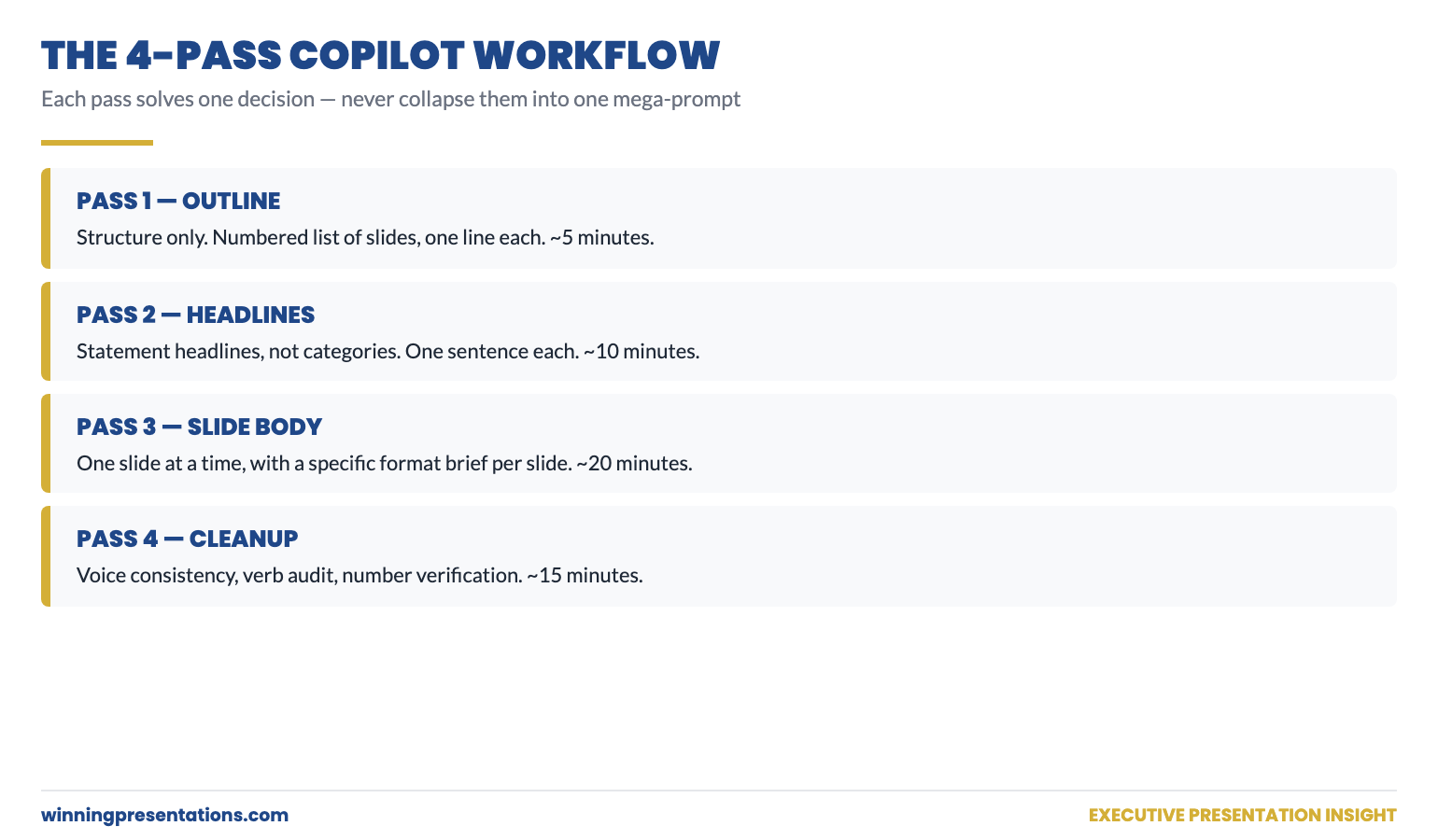
The first prompt asks for an outline only. No body content. No headlines. Just the structure. The output should be a numbered list of slides with one-line descriptions of what each slide covers.

Sample prompt: “Give me an outline only — numbered list of 9 slides — for a 25-minute board presentation on Q3 trading results for our European industrial business. Audience: 12-person board, sceptical of strategic context, want financial impact early. Decision: confirm full-year guidance and approve £6m additional CapEx for the German plant. One line per slide describing what it covers. Do not write headlines or body content. Do not include speaker notes. The first slide must contain the headline financial result; the last must contain the decision asked of the board.”

The output of pass 1 is read for one thing only: does the structure work? Are the right slides in the right order? Is anything missing? Anything redundant? Is the recommendation in the right place? If the outline is wrong, no amount of polish on later passes will save the deck. If the outline is right, the next three passes get progressively easier.

Edit the outline directly in the chat. Add or remove slides. Move things around. Then ask Copilot to confirm the revised outline before pass 2.

Pass 2: slide headlines — pinning the assertion before the evidence

The second prompt asks Copilot for headlines — and only headlines — for each slide in the agreed outline. The constraint that matters here is “statement, not category.” A category headline is “Q3 Results”; a statement headline is “Q3 EBIT delivered £42m, ahead of guidance by £4m on lower-than-expected raw material costs.” The statement asserts the point the slide makes. The reader knows the conclusion before they read the body.

Sample prompt: “Using the agreed 9-slide outline, write the headline for each slide as a complete declarative statement — not a category. Each headline should make the point of the slide; the body content will support it. Headlines should be one sentence, maximum 15 words. Do not write body content yet. Use the actual financial numbers I gave you in pass 1 — do not insert placeholders.”

The output of pass 2 is read against your business judgement. Do the headlines actually assert what you want each slide to say? If a headline is hedged, sharpen it. If a headline buries the point, rewrite it. If a headline picks the wrong angle, change the angle. The headlines, once locked, become the spine of the deck — every body decision in pass 3 has to support its slide’s headline.

The 4-Pass Copilot Workflow for Executive Decks: Pass 1 Outline Only, Pass 2 Statement Headlines, Pass 3 Slide Body One at a Time, Pass 4 Editorial Cleanup — each pass shown as a numbered card with its purpose and approximate time investment.

Pass 3: slide body — one slide at a time, with constraints

This is the pass most senior users get wrong. They ask Copilot to write all the body content in one prompt. Copilot then writes nine slides in roughly the same voice, with similar paragraph lengths, hitting similar emotional notes — and the deck reads as monotone. Each slide should have its own structure dictated by what the slide is doing.

The fix is to write body content one slide at a time, with a specific format brief for each. A summary slide gets a different structure from a chart slide; a recommendation slide gets a different structure from a risk slide.

Sample prompt for one slide: “Slide 4 headline: ‘European volumes recovered in September after the August softness.’ Body content for this slide: three short sentences, no bullet points, total 60 words maximum. Sentence 1 — name the September volume number and the year-on-year comparison. Sentence 2 — name the underlying cause (price normalisation in steel). Sentence 3 — name the read-across to Q4 (volumes expected to hold). Do not hedge — assert the read-across.”

Repeat this for every slide. It feels slower than it is. Each slide-body prompt takes 60–90 seconds to write and Copilot returns output in 5–10 seconds. The total pass-3 time for a 9-slide deck is typically 15–20 minutes — and the body content arrives already calibrated to your voice and the slide’s purpose.

Stop building each pass-prompt from scratch

The Executive Prompt Pack contains pre-written pass-by-pass prompts for the most common executive presentation scenarios — outline prompts, headline prompts, body-content prompts, and cleanup prompts, all designed to chain together as a workflow.

  • 71 prompts covering board updates, capital cases, change proposals, Q&A prep, pitch decks
  • Pass-by-pass prompts that chain together for the full workflow described above
  • Headline prompts calibrated for declarative-statement output, not generic categories
  • Instant download, lifetime access, £19.99

Get the Executive Prompt Pack — £19.99 →

Built for senior professionals across financial services, technology, and consulting.

Pass 4: editorial cleanup — the surgical fixes that take the deck over the line

The fourth pass is what most users skip. The deck looks finished — headlines, body content, structure all in place. But it is not yet a deck a senior reader will accept. Three specific cleanups separate “looks done” from “actually done.”

Cleanup 1 — voice consistency. Read the headlines aloud, top to bottom. Do they sound like the same person wrote them? If headline 3 hedges and headline 7 asserts, fix headline 3. If headline 5 uses different vocabulary from the rest of the deck, fix headline 5. The voice should be one voice throughout — usually achieved by sharpening the weakest two or three headlines to match the strongest.

Cleanup 2 — verb audit. Search the deck for filler verbs (“leverage”, “drive”, “unlock”, “enable”, “facilitate”). Replace each one with the specific verb that describes what is actually happening. “Leverage AI for productivity” becomes “use Copilot to draft proposals in 25 minutes.” Verbs are where AI output most reliably reverts to mush; the verb audit is the highest-yield 10 minutes you will spend on the deck.

Cleanup 3 — number check. Every number in the deck should be traceable to a source you trust. Copilot does not always invent numbers, but it does sometimes round, paraphrase, or transpose. The cleanup pass is when you verify each number against the original — a board pre-read with a wrong number is not recoverable from in the meeting.

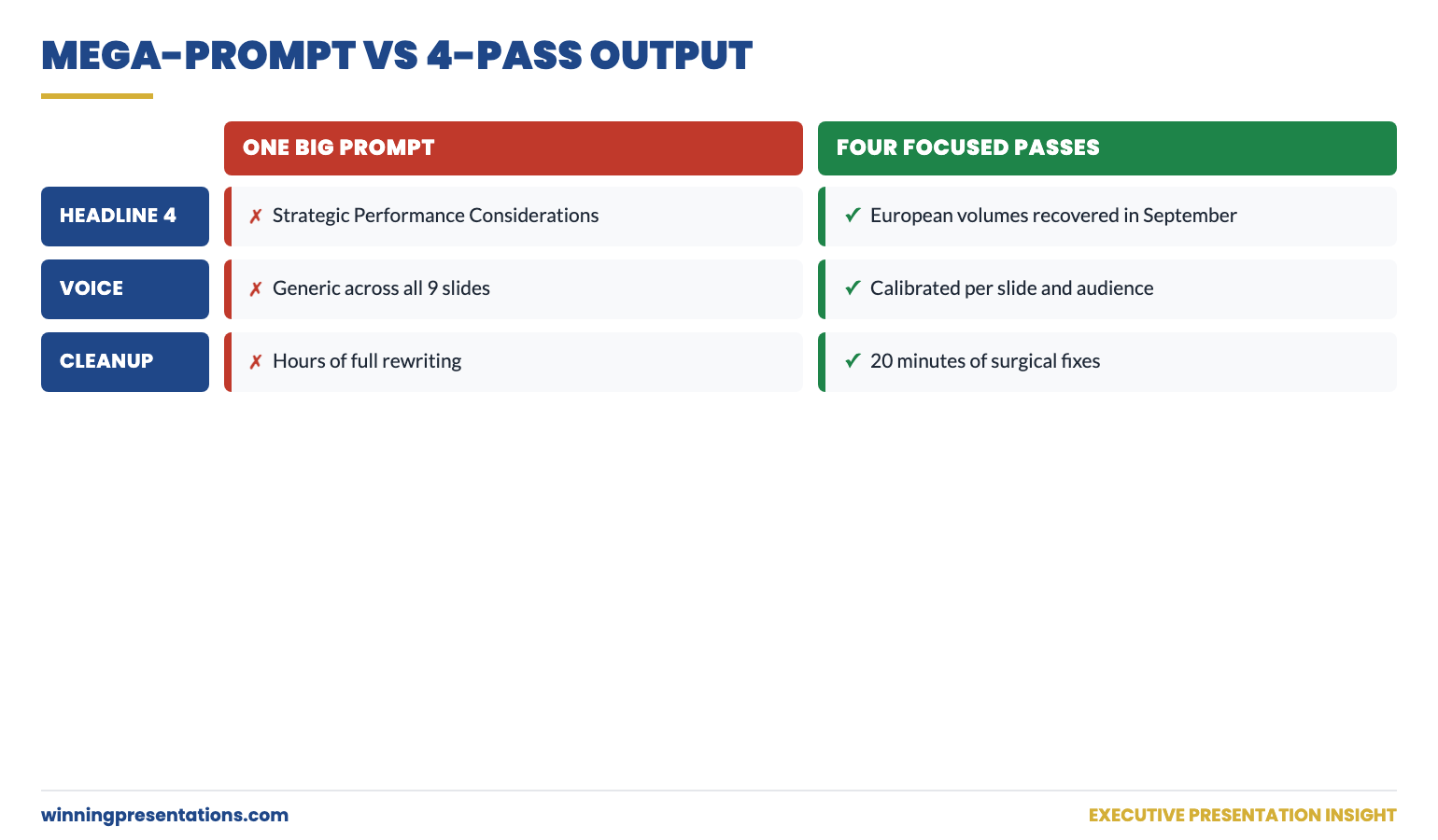
Pass 1 Output Quality vs Pass 4 Output Quality side-by-side comparison: the left column shows the typical state after a single mega-prompt with hedged language and category headlines; the right column shows the equivalent slide after the 4-pass workflow with a statement headline, tight body, and verified numbers.

When to skip a pass (and when never to)

Not every deck needs all four passes. For an internal team update or a working draft, you can compress passes 1 and 2 into a single prompt and skip the editorial cleanup. The risk profile is lower; the audience is more forgiving.

For board, investor, or executive committee work — never skip pass 4. The numbers must be verified, the verbs must be audited, the voice must be consistent. The hour you save by skipping cleanup is the hour you spend in the meeting watching the chair underline a number and ask where it came from.

For a 5-minute internal stand-up update — yes, skip everything except pass 3. One prompt, one slide, done.

The 4-pass workflow scales. You apply more passes for higher-stakes decks; you compress for lower-stakes ones. The discipline is in not collapsing all four passes into one prompt simply because it feels faster — because the time you save up front is paid back twice over in editing.

The prompt-side fix in this article works best when paired with the settings-side fix. For a deeper look at how to configure Copilot once so that every prompt inherits the right voice and audience, see the partner article on Copilot custom instructions for executives. Both fixes together produce dramatically better first drafts.

If you want the four passes already pre-built as paste-ready prompts, the Executive Prompt Pack (£19.99) contains pass-by-pass prompts that chain together for the workflow above — outline, headlines, body, cleanup.

The structural side of executive deck building — what each slide should actually contain, regardless of how it gets drafted — is worth reviewing alongside any AI workflow. The conventions of strong board presentation structure hold whether the body text was written by you, an analyst, or Copilot.

Cut your AI-deck time in half on the next presentation

71 ready-to-use prompts spanning every major executive presentation scenario, structured for the 4-pass workflow. £19.99, instant download, lifetime access.

Get the Executive Prompt Pack →

Designed for board updates, capital cases, change proposals, and pitch decks.

FAQ

Does the 4-pass workflow only work in Copilot, or also in ChatGPT?

It works in any conversational AI that holds context across a session — ChatGPT, Copilot, Gemini. The discipline of separating outline / headlines / body / cleanup is independent of the tool. The prompts in the Executive Prompt Pack are written for both ChatGPT and Copilot.

How long does the full 4-pass workflow take for a 10-slide deck?

Roughly 35–55 minutes of focused Copilot time, plus your own editorial judgement layered on top. Pass 1 is 5 minutes, pass 2 is 10 minutes, pass 3 is 15–25 minutes, pass 4 is 10–15 minutes. The total deck time end-to-end depends on how much thinking the underlying content needs from you — but the AI portion is dramatically faster than single-prompt iteration.

What do I do if pass 1 produces a structure I do not like?

Edit the outline directly in the conversation — tell Copilot which slides to add, remove, or reorder. Then ask it to confirm the revised outline back to you before moving to pass 2. This guarantees passes 2 onwards build on the structure you actually want, not the one Copilot proposed.

Can I run the 4 passes across multiple sessions or do they all have to be one conversation?

Same conversation is strongly preferred — Copilot’s context window holds the prior passes, so pass 3 can refer to “the headlines from pass 2.” If you do split across sessions, paste the prior output into the new session as a context block at the start. Continuity matters; without it, the deck loses voice consistency.

Get The Winning Edge — weekly

One sharp, story-led idea every Thursday on executive presentation craft, AI workflows, and the small habits that change how senior audiences receive you.

Subscribe to The Winning Edge →

Not ready for the full system? Start here instead: download the free Executive Presentation Checklist — a one-page reference covering the structural moves that hold any executive deck together.

The next time you sit down to draft a deck with Copilot, resist the temptation to ask for everything in one prompt. Outline first. Headlines second. Body third. Cleanup last. Four passes, four focused decisions, one deck you can take into the room.


About the author. Mary Beth Hazeldine is Owner & Managing Director of Winning Presentations Ltd, founded 1990. With 24 years of corporate banking experience at JPMorgan Chase, PwC, Royal Bank of Scotland, and Commerzbank, she advises executives across financial services, healthcare, technology, and government on structuring presentations for high-stakes funding rounds and approvals.

11 May 2026
Featured image for Copilot Presentation Tips for Professionals: A Practical Workflow

Copilot Presentation Tips for Professionals: A Practical Workflow

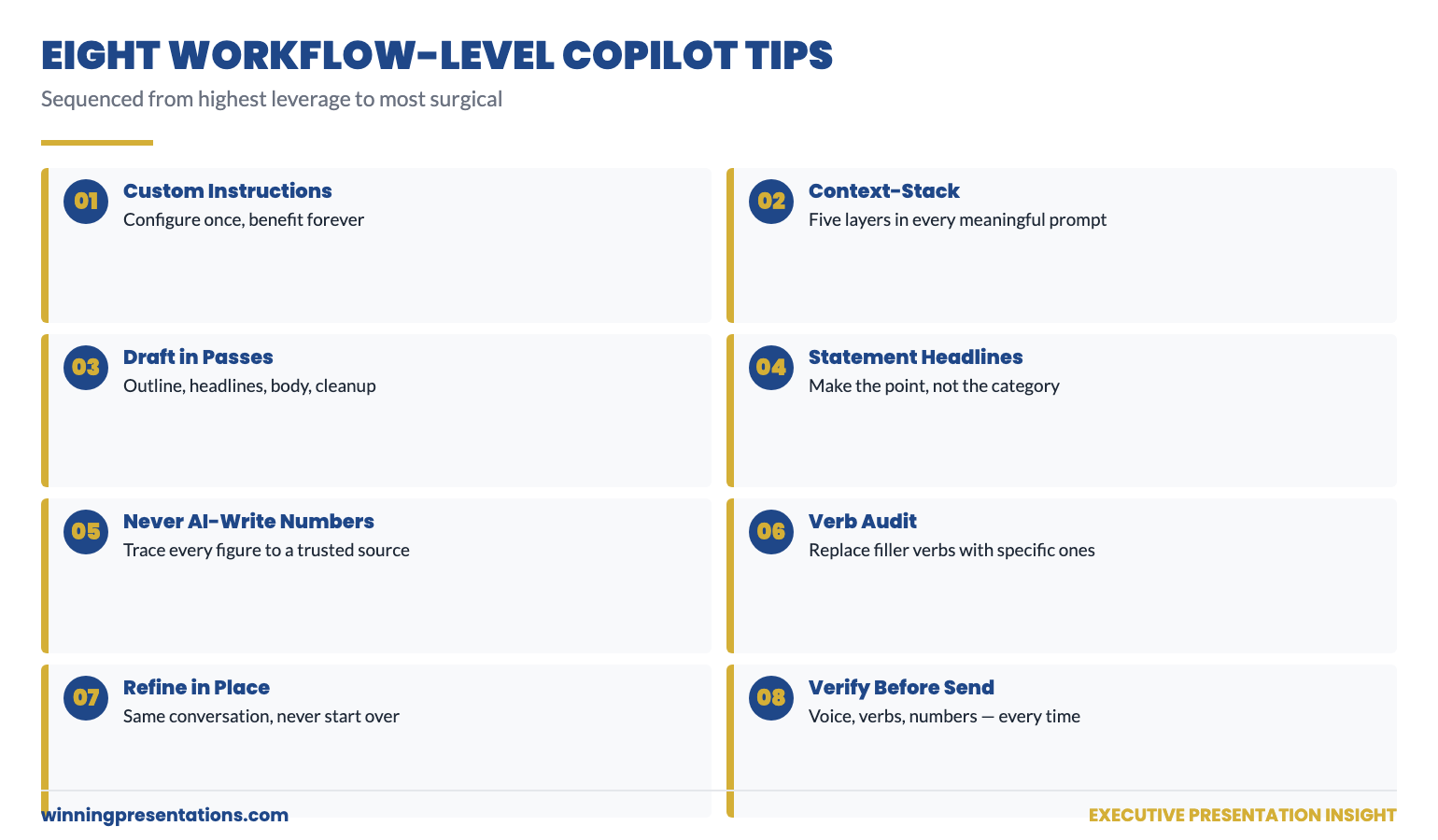
Quick answer: Most Copilot presentation tips for professionals stop at “give it more context” — which is true but not specific enough to use. The eight tips below are the workflow-level shifts that change output quality the most: configure custom instructions once, write context-stacked prompts, draft in passes rather than one mega-prompt, ask for statement headlines, never let Copilot write your numbers, audit verbs in cleanup, treat Copilot output as a first draft not a finished slide, and verify everything before any senior reader sees it.

Rafaela manages investor relations at a Spanish biotech and has been using Copilot for eighteen months. By her own assessment, she went through three distinct phases. Phase one (the first three months): excitement at how fast it could draft. Phase two (the next six months): disillusionment as she realised every draft needed substantial rewriting. Phase three (the last nine months): a quiet rebuild of her workflow that has compressed her presentation drafting time by roughly 60% — and produced output her CEO has not flagged once for AI-generated voice.

The shift from phase two to phase three came from eight specific workflow changes — not a different tool, not a different model, not a different prompt template. The same Copilot. The same paid Microsoft 365 licence. Different habits.

This article is the workflow she now uses, written for professionals who have already tried Copilot, found the output disappointing, and are looking for the practical shifts that move it from “useful sometimes” to “an actual time-saver every week.” It assumes you have access to Copilot in Microsoft 365 or Copilot for the web. It does not assume you are technical.

If you want a structured starting point

The Executive Prompt Pack contains 71 ChatGPT and Copilot prompts written specifically for senior-level presentation work — the prompts behind every workflow tip in this article are pre-built and ready to paste.

Explore the Executive Prompt Pack →

Why most “Copilot tips” articles do not change your output

Most published Copilot tips fall into one of two categories. The first is feature lists — “did you know Copilot can do X?” — which tell you what the tool can do but not how to use it well. The second is generic advice — “be specific in your prompts” — which is true but does not give you anything to actually do differently tomorrow morning.

The tips below are workflow-level. Each one is something you can change about how you use Copilot on Monday that will measurably improve the output by Friday. They are sequenced from highest leverage (configure once, benefit always) to most surgical (verify before sending). Read them once. Apply two or three on your next deck.

Tip 1 — configure custom instructions once, benefit forever

Custom instructions are the standing notes Copilot reads silently before responding to every prompt. They sit in the personalisation panel of Copilot for the web and (in most current configurations) propagate to the Copilot panel inside PowerPoint and other Microsoft 365 surfaces.

The four fields that move output quality the most are role, audience, tone constraints, and forbidden phrases. Tell Copilot what you do, who you typically present to, what voice you write in, and which words you never want to see. This single configuration step is the highest-leverage Copilot setting most professionals never touch. Spend fifteen minutes on it tonight; benefit on every prompt you write afterwards.

Tip 2 — context-stack every meaningful prompt

For any prompt that matters — a real deck, a real email, a real briefing — write the prompt with five context layers in mind: audience, decision being made, what already exists, what to avoid, and the format you want back. You can write them as separate paragraphs or compressed into one paragraph; either works. What does not work is leaving any of the five blank, because Copilot will fill the gap with the safe-default language that produces what one client called “corporate mush.”

The minimum useful context-stacked prompt is around 80 words; the maximum useful one is around 400. Below the minimum, Copilot is guessing; above the maximum, you are writing the deck yourself.

Tip 3 — draft in passes, never in one mega-prompt

Asking for a full deck in one prompt collapses three different decisions — what to cover, how to assert each point, how to write the body — into a single guess. Copilot has to make all three at once with no opportunity for you to redirect when one is going wrong.

Better: four passes. Pass 1 — outline only. Pass 2 — slide headlines. Pass 3 — slide body, one slide at a time. Pass 4 — editorial cleanup. Each pass uses Copilot to amplify your judgement on one decision. You correct course at every step. The total time is shorter than iterating on one mega-draft, and the output quality is dramatically higher.

The Eight Workflow-Level Copilot Tips for Professionals: Custom Instructions, Context Stacking, Draft in Passes, Statement Headlines, Never Let AI Write Your Numbers, Verb Audit, Refine in Same Conversation, Verify Before Sending — each shown as a numbered card with the action to take.

Tip 4 — ask for statement headlines, not category headlines

A category headline is “Q3 Performance.” A statement headline is “Q3 EBIT delivered £42m, ahead of guidance by £4m on lower raw-material costs.” The first tells the reader what the slide is about; the second tells them what the slide says. Senior readers prefer the second by a wide margin — they read top to bottom, scanning for the answer, and statement headlines deliver the answer first.

Copilot defaults to category headlines because they are the safer guess for an unspecified audience. Override the default explicitly: “Headlines must be complete declarative statements, not categories. Each headline should make the point of the slide. Maximum 15 words.” Add this constraint to every headline-generation prompt.

Tip 5 — never let Copilot write your numbers

Copilot does not maliciously invent numbers. It does sometimes round inconsistently, paraphrase imprecisely, or transpose digits between draft and final output. For a marketing post, the cost of an inaccurate number is low. For a board pre-read, the cost is the deck.

The discipline is simple: every number that appears in the final deck must be traceable to a source you trust — usually a spreadsheet you built or a data extract you ran. Paste the numbers into your prompts; do not ask Copilot to look them up. After the cleanup pass, run your eye down every figure on every slide and confirm it against the source. The 10 minutes this takes is the cheapest insurance you will buy on the deck.

Tip 6 — audit verbs in the cleanup pass

The single most reliable signal that Copilot wrote a slide is the verbs. Filler verbs — leverage, drive, unlock, enable, facilitate, optimise — appear three to five times per page in default output. Each one signals “AI default voice” to a reader who has been exposed to enough AI-generated content to recognise the pattern.

The verb audit is mechanical. Search the deck for the filler verb list. Replace each one with the specific verb that describes what is actually happening. “Leverage AI for productivity” becomes “use Copilot to draft proposals in 25 minutes.” “Drive growth” becomes “grow revenue 12% in H2.” “Unlock value” becomes “release £4m of working capital.” Specific verbs sound human; filler verbs sound like a chatbot.

71 prompts that already incorporate every tip in this article

Building these prompts from scratch every time is slow. The Executive Prompt Pack contains 71 ChatGPT and Copilot prompts already structured around context-stacking, statement headlines, pass-by-pass workflow, and the cleanup constraints — for board updates, capital cases, change proposals, Q&A prep, and pitch decks.

  • 71 prompts spanning the most common professional presentation scenarios
  • Custom instructions template included — paste it into Copilot’s settings tonight
  • Pass-by-pass prompts that chain together for outline, headlines, body, cleanup
  • Forbidden-phrase lists ready to add to your standing instructions
  • Instant download, lifetime access, £19.99

Get the Executive Prompt Pack — £19.99 →

Designed for professionals across financial services, technology, consulting, healthcare, and government.

Tip 7 — refine in the same conversation, do not start over

When the output is not quite right, almost every professional’s instinct is to start a new chat and re-prompt. This loses all the context Copilot has built up across your previous prompts — and forces you to rebuild the briefing every time.

The faster move is to refine in place. “Slide 4 reads as defensive — rewrite it as a confident assertion of why the risk is acceptable. Same content, different posture.” “Move the financial impact from slide 5 to slide 2.” “Give me three alternative versions of the headline on slide 1.” Copilot will adjust without losing the underlying context. Same conversation. Tighter output. Less re-briefing.

The exception is when the original brief was wrong — wrong audience, wrong decision, wrong format. In that case, start a new conversation with a corrected context-stacked prompt. But “the output is not quite right” is almost never that situation; it is almost always a refinement situation.

Tip 8 — verify everything before any senior reader sees it

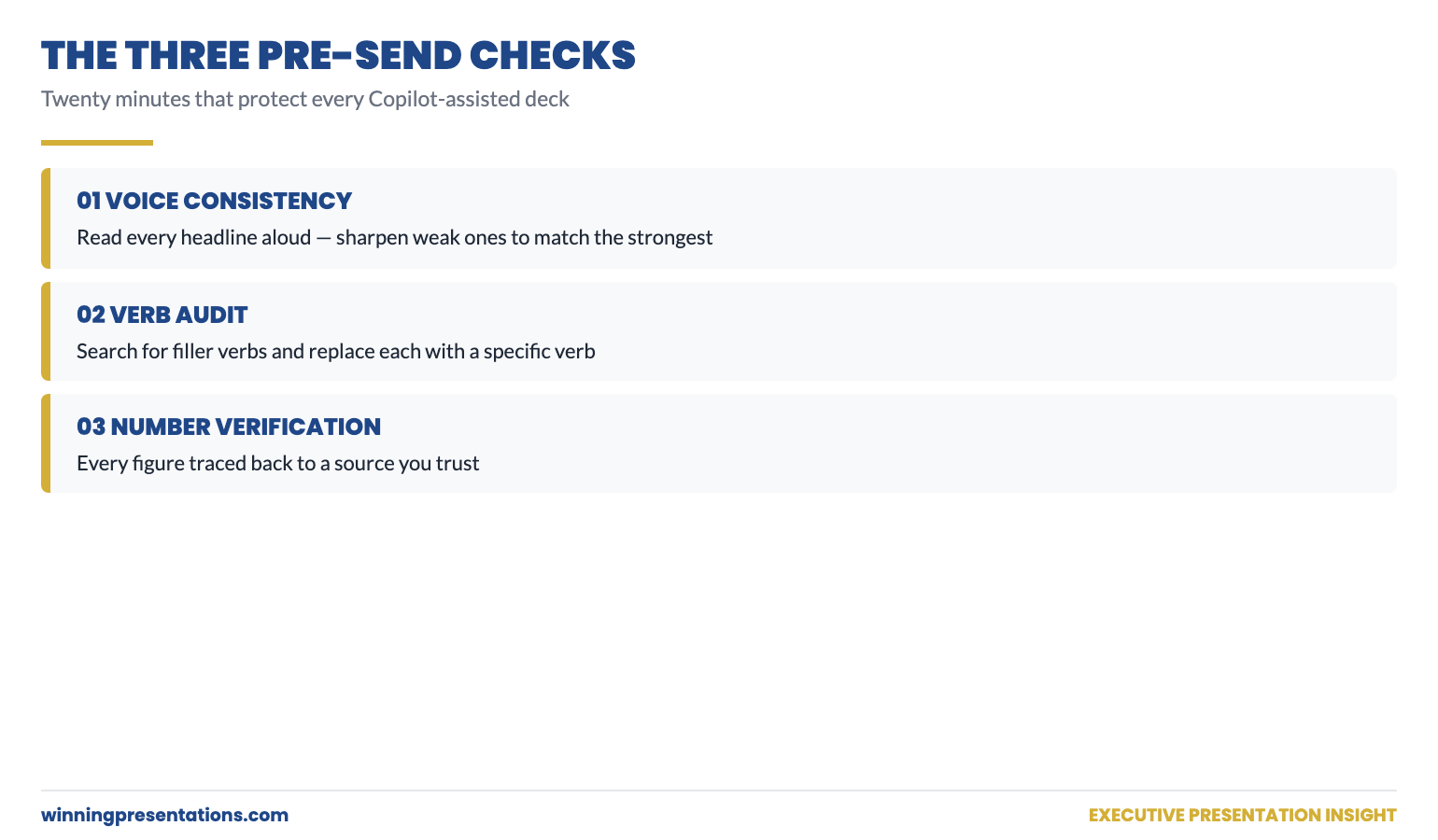
The cleanup pass exists for a reason. Three checks in the final pass save you from the small but career-affecting moments where a senior reader spots something the AI got wrong and you missed.

Check 1 — voice consistency. Read every headline aloud, top to bottom. Do they sound like the same person wrote them? Sharpen the weakest two or three to match the strongest.

Check 2 — verb audit. Search for filler verbs and replace them with specific ones (see tip 6).

Check 3 — number verification. Every figure on every slide traced to your trusted source.

This is the discipline that separates AI-assisted work that holds up under senior reading from AI-assisted work that gets quietly downgraded. Twenty minutes. Every time.

The Three Verification Checks Before Senior Reading: Voice Consistency Check, Verb Audit Replace Filler with Specific, Number Verification Against Trusted Source — each check shown with example before-and-after content for an executive deck.

Putting it together: a 90-minute Copilot deck workflow

For a typical professional deck of 9–10 slides, the workflow above produces a final deck in roughly 90 minutes, broken down approximately as: 5 minutes (custom instructions confirm), 5 minutes (context-stacked outline prompt), 10 minutes (review and edit outline), 10 minutes (headlines pass), 10 minutes (review and sharpen headlines), 25 minutes (body pass — slide by slide), 20 minutes (editorial cleanup including all three verification checks), 5 minutes (final read-through aloud). The total Copilot interaction is about 35 minutes; the rest is your editorial judgement applied to its output.

This is dramatically faster than building the same deck from scratch — but it is also dramatically faster than the typical pattern of asking for a full deck in one prompt and then rewriting four times. The discipline is what produces the time saving.

For more practical depth on the prompt-side fix described in tip 2 — context-stacking — see the partner article on how to write Copilot prompts that produce executive-grade output. For the broader structural conventions that hold any executive deck together, AI-assisted or not, see the board presentation template guide.

Skip the prompt-building step entirely

71 ready-to-use ChatGPT and Copilot prompts already incorporating every tip in this article. £19.99, instant download, lifetime access.

Get the Executive Prompt Pack →

Built for professionals across financial services, technology, consulting, healthcare, and government.

Ready for the deeper, structured programme?

For senior professionals using AI more seriously across their presentation work, AI-Enhanced Presentation Mastery is the self-paced Maven programme — 8 modules, 83 lessons, 2 optional recorded coaching sessions. Monthly cohort enrolment, work at your own pace.

Maven AI-Enhanced Presentation Mastery — £499 →

FAQ

Do these Copilot tips work for ChatGPT or Gemini as well?

Yes. The workflow-level discipline — custom instructions, context-stacking, drafting in passes, statement headlines, verb audits, in-conversation refinement — applies to any conversational AI that holds context across a session. The Executive Prompt Pack is written for both ChatGPT and Copilot for this reason.

How long does it take to set up custom instructions properly?

For a first pass, fifteen minutes. For a refined version that genuinely matches your role, audience, and voice, plan to revisit and edit the instructions over the first two or three weeks of using them. The right test is the prompt described in tip 1 of this article: ask Copilot “in one sentence, who am I and what do I write about?” If the answer surprises you, the instructions need work.

What if my organisation blocks custom instructions or restricts Copilot configuration?

Some enterprise Microsoft 365 deployments lock down personalisation. The workaround is to paste a shortened version of your instructions at the top of every important prompt as a manual prefix. It is more work each time, but the underlying logic — telling Copilot who you are, who you write for, and what voice to use — is the same. Speak to IT about whether instructions can be re-enabled for senior users.

Should I tell colleagues I use Copilot to draft, or keep it private?

Most professional environments now treat AI-assisted drafting the way they treat assistant-built drafts — assumed, not concealed, but rarely the headline. The relevant question for any deck is whether the analysis, the recommendation, and the editorial judgement are yours. If they are, the drafting tool is a means to that end. Be honest if asked; do not over-volunteer.

How do I know if my Copilot output is genuinely good or just looks finished?

Read it as if you are the senior reader, not the writer. Two specific tests: (1) Does the deck make me agree, disagree, or hesitate? Generic AI output produces “fine but unmemorable” — strong output produces a clear directional response. (2) Could a senior colleague tell this was AI-drafted? If you are not sure, run the verb audit and voice consistency check one more time.

Get The Winning Edge — weekly

One sharp, story-led idea every Thursday on executive presentation craft, AI workflows, and the small habits that change how senior audiences receive you. Read by senior professionals across financial services, technology, and consulting.

Subscribe to The Winning Edge →

Not ready for the full prompt pack? Start here instead: download the free Executive Presentation Checklist — a one-page reference covering the structural moves that hold any presentation together, AI-assisted or not.

Pick two of the eight tips. Apply them to your next Copilot session. Notice the difference in the output. Then add a third the week after. The compounding effect of small workflow improvements is the difference between AI as a curiosity and AI as a quiet force multiplier in your week.


About the author. Mary Beth Hazeldine is Owner & Managing Director of Winning Presentations Ltd, founded 1990. With 24 years of corporate banking experience at JPMorgan Chase, PwC, Royal Bank of Scotland, and Commerzbank, she advises executives across financial services, healthcare, technology, and government on structuring presentations for high-stakes funding rounds and approvals.