Tag: AI presentations

01 Feb 2026
Professional person looking frustrated at laptop screen showing AI-generated content that doesn't sound right

Why Your AI-Generated Executive Summary Always Sounds Wrong (The 30-Second Fix)

You asked ChatGPT to write your executive summary. It took 8 seconds. Then you spent 45 minutes rewriting it because it sounded like a press release written by a committee.

The sentences were technically correct. The structure was fine. But something was off. It didn’t sound like something you’d actually say to your CFO. It didn’t sound like something anyone would say to anyone.

This isn’t an AI problem. It’s a context problem. And it takes 30 seconds to fix.

Quick answer: AI-generated executive summaries sound wrong because the AI doesn’t know your audience, your relationship with them, or what decision you’re driving toward. It fills that gap with generic corporate language. The fix isn’t better editing—it’s better context injection. Before asking for content, give the AI three things: who’s reading, what they already know, and what you need them to do. This takes 30 seconds and transforms the output.

⚡ Presenting tomorrow? Copy this prompt:

AUDIENCE: [Who’s reading—role + what they care about]
KNOWLEDGE: [What they already know about this topic]
DECISION: [What action you need them to take]
TONE: [Formal/informal + your relationship]
CONSTRAINTS: [Word count, format, company style]

Write an executive summary for: [your topic]

Fill the 5 blanks. Paste into ChatGPT/Claude/Copilot. Watch the difference.

Why AI-Written Exec Summaries Sound “Off”

Last year, I watched a client—a VP at a major retailer—spend an entire afternoon fighting with ChatGPT.

She needed an executive summary for a board presentation on warehouse automation. ChatGPT gave her something that read like a Wikipedia entry crossed with a management consulting brochure. Phrases like “leveraging synergies” and “optimising operational efficiency” that no human being has ever said out loud to another human being.

She rewrote it. Fed it back. Asked for “more natural.” Got something slightly less robotic but still wrong. Three hours later, she wrote the whole thing herself.

“AI is supposed to save time,” she told me. “I would have been faster with a blank page.”

She wasn’t wrong. But she also wasn’t using the AI correctly. The problem wasn’t the tool—it was what she didn’t tell it.

Why does AI-generated content sound generic?

AI models are trained on vast amounts of text, which means they default to the most common patterns. Without specific context, they produce “average” corporate language—technically correct but lacking the specificity and voice that makes content feel human. The more context you provide about your audience, purpose, and constraints, the more specific (and useful) the summary output becomes.

The Context Gap (What AI Doesn’t Know)

When you ask AI to “draft an exec summary for my presentation,” here’s what the AI doesn’t know:

  • Who’s reading it — A board of directors? Your direct manager? External investors? Each requires completely different framing.
  • What they already know — Are they familiar with the project? New to it? Skeptical? Supportive?
  • What decision you need — Approval? Awareness? Budget? The summary should drive toward that outcome.
  • Your relationship with them — Formal? Informal? Do you have credibility or are you building it?
  • Your organisation’s voice — Every company has unwritten rules about how executives communicate.

Without this context, AI does what any reasonable system would do: it guesses. And it guesses conservatively, using the safest, most generic language possible.

That’s why the output sounds like it was written by someone who’s never met your audience. Because, in a sense, it was.

I’ve written extensively about how to structure executive summaries in my guide to the executive summary slide—but even the best structure falls flat if the voice is wrong.

The 30-Second Fix: Context Injection

Before you ask AI to write anything, spend 30 seconds injecting context. This is the single highest-leverage change you can make to AI-assisted presentation work.

The Context Injection Framework

Add this to the beginning of any prompt:

AUDIENCE: [Who will read this, their role, what they care about]

KNOWLEDGE LEVEL: [What they already know about this topic]

DECISION NEEDED: [What action you want them to take]

TONE: [Formal/informal, relationship context]

CONSTRAINTS: [Word count, format, company style]

That’s it. Five lines. Thirty seconds to write.

The difference in output quality is dramatic—not because the AI suddenly became smarter, but because you stopped asking it to read your mind.


Context injection framework showing five elements: Audience, Knowledge Level, Decision Needed, Tone, and Constraints

How do I make ChatGPT write in my voice?

Give it examples of your voice. Paste 2-3 paragraphs you’ve written previously and say: “Match this tone and style.” Combine this with context injection (audience, decision needed, constraints) and the output will be dramatically closer to how you actually communicate. The AI can mimic voice patterns—it just needs samples.

Master AI-Enhanced Executive Presentations

AI-Enhanced Presentation Mastery is the complete system for executives who want AI to accelerate their presentation work—not create more editing. Learn context injection, voice matching, and the full workflow that cuts creation time without sacrificing quality.

Enrol in AI-Enhanced Presentation Mastery → £249

Self-study modules + live Q&A calls. Study at your own pace.

Before and After Examples

Let me show you what context injection actually does.

Scenario: Q3 Results for the Board

Without context injection:

Prompt: “Write an executive summary for my Q3 results presentation.”

“This executive summary provides an overview of Q3 performance metrics and key achievements. The quarter demonstrated strong operational efficiency and strategic alignment with organisational objectives. Key highlights include revenue growth, cost optimisation initiatives, and enhanced customer satisfaction scores…”

Generic. Forgettable. Could be any company, any quarter, any presenter.

With context injection:

AUDIENCE: Board of directors, 8 people, mostly focused on margin and cash flow

KNOWLEDGE LEVEL: They saw Q2 results; know we’re behind on EBITDA target

DECISION NEEDED: Approve additional headcount for Q4 push

TONE: Direct, confident, acknowledge the miss but pivot to solution

CONSTRAINTS: 150 words max, no jargon, lead with the ask

Write an executive summary for my Q3 results presentation.

“Q3 EBITDA came in 12% below target. You’ll want to know why—and what we’re doing about it. The miss was driven by delayed product launches (now resolved) and higher-than-expected customer acquisition costs in APAC. Despite this, revenue grew 8% QoQ, and we’ve identified a clear path to recover margin in Q4. That path requires 6 additional headcount in sales engineering. This presentation makes the case for that investment and shows the projected impact on Q4 and FY targets. I’m asking for approval today so we can begin hiring next week.”

Same AI. Same request. Completely different output.

The second version sounds like a real person talking to real people about a real situation. It leads with the uncomfortable truth, acknowledges what the audience cares about, and drives toward a specific decision.

That’s what context injection does. It turns AI from a generic content machine into a tool that understands your specific communication challenge.

Want the complete library of context injection templates for every presentation type?

Get AI-Enhanced Presentation Mastery → £249

What context does AI need for executive presentations?

At minimum: who’s reading (role and what they care about), what they already know, and what decision you need. Adding tone guidance and constraints (word count, format) improves output further. The more specific your context, the less editing you’ll need. Think of it as briefing a smart but uninformed colleague—they need background before they can help.

Beyond Summaries: The Full Workflow

Context injection works for executive summaries, but it’s actually the foundation of a complete AI-assisted presentation workflow.

The Three-Layer Approach

Layer 1: Strategic Context (before any content)

Define your audience, decision, and constraints. This shapes everything that follows.

Layer 2: Structural Generation

Use AI to generate slide structures, not content. “Given this context, what are the 8 slides I need?” is a better prompt than “Write my presentation.”

Layer 3: Content Refinement

Generate content slide-by-slide, with context injection for each. Review and refine in passes, not all at once.

This approach typically cuts presentation creation time by 50-70%—not because AI writes everything, but because it handles the parts that don’t require your judgment while you focus on the parts that do.

I cover the full workflow in detail in my guide to using ChatGPT for PowerPoint presentations—including the specific prompts for each layer.

When AI Isn’t the Answer

Context injection dramatically improves AI output, but some elements of executive presentations still require human judgment:

  • Political navigation — AI doesn’t know that the CFO and COO are feuding, or that the CEO hates bullet points
  • Stakeholder relationships — The history between you and your audience shapes how you frame sensitive topics
  • Strategic ambiguity — Sometimes you need to be deliberately vague; AI defaults to clarity
  • Emotional calibration — Delivering bad news, building urgency, or inspiring action requires human touch

The goal isn’t to automate everything. It’s to automate the parts that don’t need you, so you can invest your judgment where it matters.

For more on the strategic side of executive presentations, see my article on AI for presentations.

The Compound Effect

Here’s what most people miss about AI-assisted presentations: the benefit compounds.

Once you have a context injection template for board presentations, you reuse it. Once you’ve trained AI on your voice with sample paragraphs, you can reference that conversation. Once you’ve built a library of prompts that work for your organisation’s style, every presentation gets faster.

The first presentation might save you 30 minutes. The tenth saves you 3 hours. The fiftieth is a completely different workflow—one where AI handles the scaffolding and you focus purely on strategic decisions and refinement.

That’s the real promise of AI for executive presentations. Not “AI writes your presentation.” But “AI handles the 80% that doesn’t need your brain, so your brain can focus on the 20% that does.”

Stop Fighting With AI. Start Collaborating.

AI-Enhanced Presentation Mastery teaches you the complete workflow: context injection templates, voice matching techniques, structural generation, and the refinement process that produces executive-ready output. Self-study modules you can complete at your own pace, plus live Q&A calls for personalised guidance.

Enrol in AI-Enhanced Presentation Mastery → £249

Created from 24 years of executive presentation experience combined with systematic AI workflow development.

Frequently Asked Questions

Will this work with any AI tool (ChatGPT, Claude, Copilot)?

Yes. Context injection is model-agnostic—it works with ChatGPT, Claude, Copilot, Gemini, and any other large language model. The principle is the same: AI produces better output when you give it better input. The specific prompts in AI-Enhanced Presentation Mastery are tested across multiple tools so you can use whichever your organisation prefers.

How long does it take to learn the context injection method?

The basic framework takes about 15 minutes to understand and apply. You’ll see improved output immediately. Mastering the nuances—when to add more context, how to iterate, how to build reusable templates—takes longer, typically 2-3 weeks of regular practice. The course accelerates this with pre-built templates and worked examples.

What if my company has a specific presentation style?

That’s actually ideal. Feed the AI examples of presentations your company has approved. Include style guidelines in your context injection. The more specific you are about organisational norms, the better the output matches. Many course participants create company-specific template libraries they reuse across their teams.

Is this different from prompt engineering courses?

Yes. General prompt engineering teaches principles that apply across use cases. AI-Enhanced Presentation Mastery is specifically designed for executive presentations—the context injection frameworks, the structural prompts, the refinement workflows are all built for the specific challenge of creating high-stakes business presentations. It’s specialised, not general.

📬 Get Weekly AI + Presentation Insights

Join professionals who receive my weekly newsletter on AI-enhanced presentations, executive communication, and high-stakes delivery.

Subscribe to The Winning Edge →

Related reading:

📋 Free Resource: 10 Essential AI Prompts for Presentations

Not ready for the full course? Start with my free prompt library—10 tested prompts for common presentation tasks, including context injection templates you can use immediately.

Get the Free AI Prompts →

Your Next Step

The next time you need an executive summary, don’t start with “Write an executive summary.”

Start with 30 seconds of context injection. Tell the AI who’s reading, what they know, and what decision you need.

Watch what happens to the output.

And if you want the complete system—not just context injection, but the full workflow that transforms how you create executive presentations—AI-Enhanced Presentation Mastery will show you how.

AI is a tool. The question is whether you’re using it as a content generator or a thought partner. Context injection is the difference.

About the Author

Mary Beth Hazeldine is the Owner & Managing Director of Winning Presentations. With 24 years of corporate banking experience at JPMorgan Chase, PwC, Royal Bank of Scotland, and Commerzbank, she has delivered hundreds of high-stakes executive presentations—and now teaches professionals how to use AI to create them more efficiently.

A qualified clinical hypnotherapist and NLP practitioner, Mary Beth combines executive communication expertise with systematic AI workflow development. She has helped senior professionals and teams transform their presentation process.

Book a discovery call | View services

28 Jan 2026
Professional woman working efficiently on laptop with focused, calm expression in modern office

How to Build Presentations Faster: The System That Cut My Build Time by 75%

Six hours. That’s what a client presentation used to cost me.

Two hours researching and outlining. Two hours building slides. Two hours tweaking formatting, adjusting layouts, and second-guessing every design choice. By the end, I was exhausted — and the presentation still felt like it could be better.

Then I discovered something that changed everything: the problem wasn’t my speed. It was my process.

Today, I create presentations in 90 minutes that are better than what I used to produce in six hours. Not because I found a magic AI tool. Because I found a system for faster presentation creation that puts thinking first and production second.

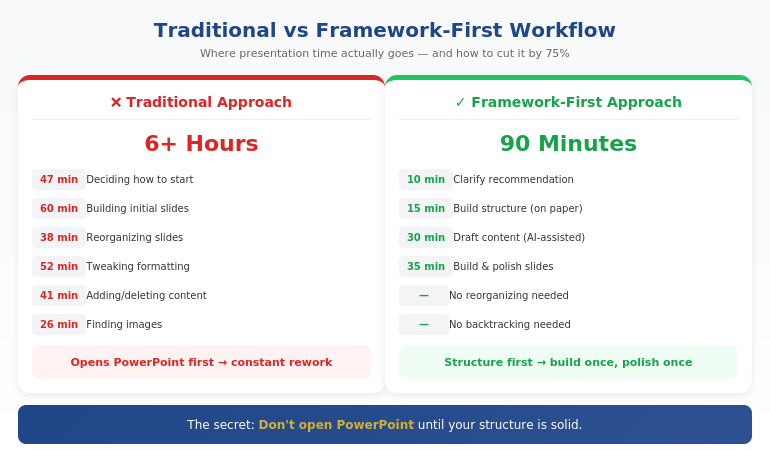
Quick Answer: Faster presentation creation comes from working framework-first, not slide-first. Most time waste happens when you open PowerPoint before you’ve decided your core message, structure, and key proof points. The fastest workflow is: clarify your recommendation (10 min) → build your structure (15 min) → draft content with AI assistance (30 min) → refine and design (35 min). Total: 90 minutes for a presentation that used to take 6 hours.

If you’re building for a steering committee, CFO, or board — speed isn’t the only goal. Decision clarity is. That’s why this workflow starts with Recommendation → Proof → Decision, not slides.

⚡ Need to Build a Presentation Today? The 90-Minute Framework:

  1. Minutes 1-10: Write your recommendation in one sentence. What do you want them to decide/do/believe?
  2. Minutes 11-25: Build your structure: Recommendation → Stakes → Their concern → Proof → Decision
  3. Minutes 26-55: Draft slide content (use AI to expand bullet points into full slides)
  4. Minutes 56-90: Refine language, add visuals, polish design

The key: Don’t open PowerPoint until step 3. Structure first, slides second.

Where Presentation Time Actually Goes

A few years ago, I tracked exactly how I spent time on a board presentation. The results were embarrassing:

  • 47 minutes deciding how to start
  • 38 minutes reorganizing slides I’d already built
  • 52 minutes adjusting fonts, colors, and alignments
  • 41 minutes adding content, then deleting it, then adding it back
  • 26 minutes looking for the “right” image

Less than an hour of that time was actual thinking — deciding what to say and how to structure it. The rest was production busywork and decision fatigue.

That’s when I realized: I wasn’t slow at building presentations. I was building them in the wrong order.

Opening PowerPoint first meant making design decisions before content decisions. Starting with slides meant restructuring constantly as my thinking evolved. Working without a framework meant reinventing my approach every single time.

The fix wasn’t working faster. It was working in a different sequence.

The Framework-First Approach

Here’s the principle that changed everything: structure before slides, thinking before production.

Most professionals open PowerPoint and start building. They think in slides, not in messages. They make dozens of micro-decisions about layout and formatting before they’ve made the one macro-decision that matters: what’s the point?

The framework-first approach flips this:

  1. Decide your recommendation before you touch any tool
  2. Build your logical structure on paper or in a simple doc
  3. Draft content in whatever format is fastest (often with AI help)
  4. Then — and only then — build slides

This sounds obvious, but almost nobody does it. The temptation to “just start building” is strong. And it’s exactly what makes presentations take 6 hours instead of 90 minutes.

For the executive-focused structure I use, see our guide to executive presentation structure.

How can I make presentations faster?

Make presentations faster by working framework-first: decide your core message and structure before opening PowerPoint. Most time waste comes from building slides before you’ve clarified your thinking — which leads to constant reorganizing and second-guessing. Use a repeatable structure (recommendation → stakes → proof → decision), then use AI to help draft content once your framework is solid.

Comparison of traditional vs framework-first presentation workflow showing time savings at each stage

⭐ Master the Framework-First System

AI-Enhanced Presentation Mastery teaches you the complete system: how to structure your thinking before you build, where AI accelerates production, and how to create executive-quality presentations in a fraction of the time.

What you’ll learn:

  • The framework-first workflow that cuts creation time by 50-75%
  • Where AI helps (drafting, iteration) and where it doesn’t (strategy, structure)
  • Prompt patterns that produce usable content, not generic filler
  • The quality checks that ensure AI-assisted work meets executive standards

Cut Your Build Time (See Maven) →

Live cohort-based course. 70% frameworks, 30% AI implementation. Check Maven for current dates and pricing.

The 90-Minute System Step by Step

Here’s exactly how I build presentations now:

Phase 1: Clarify (10 minutes)

Before anything else, I answer three questions in writing:

  1. What do I want them to decide, do, or believe after this presentation?
  2. What’s the ONE thing they need to understand for that to happen?
  3. What’s their biggest concern or objection likely to be?

This takes 10 minutes. It saves hours. Because every slide decision that follows becomes obvious when you know your destination.

Phase 2: Structure (15 minutes)

I use a consistent structure for executive presentations:

  • Slide 1: Recommendation (the answer, upfront)
  • Slide 2: Stakes (why this matters now)
  • Slide 3: Their concern (name the objection)
  • Slides 4-5: Proof (evidence that addresses the concern)
  • Slide 6: Decision (the specific ask)

I sketch this out in a simple document or even on paper. No PowerPoint yet. Just the logic flow.

Phase 3: Draft Content (30 minutes)

Now I draft the actual content — slide titles, key points, supporting data. This is where AI becomes genuinely useful.

I don’t ask AI to “create a presentation about X.” That produces generic garbage. Instead, I give it my structure and ask it to help me expand specific sections:

  • “Here’s my recommendation and three proof points. Help me articulate the stakes in language a CFO would respond to.”
  • “I need to address this objection: [objection]. Give me three ways to frame the response.”
  • “Turn these bullet points into a clear slide narrative: [bullets]”

AI drafts. I direct and edit. The quality stays high because I’m driving the strategy.

For more on AI-assisted presentation creation, see our detailed guide on how to make a presentation with AI.

Phase 4: Build and Polish (35 minutes)

Only now do I open PowerPoint. And because my content is already drafted, this phase is pure execution:

  • Paste content into slides
  • Apply consistent formatting
  • Add simple visuals where they help
  • Review flow and make final adjustments

No more agonizing over structure. No more rewriting slides three times. The thinking is done. I’m just packaging it.

How do you speed up PowerPoint creation?

Speed up PowerPoint by doing your thinking before you open it. Draft your structure and content in a simple document first, then use PowerPoint only for final assembly. Also: use a consistent template, master keyboard shortcuts, and resist the urge to perfect every slide before moving forward. Build rough, then polish once at the end.

Want the complete framework-first system?

See AI-Enhanced Presentation Mastery →

Where AI Helps (And Where It Doesn’t)

Let me be direct about AI’s role in this system: it’s an accelerator, not a replacement.

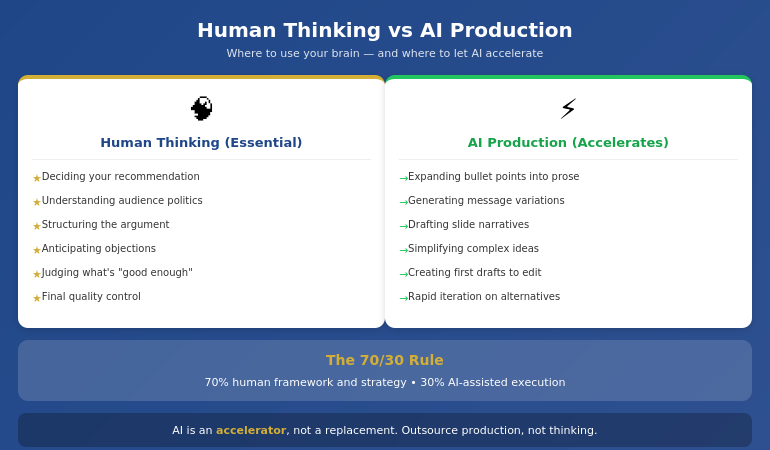
AI is excellent at:

  • Drafting content from your bullet points
  • Generating variations of your messaging
  • Suggesting ways to phrase complex ideas simply
  • Creating first drafts you can edit and improve
  • Iterating quickly when you need to try different approaches

AI is poor at:

  • Knowing what your audience cares about
  • Understanding the politics of your organization
  • Deciding what to recommend
  • Structuring an argument strategically
  • Judging what’s “good enough” for your specific context

The professionals who get burned by AI are the ones who outsource the thinking. They ask AI to “create a presentation” and get something that looks polished but says nothing. The slides are pretty. The logic is hollow.

The professionals who save hours are the ones who use AI for production while retaining control of strategy. They know what they want to say. AI helps them say it faster.

Diagram showing where human thinking is essential vs where AI accelerates production in presentation creation

⭐ Learn the Human + AI Balance

AI-Enhanced Presentation Mastery teaches you exactly where to use AI and where to trust your judgment — so you get speed without sacrificing quality or strategic thinking.

The course covers:

  • The 70/30 rule: 70% human framework, 30% AI execution
  • Prompt patterns that produce executive-quality content

See Course Details on Maven →

Live sessions with real feedback. Check Maven for current cohort dates.

Mistakes That Kill Your Speed

After coaching hundreds of professionals on presentation efficiency, I see the same speed-killers repeatedly:

Mistake #1: Opening PowerPoint first

The moment you open PowerPoint, you start thinking in slides instead of messages. You make formatting decisions before content decisions. You build, then restructure, then rebuild. This single habit can double your creation time.

Mistake #2: Perfecting slides as you go

Adjusting fonts while you’re still figuring out your argument is a form of productive procrastination. You feel busy, but you’re avoiding the hard thinking. Build rough first. Polish once at the end.

Mistake #3: Starting from scratch every time

If you don’t have a repeatable structure, you reinvent your approach with every presentation. That’s exhausting and slow. Develop a go-to framework. Adapt it for each situation. Don’t rebuild from zero.

Mistake #4: Using AI without a framework

Asking AI to “create a presentation about Q3 results” produces garbage. AI needs constraints to be useful. Give it your structure, your key points, your audience context. Then let it draft within those boundaries.

Mistake #5: Treating every presentation as equally important

A 15-minute team update doesn’t need the same polish as a board presentation. Calibrate your effort to the stakes. Some presentations deserve 90 minutes. Some deserve 30. Know the difference.

For more workflow optimization, see our complete guide to AI presentation workflow.

What is the fastest way to create a professional presentation?

The fastest way to create a professional presentation is: (1) clarify your recommendation in one sentence, (2) build your structure on paper first, (3) draft content with AI assistance using specific prompts, (4) only then open PowerPoint to assemble and polish. This framework-first approach can cut creation time by 50-75% compared to building slides from scratch.

Ready to cut your presentation time in half?

See AI-Enhanced Presentation Mastery →

The Compound Effect of a System

Here’s what most people miss: the real value of a system isn’t just time saved on one presentation. It’s the compound effect across your career.

If you create two presentations per week and save 4 hours each, that’s 8 hours per week. Over a year, that’s more than 400 hours — ten full work weeks returned to you.

But the benefit goes beyond hours. When presentations stop being a time drain, you:

  • Approach them with less dread
  • Have energy left to rehearse properly
  • Can take on more opportunities without burning out
  • Actually improve over time instead of just surviving

A system for building presentations faster isn’t about cutting corners. It’s about creating space for what actually matters: clear thinking, confident delivery, and results.

⭐ Build the System That Lasts

AI-Enhanced Presentation Mastery gives you the complete framework-first system — from initial thinking to final polish — so you can create executive-quality presentations in a fraction of the time, consistently.

What’s included:

  • The 90-minute presentation workflow
  • Framework templates for different presentation types
  • Prompt library for AI-assisted content creation
  • Quality checks that ensure AI work meets executive standards
  • Live sessions with direct feedback on your work

See Course Details on Maven →

Live cohort-based course on Maven. Check the page for current dates, pricing, and syllabus.

Frequently Asked Questions

Will AI-generated content look generic?

Only if you use AI wrong. Generic content comes from generic prompts like “create a presentation about X.” When you give AI your specific framework, key points, and audience context, it produces drafts you can actually use. The framework-first approach ensures AI is expanding your thinking, not replacing it with filler.

How much time can I realistically save?

Most professionals report saving 50-75% once they’ve internalized the system. A presentation that took 6 hours typically drops to 90 minutes to 2 hours. The biggest savings come in the first phase (no more agonizing over how to start) and the third phase (AI-assisted drafting instead of writing from scratch).

Does this work for highly technical or specialized presentations?

Yes — in some ways, better. Technical presentations often suffer from too much detail and unclear structure. The framework-first approach forces you to identify your core message and structure your argument logically before diving into technical content. AI is less useful for specialized terminology, but still helps with structuring explanations and drafting transitions.

What if I’m not technical with AI tools?

You don’t need to be technical. The AI-assisted portions use simple prompts in conversational language — you’re telling AI what you need the same way you’d brief a junior colleague. The course teaches exact prompts that work, so you don’t need to figure out “prompt engineering” on your own.

Get Weekly Presentation Efficiency Insights

Frameworks, workflows, and AI strategies for creating better presentations in less time — from 24 years of corporate experience.

Subscribe to The Winning Edge →

📋 Not ready for the course? Take the checklist.

A quick-reference guide showing which tasks benefit from AI assistance and which require human judgment. Use it to speed up your next presentation without sacrificing quality.

Download Free Checklist →

Your Next Step

The next time you need to create a presentation, try this:

  1. Don’t open PowerPoint
  2. Write your recommendation in one sentence
  3. Sketch your structure on paper
  4. Then start building

You’ll be surprised how much faster the whole process becomes when you know where you’re going before you start.

P.S. Speed matters, but so does getting the decision. If you’re presenting for approval, I wrote about pre-meeting alignment — the strategy that gets “yes” before you open your slides.

P.P.S. And if nerves are affecting your delivery, check out how to project your voice — it’s more about releasing tension than speaking louder.

About Mary Beth Hazeldine
Owner & Managing Director of Winning Presentations. After 24 years in corporate banking building hundreds of presentations under deadline pressure, I became obsessed with efficiency. The framework-first approach I teach now is the system I wish I’d had in year one.

20 Jan 2026
Executive presentation framework that AI can't replace - the human judgment layer that turns slides into decisions

Executive Presentation Framework: What AI Can’t Replace (And Never Will)

Quick answer: An executive presentation framework is the strategic thinking layer that determines what to say, in what order, to which audience, for what decision. AI tools can generate slides, but they cannot read the room, build your credibility, or structure content for your specific stakeholders’ decision-making style. The framework is what makes AI useful—not the other way around.

Master the framework, and AI becomes a powerful accelerator. Skip the framework, and AI produces polished slides that get polite nods and no action.

⚡ Before you open any AI tool, answer these 4 framework questions:

1. Decision: What specific decision or action do I need from this audience?

2. Objection: What’s their biggest concern or resistance?

3. Evidence: What proof will overcome that specific objection?

4. Structure: What order puts my strongest point where it matters most?

Now prompt AI with these answers. Watch the output transform.

The Presentation That AI Made Worse

A VP at a tech company came to me after a failed board presentation. She’d used every AI tool available—Copilot for the slides, ChatGPT for the script, Gamma for the visuals. The deck was beautiful.

The board said no.

“I don’t understand,” she told me. “The slides were better than anything I’ve made before.”

I reviewed the deck. She was right—the slides were polished. But the structure was wrong. She’d built up to her recommendation over 20 slides when the board wanted her position in the first 60 seconds. She’d included data that addressed her concerns, not theirs. She’d structured it for herself, not for how her CFO actually makes decisions.

AI had made her faster at building the wrong presentation.

That’s the trap nobody talks about.

⭐ Master the Framework That Makes AI Actually Useful

Stop producing polished slides that get polite nods. Learn the executive presentation methodology that turns AI from “fast but generic” into “fast and compelling.”

In this live cohort course:

  • The Decision-First Framework for executive audiences
  • How to read your stakeholders’ decision-making style
  • Structuring for your specific audience (not generic “best practices”)
  • Live feedback on your actual presentations

Includes a Decision-First briefing template you can reuse before every deck.

Join AI-Enhanced Presentation Mastery →

Live cohort with Mary Beth Hazeldine. 70% framework thinking, 30% AI execution. Works with any tool—Copilot, Gamma, ChatGPT, or whatever comes next.

If you have a board presentation or investor pitch in the next month, this will transform how it lands.

The 3 Things AI Cannot Do (And Never Will)

AI is extraordinarily good at certain tasks. It can generate slide layouts, suggest visual designs, produce draft content quickly, and format information cleanly.

But there are three capabilities at the heart of effective executive presentations that AI fundamentally cannot perform—and these aren’t limitations that will be solved with the next model update.

1. AI cannot read the room.

Executive presentations succeed or fail based on real-time audience response. The CFO who leans back when you mention the budget. The board member who checks their phone during your risk slide. The CEO who nods slightly at your third point.

These signals tell you what to emphasise, what to skip, and when to pivot. AI can’t see them. AI can’t adjust. AI doesn’t know that your COO makes decisions emotionally and justifies them rationally, while your CFO does the opposite.

You do. That’s the framework.

2. AI cannot build your credibility.

When you present to executives, they’re not just evaluating your slides. They’re evaluating you. Your command of the material. Your ability to answer unexpected questions. Your judgment about what matters.

AI can give you beautiful slides, but it can’t make you credible. When a board member asks “What happens if this fails?” and you give a thoughtful, unrehearsed answer that shows deep understanding—that’s what gets buy-in. That comes from framework thinking, not AI prompting.

3. AI cannot structure for your specific decision-maker.

Generic presentation advice says “lead with your conclusion” or “tell a story.” But your CFO might want numbers first and narrative second. Your CEO might want strategic context before tactical recommendations. Your board might want risk assessment before opportunity analysis.

AI produces average structures for average audiences. Your executive presentation framework must be tailored to how your specific stakeholders process information and make decisions. That’s human judgment. It always will be.


The three things AI cannot do in executive presentations: read the room, build credibility, and structure for specific decision-makersWhat an Executive Presentation Framework Actually Is

A framework isn’t a template. Templates are fill-in-the-blank structures that produce generic results. A framework is a decision-making methodology that produces tailored results.

The Decision-First Framework has four components:

Component 1: Decision clarity

Before anything else, define the specific decision you need. Not “inform them about the project” but “get approval for the £200K Phase 2 budget.” This clarity shapes everything that follows—what to include, what to cut, and how to structure the flow.

Component 2: Audience analysis

Who’s in the room? What are their concerns? How do they prefer to receive information? A framework helps you map each stakeholder’s decision-making style, objections, and priorities—then structure your content accordingly.

Component 3: Evidence selection

You have more data than you can present. A framework helps you select the evidence that specifically addresses your audience’s concerns—not the data that’s most impressive to you. This is where most AI-generated presentations fail: they include everything rather than selecting strategically.

Component 4: Structure optimization

The order of information matters enormously. A framework tells you whether to lead with recommendation or build to it, whether to address objections early or late, and where to place your strongest evidence for maximum impact. Learn more about executive presentation structure and how decision-first ordering works.

When you have this framework clear, AI becomes powerful. You’re not asking AI to think—you’re asking AI to execute your thinking faster. That’s the multiplier effect.

Want to master framework-first presentation thinking? AI-Enhanced Presentation Mastery teaches the complete Decision-First Framework with live practice on your actual presentations. See upcoming cohorts →

Framework as Multiplier: Why AI Needs You More Than You Need It

Here’s the uncomfortable truth about AI presentation tools: they multiply what you put in.

If you put in vague thinking, you get polished vagueness. If you put in generic structure, you get beautiful generic slides. If you put in framework-quality input—clear decision, specific audience analysis, selected evidence, optimized structure—you get executive-quality output at unprecedented speed.

Without framework:

“Create a presentation about our Q3 results for the board”

→ AI produces a generic quarterly review that looks like every other quarterly review the board has seen this month

With framework:

“Create a 6-slide presentation requesting £500K for market expansion. Board’s main concern is timeline risk. Lead with our mitigation plan, then show the opportunity cost of delay. CFO needs IRR and payback period on slide 3.”

→ AI produces a targeted, decision-ready deck tailored to your specific board’s priorities

Same AI. Same topic. Completely different output. The variable is the framework thinking you bring.

This is why I teach 70% framework, 30% AI tools. The framework is the skill. The AI is just the accelerator. If you have a solid AI presentation workflow, it’s because you have solid framework thinking underneath it.


Framework-first versus prompt-first approach showing how strategic thinking transforms AI output quality

⭐ The Framework That Makes Every AI Tool More Powerful

Learn the methodology that transforms AI from “fast at generic” to “fast at excellent.” Works with Copilot, Gamma, ChatGPT—or whatever tool comes next.

What you’ll master:

  • The 4-component Decision-First Framework
  • How to analyze any audience’s decision-making style
  • Evidence selection that addresses real objections
  • Structure optimization for executive buy-in

Join the Next Cohort →

Live sessions + direct feedback on your presentations. Framework skills that last a career.

This pays for itself the first time you get buy-in instead of polite nods.

Future-Proofing Your Presentation Skills

AI tools will keep improving. Copilot will get smarter. New competitors will launch. Models will advance.

But the executive presentation framework skills—reading your audience, building credibility, structuring for specific decision-makers—will remain human skills. They’re future-proof because they’re based on how humans make decisions, not on how technology generates content.

What becomes more valuable as AI improves:

  • Judgment about what to include — AI can generate anything; knowing what matters is human
  • Understanding of specific stakeholders — AI knows averages; you know your CFO
  • Ability to adapt in real-time — AI can’t see the room; you can read it
  • Credibility through deep knowledge — AI can script answers; you can think on your feet

What becomes less valuable:

  • Slide design skills (AI handles this well)
  • Content drafting speed (AI is faster)
  • Formatting consistency (AI is better)

The executives who thrive will be those who invest in the human judgment layer—the framework—and use AI to accelerate execution. Those who rely on AI for thinking will produce faster mediocrity.

The 3Ps Framework I’ve developed over 24 years in banking has helped clients raise more than £250M in funding. That wasn’t because of technology. It was because of strategic thinking applied to specific audiences.

Ready to build AI-proof presentation skills? AI-Enhanced Presentation Mastery teaches framework-first thinking that works with any tool and lasts a career. View course details →

Related: Framework thinking applies to every aspect of executive presentations. See how it shapes your executive presentation opening line and how it helps you manage high-stakes presentation nerves.

Common Questions About Executive Presentation Frameworks

What is an executive presentation framework?

An executive presentation framework is a decision-making methodology for structuring presentations to senior leaders. It includes four components: clarifying the specific decision you need, analyzing your audience’s concerns and decision-making style, selecting evidence that addresses their objections, and optimizing the structure for maximum impact. Unlike a template (fill-in-the-blank), a framework produces tailored results for each unique situation.

Can AI create executive presentations?

AI can create slides, but it cannot create effective executive presentations. The difference is judgment—knowing what to include, understanding your specific stakeholders, reading the room during delivery, and building credibility through deep knowledge. AI produces average content for average audiences. Executive presentations require tailored thinking that AI cannot perform. AI is best used to accelerate execution after you’ve done the framework thinking.

What makes executive presentations different?

Executive presentations are decision-focused, not information-focused. Senior leaders don’t want to learn about your topic—they want to make a decision and move on. This requires leading with recommendations, addressing specific objections, and structuring for their decision-making style rather than your preference. Generic presentation advice often fails with executives because it assumes audiences want information rather than clarity for action.

⭐ Build the Skill AI Can’t Replace

Framework thinking is the competitive advantage that makes AI useful. Learn the methodology that executives trust—and that technology can’t replicate.

Inside the course:

  • The complete Decision-First Framework
  • Audience analysis techniques for any stakeholder
  • How to brief AI for executive-quality output
  • Live practice with direct feedback

Enroll in AI-Enhanced Presentation Mastery →

Live cohort format with Mary Beth Hazeldine. Framework-first methodology developed from 24 years in corporate banking and executive coaching.

FAQ

Will AI replace presentation skills?

AI will replace some presentation tasks—slide design, content drafting, formatting—but not presentation skills. The human judgment layer (reading audiences, building credibility, structuring for specific decision-makers, adapting in real-time) remains irreplaceable because it depends on understanding specific people in specific contexts. Professionals who invest in framework thinking will use AI as an accelerator. Those who rely on AI for thinking will produce faster mediocrity.

What framework do consultants use for executive presentations?

Top consulting firms use variations of the Pyramid Principle—leading with the answer, then supporting with evidence. But the specific framework matters less than the underlying skill: analyzing your audience, clarifying the decision, selecting relevant evidence, and optimizing structure. Generic frameworks fail when applied without adaptation. The skill is knowing how to tailor any framework to your specific stakeholders.

How long does it take to learn a presentation framework?

The concepts can be learned in a few hours. Applying them fluently takes practice—typically 4-6 presentations with conscious framework application. Most professionals see improvement immediately (clearer structure, better audience response) and mastery within 2-3 months. The goal isn’t memorizing steps; it’s developing judgment that becomes automatic.

Does this work with Copilot/Gamma/ChatGPT?

Yes—the framework is tool-agnostic. Framework thinking improves your output from any AI tool because it improves your input. The specific prompting syntax varies slightly by tool, but the underlying methodology (decision clarity, audience analysis, evidence selection, structure optimization) applies universally. Learn the framework once, use it with whatever technology emerges.

📧 The Winning Edge Newsletter

Weekly insights on framework-first presentation thinking, AI-enhanced workflows, and executive communication. Practical methodology from 24 years in corporate banking—no AI hype, just what actually works with senior leaders.

Subscribe Free →

Your Next Step

AI generates slides. Frameworks generate buy-in.

Before your next executive presentation, spend 10 minutes on framework thinking: What decision do you need? What’s your audience’s main concern? What evidence addresses it? What structure puts your strongest point where it matters most?

Then use AI to execute your thinking. The output will transform—because you’ve transformed the input.

For the complete framework methodology with live practice and direct feedback, join AI-Enhanced Presentation Mastery.

About the Author

Mary Beth Hazeldine is the Owner & Managing Director of Winning Presentations and a former corporate banker with 24 years of experience at JPMorgan Chase, PwC, Royal Bank of Scotland, and Commerzbank. She has trained thousands of executives on high-stakes presentation skills and helped clients secure more than £250 million in funding and budget approvals.

Mary Beth is also a qualified clinical hypnotherapist and NLP practitioner. She developed the framework-first methodology after watching countless executives struggle with polished AI slides that failed to get buy-in—and discovering that the missing piece was always strategic thinking, never better technology.

Book a discovery call | View services

19 Jan 2026
Why AI-generated slides look generic - the framework-first fix for executive-quality presentations

Why Your AI-Generated Slides Look Generic (And How to Fix It)

Quick answer: Your AI-generated slides look generic because you’re asking AI to do the thinking for you. The tool isn’t broken—the input is. When you prompt AI without a clear framework (structure, audience, decision point), it defaults to safe, templated output. The fix isn’t better prompts. It’s building your presentation framework first, then using AI to accelerate execution.

This fixes the endless cycle of generate → cringe → delete → redo that wastes hours and leaves you with slides you’re embarrassed to present.

⚡ Need to fix generic AI slides right now? Do this before your next prompt:

Step 1: Write your main message in one sentence (what do you want them to decide/believe?)

Step 2: List your 3 supporting points in order of importance

Step 3: Identify your audience’s #1 objection

Step 4: NOW prompt AI with this structure—watch the output transform

The £2M Pitch That AI Almost Ruined

A client came to me last year in a panic. She’d used AI to create her investor pitch deck—Gamma for the slides, ChatGPT for the script. The output looked polished. Professional fonts, clean layouts, smooth transitions.

The investors passed in under five minutes.

“It felt like every other pitch we’ve seen this month,” one told her. “Nothing stood out.”

That’s the trap. AI-generated slides look generic not because the tools are bad, but because they’re designed to be safe. They optimise for “acceptable to everyone” rather than “compelling to your specific audience.”

Six weeks later, we rebuilt her deck using a framework-first approach. Same information. Same AI tools for execution. Different result: £2.1M raised.

The AI didn’t change. Her input did.

⭐ Master the Framework That Makes AI Output Executive-Ready

Stop fighting with prompts. Learn the structure-first methodology that transforms any AI tool from “generic template generator” to “presentation accelerator.”

In this live cohort course:

  • The Decision-First Framework for AI-enhanced presentations
  • How to brief AI tools so they produce executive-quality output
  • Live feedback on your actual presentations
  • Templates that work with Copilot, Gamma, ChatGPT, and any future tool

Join AI-Enhanced Presentation Mastery →

Live cohort course with Mary Beth Hazeldine. Limited seats per session. Framework-first methodology tested across banking, consulting, and FTSE 100 environments.

If you have an investor pitch, board deck, or QBR in the next 2–3 weeks, this will pay for itself immediately.

Why Every AI Tool Produces Generic Output

Here’s what most people don’t understand about AI presentation tools: they’re trained on millions of slides, which means they’ve learned to produce the average of all those slides.

Average is, by definition, generic.

When you prompt Copilot with “Create a presentation about Q3 results,” it generates what a Q3 presentation typically looks like—across thousands of companies, industries, and contexts. It doesn’t know your audience is a skeptical CFO. It doesn’t know your Q3 results contain a critical pivot point. It doesn’t know the board has seen 47 similar presentations this month.

So it gives you:

  • Safe bullet points that could apply to any company
  • Stock imagery that signals “corporate presentation”
  • Slide titles like “Overview” and “Key Takeaways” that tell the audience nothing
  • A structure that builds to a conclusion (when executives want conclusions first)

This isn’t a flaw in the AI. It’s working exactly as designed. The problem is the input, not the tool.

If you’ve tried fixing generic Copilot slides with better prompts, you’ve probably noticed: better prompts help marginally. They don’t solve the core problem.

The Framework-First Method That Changes Everything

The executives I’ve trained over 24 years in banking don’t start with slides. They don’t start with AI prompts. They start with a framework.

Framework-first means answering these questions before you touch any tool:

1. What’s the one decision I need from this audience?

Not “inform them about Q3.” A specific decision: “Approve the £500K investment in the new system.”

2. What’s their biggest objection or concern?

A CFO worries about ROI. A board worries about risk. A client worries about implementation. Name it.

3. What evidence will overcome that objection?

Not all your data. The specific proof points that address their specific concern.

4. What’s the logical flow that leads to yes?

Decision → Impact → Risk mitigation → Evidence. This is the executive presentation structure that actually works.

Once you have this framework, AI becomes extraordinarily useful. You’re not asking it to think for you. You’re asking it to execute your thinking faster.

Instead of prompting: “Create a presentation about our new CRM system”

Prompt with framework: “Create a 6-slide presentation for our CFO requesting £500K for a CRM upgrade. Main message: this investment pays back in 14 months through reduced customer churn. Address the objection that implementation will disrupt Q4 sales. Structure: recommendation first, then ROI evidence, then risk mitigation, then timeline.”

The output from the second prompt is unrecognisable from the first—even though it’s the same AI tool.

Want to master framework-first AI presentations? AI-Enhanced Presentation Mastery is a live cohort course that teaches the complete methodology—with feedback on your actual presentations. See upcoming sessions →

Before and After: Same Tool, Different Input

Here’s what the framework-first difference looks like in practice:

BEFORE (prompt-first approach):

Prompt:

“Create a presentation about implementing a new project management system”

AI Output:

  • Slide 1: Title slide with generic stock image
  • Slide 2: “Agenda” (why do executives need an agenda for 8 slides?)
  • Slide 3: “Current Challenges” (vague bullet points)
  • Slide 4: “Proposed Solution” (feature list)
  • Slide 5: “Benefits” (generic claims)
  • Slide 6: “Implementation Timeline” (Gantt chart)
  • Slide 7: “Budget Overview” (numbers without context)
  • Slide 8: “Next Steps” / “Questions?”

AFTER (framework-first approach):

Framework completed first:

Decision: Approve £85K for project management system. Audience: COO + Finance Director. Main objection: disruption to current workflow. Key evidence: 23% productivity gain from pilot team.

Prompt:

“Create a 6-slide executive presentation requesting £85K budget approval for a project management system. Lead with the recommendation and expected ROI. Address workflow disruption concerns by showing pilot results. Include risk mitigation. Audience is COO and Finance Director who value efficiency metrics.”

AI Output:

  • Slide 1: “Recommendation: Approve £85K—Expected 340% ROI in 18 months”
  • Slide 2: Pilot results showing 23% productivity gain
  • Slide 3: Workflow disruption mitigation plan
  • Slide 4: Financial breakdown with payback timeline
  • Slide 5: Risk assessment with contingencies
  • Slide 6: Decision requested + implementation start date

Same AI. Same topic. Completely different output. The difference is worth thousands in approved budgets and closed deals. Learning to create framework-first presentations can transform how decision-makers perceive your proposals—and your readiness for senior roles.


Framework-first vs prompt-first approach comparison showing how the same AI tool produces generic versus executive-quality slides based on input quality

⭐ Stop Producing Slides That Look Like Everyone Else’s

The framework-first methodology works with any AI tool—because it fixes the input, not the technology. Learn it once, apply it forever.

What you’ll master:

  • The 4-question framework that transforms AI output
  • Executive presentation structures that work across industries
  • How to brief any AI tool for professional results
  • Live practice with real-time feedback

Join the Next Cohort →

Live sessions + async practice. Includes templates, frameworks, and direct feedback on your presentations.

Which AI Tool Actually Matters? (Hint: None of Them)

People ask me constantly: “Should I use Copilot or Gamma? Is ChatGPT better than Claude for slides? What about Beautiful.ai?”

The honest answer: it barely matters.

Every major AI tool can produce executive-quality slides—if you give it executive-quality input. And every tool will produce generic output if you give it generic prompts.

The tools will keep changing. Copilot will update. New competitors will launch. GPT-6 will arrive. But the framework-first methodology stays constant because it’s based on how humans make decisions, not how AI generates content.

This is why I teach frameworks that are tool-agnostic. My clients use the same methodology whether they’re in Copilot, Gamma, or building slides manually. The AI presentation workflow accelerates execution, but the thinking happens before any tool is opened.

What to ask instead of “which tool is best?”:

  • “Do I have a clear decision I’m asking for?”
  • “Have I identified my audience’s main objection?”
  • “Do I know the evidence that overcomes that objection?”
  • “Is my structure decision-first or conclusion-last?”

Answer those questions, and any AI tool will serve you well.

Ready to master framework-first presentations? AI-Enhanced Presentation Mastery teaches the complete system—70% framework thinking, 30% AI execution. Works with any tool, now and in the future. View course details →

Related: Once your slides are executive-ready, make sure your structure and delivery match. Read Executive Presentation Structure: The Format That Gets Instant Buy-In and How to Stop Saying Um (Without Sounding Robotic).

Common Questions About AI-Generated Slides

Why do AI presentations look so generic?

AI tools are trained on millions of slides, so they produce the statistical average of all presentations. Average means generic. The tool optimises for “safe and acceptable” rather than “compelling for your specific audience.” To get non-generic output, you must provide specific input: the decision you need, the objection you’re addressing, and the evidence that overcomes it.

How do I make AI-generated slides look professional?

The secret isn’t in the prompts—it’s in the framework you create before prompting. Define your one key decision, your audience’s main concern, and your supporting evidence structure. Then prompt AI with this specific context. The same tool that produces generic bullet points will produce executive-ready slides when given framework-quality input.

What’s wrong with AI presentation tools?

Nothing is wrong with the tools. Copilot, Gamma, ChatGPT, and others are all capable of producing excellent output. The problem is how most people use them—asking AI to think instead of asking AI to execute. When you do the strategic thinking first (framework) and use AI for tactical execution (slides), the results transform completely.

⭐ Create Presentations That Don’t Look AI-Generated

Learn the methodology that makes AI your presentation accelerator—not your presentation liability.

Inside the course:

  • The Decision-First Framework (works with any AI tool)
  • Executive presentation templates with prompting guides
  • Live cohort sessions with direct feedback
  • How to brief AI for boardroom-quality output

Enroll in AI-Enhanced Presentation Mastery →

Live cohort format with Mary Beth Hazeldine. Framework-first methodology developed from 24 years in corporate banking and executive coaching.

FAQ

Which AI tool is best for presentations?

The tool matters far less than the input. Copilot, Gamma, ChatGPT, Beautiful.ai, and Canva’s AI features can all produce excellent presentations—if you give them framework-quality input. Choose based on what integrates with your workflow (Copilot for Microsoft users, Gamma for standalone, etc.), not based on which “produces the best slides.” They all produce generic slides with generic prompts.

Can AI really create executive-quality slides?

Yes—but only when you provide executive-quality thinking first. AI excels at execution: formatting, visual consistency, generating variations quickly. It struggles with strategy: understanding your specific audience, identifying the key decision, structuring for persuasion. Do the strategy yourself, use AI for execution, and the output will impress executives.

How long does the framework-first approach take?

About 10-15 minutes of structured thinking before you open any tool. This feels slower initially but dramatically reduces total time. You eliminate the “generate, delete, regenerate” cycle that wastes hours. Most of my clients report cutting total presentation creation time by 40-60% once the framework-first approach becomes habit.

Will this work with Copilot/Gamma/ChatGPT?

The framework-first methodology works with any AI tool because it focuses on input quality, not tool features. I’ve tested it extensively with Copilot, Gamma, ChatGPT, Claude, and several others. The specific prompting syntax varies slightly by tool, but the core framework remains identical. Learn the framework once, adapt to any tool.

📧 The Winning Edge Newsletter

Weekly insights on AI-enhanced presentations, executive communication, and framework-first thinking. Practical techniques from 24 years in corporate banking—no AI hype, just what actually works.

Subscribe Free →

Your Next Step

Your AI-generated slides look generic because AI is doing what it’s designed to do: produce safe, average output. The fix isn’t a better tool or better prompts. It’s better input.

Before your next presentation, take 10 minutes to answer the framework questions: What decision do you need? What’s the main objection? What evidence overcomes it? What’s the logical structure?

Then prompt AI with that framework. The output will transform—and so will how your audience responds.

If you want to master the complete framework-first methodology with live feedback and executive-tested templates, join AI-Enhanced Presentation Mastery.

About the Author

Mary Beth Hazeldine is the Owner & Managing Director of Winning Presentations and a former corporate banker with 24 years of experience at JPMorgan Chase, PwC, Royal Bank of Scotland, and Commerzbank. She has trained thousands of executives on high-stakes presentation skills and helped clients secure more than £250 million in funding and budget approvals.

Mary Beth is also a qualified clinical hypnotherapist and NLP practitioner, specialising in helping professionals overcome presentation anxiety. She developed the framework-first AI methodology after seeing countless executives struggle with generic AI output—and discovering that the fix was strategic thinking, not better technology.

Book a discovery call | View services

06 Jan 2026
Man in a navy blazer working on a laptop at a desk in a high-rise office, city skyline visible through large windows.

Copilot Executive Slides: Prompts That Actually Work

Quick Answer: Most Copilot executive slides fail because prompts are too vague. The fix: specify your audience (board, C-suite, investors), constrain the format (no clipart, 6 words max per bullet), and include brand requirements upfront. The five prompts in this article generate slides that look professionally designed—not AI-generated.

The £50,000 Copilot rollout produced a 12% adoption rate.

I saw this firsthand during a consulting engagement at a major bank. They’d invested heavily in Microsoft 365 Copilot licenses, expecting transformation. Six months later, most executives had abandoned it entirely. The reason? Every time they tried to create Copilot executive slides, they got the same generic output: clip art icons, bullet-heavy layouts, and that unmistakable “AI made this” aesthetic.

“It’s faster to just build slides myself,” one MD told me. “At least those don’t embarrass me in front of the board.”

The problem wasn’t Copilot. It was the prompts.

After testing hundreds of variations across executive presentations, I’ve identified the five prompts that consistently produce Copilot executive slides worth presenting. Here’s what actually works.

Why Most Copilot Executive Slides Prompts Fail

The default Copilot experience is designed for general users, not executives presenting to boards. When you prompt “Create a presentation about Q3 results,” Copilot makes assumptions that work for team meetings but fail spectacularly in boardrooms:

It adds clip art. Nothing says “I didn’t take this seriously” like cartoon icons on a slide requesting £2M in budget.

It uses generic templates. Board members have seen thousands of presentations. Generic layouts signal junior work.

It writes too much text. Copilot defaults to paragraph-style bullets. Executives want headlines, not essays.

It ignores visual hierarchy. Without explicit instructions, every element gets equal visual weight—making nothing stand out.

The solution isn’t abandoning Copilot. It’s constraining it properly.

Stop Guessing What to Type. Start Building in 25 Minutes.

The Executive Prompt Pack gives you 71 tested prompts for ChatGPT and Copilot — structured by scenario so you know exactly what to type:

  • Build from scratch — scenario prompts for board reviews, budget requests, and investor decks
  • Rescue and rewrite — audit an existing deck, condense it, or fix one slide at a time
  • Industry-specific prompts for financial services, banking, consulting, and executive audiences
  • Power modifiers that transform any prompt into board-ready output
  • The 25-minute deck workflow that replaces 3–4 hours of manual building

Works with ChatGPT, Microsoft Copilot, and Edit with Copilot (formerly Agent Mode). Updated March 2026.

Get the Executive Prompt Pack → £19.99

5 Copilot Executive Slides Prompts That Produce Board-Ready Results

Each prompt below has been tested across dozens of executive presentations. Copy them exactly, then adapt the specifics to your content.

Prompt 1: The Executive Summary Slide

“Create one executive summary slide for [TOPIC]. Use exactly 3 bullet points, maximum 8 words each. No icons or clip art. Include a headline that states the key recommendation, not the topic. Leave space for one data visualization placeholder on the right.”

This prompt works because it constrains every element executives care about: brevity, clarity, and visual simplicity.

Prompt 2: The Data Slide

“Create a slide presenting [SPECIFIC METRIC]. Use a single chart—bar, line, or pie based on what best shows the trend. Chart title should state the insight, not describe the data. Include exactly 3 annotation callouts highlighting key findings. No decorative elements.”

The key phrase is “chart title should state the insight.” This transforms “Q3 Revenue by Region” into “EMEA Growth Outpaced North America by 23%.”

Prompt 3: The Recommendation Slide

“Create a recommendation slide with this structure: Headline stating the recommendation as a decision (not a question). Three supporting points as single-line bullets. One risk/mitigation pair. Financial impact in bottom right. No clip art, icons, or decorative elements.”

This structure mirrors how McKinsey and top consulting firms format recommendation slides—because that’s what boards expect.

Prompt 4: The Brand-Compliant Slide

“Redesign this slide using these brand requirements: Primary color [HEX CODE], accent color [HEX CODE], [FONT NAME] font only. No gradients, shadows, or 3D effects. Maintain generous white space. Text should be minimum 18pt for body, 28pt for headlines.”

Without brand constraints, Copilot executive slides default to Microsoft’s built-in themes—which every other Copilot user is also producing.

Prompt 5: The Iteration Fix

“This slide has too much text. Reduce each bullet to maximum 6 words while preserving the core message. Remove any bullet that doesn’t directly support the headline. If information is important but doesn’t fit, note it for speaker notes instead.”

Most Copilot executive slides need iteration. This prompt gives Copilot specific, actionable constraints for the second pass.

Copilot executive slides prompt framework - 5 prompts for board-ready PowerPoint presentations

For 71 tested prompts covering every scenario — build from scratch, rescue an existing deck, or fix individual slides — the Executive Prompt Pack gives you exactly what to type, updated for the latest Copilot and ChatGPT capabilities.

The Iteration Workflow for Copilot Executive Slides

No single prompt produces perfect output. Expect 2-3 iterations minimum. Here’s the workflow:

Round 1: Generate initial slides with detailed constraints (Prompts 1-4 above).

Round 2: Review each slide and identify specific problems. Use targeted fix prompts like #5.

Round 3: Manual refinement. Copilot gets you 80% there; the final 20% requires human judgment—especially for sensitive board content.

For the complete Copilot workflow including advanced prompts and troubleshooting, see my full guide: PowerPoint Copilot Tutorial: Complete Guide to Prompts, Workflows & Updates.

71 Prompts. Every Scenario Covered.

Build from scratch, rescue an existing deck, or perfect individual slides — the Executive Prompt Pack covers every scenario. Works with ChatGPT, Copilot, and Edit with Copilot. Updated March 2026.

Get the Prompts → £19.99

FAQ: Copilot Executive Slides

Why do most Copilot executive slides look so generic?

Copilot defaults to templates designed for general audiences, not boardrooms. Without specific constraints—like “no clipart,” “maximum 6 words per bullet,” or “use data placeholders not lorem ipsum”—it produces slides that scream “AI-generated” to any senior executive.

Can Copilot match my company’s brand guidelines?

Yes, but only if you tell it explicitly. Include your brand colors as hex codes, specify fonts, and reference your corporate template. The prompt “Apply our brand: Navy #1F4788, Gold #D4AF37, Arial font, no gradients” produces dramatically better results than hoping Copilot guesses correctly.

How many slides should I ask Copilot to generate at once?

Never more than 5-7 slides per prompt. When you ask for 20+ slides, quality drops significantly. Generate in batches, review each batch, then prompt for the next section with specific feedback on what to adjust.

📧 Join 2,000+ professionals getting weekly presentation insights. Subscribe to The Winning Edge →

📋 Free Download: 10 Essential Copilot Prompts

Get my 10 most-used Copilot prompts for executive presentations—tested across hundreds of board decks and investor pitches.

Get Your Free Prompts →

Updated 27 March 2026 — Revised for the latest Microsoft Copilot and ChatGPT capabilities.


About the Author

Mary Beth Hazeldine spent 24 years at JPMorgan, PwC, RBS, and Commerzbank. She’s a clinical hypnotherapist and MD of Winning Presentations.

This article was created with AI assistance; all stories and insights are based on 35 years of real client work.

22 Dec 2025
The presentation skills gap - why most professionals plateau and how AI-enhanced systems close it

The Presentation Skills Gap: Why Most Professionals Plateau (And What Actually Closes It)

Here’s something I’ve noticed after training 5,000+ executives: most professionals hit a presentation skills gap around year 3-5 of their career. It’s not about practice. It’s about systems.

They’re competent. They can get through a deck without disaster. They’re not embarrassing themselves.

But they’re not improving. And they can’t figure out why.

The advice they get — “practice more,” “get feedback,” “study great speakers” — isn’t wrong. It’s just incomplete. If you want to genuinely improve presentation skills, you need more than repetition. Because the real gap isn’t about delivery or confidence or slide design.

The real gap is systems.

🎁 Free Download: The Executive Presentation Checklist — a systematic pre-presentation checklist for high-stakes presentations.

Why Presentation Skills Plateau

The professionals who plateau share three patterns:

1. They spend 80% of their time on the wrong 20%.

Most preparation time goes to slides — formatting, tweaking layouts, finding images. Meanwhile, the things that actually determine success (structure, the ask, Q&A prep) get squeezed into the final hour.

2. They rebuild from scratch every time.

No frameworks. No templates that actually work. Every presentation is a blank page, which means every presentation takes too long and produces inconsistent results.

3. They improve through repetition, not reflection.

Doing the same thing 100 times doesn’t make you better if the approach is flawed. It just makes you faster at a mediocre process.

I watched this happen to a senior manager at RBS. Brilliant analyst, solid presenter — but stuck. She’d been “good enough” for five years. Every presentation was a struggle: 8 hours of prep, decent delivery, polite applause, nothing changed. When I asked about her process, she described rebuilding every deck from scratch, spending most of her time on formatting, and never quite knowing if her structure was right until she was in the room.

Six months later, after learning the AVP framework and building an AI-assisted workflow, she was preparing board presentations in 90 minutes. Not because she’d practiced more — because she finally had systems.

Related: Business Presentation Skills: What Actually Matters in Corporate Environments

What Actually Closes the Presentation Skills Gap

The professionals who keep improving — who go from “competent” to “the person everyone wants presenting to the board” — do something different.

They build systems.

Structure systems: Frameworks like AVP (Action-Value-Proof) they can apply to any presentation type, so they’re not inventing from scratch every time.

Messaging systems: Formulas like S.E.E. (Story-Evidence-Emotion) that transform jargon-heavy content into executive-ready messaging.

AI systems: Customised prompts that handle the 80% that doesn’t require human judgment, so they can focus on the 20% that does.

This is the shift that changed how I work — and what I now teach.

Related: AI Presentation Workflow: How I Cut Creation Time from 6 Hours to 90 Minutes

How AI Helps You Improve Presentation Skills Faster

Most people use AI for presentations wrong. They ask ChatGPT to “create a presentation about X” and get generic garbage.

That’s not how AI closes the skills gap.

Here’s what actually works:

  • AI for structure: Use AVP prompts to build compelling outlines in minutes, not hours
  • AI for messaging: Transform jargon-heavy content into executive-ready language that sounds like you
  • AI for data storytelling: Turn KPIs and analytics into narratives that guide decisions
  • AI for quality control: Run a 10-minute deck audit that catches what you’d miss

The result: first drafts in 30 minutes using your personal AI playbook. Presentations that used to take 6-8 hours now take 90 minutes — and the quality is better, because you’re spending time on strategy instead of formatting.

Related: Best Copilot Prompts for PowerPoint

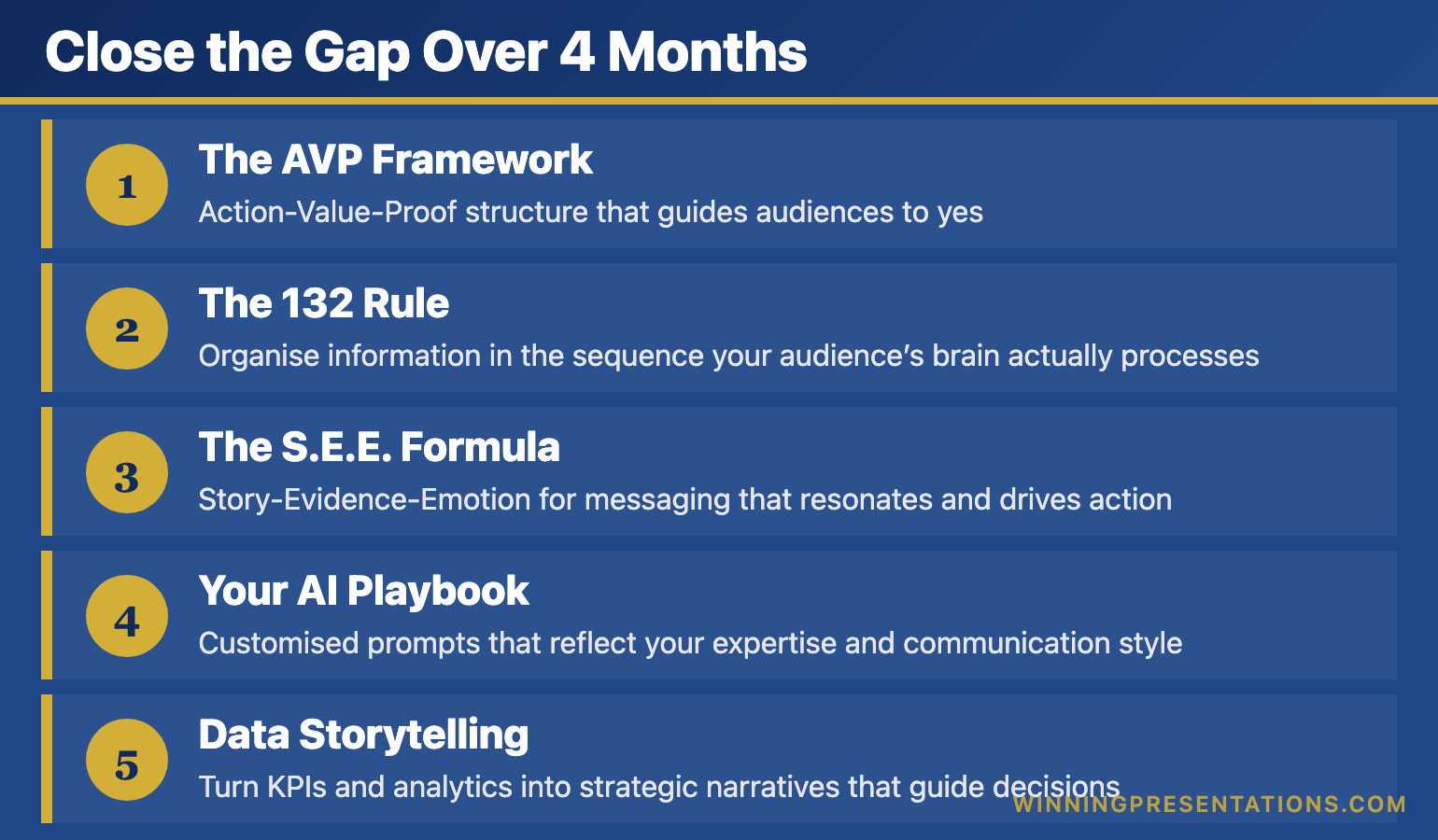
Close the Gap Over 4 Months

AI-Enhanced Presentation Mastery gives you the systems that separate professionals who plateau from professionals who keep improving — 8 self-paced modules delivered January through April 2026:

Infographic for: presentation skills gap (image 1)

  • The AVP Framework: Action-Value-Proof structure that guides audiences to yes
  • The 132 Rule: Organise information in the sequence your audience’s brain actually processes
  • The S.E.E. Formula: Story-Evidence-Emotion for messaging that resonates and drives action
  • Your AI Playbook: Customised prompts that reflect your expertise and communication style
  • Data Storytelling: Turn KPIs and analytics into strategic narratives that guide decisions

Plus: 2 live coaching sessions in April, Master Prompt Pack, templates, before/after examples, and lifetime access to everything.

Presale price: £249 (increases to £299 when modules release, then £499)

60 seats total.

See the full curriculum and join →

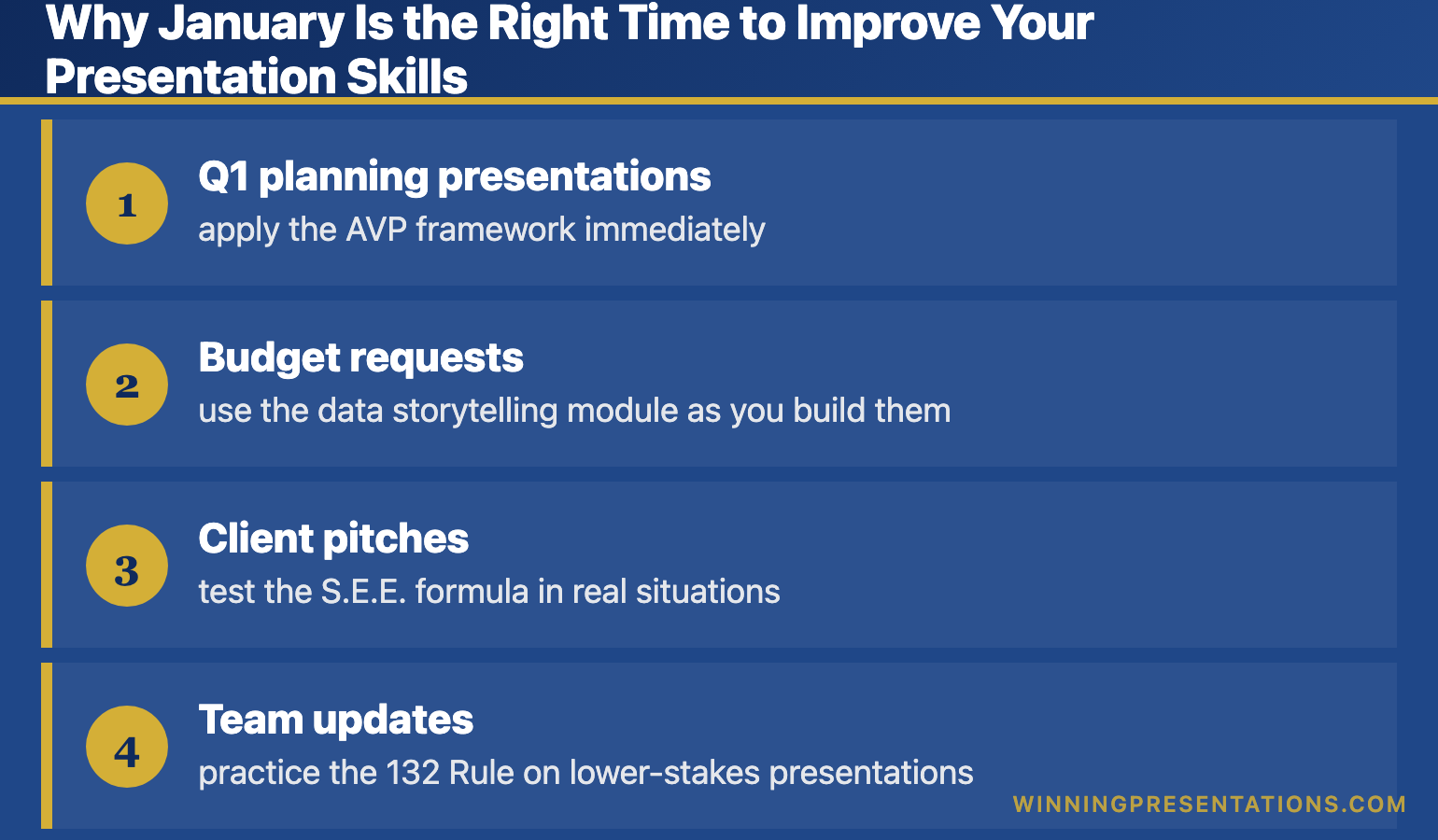
Why January Is the Right Time to Improve Your Presentation Skills

The course delivers 8 modules from January through April — one new module every couple of weeks. This pacing is intentional.

It means you’re building these skills while you’re actually presenting:

Infographic for: presentation skills gap (image 2)

  • Q1 planning presentations — apply the AVP framework immediately
  • Budget requests — use the data storytelling module as you build them
  • Client pitches — test the S.E.E. formula in real situations
  • Team updates — practice the 132 Rule on lower-stakes presentations

By April, when the live coaching sessions happen, you’ll have four months of practice and real questions to bring.

Build the systems now. Apply them to every presentation this year. Compound the improvement.

Related: Presentation Structure: 7 Frameworks That Actually Work

FAQ: How to Improve Presentation Skills

I’m already decent at presentations. Is this for me?

Yes — “decent” is exactly the plateau this course addresses. If you’re getting through presentations but not getting promoted off the back of them, the systems in this course close that gap.

Do I need to be technical with AI?

No. This is not a software tutorial. You’ll learn to use AI as a thinking partner. The prompts are copy-paste ready. If you can use ChatGPT at a basic level, you can use everything in this course.

What if I can’t attend the live sessions in April?

All sessions are recorded. You’ll receive lifetime access to recordings, and you can join the next cohort at no additional cost if you want live participation later.


Your Next Step

The gap between “competent presenter” and “presenter who advances” isn’t about talent. It’s about systems.

📖 Go deeper: Business Presentation Skills: What Actually Matters — today’s comprehensive guide.

🎓 Build the systems: AI-Enhanced Presentation Mastery — 8 modules from January–April 2026, presale price £249 (60 seats).


Mary Beth Hazeldine spent 24 years in corporate banking before founding Winning Presentations. She now trains executives in AI-enhanced presentation systems — the frameworks and tools that close the gap between competent and compelling.

19 Dec 2025
Presentation skills training comparison - traditional vs psychology and AI approach for lasting confidence

Presentation Skills Training: Why Most Programs Fail (And What Actually Works)

A hypnotherapist and ex-banker reveals why traditional presentation training doesn’t stick — and the psychology + AI approach that does

You’ve probably been through presentation skills training before. A one-day workshop. A corporate programme. Maybe even executive coaching.

And yet here you are, still searching for answers.

That’s not your fault. It’s a fundamental problem with how presentation training is designed. After 24 years presenting in corporate banking and treating hundreds of anxiety clients as a clinical hypnotherapist, I’ve seen exactly why most programmes fail — and what actually creates lasting change.

🎁 Free Download: Get my Executive Presentation Checklist — the pre-presentation routine I use before every high-stakes talk. A taste of what proper training includes.

Why Traditional Presentation Skills Training Doesn’t Work

Most presentation training focuses on the wrong things:

Problem #1: They teach techniques without addressing psychology.

“Make eye contact.” “Use gestures.” “Vary your tone.” These are surface-level tips that don’t help when your nervous system is in fight-or-flight mode. In my hypnotherapy practice, I saw this constantly — people who knew exactly what they should do but couldn’t do it when anxiety hit.

You can’t perform techniques when your hands are shaking and your mind is blank.

Problem #2: One-day workshops don’t create lasting change.

Research on skill acquisition is clear: lasting change requires spaced practice over time, not a single intensive session. Yet most corporate presentation training is a one-day event that’s forgotten within weeks.

Problem #3: They ignore the preparation bottleneck.

Most presentation anxiety comes from inadequate preparation — not lack of delivery skills. When you’re rushing to finish slides the night before, of course you’ll be nervous. But traditional training focuses almost entirely on delivery, not on how to prepare effectively.

Problem #4: They don’t adapt to how work has changed.

AI has transformed how we create content. Professionals who learn to use these tools effectively can prepare presentations in a fraction of the time — reducing anxiety and improving quality. Yet most presentation training ignores this entirely.

Related: Why Most Presentation Training Fails (And What Actually Works)

What Effective Presentation Skills Training Actually Looks Like

After training over 5,000 executives and treating hundreds of anxiety clients, I’ve identified what actually works:

1. Address the Psychology First

Before you can improve delivery, you need to manage your nervous system. This means learning techniques that work at the physiological level — breathing patterns that activate the parasympathetic response, anchoring techniques that access confident states on demand, and reframing methods that change how your brain interprets arousal.

This isn’t “mindset” fluff. It’s applied psychology from clinical practice.

Related: Public Speaking Tips: 15 Techniques That Actually Work

2. Fix the Preparation Problem

The executives I train who are most confident aren’t naturally gifted speakers — they’re exceptionally well-prepared. They have systems for structuring their message, creating compelling visuals, and rehearsing effectively.

Modern AI tools have made this dramatically easier. What used to take 6+ hours can now be done in 90 minutes — if you know how to use the tools correctly. That extra preparation time translates directly to confidence.

Related: AI Presentation Workflow: How I Cut Creation Time from 6 Hours to 90 Minutes

3. Space Learning Over Time

Skill development requires practice, feedback, and iteration. A single workshop can’t provide that. Effective training happens over weeks, with opportunities to apply techniques, get feedback, and refine your approach.

4. Combine AI Efficiency with Human Connection

AI can help you create better content faster. But the delivery — the presence, the connection, the ability to read the room and adapt — that’s irreducibly human. The best training teaches you to leverage AI for preparation while developing the human skills that make presentations memorable.

The 3Ps Framework: How My Clients Have Raised £250M+

Over 35 years, I’ve developed a methodology called the 3Ps Framework that addresses all three elements of effective presenting:

Proposition: What you’re actually saying — the structure, the argument, the story. Most presentations fail here before anyone opens their mouth. AI tools can dramatically accelerate this phase when used correctly.

Presentation: How the content is visualised and delivered. This includes slide design, pacing, and the technical aspects of delivery. Again, AI can help — but only if you know how to prompt it effectively.

Personality: The human element — presence, confidence, connection. This is where psychology matters most. No AI can give you executive presence. But the right techniques can unlock it.

Clients using this framework have raised over £250 million in funding. Not because they became different people — but because they learned to prepare effectively, manage their psychology, and deliver with authentic confidence.

Related: The 3Ps Framework: How My Clients Have Raised £250M+ in Funding

Presentation Skills Training That Actually Works

My AI-Enhanced Presentation Mastery course combines everything that makes training effective:

  • Psychology-based confidence techniques from my hypnotherapy practice
  • AI-powered preparation systems that cut creation time by 75%
  • Spaced learning over 8 modules with 2 live coaching sessions
  • Real-world application to your actual presentations

January cohort: £249 (increases to £499 in April)

Only 60 seats. Early bird ends December 31st.

See the full curriculum →

Who This Approach Works Best For

The psychology + AI approach to presentation skills training is particularly effective for:

Executives who present to boards and investors. High stakes require both confidence and preparation. The AI tools accelerate your preparation; the psychology techniques ensure you deliver with presence.

Professionals who’ve tried training before without lasting results. If you’ve done workshops that didn’t stick, you likely need the psychology component that was missing — not more tips on gestures and eye contact.

Anyone who spends too long preparing presentations. If you’re regularly working late on slides, AI-enhanced workflows can reclaim hours of your week while actually improving quality.

People who know their material but freeze under pressure. This is a classic sign that psychology, not knowledge, is the bottleneck. Clinical techniques for managing your nervous system will help more than any delivery tip.

Related: How to Create Executive Presentations That Get Results

What to Look for in Presentation Skills Training

If you’re evaluating options for presentation skills training, here’s what to look for:

Does it address psychology, not just technique? Look for programmes that teach anxiety management, confidence building, and mindset — not just “10 tips for better slides.”

Is it spaced over time or a one-day event? Lasting change requires practice and iteration. A single workshop is entertainment, not training.

Does it include modern tools? AI has changed how presentations are created. Training that ignores this is already outdated.

Is there personalised feedback? Generic advice only gets you so far. Look for programmes with live coaching or feedback on your specific presentations.

What’s the trainer’s actual experience? Theory is easy. Look for trainers who have presented in high-stakes environments themselves — not just taught others to do it.

Frequently Asked Questions

How is this different from corporate presentation training?

Most corporate training focuses on delivery tips (eye contact, gestures, voice) without addressing the psychology that prevents you from using those tips under pressure. It’s also typically a one-day event with no follow-up. The approach I teach addresses psychology first, uses AI to solve the preparation bottleneck, and is spaced over time for lasting change.

I’ve done presentation training before and it didn’t help. Why would this be different?

If previous training didn’t work, it likely focused on surface techniques without addressing your nervous system’s response to presenting. The psychology-based techniques I teach — drawn from clinical hypnotherapy — work at the physiological level where anxiety actually lives. That’s the missing piece for most people.

Do I need to be technical to use the AI components?

Not at all. The AI tools I teach (primarily Microsoft Copilot and ChatGPT) are designed to work with natural language prompts. If you can describe what you want, you can use these tools. The course includes exact prompts you can copy and adapt.

How much time does the training require?

The AI-Enhanced Presentation Mastery course includes 8 self-paced modules (about 30-45 minutes each) plus 2 live coaching sessions (90 minutes each). Most people complete it over 4-6 weeks while applying techniques to real presentations.

What if I’m already a confident presenter?

The AI components alone can save you 4+ hours per presentation. Even confident presenters benefit from more efficient preparation and advanced techniques for reading the room, handling difficult questions, and adapting on the fly.

Is there a guarantee?

Yes. Maven offers a full refund until the halfway point of the course. If it’s not working for you, you get your money back.


Your Next Step

If you’re serious about improving your presentation skills — not just attending another workshop that doesn’t stick — here’s what I recommend:

  1. Start with the fundamentals. Read my guide to 15 Public Speaking Tips That Actually Work and try the techniques in your next presentation.
  2. Download the checklist. Get the Executive Presentation Checklist and use it before your next high-stakes talk.
  3. Consider structured training. If you want the complete system — psychology, AI tools, and live coaching — the AI-Enhanced Presentation Mastery course covers everything.

The January cohort has 60 seats at £249 (early bird pricing ends December 31st). After that, the price increases to £499.

Ready for Presentation Training That Actually Works?

AI-Enhanced Presentation Mastery

Psychology-based confidence + AI-powered preparation + Live coaching

£249 £499

Early bird ends December 31st • 60 seats • Full refund guarantee

Enrol Now →


Mary Beth Hazeldine is a qualified clinical hypnotherapist and Managing Director of Winning Presentations. She spent 24 years in corporate banking at JPMorgan, PwC, Royal Bank of Scotland, and Commerzbank, and has trained over 5,000 executives to present with impact. Her clients have raised over £250M using her frameworks.

15 Dec 2025
Why AI presentations fail - the hidden problem with AI-generated slides and how to fix them

Why AI Presentations Fail (And How to Fix Them)

📅 Updated: December 2025

Why AI presentations fail - the hidden problem with AI-generated slides and how to fix them

Why AI Presentations Fail (And How to Fix Them)

Want a structured framework for this?

71 structured prompts for ChatGPT and Copilot — covering board decks, investor pitches, quarterly reviews, and strategy presentations.

Explore the Prompt Pack →

Quick Answer

AI presentations fail because they optimise for speed, not persuasion. Tools like Copilot, ChatGPT, and Gamma generate slides in seconds — but the output is generic, forgettable, and often counterproductive. The fix isn’t avoiding AI; it’s using frameworks first (AVP, 132 Rule, S.E.E. Formula) and AI second. This article explains why most AI-generated presentations underperform and the 4-step system to make yours actually work.

Executive Resource

Stop Writing AI Prompts From Scratch

The Executive Prompt Pack (£19.99) gives you 71 tested prompts for executive-level presentations — board updates, budget requests, investor briefs, and Q&A preparation. Built for PowerPoint Copilot and ChatGPT.

Get the Executive Prompt Pack →

Designed for executives preparing for board briefings, budget requests, and high-stakes presentations.

🎁 FREE DOWNLOAD

Executive Presentation Checklist

The 12-point framework that makes AI presentations actually persuade. Complete this BEFORE you prompt any AI tool.

Download Free Checklist →

No spam. Unsubscribe anytime.


AI presentation tools promise to save you hours. And they do — if you measure success by how fast you create slides.

But speed isn’t the goal. Persuasion is. Decisions are. Results are.

And by those measures, most AI presentations fail spectacularly.

I’ve trained executives on presentations for more than 16 years. In the last two years, I’ve watched AI tools transform how people create slides — and I’ve seen the results. The presentations are faster to create. They’re also worse at persuading.

Here’s what’s actually happening, and how to fix it.

The 5 Reasons AI Presentations Fail

1. AI Optimises for Completeness, Not Clarity

Ask ChatGPT or Copilot to create a presentation about your product, and you’ll get comprehensive slides covering every feature, benefit, and use case.

The problem? Comprehensive isn’t persuasive.

Human attention is limited. The best presentations focus ruthlessly on 2-3 key messages. AI doesn’t know which messages matter most to YOUR audience in THIS context. So it includes everything — which means nothing stands out.

The result: Your audience remembers nothing. The decision gets delayed. You’ve saved 4 hours of creation time and lost 4 weeks of momentum.

2. AI Can’t Read the Room

A CFO cares about ROI and risk. A technical buyer cares about integration and security. A CEO cares about strategic fit and competitive advantage.

AI doesn’t know who’s in the room. It generates generic content for a generic audience — which resonates with no one specifically.

I recently reviewed a sales deck created with Copilot for a client pitching a private equity firm. Beautifully formatted. Professionally structured. And completely wrong for the audience — they wanted 3 slides on financial returns, not 15 slides on product features. The deal went to a competitor who understood what the audience actually wanted.

The result: The AI presentation looked professional but felt tone-deaf.

3. AI Produces “Correct” But Forgettable Content

AI-generated text is grammatically perfect and factually accurate. It’s also utterly forgettable.

Why? Because AI optimises for the average of all presentations it’s trained on. It produces the most statistically likely content — which is, by definition, the most generic.

Great presentations aren’t average. They have a point of view. They take a stance. They make you think. AI doesn’t do that — unless you specifically prompt it to, and most people don’t.

The result: Your slides look like everyone else’s slides. In a competitive pitch, you blend in when you need to stand out.

5 reasons AI presentations fail - completeness over clarity, generic content, no audience awareness, missing structure, false confidence

4. AI Skips the Strategic Thinking

The hardest part of a presentation isn’t making slides. It’s deciding what to say.

What’s your core message? What action do you want? What objections will arise? What story ties it together?

AI tools skip this entirely. They jump straight to slide creation — which is like writing a novel by generating sentences without knowing the plot.

When I work with clients, we spend 70% of our time on strategy and 30% on slides. AI inverts this ratio. You spend 5 minutes prompting and get 20 slides — none of which answer the fundamental question: “Why should this audience care?”

5. AI Creates False Confidence

This might be the most dangerous failure mode.

When you struggle to create a presentation manually, you’re forced to think. You wrestle with structure. You cut slides that don’t work. You refine your message through iteration.

AI eliminates that productive struggle. You get a polished-looking deck in minutes and assume it’s ready. But “looks professional” isn’t the same as “will persuade.”

I’ve seen executives walk into board meetings with AI-generated decks that looked beautiful and completely failed to land. They trusted the tool instead of testing the thinking.

📄
Fix Your AI Presentations

Start with the free checklist — complete this BEFORE prompting any AI tool. It’s the strategic thinking AI can’t do for you.

Download Free Checklist →

If you want a structured approach to executive presentations, the Executive Prompt Pack gives you everything you need — £19.99, instant access.

The Hidden Costs of Failed AI Presentations

When AI presentations fail, the costs are real — even if they’re invisible.

Lost revenue: A SaaS company I worked with had a 23% close rate with AI-generated decks. We restructured their pitch around the AVP framework (Action-Value-Proof) and their close rate hit 34%. On an £8M pipeline, that’s an £880K swing — from changing how they presented the same product.

Wasted time: The promise of AI is saving time. But if your AI presentation requires 3 follow-up meetings to clarify what you meant, you’ve saved nothing. I’ve seen teams spend 4 hours “perfecting” AI output that would have taken 90 minutes to create properly from scratch.

Career stagnation: The executives who rely on AI for high-stakes presentations often plateau. They’re not developing the strategic thinking that separates good from great. Meanwhile, colleagues who understand frameworks and audience psychology advance faster.

I worked with a director at a major consulting firm who’d been passed over twice for partner. His presentations were technically solid but forgettable. After applying the AVP framework to his next client pitch, the feedback was: “That’s the clearest we’ve ever seen our strategy articulated.” He made partner 8 months later.

Decision paralysis: Generic AI presentations don’t drive decisions. They create more questions. “Can we schedule a follow-up to clarify…?” is the sound of an AI presentation failing.

Related: Best Copilot PowerPoint Prompts That Actually Work

How to Make AI Presentations Actually Work

AI isn’t the problem. Using AI without frameworks is the problem.

Here’s the 4-step approach that transforms AI from a liability into a genuine advantage:

Step 1: Start With Frameworks, Not Prompts

Before you touch any AI tool, answer these questions:

  • What’s the ONE action you want? (Not three actions. One.)
  • What’s the core value proposition for THIS audience?
  • What proof will they find credible?

This is the AVP framework: Action-Value-Proof. It takes 10 minutes to complete and makes your AI prompts 10x more effective.

Step 2: Use the 132 Rule for Structure

The 132 Rule: 1 message, 3 supporting points, 2 minutes maximum per section.

AI generates endless content. The 132 Rule forces focus. Before you prompt, decide your one message and three supporting points. Then prompt AI to develop ONLY those — not everything it thinks might be relevant.

Step 3: Prompt for Specificity, Not Completeness

Bad prompt: “Create a presentation about our product for potential customers.”

Better prompt: “Create 5 slides for a CFO audience. Core message: Our platform reduces month-end close from 12 days to 4. Focus on: (1) time savings, (2) error reduction, (3) ROI within 6 months. Tone: Direct, data-driven, no fluff.”

The difference? The second prompt embeds your strategic thinking into the AI request. You’re using AI as an execution tool, not a thinking tool.

Step 4: Apply the S.E.E. Formula to Proof

AI-generated proof is generic: “Companies see significant improvements…”

The S.E.E. Formula makes proof memorable: Story-Evidence-Emotion.

  • Story: “Acme Corp’s finance team was drowning in manual reconciliation…”
  • Evidence: “Within 90 days, they reduced close time from 12 days to 4.”
  • Emotion: “Their CFO told me it was the first time she left work before 7pm during month-end.”

AI can help you draft this — but only after YOU identify which story, what evidence, and what emotional hook matters for this audience.

Related: Executive Presentation Template: 12 Slides That Command the Room

The 4-step framework for AI presentations that work - AVP, 132 Rule, Specific Prompts, S.E.E. Formula

Who Gets AI Presentations Right — And Wrong

In my experience, AI presentations work for:

  • People who already know how to present — They use AI to execute faster, not to think for them
  • Internal updates with low stakes — When “good enough” is actually good enough
  • First drafts that will be heavily edited — AI as starting point, not final product

AI presentations fail for:

  • High-stakes pitches — Board meetings, investor presentations, competitive deals
  • Audiences you don’t understand well — AI can’t compensate for missing audience insight
  • People who skip the strategic thinking — Garbage in, garbage out

The professionals pulling ahead use AI as a strategic execution tool, not a content generator. They apply frameworks first, then use AI to execute 10x faster.

Stop Prompting AI Without a Framework

The Executive Prompt Pack (£19.99, instant access) gives you 71 tested prompts for every executive presentation scenario — built for PowerPoint Copilot and ChatGPT. Stop generating generic slides. Start producing board-ready decks that land decisions.

  • 71 prompts covering board updates, budget requests, investor briefs, and Q&A preparation
  • Frameworks embedded in every prompt — AI executes your strategy, not a generic template
  • Built for executives presenting at board and leadership level

Get the Executive Prompt Pack →

Instant digital download. Works with PowerPoint Copilot and ChatGPT.

Frequently Asked Questions

What are the disadvantages of AI presentations?

The main disadvantages are: generic content that doesn’t resonate with specific audiences, missing strategic structure, false confidence from polished-looking slides that don’t actually persuade, and skipping the thinking work that makes presentations effective. AI optimises for completeness and speed, not for the focus and audience awareness that drive decisions.

Why do AI-generated slides fail?

AI-generated slides fail because they produce statistically average content — the most likely output based on training data. Great presentations aren’t average. They have a point of view, focus ruthlessly on 2-3 key messages, and tailor everything to the specific audience. AI can’t do that thinking for you.

Is Copilot good for presentations?

Copilot is excellent for presentations — if you use it correctly. The tool itself is powerful. The problem is how people use it. When you apply frameworks like AVP (Action-Value-Proof) before prompting, Copilot becomes a massive time-saver. When you skip frameworks and just prompt, you get fast garbage. The tool is only as good as the thinking you bring to it.

How do I make AI presentations better?

Four steps: (1) Use the AVP framework to clarify your action, value proposition, and proof before touching AI. (2) Apply the 132 Rule — 1 message, 3 supporting points, 2 minutes per section. (3) Prompt for specificity, not completeness — tell AI exactly what to focus on. (4) Use the S.E.E. Formula (Story-Evidence-Emotion) to make proof memorable. This approach takes 25 extra minutes upfront but saves hours of follow-up and dramatically improves results.
>

04 Dec 2025
30 AI prompt cards for executive presentations - Copilot and ChatGPT prompts for budget requests, board decks, QBRs and more

PowerPoint Copilot: What It Actually Does Well (And What It Doesn’t)

PowerPoint Copilot is the most overhyped and underutilised tool in Microsoft 365.

Overhyped because Microsoft’s marketing suggests it will create brilliant presentations from a single prompt. It won’t. Underutilised because most people give up after the first disappointing result, missing the things PowerPoint Copilot actually does brilliantly.

I’ve tested PowerPoint Copilot on over 100 real client presentations — board decks, investor pitches, QBRs, budget requests. Not demo presentations with perfect data. Real presentations with messy content and tight deadlines.

Here’s an honest assessment of what PowerPoint Copilot does well, what it does poorly, and how to use it effectively in your workflow.

30 AI prompt cards for executive presentations - Copilot and ChatGPT prompts for budget requests, board decks, QBRs and more
The right prompts make PowerPoint Copilot useful — generic prompts produce generic output

What PowerPoint Copilot Does Brilliantly

Let’s start with the good news. There are specific tasks where PowerPoint Copilot genuinely saves hours of work.

PowerPoint Copilot Strength #1: Summarising Long Documents

Feed PowerPoint Copilot a 30-page Word document and ask it to create a presentation summary. This is where the tool shines. It will extract key points, organise them logically, and create a first draft in under a minute.

Is the draft perfect? No. But it’s a solid starting point that would have taken you an hour to create manually. PowerPoint Copilot handles the extraction; you handle the refinement.

Best prompt for this: “Create a 10-slide presentation summarising this document. Focus on [specific topic]. The audience is [role] who need to [decision/action].”

PowerPoint Copilot Strength #2: Generating First Drafts From Bullet Points

When you have rough notes or bullet points but no structure, PowerPoint Copilot can organise them into a coherent presentation draft. It’s particularly good at identifying logical groupings and suggesting a narrative flow.

I’ve used PowerPoint Copilot to turn a client’s 50-bullet brainstorm into an 8-slide deck structure in minutes. The content needed editing, but the organisation was solid.

Best prompt for this: “Organise these bullet points into a presentation for [audience]. Group related points together. Suggest a logical flow from problem to solution to recommendation.”

PowerPoint Copilot Strength #3: Rewriting and Polishing Text

Have a slide that’s too wordy? PowerPoint Copilot excels at condensing. Ask it to make bullet points more concise, and it will cut the fluff while keeping the meaning.

This is where I use PowerPoint Copilot most frequently. I draft content quickly without worrying about wordsmithing, then ask PowerPoint Copilot to tighten everything up. It’s like having an editor who works in seconds.

Best prompt for this: “Rewrite these bullet points to be more concise. Maximum 10 words per bullet. Keep the key message but remove filler words.”

PowerPoint Copilot Strength #4: Generating Speaker Notes

Need speaker notes but don’t have time to write them? PowerPoint Copilot can generate talking points for each slide based on the content. The notes aren’t perfect scripts, but they’re excellent memory joggers.

This PowerPoint Copilot feature saves significant time for presentations where you need notes but don’t want to spend hours writing them.

Best prompt for this: “Generate speaker notes for this slide. Include the key points to mention, relevant context, and a transition to the next slide. Keep it conversational, not scripted.”

Want 30 PowerPoint Copilot prompts that actually work?

The prompt cards in The Executive Slide System are tested on real presentations — not demos. Each prompt is designed to get useful PowerPoint Copilot output on the first try.

What PowerPoint Copilot Does Poorly

Now the bad news. There are tasks where PowerPoint Copilot will waste your time or produce output that needs complete replacement.

PowerPoint Copilot Weakness #1: Creating Presentations From Scratch

“Create a presentation about Q3 results” will produce generic garbage. PowerPoint Copilot doesn’t know your company, your data, your audience, or your message. It will generate placeholder content that looks professional but says nothing.

Don’t use PowerPoint Copilot to create presentations from nothing. Use it to enhance, organise, or refine content you’ve already developed.

PowerPoint Copilot Weakness #2: Design and Visual Layout

PowerPoint Copilot can apply templates and suggest layouts, but it doesn’t have design taste. It will create slides that are technically correct but visually mediocre.

For executive presentations where visual impact matters, you’ll need to handle design yourself or work with a designer. PowerPoint Copilot is a writing tool, not a design tool.

PowerPoint Copilot Weakness #3: Data Visualisation

Ask PowerPoint Copilot to create charts from data, and you’ll get basic charts with default formatting. It doesn’t understand which chart type best communicates your message or how to highlight the key insight.

Build your charts manually or in Excel, then import them. PowerPoint Copilot can help you write the chart titles and callouts, but don’t trust it with visualisation choices.

PowerPoint Copilot Weakness #4: Industry-Specific Content

PowerPoint Copilot doesn’t know your industry’s terminology, benchmarks, or conventions. Ask it to create a biotech investor pitch or an investment banking deal memo, and it will produce generic business content that misses the mark.

You need to provide the industry context in your prompts, or PowerPoint Copilot will default to generic corporate language.

10 executive presentation templates - QBR, budget request, board meeting, investor pitch, strategic recommendation slides
Purpose-built templates give you better starting points than PowerPoint Copilot’s generic output

The PowerPoint Copilot Workflow That Actually Works

Based on 100+ presentations, here’s how to integrate PowerPoint Copilot effectively:

PowerPoint Copilot Workflow Step 1: Start With Structure, Not Copilot

Before opening PowerPoint Copilot, know your message. What’s your recommendation? What does your audience need to decide? What are the 3-5 key points?

PowerPoint Copilot is an accelerator, not a strategist. If you don’t know your message, PowerPoint Copilot will give you generic filler.

PowerPoint Copilot Workflow Step 2: Use Copilot for First Drafts

Once you have structure, use PowerPoint Copilot to generate content quickly. Feed it your bullet points and ask for organised slides. Don’t expect perfection — expect a starting point.

This is where PowerPoint Copilot saves the most time: the blank-page-to-first-draft phase that usually takes hours.

PowerPoint Copilot Workflow Step 3: Refine Manually

Go through each PowerPoint Copilot output and edit. Strengthen headlines, cut unnecessary words, ensure the “so what” is clear. This is where your expertise matters.

The combination of PowerPoint Copilot speed and human judgment produces better results than either alone.

PowerPoint Copilot Workflow Step 4: Use Copilot for Polish

After manual refinement, use PowerPoint Copilot again for final polish. Ask it to make bullets more concise, generate speaker notes, or check for consistency across slides.

This second-pass use of PowerPoint Copilot catches things you might miss and adds final professional polish.

Skip the trial-and-error with PowerPoint Copilot.

The Executive Slide System includes 30 tested prompts for PowerPoint Copilot — 3 for each executive presentation type. Plus templates that give you better starting structures than Copilot’s generic output. Clients have used these to cut presentation prep time by 60%.

PowerPoint Copilot Prompts That Get Results

The difference between useful and useless PowerPoint Copilot output is the prompt. Here are patterns that work:

Bad PowerPoint Copilot prompt: “Create a presentation about our marketing results.”

Good PowerPoint Copilot prompt: “Create a 5-slide presentation for our CMO about Q3 marketing results. She needs to decide whether to increase Q4 budget. Include: headline results, channel performance comparison, ROI analysis, recommendation. Tone: confident, data-driven, concise.”

The difference? The good prompt tells PowerPoint Copilot the audience, the decision, the structure, and the tone. It can’t give generic output because you’ve specified exactly what you need.

PowerPoint Copilot Prompt Template

Use this structure for any PowerPoint Copilot prompt:

Create a [NUMBER]-slide presentation for [AUDIENCE/ROLE].

They need to [DECISION OR ACTION].

Include these sections:
[LIST YOUR REQUIRED SECTIONS]

Tone: [DESCRIBE THE TONE]

Here’s my raw content:
[PASTE YOUR BULLETS OR NOTES]

This template consistently produces better PowerPoint Copilot output than vague requests.

PowerPoint Copilot vs. ChatGPT vs. Claude for Presentations

Should you use PowerPoint Copilot, or another AI tool? Here’s my take after extensive testing:

Use PowerPoint Copilot when:

  • You’re working inside PowerPoint and want seamless integration
  • You’re summarising Word documents into presentations
  • You need quick edits to existing slides

Use ChatGPT or Claude when:

  • You need more sophisticated reasoning about structure and messaging
  • You’re developing strategy before building slides
  • You want longer, more nuanced responses

I often use ChatGPT or Claude for strategy and structure, then PowerPoint Copilot for execution. They complement each other.

FAQs About PowerPoint Copilot

Is PowerPoint Copilot worth the cost?

If you create presentations frequently (weekly or more), yes. The time savings on first drafts and polishing pays for the subscription quickly. If you present monthly or less, the value is marginal.

Does PowerPoint Copilot work offline?

No. PowerPoint Copilot requires an internet connection to process requests. This can be an issue in secure environments or when travelling.

Can PowerPoint Copilot access my company data?

PowerPoint Copilot can access documents you explicitly share with it or that are stored in your Microsoft 365 environment. It can summarise SharePoint documents, emails, and other M365 content if you have appropriate permissions.

How do I get better at using PowerPoint Copilot?

Practice with specific prompts. The more detail you provide in your prompts, the better PowerPoint Copilot output becomes. Start with the prompt template above and refine based on results.

The Honest PowerPoint Copilot Verdict

PowerPoint Copilot is a productivity tool, not a magic solution. It won’t turn bad ideas into good presentations or replace strategic thinking. But it will significantly speed up the mechanical work of building presentations.

Use PowerPoint Copilot for:

  • Summarising documents into presentations
  • Organising bullet points into slides
  • Rewriting and condensing text
  • Generating speaker notes

Don’t use PowerPoint Copilot for:

  • Creating presentations from scratch
  • Design and visual layout
  • Data visualisation choices
  • Industry-specific content without guidance

With the right prompts and realistic expectations, PowerPoint Copilot is a valuable tool. Without them, it’s an expensive disappointment.

The Executive Slide System complete package - 10 PowerPoint templates, 30 AI prompts, and quick start guide for executive presentations

Get 30 Tested PowerPoint Copilot Prompts

Stop guessing what prompts work. The Executive Slide System includes 30 PowerPoint Copilot prompts tested on real presentations — 3 for each executive presentation type.

Plus 10 templates that give you better starting structures than PowerPoint Copilot’s generic output.

GET INSTANT ACCESS → £39

30 prompts • 10 templates • Instant download • 30-day guarantee


Related: How to Create Executive Presentations That Get Approved in 2025 — the complete guide covering all 10 executive presentation types with AI prompts that work with PowerPoint Copilot, ChatGPT, and Claude.

02 Dec 2025
30 AI prompt cards for executive presentations - Copilot and ChatGPT prompts for budget requests, board decks, QBRs and more

5 Copilot Prompts That Turn Bullet Points into Executive Slides

These 5 Copilot prompts for executive slides will transform how you build presentations.

Most people type “create a presentation about Q3 results” and wonder why they get generic garbage. That’s like asking a chef to “make food” and expecting a Michelin-star meal. The problem isn’t Copilot — it’s the prompts.

After testing hundreds of Copilot prompts on real executive slides — board decks, investor pitches, QBRs, budget requests — I’ve found 5 that consistently turn rough bullet points into slides that leadership actually approves. These aren’t theoretical. I’ve used every one on client work at investment banks, consultancies, and Fortune 500 companies.

One client used these exact Copilot prompts to build the executive slides that secured £2M in Series A funding. Another cut her presentation prep time from 3 hours to 40 minutes.

30 AI prompt cards for executive presentations - Copilot and ChatGPT prompts for budget requests, board decks, QBRs and more
Each executive slide type needs specific Copilot prompts — generic prompts produce generic output

Getting generic results from Copilot prompts?

Generic prompts produce generic slides. The Executive Prompt Pack gives you 71 prompts pre-structured for executive scenarios — so Copilot produces board-ready content, not formatted text that still needs rewriting.

Explore the Executive Prompt Pack →

Why Generic Copilot Prompts Fail for Executive Slides

Copilot is trained on millions of presentations. Most are mediocre. So when you give Copilot a vague prompt, it produces the average of everything it’s seen — which is mediocre.

To get executive-quality output from your Copilot prompts, you need to specify three things:

  • Who’s reading this — their role, what they care about, what decision they’ll make
  • What you need — the specific structure, not just the topic
  • What good looks like — the standard you’re aiming for

The Copilot prompts below do all three. Copy them exactly, fill in your specifics, and watch Copilot finally produce executive slides worth presenting.

Copilot Prompt #1: The Instant Draft for Executive Slides

Use this when you’re staring at bullet points and need a first draft fast.

I need to create an executive slide about [TOPIC].

My audience is [ROLE/LEVEL] who need to [DECISION OR ACTION].

Here are my rough bullet points:
[PASTE YOUR BULLETS]

Turn these into a single slide with:
– A headline title that communicates the key message (not a label)
– 3-4 bullet points maximum
– A clear “so what” — why this matters
– A recommendation or next step if relevant

Executive Resource

Stop Writing AI Prompts From Scratch

The Executive Prompt Pack gives you 50 battle-tested prompts for executive-level presentations — board updates, budget requests, investor briefs, and Q&A preparation. Built for PowerPoint Copilot and ChatGPT.

Get the Executive Prompt Pack →

Used by executives preparing for board briefings, budget requests, and high-stakes presentations.

Write in a direct, confident tone. No filler words.

Why this Copilot prompt works: You’ve told Copilot the audience, the purpose, and the structure. It can’t give you generic output because you’ve constrained it to a specific format for your executive slide.

Example input:

  • Topic: October marketing campaign results
  • Audience: CMO who needs to approve Q1 budget
  • Bullets: launched Oct 15, 50K impressions, 1,200 leads, £42 cost per lead, industry benchmark £65, want to scale in Q1

What Copilot produces: An executive slide titled “October Campaign Delivered Leads at 35% Below Industry Cost” with tight bullets and a clear recommendation to increase Q1 budget.

Copilot Prompt #2: The Executive Slide Polish

Use this Copilot prompt when you have a draft executive slide but it feels too long, too detailed, or too “junior.”

Review this executive slide content through the eyes of a [CEO/CFO/BOARD MEMBER].

Current content:
[PASTE YOUR SLIDE TEXT]

They will spend 5 seconds scanning this. Tell me:
1. What would make them say “so what?” or lose interest?
2. What questions would they immediately ask?
3. What’s missing that they’d expect to see?

Then rewrite the slide to fix these issues. Make it scannable in 5 seconds with one clear takeaway.

Why this Copilot prompt works: It forces Copilot to critique before improving. The critique identifies real problems; the rewrite fixes them. You get executive-level thinking applied to your slides, not just rewording.

When to use it: After your first draft, before any important presentation, when feedback says your executive slides are “too detailed.”

Copilot Prompt #3: The Headline Generator for Executive Slides

The single biggest problem with executive slides? Label titles instead of headline titles. This Copilot prompt fixes that instantly.

I have an executive slide with this label title: “[YOUR CURRENT TITLE]”

The slide content shows: [BRIEF DESCRIPTION OF WHAT THE SLIDE SAYS]

Generate 5 alternative headline titles that:
– Communicate the key message, not just the topic
– Work as standalone statements (make sense without seeing the slide)
– Are specific and include numbers where relevant
– Would make an executive want to read more

Format: Just list the 5 titles, no explanations.

Why this Copilot prompt works: You get options, not just one suggestion. Often the third or fourth option is the winner. And by specifying “numbers where relevant,” you push Copilot toward concrete headlines for your executive slides.

Example transformation:

  • Before: “Project Status Update”
  • After options: “Project 3 Weeks Ahead of Schedule, Under Budget” / “Phase 2 Complete — On Track for March Launch” / “Project Green: All Milestones Hit, No Blockers”

10 executive presentation templates - QBR, budget request, board meeting, investor pitch, strategic recommendation slides
Each executive slide type has different structures — and needs different Copilot prompts

These 3 Copilot prompts are just the start.

The Executive Slide System includes 30 prompt cards — 3 for each of the 10 executive slide types. The same prompts I used to help a biotech client build the deck that raised £8M in Series B funding.

Copilot Prompt #4: The Objection Killer for Executive Slides

Before presenting executive slides, you need to anticipate pushback. This Copilot prompt finds the holes before your audience does.

I’m presenting this executive slide to [AUDIENCE] who will decide whether to [APPROVE/FUND/SUPPORT] my [REQUEST].

Here’s my slide content:
[PASTE SLIDE]

Act as a skeptical [CFO/CEO/BOARD MEMBER]. Give me:
1. The 3 most likely objections or tough questions
2. What evidence or data would address each objection
3. Suggested additions to the slide that preempt these concerns

Be direct and critical. I need to find the weaknesses before they do.

Why this Copilot prompt works: Executives are paid to find problems. If you don’t find them first, you’ll discover them in the meeting — when it’s too late. This prompt stress-tests your executive slides before showtime.

Real example: I used this Copilot prompt on a budget request slide. It identified that I hadn’t addressed “what happens if we don’t fund this?” Adding that one line — the cost of inaction — doubled the executive slide’s persuasive power.

Copilot Prompt #5: The One-Pager for Executive Slides

You have 10 slides. Leadership wants 1. This Copilot prompt compresses your executive slides without losing the message.

I have a [X]-slide presentation. I need to condense it into ONE executive summary slide.

Here’s the content from all slides:
[PASTE KEY POINTS FROM EACH SLIDE]

Create a single executive slide with:
– Headline title: The single most important message
– Bottom line: 1-2 sentences summarizing the entire presentation
– Key points: Maximum 4 bullets covering the essentials
– Decision needed: What you need from leadership

Ruthlessly cut anything that isn’t essential for the decision at hand.

Why this Copilot prompt works: The instruction to “ruthlessly cut” gives Copilot permission to be aggressive. Without it, AI tries to include everything. This prompt produces executive slides that respect the audience’s time.

When to use it: Before board meetings (always have a one-page executive slide ready), when asked to “give me the summary,” when presenting to someone more senior than expected.

Want all 30 Copilot prompts for executive slides as printable cards?

The prompt cards in The Executive Slide System cover every scenario: QBRs, budget requests, board presentations, strategic recommendations, and more. Plus 10 PowerPoint templates with the structures already built in.

The Universal Copilot Prompt for Any Executive Slide

If you only remember one Copilot prompt from this article, make it this one. It works on any executive slide, any situation:

I’m presenting this executive slide to [AUDIENCE] who need to [DECISION/ACTION].

Review my content and tell me: what would make them say no?

Then fix those issues.

[PASTE YOUR CONTENT]

This Copilot prompt works because it forces audience-first thinking. Most people write executive slides from their own perspective — what they want to say. Executives don’t care what you want to say. They care whether your content helps them make a decision.

This single Copilot prompt has saved more executive slides than any other technique I know.

Common Mistakes With Copilot Prompts for Executive Slides

Mistake 1: Too vague. “Make this better” tells Copilot nothing. Be specific: better how? Shorter? More persuasive? Clearer structure? Your Copilot prompts should specify exactly what “better” means for your executive slides.

Mistake 2: No audience. An executive slide for a CFO is different from one for a sales team. Always specify who’s reading in your Copilot prompts.

Mistake 3: Accepting first output. Copilot’s first response is rarely the best. Use follow-up prompts: “Make it shorter,” “Add more specifics,” “Make the recommendation clearer.” Iterate on your executive slides.

Mistake 4: Ignoring structure. If you want 4 bullets, say “4 bullets maximum.” If you want a headline title, say “headline title, not a label.” Copilot follows instructions for executive slides — if you give them.

71 Prompts Ready to Use — No Customisation Required

The Executive Prompt Pack (£19.99, instant access) gives you 71 tested Copilot and ChatGPT prompts for every executive presentation scenario — board updates, budget requests, investor briefs, and Q&A preparation. Each prompt is built around executive communication frameworks so the output is ready to present, not just formatted text.

  • Prompts pre-structured for executive audiences — not generic business templates
  • Covers PowerPoint Copilot and ChatGPT workflows
  • Instant download, use before your next presentation

Get the Executive Prompt Pack →

For executives wanting a complete library of structured AI prompts for executive presentations, the Executive Prompt Pack includes 71 prompt cards covering every executive presentation scenario — from slide structure to Q&A preparation.

Used by executives across banking, consulting, and technology for high-stakes presentations.

FAQs About Copilot Prompts for Executive Slides

Do these Copilot prompts work with ChatGPT or Claude?

Yes. These prompts work with any AI assistant. I’ve tested them on Copilot, ChatGPT-4, and Claude for building executive slides. The structure and specificity is what makes them effective, not the platform.

How specific should my bullet points be before using Copilot?

The more specific, the better. “Revenue up” gives you generic output. “Revenue up 12% to £4.2M, driven by Enterprise deals” gives you executive slides worth presenting. Garbage in, garbage out.

Should I use Copilot inside PowerPoint or separately?

Both work for executive slides. Copilot in PowerPoint is convenient for quick edits. For complex prompts like the Objection Killer, I prefer standalone Copilot or ChatGPT — more room for detailed prompts and responses.

How long should a Copilot prompt be for executive slides?

As long as needed to be specific. The prompts above are 50-100 words. That’s not too long — it’s precise. Short Copilot prompts produce vague executive slides.

Build Your Next Executive Slide in 5 Minutes

You probably have a presentation due soon. Open it. Find the weakest slide — the one that feels too long, too vague, or too “so what?”

Pick one of the five Copilot prompts above. Run it. See what happens.

I’d bet the output is better than what you have now. And it took 30 seconds instead of 30 minutes.

That’s the point. Copilot prompts for executive slides aren’t about replacing your thinking — they’re about accelerating it. You still decide what matters. You still know your audience. Copilot just gets you to polished executive slides faster.

The Executive Slide System complete package - 10 PowerPoint templates, 30 AI prompts, and quick start guide for executive presentations

Get All 30 Copilot Prompts for Executive Slides

These 5 prompts are just the start. The Executive Slide System includes 30 prompt cards — 3 for each of the 10 executive slide types — plus ready-made PowerPoint templates.

Clients have used these Copilot prompts to build executive slides that

GET INSTANT ACCESS → £39

30 prompts • 10 templates • Instant download • 30-day guarantee


Related: How to Create Executive Presentations That Get Approved in 2025 — the complete guide covering all 10 executive slide types with structures and Copilot prompts.