Tag: presentations

11 Jan 2026

10-Minute Presentation: Why This Format Dominates Business Communication

Quick Answer: The 10-minute presentation isn’t an arbitrary corporate convention—it’s the format your brain is wired for. Research shows attention naturally peaks and dips in roughly 10-minute cycles. Master this format and you’ve mastered the workhorse of business communication: leadership updates, project reviews, interview presentations, and stakeholder briefings all default to 10 minutes for good reason.

When I joined Commerzbank’s investment banking division in 2002, I noticed something strange. Every meeting seemed to have the same invisible structure.

Leadership updates? Ten minutes per presenter. Project reviews? Ten-minute slots. Client pitches? “You’ll have about ten minutes before questions.” Even informal updates to managing directors somehow gravitated toward that same window.

At first, I assumed it was arbitrary—just how things were done. But after 24 years across JPMorgan, PwC, RBS, and Commerzbank, I’ve realised there’s nothing arbitrary about it.

The 10-minute presentation is the dominant format of business communication because it aligns with how human attention actually works. It’s long enough to make a substantive argument. Short enough to maintain engagement. Flexible enough to work across contexts—from boardrooms to team meetings to conference stages.

Every executive I’ve trained who mastered this format saw their influence grow. Not because 10 minutes is magic, but because it’s everywhere. The quarterly business review. The budget request. The interview presentation. The strategy pitch. The project update. All 10 minutes.

Master the 10-minute presentation and you’ve mastered the format you’ll use more than any other in your career. Fail to master it, and you’ll spend decades struggling with the one slot that keeps appearing on your calendar.

Here’s what 5,000 executive coaching sessions taught me about why this format works—and how to make it work for you.

🎯 50+ Openers and Closers for Every Situation

The Presentation Openers & Closers Swipe File gives you proven hooks and closing techniques for 10-minute presentations across every business scenario—updates, pitches, reviews, and more.

What’s inside:

  • Opening hooks calibrated for 10-minute formats
  • Closing techniques that drive decisions
  • Scenario-specific templates (reviews, pitches, updates)
  • The “bookend” technique that creates coherence

Get the Swipe File → £9.99

Why 10 Minutes Dominates (The Science)

The 10-minute presentation format isn’t a corporate invention—it’s a biological reality.

Neuroscience research consistently shows that attention operates in cycles. John Medina’s work on brain rules found that audience attention begins to significantly wane around the 10-minute mark. TED talks famously cap at 18 minutes because research showed that’s the outer limit of sustained attention without re-engagement techniques.

But here’s what’s often missed: attention doesn’t just decline—it cycles. Your audience’s brain naturally wants a “reset” roughly every 10 minutes. Fight that rhythm and you’re fighting biology. Work with it and you’re working with how humans actually process information.

This is why 10 minutes became the de facto standard for business presentations:

  • It respects cognitive limits. Your audience can genuinely focus for 10 minutes without heroic effort.
  • It forces prioritisation. Ten minutes prevents the “everything is important” trap that destroys longer presentations.
  • It enables decision-making. Leaders can hear multiple 10-minute presentations in an hour, compare perspectives, and decide.
  • It signals respect. Asking for 10 minutes shows you value your audience’s time.

Understanding presentation pacing becomes critical here. Ten minutes isn’t about cramming—it’s about flowing with how attention naturally works.

Graph showing attention cycles and why 10-minute presentations align with natural cognitive rhythms

Where You’ll Encounter the 10-Minute Format

Once you start looking, you’ll see the 10-minute presentation everywhere. Here’s where it shows up across a typical executive career:

Leadership and Team Updates

Weekly team meetings. Monthly leadership forums. Quarterly all-hands. The format is almost always “10 minutes per update.” I’ve seen this at every major bank and consultancy I’ve worked with—it’s the universal language of internal communication.

Project and Status Reviews

Steering committees. Programme boards. Portfolio reviews. Each project lead gets roughly 10 minutes to convey status, risks, and asks. Go over and you’re that person. Go under and leadership wonders what you’re hiding.

Interview Presentations

“Prepare a 10-minute presentation on…” This is the standard format for senior role interviews across industries. It tests your ability to structure thinking, communicate under pressure, and respect boundaries—all things leadership roles require.

Stakeholder Briefings

Updating the board. Briefing executives. Presenting to clients. When you need to inform decision-makers without consuming their entire calendar, 10 minutes is the expected format. Our guide to presenting to senior management covers these scenarios in depth.

Conference and Event Slots

Breakout sessions. Lightning talks. Panel introductions. Event organisers know that 10 minutes maintains audience energy across a full programme. Longer slots require exceptional content; 10 minutes just requires clarity.

The reality? If you can deliver a compelling 10-minute presentation, you can handle 80% of the speaking situations your career will throw at you.

A Different Mindset Than 5 or 30 Minutes

Here’s where most professionals go wrong: they treat the 10-minute presentation as either a stretched 5-minute presentation or a compressed 30-minute one. It’s neither.

Each format requires a fundamentally different mindset:

5 Minutes: The Single Message

A 5-minute presentation is a sniper rifle. You have one message, maybe three supporting points, and no room for tangents. It’s about ruthless focus—what’s the one thing you must communicate? Everything else gets cut.

10 Minutes: The Developed Argument

A 10-minute presentation is a structured conversation. You can develop three genuine points with evidence for each. You can build an argument with a beginning, middle, and end. You have room for one brief story or example. But you still can’t cover everything—you’re choosing depth over breadth.

30 Minutes: The Full Exploration

A 30-minute presentation allows comprehensive coverage. You can explore implications, address objections, and provide extensive evidence. But you’ll need to re-engage attention multiple times—the audience’s natural 10-minute cycle means you’re managing multiple phases of concentration.

The mindset shift for 10 minutes: What three things can I develop properly? Not “what can I mention?” but “what can I actually prove with evidence and make memorable?”

Comparison of mindsets for 5, 10, and 30-minute presentation formats

The Depth Paradox: More Time Doesn’t Mean More Content

The most counterintuitive lesson about the 10-minute presentation: having more time than 5 minutes doesn’t mean adding more content. It means going deeper on fewer points.

Consider the difference:

5 minutes: “We need to invest in customer analytics. Here’s why it matters.”

10 minutes: “We need to invest in customer analytics. Let me show you what our competitors are doing, what we discovered in our pilot, and what the ROI looks like based on real numbers.”

Same core message. But 10 minutes allows you to build a proper case—with evidence, examples, and implications. That’s not more topics; it’s more depth.

I worked with a VP at RBS who consistently ran over in her 10-minute updates. When I watched her present, I counted seven distinct topics in one update. “They all need to know this,” she said.

But her leadership team couldn’t follow seven topics in 10 minutes. They left confused about what actually needed their attention. When we restructured to three topics with proper evidence for each, her updates became the clearest in the leadership forum.

The paradox: Say less, communicate more. Ten minutes gives you room for depth, not breadth. Use it accordingly.

This is where strong presentation structure becomes essential. Your framework determines whether 10 minutes feels rushed or spacious.

The 10-Minute Depth Calculator

Content Type How Many in 10 Minutes Depth Possible
Major Points 3 maximum Full development with evidence
Supporting Examples 3-4 total Brief but concrete
Data Points 5-6 memorable Contextualised, not raw
Stories 1-2 maximum 60-90 seconds each
Slides 8-12 total One idea per slide

⭐ Pre-Built Frameworks for Every 10-Minute Scenario

The Executive Slide System gives you ready-to-use templates for 10-minute presentations across every business context—updates, reviews, pitches, and briefings. Stop reinventing structure for every presentation.

Includes scenario-specific frameworks so you can focus on content, not architecture.

Get the Executive Slide System → £39

The Scenario Playbook: Adapting to Context

While the 10-minute format is consistent, how you use it varies dramatically by context. Here’s the playbook I’ve developed across thousands of coaching sessions:

The Project Update (Status Focused)

What leadership wants: Where are we? What’s changed? What do you need?

Structure that works:

  • First 2 minutes: Bottom-line status and one headline. “We’re green for March launch with one amber risk to discuss.”
  • Middle 6 minutes: Progress highlights (what’s working), the amber/red items (what needs attention), and your ask (decisions, resources, air cover).
  • Final 2 minutes: Specific next steps and timeline for your ask.

The mistake: Starting with background or methodology. Leadership assumes you did the work correctly—they want to know the outcome.

The Proposal or Pitch (Decision Focused)

What the audience wants: Should we do this? Why? What’s the risk of not acting?

Structure that works:

  • First 2 minutes: The problem or opportunity, sized in terms they care about. “We’re losing £2M annually to a process we could automate.”
  • Middle 6 minutes: Your proposed solution, proof it works (pilots, case studies, benchmarks), and what implementation looks like.
  • Final 2 minutes: Clear ask and immediate next step. “I need approval to proceed. Here’s what happens Monday if you say yes.”

The mistake: Leading with your solution instead of the problem. Our guide to persuasive presentations covers this in depth.

The Interview Presentation (Capability Focused)

What the panel wants: Can you do this job? How do you think? Will you fit?

Structure that works:

  • First 2 minutes: Your thesis about the role or topic they’ve assigned. Show you understand the real challenge.
  • Middle 6 minutes: Three examples or arguments that demonstrate relevant capability. Each should answer: “Here’s what I did, here’s what happened, here’s what I learned.”
  • Final 2 minutes: Why this role, why this organisation, why now. Make it personal and specific.

The mistake: Treating it as a presentation about you instead of a presentation about what you can do for them.

The Executive Briefing (Information Focused)

What executives want: What do I need to know? What should I worry about? What do you recommend?

Structure that works:

  • First 2 minutes: The essential update in plain language. “Customer satisfaction dropped 12 points. Here’s why it matters and what we’re doing.”
  • Middle 6 minutes: Analysis of causes, implications for the business, and options you’ve considered.
  • Final 2 minutes: Your recommendation and what you need from them—even if it’s just acknowledgment.

The mistake: Data dumping without interpretation. Executives don’t need raw information; they need analysis. See our guide on data storytelling for more.

Four 10-minute presentation scenarios showing different structures for updates, pitches, interviews, and briefings

Case Study: The Quarterly Review That Changed Everything

Marcus was a senior director at a fintech company who dreaded quarterly business reviews. Every quarter, the same pattern: he’d prepare 45 minutes of content, race through it in 10, and leave the leadership team confused about what they’d just heard.

“The business is complex,” he explained when we first met. “Ten minutes isn’t enough to explain everything.”

But that was exactly his problem. He was trying to explain everything instead of communicating what mattered.

We restructured his approach entirely. Instead of comprehensive coverage, we focused on three questions leadership actually cared about:

  1. Are we hitting our numbers? (With one slide showing the answer clearly)
  2. What’s the one thing keeping us up at night? (With context and options)
  3. What decision do we need from you? (With a specific, actionable ask)

His next QBR used 9 slides instead of 34. He finished in 8 minutes and 40 seconds. The CEO’s response: “That’s the clearest update I’ve heard in two years.”

The questions after his presentation? Engaged and strategic, not confused and clarifying. Leadership was discussing implications instead of asking him to repeat basic information.

Marcus’s promotion to VP came six months later. “The QBR shift wasn’t the only factor,” he told me, “but it changed how leadership saw me. I went from the guy who overwhelms them with detail to the guy who cuts through complexity.”

That’s what mastering the 10-minute presentation does. It doesn’t just improve your presentations—it changes how people perceive your thinking. Strong business presentation skills signal strong business thinking.

📧 Join 2,000+ professionals getting weekly presentation insights. Subscribe to The Winning Edge →

Frequently Asked Questions

How many slides should a 10-minute presentation have?

Aim for 8-12 slides maximum. This allows roughly one minute per slide with time for transitions. Quality matters more than quantity—fewer strong slides beat many weak ones. See our guide to making effective presentations for more on slide design.

How many words is a 10-minute presentation?

Approximately 1,200-1,500 words at a comfortable speaking pace of 120-150 words per minute. Leave room for pauses and audience engagement—don’t script every second. Learn more about optimal presentation pacing.

Why is 10 minutes such a common presentation length?

Research shows attention naturally dips around the 10-minute mark. Organisations have learned this intuitively—10 minutes is long enough to be substantive but short enough to maintain engagement. It’s biology meeting business needs.

How do I avoid running over 10 minutes?

Practice with a timer at least three times. Cut 20% more content than you think necessary. Build in buffer time—aim for 9 minutes in practice to allow for nerves and natural variation. Know exactly what you’ll cut if time runs short.

What’s the difference between 5-minute and 10-minute presentations?

A 5-minute presentation forces a single message with minimal support—it’s about ruthless focus. Ten minutes allows for three developed points with evidence—enough to build a genuine argument. They require different mindsets, not just different timing.

What’s the biggest mistake in 10-minute presentations?

Treating it as a shortened long presentation instead of its own format. Ten minutes has specific rules about depth, evidence, and pacing that differ from both shorter and longer formats. Learn more about effective presentation structure.

📥 Free Download: 7 Presentation Frameworks

Get proven structures for every presentation scenario—from 5-minute updates to 30-minute deep dives. Includes specific templates optimised for the 10-minute format.

Download Free →

Related Resources

Continue building your presentation skills:

The 10-Minute Advantage

The 10-minute presentation is the most common format you’ll encounter in business—and for good reason. It aligns with how attention works. It forces prioritisation. It enables efficient decision-making.

But mastering it requires seeing it as its own format, not a compressed version of something longer. It’s the sweet spot: enough time to develop genuine arguments, not enough time to hide behind complexity.

Every executive update, project review, interview presentation, and stakeholder briefing will test your ability to communicate within this window. Get it right consistently, and you’ll be seen as someone who thinks clearly under constraint.

That’s a reputation that compounds over a career.


Mary Beth Hazeldine is a qualified clinical hypnotherapist, NLP practitioner, and Managing Director of Winning Presentations. After 5 years terrified of presenting, she built a 24-year banking career at JPMorgan Chase, PwC, RBS, and Commerzbank. She has treated hundreds of anxiety clients and trained over 5,000 executives.

24 Dec 2025
Persuasive presentation techniques - 7 methods backed by psychology

Persuasive Presentation Techniques: 7 Methods Backed by Psychology

The science behind why some presentations get instant agreement

The most persuasive presentation techniques aren’t tricks. They’re applications of how the human brain actually makes decisions.

Psychologist Robert Cialdini spent decades studying influence. His research — plus work from behavioural economics — reveals why some presentations get instant buy-in while others stall in “let me think about it.”

Here are seven psychology-backed methods you can use ethically in any business presentation.

🎁 Free Download: Executive Presentation Checklist — includes a persuasion framework you can apply immediately.

7 Persuasive Presentation Techniques That Actually Work

1. Social Proof

The psychology: People look to others’ behaviour to determine their own. We assume if others are doing something, it must be right.

In presentations: “Three of our five regional teams have already adopted this approach. Here’s what they’re seeing…”

Social proof is especially powerful when the “others” are similar to your audience — same industry, same role, same challenges.

2. Scarcity

The psychology: We value things more when they’re limited. Loss aversion means we’re more motivated to avoid losing something than to gain something equivalent.

In presentations: “This pricing is only available through Q1” or “We have a 6-week window before the competitor launches.”

Scarcity works best when it’s genuine. Manufactured urgency backfires.

3. Authority

The psychology: We defer to experts. Credentials, experience, and endorsements create trust before you’ve said anything substantive.

In presentations: Lead with relevant credentials. “In 15 years of working with biotech fundraising…” establishes why you’re worth listening to.

Authority can also be borrowed: “McKinsey’s research shows…” or “The CFO at [respected company] told me…”

4. Reciprocity

The psychology: When someone gives us something, we feel obligated to give back. This is deeply wired — across every culture studied.

In presentations: Give value before asking. Share an insight, a framework, or useful data early in your presentation. The audience feels subtly obligated to hear you out.

This is why the best sales presentations teach something valuable, even if the prospect doesn’t buy.

5. Consistency

The psychology: Once we commit to something — even a small thing — we want to stay consistent with that commitment. This is the “yes ladder” principle.

In presentations: Get small agreements before your big ask. “Would you agree that customer retention is our priority right now?” (Yes) “And that our current approach isn’t working?” (Yes) “So we need to try something different?” (Yes) “Here’s what I’m proposing…”

Each yes makes the next one more likely.

Related: Persuasive Presentations: How to Change Minds Without Manipulation

6. Liking

The psychology: We say yes to people we like. Similarity, compliments, and cooperation all increase liking.

In presentations: Find common ground early. Reference shared experiences, mutual connections, or common challenges. “Like many of you, I’ve sat through budget reviews wondering if anyone was actually listening…”

Liking isn’t about being charming — it’s about being relatable.

7. Contrast

The psychology: We judge things relative to what we’ve just seen. A £10,000 expense seems small after discussing a £500,000 problem.

In presentations: Present the cost of inaction before the cost of action. “We’re losing £200,000 annually to this problem. The solution costs £30,000.”

Contrast reframes your ask from “expensive” to “obviously worth it.”

Related: How to Create Executive Presentations That Get Results

Structure Persuasive Presentations Faster

The Executive Slide System (£39) gives you templates that build these psychology principles into your slide structure.

What’s included:

  • The 3-slide decision framework
  • Before/after examples from real presentations
  • Templates for budget requests and strategic recommendations

Get the Executive Slide System →

Using Persuasive Presentation Techniques Ethically

These techniques are powerful — which means they can be misused. The ethical line is simple:

Ethical: Using psychology to help people make decisions that serve their interests.

Unethical: Using psychology to manipulate people into decisions that harm them.

If your recommendation genuinely helps your audience, advocating for it persuasively isn’t manipulation. It’s service.

Related: Storytelling in Presentations: The NLP Techniques That Captivate Any Audience


Your Next Step

Pick one technique from this list and apply it to your next presentation. Start with social proof or contrast — they’re the easiest to implement immediately.

📖 Go deeper: Persuasive Presentations: How to Change Minds Without Manipulation — the complete guide with NLP frameworks and specific techniques.

🎁 Get the checklist: Executive Presentation Checklist — free, includes persuasion framework.

📘 Get the system: Executive Slide System — £39, templates with persuasion principles built in.


Mary Beth Hazeldine spent 24 years in corporate banking where she learned which persuasion techniques actually work in high-stakes business environments.

06 Nov 2025
PowerPoint Copilot tutorial 2025 guide featuring prompts, workflows, and latest updates

PowerPoint Copilot Tutorial: Prompts, Workflows, and What’s New (November 2025)

Last Updated: November 20, 2025 | Next Update: Mid-December 2025

If you’re spending 3-4 hours creating every PowerPoint deck, you’re not alone — but you’re wasting 75% of that time.

Investment bankers waste 45 minutes per pitch deck on brand clean-up alone. Consultants spend 2+ hours structuring client deliverables that follow the same format every time. SaaS sales teams recreate similar slides week after week.

PowerPoint Copilot changes this — if you know how to use it properly.

I’m Mary Beth Hazeldine, and I’ve tested every Copilot update on real client decks in banking, biotech, SaaS, consulting, and professional services. This isn’t theoretical — it’s what actually works in high-stakes situations where presentations close £100M+ deals.

This comprehensive tutorial is updated monthly and includes the latest Copilot features, tested workflows, prompt libraries, step-by-step tutorials, and industry-specific examples. If you want to master PowerPoint Copilot and save hours every week, this is your home base.

📋 TL;DR

PowerPoint Copilot is Microsoft’s AI assistant built directly into PowerPoint that creates slides, designs layouts, writes content, and reorganizes decks based on your prompts. The November 2025 update brings Enhanced Brand Consistency (eliminating 30-45 minutes of manual cleanup), 40% faster slide generation (8-12 seconds vs 15-20 seconds), 15-language support including Arabic and Korean, and improved data visualization from Excel.

Breaking changes: Copilot requires Microsoft 365 + $30/month Copilot license (not available for personal accounts), needs internet connection to function, and doesn’t work offline.

ROI impact: Professionals save 3-4 hours per deck (reducing 4-5 hour workflow to 30-45 minutes). At £75/hour, that’s £225-£300 saved per presentation. For professionals creating 2-3 decks weekly, annual time savings exceed 300 hours worth £22,500+ versus the £360/year Copilot cost — a 6,150% ROI.

📊 Quick Reference: PowerPoint Copilot Summary

Category Key Information Impact
What’s New
(November 2025)
  • Enhanced Brand Consistency Engine (locks colors, fonts, templates)
  • 40% faster generation (8-12 sec vs 15-20 sec per slide)
  • 15 languages including Arabic (RTL), Korean, Dutch, Swedish, Polish
  • Better Excel data visualization (chart suggestions, descriptions)
Brand clean-up: 45 min → 10 min
Faster iteration enables creative workflow
Global team enablement
Better data storytelling
Requirements
  • Microsoft 365 Business/Enterprise license
  • Copilot add-on ($30/user/month)
  • Updated PowerPoint (Mac or Windows)
  • Internet connection required
  • IT permission (enterprise users)
Not available: Personal M365 accounts, offline use
Enterprise deployment required
Best Use Cases
  • Professionals creating 2-5 presentations weekly
  • Investment banks (pitch books, board decks)
  • Consultants (client deliverables, proposals)
  • Biotech (investor decks, conferences)
  • SaaS (sales decks, product launches)
  • Corporate (executive briefings, training)
Eliminates blank page problem
Provides structured starting point
Consistent formatting
Fast iteration
ROI & Time Savings Per Presentation:
• Traditional workflow: 4-5 hours
• Copilot workflow: 30-45 minutes
• Time saved: 3-4 hoursWeekly (2 decks): 6-8 hours saved
Annual: 312-416 hours saved
Value at £75/hr: £23,400-£31,200
Copilot cost: £360/year
ROI: 6,400%
Massive productivity gain
Pays for itself after 2 presentations
Enables more strategic work
Reduces presentation stress
Coming Soon
  • December 2025: Version control, collaboration features
  • Q1 2026: Custom AI training on your past decks, presenter coach mode
  • No ETA: Offline mode, API access, advanced animation controls
Continuous improvement
Better team workflows
Personalized AI learning
Presentation delivery help

Executive Resource

Stop Writing AI Prompts From Scratch

The Executive Prompt Pack gives you 50 battle-tested prompts for executive-level presentations — board updates, budget requests, investor briefs, and Q&A prep. Built for PowerPoint Copilot and ChatGPT.

Get the Executive Prompt Pack →

Used by executives preparing for board briefings, budget requests, and investor meetings.

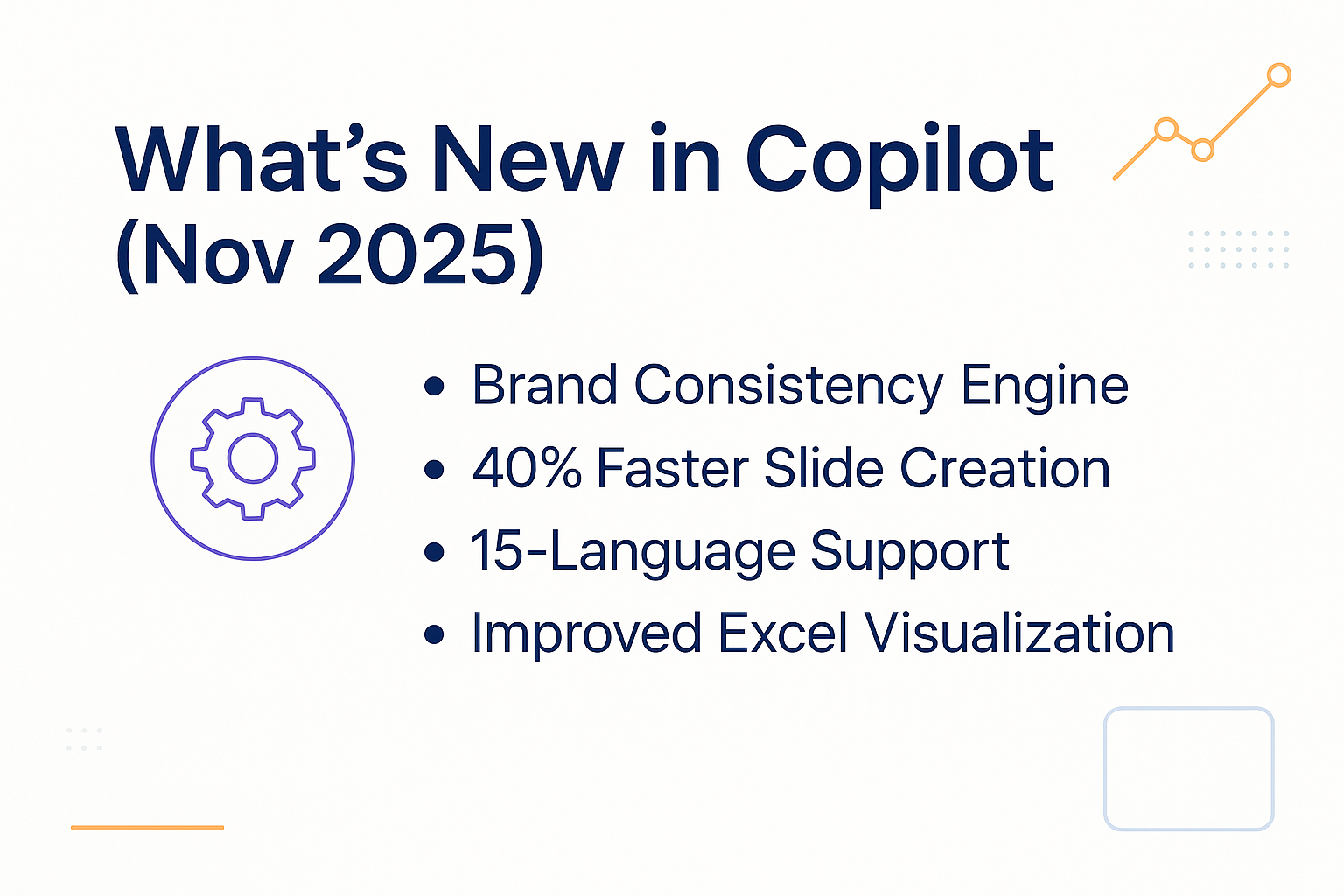
Summary of what’s new in PowerPoint Copilot November 2025 update.

🆕 What’s New in PowerPoint Copilot (November 2025)

Microsoft released one of the biggest Copilot upgrades since launch. These changes directly fix the issues most professionals complained about in 2024–2025. Here’s what matters — and what it means to you.

1. Enhanced Brand Consistency Engine (Major Upgrade)

Copilot can now:

  • Lock your brand colour palette
  • Apply brand fonts automatically
  • Enforce layout templates
  • Pull logos and brand assets from your library
  • Prevent Copilot from overriding brand settings

Why this matters: Brand clean-up used to be a 30–45-minute manual chore. With the new engine, it now takes under 10 minutes.

Perfect for: Banks • Consulting firms • Pharma • Corporate teams with strict brand guides

2. 40% Faster Slide Generation

Generation times dropped from 15–20 sec/slide → 8–12 sec/slide.

This dramatically improves the iteration loop:

  • Old workflow: generate → wait → review → regenerate → wait → adjust → regenerate
  • New workflow: generate → adjust → generate again

This makes Copilot finally usable for creative iteration, not just “one and done” generation.

3. Multi-Language Support Expanded (15 Languages)

Now includes:

  • Arabic (with RTL formatting)
  • Korean
  • Dutch
  • Swedish
  • Polish

And improved support for: German • Spanish • French • Mandarin

Use case example: I generated English, German, and Mandarin versions of a pitch deck for a consulting client in under 5 minutes.

4. Better Data Visualisation from Excel

Copilot now:

  • Suggests chart types based on your dataset
  • Applies comparison-friendly colours
  • Interprets time-series data more accurately
  • Writes descriptions for the charts

But still struggles with:

  • Waterfalls
  • Multi-variable financial models
  • Complex custom templates

Workaround: Build the chart in Excel → tell Copilot: “Create a slide explaining this chart for a senior executive audience.”

📚 Want the Deep Dive on November’s Updates?

I’ve tested every feature on real client work. Get the complete analysis with specific prompts, workflows, and industry examples.

Read the Full November 2025 Update →

❓ What Exactly Is PowerPoint Copilot?

Microsoft Copilot is an AI assistant built directly into PowerPoint. You describe what you want — and it creates slides, designs layouts, writes content, formats everything, and reorganises your deck.

Copilot Can:

  • Create full presentations from a single prompt
  • Transform Word docs into slides
  • Pull data from Excel and create visualizations
  • Summarise long presentations
  • Rewrite slides for different audiences
  • Fix formatting and apply consistency
  • Generate speaker notes
  • Suggest images, icons, and charts

✅ Best suited for: Professionals who create 2–5 presentations weekly.

❌ Not suited for: People who only create occasional slides or need heavy custom design.

🚀 New to Copilot? Start Here

For Beginners: The 25 prompts that work best, without overwhelm.

£9.99 Prompt Starter Pack →

For Power Users: 100+ prompts • workflows • troubleshooting • brand techniques.

£29 Copilot Master Guide →

⭐ Why Copilot Is a Game-Changer (If You Use It Right)

Copilot changes one essential thing: It eliminates the blank page.

With the right prompt, Copilot creates:

  • A structured deck
  • An organised narrative
  • Slide-ready content
  • Clean layouts
  • Initial speaker notes

Then you refine.

Most users who complain that Copilot “isn’t good” are:

  • Using vague prompts
  • Expecting perfect first drafts
  • Not providing audience context
  • Not reviewing outputs
  • Not using brand templates

Used correctly, Copilot lets you go from idea → deck in minutes.

🎬 How to Access Copilot in PowerPoint

To use PowerPoint Copilot, you must have:

Requirement Details
✔ Microsoft 365 + Copilot License $30/user/month add-on to existing M365 subscription
✔ Updated PowerPoint Version Mac or Windows, must be current version
✔ Internet Connection Copilot works via Microsoft cloud servers
✔ Permission from IT Required for enterprise users

How to access: Open PowerPoint → Look for the Copilot icon in the ribbon.

Diagram showing three core Copilot workflows: From Scratch, From Documents, Slide-by-Slide.
🚀 How to Create Your First Presentation with Copilot (3 Methods)

There are three primary workflows. Master these first — everything else builds on them.

METHOD 1 — Create a Deck from Scratch (Fastest)

Prompt example:

Create a 10-slide executive presentation about sustainable business practices. Include: agenda, key benefits, operational impact, case studies, and next steps. Use a concise, professional tone.

Copilot generates:

  • Full deck with structured flow
  • Clean layouts
  • Relevant images
  • Slide-ready text

Use this method when: You need a fast starting point with clear direction.

METHOD 2 — Create Slides from Existing Documents

One of Copilot’s biggest strengths.

Prompt example:

Create a presentation from this document: [link]

Copilot reads your file → converts it into a presentation.

Perfect for:

  • Reports → executive summaries
  • Meeting minutes → team updates
  • Proposals → marketing decks
  • Client deliverables → pitch decks

METHOD 3 — Build the Deck Slide-by-Slide

Best workflow for high-stakes presentations.

Examples:

  • “Create an agenda slide for a digital transformation project.”
  • “Add a slide showing the top 3 benefits.”
  • “Add a timeline slide from Q1 to Q4.”
  • “Add a case study slide about our SaaS client.”

You stay in control. Copilot builds the content.

Visual list of essential Copilot commands for creating and improving slides.
🧠 Essential Copilot Commands (Master These First)

Organised by what you’re trying to achieve.

A. Create New Slides

  • “Add a slide about [topic]”
  • “Create 3 slides covering [A, B, C]”
  • “Insert a slide summarising key metrics”

B. Generate Slide Types

  • “Create a comparison slide: [option A] vs [option B]”
  • “Add a process diagram for [process]”
  • “Create an agenda slide”

C. Write or Rewrite Content

  • “Write speaker notes for this slide”
  • “Rewrite this slide for a non-technical audience”
  • “Summarise this slide in 3 bullet points”
  • “Expand this paragraph into a full slide”

D. Fix Layout & Design

  • “Make this slide more visual”
  • “Suggest a better layout”
  • “Apply consistent formatting to all slides”
  • “Add relevant icons to these bullet points”

E. Improve Messaging

  • “Make this more concise”
  • “Rewrite for executives”
  • “Make this more persuasive”
  • “Simplify this slide”

📖 Want the Full Command Library?

£9.99 Starter Pack: 25 essential prompts that work immediately

Get the Starter Pack →

£29 Master Guide: 100+ prompts organized by use case with troubleshooting

Get the Master Guide →

📘 Step-by-Step Tutorial: Build a Business Deck in 25 Minutes

Scenario: Q4 marketing performance for executives.

Step What to Do Time
STEP 1
Create the Deck
Prompt:
“Create a 12-slide executive presentation about Q4 marketing performance including: KPIs, campaign performance, ROI, challenges, Q1 recommendations, and insights for leadership.”
30 seconds
STEP 2
Review the Slides
Check:

  • Data accuracy
  • Flow & logic
  • Missing details
  • Audience alignment
5 minutes
STEP 3
Upgrade Key Slides
Examples:

  • “Add a Q3–Q4 comparison chart”
  • “Transform campaign slides into before/after visuals”
  • “Add specific recommendations”
10 minutes
STEP 4
Apply Branding
  • Apply your corporate template
  • Update title slide
  • Replace generic images
5 minutes
STEP 5
Generate Speaker Notes
Prompt:
“Write speaker notes with talking points and expected questions.”
5 minutes
Total Time: 25 minutes
(Previously: 3–4 hours)

🧩 Advanced Copilot Techniques

1. Refresh Old Presentations

  • “Update this deck with 2025 trends”
  • “Modernise this design”
  • “Add current case studies”

2. Adapt to New Audiences

  • “Convert 30-slide technical deck → 10-slide exec summary”
  • “Rewrite for investors”
  • “Simplify for non-technical audience”

3. Improve Weak Decks

  • “Analyse this presentation and suggest improvements”
  • “Make this slide more visual”
  • “Clarify unclear messaging”

4. Combine with Excel, Word & Teams

  • “Create charts from [Excel file]”
  • “Summarise [Word document] into slides”
  • “Create slides from Teams meeting notes”

5. Creating Different Presentation Types

Sales presentations:

“Create a sales presentation for [product] targeting [audience]. Focus on ROI and competitive advantages.”

Training materials:

“Create a training deck teaching [skill/process]. Include step-by-step instructions and practice exercises.”

Pitch decks:

“Create an investor pitch deck for [company/idea]. Include problem, solution, market size, business model, and ask.”

Internal updates:

“Create a monthly team update covering project status, wins, challenges, and priorities.”

Graphic showing top five Copilot mistakes to avoid.

⚠️ Common Copilot Mistakes to Avoid

After training hundreds of professionals on Copilot, here are the most common errors and how to avoid them:

❌ Mistake #1: Vague Prompts

Wrong: “Make a presentation about marketing”

Right: “Create a 10-slide B2B marketing strategy presentation for SaaS companies. Cover: market analysis, buyer personas, content strategy, lead generation tactics, and measurement KPIs. Professional tone for executive audience.”

Why it matters: Specific prompts get significantly better results. Include audience, length, key topics, and desired tone.

❌ Mistake #2: Not Reviewing AI Output

Copilot generates content quickly, but it’s not perfect. Always:

  • Verify facts and statistics
  • Check for brand alignment
  • Ensure logical flow
  • Add your own insights and data
  • Customize for your specific audience

Think of Copilot as a skilled assistant, not a replacement for your expertise.

❌ Mistake #3: Ignoring Brand Guidelines

Copilot creates generic professional designs by default. You must:

  • Manually apply your brand colors
  • Add your logo
  • Adjust fonts to match brand guidelines
  • Customize templates to your style

Pro tip: Create a branded template once, then use it as a starting point for Copilot presentations.

❌ Mistake #4: Using First Draft as Final

The first Copilot output is rarely perfect. Iterate:

  • Request improvements: “Make this slide more visual”
  • Refine messaging: “Simplify this for a non-technical audience”
  • Add missing context: “Include customer pain points on this slide”

Budget 20-30% of your time for refinement.

❌ Mistake #5: Over-Relying on AI

Copilot accelerates creation but doesn’t replace:

  • Your strategic thinking
  • Your industry expertise
  • Your understanding of the audience
  • Your presentation skills

The best presentations combine AI efficiency with human insight.

ROI chart showing 3–4 hours saved per presentation with Copilot.

🧭 Copilot vs Traditional Workflow: Real Time Savings

Task Traditional Copilot Savings
Research & Structure 30–45 min 30 sec–2 min 28–43 min
Slide Creation 2–3 hours 10–15 min 105–165 min
Design & Clean-Up 45–60 min 5 min 40–55 min
Final Polish 30 min 5 min 25 min
Total: 4–5 hours 30–45 minutes 3–4 hours saved

Annual ROI Calculation

For a professional creating 2 presentations per week:

  • Time saved per presentation: 3-4 hours
  • Weekly savings: 6-8 hours
  • Annual savings: 312-416 hours
  • Value at £75/hour: £23,400-£31,200
  • Copilot annual cost: £360
  • Net benefit: £23,040-£30,840
  • ROI: 6,400%

(more…)