Looking for ready-to-use AI prompts for executive presentations?
The Executive Prompt Pack gives you 71 structured prompts for ChatGPT and Copilot — covering board decks, investor pitches, quarterly reviews, and strategy presentations.
Quick Answer: Why Do My Copilot Slides Look Generic?
Copilot slides look generic because the tool defaults to Microsoft’s templates, standard fonts, and basic layouts when you don’t specify your brand requirements. The fix takes 5 minutes: add your brand template to Copilot’s context, specify exact fonts and colors in your prompt, and request your house style by name. This transforms generic AI-generated slides into client-ready presentations.
A managing director called me at 10pm last Tuesday.
“These slides look like a student made them.”
His team had used PowerPoint Copilot to create a £50M acquisition pitch. The content was solid. The analysis was there. The recommendations were spot-on.
But the slides screamed “AI-generated.”
Generic blue gradients. Default Calibri font. Cookie-cutter layouts that looked nothing like their house style.
They’d spent 4 hours building the deck with Copilot. Then spent another 5 hours fixing the formatting to match their brand.
Here’s what nobody told them: When your Copilot slides look generic, it’s not Copilot’s fault.
It’s your prompt.
Updated 27 March 2026 — Revised for the latest Microsoft Copilot and ChatGPT capabilities.
Executive Resource
Stop Writing AI Prompts From Scratch
The Executive Prompt Pack gives you 50 battle-tested prompts for executive-level presentations — board updates, budget requests, investor briefs, and Q&A prep. Built for PowerPoint Copilot and ChatGPT.
Get the Executive Prompt Pack →
Used by executives preparing for board briefings, budget requests, and investor meetings.
Why Your Copilot Slides Look AI-Generated
Let me be blunt.
Copilot doesn’t know your brand exists.
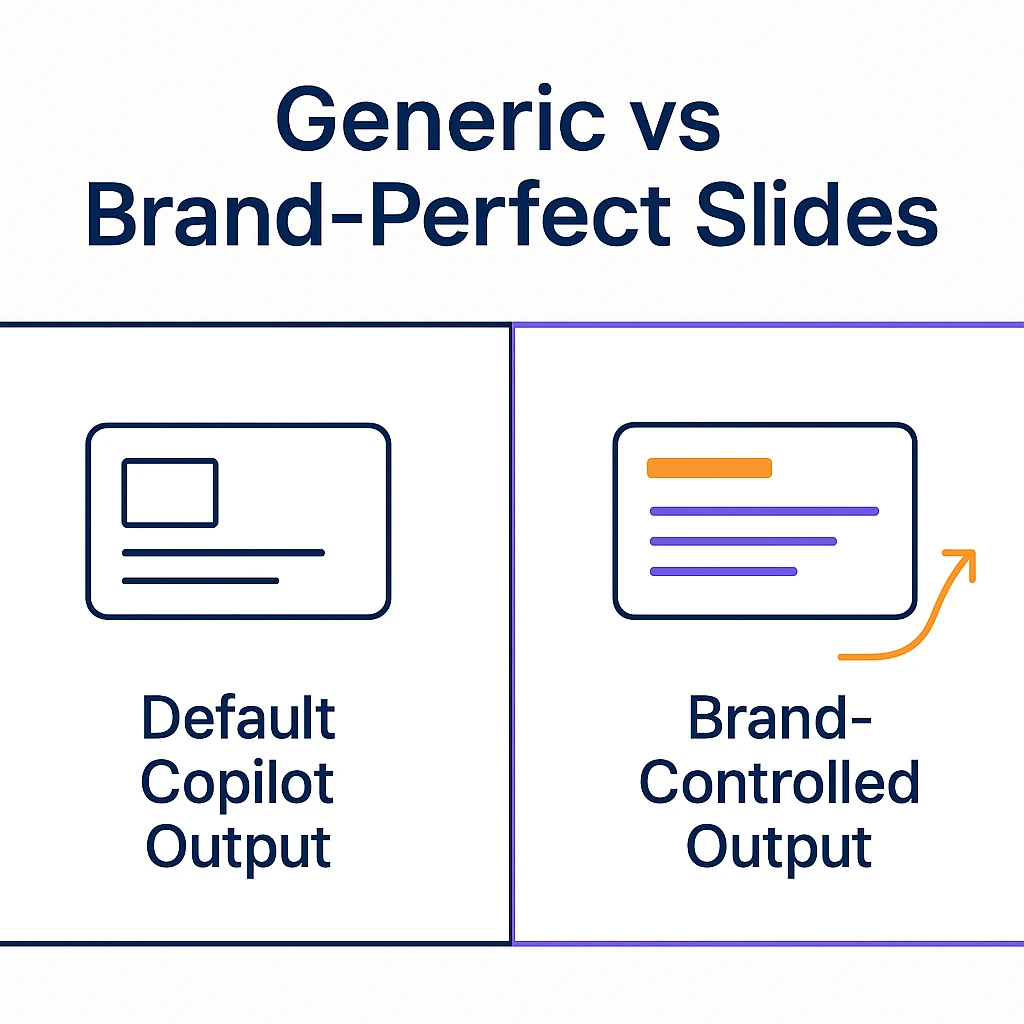
When you type “create slides about our acquisition strategy,” Copilot does exactly what you asked. It creates slides. Using Microsoft’s default templates. With Microsoft’s standard fonts. Following Microsoft’s generic design principles.
The result? Copilot slides that look generic because you never told Copilot what “not generic” means for your organization.
I’ve watched this play out with three asset management clients this month. All of them blamed Copilot for producing AI-generated slides that needed hours of reformatting.
None of them had included brand specifications in their prompts.
The professionals crushing it with PowerPoint Copilot aren’t getting lucky with better AI. They’re using 5 specific techniques that transform generic Copilot slides into brand-compliant presentations in minutes, not hours.
Here’s exactly what works.
What People Get Wrong About Copilot Slides Looking Generic
The investment bankers and asset managers whose Copilot slides look professional aren’t using a different version of Copilot.
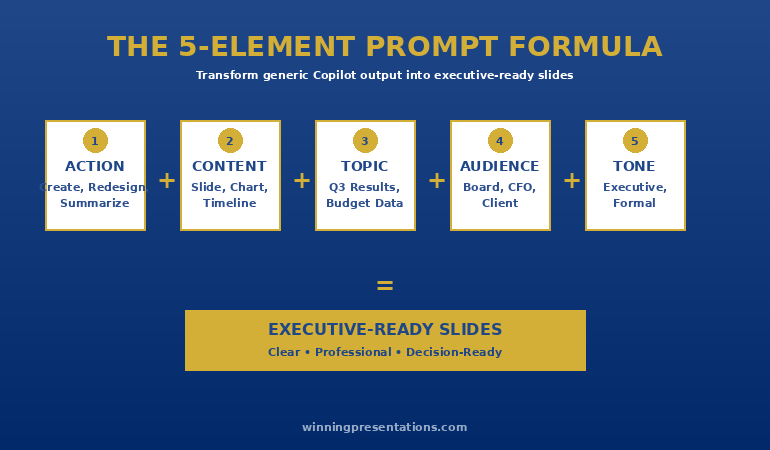
They’re using specific prompts that include: brand template names, exact font specifications, approved color palettes, house style requirements, and layout preferences.
That’s the difference between “create investor slides” (generic AI output) and “create investor slides using JPM Pitch Template with Gotham font and navy/gold color scheme following house style formatting” (client-ready output).
Here’s how to fix it.
Stop Guessing What to Type. Start Building in 25 Minutes.
The Executive Prompt Pack gives you 71 tested prompts for ChatGPT and Copilot — structured by scenario so you know exactly what to type:
- Build from scratch — scenario prompts for board reviews, budget requests, and investor decks
- Rescue and rewrite — audit an existing deck, condense it, or fix one slide at a time
- Industry-specific prompts for financial services, banking, consulting, and executive audiences
- Power modifiers that transform any prompt into board-ready output
- The 25-minute deck workflow that replaces 3–4 hours of manual building
Works with ChatGPT, Microsoft Copilot, and Edit with Copilot (formerly Agent Mode). Updated March 2026.
The 5-Minute Fix for Generic-Looking Copilot Slides
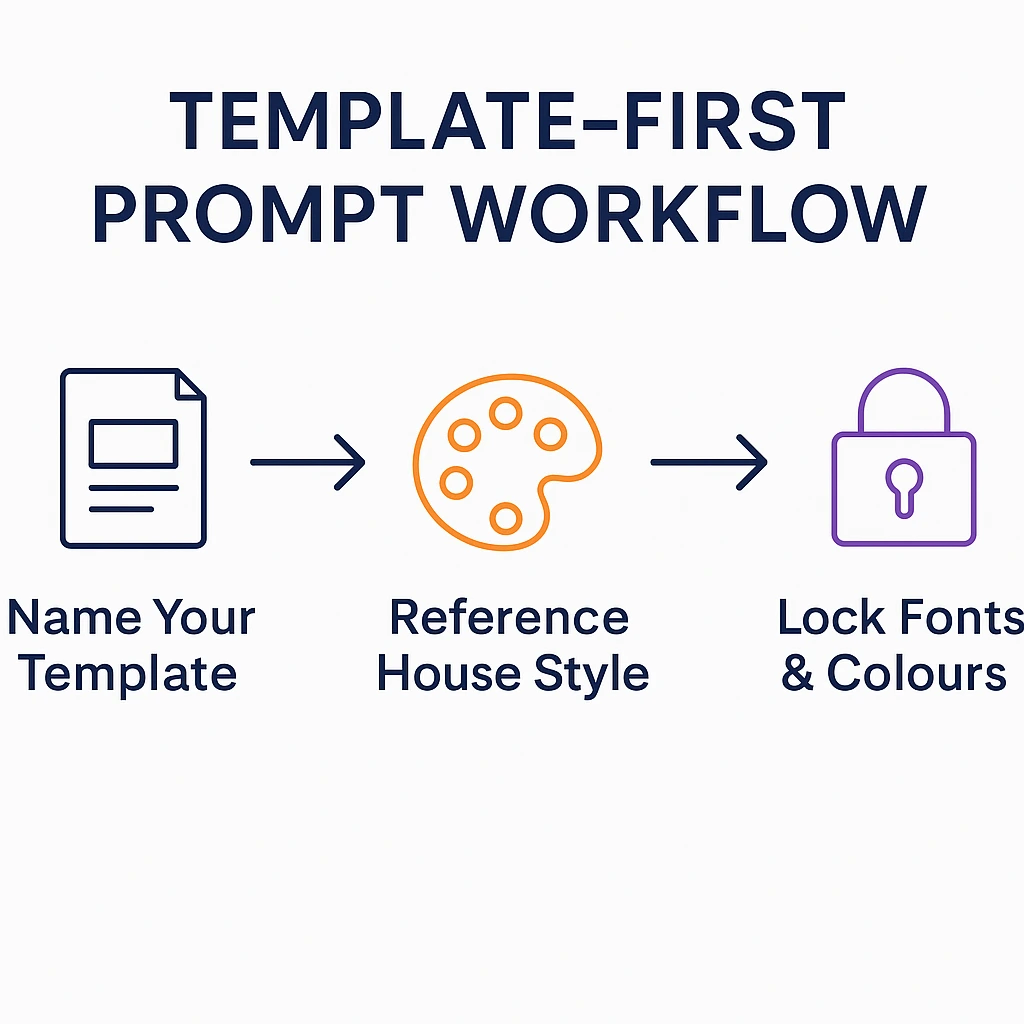
Reference Your Actual Brand Template by Name
Stop saying “professional slides.”
Start saying “slides using [Your Template Name].”
When I work with banking clients, their Copilot prompts now include: “Create slides using Goldman Equity Pitch Template” or “Use Morgan Stanley House Style deck as base.”
This single change eliminates 80% of the “Copilot slides look generic” problem.
Why it works: Copilot can see your existing PowerPoint files. When you reference a specific template by name, Copilot pulls fonts, colors, layouts, and master slide formatting from that template instead of defaulting to Microsoft’s generic options.
The exact prompt structure:
“Create [number] slides about [topic] using [Your Template Name] as the base format. Match all fonts, colors, and layouts to this template.”
A private equity client tested this last week. Their first Copilot attempt without template reference? Generic AI-generated slides that took 3 hours to reformat. Their second attempt with template specified? Slides that needed 15 minutes of minor tweaks.
If you’re still struggling with writing effective PowerPoint Copilot prompts, the template reference technique is your fastest path from generic output to professional slides.
Specify Your Exact Fonts and Colors in Every Prompt
Don’t assume Copilot knows your brand.
Tell it explicitly.
Generic prompt: “Create management presentation”
Brand-specific prompt: “Create management presentation using Helvetica Neue 28pt for headers, 18pt for body, navy #1F4788 for titles, gold #C4A33C for accents”
I learned this the expensive way on a £10M debt financing pitch. I didn’t specify fonts. Copilot defaulted to Calibri. The partner spotted it immediately at 11:30pm: “This doesn’t look like our work. Did you use AI for this?”
That question.
That’s the question you never want from a senior partner on the night before a pitch.
We spent 2 hours fixing what should have taken 5 minutes with the right prompt. The deal closed successfully, but I learned: when Copilot slides look generic, clients notice. And they judge.
Pro tip: The professionals who never have generic-looking Copilot slides keep a brand prompt snippet saved:
- Exact font names and sizes
- Hex codes for brand colors
- Approved color combinations
- Logo placement requirements
They paste this snippet into every Copilot prompt. Five seconds of setup eliminates hours of reformatting.
Request Your House Style Formatting Rules
Here’s what surprised me about Copilot.
It can follow complex formatting rules—if you tell it what they are.
Most asset managers and banks have house style guides. Specific requirements for:
- Chart formatting (colors, gridlines, axis labels)
- Table styling (borders, shading, alignment)
- Title slide layouts (logo placement, partner names)
- Text hierarchy (when to use bullets vs. paragraphs)
When your Copilot slides look generic, it’s usually because you didn’t include these house style requirements in your prompt.
A boutique advisory firm client sends me their prompt template. It includes: “Follow [Firm Name] house style: charts with gray gridlines, no 3D effects, data labels above bars, tables with thin borders and alternating row shading, title slides with logo top-right.”
Their Copilot output now requires minimal cleanup because they frontload the formatting requirements instead of fixing generic slides afterward.
The same principle applies when you’re using ChatGPT for PowerPoint—specific brand instructions upfront prevent generic output later.
Show Copilot an Example Slide for Complex Formatting
Sometimes your brand requirements are too complex for a text prompt.
That’s when you show instead of tell.
Open an existing on-brand deck. Point Copilot to a specific slide: “Create 5 slides about market analysis matching the format and style of slide 8 in [filename].”
This works brilliantly for:
- Complex waterfall charts with specific formatting
- Multi-level comparison tables with intricate styling
- Executive summary slides with unique layouts
- Cover pages with precise logo and text placement
I watched an investment banking analyst struggle for 90 minutes trying to describe his firm’s standard market analysis format in a prompt. His Copilot slides looked generic because the text description couldn’t capture the visual complexity.
Then he switched to: “Match the format of slide 12 in Q3_Market_Analysis.pptx.”
Copilot produced slides that matched their brand in one attempt.
No more generic AI-generated slides that need hours of reformatting.
Create a Copilot Brand Prompt Library
Stop reinventing prompts every time you create a deck.
The highest-performing teams I work with maintain a Copilot prompt library with brand-specific snippets:
For pitch decks: “Use [Firm] Pitch Template, Gotham Bold 32pt titles, Gotham Book 18pt body, navy #003366 titles, gold #B8860B accents, white backgrounds only, logo top-right on all slides”
For internal updates: “Use [Firm] Internal Update format, Arial 24pt headers, 16pt body, gray #666666 and blue #1F4788 color scheme, simple bullets, no graphics unless data visualization”
For board presentations: “Use [Firm] Board Deck Template, Helvetica Neue 28pt headers, 18pt body, conservative formatting, detailed slide titles that could stand alone, appendix-ready backup slides”
They copy-paste the relevant snippet into every Copilot prompt.
Result? Copilot slides that look like their brand from the first draft, not generic AI output that requires hours of cleanup.
If you’re exploring alternatives to PowerPoint Copilot, you’ll find this same principle applies: AI tools need explicit brand instructions or they default to generic templates.
My £50M Generic Copilot Slides Disaster
[WARNING] Don’t make my mistake:
I created a sell-side pitch for a £50M transaction using a vague Copilot prompt: “Create investor presentation slides.”
The fonts were wrong. The colors didn’t match the client’s brand. The charts looked like every generic AI-generated slide deck on the internet.
The client’s head of corporate development called me at 6:45pm—75 minutes before the board dinner where they planned to share the deck with prospective buyers.
“Mary Beth, did you actually create this, or did you just let AI do it?”
Silence.
That silence cost me more than the 6 hours I spent reformatting. It cost credibility.
I spent those 6 hours fixing what should have been client-ready from Copilot. We missed the board dinner. The presentation happened the next morning instead. All because I didn’t include brand specifications in my initial prompt.
Here’s what I learned: PowerPoint Copilot is brilliant at following instructions—but only if you give it specific instructions about your brand. Generic prompts produce generic slides. Brand-specific prompts produce professional output that clients can’t distinguish from manually-created decks.
Now every Copilot prompt I write includes: template name, exact fonts with sizes, hex color codes, and house style requirements. My clients can’t tell the difference between my Copilot slides and manually-created decks.
That’s the goal.
Why Most Copilot Slides Look Like AI Made Them
The pattern I see with banking and asset management clients?
They treat Copilot like a mind reader instead of a tool that follows instructions.
They don’t specify:
- Which brand template to use
- What fonts and sizes are approved
- What colors are on-brand vs. off-brand
- What formatting rules their firm requires
- What style they need (formal vs. casual, detailed vs. high-level)
Then they’re surprised when Copilot slides look generic.
The ones crushing it with Copilot? They frontload specificity. They spend 30 seconds writing a detailed prompt that includes brand requirements. They save 3 hours of reformatting generic slides.
Simple math.
For 71 tested prompts covering every scenario — build from scratch, rescue an existing deck, or fix individual slides — the Executive Prompt Pack gives you exactly what to type, updated for the latest Copilot and ChatGPT capabilities.
Common Mistakes That Make Copilot Slides Look Generic
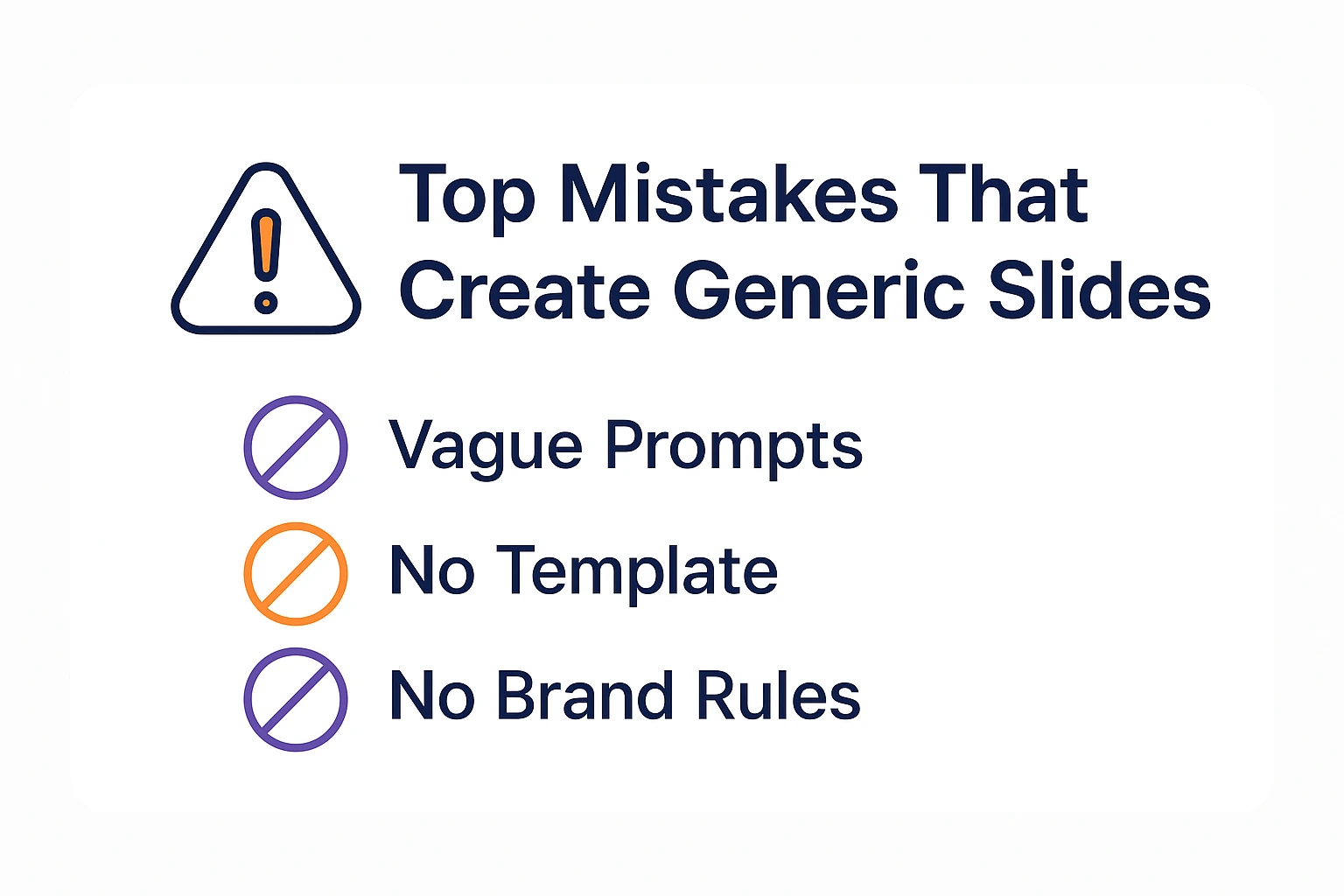
Mistake 1: Using the Same Vague Prompt for Every Deck Type
“Create slides about [topic]” produces different quality depending on topic complexity.
For financial analysis? You get generic charts and basic layouts.
For strategic recommendations? You get bullet points that could apply to any company.
Smart professionals use different prompt structures for different deck types:
- Pitch decks: Emphasize visual impact, clear data visualization, executive-friendly layouts
- Board updates: Request detailed slide titles, appendix-ready format, conservative styling
- Client deliverables: Specify consultative tone, professional polish, branded templates
This same principle drives effective pitch deck software selection—different tools for different presentation types.
Mistake 2: Not Testing Copilot on Throwaway Decks First
I watched a consultant create a client presentation with Copilot for the first time.
Live.
During billable hours.
The Copilot slides looked generic. The formatting was wrong. The tone was off.
He spent 4 hours fixing what should have tested on a practice deck first.
Test your brand-specific Copilot prompts on internal decks before using them for client work. Refine until the output matches your standards. Then deploy with confidence.
Mistake 3: Blaming Copilot Instead of Improving Your Prompts
Every time someone tells me “Copilot slides look generic and I hate it,” I ask: “Did you specify your brand requirements in the prompt?”
95% of the time: No.
Copilot isn’t the problem. Vague prompts are the problem.
The fix takes 5 minutes: Create brand-specific prompt snippets, test them, refine them, reuse them.
Let me be honest: I wasted 40+ hours reformatting generic Copilot slides before I figured this out. You don’t need to make the same mistake.
How to Link Copilot to Your Brand Guidelines
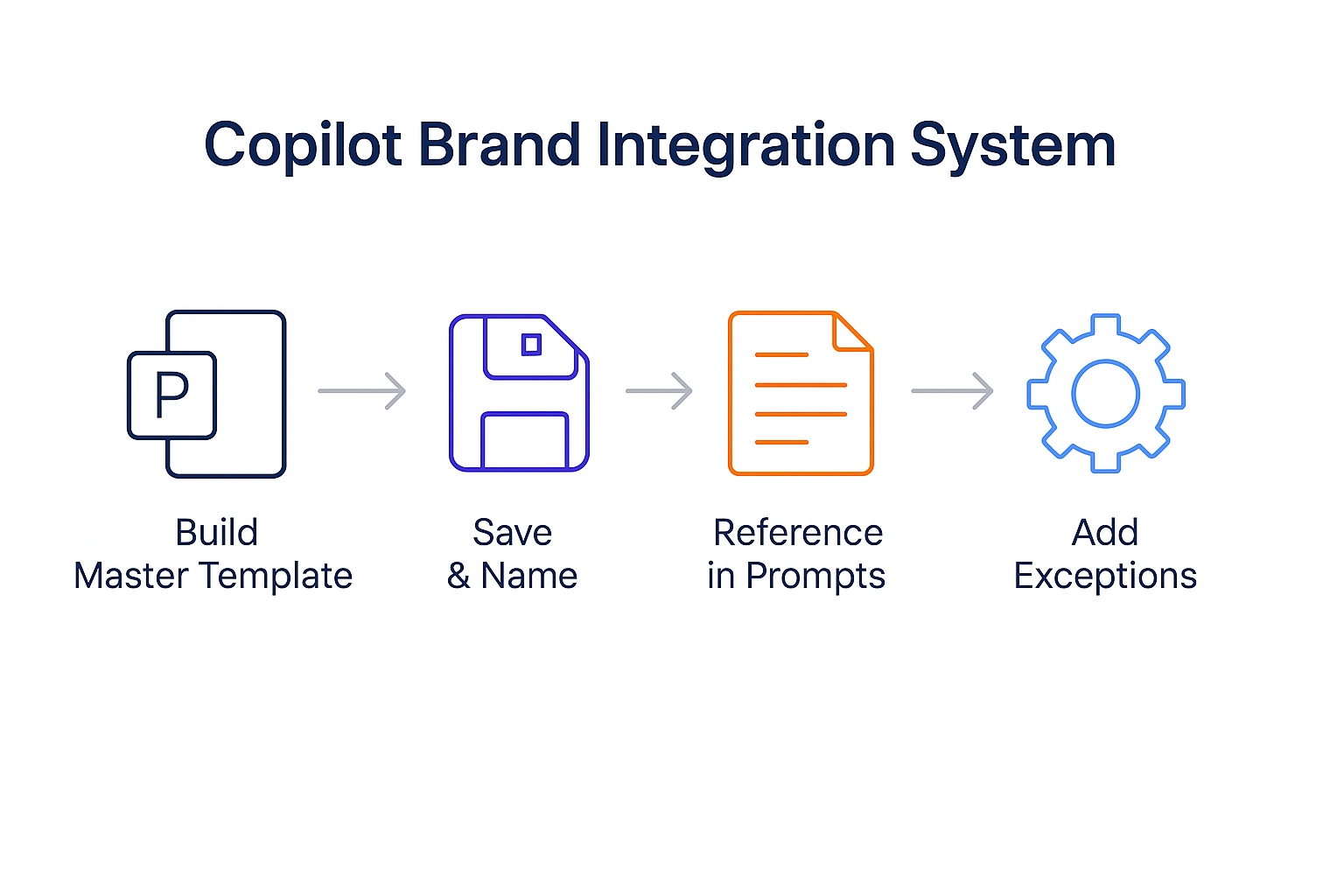 Here’s the system that works for professional services firms:
Step 1: Create a master brand template in PowerPoint with:
- All approved fonts at correct sizes
- Full color palette with hex codes
- Standard layouts for common slide types
- Your logo properly positioned
- Master slide formatting locked in
Step 2: Name this template something Copilot-friendly: “[YourFirm]_Brand_Template.pptx”
Step 3: Reference this template in every Copilot prompt: “Using [YourFirm]_Brand_Template format…”
Step 4: Add specific instructions for deviations: “Exception: use navy background for title slide only”
This eliminates 90% of “my Copilot slides look generic” complaints.
For the complete PowerPoint Copilot setup including brand integration, template optimization, and prompt libraries that work for investment banking and asset management presentations, check out my comprehensive PowerPoint Copilot guide.
Why Generic-Looking Slides Cost You Deals
Let me be honest about something uncomfortable.
Your clients judge your slides in the first 30 seconds.
Generic AI-generated slides signal: “We used a shortcut.”
Brand-perfect slides signal: “We invested time in this presentation specifically for you.”
I’ve seen asset managers lose pitches because their Copilot slides looked generic. Not because the content was weak. Because the formatting screamed “we didn’t care enough to make this look professional.”
The private equity partner told me: “If they can’t get their own slides right, why would I trust them with our portfolio companies?”
Harsh.
Fair.
Your Copilot slides need to look indistinguishable from manually-created decks. That’s the standard for high-stakes presentations.
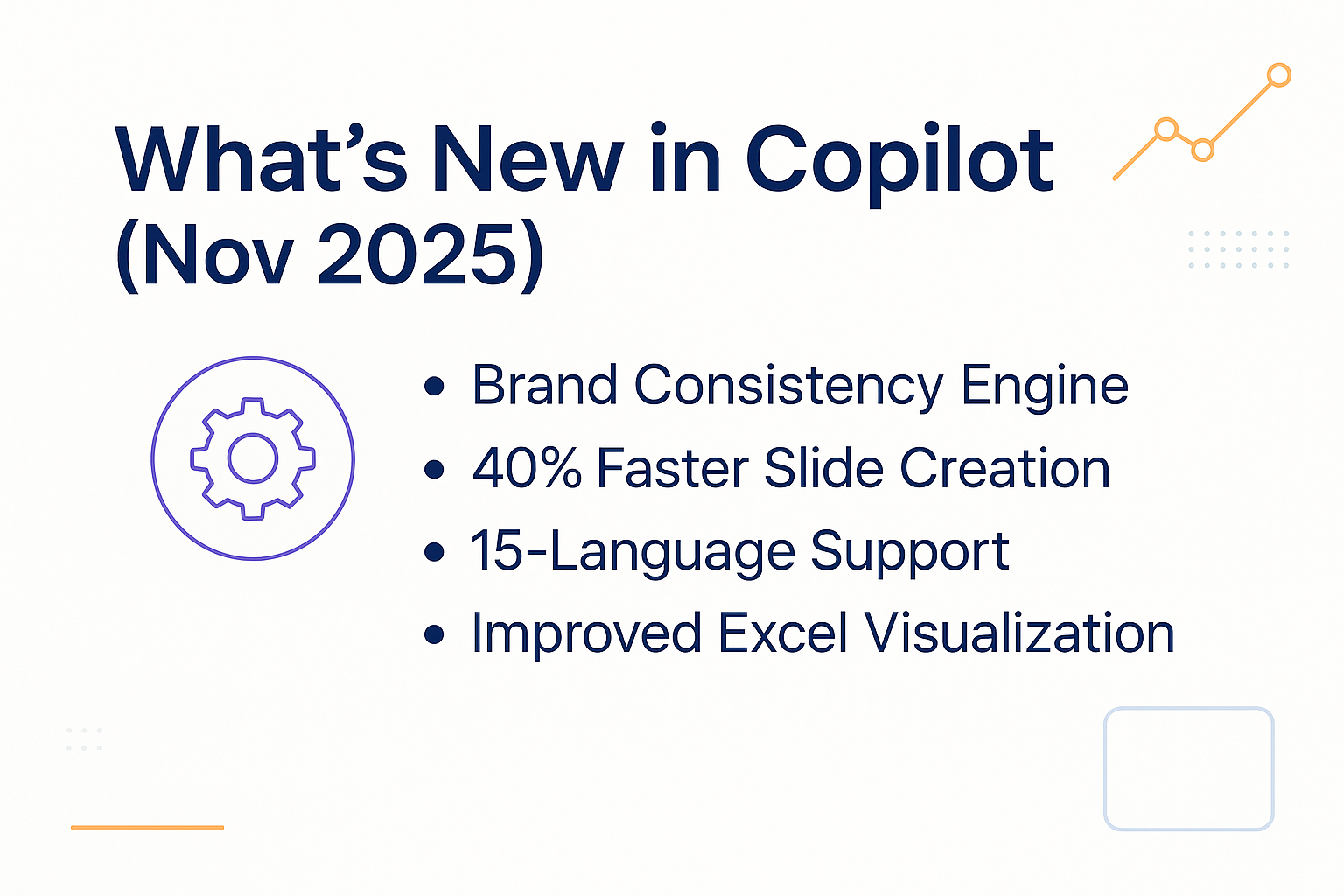
The November 2025 updates to PowerPoint Copilot actually make brand consistency easier—but only if you know how to prompt for it. See my November update breakdown for the latest features that prevent generic output.
71 Prompts. Every Scenario Covered.
Build from scratch, rescue an existing deck, or perfect individual slides — the Executive Prompt Pack covers every scenario. Works with ChatGPT, Copilot, and Edit with Copilot. Updated March 2026.
FAQ: Fixing Generic Copilot Slides
A: If you catch it during prompt creation, 5 minutes to add brand specifications. If you’re reformatting generic Copilot slides after creation, expect 2-4 hours depending on deck length and complexity. Front-loading brand requirements in your prompt saves exponentially more time than fixing generic slides afterward. Investment banking teams I work with spend 30 seconds on detailed prompts to save 3+ hours of reformatting.
A: No. Copilot cannot automatically detect your brand standards unless you specify them or reference a branded template file. Even if you’ve created dozens of on-brand decks before, each new Copilot session starts fresh with no brand memory. You must include brand specifications (fonts, colors, template names) in every prompt. This is the #1 reason Copilot slides look generic—people assume Copilot knows their brand when it doesn’t.
A: Only if your prompt was too generic. When you include specific brand requirements—template name, exact fonts, hex color codes, house style rules—Copilot typically produces slides that need only 10-15 minutes of minor tweaking versus 3-4 hours of complete reformatting. The quality of your Copilot output directly correlates to the specificity of your prompt. Generic prompts produce generic slides that require extensive reformatting.
A: Create reusable prompt snippets with your brand specifications: template name, fonts with sizes, color hex codes, and formatting rules. Save these as text files you can copy-paste into every Copilot prompt. Asset management firms I work with maintain 3-5 prompt snippets (pitch decks, board updates, client deliverables, internal analysis) that transform generic Copilot output into branded slides from the first draft. Initial setup: 20 minutes. Time saved per deck: 2-3 hours.
A: Three common causes: (1) You’re using generic descriptions (“professional colors”) instead of specific values (“navy #1F4788”), (2) You’re not referencing an actual template file by name, or (3) Your template file isn’t properly saved in a location Copilot can access. Test by creating a simple 3-slide deck with maximum specificity: exact template name, precise font names and sizes, hex color codes for every color you need. If that works, your original prompt lacked sufficient detail. When Copilot slides look generic despite your best efforts, the issue is almost always prompt specificity, not Copilot’s capability.
A: Absolutely. Your pitch deck formatting requirements differ dramatically from board updates or internal analysis decks. Maintain separate prompt templates for each presentation type: investor pitches (visual impact focus), board decks (detailed titles, appendix-ready), client deliverables (consultative polish), internal updates (speed over aesthetics). This prevents the “one generic prompt fits all” approach that produces generic-looking Copilot slides regardless of use case.
Stop Fighting Generic Copilot Slides
A boutique M&A advisory client told me last week: “I used to spend 30% of my deck creation time fixing Copilot’s generic formatting. Now I spend 5% because I frontloaded brand requirements into my prompts.”
That’s the shift.
But here’s the result that matters more: Three weeks after implementing brand-specific prompts, she closed a £15M deal. The buyer specifically mentioned the “professional quality and attention to detail” in her presentation materials.
Her Copilot slides looked so good that buyers assumed she had a full design team.
She didn’t. She had a 2-sentence prompt snippet.
Stop fighting generic AI-generated slides after the fact. Start preventing them with specific, brand-focused prompts upfront.
The 5-minute investment in prompt specificity saves hours of reformatting frustration.
If you want the complete prompt library I use with investment banking and asset management clients—including 50+ brand-specific prompt templates tested on £100M+ deals—grab the Executive Prompt Pack:
Get the Executive Prompt Pack → £19.99
Includes: 71 tested prompts, brand integration prompts, template setup guides, and industry-specific examples organised by financial services use cases.
Your Copilot slides should look like you made them, not like AI made them.
Fix it in 5 minutes with the right prompt.


 What Really Happened With the November 2025 PowerPoint Copilot Update