Tag: Copilot PowerPoint

11 May 2026
Featured image for Copilot Presentation Outline to Final Deck: The 4-Pass Workflow That Saves 6 Hours

Copilot Presentation Outline to Final Deck: The 4-Pass Workflow That Saves 6 Hours

Quick answer: Most senior professionals use Copilot inefficiently for presentation work — they ask for a full deck in one prompt, then rewrite the output four or five times until something is usable. The 4-pass workflow flips this. Pass 1: outline only. Pass 2: headlines for every slide. Pass 3: body content for one slide at a time. Pass 4: editorial cleanup. Each pass takes one focused prompt, and the total time from outline to final deck drops from a half-day to roughly an hour.

Tomás runs investor relations for a UK-listed industrial. Last quarter he had to build a results presentation in two days — full board-level review of trading performance, segment commentary, and the outlook. He fed Copilot one big prompt: full deck, twelve slides, the works. Copilot produced something. He spent the rest of the day rewriting it. By the end, almost no Copilot text survived. The deck was his work, finished late, with a substantial detour through AI that had not actually saved him time.

The next quarter, he tried a different approach. He broke the work into four short Copilot conversations, each with a single, narrow purpose. Outline. Headlines. Body. Cleanup. The total Copilot time was about 35 minutes. The total deck time, including his own thinking and editing, was just under three hours — for a deck of similar quality to one that had previously taken him close to ten hours. That was when he stopped writing single mega-prompts and started using AI in passes.

If you want a structured starting point

The Executive Prompt Pack contains 71 ChatGPT and Copilot prompts written specifically for senior-level presentation work — including pass-by-pass prompts for the workflow described in this article.

Explore the Executive Prompt Pack →

Why “give me a full deck” is the wrong first prompt

Asking Copilot for a full deck in one prompt sounds efficient. It is not. It collapses three different decisions — what to cover, how to assert each point, and how to write the body — into a single guess. Copilot has to make all three decisions simultaneously, with no opportunity for you to redirect when one of them is going wrong. By the time you see the output, the deck is built around an outline you would not have approved, with headlines you would not have written, in a voice you would not have used.

The fix is to make the same decisions in the same order you would make them if you were writing the deck yourself — first structure, then assertions, then evidence, then voice. Each pass uses Copilot to amplify your judgement on one decision at a time. You correct course at every step rather than rebuilding at the end.

Pass 1: outline-only — getting structure before words

The first prompt asks for an outline only. No body content. No headlines. Just the structure. The output should be a numbered list of slides with one-line descriptions of what each slide covers.

Sample prompt: “Give me an outline only — numbered list of 9 slides — for a 25-minute board presentation on Q3 trading results for our European industrial business. Audience: 12-person board, sceptical of strategic context, want financial impact early. Decision: confirm full-year guidance and approve £6m additional CapEx for the German plant. One line per slide describing what it covers. Do not write headlines or body content. Do not include speaker notes. The first slide must contain the headline financial result; the last must contain the decision asked of the board.”

The output of pass 1 is read for one thing only: does the structure work? Are the right slides in the right order? Is anything missing? Anything redundant? Is the recommendation in the right place? If the outline is wrong, no amount of polish on later passes will save the deck. If the outline is right, the next three passes get progressively easier.

Edit the outline directly in the chat. Add or remove slides. Move things around. Then ask Copilot to confirm the revised outline before pass 2.

Pass 2: slide headlines — pinning the assertion before the evidence

The second prompt asks Copilot for headlines — and only headlines — for each slide in the agreed outline. The constraint that matters here is “statement, not category.” A category headline is “Q3 Results”; a statement headline is “Q3 EBIT delivered £42m, ahead of guidance by £4m on lower-than-expected raw material costs.” The statement asserts the point the slide makes. The reader knows the conclusion before they read the body.

Sample prompt: “Using the agreed 9-slide outline, write the headline for each slide as a complete declarative statement — not a category. Each headline should make the point of the slide; the body content will support it. Headlines should be one sentence, maximum 15 words. Do not write body content yet. Use the actual financial numbers I gave you in pass 1 — do not insert placeholders.”

The output of pass 2 is read against your business judgement. Do the headlines actually assert what you want each slide to say? If a headline is hedged, sharpen it. If a headline buries the point, rewrite it. If a headline picks the wrong angle, change the angle. The headlines, once locked, become the spine of the deck — every body decision in pass 3 has to support its slide’s headline.
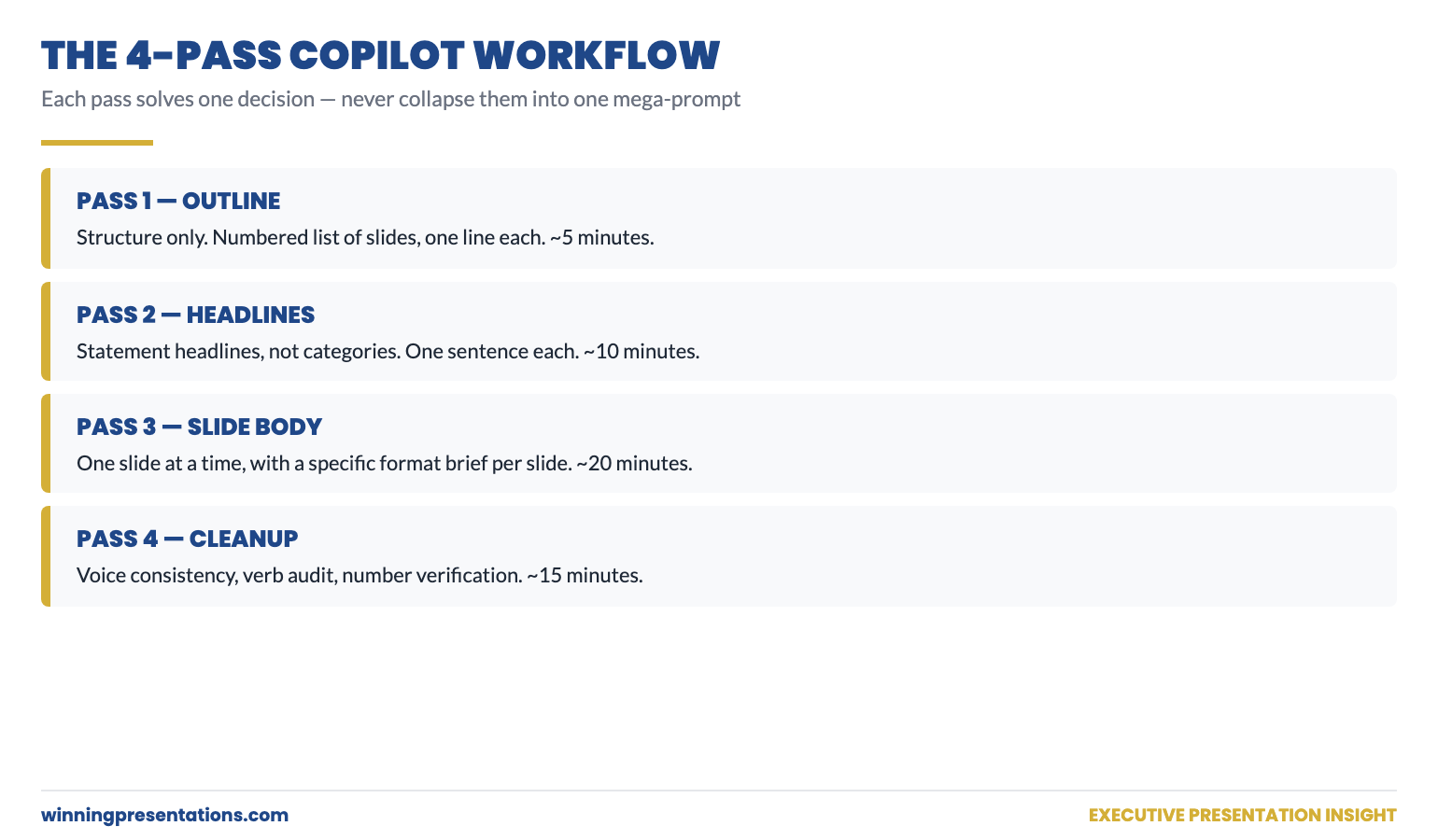
The 4-Pass Copilot Workflow for Executive Decks: Pass 1 Outline Only, Pass 2 Statement Headlines, Pass 3 Slide Body One at a Time, Pass 4 Editorial Cleanup — each pass shown as a numbered card with its purpose and approximate time investment.

Pass 3: slide body — one slide at a time, with constraints

This is the pass most senior users get wrong. They ask Copilot to write all the body content in one prompt. Copilot then writes nine slides in roughly the same voice, with similar paragraph lengths, hitting similar emotional notes — and the deck reads as monotone. Each slide should have its own structure dictated by what the slide is doing.

The fix is to write body content one slide at a time, with a specific format brief for each. A summary slide gets a different structure from a chart slide; a recommendation slide gets a different structure from a risk slide.

Sample prompt for one slide: “Slide 4 headline: ‘European volumes recovered in September after the August softness.’ Body content for this slide: three short sentences, no bullet points, total 60 words maximum. Sentence 1 — name the September volume number and the year-on-year comparison. Sentence 2 — name the underlying cause (price normalisation in steel). Sentence 3 — name the read-across to Q4 (volumes expected to hold). Do not hedge — assert the read-across.”

Repeat this for every slide. It feels slower than it is. Each slide-body prompt takes 60–90 seconds to write and Copilot returns output in 5–10 seconds. The total pass-3 time for a 9-slide deck is typically 15–20 minutes — and the body content arrives already calibrated to your voice and the slide’s purpose.

Stop building each pass-prompt from scratch

The Executive Prompt Pack contains pre-written pass-by-pass prompts for the most common executive presentation scenarios — outline prompts, headline prompts, body-content prompts, and cleanup prompts, all designed to chain together as a workflow.

  • 71 prompts covering board updates, capital cases, change proposals, Q&A prep, pitch decks
  • Pass-by-pass prompts that chain together for the full workflow described above
  • Headline prompts calibrated for declarative-statement output, not generic categories
  • Instant download, lifetime access, £19.99

Get the Executive Prompt Pack — £19.99 →

Built for senior professionals across financial services, technology, and consulting.

Pass 4: editorial cleanup — the surgical fixes that take the deck over the line

The fourth pass is what most users skip. The deck looks finished — headlines, body content, structure all in place. But it is not yet a deck a senior reader will accept. Three specific cleanups separate “looks done” from “actually done.”

Cleanup 1 — voice consistency. Read the headlines aloud, top to bottom. Do they sound like the same person wrote them? If headline 3 hedges and headline 7 asserts, fix headline 3. If headline 5 uses different vocabulary from the rest of the deck, fix headline 5. The voice should be one voice throughout — usually achieved by sharpening the weakest two or three headlines to match the strongest.

Cleanup 2 — verb audit. Search the deck for filler verbs (“leverage”, “drive”, “unlock”, “enable”, “facilitate”). Replace each one with the specific verb that describes what is actually happening. “Leverage AI for productivity” becomes “use Copilot to draft proposals in 25 minutes.” Verbs are where AI output most reliably reverts to mush; the verb audit is the highest-yield 10 minutes you will spend on the deck.

Cleanup 3 — number check. Every number in the deck should be traceable to a source you trust. Copilot does not always invent numbers, but it does sometimes round, paraphrase, or transpose. The cleanup pass is when you verify each number against the original — a board pre-read with a wrong number is not recoverable from in the meeting.
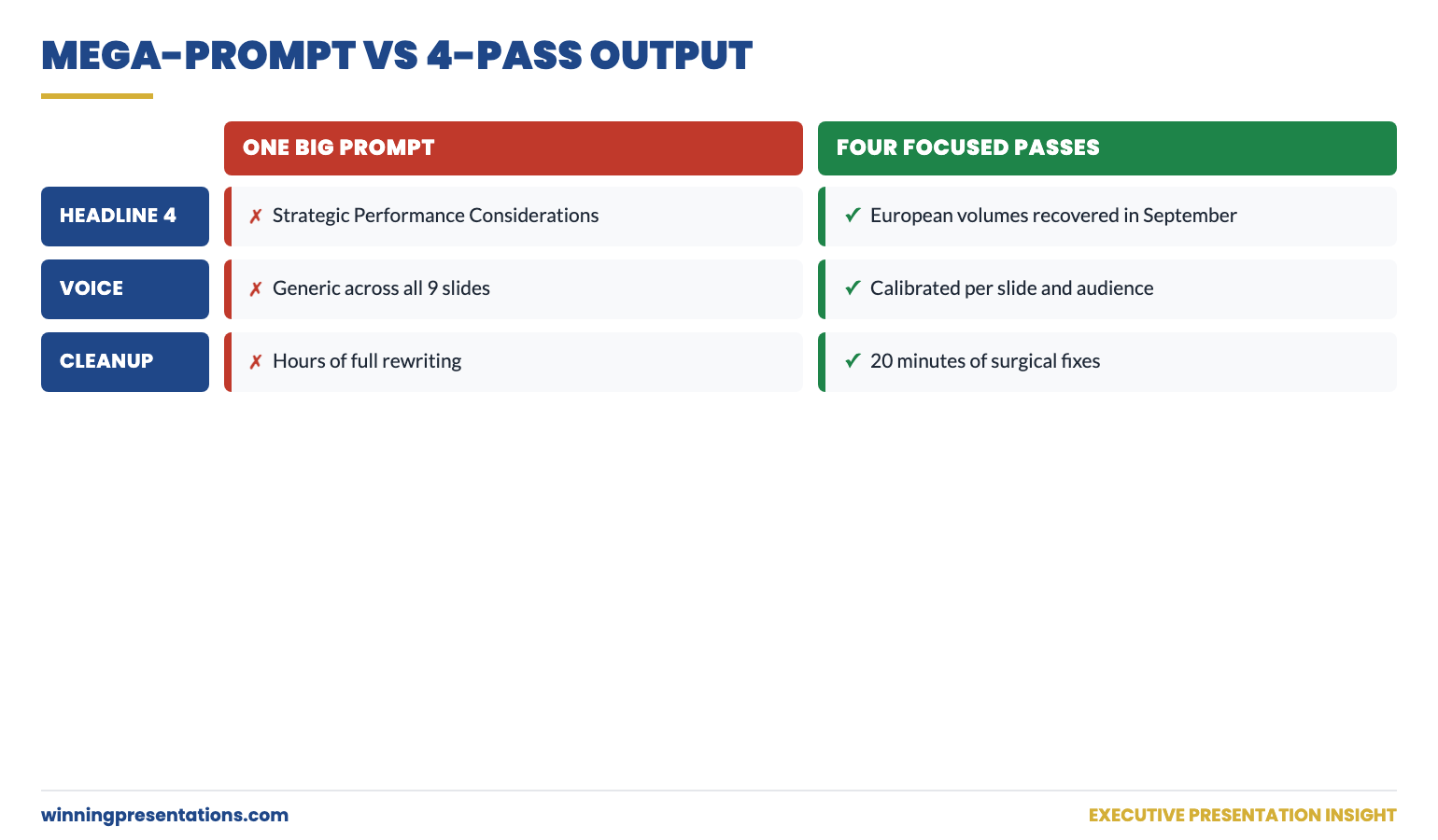
Pass 1 Output Quality vs Pass 4 Output Quality side-by-side comparison: the left column shows the typical state after a single mega-prompt with hedged language and category headlines; the right column shows the equivalent slide after the 4-pass workflow with a statement headline, tight body, and verified numbers.

When to skip a pass (and when never to)

Not every deck needs all four passes. For an internal team update or a working draft, you can compress passes 1 and 2 into a single prompt and skip the editorial cleanup. The risk profile is lower; the audience is more forgiving.

For board, investor, or executive committee work — never skip pass 4. The numbers must be verified, the verbs must be audited, the voice must be consistent. The hour you save by skipping cleanup is the hour you spend in the meeting watching the chair underline a number and ask where it came from.

For a 5-minute internal stand-up update — yes, skip everything except pass 3. One prompt, one slide, done.

The 4-pass workflow scales. You apply more passes for higher-stakes decks; you compress for lower-stakes ones. The discipline is in not collapsing all four passes into one prompt simply because it feels faster — because the time you save up front is paid back twice over in editing.

The prompt-side fix in this article works best when paired with the settings-side fix. For a deeper look at how to configure Copilot once so that every prompt inherits the right voice and audience, see the partner article on Copilot custom instructions for executives. Both fixes together produce dramatically better first drafts.

If you want the four passes already pre-built as paste-ready prompts, the Executive Prompt Pack (£19.99) contains pass-by-pass prompts that chain together for the workflow above — outline, headlines, body, cleanup.

The structural side of executive deck building — what each slide should actually contain, regardless of how it gets drafted — is worth reviewing alongside any AI workflow. The conventions of strong board presentation structure hold whether the body text was written by you, an analyst, or Copilot.

Cut your AI-deck time in half on the next presentation

71 ready-to-use prompts spanning every major executive presentation scenario, structured for the 4-pass workflow. £19.99, instant download, lifetime access.

Get the Executive Prompt Pack →

Designed for board updates, capital cases, change proposals, and pitch decks.

FAQ

Does the 4-pass workflow only work in Copilot, or also in ChatGPT?

It works in any conversational AI that holds context across a session — ChatGPT, Copilot, Gemini. The discipline of separating outline / headlines / body / cleanup is independent of the tool. The prompts in the Executive Prompt Pack are written for both ChatGPT and Copilot.

How long does the full 4-pass workflow take for a 10-slide deck?

Roughly 35–55 minutes of focused Copilot time, plus your own editorial judgement layered on top. Pass 1 is 5 minutes, pass 2 is 10 minutes, pass 3 is 15–25 minutes, pass 4 is 10–15 minutes. The total deck time end-to-end depends on how much thinking the underlying content needs from you — but the AI portion is dramatically faster than single-prompt iteration.

What do I do if pass 1 produces a structure I do not like?

Edit the outline directly in the conversation — tell Copilot which slides to add, remove, or reorder. Then ask it to confirm the revised outline back to you before moving to pass 2. This guarantees passes 2 onwards build on the structure you actually want, not the one Copilot proposed.

Can I run the 4 passes across multiple sessions or do they all have to be one conversation?

Same conversation is strongly preferred — Copilot’s context window holds the prior passes, so pass 3 can refer to “the headlines from pass 2.” If you do split across sessions, paste the prior output into the new session as a context block at the start. Continuity matters; without it, the deck loses voice consistency.

Get The Winning Edge — weekly

One sharp, story-led idea every Thursday on executive presentation craft, AI workflows, and the small habits that change how senior audiences receive you.

Subscribe to The Winning Edge →

Not ready for the full system? Start here instead: download the free Executive Presentation Checklist — a one-page reference covering the structural moves that hold any executive deck together.

The next time you sit down to draft a deck with Copilot, resist the temptation to ask for everything in one prompt. Outline first. Headlines second. Body third. Cleanup last. Four passes, four focused decisions, one deck you can take into the room.


About the author. Mary Beth Hazeldine is Owner & Managing Director of Winning Presentations Ltd, founded 1990. With 24 years of corporate banking experience at JPMorgan Chase, PwC, Royal Bank of Scotland, and Commerzbank, she advises executives across financial services, healthcare, technology, and government on structuring presentations for high-stakes funding rounds and approvals.

10 May 2026
Professional woman in a blazer writes notes at a wooden desk with a laptop and large monitor nearby.

Copilot Prompts for CFOs: Build a Budget Presentation in 45 Minutes

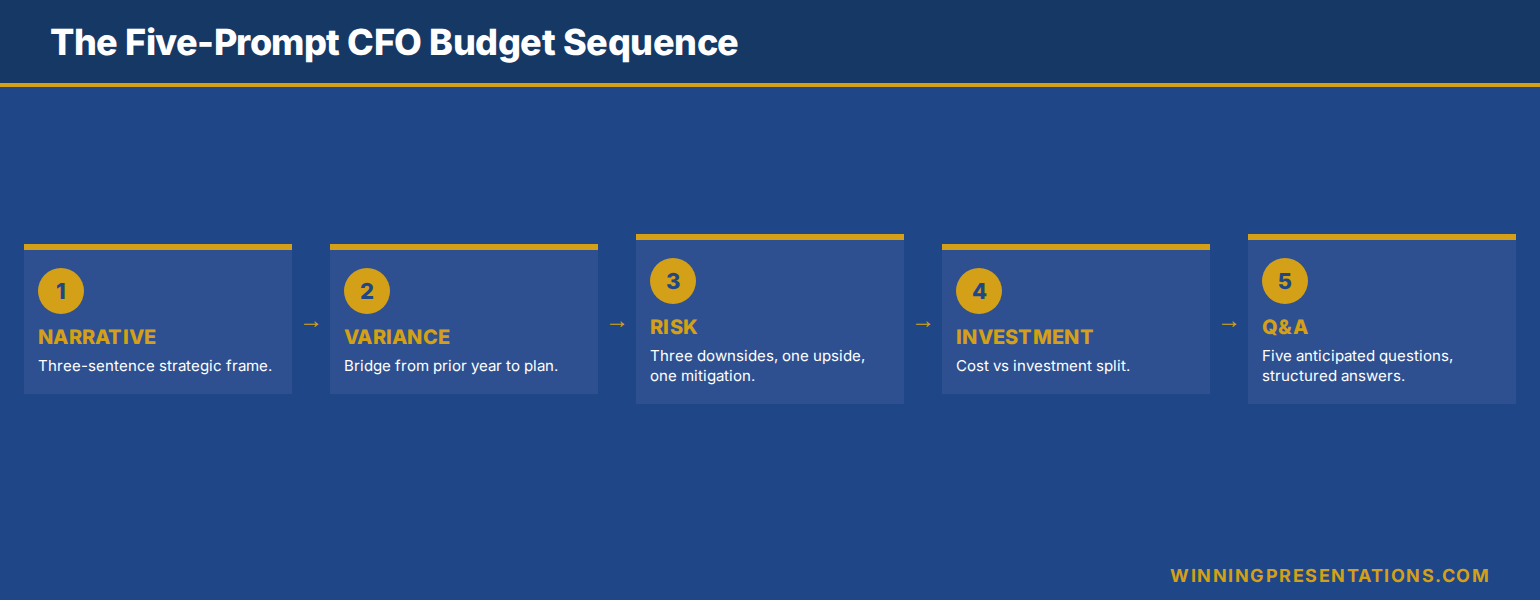
Quick answer: Copilot can compress the first draft of a CFO budget presentation from three hours to forty-five minutes — but only if you feed it a structured five-prompt sequence rather than a single open instruction. The order matters: strategic narrative first, then variance, then risk, then investment-versus-cost split, then Q&A pre-empt. Each prompt references the prior output, so Copilot builds on its own scaffolding rather than restarting. Without that sequence, Copilot produces a generic finance deck that fails the first board read-through. With it, you walk in with a draft that needs trimming, not rebuilding.

Anneliese Voss is the CFO of a mid-cap European industrials business. Last quarter she had a budget cycle from hell — a senior board sponsor on holiday, a finance team stretched thin by a system migration, and an audit committee meeting moved forward by three weeks. She had forty-five minutes between back-to-back meetings to produce the first draft of the FY budget presentation. She opened Copilot in PowerPoint, typed “create a budget presentation for the board covering next year’s plan with revenue, costs, headcount and capex”, and let it run.

What Copilot produced was not unusable. It was worse than that. It was generic — competent-looking slides with the structure of any budget deck, full of placeholder phrases like “strategic priorities” and “operational excellence”, with charts that mapped no real numbers to any real decision. Anneliese spent the next three hours rewriting almost everything. The forty-five-minute time saving was a forty-five-minute time loss.

The lesson Anneliese took into the next budget cycle is that Copilot is not a single-prompt tool for executive finance work. It is a five-prompt tool, and the sequence matters more than any individual prompt. When she returned to the same task with a structured sequence — narrative first, then variance, then risk, then investment-versus-cost, then Q&A pre-empt — the forty-five minutes produced a draft that needed editing, not rebuilding. The board read-through happened. The recommendation landed.

Want the full Copilot prompt library for executive presentations?

The Executive Prompt Pack is the practical library senior professionals use to get sharper, more strategic output from Copilot and ChatGPT — built for executive presentations, not generic decks. Seventy-one prompts covering strategic narrative, variance framing, board Q&A, executive summaries, and decision slides.

Explore the Executive Prompt Pack →

Why Copilot’s first draft fails the CFO test

The default failure mode of Copilot in finance work is not factual error. It is structural emptiness. Asked for a budget presentation, Copilot returns a deck that looks like a budget presentation — the right slide titles, the right chart shapes, the right boilerplate language about strategic priorities and operating efficiency. What it lacks is the load-bearing content that makes a budget presentation work: the bridge from prior period to current ask, the variance commentary that anticipates the audit committee’s questions, the explicit framing of which line items are investment and which are cost.

The structural emptiness is a function of the single-prompt approach. When you ask Copilot for “a budget presentation”, you are asking it to compress the entire reasoning of a finance team into a single inference pass. It cannot do that work. What it can do is build one specific layer of the deck if you give it one specific instruction at a time, and let it use its earlier output as the substrate for the next layer.

The other failure mode is voice. Copilot defaults to a corporate-press-release tone — “we are committed to driving sustainable growth across the portfolio” — that no senior finance audience tolerates. CFOs and audit chairs read that voice as a tell that the deck was generated, not authored. The fix is not to ban the AI but to constrain the voice in the prompt itself, repeatedly, with reference to specific style anchors. Why Copilot’s first draft fails boardroom tests covers the editing pass that strips this voice; the prompt sequence below avoids generating it in the first place.

Infographic showing the five-prompt Copilot sequence for a CFO budget presentation in order: strategic narrative, variance and prior-period bridge, risk and sensitivity envelope, investment versus cost split, and Q and A pre-empt, with each prompt feeding the next

The five-prompt sequence in order

The sequence below is the structural skeleton for any CFO-level budget presentation. It assumes you have already pasted the financial source data — variance table, prior-period actuals, FY plan, sensitivity assumptions — into the Copilot context, either as a file reference, a paste, or a chat thread that includes them. Without source data, Copilot will invent numbers, which is the only failure mode worse than generic output.

Each prompt in the sequence is short. Each one references the prior output rather than starting from scratch. Each one constrains voice and detail to what the next layer needs. The total time, with source data prepared, is forty to fifty minutes — about thirty minutes of Copilot generation and editing, plus ten to fifteen minutes of structural review.

The sequence is not a script. It is a scaffold. Real budget presentations have edge cases — a contested capex line, a flat headcount with rising salary cost, a foreign-exchange exposure that has moved since the last audit committee. The scaffold accommodates these by giving you a clean structural draft to deviate from, rather than starting from a blank slide.

The 71-prompt library that sharpens executive presentations

Build executive slides in 25 minutes, not 3 hours. The Executive Prompt Pack is a practical Copilot and ChatGPT prompt library for senior professionals who need their AI output to read like a senior finance leader wrote it — not a press release. £19.99, instant download, 71 prompts.

  • 71 ChatGPT and Copilot prompts engineered for PowerPoint presentations
  • Strategic narrative, variance framing, executive summary, and Q&A pre-empt prompts
  • Voice-constrained — built to avoid the generic AI tone CFOs and audit chairs reject
  • Works inside Copilot for PowerPoint and ChatGPT — copy, paste, adapt
  • Designed for executive presentations: budget, board, investment committee, steering

Get the Executive Prompt Pack →

Built for senior professionals presenting budgets, plans, and decisions to boards and audit committees.

Prompt 1 — Strategic narrative frame

The first prompt does not produce slides. It produces the narrative spine of the deck — the three-sentence answer to the question “what is the board being asked to approve, and why now”. Without this spine, every subsequent slide drifts. With it, each slide has a job: support the spine, qualify the spine, or quantify the spine.

The prompt itself: “Using the source data provided, draft three sentences that frame the FY budget request for an audit committee audience. Sentence one names the headline ask in financial terms. Sentence two identifies the strategic shift the budget supports versus prior year. Sentence three names the single largest risk and how the budget addresses it. Voice: senior finance leader speaking to audit committee, no marketing language, no platitudes.”

The output should be three sentences, no more. If Copilot produces a paragraph, ask it to compress to three sentences and remove any phrase that could appear in any company’s annual report. The compressed three sentences become the title slide narrative, the executive summary slide, and the closing recommendation slide — three slides anchored by one consistent message. A CFO-approved budget presentation template uses this same three-sentence spine as its structural base, regardless of company size or sector.

Prompt 2 — Variance and prior-period bridge

The variance slide is the slide that audit committees and boards spend most time on. It is also the slide Copilot is least naturally good at, because it requires reading the prior-period numbers, the current-period plan, and the bridging logic — and many AI tools attempt the third without securing the first two.

The prompt: “Using the prior-period actuals and FY plan in the source data, build a bridge slide that walks from prior-year actual to FY plan in four to six steps. Each step is a single line item or category. Each step has a value (positive or negative versus prior year) and a one-line rationale. Order the steps largest first. Do not invent any numbers. If a number is not in the source data, write [TBC] in its place.”

The “[TBC]” instruction matters. It is the constraint that prevents Copilot from filling gaps with plausible-looking inventions — the most dangerous failure mode in finance work. The bridge slide that comes back will not be perfect, but every number on it will be either real or marked as missing. The editing pass becomes verifying real numbers and filling marked gaps, rather than discovering invented ones.

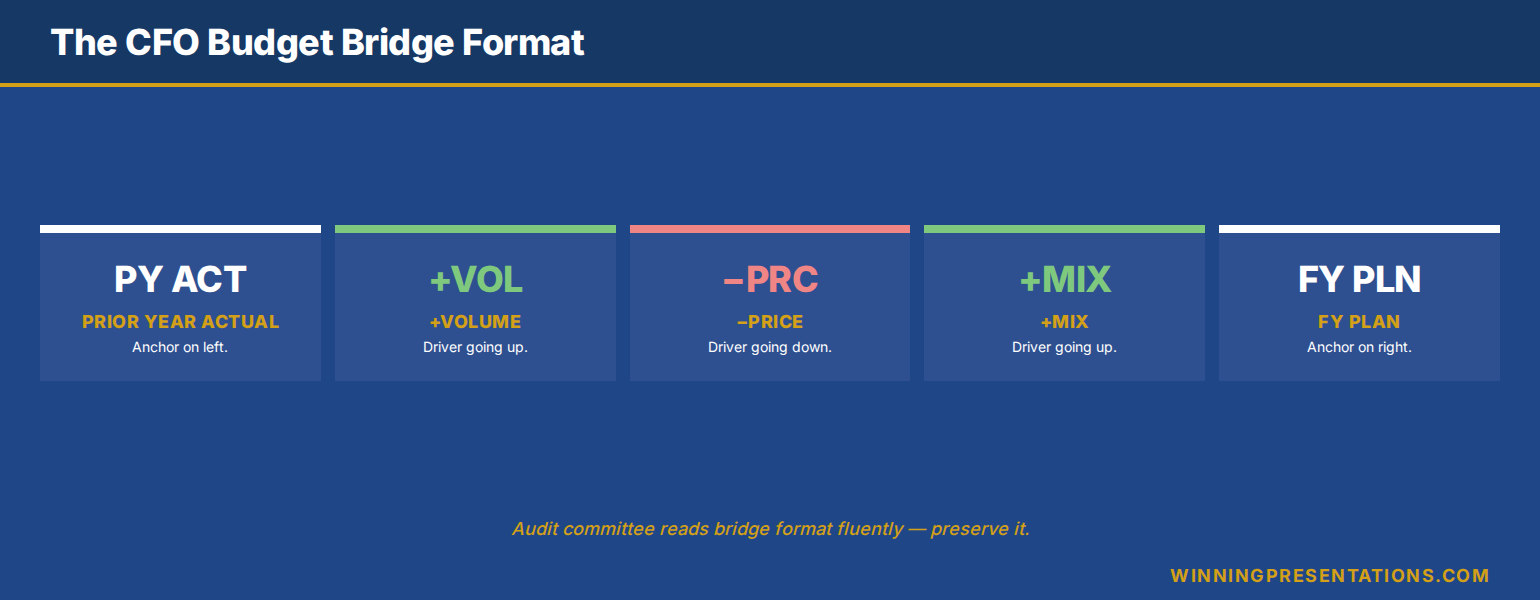
For an audit-committee-grade variance slide, the bridge format is non-negotiable: prior-year base, plus or minus volume effect, plus or minus price effect, plus or minus mix or cost effect, plus or minus FX or one-off, equals current-year plan. Copilot will follow this format if you specify it. The deck the audit chair sees then matches the format the audit chair expects, which removes one layer of friction from the read-through.

Diagram of a CFO budget bridge slide showing prior-year actual to FY plan in five labelled bridge steps with positive and negative variance values, illustrating the format senior finance leaders use to walk audit committees through year-on-year change without losing the room

Prompt 3 — Risk and sensitivity envelope

Risk slides in budget presentations fail in two predictable ways. They list every risk imaginable — twelve bullets, no prioritisation — and the audit committee tunes out. Or they list the top three risks but provide no sensitivity analysis, leaving the committee unable to weigh the materiality. Copilot will produce either of these failure modes by default. The prompt has to push it past both.

The prompt: “Using the FY plan from prior outputs, produce a risk slide with three components. First, the top three downside scenarios, ranked by impact on operating profit. Each scenario has a one-line description, a quantified impact (range, not point estimate), and a likelihood band (low, medium, high). Second, the single upside scenario most likely to materialise. Third, the single mitigating action the budget already funds against the largest downside. Voice: factual, no hedging language, no qualifiers like ‘subject to market conditions’.”

The “no hedging language” instruction is critical. Copilot defaults to qualifying every risk statement, which produces slides that read as if the finance function is hedging the hedge. Audit committees read that as evasion. The cleaner the risk slide, the more credible the budget. The prompt forces the cleanliness.

What you get back is a risk slide that names three downsides with quantified impact, names one upside, and names one mitigating action. That structure is what executive finance audiences want to see — risks acknowledged, sized, and managed — and what most budget decks fail to deliver. The slide will need editing, but the structure will be right. The Executive Prompt Pack includes voice-constrained risk-slide prompts for budget, capex, and strategic-plan presentations, each tuned to the audience that reads them.

Prompt 4 — Investment-versus-cost split

Most budget presentations conflate two very different categories of spend. There is cost — the spend required to keep the business running at current capability. And there is investment — the spend that builds new capability, capacity, or revenue. When the deck blurs the two, the audit committee cannot tell whether a year-on-year increase is operational drift or strategic intent. The board cannot tell whether to approve.

The prompt: “Using the FY plan, produce a single slide that splits total budget into two columns: cost-to-operate and investment-to-grow. Each column shows the top three line items by value, with year-on-year change versus prior period. Add a one-line description of what each investment line item is funding. Add a closing line stating what proportion of total budget is investment versus prior year. No marketing language. Use plain finance vocabulary.”

The split is what allows the audit committee to weigh the budget strategically rather than operationally. A flat or rising cost-to-operate raises questions about discipline. A rising investment-to-grow raises questions about return. Putting both side by side on a single slide forces the committee to discuss the right thing — strategic shift — rather than the wrong thing — line-by-line line-item review.

Ready for the full AI presentation framework, not just prompts?

The Maven AI-Enhanced Presentation Mastery course is the self-paced programme for senior professionals using AI to build executive-grade presentations. 8 modules, 83 lessons, 2 optional recorded coaching sessions. £499, lifetime access — monthly cohort enrolment, no deadlines, no mandatory attendance.

Explore AI-Enhanced Presentation Mastery →

Prompt 5 — Q&A pre-empt

The fifth prompt does not produce a slide. It produces a one-page Q&A pre-empt — the five questions the audit committee is most likely to ask, with the structured answer for each. This page does not appear in the deck. It sits in your speaking notes and in the appendix, available if a question lands.

The prompt: “Based on the FY plan, variance slide, risk slide, and investment-versus-cost split produced in earlier outputs, generate the five questions an audit committee is most likely to ask. For each question, draft a forty-five-second structured answer in three parts: acknowledge the question, give the directly responsive number or fact, then bridge to the broader strategic position. No filler, no hedging. Voice: senior finance leader, decision-confident.”

The Q&A pre-empt is the layer most often skipped in budget preparation, and the layer most often regretted. A budget presentation that lands cleanly in the read-through can still lose the room in Q&A if the CFO is caught flat-footed by a question that was always going to come. Five minutes producing this prompt, ten minutes editing the answers, and you walk in with the structured response to the questions you are most likely to face.

This is also the prompt where Copilot’s value compounds the most. Because each prior prompt has been constrained, voice-controlled, and built on the same source data, the Q&A pre-empt the AI produces is grounded in the same numbers and same framing as the deck. Without the prior sequence, a stand-alone Q&A prompt produces generic interview-coaching language. With it, the questions and answers map directly to the slides the audit committee just read.

What Copilot still cannot do for you

The forty-five-minute draft is real, but the draft is a draft. Three things still need a senior finance human, and skipping any of them is the difference between a deck that lands and a deck that gets sent back for rework.

The first is the materiality judgement. Copilot will treat all numbers as equally significant. The judgement of which line items deserve airtime in a forty-minute audit committee slot, and which can sit in appendix or be summarised, is yours. The deck the AI produces typically has eight to twelve content slides; the deck the audit committee should see has five to seven. Cutting from the first to the second is structural editing, not prompt engineering.

The second is the political read. Every audit committee has live tensions — a contested capex line, a sponsor with a known view, a chair who is sceptical of headcount growth. Copilot does not know any of this. The strategic narrative the AI drafts will be technically correct but politically naïve. The CFO’s job is to bend the narrative around the live tensions — softening where appropriate, hardening where the case is strong, naming the elephant in the room where the room is going to ask anyway.

The third is the proof obligations. Copilot will state things the deck cannot defend. “Our cost discipline programme is on track” sounds fine until the audit chair asks for the run-rate evidence. Every claim in the deck has to be verifiable in the underlying numbers. The editing pass is the discipline of striking any sentence the budget pack itself does not prove.

None of these three jobs is being automated soon. What is being automated is the structural drafting — the work of taking source data and turning it into a passable executive deck format. That work used to take a CFO and finance team three hours. With the right prompt sequence, it now takes forty-five minutes, and the saved time goes back into the materiality judgement, the political read, and the proof discipline that AI cannot do.

Stop spending three hours on the structural draft of your budget deck.

The Executive Prompt Pack — £19.99, instant download — gives you the seventy-one Copilot and ChatGPT prompts that compress executive presentation drafting from hours to minutes, with voice and structure already constrained for senior finance audiences.

Get the Executive Prompt Pack →

Built for CFOs, finance directors, and senior professionals presenting budget, plan, and capex decisions.

FAQ

Does Copilot in PowerPoint actually read my source data, or do I need to paste numbers into the prompt?

Copilot in PowerPoint reads from open files in your Microsoft 365 environment if you reference them by name in the prompt — for example, “using the FY26 plan in BudgetPack.xlsx”. For documents not in the same workspace, paste the source numbers directly into the prompt or chat thread. Copilot will not invent numbers if you provide them and instruct it to flag missing values with [TBC]. Without source data, it will produce plausible-sounding but unverifiable figures, which is the worst failure mode in finance work.

Can I run all five prompts in a single Copilot session, or do I need to start fresh each time?

Run them in a single session. The reason the sequence works is that each prompt builds on the prior output — the variance prompt references the strategic narrative, the risk prompt references the variance, the Q&A pre-empt references all four. Starting fresh between prompts loses that compounding context, and the AI returns to generic defaults. Keep the chat thread open across all five prompts; the saved context is the productivity gain.

What if my company restricts Copilot for sensitive finance data?

Many finance functions operate Copilot in a tenanted Microsoft 365 environment with data-residency and protection controls — that is the configuration most large enterprises use for AI in sensitive workflows. If your IT or compliance function has not yet approved Copilot for finance data, the same prompt sequence works in any Copilot-equivalent enterprise AI assistant your organisation has approved. The structural sequence is the productivity unlock; the specific tool is interchangeable.

How much editing should the forty-five-minute draft actually need?

Roughly thirty per cent of the content, in our experience with senior finance leaders. The structural skeleton, the bridge format, and the risk-slide structure should be usable as drafted. The voice in places — particularly any phrasing Copilot defaults to that reads as marketing — needs replacing. The materiality call (which line items deserve their own slide) needs human judgement. The proof discipline (every claim verifiable) needs the CFO’s eye. Treat the forty-five-minute output as a structural draft, not a finished deck.

The Winning Edge — Thursday newsletter

Every Thursday, The Winning Edge delivers one structural insight for executives presenting to boards, investment committees, and senior stakeholders. No general tips. No motivational framing. One specific technique, one executive scenario, one action. Subscribe to The Winning Edge →

Not ready for the full prompt library? Start here: download the free CFO Questions Cheatsheet — the questions audit committees ask in budget read-throughs, and the structured response format that lands cleanly under pressure.

Next step: open the next budget deck on your calendar and run the first prompt — the strategic narrative frame. Three sentences, audit-committee voice, no marketing language. That five-minute exercise is the foundation everything else in the deck rests on; once it is right, the rest of the sequence builds itself.

Related reading: copilot prompts for executive presentations across the wider executive deck library, and why Copilot’s first draft fails boardroom tests, and the editing pass that fixes it.

About the author. Mary Beth Hazeldine is Owner & Managing Director of Winning Presentations Ltd, founded in 1990. With 25 years of corporate banking experience at JPMorgan Chase, PwC, Royal Bank of Scotland, and Commerzbank, she advises executives across financial services, healthcare, technology, and government on structuring presentations for high-stakes funding rounds, approvals, and board-level decisions.

10 May 2026
Business presenter in a navy suit explains slides on a wall-mounted screen to a conference room.

Copilot Status Deck Templates Project Managers Use for Executive Updates

Quick answer: The status decks senior executives actually read share three structural choices: a single RAG line with a single sentence of explanation per stream, milestones tied to a decision rather than to internal effort, and an explicit ask. Copilot can produce decks with these properties — but only if the prompts force them. The default Copilot status deck is dense, ungraded, and asks for nothing. The corrected prompt structure produces a four-slide deck a steering committee can read in under three minutes and act on in under five.

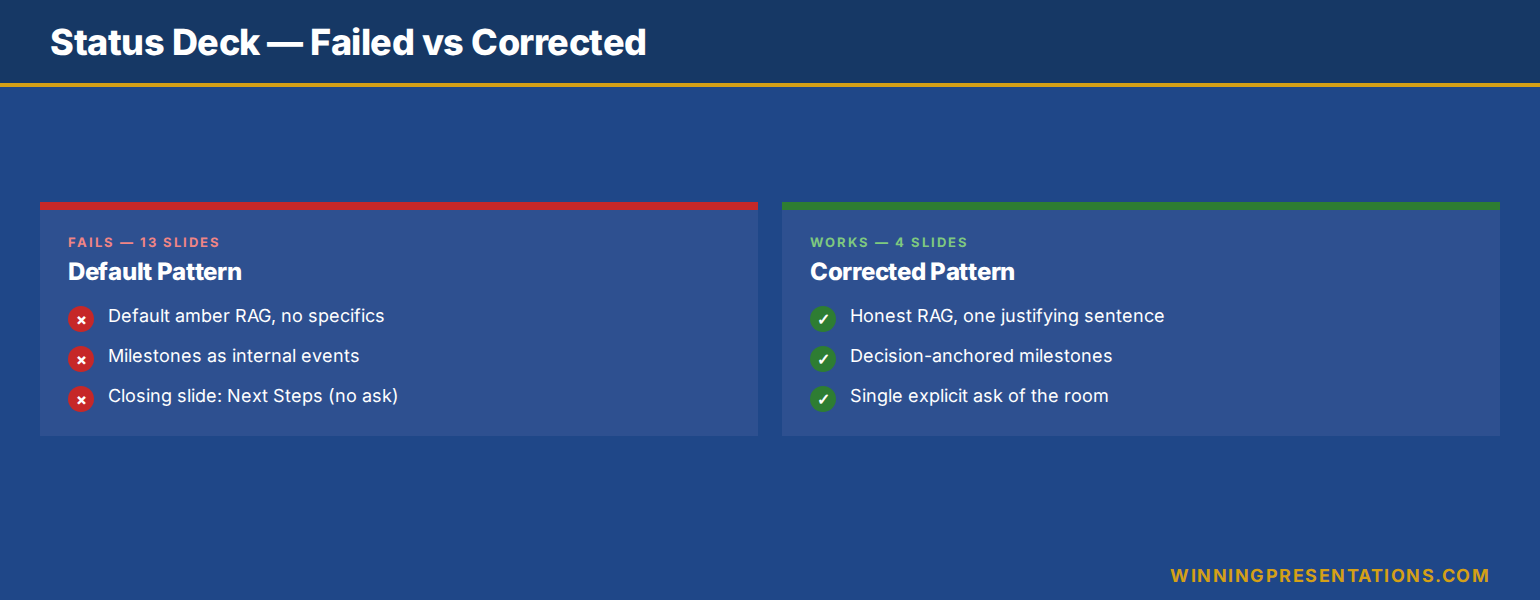
Connor McAlister is the senior programme manager for an enterprise data-platform migration at a UK insurer. Every fortnight he presents a status deck to the steering committee — a programme sponsor, two divisional CIOs, the head of risk, and the COO. For the first six months, his decks were the standard fare: thirteen slides, dense RAG tables, milestone lists running to twenty bullets, screenshots of the burndown chart, and a closing slide titled “Next Steps” containing five actions all owned by the programme team. The steering committee meeting always overran. Decisions Connor needed never quite landed.

What changed was not the work the programme was doing. It was the deck the steering committee was reading. Connor rebuilt the structure from four slides — overall RAG, milestone position relative to the next decision gate, top three risks with mitigation status, and a single explicit ask. He used Copilot to draft the new structure each fortnight from the same source data he had been using before. The meeting time fell from forty minutes to twenty-two. The decision Connor came in for was made in eighteen minutes flat.

The lesson is that executive status reporting is not a documentation exercise. It is a decision exercise. The steering committee does not need to know everything the programme team did in the last two weeks. It needs to know whether the programme is on track, what could derail it, and what they need to decide. Copilot can produce that deck if you instruct it to — but the default output goes the other way. The prompts below are what shift it.

Want a Copilot prompt library tuned for executive audiences?

The Executive Prompt Pack is the practical Copilot and ChatGPT library senior professionals use to produce executive-grade output rather than generic status reports. Seventy-one prompts covering executive summaries, risk framing, decision asks, and the constrained voice senior steering committees expect.

Explore the Executive Prompt Pack →

Why most status decks fail the executive read

The first failure mode is volume. A status deck that runs to twelve or fifteen slides is, in effect, a programme working document presented to an audience that has no time to read working documents. The steering committee opens the pack on an iPad five minutes before the meeting, scrolls to the summary slide, and looks at the RAG. If the summary slide does not exist, or if the RAG does not match the body, the rest of the deck is read with suspicion. Volume creates suspicion; concision creates trust.

The second failure mode is grade inflation. Most programme status decks code amber by default — green is reserved for completed phases, red is reserved for full crisis, and amber is everything in between. The result is that amber means nothing. The steering committee cannot distinguish a programme that needs a decision today from one that just needs a watching brief. RAG only works when the grading is honest, and honest grading requires the prompt to refuse a default answer.

The third failure mode is the absent ask. Status decks routinely close with “Next Steps” — actions owned by the programme team, requiring no decision from the committee. The committee then has nothing to do except acknowledge the report, and the meeting becomes a presentation rather than a working session. The deck that asks something — a decision, a budget, a sponsor escalation — uses the committee’s authority. The deck that asks nothing wastes it.

Comparison infographic showing the failed status deck pattern of thirteen dense slides with default amber RAG and no explicit ask versus the corrected four-slide structure with honest RAG, decision-anchored milestones, prioritised risks, and a single explicit ask for the steering committee

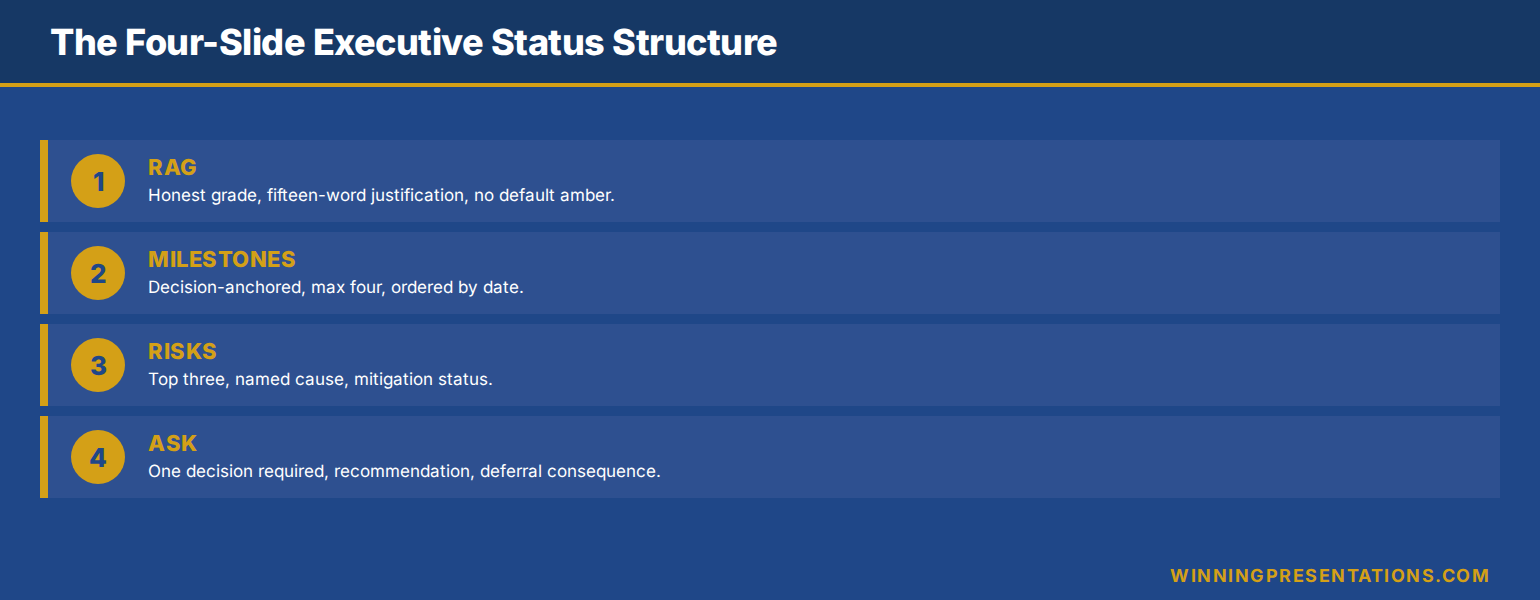
The four-slide executive status structure

The structure that works for steering committees, executive sponsors, and senior governance audiences is four slides. Slide one is the headline RAG. Slide two is the milestone position relative to the next decision gate. Slide three is the top three risks with mitigation status. Slide four is the single ask. Everything else — burndown charts, work-package detail, individual workstream RAG — moves to appendix.

This is not a simplification. It is a structural acknowledgement that the steering committee’s job is to govern, not to consume detail. Detail belongs in the working pack the programme team uses internally. The status deck is a translation of that working pack into the smallest amount of information the committee needs to govern well. The translation is the work; once you have the structure, Copilot can do most of the drafting.

Four slides also reframes the meeting. With twelve slides, the meeting is a walkthrough. With four slides, the meeting is a discussion of the four points the deck raised. A well-structured steering committee presentation always defaults to fewer slides held longer rather than more slides clicked through quickly — the rhythm matches the audience.

The 71-prompt library for executive-grade AI output

Build executive slides in 25 minutes, not 3 hours. The Executive Prompt Pack — £19.99, instant download — gives you the practical Copilot and ChatGPT prompts senior project managers, finance leaders, and executive sponsors use to produce status, plan, and decision decks that read at executive level.

  • 71 ChatGPT and Copilot prompts engineered for PowerPoint presentations
  • Status reporting, RAG framing, milestone narration, and risk-and-ask prompts
  • Voice-constrained — built to avoid the generic AI tone steering committees reject
  • Works inside Copilot for PowerPoint and ChatGPT — copy, paste, adapt
  • Designed for executive audiences: steering committees, sponsors, governance boards

Get the Executive Prompt Pack →

Built for senior project managers, programme leaders, and PMO heads reporting to steering committees and executive sponsors.

The RAG prompt: graded, not coloured-in

The first Copilot prompt produces the headline RAG slide. The structural job of this slide is to give the steering committee a single graded read on overall programme health, plus the one explanation that justifies the grade. Anything more is noise; anything less is unaccountable.

The prompt: “Using the workstream status data provided, produce a single overall programme RAG. Choose green, amber, or red. Constraint: amber is forbidden unless you can name one specific concern that would resolve to green if addressed and one specific concern that could deteriorate to red if not addressed. Default amber is not allowed. After the grade, write one sentence — fifteen words maximum — that justifies the grade in the language of decision impact, not effort.”

The “default amber forbidden” clause is the critical constraint. Without it, Copilot reproduces the grade-inflation pattern. With it, the grade becomes a decision. Either the programme is genuinely amber, with two named concerns, or it is green or red. The discipline of forcing the binary creates the honest grade.

The “decision impact, not effort” instruction kills the second failure mode — status sentences that read as “the team has worked hard on the data migration this fortnight”. Effort statements are invisible to executive audiences. Decision-impact statements — “data migration is on track to support the September go-live decision” — give the committee something to act on or relax about.

The milestones prompt: tied to decisions

The second prompt produces the milestone slide. The structural failure most milestone slides commit is presenting milestones as internal programme events — “complete vendor selection”, “issue requirements document”, “complete UAT”. These mean nothing to a steering committee whose job is to govern decisions, not to follow programme mechanics.

The prompt: “Using the programme plan, produce a milestone slide that lists only milestones tied to a decision the steering committee or a named executive will need to make. For each milestone, show planned date, current expected date, and the decision the milestone unlocks. Order chronologically. Maximum four milestones. If you have fewer than four decision-anchored milestones in the next quarter, show fewer.”

The decision-anchored framing transforms the slide. Instead of “complete vendor selection by Q2”, you get “vendor selection complete by 30 May, unlocking the contract approval decision required from the COO at the June steering committee”. The committee now sees not what the programme is doing, but what it is asking the committee to be ready for.

The “maximum four” constraint enforces materiality. Most programmes have ten to twenty live milestones at any time. Four is the count that forces the prompt to surface only the decision-relevant ones. The other milestones move to the appendix or to the working pack — visible if asked, invisible if not. A project status presentation that earns its slot follows the same materiality logic — the steering committee deck is a sub-set of the working programme document, not a copy of it.

Diagram of the four-slide executive status deck structure showing slide one as honest RAG with single justifying sentence, slide two as decision-anchored milestones, slide three as top three risks with mitigation status, and slide four as a single explicit ask for the steering committee

The risks-and-asks prompt: explicit, not euphemistic

The third prompt produces the risks slide. The structural failure of risk slides is euphemism — “stakeholder alignment is being managed actively” instead of “the COO has not signed off the data-residency approach and the programme cannot release the integration phase until they do”. Euphemism protects the programme manager’s reputation but loses the committee’s attention. Specificity does the opposite.

The prompt: “Produce a risks slide listing the top three programme risks. For each risk, give: a one-sentence specific description naming the actor or system involved, the impact in plain language (cost, time, scope, or dependency), the mitigation already in flight, and the trigger that would force escalation. Constraint: no euphemistic language. If a risk is about a person’s decision, name the role. If about a vendor, name the vendor by relationship not company.”

The “name the role” constraint is the hardest one to deliver, and the most valuable. Programme managers are trained to anonymise risks — partly for political safety, partly through habit. The cost is that the committee cannot intervene without first asking who. Naming the role inside the risk surfaces the intervention path inside the slide. The chair reads it and knows immediately whether to escalate, sideline, or defer.

The fourth slide — the ask — is produced by a separate, simpler prompt: “Based on the risks, milestones, and RAG produced in the prior outputs, generate a single closing slide titled ‘Decision required’. State the one decision the committee needs to make today, the recommendation, and the consequence of deferring. Maximum thirty words on the slide. No options list — recommend one path.” A status deck that closes with a decision required and a recommendation uses the committee’s authority. The Executive Prompt Pack includes voice-constrained risk and ask prompts for project, programme, and PMO leaders working with steering committee audiences.

Want the full AI-presentation framework, not just prompts?

The Maven AI-Enhanced Presentation Mastery course is the self-paced programme for senior professionals using AI to build executive-grade presentations. 8 modules, 83 lessons, 2 optional recorded coaching sessions. £499, lifetime access — monthly cohort enrolment, no deadlines, no mandatory attendance.

Explore AI-Enhanced Presentation Mastery →

What you cannot delegate to Copilot

The four-slide structure and the prompt sequence will produce a usable draft in twenty to thirty minutes from a set of source data that previously took two hours to assemble into a fortnightly pack. The saved time is real. What is not changing is the three judgement calls Copilot cannot make on your behalf, and that distinguish a programme manager who governs from one who reports.

The first is the honest RAG call. Copilot cannot tell you whether your programme is genuinely green or genuinely red. It can refuse default amber, but the underlying judgement — given what I know that the source data does not capture, where is this programme really — is the programme manager’s job. Treat the AI grade as a draft and revise it before the committee meeting if the live signal disagrees.

The second is the political timing of the ask. Copilot can produce a clean ask slide. It cannot tell you whether this is the steering committee meeting to raise it, or whether the better path is a one-to-one with the sponsor first. The decision-required slide is structurally correct; whether it lands depends on whether the room is ready for the decision. Programme managers who walk in with a clean ask slide and an unprepared room lose the decision and the credibility together.

The third is the audience-specific framing. The same status data presented to a CIO-led committee reads differently from the same data presented to a CFO-led committee. The CIO wants the technical risk articulated; the CFO wants the cost trajectory. Copilot does not know your committee. The structural draft works for both; the editing pass adapts for one.

Stop building status decks the committee scrolls past.

The Executive Prompt Pack — £19.99, instant download — gives you the seventy-one Copilot and ChatGPT prompts that produce status, plan, and decision decks executive audiences actually read, with voice and structure already constrained for governance forums.

Get the Executive Prompt Pack →

Built for senior project managers, programme leaders, and PMO heads working with steering committees and executive sponsors.

FAQ

Will the steering committee push back on a four-slide deck after years of receiving twelve?

Some will, briefly. The reframe to use is that the appendix contains everything that used to be in the body — the workstream RAG, the burndown chart, the resource heat-map — but is now available on demand rather than walked through. Most committees adapt within two cycles, because the meeting feels more productive and the decisions land cleaner. If a committee chair specifically wants more detail on a slide, that detail can be promoted from appendix without restructuring the deck.

How do I handle workstream-level RAG when the overall programme is one colour but the workstreams are mixed?

Show overall RAG on slide one with a one-sentence justification that names the dragging workstream if amber, or the recovering workstream if returning to green. The workstream-level RAG goes in the appendix. The committee’s job is overall governance; the workstream detail is the programme manager’s working concern. If a workstream is materially red and reasonably the whole programme is amber, the slide-one sentence should name it explicitly.

What if my programme has no decision required this cycle?

Replace the ask slide with an explicit “no decision required” closing — a single sentence saying the programme is on track and the next decision the committee will need to make is at the next governance gate. This protects the committee’s expectation that they have a role, and signals that you are tracking which decisions are coming, not just reporting backwards. A status deck that genuinely needs nothing is a credibility moment, not a missed slide.

Can the same prompt structure work for monthly executive reports as well as fortnightly status decks?

Yes — with adjustments to materiality. Monthly executive reports for senior governance forums often need a fifth slide on cumulative trajectory (RAG history, milestone slip pattern over time) that fortnightly steering decks do not. The four core prompts still apply; add a trajectory prompt for the longer cadence: “Show the last six months of overall RAG, milestone variance trend, and one sentence on directional read.” That converts the four-slide structure into a five-slide structure suitable for executive sponsor or board sub-committee use.

The Winning Edge — Thursday newsletter

Every Thursday, The Winning Edge delivers one structural insight for executives presenting to boards, investment committees, and senior stakeholders. No general tips. No motivational framing. One specific technique, one executive scenario, one action. Subscribe to The Winning Edge →

Not ready for the full prompt library? Start here: download the free Executive Presentation Checklist — a single-page review you can run on any executive deck before you present, including a structural test for status and steering committee material.

Next step: open the next status deck on your calendar and rebuild slide one — the headline RAG with one sentence of justification in decision-impact language, no default amber. That five-minute exercise sets the tone for everything else; once slide one earns trust, the remaining three slides land much faster.

Related reading: how to structure a project status presentation that earns its slot, and copilot prompts for executive presentations across the wider executive deck library.

About the author. Mary Beth Hazeldine is Owner & Managing Director of Winning Presentations Ltd, founded in 1990. With 25 years of corporate banking experience at JPMorgan Chase, PwC, Royal Bank of Scotland, and Commerzbank, she advises executives across financial services, healthcare, technology, and government on structuring presentations for high-stakes funding rounds, approvals, and board-level decisions.

08 May 2026
Professional woman in a navy blazer typing on a laptop at a glass-walled office.

Copilot Agent Mode for Executive Presentations: Three Workflows That Save Senior Leaders Four Hours

Quick answer: Copilot Agent Mode is most useful to senior leaders when it runs multi-step jobs end to end — not single-prompt slide generation. The three workflows that consistently move a four-hour executive deck job to twenty minutes are the source-document compression workflow, the strategic narrative draft workflow, and the objection-mapped Q&A pre-mortem. Each one chains research, structuring, and drafting into a single instruction set the agent executes while you do other work.

Henrik runs strategy at a mid-cap European insurer. Last quarter he was asked to present a market-entry analysis to the executive committee with three days’ notice. The full input pile was eighty-four pages — a McKinsey scoping memo, an internal pricing model, two regulatory briefings, and the previous quarter’s competitive review. He spent the first day reading. He spent the second day building outline drafts in Word. He spent the third evening assembling slides at home, having already missed a parents’ evening for his daughter. The deck went well. The process broke him.

Three months later he was asked for a similar piece on a different market. This time he opened Copilot Agent Mode at 09:00, fed it the source documents, gave it a single multi-step instruction, and stepped away for forty minutes. By the time he came back, the agent had produced a structured narrative outline, a draft of the headline slide for each section, and a Q&A preparation document anticipating the eight most likely committee objections. The full deck still required Henrik’s editorial judgement. But the four hours of preparation work that used to crush his evenings was now a twenty-minute review of agent output before lunch.

The difference between the two experiences was not better prompting. It was a different mode of using AI. Single-prompt Copilot — the chat box approach — produces one output for one input. Agent Mode chains research, structuring, drafting, and review into a single autonomous run. For senior leaders who are time-poor and judgement-rich, this is a structurally different tool, and the workflows that suit it are not the workflows you would use in chat.

Looking for the structured framework for using AI in executive presentation work?

The AI-Enhanced Presentation Mastery course is the self-paced framework for senior professionals using AI to build executive-grade presentations. Eight modules, eighty-three lessons, monthly cohort enrolment, two optional recorded coaching sessions.

Explore the AI-Enhanced Programme →

Agent Mode versus single-prompt Copilot

The mental model most senior leaders carry from earlier ChatGPT use is single-prompt: you ask, the model answers, you adjust, you ask again. That mental model is what makes Copilot feel like a slow assistant. You spend more time prompting than you save in output. The work is choppy. Context evaporates between turns. By prompt twelve you are repeating yourself.

Agent Mode reverses the structure. Instead of one prompt at a time, you give the agent an instruction with multiple sub-steps, a defined output, and access to source documents or tools. The agent then runs the steps in sequence, calling tools as needed, and returns the completed work product. You review and edit. You do not iterate prompt by prompt.

The shift is from “AI as conversation partner” to “AI as task-running junior analyst”. For executive presentation work — where the inputs are messy, the structure is established, and the output needs to look like senior thinking — the second model is materially more useful. Three workflows in particular consistently take a four-hour preparation job to twenty minutes of editorial review.

Comparison infographic showing single-prompt Copilot versus Agent Mode for executive presentations across four dimensions: input type, output style, presenter time required, and best-use scenario

Workflow one: source-document compression

The first workflow exists because senior leaders are routinely asked to present material they did not write themselves. A scoping memo from the strategy team. Two analyst reports. A regulatory briefing. A pricing model. The job is not to summarise — it is to produce a ten-minute executive narrative from eighty pages of mixed-format source material.

The agent instruction has four parts. First, the document set: attach or reference all source files in one batch. Second, the output specification: a structured outline with no more than seven top-level sections, each section limited to forty words, each section flagged for the source it draws from. Third, the constraint set: highlight contradictions between sources rather than papering over them; flag any claim where the underlying evidence is one analyst’s opinion rather than a verifiable data point. Fourth, the audience frame: write the outline for an executive committee whose first question will be “what is the decision you want from us, and what could go wrong?”

What the agent returns is not a finished deck. It is a working outline that has done the synthesis work — the part that costs the most time and the least intellectual originality. You read the outline. You disagree with two sections. You rewrite one and reorder another. The total editorial pass takes fifteen to twenty minutes. The synthesis work that would have taken three hours of reading and outlining is already done.

The reason this workflow saves so much time is that the agent reads at machine speed and synthesises across documents simultaneously. A human presenter reads sequentially, holds context in working memory, and synthesises last. The agent does the reverse. Neither is “better thinking” — they are different cognitive shapes. For source-heavy executive briefs where the synthesis is mechanical and the judgement is editorial, the agent’s shape is faster.

Workflow two: strategic narrative draft

The second workflow takes the compressed outline and produces a slide-by-slide narrative draft. This is the step where most single-prompt Copilot use falls apart, because slide generation in chat tends to produce either generic structures (problem-solution-benefit, repeated indefinitely) or slides that look polished but say nothing.

The agent instruction is more directive. Specify the narrative arc: situation, complication, resolution, decision, risk. Specify the section count and the exact role of each section. Specify the slide format: one headline statement per slide, no more than three supporting bullets, no jargon that has not been defined in the preceding section. Most importantly, specify the headline syntax explicitly — “the headline of every slide must be a complete sentence that states a finding, not a topic. ‘Three regions account for sixty per cent of the addressable market’ is a finding. ‘Market analysis’ is a topic.”

The agent will then produce a draft that respects the narrative architecture. The draft will not be final-quality. The headlines will need sharpening. Some slides will read as if the agent did not fully understand a niche term. But the structural work — sequencing the argument, allocating points to slides, drafting the supporting bullets — is done. Your job becomes editorial: tightening twelve headlines and reorganising two sections, instead of building thirty slides from a blank page.

Two specific instructions tend to lift output quality dramatically. The first is “include a ‘so what’ line at the bottom of every slide that states the implication for the executive committee in one sentence.” The second is “after each section, draft a transition sentence that links the closing point of the previous section to the opening point of the next.” Both are simple to specify. Both are work the agent does well. Both are work that human presenters routinely skip when time-pressed, leaving decks with strong individual slides and weak overall flow. Senior professionals using AI well are getting more value from structured prompt patterns like these than from any single dramatic prompt.

Roadmap infographic of the three Copilot Agent Mode workflows for executive presentations: source-document compression, strategic narrative draft, and Q&A pre-mortem, with the editorial pass that ties them together

The complete framework for AI-assisted executive presentations

Move beyond basic AI usage. The AI-Enhanced Presentation Mastery course gives you eight self-paced modules and eighty-three lessons on using AI (including Copilot) to structure, draft, and refine presentations that work at senior levels. Two optional recorded coaching sessions. £499, lifetime access to materials.

  • 8 modules, 83 lessons of self-paced course content
  • 2 optional live coaching sessions, fully recorded — watch back anytime
  • No deadlines, no mandatory session attendance
  • New cohort opens every month — enrol whenever suits you
  • Lifetime access to all course materials

Explore the AI-Enhanced Programme →

Designed for senior professionals using AI to produce executive-grade output, not generic drafts.

Workflow three: objection-mapped Q&A pre-mortem

The third workflow is the one most presenters have never tried, and the one that produces the highest leverage when the deck reaches the room. The agent’s job here is to read the draft deck, model the executive committee’s likely concerns, and produce a structured Q&A preparation document that anticipates the eight most likely objections with draft responses.

The agent instruction names the audience explicitly: not “executives” but the actual committee. “The committee includes a CFO whose previous term included a major write-down on a similar acquisition; a CEO whose stated priority for the year is operational simplification; a Chief Risk Officer who has flagged regulatory complexity in three of the last four committee meetings.” That degree of specificity changes what the agent flags. Generic objections give generic responses. Named-stakeholder objections give responses you can actually rehearse.

The output specification asks for three things per objection. The likely phrasing — how the objection will actually be stated in the room. The structural weakness it exposes — what the proposal genuinely does not yet answer. The draft response — a two-sentence reply that acknowledges the concern, names the specific evidence in the deck that addresses it, and offers a follow-up commitment if the evidence is incomplete. This is not the same as an FAQ section in the appendix. It is preparation work for live performance.

What you get back is a document that surfaces holes in the proposal you would not otherwise have noticed before the meeting. Nine times out of ten, at least one of the agent’s anticipated objections turns out to be a real gap that needs addressing in the deck before presenting. The agent does not have committee context the way you do. But it does notice gaps with a different cognitive bias than your own — and that complementary bias is where the value lies.

The editorial pass that turns agent output into executive output

None of these workflows produce final-quality executive material on their own. The agent produces structured first drafts. The editorial pass — the human judgement applied to that draft — is what produces senior output. This is the part that nervous AI users skip and that experienced AI users obsess over.

Five things matter in the editorial pass. First, the headlines. Re-read every slide headline aloud and rewrite any that state a topic rather than a finding. The agent will get this right perhaps seventy per cent of the time. The other thirty per cent are where decks lose authority. Second, the numbers. Verify every quantitative claim against the source document. Agents hallucinate numbers, especially in compression workflows. Third, the section flow. Does the argument land harder by the end, or does it dissipate? If it dissipates, reorder. Fourth, the language register. Replace any phrasing that sounds like a generic AI tone — “leveraging synergies”, “in today’s dynamic landscape” — with the language your committee actually uses. Fifth, the omissions. What does the deck not say that you, as the human in the room, know matters? The agent does not have your situational awareness. You do.

If you want the structured patterns for each of these editorial moves — the headline rewrite framework, the number-verification checklist, the language-register adjustments — the AI-Enhanced Presentation Mastery course walks through them across eight modules, with worked examples for board, investment committee, and steering committee scenarios.

Need the prompt library to run these workflows tomorrow?

The Executive Prompt Pack — £19.99, instant access — gives you 71 ChatGPT and Copilot prompts designed for PowerPoint presentation work. Includes prompt patterns for source compression, slide drafting, and headline sharpening that work in both chat and Agent Mode.

Get the Executive Prompt Pack →

FAQ

Is Copilot Agent Mode different from regular Copilot in PowerPoint?

Yes. Regular Copilot in PowerPoint generates slides one prompt at a time within the application. Agent Mode runs multi-step tasks autonomously — reading source documents, structuring an outline, drafting headlines, anticipating objections — in a single instruction set, and returns the work product after a sequence of steps it has chosen and executed. For executive presentation work where the inputs are large and the steps are predictable, Agent Mode saves materially more time than chat-style prompting.

How long does an Agent Mode workflow actually take?

Each of the three workflows in this article takes between fifteen and forty minutes of agent runtime, depending on the size of the source documents. The presenter is not active during that time — the agent runs while you do other work. The presenter’s active time is the editorial pass at the end, which usually takes fifteen to twenty-five minutes per workflow. Total senior-leader time per workflow tends to be twenty to thirty minutes, replacing what was often two to four hours of manual preparation.

Will Agent Mode hallucinate numbers from my source documents?

It can, particularly in compression workflows where the agent restates figures from longer source material. Treat every quantitative claim in agent output as a flag for verification, not a finished statement. Build the verification step into your editorial pass: open the source, locate the figure, confirm the agent’s restatement is accurate. The time cost is small. The credibility cost of presenting a hallucinated number to an executive committee is large.

Can Agent Mode replace a junior analyst?

For specific tasks within the presentation workflow, it can replicate the work an analyst would have done in synthesis and first-draft slide generation. It cannot replace judgement, situational awareness, stakeholder knowledge, or the editorial decisions that turn a draft into a senior-level deck. The most useful framing is that Agent Mode is a tireless drafting partner whose work always needs senior review — not a substitute for the senior thinking that makes the deck land.

The Winning Edge — Thursday newsletter

Every Thursday, The Winning Edge delivers one structural insight for executives presenting to boards, investment committees, and senior stakeholders. No general tips. No motivational framing. One specific technique, one executive scenario, one action. Subscribe to The Winning Edge →

Not ready for the full programme? Start here instead: download the free Executive Presentation Checklist — a single-page review you can run on any AI-assisted draft before sending it to a senior audience.

Next step: pick the next executive deck on your calendar that has source material attached, and run the source-document compression workflow on it before you do anything else. Allow yourself thirty minutes for the agent to work and twenty minutes for editorial review. Compare that to your usual preparation time. The gap is the value of switching from chat-style prompting to Agent Mode for this kind of work.

Related reading: Copilot Agent Mode executive deck workflow — the five-step structure, and why AI-generated slides look generic and how to fix the editorial pass.

About the author. Mary Beth Hazeldine is Owner & Managing Director of Winning Presentations Ltd, founded in 1990. With 24 years of corporate banking experience at JPMorgan Chase, PwC, Royal Bank of Scotland, and Commerzbank, she advises executives across financial services, healthcare, technology, and government on structuring presentations for high-stakes funding rounds, approvals, and board-level decisions.

08 May 2026
Presenter in a suit explains data charts on a screen to colleagues in a glass-walled conference room.

AI-Generated Slides That Get Approved: The Human Editing Pass Board Members Cannot See

Quick answer: AI-generated slides that get board approval share one feature: a structured editorial pass on top of the AI draft. Boards reject AI output that has been left raw because it reads as anonymous, generic, and unanchored to the company’s specific situation. The editorial pass — six moves, applied in order — converts a generic draft into a deck that sounds like it came from a senior insider. The board never sees the AI underneath. They see a presenter who knows the business.

Rafaela had used Copilot to draft the strategy refresh deck. Twenty-eight slides, generated in eleven minutes, looking polished and structured. She sent it to her chief of staff for a sanity check the day before the board meeting. The chief of staff replied with a single sentence: “This reads like it could have come from any of our competitors.” Rafaela read the deck again with that comment in mind. The chief of staff was right. Every slide was technically correct. Every slide was anonymous. There was nothing in it that said this was their company, their numbers, their situation.

She had two choices. Present the deck as-is and trust that the board would forgive the generic feel because the underlying logic was sound. Or stay up that night doing the editorial pass that would convert the deck from a Copilot draft into something that sounded like senior thinking from inside the business. She chose the second. She also resented the third hour of editing, because the whole point of using AI had been to save time. But by midnight she had a deck that was unmistakably hers — and the board approved the strategy refresh the next morning without the kind of friction that usually attaches to AI-flavoured material.

The editorial pass she applied that night is not difficult. It is six specific moves, applied in a fixed order. Most senior presenters who use AI for deck drafting either skip the pass entirely (and present generic decks that get probed harder than they should be) or do parts of it ad hoc (and miss the moves that matter most). The pass is what turns AI-generated slides into board-approved slides. The board does not see the AI underneath. They see a presenter who knows the business cold.

Looking for the structured framework for executive-grade AI-assisted presentations?

The AI-Enhanced Presentation Mastery course is the self-paced framework for senior professionals using AI to build presentations that work at board level. Eight modules, eighty-three lessons, monthly cohort enrolment, two optional recorded coaching sessions.

Explore the AI-Enhanced Programme →

Why boards reject raw AI-generated decks

Boards do not reject AI output because they detect AI specifically. They reject it because the same patterns AI produces — generic phrasing, evenly weighted bullets, no anchored evidence, no clear decision ask — are the patterns of presentations that historically came from junior staff or external consultants who did not understand the business. Boards have learned to push back hard on those patterns, regardless of who produced them. AI just makes those patterns appear more often, and faster, in decks that should be sharper.

Three signals trigger board scepticism almost immediately. The first is anonymous language. “Leveraging operational efficiencies to drive sustainable growth” could describe any company in any sector. The second is unanchored claims. A bullet that says “the market is shifting toward platform-based solutions” without a citation, an internal data point, or a named competitor reads as filler. The third is structural symmetry that is too clean. Three points per slide, three sub-bullets per point, three slides per section — the architecture itself signals that no human did the messy work of weighting what matters.

The editorial pass exists to remove all three signals. It does not require rewriting from scratch. It requires applying six moves in sequence. Each move targets one of the patterns boards reject. Done in order, the pass takes about ninety minutes for a thirty-slide deck. Done out of order, or partially, it takes longer and produces inconsistent results.

Stacked cards infographic showing the six moves of the editorial pass for AI-generated executive slides: rewrite headlines as findings, anchor claims to evidence, replace generic language with insider phrasing, cut completeness slides, install the decision sentence, and read aloud against board reaction

Move one: rewrite the headlines as findings

The first move targets the highest-leverage element on every slide: the headline. AI-generated decks tend to produce topic headlines — “Market Analysis”, “Competitive Landscape”, “Financial Performance” — because the prompt history that trained the underlying models contained mostly topic-style headlines from corporate templates. Topic headlines tell the audience what the slide is about. They do not tell the audience what to conclude. Board members do not read decks for topics. They read for findings.

Rewrite every headline as a complete sentence that states the conclusion of the slide. “Market Analysis” becomes “Three of our six target markets show declining willingness to pay for premium service tiers”. “Competitive Landscape” becomes “Two new entrants in the last quarter have undercut our pricing by twenty per cent without matching our service standard”. “Financial Performance” becomes “Revenue is on plan; gross margin is below plan by three points, driven by raw material cost inflation”.

The discipline is to make every headline answer the implicit question “what should I take away from this slide?” If the headline does not answer that question, the slide will not land. This single move usually accounts for more than half of the perceived improvement in a deck. Boards lean forward when headlines are findings. They glaze when headlines are topics.

Move two: anchor every claim to specific evidence

AI drafts will routinely produce claims without supporting evidence. “The market is consolidating.” “Customer expectations are evolving.” “Regulatory pressure is increasing.” None of these are wrong. All of them are unactionable without evidence. The second move is to read every bullet and ask one question: “What is the specific evidence behind this claim?” Then add the evidence to the bullet.

“The market is consolidating” becomes “Two of our top five competitors merged in Q3, reducing the active competitive set from twelve players to ten”. “Customer expectations are evolving” becomes “Our latest customer survey shows seventy per cent now expect same-day issue resolution, up from forty-five per cent two years ago”. “Regulatory pressure is increasing” becomes “The FCA’s new operational resilience framework, effective March, requires evidence of quarterly stress testing — currently we run annually”.

Boards trust specific evidence. They do not trust general claims. When you anchor every claim, the deck reads as if the presenter has done the work. When you leave claims unanchored, the deck reads as if the presenter has skimmed. AI cannot do this move for you, because the agent does not know which evidence is true for your specific company. This is editorial work that must be human. The most common reason AI-generated slides feel generic is precisely this absence of anchored evidence.

Move three: replace generic language with insider phrasing

Every organisation has its own vocabulary. The way your company refers to its customers, its competitors, its operating model, its strategic priorities — these are linguistic markers that signal “the person who wrote this works here”. AI does not have access to your internal language. It uses the generic corporate vocabulary present in its training data, which is the vocabulary of consulting reports, annual statements, and strategy textbooks.

The third move is to read every slide and replace generic phrases with the language your board actually uses. If your CEO consistently calls the market “the addressable opportunity” rather than “the TAM”, change every instance. If your operations team refers to incidents as “events” rather than “issues”, change them. If your customers are “members” or “clients” or “partners” — never “users” — change them. These edits are small. The cumulative effect is large. A deck written in your company’s language reads as insider. A deck written in generic corporate language reads as outsider, regardless of whether the author is the CEO.

Split comparison infographic showing AI-generated raw output versus AI-edited board-ready output across three dimensions: headline style, claim evidence, and language register

Move four: cut the slides that exist to “sound complete”

AI-generated decks tend to produce more slides than the argument needs, because the underlying prompt usually asks for completeness. “Build a strategy refresh deck for the board” produces a deck that covers everything a strategy refresh deck might cover, including sections that are not relevant to your specific situation. The fourth move is to read every section and ask “would this section’s removal weaken the argument?” If the answer is no, remove the section.

The complete framework for AI-assisted executive presentations

Build executive-grade presentations with AI assistance. The AI-Enhanced Presentation Mastery course is a self-paced programme with eight modules, eighty-three lessons. Enrol with this month’s cohort, work through at your own pace — two optional live coaching sessions are fully recorded. £499, lifetime access to materials.

  • 8 modules, 83 lessons of self-paced course content
  • 2 optional live coaching sessions, fully recorded — watch back anytime
  • No deadlines, no mandatory session attendance
  • New cohort opens every month — enrol whenever suits you
  • Lifetime access to all course materials

Explore the AI-Enhanced Programme →

Designed for senior professionals who need AI to produce executive-grade output.

Common candidates for cutting include macro-environment scene-setting that the board already lives inside; competitor profiles for competitors the board does not consider strategically relevant; appendices that exist because the AI defaulted to producing them; and “principles” or “values” slides that signal a strategy team’s thinking process rather than the board’s decision criteria. A twenty-eight-slide deck rarely needs to be twenty-eight slides. Eighteen well-edited slides almost always read sharper than the same content stretched across twenty-eight.

Cutting is harder than adding. AI tends to over-include. Senior judgement is what subtracts. The board will not miss the slides you cut. They will notice the cleaner argument that results.

Move five: install the decision sentence

The fifth move is to identify what the board needs to take away from the deck — the actual decision, recommendation, or judgement you want them to land on — and to install that sentence in three places: the closing line of the executive summary slide, the headline of the strategic recommendation slide, and the closing slide before any appendix. The same sentence, in the same words, in three places.

AI drafts almost never do this. They produce closing slides that summarise key themes (“In summary, the strategy refresh focuses on three priorities…”), which is not the same as installing a decision the board can act on. The decision sentence has a specific shape: a verb, a quantified action, a timeframe, and a qualifier. “Approve a phased twelve-month investment of £4.2m to consolidate the European platform, contingent on the operational checkpoint at month six.” That sentence can be voted on. “Focus on European platform consolidation” cannot.

Installing the decision sentence in three places is deliberate redundancy. The board reads slowly. Some members read only the executive summary. Some read only the strategic recommendation slide. Some read only the closing. Repeating the decision sentence guarantees that every reader sees it, regardless of where their attention lands. If you want to see how to structure these decision sentences across an entire deck, the AI-Enhanced Presentation Mastery course covers the decision-sentence pattern in module four with worked examples for board, investment committee, and executive committee scenarios.

Move six: read it aloud against the board’s likely reaction

The final move is the cheapest and the most consistently skipped. Read the deck aloud, slide by slide, and after each slide ask “what would each of the board members say to this?” Name them in your head. The CFO who probes assumptions. The chair who asks for the unintended consequences. The non-executive director who challenges the timing. The CEO who tests whether the recommendation is too cautious or too bold. For each likely reaction, ask: does the slide already address it, or do I need to add a line?

Some slides will need additional context. Some will need a caveat the AI omitted. Some will need an explicit “what we considered and rejected” line that pre-empts the board’s natural alternative-generation. These additions are small. They turn a deck that looks complete on paper into a deck that holds up live. The aloud-read also reveals language that looks acceptable on screen but sounds awkward when spoken — almost always a sign of phrasing the AI inserted that needs replacement.

This sixth move is what separates decks that get approved from decks that get parked for a follow-up meeting. The first five moves clean the deck up. The sixth move makes it land in the room.

Need the slide structures and templates the editorial pass refines?

The Executive Slide System — £39, instant access — includes 26 slide templates, 93 AI prompts, and 16 scenario playbooks for senior presentations. Use the templates as the structural target your AI draft is editing toward.

Get the Executive Slide System →

FAQ

How long does the editorial pass take for a thirty-slide AI-generated deck?

Done in order, the six moves typically take seventy-five to ninety minutes for a thirty-slide deck. Done out of order or partially, the same work usually takes two to three hours and produces inconsistent results. The order matters because each move targets a specific failure pattern, and earlier moves clear ground for later ones to land more easily. The headline rewrite, in particular, exposes weaknesses in the underlying argument that the next moves can then address.

Can I use AI to do the editorial pass too?

Partially. AI can flag bullets that lack evidence and suggest replacements where the evidence exists in your source documents. AI cannot replace generic language with your company’s insider vocabulary, because it does not have access to your internal language. AI cannot decide which slides to cut, because the cutting decision rests on judgement about what the board actually cares about. The fastest workflow is human-led editorial pass with AI used to flag candidate fixes — not the other way round.

Will the board notice that AI was used?

Boards rarely care about the tooling. They care about whether the deck reads as senior thinking from inside the business. A well-edited AI-assisted deck will not draw any specific reaction beyond the normal probing the deck content invites. A poorly-edited AI-assisted deck will draw the same reaction as a poorly-prepared deck of any origin: probing questions about why the argument is generic. The disclosure question is a non-issue if the editorial pass has done its work. If you want the framework for handling direct AI-disclosure questions when they do arise, the three-step response structure handles them in under thirty seconds.

Does this editorial pass apply to other AI tools, not just Copilot?

Yes. The six moves are tool-agnostic. They target the failure patterns of generic AI output regardless of whether the underlying model is Copilot, ChatGPT, Claude, or Gemini. The patterns are the same because the training data overlaps. The pass works on any AI-generated executive deck.

The Winning Edge — Thursday newsletter

Every Thursday, The Winning Edge delivers one structural insight for executives presenting to boards, investment committees, and senior stakeholders. No general tips. No motivational framing. One specific technique, one executive scenario, one action. Subscribe to The Winning Edge →

Not ready for the full programme? Start here instead: download the free Executive Presentation Checklist — a single-page review you can run on any AI-assisted draft before the editorial pass.

Next step: take the next AI-generated deck on your calendar and run the six moves on it in order. Track the time it takes. Note which moves expose the weakest parts of the underlying argument. Those are the moves you will get faster at — and the ones that will most consistently produce approved decks.

Related reading: The Copilot Agent Mode workflow that produces editable executive drafts.

About the author. Mary Beth Hazeldine is Owner & Managing Director of Winning Presentations Ltd, founded in 1990. With 24 years of corporate banking experience at JPMorgan Chase, PwC, Royal Bank of Scotland, and Commerzbank, she advises executives across financial services, healthcare, technology, and government on structuring presentations for high-stakes funding rounds, approvals, and board-level decisions.

21 Dec 2025
How to use AI for presentations - complete guide to saving hours and creating better slides with AI tools

How to Use AI for Presentations: Save Hours and Create Better Slides

A practical guide to using AI for presentations — with 50+ prompts, proven frameworks, and a complete workflow from a presentation skills trainer

If you want to learn how to use AI for presentations effectively, you’re in the right place. Most professionals are either ignoring AI completely or using it badly — getting generic content that sounds like a robot wrote it.

There’s a better way.

Last month, I watched a senior consultant spend an entire Sunday preparing a 20-minute client presentation. Research. Structure. Slides. Rewrites. More rewrites. Eight hours for twenty minutes of content.

The following week, I helped another consultant prepare a similar presentation. We used AI strategically throughout the process.

Total time: 90 minutes. And honestly? The second presentation was better.

This isn’t about AI replacing your skills. It’s about AI amplifying them — so you create better presentations in a fraction of the time. After 24 years of corporate presenting and training over 5,000 executives, I’ve developed a systematic approach to using AI for presentations that actually works.

🎁 Free Download: Get my Executive Presentation Checklist — includes the AI prompts I use for rapid presentation preparation.

Why Most People Use AI for Presentations Wrong

Here’s what traditional presentation preparation looks like:

  1. Stare at blank slides
  2. Write too much content
  3. Reorganize everything
  4. Cut half of it
  5. Redesign slides
  6. Practice and realize the structure doesn’t flow
  7. Reorganize again
  8. Run out of time
  9. Deliver something “good enough”

Sound familiar?

Now here’s what most people do when they try using AI for presentations: they ask ChatGPT to “write a presentation about X” and get generic, bloated content that sounds nothing like them.

The problem isn’t AI. It’s how they’re using it.

AI works when you use it for specific tasks within a proven framework — not as a magic button that does everything.

Related: Microsoft Copilot for Presentations: What Works and What Doesn’t

AI presentation tools workflow showing how to use AI for research, structure, content, and Q&A preparation

The Right Way to Use AI for Presentations

AI changes presentation preparation completely — but not by doing the work for you. It accelerates every step of a proven process:

  • Research that took 2 hours now takes 15 minutes
  • First drafts that took an afternoon now take 20 minutes
  • Anticipating questions becomes systematic, not guesswork
  • Structure emerges quickly instead of through painful iteration

The result? Better presentations in less time. And when you’re well-prepared with a solid structure, you naturally feel more confident delivering it.

Here’s the framework I teach:

Step 1: Start With Structure (Before You Touch AI)

Before you use any AI tool, you need to know what you’re building. I use a simple 3-part framework that works for any presentation:

  • Opening: Hook them in 30 seconds with a problem, question, or surprising fact
  • Body: 3-5 key points maximum (one idea per slide)
  • Close: Clear call to action or key takeaway

This takes 5 minutes to sketch out — and it transforms how you use AI because now you have specific sections to fill, not a blank page.

Related: Presentation Structure: The 3-Part Framework That Works Every Time

Step 2: Use AI for Research and Content Generation

Now AI becomes powerful. Instead of “write me a presentation,” you prompt:

  • “Give me 5 compelling statistics about [topic] that would surprise a senior executive”
  • “What are the 3 strongest counterarguments to [my recommendation] and how would I address them?”
  • “Write a 2-sentence opening hook for a presentation about [topic] to [audience]”

Specific prompts = useful outputs. Generic prompts = generic garbage.

Step 3: Use AI for Q&A Preparation

This is where AI saves the most stress. Prompt:

“I’m presenting [topic] to [audience]. What are the 10 toughest questions they might ask, and give me a 2-sentence answer for each.”

You’ll walk in prepared for questions you never would have anticipated.

Step 4: Refine (Don’t Use Raw AI Output)

Raw AI content sounds like AI. Your job is to:

  • Add your stories and examples
  • Cut the filler words AI loves
  • Adjust the tone to sound like you
  • Verify any facts or statistics

AI does the heavy lifting. You add the human elements that make presentations land.

Related: 10 ChatGPT Prompts for Better Presentations

AI for presentations time savings - preparation reduced from 6-8 hours to 90 minutes with AI workflow

Want the Complete AI Presentation System?

My AI-Enhanced Presentation Mastery course gives you the full framework — 50+ tested prompts, proven structures for any presentation type, and live coaching to apply it to your specific work.

What’s included:

  • 4 weeks of structured curriculum (frameworks + AI tools)
  • 50+ copy-paste AI prompts for research, structure, content, and Q&A
  • 2 live coaching sessions with personalized feedback
  • Community access for peer support
  • Lifetime access and all future updates

January cohort: £249 (increases to £499 in April)

Only 60 seats. Early bird ends December 31st.

See the full curriculum →

Executive Resource

Stop Writing AI Prompts From Scratch

The Executive Prompt Pack gives you 50 battle-tested prompts for executive-level presentations — board updates, budget requests, investor briefs, and Q&A preparation. Built for PowerPoint Copilot and ChatGPT.

Get the Executive Prompt Pack →

Used by executives preparing for board briefings, budget requests, and high-stakes presentations.

Best AI Tools for Presentations in 2025

You don’t need expensive tools to use AI for presentations effectively. Here’s what actually works:

For Research and Content

ChatGPT (Free or Plus): Best for brainstorming, research synthesis, and generating first drafts. The free version works fine for most tasks.

Claude: Better for longer, more nuanced content. Excellent for refining messaging and anticipating objections.

Perplexity: Best for research with sources. Use when you need verified facts and statistics.

For Slides

Microsoft Copilot for PowerPoint: Creates slides from prompts or documents. Good for first drafts, but requires heavy editing. Best if you’re already in the Microsoft ecosystem.

Gamma: Creates beautiful presentations from prompts. Better design than Copilot, but less control over structure.

Your existing tools + AI-generated content: Often the best approach. Use AI to create the content, then build slides in whatever tool you already know.

Related: Microsoft Copilot for PowerPoint: Complete Guide

My Recommendation

Start with ChatGPT or Claude for content, and your existing slide tool. Don’t add complexity until you’ve mastered the fundamentals. The prompts matter more than the tools.

Complete AI Presentation Workflow: Step by Step

Here’s exactly how I use AI for presentations — the same workflow I teach in my course:

Phase 1: Preparation (15 minutes)

  1. Define your audience and their key concerns
  2. Clarify your one main message (if they remember one thing, what is it?)
  3. Sketch the 3-part structure: hook, 3-5 key points, close

Phase 2: AI-Assisted Content Creation (30-45 minutes)

  1. Use AI for research: statistics, examples, counterarguments
  2. Generate first draft content for each section
  3. Create your opening hook (test 3-5 options)
  4. Prepare Q&A responses for tough questions

Phase 3: Refinement (30 minutes)

  1. Add your personal stories and examples
  2. Cut anything that doesn’t serve your main message
  3. Adjust tone to sound like you
  4. Verify facts and statistics

Phase 4: Slides (20-30 minutes)

  1. One idea per slide
  2. Minimal text (your words, not the slides, do the work)
  3. Use AI-generated content as speaker notes, not slide text

Total time: 90 minutes to 2 hours for a presentation that used to take 6-8 hours.

“The AI workflow alone was worth the course fee. I used to spend entire weekends preparing for Monday presentations. Now I do it in a couple of hours on Friday afternoon. The prompts are incredibly specific and practical.”

— James T., Product Manager

Common Mistakes When Using AI for Presentations

Avoid these errors that make AI-generated presentations sound robotic:

Mistake 1: Using AI output without editing. Raw AI content is generic. Always add your voice, stories, and specific examples.

Mistake 2: Prompting too broadly. “Write me a presentation” gives you garbage. “Write a 2-sentence hook for [specific audience] about [specific topic]” gives you gold.

Mistake 3: Skipping the structure step. AI can’t read your mind about what the presentation needs to accomplish. Define structure first, then use AI to fill sections.

Mistake 4: Trusting AI facts without verification. AI makes things up. Always verify statistics, quotes, and specific claims.

Mistake 5: Putting AI text directly on slides. AI-generated text belongs in your speaker notes or script, not on the slides your audience sees.

Related: The 10 Presentation Mistakes That Kill Your Credibility

“I was skeptical about AI for presentations — I thought it would make everything sound generic. But Mary Beth’s approach is different. The AI accelerates the slow parts (research, first drafts, Q&A prep) while you keep control of what matters (story, strategy, voice). My presentations are better AND faster now.”

— Rachel K., Strategy Consultant

AI Presentation Prompts That Actually Work

Here are 10 prompts from my collection of 50+ that I use regularly:

For Research

1. “Give me 5 surprising statistics about [topic] that would make a [job title] pay attention. Include sources.”

2. “What are the 3 biggest misconceptions about [topic] that my audience of [description] probably believes?”

For Structure

3. “I need to present [topic] to [audience] in [X] minutes. Give me a structured outline with timing for each section.”

4. “What’s the most compelling order to present these 5 points: [list points]? Explain your reasoning.”

For Opening Hooks

5. “Write 5 different opening hooks for a presentation about [topic] to [audience]. Include: a surprising statistic, a provocative question, a brief story, a counterintuitive statement, and a vivid scenario.”

For Q&A Preparation

6. “I’m presenting [recommendation] to [audience]. What are the 10 toughest questions they might ask? Give me a confident 2-sentence response for each.”

7. “What are the strongest objections to [my proposal] and how would I address each one?”

For Storytelling

8. “Help me turn this data point [insert data] into a brief story that illustrates why it matters to [audience].”

For Slides

9. “Reduce this paragraph to a 6-word slide headline that captures the key message: [paste paragraph]”

10. “What visual or diagram would best illustrate this concept: [describe concept]?”

The full course includes 50+ prompts across research, structure, storytelling, slides, and Q&A — plus the context for when and how to use each one.

Frequently Asked Questions About Using AI for Presentations

Can AI create an entire presentation for me?

Technically yes, but you shouldn’t let it. AI-generated presentations without human refinement sound generic and miss the nuances of your specific audience and message. Use AI for the time-consuming parts (research, first drafts, Q&A prep) and add the human elements yourself (stories, insights, your voice).

What’s the best AI tool for presentations?

For content creation, ChatGPT and Claude are both excellent — and free tiers work fine. For slides, Microsoft Copilot works if you’re already in PowerPoint; Gamma creates better-looking slides but with less control. Start with AI for content + your existing slide tool before adding new platforms.

How do I make AI-generated content sound like me?

Three techniques: First, give AI examples of your previous writing and ask it to match the tone. Second, always edit AI output to add your specific stories and examples. Third, read the content aloud — if it doesn’t sound like something you’d say, rewrite it until it does.

Will my audience know I used AI?

Not if you use it correctly. When you use AI for research and first drafts, then add your own stories, examples, and voice, the result is distinctly yours. The only presentations that “sound like AI” are ones where someone used raw AI output without refinement.

How much time can AI really save on presentations?

In my experience and my students’ experience: 60-70%. A presentation that took 6-8 hours typically takes 2-3 hours with a proper AI workflow. The biggest time savings come from research (AI synthesizes information faster), first drafts (no more staring at blank pages), and Q&A prep (systematic instead of guesswork).

“I was preparing a board presentation and dreading the usual weekend of work. Used the Week 3 prompts and had a solid draft in 45 minutes. The frameworks from Week 1 meant I knew exactly what to include. Game changer.”

— David L., Finance Director

AI-Enhanced Presentation Mastery course overview - 4 weeks covering structure, storytelling, AI tools, and delivery

Learn the Complete AI Presentation System

This article covers the fundamentals — but there’s much more to master.

My AI-Enhanced Presentation Mastery course gives you the complete system:

Week 1: Structure That Works Every Time

Proven frameworks for client pitches, board updates, team meetings, and keynotes. The foundation that makes AI useful (instead of a source of generic content).

Week 2: Storytelling That Connects

How to turn data into compelling narratives. Finding stories in “boring” business content. The emotional arc that keeps audiences engaged.

Week 3: AI-Powered Preparation

50+ prompts for research, structure, storytelling, and slides. My complete workflow for client presentations. How to refine AI output so it sounds like you.

Week 4: Delivery and Executive Presence

Present your well-prepared content with confidence. Handle Q&A (including “I don’t know”). Virtual and in-person techniques.


Your Next Step: Master AI for Presentations

You now have a complete framework for using AI to create better presentations in less time. But knowledge isn’t transformation — implementation is.

Choose your path:

🎁 START FREE: Download the Executive Presentation Checklist — includes AI prompts for rapid preparation.

📘 GO DEEPER (£39): Get Presentations with AI: The Complete Prompt Collection — 50+ prompts with examples and use cases.

🎓 GET THE FULL SYSTEM (£249): Join AI-Enhanced Presentation Mastery — 4 weeks of curriculum, live coaching, community, and personalized feedback. Early bird ends December 31st.

AI is changing how presentations get made. The professionals who master this now will have a significant advantage over those still spending weekends on slide decks.

AI-Enhanced Presentation Mastery

Proven frameworks + 50+ AI prompts + Live coaching

£249 £499

Early bird ends December 31st • 60 seats • Full refund guarantee

Enroll Now →


Mary Beth Hazeldine is Managing Director of Winning Presentations, with 24 years of corporate banking experience at JPMorgan, PwC, Royal Bank of Scotland, and Commerzbank. She’s trained over 5,000 executives in presentation skills and specializes in AI-powered presentation techniques — testing every method on real client work before teaching it.