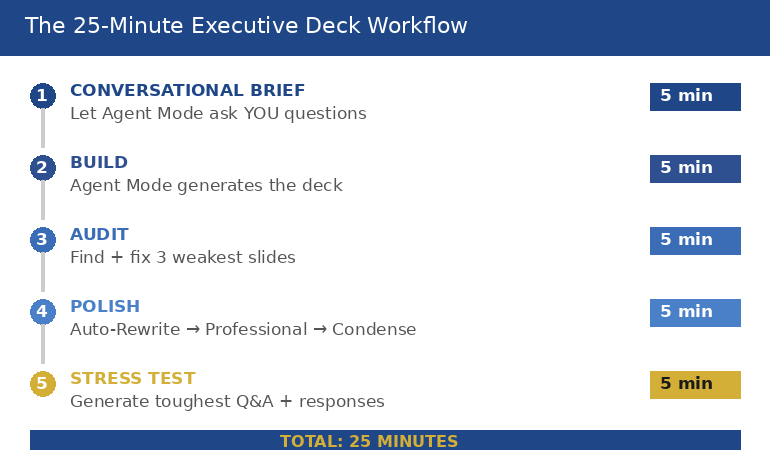
Quick answer: Copilot Agent Mode is most useful to senior leaders when it runs multi-step jobs end to end — not single-prompt slide generation. The three workflows that consistently move a four-hour executive deck job to twenty minutes are the source-document compression workflow, the strategic narrative draft workflow, and the objection-mapped Q&A pre-mortem. Each one chains research, structuring, and drafting into a single instruction set the agent executes while you do other work.
Jump to
Henrik runs strategy at a mid-cap European insurer. Last quarter he was asked to present a market-entry analysis to the executive committee with three days’ notice. The full input pile was eighty-four pages — a McKinsey scoping memo, an internal pricing model, two regulatory briefings, and the previous quarter’s competitive review. He spent the first day reading. He spent the second day building outline drafts in Word. He spent the third evening assembling slides at home, having already missed a parents’ evening for his daughter. The deck went well. The process broke him.
Three months later he was asked for a similar piece on a different market. This time he opened Copilot Agent Mode at 09:00, fed it the source documents, gave it a single multi-step instruction, and stepped away for forty minutes. By the time he came back, the agent had produced a structured narrative outline, a draft of the headline slide for each section, and a Q&A preparation document anticipating the eight most likely committee objections. The full deck still required Henrik’s editorial judgement. But the four hours of preparation work that used to crush his evenings was now a twenty-minute review of agent output before lunch.
The difference between the two experiences was not better prompting. It was a different mode of using AI. Single-prompt Copilot — the chat box approach — produces one output for one input. Agent Mode chains research, structuring, drafting, and review into a single autonomous run. For senior leaders who are time-poor and judgement-rich, this is a structurally different tool, and the workflows that suit it are not the workflows you would use in chat.
Looking for the structured framework for using AI in executive presentation work?
The AI-Enhanced Presentation Mastery course is the self-paced framework for senior professionals using AI to build executive-grade presentations. Eight modules, eighty-three lessons, monthly cohort enrolment, two optional recorded coaching sessions.
Agent Mode versus single-prompt Copilot
The mental model most senior leaders carry from earlier ChatGPT use is single-prompt: you ask, the model answers, you adjust, you ask again. That mental model is what makes Copilot feel like a slow assistant. You spend more time prompting than you save in output. The work is choppy. Context evaporates between turns. By prompt twelve you are repeating yourself.
Agent Mode reverses the structure. Instead of one prompt at a time, you give the agent an instruction with multiple sub-steps, a defined output, and access to source documents or tools. The agent then runs the steps in sequence, calling tools as needed, and returns the completed work product. You review and edit. You do not iterate prompt by prompt.
The shift is from “AI as conversation partner” to “AI as task-running junior analyst”. For executive presentation work — where the inputs are messy, the structure is established, and the output needs to look like senior thinking — the second model is materially more useful. Three workflows in particular consistently take a four-hour preparation job to twenty minutes of editorial review.

Workflow one: source-document compression
The first workflow exists because senior leaders are routinely asked to present material they did not write themselves. A scoping memo from the strategy team. Two analyst reports. A regulatory briefing. A pricing model. The job is not to summarise — it is to produce a ten-minute executive narrative from eighty pages of mixed-format source material.
The agent instruction has four parts. First, the document set: attach or reference all source files in one batch. Second, the output specification: a structured outline with no more than seven top-level sections, each section limited to forty words, each section flagged for the source it draws from. Third, the constraint set: highlight contradictions between sources rather than papering over them; flag any claim where the underlying evidence is one analyst’s opinion rather than a verifiable data point. Fourth, the audience frame: write the outline for an executive committee whose first question will be “what is the decision you want from us, and what could go wrong?”
What the agent returns is not a finished deck. It is a working outline that has done the synthesis work — the part that costs the most time and the least intellectual originality. You read the outline. You disagree with two sections. You rewrite one and reorder another. The total editorial pass takes fifteen to twenty minutes. The synthesis work that would have taken three hours of reading and outlining is already done.
The reason this workflow saves so much time is that the agent reads at machine speed and synthesises across documents simultaneously. A human presenter reads sequentially, holds context in working memory, and synthesises last. The agent does the reverse. Neither is “better thinking” — they are different cognitive shapes. For source-heavy executive briefs where the synthesis is mechanical and the judgement is editorial, the agent’s shape is faster.
Workflow two: strategic narrative draft
The second workflow takes the compressed outline and produces a slide-by-slide narrative draft. This is the step where most single-prompt Copilot use falls apart, because slide generation in chat tends to produce either generic structures (problem-solution-benefit, repeated indefinitely) or slides that look polished but say nothing.
The agent instruction is more directive. Specify the narrative arc: situation, complication, resolution, decision, risk. Specify the section count and the exact role of each section. Specify the slide format: one headline statement per slide, no more than three supporting bullets, no jargon that has not been defined in the preceding section. Most importantly, specify the headline syntax explicitly — “the headline of every slide must be a complete sentence that states a finding, not a topic. ‘Three regions account for sixty per cent of the addressable market’ is a finding. ‘Market analysis’ is a topic.”
The agent will then produce a draft that respects the narrative architecture. The draft will not be final-quality. The headlines will need sharpening. Some slides will read as if the agent did not fully understand a niche term. But the structural work — sequencing the argument, allocating points to slides, drafting the supporting bullets — is done. Your job becomes editorial: tightening twelve headlines and reorganising two sections, instead of building thirty slides from a blank page.
Two specific instructions tend to lift output quality dramatically. The first is “include a ‘so what’ line at the bottom of every slide that states the implication for the executive committee in one sentence.” The second is “after each section, draft a transition sentence that links the closing point of the previous section to the opening point of the next.” Both are simple to specify. Both are work the agent does well. Both are work that human presenters routinely skip when time-pressed, leaving decks with strong individual slides and weak overall flow. Senior professionals using AI well are getting more value from structured prompt patterns like these than from any single dramatic prompt.

The complete framework for AI-assisted executive presentations
Move beyond basic AI usage. The AI-Enhanced Presentation Mastery course gives you eight self-paced modules and eighty-three lessons on using AI (including Copilot) to structure, draft, and refine presentations that work at senior levels. Two optional recorded coaching sessions. £499, lifetime access to materials.
- 8 modules, 83 lessons of self-paced course content
- 2 optional live coaching sessions, fully recorded — watch back anytime
- No deadlines, no mandatory session attendance
- New cohort opens every month — enrol whenever suits you
- Lifetime access to all course materials
Explore the AI-Enhanced Programme →
Designed for senior professionals using AI to produce executive-grade output, not generic drafts.
Workflow three: objection-mapped Q&A pre-mortem
The third workflow is the one most presenters have never tried, and the one that produces the highest leverage when the deck reaches the room. The agent’s job here is to read the draft deck, model the executive committee’s likely concerns, and produce a structured Q&A preparation document that anticipates the eight most likely objections with draft responses.
The agent instruction names the audience explicitly: not “executives” but the actual committee. “The committee includes a CFO whose previous term included a major write-down on a similar acquisition; a CEO whose stated priority for the year is operational simplification; a Chief Risk Officer who has flagged regulatory complexity in three of the last four committee meetings.” That degree of specificity changes what the agent flags. Generic objections give generic responses. Named-stakeholder objections give responses you can actually rehearse.
The output specification asks for three things per objection. The likely phrasing — how the objection will actually be stated in the room. The structural weakness it exposes — what the proposal genuinely does not yet answer. The draft response — a two-sentence reply that acknowledges the concern, names the specific evidence in the deck that addresses it, and offers a follow-up commitment if the evidence is incomplete. This is not the same as an FAQ section in the appendix. It is preparation work for live performance.
What you get back is a document that surfaces holes in the proposal you would not otherwise have noticed before the meeting. Nine times out of ten, at least one of the agent’s anticipated objections turns out to be a real gap that needs addressing in the deck before presenting. The agent does not have committee context the way you do. But it does notice gaps with a different cognitive bias than your own — and that complementary bias is where the value lies.
The editorial pass that turns agent output into executive output
None of these workflows produce final-quality executive material on their own. The agent produces structured first drafts. The editorial pass — the human judgement applied to that draft — is what produces senior output. This is the part that nervous AI users skip and that experienced AI users obsess over.
Five things matter in the editorial pass. First, the headlines. Re-read every slide headline aloud and rewrite any that state a topic rather than a finding. The agent will get this right perhaps seventy per cent of the time. The other thirty per cent are where decks lose authority. Second, the numbers. Verify every quantitative claim against the source document. Agents hallucinate numbers, especially in compression workflows. Third, the section flow. Does the argument land harder by the end, or does it dissipate? If it dissipates, reorder. Fourth, the language register. Replace any phrasing that sounds like a generic AI tone — “leveraging synergies”, “in today’s dynamic landscape” — with the language your committee actually uses. Fifth, the omissions. What does the deck not say that you, as the human in the room, know matters? The agent does not have your situational awareness. You do.
If you want the structured patterns for each of these editorial moves — the headline rewrite framework, the number-verification checklist, the language-register adjustments — the AI-Enhanced Presentation Mastery course walks through them across eight modules, with worked examples for board, investment committee, and steering committee scenarios.
Need the prompt library to run these workflows tomorrow?
The Executive Prompt Pack — £19.99, instant access — gives you 71 ChatGPT and Copilot prompts designed for PowerPoint presentation work. Includes prompt patterns for source compression, slide drafting, and headline sharpening that work in both chat and Agent Mode.
FAQ
Is Copilot Agent Mode different from regular Copilot in PowerPoint?
Yes. Regular Copilot in PowerPoint generates slides one prompt at a time within the application. Agent Mode runs multi-step tasks autonomously — reading source documents, structuring an outline, drafting headlines, anticipating objections — in a single instruction set, and returns the work product after a sequence of steps it has chosen and executed. For executive presentation work where the inputs are large and the steps are predictable, Agent Mode saves materially more time than chat-style prompting.
How long does an Agent Mode workflow actually take?
Each of the three workflows in this article takes between fifteen and forty minutes of agent runtime, depending on the size of the source documents. The presenter is not active during that time — the agent runs while you do other work. The presenter’s active time is the editorial pass at the end, which usually takes fifteen to twenty-five minutes per workflow. Total senior-leader time per workflow tends to be twenty to thirty minutes, replacing what was often two to four hours of manual preparation.
Will Agent Mode hallucinate numbers from my source documents?
It can, particularly in compression workflows where the agent restates figures from longer source material. Treat every quantitative claim in agent output as a flag for verification, not a finished statement. Build the verification step into your editorial pass: open the source, locate the figure, confirm the agent’s restatement is accurate. The time cost is small. The credibility cost of presenting a hallucinated number to an executive committee is large.
Can Agent Mode replace a junior analyst?
For specific tasks within the presentation workflow, it can replicate the work an analyst would have done in synthesis and first-draft slide generation. It cannot replace judgement, situational awareness, stakeholder knowledge, or the editorial decisions that turn a draft into a senior-level deck. The most useful framing is that Agent Mode is a tireless drafting partner whose work always needs senior review — not a substitute for the senior thinking that makes the deck land.
The Winning Edge — Thursday newsletter
Every Thursday, The Winning Edge delivers one structural insight for executives presenting to boards, investment committees, and senior stakeholders. No general tips. No motivational framing. One specific technique, one executive scenario, one action. Subscribe to The Winning Edge →
Not ready for the full programme? Start here instead: download the free Executive Presentation Checklist — a single-page review you can run on any AI-assisted draft before sending it to a senior audience.
Next step: pick the next executive deck on your calendar that has source material attached, and run the source-document compression workflow on it before you do anything else. Allow yourself thirty minutes for the agent to work and twenty minutes for editorial review. Compare that to your usual preparation time. The gap is the value of switching from chat-style prompting to Agent Mode for this kind of work.
Related reading: Copilot Agent Mode executive deck workflow — the five-step structure, and why AI-generated slides look generic and how to fix the editorial pass.
About the author. Mary Beth Hazeldine is Owner & Managing Director of Winning Presentations Ltd, founded in 1990. With 24 years of corporate banking experience at JPMorgan Chase, PwC, Royal Bank of Scotland, and Commerzbank, she advises executives across financial services, healthcare, technology, and government on structuring presentations for high-stakes funding rounds, approvals, and board-level decisions.