
Tag: Copilot 2026

19 Feb 2026
Executive reviewing presentation data and charts on laptop before high-stakes Q&A session with leadership team

Copilot Agent Mode in PowerPoint: The 25-Minute Executive Deck Workflow

Last Tuesday I rebuilt a client’s 34-slide board deck in 25 minutes. Not because I’m fast — because I stopped fighting Copilot with one-shot prompts and switched to Agent Mode’s conversational workflow.

Quick answer: Copilot Agent Mode in PowerPoint works like a sharp junior colleague — it asks clarifying questions, remembers context across prompts, and makes multi-step improvements without you repeating yourself. The old model (write one detailed prompt, hope for the best, rebuild what it gets wrong) is replaced by a back-and-forth conversation where each prompt builds on the last. The result: executive-quality decks in 25 minutes instead of 3 hours. Below is the exact five-phase workflow I now use with every client deck, plus the prompting shift that makes Agent Mode dramatically more effective than standard Copilot.

The Prompt That Changed Everything

For the first six months after Microsoft launched Copilot in PowerPoint, I wrote elaborate one-shot prompts. Fifty words. A hundred words. Specifying audience, tone, slide count, layout, data points. The output was always the same: a starting point that needed 90 minutes of surgery.

Then Agent Mode rolled out and I tried something different. Instead of giving Copilot everything upfront, I typed: “I need a 10-slide board presentation on our Q4 results. Can you help me build it slide by slide? Start by asking what metrics matter most to my board.”

Copilot asked me four questions. Who’s the audience? What decisions need to happen? What’s the one thing the board needs to walk away knowing? What data do you have ready?

After I answered, it built the deck — and because it understood the context, the slides actually made sense. Not generic. Not stuffed with filler. Structured around the decision I needed. I spent 12 minutes refining instead of 90 minutes rebuilding. That was the moment I stopped writing one-shot prompts for executive decks.

📋 Every Agent Mode Prompt You Need — Organised by Scenario

Updated 27 March 2026 — Revised for the latest Microsoft Copilot and ChatGPT capabilities.

The Executive Prompt Pack gives you copy-paste prompts for building executive decks from scratch (board updates, budget requests, investor pitches, strategy, transformation), rescuing existing decks (audit, condense, rewrite titles, “make it C-suite”), and generating specific slide types (data, comparison, roadmap, closing). Plus the complete 25-minute executive deck workflow and power modifiers that improve any prompt.

Digital download. Copy-paste prompts by scenario. Tested extensively on client decks across banking, biotech, SaaS, and consulting.

Stop Guessing What to Type. Start Building in 25 Minutes.

The Executive Prompt Pack gives you 71 tested prompts for ChatGPT and Copilot — structured by scenario so you know exactly what to type:

  • Build from scratch — scenario prompts for board reviews, budget requests, and investor decks
  • Rescue and rewrite — audit an existing deck, condense it, or fix one slide at a time
  • Industry-specific prompts for financial services, banking, consulting, and executive audiences
  • Power modifiers that transform any prompt into board-ready output
  • The 25-minute deck workflow that replaces 3–4 hours of manual building

Works with ChatGPT, Microsoft Copilot, and Edit with Copilot (formerly Agent Mode). Updated March 2026.

Get the Executive Prompt Pack → £19.99

Standard Copilot vs Agent Mode: The Real Difference

Standard Copilot in PowerPoint works like a vending machine. You insert a prompt, it returns slides. No memory. No follow-up. No context from one prompt to the next. If the output is wrong, you start over with a different prompt.

Agent Mode works like briefing a colleague. You describe what you need, it asks questions, and then it builds — remembering everything you’ve said across multiple prompts. When you say “make slide 3 more visual,” it knows what slide 3 contains, what the deck is about, and who the audience is.

PAA: What’s the difference between Copilot and Agent Mode in PowerPoint?
Standard Copilot requires you to guide each step with separate, context-free prompts — typically 5-10 per deck. Agent Mode works conversationally: it asks clarifying questions, maintains context across prompts, and allows surgical edits (“make slide 3 more visual”) without you rewriting the entire instruction. Agent Mode typically needs 1-3 prompts per deck versus 5-10 for standard mode. Agent Mode availability varies by organisation, tenant, and rollout schedule — if you don’t see it, check your M365 Copilot licence and admin settings.

This matters for executive decks because senior audiences have specific requirements that standard Copilot can’t hold in memory: the decision being requested, the politics in the room, the metrics that matter to this particular CFO. Agent Mode holds all of that context across every prompt in the conversation. For a deeper look at prompt structure fundamentals, see the complete Copilot PowerPoint prompts guide.

The 25-Minute Executive Deck Workflow (5 Phases)

This is the exact workflow I now use for every executive deck. Five phases, 25 minutes, from blank PowerPoint file to boardroom-ready output.

Phase 1: The Conversational Brief (5 minutes)

Open PowerPoint → Copilot Chat → Tools → Agent Mode. Then paste this type of opening prompt: “I need a [slide count]-slide [presentation type] for [audience]. The decision I need from this meeting is [specific outcome]. Start by asking me what you need to know.”

Agent Mode will ask 3-5 clarifying questions. Answer them honestly and specifically. This is where most of the quality comes from — not from the prompts themselves, but from the context you provide when Agent Mode asks.

Phase 2: The Build (5 minutes)

Once Agent Mode has your context, it generates the deck. Review the structure — not the content yet. The order of slides matters more than the words on them at this stage. If the flow is wrong, tell Agent Mode: “Move the financial impact section before the recommendation” or “add a risk slide between the timeline and the ask.”

Phase 3: The Audit (5 minutes)

This is where the playbook earns its money. Paste the deck audit prompt: ask Agent Mode to identify the 3 weakest slides and suggest specific improvements for clarity and impact. Then for each flagged slide, run the rewrite. Agent Mode remembers the original context, so its rewrites are targeted — not generic.

Phase 4: Polish (5 minutes)

Use the 2026 canvas sequence: Auto-Rewrite → Make professional → Condense. This three-step combo tightens language, cleans formatting, and removes the padding that Copilot adds to every slide by default. Then generate speaker notes and run a consistency audit — Agent Mode checks for conflicting numbers, mismatched terminology, and tone shifts across the full deck.

Phase 5: Stress Test (5 minutes)

Ask Agent Mode to generate the three toughest questions your audience will ask — and draft response slides or talking points for each. This is the step most people skip and most people regret. A board member who finds a gap in your logic during Q&A will remember that gap, not your slides. For more on the full Copilot PowerPoint tutorial and latest features, see the complete guide.
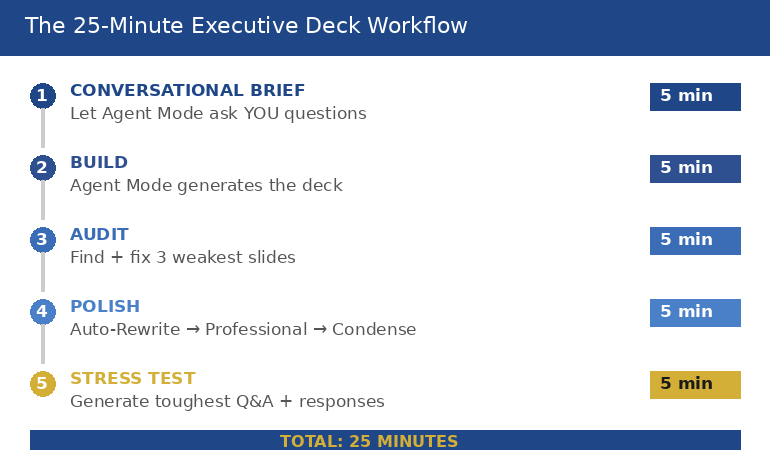
Diagram showing the five-phase Agent Mode workflow: conversational brief five minutes, build five minutes, audit five minutes, polish five minutes, and stress test five minutes, totalling 25 minutes from blank file to boardroom-ready deck

For 71 tested prompts covering every scenario — build from scratch, rescue an existing deck, or fix individual slides — the Executive Prompt Pack gives you exactly what to type, updated for the latest Copilot and ChatGPT capabilities.

When You Already Have a Deck (The Rescue Workflow)

Half the time, you’re not building from scratch — you’re inheriting a 40-slide monster from last quarter that needs to be presentable by Thursday. Agent Mode handles this differently from standard Copilot because it can assess the full deck before making changes.

The rescue workflow has four steps. First, run the full deck audit: Agent Mode identifies the three weakest slides and gives you a fix direction for each. Second, condense — paste the “kill the text walls” prompt that targets slides with more than 5 bullet points or more than 30 words per slide. Third, rewrite slide titles: most corporate decks use label titles (“Q3 Revenue”) instead of insight titles (“Q3 Revenue Beat Target by 11% — Here’s What Drove It”). Agent Mode rewrites every title as an insight headline. Fourth, the “make it C-suite” pass: ask Agent Mode to rewrite the entire deck for a time-poor executive using the 8-second scan test — if a slide can’t be understood in 8 seconds, it gets simplified.

If you’ve ever wondered why your Copilot slides look generic, the rescue workflow fixes it — because Agent Mode uses the context of your specific deck, not generic templates.

🔧 Build From Scratch or Rescue What You’ve Got

Digital download (PDF). Copy-paste prompts organised by scenario. Designed for Agent Mode first, also works in standard Copilot.

The 3 Agent Mode Mistakes Everyone Makes First

Mistake 1: Treating it like standard Copilot. If you paste a 100-word one-shot prompt into Agent Mode, you’re wasting its best feature — the ability to ask you questions. Start with a brief context sentence and let Agent Mode pull the detail out of you through its clarifying questions. The prompts it generates from conversation are better than anything you’d write upfront.

Mistake 2: Skipping the audit phase. Agent Mode builds good first drafts. Not perfect first drafts. The audit prompt (“find the 3 weakest slides and suggest specific improvements”) is what turns a good deck into one that survives a boardroom. Most people generate and present. The professionals generate, audit, and then present.

Mistake 3: Ignoring power modifiers. Short phrases appended to any prompt that dramatically change the output: “lead with the headline,” “one key message per slide,” “format for scanning not reading.” These modifiers work because Agent Mode remembers them across subsequent prompts — unlike standard Copilot, which forgets everything after each interaction.

PAA: How do I use Agent Mode in PowerPoint?
Open PowerPoint with a Microsoft 365 Copilot licence. Click the Copilot Chat button in the ribbon, then select Agent Mode from the Tools menu in the prompt box. Start with a brief description of what you need (“I need a 10-slide board presentation on Q4 results”) and let Agent Mode ask clarifying questions before it builds. Agent Mode availability varies by organisation and rollout schedule — check your M365 Copilot licence and admin settings for current feature access.

PAA: Can Copilot build a presentation from scratch?
Yes — and Agent Mode does it significantly better than standard Copilot. With standard Copilot, you write one prompt and get a full draft that usually needs heavy editing. With Agent Mode, you have a conversation first: Copilot asks what the deck is for, who the audience is, what decisions need to happen, and what data you have. The resulting deck is more targeted because Agent Mode understood the context before it started building. Most professionals find that Agent Mode decks need 10-15 minutes of refinement versus 60-90 minutes for standard Copilot output.

⚡ Stop Guessing. Start Pasting.

The Executive Prompt Pack gives you the exact prompts — organised by scenario, not alphabetically. Board deck? Page 3. Budget request? Page 5. Rescuing a 40-slide disaster? Page 12. Every prompt is built around executive decision logic and tested on real client decks across multiple industries. Plus the 25-minute workflow, power modifiers, speaker notes prompts, and Q&A stress test.

Used by executives, consultants, and senior managers who present to time-poor decision makers. Digital download — start using it today.

71 Prompts. Every Scenario Covered.

Build from scratch, rescue an existing deck, or perfect individual slides — the Executive Prompt Pack covers every scenario. Works with ChatGPT, Copilot, and Edit with Copilot. Updated March 2026.

Get the Prompts → £19.99

Frequently Asked Questions

Do I need Copilot Agent Mode to use this playbook?

It’s designed for Agent Mode first — because Agent Mode asks clarifying questions and handles multi-step changes that standard Copilot can’t. But many of the prompts still improve results in standard Copilot, just with less “memory” and fewer multi-step edits. If your organisation hasn’t rolled out Agent Mode yet, you’ll still get better output from these structured prompts than from generic ones.

How is this different from the free prompts on your blog?

The blog posts teach prompt structure and individual techniques. The playbook is organised by scenario — you find your situation (board deck, budget request, deck rescue), paste the prompt, and go. It includes the complete 25-minute workflow, power modifiers, the deck audit and rescue sequence, slide-type prompts, and speaker notes and Q&A generation. It’s designed to sit next to your keyboard, not to teach you theory.

Will this work for my industry?

Yes — because the prompts are structured around executive decision logic (metrics, risks, outcomes, asks), not industry-specific jargon. I’ve tested these prompts on decks across banking, biotech, SaaS, consulting, and public sector. If your audience makes decisions from slides, these prompts are built for you.

Get monthly Copilot updates + presentation strategies

I test every new Copilot feature on real client decks before recommending it. Get what actually works, delivered monthly.

Subscribe to The Winning Edge

Related: Agent Mode can build your slides — but it can’t present them for you. If presentation anxiety is what’s really holding your career back, read Presentation Anxiety Is Ruining My Career — What Actually Fixes It.

About the Author

Mary Beth Hazeldine is the Owner & Managing Director of Winning Presentations. With 24 years across banking and consulting — including JPMorgan Chase, PwC, Royal Bank of Scotland, and Commerzbank — she has supported presentations for high-stakes funding rounds and approvals across 15+ years of executive training.

She tests every Copilot feature on real client decks before recommending it, and has trained professionals on AI-enhanced presentations across banking, biotech, SaaS, and consulting.

Book a discovery call | View services

Your next step: Open PowerPoint, go to Copilot Chat → Tools → Agent Mode, and paste this: “I need a [number]-slide [type] presentation for [audience]. The decision I need from this meeting is [outcome]. Start by asking me what you need to know.” See how different the output is when Copilot understands the context first. Then grab the full playbook to have every scenario prompt ready when the next deck is due.

15 Dec 2025
Best Pitch Deck Software 2026: 11 tools tested and ranked including Slidebean, Canva, Beautiful.ai, and Gamma. Updated December 2025.

Pitch Deck Software: The Tool Most Founders Waste Money On (And What Actually Matters)

🔄
Last Updated: December 2025• Verified all pricing & features

There’s no shortage of pitch deck tools—but most comparisons ignore how they’re actually used. This review looks at the best pitch deck software in 2026, focusing on real strengths and trade-offs.

Last month, a biotech founder showed me the pitch deck she’d spent 47 hours building in PowerPoint. It was 32 slides of dense text, clip art, and inconsistent fonts. She’d been rejected by 19 investors.

We rebuilt it in Slidebean in 4 hours. She closed her £2.3M seed round six weeks later.

The tool didn’t save her pitch. Her science was always solid. But the right software removed friction, applied investor-proven structure, and let her focus on story instead of wrestling with formatting.

After helping clients raise over £250 million in 35 years of presentation consulting, I’ve tested every pitch deck tool that matters. This guide cuts through the marketing to tell you which ones actually work — and which are wasting your time.

🎁 FREE DOWNLOAD

Updated 27 March 2026 — Revised for the latest Microsoft Copilot and ChatGPT capabilities.

Pitch Deck Structure Checklist

The 10-slide framework that’s raised £250M+ for our clients. Works with any software.

Download Free Checklist →

📋 Quick Answer: Which Pitch Deck Software Should You Choose?

  • Best overall for startups: Slidebean — investor-focused templates, analytics, professional services ($96/year)
  • Best free option: Canva — massive template library, easy to use (Free or $13/month)
  • Best for non-designers: Beautiful.ai — auto-formatting smart slides ($12/month)
  • Best AI-powered: Gamma — generates full decks from prompts ($8/month)
  • Best for PowerPoint users: Microsoft Copilot — AI inside your existing workflow (£30/month)

Still not sure? Use our decision tree below or book a free consultation.

🆕 What’s New in Pitch Deck Software (December 2025)

  • Gamma launched Agent Mode — conversational deck building with follow-up questions
  • Beautiful.ai increased Pro pricing to $12/month (was $10)
  • Microsoft Copilot added Agent Mode for PowerPoint users (Windows only)
  • Tome pivoted to sales/marketing focus — removed free AI features
  • Slidebean now offers $7/month Starter plan with AI builder access


Complete Comparison: All 11 Pitch Deck Tools

Before diving into individual reviews, here’s how every tool stacks up. I’ve tested each one on the same criteria: ease of use, design quality, investor-readiness, and whether it actually saves time.

Tool Price Best For AI Features Analytics Our Rating
Slidebean $7-42/mo Startups raising funding ✅ Full ✅ Investor tracking 9.5/10
Canva Free-$13/mo Budget-conscious, multi-purpose ✅ Magic Write ❌ None 8.5/10
Beautiful.ai $12-40/mo Non-designers, teams ✅ Smart Slides ✅ Viewer analytics 8.5/10
Gamma Free-$20/mo Speed, AI-first creation ✅ Full generation ✅ Pro only 8/10
Tome Free-$16/mo Sales teams, storytelling ⚠️ Paid only ✅ Engagement 7/10
Copilot for PowerPoint £30/mo PowerPoint power users ✅ Agent Mode ❌ None 8/10
Visme Free-$29/mo Data-heavy presentations ✅ AI Writer ✅ Pro only 7.5/10
Prezi Free-$25/mo Non-linear storytelling ✅ Create with AI ✅ Premium only 7/10
Pitch Free-$22/mo Team collaboration ✅ AI assist ✅ Engagement 7.5/10
Google Slides Free Collaboration, simplicity ✅ Gemini ❌ None 7/10
PowerPoint $7-22/mo Enterprise, full control ✅ With Copilot ❌ None 7/10

Prices verified December 2025. All ratings based on pitch deck creation specifically, not general presentation use.


Detailed Reviews: Every Tool Tested

1. Slidebean — Best for Startups Raising Funding ⭐ Top Pick

Price: Starter $7/month, Accelerate $42/month (billed annually)
Free tier: Yes, limited features
Best for: Seed to Series A founders who need investor-ready decks fast

Slidebean was built specifically for startup fundraising, and it shows. While Canva tries to be everything to everyone, Slidebean focuses on one thing: helping founders create decks that investors actually fund.

What I love:

  • Investor-proven templates — Based on decks from YC, 500 Startups, and successfully funded companies
  • AI auto-design — Input content, Slidebean handles layout. No dragging boxes.
  • Pitch analytics — See which slides investors spend time on (and which they skip)
  • Financial modeling tools — Built-in templates for projections and unit economics
  • Professional services option — Can upgrade to have their team write and design your deck

What’s limiting:

  • Less design flexibility than Canva (by design — prevents bad choices)
  • Locked to Slidebean platform (though exports to PDF/PPTX)
  • Some templates feel dated compared to newer AI tools

Real result: A SaaS founder I worked with used Slidebean to create her seed deck in 6 hours (vs. 40+ hours in PowerPoint previously). She raised £1.8M in 8 weeks. The analytics showed investors spent 3x longer on her traction slide than market size — insight that shaped her verbal pitch.

Verdict: If you’re actively fundraising and want a tool built for that exact purpose, Slidebean is the obvious choice. The investor analytics alone justify the cost.

🔗 Try Slidebean Free →

2. Canva — Best Free Option & Most Versatile

Price: Free, Pro $13/month
Free tier: Yes, very generous
Best for: Budget-conscious founders, multi-purpose design needs

Canva is the Swiss Army knife of design tools. It’s not built specifically for pitch decks, but its flexibility, massive template library, and unbeatable free tier make it the go-to for founders who need to create everything from decks to social media graphics.

What I love:

  • Thousands of pitch deck templates — More variety than any competitor
  • Magic Write AI — Generate and refine content within slides
  • Drag-and-drop simplicity — Zero learning curve
  • 60M+ stock assets — Photos, icons, graphics included
  • Exports everywhere — PDF, PPTX, video, web links
  • Free tier is actually usable — Not just a trial

What’s limiting:

  • Not built for pitch decks specifically — no investor analytics
  • Everyone uses Canva — VCs see the same templates constantly
  • Too many options can overwhelm (paradox of choice)
  • Requires design sense to avoid generic results

Real result: One pre-seed founder used Canva to create a clean, minimalist deck for her F&F round. Total cost: £0. She raised £150K. For early-stage, low-stakes pitches, Canva delivers.

Verdict: Start with Canva if you’re bootstrapping or need a multi-purpose tool. But if you’re raising £500K+, consider Slidebean or Beautiful.ai for more investor-focused features.

🔗 Try Canva Free →

3. Beautiful.ai — Best for Non-Designers

Price: Pro $12/month, Team $40/user/month (billed annually)
Free tier: 14-day trial only
Best for: Founders with no design skills who want polished results automatically

Beautiful.ai’s “Smart Slides” are genuinely clever. As you add content, the layout automatically adjusts to stay balanced and professional. You literally cannot make an ugly slide — the system prevents it.

What I love:

  • Smart Slides auto-format — Add text, layout adjusts. Magic.
  • Consistent design guaranteed — Impossible to break the template
  • Viewer analytics — Track engagement on shared decks
  • PowerPoint import/export — Works with existing files
  • 14-day free trial — Enough time to build a real deck

What’s limiting:

  • Limited customization (the trade-off for auto-formatting)
  • No free tier after trial — must pay or lose access
  • Smaller template library than Canva
  • Team pricing gets expensive fast ($40/user)

Real result: A technical founder with zero design sense used Beautiful.ai to create a Series A deck. His investors commented on how “clean and professional” it looked. He spent 4 hours total.

Verdict: If you’re a technical founder who thinks in code, not design, Beautiful.ai removes the guesswork. Just add content and let the AI handle aesthetics.

🔗 Try Beautiful.ai Free for 14 Days →

4. Gamma — Best AI-First Deck Generation

Price: Free (400 credits), Plus $8/month, Pro $20/month
Free tier: Yes, with AI credits
Best for: Speed-focused founders who want AI to do the heavy lifting

Gamma is the most AI-forward tool on this list. Give it a topic, and it generates an entire presentation in under a minute. The December 2025 update added “Agent Mode” for conversational deck building.

What I love:

  • Full deck generation from prompts — Type a topic, get 10 slides
  • Web-native format — Share links, not files
  • One-click restyling — Change themes without affecting content
  • Agent Mode (new) — AI asks clarifying questions before generating
  • Generous free tier — 400 credits to start

What’s limiting:

  • No PowerPoint export (PDF only)
  • AI-generated content needs heavy editing for accuracy
  • Less investor-specific than Slidebean
  • Credit system can feel limiting for heavy users

Real result: A founder used Gamma to create a first-draft pitch deck in 15 minutes. It required 2 hours of editing, but gave him a starting point instead of a blank page. For ideation and speed, Gamma is unmatched.

Verdict: Use Gamma when you need to go from zero to draft in minutes. But don’t send AI-generated content to investors without significant refinement.

🔗 Try Gamma Free →

5. Tome — Best for Sales Teams (Pivoted from Startups)

Price: Free (limited, no AI), Professional $16/month
Free tier: Yes, but AI features removed
Best for: Sales and marketing teams, not startup fundraising

Important update: Tome pivoted in late 2025 to focus on sales/marketing personas. They removed AI features from the free plan and now position as a sales enablement tool rather than a general presentation maker.

What I love:

  • Beautiful narrative flow — Designed for storytelling
  • Video/audio embedding — Rich multimedia support
  • CRM integrations — Connect to sales workflows
  • Engagement analytics — Track what prospects view

What’s limiting:

  • No AI on free plan (major change from 2024)
  • Not PowerPoint-compatible
  • Pivoted away from startup/investor focus
  • User reviews mention layout inflexibility

Verdict: If you’re in sales creating proposals and leave-behinds, Tome works. But for investor pitch decks specifically, other tools are now better suited.

🔗 Try Tome →

6. Microsoft Copilot for PowerPoint — Best for PowerPoint Power Users

Price: £30/month (Copilot add-on to Microsoft 365)
Free tier: No
Best for: Professionals already in the Microsoft ecosystem

If your company lives in PowerPoint and you’re not switching, Copilot brings AI directly into your existing workflow. The December 2025 “Agent Mode” update added conversational interactions — ask Copilot questions and it makes surgical edits.

What I love:

  • Works inside PowerPoint — No new tool to learn
  • Agent Mode (December 2025) — Conversational, not just one-shot prompts
  • Document to slides — Transform Word docs into presentations
  • Brand consistency — Respects your company templates
  • Speaker notes generation — Automatic talking points

What’s limiting:

  • Expensive (£30/month on top of Microsoft 365)
  • Agent Mode currently Windows-only
  • Requires good prompts to get good results
  • No investor analytics or tracking

Real result: Using Copilot, I helped a client turn a 40-page strategy document into a 15-slide board presentation in 25 minutes. The time savings are real.

Verdict: If you’re already paying for Microsoft 365 and use PowerPoint daily, Copilot is worth the add-on. If you’re starting fresh, purpose-built tools like Slidebean or Beautiful.ai offer more for pitch decks specifically.

🔗 Read our complete Copilot tutorial →

7. Visme — Best for Data-Heavy Presentations

Price: Free (limited), Starter $12.25/month, Pro $24.75/month
Free tier: Yes, with 10 monthly credits
Best for: Founders with complex data needing visualization

Visme shines when your pitch deck needs charts, infographics, and data visualization. With 50+ data widget types, it handles complex information better than most competitors.

What I love:

  • 50+ data visualization types — Charts, graphs, infographics
  • Google Sheets/Excel integration — Live data updates
  • AI writing assistant — Generate and refine content
  • Interactive elements — Embed videos, forms, animations
  • Brand kit — Maintain consistency across decks

What’s limiting:

  • Steeper learning curve than Canva
  • AI features require Pro subscription
  • Can feel overwhelming with options
  • Less startup-specific than Slidebean

Verdict: If your pitch relies on complex data (biotech, fintech, analytics companies), Visme’s visualization tools are unmatched. For simpler decks, it may be overkill.

🔗 Try Visme Free →

8. Prezi — Best for Non-Linear Storytelling

Price: Free (limited), Standard $7/month, Plus $15/month, Premium $25/month
Free tier: Yes, with Prezi branding
Best for: Presenters who want to break from linear slides

Prezi’s zoomable canvas creates a different kind of presentation — one big visual that you navigate rather than linear slides. It’s memorable when done well, but risky for traditional investor audiences.

What I love:

  • Unique visual format — Stands out from every PowerPoint
  • AI presentation generator — Create from prompts
  • Video integration — Record yourself over slides
  • Great for complex topics — Show how ideas connect

What’s limiting:

  • Unfamiliar format can confuse investors
  • Motion can cause nausea (seriously)
  • Not exportable to PowerPoint properly
  • Learning curve for the canvas approach

Verdict: Prezi works for educational content and conference talks. For investor pitch decks, the unfamiliar format creates unnecessary risk. Stick to linear slides for fundraising.

🔗 Try Prezi Free →

9. Pitch — Best for Team Collaboration

Price: Free (3 presentations), Pro $8/member/month, Business $22/member/month
Free tier: Yes, limited presentations
Best for: Co-founding teams building decks together

Pitch is Google Slides with polish. If your founding team needs to collaborate in real-time with smooth handoffs, Pitch delivers the most refined experience.

What I love:

  • Real-time collaboration — Google Docs-style simultaneous editing
  • Pitch Rooms — Send decks with videos to stakeholders
  • Engagement analytics — Track what viewers see
  • Beautiful templates — Modern, clean designs
  • AI assist — Help with content and formatting

What’s limiting:

  • Free tier limited to 3 presentations
  • Less investor-specific than Slidebean
  • Smaller template library than Canva
  • Pricing per-member adds up for teams

Verdict: If you’re a team of 2-5 co-founders building your deck together, Pitch’s collaboration features are excellent. Solo founders may not need it.

🔗 Try Pitch Free →

10. Google Slides — Best for Simplicity & Collaboration

Price: Free
Free tier: Yes, fully free
Best for: Quick, collaborative decks without budget

Google Slides is basic but reliable. With Gemini AI integration in 2025, it now generates content and suggests designs — though not as sophisticated as purpose-built tools.

What I love:

  • 100% free — No hidden costs
  • Real-time collaboration — Multiple editors simultaneously
  • Works everywhere — Browser-based, any device
  • Gemini AI — Generate slides from prompts
  • Version history — Never lose work

What’s limiting:

  • Limited templates and designs
  • No analytics or tracking
  • Basic compared to AI-powered alternatives
  • Exports to PowerPoint can break formatting

Verdict: Google Slides works for internal decks and early drafts. For investor-facing presentations, upgrade to a tool with better design automation.

🔗 Open Google Slides →

11. Microsoft PowerPoint — Best for Enterprise & Full Control

Price: Microsoft 365 Personal $7/month, Business $12.50/month
Free tier: Web version is free with limited features
Best for: Enterprise users who need maximum flexibility

PowerPoint is the industry standard for a reason — it does everything. But “everything” also means hours of manual work that AI tools now automate.

What I love:

  • Total control — Every pixel customizable
  • Universal compatibility — Everyone can open PPTX
  • Mature feature set — Animations, transitions, everything
  • Works offline — No internet required
  • Add Copilot for AI — Best of both worlds (at extra cost)

What’s limiting:

  • Manual design work — time-consuming
  • No built-in analytics
  • Easy to make ugly slides without design skills
  • Copilot costs extra £30/month

Verdict: PowerPoint + Copilot is powerful for those who master it. But most founders should start with AI-native tools and export to PPTX if needed.

🔗 Get PowerPoint →


Stop Guessing What to Type. Start Building in 25 Minutes.

The Executive Prompt Pack gives you 71 tested prompts for ChatGPT and Copilot — structured by scenario so you know exactly what to type:

  • Build from scratch — scenario prompts for board reviews, budget requests, and investor decks
  • Rescue and rewrite — audit an existing deck, condense it, or fix one slide at a time
  • Industry-specific prompts for financial services, banking, consulting, and executive audiences
  • Power modifiers that transform any prompt into board-ready output
  • The 25-minute deck workflow that replaces 3–4 hours of manual building

Works with ChatGPT, Microsoft Copilot, and Edit with Copilot (formerly Agent Mode). Updated March 2026.

Get the Executive Prompt Pack → £19.99

Decision Tree: Choose Your Tool in 60 Seconds

Still not sure? Answer these questions:

Decision tree flowchart for choosing pitch deck software based on budget, design skills, and use case

🎯 Quick Decision Guide

Q1: What’s your budget?

  • £0 → Canva Free or Google Slides
  • Under £15/month → Canva Pro, Gamma, or Beautiful.ai
  • Budget isn’t the constraint → Continue to Q2

Q2: Are you actively raising funding?

  • Yes, raising £500K+ → Slidebean (investor analytics matter)
  • Yes, raising under £500K → Beautiful.ai or Canva Pro
  • No, internal/sales use → Continue to Q3

Q3: Do you have design skills?

  • Yes → Canva (maximum flexibility)
  • No → Beautiful.ai (auto-formatting prevents bad design)

Q4: Do you need speed above all else?

  • Yes, I need a draft in 15 minutes → Gamma
  • I can invest 4-8 hours for quality → Any of the above

Q5: Are you already using PowerPoint daily?

  • Yes, and I’m not switching → PowerPoint + Copilot
  • No, I’m open to new tools → Choose based on Q1-Q4


For 71 tested prompts covering every scenario — build from scratch, rescue an existing deck, or fix individual slides — the Executive Prompt Pack gives you exactly what to type, updated for the latest Copilot and ChatGPT capabilities.

When to Stop Using Software and Hire Professionals

Here’s what I tell every founder: Tools are training wheels. They help you learn structure. But they have limits.

After helping raise £250M+ over 35 years, I can spot template-based pitches in 30 seconds. So can VCs.

Software Works When:

  • You’re raising under £500K (friends & family, pre-seed)
  • You have 10+ hours to invest in learning and iteration
  • Your business model is straightforward to explain
  • You’re using the deck as a starting point, not final product

Hire Professionals When:

  • Raising £500K+ — Cost of poor deck > cost of professional help
  • Series A or later — Institutional investors expect excellence
  • Multiple rejections — Your deck probably isn’t the problem; your narrative is
  • Complex business model — Marketplace, B2B2C, deep tech
  • Tight timeline — Can’t afford to learn by trial and error

🎯 RAISING £500K+?

Our Clients Have Raised £250M+

Stop wrestling with templates. We build investor-ready decks with proven narrative structure, professional design, and delivery coaching.

Deck Review

Expert feedback on your existing deck

£500

Full Deck Creation

Custom narrative + professional design

£2,000-5,000

Pitch Coaching

Deck + delivery mastery

Custom

Book Free Discovery Call →

30 minutes. No sales pressure. Honest advice on your situation.

71 Prompts. Every Scenario Covered.

Build from scratch, rescue an existing deck, or perfect individual slides — the Executive Prompt Pack covers every scenario. Works with ChatGPT, Copilot, and Edit with Copilot. Updated March 2026.

Get the Prompts → £19.99

Frequently Asked Questions

Can I really raise funding with a free tool like Canva?

Yes, but with caveats. Canva works for friends & family rounds and small seed raises. For institutional VCs, the lack of investor analytics and the risk of using templates they’ve seen before can hurt. If you’re raising £500K+, invest in Slidebean or hire professionals.

Which tool do VCs prefer?

VCs don’t care about your tool — they care about your story, metrics, and team. That said, they notice poor design. Any tool on this list produces professional results if used well. What matters is clarity, not the software logo.

Should I use AI to write my pitch deck content?

Use AI for first drafts and iteration, not final content. AI-generated text is generic by definition — it can’t capture your unique value proposition or specific traction metrics. Use Gamma or Copilot to accelerate, then heavily edit everything.

How long should my pitch deck be?

10-15 slides for in-person pitches. Standard structure: Problem, Solution, Product, Market, Business Model, Traction, Team, Competition, Financials, Ask. Include 15-20 backup slides for Q&A.

Can I use Gamma or Tome instead of PowerPoint?

For web-based sharing, yes. But many VCs still request PPTX files. Check if your target investors accept link-based presentations before committing to a web-only tool.

What’s the biggest mistake founders make with pitch deck software?

Treating templates as fill-in-the-blank forms. Templates give structure, not substance. The biggest failure is using generic language and stock examples instead of your specific story and metrics.

Is Slidebean worth the price compared to free options?

If you’re actively fundraising, yes. The investor analytics alone — seeing which slides investors spend time on — provides insights that improve your verbal pitch. For internal presentations, free tools work fine.

Related Resources

Your Next Step

You’ve now seen how all 11 pitch deck tools compare. Here’s what to do:

  1. If you’re learning: Start with Canva Free or Gamma
  2. If you’re raising under £500K: Use Beautiful.ai or Canva Pro
  3. If you’re raising £500K+: Choose Slidebean or book a call with us

Remember: The best pitch deck software is the one you’ll actually use to tell a compelling story. Your content and delivery matter more than which tool you choose.

Good luck with your pitch. 🚀

MB

Mary Beth Hazeldine

Owner & Managing Director, Winning Presentations

With 35 years in presentation consulting and 24 years in corporate banking at JPMorgan, PwC, RBS, and Commerzbank, Mary Beth has helped clients raise over £250 million. She specializes in AI-enhanced presentation skills for executives who create high-stakes pitches.

📧 The Winning Edge Newsletter

Weekly insights on presentations, AI tools, and executive communication. Join 10,000+ professionals.

Subscribe Free →

Disclosure: This article contains affiliate links. We may earn a commission if you purchase through these links at no extra cost to you. We only recommend tools we’ve tested and believe will benefit our readers. All pricing verified December 2025.