Tag: AI for presentations

14 May 2026
Featured image for Generative AI Presentation Storytelling: 3 Prompts That Turn Dry Data Into a Narrative

Generative AI Presentation Storytelling: 3 Prompts That Turn Dry Data Into a Narrative

Quick Answer

Generative AI presentation storytelling works when the prompt forces the model into a narrative structure rather than a summary. The three prompts that consistently produce usable drafts are: the situation-complication-resolution prompt, the character-stake-shift prompt, and the data-to-decision prompt. Each forces the model to choose a narrative shape before it generates copy. Without that, AI produces summaries — and senior audiences disengage from summaries.

Hadiya had been a strategy lead in a global consulting firm for eleven years. Her team produced quarterly client decks for FTSE finance directors. In April she ran an experiment: she gave ChatGPT a 22-page client report and asked it to “write a presentation that tells the story of the data.” The model produced 14 slides. Polished bullets, neat headers, clean structure. Her partner read the draft and said, “This reads like a research summary. It doesn’t tell me anything I would remember after the meeting.”

Hadiya rewrote the deck by hand. The next month she tried again — different prompt. This time the draft was usable in 40 minutes. The difference was not the model. The difference was the structure she forced into the prompt before the model wrote a word.

If your AI-drafted decks read like summaries rather than stories

The model is not refusing to tell stories. It is defaulting to the structure most natural to a language model — paragraph-and-bullet summary — because the prompt did not ask for anything else.

Explore the Executive Prompt Pack →

Why generative AI defaults to summary, not story

Large language models are optimised for one task: predicting the next likely token given everything before it. When asked to “write a presentation,” the most likely structure across the training data is the summary deck — title, agenda, sections, bullets, conclusion. That structure dominates corporate output, so the model produces it by default.

A senior audience does not need the summary. They have read the pre-read; they have skimmed the report. What they need is the through-line — the question the data answers, the tension the analysis exposes, the decision that follows. None of that emerges from a prompt that says “write a presentation.”

The fix is not better writing on the model’s part. The fix is a prompt that names the narrative structure before the model generates a single word. Three prompts cover most senior-audience situations. Each one forces a different narrative shape into the output.
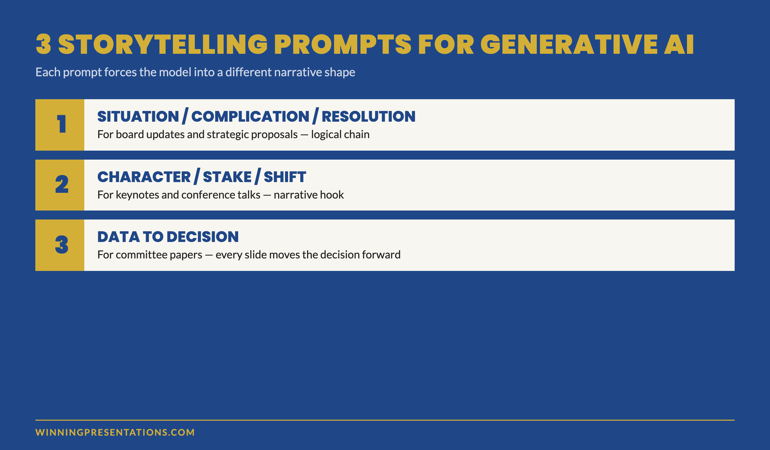
The 3 storytelling prompts for generative AI: situation-complication-resolution, character-stake-shift, and data-to-decision — with the use case for each shown as labelled cards

Prompt 1 — Situation, complication, resolution

Use this prompt when the audience needs to follow a logical chain from “where we were” to “where we are now” to “what we propose.” It is the structure underneath most McKinsey-style executive briefings, and it works because senior audiences are trained to listen for it.

The prompt skeleton:

PROMPT — Situation / Complication / Resolution

You are drafting a 12-slide executive presentation. Use the situation-complication-resolution structure. Slides 1–4: the situation (where the business was, supported by 3 specific data points from the source material). Slides 5–8: the complication (the new pressure or shift that disrupts the situation, supported by 2 data points and 1 named risk). Slides 9–12: the resolution (the recommendation, the expected outcome stated as a process commitment, the trip-wires, and the decision being asked of the audience). For each slide, write a 6-word headline and 3 supporting bullets of no more than 14 words each. Do not use abstract verbs (leverage, drive, enable). Use specific verbs from the source material.

The prompt does three things the default does not. It names the structure (situation-complication-resolution). It enforces evidence (specific data points from the source material). It bans the verbs that produce generic AI copy (leverage, drive, enable). The output reads as a deliberate piece of work, not a model’s average guess at what a presentation looks like.

The constraint that matters most is the verb ban. “Leverage” and “drive” are model-default verbs — they show up because they are common across the training data. Senior audiences register them as filler. A prompt that bans them forces the model to pull verbs from the source material instead. Those verbs are specific, sometimes technical, and almost always more credible.

When this prompt is the right choice

Use it for board updates, strategic proposals, and any presentation where the audience expects a logical progression from problem to recommendation. It is less effective for sales pitches, opening keynotes, or any setting where the audience needs an emotional hook before they engage with logic. For those, prompt 2 is stronger.

Prompt 2 — Character, stake, shift

The second prompt forces the model into a narrative shape: a person with something at stake, a moment when the situation changes, the decision that follows. It produces drafts that read like business stories rather than business summaries — useful for keynotes, all-hands briefings, conference talks, and any setting where the audience needs to feel the weight of the decision before they evaluate it.

PROMPT — Character / Stake / Shift

You are drafting a 10-slide presentation that opens with a real person facing a specific decision. Slide 1: name the person, their role, the moment, what was at stake. Slides 2–4: the situation as they understood it. Slide 5: the shift — the new information or moment that changed the calculation. Slides 6–8: how they responded, supported by evidence from the source material. Slide 9: what changed as a result. Slide 10: the decision the audience needs to make now. Use first or third person, not second person. No abstract verbs. No outcome guarantees — describe what the person did, not what was guaranteed to happen.

The “no outcome guarantees” line is critical. Generative AI defaults to outcome-promise language (“this approach delivered transformational results”) because that pattern is over-represented in marketing copy in the training data. Senior audiences are alert to outcome promises and discount the surrounding argument when they hear one. The prompt forces the model into process-commitment language instead.

The character requirement also blocks the model’s most common failure mode: opening with abstract market context. “In today’s rapidly evolving business environment” is the model’s default opener; it dies in the first 30 seconds in front of a senior audience. A real person at a real moment is the opposite.

Build executive slides in 25 minutes, not 3 hours

The Executive Prompt Pack — 71 prompts for ChatGPT and Copilot

  • 71 ready-to-use prompts for executive presentations — story, structure, opening, recommendation, risk, Q&A prep
  • Works in ChatGPT, Microsoft Copilot, and Claude — no separate setup
  • Copy-paste-and-fill format — replace the bracketed fields with your context, run the prompt
  • Includes the situation-complication-resolution and character-stake-shift prompts in full

The Executive Prompt Pack — £19.99, instant access, lifetime use.

Get the Executive Prompt Pack →

For busy professionals who want to create sharper, more strategic PowerPoint presentations.

When this prompt is the right choice

Use it for any presentation that opens with the audience cold — keynote, conference talk, sales pitch, internal kick-off — where the first 90 seconds need to earn the right to the rest. It is also the right prompt for change communications, where the human dimension is what carries the message past intellectual agreement into emotional acceptance.

Less suited to credit committee papers and quarterly board updates, where the audience already has the context and just wants the logic. For those, prompt 1.

Prompt 3 — Data to decision

The third prompt is for the situation senior professionals encounter most often: 30 pages of data that need to become a 12-slide deck that drives a single decision. Default AI prompts produce a “data summary deck” with a recommendation slide near the end. This prompt produces a “decision deck” with the data working as evidence, not as content.

PROMPT — Data to Decision

You are drafting a 12-slide decision deck. The audience must make a single decision at the end of the meeting. Slide 1: state the decision being asked of the audience in one sentence. Slide 2: the recommendation. Slides 3–6: the four most relevant data points that support the recommendation, one per slide. Each data slide must include the headline number, the source, the time period, and a one-sentence interpretation. Slides 7–9: the two or three counter-arguments and the response to each. Slide 10: the trip-wires that would force a re-vote. Slide 11: the resolution being put. Slide 12: the next decision point on the agenda. Do not include market context. Do not include backstory. Do not summarise — every slide must move the decision forward.

The instruction “do not include market context” sounds aggressive. It is necessary because market-context slides are the model’s most common form of padding. Senior audiences in a decision meeting do not need market context; they have it. A deck that opens with market context tells the audience the presenter does not know what they need.

The four-data-points constraint is also load-bearing. AI without a numeric constraint will produce 8–12 data points and trust the audience to pick the relevant ones. Senior audiences read that as analytical laziness. Four data points, with the analysis already done in the slide selection, reads as senior judgement.

For senior leaders running this prompt for the first time, the result is often disorienting — the deck looks shorter than expected, with no agenda slide, no executive summary, no closing thank-you. That is the point. It is a working document, not a conference talk. The room sees the work in the discipline of what was excluded.
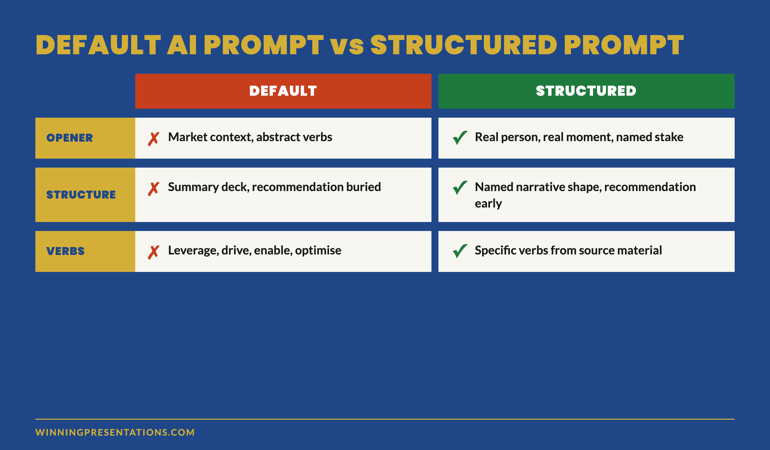
Default AI Prompt vs Structured Storytelling Prompt comparison table showing the difference in opener, structure, evidence treatment and verb selection across both approaches

The editorial pass: making AI output sound like you

Even with a strong prompt, AI output reads as AI output without an editorial pass. The model produces text that is grammatically perfect, lexically broad, and tonally even — and that combination is exactly the signature senior audiences register as machine-drafted. A short editorial pass changes the read.

Four moves that take 15 minutes and remove most of the AI signature:

Replace three abstract verbs with specific ones from the source material. Search the draft for “leverage,” “drive,” “enable,” “optimise,” “transform” — replace each with the verb the source document uses. The shift from generic to specific lifts the credibility of the surrounding sentence.

Cut the opening adjective on every bullet. AI defaults to “robust framework,” “comprehensive analysis,” “strategic approach.” Senior audiences treat opening adjectives as filler. Cut them. The bullet reads sharper.

Add one specific number that did not come from the source material. A specific time or duration (“17 minutes into the meeting”), a specific date (“between October and December”), a specific small number (“three of the seven options”) — one of these per page anchors the reader and signals the writer was actually present in the analysis.

Rewrite the recommendation in your own voice. The recommendation slide is the one the audience remembers. AI’s default recommendation language sounds borrowed from a McKinsey report. Yours should not. Read the AI draft, close the file, write the recommendation from scratch. Compare. Use whichever sounds like you.

The editorial pass takes 15 minutes on a 12-slide deck. It is the difference between an AI-drafted deck and an AI-drafted deck the audience does not register as AI-drafted. For senior leaders integrating AI into their workflow, this pass is the discipline that separates time saved from credibility lost.

Want the longer story behind these prompts?

If narrative structure is the gap — not just the prompt — the Business Storytelling Mini-Course covers the frameworks behind these three prompts: situation-complication-resolution, character-stake-shift, and data-to-decision. £29, instant access.

Get the Business Storytelling Mini-Course →

Turn numbers into stories that move executive decisions.

Frequently asked questions

Which model produces the best storytelling drafts — ChatGPT, Copilot, or Claude?

For these three prompts, the difference between the major models is smaller than the difference between a structured prompt and an unstructured one. ChatGPT-5 and Claude Sonnet 4.6 produce slightly more usable drafts on the character-stake-shift prompt because both are stronger at narrative voice. Copilot is stronger on the data-to-decision prompt because it can pull from your own files. None of them produce decision-grade copy without the editorial pass.

How much source material should I paste into the prompt?

For the situation-complication-resolution and data-to-decision prompts, paste the full source — most modern models handle 50+ page documents in a single prompt. For the character-stake-shift prompt, paste only the section about the character and the moment, plus the surrounding context. Pasting more dilutes the focus and produces a draft that wanders. Quality of source material in produces quality of structure out.

Can I run all three prompts on the same source and pick the best draft?

You can, and senior leaders increasingly do. The three drafts read very differently and the comparison clarifies which structure suits the audience. Run all three, compare openers and recommendations, then pick one and apply the editorial pass. Total time: about 60 minutes for a 12-slide deck — substantially less than writing from scratch, and the structural variety is itself a useful reasoning tool.

Does this work for slides themselves, or just the narrative copy?

The prompts produce headline-and-bullet copy ready to drop into slide templates. The visual layout, charts, and design treatment still need to be done in PowerPoint or Keynote — generative AI image and chart output for executive presentations is not yet at a quality that survives a senior audience. The narrative copy is where the time saving sits; the visual layer remains a manual step.

The Winning Edge — weekly newsletter for senior presenters

One framework, one micro-story, one slide pattern — every Thursday morning, ten minutes’ read. For senior professionals presenting to boards, investment committees, and executive sponsors who want my best material before it appears anywhere else.

Subscribe to The Winning Edge →

Not ready for the full prompt pack? Start here: download the free Executive Presentation Checklist — a one-page reference for the structural questions every executive deck must answer before the meeting.

For the matched workflow article, see ChatGPT and Copilot together — the two-tool stack that builds executive decks faster than either alone.

Mary Beth Hazeldine — Owner & Managing Director, Winning Presentations Ltd. With 24 years of corporate banking experience at JPMorgan Chase, PwC, Royal Bank of Scotland, and Commerzbank, she advises senior professionals across financial services, healthcare, technology, and government on integrating AI into executive presentation workflows.

11 May 2026
Featured image for Copilot Presentation Tips for Professionals: A Practical Workflow

Copilot Presentation Tips for Professionals: A Practical Workflow

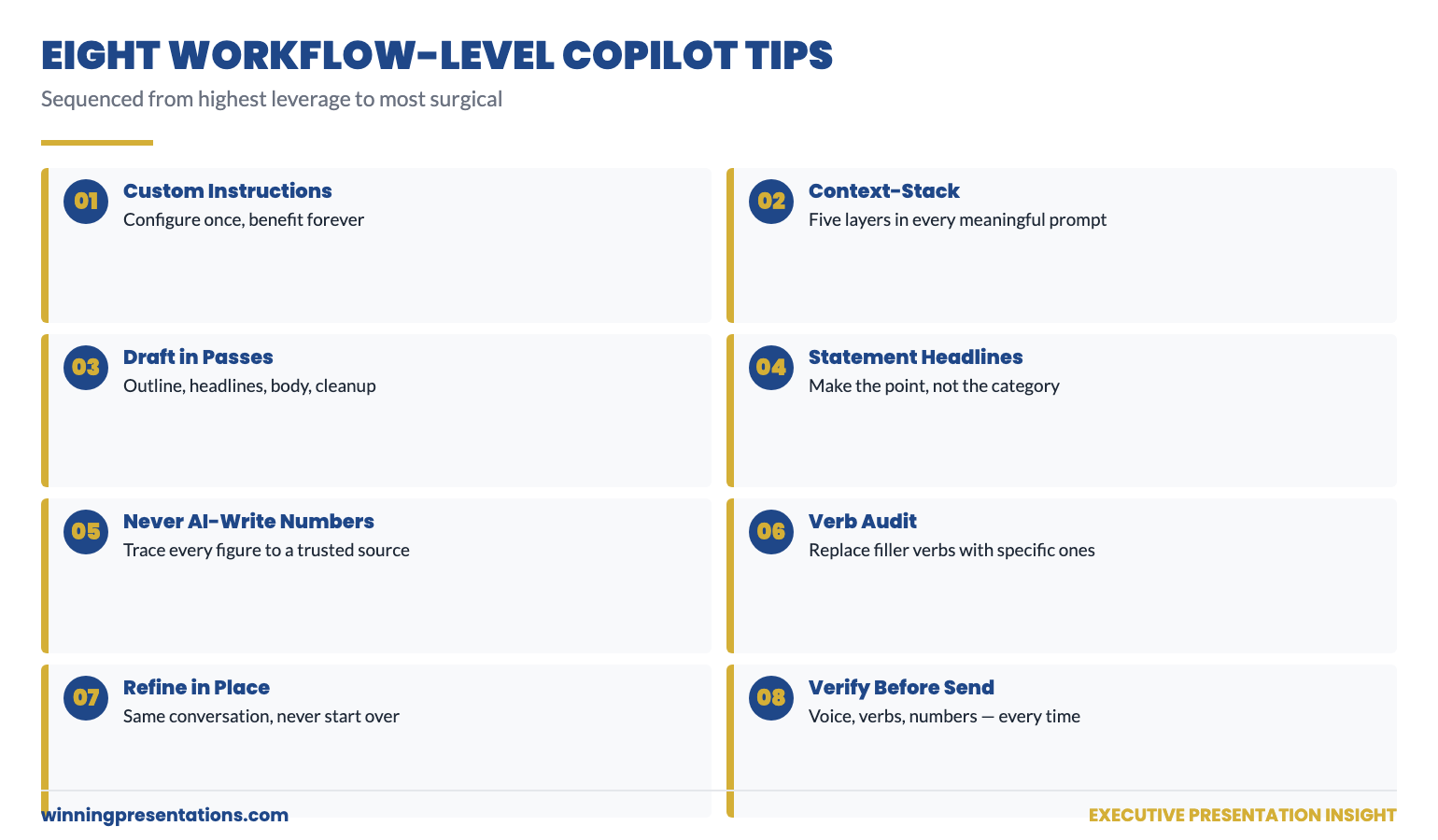
Quick answer: Most Copilot presentation tips for professionals stop at “give it more context” — which is true but not specific enough to use. The eight tips below are the workflow-level shifts that change output quality the most: configure custom instructions once, write context-stacked prompts, draft in passes rather than one mega-prompt, ask for statement headlines, never let Copilot write your numbers, audit verbs in cleanup, treat Copilot output as a first draft not a finished slide, and verify everything before any senior reader sees it.

Rafaela manages investor relations at a Spanish biotech and has been using Copilot for eighteen months. By her own assessment, she went through three distinct phases. Phase one (the first three months): excitement at how fast it could draft. Phase two (the next six months): disillusionment as she realised every draft needed substantial rewriting. Phase three (the last nine months): a quiet rebuild of her workflow that has compressed her presentation drafting time by roughly 60% — and produced output her CEO has not flagged once for AI-generated voice.

The shift from phase two to phase three came from eight specific workflow changes — not a different tool, not a different model, not a different prompt template. The same Copilot. The same paid Microsoft 365 licence. Different habits.

This article is the workflow she now uses, written for professionals who have already tried Copilot, found the output disappointing, and are looking for the practical shifts that move it from “useful sometimes” to “an actual time-saver every week.” It assumes you have access to Copilot in Microsoft 365 or Copilot for the web. It does not assume you are technical.

If you want a structured starting point

The Executive Prompt Pack contains 71 ChatGPT and Copilot prompts written specifically for senior-level presentation work — the prompts behind every workflow tip in this article are pre-built and ready to paste.

Explore the Executive Prompt Pack →

Why most “Copilot tips” articles do not change your output

Most published Copilot tips fall into one of two categories. The first is feature lists — “did you know Copilot can do X?” — which tell you what the tool can do but not how to use it well. The second is generic advice — “be specific in your prompts” — which is true but does not give you anything to actually do differently tomorrow morning.

The tips below are workflow-level. Each one is something you can change about how you use Copilot on Monday that will measurably improve the output by Friday. They are sequenced from highest leverage (configure once, benefit always) to most surgical (verify before sending). Read them once. Apply two or three on your next deck.

Tip 1 — configure custom instructions once, benefit forever

Custom instructions are the standing notes Copilot reads silently before responding to every prompt. They sit in the personalisation panel of Copilot for the web and (in most current configurations) propagate to the Copilot panel inside PowerPoint and other Microsoft 365 surfaces.

The four fields that move output quality the most are role, audience, tone constraints, and forbidden phrases. Tell Copilot what you do, who you typically present to, what voice you write in, and which words you never want to see. This single configuration step is the highest-leverage Copilot setting most professionals never touch. Spend fifteen minutes on it tonight; benefit on every prompt you write afterwards.

Tip 2 — context-stack every meaningful prompt

For any prompt that matters — a real deck, a real email, a real briefing — write the prompt with five context layers in mind: audience, decision being made, what already exists, what to avoid, and the format you want back. You can write them as separate paragraphs or compressed into one paragraph; either works. What does not work is leaving any of the five blank, because Copilot will fill the gap with the safe-default language that produces what one client called “corporate mush.”

The minimum useful context-stacked prompt is around 80 words; the maximum useful one is around 400. Below the minimum, Copilot is guessing; above the maximum, you are writing the deck yourself.

Tip 3 — draft in passes, never in one mega-prompt

Asking for a full deck in one prompt collapses three different decisions — what to cover, how to assert each point, how to write the body — into a single guess. Copilot has to make all three at once with no opportunity for you to redirect when one is going wrong.

Better: four passes. Pass 1 — outline only. Pass 2 — slide headlines. Pass 3 — slide body, one slide at a time. Pass 4 — editorial cleanup. Each pass uses Copilot to amplify your judgement on one decision. You correct course at every step. The total time is shorter than iterating on one mega-draft, and the output quality is dramatically higher.

The Eight Workflow-Level Copilot Tips for Professionals: Custom Instructions, Context Stacking, Draft in Passes, Statement Headlines, Never Let AI Write Your Numbers, Verb Audit, Refine in Same Conversation, Verify Before Sending — each shown as a numbered card with the action to take.

Tip 4 — ask for statement headlines, not category headlines

A category headline is “Q3 Performance.” A statement headline is “Q3 EBIT delivered £42m, ahead of guidance by £4m on lower raw-material costs.” The first tells the reader what the slide is about; the second tells them what the slide says. Senior readers prefer the second by a wide margin — they read top to bottom, scanning for the answer, and statement headlines deliver the answer first.

Copilot defaults to category headlines because they are the safer guess for an unspecified audience. Override the default explicitly: “Headlines must be complete declarative statements, not categories. Each headline should make the point of the slide. Maximum 15 words.” Add this constraint to every headline-generation prompt.

Tip 5 — never let Copilot write your numbers

Copilot does not maliciously invent numbers. It does sometimes round inconsistently, paraphrase imprecisely, or transpose digits between draft and final output. For a marketing post, the cost of an inaccurate number is low. For a board pre-read, the cost is the deck.

The discipline is simple: every number that appears in the final deck must be traceable to a source you trust — usually a spreadsheet you built or a data extract you ran. Paste the numbers into your prompts; do not ask Copilot to look them up. After the cleanup pass, run your eye down every figure on every slide and confirm it against the source. The 10 minutes this takes is the cheapest insurance you will buy on the deck.

Tip 6 — audit verbs in the cleanup pass

The single most reliable signal that Copilot wrote a slide is the verbs. Filler verbs — leverage, drive, unlock, enable, facilitate, optimise — appear three to five times per page in default output. Each one signals “AI default voice” to a reader who has been exposed to enough AI-generated content to recognise the pattern.

The verb audit is mechanical. Search the deck for the filler verb list. Replace each one with the specific verb that describes what is actually happening. “Leverage AI for productivity” becomes “use Copilot to draft proposals in 25 minutes.” “Drive growth” becomes “grow revenue 12% in H2.” “Unlock value” becomes “release £4m of working capital.” Specific verbs sound human; filler verbs sound like a chatbot.

71 prompts that already incorporate every tip in this article

Building these prompts from scratch every time is slow. The Executive Prompt Pack contains 71 ChatGPT and Copilot prompts already structured around context-stacking, statement headlines, pass-by-pass workflow, and the cleanup constraints — for board updates, capital cases, change proposals, Q&A prep, and pitch decks.

  • 71 prompts spanning the most common professional presentation scenarios
  • Custom instructions template included — paste it into Copilot’s settings tonight
  • Pass-by-pass prompts that chain together for outline, headlines, body, cleanup
  • Forbidden-phrase lists ready to add to your standing instructions
  • Instant download, lifetime access, £19.99

Get the Executive Prompt Pack — £19.99 →

Designed for professionals across financial services, technology, consulting, healthcare, and government.

Tip 7 — refine in the same conversation, do not start over

When the output is not quite right, almost every professional’s instinct is to start a new chat and re-prompt. This loses all the context Copilot has built up across your previous prompts — and forces you to rebuild the briefing every time.

The faster move is to refine in place. “Slide 4 reads as defensive — rewrite it as a confident assertion of why the risk is acceptable. Same content, different posture.” “Move the financial impact from slide 5 to slide 2.” “Give me three alternative versions of the headline on slide 1.” Copilot will adjust without losing the underlying context. Same conversation. Tighter output. Less re-briefing.

The exception is when the original brief was wrong — wrong audience, wrong decision, wrong format. In that case, start a new conversation with a corrected context-stacked prompt. But “the output is not quite right” is almost never that situation; it is almost always a refinement situation.

Tip 8 — verify everything before any senior reader sees it

The cleanup pass exists for a reason. Three checks in the final pass save you from the small but career-affecting moments where a senior reader spots something the AI got wrong and you missed.

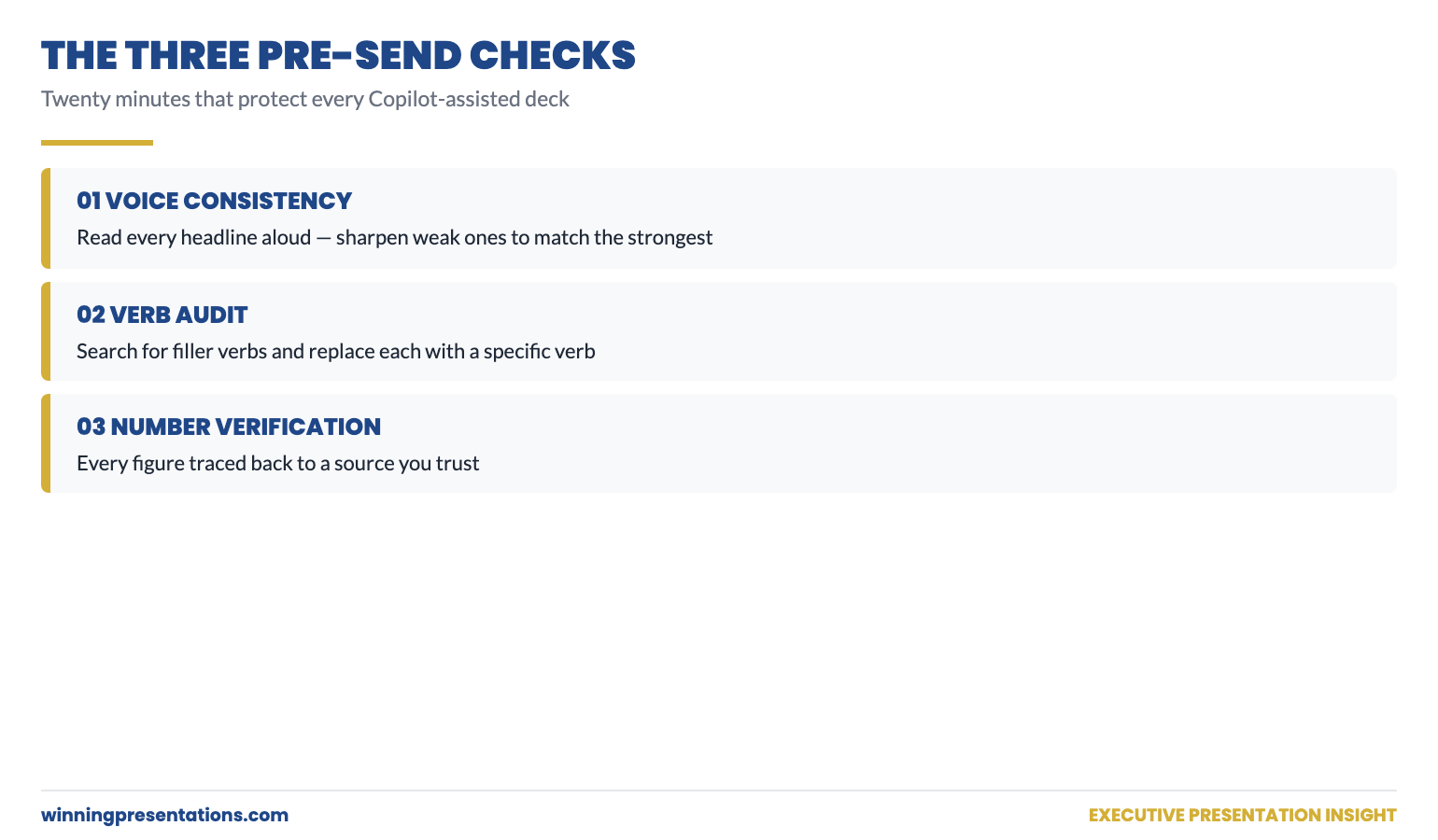
Check 1 — voice consistency. Read every headline aloud, top to bottom. Do they sound like the same person wrote them? Sharpen the weakest two or three to match the strongest.

Check 2 — verb audit. Search for filler verbs and replace them with specific ones (see tip 6).

Check 3 — number verification. Every figure on every slide traced to your trusted source.

This is the discipline that separates AI-assisted work that holds up under senior reading from AI-assisted work that gets quietly downgraded. Twenty minutes. Every time.

The Three Verification Checks Before Senior Reading: Voice Consistency Check, Verb Audit Replace Filler with Specific, Number Verification Against Trusted Source — each check shown with example before-and-after content for an executive deck.

Putting it together: a 90-minute Copilot deck workflow

For a typical professional deck of 9–10 slides, the workflow above produces a final deck in roughly 90 minutes, broken down approximately as: 5 minutes (custom instructions confirm), 5 minutes (context-stacked outline prompt), 10 minutes (review and edit outline), 10 minutes (headlines pass), 10 minutes (review and sharpen headlines), 25 minutes (body pass — slide by slide), 20 minutes (editorial cleanup including all three verification checks), 5 minutes (final read-through aloud). The total Copilot interaction is about 35 minutes; the rest is your editorial judgement applied to its output.

This is dramatically faster than building the same deck from scratch — but it is also dramatically faster than the typical pattern of asking for a full deck in one prompt and then rewriting four times. The discipline is what produces the time saving.

For more practical depth on the prompt-side fix described in tip 2 — context-stacking — see the partner article on how to write Copilot prompts that produce executive-grade output. For the broader structural conventions that hold any executive deck together, AI-assisted or not, see the board presentation template guide.

Skip the prompt-building step entirely

71 ready-to-use ChatGPT and Copilot prompts already incorporating every tip in this article. £19.99, instant download, lifetime access.

Get the Executive Prompt Pack →

Built for professionals across financial services, technology, consulting, healthcare, and government.

Ready for the deeper, structured programme?

For senior professionals using AI more seriously across their presentation work, AI-Enhanced Presentation Mastery is the self-paced Maven programme — 8 modules, 83 lessons, 2 optional recorded coaching sessions. Monthly cohort enrolment, work at your own pace.

Maven AI-Enhanced Presentation Mastery — £499 →

FAQ

Do these Copilot tips work for ChatGPT or Gemini as well?

Yes. The workflow-level discipline — custom instructions, context-stacking, drafting in passes, statement headlines, verb audits, in-conversation refinement — applies to any conversational AI that holds context across a session. The Executive Prompt Pack is written for both ChatGPT and Copilot for this reason.

How long does it take to set up custom instructions properly?

For a first pass, fifteen minutes. For a refined version that genuinely matches your role, audience, and voice, plan to revisit and edit the instructions over the first two or three weeks of using them. The right test is the prompt described in tip 1 of this article: ask Copilot “in one sentence, who am I and what do I write about?” If the answer surprises you, the instructions need work.

What if my organisation blocks custom instructions or restricts Copilot configuration?

Some enterprise Microsoft 365 deployments lock down personalisation. The workaround is to paste a shortened version of your instructions at the top of every important prompt as a manual prefix. It is more work each time, but the underlying logic — telling Copilot who you are, who you write for, and what voice to use — is the same. Speak to IT about whether instructions can be re-enabled for senior users.

Should I tell colleagues I use Copilot to draft, or keep it private?

Most professional environments now treat AI-assisted drafting the way they treat assistant-built drafts — assumed, not concealed, but rarely the headline. The relevant question for any deck is whether the analysis, the recommendation, and the editorial judgement are yours. If they are, the drafting tool is a means to that end. Be honest if asked; do not over-volunteer.

How do I know if my Copilot output is genuinely good or just looks finished?

Read it as if you are the senior reader, not the writer. Two specific tests: (1) Does the deck make me agree, disagree, or hesitate? Generic AI output produces “fine but unmemorable” — strong output produces a clear directional response. (2) Could a senior colleague tell this was AI-drafted? If you are not sure, run the verb audit and voice consistency check one more time.

Get The Winning Edge — weekly

One sharp, story-led idea every Thursday on executive presentation craft, AI workflows, and the small habits that change how senior audiences receive you. Read by senior professionals across financial services, technology, and consulting.

Subscribe to The Winning Edge →

Not ready for the full prompt pack? Start here instead: download the free Executive Presentation Checklist — a one-page reference covering the structural moves that hold any presentation together, AI-assisted or not.

Pick two of the eight tips. Apply them to your next Copilot session. Notice the difference in the output. Then add a third the week after. The compounding effect of small workflow improvements is the difference between AI as a curiosity and AI as a quiet force multiplier in your week.


About the author. Mary Beth Hazeldine is Owner & Managing Director of Winning Presentations Ltd, founded 1990. With 24 years of corporate banking experience at JPMorgan Chase, PwC, Royal Bank of Scotland, and Commerzbank, she advises executives across financial services, healthcare, technology, and government on structuring presentations for high-stakes funding rounds and approvals.

09 May 2026
Senior executive reviewing an AI-assisted PowerPoint deck on a laptop in a corporate office with a London skyline in the background.

AI Prompts for Business Presentations (£19.99 Executive Prompt Pack)

AI Prompts for Business Presentations: A Practical Pack Built for Executive Decks

If you’re looking for AI prompts for business presentations, you’re likely trying to move faster without dropping the standard — a board update, an investor brief, a strategy recommendation, a quarterly review — and generic prompts keep giving you generic slides. The Executive Prompt Pack (£19.99) gives you 71 ready-to-use prompts for ChatGPT and Microsoft Copilot, built around the scenarios senior professionals actually present: board decks, investor pitches, quarterly reviews, and strategy presentations. Instant access, lifetime use, works with whichever AI tool your organisation prefers. This page explains what’s inside, who it’s built for, and how to judge whether the pack is the right fit for the work you’re doing.

Why Generic AI Prompts Produce Weak Business Presentations

Most AI prompts shared online are written for general business writing — marketing copy, emails, blog posts, summaries. When you apply those prompts to business presentations, the output is competent but structurally wrong for a senior audience. The recommendation arrives on slide eight instead of slide one. The language is explanatory rather than decision-focused. Slides read as prose rather than executive content that works without narration. The tool is capable; the instructions are mis-calibrated.

The problem compounds when the stakes rise. Boards and executive committees read decks in advance, arrive with prepared questions, and expect a structure that signals the decision required within the first thirty seconds. Generic AI prompts don’t know any of that. They default to the conventions of informational writing — context, build-up, conclusion — and produce slides that test an executive’s patience rather than respecting it. Writing prompts that override these defaults requires knowing what board-level audiences actually need, which takes years of experience that most professionals don’t have time to develop on the fly.

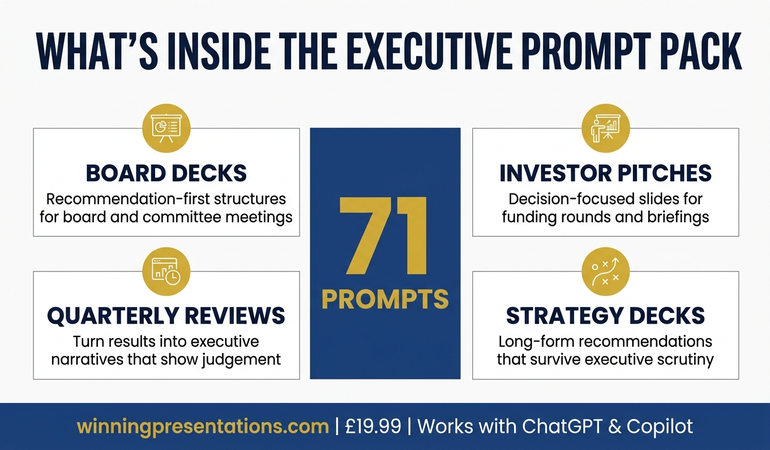
Infographic showing what's inside the Executive Prompt Pack: 71 prompts for ChatGPT and Copilot, covering board decks, investor pitches, quarterly reviews, and strategy presentations

AI Prompts Built Specifically for Executive Business Presentations

The Executive Prompt Pack is a collection of 71 prompts written specifically for business presentations at executive level. They’re not adapted marketing prompts or general AI templates. Each prompt is structured around a specific task in the executive presentation workflow — narrative structure, recommendation-first openings, board-ready slide content, executive language, Q&A preparation, strong closes — and calibrated to produce output that holds up in front of a senior audience without heavy manual editing.

The pack is drawn from Mary Beth Hazeldine’s 25 years working with executives across banking, professional services, technology, and government. The prompts encode the structural and linguistic conventions that senior presentations require: recommendation on the first slide, evidence organised by decision relevance rather than chronology, language that respects the reader’s time, and slide content that functions for asynchronous reading. These conventions take years to absorb through experience. The prompts make them available the moment you download the pack.

Every prompt is ready to use — paste it into ChatGPT or Microsoft Copilot, add your specific content details, and receive output tuned for an executive audience. There’s no prompt engineering required, no configuration, no setup. The pack is delivered as downloadable files on Gumroad, with lifetime access and no subscription. You keep the prompts and use them on every presentation you build from the day you enrol.

What You Get

  • 71 ready-to-use prompts — covering the full business presentation workflow, from narrative structure through final rehearsal
  • Works with ChatGPT and Microsoft Copilot — every prompt is tested on both tools, with notes on which works better for each task
  • Board deck prompts — build recommendation-first structures for board meetings, committees, and governance updates
  • Investor pitch prompts — structure credible, decision-focused slides for funding rounds and investor briefings
  • Quarterly review prompts — turn results into executive narratives that show judgement, not just numbers
  • Strategy presentation prompts — frame long-form strategic recommendations in a way that survives executive scrutiny
  • Executive language and Q&A prompts — sharpen the register of your content and anticipate the questions senior audiences actually ask
  • Instant access, lifetime use — no subscription, no expiry, downloadable immediately from Gumroad

£19.99 — instant access, lifetime use, works with ChatGPT and Copilot.

The Prompts That Understand Executive Business Presentations

Most AI prompts are written for general business writing and fall apart at executive level. The Executive Prompt Pack (£19.99) gives you 71 prompts built specifically for business presentations — board decks, investor pitches, quarterly reviews, strategy recommendations — drawn from 25 years of executive work across financial services and corporate leadership. Use them in ChatGPT or Microsoft Copilot to produce board-ready slide content in 25 minutes rather than starting from scratch every time. Instant access, lifetime use, no subscription.

Get the Executive Prompt Pack → £19.99

Instant download. Lifetime access. Works with ChatGPT and Copilot.

Is This Right for You?

The Executive Prompt Pack is built for mid-to-senior professionals who use ChatGPT or Microsoft Copilot in their presentation workflow and present to executive audiences — boards, committees, investors, leadership teams, or client decision-makers. It’s particularly useful if you find AI outputs require heavy manual editing before they reach executive quality, or if you spend time rewriting prompts from scratch every time you start a new presentation. It also suits professionals building their first board-level deck and wanting a structured AI workflow from the outset, rather than learning through trial and error with a high-stakes audience.

It’s not a general AI writing pack. The prompts are narrowly focused on executive business presentations — they’re less useful for internal team updates, informal stakeholder briefings, or general marketing work. It’s also not a presentation skills course: if your primary challenge is delivery, voice, or presence rather than structuring and drafting slide content, a different resource will serve you better. The pack does one thing — help you build executive-level business presentations faster using AI — and it does that one thing thoroughly.

Frequently Asked Questions

Do the prompts work with both ChatGPT and Microsoft Copilot?

Yes. All 71 prompts are written to work with either tool, and the pack includes guidance on which is better for each stage of the workflow. Many executives use ChatGPT for upstream structural work (narrative logic, argument testing, language sharpening) and Microsoft Copilot for the in-deck drafting directly inside PowerPoint. The prompts are calibrated for both paths.

What kinds of business presentations do the prompts cover?

The pack covers the presentation types senior professionals encounter most often: board decks, investor pitches, quarterly reviews, strategy recommendations, capital investment cases, and executive committee submissions. Within each type, there are prompts for narrative structure, opening recommendations, slide content, executive language, Q&A preparation, and closes — so the full workflow is covered rather than just the drafting stage.

Is £19.99 realistic for a pack of 71 executive prompts?

The price reflects the format. Because the pack is a structured set of downloadable prompts rather than coaching or live instruction, the cost stays low. For professionals who build business presentations regularly, the pack typically pays for itself on the first presentation by saving two to three hours of prompt rewriting and manual editing. Lifetime access means the cost never recurs.

Do I need prompt engineering experience to use the pack?

No. Every prompt is ready to use as written — paste it into ChatGPT or Copilot, add your specific content (the topic, the audience, the decision required), and the prompt handles the structure and executive calibration. The pack is designed for busy professionals who want to use AI productively without learning prompt engineering as a separate skill.

Can I use the prompts on multiple presentations?

Yes. Lifetime access means you can apply the prompts to every business presentation you build from the day you download them onward. That’s the core value of the pack — it keeps earning its place every time you face a new executive deck, not just the first one.

Who is this not suitable for?

The pack is less useful for professionals who don’t currently use ChatGPT or Microsoft Copilot in their work, or whose presentations are primarily internal team updates and client catch-ups rather than executive-level decks. It’s also not designed for delivery skills development — if your primary challenge is confidence, voice, or stage presence rather than content structure and AI-assisted drafting, a different resource is a better starting point.

21 Dec 2025
How to use AI for presentations - complete guide to saving hours and creating better slides with AI tools

How to Use AI for Presentations: Save Hours and Create Better Slides

A practical guide to using AI for presentations — with 50+ prompts, proven frameworks, and a complete workflow from a presentation skills trainer

If you want to learn how to use AI for presentations effectively, you’re in the right place. Most professionals are either ignoring AI completely or using it badly — getting generic content that sounds like a robot wrote it.

There’s a better way.

Last month, I watched a senior consultant spend an entire Sunday preparing a 20-minute client presentation. Research. Structure. Slides. Rewrites. More rewrites. Eight hours for twenty minutes of content.

The following week, I helped another consultant prepare a similar presentation. We used AI strategically throughout the process.

Total time: 90 minutes. And honestly? The second presentation was better.

This isn’t about AI replacing your skills. It’s about AI amplifying them — so you create better presentations in a fraction of the time. After 24 years of corporate presenting and training over 5,000 executives, I’ve developed a systematic approach to using AI for presentations that actually works.

🎁 Free Download: Get my Executive Presentation Checklist — includes the AI prompts I use for rapid presentation preparation.

Why Most People Use AI for Presentations Wrong

Here’s what traditional presentation preparation looks like:

  1. Stare at blank slides
  2. Write too much content
  3. Reorganize everything
  4. Cut half of it
  5. Redesign slides
  6. Practice and realize the structure doesn’t flow
  7. Reorganize again
  8. Run out of time
  9. Deliver something “good enough”

Sound familiar?

Now here’s what most people do when they try using AI for presentations: they ask ChatGPT to “write a presentation about X” and get generic, bloated content that sounds nothing like them.

The problem isn’t AI. It’s how they’re using it.

AI works when you use it for specific tasks within a proven framework — not as a magic button that does everything.

Related: Microsoft Copilot for Presentations: What Works and What Doesn’t

AI presentation tools workflow showing how to use AI for research, structure, content, and Q&A preparation

The Right Way to Use AI for Presentations

AI changes presentation preparation completely — but not by doing the work for you. It accelerates every step of a proven process:

  • Research that took 2 hours now takes 15 minutes
  • First drafts that took an afternoon now take 20 minutes
  • Anticipating questions becomes systematic, not guesswork
  • Structure emerges quickly instead of through painful iteration

The result? Better presentations in less time. And when you’re well-prepared with a solid structure, you naturally feel more confident delivering it.

Here’s the framework I teach:

Step 1: Start With Structure (Before You Touch AI)

Before you use any AI tool, you need to know what you’re building. I use a simple 3-part framework that works for any presentation:

  • Opening: Hook them in 30 seconds with a problem, question, or surprising fact
  • Body: 3-5 key points maximum (one idea per slide)
  • Close: Clear call to action or key takeaway

This takes 5 minutes to sketch out — and it transforms how you use AI because now you have specific sections to fill, not a blank page.

Related: Presentation Structure: The 3-Part Framework That Works Every Time

Step 2: Use AI for Research and Content Generation

Now AI becomes powerful. Instead of “write me a presentation,” you prompt:

  • “Give me 5 compelling statistics about [topic] that would surprise a senior executive”
  • “What are the 3 strongest counterarguments to [my recommendation] and how would I address them?”
  • “Write a 2-sentence opening hook for a presentation about [topic] to [audience]”

Specific prompts = useful outputs. Generic prompts = generic garbage.

Step 3: Use AI for Q&A Preparation

This is where AI saves the most stress. Prompt:

“I’m presenting [topic] to [audience]. What are the 10 toughest questions they might ask, and give me a 2-sentence answer for each.”

You’ll walk in prepared for questions you never would have anticipated.

Step 4: Refine (Don’t Use Raw AI Output)

Raw AI content sounds like AI. Your job is to:

  • Add your stories and examples
  • Cut the filler words AI loves
  • Adjust the tone to sound like you
  • Verify any facts or statistics

AI does the heavy lifting. You add the human elements that make presentations land.

Related: 10 ChatGPT Prompts for Better Presentations

AI for presentations time savings - preparation reduced from 6-8 hours to 90 minutes with AI workflow

Want the Complete AI Presentation System?

My AI-Enhanced Presentation Mastery course gives you the full framework — 50+ tested prompts, proven structures for any presentation type, and live coaching to apply it to your specific work.

What’s included:

  • 4 weeks of structured curriculum (frameworks + AI tools)
  • 50+ copy-paste AI prompts for research, structure, content, and Q&A
  • 2 live coaching sessions with personalized feedback
  • Community access for peer support
  • Lifetime access and all future updates

January cohort: £249 (increases to £499 in April)

Only 60 seats. Early bird ends December 31st.

See the full curriculum →

Executive Resource

Stop Writing AI Prompts From Scratch

The Executive Prompt Pack gives you 50 battle-tested prompts for executive-level presentations — board updates, budget requests, investor briefs, and Q&A preparation. Built for PowerPoint Copilot and ChatGPT.

Get the Executive Prompt Pack →

Used by executives preparing for board briefings, budget requests, and high-stakes presentations.

Best AI Tools for Presentations in 2025

You don’t need expensive tools to use AI for presentations effectively. Here’s what actually works:

For Research and Content

ChatGPT (Free or Plus): Best for brainstorming, research synthesis, and generating first drafts. The free version works fine for most tasks.

Claude: Better for longer, more nuanced content. Excellent for refining messaging and anticipating objections.

Perplexity: Best for research with sources. Use when you need verified facts and statistics.

For Slides

Microsoft Copilot for PowerPoint: Creates slides from prompts or documents. Good for first drafts, but requires heavy editing. Best if you’re already in the Microsoft ecosystem.

Gamma: Creates beautiful presentations from prompts. Better design than Copilot, but less control over structure.

Your existing tools + AI-generated content: Often the best approach. Use AI to create the content, then build slides in whatever tool you already know.

Related: Microsoft Copilot for PowerPoint: Complete Guide

My Recommendation

Start with ChatGPT or Claude for content, and your existing slide tool. Don’t add complexity until you’ve mastered the fundamentals. The prompts matter more than the tools.

Complete AI Presentation Workflow: Step by Step

Here’s exactly how I use AI for presentations — the same workflow I teach in my course:

Phase 1: Preparation (15 minutes)

  1. Define your audience and their key concerns
  2. Clarify your one main message (if they remember one thing, what is it?)
  3. Sketch the 3-part structure: hook, 3-5 key points, close

Phase 2: AI-Assisted Content Creation (30-45 minutes)

  1. Use AI for research: statistics, examples, counterarguments
  2. Generate first draft content for each section
  3. Create your opening hook (test 3-5 options)
  4. Prepare Q&A responses for tough questions

Phase 3: Refinement (30 minutes)

  1. Add your personal stories and examples
  2. Cut anything that doesn’t serve your main message
  3. Adjust tone to sound like you
  4. Verify facts and statistics

Phase 4: Slides (20-30 minutes)

  1. One idea per slide
  2. Minimal text (your words, not the slides, do the work)
  3. Use AI-generated content as speaker notes, not slide text

Total time: 90 minutes to 2 hours for a presentation that used to take 6-8 hours.

“The AI workflow alone was worth the course fee. I used to spend entire weekends preparing for Monday presentations. Now I do it in a couple of hours on Friday afternoon. The prompts are incredibly specific and practical.”

— James T., Product Manager

Common Mistakes When Using AI for Presentations

Avoid these errors that make AI-generated presentations sound robotic:

Mistake 1: Using AI output without editing. Raw AI content is generic. Always add your voice, stories, and specific examples.

Mistake 2: Prompting too broadly. “Write me a presentation” gives you garbage. “Write a 2-sentence hook for [specific audience] about [specific topic]” gives you gold.

Mistake 3: Skipping the structure step. AI can’t read your mind about what the presentation needs to accomplish. Define structure first, then use AI to fill sections.

Mistake 4: Trusting AI facts without verification. AI makes things up. Always verify statistics, quotes, and specific claims.

Mistake 5: Putting AI text directly on slides. AI-generated text belongs in your speaker notes or script, not on the slides your audience sees.

Related: The 10 Presentation Mistakes That Kill Your Credibility

“I was skeptical about AI for presentations — I thought it would make everything sound generic. But Mary Beth’s approach is different. The AI accelerates the slow parts (research, first drafts, Q&A prep) while you keep control of what matters (story, strategy, voice). My presentations are better AND faster now.”

— Rachel K., Strategy Consultant

AI Presentation Prompts That Actually Work

Here are 10 prompts from my collection of 50+ that I use regularly:

For Research

1. “Give me 5 surprising statistics about [topic] that would make a [job title] pay attention. Include sources.”

2. “What are the 3 biggest misconceptions about [topic] that my audience of [description] probably believes?”

For Structure

3. “I need to present [topic] to [audience] in [X] minutes. Give me a structured outline with timing for each section.”

4. “What’s the most compelling order to present these 5 points: [list points]? Explain your reasoning.”

For Opening Hooks

5. “Write 5 different opening hooks for a presentation about [topic] to [audience]. Include: a surprising statistic, a provocative question, a brief story, a counterintuitive statement, and a vivid scenario.”

For Q&A Preparation

6. “I’m presenting [recommendation] to [audience]. What are the 10 toughest questions they might ask? Give me a confident 2-sentence response for each.”

7. “What are the strongest objections to [my proposal] and how would I address each one?”

For Storytelling

8. “Help me turn this data point [insert data] into a brief story that illustrates why it matters to [audience].”

For Slides

9. “Reduce this paragraph to a 6-word slide headline that captures the key message: [paste paragraph]”

10. “What visual or diagram would best illustrate this concept: [describe concept]?”

The full course includes 50+ prompts across research, structure, storytelling, slides, and Q&A — plus the context for when and how to use each one.

Frequently Asked Questions About Using AI for Presentations

Can AI create an entire presentation for me?

Technically yes, but you shouldn’t let it. AI-generated presentations without human refinement sound generic and miss the nuances of your specific audience and message. Use AI for the time-consuming parts (research, first drafts, Q&A prep) and add the human elements yourself (stories, insights, your voice).

What’s the best AI tool for presentations?

For content creation, ChatGPT and Claude are both excellent — and free tiers work fine. For slides, Microsoft Copilot works if you’re already in PowerPoint; Gamma creates better-looking slides but with less control. Start with AI for content + your existing slide tool before adding new platforms.

How do I make AI-generated content sound like me?

Three techniques: First, give AI examples of your previous writing and ask it to match the tone. Second, always edit AI output to add your specific stories and examples. Third, read the content aloud — if it doesn’t sound like something you’d say, rewrite it until it does.

Will my audience know I used AI?

Not if you use it correctly. When you use AI for research and first drafts, then add your own stories, examples, and voice, the result is distinctly yours. The only presentations that “sound like AI” are ones where someone used raw AI output without refinement.

How much time can AI really save on presentations?

In my experience and my students’ experience: 60-70%. A presentation that took 6-8 hours typically takes 2-3 hours with a proper AI workflow. The biggest time savings come from research (AI synthesizes information faster), first drafts (no more staring at blank pages), and Q&A prep (systematic instead of guesswork).

“I was preparing a board presentation and dreading the usual weekend of work. Used the Week 3 prompts and had a solid draft in 45 minutes. The frameworks from Week 1 meant I knew exactly what to include. Game changer.”

— David L., Finance Director

AI-Enhanced Presentation Mastery course overview - 4 weeks covering structure, storytelling, AI tools, and delivery

Learn the Complete AI Presentation System

This article covers the fundamentals — but there’s much more to master.

My AI-Enhanced Presentation Mastery course gives you the complete system:

Week 1: Structure That Works Every Time

Proven frameworks for client pitches, board updates, team meetings, and keynotes. The foundation that makes AI useful (instead of a source of generic content).

Week 2: Storytelling That Connects

How to turn data into compelling narratives. Finding stories in “boring” business content. The emotional arc that keeps audiences engaged.

Week 3: AI-Powered Preparation

50+ prompts for research, structure, storytelling, and slides. My complete workflow for client presentations. How to refine AI output so it sounds like you.

Week 4: Delivery and Executive Presence

Present your well-prepared content with confidence. Handle Q&A (including “I don’t know”). Virtual and in-person techniques.


Your Next Step: Master AI for Presentations

You now have a complete framework for using AI to create better presentations in less time. But knowledge isn’t transformation — implementation is.

Choose your path:

🎁 START FREE: Download the Executive Presentation Checklist — includes AI prompts for rapid preparation.

📘 GO DEEPER (£39): Get Presentations with AI: The Complete Prompt Collection — 50+ prompts with examples and use cases.

🎓 GET THE FULL SYSTEM (£249): Join AI-Enhanced Presentation Mastery — 4 weeks of curriculum, live coaching, community, and personalized feedback. Early bird ends December 31st.

AI is changing how presentations get made. The professionals who master this now will have a significant advantage over those still spending weekends on slide decks.

AI-Enhanced Presentation Mastery

Proven frameworks + 50+ AI prompts + Live coaching

£249 £499

Early bird ends December 31st • 60 seats • Full refund guarantee

Enroll Now →


Mary Beth Hazeldine is Managing Director of Winning Presentations, with 24 years of corporate banking experience at JPMorgan, PwC, Royal Bank of Scotland, and Commerzbank. She’s trained over 5,000 executives in presentation skills and specializes in AI-powered presentation techniques — testing every method on real client work before teaching it.