📅 Updated: January 2026 | The slide that decides your outcome before you finish talking
Need a Faster Way to Build Executive Slides?
Most executives spend hours on slides that still miss the mark. The Executive Slide System gives you a structured framework for building slides that land with senior audiences — without starting from scratch every time.
An executive summary slide should contain four elements: situation (one sentence), recommendation (specific and actionable), key supporting points (three maximum), and your ask (what you need from them). Put your conclusion first. Executives decide in 60 seconds — give them what they need upfront, not buried on slide 15.
I learned this lesson the hard way at Commerzbank.
A senior VP asked me to present a £2.3M technology investment to the Executive Committee. I built a 28-slide deck. Comprehensive analysis. Beautiful charts. Ironclad logic building to my recommendation.
The CFO interrupted at slide 3: “What do you want us to approve?”
I fumbled to slide 24 where my recommendation lived. By then, I’d lost the room. The meeting ended with “let’s revisit this next quarter” — executive-speak for no.
Three months later, same ask, same committee. This time I led with a single executive summary slide. Sixty seconds in, the CFO said: “Makes sense. What’s the implementation timeline?”
Twenty minutes later, I had full approval.
The difference wasn’t the analysis — it was identical. The difference was giving executives what they needed in the first 60 seconds.
After 25 years presenting to C-suite leaders at JPMorgan, PwC, RBS, and Commerzbank, I’ve refined a formula for executive summary slides that works every time.
Why the Executive Summary Slide Decides Everything
Here’s what most presenters don’t understand: executives make decisions fast.
Senior leaders form initial judgments within seconds of seeing new information — experienced presenters know this instinctively. Everything after that either confirms or contradicts their first impression.
Your executive summary slide IS their first impression. Get it right, and the rest of your presentation is confirmation. Get it wrong, and you’re fighting uphill for the next 30 minutes.
Strong executive summary → Executives lean in → Questions become clarifications → “Walk us through implementation”
Same presenter. Same content. Different opening slide. Different outcome.
STOP REBUILDING DECKS FROM SCRATCH
The executive summary slide is the highest-leverage slide in any executive presentation toolkit — get this one right and you’ve already done 70% of the persuasion work.
Build executive slides that get past slide 3
The Executive Slide System gives you 26 templates, 93 AI prompts, and 16 scenario playbooks designed for senior presenters. Drop your content into a structure that already works — finance committees, board approvals, steering meetings, capital reviews. £39, instant access, lifetime updates.
£39, instant access. 26 templates, 93 AI prompts, 16 scenario playbooks. Designed for executive presenters.
The 4-Part Executive Summary Formula
Every effective executive summary slide contains exactly four elements. No more, no less.
Part 1: Situation (One Sentence)
Ground everyone in the same reality. What’s happening? Why are we here?
Bad: “As you know, we’ve been evaluating our technology infrastructure across multiple dimensions including scalability, security, and cost efficiency, and have identified several areas of concern.”
Good: “Our customer platform will exceed capacity by Q3, risking £4M in annual revenue.”
One sentence. Quantified where possible. No preamble.
Part 2: Recommendation (Specific and Actionable)
What do you want them to do? Be precise enough that they could approve it right now.
Bad: “We recommend investing in technology improvements to address these challenges.”
Good: “Approve £1.2M to upgrade our customer platform, with completion by August 2026.”
Include the number. Include the timeline. Make it approvable as stated.
Part 3: Key Supporting Points (Three Maximum)
Why should they approve this? Give them three reasons — no more.
The human brain struggles to hold more than three to four items in working memory. Give executives five reasons and they’ll remember none. Give them three and they’ll remember all of them.
Example:
ROI: 180% over 3 years (payback in 14 months)
Risk mitigation: Prevents £4M revenue loss from capacity issues
Competitive: Matches capabilities our top 3 competitors launched last year
Each point should be scannable in under 5 seconds.
Part 4: The Ask (What You Need From Them)
Be explicit about what decision you need and when.
Bad: “We’d appreciate your input on next steps.”
Good: “I need budget approval today to meet the Q3 deadline. Implementation plan is ready.”
Executives respect clarity. They don’t respect hedging.
Want ready-made executive summary templates?
The Executive Slide System (£39, instant access) includes 26 executive templates with the 4-part formula built into every layout — plus 93 AI prompts and 16 scenario playbooks covering Board, Budget, QBR, and Strategy presentations.
How to Write Your Executive Summary Slide (Step by Step)
Here’s my process for writing executive summary slides quickly and effectively.
Step 1: Start With the Ask
Write down: “At the end of this meeting, I need them to _______________.”
If you can’t complete that sentence, you’re not ready to present. Go back and figure out what you actually need.
Step 2: Write the Recommendation
Make it specific enough to approve as stated. Include amounts, timelines, and owners where relevant.
Test: Could they say “yes” to this exact sentence and know what happens next?
Step 3: Identify Three Supporting Points
Ask yourself: “If they push back, what are the three strongest reasons this makes sense?”
Those are your supporting points. Lead with the strongest.
Step 4: Write the Situation Line
One sentence that grounds everyone. Why are we here? What’s changed?
This often comes last because you need to understand your recommendation before you can frame the situation correctly.
Step 5: Cut Ruthlessly
Read your slide aloud. If it takes more than 45 seconds, cut something. The executive summary should be graspable in a single glance.
Using AI to Draft Your Executive Summary
AI tools like ChatGPT or Claude can accelerate your executive summary slide — if you prompt them correctly.
Effective prompt:
“I’m presenting to [audience] about [topic]. I need them to approve [specific ask]. Write an executive summary slide with: 1) one-sentence situation, 2) specific recommendation, 3) three supporting points (quantified where possible), 4) clear ask. Keep total word count under 75 words.”
What AI does well:
Structuring your thoughts into the 4-part format
Tightening wordy language
Suggesting quantified supporting points
What you must add:
Political context (what matters to THIS audience)
Accurate numbers from your analysis
Judgment about which supporting points will resonate
Stop rewriting your proposal three times to hear “we’ll think about it”
The Executive Buy-In Presentation System teaches the structure that gets decisions, not delays — 7 self-paced modules with optional recorded Q&A calls. £499, lifetime access.
Decode stakeholder resistance before you build the slides
Sequence the case so the executive summary lands on the first attempt
Handle the objection your audience hasn’t raised yet
Self-paced programme with monthly cohort enrolment — optional recorded Q&A calls available.
Frequently Asked Questions
How long should an executive summary slide be?
Under 75 words of actual content. It should be graspable in a single glance — roughly 30-45 seconds to read and understand. If you can’t read it aloud in under a minute, it’s too long.
Should the executive summary be slide 1 or slide 2?
Slide 1 in most cases. The only exception is if you need a single “context” slide to ground executives who aren’t familiar with the topic. Even then, keep the context slide to 30 seconds maximum before moving to your summary.
What if my recommendation is complex?
Simplify it for the executive summary, then expand in the supporting slides. “Approve the three-phase digital transformation programme” works on slide 1; the phases get their own slides later.
How do I handle multiple asks?
If you have more than one ask, you likely have more than one presentation. For genuinely related asks, bundle them: “Approve £1.2M budget AND two additional headcount for Q2 implementation.”
What if I don’t know what decision they’ll make?
Present options with a clear recommendation. “I recommend Option A for these three reasons. Option B is viable if timeline is the priority. I need you to choose today.”
Should I send the executive summary in advance?
Yes — 24-48 hours before the meeting if possible. Some executives prefer to form questions beforehand. Include it in the email body, not just as an attachment.
Ready for the deeper buy-in framework?
The Executive Buy-In Presentation System
A self-paced programme on Maven covering the structure, psychology, and stakeholder analysis behind senior approvals. 7 modules with optional recorded Q&A sessions — no deadlines, no mandatory attendance. £499, lifetime access to materials.
Mary Beth Hazeldine is Owner & Managing Director of Winning Presentations. With 25 years in corporate banking at JPMorgan Chase, PwC, Royal Bank of Scotland, and Commerzbank, she advises senior professionals across financial services, consulting, and technology on structuring executive summary slides and board approval presentations.
📅 Published: December 10, 2025 — AI presentation course launching January 2026
Updated 27 March 2026 — Revised for the latest Microsoft Copilot and ChatGPT capabilities.
Marcus, a Director of Strategy at a FTSE 250 company, scheduled a full Saturday to build his board presentation. Twelve slides. Eight hours blocked. His wife wasn’t happy, but Q4 results were due Monday.
By 3pm, he was six hours in and only on slide 9. The formatting kept breaking. The charts looked amateur. He was exhausted and frustrated.
Two weeks later, after one session with me, Marcus built a similar deck in 41 minutes. Not a rough draft — a polished, board-ready presentation. He turned to me and said: “Why didn’t anyone teach me this earlier?”
The difference wasn’t intelligence. Marcus is brilliant. It was a skill gap that’s splitting executives into two camps: those who’ve learned how to use AI for presentations properly, and those who are working ten times harder for the same output.
Here’s the uncomfortable truth: most executives are using AI presentation tools wrong. They’re treating Copilot like a fancy autocomplete instead of the strategic tool it actually is.
I’ve trained over 200 executives on AI-powered presentations in the past year. The pattern is always the same: they’re working too hard because no one taught them the right approach.
Want a structured framework for this?
71 structured prompts for ChatGPT and Copilot — covering board decks, investor pitches, quarterly reviews, and strategy presentations.
I’ve trained executives for over a decade. The skills that mattered in 2020 are table stakes now. Today, there’s a new differentiator emerging:
AI fluency for executive communication.
Not technical AI skills. Not prompt engineering for developers. A specific, practical ability to use AI presentation tools like Copilot for PowerPoint and ChatGPT to create high-stakes presentations faster and better.
The executives who’ve developed this skill aren’t just saving time. They’re:
Producing more polished work (AI catches inconsistencies humans miss)
Iterating faster (test three approaches in the time it took to build one)
Focusing on strategy instead of formatting (AI handles the tedious work)
Responding to opportunities faster (urgent board deck? Done in an hour)
The executives who haven’t learned how to use AI for presentations? They’re working twice as hard for the same output. And the gap is widening every month as tools like Copilot get more powerful.
Why Most Executives Use AI Presentation Tools Wrong
I see the same mistakes repeatedly:
Mistake #1: Treating AI Like Magic
“Create a board presentation about Q4 results.”
That prompt will give you a generic, forgettable deck every time. AI isn’t magic — it’s a tool that responds to specific inputs. Vague prompts produce vague outputs.
The fix: Structure your prompts like you’d brief a junior analyst. Context, audience, objective, constraints. The more specific your input, the more useful the output.
Mistake #2: Using AI for Everything
AI is exceptional at some things: generating first drafts, creating structure, suggesting alternatives, formatting consistently.
AI is terrible at other things: understanding your company’s politics, knowing what your CFO cares about, applying judgment about what to include and exclude.
The fix: Use AI for the 80% that’s mechanical. Apply human judgment to the 20% that matters.
Mistake #3: Accepting First Outputs
AI’s first answer is rarely its best answer. Most executives take what they get and manually fix it. That’s backwards.
The fix: Iterate with AI, not after AI. “Make this more concise.” “Add a risk section.” “Reframe this for a skeptical audience.” Three rounds of refinement with AI beats three hours of manual editing.
£249 early bird • Only 60 seats • Launching January 2026
Executive Resource
Stop Writing AI Prompts From Scratch
The Executive Prompt Pack gives you 50 battle-tested prompts for executive-level presentations — board updates, budget requests, investor briefs, and Q&A prep. Built for PowerPoint Copilot and ChatGPT.
Used by executives preparing for board briefings, budget requests, and investor meetings.
The AI Fluency Framework: 3 Skills That Separate 10x Executives
After training over 200 executives to use AI for presentations, I’ve codified what works into a framework I call AI Fluency.
It’s not technical. It’s not about prompt engineering for developers. It’s about three specific skills that separate executives who get 10x value from Copilot and ChatGPT from those who get 10% value:
Skill #1: Strategic Prompting
Not “prompt engineering” in the technical sense. Strategic prompting means knowing how to brief AI the way you’d brief a talented but inexperienced team member.
This includes:
Providing context (audience, stakes, history)
Specifying constraints (time, format, tone)
Defining success criteria (what does “good” look like?)
Iterating productively (building on outputs, not starting over)
Example — Weak prompt:
“Create a presentation about our new product.”
Example — Strategic prompt:
“Create a 10-slide presentation for enterprise IT buyers. Focus on security and compliance benefits. Our main competitor is [X], and buyers typically object that our solution is too complex. Use a problem-solution-proof structure. Tone should be confident but not aggressive.”
Same AI. Dramatically different output.
Skill #2: AI + Human Workflow Design
The goal isn’t to have AI do everything. It’s to have AI do the right things so you can focus on what humans do best.
What AI should handle:
First draft structure
Content generation for standard sections
Formatting and consistency
Alternative versions and variations
Research synthesis
What humans should handle:
Strategic decisions (what to include/exclude)
Audience-specific customization
Political sensitivity
Final judgment calls
Delivery and presence
The executives who master this workflow don’t just work faster. They produce better work because they’re spending their energy on high-value decisions instead of formatting.
Skill #3: Quality Control & Refinement
AI makes mistakes. It hallucinates. It produces generic content. It misses nuance.
The skill isn’t avoiding these problems — it’s catching and fixing them efficiently.
This means:
Knowing AI’s common failure modes (and checking for them)
Having a systematic review process
Using AI to check AI (ask it to critique its own output)
Building templates that reduce error rates
The executives who skip this step end up with presentations that feel “AI-generated” — generic, slightly off, lacking personality. The executives who master it produce work that’s indistinguishable from (or better than) fully manual creation.
💡 The AI Fluency Compound Effect: These three skills compound. Strategic prompting produces better raw material. Good workflow design means less manual rework. Quality control catches issues early. Together, they transform a 6-hour process into a 30-minute process — without sacrificing quality. That’s the AI Fluency Framework in action.
Stop Guessing What to Type. Start Building in 25 Minutes.
The Executive Prompt Pack gives you 71 tested prompts for ChatGPT and Copilot — structured by scenario so you know exactly what to type:
Build from scratch — scenario prompts for board reviews, budget requests, and investor decks
Rescue and rewrite — audit an existing deck, condense it, or fix one slide at a time
Industry-specific prompts for financial services, banking, consulting, and executive audiences
Power modifiers that transform any prompt into board-ready output
The 25-minute deck workflow that replaces 3–4 hours of manual building
Works with ChatGPT, Microsoft Copilot, and Edit with Copilot (formerly Agent Mode). Updated March 2026.
Let me be specific about the transformation I’ve seen across 200+ executives I’ve trained:
Time savings: Average reduction of 70% in presentation creation time. Marcus (from the opening) went from 8 hours to 41 minutes. Another client, a VP of Marketing at a SaaS company, cut her weekly deck time from 6 hours to 90 minutes.
Quality improvement: Counterintuitively, AI-assisted decks are often better. More consistent formatting. Fewer typos. More thorough coverage of alternatives. Better structure. One client told me: “My CEO commented that my presentations have gotten noticeably sharper. He doesn’t know I’m using AI.”
Capacity expansion: When presentations take less time, you can do more of them. Or spend the saved time on strategy, relationships, and high-value work. One client calculated she saved 180 hours in her first year — that’s more than four full work weeks.
Reduced stress: The Sunday evening panic of “I have a board presentation Monday” disappears when you know you can produce quality work in an hour. Multiple clients have mentioned this as the biggest unexpected benefit.
Why I’m Teaching This in a Live Course
These skills can’t be learned from blog posts or YouTube videos. I’ve tried teaching them that way. It doesn’t work.
Here’s why:
You need to practice on real work. Not hypotheticals. Your actual board deck. Your real QBR. Your specific investor pitch. Generic exercises don’t build real skill.
You need feedback. Someone who can look at your prompts and tell you why they’re not working. Someone who can review your AI workflow and spot inefficiencies. You can’t get that from a video.
You need accountability. Learning a new skill requires consistent practice. A cohort with weekly sessions creates the structure for that practice.
The tools keep changing.Copilot’s Agent Mode launched this month. The techniques from six months ago are already outdated. Live instruction adapts; recorded content doesn’t.
JANUARY 2026 COHORT
AI-Powered Executive Presentations
8 weeks • Live sessions • Real presentations • Lasting transformation
The course teaches the complete AI Fluency Framework:
Weeks 1-2: Strategic Prompting — How to brief AI effectively. Building your prompt library for executive presentations. The difference between weak and powerful prompts.
Weeks 3-4: AI + Human Workflow Design — Copilot, ChatGPT, and emerging AI presentation tools. When to use what. Building efficient processes that play to AI’s strengths.
Weeks 5-6: Executive Presentation Mastery — Board decks, QBRs, investor pitches. Applying AI Fluency skills to high-stakes contexts where you can’t afford mistakes.
Weeks 7-8: Quality Control & Delivery — Catching AI mistakes systematically. Adding human judgment. Presenting with confidence when the stakes are high.
Throughout: You’ll work on your actual presentations. Every week, you’ll apply what you learn to real work and get direct feedback from me.
For 71 tested prompts covering every scenario — build from scratch, rescue an existing deck, or fix individual slides — the Executive Prompt Pack gives you exactly what to type, updated for the latest Copilot and ChatGPT capabilities.
Who This Is For
Executives and senior managers who create presentations regularly — board decks, QBRs, strategy presentations, client pitches — and want to do it faster without sacrificing quality.
Leaders who feel behind on AI but don’t have time for technical courses. This is practical, not theoretical. You’ll leave with skills you use immediately.
High performers who want an edge. While your peers spend six hours on a deck, you’ll spend one. That time compounds.
Who This Is NOT For
Technical roles looking for developer-focused AI training. This is about executive communication, not code.
Anyone looking for passive learning. This course requires active participation. You’ll present, get feedback, and iterate.
People who don’t create presentations regularly. If you’re not building decks at least monthly, the ROI isn’t there.
The Cost of Waiting
Remember Marcus from the opening? He told me recently: “I used to dread presentation weeks. Now I almost look forward to them. I know I can produce something good in an hour that used to take me all weekend.”
Every month you delay learning these skills, the executives around you are getting faster. The skill gap widens.
In six months, AI fluency for presentations won’t be a competitive advantage — it’ll be a baseline expectation. The question is whether you’ll be ahead of that curve or scrambling to catch up.
The January cohort is the first. I’m limiting it to 60 seats so I can provide meaningful feedback to each participant. Early bird pricing (£249) is available until January 15 or until seats fill.
If you’re serious about mastering AI presentation skills, this is the time.
FROM 6 HOURS TO 30 MINUTES
Master AI Presentation Skills in 8 Weeks
Join 60 executives learning to create better presentations in a fraction of the time
Build from scratch, rescue an existing deck, or perfect individual slides — the Executive Prompt Pack covers every scenario. Works with ChatGPT, Copilot, and Edit with Copilot. Updated March 2026.
The key is treating AI like a talented but inexperienced team member, not like magic. Provide context (audience, stakes, history), specify constraints (format, tone, length), and iterate on outputs rather than accepting the first result. Most executives make the mistake of vague prompts like “create a presentation about Q4” — that will always produce generic results.
Is Copilot good for executive presentations?
Yes, when used correctly. Copilot for PowerPoint excels at generating first drafts, creating consistent formatting, and producing alternative versions quickly. The December 2025 Agent Mode update made it significantly more capable for complex presentations. However, Copilot still requires human judgment for audience-specific customization and strategic decisions.
What AI presentation tools do executives actually use?
The most common combination I see among the executives I train: Copilot for PowerPoint (in-app generation and editing), ChatGPT (for content strategy and research synthesis), and occasionally Gamma or Beautiful.ai for quick visual drafts. The specific tools matter less than learning the underlying skills — strategic prompting, workflow design, and quality control.
How long does it take to learn AI presentation skills?
Most executives see significant improvement within 2-3 weeks of focused practice. Full fluency — where AI-assisted work becomes faster AND better than manual work — typically takes 6-8 weeks. The key is practicing on real presentations, not hypothetical exercises.
Will AI replace the need for presentation skills?
No. AI handles the mechanical work: drafting, formatting, generating alternatives. Human skills become MORE important, not less: strategic thinking, audience awareness, executive presence, and delivery. The executives who thrive will be those who combine strong traditional presentation skills with AI fluency.
What’s the ROI of learning AI presentation skills?
If you create presentations weekly and save 3 hours per deck (conservative estimate), that’s 150+ hours per year — nearly four work weeks. At executive compensation levels, that time value is substantial. More importantly, the capacity to produce better work faster compounds: more iterations, more polish, less stress, better outcomes.
Start Building Skills Now
Whether or not the course is right for you, here are resources to start improving today:
After 25 years in corporate banking at JPMorgan Chase, PwC, Royal Bank of Scotland, and Commerzbank, Mary Beth now trains executives to communicate with impact. Her clients have raised over using her methodologies. She’s particularly focused on helping leaders integrate AI tools into their presentation workflow — creating better work in less time. She runs Winning Presentations and is launching the AI-Powered Executive Presentations course on Maven in January 2026.
📅 Last Updated: January 2026 — Includes AI prompts to build your QBR deck in 30 minutes
Last quarter, a VP of Operations walked into her QBR expecting the usual: present the numbers, answer a few questions, leave. Instead, she walked out with a £200K budget increase she hadn’t even planned to ask for.
The difference? She stopped presenting data and started presenting insight.
I’ve delivered hundreds of quarterly business reviews across 25 years in corporate banking — at JPMorgan Chase, PwC, Royal Bank of Scotland, and Commerzbank. I’ve watched executives tune out within three slides. And I’ve seen the same executives lean forward, engaged, asking how they can help.
The difference is never the data. It’s always the structure.
This is the QBR presentation template that turns quarterly reviews into quarterly wins — the same structure my clients use to run QBRs that actually drive action.
What You’ll Learn in This Guide
The 8-slide QBR template that keeps executives engaged
Why most quarterly business reviews bore leadership (and how to fix yours)
The “So What?” framework that turns data into decisions
How to use AI tools like Copilot to build your QBR in 30 minutes
Real before/after examples from client transformations
QBR next Thursday — and the deck is still a blank PowerPoint file?
Executive Slide System has an 8-slide QBR Deep Dive template with 8 QBR-specific AI prompts that build your review in 30 minutes. Plus a “Quarterly review with the CEO” scenario playbook. £39, instant download.
I’ve sat through hundreds of quarterly business reviews. The pattern is always the same:
Slide after slide of metrics. Charts showing what happened. Tables comparing this quarter to last quarter. Thirty minutes of “here’s what we did” followed by executives checking their phones.
The problem isn’t the data. It’s the structure.
Most QBRs are built as status reports. But executives don’t need status reports — they have dashboards for that. What they need is insight and direction.
The question isn’t “What happened?” It’s “What does this mean, and what should we do about it?”
“Win the room. Every time.” — weekly tactics on executive presentations, Copilot for PowerPoint, and the psychology of persuasion. Free, from Mary Beth Hazeldine.
The QBR Presentation Template: 8 Slides That Drive Action
This template flips the traditional QBR on its head. Instead of starting with data, you start with insight. Instead of ending with “any questions?”, you end with a decision.
Slide 1: Executive Summary (The Only Slide That Matters)
If your executives only see one slide, this is it. Most QBRs bury the lead under 20 slides of context. Don’t.
What to include:
Quarter performance in one sentence (hit/miss/exceeded)
The single most important insight
Your recommendation or ask
What you need from leadership
Example: “Q4 exceeded target by 12% (£2.4M vs £2.1M goal). Customer acquisition cost dropped 23% due to referral programme. Recommend doubling referral budget in Q1. Need approval for £50K incremental spend.”
That’s 38 words. An executive can read it in 10 seconds and know exactly where you stand and what you need.
Slide 2: Scorecard — Goals vs. Actuals
One slide. One table. No narrative yet — just the numbers.
Format:
Metric | Target | Actual | Variance | Status (🟢🟡🔴)
Keep to 5-7 key metrics maximum
Use colour coding ruthlessly (green/yellow/red)
This slide answers: “Did we hit our numbers?” Nothing more.
Pro tip: Resist the urge to explain variances here. That comes next. The scorecard should be scannable in 5 seconds.
Slide 3: What Worked (Green Items Deep Dive)
Pick your biggest win and explain why it happened. Not what happened — why.
Structure:
The result (quantified)
The driver (what caused it)
The insight (what we learned)
The implication (what this means for next quarter)
Example: “Referral revenue up 47%. Driver: We simplified the referral process from 5 steps to 2. Insight: Friction was killing conversions. Implication: Apply same friction analysis to onboarding flow in Q1.”
See the difference? You’re not just reporting — you’re extracting meaning.
Slide 4: What Didn’t Work (Red Items Deep Dive)
This is where most presenters get defensive. Don’t be. Executives respect honesty more than spin.
Structure:
The miss (quantified)
Root cause (not excuses — actual cause)
What we’re doing about it
When we expect to see improvement
What NOT to do: “We missed target due to market conditions.” That’s an excuse, not an insight.
What TO do: “We missed target by 15%. Root cause: Our Q3 pipeline was 30% smaller than needed due to August hiring freeze. Action: Added 2 SDRs in October. Expect pipeline recovery by mid-Q1.”
Want the ready-made QBR slide layouts? The Executive Slide System includes the complete 8-slide QBR structure with AI prompts to customise it for your team.
Walk into the QBR with a deck the CEO can read in three minutes
Executive Slide System — 8-slide Quarterly Business Review template plus 8 QBR-specific AI prompts that turn raw numbers into a recommendation. Built from real boardroom QBRs in banking and SaaS. £39.
This is the slide most QBRs miss entirely. You’ve shown the data. Now tell them what it means.
Format: 3-4 bullet points, each structured as:
Observation: What we noticed
Implication: What it means for the business
Example insights:
“Enterprise deals are taking 40% longer to close → Need to revisit our enterprise sales process”
“Support tickets dropped 30% after knowledge base update → Self-service is working; invest more here”
“Top 10% of customers drive 60% of revenue → Concentrate retention efforts on this segment”
This slide demonstrates that you’re not just tracking numbers — you’re thinking strategically.
Slide 6: Next Quarter Priorities
Based on your insights, what are you going to do about it?
Format:
3-5 priorities maximum (more than 5 means no priorities)
Each priority linked to an insight from the previous slide
Owner assigned
Success metric defined
Example:
Priority: Reduce enterprise sales cycle
Why: 40% longer close times killing forecast accuracy
Owner: Sarah (VP Sales)
Success metric: Reduce average cycle from 90 to 65 days
Slide 7: Risks & Dependencies
What could derail your plan? Executives appreciate foresight.
Format:
Risk description
Likelihood (High/Medium/Low)
Impact (High/Medium/Low)
Mitigation plan
Keep to 3-4 risks. More than that, and you look like you’re hedging everything.
Include dependencies on other teams or decisions: “Q1 plan assumes marketing budget approval by January 15.”
Slide 8: The Ask
End with what you need from leadership. Be specific.
Types of asks:
Budget approval: “Requesting £50K for expanded referral programme”
Headcount: “Need approval for 2 additional engineers”
Decision: “Need direction on whether to pursue Enterprise or SMB focus”
Support: “Need executive sponsor for cross-functional initiative”
If you don’t need anything, say so: “No approvals needed. Presented for visibility and alignment.”
Then stop talking. Let them respond.
The “So What?” Framework: Turning Data Into Decisions
Every executive I’ve trained learns this framework. It’s the single most powerful tool for turning quarterly business review slides into action.
The rule: Every piece of data must survive three “So what?” questions. If it can’t, cut it.
Here’s how to run a QBR using this framework:
“Revenue was £2.4M this quarter.” So what?
“That’s 12% above target.” So what?
“It means our new pricing strategy is working.” So what?
“We should expand it to the enterprise segment in Q1.”
Now you have an insight worth presenting. You’ve turned a data point into a quarterly business review example that drives a decision.
If you can’t get past “so what?” after three iterations, the data point doesn’t belong in your QBR slides.
I’ve used this framework in hundreds of QBRs. It works for sales quarterly reviews, marketing QBRs, product reviews — any context where you’re presenting performance data to leadership.
QBR Presentation Mistakes to Avoid
Mistake #1: Starting with History
“Before we look at Q4, let me recap Q3…”
No. Executives don’t need a recap. They were there for Q3. Start with this quarter’s results and look forward, not backward.
Mistake #2: Too Many Metrics
If you’re showing 20 KPIs, you’re showing zero insights. Five to seven metrics that actually matter beats a dashboard dump every time.
Ask yourself: “If I could only show three numbers, which would they be?” Start there.
Mistake #3: Charts Without Context
A chart that says “Revenue by Region” with no annotation is useless. Every chart needs a headline that tells me what to notice.
Bad: “Revenue by Region Q4” Good: “EMEA Revenue Up 34% — Driven by New Partnership”
The headline does the work. The chart provides evidence.
Mistake #4: Ending with “Any Questions?”
That’s not an ending — it’s a surrender. End with your ask, your recommendation, or your key insight. Make them remember something specific.
Mistake #5: Reading the Slides
If you’re reading your slides aloud, you’ve already lost. Your slides are the evidence. Your voice provides the insight, context, and conviction.
💡 Pro Tip: Rehearse your QBR out loud once. Time yourself. If you’re over 20 minutes of talking, you have too much content. Cut ruthlessly. Executives would rather have 15 focused minutes than 45 unfocused ones.
The executives who consistently get approvals follow a structured structure. The Executive Slide System gives you that structure with before/after examples for every slide type.
Using AI to Build Your QBR Faster
A good QBR takes 4-6 hours to build manually. With AI tools like PowerPoint Copilot, you can get a solid first draft in 30-45 minutes.
Here’s my workflow:
Step 1: Generate the Structure
“Create an 8-slide QBR presentation structure for [department/team] covering Q4 performance. Include executive summary, scorecard, wins analysis, misses analysis, key insights, next quarter priorities, risks, and asks.”
Step 2: Build the Scorecard
“Create a scorecard table with these metrics: [list your 5-7 KPIs]. Include columns for Target, Actual, Variance, and Status. Use green/yellow/red indicators.”
Step 3: Extract Insights
“Based on this data [paste your numbers], generate 3-4 strategic insights using the format: Observation + Implication. Focus on what this means for next quarter.”
Step 4: Generate Risk Assessment
“Generate 3 potential risks for [your Q1 plan] with likelihood, impact, and mitigation strategies.”
The AI handles the structure and first draft. You add the judgment, context, and conviction.
QBR slides are one piece of the executive presentation cycle. The Complete Presenter Bundle pulls all seven products together — slides, Q&A, anxiety, storytelling, delivery, openers, cheat sheets — for £99 (save £91.97 vs buying separately). Lifetime access.
8-12 slides maximum. If your meeting is 60 minutes, aim for 15-20 minutes of presentation and 40 minutes of discussion. The discussion is where decisions get made.
What should I include in quarterly business review slides?
Every QBR deck needs these elements: executive summary with your ask, scorecard showing goals vs actuals, analysis of what worked and what didn’t, key insights, next quarter priorities, risks, and a clear ask. The 8-slide template above covers all of these.
How do I run a QBR that executives actually care about?
Start with insight, not data. Lead with your recommendation on slide 1. Use the “So What?” framework on every data point. End with a specific ask. Most importantly, make it a conversation about the future, not a report on the past.
Should I send the QBR deck in advance?
Yes. Send it 24-48 hours before. This lets executives come with informed questions rather than processing raw data in the meeting. Some will read it; some won’t. Accommodate both.
What if I have bad news to deliver?
Deliver it early, directly, and with a plan. Don’t bury bad news on slide 15. Executives respect honesty. What they don’t respect is spin or surprises.
Do you have quarterly business review examples I can follow?
The Sarah case study above is a real example. The key transformation: she stopped presenting “what happened” and started presenting “what this means and what we should do.” Her QBR went from 14 slides of data to 8 slides of insight — and got her budget approved on the spot.
How do I handle executives who want more detail?
Build an appendix with supporting data. Say: “I have the detailed breakdown in the appendix if you’d like to review it.” Most won’t. But those who want it can access it without derailing the main presentation.
What’s the biggest QBR mistake you see?
Presenting data without insight. A QBR that’s just “here’s what happened” is a wasted opportunity. Every number should lead to an implication. Every implication should lead to an action.
How do I make my QBR more engaging?
Start with a story or a surprise. “We expected Q4 to be our weakest quarter. Instead, it was our strongest. Here’s why.” That’s more engaging than “Let me walk you through Q4 results.”
📧 The Winning Edge Newsletter
Weekly insights on executive presentations, QBR strategies, and what’s actually working in boardrooms right now.
Mary Beth Hazeldine spent 25 years in corporate banking at JPMorgan Chase, PwC, Royal Bank of Scotland, and Commerzbank. She’s delivered hundreds of QBRs and now teaches executives to run quarterly reviews that drive decisions and secure resources. She now runs Winning Presentations, training executives to communicate with impact — and helping them use AI tools like Copilot to create better presentations in less time.
📅 Updated: December 2025 — Includes AI prompts to build your budget deck from a budget presentation template in 30 minutes
Updated 27 March 2026 — Revised for the latest Microsoft Copilot and ChatGPT capabilities.
Budget season is brutal. You’ve done the analysis, justified every line item, and built a rock-solid case. Then finance sends it back with questions you already answered on slide 47.
The problem isn’t your numbers. It’s your structure.
After 24 years in corporate banking and helping clients secure over £250 million in approvals, I’ve learned that budget presentations fail for one reason: they’re built for accountants, not decision-makers.
Here’s the budget presentation template that actually gets approved.
The 5-Slide Budget Presentation Structure
Decision-makers don’t read 50-slide budget decks. They scan for answers to three questions:
What do you need?
What will we get?
What happens if we don’t approve this?
Answer those in five slides:
Slide 1: The Executive Ask
State your request in one sentence. Include the amount, the purpose, and the expected return.
Example: “Requesting £340K for customer success platform, projecting 23% reduction in churn (£890K annual value) with 4-month payback.”
That’s 23 words. A CFO can read it in 5 seconds and know exactly what you want.
Slide 2: Strategic Justification
Connect your budget request to company priorities. If it doesn’t align with what leadership already approved, you’re fighting uphill.
Which strategic initiative does this support?
What happens to that initiative without this budget?
Slide 3: ROI Breakdown
Show your math simply. One table:
Investment required
Expected return (quantified)
Payback period
ROI percentage
Keep the detailed financial model in an appendix. If they want to interrogate your assumptions, they’ll ask.
Slide 4: Risk & Mitigation
Every budget request has risks. Acknowledge them before someone else raises them.
What could go wrong?
How will you mitigate it?
What’s your contingency?
Two to three risks is enough. More looks like you’re not confident.
Slide 5: The Decision Slide
Make approval easy. Present clear options:
Approve: Full budget, proceed as planned
Approve with conditions: Reduced scope or phased approach
Defer: What additional information would help?
Then stop talking and let them decide.
⭐ GET THE COMPLETE TEMPLATE
Executive Slide System
Budget templates + board decks + AI prompts to customise them instantly
Download Templates — £39
Includes budget, board, QBR, and strategy templates
Stop Guessing What to Type. Start Building in 25 Minutes.
The Executive Prompt Pack gives you 71 tested prompts for ChatGPT and Copilot — structured by scenario so you know exactly what to type:
Build from scratch — scenario prompts for board reviews, budget requests, and investor decks
Rescue and rewrite — audit an existing deck, condense it, or fix one slide at a time
Industry-specific prompts for financial services, banking, consulting, and executive audiences
Power modifiers that transform any prompt into board-ready output
The 25-minute deck workflow that replaces 3–4 hours of manual building
Works with ChatGPT, Microsoft Copilot, and Edit with Copilot (formerly Agent Mode). Updated March 2026.
Mistake #1: Starting with background. Nobody needs three slides of context before you tell them what you want. Lead with the ask.
Mistake #2: Hiding the downside. If you don’t address risks, the CFO will. Better to control that narrative yourself.
Mistake #3: Presenting to the wrong audience. A budget deck for your direct manager is different from one for the executive committee. Adjust depth and detail accordingly.
For 71 tested prompts covering every scenario — build from scratch, rescue an existing deck, or fix individual slides — the Executive Prompt Pack gives you exactly what to type, updated for the latest Copilot and ChatGPT capabilities.
Use AI to Build Your Budget Deck Faster
With tools like PowerPoint Copilot, you can generate a solid first draft in 30 minutes.
Try this prompt:
“Create a 5-slide budget presentation requesting [amount] for [purpose]. Include executive summary with ROI, strategic alignment, financial breakdown, risk mitigation, and decision options. Use professional business formatting.”
Then refine with your specific numbers and context.
Build from scratch, rescue an existing deck, or perfect individual slides — the Executive Prompt Pack covers every scenario. Works with ChatGPT, Copilot, and Edit with Copilot. Updated March 2026.
Mary Beth Hazeldine spent 24 years in corporate banking at JPMorgan Chase, PwC, Royal Bank of Scotland, and Commerzbank. She’s helped clients raise over £250 million through high-stakes presentations and now trains executives to communicate with impact at Winning Presentations.
📅 Published: December 9, 2025 — New AI-enhanced executive presentation training course launching January 2026
Updated 27 March 2026 — Revised for the latest Microsoft Copilot and ChatGPT capabilities.
I’m going to say something that might upset the training industry: most presentation training is a waste of money.
I’ve been on both sides. I’ve sat through corporate presentation workshops that cost £10,000 and changed nothing. I’ve also delivered training that transformed how executives communicate.
The difference isn’t the content. It’s not the slides. It’s not even the trainer’s credentials.
After 25 years in corporate banking and a decade of training executives, I’ve identified exactly why most presentation training fails — and the three elements that make training actually stick.
Templates, AI prompts, and scenario playbooks for building board-ready slides.
The Uncomfortable Truth About Presentation Training
Here’s what typically happens:
A company books a presentation skills workshop. An enthusiastic trainer delivers two days of content. Participants practice, get feedback, feel inspired. Everyone leaves with a workbook they’ll never open again.
Three weeks later? They’re presenting exactly the same way they did before.
Research backs this up. Studies on corporate training show that 90% of new skills are lost within a week if not reinforced. The “forgetting curve” is brutal — and most presentation training ignores it completely.
So why do companies keep spending money on training that doesn’t work?
Because the problem isn’t obvious. The training feels valuable. People enjoy it. HR can tick a box. But behaviour change? That’s much harder to achieve — and measure.
Why Traditional Executive Presentation Training Fails
I’ve analysed hundreds of presentation training programmes. The failures cluster around three core problems:
Problem #1: Generic Content for Specific Challenges
Most presentation training teaches universal principles: make eye contact, use fewer bullet points, tell stories.
That’s fine. But it ignores the reality that a board presentation requires completely different skills than a sales pitch. A biotech investor deck has different conventions than a SaaS demo. An internal strategy update isn’t the same as an external keynote.
The symptom: Participants learn “presentation skills” but can’t apply them to their actual high-stakes moments.
I spent 25 years at JPMorgan Chase, PwC, Royal Bank of Scotland, and Commerzbank. I know that a presentation to a credit committee requires surgical precision. A pitch to private equity demands a different energy. A board update needs executive brevity. Generic training doesn’t address any of this.
Problem #2: No Practice Under Pressure
Presenting in a safe training room is nothing like presenting when it matters.
When the CEO is watching. When £5 million is on the line. When your promotion depends on the next 15 minutes. That’s when nerves kick in. That’s when habits take over. That’s when all that training evaporates.
The symptom: People perform well in workshops but freeze in real situations.
Effective presentation training must simulate pressure. Not artificial pressure — real pressure. With stakes. With feedback that stings a little. With enough repetition that new behaviours become automatic.
Problem #3: One-and-Done Events
A two-day workshop is an event, not a transformation.
Real skill development requires:
Spaced repetition (practice over weeks, not hours)
Real-world application between sessions
Feedback on actual presentations, not role-plays
Accountability to implement changes
The symptom: Temporary enthusiasm followed by permanent reversion to old habits.
This is why executive coaching works better than workshops — but costs £500-1,000 per hour. Most people can’t access that level of support.
A DIFFERENT APPROACH TO EXECUTIVE PRESENTATION TRAINING
AI-Powered Executive Presentations
Live cohort course designed to fix everything wrong with traditional training
£249 early bird • Only 60 seats • Launching January 2026
The 3 Elements of Presentation Training That Actually Works
Not all training fails. Some transforms careers. Here’s what separates effective executive presentation training from expensive theatre:
Element #1: Context-Specific Application
Effective training starts with your actual presentations. Not hypotheticals. Not case studies from other industries. Your board deck. Your investor pitch. Your client presentation.
What this looks like:
Participants bring real presentations they’re working on
Feedback addresses their specific challenges
Templates and frameworks match their industry context
Practice scenarios mirror their actual high-stakes moments
When I train investment bankers, we work on pitch books and credit committee presentations. When I train biotech executives, we focus on investor days and scientific advisory boards. When I train SaaS leaders, we refine demo flows and QBR structures.
The principles are universal. The application must be specific.
Element #2: Distributed Practice with Accountability
The research is clear: distributed practice beats massed practice. Five one-hour sessions over five weeks creates more lasting change than one five-hour workshop.
What this looks like:
Training spread over weeks, not crammed into days
Assignments to apply learning between sessions
Peer accountability and feedback loops
Real presentations reviewed and refined throughout
This is why cohort-based courses outperform self-paced learning. You’re not just learning — you’re implementing, getting feedback, and iterating. The social pressure of a cohort keeps you accountable.
Element #3: Modern Tools Integration
Here’s where most executive presentation training is stuck in 2015.
AI tools like PowerPoint Copilot have fundamentally changed how presentations are created. Executives who master these tools save 10+ hours per week. Those who don’t are competing with one hand tied behind their back.
What this looks like:
Training that integrates AI tools from day one
Prompts and workflows specific to executive presentations
Focus on human + AI collaboration, not replacement
Practical application: use AI to build your actual presentations during training
The future of executive communication isn’t choosing between presentation skills and AI skills. It’s mastering both — using AI to handle the tedious work so you can focus on strategy, storytelling, and delivery.
💡 The Compound Effect: Executives who combine strong presentation skills with AI mastery don’t just save time — they produce better work. The AI handles structure and first drafts. The human brings judgment, nuance, and persuasion. Together, they’re unbeatable.
What Changes When Training Actually Works
I’ve seen what happens when executive presentation training is done right:
A VP of Strategy went from dreading board meetings to requesting them. Her proposals started getting approved on first presentation instead of being deferred for “more analysis.”
A startup founder raised his Series A in half the meetings his advisors predicted. His pitch wasn’t just clearer — it was structured to address investor objections before they were raised.
A management consultant got promoted two years ahead of peers. Her partners specifically cited her “exceptional client communication” — skills she developed in eight weeks of focused training.
The common thread? They didn’t just learn presentation skills. They transformed how they communicate under pressure, in their specific context, using modern tools.
The Hidden Cost of Bad Presentations
Let’s talk about what ineffective presentations actually cost:
Direct costs:
Deals lost to competitors with better pitches
Budgets rejected and projects delayed
Strategies misunderstood and poorly executed
Hours wasted on presentations that don’t land
Career costs:
Promotions that go to people who “present well”
Ideas attributed to whoever communicated them best
Executive presence questions that stall advancement
Confidence erosion from repeated underwhelming performances
Opportunity costs:
Influence you could have but don’t
Relationships that never deepen because communication falls flat
The compounding effect of years of suboptimal presentations
Most executives don’t calculate these costs. They accept mediocre presentations as normal. But the executives who invest in genuine skill development? They pull ahead — and keep pulling ahead.
Calculate Your ROI
If better presentations helped you close one extra deal, secure one budget approval, or accelerate one promotion — what’s that worth? For most executives, it’s 10-100x the cost of proper training.
After years of corporate training, I kept hitting the same frustrations:
Companies wanted two-day workshops. I knew those don’t create lasting change.
Budgets limited training to generic content. I knew context-specific application is essential.
Traditional formats ignored AI tools. I knew these tools are transforming executive productivity.
So I designed something different.
AI-Powered Executive Presentations is an 8-week cohort course that addresses everything wrong with traditional executive presentation training:
Instead of generic content: You’ll work on your actual presentations throughout the course. Board decks. Investor pitches. Client presentations. Whatever high-stakes moments you’re facing.
Instead of one-and-done: Eight weeks of distributed learning with assignments, peer feedback, and accountability. The research-backed approach to lasting skill development.
Instead of ignoring AI: Deep integration of Copilot, ChatGPT, and other tools. You’ll learn to use AI as a force multiplier — saving hours while producing better work.
Instead of passive learning: Live cohort sessions. Hot seats where participants present and get real-time feedback. A community of peers facing similar challenges.
What You’ll Master in 8 Weeks
Weeks 1-2: Executive Communication Foundations
The 3Ps Framework (Proposition, Presentation, Personality) — the methodology behind the Executive Slide System gives you exactly what to type, updated for the latest Copilot and ChatGPT capabilities.
Who This Course Is For
This isn’t for everyone. It’s specifically designed for:
Executives and senior managers who present to boards, leadership teams, or external stakeholders — and want those presentations to drive decisions, not just inform.
Founders and entrepreneurs raising capital or pitching to enterprise clients — where every presentation directly impacts the business.
Consultants and advisors whose credibility depends on how they communicate recommendations — and who want to stand out from peers.
High-potential professionals who know that executive presence and communication skills are the difference between good careers and exceptional ones.
If you’re already an excellent presenter, this course will make you exceptional. If you’re struggling with high-stakes presentations, this course will give you the skills and confidence to perform under pressure.
Who This Course Is NOT For
To be direct:
Not for passive learners. This course requires active participation. You’ll present, get feedback, and iterate. If you want to sit back and absorb content, this isn’t the right fit.
Not for people seeking quick fixes. Transformation takes eight weeks of consistent effort. If you’re looking for a magic bullet, you’ll be disappointed.
Not for those uncomfortable with AI. This course integrates AI tools throughout. If you’re resistant to using Copilot and ChatGPT, you won’t get full value.
Not for beginners. This is executive-level training. If you’ve never given a business presentation, start with foundational resources first.
Stop Rebuilding Every Deck From Scratch
22 executive slide templates, 51 AI prompts, and 15 scenario playbooks — designed so you can structure any board presentation, investment case, or strategic review in 30 minutes. Executive Slide System — £39, instant access.
Designed for executives and senior managers presenting in high-stakes environments.
Start With a Framework, Not a Blank Slide
The three elements of effective presentation training — context-specific application, distributed practice, and modern AI integration — are built into the Executive Slide System.
10 board-ready templates. 30 AI prompts. Each template is structured around the frameworks that actually drive decisions in high-stakes executive environments.
Designed for executives and senior managers presenting to boards, leadership teams, and investors.
Frequently Asked Questions
How is this different from other presentation courses?
Three key differences: (1) You work on your actual presentations, not generic exercises. (2) AI tools are integrated throughout, not ignored. (3) The cohort format with distributed practice creates lasting change, not temporary inspiration.
What if I can’t attend all live sessions?
Sessions are recorded. But the value comes from live participation, hot seats, and peer interaction. If you can’t commit to most live sessions, consider waiting for a future cohort.
I’m not technical. Will I be able to use the AI tools?
Yes. We start from basics and provide step-by-step guidance. By week 4, you’ll be using AI tools confidently — regardless of your starting point.
What presentations can I work on during the course?
Any high-stakes business presentation: board decks, investor pitches, client proposals, internal strategy presentations, QBRs, or keynotes. The more important the presentation, the more value you’ll get.
Is there a guarantee?
If you actively participate in the first two weeks and don’t find value, I’ll refund your investment. I’m confident in the methodology — it’s the same approach that has transformed how executives communicate under pressure.
Why only 60 seats?
Cohort size matters. Too large, and you lose the personalised feedback and community connection. Sixty participants is the maximum for maintaining quality while creating diverse peer interactions.
Start Improving Today
Whether or not the course is right for you, here are resources to improve your executive presentations now:
After 25 years in corporate banking at JPMorgan Chase, PwC, Royal Bank of Scotland, and Commerzbank, Mary Beth now trains executives to communicate with impact. She’s particularly focused on helping leaders integrate AI tools like Copilot into their workflow — creating better presentations in less time. She runs Winning Presentations and is launching the AI-Powered Executive Presentations course on Maven in January 2026.
I’ve sat in boardrooms where £50 million decisions hung on a single presentation. I’ve watched executives with brilliant ideas fail because their board deck was a mess. And I’ve seen average proposals succeed because they were structured exactly right.
After 25 years in corporate banking — at JPMorgan Chase, PwC, Royal Bank of Scotland, and Commerzbank — I’ve worked on senior board presentations across financial services, consulting, and technology. I’ve helped clients structure the case for budget approval using the board presentation template I’m sharing today.
This isn’t theory. It’s the structure that gets budgets approved, strategies greenlit, and careers accelerated.
Need a Faster Way to Build Executive Slides?
Most executives spend hours on slides that still miss the mark. The Executive Slide System gives you a structured framework for building slides that land with senior audiences — without starting from scratch every time.
The 12-slide board presentation template that works across industries
What board members actually want to see (and what makes them tune out)
Real before/after examples from clients who transformed their board decks
How to use AI tools like Copilot to create board presentations in 30 minutes
The 3 fatal mistakes that kill board presentations (and how to avoid them)
The Board Presentation Template: 12 Slides That Command the Room
Board members are busy. They’re reviewing multiple presentations, managing competing priorities, and making decisions that affect thousands of people. Your job is to make their decision easy.
Here’s the exact structure I use with clients:
Slide 1: Executive Summary (The Only Slide That Matters)
If board members only read one slide, this is it. Most presenters bury their ask on slide 15. That’s backwards.
What to include:
Your recommendation in one sentence
The investment required (money, time, resources)
The expected return (quantified)
The timeline for results
Example: “We recommend investing £2.4M in the Nordic expansion, projecting £8.2M revenue within 18 months (242% ROI) with break-even at month 11.”
That’s 28 words. A board member can read it in 5 seconds and know exactly what you’re asking for.
Slide 2: The Problem or Opportunity
Context matters. Before board members can evaluate your solution, they need to understand why it matters now.
What to include:
The business problem or market opportunity
Why it’s urgent (what happens if we don’t act)
Quantified impact on the business
Tip: Use the “So what?” test. After every statement, ask yourself “So what?” If you can’t answer with a business impact, cut it.
Slide 3: Strategic Alignment
Board members think in terms of strategy. Show them how your proposal connects to what they’ve already approved.
What to include:
Link to company strategy or board-approved priorities
How this advances strategic goals
What happens to strategy if this isn’t approved
Slide 4: The Proposed Solution
Now — and only now — do you present your solution. By this point, you’ve established the problem, the urgency, and the strategic fit.
What to include:
Clear description of what you’re proposing
Why this approach (vs. alternatives)
Key components or phases
STOP REBUILDING DECKS FROM SCRATCH
Build executive slides that get past slide 3
The Executive Slide System gives you 26 templates, 93 AI prompts, and 16 scenario playbooks designed for senior presenters. Drop your content into a structure that already works — finance committees, board approvals, steering meetings, capital reviews. £39, instant access, lifetime updates.
£39, instant access. 26 templates, 93 AI prompts, 16 scenario playbooks. Designed for executive presenters.
Slide 5: Financial Analysis
This is where most board presentations fail. Not because the numbers are wrong, but because they’re presented wrong.
What board members want to see:
Total investment required (not just this year — full cost)
Expected returns (revenue, cost savings, or both)
ROI calculation
Payback period
NPV if applicable
What they don’t want: 47 rows of spreadsheet data copied into PowerPoint. Summarise. If they want the detail, they’ll ask.
Slide 6: Implementation Timeline
A visual roadmap showing key milestones. Board members want to know:
When does this start?
What are the major phases?
When will we see results?
What are the key decision points?
Pro tip: Include a “Quick Win” milestone in the first 90 days. It builds confidence that you’ve thought through execution.
Slide 7: Risk Assessment
Boards don’t expect zero risk. They expect you to have identified and planned for risks.
Format that works:
Risk description
Likelihood (High/Medium/Low)
Impact (High/Medium/Low)
Mitigation strategy
Three to five risks is the sweet spot. Fewer looks naive. More looks like you’re not confident in the proposal.
Slide 8: Resource Requirements
Beyond money, what do you need?
People (FTEs, contractors, specific expertise)
Technology or infrastructure
External partners or vendors
Other departments’ involvement
Slide 9: Alternatives Considered
This slide demonstrates rigour. Show the board you’ve evaluated options:
Option A: Do nothing (what happens?)
Option B: Your recommendation
Option C: Alternative approach
Brief pros/cons for each. Make it obvious why your recommendation is the right choice — but let the logic speak for itself.
💡 Pro Tip: The “Alternatives Considered” slide is where AI tools like Copilot shine. Use prompts like: “Generate three strategic alternatives for [your proposal] with pros, cons, and estimated ROI for each.” You’ll get a first draft in 30 seconds that would take an hour manually.
Slide 10: Governance & Accountability
Who’s responsible? Boards want to know there’s clear ownership:
Executive sponsor
Project lead
Steering committee (if applicable)
Reporting cadence to the board
Slide 11: Success Metrics
How will we know this worked? Define 3-5 measurable KPIs:
What you’ll measure
Current baseline
Target
When you’ll measure it
This slide creates accountability — and makes your next board update much easier to structure.
Slide 12: The Ask
End where you began. Restate your recommendation clearly:
“We request board approval for £2.4M investment in Nordic expansion, with quarterly progress updates beginning Q2 2026.”
Then stop talking. The most powerful thing you can do after your ask is be silent and let the board respond.
The 3 Fatal Mistakes That Kill Board Presentations
I’ve seen brilliant proposals fail because of these errors. Don’t make them.
Mistake #1: Burying the Lead
If you wait until slide 15 to reveal what you’re asking for, you’ve lost them. Board members are scanning for the bottom line. Give it to them immediately.
Fix: Put your recommendation and ask on slide 1. Everything else is supporting evidence.
Mistake #2: Data Dumping
Copying your entire financial model into PowerPoint doesn’t demonstrate rigour — it demonstrates that you don’t know how to communicate to executives.
Fix: One insight per slide. If a board member wants the backup, have it ready in an appendix or leave-behind document.
Mistake #3: Ignoring the Politics
Every board has dynamics. Who are the decision-makers? Who might oppose this? What concerns have they raised before?
Fix: Pre-wire your presentation. Talk to key board members before the meeting. Address their concerns in your deck. By the time you present, approval should feel like a formality.
For Senior Board-Level Proposals
The Buy-In framework senior professionals use to secure approval
Designed for senior professionals who present decisions to boards, investment committees, and executive sponsors. The Executive Buy-In Presentation System — 7 self-paced modules covering the psychology and structure that earn serious approval. £499, lifetime access.
Here’s a reality: the board presentation template I’ve shared takes 4-6 hours to create manually. With AI tools like PowerPoint Copilot’s new Agent Mode, you can get a solid first draft in 30-45 minutes.
How I use Copilot for board presentations:
Structure first: Use the prompt: “Create a 12-slide board presentation structure for [proposal] requesting [amount] for [objective]”
Section by section: Generate each section with specific prompts, then refine
Data visualisation:“Create a chart showing ROI trajectory over 18 months with break-even at month 11”
Risk assessment:“Generate 5 potential risks for [project] with likelihood, impact, and mitigation strategies”
The new Agent Mode in Copilot (released December 2025) can even research your industry and pull in relevant market data automatically.
Before: A Client’s Original Executive Summary Slide
Title: “Q3 Strategic Initiative Update”
12 bullet points covering everything from market research to team structure
No clear ask
No financials visible
Required 5 minutes to explain what it meant
After: The Transformed Version
Title: “Recommendation: £2.4M Nordic Expansion”
4 lines: Ask, Investment, Return, Timeline
Visual showing 242% ROI
Clear “Approve / Reject / Defer” framing
Understood in 10 seconds
Result: Approved unanimously in the first board meeting. The previous version had been deferred twice.
Want the slide templates that go with this structure?
The Executive Slide System (£39, instant access) includes a 12-slide board presentation template built around the structure in this guide — 26 templates, 93 AI prompts, and 16 scenario playbooks to customise each slide for your specific proposal.
What Board Members Really Think (But Won’t Tell You)
After 25 years of working with boards, here’s what I’ve learned they’re actually thinking:
“Get to the point.” They have 6 more presentations after yours. Respect their time.
“What’s this going to cost me?” Not just money — political capital, resources from other projects, risk to their reputation if it fails.
“Has this person done their homework?” They’re evaluating you as much as your proposal. Sloppy deck = sloppy thinking.
“What’s the catch?” If your proposal sounds too good to be true, they’ll assume it is. Address risks proactively.
“Can I defend this decision?” Board members are accountable to shareholders, regulators, and each other. Give them the evidence they need to say yes.
Board Presentation Checklist
Before you present, verify:
☐ Executive summary on slide 1 with clear ask
☐ Problem/opportunity quantified with business impact
☐ Strategic alignment explicitly stated
☐ Financial analysis summarised (detail in appendix)
☐ Implementation timeline with milestones
☐ 3-5 risks with mitigation strategies
☐ Alternatives considered (including “do nothing”)
☐ Clear success metrics defined
☐ Governance and accountability assigned
☐ Final slide restates the ask
☐ Presentation under 20 minutes
☐ Pre-wired with key decision makers
Walk Into the Boardroom Prepared
Stop rewriting your proposal three times before anyone says yes
Stop guessing what your board needs to hear. The Executive Buy-In Presentation System teaches the structure that gets decisions, not delays — 7 self-paced modules with optional recorded Q&A calls. £499, lifetime access.
Decode resistance before the meeting so you can address it in the deck
Build the case that answers the objection your board hasn’t asked yet
Walk through the approval narrative step-by-step — self-paced, no deadlines
Self-paced programme with monthly cohort enrolment — optional recorded Q&A calls available.
Frequently Asked Questions
How long should a board presentation be?
12-15 slides maximum for the main presentation. If you need more, put it in an appendix. Most board presentations should take 15-20 minutes to present, leaving time for questions.
Should I send the board deck in advance?
Yes, always. Send it 48-72 hours before the meeting. This allows board members to review, formulate questions, and come prepared. Surprises in board meetings rarely go well.
What if a board member challenges my numbers?
Have your backup ready. Keep detailed financial models and source data accessible (laptop open, appendix printed). Answer calmly with specifics. If you don’t know something, say so and commit to following up.
How do I handle a hostile board member?
Pre-wire. If you know someone is likely to oppose your proposal, meet with them before the board meeting. Understand their concerns. Address them in your presentation. Sometimes the most vocal opponent becomes your strongest advocate when they feel heard.
Can I use animations and transitions?
Sparingly, if at all. Board members generally prefer clean, professional slides that don’t distract from the content. A subtle fade is fine. Flying text is not.
What’s the best font for board presentations?
Stick with clean, professional fonts: Arial, Calibri, or your company’s brand font. Size should be minimum 24pt for body text, 32pt+ for headers. If someone needs to squint, your font is too small.
A self-paced programme on Maven covering the structure, psychology, and stakeholder analysis behind senior approvals. 7 modules with optional recorded Q&A sessions — no deadlines, no mandatory attendance. £499, lifetime access to materials.
Mary Beth Hazeldine spent 25 years in corporate banking at JPMorgan Chase, PwC, Royal Bank of Scotland, and Commerzbank before becoming Owner & Managing Director of Winning Presentations. She advises senior professionals across financial services, consulting, and technology on structuring presentations for board approval and high-stakes funding decisions.
December 2025 brings Agent Mode, fixed translation, and SMB pricing to PowerPoint Copilot.
Last Updated: December 8, 2025
TL;DR: PowerPoint Copilot December 2025 Update
December 2025 brings Agent Mode to PowerPoint—the biggest shift in how we work with AI presentations since Copilot launched. Instead of one-shot prompts, you now have multi-turn conversations where Copilot creates, edits, and refines slides iteratively. I tested this on three client decks this week: one banking pitch, one biotech regulatory submission, and one SaaS quarterly review.
Result? A complete 24-slide investor deck created through conversation in 18 minutes—something that previously took 45+ minutes of prompting and manual cleanup.
What else shipped: Presentation Translation now works on web (40 languages with preserved formatting). The November bug where brand assets disappeared on translated slides? Fixed. The new Copilot UI moves from ribbon to canvas—making it faster to access. Microsoft 365 Copilot Business launches for SMBs at $21/user/month.
Breaking change: If you’re using Frontier features, you’ll need to opt-in through Microsoft 365 Insiders Beta Channel for Windows to access Agent Mode in PowerPoint.
ROI update: Agent Mode testing shows 4.2 hours saved weekly on complex presentations. At £75/hour, that’s £315/week—£16,380 annually against £360 Copilot cost. 4,550% ROI for power users.
Executive Resource
Stop Writing AI Prompts From Scratch
The Executive Prompt Pack gives you 50 battle-tested prompts for executive-level presentations — board updates, budget requests, investor briefs, and Q&A prep. Built for PowerPoint Copilot and ChatGPT.
What Really Happened With the December 2025 PowerPoint Copilot Update
Wednesday afternoon, 3:22 PM. I’m on a call with the VP of Marketing at a mid-market SaaS company. They need their quarterly board presentation ready by Friday. Forty slides. Competitive analysis. Revenue breakdown. Product roadmap. Customer retention metrics.
“We’ve got everything in a Word doc and three Excel files,” she says. “Can Copilot actually help, or am I going to spend tonight fixing its output?”
I’d heard this question dozens of times since Copilot launched. The answer used to be: “It’ll save you 2 hours creating, then cost you 45 minutes fixing.”
That answer changed on December 3, 2025.
Microsoft shipped Agent Mode for PowerPoint as part of the December 2025 PowerPoint Copilot update—available through the Frontier program for enterprise users. Instead of single prompts that generate slides you then manually refine, Agent Mode lets you have an actual conversation with Copilot.
I tested it live on that call.
“Create a board presentation from this Q3 report. Start with an executive summary highlighting the three metrics the CEO cares about most.”
Copilot asked: “I see revenue growth, customer retention, and NPS mentioned frequently. Should I prioritize these three, or would you prefer different metrics?”
It was asking clarifying questions. Like a colleague would.
“Yes, those three. And use our brand template—the navy one with the gradient headers.”
Copilot generated five slides. The branding was correct. Then it said: “I’ve created the executive summary. Should I continue with the competitive analysis section, or would you like to refine these slides first?”
We refined. Then continued. Then refined again.
Total time to create a 24-slide investor-ready deck: 18 minutes.
The VP’s response: “This is the first time AI has actually felt like working with someone, not fighting with a tool.”
That’s the December 2025 PowerPoint Copilot update in practice. Agent Mode isn’t just faster—it’s fundamentally different.
Here’s everything you need to know—tested on real client work across investment banking, biotech, SaaS, and consulting firms.
Agent Mode: The Biggest Change Since Copilot Launched
What Is Agent Mode in PowerPoint?
Agent Mode is Microsoft’s new conversational AI interface for PowerPoint that enables multi-turn, iterative presentation creation. Unlike traditional Copilot prompts (which generate output from a single instruction), Agent Mode maintains context across an entire work session, asks clarifying questions before generating, and allows real-time refinement without regenerating entire slides.
Think of the difference like this:
Traditional Copilot = Sending an email to a contractor and waiting for deliverables
Agent Mode = Working alongside a colleague in real-time
How Agent Mode Changes Your Workflow
❌ Traditional Copilot workflow:
Write detailed prompt trying to anticipate everything
Wait for generation
Review output, find problems
Write another detailed prompt to fix issues
Wait again
Repeat 4-6 times
Give up and fix manually
✓ Agent Mode workflow:
Describe what you need (simple, conversational)
Answer Copilot’s clarifying questions
Watch slides generate
Say “make slide 3 more visual” — it adjusts just slide 3
Continue building together
Done
The difference isn’t incremental. It’s categorical.
Agent Mode replaces the frustrating prompt-regenerate-fix cycle with natural conversation. Average time savings: 27 minutes per deck.
What Agent Mode Can Do (That Traditional Copilot Can’t)
1. Maintain context across your entire session
Ask for a slide, then say “add a chart to that.” Agent Mode knows what “that” means. Traditional Copilot doesn’t.
Real example from this week: I was building a banking pitch and said “Create an executive summary slide.” Then: “Now add the revenue chart from the Excel file.” Then: “Put a footnote on that chart citing the Q3 report.”
Three instructions. Three perfect executions. Zero confusion about referents.
2. Ask clarifying questions before generating
Traditional Copilot guesses what you want. Agent Mode asks.
When I said “Create a competitive analysis section,” Agent Mode responded: “I found 6 competitors mentioned in your source documents. Should I include all 6, or focus on your top 3 direct competitors? Also, do you want feature comparison, pricing comparison, or market positioning?”
This single clarification prevented what would have been 10 minutes of regeneration and manual fixing.
3. Make surgical edits without destroying everything
Say “make the headline punchier” and Agent Mode adjusts just the headline. Traditional Copilot regenerates the entire slide—losing your other refinements.
A biotech client described the old experience: “Every time I fixed one thing, Copilot broke two others. I spent more time managing Copilot than just building the deck myself.”
Agent Mode fixes this. Edits are precise. Context is preserved.
4. Pull from multiple sources mid-conversation
Traditional Copilot: reference one file per prompt.
Agent Mode: “Use the revenue data from the Excel file, but the market analysis from the Word doc, and apply the brand guidelines from our SharePoint library.”
One instruction. Three sources. Correctly integrated.
Why This Matters for High-Stakes Presentations
I train executives who present to boards, investors, and regulators. For them, “good enough” isn’t good enough.
Before Agent Mode, I’d tell clients: “Copilot is great for first drafts, but plan to spend 45-60 minutes refining.”
Now? Agent Mode produces presentation-ready output in a single session. Not because the AI is smarter (though the underlying models have improved), but because the interaction model finally matches how presentations actually get built—iteratively, conversationally, with constant refinement.
For investment banking pitch books: Agent Mode handles the complex formatting, multiple data sources, and brand requirements that previously made Copilot more trouble than it was worth.
For biotech regulatory submissions: The clarifying questions catch errors that would otherwise require complete rebuilds.
For SaaS quarterly reviews: The multi-source integration finally works properly.
If you’re still using traditional Copilot prompts, you’re working twice as hard for half the output.
Want to master Agent Mode quickly? The Executive Slide System (£39) includes 30 Agent Mode prompt cards—tested conversation starters for every common presentation scenario. Works with the December 2025 update immediately.
How to Access Agent Mode (Even Without Frontier)
Current Availability (December 2025)
Agent Mode for PowerPoint is currently available through:
Microsoft Frontier Program (enterprise)
Windows desktop app only (not Mac, not web—yet)
Microsoft 365 Insiders Beta Channel required
If your organization has Microsoft 365 Copilot enterprise licenses, here’s how to enable Agent Mode:
Step-by-Step: Enable Agent Mode for Your Organization
Step 1: Check your Copilot license
Agent Mode requires Microsoft 365 Copilot (not Copilot Pro). Verify in Microsoft 365 admin center → Billing → Licenses.
Step 2: Enable Frontier features
Go to Microsoft 365 admin center
Navigate to Settings → Org settings → Copilot
Find “Frontier features” section
Toggle ON for your organization (or specific user groups)
Step 3: Join the Insiders Beta Channel
Agent Mode requires the Insiders Beta Channel build of PowerPoint:
Open PowerPoint
File → Account → Office Insider
Select “Beta Channel”
Update PowerPoint
Step 4: Access Agent Mode
Once enabled, you’ll see a new “Agent Mode” toggle in the Copilot pane. Click it to switch from traditional prompts to conversational mode.
What If You’re on Mac or Web?
Agent Mode is Windows-only during the Frontier preview. Microsoft hasn’t announced specific dates, but based on their typical rollout patterns:
Web: Expect Q1 2026 (likely February-March)
Mac: Expect Q1-Q2 2026 (likely March-April)
For now, Mac and web users should continue with traditional Copilot—but keep reading for what you can do without Agent Mode.
What If Your Organization Hasn’t Enabled Frontier?
Many IT departments are cautious about preview features. If you can’t get Frontier access:
Ask your IT admin specifically — Many don’t know Frontier exists or that it’s separate from standard Copilot settings
Point to Microsoft’s documentation — Frontier features are enterprise-grade and covered by standard compliance commitments
Propose a pilot group — Suggest enabling Frontier for a small team first
Agent Mode changes how you write prompts. The old approach—cramming everything into one detailed instruction—is now counterproductive.
The New Prompt Philosophy
❌ Old approach (traditional Copilot):
“Create a 12-slide quarterly board presentation with executive summary, revenue breakdown by region showing Q3 vs Q2, customer retention metrics with cohort analysis, competitive positioning versus our top 3 competitors, product roadmap for Q4-Q1, and next steps slide. Use professional formatting with our brand colors and include speaker notes for each slide.”
✓ New approach (Agent Mode):
“Help me build a quarterly board presentation. Let’s start with what the board cares about most.”
The difference? Agent Mode will ask you the right questions. You don’t need to anticipate everything upfront.
Agent Mode Session Starters
These prompts initiate productive Agent Mode conversations:
For board presentations:
“I need to create a board presentation. Before we start, ask me about the audience’s priorities, the key metrics they care about, and the level of detail they expect.”
For investor pitches:
“Help me build a pitch deck for our Series B. Start by asking what makes our company unique and who we’re presenting to.”
For competitive analysis:
“Create a competitive analysis presentation. First, ask me who our main competitors are and what dimensions of comparison matter most to our audience.”
For quarterly reviews:
“I’m building a quarterly business review. Ask me which metrics my leadership team focuses on and what story I want the data to tell.”
For training materials:
“Help me create training slides for our sales team. Ask me about their current skill level and what outcomes I need from this training.”
Mid-Conversation Commands
Once you’re in an Agent Mode session, these commands refine without regenerating:
Adjust specific slides:
“Slide 7 is too dense. Split it into two slides—one for the problem, one for our solution.”
Add supporting content:
“Add a customer quote slide between the ROI section and the case study. Pull from the testimonials in the source doc.”
Change visual style:
“The charts are all bar graphs. Use a line chart for the trend data and a pie chart for market share.”
Adjust tone:
“The executive summary feels too cautious. Make it confident without being aggressive.”
Handle complex requests:
“I need three versions of slide 12—one for the board (high-level), one for investors (ROI-focused), and one for the ops team (detailed). Generate all three as separate slides.”
Prompts for Specific Industries
Investment Banking:
“Create a pitch book for an M&A transaction. Ask me about the target company, deal rationale, and which valuation methodologies to include.”
Biotech/Pharma:
“Help me build a regulatory submission deck. Ask me about the indication, trial phase, and which safety data the reviewers will focus on.”
SaaS Sales:
“Create a sales presentation for [product]. Ask me about the prospect’s pain points and what objections I’m likely to face.”
Consulting:
“Build a strategy presentation for a client engagement. Ask me about the client’s industry, the problem we’re solving, and the level of seniority in the room.”
Get 30 ready-to-use Agent Mode prompts — The Executive Slide System includes tested conversation starters for every scenario above, plus templates designed for Agent Mode output. £39 for immediate access.
Presentation Translation: Finally Fixed
What Changed in December
The November 2025 PowerPoint Copilot update added 15-language translation with layout preservation. It was genuinely useful—but had a critical bug.
The November problem: When you translated a presentation to a non-English language, your brand assets disappeared. Custom fonts reverted to defaults. Brand colors reset to Microsoft blue. Templates broke.
I had a consulting client generate an English deck with perfect brand compliance, translate it to German for their Munich office, and receive slides in Calibri with generic blue colors. Their brand team was furious. They ended up manually reformatting every slide—defeating the entire purpose of AI translation.
December fixes this completely.
Translation now preserves:
Custom brand fonts (uploaded or system)
Locked color palettes
Template layouts and master slides
Logo placements and sizing
Chart formatting and colors
Text box positioning
How to Use Translation Properly
Step 1: Complete your presentation in English (or your source language)
Step 2: Verify brand assets are correct before translating
Step 3: Open Copilot → select “Translate this presentation”
Step 4: Choose target language (40 options available)
Step 5: Enable “Preserve brand assets” checkbox (new in December)
Step 6: Copilot creates a new translated file (original unchanged)
Real-World Translation Test
I tested the December translation fix on a consulting deck with strict brand requirements:
Text in images won’t translate. If you have text baked into PNG/JPG images, Copilot can’t touch it. Use text boxes over images instead.
Very long text may overflow. German is typically 30% longer than English. Some slides may need manual text box adjustments.
Complex animations sometimes reset. Simple animations preserve; complex sequences may need rebuilding.
SmartArt with nested text can break. Convert complex SmartArt to shapes before translating.
My recommendation: For internal documents and draft presentations, translation is now production-ready. For high-stakes client deliverables, still have a native speaker review before sending.
New Copilot UI: Ribbon to Canvas
What Changed
Starting December 2025, Microsoft is moving the Copilot access point from the PowerPoint ribbon into the document canvas itself.
Old location: Home tab → Copilot button → Opens side panel
New location: Floating Copilot icon on the canvas → Contextual suggestions → Inline interaction
Comparison: Standard Microsoft 365 Copilot is $30/user/month (£24)
Savings: 30% reduction for qualifying organizations
Who Qualifies
Microsoft 365 Copilot Business is available for organizations with:
Fewer than 300 Microsoft 365 users
Existing Microsoft 365 Business Basic, Business Standard, or Business Premium subscriptions
What’s Included
Everything from standard Microsoft 365 Copilot:
Copilot in Word, Excel, PowerPoint, Outlook, Teams, OneNote
Copilot Chat
Agent capabilities
Work IQ integration
Web grounding
What’s Different
The primary differences are in enterprise features most SMBs don’t need:
Reduced SLA commitments
Simplified compliance tools
Standard (not premium) support
For presentation work, the Copilot experience is identical.
Real Savings Calculation
For a 50-person firm:
Standard Copilot: 50 × $30 × 12 = $18,000/year
Copilot Business: 50 × $21 × 12 = $12,600/year
Annual savings: $5,400 (£4,300)
For a 200-person firm:
Standard Copilot: 200 × $30 × 12 = $72,000/year
Copilot Business: 200 × $21 × 12 = $50,400/year
Annual savings: $21,600 (£17,200)
Several of my consulting clients in the 50-200 employee range are making this switch. If you qualify, there’s no reason not to.
Work IQ: Copilot Remembers You
What Is Work IQ?
Work IQ is Microsoft’s intelligence layer that enables Copilot to understand your work patterns, preferences, and history. The December 2025 update introduces conversational memory—Copilot now retains context across sessions.
What This Means for PowerPoint
Before December:
Every Copilot session started fresh. You’d re-explain:
Your brand guidelines
Your preferred tone
Your typical slide structure
Your common data sources
After December:
Copilot remembers:
Brand preferences from previous sessions
Prompt patterns you use frequently
Files you reference regularly
Formatting choices you consistently make
Real Example
Last week, I told Copilot during a session: “I always want charts in navy (#1F4788) and white with sans-serif labels. Never use 3D effects. Always include data sources in footnotes.”
This week, I started a completely new presentation. Said: “Add a revenue chart from this Excel file.”
Copilot generated the chart in navy and white, sans-serif labels, 2D flat design, with a footnote citing the Excel source.
Without me specifying any of it.
That’s Work IQ in action.
Privacy Controls
You control your Work IQ data:
Go to Microsoft 365 Copilot settings
Navigate to “Your data and privacy”
View what Copilot has learned
Delete specific memories
Turn off conversational memory entirely
I recommend keeping it on—the productivity gains are substantial. But organizations with strict data policies should evaluate.
How to Train Work IQ Effectively
In your first few sessions, explicitly state your preferences:
“For all my presentations, I want: professional tone, minimal text per slide, navy and white color scheme, Proxima Nova font, no clip art ever, charts always 2D flat style.”
Copilot will remember and apply these preferences automatically going forward.
ROI Impact: December 2025 Numbers
Time Savings With Agent Mode
Real ROI data from testing Agent Mode on banking, regulatory, and board presentations. Power users see 4,400% monthly return.
I tested Agent Mode on three client presentations this week:
Task
Traditional Copilot
Agent Mode
Time Saved
30-slide banking pitch book
52 min
23 min
29 min (56%)
18-slide regulatory deck
41 min
19 min
22 min (54%)
24-slide board presentation
48 min
18 min
30 min (63%)
Average
47 min
20 min
27 min (57%)
Weekly ROI for Different User Types
Occasional User (2 presentations/week):
Time saved: 54 minutes/week
Value at £75/hour: £67.50/week
Monthly value: £270
Monthly Copilot cost: £24
Monthly ROI: 1,025%
Regular User (4 presentations/week):
Time saved: 108 minutes/week (1.8 hours)
Value at £75/hour: £135/week
Monthly value: £540
Monthly Copilot cost: £24
Monthly ROI: 2,150%
Power User (8+ presentations/week):
Time saved: 216 minutes/week (3.6 hours)
Value at £75/hour: £270/week
Monthly value: £1,080
Monthly Copilot cost: £24
Monthly ROI: 4,400%
Team ROI
For a 10-person team creating 40 presentations/week:
Weekly time saved: 18 hours
Weekly value: £1,350
Monthly value: £5,400
Monthly Copilot cost: £240
Monthly ROI: 2,150%
Annual benefit: £64,800
Annual cost: £2,880
Net annual ROI: £61,920
ROI Comparison: November vs December Updates
Update
Key Feature
Time Savings
Best For
November 2025
Brand Consistency Engine
30-45 min/deck
Brand-heavy corporate work
December 2025
Agent Mode
27 min/deck (avg)
Complex, multi-source presentations
Combined
Both features
50-70 min/deck
All professional presentations
The November and December updates are cumulative. If you’re using both properly, you’re saving over an hour per deck compared to October 2025 Copilot.
Want to maximize your Copilot ROI? The AI-Enhanced Presentation Mastery course (launching April 2026) teaches the complete system—Agent Mode, brand consistency, prompt engineering, and executive-level design. Join the waitlist for early-bird pricing at £249.
7 Common Mistakes With the December 2025 Update
Mistake 1: Treating Agent Mode Like Traditional Copilot
The mistake: Writing long, detailed prompts that try to specify everything upfront.
Why it fails: Agent Mode is designed for conversation. Front-loading instructions bypasses its best feature—clarifying questions that prevent errors.
The fix: Start simple. Let Agent Mode ask you questions. You’ll get better results with less effort.
Mistake 2: Not Joining the Frontier Program
The mistake: Waiting for general availability instead of requesting Frontier access now.
Why it fails: Agent Mode is the biggest productivity gain since Copilot launched. Every week you wait is a week of working at half efficiency.
The fix: Talk to your IT admin today. Frontier features are enterprise-grade, not experimental beta software. The only reason most organizations haven’t enabled Frontier is that no one asked.
Mistake 3: Translating Before Verifying Brand Assets
The mistake: Translating presentations before confirming the English version has correct branding.
Why it fails: Even with the December fix, translation works best when source slides are correct. Translating a deck with wrong fonts just creates multiple decks with wrong fonts.
The fix: Always verify: correct font, correct colors, correct template structure. Then translate.
Mistake 4: Ignoring Work IQ Setup
The mistake: Using Copilot without explicitly teaching it your preferences.
Why it fails: Work IQ learns from what you tell it. If you never state preferences, Copilot keeps using defaults.
The fix: In your first Agent Mode session, explicitly state: “For all my presentations, I prefer [tone], [colors], [fonts], [style]. Remember these.”
Mistake 5: Using Agent Mode for Simple Edits
The mistake: Opening Agent Mode to change one headline or fix a typo.
Why it fails: Agent Mode adds overhead. For simple edits, traditional Copilot or manual editing is faster.
The fix: Use Agent Mode for creation and complex refinement. Use traditional Copilot or manual editing for quick fixes.
Mistake 6: Expecting Translation to Fix Bad Source Content
The mistake: Thinking translation will somehow improve poorly written slides.
Why it fails: Translation converts your content to another language. It doesn’t rewrite bad content.
The fix: Get your English slides right first. Use Agent Mode to refine content, then translate.
Mistake 7: Not Testing Before Client Delivery
The mistake: Sending translated or Agent Mode-generated presentations to clients without review.
Why it fails: Copilot is excellent but not perfect. Client presentations need human review.
The fix: Budget 10-15 minutes for review before any external delivery. Check translations with native speakers when possible.
What’s Still Missing (And When It’s Coming)
Q1 2026 (Expected)
Based on Microsoft’s roadmap and Ignite 2025 announcements:
Agent Mode General Availability
Currently Frontier-only. Expect GA in February-March 2026.
SharePoint Organization Asset Library Integration
Pull brand-approved images directly into Copilot-generated slides. Currently announced for Q1 2026.
Enhanced Teams Integration
Generate presentation slides directly from meeting transcripts. Rolling out Q1 2026.
Narrative Builder GA
Transform Word docs into full presentations with animations and transitions. Expected January-February 2026.
Q2 2026 (Expected)
Version Control
Automatic saving of Copilot generation history—see what changed between versions.
Real-Time Collaboration
Multiple people editing while Copilot is active. Currently disabled during generation.
Custom AI Training
Upload your past presentations to train Copilot on your organization’s style.
Not Yet Scheduled
Offline Mode
All Copilot features require internet. No offline timeline announced.
Full API Access
Developers can’t yet integrate Copilot programmatically. Expected 2026.
Advanced Search
Find and replace across Copilot-generated content. No timeline.
What If You Don’t Have Agent Mode Yet?
Not everyone can access Agent Mode today. Maybe your organization hasn’t enabled Frontier. Maybe you’re on Mac or web. Maybe you’re using Copilot Pro instead of enterprise.
Here’s how to maximize the December 2025 PowerPoint Copilot update without Agent Mode:
Strategy 1: Use Translation (Available to Everyone)
The translation fix works on web right now for all Copilot users. If you work with international teams or clients, this alone saves hours monthly.
Strategy 2: Apply November’s Brand Consistency Features
The November 2025 Brand Consistency Engine is fully available. If you’re not using it:
Upload your brand assets to Copilot settings
Lock your color palette
Specify font preferences
Generate slides with brand guidelines active
This saves 30-45 minutes per deck even without Agent Mode.
Strategy 3: Write Better Traditional Prompts
Agent Mode is coming. In the meantime, you can mimic some of its benefits with better prompt structure:
Break complex requests into steps:
Instead of one massive prompt, send a series:
“Create an executive summary slide for a quarterly board presentation”
“Now add a revenue breakdown slide using data from this Excel file”
“Add a competitive analysis comparing us to [competitors]”
Include clarifying context upfront:
Since traditional Copilot won’t ask questions, provide the context it would have asked for:
“Create a board presentation for a tech-savvy CFO audience who care most about cash flow and runway. Keep slides sparse (max 5 bullets). Tone should be confident but realistic.”
Strategy 4: Use Tested Prompt Templates
I’ve compiled prompts that work well with traditional Copilot in the Executive Slide System. These are designed to get Agent Mode-quality output from traditional prompts—until Agent Mode reaches general availability.
Strategy 5: Request Frontier Access
If you have enterprise Copilot, the only thing stopping you from Agent Mode is a settings toggle. Talk to your IT admin. Most organizations haven’t enabled Frontier simply because no one requested it.
FAQ: December 2025 PowerPoint Copilot Update
What is Agent Mode in PowerPoint Copilot?
Agent Mode is Microsoft’s new conversational AI interface for PowerPoint that enables multi-turn, iterative presentation creation. Unlike traditional single-prompt Copilot, Agent Mode maintains context across your entire session, asks clarifying questions before generating, and allows surgical refinements without regenerating entire slides. It’s available through the Frontier program for enterprise Microsoft 365 Copilot users on Windows.
Is Agent Mode available for everyone?
Not yet. As of December 2025, Agent Mode for PowerPoint requires: (1) Microsoft 365 Copilot enterprise license, (2) Frontier program enabled by your IT admin, (3) Windows desktop app on the Insiders Beta Channel. Mac, web, and Copilot Pro users don’t have access yet. General availability is expected Q1 2026.
Did Microsoft change Copilot pricing?
Yes. Microsoft introduced “Microsoft 365 Copilot Business” at $21/user/month for organizations with fewer than 300 users. This is a 30% reduction from the standard $30/user/month enterprise pricing. Features are essentially identical for presentation work.
Does translation preserve brand assets now?
Yes—this is fixed in December 2025. The November update had a bug where custom fonts, brand colors, and template settings disappeared when translating to non-English languages. The December update preserves all brand assets across all 40 supported languages.
How do I access the new Copilot UI?
The new canvas-based UI (Copilot icon on the slide canvas instead of in the ribbon) is rolling out December 2025 through March 2026. Web users get it first (December), then Windows desktop (January-February), then Mac (February-March). If you don’t see it yet, you’re in a later rollout wave.
What is Work IQ?
Work IQ is Microsoft’s intelligence layer that enables Copilot to remember your preferences across sessions. After the December update, Copilot retains context about your brand preferences, common prompt patterns, and formatting choices. You can view, edit, or delete these memories in Microsoft 365 Copilot settings.
Can I use Agent Mode on Mac?
Not currently. Agent Mode is Windows-only during the Frontier preview period. Mac access is expected after general availability, likely Q1-Q2 2026.
How much time does Agent Mode actually save?
In my testing across three client presentations, Agent Mode saved an average of 27 minutes per deck (57% reduction). For power users creating 8+ presentations weekly, that’s 3.6 hours saved per week—worth £270 at £75/hour rates.
Request Frontier access — If you haven’t already, ask your IT admin to enable Frontier features. January is when organizations set new technology budgets. Get your request in now.
Test translation with brand assets — The fix is live. Verify it works with your specific brand setup before you need it for a client deliverable.
Set up Work IQ preferences — The earlier you train Work IQ, the more time it saves you in 2026.
January 2026 brings:
Narrative Builder GA
Desktop UI rollout
Expected Agent Mode expansion
Organizations that master the December features now will have a significant advantage when January updates ship.
Go Deeper With Training
For immediate implementation:
The Executive Slide System (£39) gives you everything you need to use the December 2025 update effectively:
10 premium PowerPoint templates optimized for Copilot generation
This isn’t theory—it’s what I use with clients raising £100M+ funding rounds.
For teams:
Corporate training workshops teach the complete Copilot workflow to your entire team. Half-day or full-day formats available. Includes hands-on practice with Agent Mode (where Frontier is enabled) and traditional Copilot optimization (where it isn’t).
Typical ROI: Teams report 40-60% time savings within 30 days of training.
Module 5: Industry Applications (Banking, Biotech, SaaS, Consulting)
Module 6: Executive Presence
Module 7: Data Visualization
Module 8: Live Presentation Skills
Early-bird pricing: £249 (increases to £349 at launch)
60-seat cap per cohort. Join the waitlist to secure your spot.
About This Update Series
PowerPoint Copilot evolves every month. I track every update, test new features with real client work across investment banking, biotech, SaaS, and consulting firms, and share what actually matters.
Why trust this analysis?
I’m Mary Beth Hazeldine—24 years in investment banking at JPMorgan, PwC, RBS, and Commerzbank. Now running Winning Presentations where I train Fortune 500 teams on presentation skills.
My clients have raised over £250 million using presentations built with the methods I teach. I don’t write theoretical guides—everything here is tested on real client work where presentations close deals.
Next update: January 2026, covering Narrative Builder GA and any new features Microsoft ships.
I once watched a VP present 47 metrics in 12 minutes.
Forty-seven. Charts in every corner. Trend lines crossing like spaghetti. Numbers I’m certain even he didn’t fully understand. When he finished, the CEO had one question:
“So… is the team on track or not?”
Twelve minutes of data, and leadership still didn’t know the answer to the only question that mattered.
I’ve sat through hundreds of these presentations over 25 years at JPMorgan Chase, PwC, Royal Bank of Scotland, and Commerzbank. The pattern is painfully predictable: charts, graphs, metrics — and leadership still asking “so what does this mean?” at the end.
A dashboard isn’t a data dump. It’s a story about performance, told through carefully chosen numbers. When your dashboard tells a story, leadership understands what’s working, what’s not, and what you need from them — in 60 seconds.
Here’s how to transform your team dashboard presentation from a numbers report into a narrative that drives action.
The framework that transforms dashboards from data dumps into decision drivers
Building a team dashboard presentation for leadership this week?
The Executive Slide System gives you dashboard and team update templates built for the structure above — with AI prompt cards so you can populate them from your actual metrics in under an hour.
Templates, AI prompts, and scenario playbooks for building board-ready slides.
Why Most Dashboards Fail
The typical dashboard looks like a spreadsheet converted to slides. Metrics everywhere. Charts in every corner. Numbers without narrative.
Leadership sees this and thinks: “Which of these 15 metrics actually matter? Is 73% good or bad? What am I supposed to do with this information?”
The problem isn’t the data. It’s that a dashboard without story forces leadership to do the interpretation work. They won’t. They’ll nod politely and move to the next agenda item — and you’ll wonder why nothing changes.
An effective dashboard does the interpretation for them. It says: here’s what happened, here’s what it means, here’s what we need.
The Story-First Framework That Works
Every effective team dashboard presentation follows a narrative structure. Not data-first — story-first, with data as evidence.
Step 1: Lead With the Headline
Start with a one-sentence summary of performance. Not “Q3 Team Dashboard” as your title — that tells leadership nothing.
Weak: “Q3 2025 Team Performance Dashboard”
Strong: “Team exceeded delivery targets while managing 20% headcount gap”
Your headline should answer “how are things going?” before leadership looks at a single number. If they only read the title and nothing else, they should understand the situation.
Step 2: Show Only Metrics That Matter
A dashboard with 15 metrics is a dashboard where nothing stands out. Choose 4-6 maximum — the ones that actually indicate performance.
For each metric, apply this filter:
Does leadership need this to understand team performance? (If no, cut it)
Can they take action based on this metric? (If no, question it)
Does it tell a different story than other metrics? (If no, it’s redundant)
More metrics doesn’t mean more insight. It means more confusion and less time on what matters.
Step 3: Add Context to Every Number
A number without context is meaningless. “Customer satisfaction: 78%” tells leadership nothing. 78% compared to what?
For every metric, provide:
Target: What were we aiming for?
Previous period: What was it last quarter?
Trend: Improving or declining?
Interpretation: Good news or concerning?
Example: “Customer satisfaction: 78% (target: 75%, up from 72% last quarter) ✓ On track”
Now leadership knows 78% is good news — above target and improving. No interpretation required.
Want the exact template?
The Executive Slide System includes a team dashboard template with this structure built in — metrics with context, visual status indicators, and narrative framing. The same templates clients have used to secure approvals totalling significant capital.
Step 4: Explain the Why Behind the Numbers
Don’t just report what happened — explain why.
Weak: “Delivery velocity decreased 15% this quarter.”
Strong: “Delivery velocity decreased 15% this quarter due to planned architecture refactoring. This short-term dip enables the 40% improvement projected for Q1.”
Leadership doesn’t just want to see numbers change. They want to understand the drivers. A dashboard that explains causation builds confidence in your grasp of the situation.
Step 5: Connect to What You Need
Every dashboard should end with implications and asks. What does this performance mean for decisions leadership needs to make?
Examples:
“Based on current trajectory, we’ll miss Q4 target without additional resources. Requesting approval for 2 contract developers.”
“Performance is strong. I recommend accelerating the Phase 2 timeline.”
“Team is on track. No decisions needed — I’ll flag if anything changes.”
A dashboard without implications is just information. A dashboard with implications drives action.
The difference between “Is 78% good?” and “Got it. Approved. Next item.”
The One-Slide Version
Sometimes your entire update needs to fit on a single slide. Here’s the structure that works:
Section
Content
Headline
One sentence summarising overall performance
Key Metrics
4-6 metrics with target, actual, and status (✓ On track / ⚠ Watch / ✗ Off track)
What Changed
2-3 bullets on significant changes since last period
Watch Items
Any metrics trending toward concern, with your mitigation plan
Ask / Implication
What you need from leadership, or “No action required”
This single-slide structure tells the complete story in 30 seconds. Leadership can ask questions if they want depth, but they have the full picture immediately.
Everything leadership needs to know — on one slide
If you need dashboard slides that tell a clear story to senior leadership, The Executive Slide System gives you 22 ready-made templates to start from.
5 Dashboard Mistakes That Lose Leadership
Mistake 1: Starting with the worst number. Leading with failures puts leadership in critical mode for everything that follows. They stop listening for solutions. Lead with a balanced headline, then address specifics.
Mistake 2: Showing every metric you track. Just because you track 30 metrics doesn’t mean leadership needs all of them. More data creates more confusion. Select ruthlessly — if it doesn’t change decisions, cut it.
Mistake 3: Charts without obvious takeaways. A dashboard full of complex charts looks sophisticated. But if leadership has to study a chart to extract the insight, you’ve failed. Every visualisation should have an obvious takeaway. If it doesn’t, replace it with a simple number and statement.
Mistake 4: Numbers without comparison. “Revenue: £2.3M” forces leadership to remember what’s normal. They won’t. Always include targets and trends so the number means something.
Mistake 5: Missing the “so what.” The most common failure: reporting numbers without implications. What does this performance mean? What should leadership do differently? If there’s no “so what,” leadership wonders why they’re looking at this.
Avoid these five mistakes and you’re already ahead of most presenters
The 60-Second Verbal Delivery
How you present the dashboard matters as much as the slide itself. Here’s a script that works:
“The team had a strong quarter — we exceeded delivery targets while managing a significant headcount gap.
Four metrics to highlight: [walk through each with status]. The velocity dip is planned — we’re investing in architecture that pays off next quarter.
One watch item: contractor costs are running above budget. We’ve implemented controls that should bring this in line by month-end.
No decisions needed today. I’ll flag if the cost situation doesn’t improve by our next check-in.”
That’s 60 seconds. Leadership has the full picture. They can ask questions or move on — but they’re not left wondering what you need from them.
Dashboard data is only as useful as the story you build around it.
The Executive Slide System includes team dashboard and status update templates — structured to turn your numbers into a narrative that drives the decisions you need.
Designed for directors and VPs who present team performance to senior leadership.
Frequently Asked Questions
How often should I update my dashboard?
Match your organisation’s rhythm. Monthly for most teams, weekly for fast-moving projects, quarterly for stable operations. Your dashboard should show meaningful change — if metrics barely move between updates, you’re reporting too frequently.
What if my numbers are bad?
A dashboard with bad numbers should still lead with an honest headline, explain the causes, and present your recovery plan. Leadership respects transparency and action plans. They don’t respect hiding problems in dense data or burying bad news on slide 12.
Should I show the raw data?
Show interpreted data — metrics with context. Have raw data available in an appendix if leadership wants to drill down, but don’t lead with it. Your job is to do the interpretation work so they don’t have to.
How do I handle metrics where we missed targets?
Acknowledge the miss, explain why, and show what’s being done. “Delivery: 82% (target: 90%) — missed due to unexpected security requirements. Mitigating with additional sprint capacity in Q4.” Don’t hide it; own it.
Get the Dashboard Template
The Executive Slide System includes the team dashboard template with this exact structure — headline, metrics with context, watch items, and implications. Turn your data dump into a story that drives decisions.
Clients have used these templates to secure approvals totalling significant capital. 10 templates. 30 AI prompts. Instant download.
I watched a CFO lose a £4 million approval in eleven words.
“Let me walk you through our Q3 performance and then discuss…”
That was it. Eleven words. The moment he said “walk you through,” I saw three directors reach for their phones. By the time he got to his actual request — 22 minutes later — the room had mentally moved on. The board deferred his decision to next quarter. The delay cost his company £400K in interim licensing fees.
I’ve sat in hundreds of board presentations over 25 years at JPMorgan Chase, PwC, Royal Bank of Scotland, and Commerzbank. The pattern is unmistakable: presenters who open with context and background lose the room in 60 seconds. Those who open with clarity about what’s needed get decisions in 15 minutes.
Directors aren’t impatient — they’re fiduciaries with packed agendas. When you don’t establish expectations immediately, they spend your entire presentation wondering “what does this person actually want from me?”
That uncertainty kills decisions.
Here’s exactly how to open a board meeting so everyone knows what’s expected — and you walk out with the outcome you need.
The 4-part framework that’s helped my clients secure board approvals for major strategic initiatives
Presenting to an open board meeting in the next 30 days?
The Executive Slide System includes board presentation templates built for open sessions — with AI prompt cards so you can customise the narrative for your specific proposal in under an hour.
Templates, AI prompts, and scenario playbooks for building board-ready slides.
Why the First 60 Seconds Determine Everything
Board meetings operate differently from other executive meetings. Directors carry fiduciary responsibility. They’re evaluating risk, thinking about governance implications, mentally categorising every agenda item as “decision required” or “information only.”
When you open with “Let me walk you through our Q3 performance,” directors enter passive information-receiving mode. They’ll listen, nod, ask polite questions. But they’re not primed to decide anything.
When you open with “I’m requesting board approval for a £2M infrastructure investment with expected 18-month payback,” the dynamic shifts entirely. Directors immediately know their role. They’re evaluating a specific decision with specific parameters. Questions become focused. Discussion becomes productive.
The way you open a board meeting establishes everything that follows.
The 4-Part Framework for Your First 60 Seconds
Your opening slide and opening words should cover four elements — in this order:
1. State the Board Action Required
Lead with exactly what you need. Not context. Not background. The action.
Weak: “Today I’ll be presenting our technology modernisation initiative and the progress we’ve made over the past quarter.”
Strong: “I’m requesting board approval for Phase 2 of our technology modernisation — a £2M investment over 18 months.”
When directors hear the action first, everything that follows supports a specific decision. They’re not wondering where you’re headed.
2. Establish the Timeline
Tell directors when you need the decision and why timing matters.
Example: “I’m requesting approval today because vendor contracts expire January 15th. Delaying this decision by one quarter costs approximately £400K in interim licensing.”
This isn’t manipulation — it’s information directors need to prioritise their attention. Without timeline clarity, the default response becomes “let’s revisit this next quarter.”
3. Preview Your Recommendation
Give away your conclusion immediately. Don’t make directors wait 20 minutes to discover what you think they should do.
Example: “My recommendation is to approve the full £2M investment with Vendor A, rather than the phased approach or Vendor B alternative. I’ll walk you through the analysis supporting this recommendation.”
This might feel counterintuitive — shouldn’t you build to your recommendation? No. When directors know your position upfront, they can evaluate your supporting evidence against a clear thesis. They’re engaged, not guessing.
4. Set Discussion Expectations
Tell directors how you’ve structured the presentation and where you want their input.
Example: “I’ll take 10 minutes to walk through the business case and risk assessment. I’d particularly value the board’s perspective on vendor selection criteria and implementation timeline. I’ve reserved 15 minutes for questions.”
This maintains your control of the discussion while inviting meaningful input exactly where you need it.
Want the exact template?
The Executive Slide System includes a board meeting template with this opening structure built in — plus 9 other executive presentation frameworks. The same templates clients have used to secure approvals totalling over
The difference between getting a decision and getting a deferral
The Complete 60-Second Script
Here’s the exact script I give my clients. Adapt it to your specific situation:
“Good morning. I’m here to request board approval for [specific action] — [financial amount or scope] with [timeline or payback period].
I’m requesting this decision today because [urgency/timeline driver]. Delaying would result in [cost of inaction].
My recommendation is [clear recommendation]. I’ll walk you through the business case and risk assessment in 10 minutes, then I’d welcome the board’s questions — particularly on [specific areas where you want input].
Let me start with [first section].”
That’s 45-60 seconds. Every director now knows exactly what’s expected. No confusion. No wondering what you want. Just clarity — and a room that’s ready to decide.
Save this script template — it works for any board presentation
If you want to start your board meetings with a slide deck that sets the right tone, The Executive Slide System gives you 22 ready-made templates to start from.
5 Opening Mistakes That Kill Decisions
After hundreds of board presentations, these are the patterns I see destroy momentum before it starts:
Mistake 1: Opening with context. “Let me give you some background…” signals a long presentation ahead. Directors mentally check out. Start with the action; add context only as needed to support your ask.
Mistake 2: Opening with an agenda slide. Directors don’t need to see “Background, Analysis, Options, Recommendation, Next Steps.” They need to know what you want them to decide. Use your first slide for the Board Action Requested, not a table of contents.
Mistake 3: Opening without a clear ask. “I wanted to share our progress on digital transformation” makes directors think: “Why is this at board level? What am I supposed to do with this?” Always connect to a decision — even if it’s “I’m seeking board feedback on our approach.”
Mistake 4: Opening with apologies. “I know you’re busy” or “I’ll try to keep this brief” undermines your authority before you’ve established it. Open with confidence and clarity, not apology.
Mistake 5: Not knowing your number. “Approximately £2 million” sounds unprepared. “£2.1 million over 18 months, with £800K in Year 1” sounds like someone who’s done the work. Know your numbers cold.
Avoid these five mistakes and you’re already ahead of 80% of presenters
Adapting the Framework for Different Scenarios
Requesting budget approval: “I’m requesting board approval for [amount] to [purpose], with [payback period/ROI]. Decision needed by [date] because [timeline driver].”
Presenting strategic recommendations: “I’m seeking board endorsement of [strategic direction], which requires [resource/commitment]. This supports our [strategic priority] and positions us for [outcome].”
Reporting on progress: “I’m providing the quarterly update on [initiative]. We’re [on track/behind/ahead] with [key metric]. I’m seeking board feedback on [specific decision point] and requesting [any needed approvals].”
Presenting risk or bad news: “I need to bring a [risk/issue] to the board’s attention. [State the issue directly]. I’m recommending [mitigation approach] and requesting [any needed authorisation].”
Open board meetings are different. The templates need to be too.
The Executive Slide System includes board presentation templates structured for open sessions — with layouts for agenda framing, stakeholder Q&A, and decision slides.
Designed for executives presenting where decisions are made.
Frequently Asked Questions
What if I’m not requesting a decision — just providing an update?
Even updates need a point. Clarify what you want from directors: “I’m providing this update and seeking the board’s guidance on [specific question]” or “I’m sharing this for awareness and will return next quarter with a formal proposal.” Updates without purpose waste board time.
What if someone else chairs the meeting and introduces me?
Still lead with your own framing. After the introduction, say “Thank you. I’m here today to request…” Don’t rely on the chair to establish your purpose.
How detailed should my opening be?
Cover the four elements in 60 seconds or less. Details come in the body of your presentation. The opening establishes the frame — it doesn’t make the entire case.
What if I’m not sure the board will approve?
Still lead with a clear recommendation. Hedging your opening (“I wanted to explore whether the board might consider…”) signals uncertainty. If you’ve done the analysis and believe in your recommendation, present it with conviction. Let the board decide — that’s their job.
Get the Complete Board Presentation System
The Executive Slide System includes the board meeting template with this exact opening structure — plus the complete framework for business case, risk assessment, and recommendation slides.
Clients have used these templates to secure board approvals totalling over 10 templates. 30 AI prompts. Instant download.
AI prompt templates are the difference between generic AI output and slides worth presenting to executives.
Most people type vague requests like “create a presentation about Q3 results” and wonder why they get useless output. The AI isn’t broken — the prompt is. Without specific instructions, AI produces the average of everything it’s seen, which is mediocre.
After testing hundreds of prompts on real executive presentations, I’ve developed AI prompt templates for every major presentation type. These work with ChatGPT, Claude, Copilot, and any other AI assistant. Copy them, fill in your specifics, and get output you can actually use.
Here are the AI prompt templates that transform how you build executive presentations.
AI prompt templates designed for specific executive presentation types
71 ChatGPT and Copilot prompts for building executive slides in 25 minutes.
Why AI Prompt Templates Matter for Executive Presentations
Generic prompts produce generic output. AI prompt templates work because they provide the structure and specificity that AI needs to generate useful content.
Every effective AI prompt template includes:
Audience: Who will see this and what they care about
Purpose: What decision or action you need
Structure: The specific format you want
Tone: How it should sound
Content: Your raw material to work with
The AI prompt templates below follow this pattern for each executive presentation type. Copy the template, replace the bracketed sections with your specifics, and watch AI finally produce something worth editing.
AI Prompt Template #1: Executive Summary
Use this AI prompt template when you need to condense complex information into a single executive summary slide:
Create an executive summary slide for [TOPIC].
Executive Resource
Stop Writing AI Prompts From Scratch
The Executive Prompt Pack gives you 50 battle-tested prompts for executive-level presentations — board updates, budget requests, investor briefs, and Q&A prep. Built for PowerPoint Copilot and ChatGPT.
Used by executives preparing for board briefings, budget requests, and investor meetings.
Audience: [ROLE/TITLE] who needs to [DECISION OR ACTION]
Time constraint: They will spend 30 seconds scanning this
Content to summarise:
[PASTE YOUR RAW CONTENT, BULLETS, OR KEY POINTS]
Structure the summary as:
– Headline: One sentence capturing the key message
– Bottom line: 2-3 sentences with the essential takeaway
– Key points: Maximum 4 bullets with the most important facts
– Recommendation: What you suggest they do
Tone: Confident, direct, no filler words
Format: Ready to paste into PowerPoint
This AI prompt template works because it tells the AI exactly what an executive summary needs — not just “summarise this” but the specific structure executives expect.
AI Prompt Template #2: Budget Request
Use this AI prompt template when building a budget presentation:
Create a budget request presentation for [PROJECT/INITIATIVE].
Audience: [CFO/FINANCE COMMITTEE/LEADERSHIP] who will approve or deny
Amount requested: [£X]
Payback period: [X months/years]
Here’s my raw information:
[PASTE YOUR BUSINESS CASE, COSTS, BENEFITS]
Structure as:
1. The Ask: Total amount and payback period (first slide headline)
2. The Problem: What happens if we don’t fund this (cost of inaction)
3. The ROI: Investment vs. return with specific numbers
4. The Breakdown: Where the money goes (include 10-15% contingency)
5. The Timeline: Key milestones and when returns materialise
6. The Decision: Exactly what approval you need and by when
Make the cost of NOT approving as clear as the cost of approving.
Tone: Confident, financially rigorous, specific
This AI prompt template produces budget slides that speak the language CFOs understand — ROI, payback, risk of inaction.
Want all 30 AI prompt templates as printable cards?
The Executive Slide System includes 30 AI prompt templates — 3 for each of the 10 executive presentation types. Same prompts I use on client work that’s helped raise over £250 million.
If you want prompts that actually work for executive presentations, The Executive Prompt Pack gives you 71 ready-to-use prompts for exactly this.
AI Prompt Template #3: QBR (Quarterly Business Review)
Use this AI prompt template for quarterly business reviews:
Create a QBR presentation for [Q1/Q2/Q3/Q4] [YEAR].
Here are my quarterly metrics and notes:
[PASTE YOUR DATA, WINS, CHALLENGES, PLANS]
Structure as:
1. Headline Metrics: 3-5 key numbers with vs. target comparison (30 seconds)
2. Performance Narrative: The story behind the numbers (not just data)
3. Wins: Top 3 achievements this quarter (be specific)
4. Challenges: What didn’t go well and why (be honest)
5. Next Quarter Focus: Top 3 priorities and how they connect to strategy
For challenges, include what you learned and what you’re doing differently.
Make headlines tell the story — not “Q3 Revenue” but “Q3 Revenue Up 12% Despite Market Headwinds”
Tone: Balanced, accountable, forward-looking
This AI prompt template creates QBRs that tell a story instead of dumping data.
AI Prompt Template #4: Board Presentation
Use this AI prompt template for board-level presentations:
Create a board presentation for [TOPIC/REQUEST].
Audience: Board of Directors with governance and fiduciary responsibility
Board action needed: [APPROVAL/INFORMATION/DISCUSSION]
Here’s my content:
[PASTE YOUR MATERIALS]
Structure as:
1. Board Action Requested: Exactly what you need the board to decide (first slide)
2. Executive Summary: One slide they could use to make the decision
3. Strategic Alignment: How this connects to company strategy
4. Business Case: Investment required and expected return (max 2 slides)
5. Risk Assessment: Key risks with likelihood, impact, and mitigation
6. Recommendation: Clear statement of management’s position
Remember: Board members think about governance, risk, and shareholder value.
Keep to 10 slides maximum excluding appendix.
Tone: Formal, thorough, governance-aware
This AI prompt template produces board presentations that respect the board’s role and responsibilities.
Each presentation type needs specific AI prompt templates — generic prompts produce generic output
Your Next Presentation Is 25 Minutes Away
71 prompts covering every executive scenario — from board updates to investor pitches to quarterly reviews — £19.99, instant access.
Designed for professionals who use AI tools for presentations
AI Prompt Template #5: Strategic Recommendation
Use this AI prompt template when presenting options and recommendations:
Create a strategic recommendation presentation on [DECISION TOPIC].
Audience: [LEADERSHIP TEAM] who need to choose between options
Decision deadline: [DATE]
Here’s my analysis:
[PASTE YOUR OPTIONS, ANALYSIS, DATA]
Structure using the SCR framework:
1. Situation: Current state and decision required
2. Complication: Why this is difficult (the tensions and trade-offs)
3. Options Analysis: Present 3 options with comparison matrix
4. Recommendation: Your clear recommendation with reasoning
5. Trade-offs Acknowledged: What you’re giving up with this choice
6. Implementation Path: What happens if they approve
Include a comparison table with criteria and how each option scores.
Lead with the recommendation — don’t make them wait.
Tone: Analytical, decisive, balanced
This AI prompt template creates recommendation slides that show your thinking, not just your conclusion.
AI Prompt Template #6: Project Status Update
Use this AI prompt template for status updates:
Create a project status update for [PROJECT NAME].
Here’s my project data:
[PASTE YOUR METRICS, ACCOMPLISHMENTS, ISSUES]
Structure as:
1. Headline Status: GREEN/AMBER/RED with one-line explanation
2. Key Metrics Table: Timeline, Budget, Scope, Quality with targets vs. actual
3. What Changed: Completed, Started, Changed since last update
4. Risks and Issues: Active risks with mitigation status
5. Executive Action: What you need from leadership (or “no action required”)
6. Next Period: What’s coming up
Use traffic light indicators (🟢🟡🔴) for visual scanning.
Keep to one slide if possible.
Tone: Concise, factual, action-oriented
This AI prompt template produces status updates executives can scan in 30 seconds.
Building a presentation this week?
The Executive Slide System includes all 30 AI prompt templates plus 10 PowerPoint templates with structures already built in. Clients have cut presentation prep time by 60% using these tools together.
AI Prompt Template #7: Investor Pitch
Use this AI prompt template for investor presentations:
Here’s my company information:
[PASTE YOUR BUSINESS DETAILS, METRICS, TEAM INFO]
Structure as 10-12 slides:
1. Title: Company name + one-line description
2. Problem: The pain point (quantified)
3. Solution: Your product and how it solves the problem
4. Traction: Evidence it’s working (revenue, users, growth)
5. Market: Size of opportunity (bottom-up calculation)
6. Business Model: How you make money
7. Competition: Landscape and your differentiation
8. Go-to-Market: How you acquire customers
9. Team: Why you’ll win (relevant credentials only)
10. Financials: Projections with clear assumptions
11. Ask: Amount, use of funds, milestones
Lead with traction if you have it.
Use bottom-up market sizing, not top-down.
Tone: Confident, specific, founder-credible
This AI prompt template creates investor decks that follow the logic VCs use to evaluate opportunities.
AI Prompt Template #8: Present Bad News
Use this AI prompt template when delivering difficult messages:
Create a presentation delivering difficult news about [SITUATION].
Audience: [LEADERSHIP] who need to know about [MISS/FAILURE/PROBLEM]
Severity: [DESCRIBE THE IMPACT]
Here’s what happened:
[PASTE YOUR FACTS AND CONTEXT]
Structure as:
1. The News: State it directly in the first slide headline (don’t bury it)
2. Context: What factors contributed (factual, not defensive)
3. Lessons Learned: What you now understand that you didn’t before
4. Recovery Plan: Specific actions with realistic outcomes
5. Ask: What you need from leadership to execute recovery
Don’t make excuses. Don’t blame others.
Acknowledge trade-offs honestly.
Show you’re already working on solutions.
Tone: Direct, accountable, solution-focused
This AI prompt template helps you deliver tough messages while maintaining credibility.
How to Get the Most From AI Prompt Templates
Tip 1: Include your raw content. AI prompt templates work best when you give the AI something to work with. Paste your bullet points, data, or rough notes into the template.
Tip 2: Iterate after first output. The first response from any AI prompt template is rarely perfect. Follow up with “make it shorter,” “add more specific numbers,” or “make the recommendation clearer.”
Tip 3: Specify your audience. “CFO” produces different output than “board member” or “CEO.” The audience specification in these AI prompt templates is crucial — don’t skip it.
Tip 4: Use consistent AI prompt templates. Once you find AI prompt templates that work, save them. Consistency in your prompts produces consistency in your outputs.
FAQs About AI Prompt Templates
Do these AI prompt templates work with ChatGPT, Claude, and Copilot?
Yes. These AI prompt templates work with any AI assistant. The structure and specificity is what makes them effective, not the platform.
Should I use AI prompt templates for every presentation?
For first drafts, yes. AI prompt templates save significant time on initial content creation. You’ll still need to edit and refine, but you’re starting from a much better place.
How long should AI prompt templates be?
As long as needed to be specific. The AI prompt templates above are 100-200 words. That’s not too long — that’s precise. Short prompts produce vague output.
Can I modify these AI prompt templates?
Absolutely. These AI prompt templates are starting points. Adjust audience, structure, and tone specifications to match your specific needs.
Your Next Presentation
You have a presentation due soon. Before you start from scratch — or type a vague prompt and get useless output — try one of these AI prompt templates.
Copy the template for your presentation type. Fill in your specifics. Run it. Edit the output. You’ll have a first draft in 5 minutes that would have taken an hour to create manually.
That’s the power of good AI prompt templates: not replacing your thinking, but accelerating it.
Get All 30 AI Prompt Templates
The Executive Slide System includes 30 AI prompt templates — 3 for each of the 10 executive presentation types — plus PowerPoint templates with structures already built in.
Same AI prompt templates I use on client work that’s helped raise over £250 million in funding.

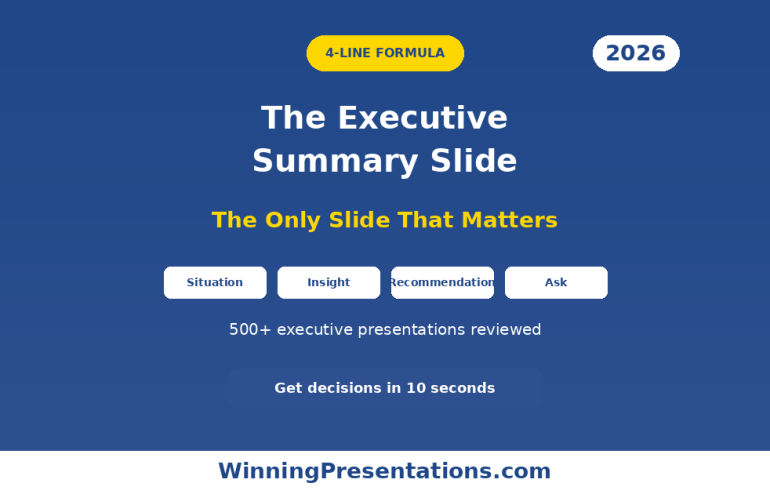


 Here’s the uncomfortable truth: most executives are using AI presentation tools wrong. They’re treating Copilot like a fancy autocomplete instead of the strategic tool it actually is.


 The 4-part framework that’s helped my clients secure board approvals for major strategic initiatives


