

Most executives use Microsoft Teams at a fraction of its presentation capability. The features that genuinely change how you come across — Presenter Mode, Spotlight, Background Blur precision, live reactions view — are rarely activated in senior executive meetings. More importantly, technology confidence directly reduces presentation anxiety: knowing exactly what your audience sees eliminates a significant source of pre-meeting dread. When you stop worrying about whether your slides are displaying correctly, you free up cognitive and emotional resources for the actual conversation.
- Why Teams Presentations Trigger a Different Kind of Anxiety
- The Features Most Executives Never Activate
- Presenter Mode: What Your Audience Sees and Why It Matters
- Camera, Lighting, and the Confidence That Comes From Control
- Managing Presentation Anxiety in Virtual High-Stakes Meetings
- The 15-Minute Teams Setup Protocol Before Any Senior Meeting
- Frequently Asked Questions
Tomás had been presenting quarterly finance updates to the executive committee via Teams for two years. He was good at the numbers. He understood the story behind them. But every session carried the same low-grade dread from the moment he clicked “Join.”
He never quite knew whether his slides were displaying correctly, or whether the tiny black-and-white thumbnail versions he could see in the corner represented what the CFO and three regional directors were actually looking at. He couldn’t read facial reactions — just names in boxes. His camera sat too low, pointing slightly upward, and he’d never found the right moment to fix it. So he carried on. Dry mouth before every meeting. A tightness in his chest that didn’t fully release until the call was over. He’d assumed that was just what virtual presenting felt like. He was wrong.
If the anxiety of virtual presentations is affecting how you perform in Teams meetings, Calm Under Pressure gives you specific techniques for managing the physical symptoms of presentation stress in the moment — dry mouth, racing pulse, voice shake, and the chest tightness that can make it hard to think clearly mid-presentation.
Why Teams Presentations Trigger a Different Kind of Anxiety
In-person presentations have their own pressures, but they give you something virtual meetings almost never do: immediate, readable feedback. You can see when someone leans in. You notice when the room goes quiet in the right way. You get to sense the energy before you even open your mouth. Virtual presentations strip most of that away, and the brain registers that absence as threat.
The anxiety that builds around Teams presentations is often less about the content and more about uncertainty. Are the slides showing? Did that last point land or did three people mute themselves because they’re checking email? Is the camera making you look unprepared? These questions run in the background like an open application you can’t quite close, consuming mental resource that should be directed at your message.
There is also a specific kind of pressure that comes from presenting to senior stakeholders in a format that feels inherently casual. The video call box places you beside everyone else regardless of seniority. The meeting recording banner is always visible. The chat panel scrolls with messages you may or may not be aware of. It is a format designed for conversation, pressed into service for high-stakes communication — and that tension is real.
Mastering your Teams environment does not remove all of that uncertainty. But it removes enough of it that the anxiety starts to reduce to a manageable level. When you know exactly what your audience sees, you stop generating catastrophic interpretations of their silence. That is a significant shift.
Calm Under Pressure — £19.99, instant access
Manage the Physical Symptoms of Presentation Anxiety — Before, During, and After Your Next Teams Meeting
Most advice about presentation nerves focuses on preparation and mindset. Calm Under Pressure takes a different approach: it addresses the physical symptoms that hit you in the moment — the symptoms that no amount of preparation has managed to prevent. Shaking hands. Sweating. Voice that won’t hold steady. The nausea that arrives as you click “Join.” These are real physiological responses, and there are specific techniques for managing them.
- In-the-moment techniques for stopping visible shaking and steadying your hands
- Breathing protocols that activate the parasympathetic nervous system within 60 seconds
- Voice steadying methods for when your throat tightens before you start speaking
- Approaches for managing sweating and the physical heat response that comes with adrenaline
- A pre-meeting reset sequence for the 5 minutes before you join a high-stakes Teams call
- Recovery techniques for when anxiety spikes mid-presentation and you need to regroup quickly
Designed for executives who need to manage presentation symptoms in the moment — not weeks of practice.
The Features Most Executives Never Activate
Microsoft Teams is used daily by hundreds of millions of people, and the vast majority of them are using it at roughly 20% of its presentation capability. The default experience — share your screen, speak, hope everyone is following — misses several features that meaningfully change how you are perceived.
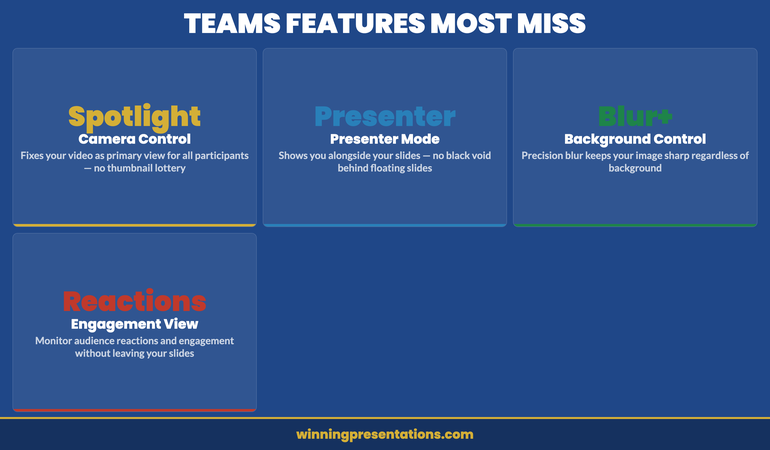
Spotlight is one of the most underused. It pins your video as the dominant view for all participants regardless of who else is speaking. In a standard Teams call, the active speaker tile shifts constantly — which means if someone coughs, their face takes over the screen. When you Spotlight yourself at the start of a presentation, you hold the visual frame for the room. It is a small action with a disproportionate effect on perceived authority.
Background Blur is often treated as a binary switch — on or off. What many executives miss is the difference between standard blur and portrait blur, and how each of these interacts with their specific camera, lighting, and background. Portrait mode, which uses AI to distinguish your face from the background, can create a cleaner edge effect but it also sometimes creates an unsettling halo if your lighting is inconsistent. Testing this in advance — not five minutes before a board call — removes one more variable from the anxiety equation.
The reactions panel — which shows real-time emoji responses from participants — is often left closed. But during a presentation, monitoring it briefly gives you something that in-person presenting offers freely: a signal that the room is engaged. Even a thumbs up from a senior stakeholder mid-presentation is information. It tells you the point landed. That kind of feedback, however small, reduces the catastrophising that drives virtual presentation anxiety.
Presenter Mode: What Your Audience Sees and Why It Matters
Presenter Mode is one of the most significant features in the Teams presentation toolkit, and it is routinely ignored. Rather than simply sharing your screen as a flat image, Presenter Mode overlays your camera feed into the slide view — so your audience sees your face and your slides simultaneously, without switching between tiles.
There are three Presenter Mode layouts. Standout places your video over the slides (useful when content detail matters but you still want presence). Reporter shows you below your slides, as though presenting them on a news programme. Side-by-side splits the view. Each creates a materially different impression, and the right choice depends on your slide density and meeting context.
What Presenter Mode does functionally is remove the cognitive dissonance that comes from watching someone share a full-screen deck while their camera disappears. When the audience can see your face while engaging with content, they are more likely to stay with you. And when you know your face is visible alongside your slides — rather than hidden behind them — you present differently. The awareness that you are being seen tends to focus delivery, not unsettle it.
If you want to understand more about how your slides interact with delivery in a virtual context, this guide to screen sharing presentations covers the mechanics of what your audience actually receives when you share your screen — and how to structure slides specifically for that format.
One important note on Presenter Mode: it requires your camera to be on. If you habitually present on Teams with your camera off, you are removing the primary tool that builds trust in a virtual room. Senior audiences read the camera-off choice as disengagement, avoidance, or poor preparation — even when the reason is benign. Turning your camera on, consistently, is a decision that carries more professional weight than most executives realise.
Camera, Lighting, and the Confidence That Comes From Control
The single most impactful physical change most executives can make to their virtual presence costs nothing: raise the camera to eye level. A laptop camera sitting on a desk is typically positioned at chest height or lower. The angle it creates is unflattering and, more importantly, it signals something unintended — you appear to be looking down at your audience, or not quite at them at all.
Eye-level camera placement is achieved by raising the laptop on a stand, a stack of books, or an external monitor. The camera lens should sit at or just above the midpoint of your face. Once this is correct, the impression shifts noticeably. You appear to be addressing the room directly rather than glancing up from paperwork. For presentations to the board or senior leadership, this adjustment is worth making before every call.
Lighting follows the same principle of control reducing anxiety. When you cannot see your own image clearly — when you are backlit by a window or underlit in a dim room — you do not know what the senior stakeholders on the call are looking at. That uncertainty feeds the same low-grade dread that makes virtual presenting exhausting. A ring light or a simple desk lamp positioned in front of you, slightly to one side, is sufficient. It removes the variable.
The connection between physical control and psychological confidence here is direct. It is not about vanity. It is about certainty. When you know your setup is correct — camera at the right height, face well lit, background clean — you have one fewer source of uncertainty running in the background during the meeting. That cognitive space becomes available for the presentation itself.
If physical symptoms of anxiety are affecting your ability to present confidently in virtual meetings — dry mouth, a voice that tightens under pressure, the physical tension that builds as you click “Join” — Calm Under Pressure addresses those symptoms specifically, with techniques you can apply in the moment.
Managing Presentation Anxiety in Virtual High-Stakes Meetings
The Teams features covered in this article are tools for reducing situational uncertainty. But for some executives, the anxiety that surrounds virtual presentations is not primarily about technology at all. It is physiological: a genuine stress response that produces real physical symptoms regardless of how well prepared you are or how smoothly the meeting runs.
These two types of anxiety often run together, which is why both need to be addressed. Controlling your Teams environment removes one layer of pressure. Managing the physical response that persists beneath that requires different techniques — specifically, approaches that work on the nervous system in real time.
One of the reasons virtual presentations feel particularly exposing is the absence of movement. In an in-person meeting, you can walk to a screen, adjust a pointer, pour water. Small physical actions regulate the adrenaline response. On a Teams call, you are largely static. The energy has nowhere to go, and physical symptoms become more noticeable to you — even when they are entirely invisible to your audience.
Your voice is particularly sensitive to this. When adrenaline rises, the vocal cords tighten. The result is a voice that sounds higher, thinner, or less certain than your normal delivery — and because you can hear yourself clearly through your own speakers or headphones on a Teams call, you become acutely aware of any deviation from your usual tone. That awareness feeds the anxiety rather than reducing it.
Understanding your own voice and how to keep it steady under pressure is addressed in detail in this guide to voice control in presentations. For the virtual context specifically, where your voice carries the full weight of your authority, it is worth reading before any high-stakes Teams meeting.
Calm Under Pressure — £19.99, instant access
Your Next Senior Teams Call Does Not Have to Feel Like This
The pre-meeting dread. The voice that won’t settle. The dry mouth and racing pulse that arrive five minutes before you click Join. Calm Under Pressure gives you specific, evidence-based techniques for managing the physical symptoms of presentation stress — so they stop running the show. These are not mindset reframes. They are physiological interventions that work in the moment, developed for executives who present under genuine pressure.
The 15-Minute Teams Setup Protocol Before Any Senior Meeting
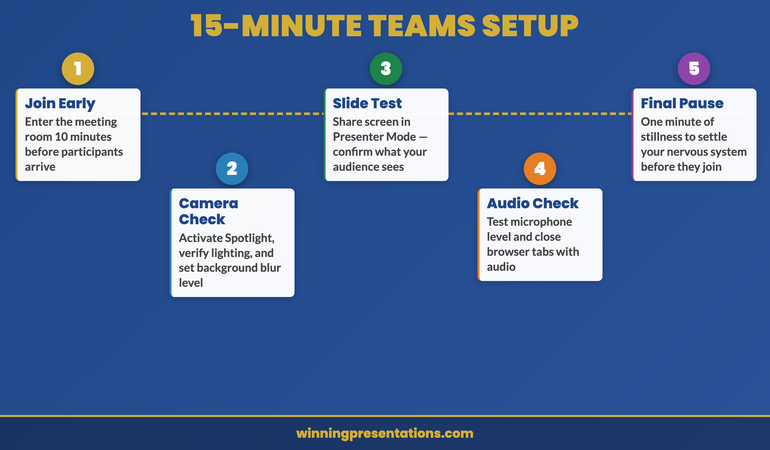
One of the most effective things you can do to reduce virtual presentation anxiety is to remove all variables before you need to present. A 15-minute setup check — completed well before the meeting starts — converts uncertainty into confirmed readiness. Here is a practical sequence.
Check your camera view. Open Teams, go to Settings, then Devices, and view your camera preview. Verify the angle — eye level, face well lit, background clean. Make any adjustments now, not at 8:58 for a 9:00 call.
Test your audio. In the same Devices panel, run the microphone and speaker test. This is not about paranoia — it is about eliminating the single most common source of opening-minute disruption in virtual presentations. The person who spends the first two minutes of a senior call being told “we can’t hear you” starts from a deficit.
Open your slides before joining. Have your presentation file open, in presentation mode, and tested on screen share. If you use Presenter Mode, activate it in a test meeting or with a colleague the day before. Do not discover its quirks five minutes before a board presentation.
Prepare for a screen-share failure. Have your slides saved to a location you can access in seconds — SharePoint, OneDrive, or a local desktop shortcut. Know in advance that you will say “Let me reshare that” calmly and do so without apology. Using a deliberate pause technique in these moments is more effective than rushing to fill the silence.
Close everything else. Browser notifications, email client, messaging apps. On a laptop with limited processing power, background applications slow Teams. They also provide a distraction if a notification banner appears mid-presentation. A clean desktop is a professional signal that most people overlook.
When you have moved through this sequence and everything is confirmed, the cognitive load of the upcoming presentation drops. You are no longer managing open questions about the technology. You can direct your attention to the opening of your presentation and the points you most need to land.
If you are preparing a presentation that involves difficult content or sensitive messages — financial results that carry bad news, restructuring updates, or performance reviews — the particular pressures of that scenario sit alongside these teams presentation tips. There is specific guidance on presenting bad news to senior leadership that addresses both the structure and the emotional management of those conversations.
Frequently Asked Questions
Why do Teams presentations feel more stressful than in-person presentations?
Teams presentations remove most of the real-time feedback that helps presenters self-regulate in person — visible audience reactions, body language, the energy of the room. Without those signals, the brain defaults to uncertainty, and uncertainty triggers a low-grade threat response. Additionally, virtual presenting requires you to manage technology, monitor the chat, and maintain eye contact with a camera lens simultaneously, which creates a higher cognitive load than in-person presenting. The result is that anxiety symptoms can surface more noticeably even when you are entirely comfortable with your content.
What should I do if my screen share fails mid-presentation?
Stop sharing, pause for two to three seconds without apologising, then reshare. Say something brief and direct: “Let me get that back up for you.” Do not over-explain or fill the silence with reassurances. The deliberate pause signals composure rather than panic. If resharing fails, send the deck link via the Teams chat immediately — have the shareable link ready in a browser tab before the meeting starts. Participants can follow along while you re-establish the share. Preparation for this specific scenario is what separates executives who recover smoothly from those who lose authority in the moment.
How do I maintain audience engagement in a Microsoft Teams presentation?
Engagement in virtual presentations is sustained through shorter structured segments rather than long uninterrupted blocks of content. Plan a check-in or question moment every five to seven minutes — not rhetorical questions, but direct ones: “Helena, does that align with what you’re seeing in the EMEA data?” Use the Teams reactions panel to monitor participation in real time. Ask participants to use the raise hand feature rather than interrupting. Vary your pace and use deliberate silence to signal transitions between points. Audiences on virtual calls disengage when the format is purely passive — build in moments that require a response, however small, and attention levels hold significantly better.
The Winning Edge — Weekly Presentation Insights
Every Thursday, The Winning Edge delivers one practical insight on executive presenting — virtual delivery, high-stakes meetings, managing nerves, slide structure. No fluff, no padding. Written for executives who present under real pressure.
About the Author
With 25 years of corporate banking experience at JPMorgan Chase, PwC, Royal Bank of Scotland, and Commerzbank, Mary Beth Hazeldine has presented to boards, investment committees, and senior leadership teams across four continents. She now works with executives, finance directors, and senior professionals to help them present with authority — in the room and on screen. Her work focuses on the real challenges of high-stakes communication: managing anxiety, commanding virtual meetings, and translating complex information into decisions.
Winning Presentations — winningpresentations.com