

The best Copilot PowerPoint prompts follow a 5-element formula: Action + Content Type + Topic/Data + Audience + Tone/Style. Vague prompts like “make a slide about revenue” produce generic output. Specific prompts like “Create a revenue slide showing Q3 results for the board with a waterfall chart and 3 key drivers” produce executive-ready slides. Below you’ll find 50+ copy-paste prompts organised by category — updated for Agent Mode — plus the modifiers that control layout, tone, and structure.
📋 Jump to Section:
- 🆕 Presenting Tomorrow? Start Here
- Why Most Copilot Prompts Fail
- The 5-Element Prompt Formula
- Agent Mode Prompts
- Executive Summary Prompts
- Data & Chart Prompts
- Story & Narrative Prompts
- Meeting & Agenda Prompts
- Comparison & Evaluation Prompts
- Financial & Budget Prompts
- Team & People Prompts
- Full Presentation Structures
- FAQ
⚡ Presenting Tomorrow? The 3-Step Rescue
No time to read 50 prompts. Use this:
- Open your draft deck in PowerPoint with Copilot enabled
- Paste this prompt: “Review this presentation for a [senior leadership / board / client] audience. Identify the 3 weakest slides and suggest specific improvements for clarity and impact.”
- Then for each weak slide: “Rewrite this slide for a time-poor executive. Lead with the insight, not the data. Maximum 3 bullets, 10 words each.”
That sequence alone has rescued dozens of decks the night before high-stakes meetings.
“I’ve wasted three hours trying to fix this. Copilot is useless.”
That message landed in my inbox last month from a Director at a consulting firm. She’d typed “Create a client presentation about our Q3 results” and gotten 12 slides of generic bullet points, stock icons, and zero insight.
I asked her to try one prompt I’d refined over months of testing: a 47-word instruction that specified the slide type, the three metrics that mattered, the audience (partner-level), and the tone (data-driven, no fluff). Seven minutes later, she had a board-ready executive summary.
The difference wasn’t the tool. It was the prompt.
After testing hundreds of variations with clients across banking, biotech, and SaaS — and now with Agent Mode changing the workflow — I’ve identified the patterns that consistently produce slides worth presenting. Here they are.
Why Most Copilot Prompts Fail (And How to Fix Them)
After training professionals on Microsoft Copilot for PowerPoint over the past year, I see the same three mistakes repeatedly:
Mistake 1: Prompts Are Too Vague
Examples that fail:
- “Make this look professional.”
- “Improve this slide.”
- “Create a presentation about marketing.”
Vague prompts force Copilot to guess. That’s how you get slides that could belong to any company in any industry. Related: Fix Generic Copilot Slides in 5 Minutes
Mistake 2: Prompts Are Overloaded
Example: “Create a 45-slide board presentation covering Q1–Q4 performance, market trends, competitor analysis, customer feedback, operational improvements, and financial projections with detailed charts and executive summaries.”
Overloaded prompts produce unfocused decks. You still end up rebuilding most of it.
Mistake 3: No Audience, No Objective
Most prompts never mention who the deck is for, or what the slide must achieve (decision, approval, update). Copilot then defaults to safe, generic language that doesn’t drive action.
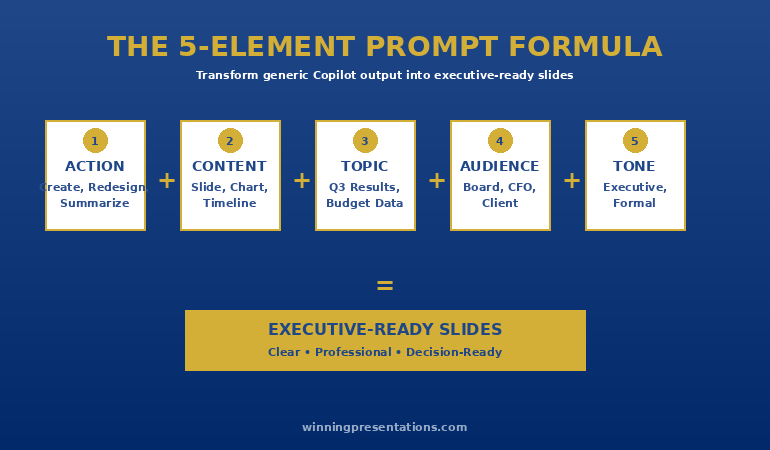
The 5-Element Copilot Prompt Formula
Every effective Copilot prompt includes these five elements:
- Action — what you want (create, rewrite, summarise, improve)
- Content Type — slide type or section (agenda, executive summary, comparison, roadmap)
- Topic & Data — what it’s about and the key numbers/messages
- Audience — who will see it (board, investors, internal team, clients)
- Tone & Style — how it should sound and look (executive, concise, data-driven, clean layout)
Formula: Action + Content Type + Topic/Data + Audience + Tone/Style
Example:
“Create a 7-slide executive update for the senior leadership team on our Q4 2025 results. Include: headline results, key drivers, risks, mitigation actions, and 3 decisions we need from them. Use a concise, data-driven tone and a clean layout with generous white space and minimal text per slide.”
Power Modifiers That Instantly Improve Output
Add these phrases to almost any prompt:
- “Use a clean, minimalist layout with plenty of white space.”
- “Avoid clipart or cartoon icons.”
- “Keep bullets concise — maximum 10 words per bullet.”
- “Write for a time-poor executive audience.”
- “Highlight the three most important points.”
For a complete tutorial on Copilot’s capabilities, see our PowerPoint Copilot Complete Guide.
⭐ Get All 50+ Prompts Ready to Copy-Paste
Stop scrolling. Get the exact prompts that generate professional slides — organised by slide type, searchable, and ready to use in seconds.
Includes:
- 50+ copy-paste Copilot prompts by slide type
- Power modifiers that fix common Copilot failures
- Agent Mode conversation starters
Instant download • Works with Microsoft 365 Copilot • Updated for Agent Mode
Agent Mode Prompts
Microsoft’s Agent Mode introduces conversational AI that builds presentations through multi-turn dialogue. Instead of writing one detailed prompt and hoping, you can have a back-and-forth conversation where Copilot asks clarifying questions and refines as you go.
What Agent Mode adds:
- Conversational slide creation — describe what you need, answer Copilot’s questions, iterate
- Work IQ — Copilot remembers your preferences across sessions
- SharePoint Asset Library integration — pulls brand-approved images automatically
- “Explain this” feature — select any text, table, or slide for instant explanation
- Image editor integration — edit images directly within PowerPoint
Note: Availability varies by organisation, platform, and rollout schedule. Check your Microsoft 365 Copilot release notes or tenant settings for current feature access.
Agent Mode Conversation Starters (Prompts 51-55)
51. Full Deck Build: “I need a 10-slide board presentation on our Q4 results. Can you help me build it slide by slide? Start by asking what metrics matter most to my board.”
52. Iterative Refinement: “I have a draft deck open. Walk me through each slide and suggest improvements. Ask me questions about audience and purpose as we go.”
53. Brand-Consistent Build: “Create a client presentation using our corporate template. Pull images from our SharePoint asset library. Ask me about the key messages before you start building slides.”
54. Multi-Source Integration: “I’m referencing /Q4-report.docx and /sales-data.xlsx. Build a presentation that tells the story of our quarter. Ask clarifying questions about what to emphasise.”
55. Rapid Revision: “Make slide 3 more visual. Add a timeline to slide 5. Change the tone of slide 7 to be more confident. Then show me the updated deck.”
Old workflow: Write detailed prompt → Wait → Review → Write another prompt → Wait → Fix manually
Agent Mode workflow: Describe what you need → Answer Copilot’s questions → Watch slides generate → Say “make slide 3 more visual” → Done
Executive Summary & High-Level Slides (Prompts 1-5)
1. Executive One-Slider: “Create a one-slide executive summary for [audience] explaining [project/initiative]. Include: 1 key headline, 3 bullet points on impact, and 1 clear ask. Write for very busy senior leaders.”
2. Board-Level Update: “Create a board update slide summarising [topic, e.g., Q4 performance]. Focus on: results vs target, 3 key drivers, and 2 decisions required from the board. Use concise, non-technical language.”
3. Strategic Recommendation: “Create a strategic recommendation slide that compares Option A vs Option B for [decision]. Show: summary, pros/cons, risks, and a recommended option with one-sentence justification.”
4. Leadership Snapshot: “Create a one-slide ‘Leadership Snapshot’ for [initiative]. Include: current status (RAG), top 3 wins, top 3 risks, and the next major milestone with date.”
5. Vision Slide: “Create a vision slide for [programme/strategy] that explains: where we are now, where we want to be in 3 years, and the high-level path to get there. Use simple, inspiring language.”
For more on executive summary slides, see: The Executive Summary Slide: How to Write the Only Slide That Matters
Data & Chart Slides (Prompts 6-10)
6. Revenue Performance: “Create a revenue performance slide showing [time period] actual vs target, with % variance and 3 drivers of the result. Use a clean chart plus 3 short bullets interpreting the data.”
7. KPI Dashboard: “Create a KPI dashboard slide for [business area]. Show 5–7 KPIs with current value, target, and RAG status, plus one line under the chart summarising overall performance.”
8. Trend Analysis: “Create a slide showing the trend for [metric] over the last [X] quarters. Include a simple line chart and 3 bullets explaining what changed, why, and what it means.”
9. Before/After Impact: “Create a before/after comparison slide showing the impact of [initiative]. Left side: baseline metrics. Right side: improved metrics. Underneath, add 3 bullets on what drove the improvement.”
10. Risk Heatmap: “Create a risk heatmap slide for [project]. Show likelihood on one axis and impact on the other, with 6–9 key risks plotted. Add 3 bullet points summarising overall risk posture.”
These prompts give you content — but keeping them organised matters. The Copilot Prompt Pack (£9.99) has all 55 prompts sorted by slide type so you can find what you need in seconds.
Story & Narrative Slides (Prompts 11-15)
11. Problem–Solution Story: “Create a slide that tells the story of [client/problem]. Structure it as: context, problem, impact if not solved, our solution, and expected outcome. Use concise, story-like language.”
12. Customer Journey: “Create a customer journey slide showing the stages from [awareness] to [renewal or advocacy] for [customer segment]. Highlight pain points in red and opportunities in green.”
13. Case Study: “Create a one-slide case study describing how we helped [client] achieve [result]. Include: client situation, what we did, and quantified outcome. Use 3–5 short bullets.”
14. Before/After Storyboard: “Create a two-column slide comparing the ‘Before’ and ‘After’ experience of [process/solution] from the user’s perspective. Use 3 bullets per column with clear, specific language.”
15. Origin Story: “Create a slide telling the origin story of [project or product]. Explain why it started, what problem it aims to solve, and what success looks like. Use simple, engaging language.”
⭐ Stop Scrolling. Get Them All in One File.
Every prompt on this page — plus 5 bonus Agent Mode scripts — in a single searchable document.
What you get:
- 55 prompts across 10 categories
- Power modifiers cheat sheet
- Agent Mode conversation starters
Instant download • Designed for senior stakeholder decks where clarity matters
Meeting, Agenda & Structure Slides (Prompts 16-20)
16. Value-Focused Agenda: “Create an agenda slide for a [type of meeting] with 4–6 items. For each item, include one line explaining the value or outcome for the audience, not just the topic.”
17. Decision-Focused Agenda: “Create an agenda slide for a decision-focused meeting with [stakeholders]. Emphasise: context, options, evaluation, recommended decision, and next steps.”
18. Timeline / Roadmap: “Create a timeline slide showing [project] phases from [start date] to [end date]. Include 5–7 key milestones with dates. Use a horizontal visual layout.”
19. Next Steps: “Create a ‘Next Steps’ slide with 4–6 action items. For each, include: owner, deadline, and one-line description. Format as a clear table or list.”
20. Meeting Recap: “Create a meeting recap slide summarising: key decisions made, open questions, action items with owners, and date of next meeting. Keep it to one page.”
Comparison & Evaluation Slides (Prompts 21-25)
21. Option Comparison Table: “Create a comparison slide evaluating [Option A] vs [Option B] vs [Option C]. Use a table with rows for: cost, timeline, risk, and strategic fit. Highlight the recommended option.”
22. Vendor Evaluation: “Create a vendor comparison slide for [category]. Compare 3–4 vendors on: features, pricing, support, and implementation time. Use a scoring system (1–5) and highlight the winner.”
23. Pros and Cons: “Create a pros and cons slide for [decision]. Two columns: 4–5 pros on the left, 4–5 cons on the right. Add a summary line at the bottom with a recommendation.”
24. Feature Matrix: “Create a feature comparison matrix for [product/service]. Rows = features, columns = competitors. Use checkmarks for included features, X for missing. Highlight our advantages.”
25. Investment Prioritisation: “Create a prioritisation slide for [initiatives]. Use a 2×2 matrix with ‘Impact’ on one axis and ‘Effort’ on the other. Plot 6–8 initiatives and label each quadrant.”
Comparison slides are where presentations win or lose. If you’re presenting options to leadership, having the right prompt ready makes the difference. The Copilot Prompt Pack (£9.99) includes prompts for every decision-slide type.
Financial & Budget Slides (Prompts 26-30)
26. Budget Request: “Create a budget request slide for [project]. Include: amount requested, what it funds, expected ROI, and payback period. Write for a CFO audience.”
27. P&L Summary: “Create a P&L summary slide showing [time period] results. Include: revenue, costs, gross margin, operating expenses, and net income. Compare to budget and prior year.”
28. ROI Calculation: “Create an ROI slide for [investment]. Show: total investment, expected returns over 3 years, payback period, and key assumptions. Use a simple table format.”
29. Cost Breakdown: “Create a cost breakdown slide for [project/initiative]. Show categories as a pie chart or bar chart, with percentages and absolute values. Highlight the largest cost driver.”
30. Forecast vs Actual: “Create a forecast vs actual slide for [metric]. Show monthly data with forecast line and actual line. Add variance analysis with 3 bullets explaining the gap.”
Team & People Slides (Prompts 31-35)
31. Team Introduction: “Create a team slide introducing [X] people. For each: name, role, and one sentence on relevant experience. Use photos if available. Clean grid layout.”
32. Org Chart: “Create an org chart slide showing the structure of [department/team]. Include reporting lines, names, and titles. Keep it to one level of detail.”
33. RACI Matrix: “Create a RACI slide for [project]. Rows = key activities, columns = stakeholders. Fill in R (Responsible), A (Accountable), C (Consulted), I (Informed).”
34. Stakeholder Map: “Create a stakeholder map for [initiative]. Plot stakeholders on a 2×2 grid with ‘Influence’ and ‘Interest’ as axes. Label each quadrant with engagement strategy.”
35. Skills Matrix: “Create a skills matrix slide for [team]. Rows = team members, columns = key skills. Use a 1–5 rating or colour coding. Identify gaps and strengths.”
Full Presentation Structures (Prompts 36-40)
36. 10-Slide Investor Pitch: “Create a 10-slide investor pitch for [company]. Structure: problem, solution, market size, business model, traction, team, competition, financials, ask, and contact. Executive tone.”
37. QBR Presentation: “Create a 12-slide QBR presentation for [client]. Include: executive summary, KPI performance, wins, challenges, account health, renewal status, and next quarter priorities.”
38. Board Presentation: “Create a 15-slide board presentation covering: company performance, strategic initiatives, financial results, risks, and decisions needed. Use executive language and minimal text.”
39. Multi-Slide Narrative: “Create a 10-slide presentation for [audience] on [topic]. Structure it as: context, problem, impact, options, recommended solution, implementation plan, risks, and next steps.”
40. Story-First Redraft: “Restructure this presentation so it tells a clear story: starting situation, tension/problem, turning point, solution, and outcome. Propose a new slide order based on that story arc.”
Meeting-Specific Prompts (41-45)
41. Budget Meeting Opener: “Create a budget meeting opening slide for [project]. Include: amount requested, strategic alignment, and the one question you need answered today.”
42. Board Meeting Opener: “Create a board meeting opening slide for [date/meeting]. Include: purpose, key topics, and decisions required today, in one clear overview.”
43. QBR Overview: “Create a QBR overview slide for [client/business unit]. Show: period covered, key achievements, main challenges, and priorities for next quarter.”
44. Escalation Slide: “Create an escalation slide to senior leadership about [issue]. Include: brief summary, impact, what we’ve tried, and what decision/support we now need.”
45. Change Approval: “Create a slide requesting approval for [change]. Include: why change is needed, options considered, recommended option, and risks/mitigation.”
Training & FAQ Slides (Prompts 46-50)
46. How It Works: “Create a ‘How it works’ slide explaining [process/tool] in 3–5 simple steps. Use short descriptions suitable for training non-expert users.”
47. Dos and Don’ts: “Create a ‘Dos and Don’ts’ slide for [topic]. Include 4–6 dos and 4–6 don’ts, written as clear behavioural guidance.”
48. FAQ Slide: “Create an FAQ slide answering the 4–6 most common questions about [topic]. Keep answers to one sentence each.”
49. Onboarding Overview: “Create an onboarding overview slide for new users of [system/tool]. Include: what they need to know in week 1, key training, and where to get help.”
50. Playbook Summary: “Create a slide that summarises the key rules for using PowerPoint Copilot effectively. Focus on: prompt structure, audience focus, and layout clarity.”
⭐ From Scrolling to Searching in 10 Seconds
All 55 prompts. One searchable document. Find exactly what you need when you’re under pressure.
What’s inside:
- 55 prompts organised by slide type
- Power modifiers cheat sheet
- Agent Mode conversation scripts
Built from 24 years in corporate banking + executive presentation coaching
FAQ: Best Copilot PowerPoint Prompts
How long should a good Copilot prompt be?
The sweet spot is 3–5 sentences (around 50–100 words). Short prompts produce generic output. Overly long prompts become confusing. Aim for clear, focused detail that includes audience, objective, and specific content requirements.
What’s the difference between standard Copilot and Agent Mode?
Standard Copilot requires you to guide each step with separate prompts. Agent Mode works conversationally — asking questions, maintaining context, and allowing surgical edits like “make slide 3 more visual” without rewriting your entire prompt. Feature availability varies by organisation and platform.
Should I use the same prompts in ChatGPT and PowerPoint Copilot?
Not exactly. ChatGPT excels at content generation (outlines, talking points, rewriting text). PowerPoint Copilot excels at slide creation (layouts, charts, visual structure). Use them together, but with different prompt styles for each tool.
What if Copilot ignores parts of my prompt?
This usually happens when your prompt contradicts earlier context, you’re asking for something Copilot can’t do (e.g., external data without the right integrations), or your instructions are too vague. Fix it by tightening the prompt, numbering your instructions, and running it on a single slide at a time.
Can I rely on Copilot for high-stakes presentations?
Copilot is excellent for speed and structure — but it doesn’t replace your judgement. For high-stakes decks, use Copilot to get to a strong first draft quickly, then apply your own expertise to refine story, emphasis, and nuance. If presenting makes you nervous, see our guide on how to calm nerves before a presentation.
Is the Copilot Prompt Pack worth £9.99 if these prompts are free?
The free prompts here give you examples you can bookmark or copy. The Prompt Pack gives you a structured, searchable document you can reference instantly while working — organised by slide type, with power modifiers and Agent Mode scripts included. If you use Copilot weekly, it pays for itself in the first deck.
📧 Get Weekly Copilot Tips
Join executives getting my best prompts, frameworks, and Copilot updates every Thursday.
📄 Want the Top 10 Prompts in a Printable Cheat Sheet?
Get the 10 most essential Copilot prompts plus power modifiers in a one-page PDF — free.
Your Next Step
You now have 55 prompts that actually work — including the Agent Mode conversation starters. Pick 3–5 that match the slides you create most often (executive summary, data slide, next steps) and use them consistently for the next month.
If you want all 55 prompts organised, searchable, and ready to copy-paste while you’re working, the Copilot Prompt Pack (£9.99) is the fastest way to level up your Copilot workflow.
PS: If you create board updates, budget requests, or stakeholder presentations regularly, the Executive Slide System (£39) gives you the templates and frameworks that turn Copilot output into slides that actually get approved.
About the Author: Mary Beth Hazeldine spent 24 years in corporate banking at JPMorgan Chase, PwC, Royal Bank of Scotland, and Commerzbank. She now coaches executives on high-stakes presentations and tests every Copilot update on real client work.
Last updated: January 25, 2026