

Why “Make This Better” Copilot Prompts Fail (And What Works)
Quick Answer: Why Are My Copilot Prompts Not Working?
Your Copilot prompts fail because they’re too vague. “Make this better” gives Copilot no direction. Instead, use specific prompts that include: (1) the exact outcome you want, (2) your audience, and (3) concrete constraints. Example: “Reduce this slide to 3 bullet points focused on ROI metrics for CFO audience.” Specific prompts get 10x better results than generic commands. For a complete library of tested prompts, see my PowerPoint Copilot tutorial.
Last month, a biotech CEO sent me a screenshot with a single frustrated message: “Is this thing broken?”
The screenshot showed PowerPoint Copilot’s response to her prompt “make this slide better.” Copilot had helpfully… changed the font size. That’s it. The cluttered slide with seven bullet points and a chart nobody could read remained cluttered, unreadable, and now in 18-point Calibri instead of 16.

She’d paid for Microsoft 365 Copilot. She’d watched the slick demos. And now her Copilot prompts weren’t working the way she’d expected.
Here’s what I told her: Copilot isn’t broken. Your prompts are.
After testing hundreds of prompts across real client presentations—investment banking pitches, biotech bid defenses, SaaS sales decks—I’ve identified exactly why most Copilot prompts fail and what separates prompts that work from prompts that return garbage.
Why Your Copilot Prompts Fail: The Vagueness Trap
When your Copilot prompts are not working, the problem is almost never the technology. It’s the input.
Think about it this way: If you hired a new designer and said “make this presentation better,” what would they do? They’d guess. Maybe change colours. Maybe move things around. Maybe ask you seventeen clarifying questions.
Copilot can’t ask clarifying questions. So when you give vague commands, it guesses. And its guesses are almost always wrong.
I tested this systematically. I took the same cluttered slide—a typical corporate mess with too much text, unclear hierarchy, and no visual focus—and tried different prompt approaches:
- “Make this better” — Changed font formatting. Useless.
- “Improve this slide” — Added a stock image. Wrong direction.
- “Make this more professional” — Changed to a blue colour scheme. Still cluttered.
None of these prompts worked because none of them told Copilot what “better” actually meant.
What People Get Wrong About Copilot Commands Not Working
Most advice about fixing Copilot prompts not working focuses on the wrong things. I see articles telling people to “be more descriptive” or “add more detail.” That’s partially true but fundamentally misses the point.
The real issue isn’t length—it’s specificity of outcome.
I learned this the hard way during a pitch preparation for a £40M Series B round. The founding team had a 47-slide deck that needed to become 12 slides in two hours. I tried using Copilot with prompts like “condense this content” and “make this more concise.”
Copilot removed random sentences. It kept the wrong details. The Copilot commands weren’t working because I was describing an action (condense) instead of an outcome (a 12-slide story focused on market opportunity and traction).
When I switched to outcome-focused prompts, everything changed.
The Prompt Formula That Actually Works
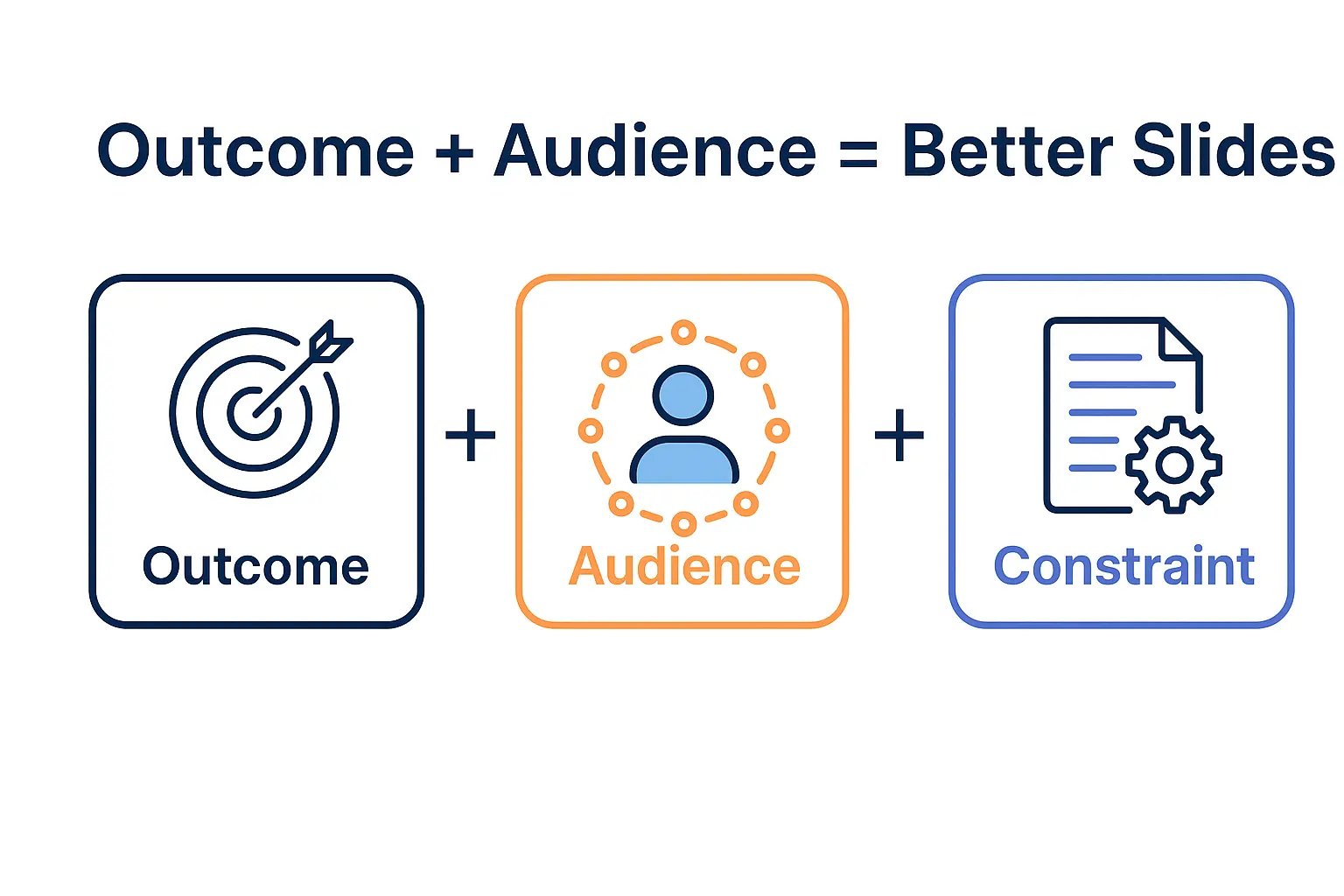
After testing on over 100 client decks, I developed a formula for prompts that consistently deliver results when Copilot prompts seem to be failing:
Outcome + Audience + Constraint = Working Prompt
Let me break this down with real examples from my best Copilot prompts collection:
Element 1: Specific Outcome
Don’t say what you want Copilot to do. Say what you want to end up with.
| Instead of… | Try… |
|---|---|
| “Make this clearer” | “Create a slide with one headline and three supporting points” |
| “Improve the design” | “Create a visual hierarchy with the key metric prominent at top” |
| “Fix this chart” | “Simplify this chart to show only the trend line and 2024-2025 data” |
Element 2: Audience Context
Copilot doesn’t know who’s going to see your presentation. When you tell it, the suggestions become dramatically more relevant.
For a recent SaaS sales deck, I tested two versions of the same request:
- Without audience: “Summarise our product benefits” — Generic, feature-focused result
- With audience: “Summarise our product benefits for IT directors concerned about security and integration” — Specific, pain-point-focused result that actually resonated
The audience context transformed a Copilot prompt that wasn’t working into one that produced usable content.
Element 3: Concrete Constraints
Constraints seem limiting but they’re actually liberating—for you and for Copilot. When you specify boundaries, Copilot can’t wander into unhelpful territory.
Constraints that work:
- Number limits: “maximum 4 bullet points”
- Word counts: “headline under 8 words”
- Format requirements: “use only company data from this slide”
- Style boundaries: “maintain formal business tone”
Real Prompt Examples: From Failing to Working
Here are actual prompts from my testing that show how small changes fix Copilot commands not working:
[X] Prompt that fails: “Make this executive summary better”
[YES] Prompt that works: “Rewrite this executive summary as 3 bullet points highlighting revenue growth, market expansion, and competitive advantage for board members reviewing quarterly performance”
[X] Prompt that fails: “Add some visuals to this slide”
[YES] Prompt that works: “Replace the bullet points on this slide with three icons representing speed, security, and scalability, keeping the headline text”
[X] Prompt that fails: “Clean this up”
[YES] Prompt that works: “Remove all text except the main headline and the three statistics. Increase white space by 50%.”
See the pattern? The working prompts are longer, yes—but they’re longer because they’re specific, not because they’re wordy.
For more tested prompts across different presentation scenarios, I’ve compiled a complete library in my 50 ChatGPT Prompts for PowerPoint guide.
Common Copilot Prompt Mistakes I See Weekly
Working with investment banks, consultants, and corporate teams, I see the same Copilot prompt failures repeatedly:
Mistake 1: Assuming Copilot Understands Context
A management consultant sent me a prompt: “Make this slide match our firm’s style.”
Copilot has no idea what “your firm’s style” means. It doesn’t know you use Helvetica, navy blue, and minimalist layouts. You need to specify: “Format this slide with left-aligned text, a single accent colour, and maximum 25 words per slide.”
Mistake 2: Chaining Vague Requests
When a prompt fails, people often try adding more vague instructions: “Make this better. Also more professional. And visually appealing.”
Three vague requests don’t add up to one specific request. They just confuse Copilot further. If your Copilot prompts aren’t working, don’t add more words—add more precision.
Mistake 3: Fighting the Tool Instead of Guiding It
I watched a senior banker spend twenty minutes arguing with Copilot through increasingly frustrated prompts: “No, not like that. Better. No, BETTER.”
Copilot doesn’t learn from rejection. Each prompt is fresh. If you didn’t get what you wanted, your next prompt needs to be a complete, specific instruction—not a correction of the previous attempt.
For a deeper understanding of what works and what doesn’t, my complete PowerPoint Copilot tutorial covers these scenarios in detail.
Quick Diagnostic: Is Your Prompt Specific Enough?
Before you hit enter on any Copilot prompt, ask yourself these three questions:
- Could a junior designer execute this without asking questions? If not, Copilot will struggle too.
- Have I specified what the result should look like, not just what action to take?
- Would I accept ANY interpretation of this prompt? If not, narrow it down.
This 10-second check has saved me countless wasted prompts—and it’ll do the same for you.
Frequently Asked Questions About Copilot Prompts Not Working
Why does Copilot keep giving me irrelevant suggestions?
Copilot responds to exactly what you ask. If your prompts are broad (“improve this”), you’ll get broad, often irrelevant suggestions. The fix is specificity: tell Copilot the exact outcome, your audience, and any constraints. For example, “Create three bullet points about cost savings for a finance audience, maximum 10 words each.”
Is there a maximum prompt length that works best?
Length matters less than specificity. A 50-word specific prompt outperforms a 10-word vague one every time. That said, I’ve found the sweet spot is 20-40 words: enough to be precise, not so much that you’re over-engineering. My Copilot Starter Pack includes prompt templates at optimal lengths.
Why do the same prompts work sometimes and fail other times?
Context matters. The same prompt behaves differently depending on the slide content, deck structure, and what you’ve done previously in the session. If prompts that worked before are now failing, check whether your slide content has changed significantly or try refreshing your session.
What should I do when Copilot just doesn’t understand what I want?
Break complex requests into smaller, single-action prompts. Instead of “redesign this slide with better visuals and clearer hierarchy and a punchier headline,” try three separate prompts: first fix the headline, then adjust the hierarchy, then add visuals. Sequential specific prompts beat compound vague ones.
Are there prompts that never work well in Copilot?
Yes. Prompts asking Copilot to match undefined styles, read your mind about preferences, or make subjective judgments (“make this more exciting”) consistently fail. Stick to prompts with measurable, concrete outcomes. For alternatives when Copilot isn’t the right tool, see my Copilot alternatives guide.
The Bottom Line
Remember the biotech CEO from the beginning? After one 15-minute call where I explained the Outcome + Audience + Constraint formula, she went from ready to cancel her Copilot subscription to calling it “genuinely useful.”
The tool hadn’t changed. Her prompts had.
If your Copilot prompts aren’t working, you don’t need a different tool. You need a different approach. Stop telling Copilot what to do and start telling it what you want to end up with.
Ready to stop fighting with Copilot?
 I’ve compiled my 100+ tested prompts—the exact ones I use with investment banks and biotech clients—into two resources:
- The PowerPoint Copilot Starter Pack (£9.99) — 25 essential prompts that work immediately, organised by task type
- The Copilot PowerPoint Master Guide (£29) — 100+ prompts, complete workflows, and the troubleshooting guide I use when prompts fail
Every prompt has been tested on real presentations—not demos. Because when you’re preparing a board deck at midnight, you need prompts that work the first time.
