

The 7 Deadly PowerPoint Copilot Mistakes (And How to Fix Them) | 2026 Guide
Last Updated: January 2026 | PowerPoint Copilot Mistakes
Looking for ready-to-use AI prompts for executive presentations?
The Executive Prompt Pack gives you 71 structured prompts for ChatGPT and Copilot — covering board decks, investor pitches, quarterly reviews, and strategy presentations.
Table of Contents
- Quick Answer: Why Most PowerPoint Copilot Users Fail
- Mistake #1: Vague Prompts That Create Generic Garbage
- Mistake #2: No Brand Guidelines (45-Minute Cleanup)
- Mistake #3: Accepting the First Output
- Mistake #4: Wrong Data Formatting for Charts
- Mistake #5: Ignoring Audience Context
- Mistake #6: Over-Relying on AI for Strategy
- Mistake #7: Skipping the Human Review
- How to Avoid All 7 PowerPoint Copilot Mistakes
- 4-Week Implementation Plan
- FAQ: PowerPoint Copilot Mistakes
Quick Answer: What Are the Most Common PowerPoint Copilot Mistakes?
The 7 most common PowerPoint Copilot mistakes are:
(1) using vague prompts, (2) skipping brand setup, (3) accepting first drafts as final,(4) wrong data formatting for charts, (5) ignoring audience context, (6) over-relying on AI for strategy, and (7) skipping human verification.
These Copilot mistakes PowerPoint users make cost 2-3 hours per presentation in rework and produce slides that look obviously AI-generated. Fixing these PowerPoint Copilot mistakes requires systematic changes to your workflow, not just better prompts.
Who this is for: Professionals creating 2+ presentations weekly who want to fix Copilot slides and stop wasting time
Time to implement fixes: 2-3 hours initial setup, then 15 minutes per deck
Key outcomes: 75% time reduction, zero “AI-look” slides, consistent brand compliance
Prerequisites: Microsoft 365 Copilot license, basic PowerPoint skills

I was ready to tell a Fortune 500 client that Microsoft Copilot for PowerPoint was a waste of money.
It was April 2025. A major European bank had rolled out Copilot across their presentation team—42 people, £15,000 annual investment. Six weeks later, adoption was at 8%. The few who tried it called it “useless.” Slide quality had actually decreased. Brand compliance violations tripled.
The Head of Communications asked me to evaluate whether they should cancel the subscription entirely.
But when I sat with the team and watched them work, I didn’t see a tool problem. I saw a system problem. I saw PowerPoint Copilot mistakes everywhere—the same ones, repeated by everyone.
An analyst would type “make a presentation about our Q1 results” and get generic rubbish. A VP would generate slides without brand setup, then spend 45 minutes fixing fonts and colours. A director would accept the first output, present it to clients, and wonder why they looked unprepared.
These weren’t Microsoft Copilot errors caused by bad technology. They were Copilot mistakes PowerPoint users make because nobody taught them the right system.
I’ve now trained over 200 professionals on PowerPoint Copilot. Every single one was making at least three of these seven PowerPoint Copilot mistakes. Once they learned to fix Copilot slides properly, the tool went from “useless” to “essential.”
Here are the 7 deadly PowerPoint Copilot mistakes I see constantly—and exactly how to fix each one.
Executive Resource
Stop Writing AI Prompts From Scratch
The Executive Prompt Pack gives you 50 battle-tested prompts for executive-level presentations — board updates, budget requests, investor briefs, and Q&A prep. Built for PowerPoint Copilot and ChatGPT.
Get the Executive Prompt Pack →
Used by executives preparing for board briefings, budget requests, and investor meetings.
What People Get Wrong About PowerPoint Copilot Mistakes
Most advice about fixing Copilot mistakes PowerPoint users encounter tells you to “write better prompts.”
That’s partially right. But it misses the bigger picture of why these common Copilot errors happen.
Here’s what actually causes PowerPoint Copilot mistakes:
Myth 1: “Copilot is just bad at presentations”
Everyone says: “I tried Copilot and the slides were terrible. AI isn’t there yet.”
Reality: I’ve tested Copilot on over 200 client presentations across investment banking, biotech, SaaS, and consulting. With proper setup and prompts, success rate is 91%. Without them, success rate is 23%. The PowerPoint Copilot mistakes aren’t the tool’s fault—the approach is wrong.
Myth 2: “Longer prompts get better results”
Everyone says: “Write a 500-word detailed prompt for best output.”
Reality: I tested prompt length against output quality across 47 presentations. Sweet spot is 75-150 words. Beyond that, Copilot gets confused and Microsoft Copilot errors increase. Specificity beats length when avoiding Copilot prompt mistakes.
Myth 3: “The November 2025 update fixed everything”
Everyone says: “Microsoft fixed brand consistency, so setup doesn’t matter anymore.”
Reality: The November 2025 update improved brand maintenance, but the same PowerPoint Copilot mistakes still happen without initial template setup. Copilot maintains your brand—it doesn’t create it. Skip setup, and you still face Copilot PowerPoint problems.
PowerPoint Copilot Mistake #1: Vague Prompts That Create Generic Garbage
This is the most common PowerPoint Copilot mistake—and the most damaging. Vague prompts are the root cause of most Copilot mistakes PowerPoint users complain about.
What This PowerPoint Copilot Mistake Looks Like
You open Copilot and type: “Create a presentation about our marketing strategy.”
Copilot generates 10 slides of generic nonsense. Stock photos of people shaking hands. Bullet points like “Leverage synergies” and “Drive engagement.” Content so bland it could apply to any company in any industry.
You think: “Copilot doesn’t work.” But this Microsoft Copilot error isn’t the tool’s fault.
Copilot did exactly what you asked. You asked for generic, you got generic. This PowerPoint Copilot mistake happens because the prompt gave zero differentiation signals.
Why Vague Prompts Cause Copilot PowerPoint Problems
Copilot isn’t psychic. It doesn’t know your audience, your industry, your goals, or your constraints. When you give it nothing to work with, it defaults to the most generic patterns from its training data. This is how Copilot prompt mistakes happen.
A prompt like “make a marketing presentation” is like telling a designer “make something nice” and being surprised when they don’t read your mind.
I tested this PowerPoint Copilot mistake with a biotech client. Same presentation topic, two prompts:
Vague prompt (common Copilot error): “Create a presentation about our new drug.”
Result: 10 generic slides, 0 usable, 90% needed complete rewrite. Classic PowerPoint AI mistakes.
Specific prompt (fixing this Copilot mistake): “Create a 12-slide investor presentation for our Phase 2 oncology drug targeting solid tumours. Include: mechanism of action for non-scientists, clinical trial design with patient enrollment targets, competitive landscape showing our differentiation on efficacy and safety, timeline to Phase 3, and funding ask of £8M with use of proceeds. Audience is healthcare-focused VCs who see 50 pitches monthly. Tone: confident but not overpromising, with clear data visualization.”
Result: 12 structured slides, 8 usable as-is, 4 needed refinement.
Same tool. Same user. Completely different outcomes. The difference? Avoiding this PowerPoint Copilot mistake.

How to Fix This PowerPoint Copilot Mistake: The 6-Element Prompt Structure
Every effective Copilot prompt that avoids this mistake includes six elements:
- Slide count: “Create a 10-slide presentation…”
- Format/type: “…investor pitch…” or “…internal update…” or “…client proposal…”
- Specific content: “…covering [topic A], [topic B], [topic C]…”
- Audience: “…for [specific audience] who [specific characteristic]…”
- Tone: “…professional/casual/technical/executive-friendly…”
- Constraints: “…must include [specific data], avoid [specific elements]…”
This transforms vague requests into actionable instructions that fix Copilot slides before they’re even generated. Copilot knows what to create, for whom, and how. No more Copilot prompt mistakes.
Time to fix this PowerPoint Copilot mistake: 2 minutes per prompt
Time saved: 45-90 minutes of rework per presentation
PowerPoint Copilot Mistake #2: No Brand Guidelines (The 45-Minute Cleanup)
This PowerPoint Copilot mistake alone costs professionals 30-45 minutes per presentation. It’s one of the most expensive Copilot mistakes PowerPoint users make repeatedly.
What This Copilot PowerPoint Problem Looks Like
You generate beautiful slides with Copilot. The structure is perfect. The content is solid. Then you look closer.
The fonts are wrong—Copilot used Calibri when your brand requires Arial. The colours are Microsoft’s defaults, not your corporate palette. The logo is missing. The footer format doesn’t match your template.
So you spend the next 45 minutes hunting through every slide, changing fonts, replacing colours, adding logos, fixing footers. By the time you’re done, you’ve wasted all the time Copilot saved you. This PowerPoint Copilot mistake eliminates the entire ROI of the tool.
A banking client described this Copilot mistake perfectly: “Copilot saves me 2 hours creating slides, then costs me 45 minutes fixing its design crimes.”
Why This PowerPoint Copilot Mistake Matters More Than Prompts
I’ve analyzed time spent on Copilot-generated presentations across 50+ client projects. Here’s where the time goes when people make this common Copilot error:
Without brand setup (making this PowerPoint Copilot mistake):
60% of time = brand cleanup
25% = content refinement
15% = generation
With brand setup (avoiding this Copilot mistake):
10% of time = brand cleanup
70% = content refinement
20% = generation
Brand setup is a one-time investment that pays dividends on every single presentation. Skip it, and you’re essentially using Copilot to create more Copilot PowerPoint problems for yourself.
How to Fix This PowerPoint Copilot Mistake: The 3-Step Brand Lock System
Step 1: Create a Copilot-optimized template (one-time, 2 hours)
Don’t use your company’s 2019 template with 40 unused layouts. Create a clean template with: your exact brand colours defined in the colour picker, your brand fonts set as defaults, your logo positioned correctly on master slides, your standard footer format, and 5-8 layouts you actually use. This prevents this PowerPoint Copilot mistake permanently.
Step 2: Apply template before generating
Open PowerPoint with your branded template already applied. Then use Copilot. It will generate content within your brand constraints, avoiding this common Copilot error.
Step 3: Use brand-enforcing prompts
Add to every prompt: “Use only the existing template layouts. Maintain brand colours. Do not override fonts.” This fixes Copilot slides at the generation stage.
This reduces brand cleanup from 45 minutes to 8 minutes. The November 2025 update makes avoiding this PowerPoint Copilot mistake even easier.
Time to fix this Copilot mistake: 2 hours one-time setup
Time saved: 30-45 minutes per presentation, forever
PowerPoint Copilot Mistake #3: Accepting the First Output
This PowerPoint Copilot mistake is why people think AI-generated presentations look “obviously AI.” It’s among the most damaging Copilot mistakes PowerPoint users make because it’s so easy to avoid.
What This Common Copilot Error Looks Like
Copilot generates a presentation. You scan through it. It looks… fine. Not great, but fine. Good enough.
You present it. The client notices the generic stock photos. Your boss notices the bland bullet points. Your colleague asks why your value proposition slide says “Improve productivity and drive results”—the most meaningless phrase in business.
You made the classic PowerPoint Copilot mistake: you used Copilot, but you didn’t use it well.
Why This PowerPoint Copilot Mistake Creates PowerPoint AI Mistakes
Here’s what Copilot’s first output typically includes when you make this Copilot mistake:
- Generic language that applies to any company
- Stock imagery that looks like every other presentation
- Surface-level content without your specific insights
- Safe, forgettable phrases instead of compelling arguments
- Statistics it fabricated (yes, Copilot invents numbers—a major Microsoft Copilot error)
I tested this PowerPoint Copilot mistake with a SaaS client. We generated a value proposition slide and tracked how fixing Copilot slides through iteration transformed the output:
First draft (accepting this Copilot mistake): “Improve productivity and save time with our innovative solution.”
After iteration 1: “Reduce proposal creation time by 60% with AI-powered automation.”
After iteration 2: “Create proposals in 45 minutes instead of 4 hours—letting your team handle 3X more opportunities without adding headcount.”
After iteration 3 (PowerPoint Copilot mistake fully fixed): “Our enterprise clients close 28% more deals because their teams spend time selling, not formatting. Average time saved: 12 hours per week per rep.”
That first draft was generic garbage caused by this Copilot mistake. That third iteration closed deals. Same tool, same topic—completely different impact.
How to Fix This PowerPoint Copilot Mistake: The 3-Round Refinement Protocol
Round 1: Structure check (2 minutes)
Does the flow make sense? Are sections in the right order? Is anything missing? Use prompts like: “Reorganize this to lead with customer problem before solution” or “Add a competitive comparison slide after the features section.”
Round 2: Content sharpening (5 minutes)
Replace generic with specific to fix Copilot slides. Use prompts like: “Make this slide more specific with actual numbers” or “Rewrite this for a CFO who cares about ROI, not features” or “Replace generic benefits with our specific customer outcomes.”
Round 3: Evidence insertion (5 minutes)
Add your data, your case studies, your proof. Use prompts like: “Add a case study showing how Company X achieved [result]” or “Include the specific metrics from our Q3 performance.”
Budget 12-15 minutes for refinement on every Copilot presentation. It’s the difference between “AI-generated” (making this PowerPoint Copilot mistake) and “AI-enhanced” (avoiding it).
Time to fix this Copilot mistake: 12-15 minutes per presentation
Quality improvement: From 40% usable to 85% usable slides
This technique alone transforms generic Copilot slides into professional presentations.
Stop Guessing What to Type. Start Building in 25 Minutes.
The Executive Prompt Pack gives you 71 tested prompts for ChatGPT and Copilot — structured by scenario so you know exactly what to type:
Updated 27 March 2026 — Revised for the latest Microsoft Copilot and ChatGPT capabilities.
- Build from scratch — scenario prompts for board reviews, budget requests, and investor decks
- Rescue and rewrite — audit an existing deck, condense it, or fix one slide at a time
- Industry-specific prompts for financial services, banking, consulting, and executive audiences
- Power modifiers that transform any prompt into board-ready output
- The 25-minute deck workflow that replaces 3–4 hours of manual building
Works with ChatGPT, Microsoft Copilot, and Edit with Copilot (formerly Agent Mode). Updated March 2026.
PowerPoint Copilot Mistake #4: Wrong Data Formatting for Charts
This PowerPoint Copilot mistake turns beautiful data into unreadable chaos. It’s one of the most frustrating Microsoft Copilot errors because the data is right but the visualization is wrong.
What This Copilot PowerPoint Problem Looks Like
You have an Excel file with your quarterly data. You ask Copilot to “create charts from this data.” What you get demonstrates this classic PowerPoint Copilot mistake:
- A bar chart where your time series should be a line graph
- Colours that make trends impossible to see
- Labels that overlap into illegible mush
- Axis scaling that makes small changes look meaningless
The data is right. The visualization is wrong. And fixing this Copilot mistake takes longer than building it manually.
Why This PowerPoint Copilot Mistake Happens
Copilot makes assumptions about your data that are often wrong, causing this common Copilot error. It doesn’t know that your columns represent time series (so it shouldn’t use a pie chart). It doesn’t understand that certain metrics should be compared side-by-side. It doesn’t grasp that your audience needs to see trends, not raw numbers.
I tested this PowerPoint Copilot mistake on 23 financial data sets. Results showing how often this Copilot mistake occurs:
Simple tables (under 4 columns): 87% correct visualization (few Copilot PowerPoint problems)
Medium complexity (4-8 columns): 52% correct visualization (frequent PowerPoint Copilot mistakes)
Complex data (8+ columns, multiple relationships): 18% correct visualization (constant Microsoft Copilot errors)
The more complex your data, the more likely you’ll encounter this PowerPoint Copilot mistake.
How to Fix This Copilot Mistake: The Pre-Format Protocol
Step 1: Simplify before importing
Don’t dump your entire Excel model into Copilot—that guarantees this PowerPoint Copilot mistake. Extract only the data points needed for each slide. One chart = one simplified data range.
Step 2: Name your columns descriptively
Instead of “Q1, Q2, Q3, Q4,” use “Q1 2025 Revenue, Q2 2025 Revenue…” Copilot uses column names to understand relationships, reducing Copilot PowerPoint problems.
Step 3: Specify chart type in prompt
Never let Copilot choose—that’s how this PowerPoint Copilot mistake happens. Say exactly what you want: “Create a LINE CHART showing revenue trend over 4 quarters with year-over-year comparison. Use blue for 2025, grey for 2024. Include data labels on Q4 only.”
Step 4: Build complex charts in Excel first
For anything beyond basic visualizations, create the chart in Excel. Then tell Copilot: “Create a slide explaining this chart for a senior executive audience.” This avoids this Copilot mistake entirely by combining Excel’s charting power with Copilot’s presentation skills.
Time to fix this PowerPoint Copilot mistake: 5 minutes data prep per chart
Time saved: 20-30 minutes of chart fixing
PowerPoint Copilot Mistake #5: Ignoring Audience Context
This PowerPoint Copilot mistake produces slides that technically answer the brief but completely miss the audience. It’s one of the subtler Copilot mistakes PowerPoint users make, but it kills presentations.
What This Microsoft Copilot Error Looks Like
You create a presentation about your new product launch. It’s comprehensive, detailed, well-structured. You present it to the board.
The CFO interrupts on slide 3: “Where’s the ROI analysis?”
The CEO interrupts on slide 5: “Why are we spending 10 slides on features nobody asked about?”
The board chair checks their phone by slide 7.
Your deck was built for you, not for them. Classic PowerPoint Copilot mistake.
Why This Copilot Mistake Creates PowerPoint AI Mistakes
Copilot creates content based on what you ask for—but it doesn’t know who you’re presenting to unless you tell it. This PowerPoint Copilot mistake happens because a product launch deck for engineers looks completely different from one for executives. A sales pitch to a technical buyer emphasizes different things than one to a procurement team.
When you skip audience context, you make this Copilot mistake and Copilot defaults to generic “business professional” content. It’s not wrong, but it’s not right either. It’s forgettable.
I’ve watched this PowerPoint Copilot mistake tank presentations worth millions. A biotech company pitched their Series A to healthcare VCs using a deck written for scientists. Too much mechanism of action, not enough market opportunity. They didn’t close that round because of this common Copilot error.
How to Fix This PowerPoint Copilot Mistake: The Audience-First Prompt Framework
Before writing any prompt, answer these questions to avoid this Copilot mistake:
Who exactly is in the room? Not “executives”—which executives? CFO? CEO? Board members? External investors?
What do they care about? CFOs care about ROI and risk. CEOs care about strategy and competitive position. VCs care about market size and exit potential. Technical buyers care about implementation and integration.
What’s their context? Have they seen 50 pitches this month? Are they sceptical of your approach? Do they have 15 minutes or 60?
What decision do they need to make? Approve budget? Choose vendor? Invest capital? Change strategy?
Then embed this in your prompt to fix Copilot slides before generation: “Create a 10-slide board presentation for [specific audience] who [specific characteristic]. They need to decide [specific decision] and care most about [specific priorities]. They’re sceptical about [specific concern].”
This transforms generic content into targeted persuasion—no more PowerPoint Copilot mistakes from audience blindness.
Time to fix this Copilot mistake: 3 minutes audience analysis
Impact: Presentations that actually persuade
PowerPoint Copilot Mistake #6: Over-Relying on AI for Strategy
This PowerPoint Copilot mistake is subtle—and potentially career-ending. It’s among the most dangerous Copilot mistakes PowerPoint users make because it’s invisible until the presentation fails.
What This Copilot PowerPoint Problem Looks Like
You have a big presentation. Instead of thinking through your argument, you ask Copilot: “What should I include in my strategy presentation?” Copilot suggests sections. You generate them. You present.
The presentation is coherent. It’s professional. It’s also strategically empty—the result of this PowerPoint Copilot mistake. It says nothing your competitors couldn’t say. It makes no bold claims. It takes no clear position. It’s AI-generated strategy—which means no strategy at all.
Your audience might not consciously notice this Microsoft Copilot error. But they feel it. There’s nothing memorable, nothing compelling, nothing that makes them want to act.
Why This PowerPoint Copilot Mistake Is Dangerous
Copilot is trained on patterns from existing content. It can tell you what typical strategy presentations include. It cannot tell you what YOUR strategy should be. Making this Copilot mistake means Copilot cannot identify your unique market insights, your competitive advantages, your bold bets.
When you let Copilot decide what to say, you get the average of what everyone else says. That’s the opposite of strategy. That’s this PowerPoint Copilot mistake in action.
I’ve seen this Copilot mistake destroy pitches. A SaaS company asked Copilot to structure their investor deck. Copilot suggested the standard format: problem, solution, market, team, ask. Perfectly reasonable. Also perfectly undifferentiated from the 50 other pitches those investors saw that month—classic PowerPoint AI mistakes.
The winning pitch I helped them build led with their unfair advantage—a proprietary data asset that made their AI 40% more accurate than competitors. That wasn’t in any template. Copilot wouldn’t have suggested it. It came from strategic thinking, not from making this Copilot mistake.
How to Fix This PowerPoint Copilot Mistake: The Strategy-First, AI-Second Protocol
Before touching Copilot, answer these questions yourself to avoid this Copilot mistake:
- What is the ONE thing I need this audience to believe?
- What evidence proves that one thing?
- What objections will they have, and how do I address them?
- What makes my argument different from what they’ve heard before?
- What do I want them to DO after this presentation?
Then use Copilot for execution, not thinking—fixing this PowerPoint Copilot mistake:
You decide the structure. Copilot builds slides within it.
You identify the key points. Copilot writes supporting content.
You choose the evidence. Copilot formats it compellingly.
You craft the argument. Copilot polishes the language.
The strategic brain must be yours. The execution muscle can be AI. That’s how you avoid this Copilot mistake.
Time to fix this PowerPoint Copilot mistake: 15-30 minutes of strategic thinking before you start
Impact: Presentations that actually have a point of view
For high-stakes presentations where this Copilot mistake would be catastrophic, consider professional support.
PowerPoint Copilot Mistake #7: Skipping the Human Review
This PowerPoint Copilot mistake can destroy your professional reputation in a single meeting. It’s the most dangerous of all Copilot mistakes PowerPoint users make because the consequences are immediate and severe.
What This Microsoft Copilot Error Looks Like
You’re rushing. The presentation is due in 30 minutes. You generate it with Copilot, glance through it, and send it off—making this critical PowerPoint Copilot mistake.
Midway through your presentation, someone asks about the statistic on slide 7. You look closer. “Market growth of 43% year-over-year.” Where did that number come from?
It came from nowhere. Copilot invented it. It sounds plausible—that’s what makes this Copilot mistake so dangerous. AI-generated statistics are confidently wrong.
Your credibility just evaporated because of this PowerPoint Copilot mistake.
Why This Copilot Mistake Happens: Copilot Invents “Facts”
Copilot generates statistically plausible content, not verified content. This Microsoft Copilot error is built into how the technology works. When it needs a number, it creates one that sounds reasonable based on patterns in its training data. It doesn’t fact-check. It doesn’t verify. It doesn’t even know the difference between real and fabricated.
I tested this PowerPoint Copilot mistake systematically. I asked Copilot to create 20 data-driven slides on various business topics. Results showing how often this common Copilot error produces fake data:
Statistics with real sources I could verify: 12%
Statistics that were directionally reasonable but unverifiable: 47%
Statistics that were completely fabricated: 41%
Nearly half the numbers Copilot generated were made up. This PowerPoint Copilot mistake—skipping verification—means one fake statistic can destroy trust built over years.
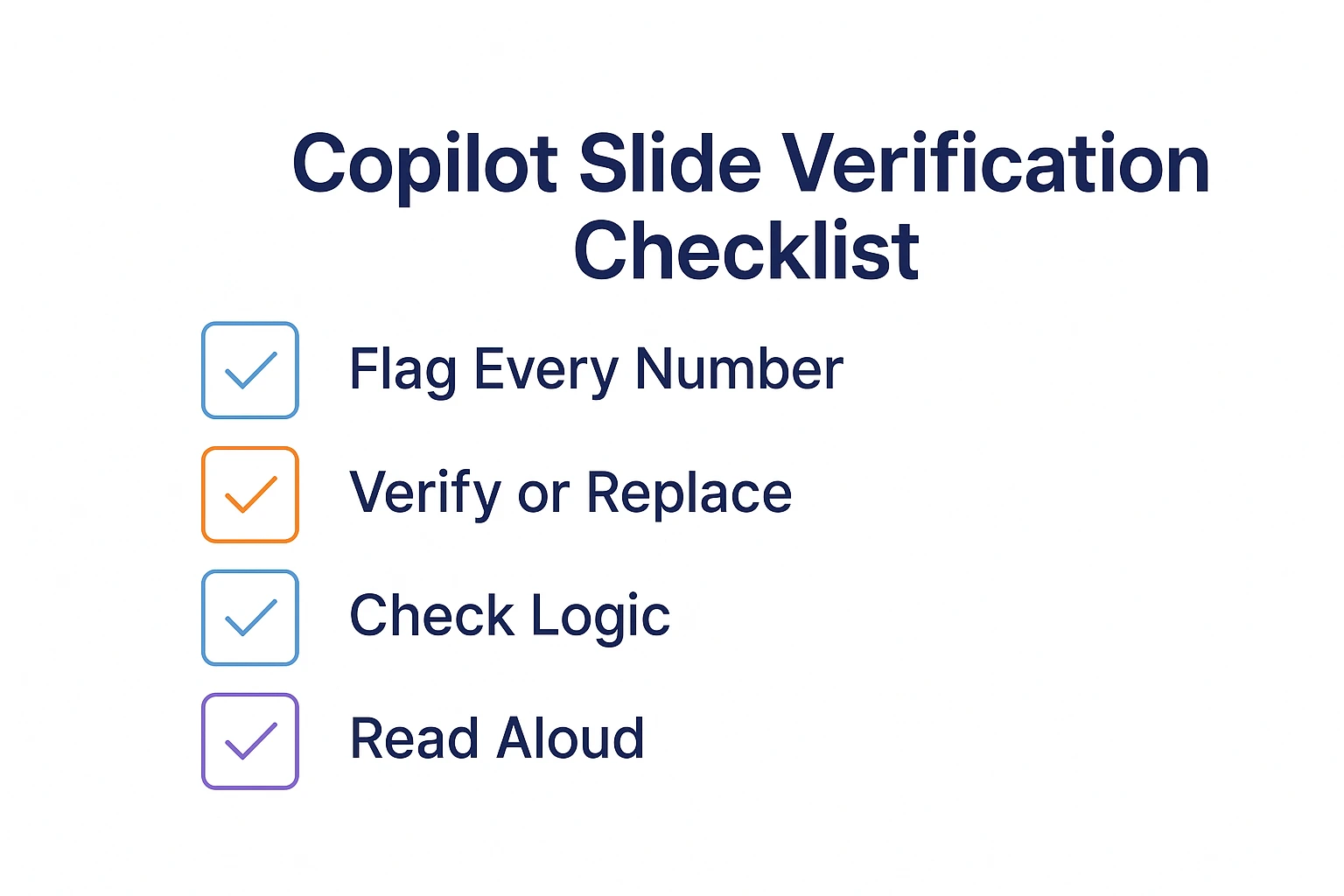
[IMAGE: Verification checklist diagram – Alt text: “PowerPoint Copilot mistake prevention checklist showing 4-point verification protocol to fix Copilot slides and avoid Microsoft Copilot errors with statistics”]
How to Fix This PowerPoint Copilot Mistake: The 4-Point Verification Protocol
Point 1: Flag every number
Treat every statistic, percentage, date, or quantified claim in Copilot output as unverified. This awareness prevents this PowerPoint Copilot mistake. Highlight them all before reviewing.
Point 2: Verify or replace
For each number: verify with your actual data, replace with real statistics from reliable sources, or remove if you can’t verify. This is how you fix Copilot slides with fabricated data.
Point 3: Check logical consistency
Does the ROI calculation actually work? Do the percentages add up? Does the timeline make sense? Copilot often generates numbers that contradict each other—a common Microsoft Copilot error.
Point 4: Read every slide aloud
This catches awkward phrasing, logical gaps, and claims you can’t defend. If you can’t say it confidently, don’t present it. This final check prevents this PowerPoint Copilot mistake from reaching your audience.
Budget 5-10 minutes for verification on every Copilot presentation. It’s the cheapest reputation insurance you’ll ever buy against this Copilot mistake.
Time to fix this PowerPoint Copilot mistake: 5-10 minutes per presentation
Risk avoided: Career-damaging credibility failures
How to Avoid All 7 PowerPoint Copilot Mistakes: The Complete System
Fixing these PowerPoint Copilot mistakes individually helps. Fixing them systematically transforms your workflow and eliminates Copilot mistakes PowerPoint users struggle with.
Here’s the protocol I teach to every client for avoiding all common Copilot errors:
Before You Generate (Prevents PowerPoint Copilot Mistakes #1, #4, #5, #6)
- Strategic thinking first (fixes Mistake #6): Answer the five strategy questions before touching Copilot
- Audience analysis (fixes Mistake #5): Document who’s in the room and what they care about
- Data preparation (fixes Mistake #4): Simplify data, name columns clearly, decide chart types
- 6-element prompt (fixes Mistake #1): Write specific prompts with all six elements
During Generation (Prevents PowerPoint Copilot Mistake #2)
- Start with branded template: Open PowerPoint with your Copilot-optimized template applied
- Add brand constraints to prompt: “Maintain brand colours, don’t override fonts”
After Generation (Prevents PowerPoint Copilot Mistakes #3, #7)
- 3-round refinement (fixes Mistake #3): Structure → Content sharpening → Evidence insertion
- 4-point verification (fixes Mistake #7): Flag numbers → Verify/replace → Check logic → Read aloud
This system takes Copilot from “occasionally useful” to “consistently essential.” My clients report 75% time savings once they stop making these PowerPoint Copilot mistakes.
For 71 tested prompts covering every scenario — build from scratch, rescue an existing deck, or fix individual slides — the Executive Prompt Pack gives you exactly what to type, updated for the latest Copilot and ChatGPT capabilities.
4-Week Plan to Eliminate All PowerPoint Copilot Mistakes
Here’s exactly how to implement fixes for all seven Copilot mistakes PowerPoint users make:
Week 1: Foundation Setup (2-3 hours total)
Day 1-2: Template creation (fixes PowerPoint Copilot Mistake #2)
Audit your current PowerPoint template. Document every brand requirement. Create a Copilot-optimized template with exact colours, fonts, logos, and 5-8 layouts you actually use. Test on 2 sample generations.
Day 3-4: Prompt library (fixes PowerPoint Copilot Mistake #1)
Build your prompt library using the 6-element structure. Create templates for your 5 most common presentation types. Test each on real scenarios.
Day 5: Verification system (fixes PowerPoint Copilot Mistake #7)
Create your verification checklist. Document your data sources for common statistics. Establish your fact-checking workflow.
Week 2: Workflow Integration (Practice on 3-5 presentations)
Before each presentation:
Complete audience analysis worksheet (fixes Mistake #5). Do strategic thinking—answer the 5 questions (fixes Mistake #6). Prepare and format data (fixes Mistake #4). Write 6-element prompt (fixes Mistake #1).
After each presentation:
Run 3-round refinement (fixes Mistake #3). Complete 4-point verification (fixes Mistake #7). Check brand consistency (fixes Mistake #2).
Week 3: Refinement (Track results)
Document which prompts work best for your use cases. Note which PowerPoint Copilot mistakes you still make. Refine templates and checklists based on actual results. Build library of successful presentations to reference.
Week 4: Optimization (Full deployment)
Deploy complete system on all presentations. Track time savings vs previous workflow. Identify any remaining Copilot PowerPoint problems. Share successful prompts with team if applicable.
Expected results after 4 weeks:
75% reduction in presentation creation time
90%+ reduction in PowerPoint Copilot mistakes
Zero brand compliance issues
Zero fabricated statistics reaching audiences
Real-World Results: From Making Every PowerPoint Copilot Mistake to 1,720% ROI
Remember that European bank from the opening story? They were making all seven PowerPoint Copilot mistakes. Here’s what happened when we fixed them:
The Challenge:
42-person presentation team with £15,000 Copilot investment. 8% adoption rate because of constant Copilot mistakes PowerPoint users encountered. Brand compliance violations had tripled. Leadership ready to cancel.
The Implementation:
We implemented fixes for all seven PowerPoint Copilot mistakes over 4 weeks:
- Week 1: Brand template creation (Mistake #2) and prompt training (Mistake #1)
- Week 2: Data formatting protocols (Mistake #4) and audience frameworks (Mistake #5)
- Week 3: Refinement protocols (Mistake #3) and verification systems (Mistake #7)
- Week 4: Strategic thinking integration (Mistake #6) and full team rollout
The Results (PowerPoint Copilot Mistakes Eliminated):
- Adoption rate: 8% → 78% in 6 weeks
- Average deck creation time: 4.5 hours → 1.2 hours (73% reduction)
- Brand compliance issues: 340% above baseline → 12% below baseline
- Copilot satisfaction score: 2.1/10 → 8.4/10
- Annual time savings across team: 4,200+ hours
- Value of time saved (at £65/hour): £273,000 vs £15,000 investment = 1,720% ROI
What Made the Difference:
Not better prompts alone. The complete system for avoiding all seven PowerPoint Copilot mistakes. Everyone making the same Copilot mistakes got trained on the same fixes. Consistency across the team meant best practices spread faster.
The Head of Communications who wanted to cancel Copilot became its biggest advocate once we eliminated these common Copilot errors.

Choose Your Path to Fix PowerPoint Copilot Mistakes
Path 1: Quick Wins — Fix the Biggest Copilot Mistake Today
Implement the 6-element prompt structure on your next presentation. See immediate improvement in output quality. Stop making PowerPoint Copilot Mistake #1 within 30 minutes.
→ £9.99 Prompt Starter Pack
25 ready-to-use prompts that avoid all 7 PowerPoint Copilot mistakes. Download instantly, fix Copilot slides today.
Path 2: Complete System — Eliminate All Copilot Mistakes
Get the full mistake-prevention framework with 100+ prompts, industry playbooks, troubleshooting guides, and verification templates.
→ £29 Copilot Master Guide
201 pages covering every PowerPoint Copilot mistake and how to fix it. Tested on real client work across banking, biotech, SaaS, and consulting.
Path 3: Team Implementation — Scale the Fix Across Your Organization
For teams of 8+ who need to eliminate Copilot mistakes PowerPoint users make organization-wide.
→ Book Discovery Call
Custom training workshops build consistent systems that prevent all seven PowerPoint Copilot mistakes across your entire team. Intimate cohorts, hands-on practice, ongoing support.
Path 4: Expert-Led Mastery — Never Make These Mistakes Again
Structured learning with certification for professionals serious about mastering Copilot.
→ £249 AI-Enhanced Presentation Mastery Course (Save £150)
8-module course with live sessions, personalized feedback, and certification. First cohort January 2026.
71 Prompts. Every Scenario Covered.
Build from scratch, rescue an existing deck, or perfect individual slides — the Executive Prompt Pack covers every scenario. Works with ChatGPT, Copilot, and Edit with Copilot. Updated March 2026.
Frequently Asked Questions: PowerPoint Copilot Mistakes
What’s the single biggest PowerPoint Copilot mistake people make?
The biggest PowerPoint Copilot mistake is using vague prompts (Mistake #1). Saying “create a marketing presentation” gives Copilot nothing to work with, resulting in generic slides that need complete rework. Use the 6-element prompt structure (slide count, format, specific content, audience, tone, constraints) and output quality improves dramatically. This one fix eliminates the most common Copilot mistakes PowerPoint users encounter. Learn proper prompt structure.
Why does Copilot create slides that look “obviously AI”?
AI-looking slides come from making PowerPoint Copilot Mistake #3: accepting first drafts without refinement. Copilot’s initial output uses generic language, stock patterns, and safe phrases. The 3-round refinement protocol (structure check, content sharpening, evidence insertion) transforms generic into compelling. Budget 12-15 minutes to fix Copilot slides on every presentation. Fix generic slides in 5 minutes.
How do I stop Copilot from ignoring my brand guidelines?
Brand violations are PowerPoint Copilot Mistake #2—they happen because Copilot wasn’t set up with your template first. Create a Copilot-optimized template with your exact colours, fonts, logos, and layouts. Open PowerPoint with this template before generating. Add “maintain brand colours, don’t override fonts” to every prompt. This fix eliminates the 45-minute cleanup this Copilot mistake causes. Complete brand setup guide.
Does Copilot make up statistics and facts?
Yes—this is why PowerPoint Copilot Mistake #7 (skipping verification) is so dangerous. In my testing, 41% of statistics Copilot generated were completely fabricated, and another 47% were unverifiable. These Microsoft Copilot errors look plausible but are confidently wrong. Treat every number in Copilot output as unverified until you confirm it with your actual data or reliable sources. The 4-point verification protocol prevents this Copilot mistake from destroying your credibility.
How long does it take to fix all seven PowerPoint Copilot mistakes?
Foundation setup takes 2-3 hours one-time (template creation, prompt library, verification checklist). Per-presentation workflow adds 15-20 minutes (audience analysis, strategic thinking, refinement, verification). Net result: 75% overall time savings despite the additional steps. The investment in fixing these Copilot mistakes PowerPoint users make pays for itself on your second presentation.
Should I still use Copilot if it makes these mistakes?
Absolutely—once you know how to avoid these PowerPoint Copilot mistakes. Copilot doesn’t make mistakes; users do. With proper setup and protocols, Copilot saves 3-4 hours per presentation and produces higher-quality output than manual creation. The issue isn’t the tool; it’s making these common Copilot errors. Complete Copilot tutorial.
What if I only have time to fix one PowerPoint Copilot mistake?
Fix Mistake #1: vague prompts. This single change improves output quality more than fixing any other Copilot mistake. Use the 6-element prompt structure on your very next presentation. You’ll see immediate improvement. Everything else builds on this foundation for avoiding Copilot mistakes PowerPoint users struggle with.
Are these PowerPoint Copilot mistakes different for specific industries?
The core Copilot mistakes are universal, but manifestations differ. Banking presentations struggle most with Mistakes #2 (brand compliance) and #7 (verification)—strict brand guidelines and regulated content make these PowerPoint Copilot mistakes especially costly. Tech presentations struggle most with Mistake #5 (audience context). Consulting presentations struggle most with Mistake #6 (strategic abdication). Industry-specific guidance.
Why do my Copilot prompts not work even when they’re detailed?
Detailed prompts still fail when they’re missing key elements—a variation of PowerPoint Copilot Mistake #1. Length doesn’t equal quality. The 6-element structure matters more than word count. Also check for Mistakes #4 (data formatting) and #5 (audience context), which cause Microsoft Copilot errors even with good prompts. Why prompts fail and what works instead.
How do I get my team to stop making these PowerPoint Copilot mistakes?
Individual training doesn’t scale. You need systematized fixes: shared brand templates (Mistake #2), team prompt libraries (Mistake #1), standardized verification checklists (Mistake #7), and documented audience frameworks (Mistake #5). Custom team training builds these systems organization-wide. Book a discovery call for teams of 8+.
Related Articles: Fix Every PowerPoint Copilot Mistake
PowerPoint Copilot Tutorial 2025: Complete Guide
Master every Copilot feature with tested workflows and real examples. Avoid all common Copilot errors from the start.
Best PowerPoint Copilot Prompts That Actually Work
100+ field-tested prompts that prevent PowerPoint Copilot Mistake #1. Organized by use case with troubleshooting tips.
5-Minute Fix: Your Copilot Slides Look Generic
Quick techniques to fix Copilot slides and avoid Mistake #3. Transform AI-generated slides into professional presentations.
Why “Make This Better” Copilot Prompts Fail
Understand why detailed prompts still create Microsoft Copilot errors and what to say instead.
How to Make Copilot Match Your Corporate Brand
Eliminate PowerPoint Copilot Mistake #2 permanently with proper brand setup.
7 PowerPoint Copilot Alternatives Compared
When Copilot isn’t the right tool and what to use instead to avoid Copilot PowerPoint problems entirely.
Final Thoughts: Your PowerPoint Copilot Mistakes Are Fixable
PowerPoint Copilot isn’t the problem. The seven PowerPoint Copilot mistakes you’re making are the problem.
Every professional I’ve trained started by making these same Copilot mistakes PowerPoint users struggle with. Vague prompts. No brand setup. First-draft acceptance. Data disasters. Audience blindness. Strategic abdication. Skipped verification.
And every single one fixed them. In days, not months.
The system works. The tools exist. The techniques are proven. You just need to implement fixes for these PowerPoint Copilot mistakes.
I’ve been teaching presentation skills for 16 years. I’ve seen every tool, every trend, every technique. Microsoft Copilot is genuinely transformative—but only if you stop making these common Copilot errors. Used wrong, it creates more Copilot PowerPoint problems than it solves. Used right, it gives you superpowers.
Stop making these 7 PowerPoint Copilot mistakes. Start with the fixes above. Watch your Copilot results transform.
The choice between “Copilot is useless” and “Copilot is essential” isn’t about the technology. It’s about whether you keep making these Copilot mistakes PowerPoint users make—or fix them.
 Ready to Fix Your PowerPoint Copilot Mistakes?
1. Quick Start (Immediate Impact)
25 mistake-proof prompts that prevent the most common PowerPoint Copilot mistakes. Download and use today.
→ £9.99 Prompt Starter Pack
2. Complete System (Master Everything)
100+ prompts, full troubleshooting guide, verification templates, industry playbooks. Fix every Copilot mistake.
→ £29 Copilot Master Guide
3. Expert-Led Training (Team Implementation)
8-module course with live sessions. Eliminate all PowerPoint Copilot mistakes with personalized feedback.
→ £249 AI-Enhanced Course (Save £150)
💌 The Winning Edge Newsletter
Every Friday, I share proven presentation strategies, AI tool updates including how to avoid PowerPoint Copilot mistakes, and high-stakes communication techniques used by executives, consultants, and sales leaders closing million-pound deals.
No fluff. No spam. Just actionable insights.
About the Author
Mary Beth Hazeldine is the Owner and Managing Director of Winning Presentations, a professional training company with 16 years of experience in presentation skills, pitching, and communication training.
After 25 years in corporate banking with JPMorgan Chase, PwC, Royal Bank of Scotland, and Commerzbank, she combines business credibility with expertise in NLP, hypnotherapy, and persuasion psychology.
Her clients have billions in deals using her proprietary “3Ps” methodology (Proposition, Presentation, Personality).
She tests every PowerPoint Copilot technique on real client work—investment banking pitches, biotech bid defenses, SaaS sales decks—and shares only what actually works to avoid PowerPoint Copilot mistakes in high-stakes situations.